Gmail 'Important' Markers Wrong (How to Fix)
Gmail keeps marking the wrong emails as important. Learn how to train its model, override it with filters, and build a system you can trust.

Your inbox is probably a mess right now. Gmail keeps marking newsletters as important while that critical email from your boss sits there unmarked. Or maybe everything's flagged as important, which means nothing actually is.
You're not imagining things. Gmail's "Important" marker gets it wrong all the time, and there's a specific reason why.
Here's what most people don't understand: Gmail's Important marker is a prediction, not a rule. Gmail is guessing what you care about based on your behavior. When your behavior sends mixed signals (or your definition of "important" differs from Gmail's), the model drifts and the markers become unreliable.
This guide gives you three levels of control. First, you can train Gmail's model so it predicts better. Second, you can override it with deterministic filters so it can't mess up certain senders. And third, you can build a priority system you can trust even if Gmail's model stays imperfect.
Why Gmail Marks Important Emails Wrong
Gmail doesn't actually know what matters to you. It watches what you do and tries to spot patterns.
According to Google's official documentation, Gmail decides importance based on who you email and how often, which emails you open and reply to, the keywords in emails you usually read, and which emails you star, archive, or delete.
Think of it like this: Gmail is a pattern detector, not a mind reader. If you open newsletters out of curiosity, archive real work emails to "deal with later," or inconsistently handle similar types of mail, you're training the model into confusion.
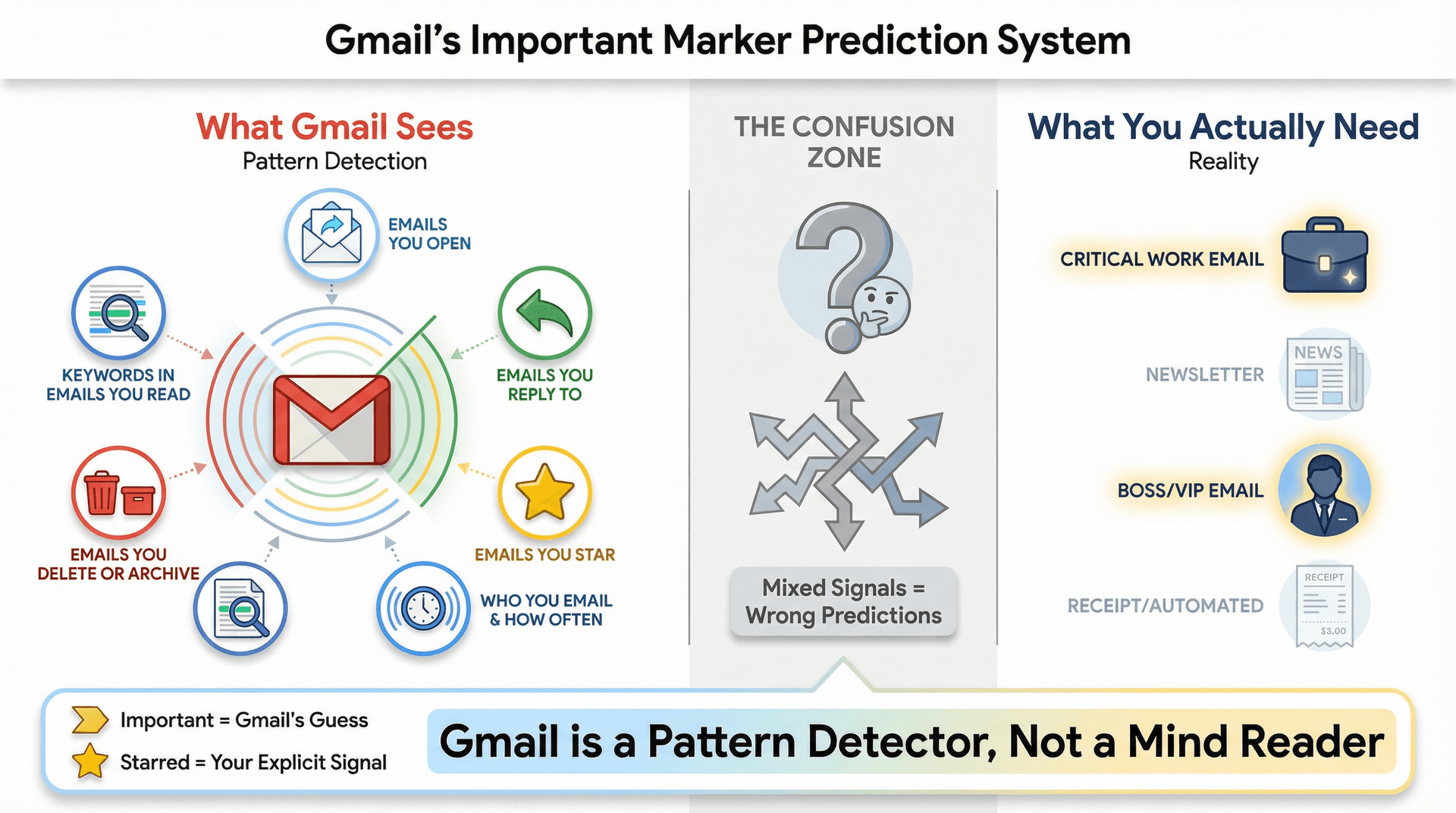
Most people miss the distinction between Important and Starred. Starred is your explicit signal, while Important is Gmail's guess (though it does use your starring behavior as one of its inputs).
Your inbox layout can make this worse. If you use Important first, Gmail literally splits your inbox into two sections: Important and Everything else. When Gmail's predictions are weak, this layout amplifies the pain by putting low-value emails at the top.
3 Common Gmail Important Marker Problems
Before fixing anything, figure out which problem you actually have.
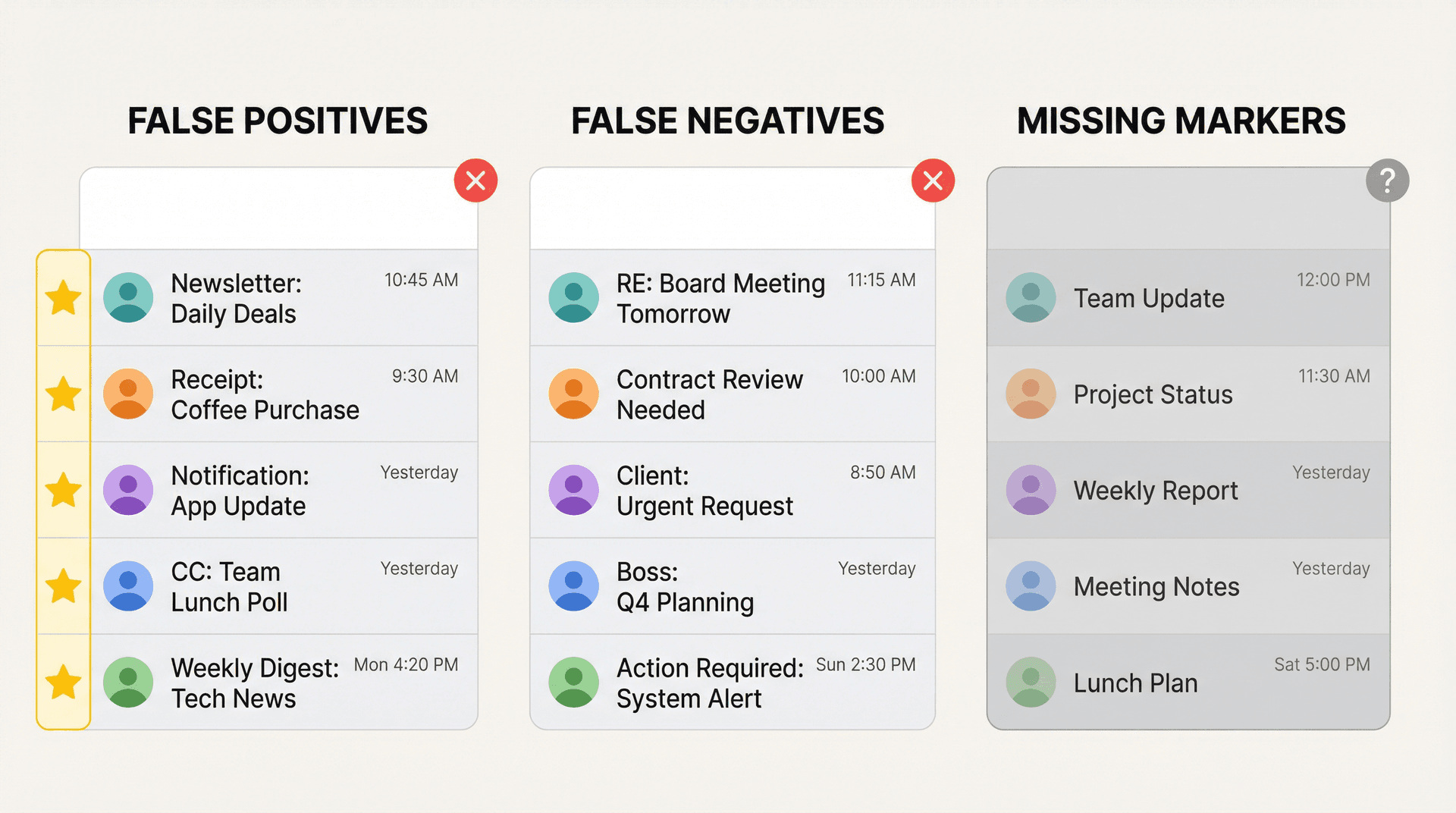
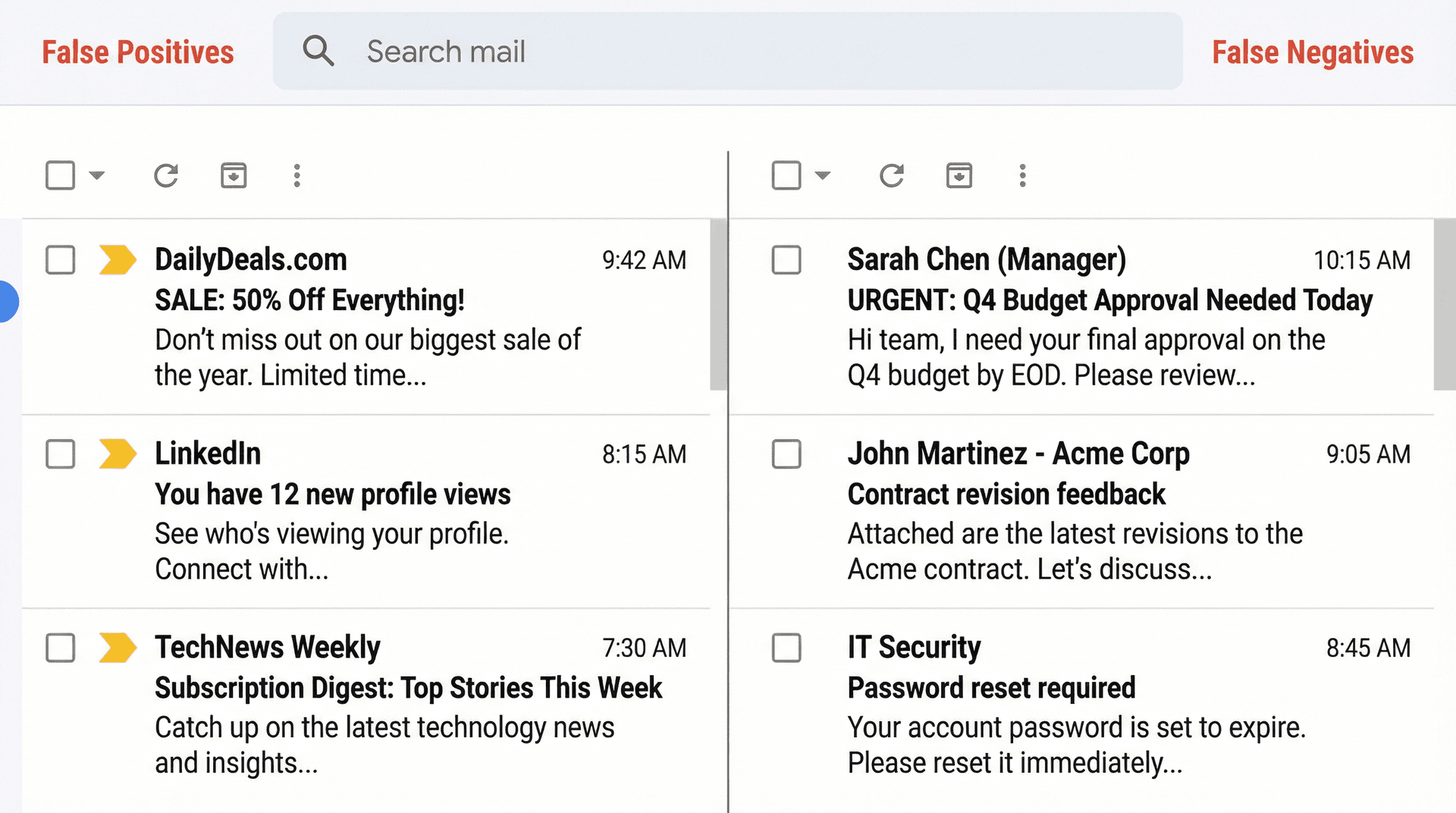
Gmail Marking Too Many Emails Important (False Positives)
Run the search is:important to see everything Gmail currently considers important. This search pulls up every message with the importance tag. If the list is full of newsletters, receipts, random notifications, or low-value CCs, you're dealing with false positives.
One of the fastest ways to reduce false positives is bulk unsubscribing from newsletters you never read and blocking cold emails that clutter your inbox.
Important Gmail Emails Getting Missed (False Negatives)
Search for a sender or topic you care about and check whether those messages show an importance marker. If high-stakes emails consistently show up unmarked, you're dealing with false negatives.
Gmail Importance Markers Missing Completely
If you don't see markers anywhere, they might be hidden. Gmail lets you hide importance markers via settings (desktop only, but the setting applies to mobile too).
How to Train Gmail's Important Marker
This is the fastest fix if you want Gmail's predictions to improve over time.
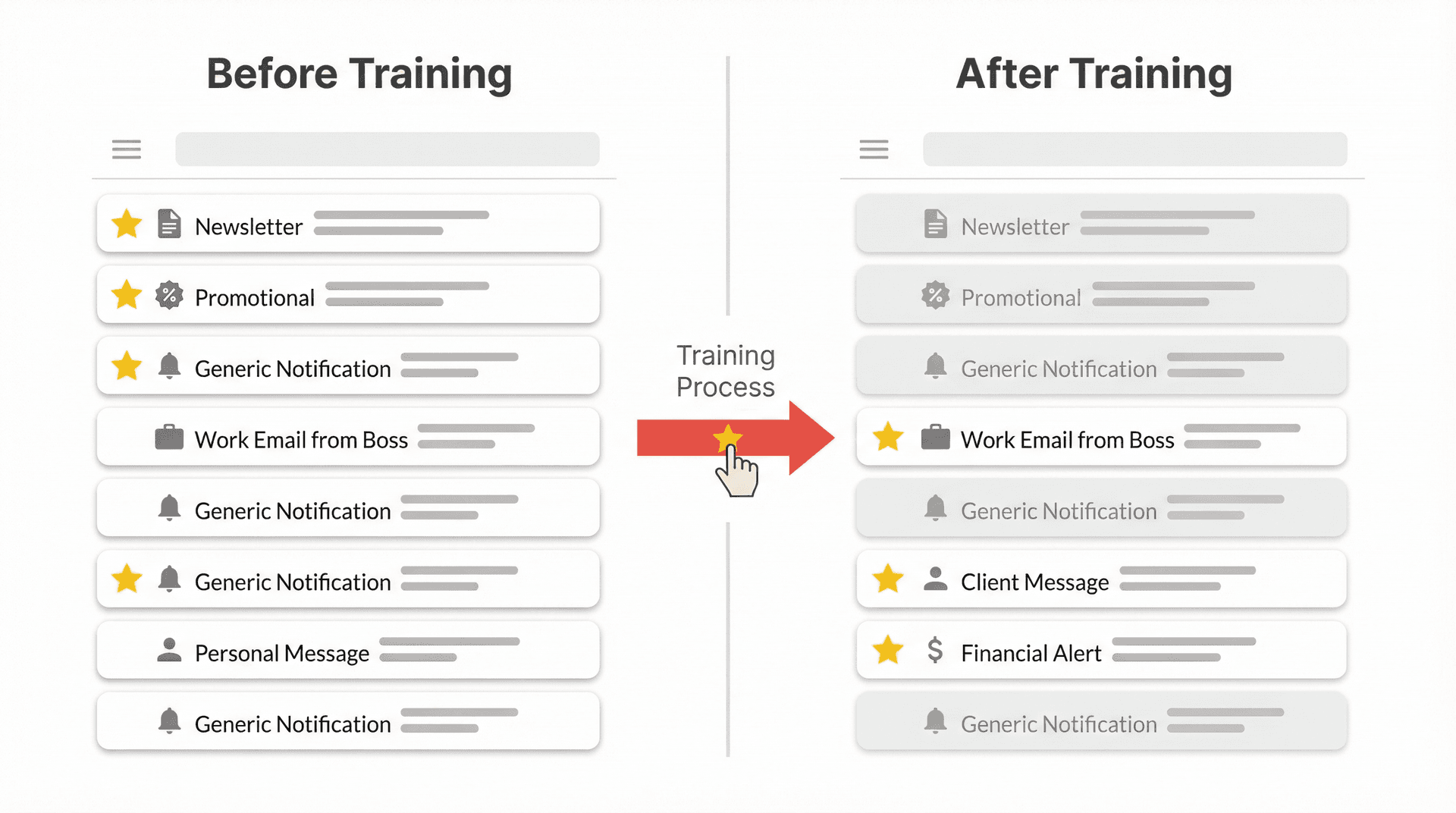
Use the marker as feedback, not decoration
Google's guidance is direct: you can hover over the importance marker to see why Gmail marked something important. If Gmail got it wrong, click the marker to change it. That action helps Gmail learn.
Here's a training method that actually works. Open your is:important view and spend about three minutes clicking "not important" on obvious junk. Then search for a truly important sender and click "important" on a few messages Gmail missed. That's it. Don't spend 30 minutes on this.
Training works better as a small, repeated habit than a massive one-time cleanup. You're helping Gmail learn a boundary by giving it clean examples on both sides.
If you like keyboard shortcuts
Gmail supports keyboard actions to mark conversations important or not important, which is useful when doing bulk training.
How to Override Gmail Important Markers with Filters
Training is probabilistic. Filters are deterministic.
If you have senders where mistakes are unacceptable (your boss, a top client, legal notices, family), don't trust a prediction model. Use a filter instead.
Gmail filters can force importance
When you create a Gmail filter, the available actions include "Always mark it as important" and "Never mark it as important." This means you can permanently fix the most painful misclassifications without waiting for Gmail's model to learn.
How to create an "Always important" filter for VIPs
A safe baseline VIP filter looks like this:
| Field | Setting |
|---|---|
| Condition | from:vip@company.com (or a domain you trust) |
| Actions | Always mark it as important |
| Optional | Star it |
| Optional | Categorize as Primary |
| Optional | Apply a label like "VIP" |
You can create filters from the advanced search dialog and then click "Create filter." Gmail shows the action checklist.
For more sophisticated email organization beyond basic filters, consider AI-powered automation that can apply rules based on natural language instructions rather than complex filter syntax.
How to stop a category from being marked important
For newsletters or automated alerts that keep getting marked important, you can set up a filter with a condition like from:(newsletter@domain.com), list:news@domain.com, or subject:(newsletter OR digest), and then choose the action "Never mark it as important." This prevents false positives at the source instead of constantly unmarking individual emails.
If you're receiving too many newsletters, Inbox Zero's bulk unsubscriber can help you identify which ones you never read and unsubscribe with one click.
How to turn off Gmail Important markers completely
If Gmail's getting it so wrong that you want to completely disable automatic importance tagging, you can create a broad filter. Go to "Create a new filter" and use a criterion that matches every message. One technique is putting something in the "Doesn't have" field like poiuytrewq (gibberish that no email will contain). Another approach is using your own email address in the "To" field. Then click "Create filter" and choose "Never mark it as important."
Now every incoming email, regardless of sender or content, won't get the Important tag automatically. You've shut off Gmail's auto-importance via a filter workaround.
A few things to keep in mind: manual marking still works even with this filter in place, so you can still flag something as important yourself. Filter order matters too, since Gmail filters are applied in order, and you'll want to make sure your "Never mark important" filter is placed before any that might override it. Also watch out for conversation view quirks. If you leave Conversation View on, an email thread with a previously important message might continue to show as important even as new emails come in untagged.
Best Gmail Inbox Layout for Important Emails
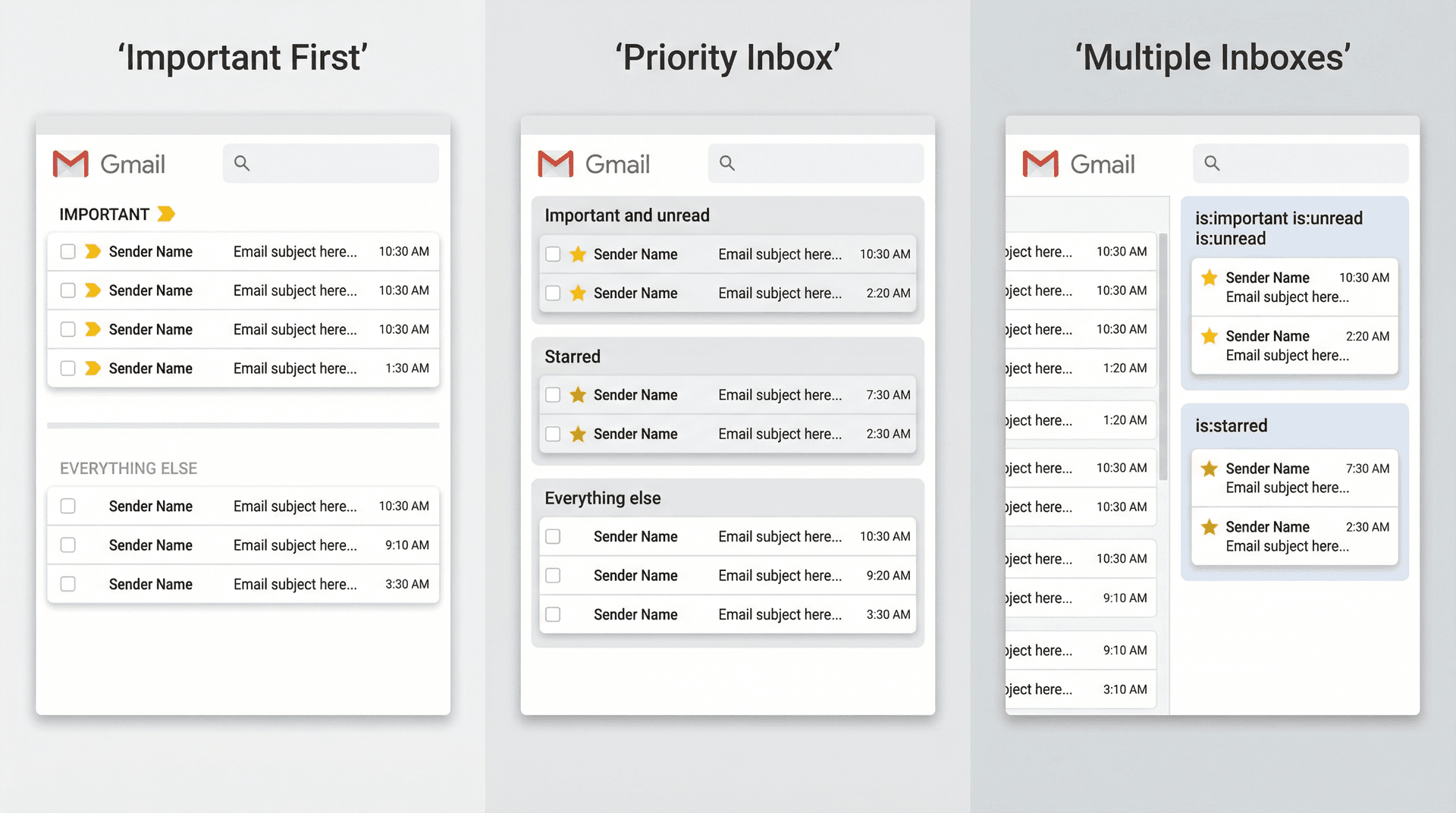
Sometimes the problem isn't the markers themselves. It's that your layout amplifies weak predictions.
Option 1: Important first
This creates a simple split: Important on top, Everything else below. Use this if you want a clean, minimal view without multiple sections.
Option 2: Priority Inbox
Priority Inbox lets you show sections like "Important and unread," "Starred," "Everything else," or even a label you created.
Use this if you want "Important and unread" to be a protected pile with a workflow view.
Option 3: Multiple Inboxes for custom piles
Multiple Inboxes is underrated. It lets you build sections from search operators or labels. For example, you can create a section called "Important and unread" using the search is:important is:unread. These operators are part of Gmail's documented search system.
For a more powerful approach, the Inbox Zero Tabs Extension lets you create custom tabs in Gmail using any search query. This brings Superhuman-style split inbox organization directly into Gmail.
How Inbox Zero Solves What Gmail Can't
Gmail's Important marker is trying to predict what matters. Inbox Zero is built around a different idea: turn unstructured emails into structured decisions and actions so you don't rely on guesses.
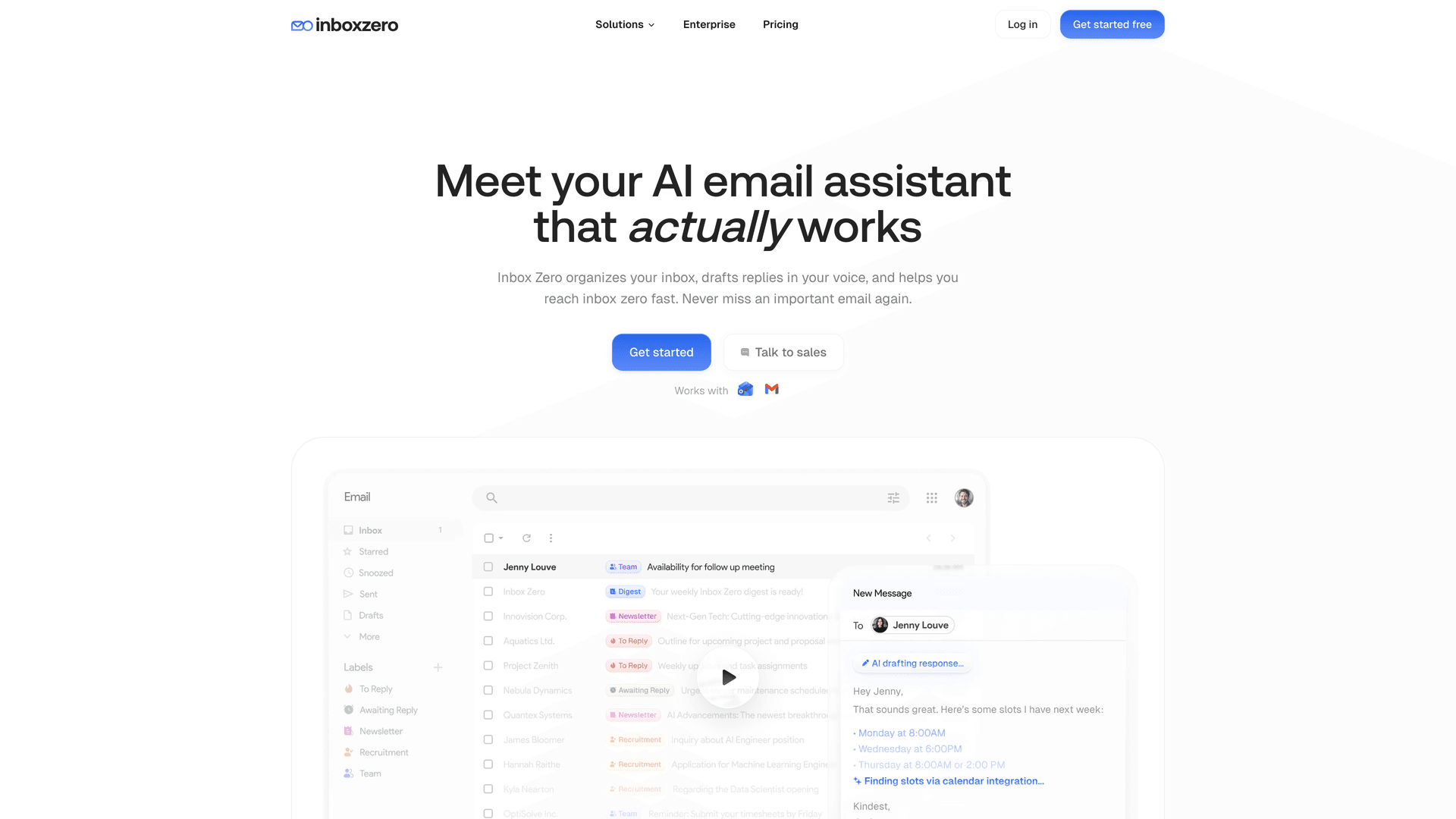
Two features are especially relevant to this problem.
Inbox Zero Tabs Extension
If what you really want is your own priority tabs, the Inbox Zero Tabs Extension lets you add custom tabs to Gmail using any Gmail search query. It's designed to keep data local in your browser with zero data collection.
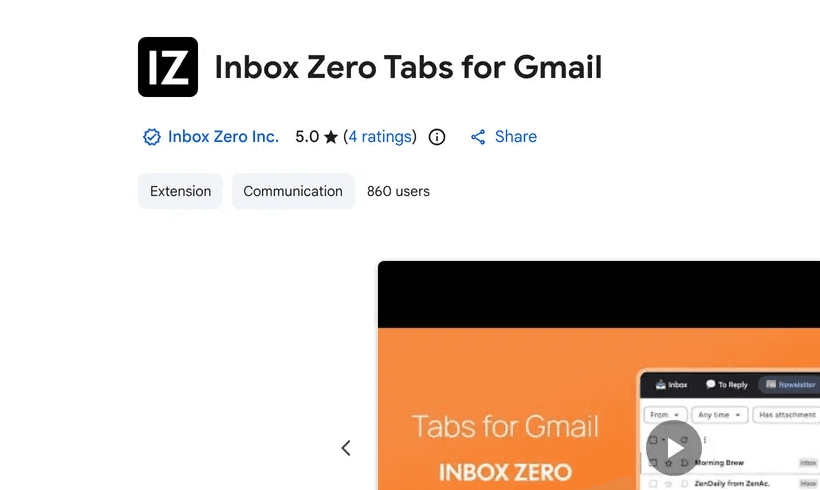
That means you can create tabs like "Important & Unread" with is:important is:unread, a "VIP" tab with a sender query, or "Receipts" with subject:(receipt OR invoice). You never have to remember the query again. The extension brings Superhuman-style split inbox to Gmail.
Reply Zero
A lot of "important" emails are only important because they require action. Reply Zero labels emails that need your response as To Reply and threads you're waiting on as Awaiting Reply. Your "priority" view becomes action-based instead of prediction-based.
If you've ever missed something "important" that was really just "needed a reply," this is the category you actually wanted.
Beyond these two features, Inbox Zero's AI automation can help you build custom rules that handle emails exactly how you want without relying on Gmail's uncertain importance predictions. You can also use Inbox Zero's cold email blocker to automatically filter out sales pitches and cold outreach that often get incorrectly marked as important.
How to Turn Off Gmail Important Markers
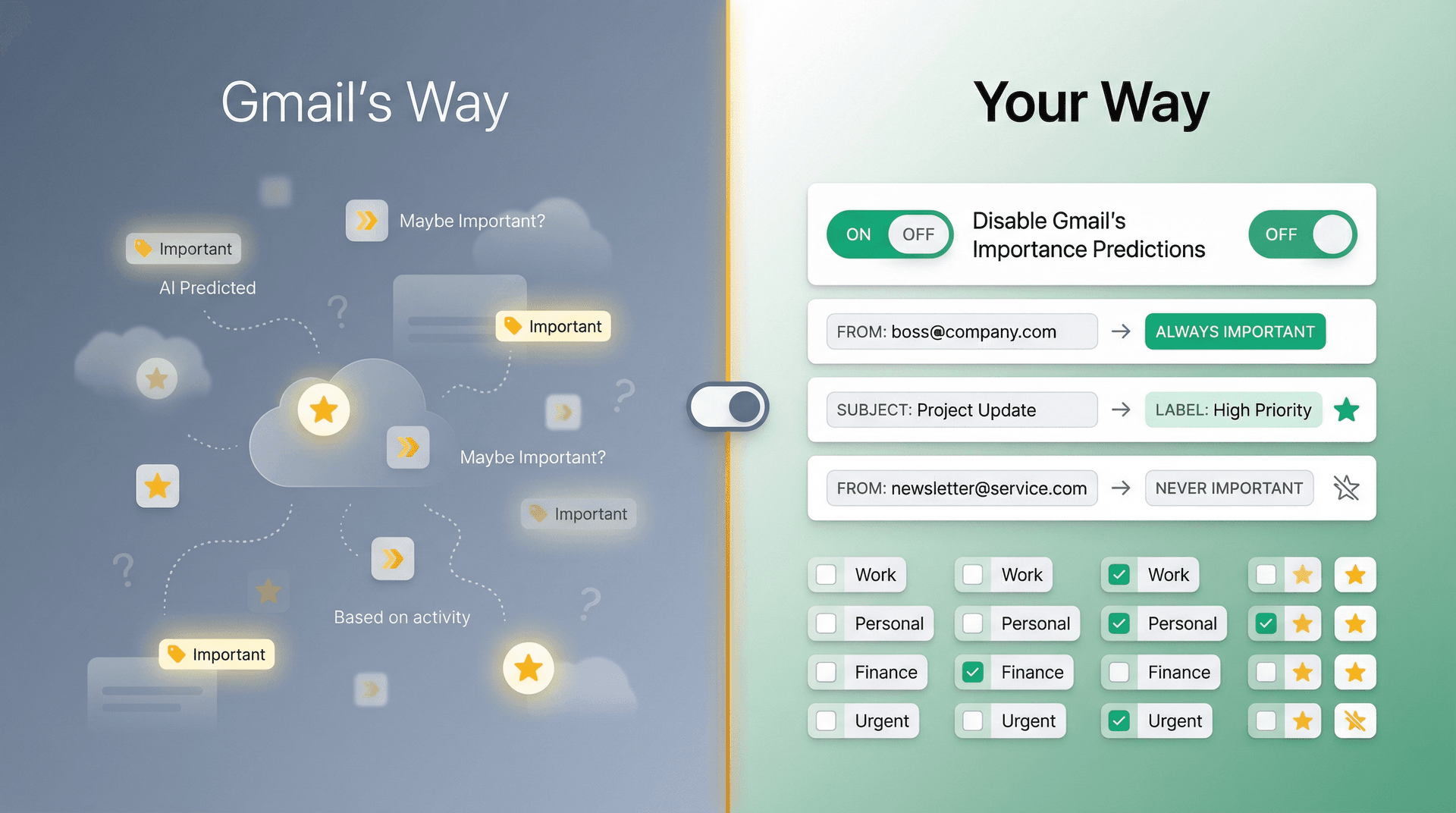
Some people don't want Gmail making "importance" decisions at all. Google documents two relevant settings: "Don't use my past actions to predict which messages are important" and "No markers" (which hides the markers entirely).
Important detail: you can't change these from the Gmail mobile app, but the desktop setting applies to the app.
Turning it off is a good idea if you already run your own system based on labels, stars, and tasks, or if Gmail's importance guesses are too noisy and you'd rather rely on deterministic rules. On the other hand, turning it off is a bad idea if you want Priority Inbox to work as designed, or if you're not using any alternative workflow and you'll just go back to drowning.
If you turn off Gmail's markers, consider building a structured inbox management system to replace what you're losing.
How to Build a Priority System That Works
Here's the worldview shift that fixes this permanently.
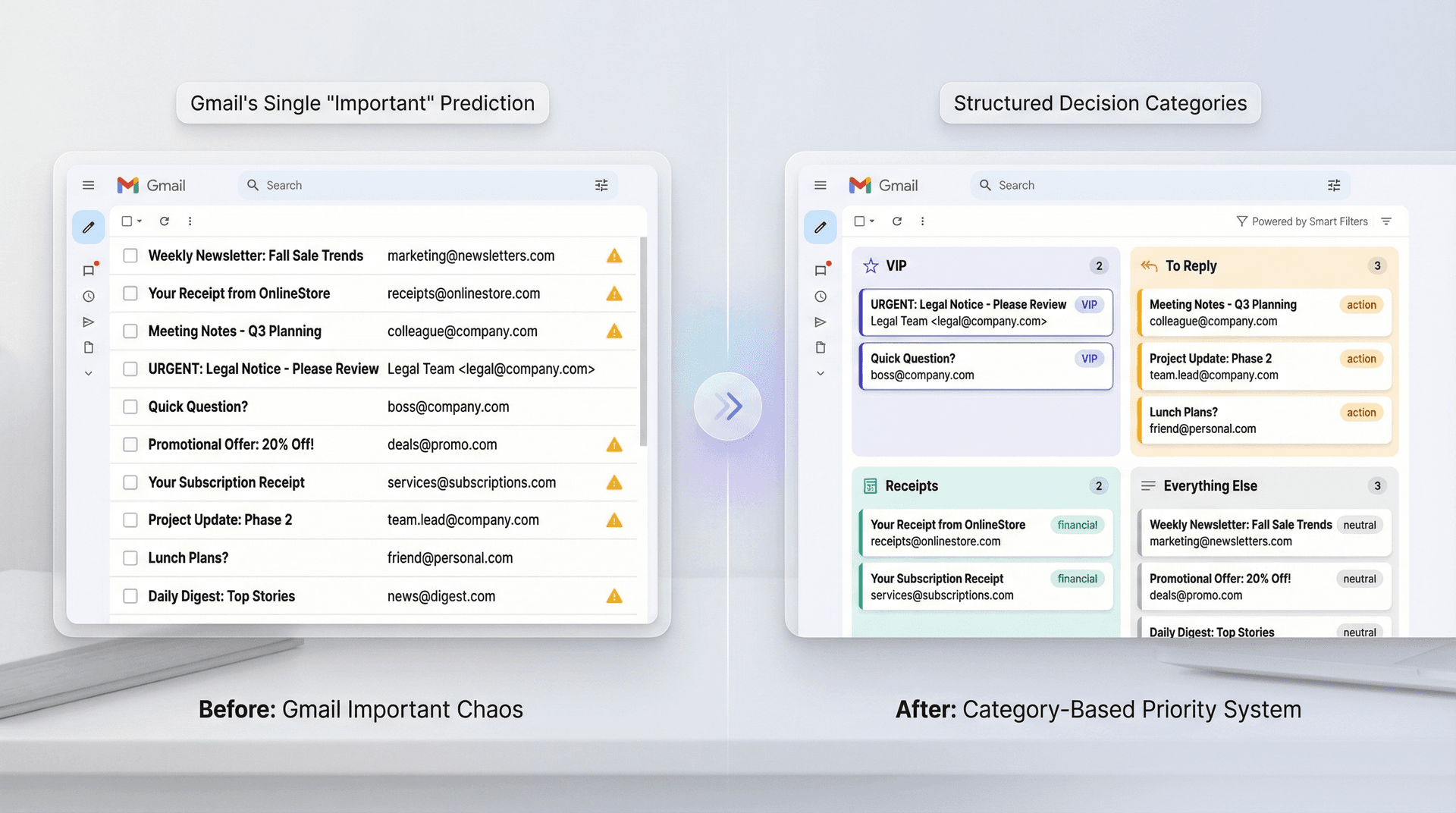
"Important" is a category error
Most people say "important" but actually mean one of several specific things: they need to reply, something has a deadline, the email is from a VIP, money is attached (invoices, receipts, renewals), or the information is time-sensitive (travel changes, security alerts). Gmail's "Important" marker tries to compress all of that into one prediction. That's why it feels wrong.
Build a system that separates those piles using proven email management strategies.
A simple, reliable setup
Use Gmail search operators to create views that map to real decisions:
Needs my attention now
is:unread (is:important OR is:starred)
VIP unread
is:unread from:(boss@company.com OR keyclient@domain.com)
Receipts and invoices
(subject:(invoice OR receipt) OR filename:pdf) newer_than:30d
Then you have two ways to make these views easy to access. You can use Gmail's built-in Multiple Inboxes, or you can install the Inbox Zero Tabs Extension which runs saved searches as mini inboxes.
For deeper insights into your actual email patterns versus Gmail's predictions, Inbox Zero's email analytics can show you who emails you most, which emails you actually read, and where your time goes. This helps you build a priority system based on data rather than guesses. You can also explore advanced email management tips to refine your workflow further.
Gmail Important Marker FAQ
Does clicking "important" and "not important" really retrain Gmail?
Yes. Google explicitly says changing the importance marker helps Gmail learn which emails you think are important.
How do I see everything Gmail marked as important?
Use the Gmail search is:important, which is documented directly by Google.
Can I force certain senders to always be important?
Yes. Gmail's filter action options include "Always mark it as important." For more powerful filtering and automation, consider Inbox Zero's AI-powered rules that can categorize emails based on natural language instructions instead of complex filter syntax.
Can I stop Gmail from marking things as important?
You can either hide markers ("No markers") or stop using your past actions for prediction. Both are documented settings, configured on desktop.
Why does Priority Inbox feel more wrong than the default inbox?
Because it surfaces and organizes your inbox around "important" predictions. If those predictions are off, the layout amplifies the pain. If Priority Inbox isn't working for you, explore alternative inbox management approaches that don't rely on Gmail's automated predictions.

How to Recall an Email in Outlook (2026)
How to recall an email in Outlook step by step for new Outlook, classic Outlook, web, Mac, and mobile, plus when recall works and what to do when it doesn't.
2026-09-30T18:25:57.000Z

How to Stop AliExpress Emails (2026)
Stop AliExpress promotional emails: the unsubscribe link, notification settings in your AliExpress account, and what to do when the deals keep coming.
2026-09-30T18:25:57.000Z

How to Stop Amazon Emails (2026)
Stop Amazon marketing emails with the Communication Preferences Center, manage Amazon email subscriptions, and handle order emails you can't switch off.
2026-09-30T18:25:57.000Z

How to Stop Domino's Emails (2026)
Stop Domino's emails with Domino's official opt-out page, stop Domino's text offers, and know which rewards emails keep coming.
2026-09-30T18:25:57.000Z