How To Organize Outlook Inbox? (2026 Guide)
Learn how to organize Outlook inbox with rules, folders, categories, and AI automation. Step-by-step guide for 2026 that actually works.

Your Outlook inbox probably feels like a disaster right now. Maybe you've got 847 unread emails, newsletters you never asked for, and that critical message from your boss buried under promotional spam. You're not alone in this mess.
Microsoft's latest Work Trend Index found the average worker receives 117 emails daily. That's not just a number on a chart. That's 117 decisions about what matters, what doesn't, and what might come back to bite you if you miss it. Over 300 billion emails are sent worldwide every single day, and a good chunk of them are landing in your inbox.
The result? An "unprioritized flood" every morning. Most people waste 28% of their workweek just managing email. Not writing important replies or closing deals. Just managing.
But your inbox doesn't have to run your life. Outlook has powerful built-in tools that can turn chaos into calm. This guide shows you exactly how to organize your Outlook inbox using a system that actually works in real life (not just in theory).
Why Organize Your Outlook Inbox?
An organized inbox isn't about being obsessive or reaching some mythical "zero emails" state. It's about having a system where you know what's in your inbox, why it's there, and what to do with it.
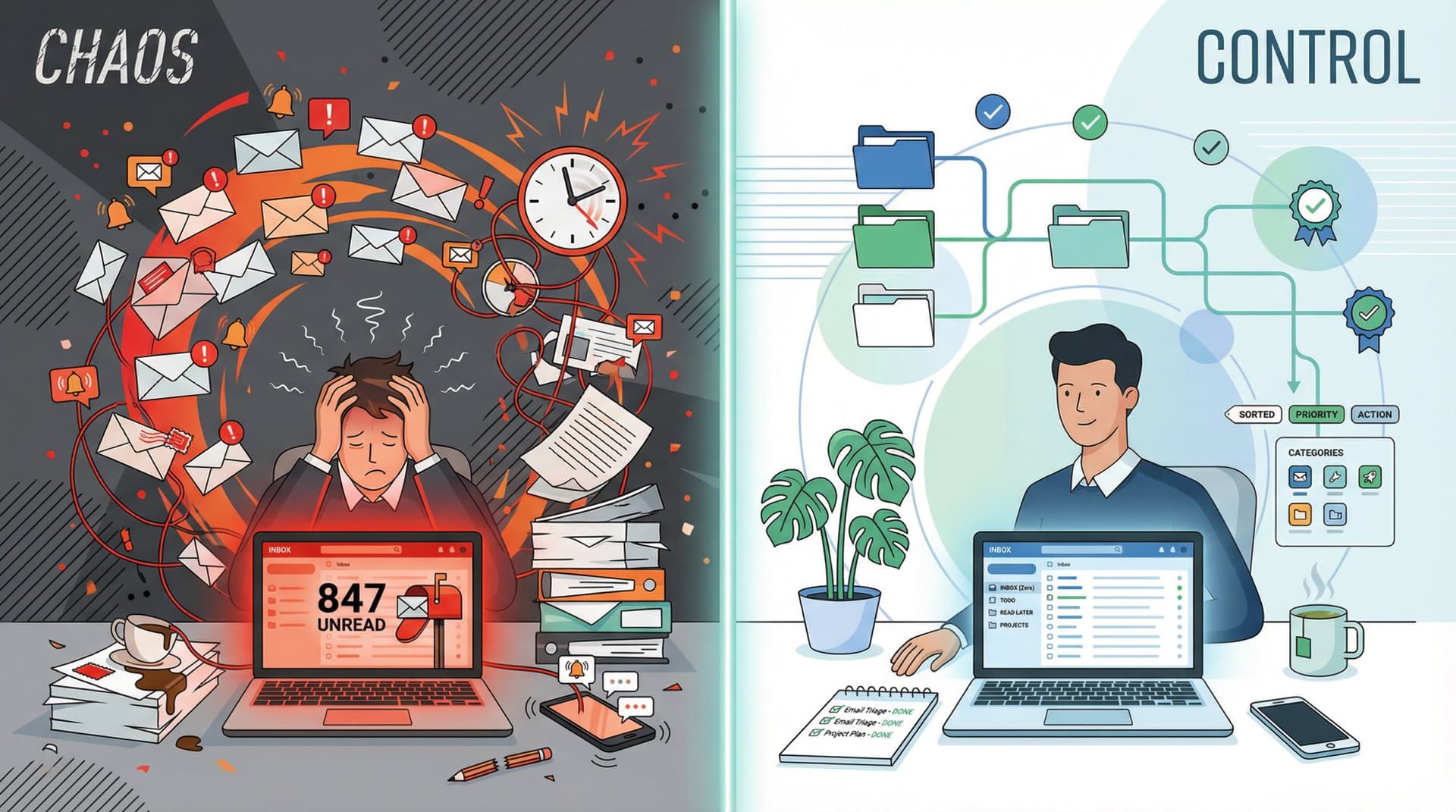
When your emails are sorted and prioritized, you can:
Find important messages in seconds. No more frantic searches for that client email while they're waiting on the phone.
Stop missing critical replies. With proper flags and categories, emails don't fall through the cracks.
Reduce decision fatigue. Automated rules filter out newsletters and noise so you can focus on what actually matters.
Feel in control instead of overwhelmed. A clean inbox provides a sense of accomplishment, not nagging anxiety.
The "Inbox Zero" Truth: The term was coined by productivity expert Merlin Mann, and the "zero" isn't about having zero emails sitting in your inbox. It's about the amount of time your brain is in your inbox. When your inbox is organized, it stops being a constant distraction and becomes a manageable part of your workflow.
Which Version of Outlook Are You Using?
Outlook isn't one app anymore. It's a whole family of different experiences, and what you can do depends on which version you're using:
| Outlook Version | Key Organization Features | What You Need to Know |
|---|---|---|
| Classic Outlook (Windows) | Full Rules, Quick Steps, Search Folders, Conditional Formatting | The most powerful desktop version |
| New Outlook for Windows | Partially available Rules and Quick Steps, Sweep, Snooze, Pin messages | Modern interface but fewer features |
| Outlook on the web | Sweep, Rules (limited), Focused Inbox | Best for cross-platform access |
| Outlook for Mac | Most features available | Similar to Classic Windows |
| Outlook mobile | Basic organization, Focused Inbox | Good for on-the-go triage |
Microsoft maintains a feature comparison matrix that's updated regularly. The biggest difference? Classic Outlook has the full power of Rules, Quick Steps, and Search Folders. New Outlook is catching up but isn't there yet.
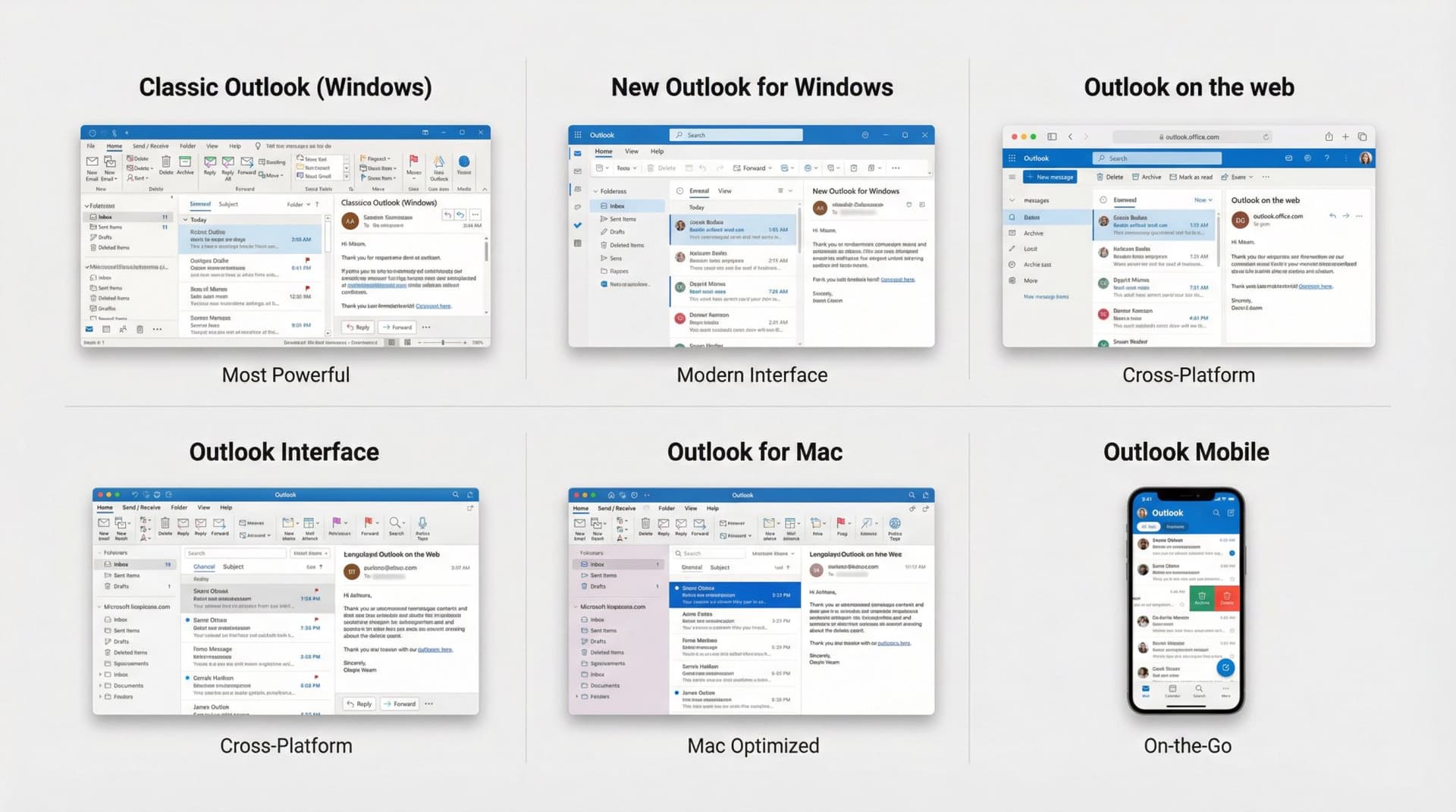
This guide gives you a system that works everywhere, with notes about feature differences where they matter.
Step 1: Delete Old Emails and Unsubscribe First
Before building a new organization system, you need to purge the old clutter. This initial cleanup makes everything easier going forward.
Delete obvious junk and old noise
Go through your inbox and ruthlessly delete anything you don't need. Expired promos, old notifications from 2024, calendar invites from last year. This immediately cuts noise.
For messages you might need later (receipts, travel confirmations, old project files), use Outlook's Archive feature instead of deleting. Archiving moves the email out of your inbox to an Archive folder where it stays searchable but doesn't clutter your view.
Unsubscribe from newsletters and marketing emails
If your inbox is drowning in marketing emails you never read, fix it now. Click "Unsubscribe" at the bottom of newsletters, or use Outlook's Block sender feature for persistent unwanted senders. For newsletters you do value but don't need to see immediately, we'll set up rules later to auto-move them to a Newsletter folder.
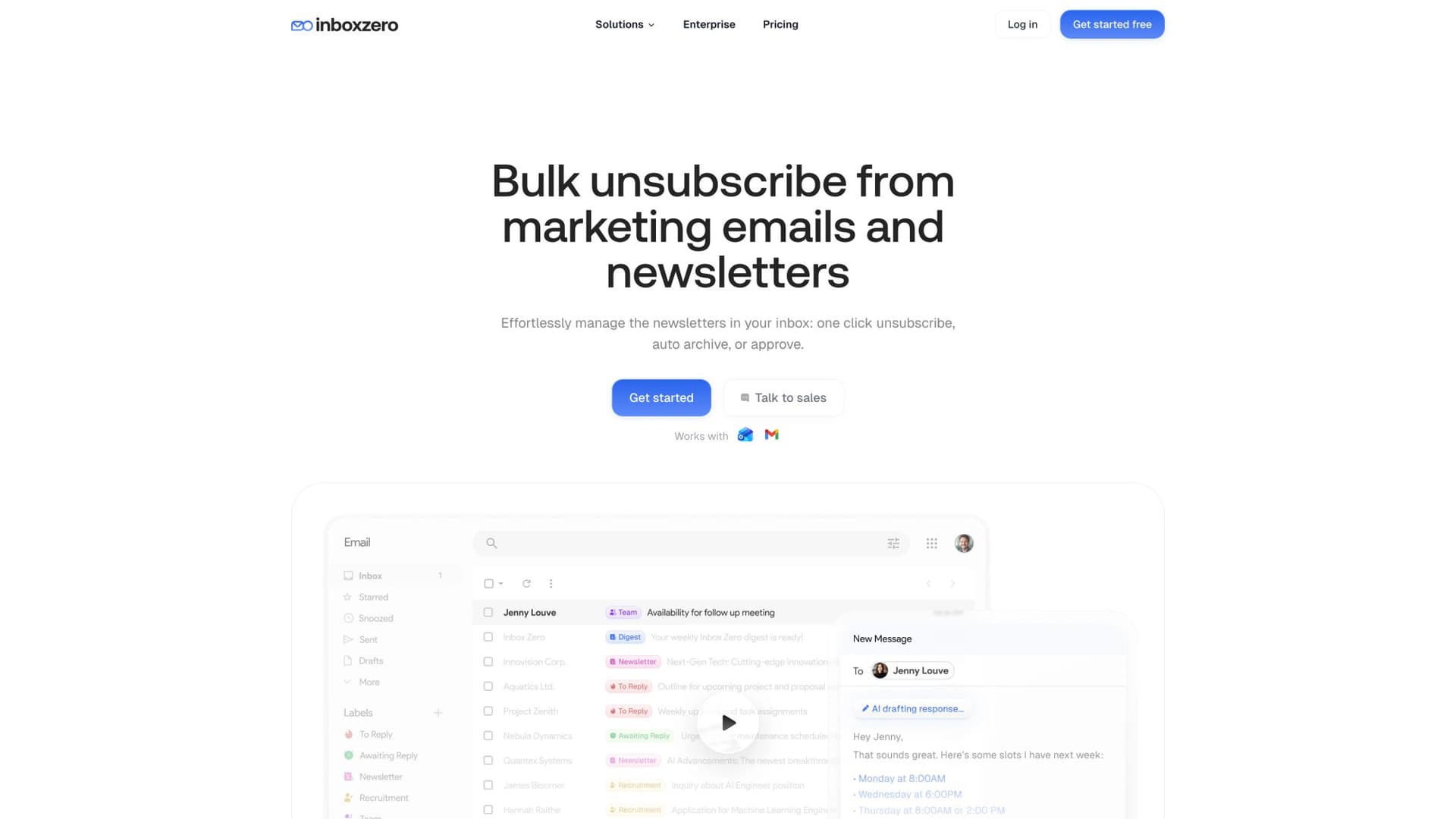
At Inbox Zero, we built a Bulk Email Unsubscriber specifically for this problem. It shows you all your newsletter senders, how often you actually read them, and lets you unsubscribe or auto-archive with one click. You can clean up years of subscription clutter in about 10 minutes.
Use Outlook's Clean Up tool
This is a hidden gem most people miss. The Clean Up function automatically deletes redundant emails in long conversation threads and keeps only the latest, consolidated message. One click can whittle a 50-message back-and-forth down to a single chain.
To use it in Outlook desktop:
→ Go to the Home tab
→ Click Clean Up
→ Choose "Clean Up Folder"
Don't worry about losing important content. Clean Up won't remove messages with unique information or attachments, and anything it removes goes to Deleted Items in case you need it.
Empty Trash and Junk folders
Finally, empty your Deleted Items and Junk Email folders to truly start fresh. Outlook usually auto-deletes Junk after 30 days, but clearing it manually gives you that satisfying clean slate feeling.
Reality check: This decluttering step might take 30-60 minutes if your inbox is really messy. But you'll likely shrink your inbox down by hundreds or even thousands of emails. That's time well spent.
Step 2: How To Set Up Outlook Folders
With a cleaner inbox, you need to decide on a basic folder architecture. The key here is simplicity. Don't create dozens of folders for every topic, or you'll spend more time filing emails than reading them.
Creating too many folders often backfires by adding confusion and extra work. You end up with an elaborate filing system that makes finding things harder, not easier. Aim for a minimal number of broad folders that cover your needs.
Think about the major categories in your work
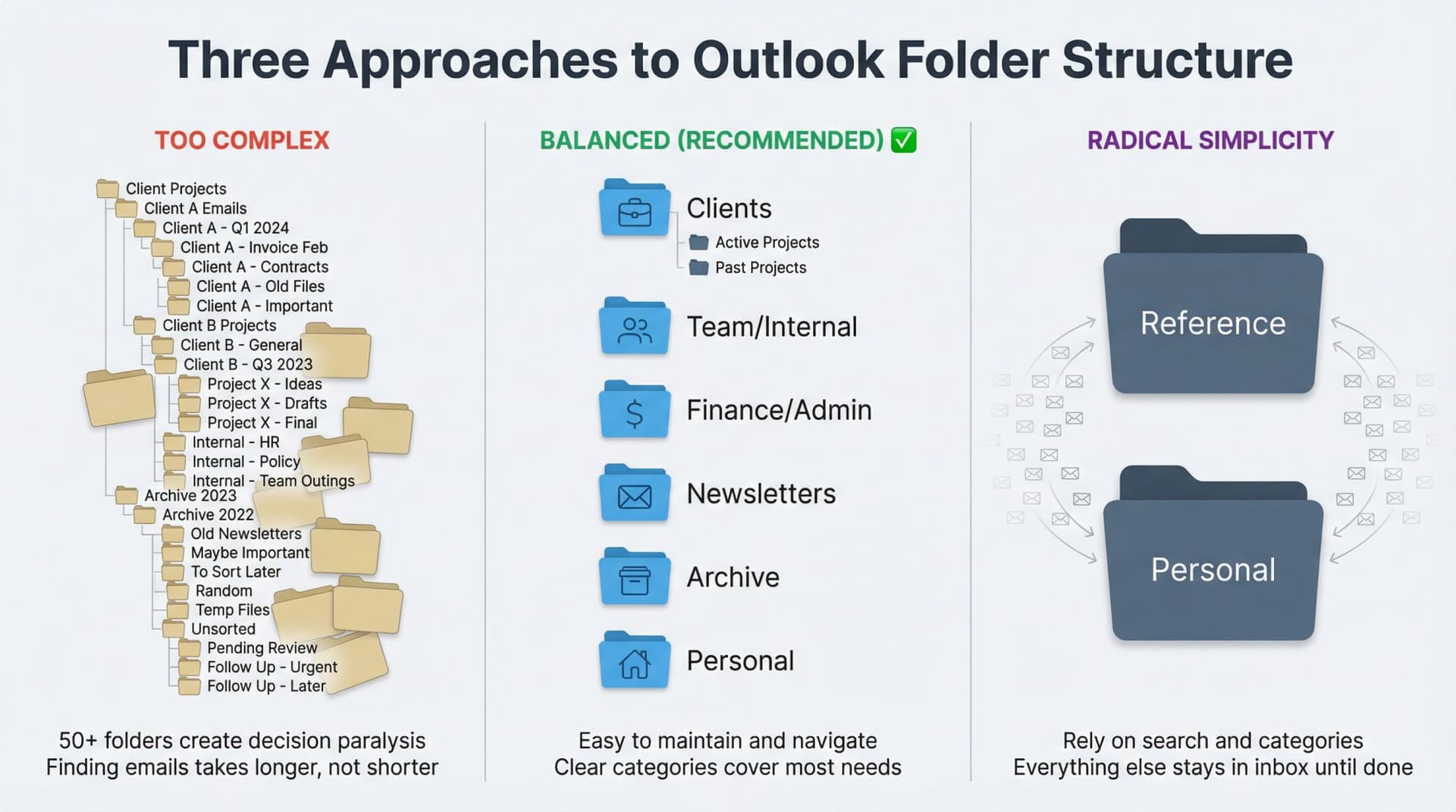
Most professionals benefit from a few high-level folders:
• Clients (with subfolders per project or client name if needed)
• Team/Internal (for company or team discussions)
• Finance/Admin (invoices, receipts, HR or legal correspondence)
• Newsletters (bulk emails you want to keep separate)
• Archive (all-purpose archive for processed messages)
If you use Outlook for both work and personal stuff, add a Personal folder to keep private matters separate.
Keep folder names short and clear ("Clients", "HR", "Travel"). Nest subfolders only one level deep if needed. For example, under "Clients" you could have Client A, Client B, and so on.
The radical alternative: one big archive
Some productivity experts (including Microsoft's own Outlook team) advocate a radically simple approach. Microsoft's best-practice guide suggests using just one "Reference" folder for any message you might need later, and one "Personal" folder for private emails. That's it.
Everything actionable stays in the Inbox until handled. Everything else gets dumped into Reference or Personal. This "one big archive" approach relies on search and categories to find stuff when needed.
It's not for everyone, but it proves you don't need an elaborate folder tree to stay organized.
The takeaway
Find a structure that makes sense to you, but err on the side of fewer folders. A handful of well-chosen categories is easier to maintain than 50 obscure ones. If you create a folder and realize you never use it, delete it. Don't let empty folders linger and confuse you.
Step 3: How To Use Outlook Categories and Flags
Folders alone aren't the best way to organize Outlook. Categories and flags add a flexible layer of tagging that makes your system way more powerful.
Categories are like custom tags
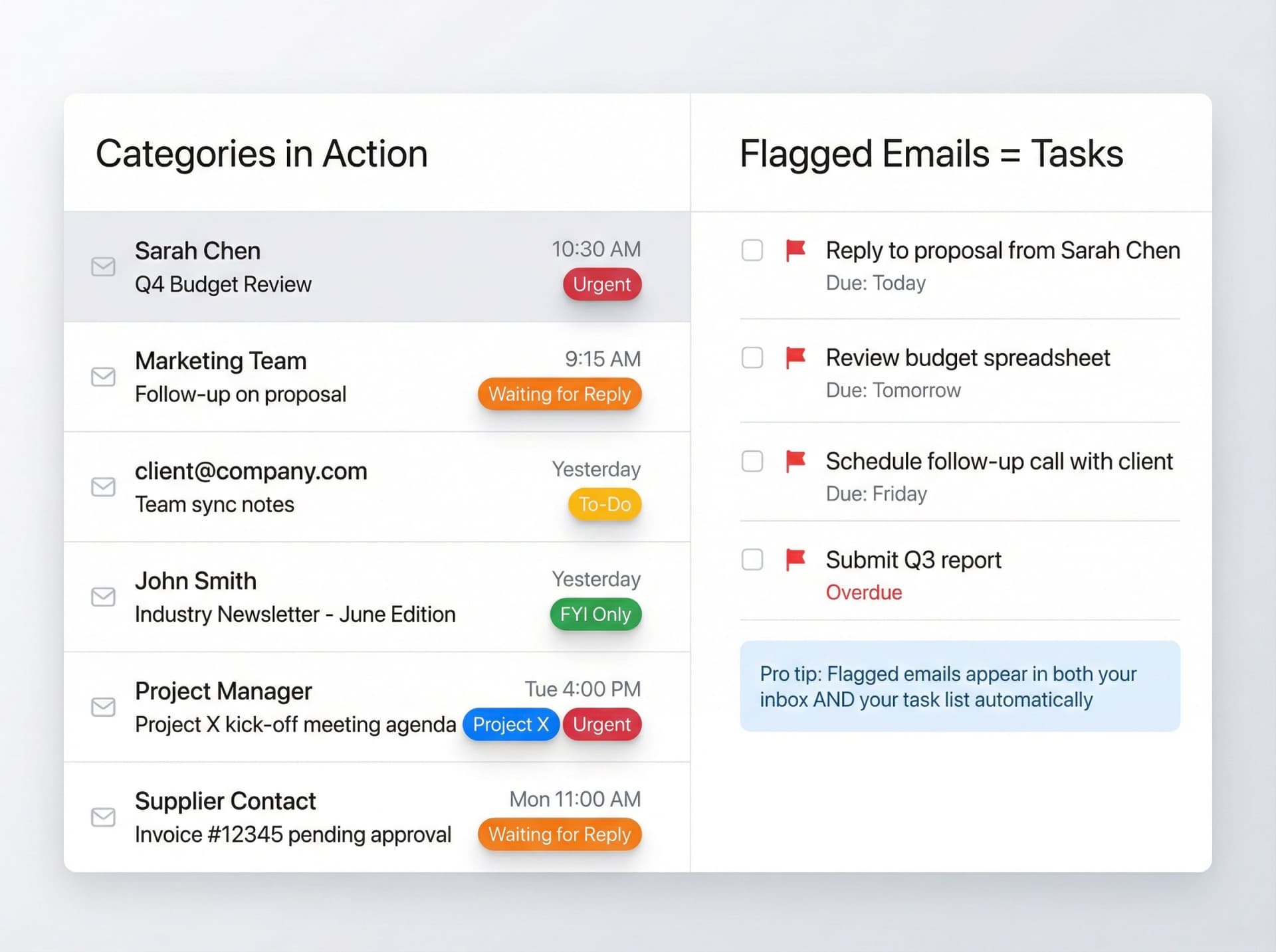
These are color-coded labels you can apply to emails (and calendar items, tasks, etc.) in Outlook. Think of categories as keywords or tags. You might tag emails by project, urgency, or workflow stage.
Create categories like:
• Urgent (Red)
• Waiting for Reply (Orange)
• To-Do (Yellow)
• FYI Only (Green)
• Project X (Blue)
Categories are incredibly handy because (a) you can assign multiple categories to a single email (unlike moving it into a single folder), and (b) categories don't move the email out of wherever it is. They just label it.
An email from Client A about an urgent issue could be tagged "Client A" and "Urgent." Regardless of which folder it's in, it will show up under both tags in search or in a sorted view.
How to set up categories:
In Outlook desktop, go to Home > Categorize > All Categories to create and name your color categories. Once set up, you can right-click any message and assign a category color. In Outlook web or mobile, categories are available in Settings or the message menu.
Flags turn emails into tasks
Flagging an email in Outlook turns it into a task. The email gets a red flag icon, and it appears in your Tasks list and To-Do Bar (or Microsoft To Do app) as an item to follow up on.
You can even set a due date or reminder on the flag. This is crucial: don't let "emails I still need to do something about" just sit in your inbox indefinitely. Either deal with them now, or flag them and move them out.
Use flags for emails that represent tasks or questions you need to handle later. For example, if you get an email that you can't answer until tomorrow, flag it for "Tomorrow." It will show up in your task list, and you can archive the email knowing you won't forget it.
Pro tip: You can view all flagged emails under the Tasks pane or in a Search Folder (more on those later). This becomes your "To Reply / To Do" dashboard inside Outlook.
At Inbox Zero, we take this concept further with our Reply Zero feature. It automatically labels every thread that needs a response as "To Reply" and every thread where you're waiting as "Awaiting Reply." You get a focused view limited to these two piles, with one-click "Nudge" follow-ups and the ability to filter by "overdue." It's designed to get your "needs a response" pile down to zero regularly without losing important threads.
Why categories and flags beat complex folders
Using categories and flags greatly reduces the need for a complex folder hierarchy. Rather than having a dozen folders for different urgency levels or work streams, you could keep most things in broad folders (or even in the inbox/archive) and use categories to label "Urgent", "Follow Up", "Personal", "Project X", etc.
Then you can sort or search by category when you want to see all related items together. Categories shine for cross-cutting info. Say you have an "@Office" category for any item you need to handle while physically at the office. You can tag emails across different folders with @Office, and later quickly pull up all items with that tag.
It's a very flexible system.
Step 4: How To Automate Outlook Inbox With Rules
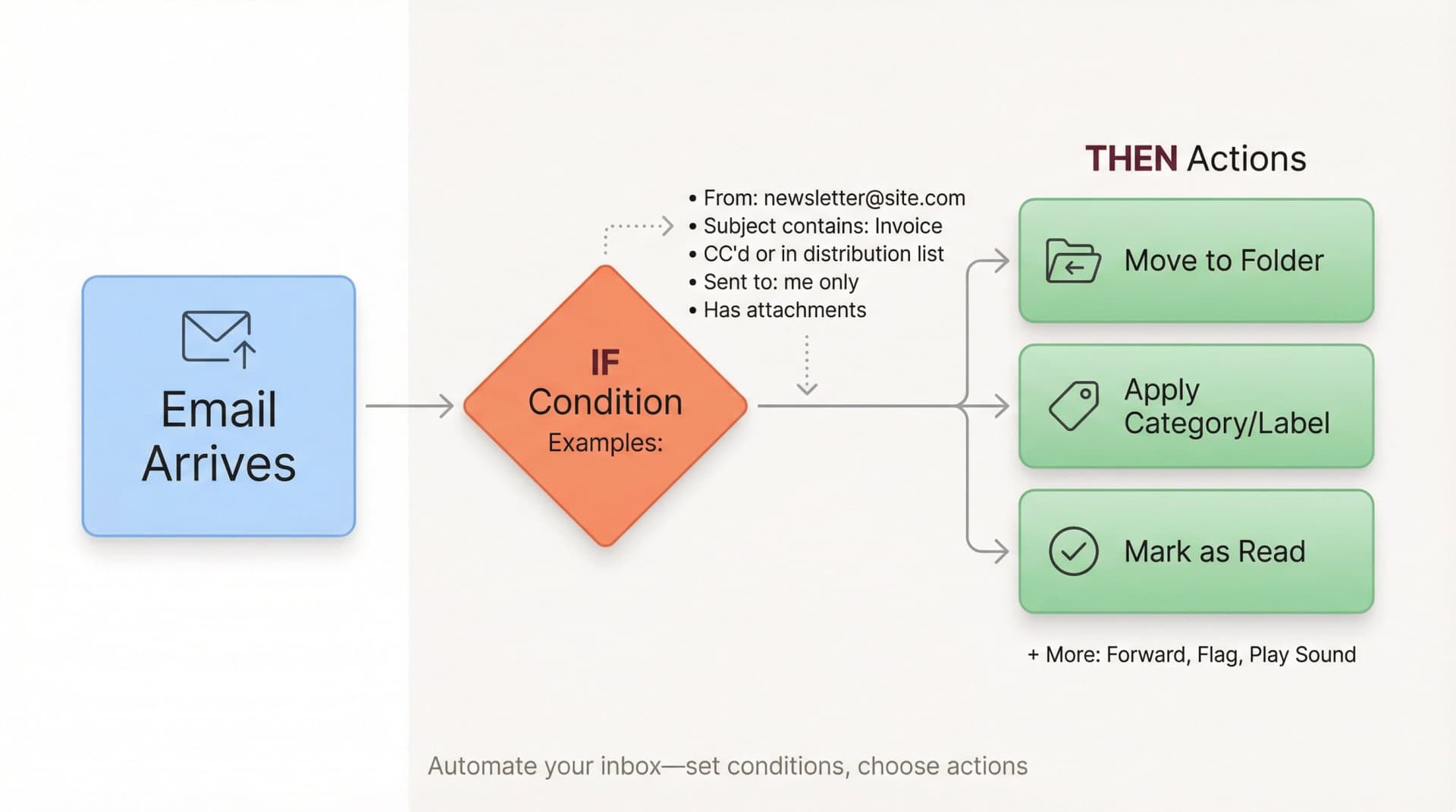
Now for the game-changer: Outlook Rules. Rules are automatic actions that Outlook performs on incoming (or outgoing) messages based on conditions you define. In simpler terms, rules are "if X email arrives, do Y with it."
This is how you get Outlook to do some of your organizing for you.
Common useful rules
Think about the types of emails that clutter up your inbox or distract you:
Move newsletters out of Inbox
If you still receive newsletters or promo emails, set a rule: IF an email is from newsletter@domain.com (or contains "Unsubscribe" in the body), THEN move it to the Newsletters folder (and optionally mark as read). This keeps low-priority bulk mail out of your face.
Separate CC or group emails
Often, emails where you're CC'd or part of a large distribution list are less urgent. Microsoft's guidance suggests a "To: Me" rule that ensures only messages directly addressed to you stay in Inbox, while list emails or CCs get filtered out.
Flag emails from VIPs
Set rules for important senders. IF an email comes from your Boss or top client, THEN mark it with a special High Priority category or flag (or even play a special alert sound). This makes sure you notice it immediately.
Auto-file certain senders
For example, IF sender's domain is @clientA.com, THEN move to Client A folder automatically. If you collaborate with Client A regularly, this rule keeps all their emails organized in one place. Both Outlook and Inbox Zero support domain-based rules for exactly this purpose.
Handle notifications and receipts
"Bacn" refers to email you want but not right away (receipts, system notifications). Create rules to catch common notification emails and move them to a Notifications folder. That way your main inbox only shows human communications, not robot emails.
How to set up a rule
Setting up a rule in Outlook is straightforward:
→ In Outlook desktop, right-click an email
→ Choose Rules > Create Rule…
→ Specify the conditions (sender, keywords, etc.)
→ Choose actions (move to folder, assign category, mark as read, etc.)
Outlook will even suggest some rule templates based on the email. On Outlook web, go to Settings > View all Outlook settings > Mail > Rules and add a new rule.
For example, a rule might be: "If an incoming message's subject contains 'Invoice', then move it to the Finance folder and mark it as read."
Or: "If sender is notifications@myapp.com, move to Notifications folder."
You can create rules for virtually any criteria: sender, recipients, keywords, importance, with attachments, etc. And you can chain multiple actions (categorize and forward and mark as read).
Don't overdo it
It's possible to create so many rules that even you lose track of where your mail is going. Try to keep your rule set focused on the biggest wins. In practice, a few dozen well-chosen rules can handle most scenarios. Outlook doesn't publish a hard limit, but experienced users suggest keeping it under about 100 rules for best performance.
If you find yourself constantly hunting for emails that got auto-filed, dial back or modify that rule. The idea is to help you, not send emails into a black hole.
Quick Steps: one-click workflows
Outlook's Quick Steps are another handy automation feature. A Quick Step is a one-click button that performs multiple actions at once on an email.
For example, you could create a Quick Step called "Done" that marks a message as read, categorizes it as "Archive", and moves it to your Archive folder. Or a "Forward to Sales" Quick Step that forwards the email to your sales lead and then moves it to a "Delegated" folder.
You can create custom Quick Steps under the Home tab in Outlook desktop by clicking Create New in the Quick Steps gallery. Think of it like a macro for common email actions.
Step 5: How To Use Focused Inbox and Smart Features
Modern versions of Outlook (particularly Outlook 365 and Outlook.com) come with built-in intelligence to help prioritize your inbox.
Focused Inbox: AI-powered triage
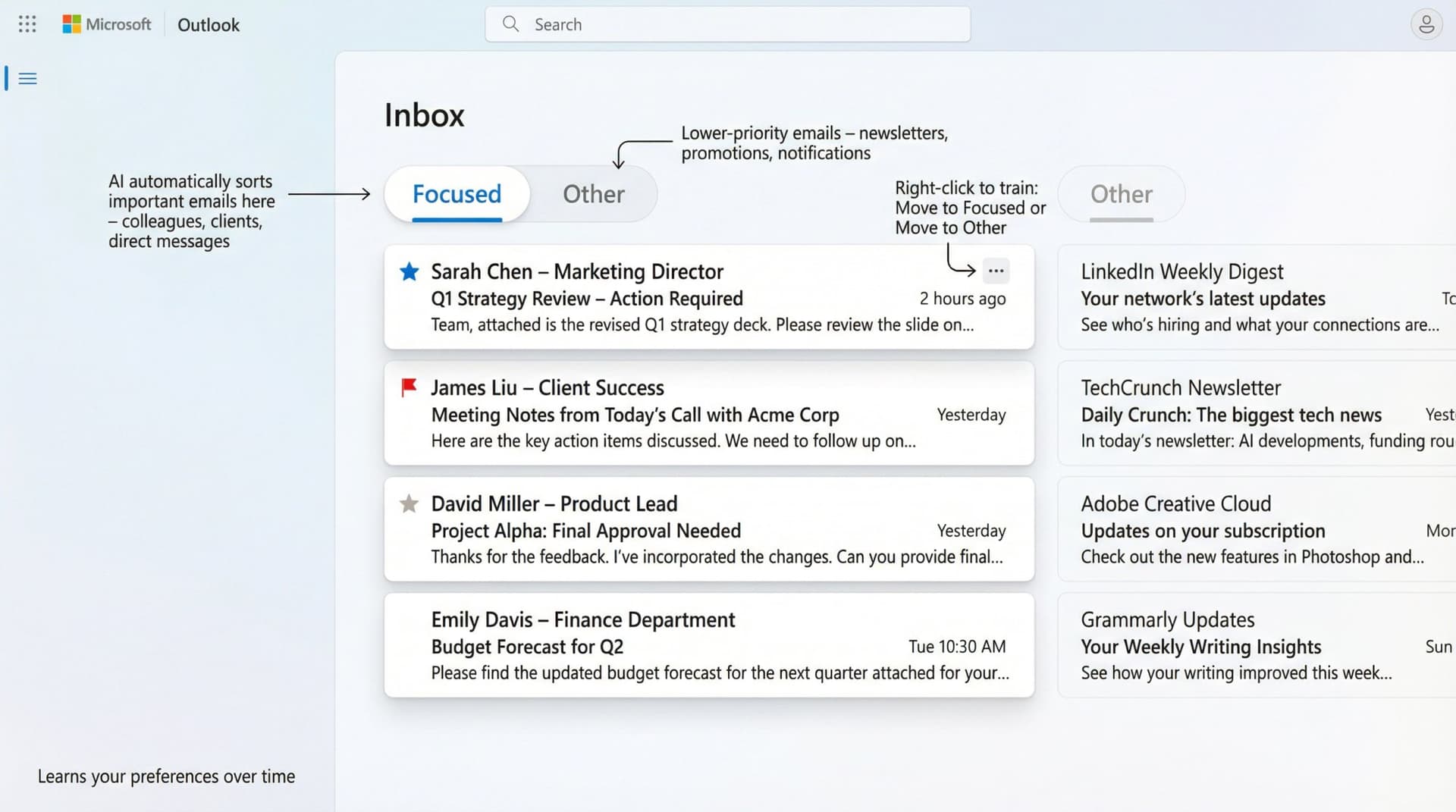
The most notable feature is Focused Inbox. This uses machine learning to automatically sort your incoming mail into two tabs: Focused (the emails Outlook thinks are most important to you) and Other (the rest).
Focused Inbox looks at the people you interact with often and the content of messages to decide what goes to Focused. Emails from your boss, close colleagues, and messages addressed directly to you will tend to land in Focused. Mass emails, newsletters, and less important stuff go to Other.
It learns over time. If you consistently move certain emails to Focused, Outlook will start delivering those to Focused by itself.
How to use Focused Inbox:
In Outlook desktop, toggle it via View > Show Focused Inbox. In Outlook web or mobile, it's usually in the Settings menu. Once enabled, you'll see two tabs at the top of your inbox: Focused and Other.
Training it: If Outlook mis-classifies something, just right-click the email and choose "Move to Focused" or "Move to Other" as appropriate. You can even select "Always move" if you want that sender's future emails to always go to the other tab. After a few such tweaks, Focused Inbox gets very good at separating signal from noise.
Many users find it dramatically reduces the cognitive load of a busy inbox. You spend most of your time in the Focused tab with your key emails, and the rest sits politely in Other until you're ready.
Note: You should still glance at the Other tab occasionally to ensure nothing critical is hiding there. If you don't like Focused Inbox, you can turn it off just as easily.
Conversation View: group related emails
In Outlook's View settings, enable "Show as Conversations". This groups all emails from the same thread together, so you see one collapsed entry in your inbox instead of 10 separate emails from one long discussion.
It makes the inbox look cleaner and following email chains easier. Consider pairing this with the Clean Up tool for maximum thread tidiness.
Snooze: hide until later
The Outlook web and new Outlook app include a Snooze feature (similar to Gmail's) that allows you to temporarily hide an email until a later time or date.
For example, you can snooze an email until tomorrow morning. It will disappear from your inbox and pop back up as unread at the chosen time. This is useful for deferring emails you can't deal with now but want to handle later, without forgetting them.
Availability note: Snooze is available in Outlook Web, Outlook mobile, and the new unified Outlook for Windows, but not in classic Outlook 2016/2019 clients. If your Outlook supports it, you can usually find the Snooze option by right-clicking the message or via an alarm clock icon.
Use it sparingly. Snoozing emails doesn't delete or resolve them, it just postpones them. If you snooze too much, you might create a pile-up later.
Step 6: How To Use Outlook Search Folders
Search Folders are virtual folders that show messages matching criteria, without moving anything. They're dynamic views of items matching criteria you set.
This is how you get "split inbox" behavior in Outlook.
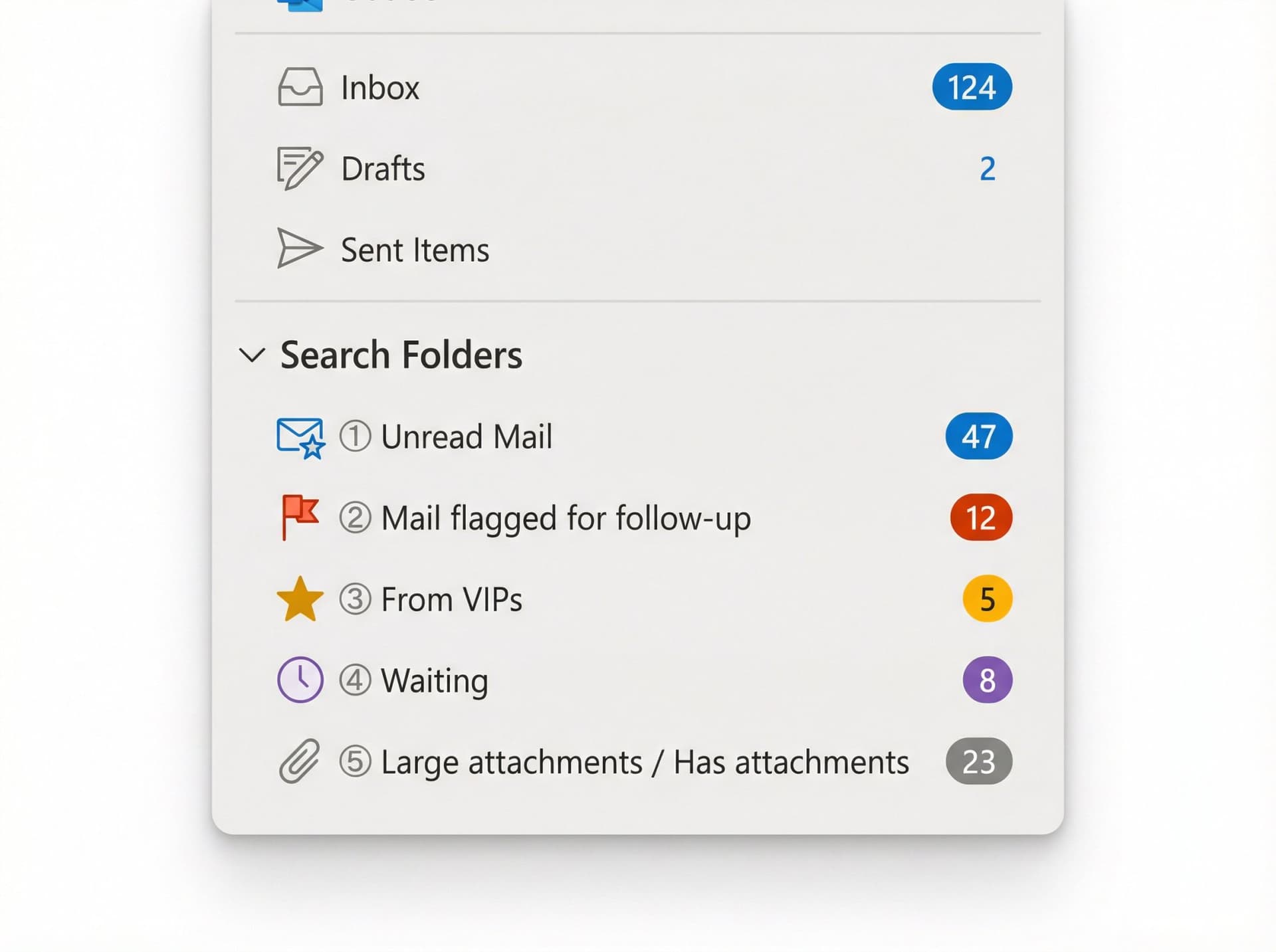
The 5 Search Folders worth creating
① Unread Mail (shows all unread messages across all folders)
② Mail flagged for follow-up (this becomes your "To Do" view)
③ From VIPs (boss, key customers, investors)
④ Waiting (category = Waiting)
⑤ Large attachments / Has attachments (cleanup & retrieval)
Microsoft provides steps to create Search Folders under Folder > New Search Folder in Outlook desktop.
Why "Has attachments" is gold
Microsoft documents how to find messages with attachments, including built-in filters and search syntax like hasattachments:yes in classic Outlook.
If your mailbox is heavy, this is one of the fastest ways to find storage hogs and old files. You can quickly identify emails with large attachments eating up your quota and archive or delete them.
Search Folders are powerful because they show you exactly what you need without forcing you to move emails around manually. They're always up-to-date and they work across all your folders.
Step 7: How To Maintain Your Outlook Inbox
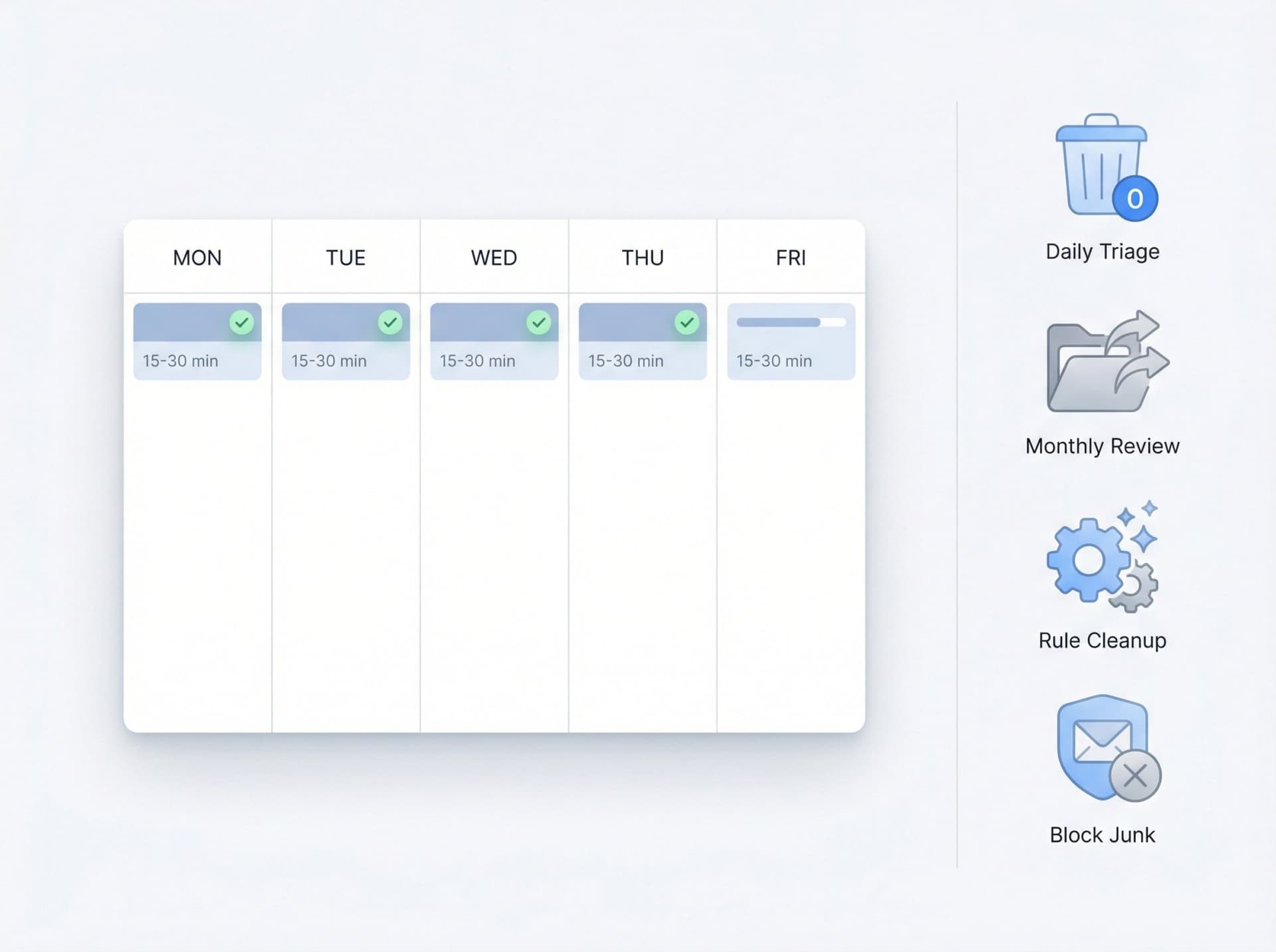
Any organization system needs regular maintenance. Here are best practices to keep your Outlook inbox optimized:
Daily routine (15-30 minutes total)
Don't let emails pile up for weeks. Set aside time each day (or a few times per day) to process new emails using the system you created.
Research supports checking and replying to email in batches (once every hour or a few specific times a day) rather than constantly. During those sessions, apply the "one-touch rule":
• Read each new email
• Immediately delete, archive, reply, or flag it
• Don't leave it sitting there "to decide later"
The possible actions for any email are: Delete, Delegate, Respond/Do, Defer, or File. By the end of each session, your inbox should be back to empty or only contain emails you truly haven't processed yet.
Weekly routine (30-45 minutes)
Review and prune folders monthly
Take a few minutes each month to skim your folder list. Are there folders you never use or that have become dumping grounds? Merge or delete the ones that aren't useful.
If you made a separate folder for a project that's over, empty it or move its contents to Archive and remove that folder. Keep your system lean.
Tidy up your rules and categories
Review your Outlook rules every so often. If you've set up a rule that isn't helping (maybe it's moving emails you actually want to see, or a newsletter rule that's too broad), adjust or disable it.
Perhaps you've started getting a new kind of repetitive email. Create a new rule to handle it. Same goes for categories: if you never end up using that "Low Priority" category you made, delete it to simplify your list.
Archive older emails and empty trash
Outlook can handle a lot of mail, but giant folders with tens of thousands of items can slow it down. Consider archiving emails by year or project once they're truly old.
You can manually move batches to Archive or set up Outlook's AutoArchive settings for certain folders. Also remember to empty Deleted Items regularly.
Stay vigilant with unsubscribing
Marketing emails have a way of creeping back in. If you notice new unwanted senders, block or unsubscribe as needed. It's like weeding a garden. A little effort here and there prevents an overgrowth of junk.
Step 8: AI Email Management for Outlook
The steps above focus on Outlook's built-in tools and some discipline on your part. But what if you could delegate even more of the inbox organization burden to an intelligent assistant?
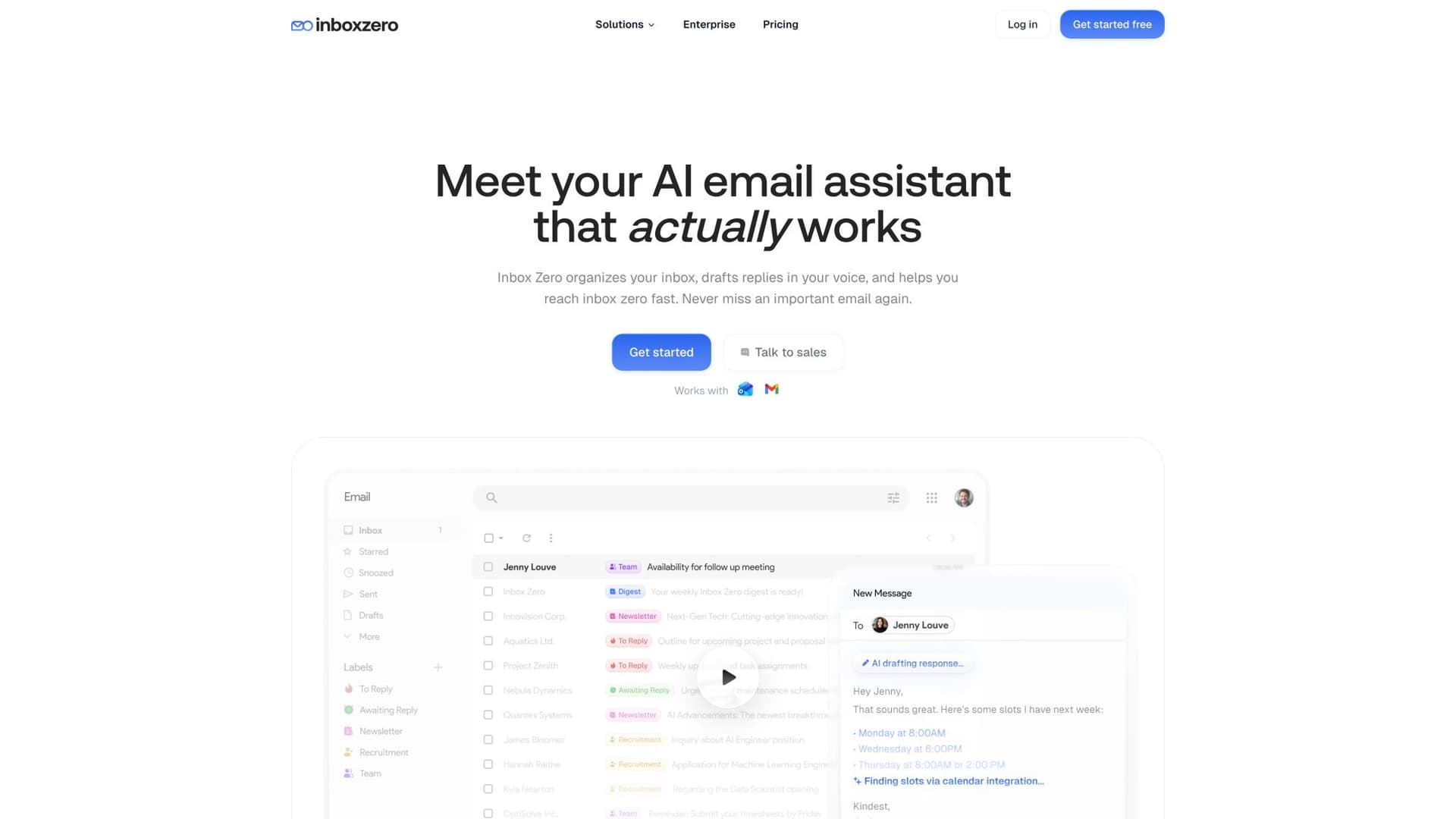
The AI advantage in 2026.
In 2026, AI email assistants are a practical reality. At Inbox Zero, we built an AI-powered email management platform that works seamlessly with Outlook and Gmail to automate many of the tasks we discussed, while you remain in control.
How Inbox Zero works with Outlook
We integrate via Microsoft's official API and OAuth, which means we operate on top of your existing Outlook. We don't replace your mail client or require moving your data. We simply act like an assistant organizing and annotating emails in Outlook itself.
Automatic email classification and labeling
Our AI Personal Assistant reads each incoming email and decides if it's a newsletter, a finance document, a meeting invite, a cold sales email, a personal note, etc. It then automatically applies labels/categories or moves emails according to rules you set in plain English.
For example, you could instruct it: "Label all recruiting emails and forward to HR," or "If an email looks like a newsletter, put it in Newsletters and draft an unsubscribe reply." The AI interprets this and handles it. This goes beyond simple keyword rules by using AI understanding of the email content.
Cold Email Blocker
One of our most popular features is the Cold Email Blocker. It uses AI to detect unwanted sales pitches or spam-like messages and auto-archive or label them. You can customize the underlying prompt to align with your own definition of "cold outreach."
It includes an inline tester to paste an email and see how it would be classified. And it won't run if the sender has previously corresponded with you.
Reply assistance and follow-up tracking
Our AI can draft responses to emails for you (in your style) and leave them as pending for your approval. This is a huge time-saver for routine replies.
We also automatically label threads that need a reply from you as "To Reply" and ones where you're waiting on someone else as "Awaiting Reply." It's similar to using flags or "Waiting" categories, but the system manages it for you automatically. You'll always know which conversations require action.
One-click cleanup and analytics
Our Bulk Unsubscriber lists all your newsletter senders and allows one-click unsubscribe or auto-archive, even for emails that don't have easy unsubscribe links. It's way more advanced than the Step 1 manual cleanup we did earlier.
We also show you email analytics like who sends you the most emails, what times of day you get overloaded, etc. This helps you adjust your strategy and understand your email patterns.
Why we built this
Users of Inbox Zero have reported saving 50% or more of their email time thanks to these automations. We're trusted by over 17,000 users including teams at major companies.
We're SOC 2 Type 2 certified and CASA Tier 2 approved (Google's Cloud Application Security Assessment). Our code is open source on GitHub with over 9,600 stars, which addresses security concerns. Your data isn't mined to train AI models.
Because we operate via Microsoft's official API, if you ever stop using us, all your emails and folders remain in Outlook. No lock-in.
The safe way to add automation
If you decide to try Inbox Zero (or any automation tool):
① Start in "draft/label only" mode for 1-2 weeks
Don't enable full automation right away. Let the system show you what it would do, then review and approve.
② Automate only low-risk categories first
Start with newsletters, receipts, and cold outreach. Keep VIPs excluded until the system proves reliable.
③ Review outcomes weekly and refine rules
Check what the AI is doing and adjust as needed. Over time, it learns your preferences.
Essentially, we turbocharge all the best practices we've covered in this guide. We enforce the rules, do the filing, draft the responses, and nudge you about follow-ups, all in the background. You still review and approve as much as you want.
If your email volume is truly daunting or you simply want to offload the grunt work, an AI assistant is worth considering. It's like hiring a full-time email secretary who never sleeps. You can try Inbox Zero free to see if it fits your workflow.
Troubleshooting Outlook Inbox Problems
"I created rules but my inbox is still messy"
Most rules only apply to new incoming mail unless you explicitly run them against existing mail. Classic Outlook supports running rules on existing mail; web experiences vary.
Fix: In Classic Outlook, go to Rules > Manage Rules & Alerts, select your rule, and click "Run Rules Now" to apply it to your existing inbox.
"I'm missing important mail in the Other tab"
Focused Inbox can misclassify emails, especially at first.
Fix: Turn it off temporarily or train it by moving messages between Focused and Other. Right-click the email and choose "Always move to Focused" for important senders.
"Ignore conversation deleted things I needed"
The Ignore feature moves a conversation and all future messages out of your inbox (typically to Deleted Items). You can only recover if it's still in Deleted Items.
Fix: Be careful with Ignore. Use categories or rules for less destructive filtering.
"New Outlook feels like features are missing"
That's real. Microsoft's comparison matrix shows several organization features are "partially available" or not supported in new Outlook vs classic (rules import/export, advanced Quick Steps, etc.).
Fix: If you need full power, stick with Classic Outlook for now. Microsoft is actively adding features to New Outlook, so this will improve over time.
Inbox Zero Tabs for Gmail
This guide is about Outlook, but many teams use both Outlook and Gmail. If you also manage a Gmail inbox, we built a Chrome extension called Inbox Zero Tabs for Gmail that adds customizable tabs (saved searches/labels) directly inside Gmail.
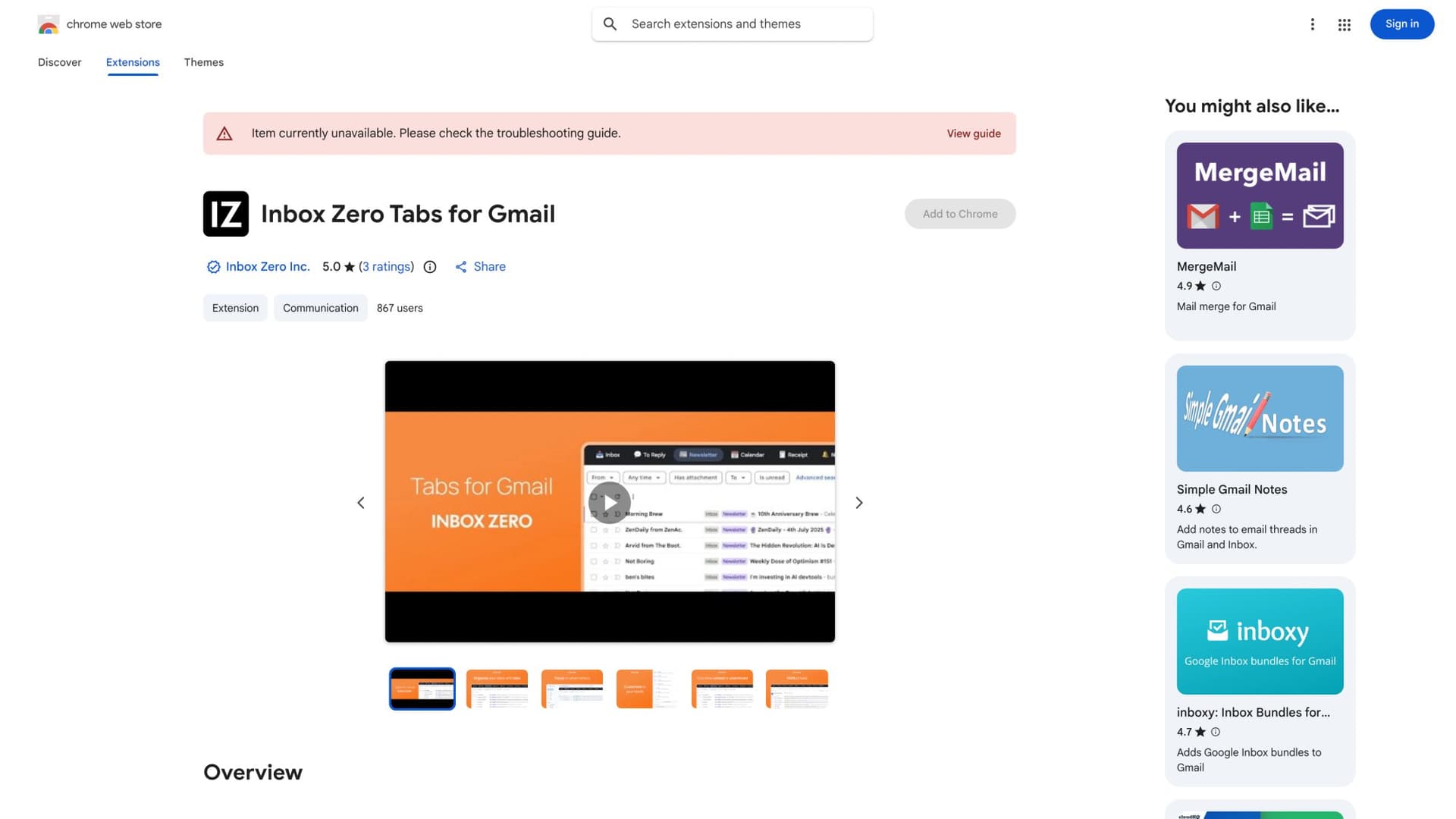
It brings a split-inbox experience to Gmail with 100% privacy (no data collection, runs entirely client-side). You can set up tabs for "To Reply", "Newsletters", "Receipts", or any custom Gmail search query. It's like having Superhuman's split inbox without paying for Superhuman.
How To Keep Your Outlook Inbox Organized
A chaotic Outlook inbox doesn't have to be your daily reality. By applying these steps, you can transform even the most unruly inbox into an organized command center:
Process emails regularly (don't let them stagnate)
Only keep actionable items in your Inbox (archive or file the rest)
Let Outlook's tools do the heavy lifting through automation (rules, filters, etc.)
Use tags (categories/flags) to track tasks and priorities instead of creating dozens of folders
Continuously refine (if something about your setup isn't working, adjust it)
Email will likely remain a part of work life, but it doesn't have to rule your life. An organized inbox is achievable and immensely rewarding. It means fewer things slipping through the cracks and more focus for the work that matters.
As Microsoft's research put it, when not managed, the inbox is just a "flood of unprioritized chaos." But with the right approach, your inbox will serve you, not the other way around.
Ready to get started?
Pick one or two strategies from this guide and implement them this week. You'll be amazed at the difference a few simple changes can make.
And if you want to take it to the next level, try Inbox Zero free and let AI handle the heavy lifting while you focus on what actually matters.
If manual organizing feels like a chore you would rather hand off, an AI email assistant like Inbox Zero can label, triage, and draft replies for you automatically.
Here's to a cleaner, calmer Outlook inbox in 2026 and beyond.


How to Recall an Email in Outlook (2026)
How to recall an email in Outlook step by step for new Outlook, classic Outlook, web, Mac, and mobile, plus when recall works and what to do when it doesn't.
2026-09-30T18:25:57.000Z

How to Stop AliExpress Emails (2026)
Stop AliExpress promotional emails: the unsubscribe link, notification settings in your AliExpress account, and what to do when the deals keep coming.
2026-09-30T18:25:57.000Z

How to Stop Amazon Emails (2026)
Stop Amazon marketing emails with the Communication Preferences Center, manage Amazon email subscriptions, and handle order emails you can't switch off.
2026-09-30T18:25:57.000Z

How to Stop Domino's Emails (2026)
Stop Domino's emails with Domino's official opt-out page, stop Domino's text offers, and know which rewards emails keep coming.
2026-09-30T18:25:57.000Z