Gmail Push Notifications Not Working? Fix It Fast (2026)
Fix Gmail push notifications not working on iPhone or Android with our 2026 troubleshooting guide. Quick fixes solve 80% of cases in 10 minutes.

Your phone should alert you the moment a new email arrives in your Gmail inbox. But lately, nothing happens. You open the Gmail app hours later and discover a pile of unread messages waiting for you.
This is incredibly frustrating when you miss important emails because Gmail's push alerts aren't working. One frustrated user put it simply: "I no longer get push notifications for new emails. I have to go into the app to check."
The good news is that in almost every case, you can restore your Gmail notifications with some targeted troubleshooting. This guide (updated for 2026) will show you exactly why Gmail push notifications stop working and how to fix the problem on both iPhone and Android.
We'll start with quick fixes that solve about 80% of cases, then go deeper into platform-specific solutions. By the end, you'll have reliable email alerts again, and we'll show you how to use email management tools to make sure only important messages demand your attention.
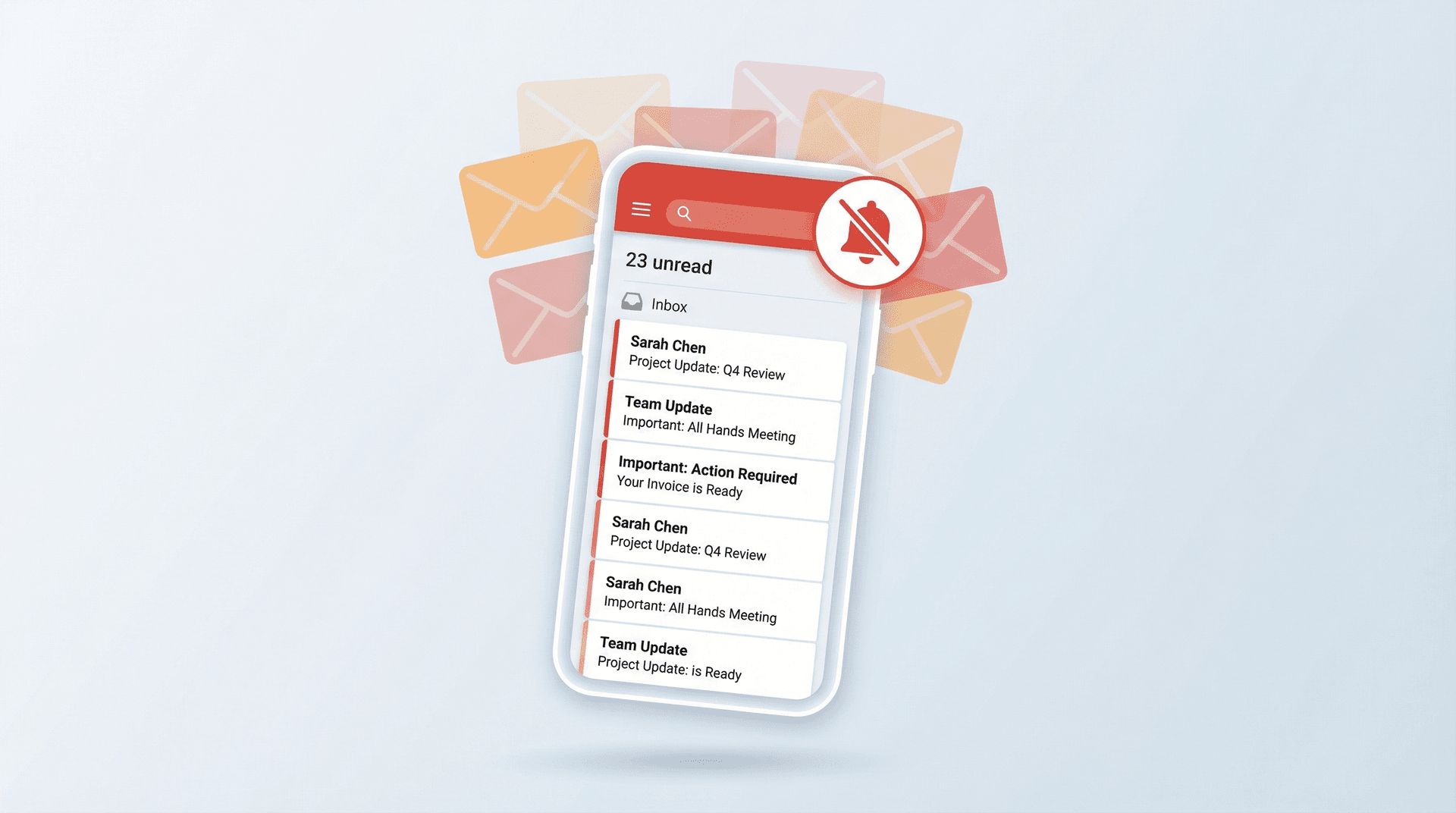
What Gmail Push Notifications Should Do
When Gmail notifications work correctly, an email arrives, Gmail syncs immediately, and your phone shows an alert. All of this happens without you opening the Gmail app.
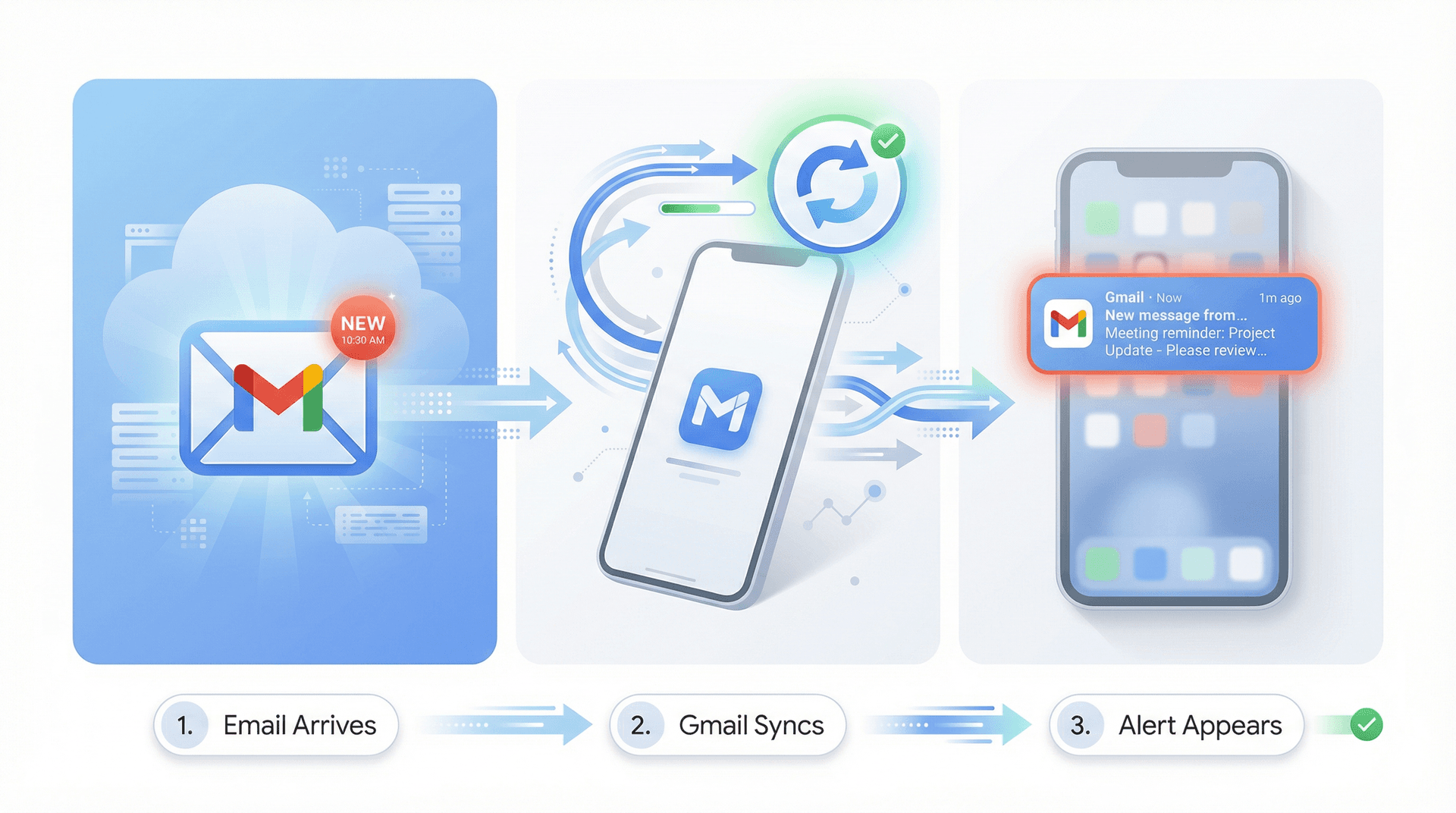
If email only appears when you launch Gmail, you have background restrictions such as battery optimization or sync being disabled. Tools like Inbox Zero's email analytics can help you understand your email patterns and optimize which messages deserve immediate notification.
Check Gmail Status First: Is It a Server Problem?
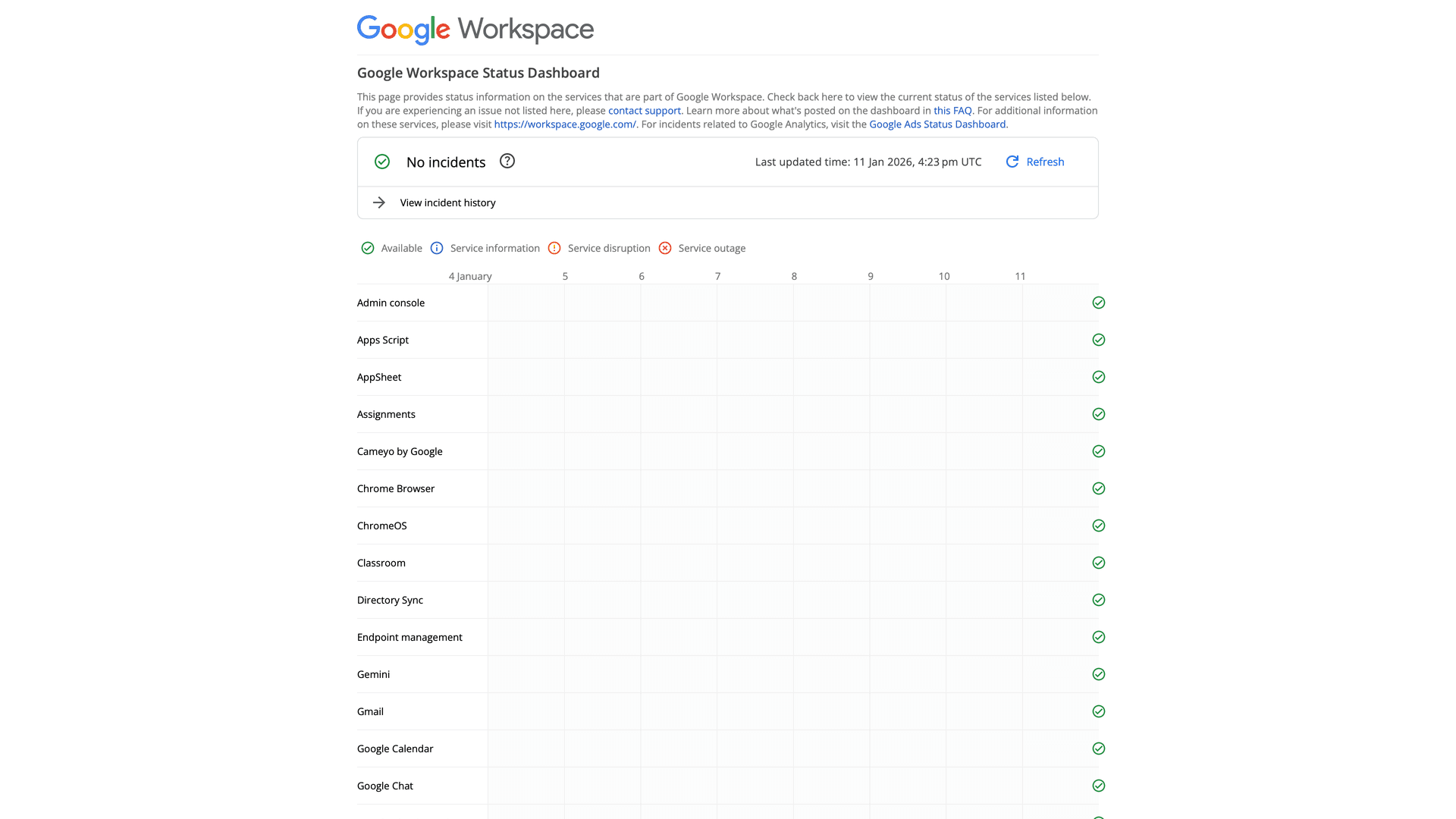
If Gmail itself is having problems, you can flip every switch on your phone and still get delayed delivery. Check the Google Workspace Status Dashboard for Gmail service disruptions. Even personal Gmail issues often surface here. If Gmail shows "green" (operational) and you're still missing alerts, continue with the fixes below.
Quick Fixes That Work in 10 Minutes (80% Success Rate)
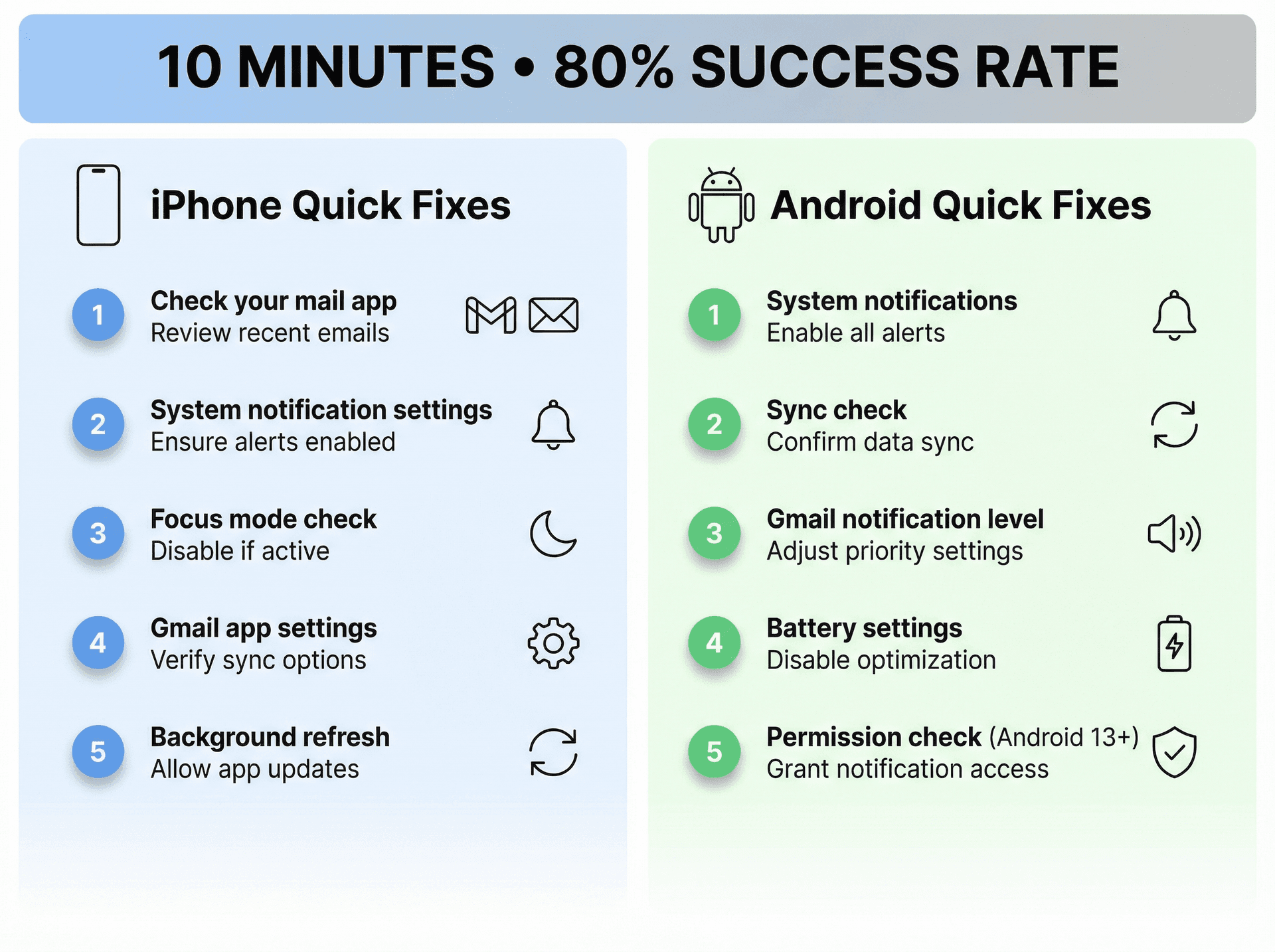
iPhone Quick Fixes
Start by confirming which mail app you're using. Apple Mail often can't do true push for Gmail, defaulting to Fetch instead (which only checks every 15 minutes at best). For real-time alerts, you'll want the Gmail app.
Next, go to Settings, then Notifications, then Gmail, and turn on "Allow Notifications." While you're in Settings, check Focus mode to make sure it isn't silencing Gmail. Inside the Gmail app itself, go to Menu, then Settings, then your account, and set "Email notifications" to "All new mail" (at least while troubleshooting). Finally, make sure Background App Refresh is turned on for Gmail under Settings.
Once notifications are working, you can use smart email management strategies to filter which emails actually alert you.
Android Quick Fixes
Start by confirming system-level notifications are enabled: Settings, then Apps, then Gmail, then Notifications ON (with categories enabled). In the Gmail app, go to Settings, then your account, and check that "Sync Gmail" is turned on and "Email notifications" is set to "All."
For battery settings, set Gmail to "Unrestricted" or "Not optimized" and allow background usage. On Android 13 and later, notification permission can be denied during install, so verify it under Settings, then Apps, then Gmail, then Permissions, then Notifications.
If that quick checklist didn't solve it, the sections below go deeper.
What's Your Notification Problem? Match Your Symptom
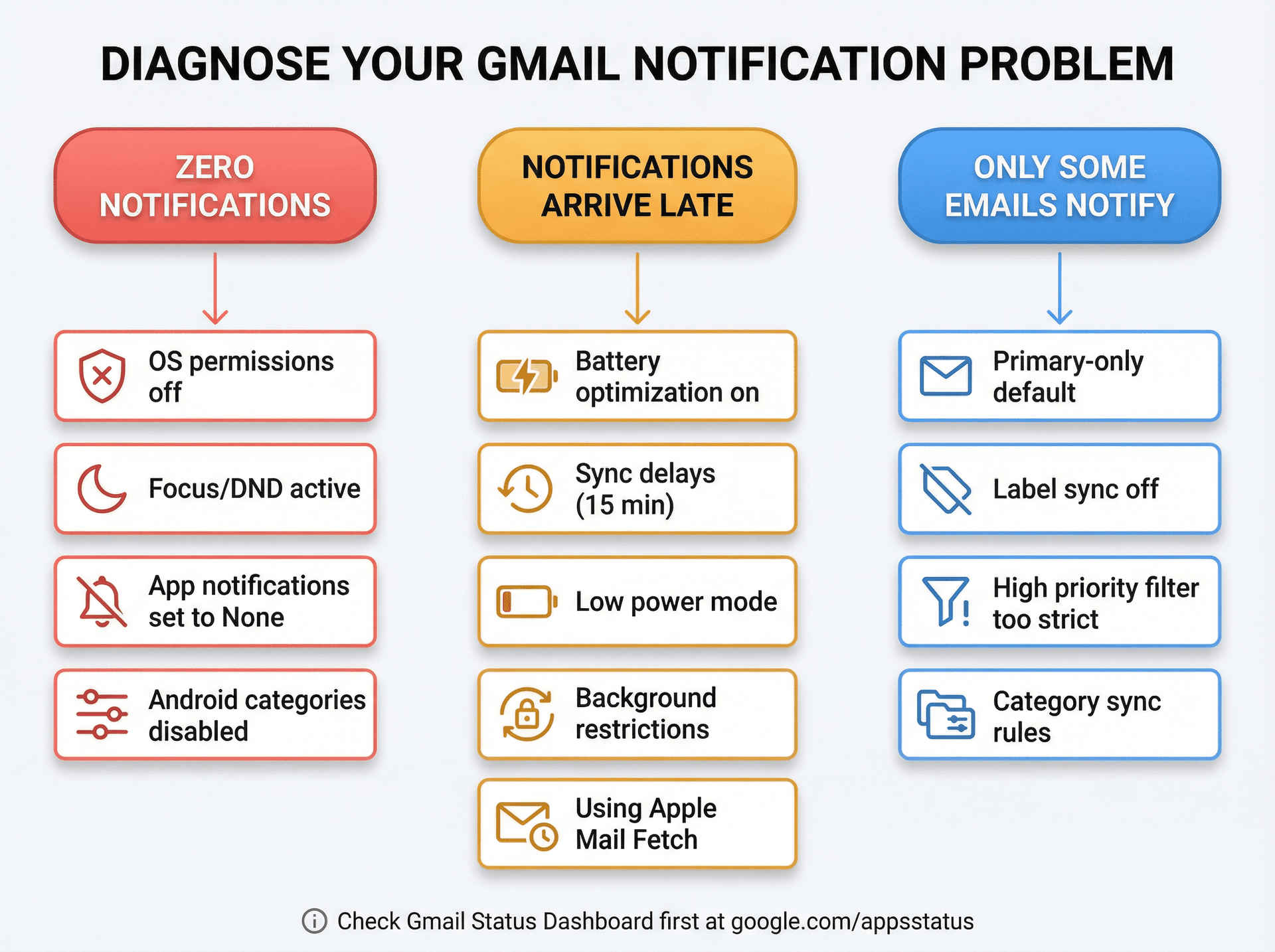
The fix depends on what's actually happening. Here's what each symptom usually means:
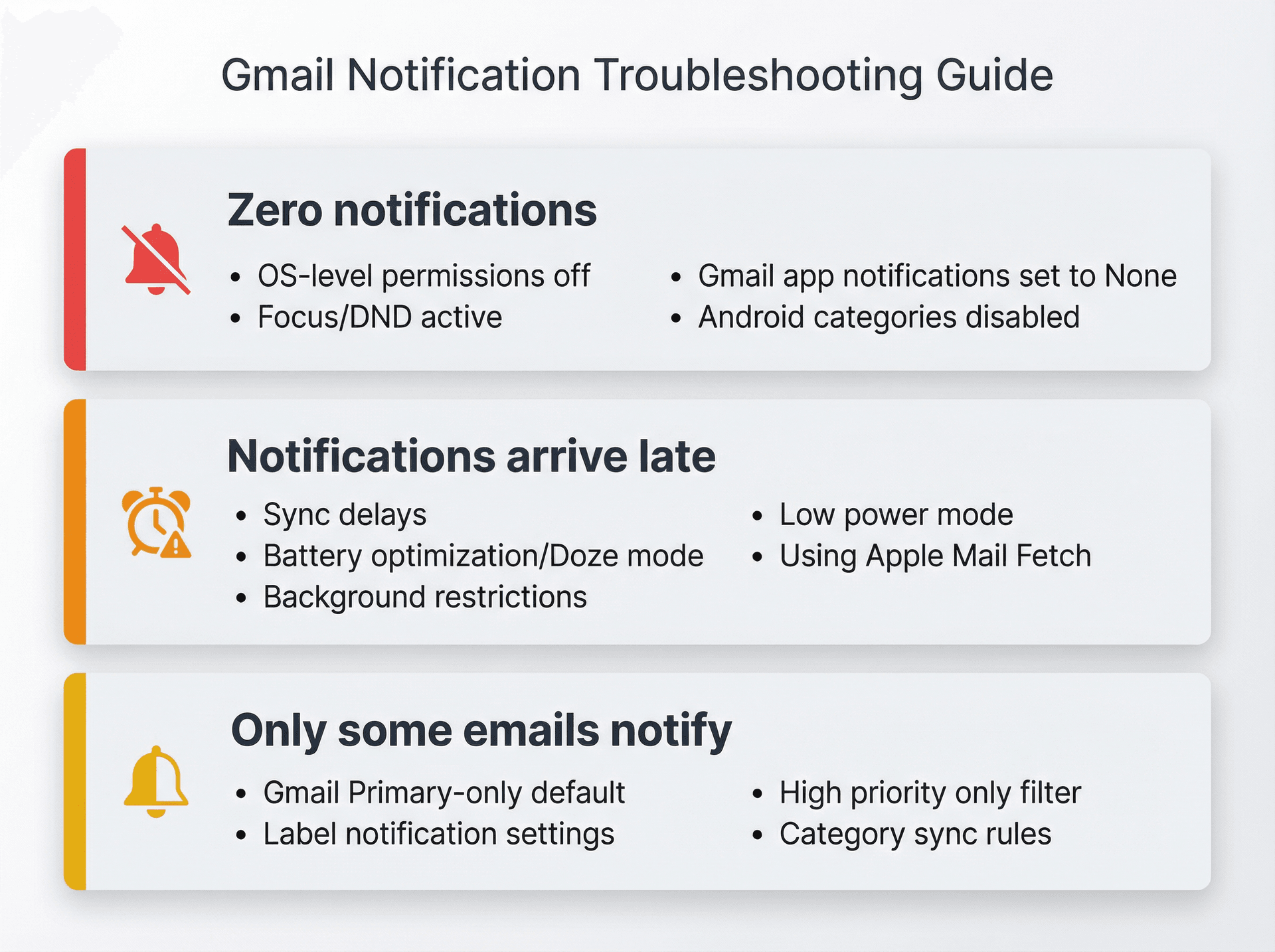
| Symptom | Most Common Causes |
|---|---|
| Zero notifications | OS-level permissions off, Focus/DND active, Gmail app notifications set to "None", Android categories disabled |
| Notifications arrive late | Sync delays, battery optimization/Doze mode, background restrictions, low power mode, using Apple Mail Fetch |
| Only some emails notify | Gmail's Primary-only default, label notification settings, "High priority only" filter, category sync rules |
If you're experiencing constant delays, email productivity tips can help you work around notification issues. For emails that only sometimes notify, email management software can help with smarter filtering.
How to Fix Gmail Notifications on iPhone
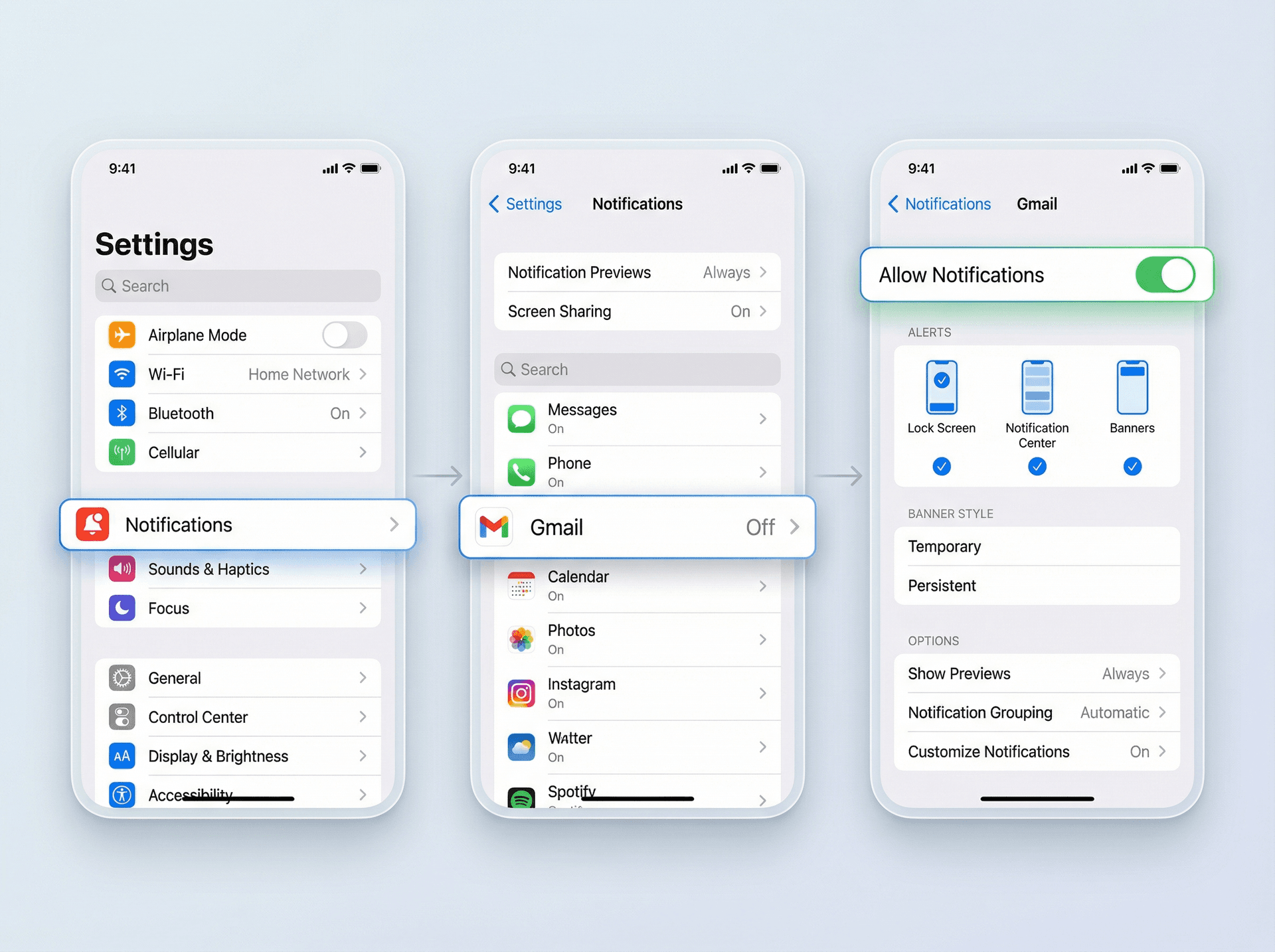
Are You Using the Right Mail App?
If you're using Apple Mail for Gmail, push may not be available. Apple's documentation notes that when Push isn't available for an account, it defaults to Fetch, checking for new mail at intervals of 15 minutes, 30 minutes, hourly, or manually. This means you won't get instant notifications. The simplest solution is to use the official Gmail app for real-time push notifications, then adjust the settings below.
Focus Mode and Background App Refresh
On modern iOS, Focus modes can allow notifications from only specific apps or silence selected ones. To fix this, go to Settings, then Focus, select the Focus you use (Work, Sleep, or Do Not Disturb), and under "Apps" make sure Gmail is allowed and not explicitly silenced. If you rely on urgent alerts, check whether your Focus allows "Time Sensitive Notifications." For even better email control, consider using AI email automation to make sure critical messages are properly labeled and prioritized.
Background App Refresh is another common culprit. Google's official Gmail documentation explicitly recommends turning it on to download emails when you're not using Gmail. Go to Settings, then General, then Background App Refresh, and make sure Gmail is set to ON.
Why Gmail Only Notifies for Primary Inbox
This catches a lot of people. Google's documentation notes that by default, notifications are turned on for emails in your Primary label only. This means you can receive emails in Promotions or Updates without any push alert. It's "working as configured," but it feels broken.
To fix this, open the Gmail app, go to Menu, then Settings, then your account, and set "Email notifications" to "All new mail" during testing. Once you verify notifications work, you might want to keep "Primary only" enabled and use bulk email unsubscribing to reduce the volume of promotional emails entirely.
Why "High Priority Only" Misses Important Emails
If you set "High priority only," Gmail decides what's important based on importance signals. Sometimes Gmail gets it wrong and you miss things. Temporarily switch to "All new mail" so you can verify push works, then tighten it later. For more sophisticated email filtering, Inbox Zero's AI assistant can learn your preferences and handle email classification more accurately.
Gmail Notifications Still Not Working on iPhone?
Google's official troubleshooting documentation covers several additional steps: force a manual sync in Gmail, update the Gmail app to the latest version, restart your device, check your internet connection, enable Background App Refresh, and confirm Gmail sync settings. If none of those help, there's one more thing worth checking.
When your Google Account hits its storage limit, you can't send or receive messages. Mail sent to you will bounce.
If you're not receiving email at all, no notification setting will fix it. Free up storage first by checking Settings in Gmail, then Storage. Consider using email cleanup strategies to identify and delete large attachments.
How to Fix Gmail Notifications on Android
Android issues usually fall into three categories: notifications blocked at the OS level, Gmail sync disabled, or battery optimization delaying background work.
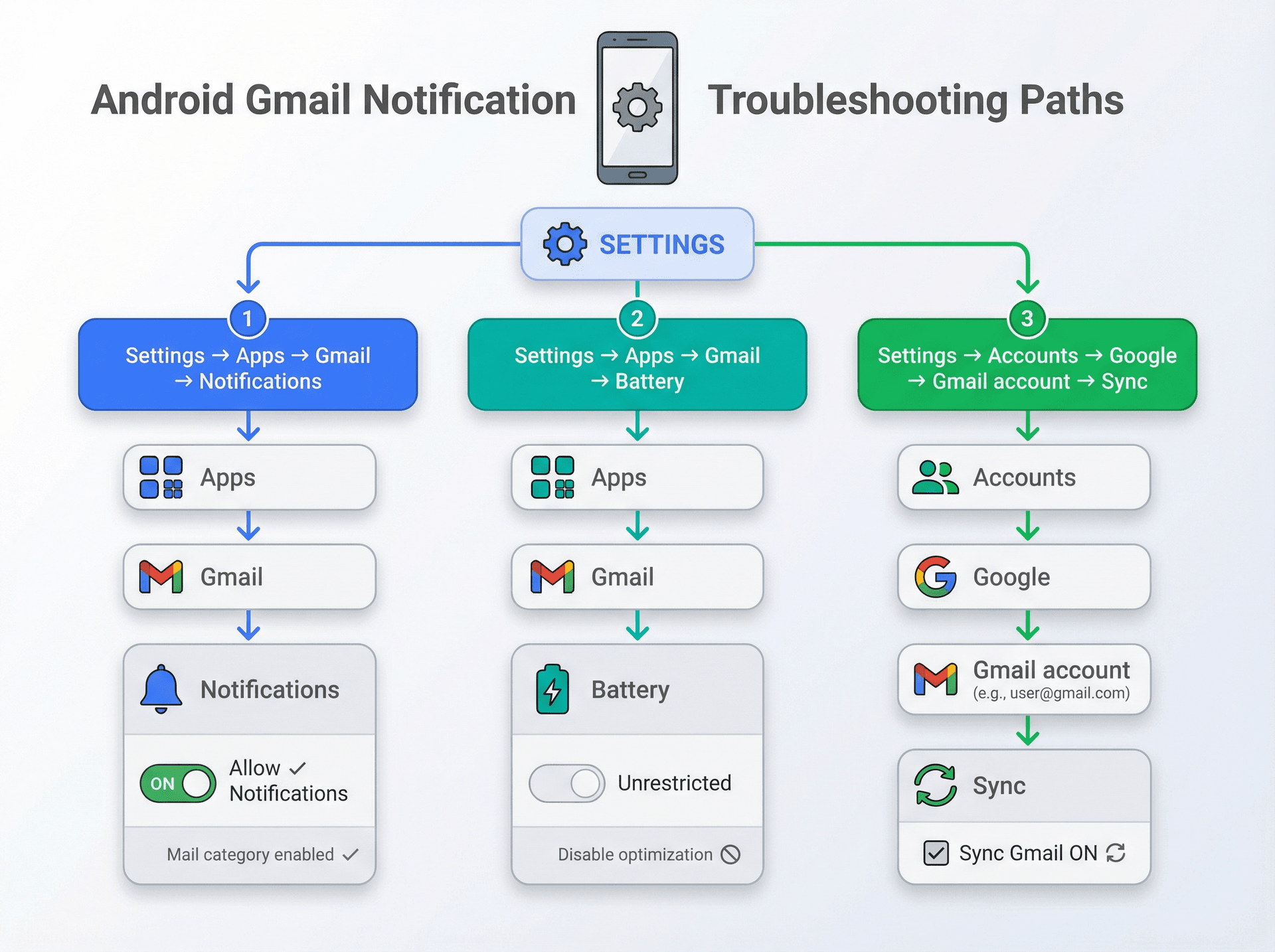
Notification Permissions on Android 13+
Android introduced a runtime notification permission for apps targeting Android 13 and above. If you deny it during install, the app simply can't post notifications. Go to Settings, then Apps, then Gmail, then Notifications, and make sure notifications are allowed and key categories like "Mail" are enabled.
Primary-Only Notifications and Label Settings
Just like on iPhone, Google notes that by default, notifications are enabled for messages in your Primary label only. If you want notifications for other labels (Important, To Reply, Receipts), you must configure them individually. Inbox Zero's Reply Zero feature can automatically label emails that need responses, making this easier to manage.
To enable notifications for a specific label, Google is explicit: you must set that label's "Sync messages" to "Last 30 days" or "All." Without syncing messages for a label, you can't turn on notifications for it. In the Gmail app, go to Menu, then Settings, then your account, then "Manage labels," pick the label you want, set "Sync messages" to Last 30 days or All, and enable label notifications. For automated label management, Inbox Zero's email analytics can help you understand which labels actually matter.
Gmail Sync and Data Settings
Google's official troubleshooting documentation includes a direct check: make sure the box next to "Sync Gmail" is checked in Gmail settings. Keep in mind that Gmail sync can take up to 15 minutes and sometimes longer if you haven't used your device in some time. In the Gmail app, go to Settings, then your account, then Data usage, and confirm "Sync Gmail" is ON. You can also force a sync from Android Settings under Accounts, then Google, then Account sync. The exact path varies by device manufacturer.
If you have Android's Data Saver turned on system-wide, it can block background data usage and prevent push notifications. Make sure Data Saver is off (or Gmail is exempted) under Settings, then Network & Internet. Also verify that "Background data" is enabled for Gmail under Settings, then Apps, then Gmail, then Mobile Data & Wi-Fi.
Battery Optimization and Its Trade-Offs
Modern Android aggressively protects battery by limiting background work, especially if it decides you "don't use" Gmail frequently.
Google's Pixel Phone Help explicitly warns: Adaptive Battery may reduce performance and delay notifications to extend battery life.
Go to Settings, then Apps, then Gmail, then Battery, and set Gmail to Unrestricted (or disable optimization and allow background usage). Turn off Battery Saver while testing. There is a trade-off here: improving notification reliability can increase battery usage, since turning off optimization allows apps to run more in the background.
Clearing Cache and Re-Adding Your Account
If the above steps haven't helped, corrupted cache files can sometimes cause notification issues. Go to Settings, then Apps, then Gmail, then Storage, and select "Clear cache." Force-stop Gmail and reopen it. If that doesn't work, you can take a more drastic step and clear storage/data, though this will log you out of Gmail and reset the app (you won't lose emails, but you'll need to sign back in).
As a last resort for a particular account that still isn't getting notifications, try removing and re-adding it. Go to Settings, then Accounts, then Google, select the affected account, and remove it. Reboot the phone, then go back to Settings, then Accounts, then Add Account, then Google, and sign in again. This resets the push notification connection for that account.
Gmail Notification Changes in 2026: Gmailify Discontinued
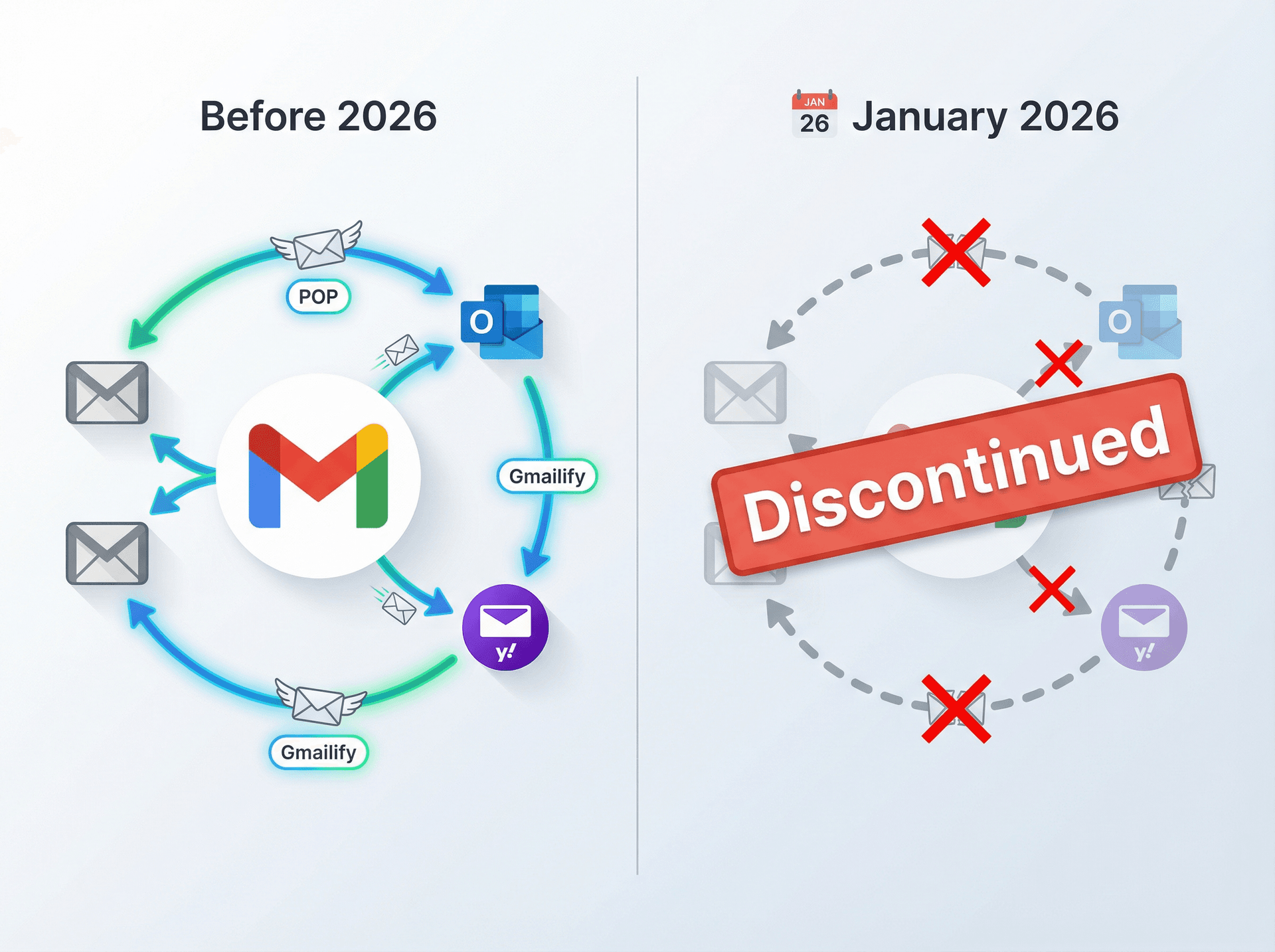
If you're missing mail from connected non-Gmail accounts, there's an important change. Google announced that starting January 2026, Gmailify is no longer supported and Gmail will no longer support fetching mail via POP from other accounts. If your workflow relied on Gmail pulling mail from another provider and then notifying you, that setup may break or behave differently in 2026.
How to Test If Gmail Push Notifications Work
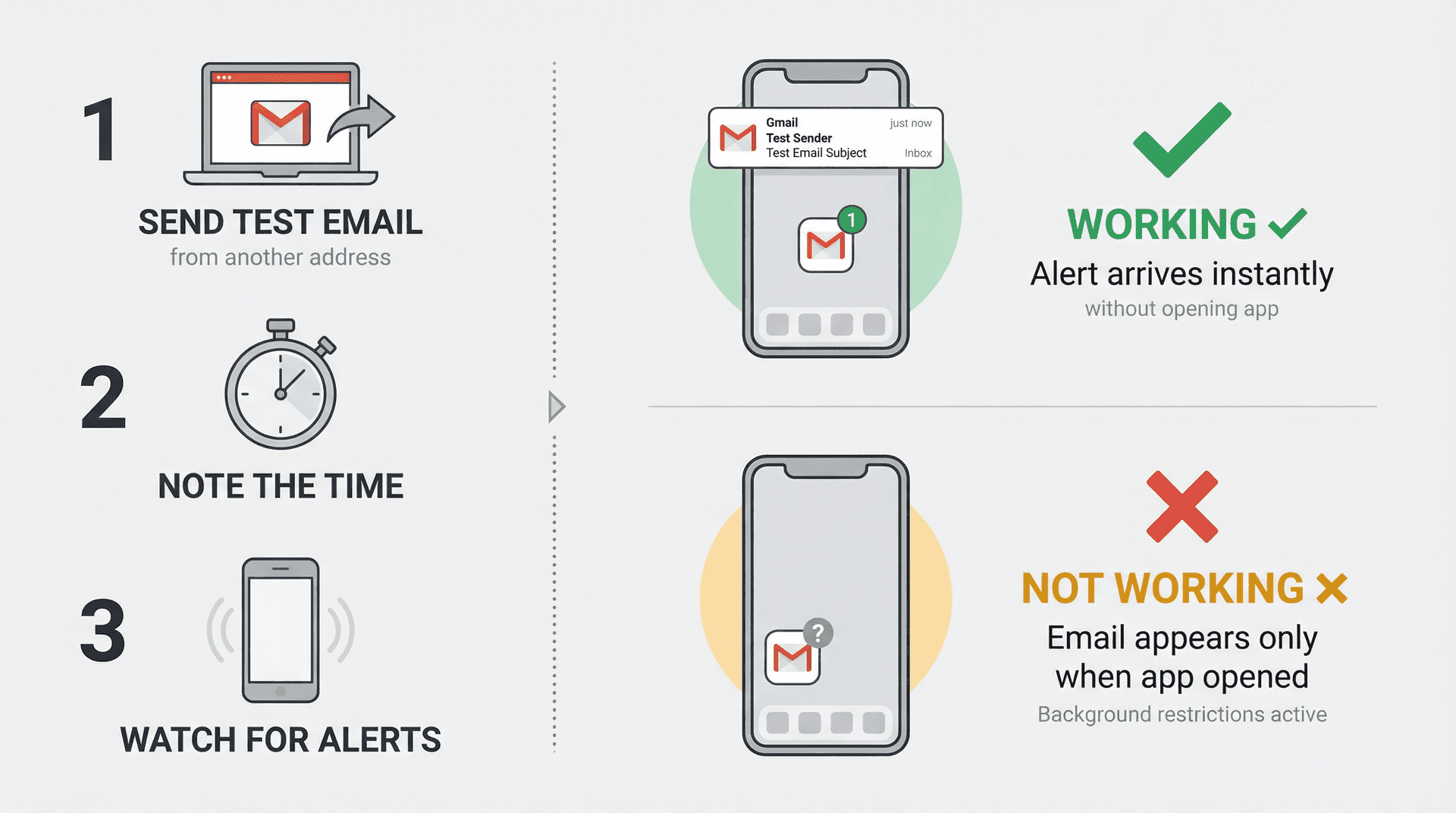
After every major change, send yourself an email from a different address and note the time. Watch for a phone notification banner or sound, check the Gmail unread badge count, and look for the email appearing in your Gmail inbox without opening the app. If the email arrives only when you open Gmail, you still have background restrictions like battery optimization, Background App Refresh being off, or sync being disabled.
Gmail Notification Problems: Common Questions
Why do I only get notifications for some emails?
Gmail often defaults to notifying for Primary only. Label notifications require both label sync and label notification settings to be configured (especially on Android). Smart email categorization can help make sure important messages are properly classified.
Why do notifications arrive late on Android?
Battery optimization and Adaptive Battery can delay notifications. Gmail sync itself can also take up to 15 minutes in some cases.
Why do I only get notifications when I open Gmail?
That's almost always background restrictions: Background App Refresh being off on iPhone, or battery optimization and background usage being restricted on Android.
Can Apple Mail do push for Gmail?
Apple explains that if Push isn't available for an account, it defaults to Fetch. In practice, many Gmail-in-Apple-Mail setups behave this way. Use the Gmail app if you need real-time alerts.
Could this be a Gmail outage?
Yes. Check the Google Workspace Status Dashboard.
How to Actually Manage Your Email After Fixing Notifications
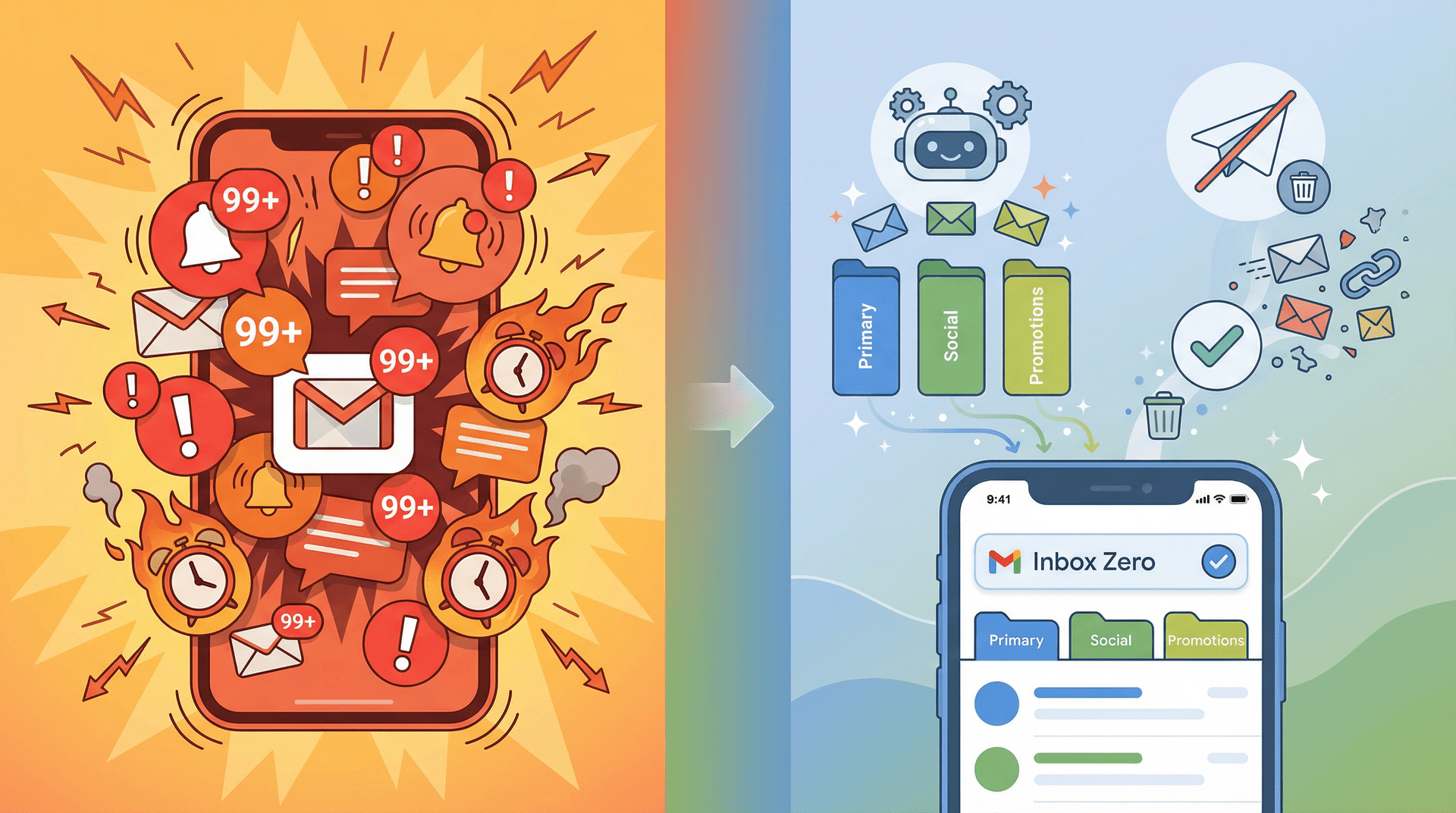
Getting Gmail notifications working again is a relief, but maybe you've realized that life was quieter when they weren't buzzing constantly. Now is a good time to optimize which emails trigger an alert so you're not distracted by trivial updates.
Use Gmail's Built-In Filters
Gmail allows you to limit notifications to only important messages. In the Gmail app settings, instead of "All new mail," you can choose "High priority only." Gmail's algorithms will then notify you just for emails it deems important based on your past interactions. It's not perfect, but it cuts out a lot of noise.
If you use Gmail's categories (Primary, Social, Promotions), you might keep notifications on for Primary only, which is the default. This way promotions or social media updates don't ping you constantly. For even better control, bulk unsubscribing from promotional emails can eliminate notification noise at the source.
Take It Further with Inbox Zero
For even more control over your email, tools like Inbox Zero can help you move beyond just notification settings. Inbox Zero is an AI email assistant that auto-drafts replies using customizable rules so you spend less time typing the same responses (learn more about AI-powered email automation). It can bulk unsubscribe you from newsletters you never read with one click across entire categories, and its cold email blocker keeps unsolicited outreach from ever cluttering your inbox.
On the productivity side, Inbox Zero's Reply Zero feature automatically adds "To Reply" and "Awaiting Reply" labels so nothing slips through the cracks, while its email analytics show you who's taking up your time and where you can optimize.
The best part is that Inbox Zero works inside your existing Gmail (or Outlook). You don't have to switch mail clients or learn a new interface. It uses Gmail's own APIs to label, archive, and draft replies right where you already work. You can keep automation off while you set up the rules, then switch it on when you're confident, giving you complete control without the risk of important emails being handled incorrectly. Learn more in the Inbox Zero documentation.
Think of it this way: fixing your Gmail notifications solves the "am I getting alerts?" problem. Inbox Zero solves the "am I drowning in email?" problem. If you're spending more than 30 minutes a day managing email, it's worth checking out. You can try Inbox Zero for free and see how much time you get back. Check out what real users are saying about achieving inbox zero.
We also offer a Chrome extension called Inbox Zero Tabs for Gmail that adds customizable tabs to Gmail (like Superhuman's split inbox) so you can organize emails exactly how you want, using Gmail labels or search queries as tabs. It's 100% private with no data collection and works entirely in your browser. Learn more about the Inbox Zero Tabs extension.
Inbox Zero works great for small businesses managing customer communications, founders juggling investor updates and operations, real estate professionals tracking client inquiries, e-commerce businesses handling order confirmations and support, and creators managing brand partnerships and audience communications.
What You've Learned About Gmail Notifications
Missing Gmail push notifications is frustrating, but you now have the complete troubleshooting playbook for both iPhone and Android. In most cases, a quick settings adjustment or account re-login resolves the issue and your Gmail alerts return in real time.
The fundamentals come down to a few things. Start with the basics: notification permissions, Focus or DND mode, and sync settings. iPhone users should use the Gmail app instead of Apple Mail for true push and make sure Background App Refresh is enabled. Android users should disable battery optimization for Gmail and confirm sync is on. On both platforms, remember that Gmail defaults to Primary-only notifications, which might be why some emails don't alert you. And always test by sending yourself an email and verifying it arrives without opening the app.
Once notifications work, remember to tune them to your liking. Use Gmail's built-in filters or tools like Inbox Zero to manage what deserves your immediate attention. For a comprehensive approach to email productivity, check out our guide on mastering email productivity.
No one should have to constantly open their email app just to check for new messages. With push notifications working properly and the right email management system, Gmail becomes the helpful assistant it's meant to be, not a source of constant interruption.
You're back in control of your email, instead of it controlling you.

How to Recall an Email in Outlook (2026)
How to recall an email in Outlook step by step for new Outlook, classic Outlook, web, Mac, and mobile, plus when recall works and what to do when it doesn't.
2026-09-30T18:25:57.000Z

How to Stop AliExpress Emails (2026)
Stop AliExpress promotional emails: the unsubscribe link, notification settings in your AliExpress account, and what to do when the deals keep coming.
2026-09-30T18:25:57.000Z

How to Stop Amazon Emails (2026)
Stop Amazon marketing emails with the Communication Preferences Center, manage Amazon email subscriptions, and handle order emails you can't switch off.
2026-09-30T18:25:57.000Z

How to Stop Domino's Emails (2026)
Stop Domino's emails with Domino's official opt-out page, stop Domino's text offers, and know which rewards emails keep coming.
2026-09-30T18:25:57.000Z