Outlook Rules Not Working? How to Fix Them (2026)
Fix Outlook rules not working with this complete troubleshooting guide. Covers client-side vs server-side issues, migration fixes, and quota limits.

Your Outlook rules stopped working again. Maybe they worked yesterday, maybe they worked for months, but now emails are piling up in your inbox exactly where they shouldn't be. The rule looks right. The settings look right. Everything should work.
But it doesn't.
You're not alone in this frustration. Outlook's rules system is powerful when it works, but it's also fragile in ways that aren't obvious until something breaks. The good news? Most Outlook rule failures follow predictable patterns, and once you understand what's happening, fixing them gets a lot easier.
This guide walks through the real reasons Outlook rules fail (not just the obvious ones), shows you how to diagnose what's broken, and gives you specific fixes that actually work. By the end, you'll know exactly why your rules aren't firing and how to get your email automation back on track.
Why Do Outlook Rules Stop Working?
Think about what rules do for you. They sort newsletters into folders automatically. They flag emails from your boss. They forward receipts to your finance team. When they work, you barely think about them.
When they break, everything falls apart.
You miss important emails buried under newsletters. Time-sensitive messages sit unread in the wrong folder. Your carefully designed inbox management system stops working, and suddenly you're back to manually sorting hundreds of emails.
The stakes get higher in 2026.
More teams work remotely, email volumes keep climbing, and the cost of missing one critical message can be significant. Rules aren't just convenient anymore, they're essential infrastructure for managing information overload.
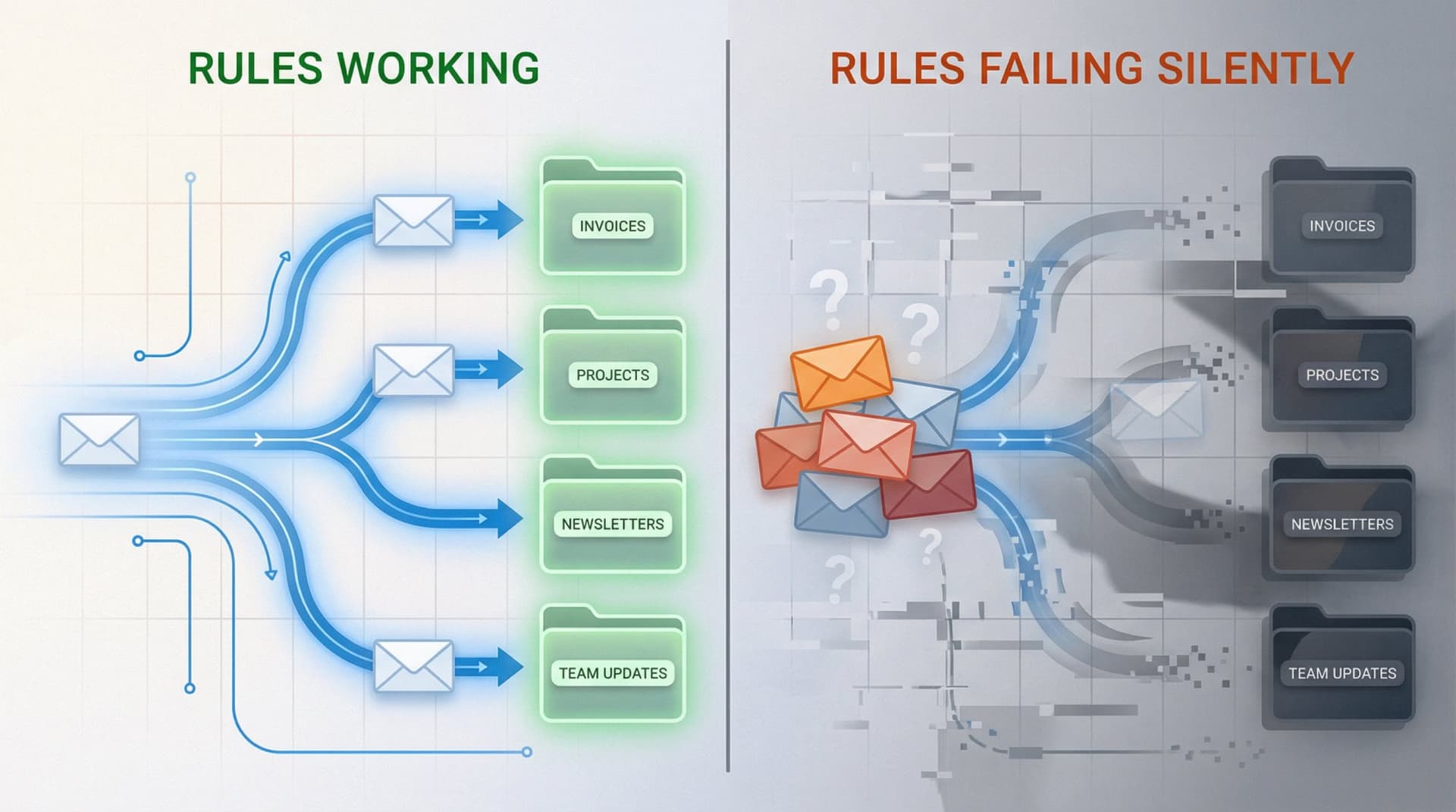
But what makes Outlook rules particularly frustrating? They fail silently. No error message. No notification. They just... stop working. An email that should have moved to your "Clients" folder sits in your inbox, and you have no idea why.
Which Version of Outlook Are You Using?
Before we dive into fixes, you need to identify which version of Outlook you're using. This matters more than you might think.
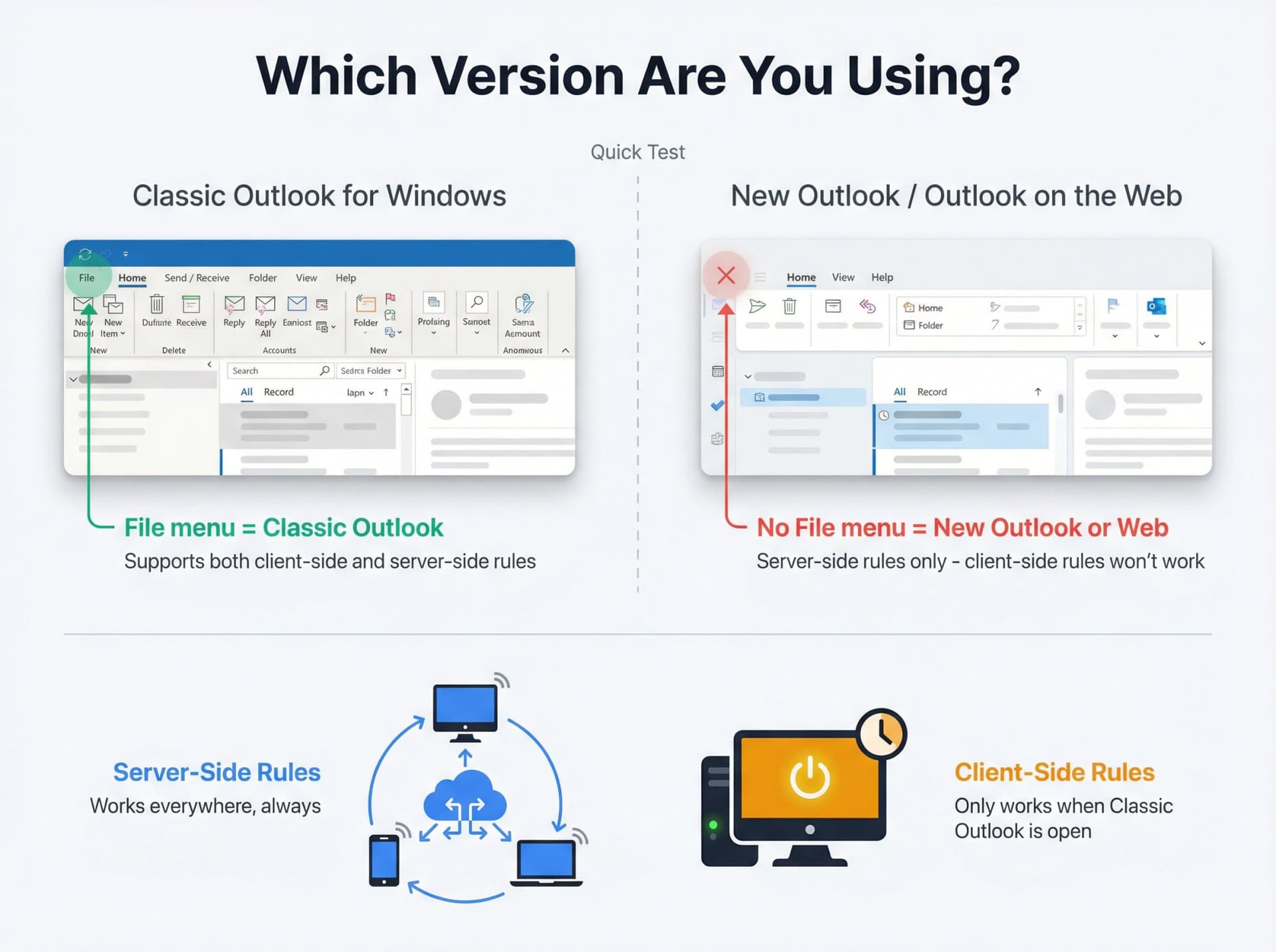
Quick test: Look at the top of your Outlook window. Do you see a "File" menu in the ribbon?
→ If yes, you're using classic Outlook for Windows
→ If no, you're probably using new Outlook or Outlook on the web
Why does this matter so much? Because new Outlook and Outlook on the web don't support client-side rules. That's the single biggest reason rules "worked yesterday and broke today" after a switch.
What's the Difference Between Server-Side and Client-Side Rules?
Here's the fundamental split that explains most rule failures:
| Rule Type | Where It Runs | Reliability | Limitations |
|---|---|---|---|
| Server-side rules | Microsoft's servers (24/7) | Work whether your computer is on or off, across all devices | More limited actions available |
| Client-side rules | Your specific computer only | Only run when classic Outlook is open on that device | Full action set, but device-dependent. New Outlook doesn't support them at all |
Most rule problems trace back to this distinction. You created a rule in classic Outlook that included a client-side action (like playing a sound or moving messages to a local folder). It worked fine on your desktop. Then you switched to new Outlook or checked email on your phone, and suddenly the rule stopped firing.
The rule isn't broken. It's just waiting for you to open classic Outlook again.
How to Fix Outlook Rules: Quick Checklist
If you're in a hurry, start here. These quick checks resolve most common rule issues:
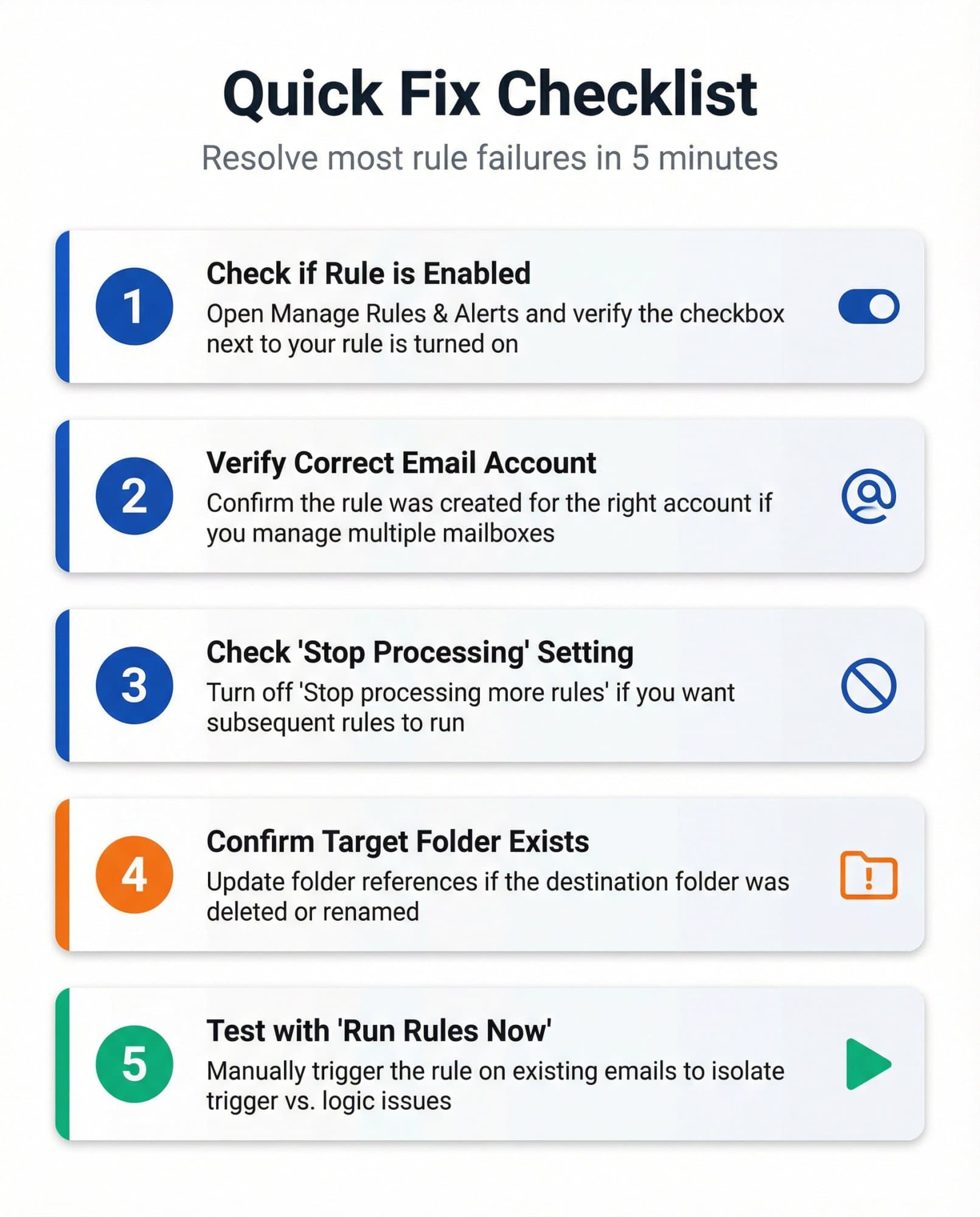
1. Is Your Rule Actually Enabled?
Sounds obvious, but rules get disabled more often than you'd think. Maybe you disabled it temporarily and forgot to turn it back on. Maybe Outlook disabled it automatically after encountering an error.
In classic Outlook: File → Manage Rules & Alerts. Look for checkboxes next to each rule. If the box isn't checked, the rule is off.
In new Outlook or web: Settings → Mail → Rules. Check that the toggle next to your rule is turned on.
After enabling, test it. In classic Outlook, use "Run Rules Now" to test on existing emails. Remember that rules only run automatically on new incoming emails, not messages already in your inbox.
2. Is the Rule for the Right Email Account?
If you have multiple email accounts in Outlook, rules are tied to specific accounts. A common mistake: you created a rule while viewing Account A, but you expected it to work on Account B.
In classic Outlook, you can copy a rule to another account via Rules & Alerts (select the rule → Copy → choose destination account).
In new Outlook or web, you need to recreate the rule under each account separately. Use the account dropdown in Settings → Mail → Rules to switch between accounts.
3. Is "Stop Processing More Rules" Enabled?
This setting causes more confusion than almost anything else. When enabled, Outlook stops processing rules after the first match.
And in Outlook on the web, "Stop processing more rules" is turned ON by default. So if you create multiple rules, only the first matching rule will fire. The rest never get a chance.
Symptoms this causes:
• Rule A works perfectly, but Rule B never runs
• Multiple rules should apply to the same email, but only one does
• Changing rule order doesn't seem to help
The fix: Turn off "Stop processing more rules" for any rule where you want other rules to run afterward. Or carefully order your rules so the most specific ones come first.
4. Does the Target Folder Still Exist?
If your rule moves messages to a folder that's been deleted or renamed, the rule breaks. In classic Outlook, broken rules show up with "(error)" in red text. That's helpful.
In new Outlook and web? No warning at all. The rule just silently fails.
The fix: Edit the rule and update the folder reference. Make sure you're pointing to a folder that actually exists in your current mailbox structure.
5. Does the Rule Work When You Run It Manually?
Force the rule to run on existing emails and see what happens.
In new Outlook: Settings → Mail → Rules → click the rule → "Run rule now"
In classic Outlook: Manage Rules & Alerts → select the rule → "Run Rules Now"
If the rule works when you run it manually but doesn't work automatically on new mail, you've narrowed down the problem significantly. The rule's logic is fine. Something about the trigger or scope is wrong.
Why Do Outlook Rules Only Work When Outlook Is Open?
This is the client-side vs. server-side issue we mentioned earlier.
How to Know If You Have This Problem
Ask yourself: do your rules run when your computer is off?
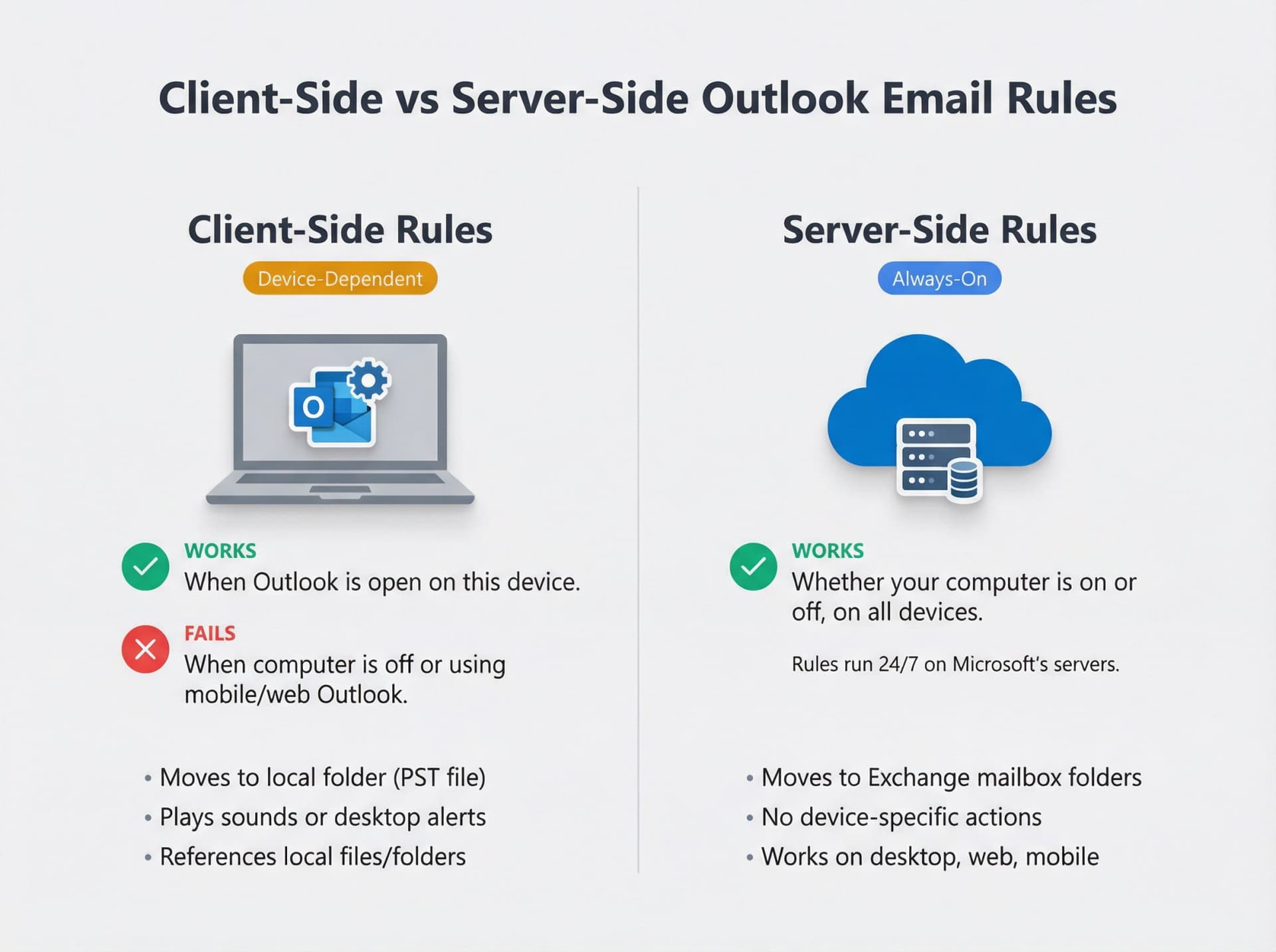
If the answer is no, you're dealing with client-side rules. Microsoft explicitly states that client-side rules require classic Outlook to be running on the device that created them.
What makes a rule client-side:
→ It moves messages to a local folder (on your device, not in your Exchange mailbox)
→ It includes device-specific actions like playing a sound or displaying a desktop alert
→ It references files or folders that only exist on your computer
When you create these rules in classic Outlook, they work great on that computer. But try to use Outlook on your phone or switch to new Outlook, and nothing happens. The rule is waiting for you to open classic Outlook again.
How to Make Rules Work Across All Devices
You have two options:
Option A: Accept the limitation. If you only check email on one computer and that computer is always on, client-side rules might be fine. Just understand that they won't work anywhere else.
Option B: Rebuild the rule without client-only actions. This is the better long-term solution.
To make a rule server-side:
① Create it in Outlook on the web or new Outlook (these interfaces only allow server-side rules)
② Avoid local-only destinations (use Exchange mailbox folders, not local PST folders)
③ Skip device-specific actions (no sounds, no desktop alerts, no local file operations)
The result will be less fancy, but it'll work reliably across all your devices, whether your computer is on or off.
Why Don't Multiple Keywords Work in Outlook Rules?
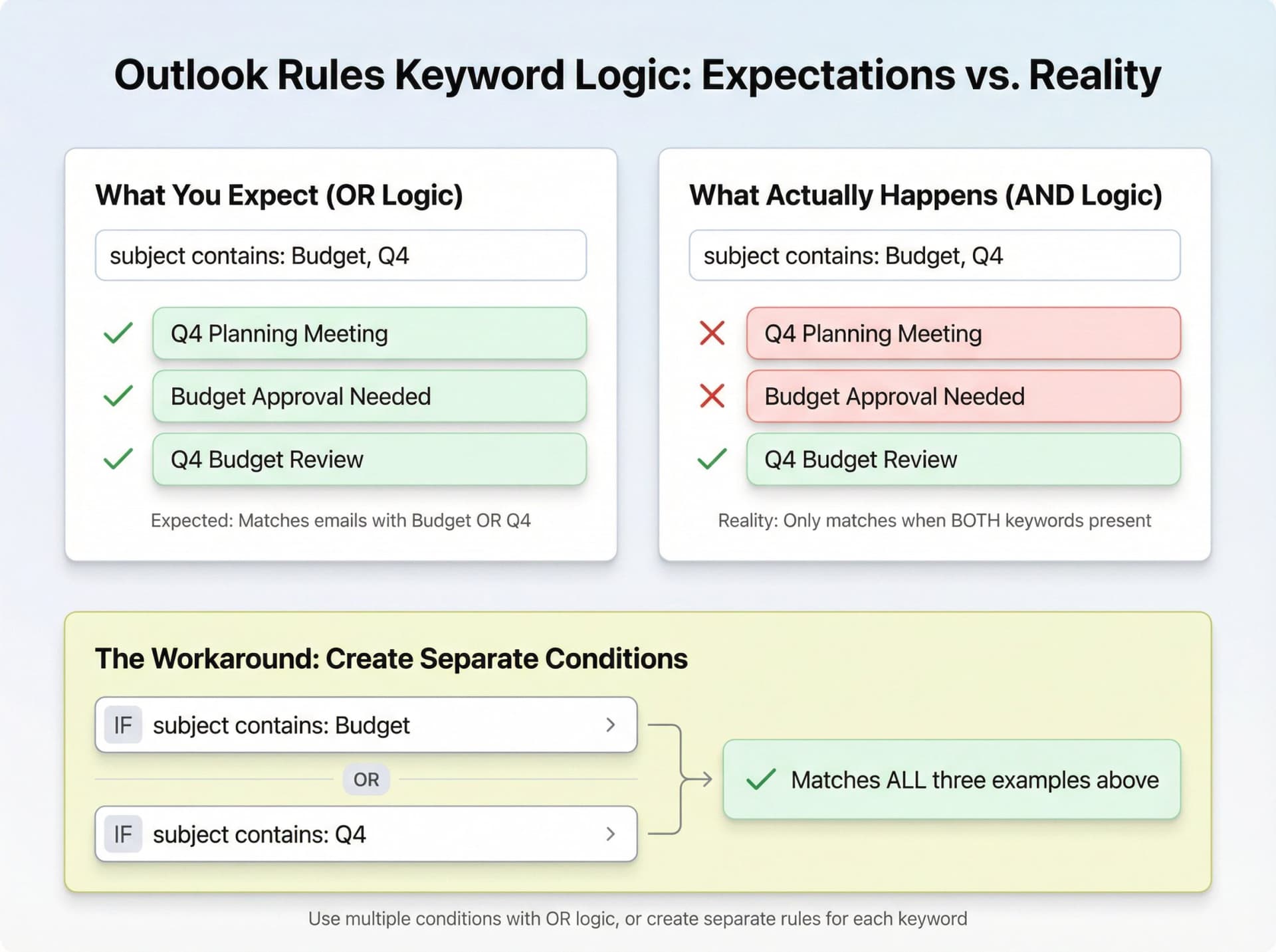
You create a rule with the condition "subject contains: Budget, Q4" and expect it to match emails containing either word. But Outlook treats multiple words in one condition as AND, not OR.
So your rule only fires when the subject contains both "Budget" AND "Q4".
How to Create OR Conditions in Outlook Rules
Create separate conditions for each keyword. In the rule wizard, add one condition for "Budget" and another condition for "Q4", then set the rule to trigger if any condition is met.
Or create separate rules entirely for each keyword you want to catch. Yes, it's more rules to manage, but it actually works.
Why Do Outlook Forwarding Rules Fail?
Forwarding is where most troubleshooting guides fall apart, because your rule can be perfectly configured and still fail due to Exchange policies you don't control.
Common Reasons Forwarding Rules Don't Work
Microsoft provides unusually specific documentation about why forwarding rules fail. Here are the main culprits:
| Failure Reason | What Happens | How to Fix |
|---|---|---|
| Mailbox forwarding enabled | Redirect rules won't work by design | Admin must disable mailbox-level forwarding via PowerShell |
| More than 10 recipients | Exchange Online limits forwarding to 10 max | Create distribution group, forward to group instead |
| External forwarding blocked | Security policy blocks auto-forwarding | IT admin must change outbound spam filter policy |
| Loop prevention triggered | Exchange won't forward already-forwarded mail | Rethink workflow or use transport rules |
Reason #1: Mailbox forwarding is enabled
If your mailbox has forwarding enabled at the mailbox level (different from rules), redirect rules won't work by design. Only one forwarding mechanism can be active at a time.
Admin fix (Exchange PowerShell):
Set-Mailbox <user> -DeliverToMailboxAndForward $False
Reason #2: You're forwarding to more than 10 recipients
Exchange Online limits forwarding rules to 10 recipients maximum. If you need to forward to more people, create a distribution group and forward to the group instead.
Reason #3: External forwarding is blocked by policy
This is huge in 2026. Many organizations now block external auto-forwarding by default for security reasons. Microsoft's default "Automatic - system-controlled" setting is effectively the same as "Off".
If external forwarding is blocked, you'll see NDR bounces like:
5.7.520 Access denied, Your organization does not allow external forwarding
You can't fix this yourself. Your IT admin needs to change the outbound spam filter policy to allow external forwarding. But they might say no for security reasons, and honestly? They're probably right to be cautious.
Reason #4: Loop prevention kicked in
Exchange adds headers to prevent infinite forwarding loops. If an email has already been forwarded once by a rule, Exchange won't forward it again.
This is by design to prevent mail storms. If you need more complex routing, you're better off using Exchange transport rules (admin-level) or rethinking your workflow.
Why Did My Rules Stop Working After Switching to New Outlook?
You were using classic Outlook. Everything worked fine. Then you switched to new Outlook and half your rules stopped firing.
What happened?

Microsoft is explicit about this: new Outlook only supports server-side rules, and even then, rules are only "partially available" in new Outlook. Some actions that worked in classic Outlook simply aren't supported yet.
What Happens to Client-Side Rules After Migration
When you migrate to new Outlook, client-side rules don't disappear. They show up in the rules list with a message: "This rule can't be edited or viewed".
They also don't run.
How to Fix Rules After Migrating to New Outlook
Recreate those rules in new Outlook or Outlook on the web. If you don't see the action you need in the new interface, that feature isn't supported yet. You'll need to either:
• Switch back to classic Outlook (Microsoft still allows this with a toggle)
• Find a workaround using supported actions
• Wait for Microsoft to add the feature to new Outlook
Or consider whether you actually need that specific rule. Sometimes simplifying your email management approach is the better path forward.
What Is the Outlook Rules Quota Limit?
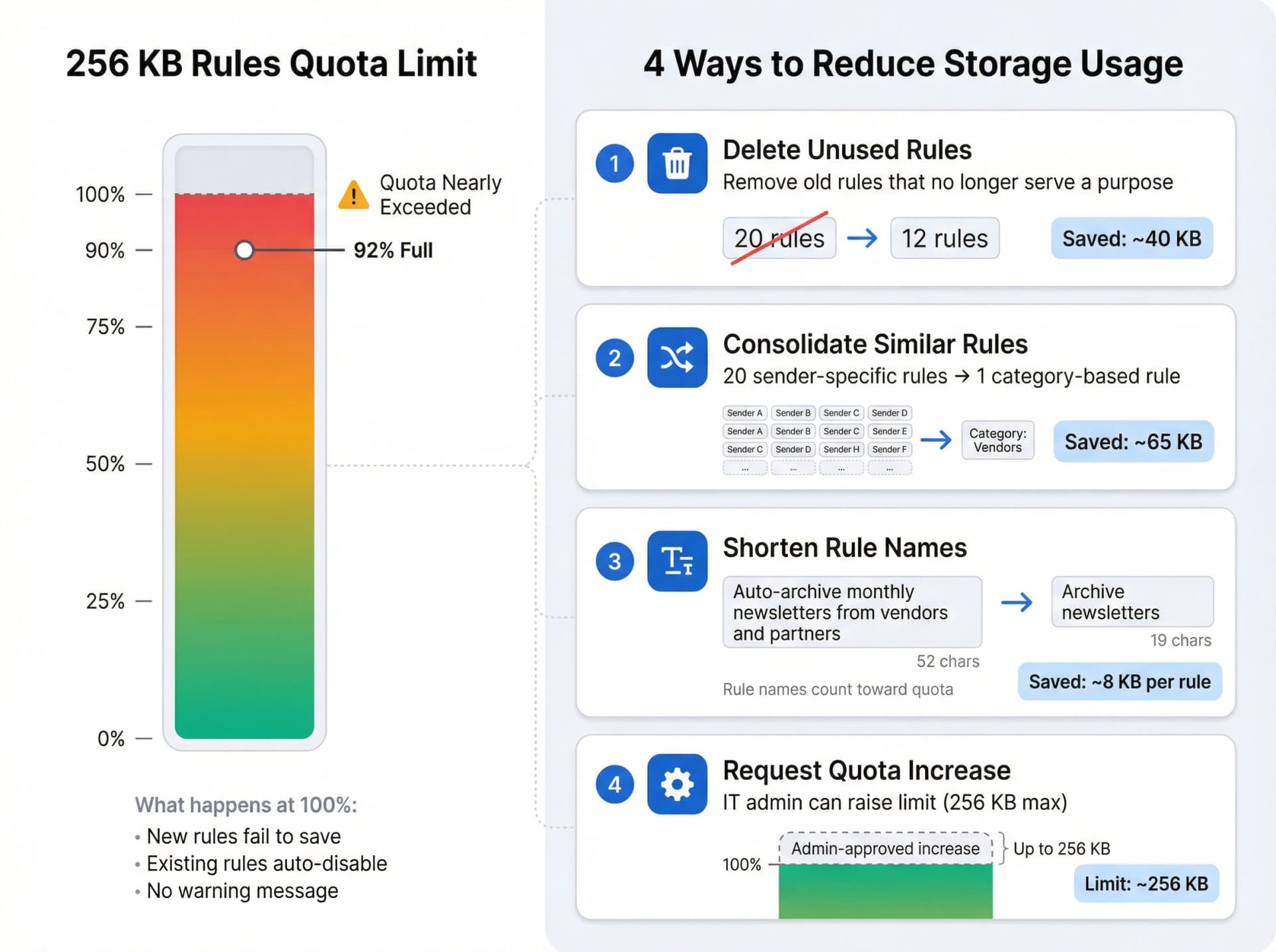
Most people don't know this: Outlook rules have a storage limit of 256 KB per mailbox.
If you've created dozens of complex rules over the years, you might hit that limit. When you do, new rules won't save or existing rules get disabled automatically.
How to Check If You're Over Quota
Unfortunately, Outlook doesn't show your current rule storage usage. The first sign is usually an error when trying to create a new rule: "One or more rules could not be uploaded to Exchange server."
If you suspect this is the issue, your IT admin can check with PowerShell:
Get-Mailbox -Identity <you> | FL RulesQuota
How to Reduce Rules Storage Usage
Option 1: Delete rules you don't need. Go through your rule list and remove old rules that don't serve a purpose anymore.
Option 2: Simplify and consolidate. Instead of having 20 separate rules for 20 different senders, create categories or folders and use fewer, broader rules.
Option 3: Shorten rule names. Yes, the rule name counts toward the storage limit. Renaming "Auto-archive monthly newsletters from vendors and partners" to "Archive newsletters" saves space.
Option 4: Ask IT to increase the quota. The limit can be raised to 256 KB maximum if your admin agrees. But 256 KB is the hard ceiling in Exchange Online.
Advanced Outlook Rules Troubleshooting
Still having problems? Let's go deeper.
How to Reset the Corrupt SRS File
Outlook stores send/receive settings in a file with the .SRS extension. If this file gets corrupted, rules might not run automatically.
How to fix it:
① Close Outlook completely
② Press Win + R, type: %appdata%\Microsoft\Outlook and hit Enter
③ Find the file named Outlook.srs (or YourProfileName.srs)
④ Rename it to Outlook.srs.old
⑤ Restart Outlook
Outlook will create a fresh .SRS file with default settings. Your rules aren't affected (they're stored elsewhere), but the config for running them gets reset. This often fixes mysterious "rules don't auto-run" problems.
Why Don't Rules Work on Messages in Junk Folder?
Rules only run on messages delivered to the Inbox. If Outlook's spam filter catches an email first and moves it to the Junk folder, your rules never see it.
If you have rules for newsletters or bulk senders, this happens frequently. The fix: add important senders to your Safe Senders list so they always hit your Inbox. Then your rules can process them properly. For a more intelligent approach to managing email subscriptions, consider automated classification tools.
How Does Rule Order Affect Outlook Rules?
Outlook processes rules in order from top to bottom. If a rule higher in the list has "Stop processing more rules" enabled, everything below it gets ignored for messages that match.
Reorder your rules by dragging them in the rules list. Put specific rules above general ones. For example:
| Rule Order | Rule 1 | Rule 2 | Result |
|---|---|---|---|
| ✓ Good order | If from Boss → flag as Important | If from anyone in Sales → move to Sales folder | Boss emails get flagged AND moved |
| ✗ Bad order | If from anyone in Sales → move to Sales folder (stop processing) | If from Boss → flag as Important | Boss emails moved but NOT flagged |
In the bad order, emails from your boss (who's in Sales) never get flagged because Rule 1 moves them and stops.
How to Delete All Outlook Rules and Start Fresh
If nothing else works, you can wipe all rules and start over.
Warning: This is irreversible without a backup.
Close Outlook, press Win + R, and run:
outlook.exe /cleanrules
This deletes every rule in your mailbox, both client-side and server-side. Sometimes a single corrupted rule gums up the entire system, and starting fresh eliminates that unknown factor.
Before you do this, export your rules in classic Outlook (File → Manage Rules & Alerts → Options → Export). You can use the export as a reference for recreating them, though re-importing can reintroduce the same problems.
When Should You Use Something Better Than Outlook Rules?
Sometimes the honest answer is: Outlook's built-in rules aren't up to the task.

They're fine for simple sorting. But if you need:
→ Smart classification based on content, not just sender or subject keywords
→ Rules that work reliably across all devices without client-side limitations
→ AI-powered drafting of replies, not just moving and flagging
→ A system that doesn't break when you hit quota limits or migrate to new Outlook
Then you're pushing rules beyond what they were designed for.
What Outlook Rules Can't Do
Think about what you're actually trying to accomplish. Most people don't want "rules" for their own sake. They want:
| What You Really Want | What Rules Can't Do Well |
|---|---|
| Inbox Zero without manual sorting | Can't intelligently classify ambiguous emails |
| Drafted replies waiting for approval | Rules don't draft, they just move/flag |
| Bulletproof automation across devices | Client-side rules break this |
| Smart filtering of newsletters vs. important mail | Keyword matching is too brittle |
| Audit trail of what happened and why | Rules fail silently with no logging |
Outlook rules give you if/then logic with exact keyword matching. They don't give you intelligence, adaptability, or reliability guarantees.
How Inbox Zero Works Better Than Outlook Rules
We built Inbox Zero specifically to solve these problems. It works on top of Outlook (and Gmail) using Microsoft's APIs to give you rule-like automation that's actually reliable.
How it's different from built-in rules:
Smart classification: Instead of exact keyword matching, Inbox Zero uses AI to understand what an email is actually about. A newsletter from "TechUpdate Daily" gets categorized correctly even if you've never seen that sender before.
Works everywhere: Because it operates through Microsoft 365 APIs, it works whether you're on desktop, web, or mobile. No client-side dependencies.
Drafts replies: It can draft responses based on context and your instructions, not just move emails around. The drafts wait for your approval by default.
Doesn't hit quota limits: The automation runs on our infrastructure, not in your Outlook client, so you're not constrained by the 256 KB rule limit.
Survives migration: When you switch from classic to new Outlook (or change devices), Inbox Zero keeps working because it's not tied to any specific client.
You describe what you want in plain English ("Move newsletters to a folder, but keep anything about product launches in my inbox"). Inbox Zero converts that into explicit conditions and actions, then executes them reliably through Outlook's backend.
It's like an upgraded rules system that doesn't have the fragile dependencies that make Outlook's native rules break.
How to Auto-Label Emails by Domain
Let's say you want all emails from @acme.com automatically labeled "Client - Acme." In Outlook rules, you'd create a rule with "sender contains @acme.com" and "assign category."
That works until:
• You switch to new Outlook and the rule becomes client-side and stops firing
• Someone from Acme uses a personal email and you miss it
• Acme gets acquired and changes domains
With Inbox Zero's approach to auto-labeling by domain, you set up the classification once and it adapts intelligently. The system handles edge cases, works across all devices, and doesn't require you to manually update rules when domains change.
You can also use bulk email unsubscribe features to reduce the volume of newsletters that need sorting in the first place, and email analytics to understand your inbox patterns better.
Best Practices for Reliable Outlook Rules
If you want Outlook rules to work consistently, here's what matters most:
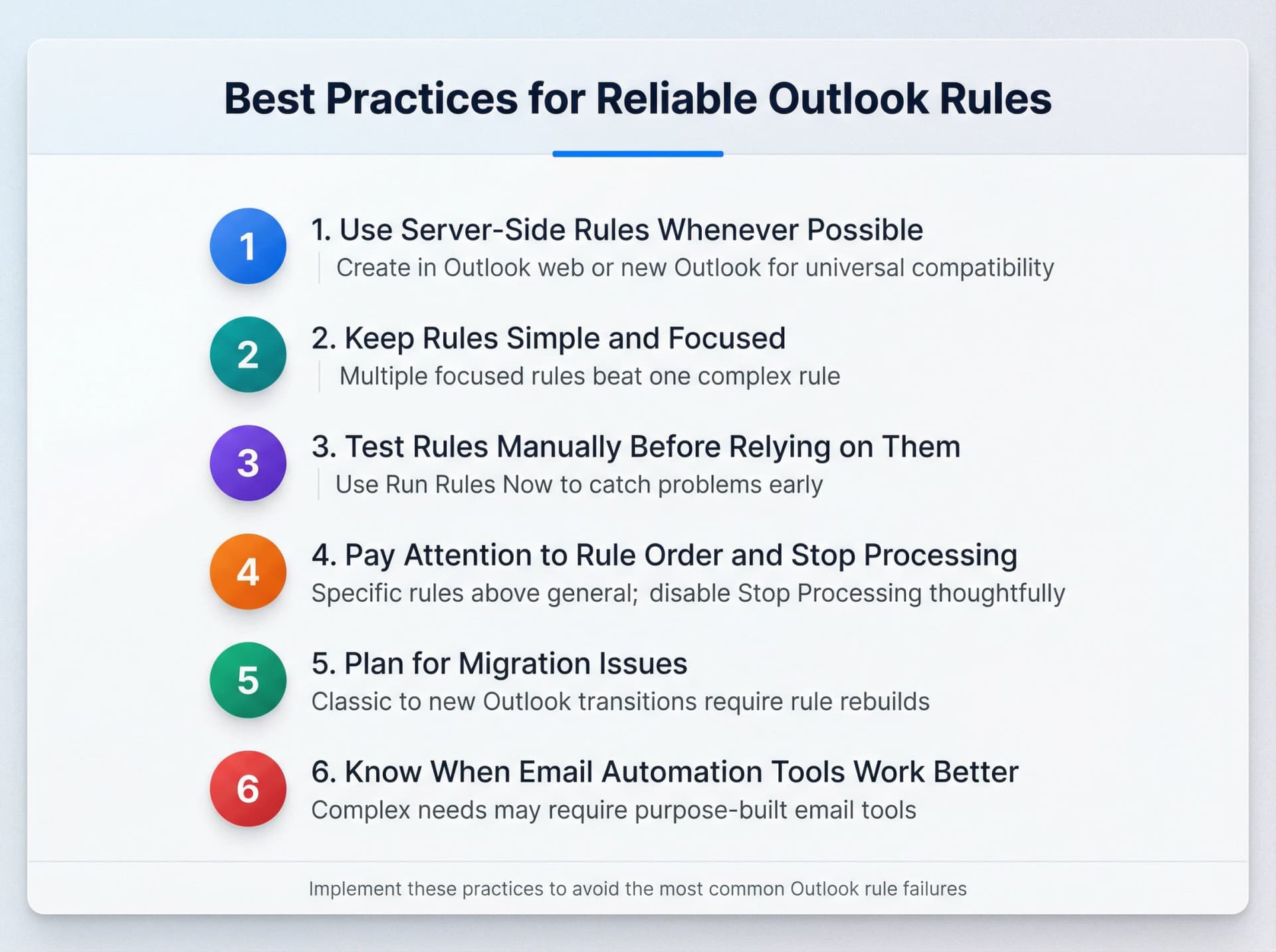
1. Use Server-Side Rules Whenever Possible
Create rules in Outlook on the web or new Outlook. This forces you to stick to server-compatible actions that work everywhere, not just on your desktop.
2. Keep Rules Simple and Focused
Don't try to make one rule do everything. Multiple focused rules are easier to troubleshoot than one complex rule with six conditions and four actions.
3. Test Rules Manually Before Relying on Them
After creating a rule, use "Run Rules Now" to test it on existing emails before relying on it for incoming mail. Catch problems early.
4. Pay Attention to Rule Order and Stop Processing
Put specific rules above general ones. Turn off "Stop processing more rules" unless you explicitly want that behavior.
5. Plan for Migration Issues
When Microsoft updates Outlook (especially classic → new Outlook transitions), plan to rebuild rules. Don't assume they'll migrate cleanly.
6. Know When Email Automation Tools Work Better
If you find yourself fighting with rules constantly, or if your needs are more complex than simple if/then logic, consider tools purpose-built for intelligent email management.
Final Thoughts on Fixing Outlook Rules
Outlook rules are powerful tools when they work. The problem is they're surprisingly fragile. Client-side vs. server-side dependencies, quota limits, migration issues, silent failures, and undocumented behaviors all conspire to make "reliable email automation" harder than it should be.
Most rule failures follow patterns. Rules that work on desktop but not mobile? Client-side issue. Rules that stopped after switching to new Outlook? Unsupported features. Forwarding rules that silently fail? Policy blocks or quota limits.
Once you know the patterns, diagnosis gets faster. The fixes in this guide cover the vast majority of real-world rule problems you'll encounter in 2026.
But if you're constantly troubleshooting rules, step back and ask: is this the right tool for what I'm trying to accomplish? Sometimes the answer is yes, you just need to rebuild them correctly as server-side rules.
And sometimes the answer is: you need something more intelligent and reliable than Outlook's built-in rule system can provide.
That's why we built Inbox Zero to help you achieve inbox zero without the fragility of traditional rules.
And if rebuilding fragile rules over and over is wearing thin, an AI email assistant like Inbox Zero can replace them with AI that understands your email and triages it reliably.
Either way, you now have the knowledge to diagnose what's broken and the tools to fix it. Your email automation doesn't have to be a mystery anymore.


How to Recall an Email in Outlook (2026)
How to recall an email in Outlook step by step for new Outlook, classic Outlook, web, Mac, and mobile, plus when recall works and what to do when it doesn't.
2026-09-30T18:25:57.000Z

How to Stop AliExpress Emails (2026)
Stop AliExpress promotional emails: the unsubscribe link, notification settings in your AliExpress account, and what to do when the deals keep coming.
2026-09-30T18:25:57.000Z

How to Stop Amazon Emails (2026)
Stop Amazon marketing emails with the Communication Preferences Center, manage Amazon email subscriptions, and handle order emails you can't switch off.
2026-09-30T18:25:57.000Z

How to Stop Domino's Emails (2026)
Stop Domino's emails with Domino's official opt-out page, stop Domino's text offers, and know which rewards emails keep coming.
2026-09-30T18:25:57.000Z