Gmail Filters Not Working? How to Fix Them (2026)
Gmail filters not working? Fix them fast with our 2026 troubleshooting guide. Covers 12 common issues, exact fixes, and copy-paste filter templates.

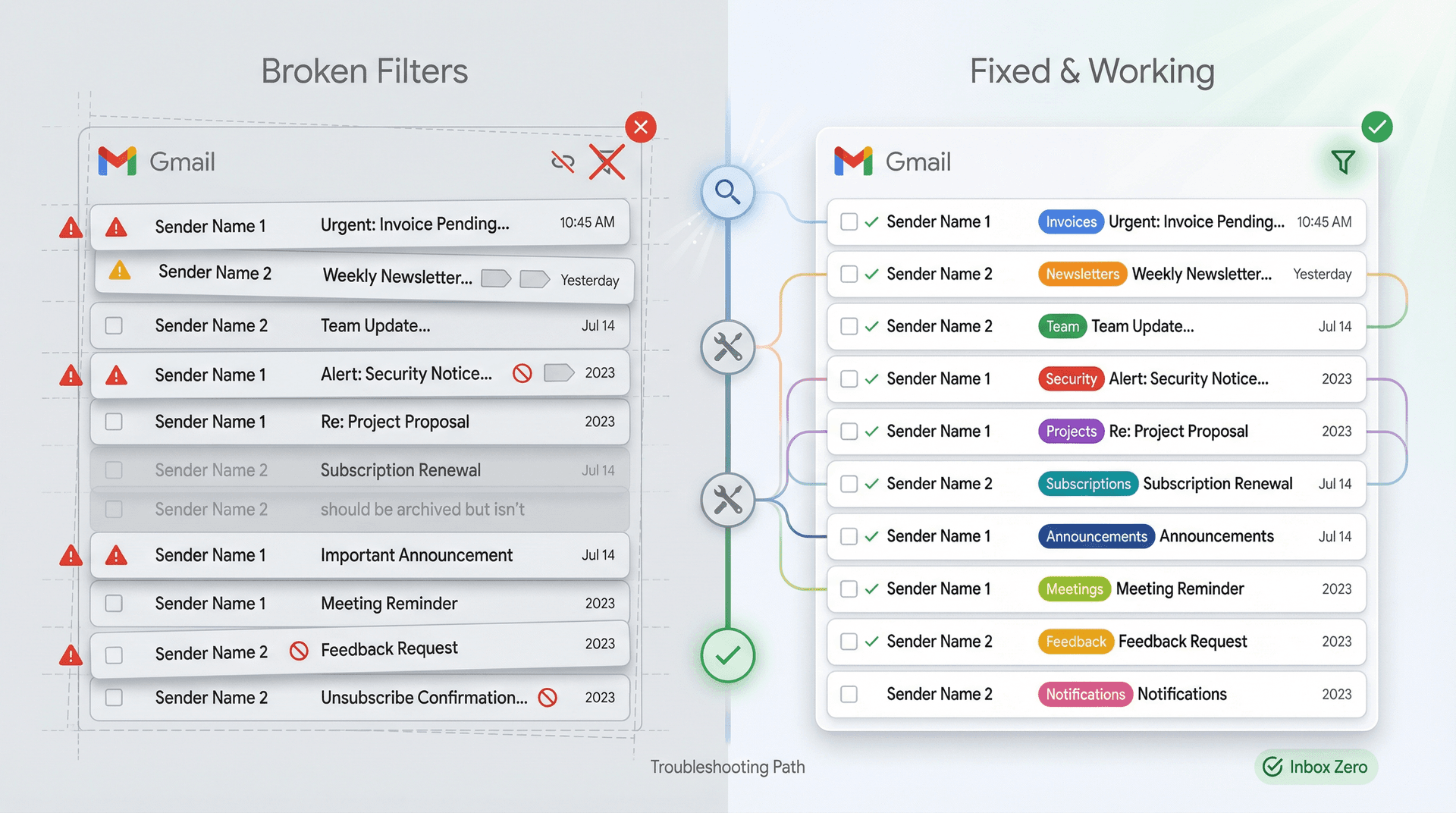
Your Gmail filter should work. You set it up correctly, tested it, maybe even double-checked the criteria. But here you are, staring at an inbox full of emails that should have been sorted, labeled, or archived hours ago.
This isn't random. Gmail filters break for specific, fixable reasons. Your problem is likely one of twelve common issues that stem from how Gmail's search engine processes rules, how settings override each other, or how your email delivery chain works. This guide walks through each root cause with the exact fix.
After reading this, you'll know how to prove where your email goes, confirm whether filters match, fix conflicts between settings, and build filters that keep working even when senders change domains or reply formats. And if you're ready to move beyond static filters entirely, we'll show you how AI email automation can solve these problems automatically.
How to Check If Your Gmail Filter Is Actually Broken
Is the Email Even in Gmail?
Before touching your filters, answer this question. A Gmail filter can't act on mail that never arrived, was deleted elsewhere, or expired from Spam.
Search everywhere in your account using in:anywhere plus a keyword or sender address. Gmail explicitly supports this operator to search across all folders including Spam and Trash.
If the message isn't found, a few things might be happening. Your storage could be full, preventing new mail from arriving. The email might have landed in Spam or Trash, both of which auto-delete after 30 days. Another device or email client may have deleted it before you saw it. Or forwarding and POP/IMAP settings could be moving mail out of your account before it ever reaches your inbox.
If you find the email in Spam, mark it "Not spam" so Gmail learns. Google recommends this to prevent future automatic spam routing. Also worth checking: third-party apps with Gmail access. Google suggests removing anything unfamiliar that might be moving your mail.
Does Your Filter Search Query Actually Match the Email?
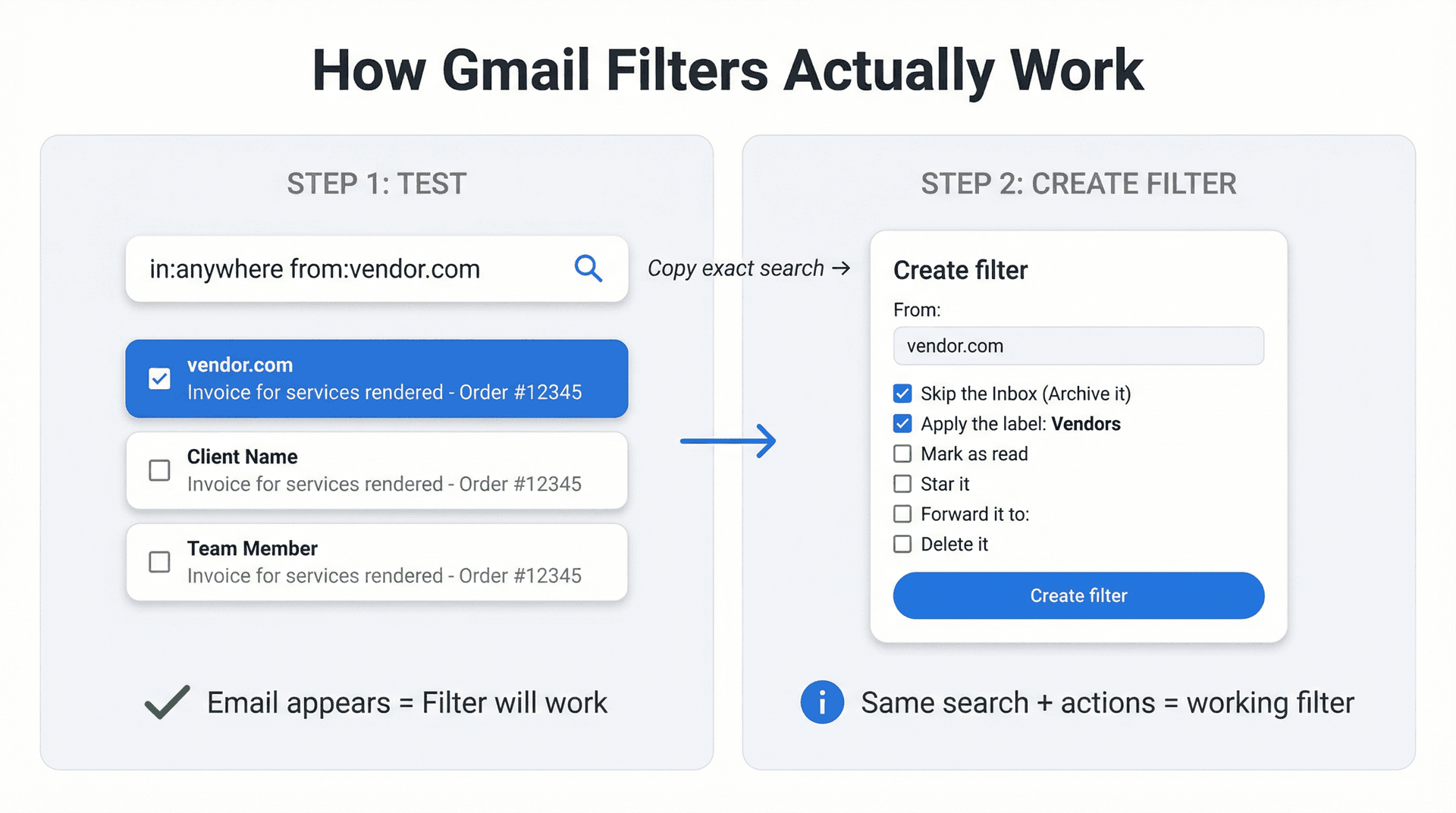
Most people don't know this: Gmail filters are just saved searches with actions attached.
Google's official filter documentation literally tells you to click Search to verify criteria before creating the filter. Most people skip this step.
Copy your filter criteria. Paste it into the Gmail search bar. If the target email doesn't appear in search results, the filter won't trigger. Period. This single test eliminates the vast majority of "broken" filters.
12 Reasons Why Gmail Filters Stop Working
1) Your Filter Doesn't Apply to Existing Emails
You create a filter and nothing changes in your inbox. This happens because filters apply to incoming mail only and don't touch messages that already exist. A university Gmail guide clearly states: "Only messages that are incoming will use this filter."
If you want old messages organized, you must check "Also apply filter to matching conversations" before creating the filter. To fix this, edit your filter, click Continue, check that box, then Update. Or recreate the filter and select the option this time.
2) Your Filter Labels Emails But They Still Show in Inbox
The label works correctly, but messages remain in your inbox. This happens because labels don't automatically remove the Inbox label. In Gmail, "Inbox" is effectively just another label. To fix this, add "Skip the Inbox (Archive it)" to your filter's actions.
When testing new filters, start with "Apply label" plus "Skip Inbox" rather than jumping straight to "Delete it." You can still recover mistakes this way. For a more intelligent approach to organizing your inbox, consider using AI-powered email automation that learns your preferences.
Google's missing-mail troubleshooting warns to review filters using "Delete it" or "Skip Inbox" when mail seems to vanish, so proceed carefully.
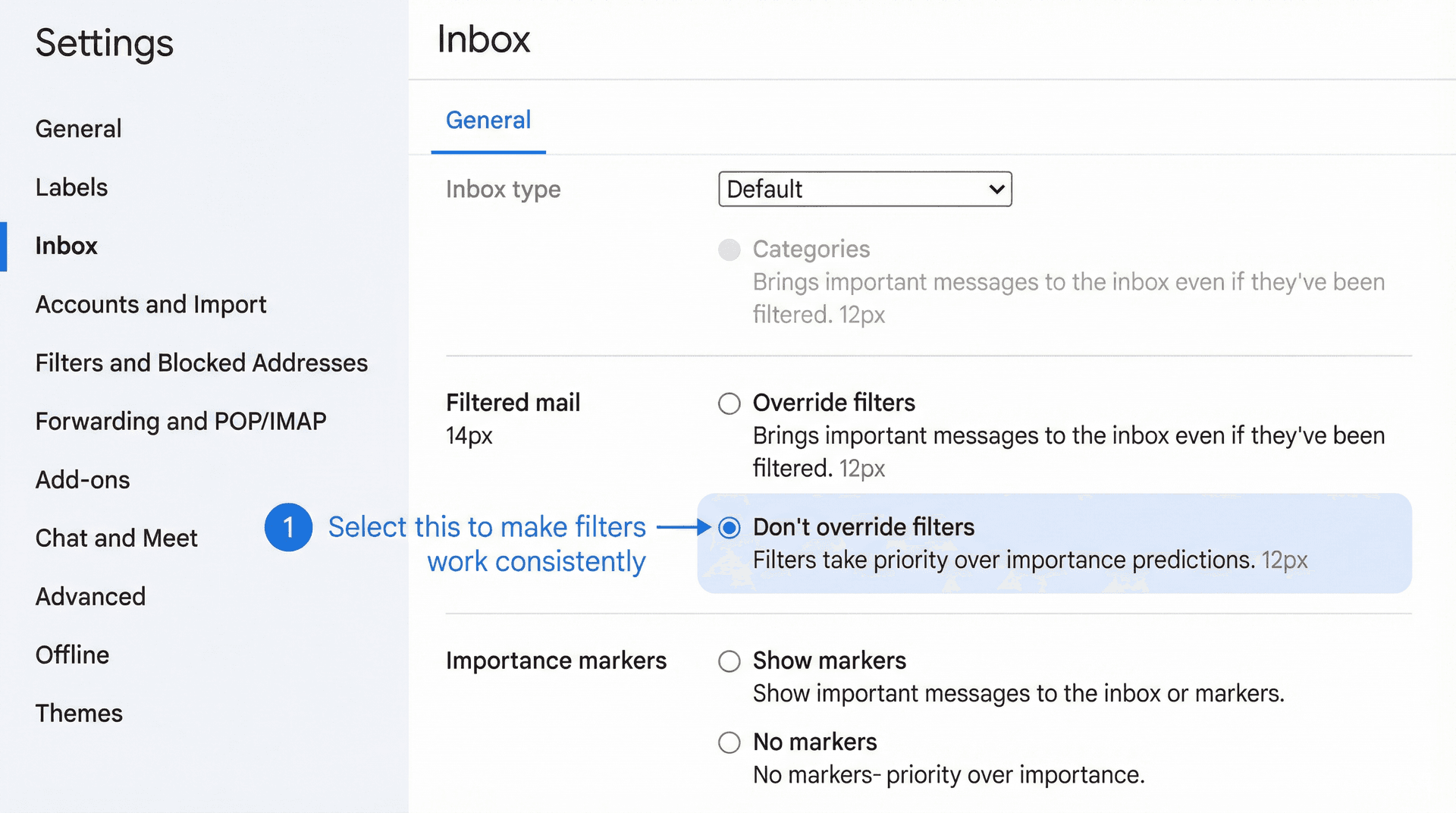
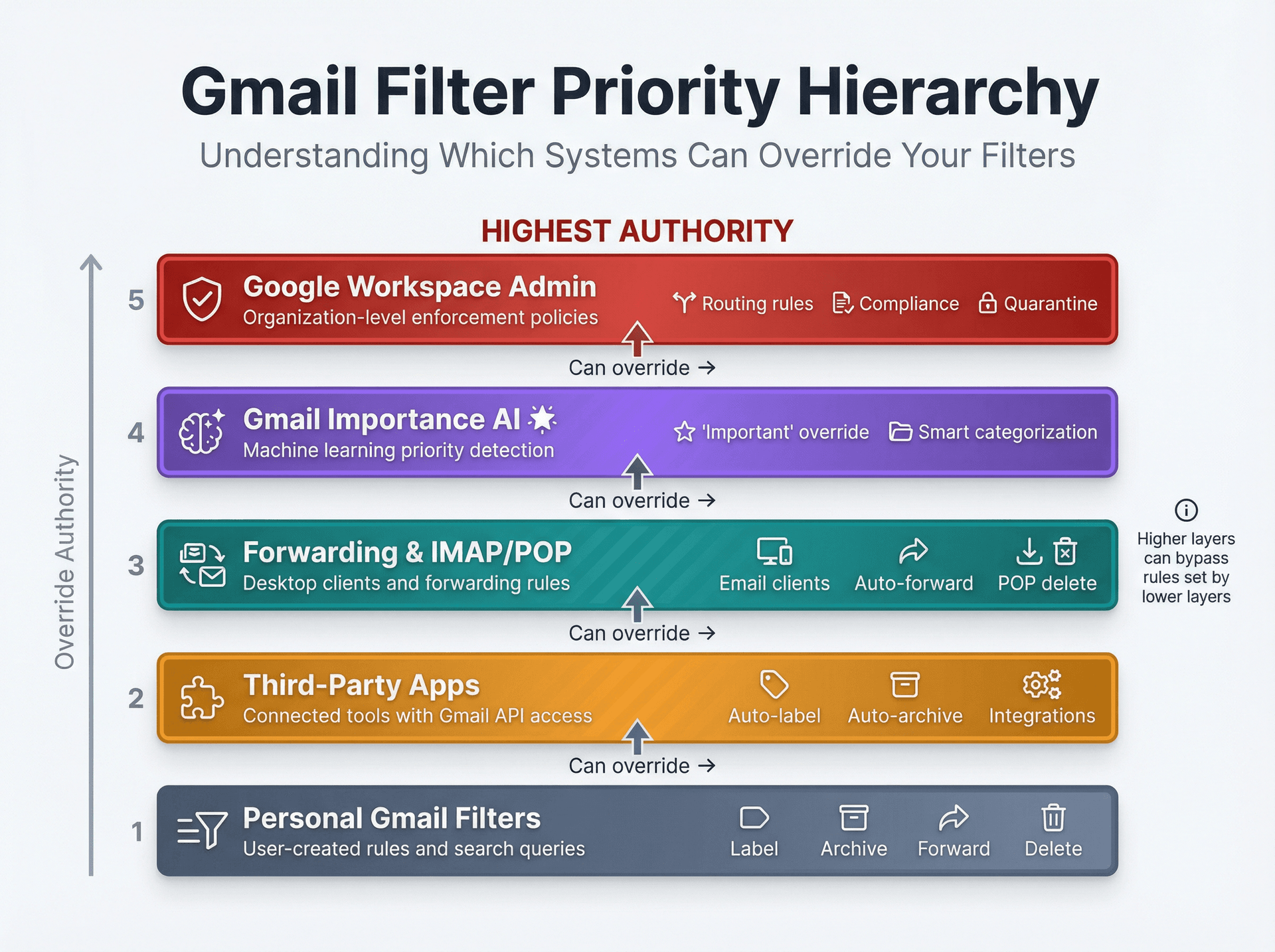
3) Gmail's "Important" Setting Overrides Your Filters
Some mail matches the filter and gets labeled, but still lands in Inbox because Gmail marks it important. This happens because there's a Gmail setting that overrides filters for important messages. Multiple sources from 2024-2025 describe this path: Settings, then the Inbox tab, then the Filtered mail section, where you choose "Don't override filters" instead of "Override filters."
To fix this, go to Gmail Settings and navigate to the Inbox tab. Find the Filtered mail section, select "Don't override filters," and save your changes.
If you're building a true inbox zero system, you generally want filters to be authoritative. Otherwise Gmail's importance logic can partially defeat your routing rules.
4) "Never Send to Spam" Forces Messages Into Inbox
You created a safe-sender rule and now those messages keep appearing in Inbox even when you try to archive them. Gmail treats "Never send it to Spam" as a strong directive that can conflict with other actions. Third-party email tools note that by default, Gmail applies the Inbox label to emails affected by a "Never send to Spam" filter, which bypasses other routing behaviors.
If you need safe-sender protection without forcing Inbox, you have a few options. You can narrow the safe-sender filter to only truly critical senders, create a second filter matching the same sender that explicitly skips the Inbox (then verify which behavior wins), or use a label plus workflow instead of the "Never spam" option.
5) Your Search Logic Uses AND/OR Incorrectly
Your filter works for some cases but misses obvious matches. Gmail's search syntax is powerful, but it's easy to write a query that can never match.
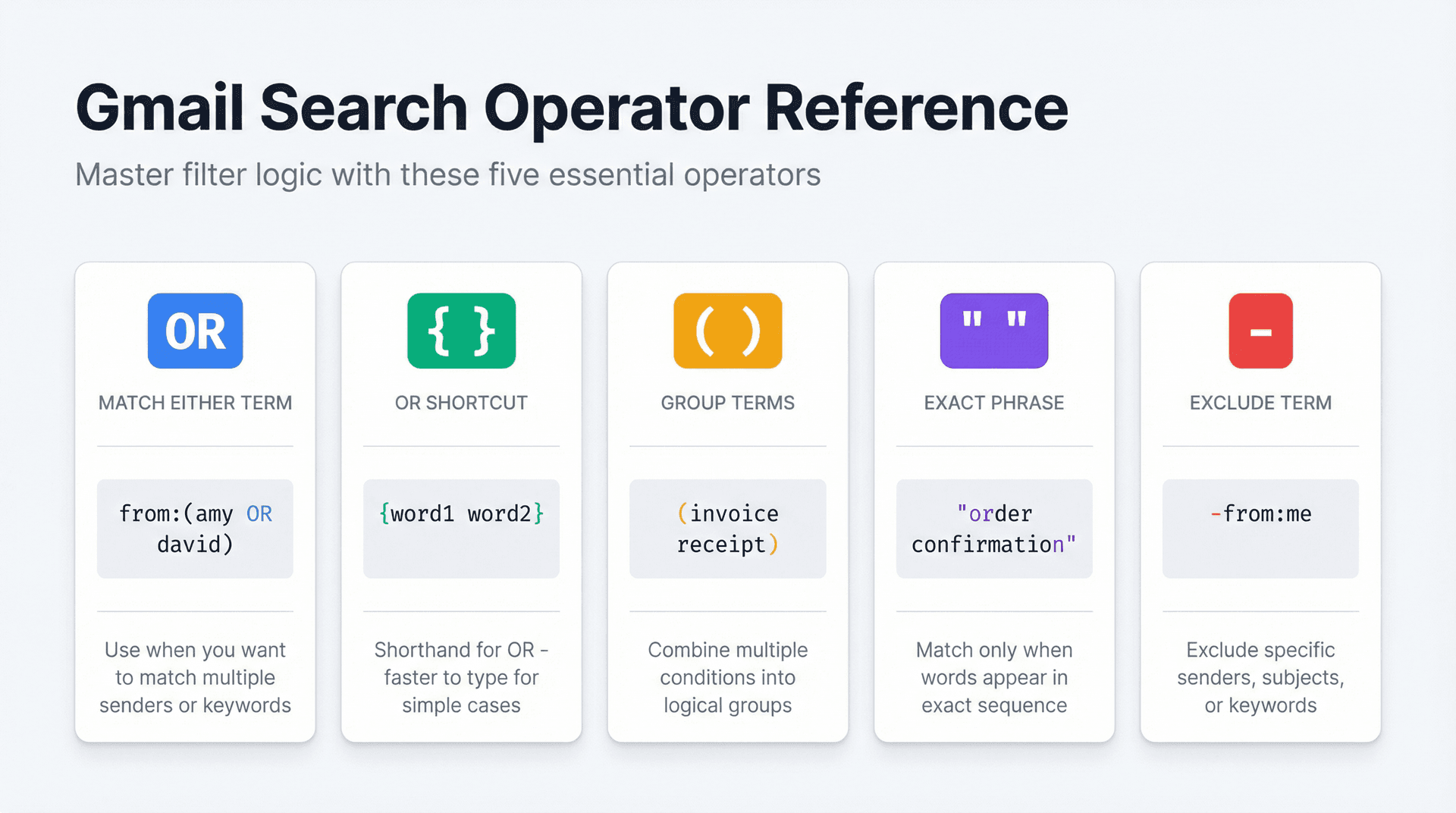
Google documents these key operators that you need to understand:
| Operator | Purpose | Example |
|---|---|---|
OR | Match either term | from:(amy OR david) |
{ } | OR shortcut | {word1 word2} |
( ) | Group terms | (invoice receipt) |
" " | Exact phrase | "order confirmation" |
- | Exclude term | -from:me |
Here are copy/paste patterns that work:
from:(billing@vendor.com OR receipts@vendor.com)
subject:("invoice" OR "receipt")
-from:me
{from:amy@example.com from:david@example.com} subject:(invoice receipt)
If your search query doesn't return the target email, your filter won't work.
For complete documentation of all Gmail search operators, visit Google's official search operators guide .
6) You Filtered by "To:" But Email Was Sent to an Alias
You filter messages sent to your alias but they don't match. The visible "To" header can differ from the actual delivery address. Google explicitly supports the deliveredto: operator to find email delivered to a specific address. Use deliveredto:alias@domain.com in your filter query instead of to:.
deliveredto:invoices@yourdomain.com
If this behaves unexpectedly in Google Workspace setups, check the headers method below.
7) You're Filtering a Mailing List by Sender Instead of List Identity
You filter on from: but messages come from changing senders or "via" addresses. Mailing lists often rewrite sender details, so filtering by from: breaks when the individual sender rotates. Gmail supports the list: operator to find emails from a mailing list.
list:newsletter.example.com
This targets the mailing list identity, which stays constant even when individual senders change. For managing newsletters more effectively, Inbox Zero's Bulk Email Unsubscriber can help you identify which newsletters you actually read and unsubscribe from the rest.
8) The Email Is Part of an Existing Conversation in Your Inbox
You filtered new messages to archive, but the thread still shows in Inbox. Gmail's conversation view surfaces a thread in Inbox if the conversation still has Inbox state somewhere in it.
When creating or editing the filter, check Also apply filter to matching conversations so it removes Inbox state from existing matching threads. Then archive the thread once to clear it out.
9) Forwarding, POP, or IMAP Settings Are Moving Mail Before You See It
Filters appear inconsistent across devices, or emails "disappear." Gmail's own missing-mail guide highlights forwarding and POP/IMAP as common culprits, pointing you to Settings, then Forwarding and POP/IMAP to review behavior.
To fix this, review your forwarding settings and check whether Gmail keeps a copy in Inbox. Review POP/IMAP client delete or archive settings as well. If you're using a desktop client like Apple Mail or Outlook, confirm it isn't auto-deleting messages.
10) A Third-Party App Is Labeling or Archiving Your Mail
Your filter logic is correct, but something keeps changing labels or states after delivery. Connected tools can modify mail independently of your filters. Google's troubleshooting recommends removing access to unused apps connected to your Google account.
To fix this, audit connected apps in your Google Account settings and temporarily disable suspicious tools. Retest with a controlled sender to isolate the problem. When choosing third-party email tools, it's important to verify they're secure to connect to Gmail. Inbox Zero is SOC 2 compliant and follows strict security standards.
11) Google Workspace Admin Rules Override Your Personal Filters
Your personal filters are correct, but mail routes unexpectedly or never arrives. Workspace admins can enforce routing, compliance, and spam policies that supersede user filters. Google Workspace admin documentation explains that Gmail spam filters exist and admins can configure spam settings plus related controls.
Ask your Workspace admin to check routing rules, quarantine settings, approved sender lists, compliance rules, and attachment restrictions. If you're using Google Workspace for your business, Inbox Zero's enterprise solution integrates seamlessly while respecting admin policies.
12) You're Using "Forward It" and Expecting It to Apply to Old Mail
Forwarding filters don't behave as expected. Google's Workspace user guide notes that when you create a filter to forward messages, only new messages are affected. Replies are only filtered if they meet the same criteria.
Don't rely on forwarding filters for historical mail, and ensure your criteria matches replies too, since subject-based filters often break when the subject changes in a thread.
How to Build Gmail Filters That Never Break
If you've tried everything and the filter still misses emails, you're likely filtering on the wrong thing. Display names, "via" senders, rewritten headers, and alias behavior can all fool basic filter criteria.
Step 1: View the Full Email Headers
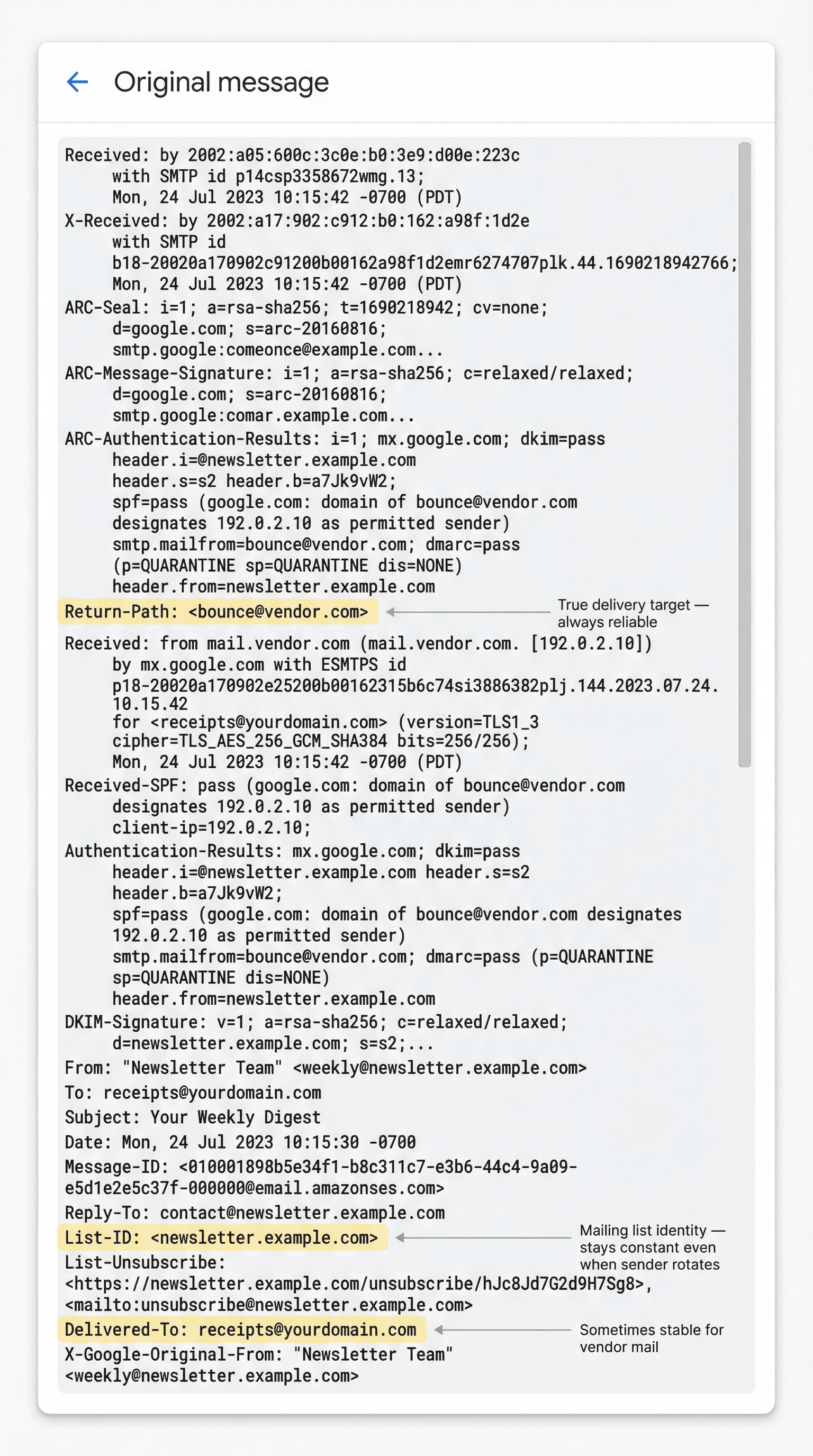
Google documents how to access this: Open the email, click the More menu next to Reply, select "Show original," then copy the full header.
Step 2: Look for Stable Identifiers
In the header source, look for fields that tend to remain constant. "Delivered-To" reveals the true delivery target. "List-ID" gives you the mailing list identity. "Return-Path" is sometimes stable for vendor mail. Compare the "From" and "Reply-To" fields, as they're sometimes different. For advanced use, you can also examine domain patterns in the Received lines.
Step 3: Convert What You Find Into a Filter Query
Use Gmail search operators that map to those realities:
| Operator | Purpose | Example |
|---|---|---|
deliveredto: | Match delivery address | deliveredto:alias@domain.com |
list: | Match mailing lists | list:newsletter.example.com |
( ) | Group terms | (word1 word2) |
OR / { } | Alternatives | {from:a@example.com from:b@example.com} |
All of these are supported by Gmail.
Copy-Paste Gmail Filter Templates That Actually Work
These templates survive common "filter rot" like sender changes, reply formats, and alias delivery differences.
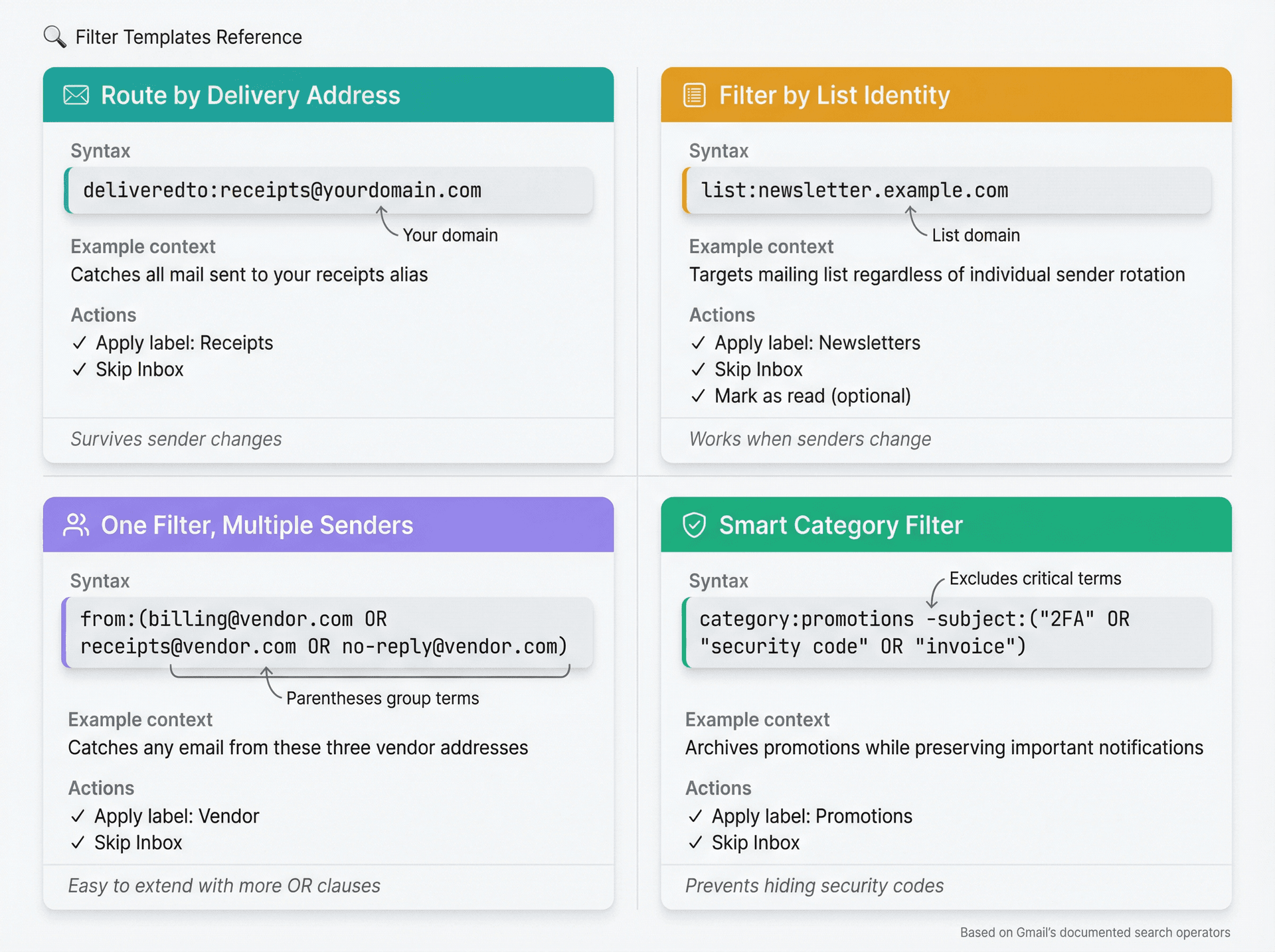
Route All Receipts Delivered to a Specific Alias
deliveredto:receipts@yourdomain.com
Supported by Gmail's deliveredto: operator. Apply the label "Receipts" plus Skip Inbox.
Filter a Newsletter by Mailing List Identity (Not From-Address)
list:newsletter.example.com
Gmail's list: operator targets mailing list mail regardless of individual sender. Apply the label "Newsletters" plus Skip Inbox, and optionally Mark as read. For a smarter approach to managing email subscriptions, consider tools that automatically identify newsletters you don't read.
One Filter for Multiple Senders (Done Correctly)
from:(billing@vendor.com OR receipts@vendor.com OR no-reply@vendor.com)
Gmail supports OR and grouping.
Keep Your Inbox Clean Without Losing Critical Messages
category:promotions -subject:("2FA" OR "security code" OR "invoice")
Gmail supports category: and quotes/grouping. Apply the label "Promotions" plus Skip Inbox. This builds a "safer promotions filter" that exempts critical keywords like two-factor authentication codes and invoices.
How to Export, Backup, and Reset Gmail Filters
If your filters have grown into an unauditable mess, treat them like infrastructure. Back them up, reduce conflicts, rebuild in a controlled way.
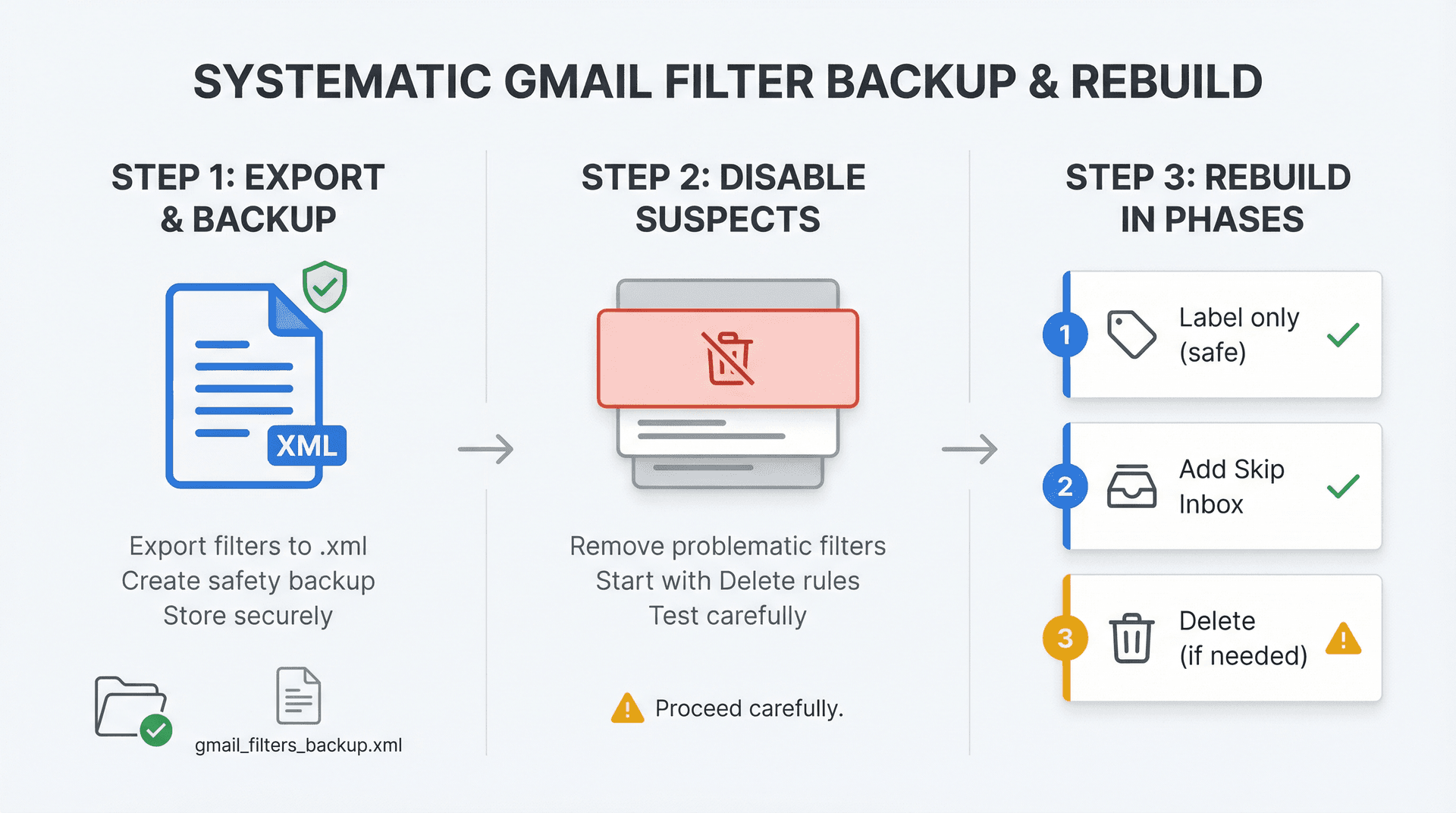
Google's filter help page explains you can export filters to an .xml file and import them later from Settings, then Filters and Blocked Addresses.
A Practical "Reset Without Panic" Approach
Start by exporting all current filters as backup. Then disable or delete only the ones you suspect, starting with anything using "Delete it". Finally, rebuild filters in phases: first label only (no archive or delete), then add Skip Inbox once you're confident, and only if necessary, add Delete it last.
When Gmail Filters Aren't Enough: AI Email Automation
Gmail's filters are powerful, but they're also static. If you get a new type of newsletter, Gmail won't auto-filter it unless you update a rule. Manual filter management becomes unsustainable when you're dealing with hundreds of emails per day.
This is where we built Inbox Zero.
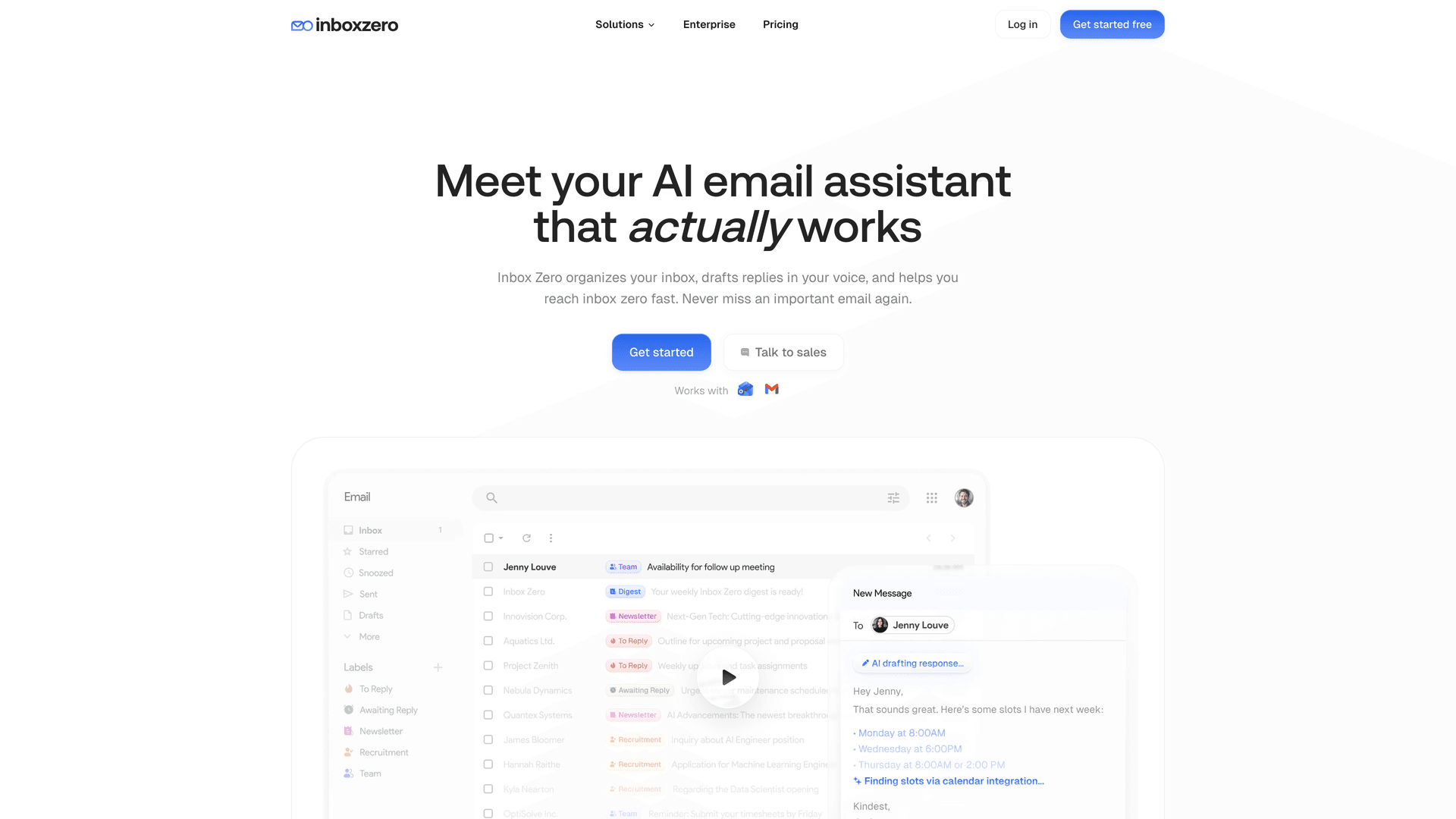
Instead of writing exact search queries for every sender, you describe what you want in plain English. Our AI email assistant converts that into Gmail filters and rules automatically. For example: "Label all emails from my team as 'Team' and pin them, send newsletters to archive, and put GitHub notifications in a 'Dev' folder."
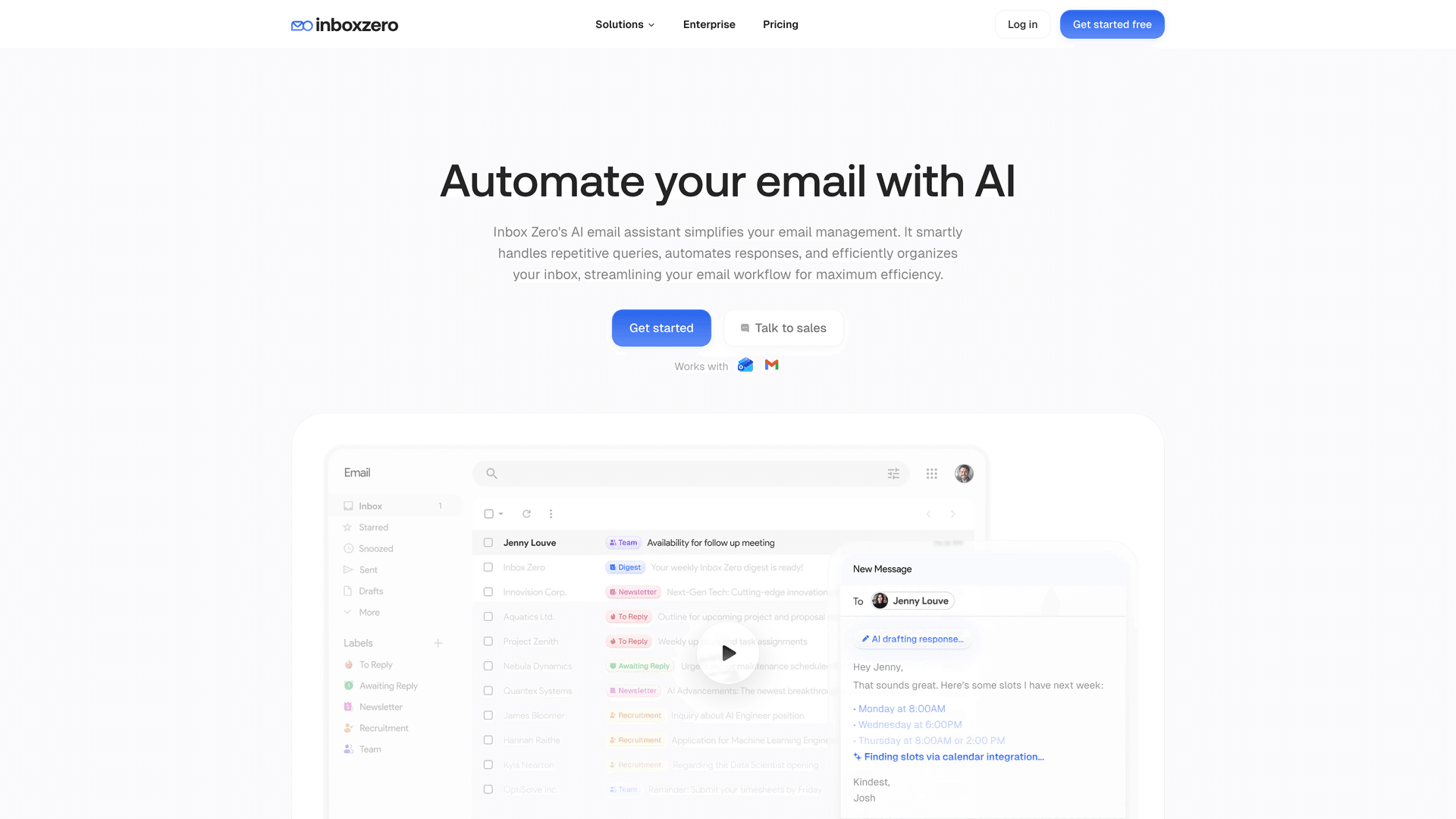
The system handles the syntax, logic, and even suggests labels. You just approve and it starts working.
What Makes AI Email Assistants Different From Filters
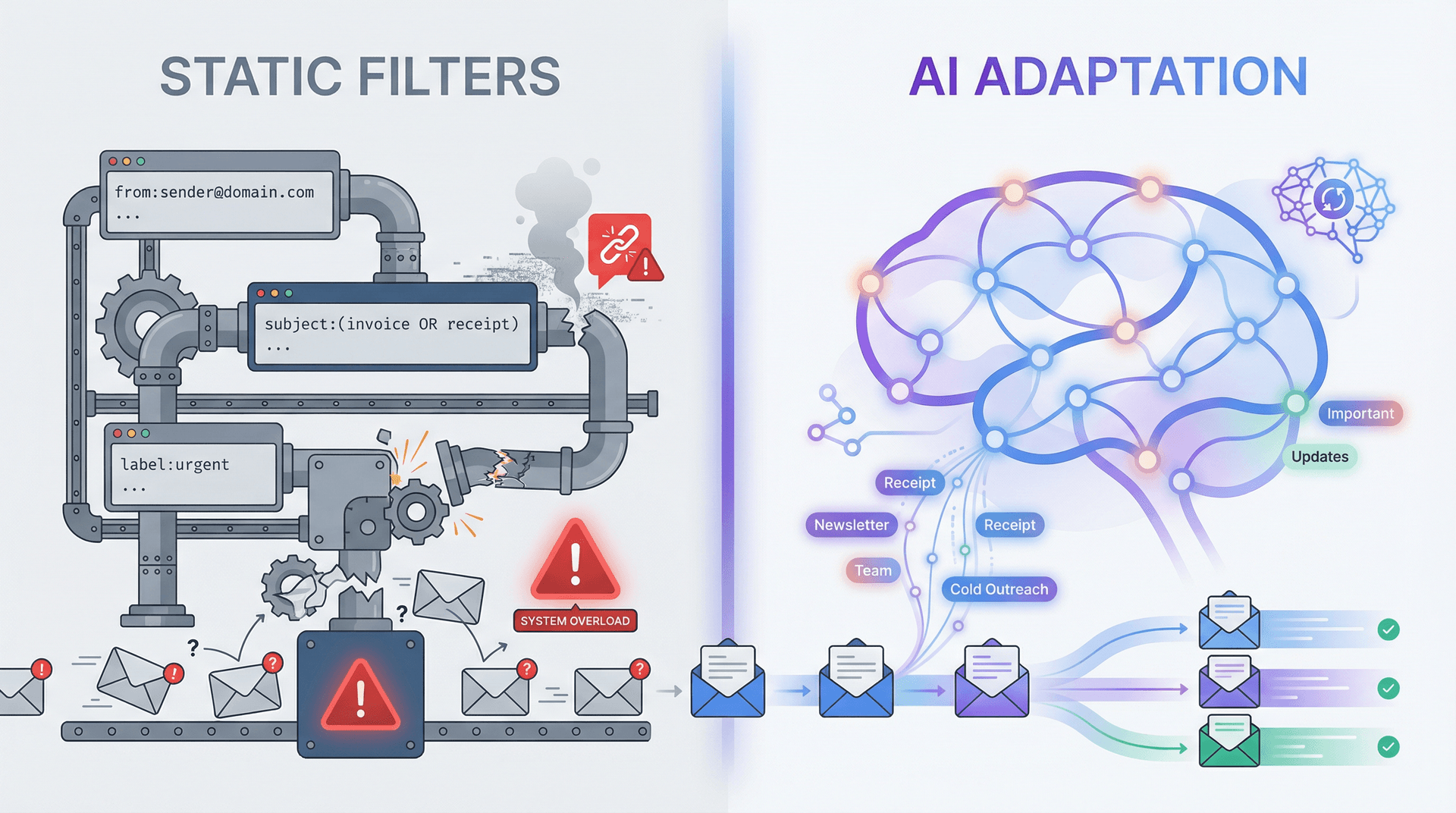
Filters are deterministic. They match exactly what you tell them. If a sender changes domains or a mailing list rotates addresses, your filter breaks.
AI assistants adapt. Inbox Zero uses a language model to classify and summarize each email, which means it can detect things like "This is a receipt" or "This is cold sales outreach" even if you never wrote a filter for that specific sender.
You still control the rules. The AI just helps identify what those rules should apply to. Learn more about AI email management and how it compares to traditional filters.
What AI Email Assistants Can Do That Gmail Filters Can't
With vanilla Gmail filters, you can archive, label, delete, forward, mark read/unread, mark important, and mark as never spam. That's it.
AI email assistants go further. They can auto-draft replies for certain emails so you review before sending, using Inbox Zero's AI Personal Assistant. They can bundle emails into a digest so newsletters don't pile up in a folder you never open. They can track reply obligations by labeling threads that need responses or where you're waiting, through Reply Zero. And they can trigger external webhooks when specific emails arrive. These are actions a Gmail filter alone cannot do.
Is AI Email Automation Safe?
The concern with adding AI is usually, "What if it messes up?" We designed Inbox Zero to work in a mode where it labels and drafts replies but doesn't send or auto-delete anything until you review. You can gain confidence in what it's doing before enabling full automation.
It also keeps a clear log of what rules were applied, which is actually easier to audit than Gmail's silent filter actions. Read our documentation to understand how the system works.
How AI Email Tools Integrate With Gmail
Unlike solutions that require a separate app, Inbox Zero integrates with Gmail's API. When it sorts an email, you see that in Gmail's interface natively, just like your own filters would.
There's also a Chrome extension that adds tabbed sections to Gmail (like "To Reply", "Newsletters", "Receipts") for better organization without switching email providers. Learn more about the Inbox Zero Tabs for Gmail extension.
Imagine unsubscribing from unwanted emails. Gmail filters can delete or archive known senders, but you have to set them up one by one. Inbox Zero's Bulk Email Unsubscriber scans your senders, shows you which newsletters you never actually read, and lets you unsubscribe or auto-archive them with one click. It's one of the best email unsubscribe apps available.
Similarly, Inbox Zero can automatically block cold emails (unsolicited outreach). It uses AI to distinguish a cold sales pitch from an email from a colleague, then you can auto-label or auto-archive those outreach emails. Read our guide on how to automatically block cold emails for more details.
If you find Gmail's built-in filters lacking or you've hit their limits, there are email management tools in 2026 that can supercharge your inbox management. Gmail filters are fantastic and free, but they haven't changed much in a decade. If your email needs have evolved beyond what static rules can handle, consider trying smarter automation with proven email management strategies.
FAQ

Why Does Gmail Say My Filter Is Working But Emails Still Hit Inbox?
This usually happens for one of three reasons. You may have applied a label but didn't also choose "Skip Inbox." The "Filtered mail" setting could be overriding your filters. Or the conversation already had Inbox state and you didn't apply the filter to existing conversations. For more comprehensive email management tips, check out our complete guide.
How Do I Know If My Filter Logic Is Correct?
Run the exact query in Gmail search first. Google explicitly recommends clicking "Search" to verify criteria before creating the filter.
Can I Make Gmail Forward Old Messages Using a Filter?
Forwarding filters apply to new mail only. Google notes only new messages are affected when you create a forwarding filter.
How Do I Filter Messages Delivered to an Alias Address?
Use deliveredto:alias@domain.com.
How Do I Filter Mailing List Email Reliably?
Use list:listname@example.com or the list domain identity.
What Are the Best Alternatives to Gmail Filters?
While Gmail filters work well for basic automation, AI-powered email management tools offer more flexibility and intelligence. For comparing different approaches, see our analysis of best email management apps.
Make Filter Failures Visible With Inbox Zero Tabs for Gmail
One reason filters feel broken is that Gmail's left sidebar doesn't make your automation observable. You can't easily see "the pile that should have been routed."
Inbox Zero Tabs for Gmail solves this by letting you create custom tabs from any Gmail search query, including label-based views and filter-like searches, directly inside Gmail.
For example, you could create "debug tabs" that instantly reveal what's happening: a tab showing from:vendor.com in:inbox to catch things that should be archived but aren't, a tab for deliveredto:billing@yourdomain.com to see everything delivered to a billing alias, or a tab with list:newsletter.example.com to track all newsletters regardless of sender changes.
The Chrome Web Store listing states the extension is "100% private" and the developer discloses it will not collect or use your data.
If you want to go beyond deterministic filters, the listing notes you can pair it with the Inbox Zero AI Assistant for auto-labeling workflows. Learn more in our documentation.
Final Thoughts
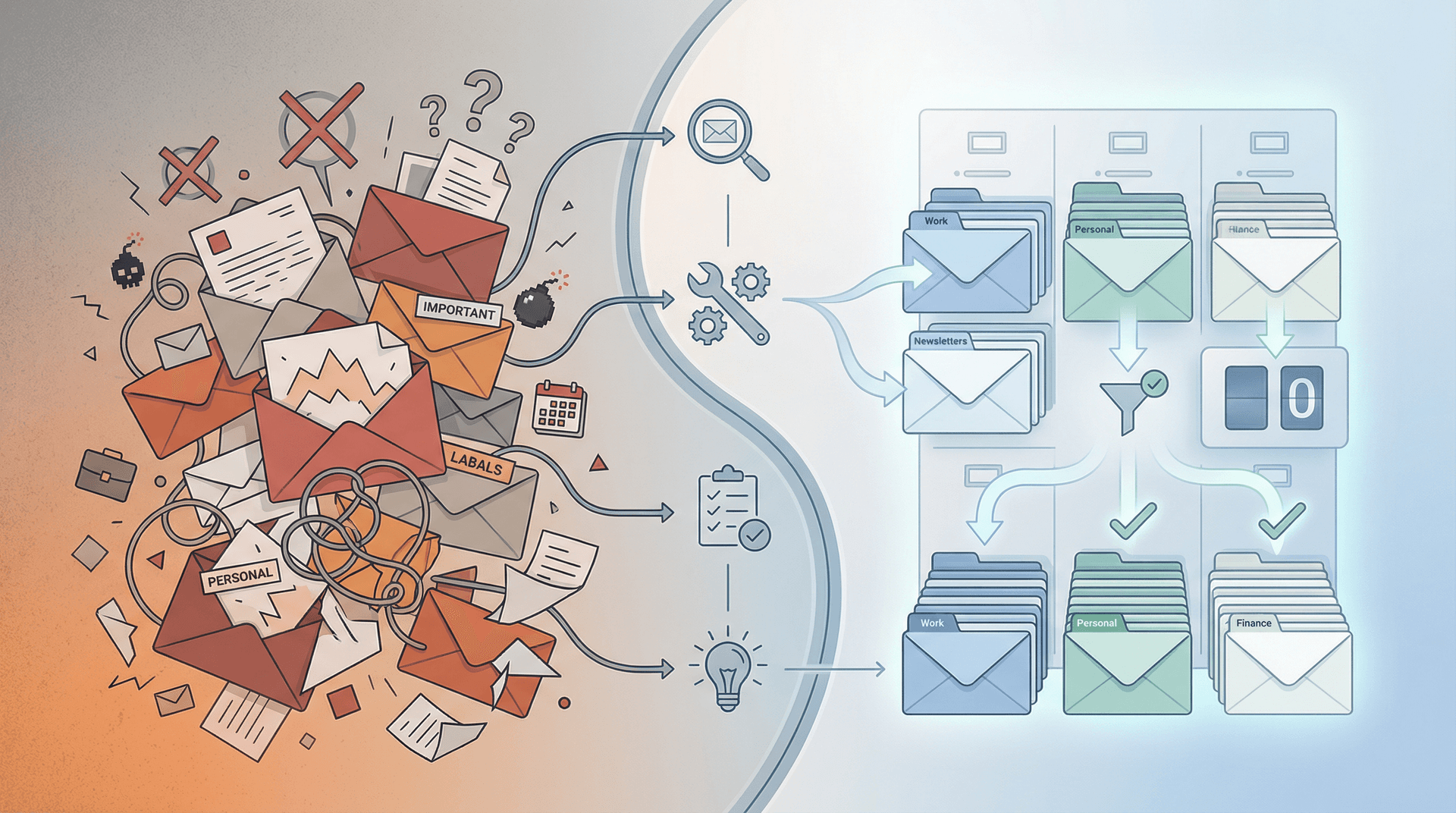
Gmail filters not working is frustrating. You set up a rule to make life easier, and when it fails, it creates confusion and sometimes mess -- missed emails or a cluttered inbox.
The key to fixing it comes down to a handful of principles. Review your filter conditions and test them, since most issues trace back to a typo or logic mistake. Understand Gmail's behavior -- you need to check "Skip Inbox" if you don't want to see the message, and filters only run on new mail. Make sure you've adjusted Gmail's settings, because enabling "Don't override filters" is crucial to prevent Gmail's AI from bypassing your rules. Eliminate conflicting rules, especially the Spam vs Archive conflict or any overlapping filters you created. Check technical limits, since too many filters or forwarding addresses can silently stop filters from working. And consider environment issues, because third-party apps or client apps might be interfering.
By systematically addressing each of these, you should resolve the vast majority of Gmail filter problems.
All information in this guide is current as of early 2026. Gmail's interface and features evolve, but the general principles remain the same. If you're reading this much later, double-check if certain menu names or options have changed in Gmail's Settings.
We hope this troubleshooting guide gets your Gmail filters back on track. With a little tweaking, Gmail's automation can save you countless hours. And when you pair it with more intelligent email productivity strategies or tools, you'll be well on your way to that ever-elusive inbox zero.

How to Recall an Email in Outlook (2026)
How to recall an email in Outlook step by step for new Outlook, classic Outlook, web, Mac, and mobile, plus when recall works and what to do when it doesn't.
2026-09-30T18:25:57.000Z

How to Stop AliExpress Emails (2026)
Stop AliExpress promotional emails: the unsubscribe link, notification settings in your AliExpress account, and what to do when the deals keep coming.
2026-09-30T18:25:57.000Z

How to Stop Amazon Emails (2026)
Stop Amazon marketing emails with the Communication Preferences Center, manage Amazon email subscriptions, and handle order emails you can't switch off.
2026-09-30T18:25:57.000Z

How to Stop Domino's Emails (2026)
Stop Domino's emails with Domino's official opt-out page, stop Domino's text offers, and know which rewards emails keep coming.
2026-09-30T18:25:57.000Z