Gmail Tabs Not Working? Complete Fix (2026)
Fix Gmail tabs not saving, vanishing, or miscategorizing emails. Complete diagnostic guide covers Default inbox, smart features, and custom tabs.

Your Gmail tabs used to keep everything organized. Primary for actual people, Promotions for marketing emails, Social for notifications. Simple, clean, predictable.
Then something broke.
Maybe the tabs disappeared completely. Or everything's dumping into Primary now. Or you check the boxes in Settings, click Save, and nothing happens. Or your phone shows different categories than your laptop.
You're here because you need fixes, not theories. You want those Primary, Social, and Promotions views (plus the new Purchases tab) to work like they're supposed to. You want marketing emails out of your main inbox. And you want to stop worrying about missing important messages hidden somewhere you'll never look.
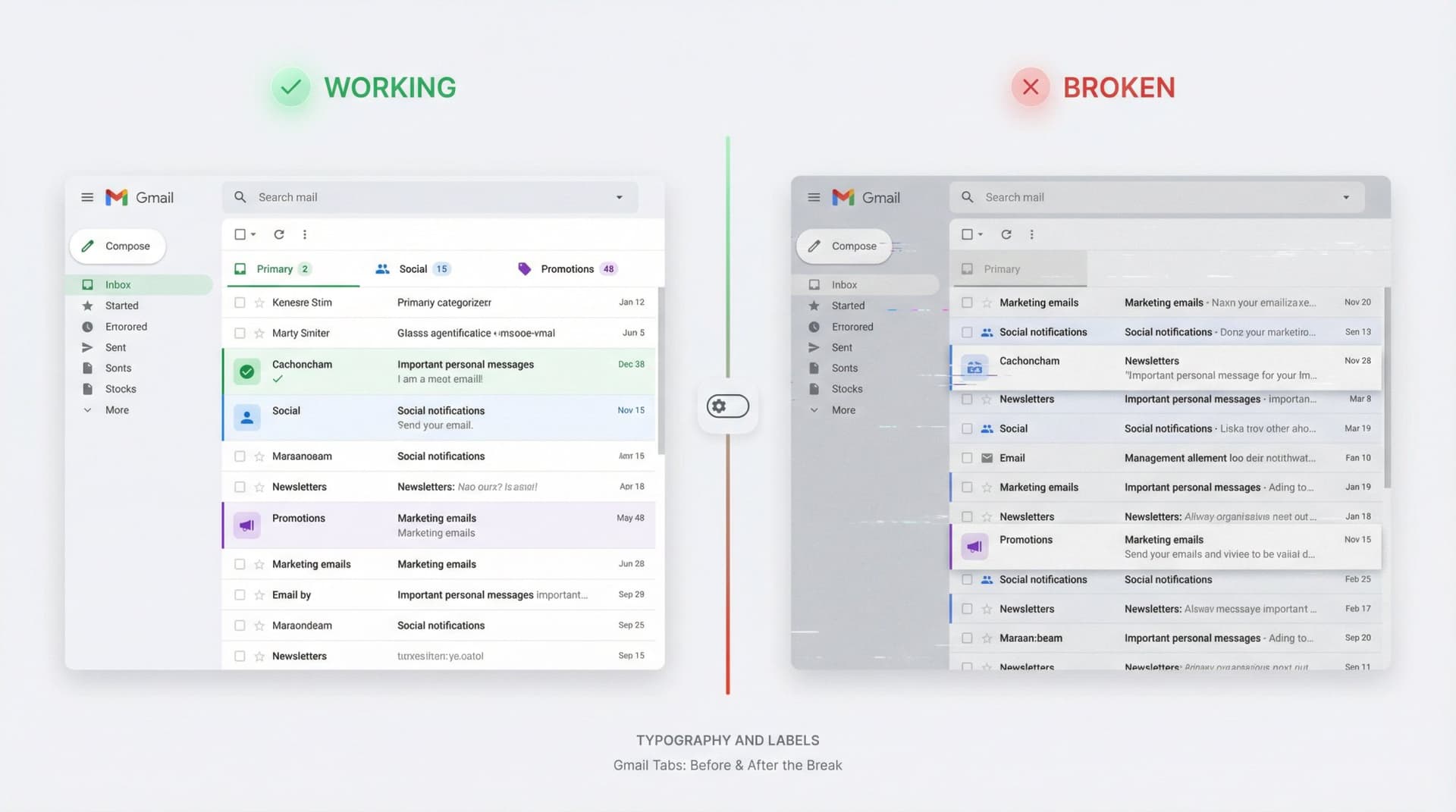
This guide covers how Gmail tabs actually work in 2025, why they break, and the exact steps to fix them. We'll also show you what's changed recently and what to do if Gmail's built-in tabs just aren't cutting it anymore.
Everything here reflects Gmail's current behavior as of late 2025. Things change, but this is what's happening right now. (Google's official documentation confirms this setup.)
How Do Gmail Tabs Work? (The Real Story)
Before you start clicking through settings, you need to understand what you're actually fixing.
Gmail Tabs Are Just Fancy Filters
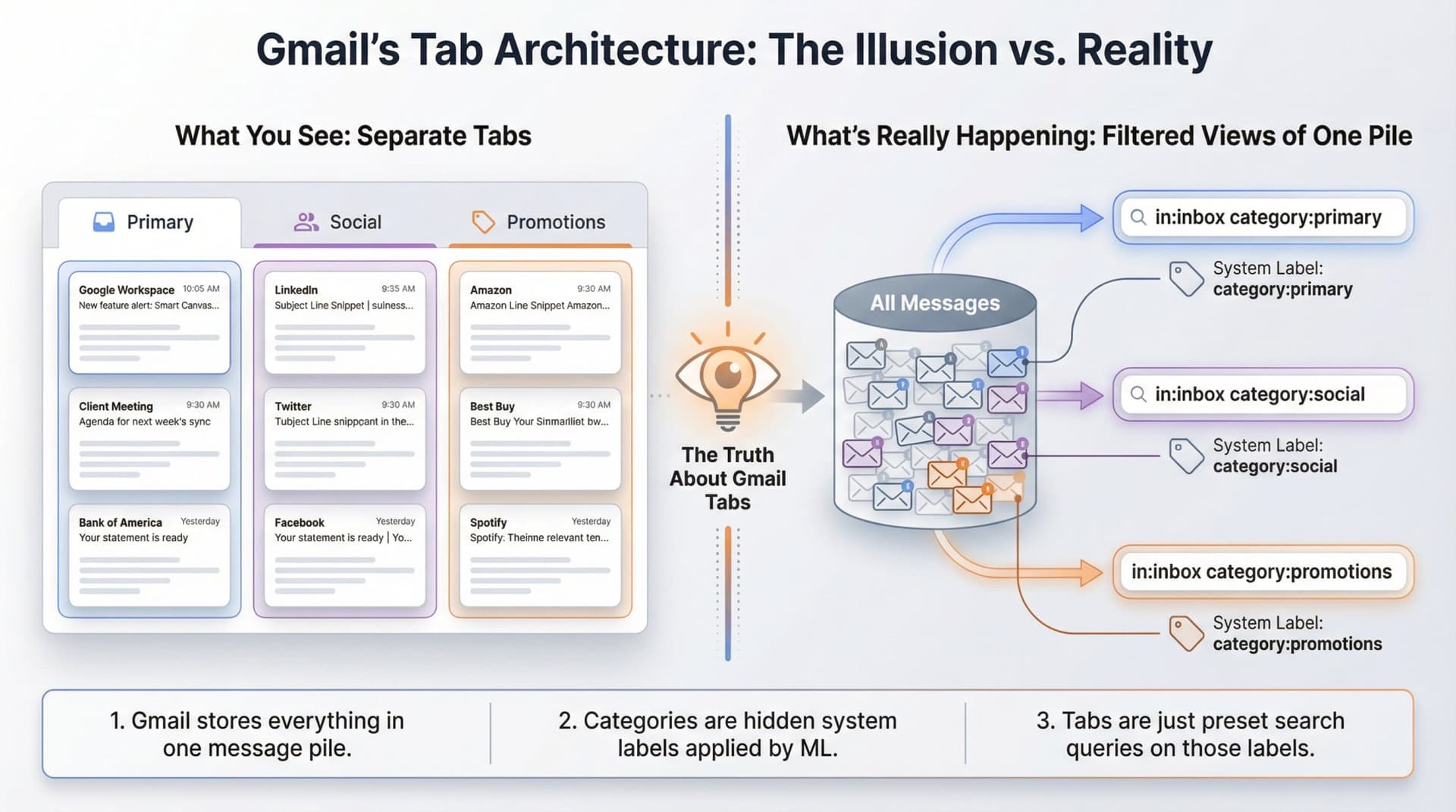
Here's what Gmail doesn't tell you upfront: tabs aren't really "tabs" at all. They're filters displaying hidden system labels.
Gmail stores everything in one giant message pile. Every email gets labels attached to it, and "Categories" like Primary, Social, Promotions, Updates, and Forums are special system labels that Gmail assigns automatically using machine learning. The tabs you see are just preset searches. Primary is in:inbox category:primary, Social is in:inbox category:social, and Promotions is in:inbox category:promotions.
This matters because when tabs "disappear," the labels might still exist. You're losing the view, not the classification. If you want to understand how Gmail's label system differs from traditional folders, our guide on Gmail Labels vs Folders explains the technical architecture in detail.
How Does Gmail Decide Which Tab for Each Email?
Gmail doesn't just look for words like "unsubscribe" or "20% off." It runs a machine learning classifier that considers who sent the message, how it's formatted, and how you (and millions of other users) interact with similar emails. Then it predicts: Primary, Social, Promotions, or something else. (Google Workspace's blog details how this sorting works.)
Two things this means. First, tabs are never perfect. They're probabilistic, not deterministic. Second, your actions (dragging emails between tabs, creating filters) train the model over time.
What Are the Requirements for Gmail Tabs to Show Up?
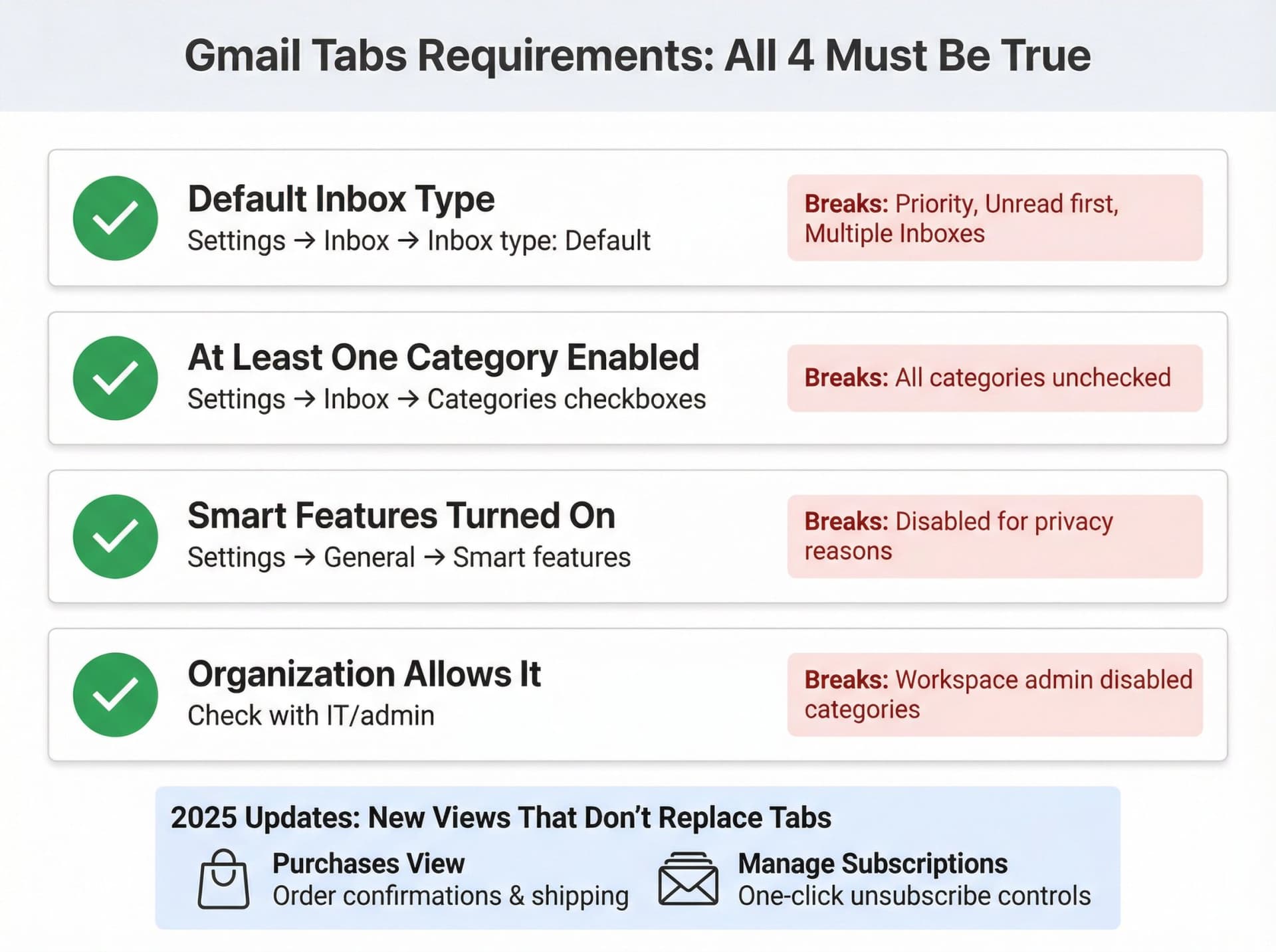
For classic Gmail tabs to appear, all four of these must be true:
| Requirement | Where to Check | What Breaks It |
|---|---|---|
| Default inbox type | Settings → Inbox → Inbox type: Default | Using Priority, Unread first, or Multiple Inboxes |
| At least one category enabled | Settings → Inbox → Categories checkboxes | All categories unchecked |
| Smart features turned on | Settings → General → Smart features | Disabled for privacy reasons |
| Organization allows it | Check with IT/admin | Workspace admin disabled categories |
If any one of these is broken, tabs look "broken" even though Gmail is doing exactly what it was told. (Google's help center confirms these requirements.)
What Changed in Gmail Tabs in 2025?
Two recent changes complicate the picture.
Google rolled out a dedicated Purchases view that gathers order confirmations and shipping updates in one place. It sits in the sidebar and acts sort of like a specialized tab for shopping activity. (Google's announcement explains the new feature.) There's also a new Manage subscriptions view that groups senders by how often they email you and gives one-click unsubscribe controls. (The Verge covered this rollout in detail.)
These don't replace Primary, Social, and Promotions. But they add more entry points, so what looks like "tabs not working" is sometimes just "Gmail added new views and messages moved around."
If Gmail's new subscription view isn't powerful enough for your needs, check out Inbox Zero's Bulk Email Unsubscriber. It offers deeper analytics, reading behavior tracking, and smarter automation options.
Why Are My Gmail Tabs Not Working? (Common Symptoms)
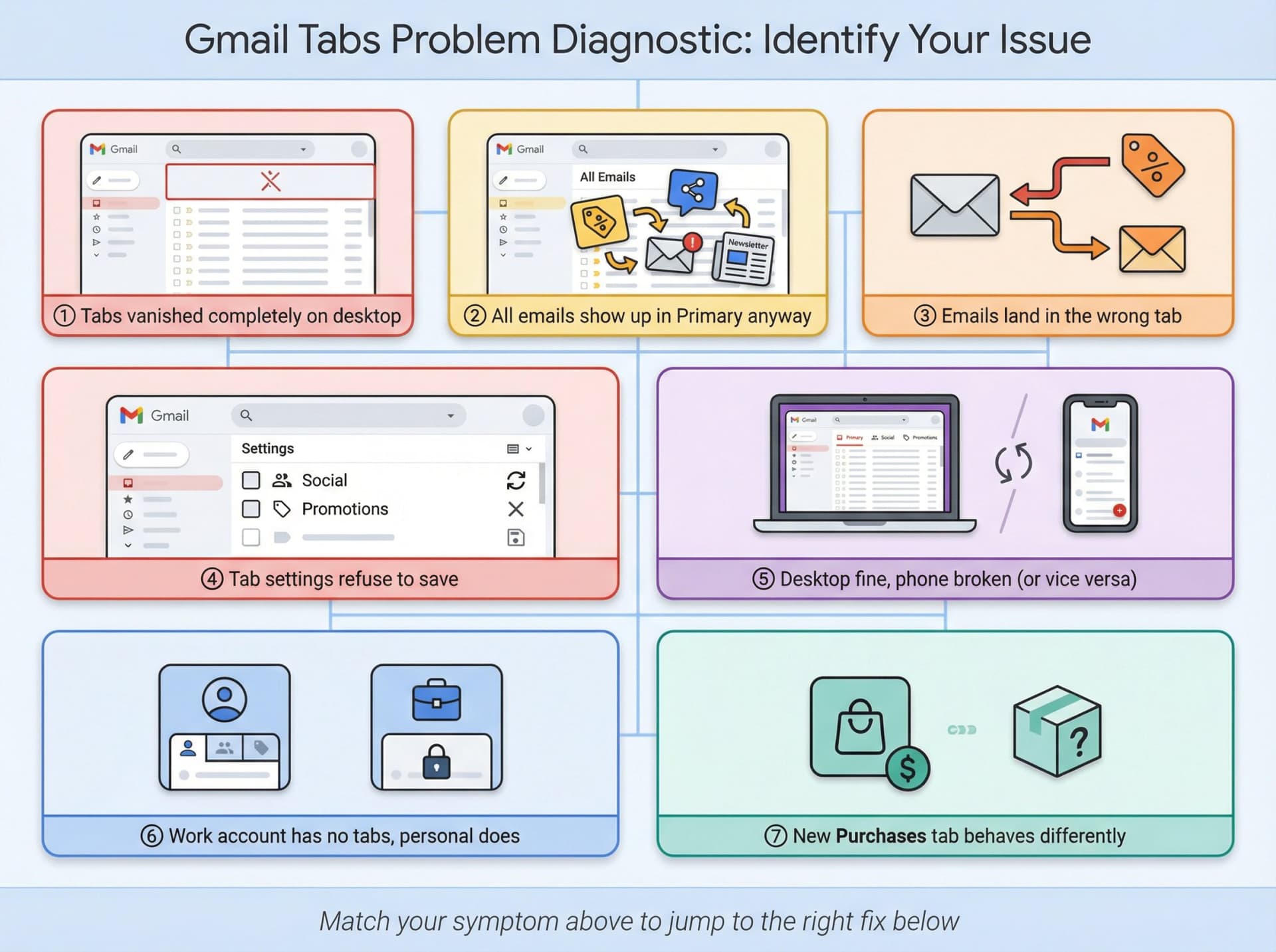
Everyone searching this phrase is experiencing something different. The most common problems fall into a few clear categories: tabs vanished completely on desktop, tabs exist but all emails show up in Primary anyway, emails land in the wrong tab, tab settings refuse to save when you check the boxes and click Save, tabs look fine on desktop but broken on phone, work accounts have no tabs while personal accounts do, and the new Purchases tab behaves differently than other categories.
Figuring out which problem you're dealing with matters because the fixes are different.
Why Did My Gmail Tabs Stop Working? (Root Causes)
From Google's documentation, Workspace admin guides, and hundreds of 2024-2025 help threads, almost every "tabs broken" story comes down to one of these root causes.
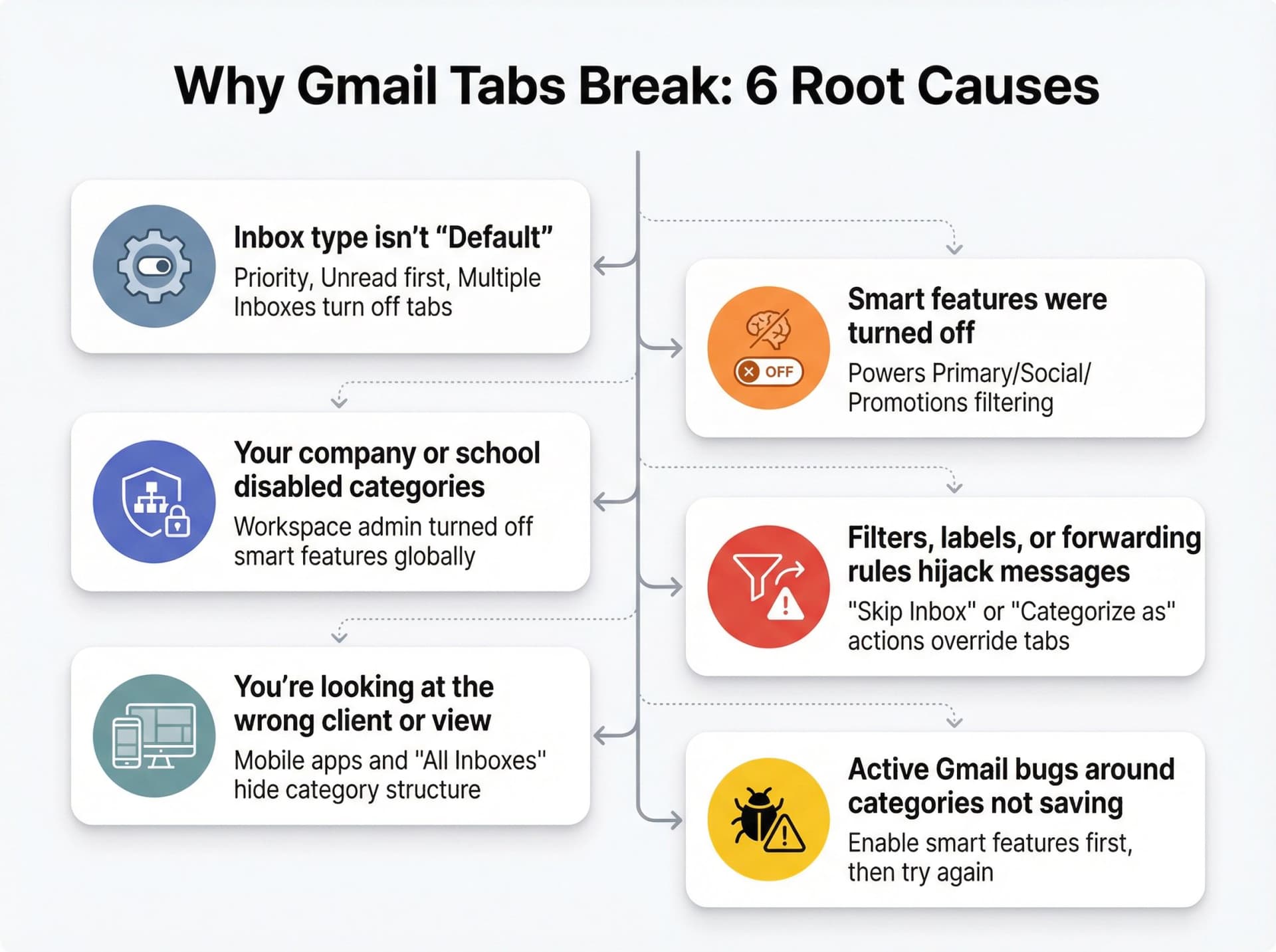
The most common culprit is that your inbox type isn't set to "Default." Any other layout (Important first, Unread first, Priority Inbox, Multiple Inboxes) turns off the classic tabs UI, even if categories are technically enabled. (Google Help confirms this relationship.)
Another frequent cause is that smart features were turned off. To reduce data use or opt out of AI training, people disable "smart features and personalization," but that setting also powers automatic Primary/Social/Promotions filtering. Turn it off and tabs either vanish or stop saving changes. (Google's smart features guide explains what's affected.)
For work or school accounts, admins can turn off smart features and categorization globally. Users see missing or grayed-out options with no explanation. (Workspace admin documentation covers these controls.)
Filters, labels, or forwarding rules can also hijack messages. Filters that "Skip the Inbox," apply labels, or "Categorize as" something else mean mail never appears under the tab you expect. Sometimes messages don't hit the Inbox at all. (Gmail's filter help page details filter actions.)
You might also simply be looking at the wrong client or view. Gmail mobile apps don't show tabs the same way desktop does. Basic HTML view doesn't support categories the same way. "All Inboxes" on mobile hides individual category structure. (Community blog documented these mobile quirks.)
There are also active Gmail bugs around categories not saving in 2025, where checking categories and hitting Save simply does nothing. In several threads, enabling smart features first is the required fix. (Gmail Help Community thread discusses this issue.) And the new Purchases view and updated Promotions tab (with "most relevant" sorting) change how promotional emails surface, which can feel like "tabs changed" even if categories are fine. (Google's blog announced these changes.)
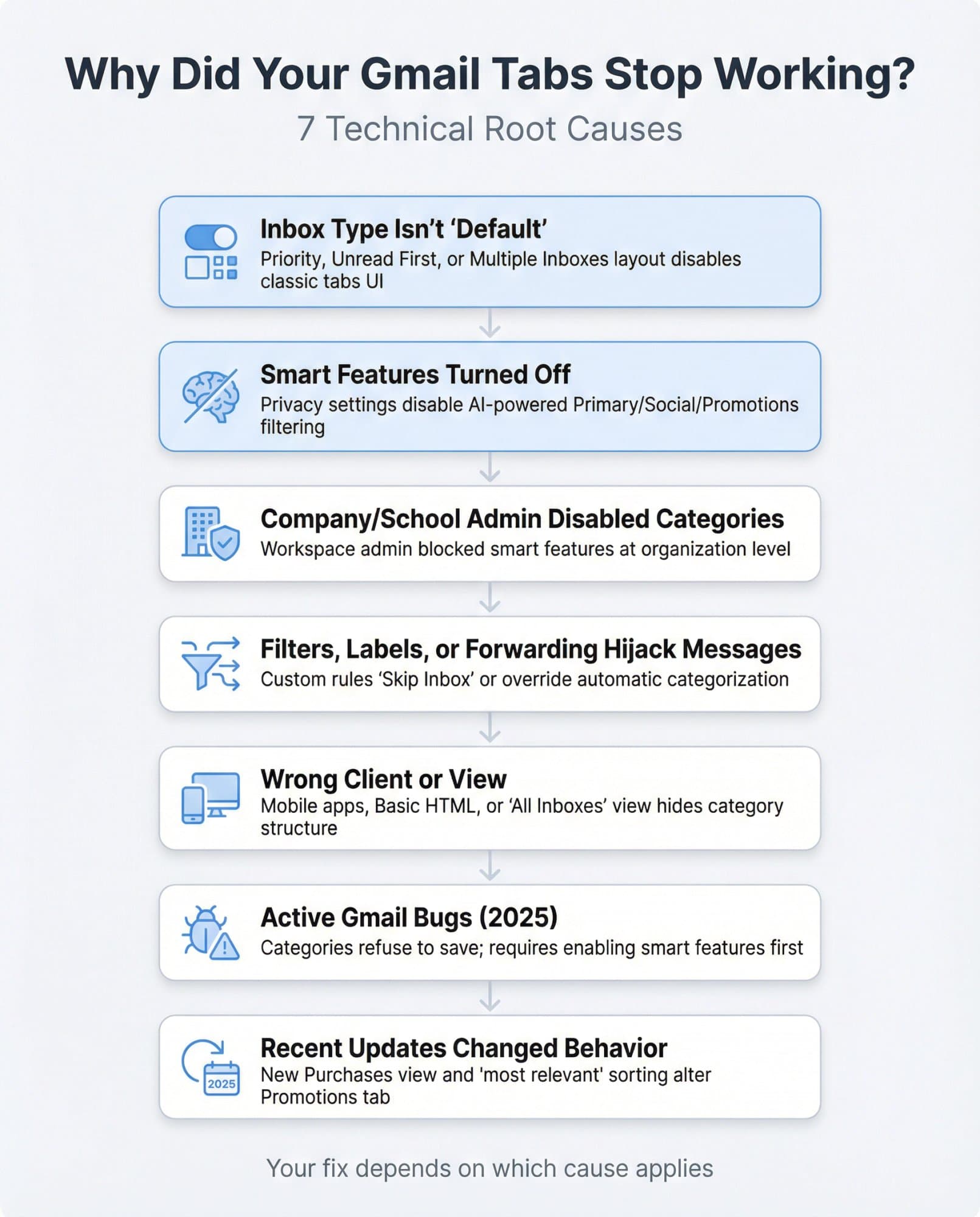
Bottom line: Gmail is following its rules. Your mental model is out of sync with those rules. The fixes are about aligning the two.
How to Fix Gmail Tabs Not Working: Complete Step-by-Step Guide
Work through these steps in order. Don't skip the early ones just because they seem obvious. Most "impossible" cases collapse once the basics are correct.
For a comprehensive approach to managing your inbox beyond just fixing tabs, see our guide on how to manage your inbox for systematic strategies that work with or without Gmail's native categories.
Step 1: Set Gmail Inbox Type to Default
Tabs only show for the "Default" layout.
On desktop, open Gmail in a browser, click the gear icon, then "See all settings." Go to the Inbox tab, set "Inbox type" to Default, and click "Save changes" at the bottom. (Google Help walks through inbox type settings.)
If you use "Priority Inbox" or "Multiple Inboxes," you get sections and panes instead of tabs. That's valid, but if you want classic Primary/Social/Promotions tabs, "Default" is non-negotiable.
Watch out: Some people set "Default" on mobile and assume desktop matches. Gmail stores inbox type per account, per client. Always check on desktop web first. That's the source of truth for tabs.
Step 2: Enable Gmail Categories (Turn Tabs Back On)
Once "Default" is selected, choose which categories should show as tabs.
On desktop, still in Settings → Inbox, tick the boxes under Categories for the ones you want: Social, Promotions, Updates, Forums, and Purchases (if available in your account). Then click "Save changes." (Google's category setup guide provides step-by-step instructions.)
If the boxes untick themselves after you click Save, skip ahead to Steps 3 and 4. That "refusing to save" behavior is almost always caused by smart features being off or an active Gmail bug.
On mobile, the process varies slightly by platform. On iOS and Android, go to Menu → Settings → pick your account → set Inbox type to Default. Then find Inbox customizations → Inbox categories on iOS, or Inbox categories directly on Android. Desktop needs to be correct first. Mobile follows, but it's less transparent about broken settings.
Step 3: Enable Smart Features in Gmail Settings
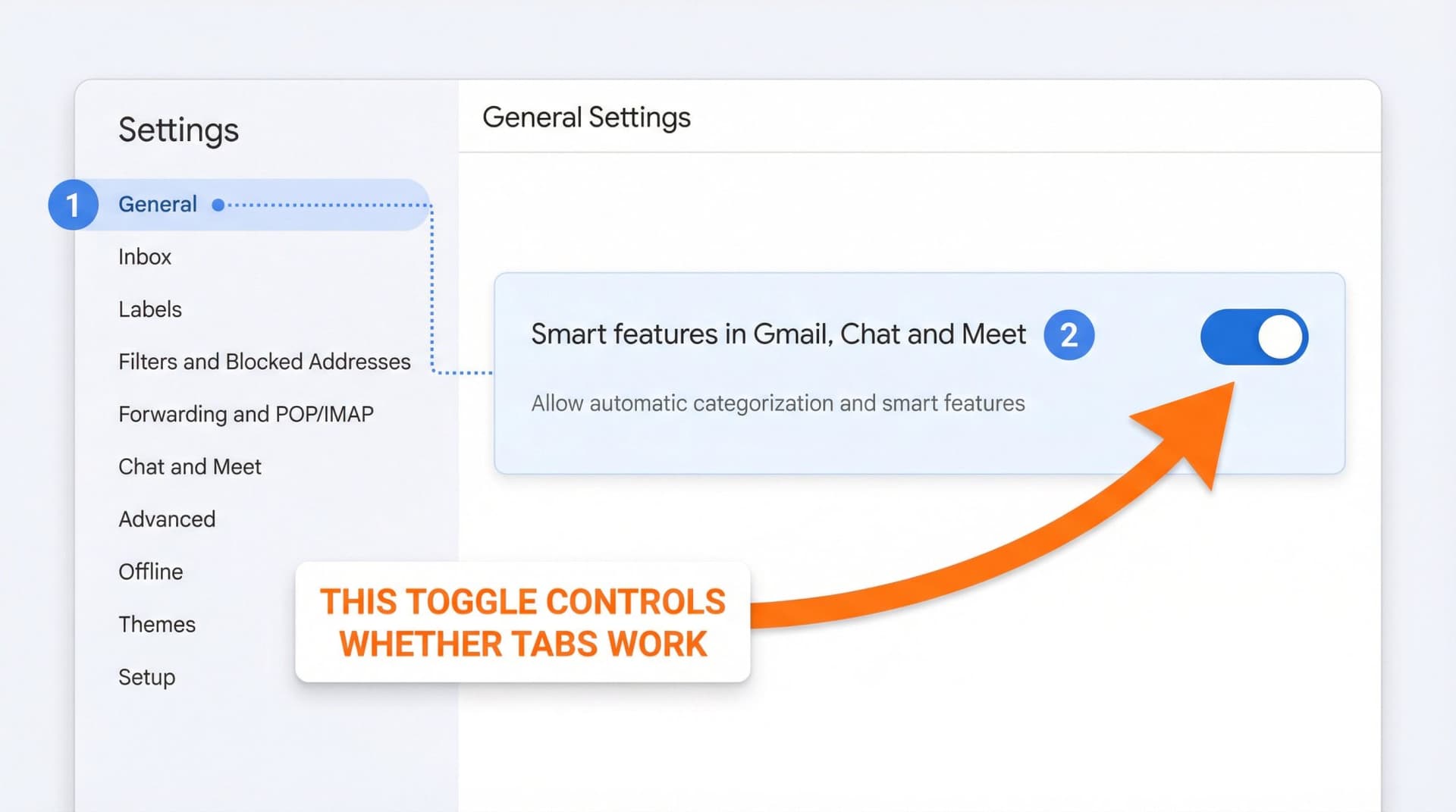
Here's the part Gmail doesn't advertise clearly: Primary/Social/Promotions categorization lives inside "smart features."
If you disabled them for privacy, you basically told Gmail: "Stop auto-sorting my mail. Don't learn from my inbox." The result is that category checkboxes won't save, tabs vanish, and everything dumps into Primary.
To check on desktop, open Gmail, click the gear icon, go to "See all settings," then the General tab. Scroll to "Smart features in Gmail, Chat and Meet" and make sure it's enabled. Scroll further to "Google Workspace smart features" and confirm they're also allowed. (Google's smart features documentation explains what these settings control.)
Once you toggle these on, go back to Inbox and try enabling categories again.
Should I Turn On Gmail Smart Features? (Privacy Trade-offs)
Recent reports point out that leaving smart features on allows more of your mail content to feed Gmail's AI systems. (Malwarebytes' investigation discusses the implications.)
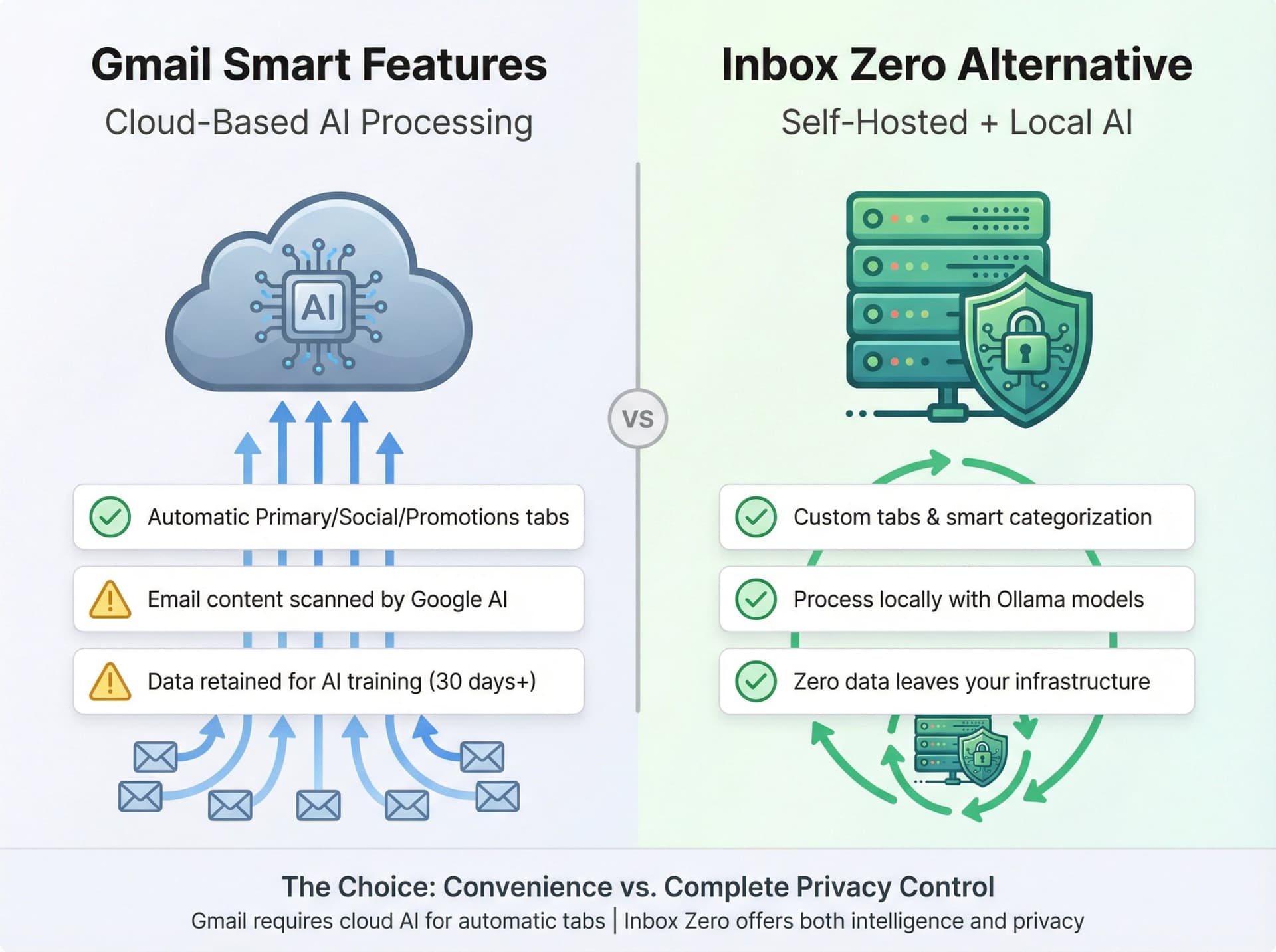
Here's the honest situation: Tabs and smart features are linked. Turning them off for privacy also removes inbox intelligence.
You can partly mitigate this by limiting how long Gmail keeps data, adjusting ad personalization in your Google account, and using local mail clients for sensitive accounts. But there's currently no way to have full automatic Primary/Social/Promotions classification without granting Gmail's smart systems some access to message content.
If privacy is a major concern, consider using Inbox Zero's open-source, self-hostable email assistant. You can run it locally with your own AI models (including Ollama for fully private inference) while still getting intelligent categorization and automation. No third-party AI services required.
Step 4: Check If Your Work Email Admin Disabled Gmail Tabs
If your personal Gmail works fine but your work or school account has no tabs (or no smart features section at all), your admin probably disabled them at the domain level. Admins can turn off automatic email filtering into categories, Smart Compose and Smart Reply, and other "smart features" that rely on scanning content. (Workspace admin help documents these organization-level controls.)
If that's the case, you won't fix tabs on your own.
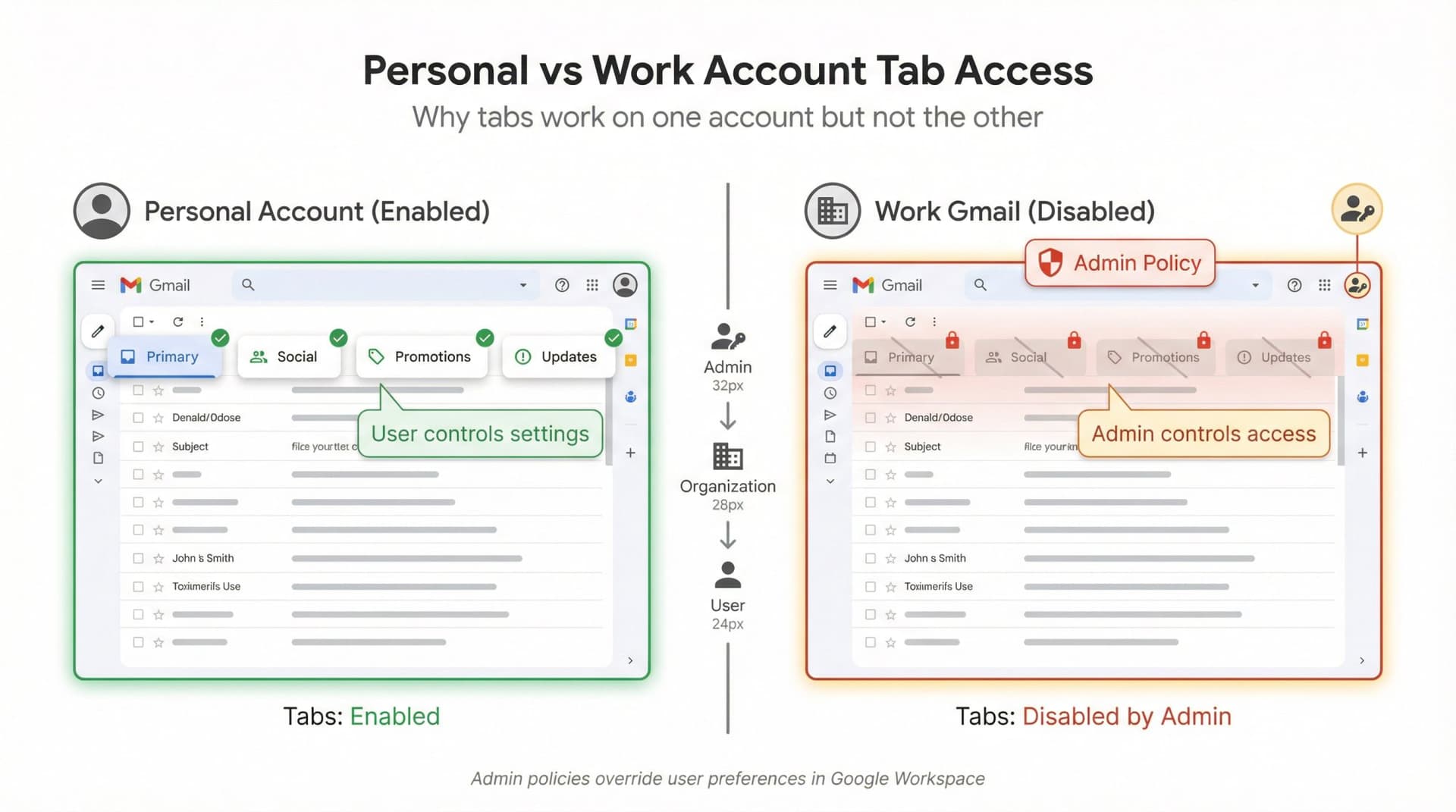
Your best option is to ask IT explicitly: "Have we disabled Gmail categories and smart features? Can they be enabled for my group?" If that doesn't work, you can build structure without Gmail's categories by using your own labels, creating filters that apply those labels, and using desktop or mobile clients that surface them.
This is exactly where tools like Inbox Zero come in. The Inbox Zero Tabs for Gmail extension builds custom tabs on top of whatever raw Gmail gives you, without needing Google's categories at all. More on that later.
Step 5: Fix Gmail Tab Settings That Won't Save
There's a cluster of 2025 reports where users go to Settings, set Inbox type to Default, tick Social/Promotions, click Save, and nothing happens. When they reopen settings, the boxes are unchecked again. Multiple users have reported experiencing this issue in Gmail help forums.
Most cases had at least one of these problems: smart features were off (Step 3), corrupted browser data was interfering, or browser extensions were blocking the change.
Here's a practical "hard reset" for desktop. Start by turning smart features on (Step 3). Then try an incognito/private window with no extensions: open Gmail, then Settings → Inbox, and try enabling categories there. If it works in incognito but not normally, one of your extensions is interfering, so disable them temporarily and test again. If it still fails, clear cookies and cached data specifically for mail.google.com in your browser settings, then sign back in and reconfigure. As a last resort, test in another browser profile or different browser entirely.
If you see the same "won't save" behavior across multiple browsers and devices, and smart features are definitely on, you're probably hitting an active Gmail bug. At that point, check the Gmail status dashboard, post in the official Gmail Help Community with screenshots, and temporarily rely on search views like category:promotions while Google patches the issue. (Gmail Help Community is where Google employees sometimes respond to bug reports.)
Step 6: Fix Gmail Tabs Not Working on Mobile
A lot of confusion comes from assuming mobile should look exactly like desktop. It doesn't.
| Platform | How to Access | Common Issue |
|---|---|---|
| Android | Gmail app → Menu → Settings → [Account] → Inbox categories | Categories don't stay selected |
| iPhone/iPad | Gmail app → Menu → Settings → Inbox customizations → Inbox categories | Hidden in "All Inboxes" view |
| Desktop | Settings → Inbox → Categories (source of truth) | Most reliable interface |
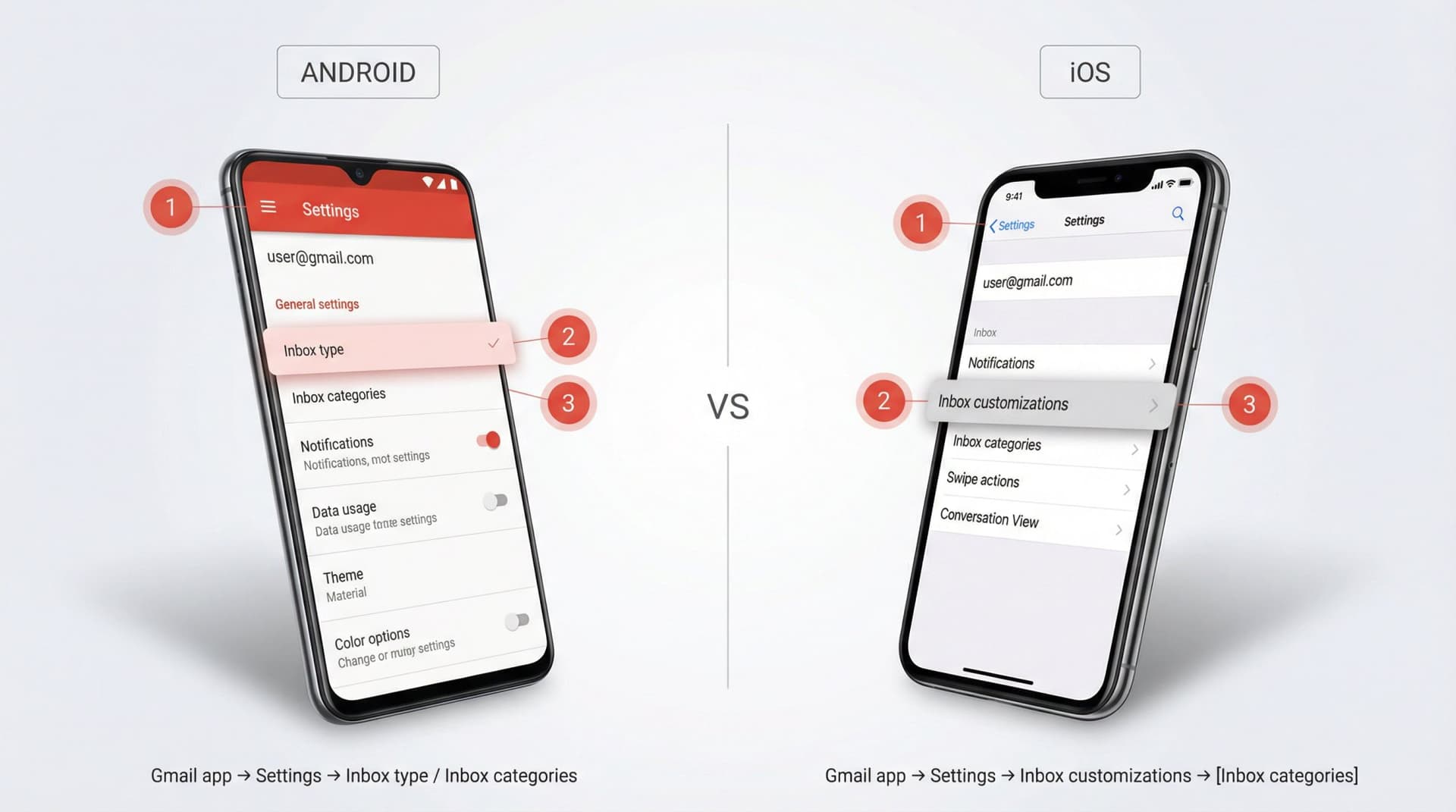
On Android
Open the Gmail app, tap the menu (three lines), then Settings. Tap the account you care about, set Inbox type to Default under the Inbox section, then open Inbox categories and toggle on the ones you want. (Android help page has screenshots of these settings.)
A known 2025 issue is that category toggles on Android don't always stay selected, or categories keep disappearing. Official guidance is to confirm that smart features are enabled on desktop first. (Gmail Help thread documents this issue.)
If Android continues ignoring your choices but desktop looks fine, you're hitting a temporary app-side regression. Keep desktop as the canonical view until an update lands.
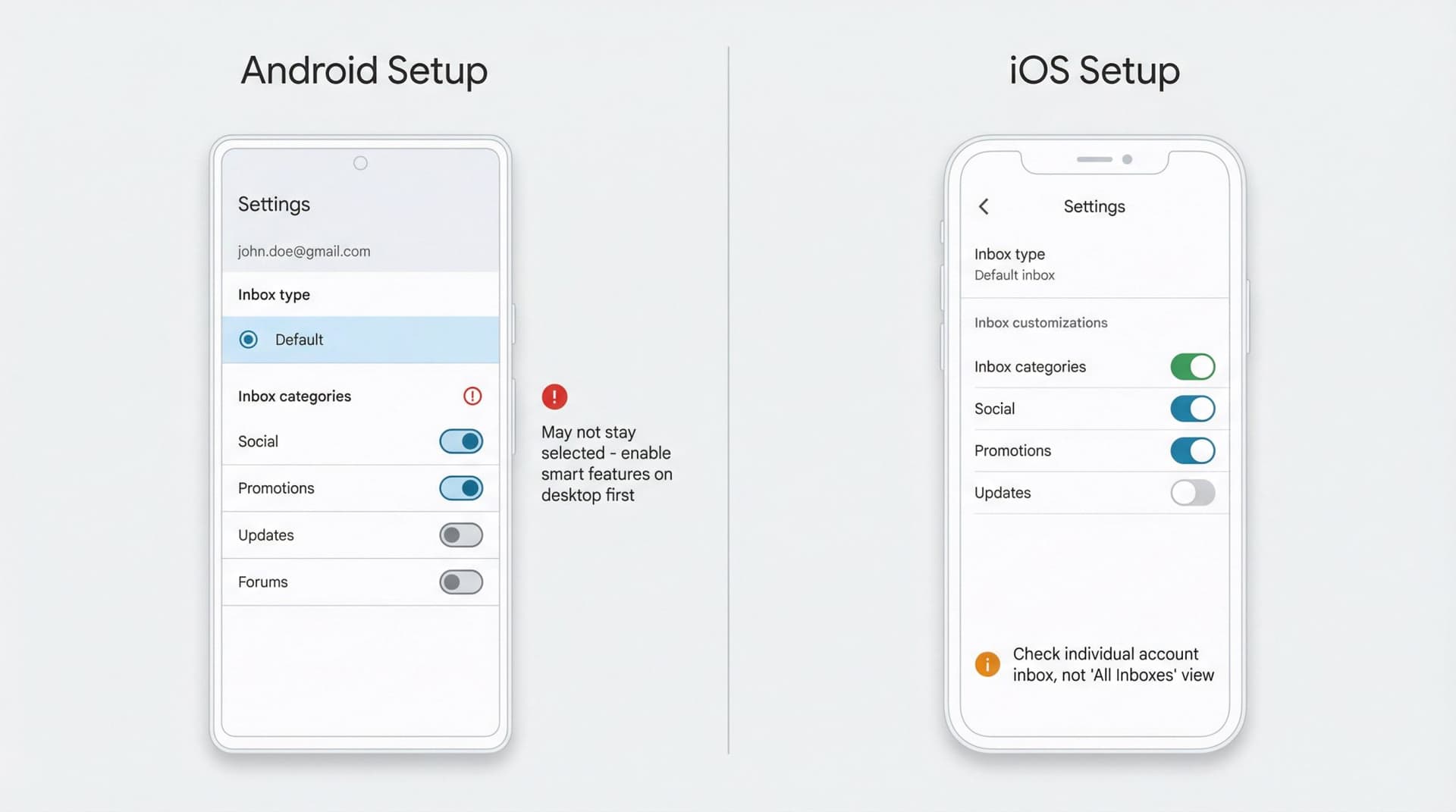
On iPhone / iPad
Open the Gmail app, tap Menu → Settings, choose Inbox type → Default inbox under the Inbox section. Then tap Settings in the top left, go to Inbox customizations → Inbox categories, and turn on the categories you want. (iOS help page walks through these steps.)
On iOS, categories are often more visible within each individual account, not under "All Inboxes." If you live in "All Inboxes," tabs feel gone even when they're active per account. This is a common source of confusion for iOS users.
Step 7: Fix Emails Going to Wrong Gmail Tab
Once the UI is fixed, the next frustration is "Why is this important email in Promotions?" or "Why is this notification in Primary instead of Social?" You're now debugging the classifier, not the interface.
7.1 Train Gmail by Dragging Messages Between Tabs
On desktop, drag a message from Promotions to Primary, or from Primary to Social. Gmail learns from this action for future messages from that sender or pattern. This is the lowest-effort training signal. Use it liberally for high-volume senders.
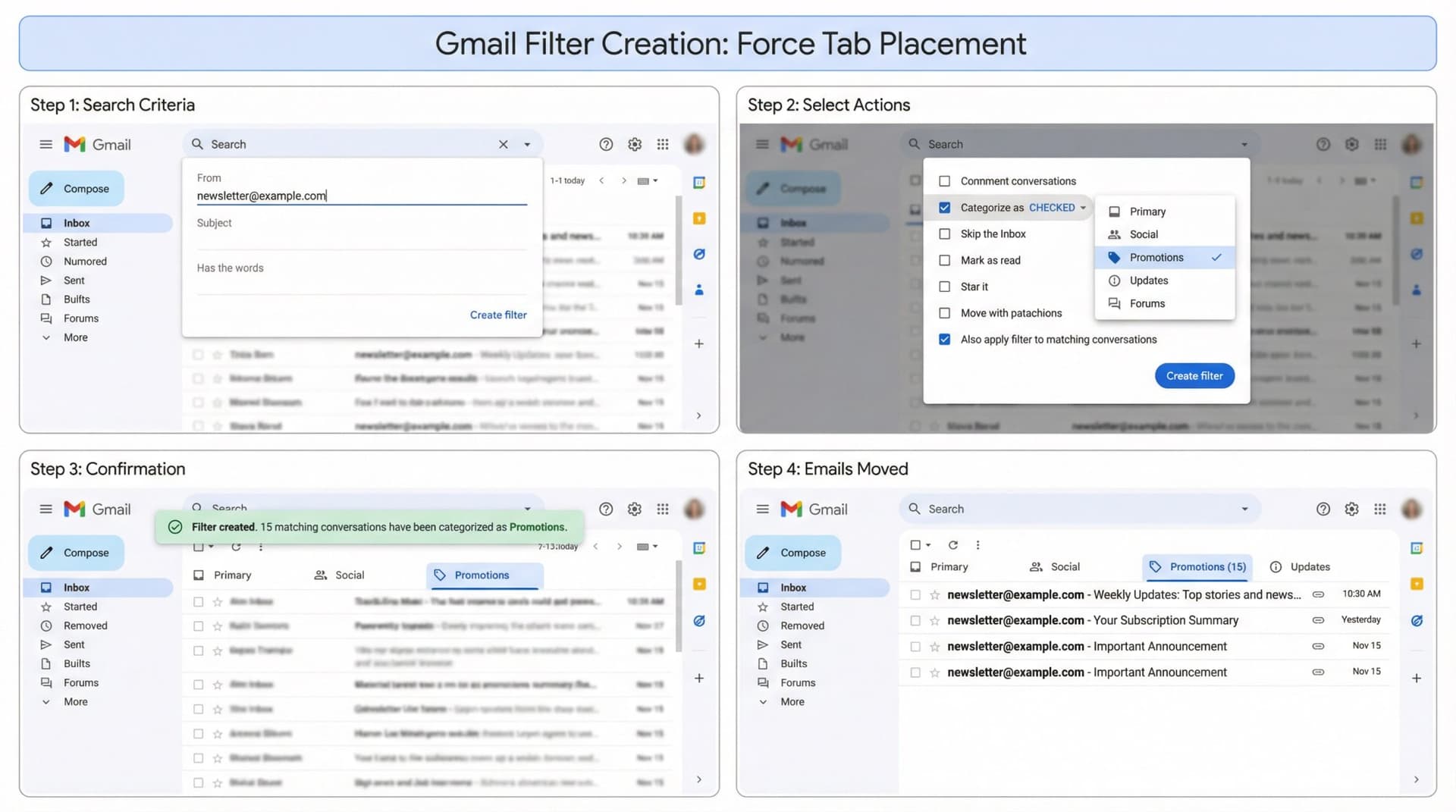
7.2 Create Gmail Filters to Force Tab Placement
Filters can explicitly set categories via the "Categorize as" action.
For example, to force important newsletters into Primary: open Gmail on desktop, use the search box dropdown to search for messages from a sender you care about, click "Create filter," tick "Categorize as" in the filter actions screen, choose Primary from the dropdown, optionally tick "Also apply filter to matching conversations," and click "Create filter." From now on, matching messages will be forced into Primary, even if Gmail's classifier would put them in Promotions. (Gmail's filter documentation details all filter actions.)
You can also do the reverse: set "Categorize as: Promotions" for senders you never want in Primary, or combine with "Never send it to Spam" if you worry about deliverability.
For advanced users who want to automate categorization without manual filters, Inbox Zero's AI automation can intelligently categorize emails based on sender patterns, content analysis, and your preferences. No filter setup required.
7.3 Search for Missing Emails by Gmail Category
Sometimes the issue isn't miscategorization. It's messages in a category that skipped the Inbox entirely. Gmail's official advice suggests searches like category:promotions -in:inbox is:unread and category:social -in:inbox is:unread. (Google Help thread discusses messages that get categorized but never appear in Inbox.)
If you find important messages this way, you have filters or auto-archive rules that need cleaning up.
Step 8: Fix All Emails Showing in Gmail Primary Tab
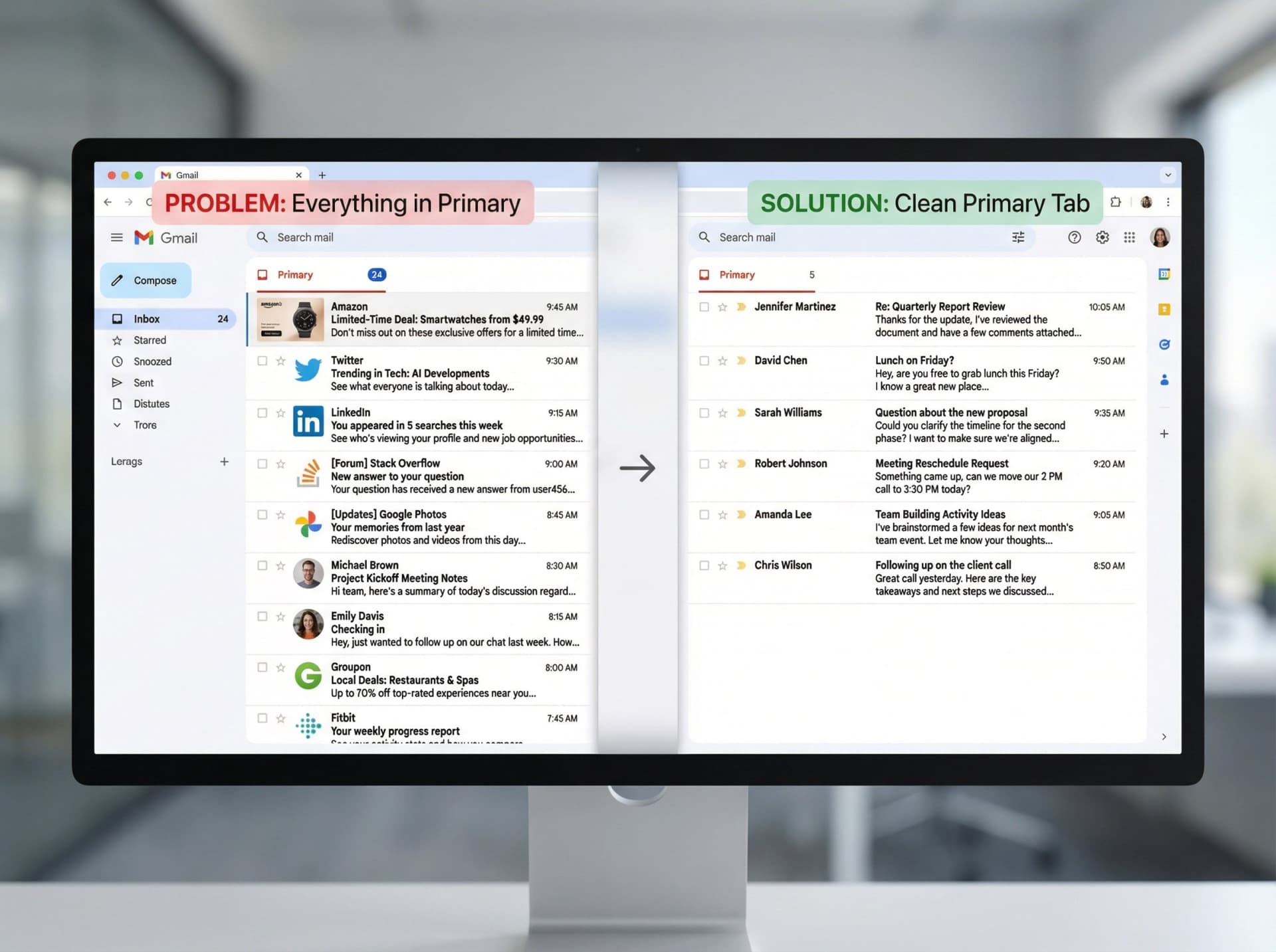
Another 2025 complaint: "My Social/Promotions messages also show up in Primary, cluttering it."
This happens for two main reasons. First, Primary is the catch-all. Gmail's official definition is basically "messages from people and anything that doesn't belong to another tab." Some social or promo-ish things will legitimately appear there. (Android help page defines Primary this way.) Second, some views show aggregated categories. Recent threads describe behavior where, after some time, messages from Social, Promotions, Updates, and Forums all show up in Primary too. (Gmail Help thread documents this issue.)
To address this, try a few things. In Settings → Inbox, experiment with disabling low-value categories entirely; if you never check Forums, turn it off so those messages go to Primary plus your own label instead. For high-volume senders cluttering Primary, create filters that "Categorize as: Promotions" and optionally apply a label. And remember that labels can create a "duplicate" feeling, since one message with multiple labels appears in multiple label views even though it's a single email.
If Google's evolving "most relevant" Promotions sorting annoys you, switch Promotions back to "most recent" when that option appears in the tab interface.
For a deeper understanding of how Gmail's label system works and how to leverage it for better organization, read our Gmail Labels vs Folders guide.
Step 9: Understanding Gmail's New Purchases and Subscriptions Views
Two 2025 changes can make it feel like Gmail invented new tabs behind your back.
What Is the Gmail Purchases View?
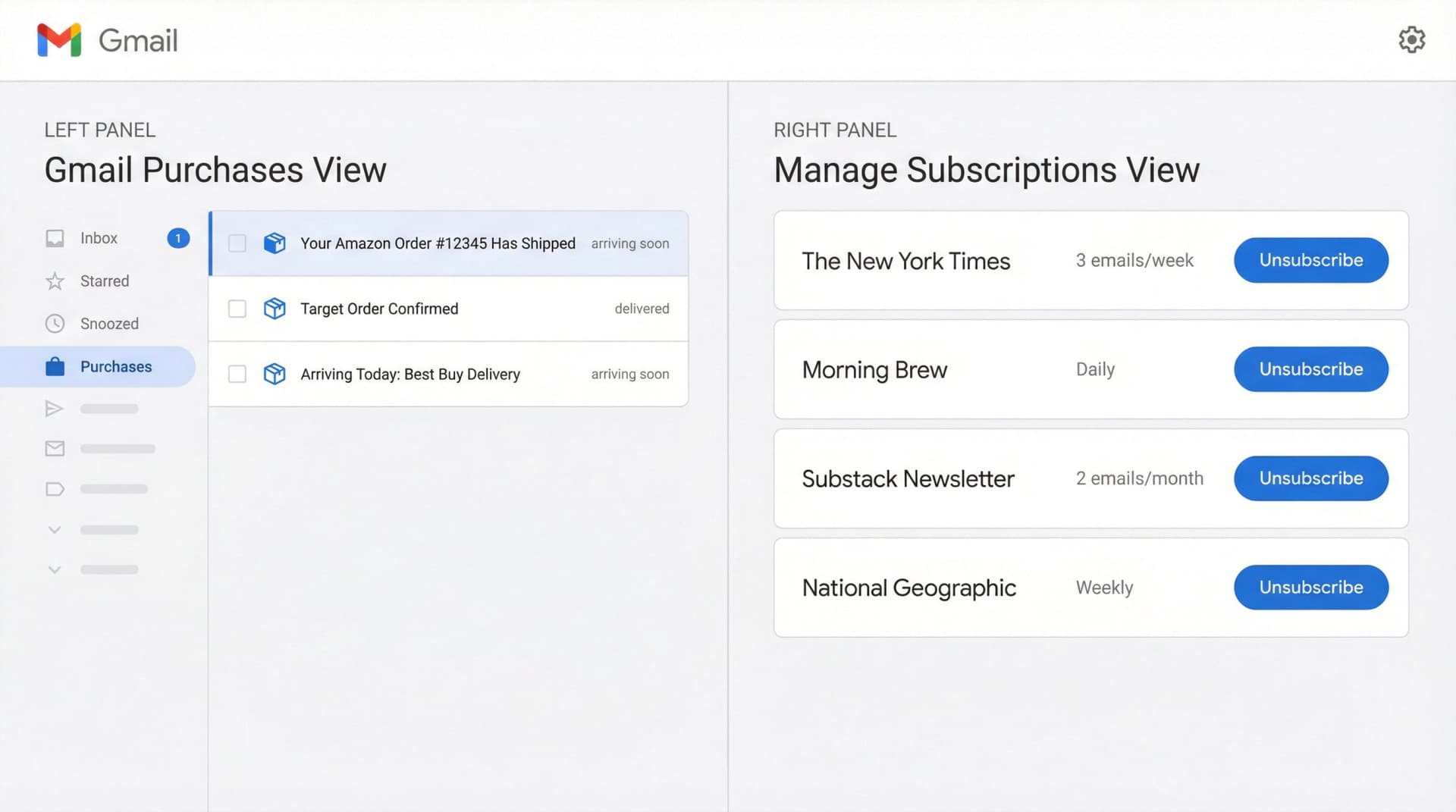
The Purchases view appears in the left sidebar and groups order confirmations, shipping updates, and delivery status in one place, keeping "arriving soon" packages visible at the top. (Google's announcement details this feature.)
This is closer to a smart dashboard than a category tab. It doesn't replace Promotions or Updates, but some messages that used to live entirely in Promotions will now be easier to find under Purchases. You can usually disable it in Settings → Inbox type → Customize once it rolls out. (gHacks coverage explains customization options.)
What Is Gmail's Manage Subscriptions View?
This new view lists all subscription senders, shows how often each one emails you, and lets you unsubscribe in one click from inside Gmail. (The Verge's coverage explains how it works.) It doesn't change categories directly, but it reduces future Promotions volume if you use it, which can make tabs look "calmer" without touching settings.
If you want something more powerful than Gmail's built-in unsubscribe view, we built Inbox Zero's Bulk Email Unsubscriber for exactly this. It gives you the same dashboard but with richer stats, reading behavior analysis, and automation options (auto-archive, label plus archive, or keep).
Learn more about managing newsletter overload in our guide on how to bulk unsubscribe from emails.
What to Do When Gmail Tabs Aren't Enough
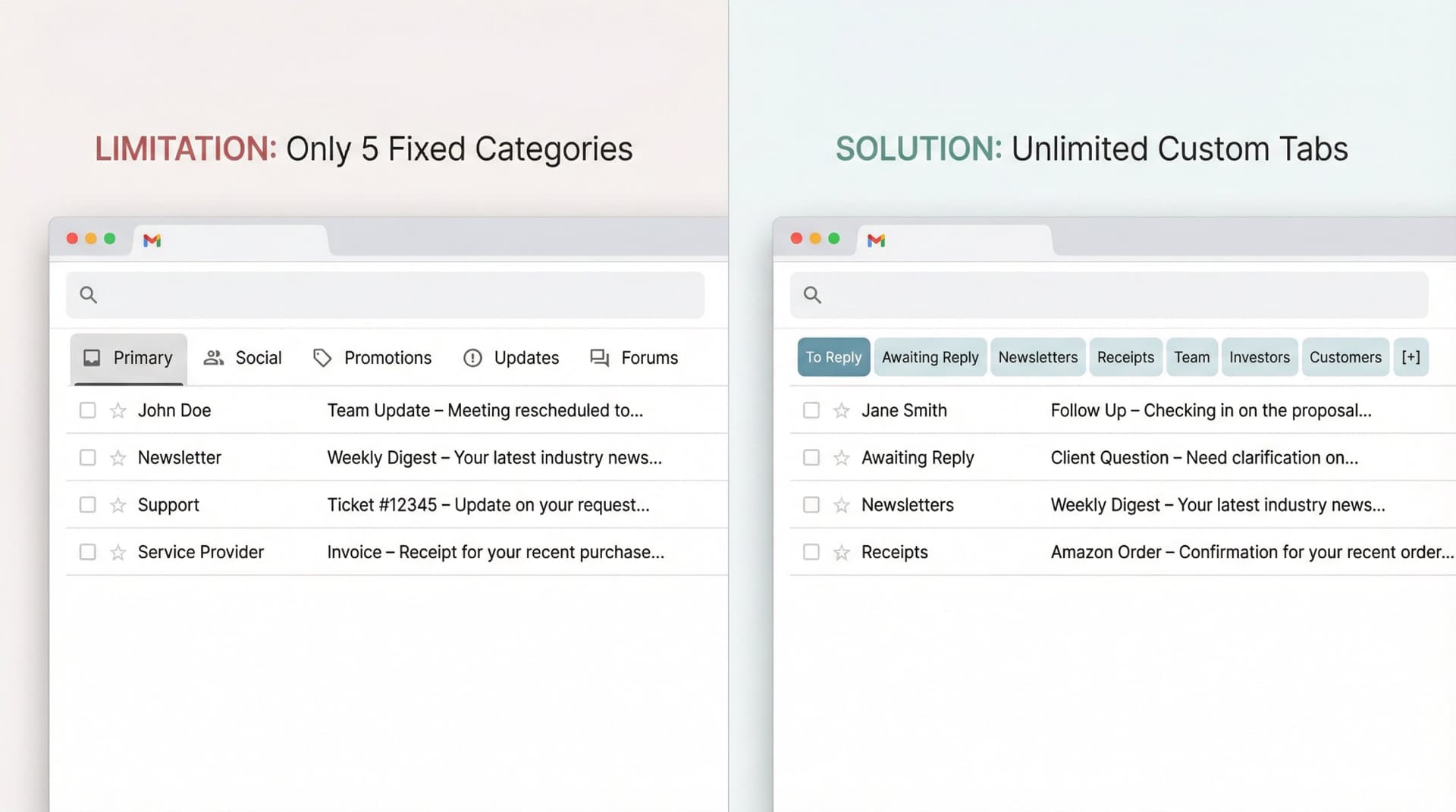
Even when tabs work perfectly, you'll hit two hard limits. You only get a fixed set of categories: Primary, Social, Promotions, Updates, Forums, and Purchases. You can't create "Investors," "Team," "Receipts," or "Needs reply" as new tabs. And tabs are global - they don't care about your workflow, just about message type. (Gmail Help confirms you can't create custom categories.)
If you process email seriously, you want tabs that match your actual work: "To Reply," "Awaiting reply," "Newsletters I actually read," "Receipts and expenses," "Customers only." That's where it makes sense to stop fighting stock Gmail tabs and layer your own system on top.
For comprehensive strategies that go beyond Gmail's native features, check out our email management strategies guide. It covers 20 proven tactics for regaining control of your inbox.
How to Create Custom Gmail Tabs with Inbox Zero
Inbox Zero Tabs for Gmail does one thing very well:
It turns any Gmail search query into a persistent tab inside Gmail.
It lives entirely in your browser, client-side only, with no data collection. It reads nothing from servers; it just draws a tab bar and runs searches like label:team is:unread or -in:spam has:attachment larger:10M. You can create tabs like "To Reply" (all starred mail or label:to-reply), "Newsletters" (all senders you consider newsletters), "Receipts," or "Team" (your company domain). (Chrome Web Store listing shows the extension details and privacy disclosure.)
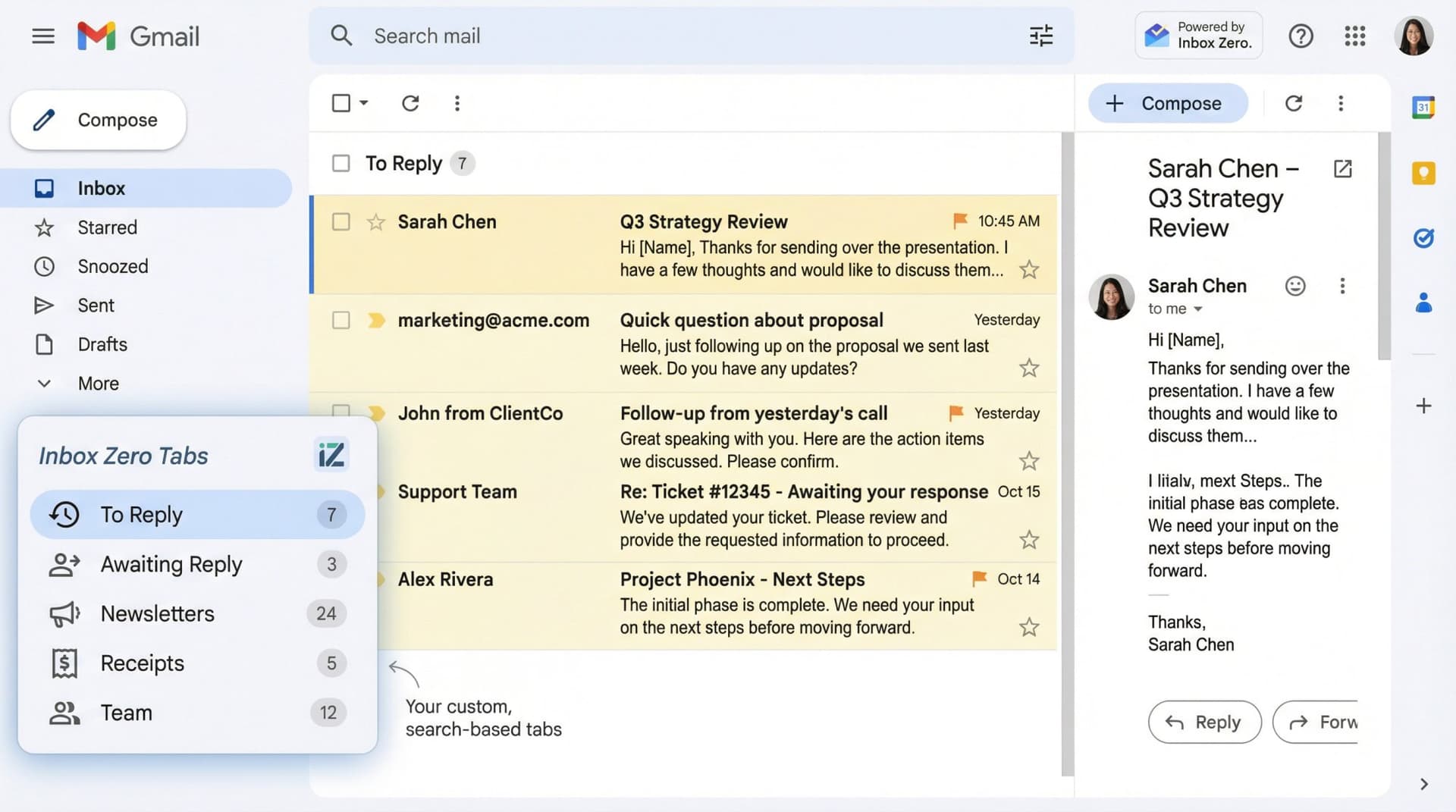
Practically, you get Superhuman-style split inbox on top of Gmail without changing any Gmail settings. This also gives you an escape hatch when native tabs misbehave: keep Gmail categories simple (or even off), use Inbox Zero Tabs to build the structure you actually care about, and let Inbox Zero's AI assistant auto-label things like newsletters, receipts, travel, and cold outreach so those tabs stay populated with minimal manual maintenance.
How to Clean Up Your Inbox Beyond Just Fixing Tabs
Gmail tabs only sort your inbox. They don't unsubscribe you from noisy lists, block cold outreach, draft replies, or track who you're waiting on.
Inbox Zero's hosted or self-hosted assistant layers on top of Gmail and uses rules plus AI to handle all of that. It identifies all newsletters and marketing senders, then lets you bulk unsubscribe, auto-archive, or label them. It detects cold outreach with the cold email blocker and either labels it, auto-archives it, or both. It marks threads that need a reply versus threads where you're waiting, then shows them in focused views. And it can auto-draft responses using your own rules and voice with AI automation.
This is the difference between "tabs not broken" and "inbox actually under control."
To understand the philosophy behind achieving true inbox control, read our guide on the inbox zero method. It's about more than just empty tabs.
Gmail Tabs FAQ: Your Questions Answered
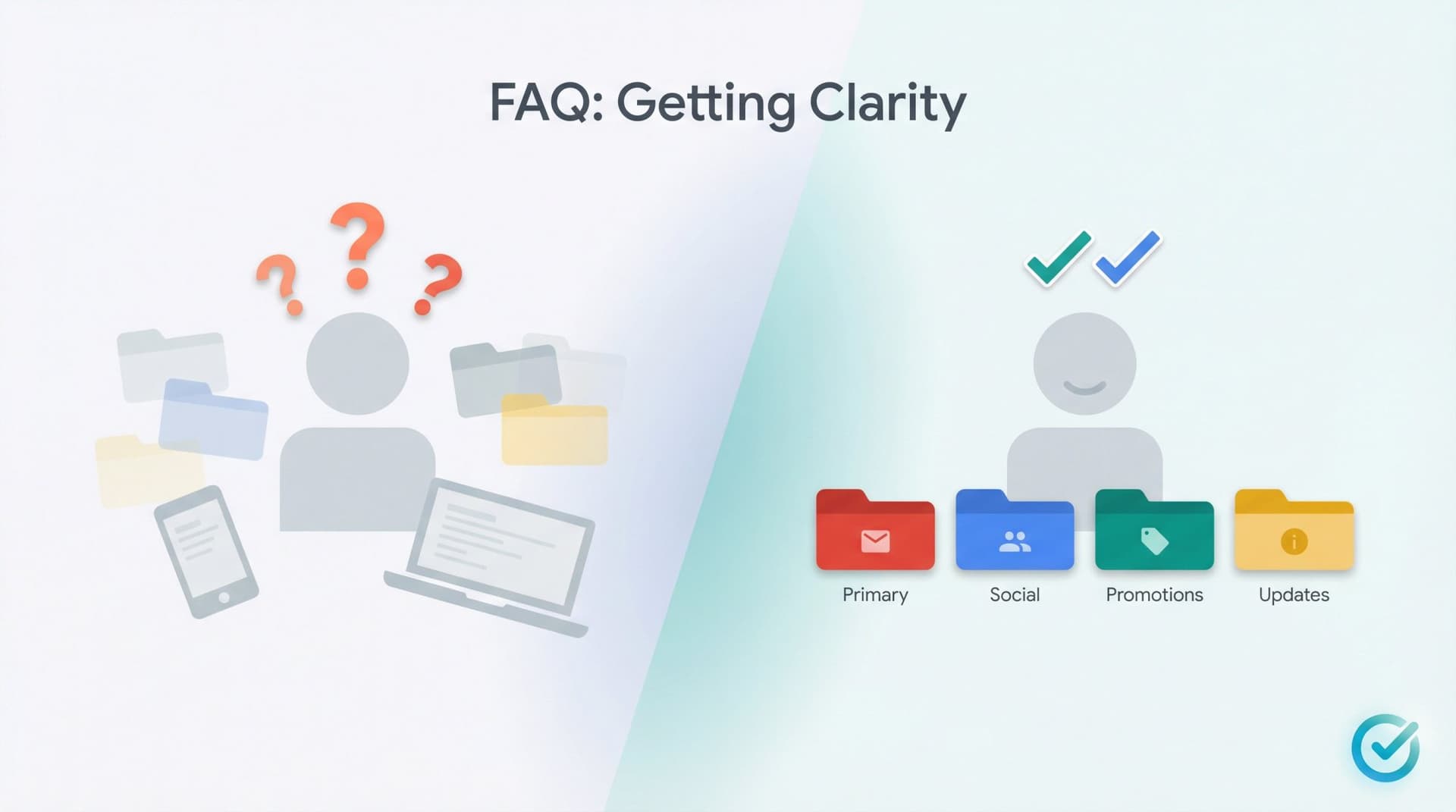
Do Gmail tabs still exist or did Google remove them?
Yes, tabs still exist in 2025. They only show with Inbox type set to Default, they depend on smart features being turned on, and they may be hidden behind new views like Purchases and Manage subscriptions. (Gmail Help confirms tabs are still supported.)
If your tabs vanished, you're dealing with configuration, policy, or a current bug, not a feature removal.
Why do my Gmail tabs look different on phone vs desktop?
Mobile Gmail uses a different layout. You control categories under Settings → Inbox type → Default → Inbox categories, and categories are visible mainly inside each account inbox, not always under "All Inboxes." (Android help page explains mobile category settings.)
So you might have fully working tabs but never see them because you mostly live in "All Inboxes" on your phone.
For mobile-specific Gmail tips and troubleshooting, see our best inbox zero apps for Gmail roundup.
Can I create custom Gmail categories or tabs?
No. Gmail doesn't let you define new category types. You're limited to Primary, Social, Promotions, Updates, Forums, plus the new Purchases view. You can never rename them. (Gmail Help confirms this limitation.)
To create custom tabs, use labels plus the category: search operators, or a browser extension like Inbox Zero Tabs that treats any search as a tab.
Do Gmail tabs affect email deliverability or open rates?
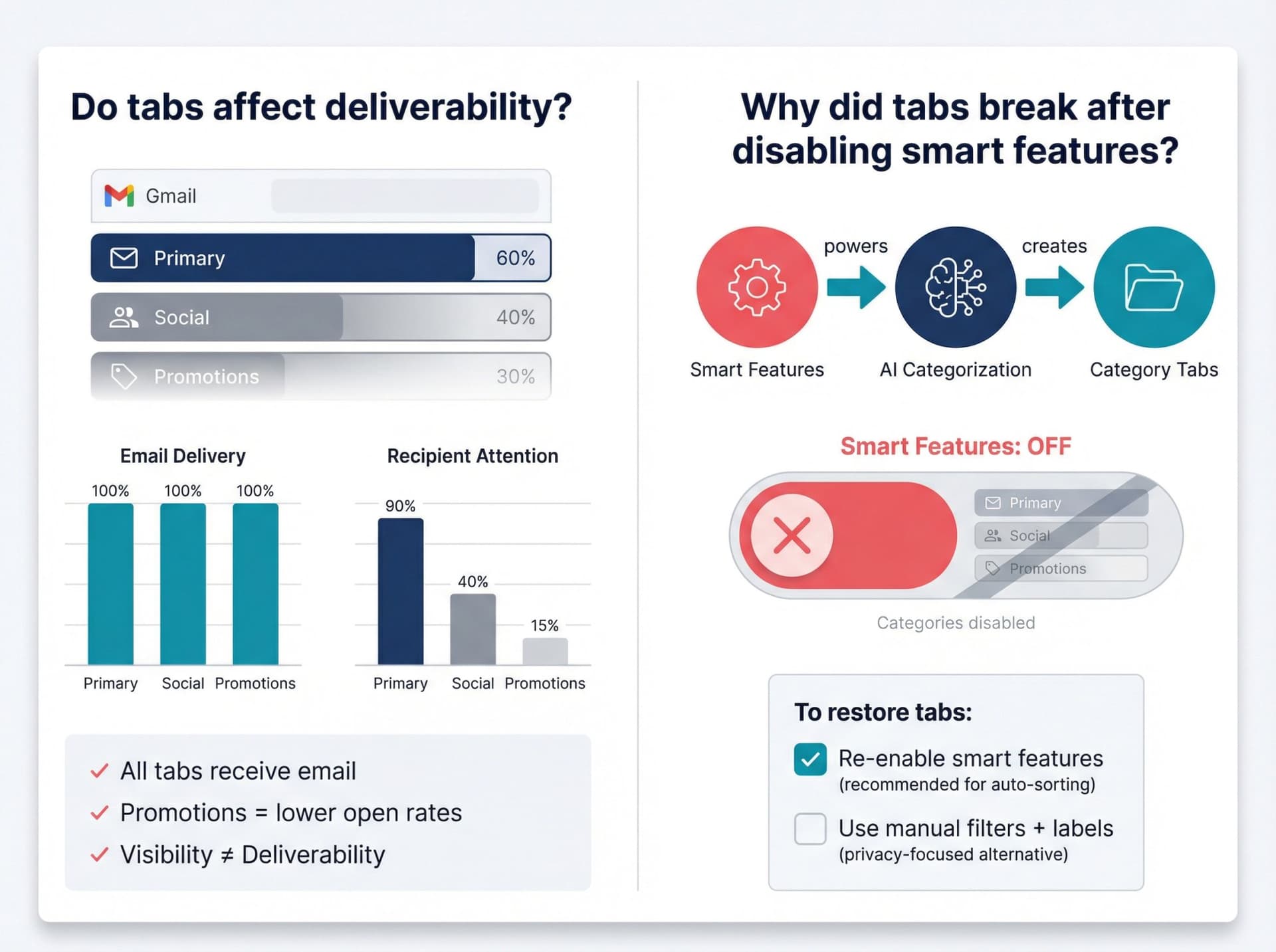
From the recipient side, tabs don't block messages. They affect visibility. Most people check Primary much more than Promotions, and email marketing guides in 2024-2025 talk heavily about "avoiding the Promotions tab" for that reason.
If you run marketing campaigns, your best bet is to ask subscribers to drag your messages to Primary, encourage replies and contact-list adds, and keep messages more "personal" than templated promotions.
For insights on how AI can help with email marketing and management, read our AI email management guide.
Why did my Gmail tabs break after I disabled smart features?
Because that's exactly what smart features control now. Official docs tie automatic category filtering to the smart features settings, and turning them off removes the signal Gmail uses for tabbed inbox. (Google Help explains what disabling smart features affects.)
If you want tabs back, you must either re-enable smart features, or accept a fully manual system (labels, filters, custom tabs via an extension) without Gmail-side categorization.
How to Fix Gmail Tabs Not Working: Your Action Plan
If your Gmail tabs aren't working properly, your plan should follow four phases.
First, stabilize the basics. Set your inbox type to Default on desktop, enable the categories you want, and make sure smart features are turned on (or consciously replaced with your own system).
Second, patch the edge cases. Fix mobile settings per account, clean up filters that skip the inbox or override categories, and use category searches to rescue misfiled mail.
Third, decide how much you trust Gmail's classifier. For light users, drag-and-drop plus a couple of filters is enough. For heavy users, build a real workflow on labels, saved searches, and custom tabs.
Fourth, upgrade beyond stock tabs if needed. Use Inbox Zero Tabs for Gmail to create your own tab system on top of Gmail. Use Inbox Zero's AI assistant and Bulk Unsubscriber to reduce noise so tabs (native or custom) have less junk to juggle.
If you follow this order, "Gmail tabs not working properly" turns from a vague annoyance into a solvable configuration problem.
And once you have your categories or custom tabs behaving, you can finally get back to the real goal: an inbox that shows you what matters, when it matters, and hides everything else.
For more practical tips on achieving inbox mastery, explore our email management tips collection.
All behaviors and settings described here are accurate for Gmail's 2025 interface and may change if Google ships new inbox layouts or smart feature controls in future updates.
Relay.app Is Shutting Down: Deadlines, Data Export, and Alternatives
Relay.app is shutting down in 2026. See the deadlines for free and paid users, what to export, and which alternatives fit your email and automation workflows.
2026-07-16T18:46:02Z
Best AI Email Assistants in 2026 (Tested)
The best AI email assistants in 2026, tested and compared. Honest pros, cons, and pricing for Inbox Zero, Superhuman, Fyxer, Shortwave, Lindy, Missive, SaneBox, Serif, Perplexity, Gemini in Gmail, and Microsoft Copilot, with picks by use case.
2026-07-05T08:00:00Z

Top 16 Email Management Software of 2026
Discover the top 16 email management software of 2025 designed to boost productivity and simplify your inbox.
2026-06-24T09:00:00Z
7 Best Fyxer Alternatives in 2026
The best Fyxer.ai alternatives in 2026, compared. AI email assistants, team inboxes, and inbox cleaners, with honest notes on price, features, and who each one is for.
2026-06-01T08:00:00.000Z