How To Reduce Email Overload In Organizations (2026)
Reduce email overload with proven strategies: cut volume, automate triage, and implement Reply Zero. Reclaim 30-60 minutes daily in 30-90 days.

Your employees are drowning in email. Not metaphorically. Actually drowning.
The average office worker receives around 120 emails per day, spending 5 to 15 hours per week just sorting and responding to messages. That's not communication. That's survival mode.
Nearly 40% of employees have at least 50 unread emails sitting in their inbox right now. A quarter of work time is spent just checking incoming messages (not even responding, just checking). Research shows this constant deluge buries crucial information, fragments focus, and turns every workday into an exhausting game of inbox whack-a-mole.
Here's the part that should terrify you: more than a third of office workers (38%) said email fatigue was pushing them to consider quitting their jobs. You're not just dealing with productivity loss. You're dealing with retention risk.
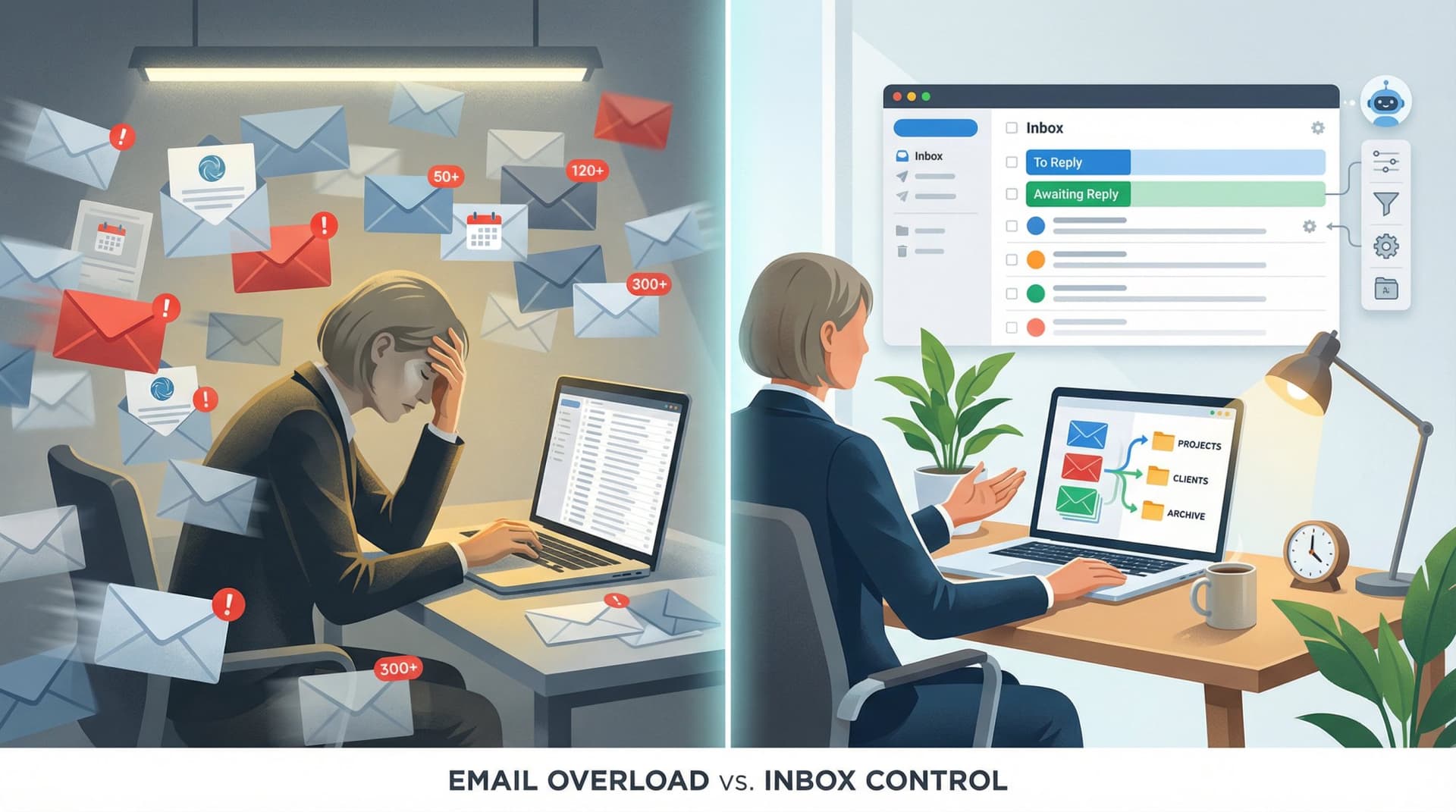
Why Email Overload Is a System Problem Not a People Problem
Most companies treat email overload as a personal productivity issue. "Just manage your inbox better." "Check email less often." "Try inbox zero."
That's like telling someone to bail faster while you keep drilling holes in the boat.
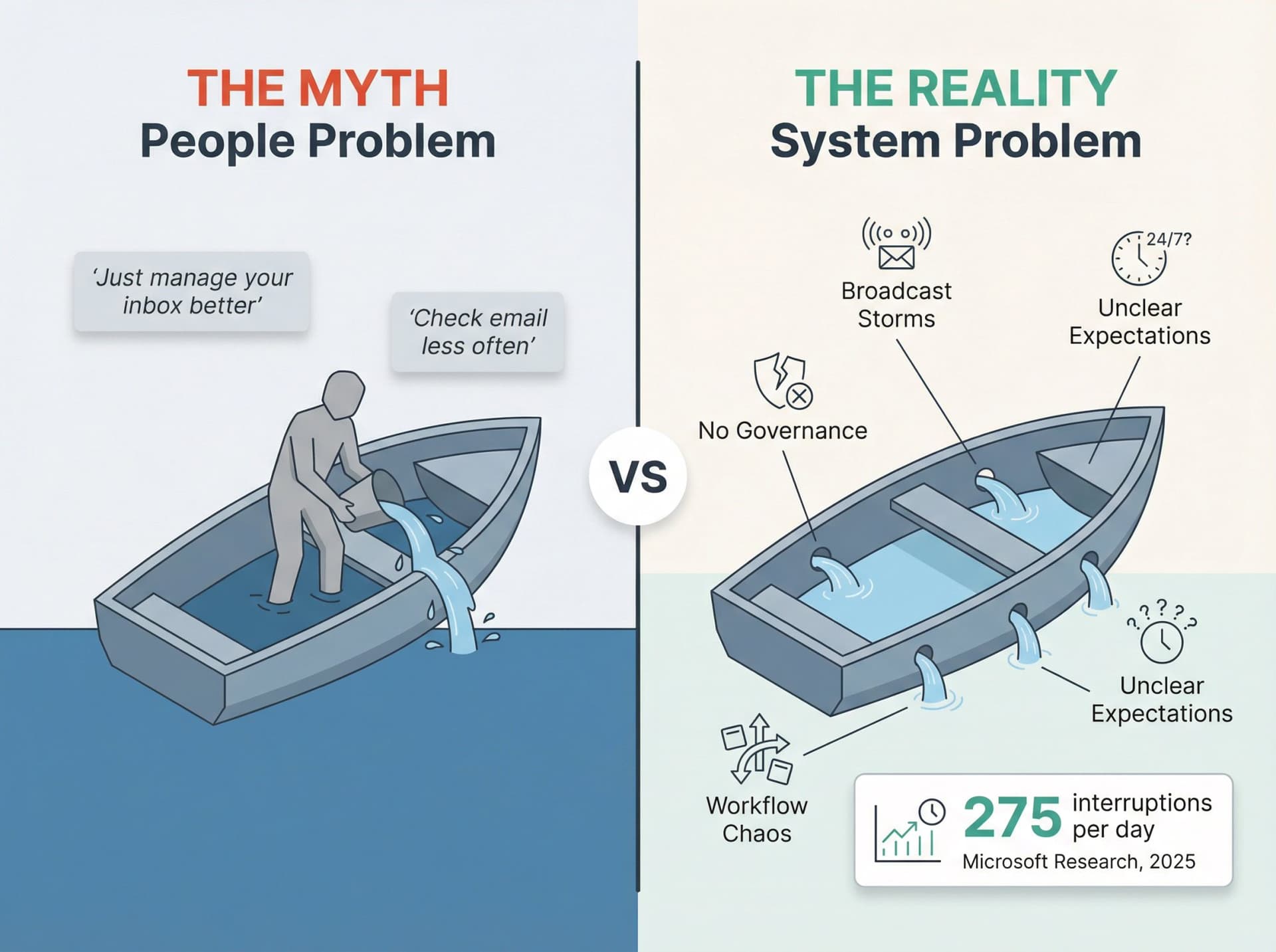
Email overload is a systems problem. Specifically, it's a queueing problem, a governance problem, and a workflow design problem.
When someone searches "how to reduce email overload in organizations," they're usually trying to fix one (or more) of these failures:
Work feels fragmented and reactive because people can't focus long enough to finish anything meaningful. Important messages get missed while "follow-ups" become a second full-time job. Broadcast emails drown signal in a sea of CC storms, mailing lists, and "FYI" noise. Response expectations are unclear, creating an always-on culture that bleeds into nights and weekends. And email becomes the default task system, where work requests arrive as unstructured messages instead of trackable actions.
Microsoft's workplace research illustrates the scale. During core work hours, people are interrupted every two minutes (about 275 interruptions per day) by meetings, emails, and notifications. Nearly half of employees (48%) report their work feels chaotic and dispersed.
Inboxes meant to enable communication have instead become a source of noise, stress, and missed signals.
But email overload isn't inevitable.
With the right strategies (policies, workflows, and yes, smart automation), organizations can cut through the noise and help employees regain control. Not by working harder. By working smarter.
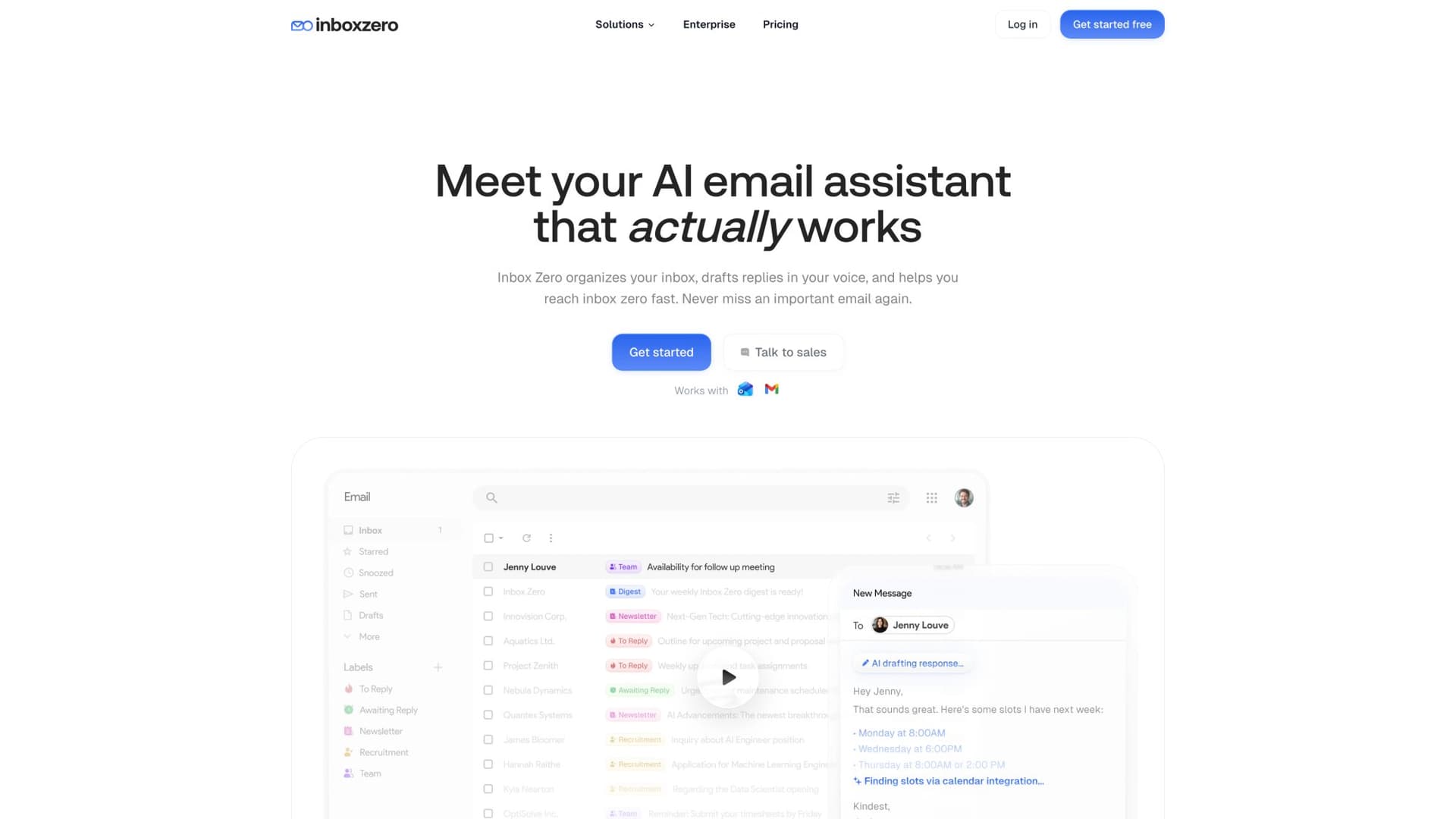
Inbox Zero's AI assistant helps teams automate triage, unsubscribe from noise, and track replies—turning email chaos into manageable workflows.
How Email Creates an Infinite Queue (And What That Means)
Think of email as an infinite queue of unstructured requests. If you want lasting relief (not just temporary inbox amnesty), you need a system.
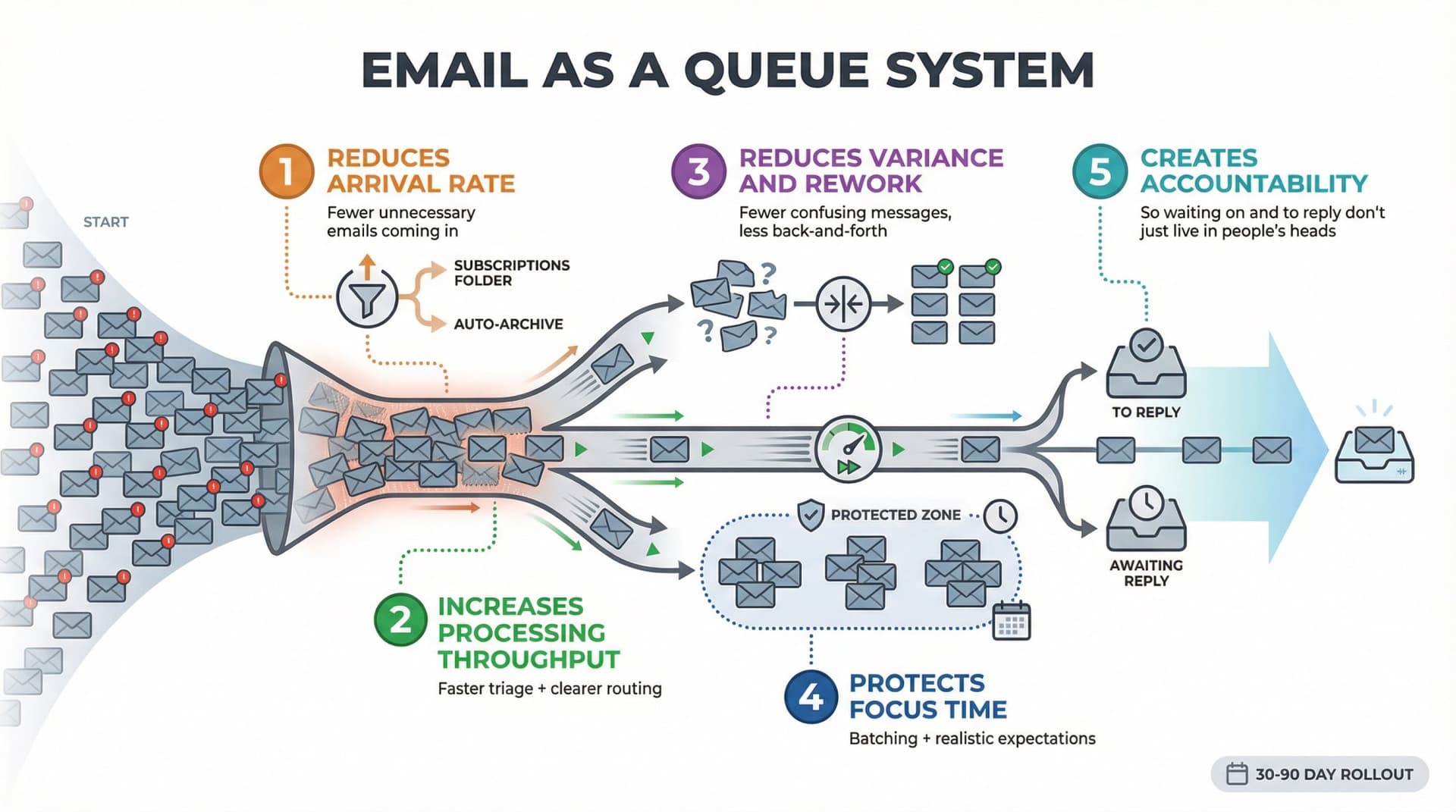
That system must address five key areas:
① Reduces arrival rate (fewer unnecessary emails coming in)
② Increases processing throughput (faster triage plus clearer routing)
③ Reduces variance and rework (fewer confusing messages, less back-and-forth)
④ Protects focus time (batching plus realistic expectations)
⑤ Creates accountability (so "waiting on" and "to reply" don't just live in people's heads)
This isn't theory. It's queue management applied to your inbox. And you can roll it out in 30 to 90 days.
What 2025 Email Research Reveals About Workplace Overload
Before we get into solutions, you need to understand the scale of the problem. Use this data to convince leadership that email overload is real and expensive.
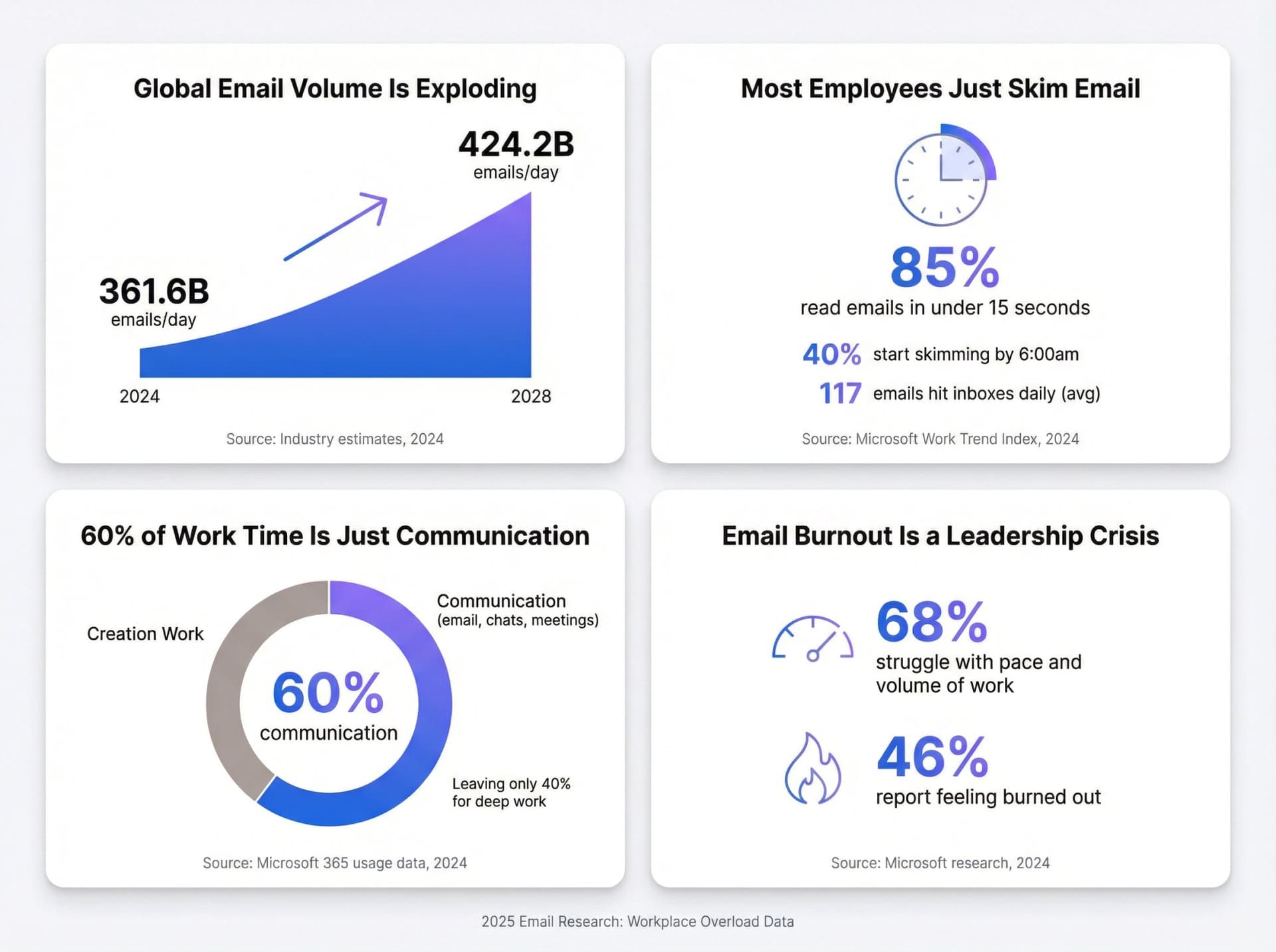
Global Email Volume Is Growing Every Year
Global email volume hit 361.6 billion emails per day in 2024 (yes, billion), growing to an estimated 424.2 billion daily by 2028. Even if your organization doesn't feel busier, the ecosystem is objectively noisier. And that noise leaks into your inboxes.
Most Employees Skim Email Instead of Processing It
Microsoft's 2024 Work Trend Index found that 85% of emails are read in under 15 seconds. That's not thoughtful processing. That's triage-at-speed. Fast skimming is rational under overload, but it increases missed details, reply churn, and stress.
By 6:00am, 40% of Microsoft 365 users online have already started skimming their email to get ahead. Throughout the day, the messages keep coming. On average, 117 emails hit workers' inboxes daily (most are glanced at for under a minute).
Why 60% of Work Time Is Just Communication
Across Microsoft 365, people spend about 60% of time in email, chats, and meetings, leaving roughly 40% for actual creation work. So reducing email overload isn't a "nice-to-have." It directly expands time available for deep work.
If meetings are part of the problem, quantify them separately with our free meeting cost calculator.
Email Burnout Is Now a Leadership Crisis
Microsoft's research found 68% of people struggle with the pace and volume of work, and 46% report feeling burned out.
If your email culture is chaotic, your managers lose hours each week to coordination work instead of actual leadership. Email overload isn't just making people tired. It's breaking your organizational capacity.
How to Identify Your Organization's Email Problem Pattern
Most organizations have a dominant "overload shape." Find yours, then intervene precisely.
You can't fix what you don't understand.
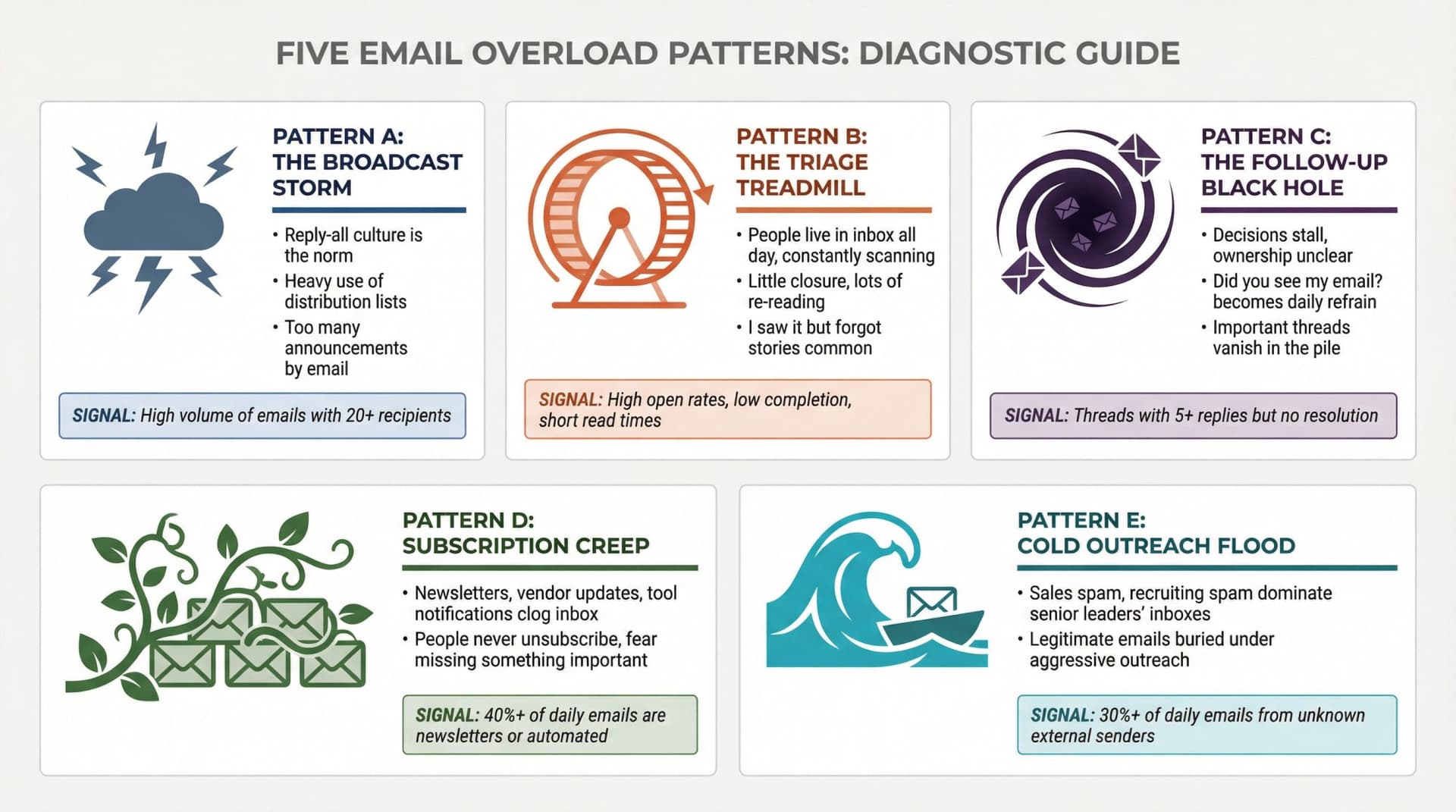
Pattern A: The Broadcast Storm
| Symptoms | Signal to Look For |
|---|---|
| "Reply-all" culture is the norm | High volume of emails with 20+ recipients |
| Heavy use of distribution lists | Mass emails rose 7% year-over-year at Microsoft |
| Too many "announcements" by email | Everyone is CC'd "just in case" |
Microsoft notes mass emails to 20+ recipients continue rising year-over-year. This pattern creates a tragedy of the commons: the sender saves time, everyone else pays.
Pattern B: The Triage Treadmill
Symptoms:
→ People live in the inbox all day, constantly scanning
→ Little closure, lots of re-reading the same emails
→ "I saw it but forgot" stories are common
Signal: High open rates, low completion, short read times. People are skimming constantly but never actually clearing their inbox.
Pattern C: The Follow-up Black Hole
Symptoms:
• Decisions stall because ownership is unclear
• "Did you see my email?" becomes a daily refrain
• Important threads vanish in the pile
Pattern D: Subscription Creep
Symptoms:
-
Newsletters, vendor updates, receipts, and tool notifications clog the inbox
-
People never unsubscribe because they fear missing something important
Pattern E: Cold Outreach Flood
Symptoms:
• Sales spam, recruiting spam, partnership pitches dominate senior leaders' inboxes
• Legitimate emails get buried under aggressive outreach
Which pattern (or combination) matches your organization? You'll need this diagnosis for what comes next.
7 Proven Strategies to Reduce Email Overload at Scale
This is the core framework. Use it as your rollout roadmap.
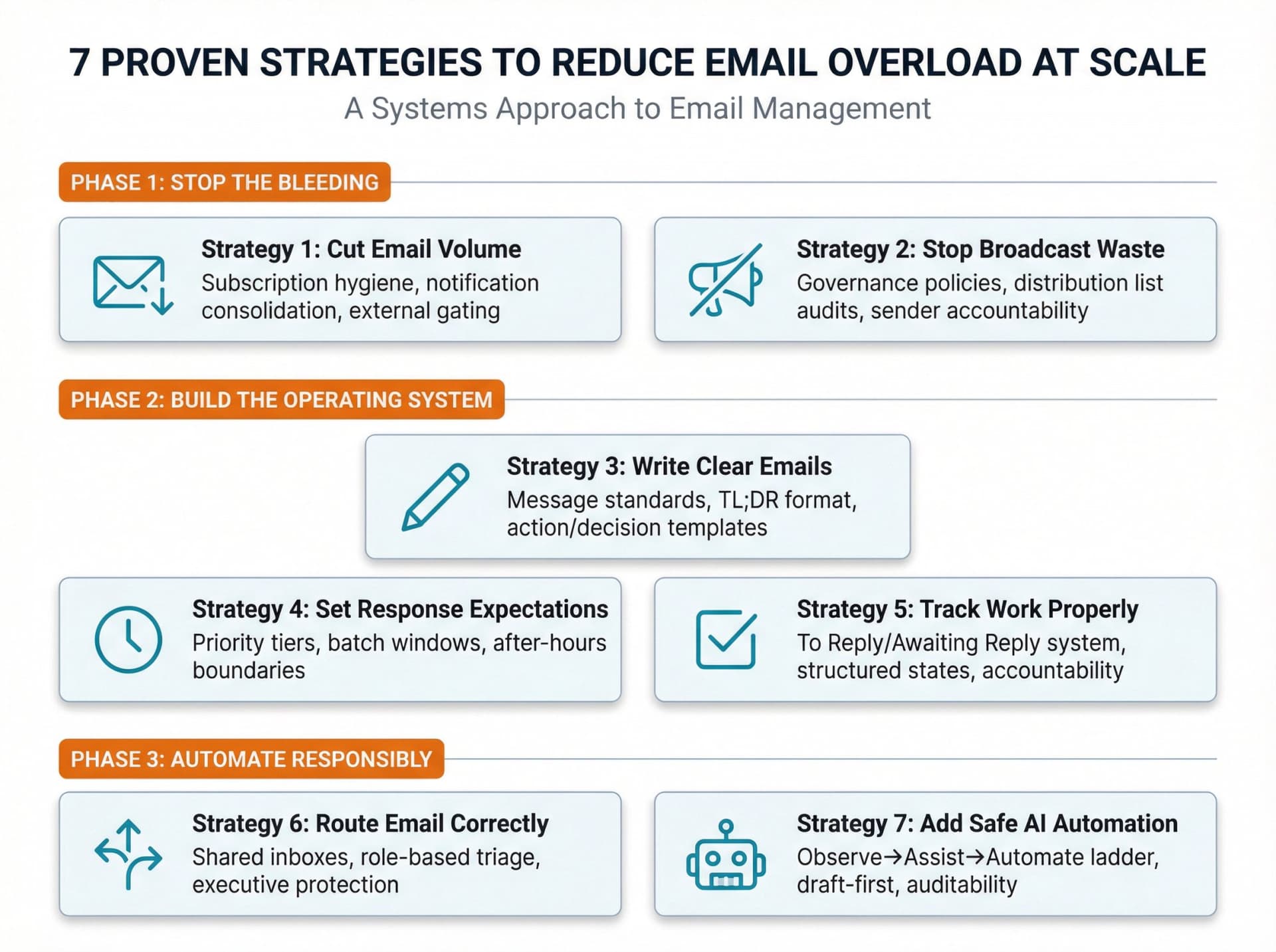
Strategy 1: How to Cut Email Volume Without Missing Important Messages
This is the highest-ROI lever. You can't "out-triage" unlimited inbound.
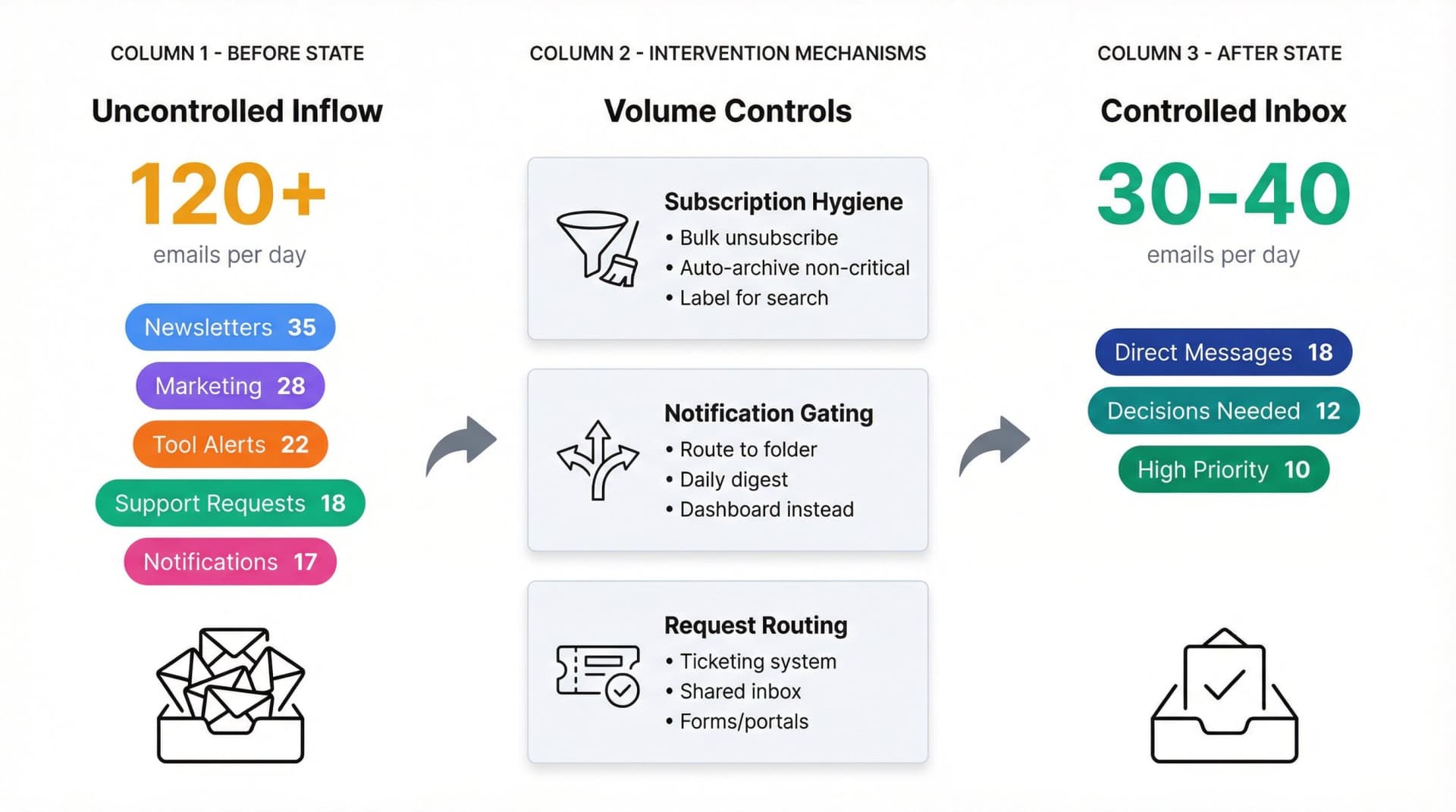
What to implement
Subscription hygiene at scale:
• Unsubscribe from newsletters people don't actually read
• For "maybe useful" senders, use auto-archive plus a label (so it's searchable but not disruptive)
Notification consolidation:
→ Route tool alerts to a dedicated label or folder, then create a digest instead of hitting the inbox
→ Replace "email alerts" with dashboards where possible
External inbound gating for teams:
-
For support, billing, and HR requests, move to ticketing systems, forms, or shared inboxes
-
Use email only as the entry point, not the work system
Why this works
A 2024 study published in Omega links higher email management performance to practices consistent with "inbox control," including keeping the inbox at zero and using the email client as a structured action system. Reducing inbound noise makes those strategies realistic instead of aspirational.
Tools like Inbox Zero's Bulk Email Unsubscriber can pinpoint which newsletters or senders are cluttering your inbox the most. With one click, you can unsubscribe from unwanted mailing lists or set those senders to auto-archive in the future. Instead of manually hunting for the "unsubscribe" link in dozens of emails, the tool automates it in bulk, instantly cutting down future noise.
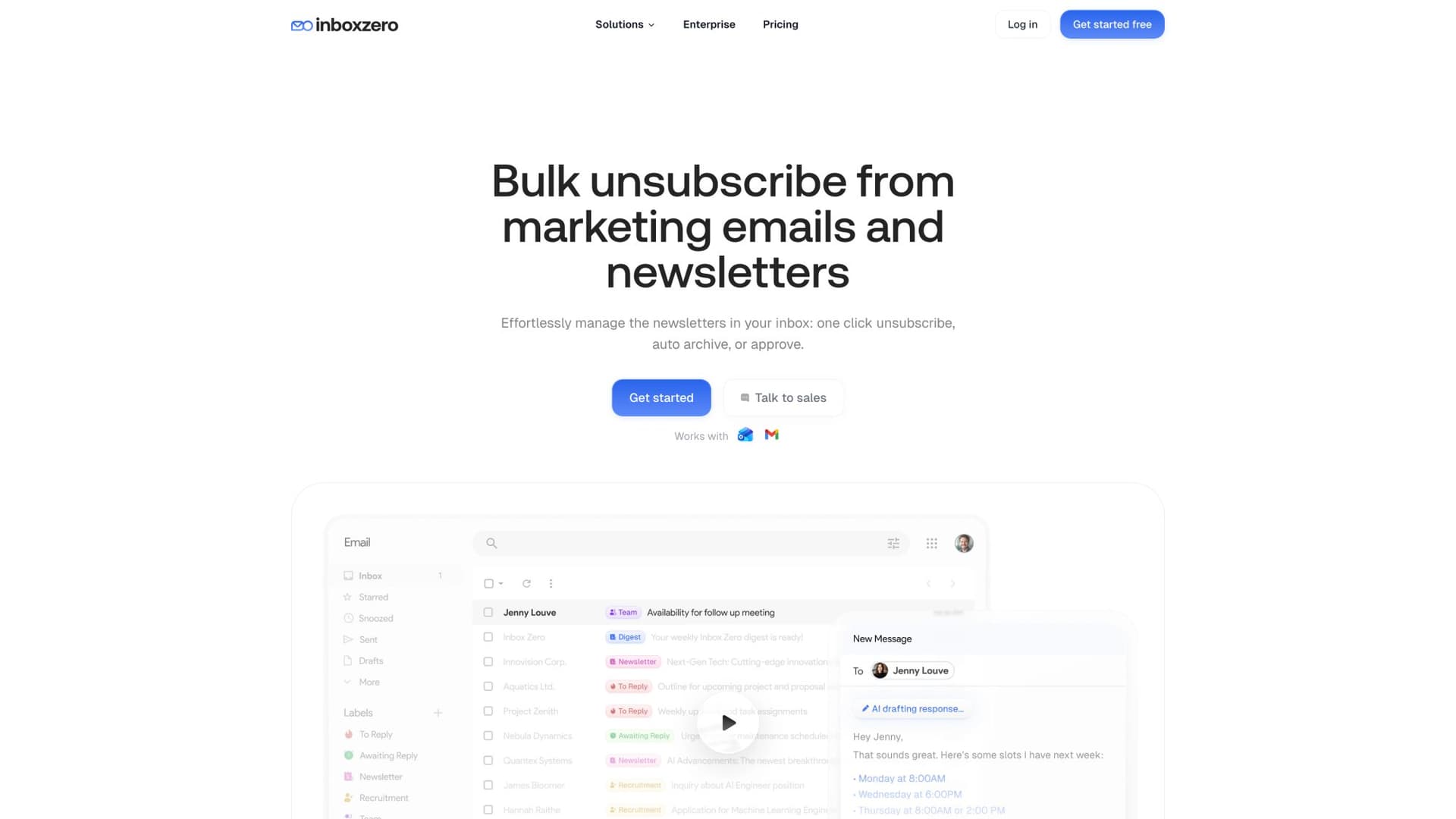
The Bulk Unsubscriber shows which senders consume your inbox time and lets you clean up subscriptions with a single click.
Strategy 2: How to Stop Broadcast Email from Wasting Team Time
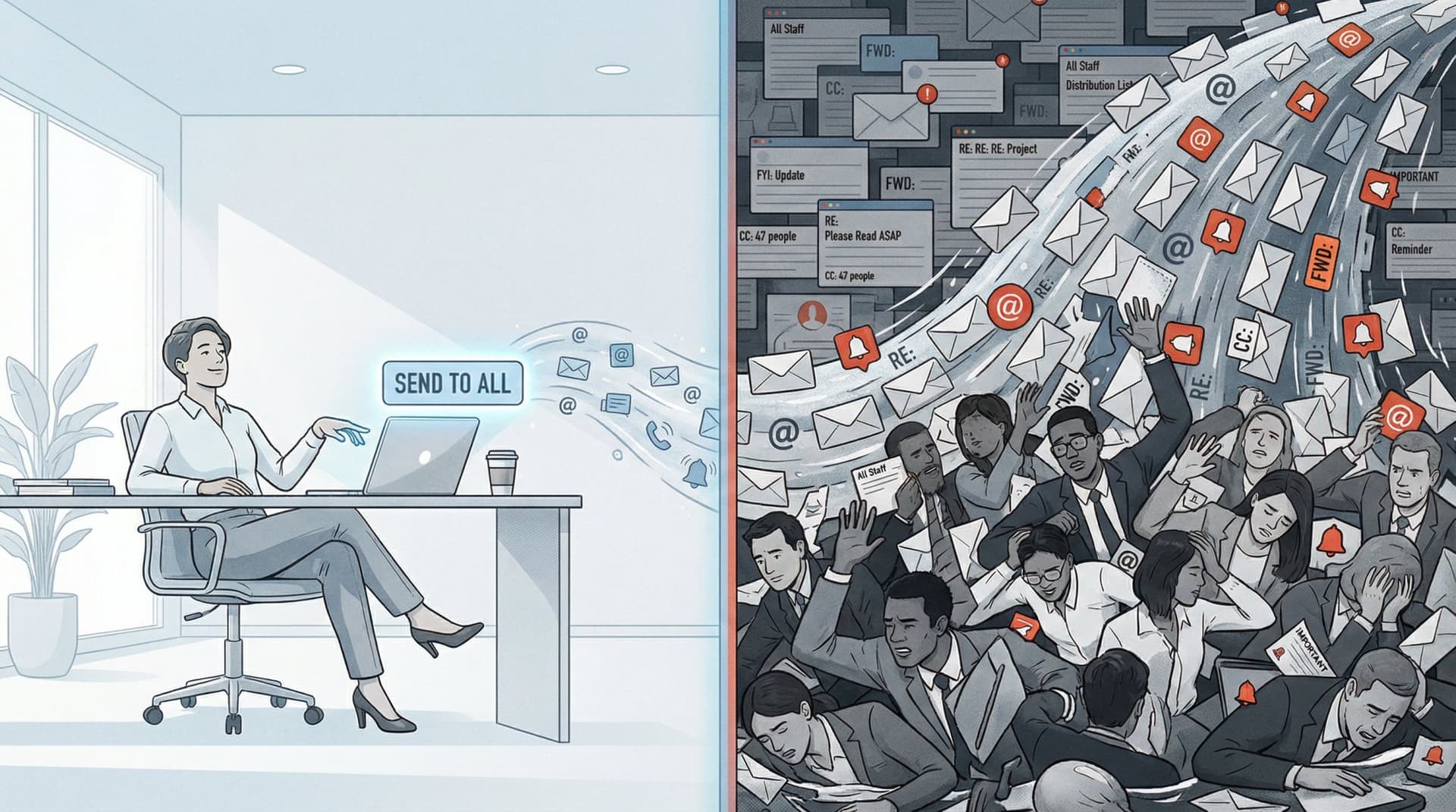
Broadcast email creates a tragedy of the commons. The sender saves time. Everyone else pays.
Organizational policy that works
Create a Broadcast Governance Policy:
• All-company email is restricted to a small group (Communications, People Ops, IT)
• Announcements default to an internal channel (intranet, Teams, Slack)
• Email is for exceptions: legal notices, urgent safety alerts, time-critical outages
• Distribution lists require an owner and quarterly review
• Default send is "to a smaller group". CC is earned, not automatic.
Execution checklist
① Audit your top 20 internal senders and top 20 distribution lists
② Disable unused lists (you'll be shocked how many are dead weight)
③ Require "Why email?" justification for new lists
Research shows blanket messages to the entire staff quickly turn into noise. If an update doesn't apply to certain groups, don't clutter their inboxes.
Strategy 3: How to Write Email That Gets Read and Responded To
This sounds small. It's enormous.
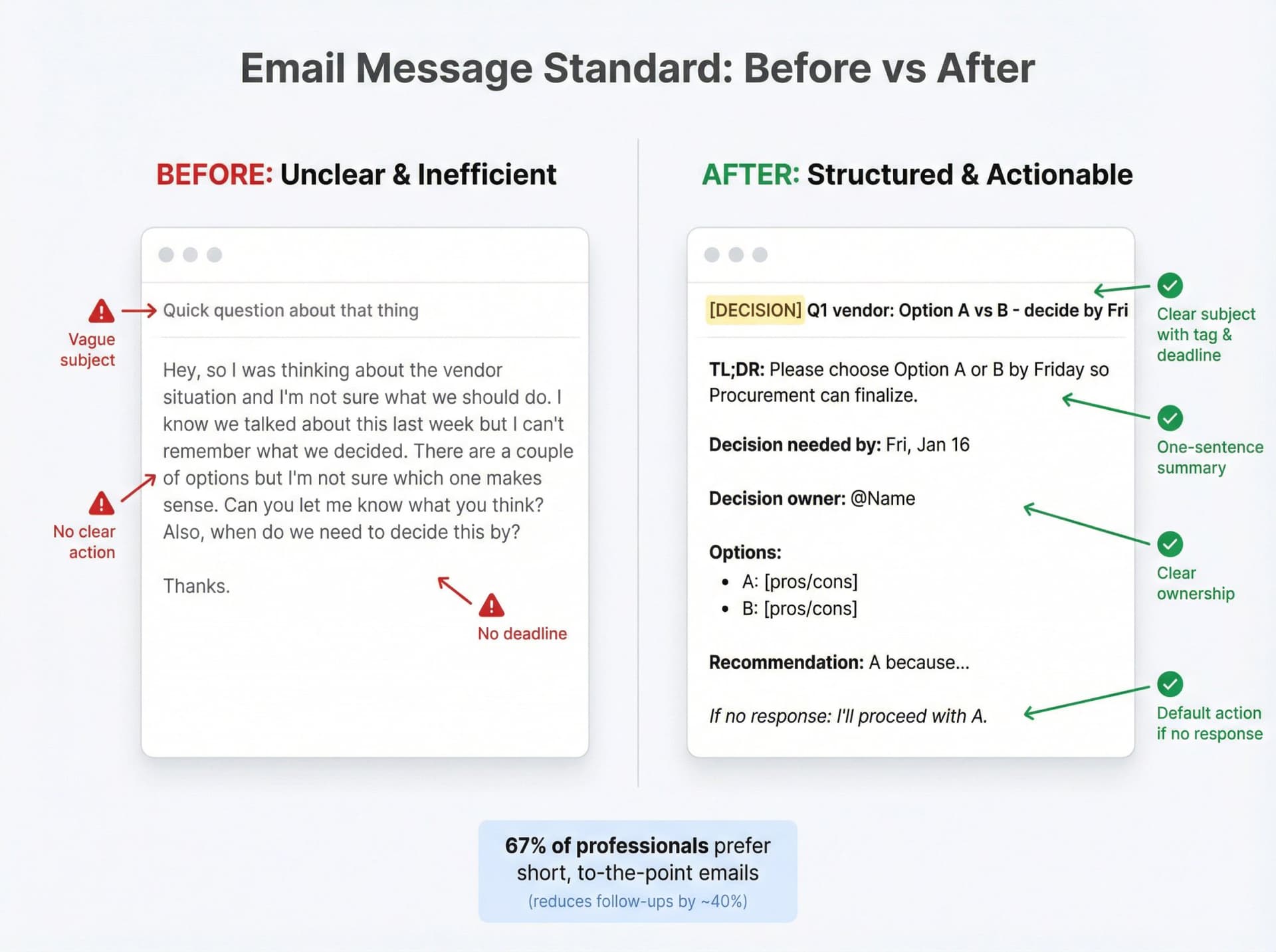
Adopt a one-page Email Message Standard
Require internal emails to include:
→ Subject: [ACTION] / [DECISION] / [FYI] + topic + deadline
→ First line: TL;DR (one sentence)
→ If action needed: owner + due date + definition of done
→ If decision needed: options + recommendation + deadline
→ One thread = one topic (avoid mega-threads that sprawl)
Example template (copy/paste for your org)
Subject: [DECISION] Q1 vendor: Option A vs B - decide by Fri
TL;DR: Please choose Option A or B by Friday so Procurement can finalize.
Decision needed by: Fri, Jan 16
Decision owner: @Name
Options:
• A: ... (pros/cons)
• B: ... (pros/cons)
Recommendation: A because ...
If no response: I'll proceed with A.
This reduces "email ping-pong" dramatically. 67% of professionals prefer short, to-the-point emails. Well-written emails that get to the point quickly generate fewer follow-up messages and less confusion.
Strategy 4: How to Set Email Response Expectations Team-Wide
Email overload is as much about interruptions as volume.
Microsoft's 2025 analysis found that during core hours, people are interrupted about every two minutes by meetings, emails, and notifications. That's not sustainable.
What to implement
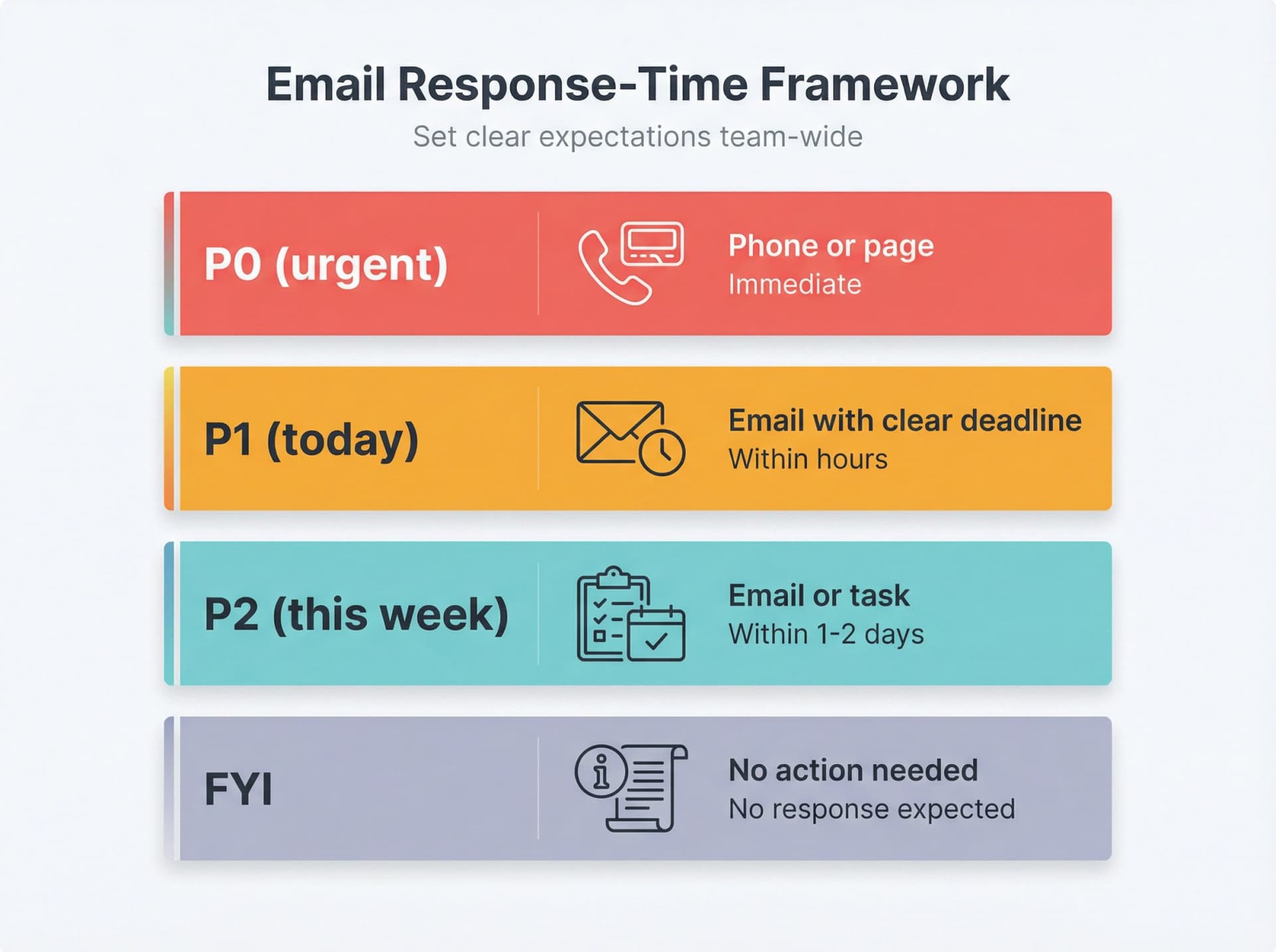
Response-time tiers
Batch windows
• Organization-wide "email blocks" (for example, 11:30am and 4:30pm)
• Encourage turning off push notifications outside those blocks (role-dependent, of course)
After-hours boundary
→ Encourage "schedule send" for emails drafted at night
→ Define what actually warrants after-hours email (should be rare)
Defining standard response-time expectations (for example, "internal emails should be responded to within 24 hours") removes the pressure to constantly monitor email. This helps employees prioritize inbox time without fear of upsetting colleagues or managers.
Strategy 5: How to Turn Email Into Trackable Work Instead of Chaos
The inbox becomes overwhelming when it's used as a task manager without structure.
The 2024 Omega paper explicitly connects higher email management performance with using the email client as a structured to-do system and keeping the inbox at zero.
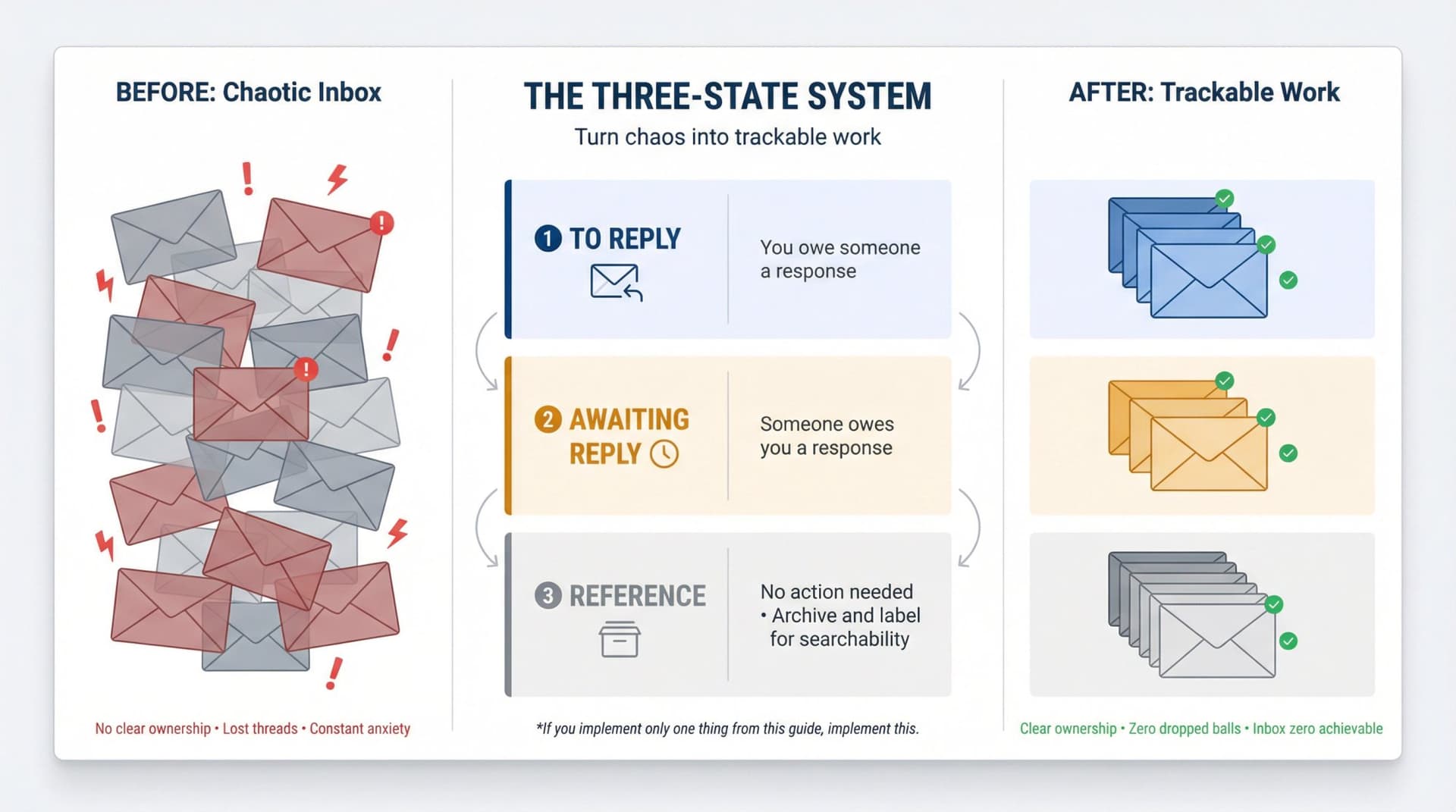
What to implement
Define three states for work email:
① To Reply (you owe someone a response)
② Awaiting Reply (someone owes you a response)
③ Reference (no action needed; archive and label for searchability)
If you implement only one thing from this guide, implement this.
Inbox Zero's Reply Zero feature labels every thread that needs a response as To Reply and every thread where you're waiting as Awaiting Reply. It provides a focused view limited to these two piles, one-click "Nudge" follow-ups (drafted by AI), and lets you filter by "overdue."
Instead of hunting through hundreds of messages, you have focused folders with just the threads requiring action. This is designed to get your "needs a response" pile down to zero regularly without losing important threads.
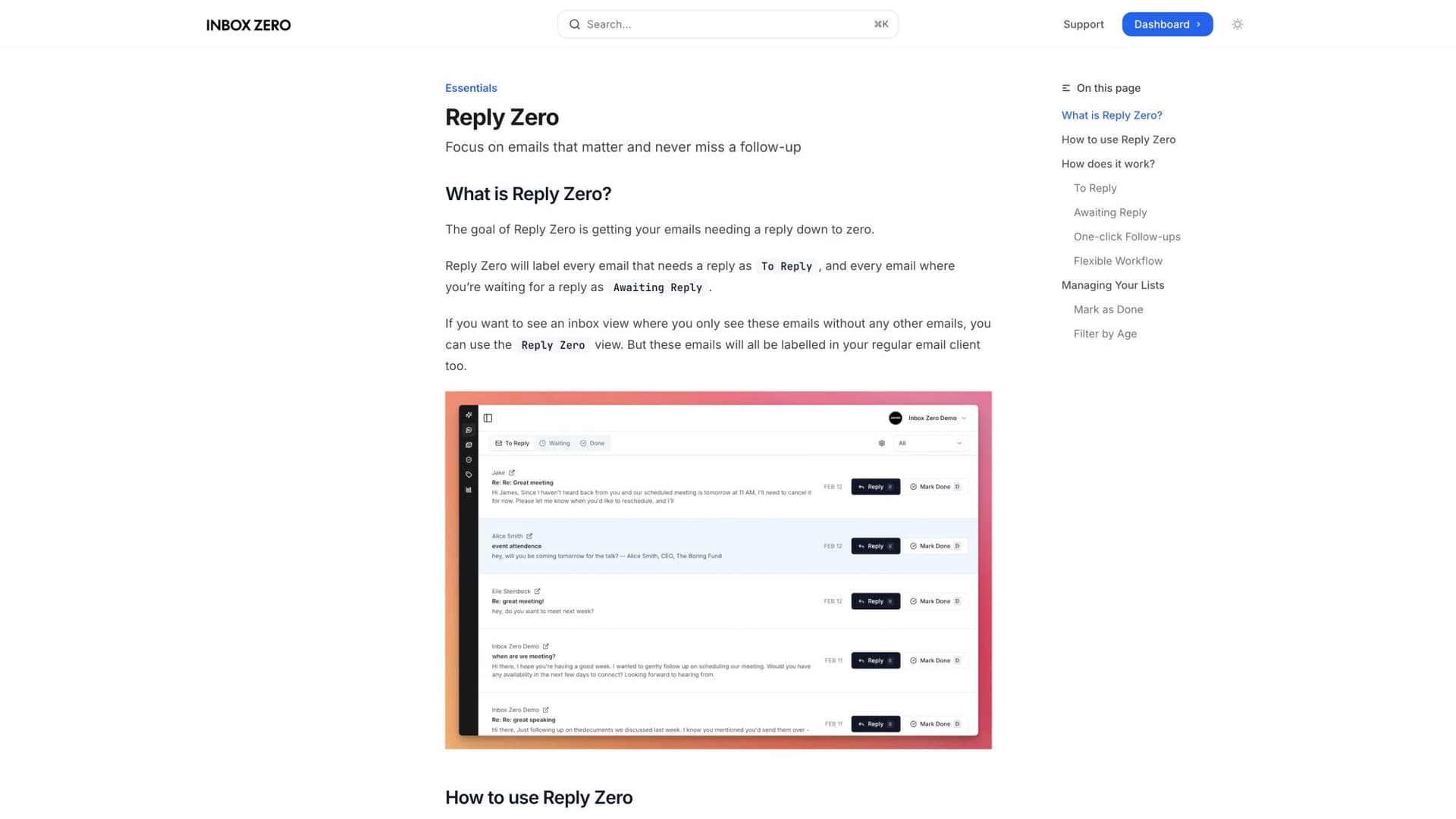
Reply Zero automatically categorizes emails by action status, so you always know what needs attention and what you're waiting on.
Strategy 6: How to Route Email to the Right Inbox (Shared Inbox Design)
A common cause of overload is misrouting. Sales questions going to engineering. Vendor issues going to executives. Support issues going to everyone.
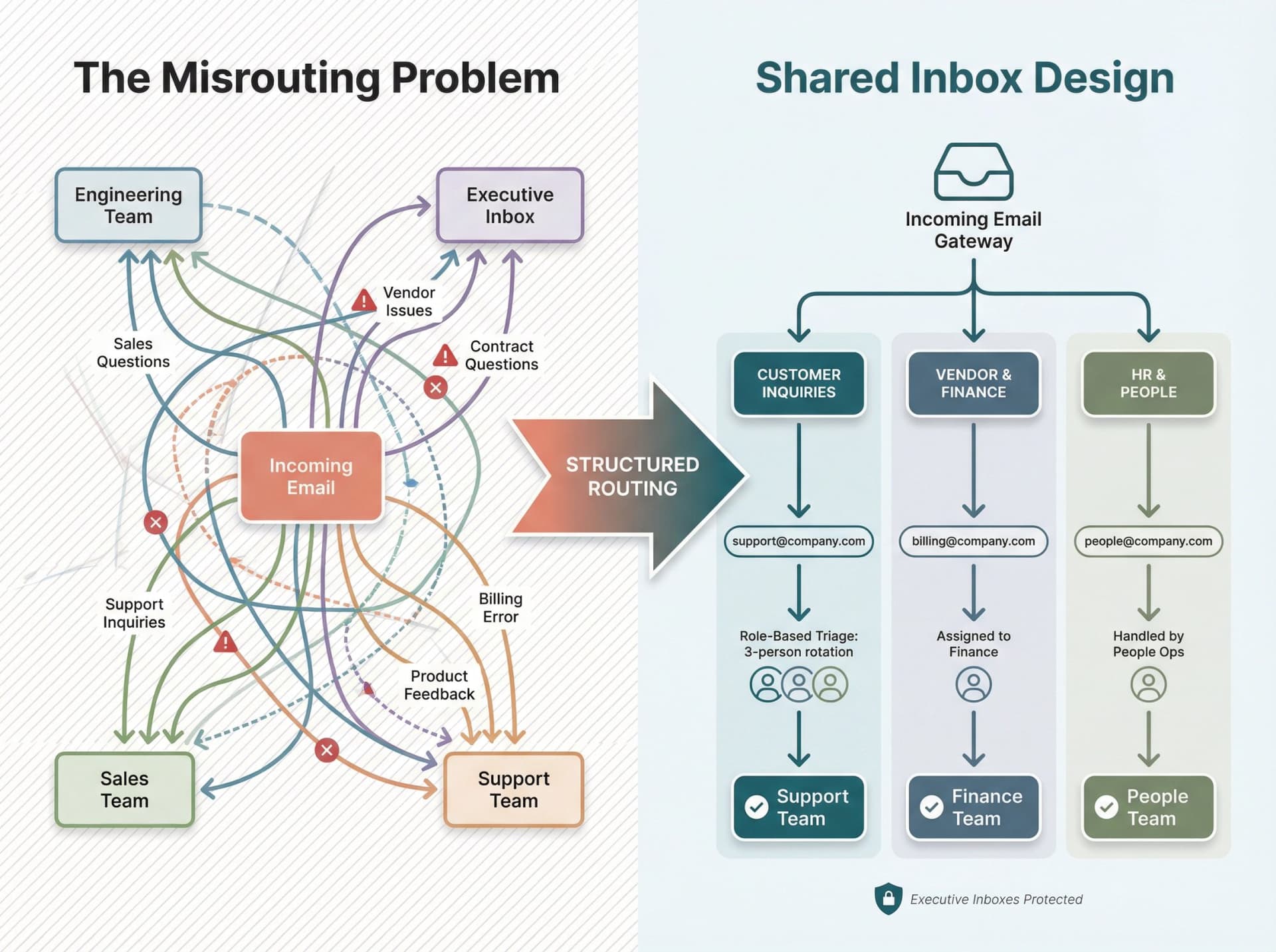
Fix it structurally:
• Use shared mailboxes (support@, billing@, people@)
• Use clear routing rules
• Use role-based triage (rotations)
• Keep executive inboxes protected
Many organizations overwhelm their people with a drip-feed of minor announcements and updates. Instead of sending multiple small emails each day or week, combine them into a single, well-structured digest.
For example, replace daily individual notices with a weekly internal newsletter that contains all the general announcements, HR updates, and team shout-outs in one place. Employees can then read through one email (perhaps Monday morning) instead of 10 separate messages scattered throughout the week. This reduces interruption frequency and allows people to deal with low-priority info on their own schedule.
Strategy 7: How to Automate Email Safely With AI
Automation is how you scale relief. But automation without guardrails creates risk.
Design principle: AI should be the "eyes and brain," while a deterministic rule engine and your email provider's APIs are the "hands." This is exactly how we built Inbox Zero.
Safe automation ladder (use this in your rollout)
① Observe: classify and label only
② Assist: draft replies, never auto-send
③ Automate low-risk: auto-archive newsletters, receipts, cold outreach
④ Automate higher-impact only after calibration plus auditability
Inbox Zero's AI Personal Assistant can classify and triage incoming emails in real time. You describe how you want your email handled in plain English, or by assembling explicit rules. The system converts that into rules with conditions and actions.
Typical actions include:
→ Label, archive, draft reply, reply, forward, send a new email, mark spam, call a webhook, or delay an action
→ Two control modes: automated on or off. With automation off, actions appear in a Pending or Planned queue for your review. With it on, actions execute directly.
→ Includes a testing screen to run rules against samples, plus a "Fix" UI to correct misfires and retrain pattern matching
The AI drafts responses on routine questions. You review and edit the AI's draft rather than writing from scratch, saving time. Inbox Zero supports rule testing, "Fix" workflows, email digests, delayed actions, and webhook calls. Use these to keep automation auditable and reversible.
Also, AI-driven tools can tackle the overload at the source. Inbox Zero's Cold Email Blocker can detect sales or spam outreach and filter it out before you ever see it. Three modes: list only, auto-label, or auto-archive plus label. You can customize the underlying prompt to align with your own definition of "cold outreach."
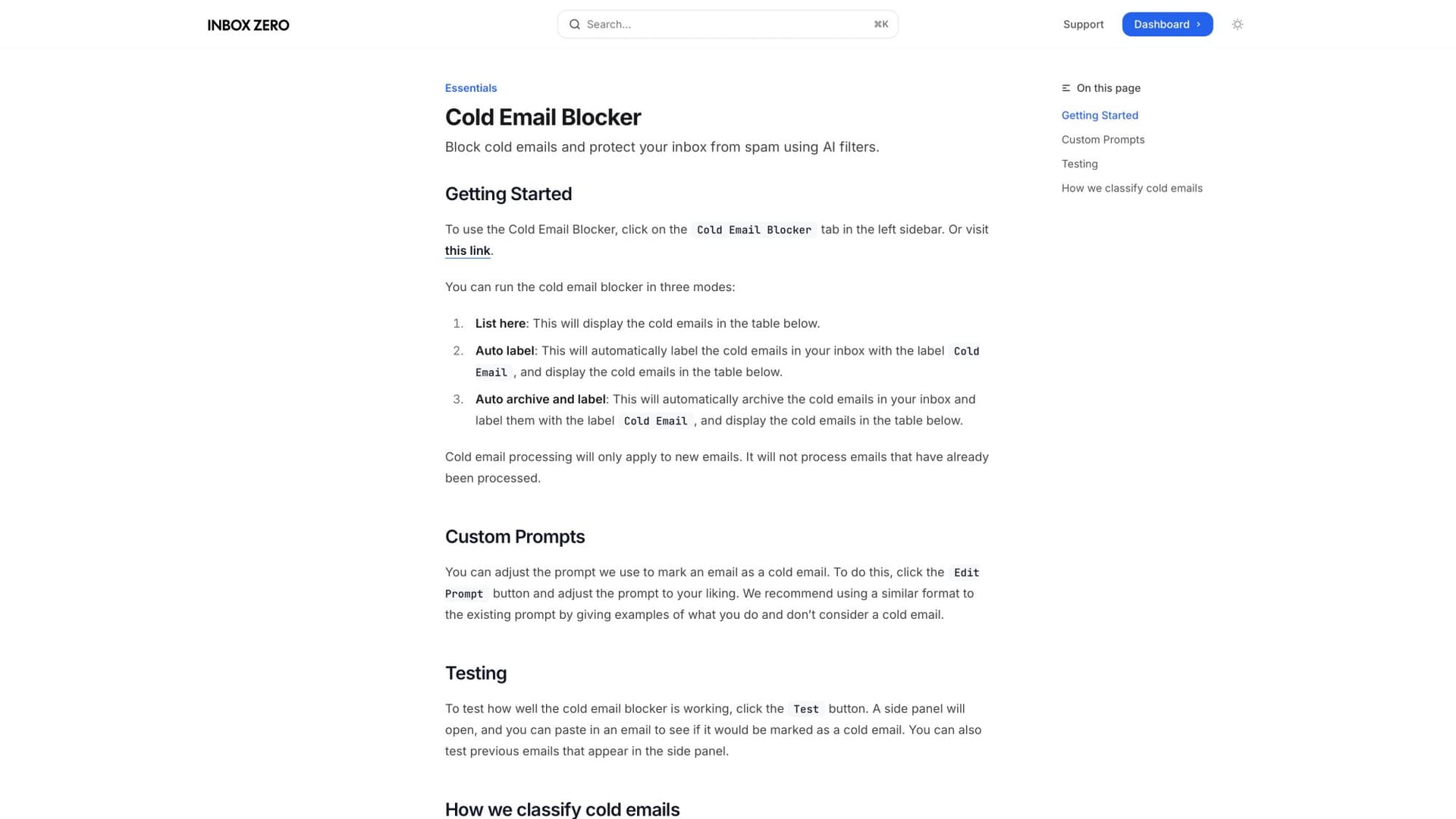
The Cold Email Blocker uses AI to identify and filter unwanted sales outreach while preserving legitimate messages.
The beauty of these intelligent systems is that they learn what matters to you. For example, if you consider emails mentioning "Partnership opportunity" as useful but "Free demo" as junk, a good AI assistant can be trained to block the generic pitches but let partnership inquiries through, tailoring the filtering to your needs.
Important: When adopting any email management tool or AI, look for solutions that work with your current email platform rather than adding more complexity. Inbox Zero's assistant connects via Gmail or Outlook's API and performs all its labeling, drafting, and sorting within your email account, so you still work out of Gmail/Outlook as usual. This means emails don't get rerouted to external systems, and users don't have to learn a whole new interface.
By default, Inbox Zero labels and suggests actions rather than sending anything automatically, so the human stays in control. Emails never leave the Gmail or Office 365 environment. The tool just adds smart automation on top.
Bonus Tool: Transform Gmail Into a Productivity Hub
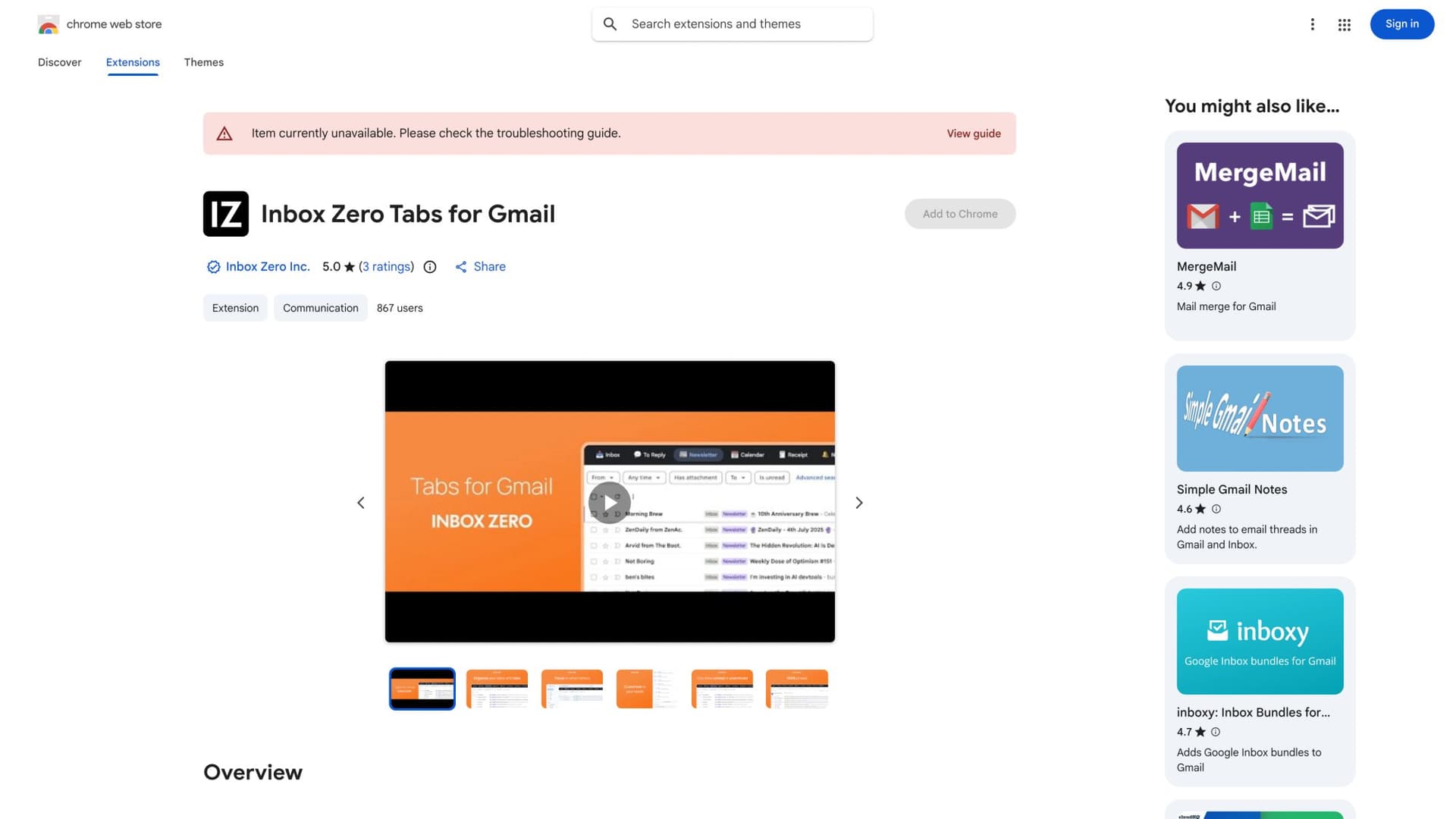
One more thing worth mentioning: our Chrome extension for Gmail.
Inbox Zero Tabs for Gmail adds custom tabs to Gmail for better email organization. Transform your Gmail experience with customizable tabs that help you achieve inbox zero faster. 100% private, with no data collection.
The extension integrates into Gmail's interface, adding a powerful tab system that lets you organize emails exactly how you want. Whether you're managing multiple projects, filtering newsletters, or tracking important conversations, it makes email management effortless.
Set Gmail labels or Gmail filters as tabs. Bring split inbox functionality to Gmail. Auto-label using Inbox Zero's AI Assistant.
✨ Key features:
→ Add custom tabs with any Gmail search query
→ Pre-configured tabs for common workflows (To Reply, Newsletters, Receipts, and more)
→ Works with all Gmail features and labels
→ Beautiful design that perfectly matches Gmail's interface
→ Dark/light theming
→ Multi-account support with separate settings for each Gmail account
→ 100% private with no data collection or tracking
All settings are stored locally in your browser. No external servers, no tracking.
How to Roll Out Email Reduction in 30 to 90 Days
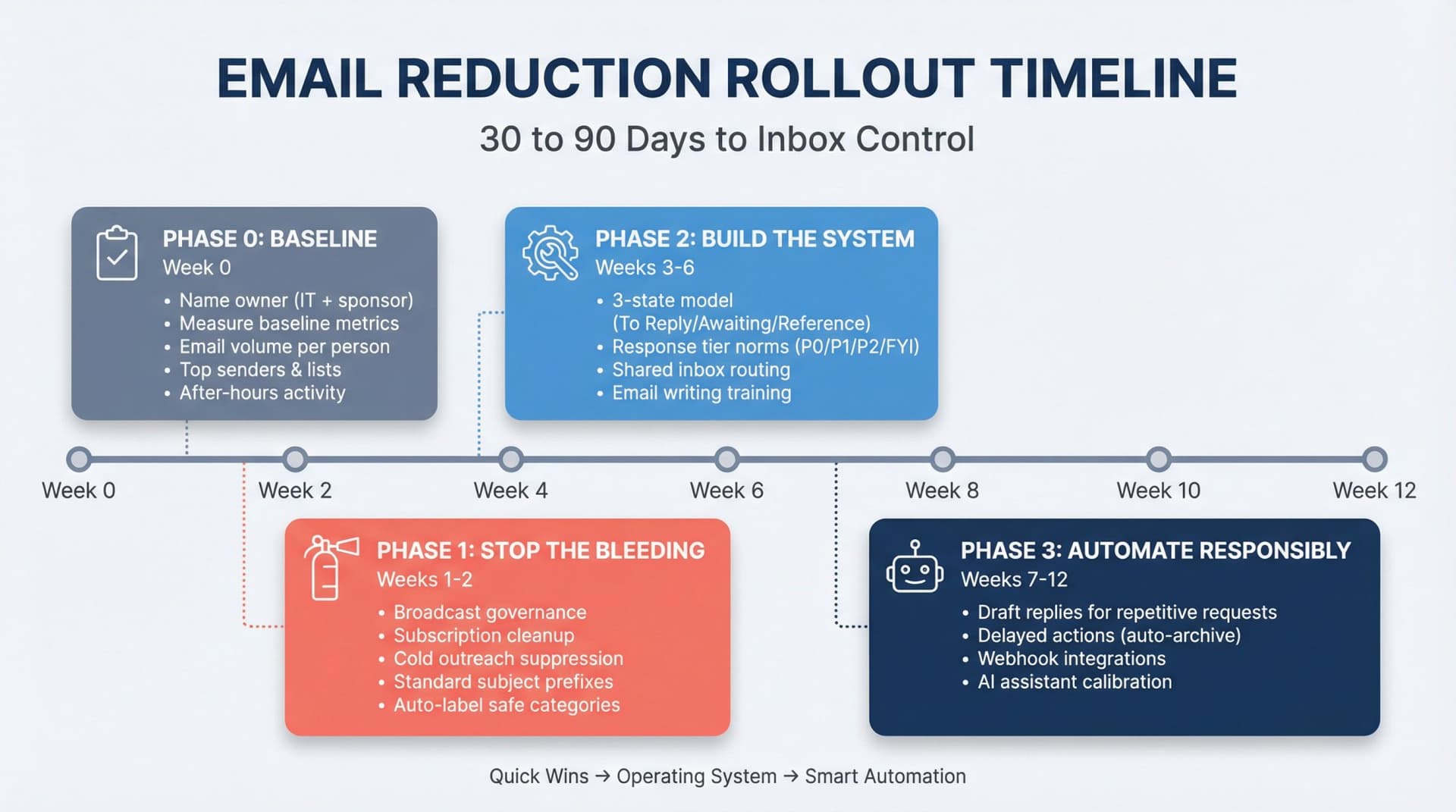
Phase 0 (Week 0): Baseline + Ownership
Deliverables:
• Name an owner (Collaboration/IT plus a business sponsor)
• Measure baseline metrics:
→ Emails received per person per day (median and 90th percentile)
→ Top internal senders plus top mailing lists
→ Percentage of newsletters, marketing emails, and notifications
→ After-hours email activity
→ "Dropped ball" incidents (qualitative feedback)
If you don't measure, you'll argue forever about whether it helped.
Phase 1 (Weeks 1-2): Stop the Bleeding
Policies plus quick wins:
• Broadcast governance (who can email distribution lists)
• Subscription cleanup campaign
• Cold outreach suppression for targeted roles
• Standard subject prefixes ([ACTION], [DECISION], [FYI])
Automation (safe):
→ Auto-label newsletters, receipts, and tool notifications
→ Build a digest for low-priority categories
Inbox Zero's Bulk Email Unsubscriber supports one-click unsubscribe, auto-archive, and auto-archive plus label per sender.
Phase 2 (Weeks 3-6): Build the Operating System
Implement:
① 3-state model: To Reply / Awaiting Reply / Reference
② Response tier norms (P0/P1/P2/FYI)
③ Shared inbox routing for support, billing, and requests
④ Training: "How we write email here"
Inbox Zero's Reply Zero labels every email needing a response as To Reply and threads you're waiting on as Awaiting Reply, and includes one-click "Nudge" follow-ups drafted by AI.
Phase 3 (Weeks 7-12): Automate Responsibly
Expand automation:
• Draft replies for repetitive requests
• Delayed actions (for example, auto-archive newsletters after 7 days)
• Webhook integrations (turn certain emails into structured events)
Inbox Zero supports rule testing, "Fix" workflows, email digests, delayed actions, and webhook calls. Use these to keep automation auditable and reversible.
What to Track to Prove Email Overload Is Improving
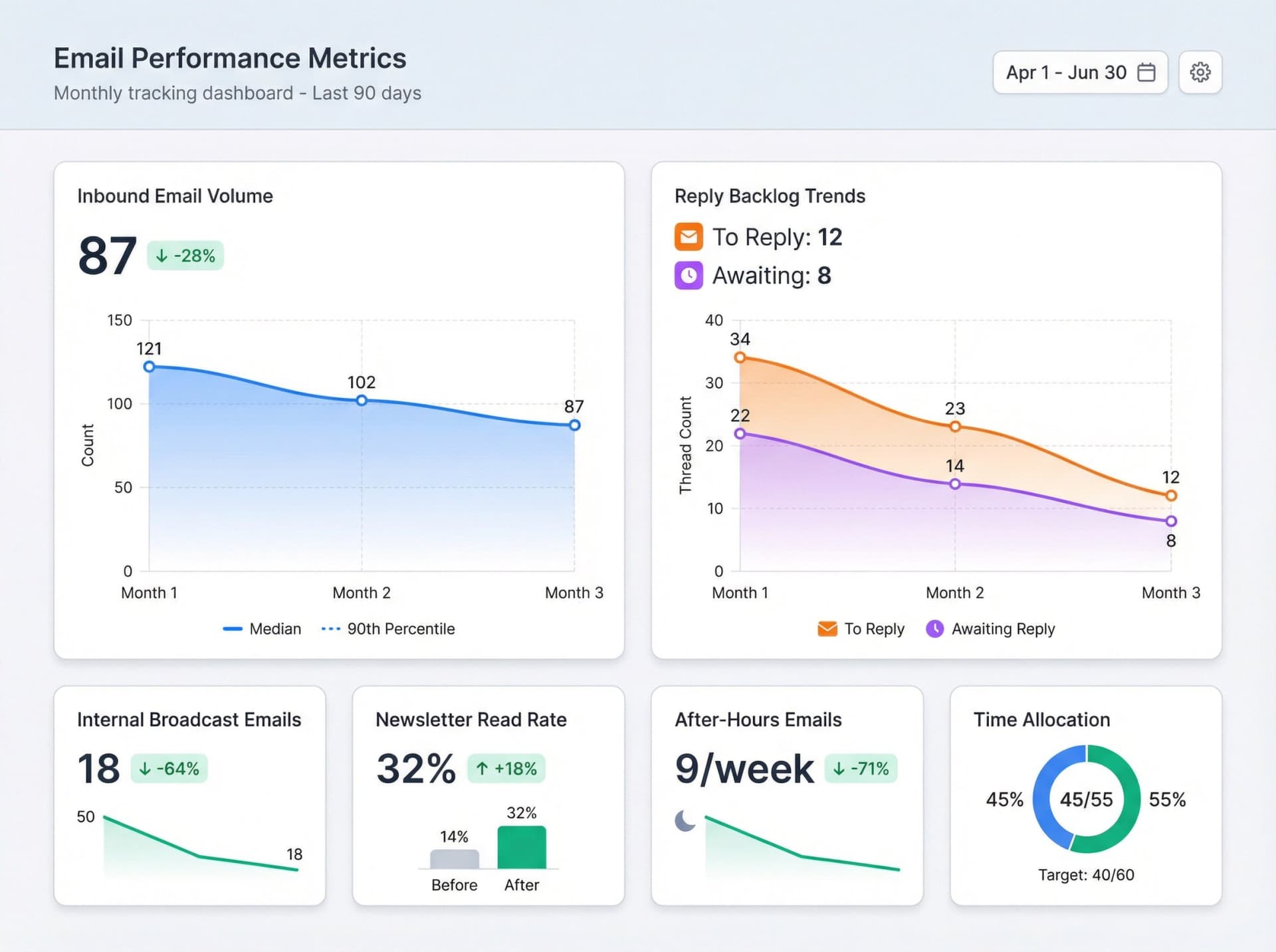
Track these monthly:
① Inbound emails per person per day (median and 90th percentile)
② Internal broadcast volume (emails with more than 20 recipients)
③ To Reply backlog (count plus age)
④ Awaiting Reply backlog (count plus age)
⑤ Newsletter volume plus read rate (before and after cleanup)
⑥ After-hours email activity (aim down)
⑦ Time in communication versus creation (proxy metric; Microsoft reports communication dominates many workdays)
Inbox Zero's Analytics feature supports many of these directly: trends on send and receive counts, top senders, top domains, reading and archiving rates, and largest emails for cleanup.
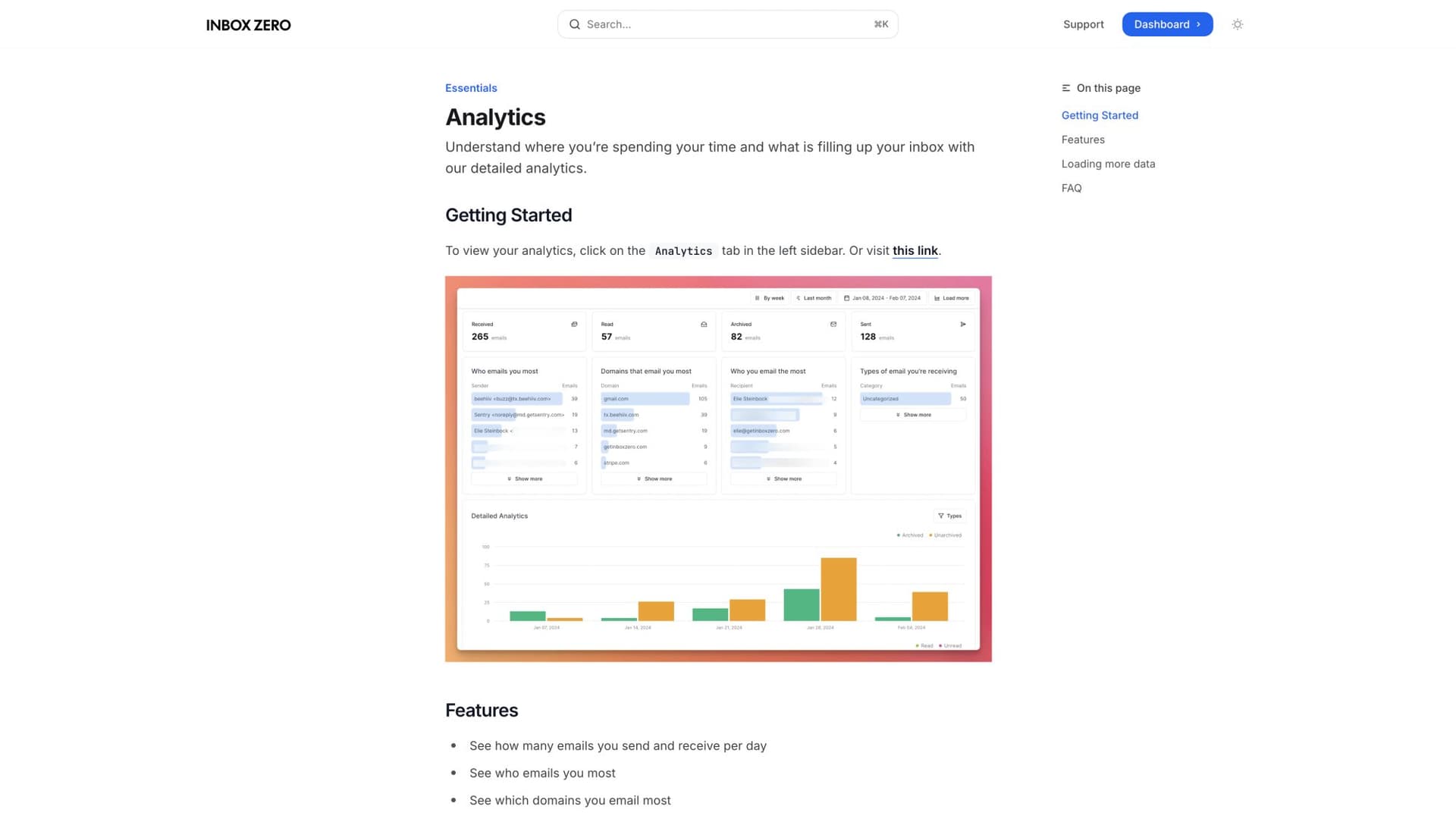
Email Analytics visualizes your inbox patterns so you can track improvement over time and identify where volume comes from.
Common Questions About Reducing Email Overload
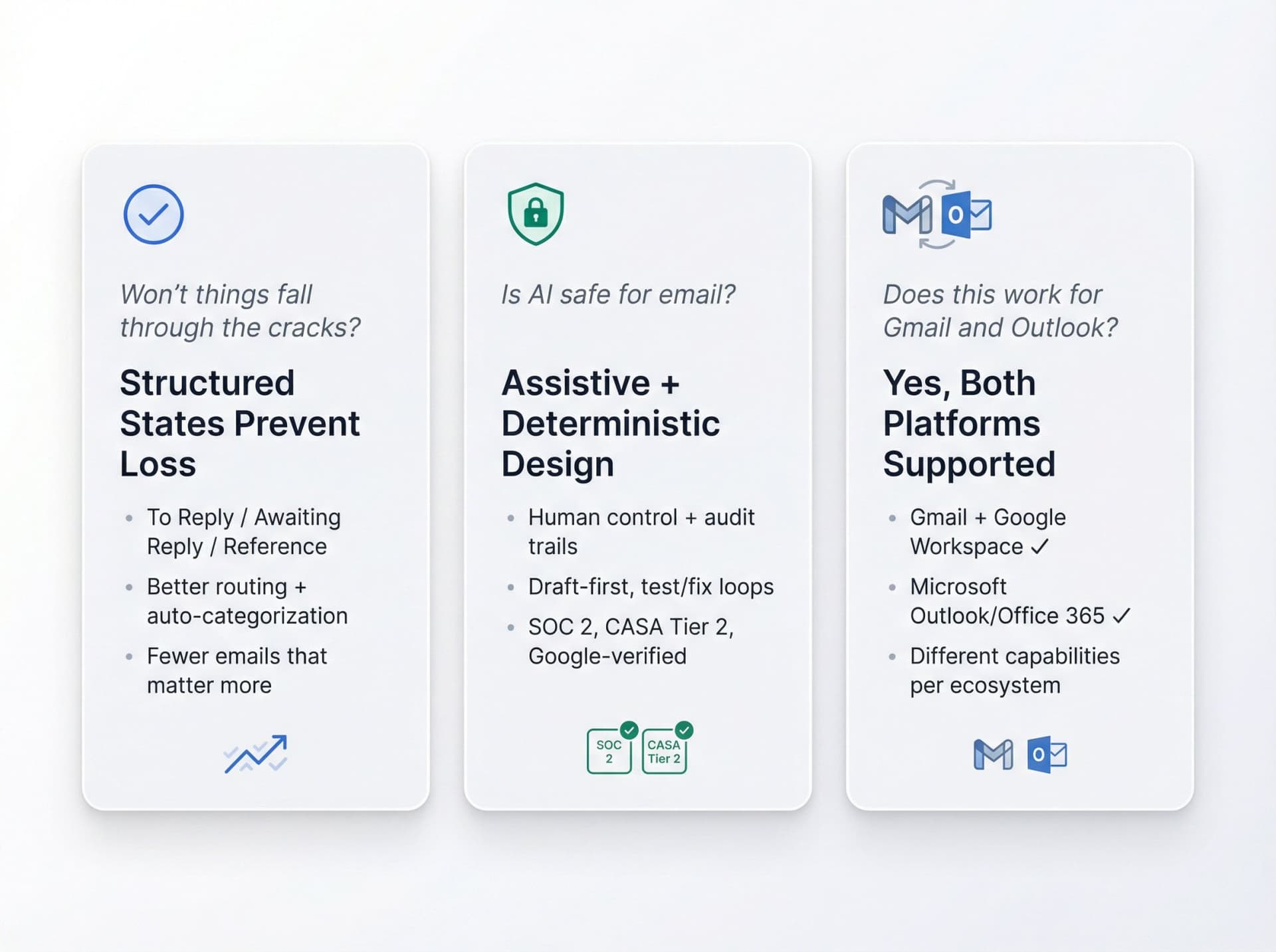
"If we reduce email, won't things fall through the cracks?"
Not if you replace chaos with structured states (To Reply / Awaiting Reply / Reference) and better routing (shared inboxes, auto-categorization). The goal is fewer emails that matter more.
"Is AI safe for email?"
It can be, if you design it as assistive plus deterministic with human control, audit trails, and staged automation. Draft-first, test/fix loops, and low-risk automation first are non-negotiable guardrails.
When evaluating tools, prioritize ones that have strong data privacy practices (for example, SOC 2 compliance) and granular admin controls. Inbox Zero is SOC 2 compliant, CASA Tier 2 approved, and Google-verified via third-party auditor.
"Does this work for Gmail and Outlook?"
Yes, but capabilities differ by ecosystem. Inbox Zero works with both Gmail and Microsoft Outlook/Office 365.
What Works Best in the First 90 Days
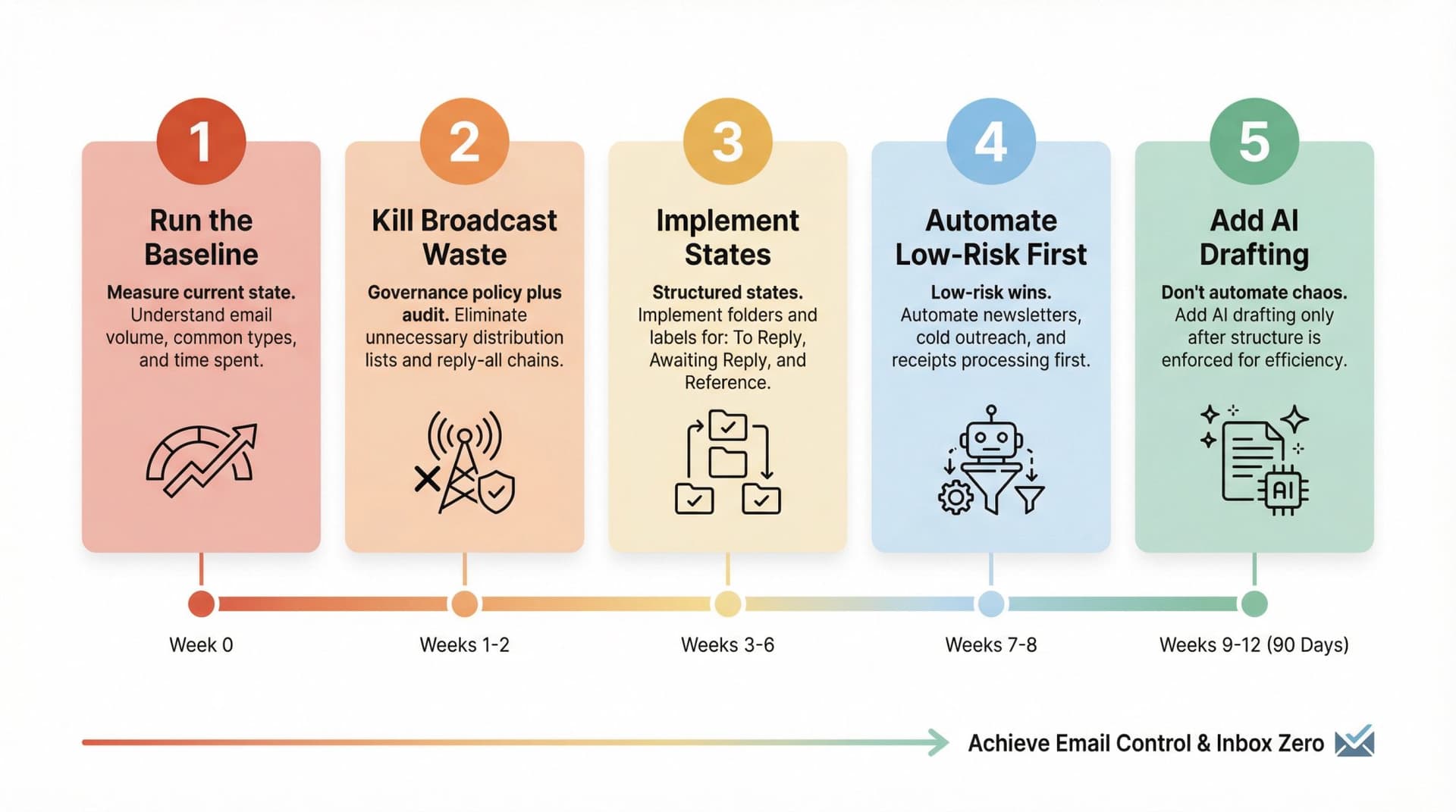
If you want practical, measurable improvement in 90 days:
① Run the baseline (measure current state)
② Kill broadcast waste (governance policy plus audit)
③ Implement To Reply / Awaiting Reply / Reference (structured states)
④ Automate newsletters, cold outreach, and receipts first (low-risk wins)
⑤ Add AI drafting only after you've enforced structure (don't automate chaos)
If you want tooling that operationalizes this inside Gmail or Outlook without forcing a new email client, Inbox Zero's AI Personal Assistant, Reply Zero, Analytics, and the Gmail Tabs extension were built for exactly this staged rollout.
Why Reducing Email Overload Is Worth the Effort
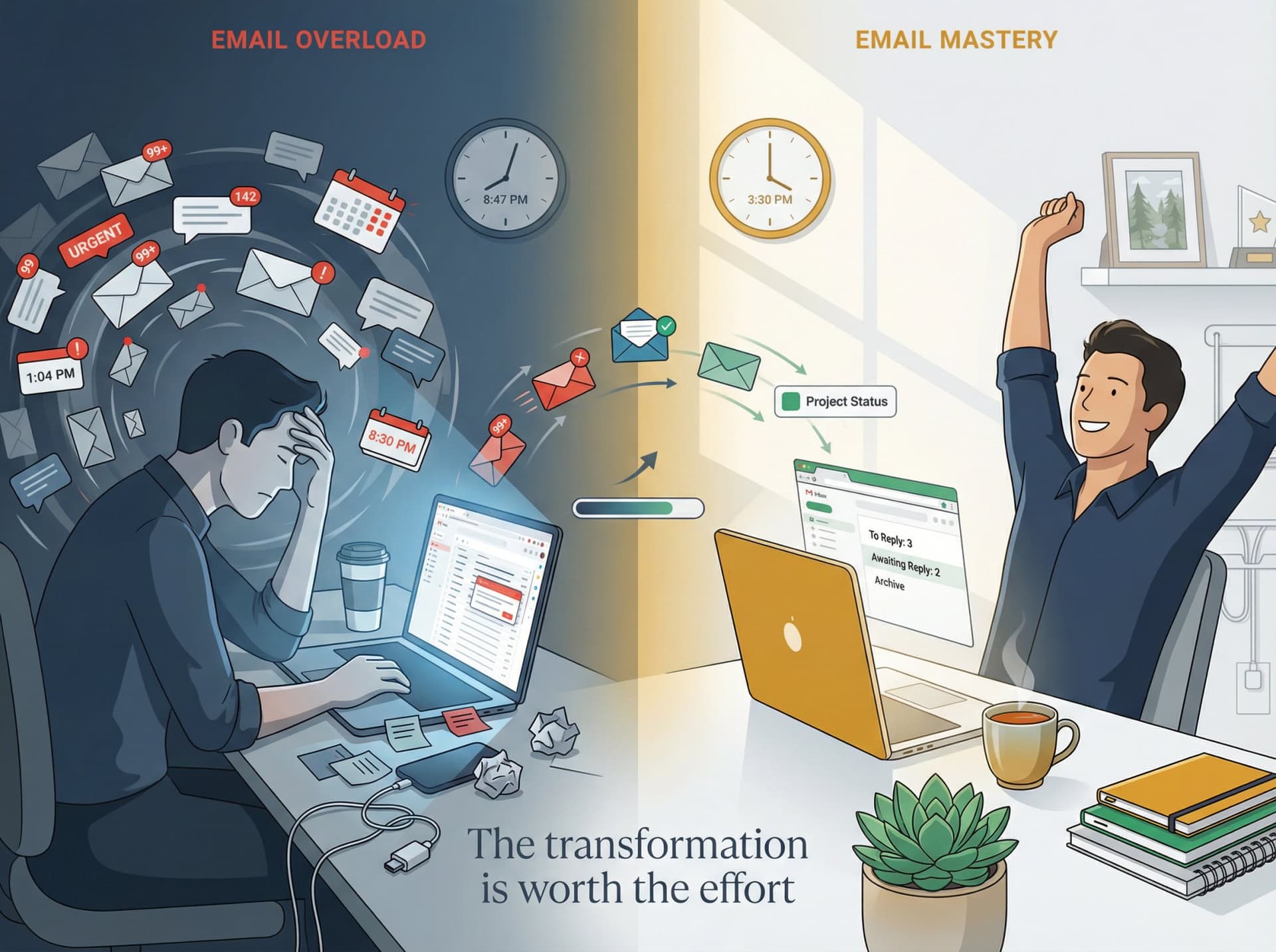
Email isn't going away. In many cases, it's still the preferred channel for work communication. The goal isn't to eliminate email. It's to civilize it.
Consider the payoff of reducing email overload: Employees reclaim time for deep work (instead of constantly reacting to their inbox). Collaboration improves as important messages actually get seen. Stress levels drop. Retention risk decreases.
Rather than dreading their inbox each morning, people will have confidence that what's in there truly deserves their attention. In an era where the workday can feel "always on" and fragmented, taking control of email is a critical step toward a more sane, productive workplace.
Every organization will have a slightly different approach that works best. The key is to be intentional about how email is used. Audit your current email pain points, involve employees in crafting solutions (they often know exactly what unnecessary emails waste their time), and iterate on your strategies.
Reducing email overload is a team effort and an ongoing process, but the benefits to morale and efficiency are well worth it.
By following the strategies outlined (from setting smart guidelines to deploying an AI helper for your inbox), your organization can turn email from a constant source of stress into a powerful tool that works for you, not against you.
It's time to tame the inbox and take back control of the workday.
Ready to start? Try Inbox Zero and see how AI-powered email management can transform your organization's productivity.

How to Recall an Email in Outlook (2026)
How to recall an email in Outlook step by step for new Outlook, classic Outlook, web, Mac, and mobile, plus when recall works and what to do when it doesn't.
2026-09-30T18:25:57.000Z

How to Stop AliExpress Emails (2026)
Stop AliExpress promotional emails: the unsubscribe link, notification settings in your AliExpress account, and what to do when the deals keep coming.
2026-09-30T18:25:57.000Z

How to Stop Amazon Emails (2026)
Stop Amazon marketing emails with the Communication Preferences Center, manage Amazon email subscriptions, and handle order emails you can't switch off.
2026-09-30T18:25:57.000Z

How to Stop Domino's Emails (2026)
Stop Domino's emails with Domino's official opt-out page, stop Domino's text offers, and know which rewards emails keep coming.
2026-09-30T18:25:57.000Z