How to Stop Email Notifications at Night (2026)
Stop email notifications at night without missing emergencies. Complete guides for Focus modes, Do Not Disturb, and app settings across all platforms.

You're winding down for the evening, ready to finally relax, when your phone buzzes with a work email marked "urgent." Even if you don't open it, the damage is done. Your heart rate spikes. Your mind races. Work just invaded your personal time, and you're stressed before you even know what the email says.
Research shows this isn't just annoying. It's actively harmful to your health and work performance.
If email notifications are disrupting your nights, the problem isn't email itself. It's interruptions. Email is just a queue of messages that keeps collecting throughout the day. Notifications are the pushy doorbell attached to that queue. At night, you want the queue to keep collecting quietly while the doorbell stays silent.
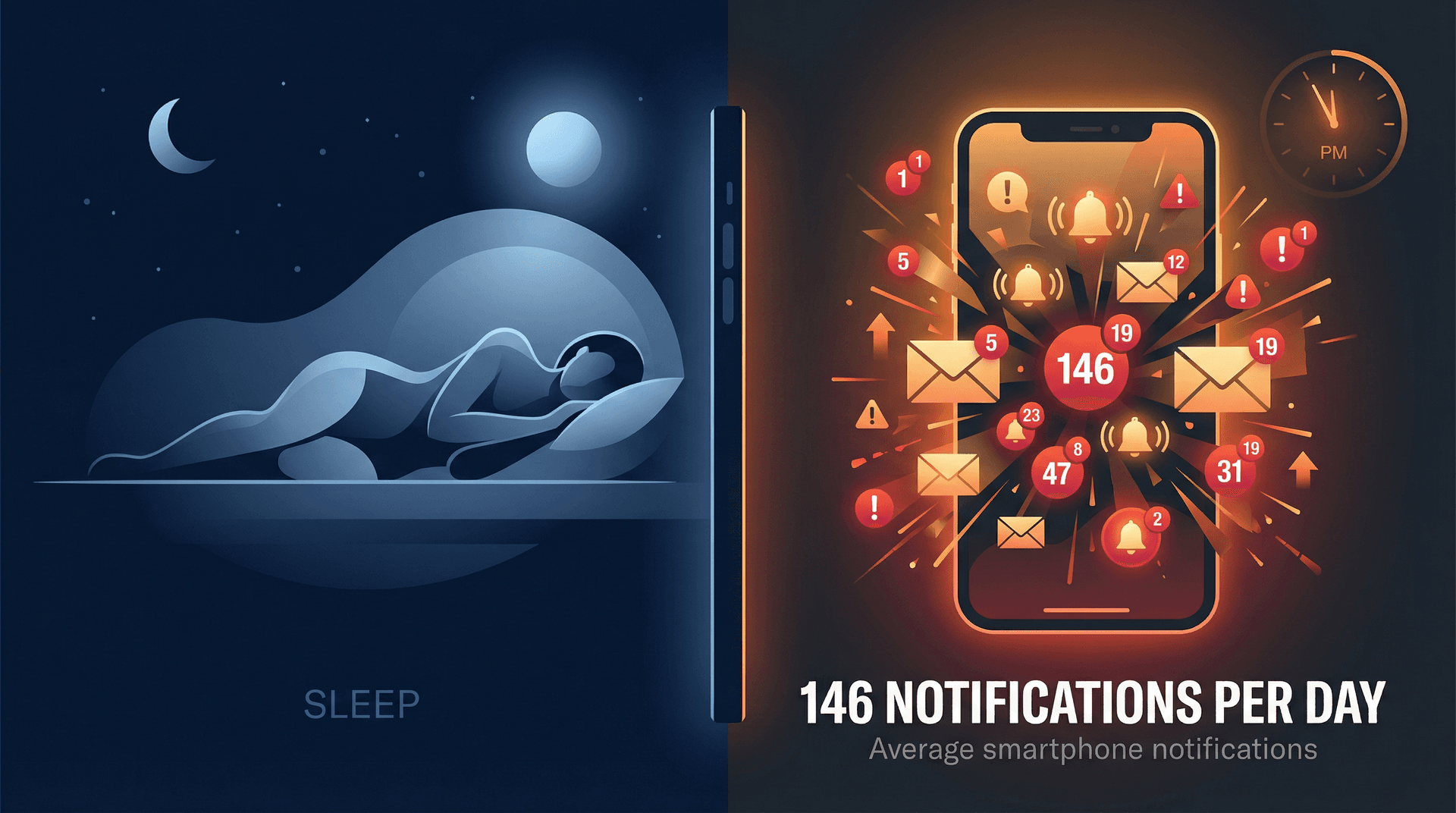
The scale of the problem is hard to ignore. The average person receives about 146 smartphone notifications per day, with email apps like Gmail among the top sources — roughly one every ten minutes, according to workplace studies. After-hours work emails are directly linked to employee burnout, emotional exhaustion, and even hostile behavior toward employers, according to research. And a large study of 45,000 people found that notifications can delay your ability to fall asleep and reduce total rest time.
This guide shows you exactly how to stop email notifications at night across iPhone, Android, Windows, Mac, Gmail, and Outlook. We'll also cover the part most articles skip: how to allow genuine emergencies through without letting every random email ping you awake.
Updated for January 2026. The interfaces change, but the underlying controls stay the same: device-level Focus modes, app notification settings, and inbox cleanup.
What Are You Really Trying to Stop?
When you search "how to stop email notifications at night," you probably mean one of these three goals:
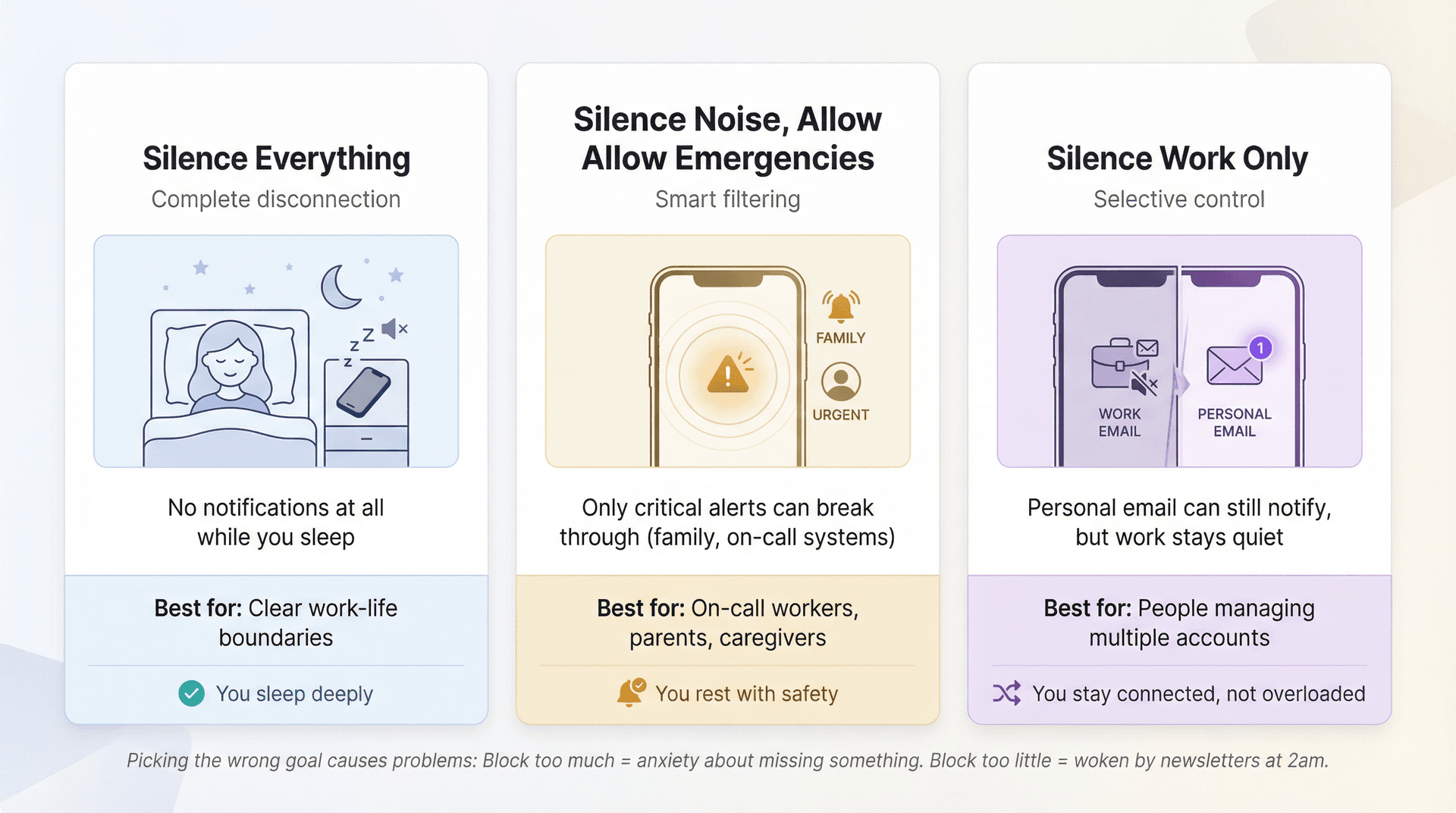
| Goal | Description | Best For |
|---|---|---|
| Silence Everything | No email notifications at all while you sleep | People with clear work-life boundaries |
| Silence Noise, Allow Emergencies | Only critical alerts can break through (family, on-call systems) | On-call workers, parents, caregivers |
| Silence Work Only | Personal email can still notify, but work stays quiet | People managing multiple accounts |
Picking the wrong goal causes problems. Block too much and you'll feel anxious about missing something important. Block too little and you'll still get woken up by newsletters at 2am. Keep your goal in mind as you go through these steps.
Why You Need to Silence Email Notifications at Night
Your Brain Needs a Break From Work Email
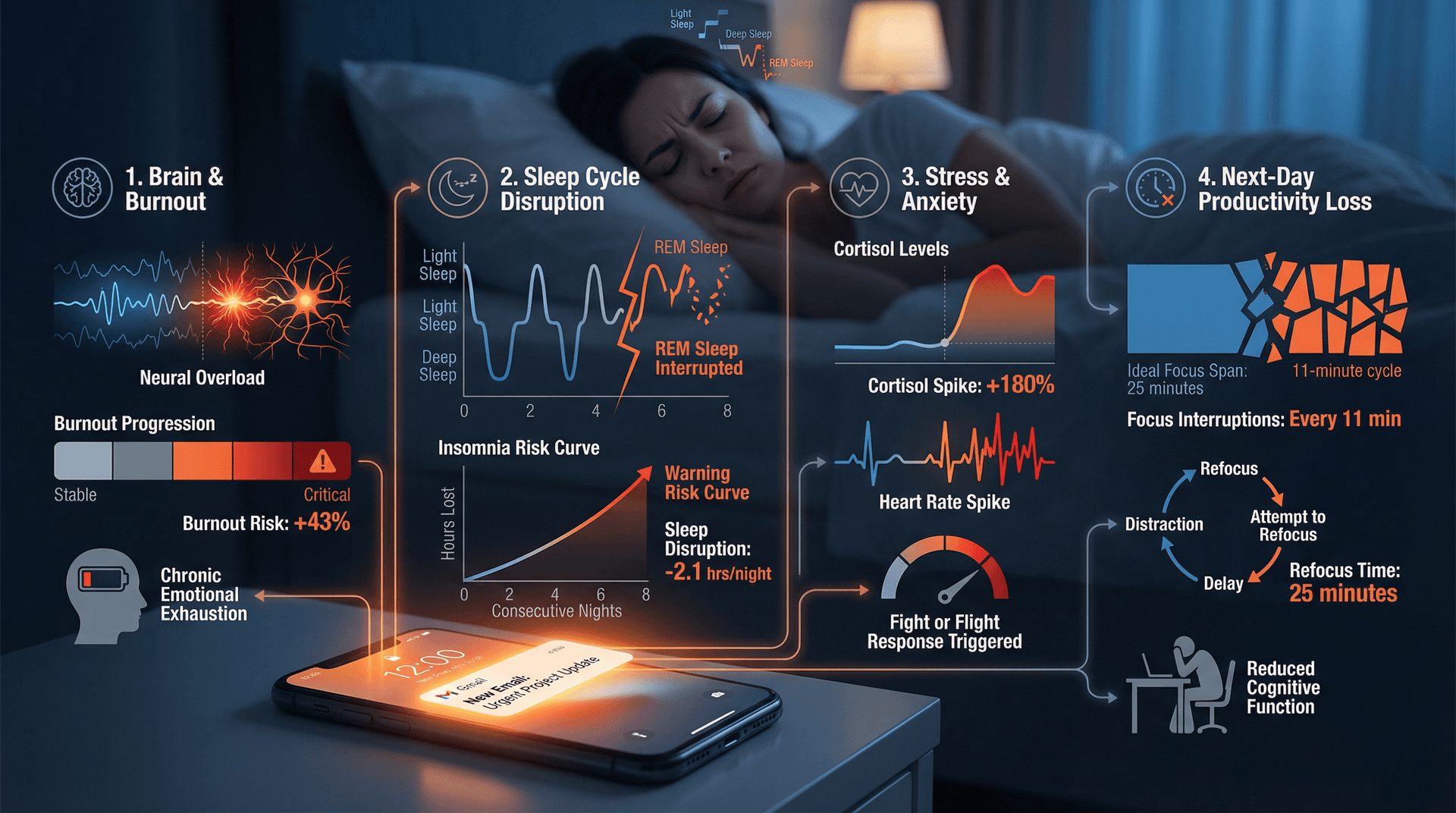
Constant notifications keep your mind on high alert. You can't truly disconnect from work when a ping could arrive any second. Studies show that blurring the line between work and personal life doesn't just hurt your health — it actually harms your job performance too. After-hours emails are linked to higher burnout, emotional exhaustion, and even counterproductive behaviors like negativity toward employers.
Sleep Quality Suffers From Nighttime Notifications
Nighttime alerts can jolt you awake or prevent you from falling asleep in the first place. Research on screen time in bed shows significantly higher insomnia risk and shorter sleep duration. Both the blue light and the mental intrusion of work sabotage your sleep cycle.
Stress and Anxiety Compound With Every Ping
That ping at 11pm triggers instant anxiety. "What now? Do I need to deal with this?" Over time, this creates a constant state of digital overload. The always-on culture makes us feel we must be available 24/7, which is a recipe for chronic stress.
You'll Actually Be More Productive During the Day
This seems backward, but disconnecting at night improves daytime performance. Office workers are interrupted about every 11 minutes and need 25 minutes to refocus each time. Research suggests checking email only a few times at set intervals instead of constantly significantly reduces stress and boosts efficiency.
Bottom line: Silencing email at night protects your sleep, mental health, and work performance. It creates a healthy boundary that experts agree is crucial for long-term wellbeing.
The 3-Layer System to Stop Email Notifications
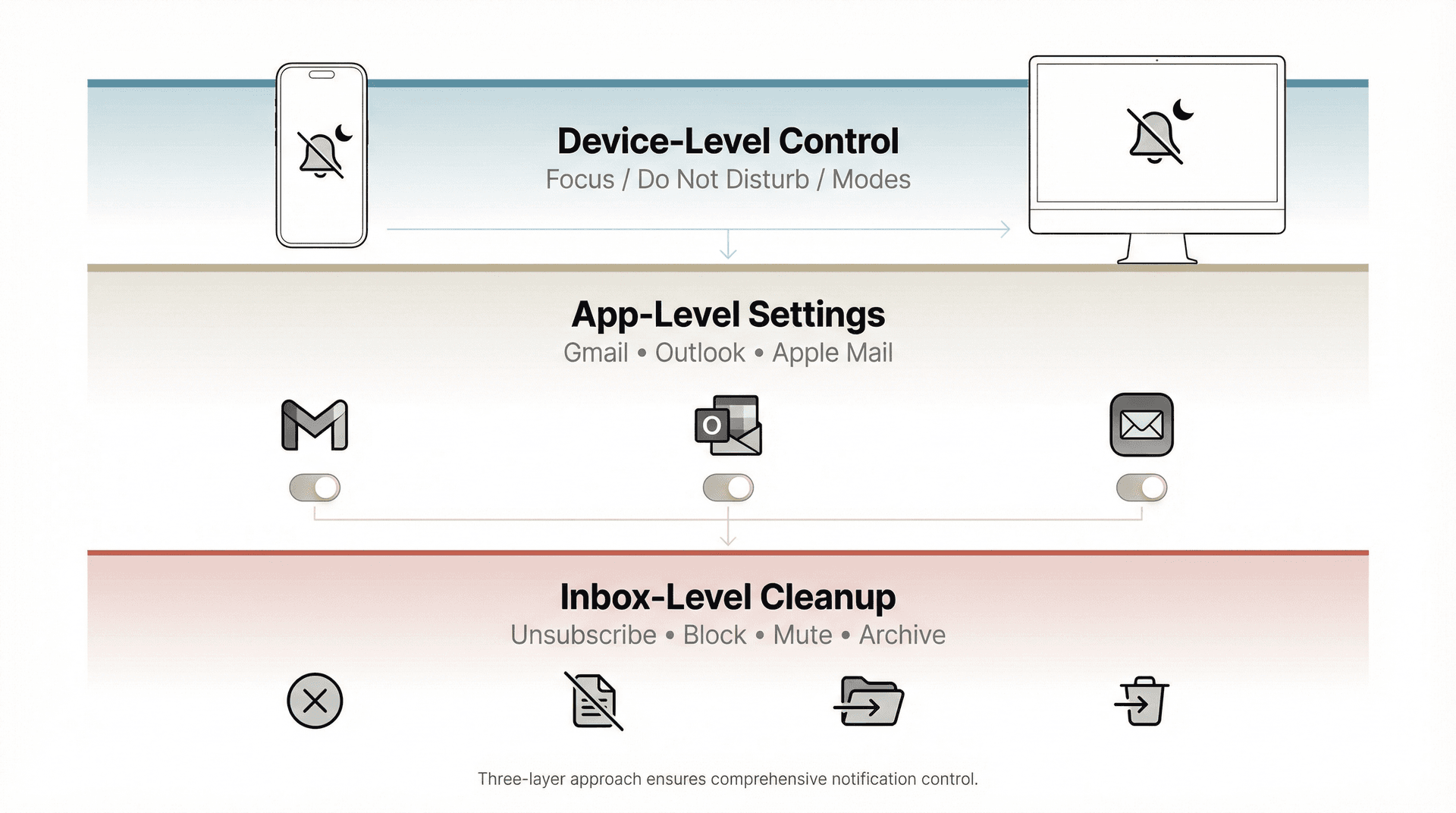
Most guides only cover one layer, which leaves gaps. Here's the complete system:
| Layer | What It Controls | Examples |
|---|---|---|
| ① Device-Level Control | Whether notifications can interrupt you at all | Focus/Do Not Disturb/Modes on your phone or computer |
| ② App-Level Settings | What triggers notifications inside each email app | Gmail's "High priority only" or Outlook's quiet hours |
| ③ Inbox-Level Cleanup | The underlying volume creating the problem | Unsubscribing, blocking cold emails, muting threads |
How to Use Device-Level Interruption Control
This is Focus / Do Not Disturb / Modes. It decides whether notifications can interrupt you at all. On iPhone and iPad, that means Focus modes like Do Not Disturb and Sleep. On Android, it's Modes and Do Not Disturb. Windows has Do Not Disturb with Priority notifications, and Mac uses Focus modes as well.
How to Configure App-Level Notification Settings
Inside Gmail, Outlook, or Apple Mail, you choose what triggers notifications — all mail versus priority versus none. You can find these controls in Gmail on iPhone/iPad, Gmail on Android, Outlook mobile (which has its own in-app Do Not Disturb), and Outlook desktop where you can disable new message alerts entirely.
How to Reduce Inbox Noise at the Source
If your inbox is 60% newsletters and cold outreach, you'll be fighting notifications forever. Reduce the noise and the problem stops recurring. That means unsubscribing, blocking cold emails, muting threads, and building a reliable morning triage system.
The 2-Minute Fix That Works for 90% of People
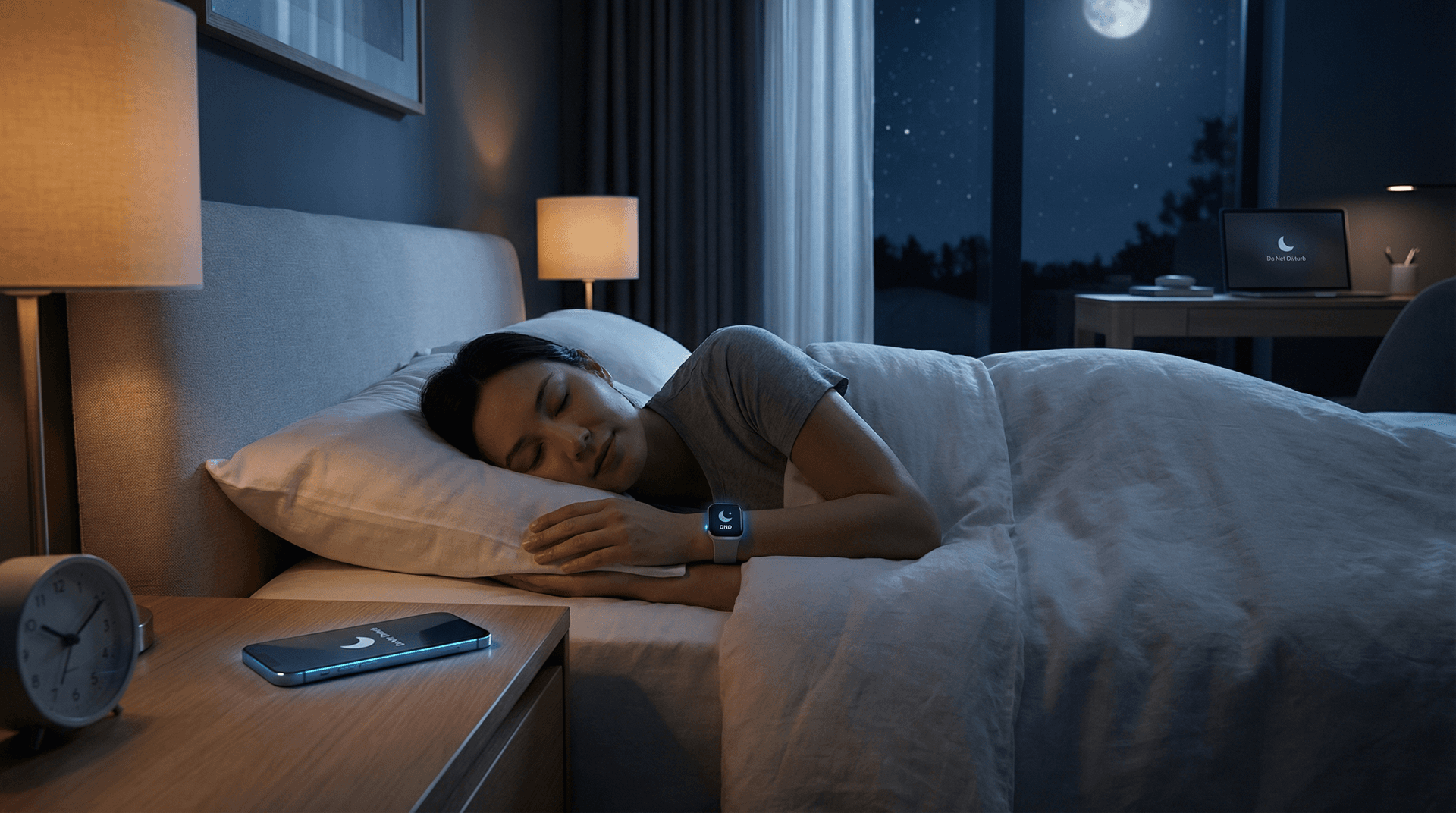
If you only do one thing, schedule Do Not Disturb or Sleep Focus so it turns on automatically every night.
See the real Settings screens:
How to Set Up iPhone Sleep Focus
Apple designed Sleep Focus to work with your sleep schedule, filtering distractions before and during bedtime. To set it up, open Health, go to Sleep, and set a schedule. Then turn on Sleep Focus for that schedule. Your Sleep Focus can start during Wind Down rather than at bedtime, giving you a buffer zone before you actually go to sleep. This is the "set and forget" option.
Advanced: Focus Filters for Mail accounts. If you use Apple Mail, you can match specific mail accounts to a Focus, controlling which accounts show notifications during that Focus. This is the cleanest way to silence work email while allowing personal email through. Go to Settings, then Focus, choose your Focus (Sleep or Personal), scroll to Focus Filters, tap Add Filter, select Mail, and choose only the accounts you want active — for example, personal only. If you've been trying to do this inside Gmail or Outlook, this is why it never felt perfect. Most email apps don't offer per-account quiet hours.
Allowing important contacts or apps. Within Focus settings, you can allow notifications from specific people or apps even when DND is on. You might let calls from close family through, or allow emergency apps. Exclude your email app from the allowed list so no emails break through. Consider enabling Repeated Calls if you want "call twice in an emergency" behavior.
Apple Intelligence "important notifications only." Apple's Focus documentation mentions Intelligent Breakthrough and Silencing. On supported devices, Apple Intelligence can let important notifications through while silencing unimportant ones. This sounds appealing, but be honest about the tradeoff — you're delegating "what's important" to an AI model. If your goal is zero interruptions, don't rely on this.
How to Set Up Android Do Not Disturb Mode
Android's official approach uses Modes including Do Not Disturb with notification filters and schedules.
To set it up, go to Settings, then Modes (or "Modes and Routines" on some phones), then Do Not Disturb. Set it to turn on automatically for your sleep hours, then choose what to block or allow in the notification filters — people, apps, and alarms.
For a recommended sleep setup on Android 14 and later, navigate to Settings, then Modes, then Do Not Disturb. Under notification filters, allow calls and messages from your emergency list under People. For Apps, allow none or only your on-call tool. For Alarms, allow alarms and maybe calendar events if needed. Under "At certain times," set the automatic rule to turn DND on nightly and make sure the rule is enabled.
Samsung phones have a Modes and Routines feature with a preset "Sleep" mode in Settings or the quick panel. Exact menus vary by One UI version. Many Android devices also offer Bedtime Mode as part of Digital Wellbeing, which can enable DND plus fade the screen to grayscale and dim the display during night hours.
A real-world pitfall: Some April 2025 reporting suggested enabling Android Do Not Disturb via Google Assistant could override custom exception settings, potentially causing missed alarms or calls. Enabling DND manually via Settings didn't show this issue. If you rely on exceptions, turn DND on via Settings or Quick Settings, not voice commands.
How to Set Up Windows 11 Do Not Disturb
Windows supports Do Not Disturb with automatic scheduling and priority notifications for exceptions.

To set it up, go to Settings, then System, then Notifications. Turn on Do not disturb, then expand "Turn on do not disturb automatically" and set your night schedule.
For the best experience, schedule DND for your sleep hours. In "Set priority notifications," allow only reminders and alarms you trust and possibly one on-call app if needed. If you're tempted to "just check," turn off notification banners for Gmail or Outlook entirely.
Windows has two concepts worth understanding. Do Not Disturb silences banners during certain times, while Priority notifications lets specific apps, reminders, or calls still show while DND is on. This maps nicely to the "silence email, allow alarms" approach.
How to Set Up Mac Focus Mode
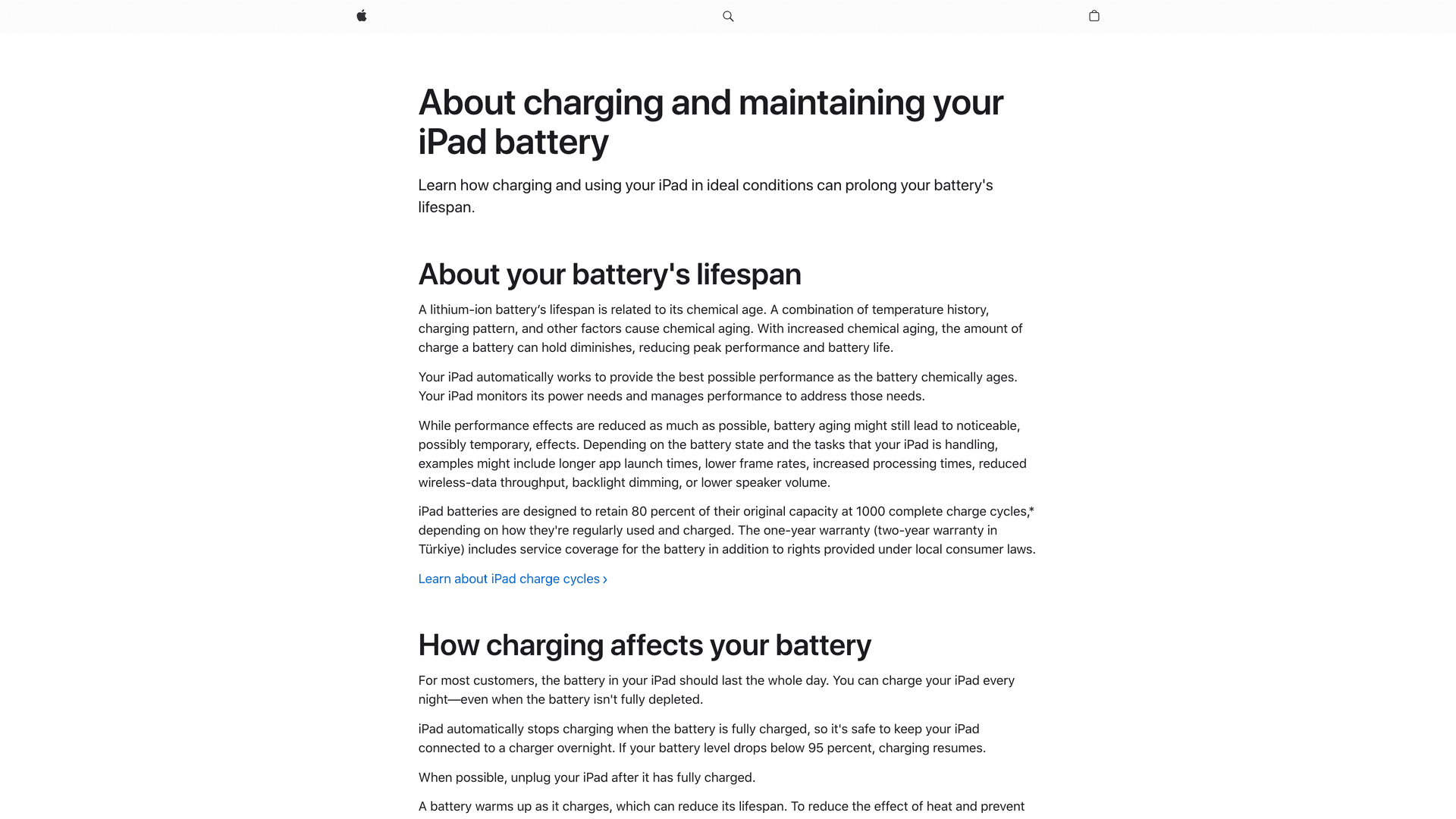
Go to System Settings, then Focus. Pick Do Not Disturb or create a Sleep focus, then add a schedule and choose your allowed people and apps.
For a quick toggle, click the Control Center icon (two toggles in the top-right menu bar) and click Focus, then Do Not Disturb. On older macOS, hold Option and click the Notification Center icon. For scheduled quiet hours, go to Apple Menu, then System Settings, then Focus, choose Do Not Disturb, and set up a schedule.
macOS Focus can sync with your iPhone's Focus modes if you enable "Share Focus Across Devices." When your phone goes into Sleep Focus, your Mac will also silence itself.
As a backup, even with notifications off, muting your Mac's audio at night via the menu bar volume or F10 key ensures that if any notification somehow appears, it won't make sound.
How to Stop Email Notifications Without Missing Emergencies
Most guides miss this critical part: you need an escalation path.
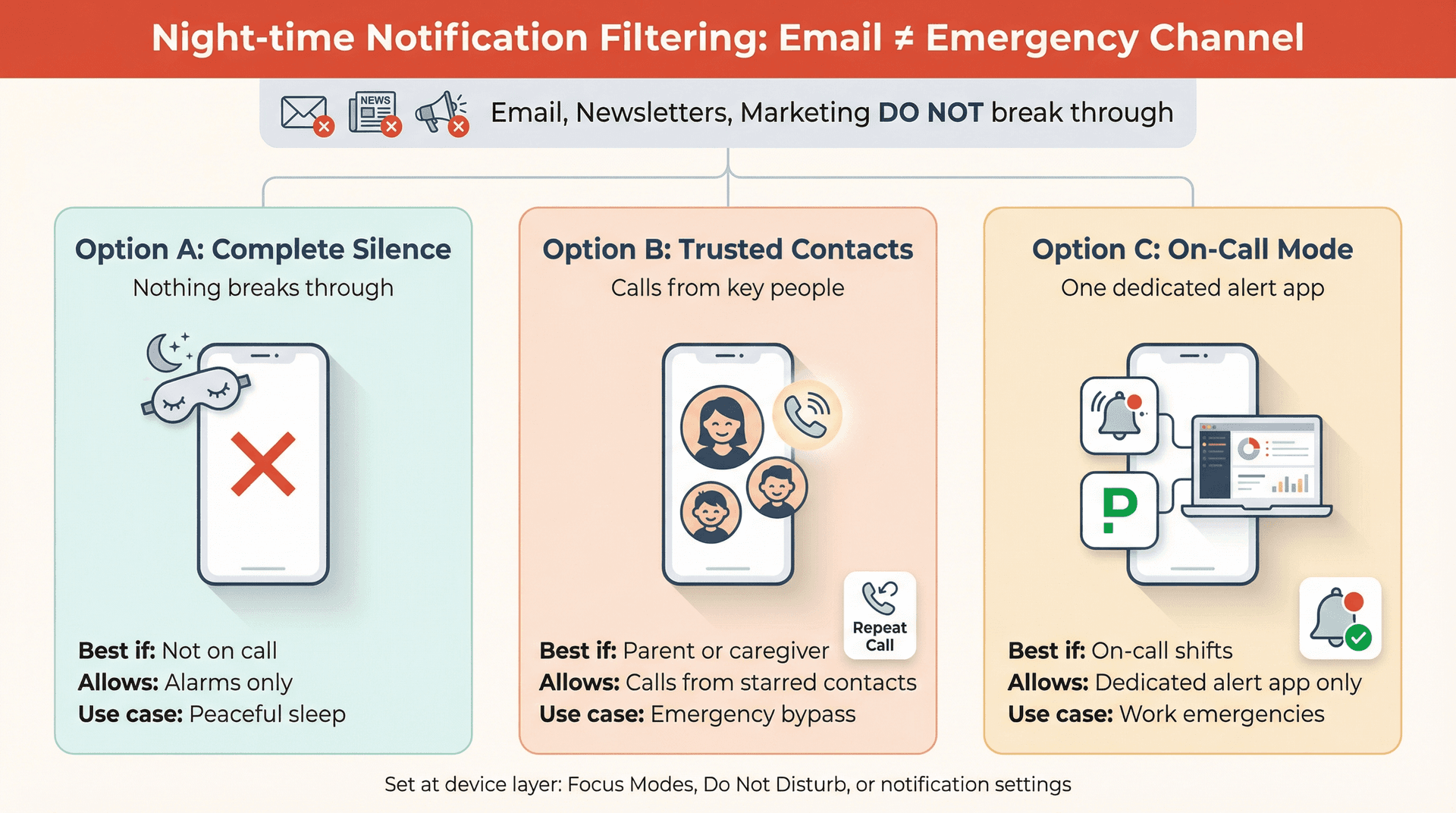
A useful rule of thumb: email is not an emergency channel. If something is truly urgent, it should reach you via call, SMS, or on-call tooling — not because somebody emailed you. Your nightly setup should reflect that reality.
How to Decide What Can Break Through at Night
You have three main options. Option A is strict: nothing breaks through. This is best if you're not on call and want real sleep. Option B is practical: calls from a tiny set of people — your partner, your kids' school, a caregiver. Option C is for on-call workers: one dedicated alert app like PagerDuty or Opsgenie, not email. Pick the one that fits your situation and set it up at the device layer.
Both iOS and Android DND modes allow emergency bypass options. If you're worried about an aging parent needing to reach you, add that contact as a Starred contact on Android or a favorite/emergency bypass contact on iPhone. Their calls will ring through even during Do Not Disturb. Another approach: tell close family to call twice in an emergency. By default, most phones let repeat calls break through DND, assuming it's urgent.
How to Fine-Tune Email App Notification Settings
In addition to system-wide Do Not Disturb, check settings within your email apps.
Real notification settings screens:

How to Turn Off Gmail Notifications (Mobile)
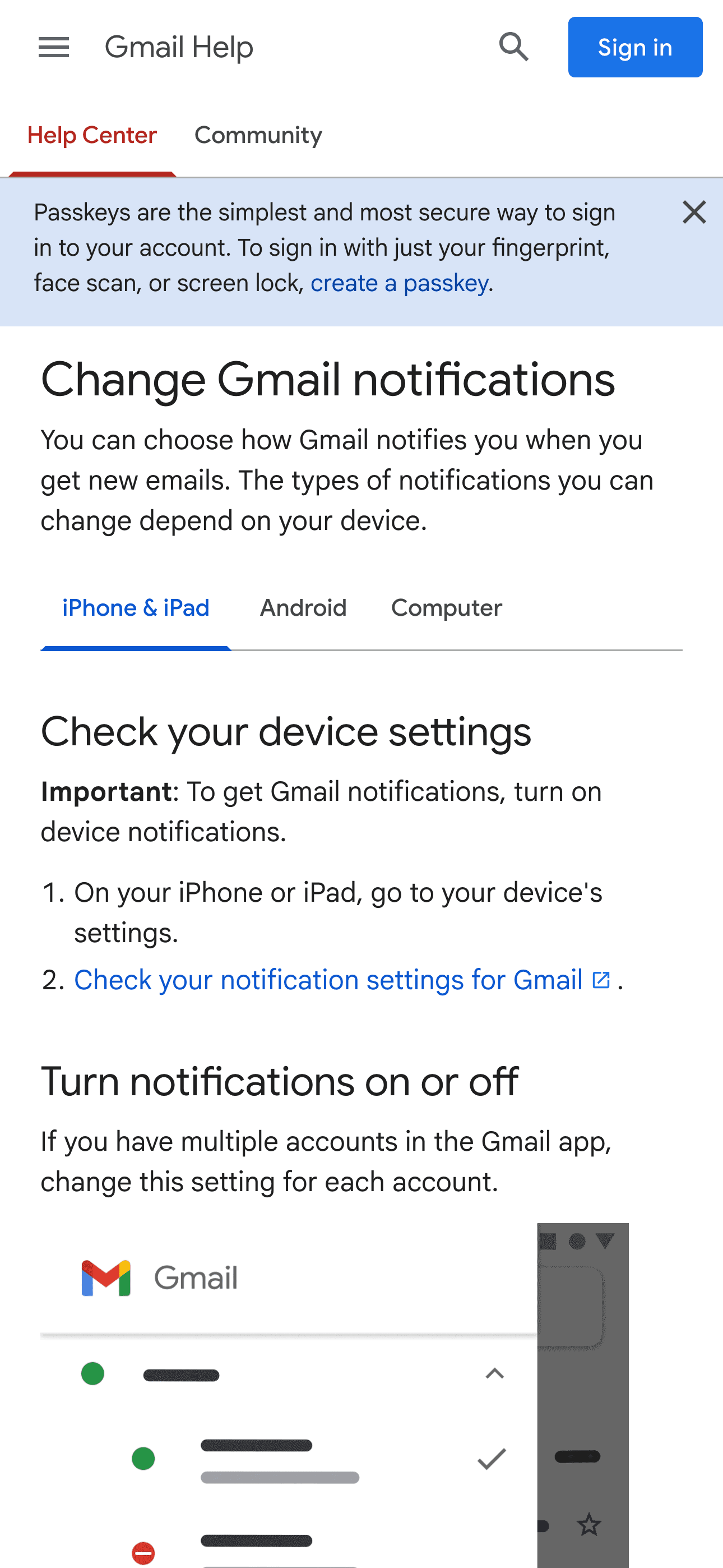
The Gmail mobile app lets you customize notifications. You can choose "All new emails," "High priority only," or none. Setting it to High priority only uses Google's AI to notify you only for messages it deems important. This cuts noise 24/7 but won't follow a night schedule — Gmail's app doesn't have built-in quiet hours, so rely on Android or iOS DND for timing.
Google explains how to change Gmail notifications on iPhone/iPad and Android. On Gmail desktop (web), you can turn off desktop notifications entirely. Google has docs on changing Gmail desktop notification settings covering all mail, important, or off. "Important" applies to messages in Primary.
How to Turn Off Outlook Notifications (Mobile and Desktop)
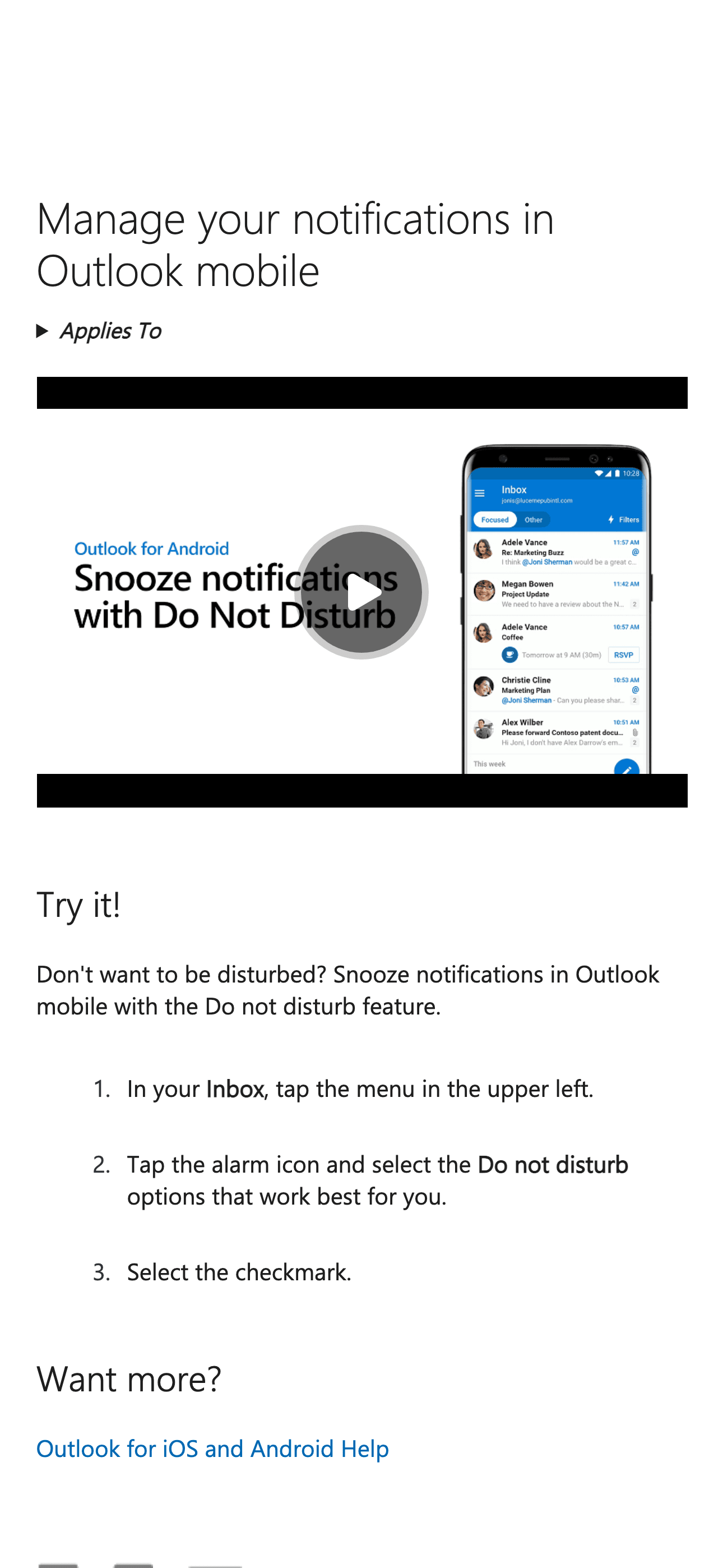
Outlook is common for work email and has a built-in Do Not Disturb on mobile. In Outlook for iOS or Android, tap your profile icon, tap the bell icon, and set Do Not Disturb for a time period. Outlook mobile even lets you set daily quiet hours — for example, 8pm to 7am — and quiet days like weekends. If you have a work Office 365 account, there's a Quiet Time setting that can sync across Outlook and Teams on your phone.
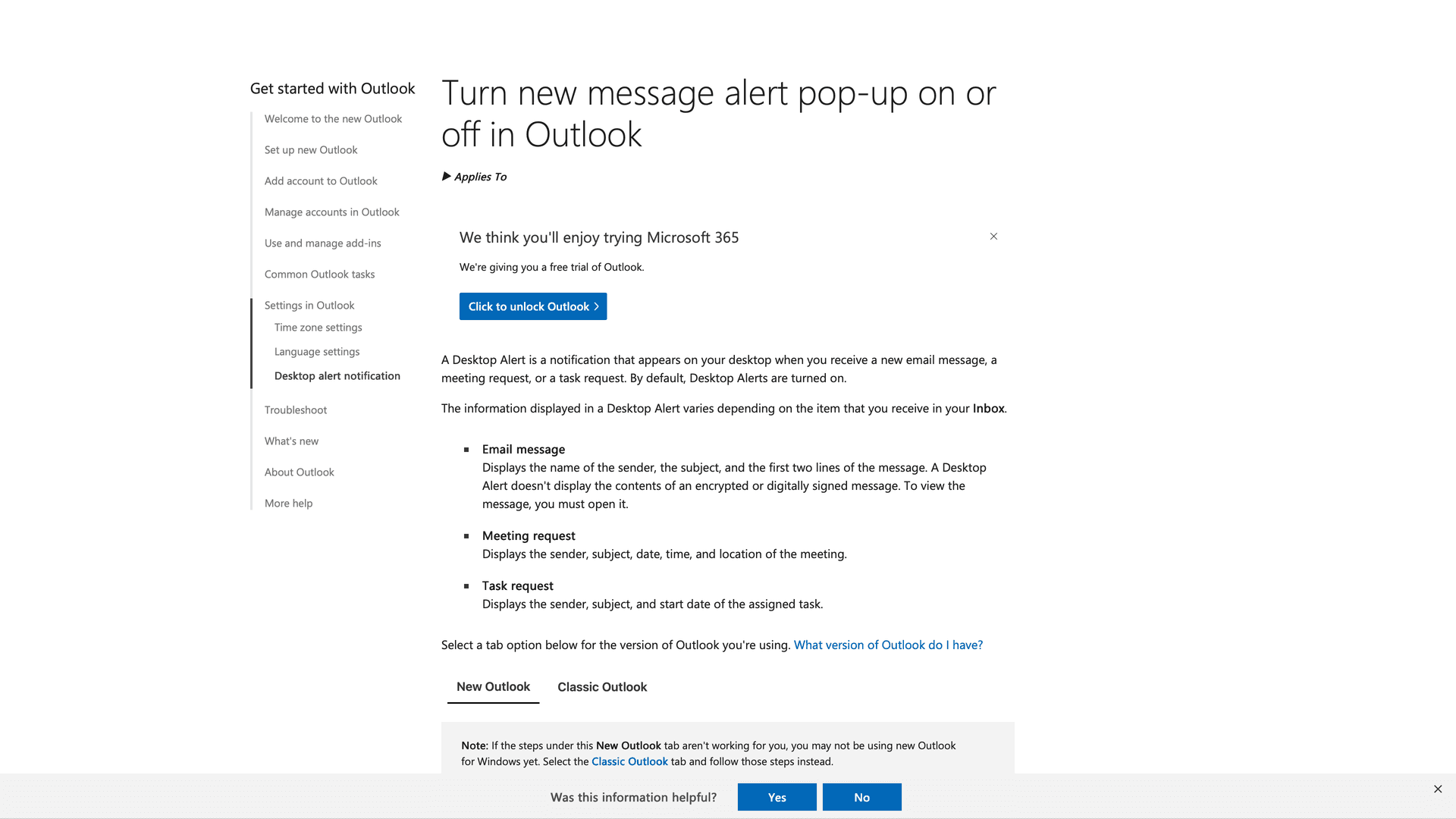
On Outlook desktop, you can disable the new mail alert pop-up and sound by going to File, then Options, then Mail, and unchecking "Display a Desktop Alert" and the sound for new messages. Microsoft documents how to turn Desktop Alert pop-ups on or off in Outlook. If Outlook is lighting up your monitor at midnight, this is the fix: disable the Desktop Alert, disable sounds, and optionally keep notifications only in the notification center.
How to Manage Apple Mail Notifications (iPhone/iPad)
If you use the built-in Mail app on iOS, it follows system notification settings. Go to Settings, then Notifications, then Mail to adjust per-account notifications. You can disable notifications for your work email account entirely, or toggle them off each evening manually. A more elegant solution on iPhone is using a Focus mode that allows most apps except Mail.
How to Stop Gmail Desktop Notifications on Your Computer
A classic leak: you fixed your phone, but your laptop still pings. Google explains how to change Gmail desktop notification settings covering all mail, important, or off. Even if Gmail settings look right, your browser may have notification permissions enabled — Chrome's help docs cover how to allow or block site notifications and manage permissions. The nuclear option is to block notifications from mail.google.com entirely in your browser.
Additional Ways to Stop Email Notifications at Night
Beyond tech settings, consider these strategies:
How to Unsubscribe From Non-Essential Emails
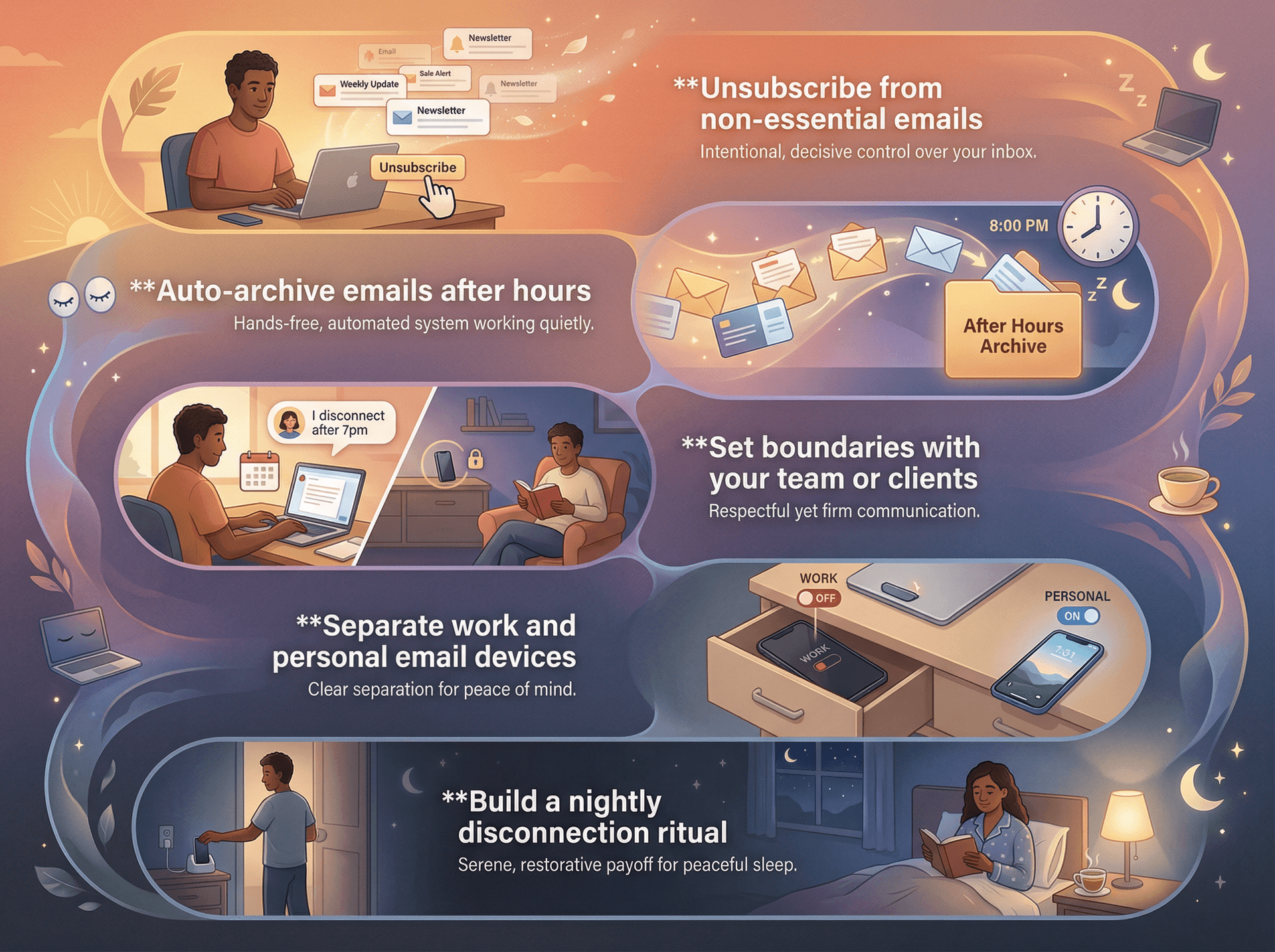
Cut down the sheer number of emails you get. Look hard at newsletter subscriptions, shopping promos, and recurring senders. If you rarely act on those emails, unsubscribe ruthlessly. Most newsletters have an unsubscribe link at the bottom, and Inbox Zero's bulk unsubscriber can help you quickly identify and remove hundreds of newsletters at once, showing you exactly which senders you never read.
How to Auto-Archive Emails After Hours
If unsubscribing isn't feasible for certain emails — like reports you need but not urgently — set up rules. In Gmail, create a filter so that if an email from reports@company.com arrives after 8pm, it skips the inbox and gets labeled "Tomorrow." Some tools let you schedule your inbox to "unpause" at 7am, hiding overnight emails and delivering them in bulk in the morning so you can review them fresh.
How to Set Boundaries With Your Team or Clients
Technology helps, but human communication matters too. If you consistently don't respond to emails at night, people will learn your habit. It's okay to say, "I usually disconnect after 7pm, so I'll respond the next morning." Use scheduled send — both Outlook and Gmail support this — instead of firing off messages at midnight. This creates a healthier culture where everyone feels permission to unplug.
How to Separate Work and Personal Email Devices
One practical boundary: keep work email off your personal phone, or vice versa. Some people carry a work phone they turn off outside work hours. If that's not an option, separate accounts on your device using Android's Work Profile feature, which can be turned off to pause work apps entirely. At minimum, disable push notifications for work email on your personal phone so you check it manually only when needed.
How to Build a Nightly Disconnection Ritual
Sleep experts recommend a buffer zone before bed with no work and no screens. Maybe an hour before sleep, do a final email check if you must, then mute everything and put the phone away. Use that time to read, spend time with family, or do something relaxing. Consider charging your phone overnight outside the bedroom. If your phone is your alarm, get an inexpensive alarm clock or use a smart speaker.
Why Silencing Notifications Can Still Feel Stressful
If you turn off notifications and still feel anxious, it's usually because you have no trusted morning system. You're not addicted to notifications — you're afraid of dropped responsibilities.
Build a better default: "If something needs me, it will be visible tomorrow morning in a clean, reliable place."
How to Build a Simple Morning Email System
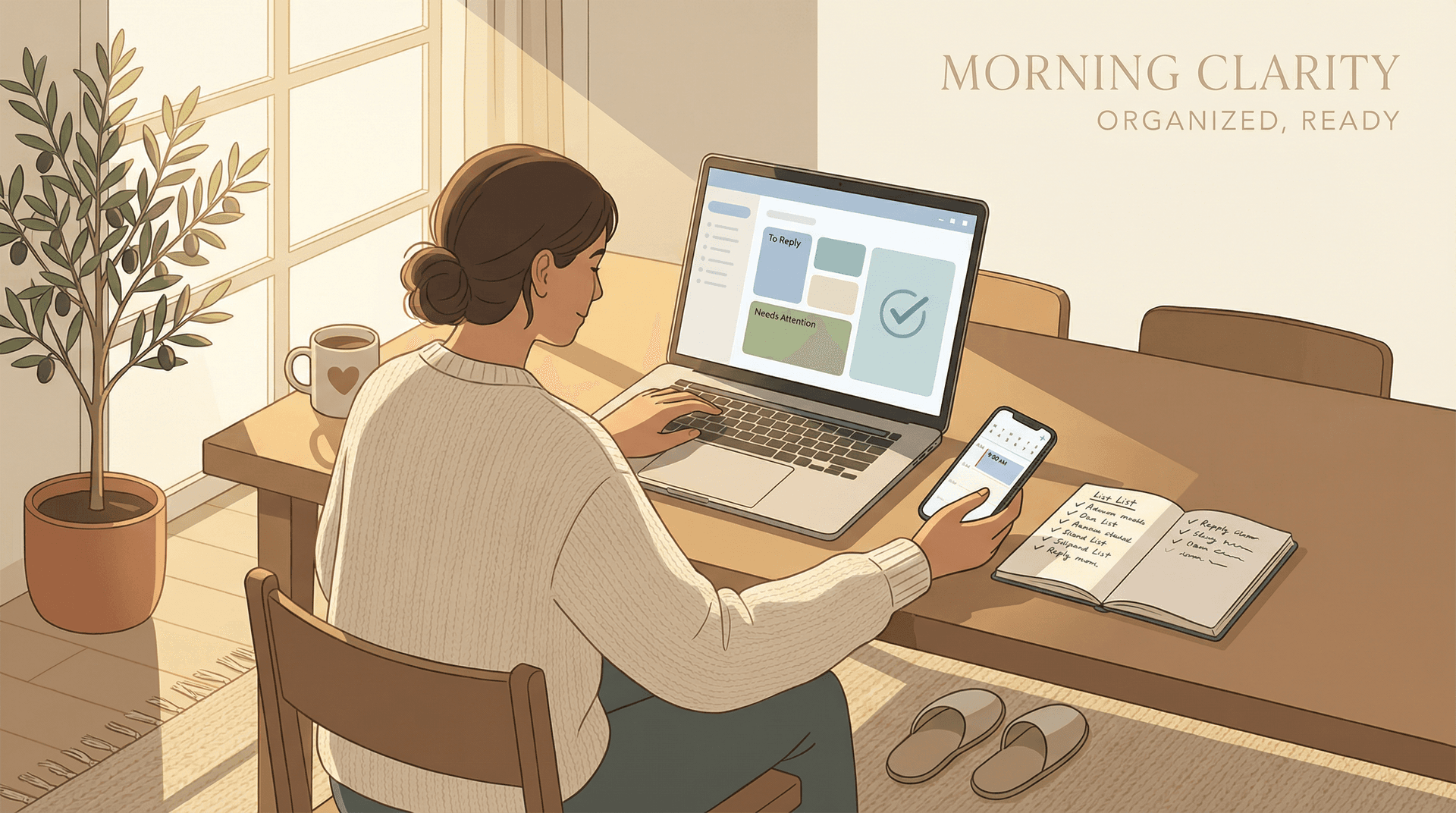
Set one dedicated email check window — for example, 8:30 to 9:00am — with a single "needs my attention" view. Everything else gets batched or summarized. This is exactly the gap Inbox Zero fills: turning unstructured email into structured actions without you babysitting your inbox.
How Inbox Zero Helps You Stay Off Notifications at Night
Turning notifications off is easy. Feeling safe doing it is the hard part.
Inbox Zero reduces the "what if I miss something?" anxiety by making morning review sharper and more reliable.
See the actual Inbox Zero interface:
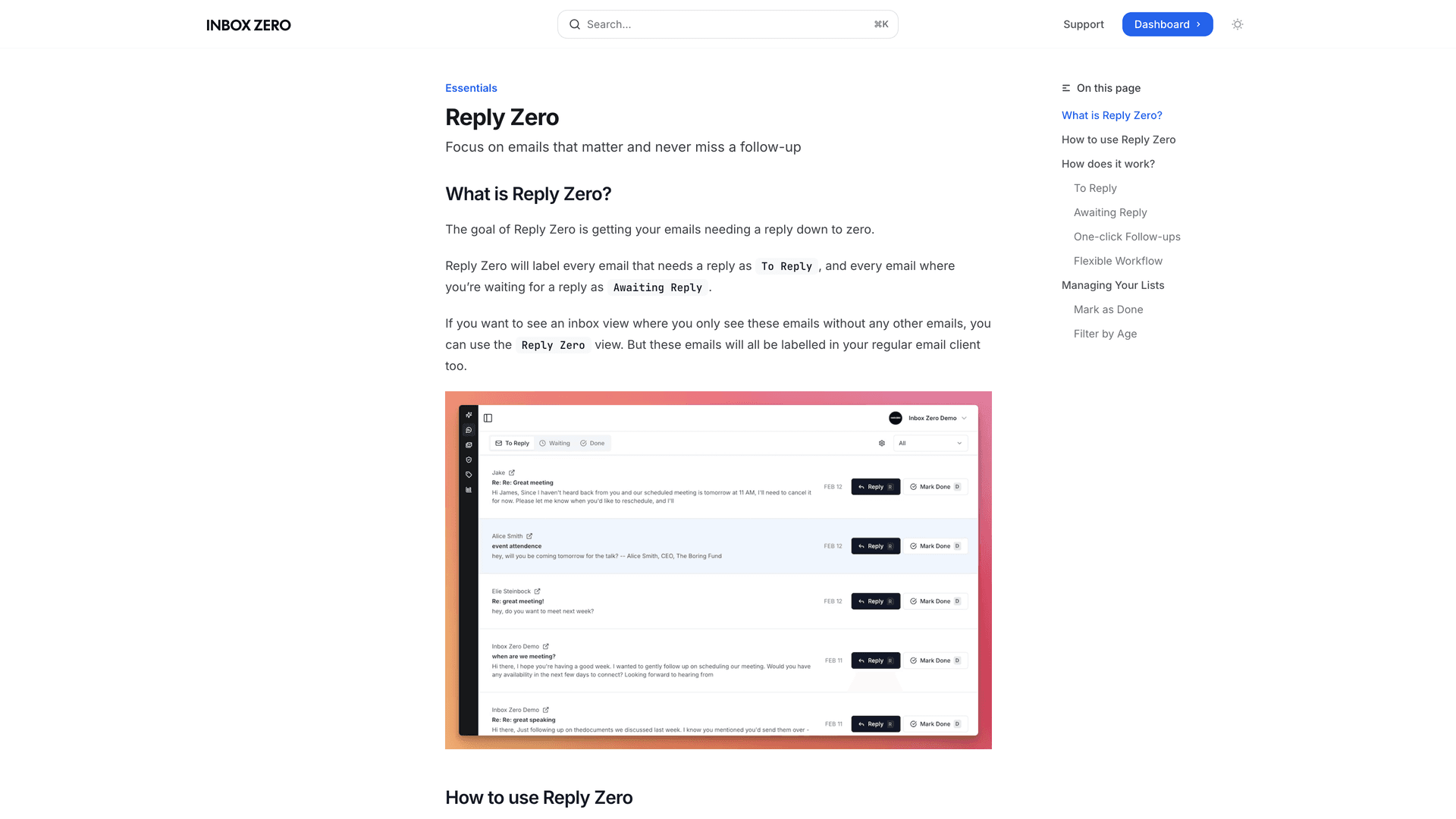
Reply Zero: Your "Nothing Important Falls Through" View
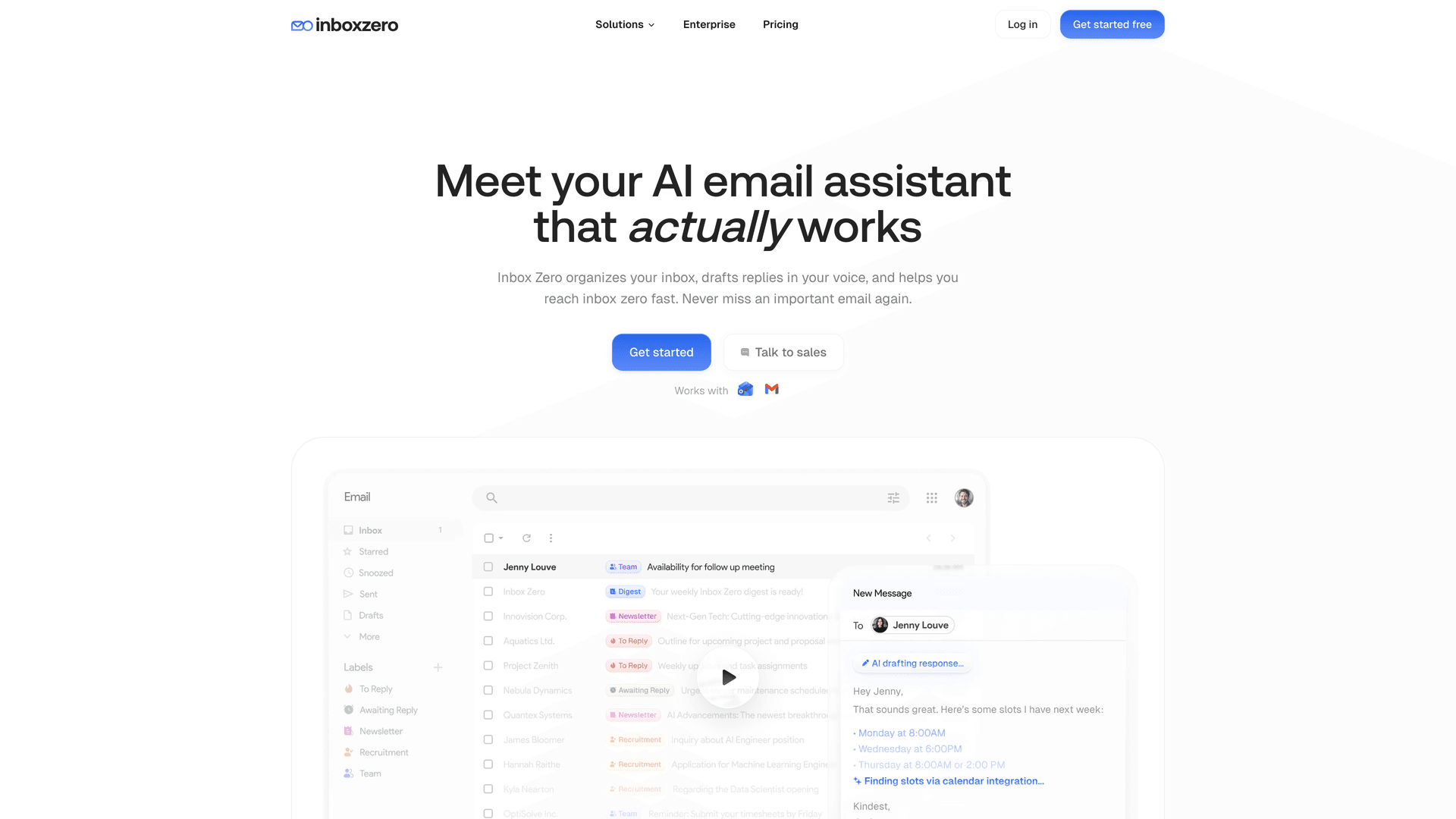
Reply Zero labels emails as "To Reply" for messages that need a response and "Awaiting Reply" for threads where you're waiting on someone else. Instead of waking up to pings, you wake up to a clean pile of "these actually need me."
How to Kill the Noise: Cold Outreach and Newsletters
Two common sources of night pings are marketing and cold emails. The Cold Email Blocker can list, auto-label, or auto-archive cold emails, while the Bulk Email Unsubscriber shows all your newsletters in one place so you can opt out or auto-archive with one click. This doesn't just stop notifications — it stops the underlying volume creating the problem.
How to Add Custom Tabs to Gmail
If you live in Gmail, Inbox Zero Tabs for Gmail adds custom tabs based on searches or labels. You can build views like "To Reply," "Receipts," and "Newsletters." The Chrome Web Store listing shows it was recently updated and includes a "no data collection" disclosure (checked January 2026). This matters because the easiest way to stay off notifications is making your next inbox session feel controlled.
How to Use Email Digests for Low-Priority Mail
Instead of getting dozens of individual notifications, consolidate them. Inbox Zero's Email Digest bundles selected emails like newsletters or notifications and sends you a summary daily or weekly. Rather than ten different pings throughout the night from newsletter updates, you get one summary email in the morning you can skim over coffee. Your phone stays quiet, and you still get the content you want in digestible form.
Why Am I Still Getting Email Notifications at Night?
If notifications are still sneaking through, it's almost always one of these issues:
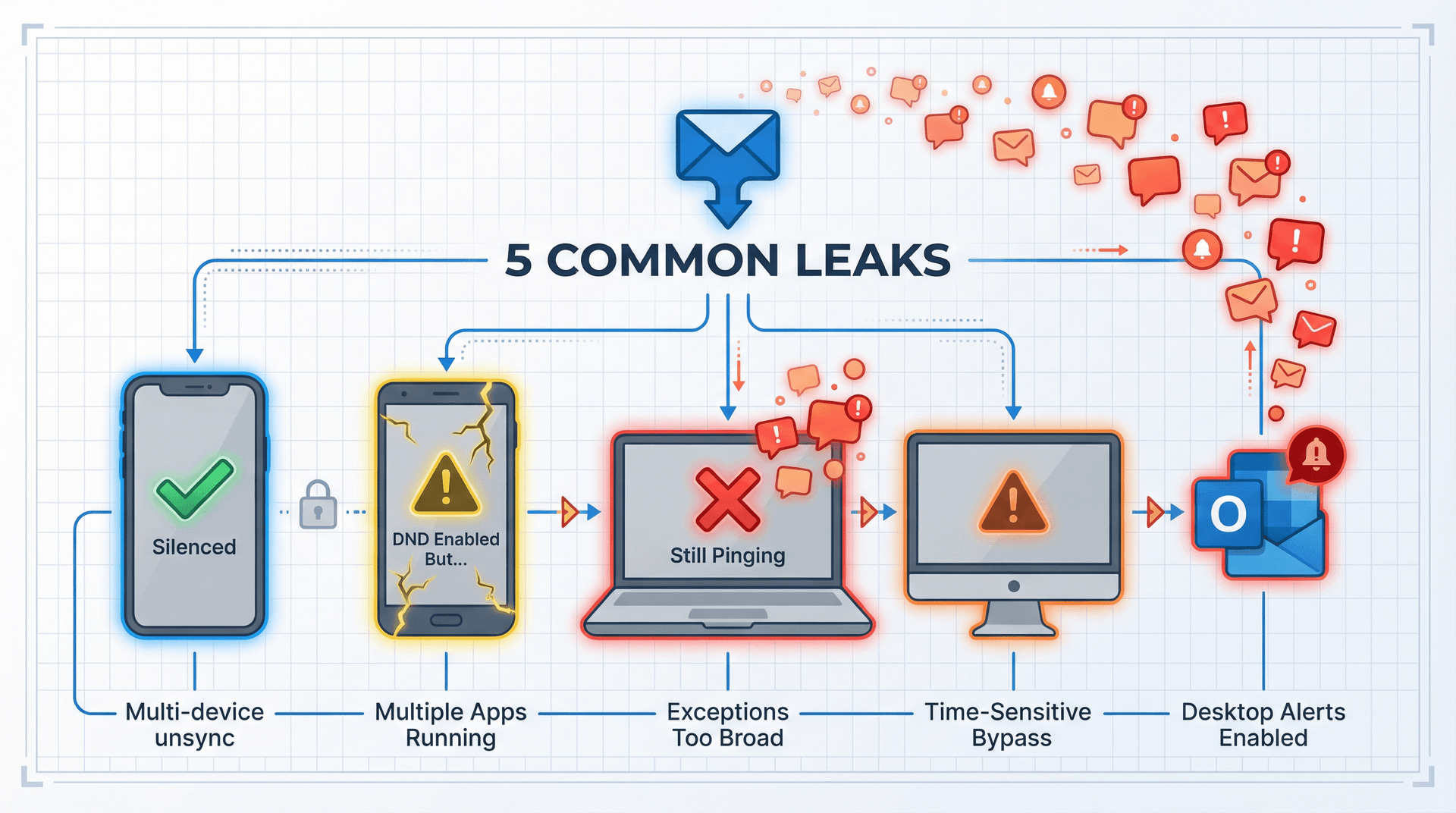
You silenced one device, but not the others. Phone is quiet, laptop still pings. Fix this by disabling Gmail desktop notifications and browser notifications.
You have two email apps installed. For example, Gmail plus Apple Mail plus Outlook, all logged in. Pick one app to notify you (or none) and disable notifications on the rest.
Focus or DND exceptions are too broad. If you allowed "messages from anyone" or "apps that can override," you'll get leaks. Re-check your People and Apps allowlists in your device settings.
You enabled "time sensitive" style bypasses. On Apple, Focus can allow time-sensitive notifications. Great for medication reminders, bad for email if it punches through.
Outlook pop-ups still enabled on desktop. Kill Desktop Alerts in Outlook settings.
Be Honest With Yourself About Email Emergencies
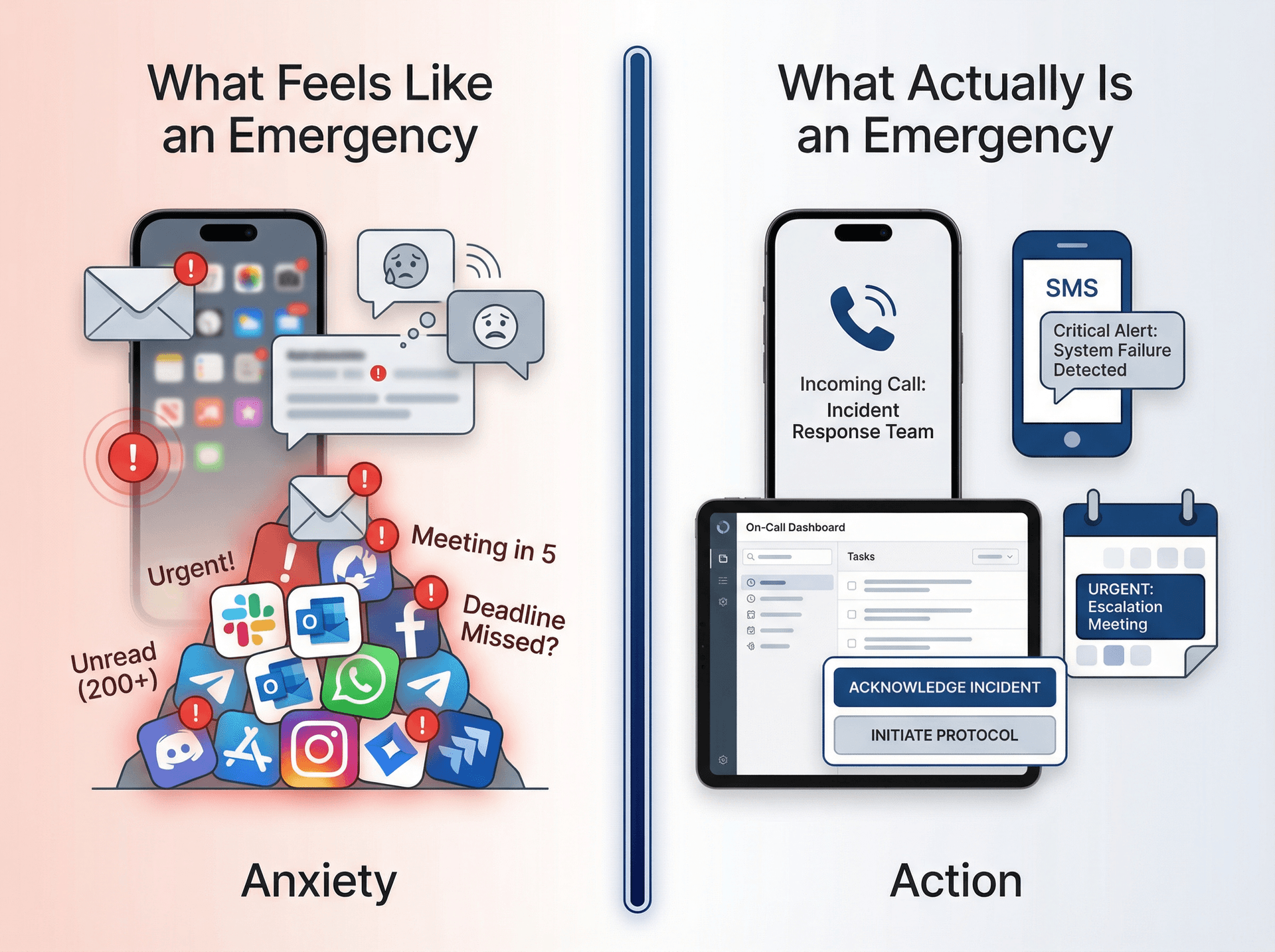
If you say "I can't turn off email notifications at night because something might be urgent," ask yourself: Has email ever been the right emergency tool for you? If something is truly urgent, why is it not a call, text, or on-call alert? Are you confusing "urgent" with "anxious"?
Most people don't need 24/7 email. They need two things: a reliable emergency lane and a morning system they trust. Do those two things and turning off night notifications stops feeling like a risk.
How to Take Back Your Nights From Email
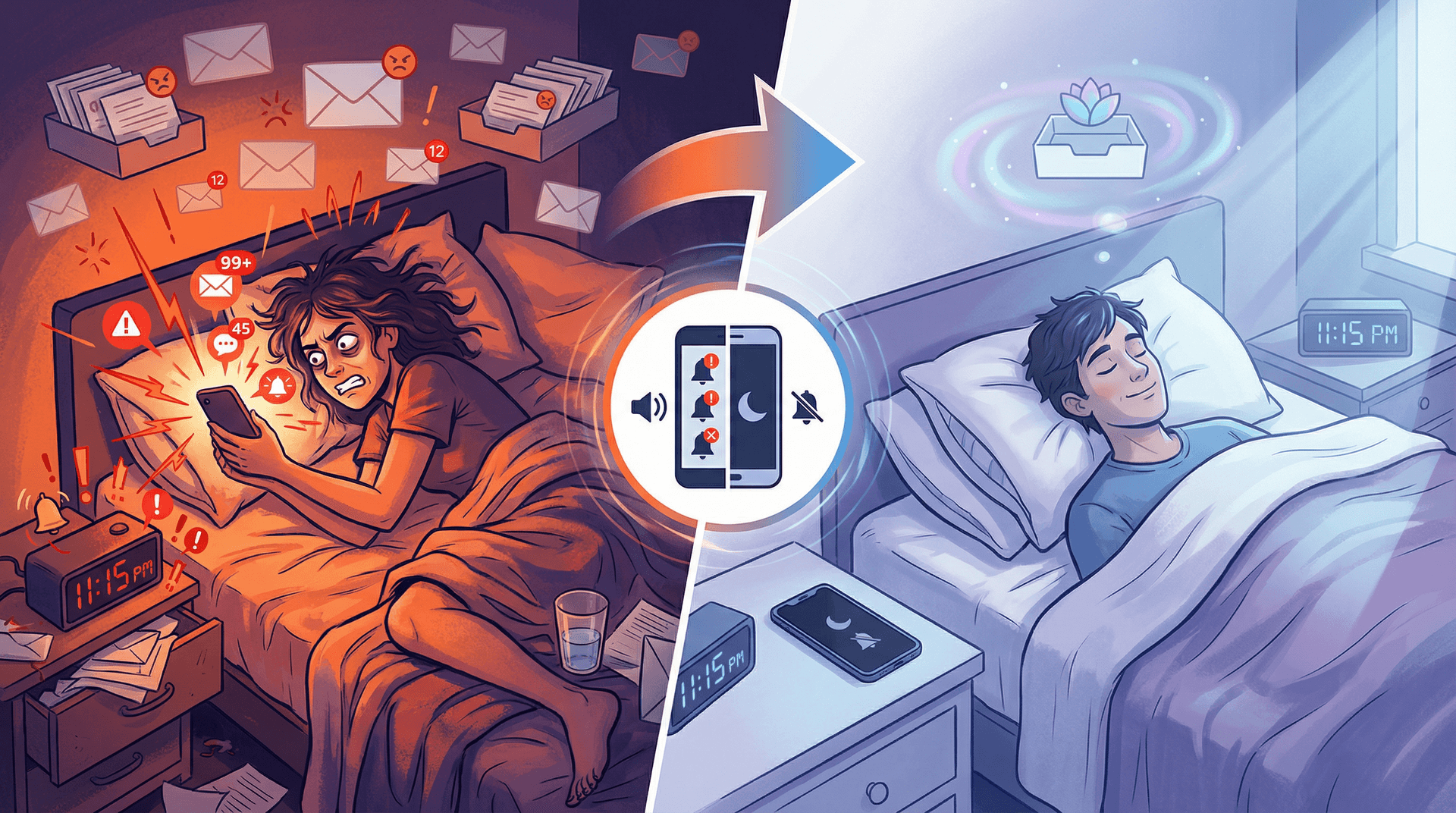
Your time after work should be yours, not an extension of your inbox. Stopping email notifications at night enforces a healthy boundary that protects your sleep and sanity.
We've covered how to use your phone's Do Not Disturb mode to automatically mute late-night pings on both iPhone and Android, how to do the same on your computer with Windows Focus Assist and macOS Focus, how to fine-tune email apps so nothing slips through, and proactive tips like trimming noise through unsubscribing, filtering, pausing your inbox, and communicating off-hours policies.
Making these changes might feel odd at first. You might worry, "What if I miss something important?" But truly urgent issues will find you — people can call, or you can allow VIP exceptions. For everything else, it can wait until morning.
In fact, giving yourself nightly downtime makes you return to work sharper and more responsive. Research backs this up: when employees disconnect, they experience less burnout and higher productivity.
Consider tools that support healthier email practices. Inbox Zero (an AI email assistant) can reduce the urge to check email at night by automatically triaging your mail. It can label and summarize newsletters into morning digests, block annoying cold emails, and even draft replies so you're not worried about overnight messages piling up. When you log in the next day, you'll find a more organized inbox with low-priority stuff filtered out. You didn't miss anything critical, and you didn't stress about it overnight.
Ultimately, learning how to stop email notifications at night is about taking control of your digital life. It's a small step that unlocks better work-life balance. You deserve evenings to recharge without that subtle nag of "maybe I should check my email."
With the strategies in this guide, you can make peaceful, notification-free nights your new normal. Here's to better sleep, lower stress, and waking up without dread of the overnight inbox. Your journey to an email-saner life starts tonight.
Sweet dreams. Inbox zero awaits in the morning.
Sources and Currency Notes (January 2026)
This guide is based on vendor documentation and listings accessed in January 2026, including Apple Support on Do Not Disturb and Focus (published Nov 17, 2025), Apple iPhone User Guide pages on Focus notifications and Mail account Focus filters (copyright 2026), Android Help on Modes and Do Not Disturb (notes Android 14+ for some steps), Microsoft Support on Windows notifications/DND and Outlook notification controls, Google support pages for Gmail notifications and desktop notifications, and Chrome Help on managing site notifications.
Product documentation includes Inbox Zero official pages for Reply Zero, Cold Email Blocker, and Bulk Unsubscriber, plus the Chrome Web Store listing for Inbox Zero Tabs for Gmail.
Research sources include Phys.org on after-hours emails and burnout (Sep 2024), Frontiers in Psychiatry on screen use and sleep (Mar 2025), HRD Connect on digital overload (Jul 2024), and Workplace Insight on notification statistics (May 2024).
Prices, UI labels, and menus can change. The core strategy here is stable even when the pixels move.

How to Recall an Email in Outlook (2026)
How to recall an email in Outlook step by step for new Outlook, classic Outlook, web, Mac, and mobile, plus when recall works and what to do when it doesn't.
2026-09-30T18:25:57.000Z

How to Stop AliExpress Emails (2026)
Stop AliExpress promotional emails: the unsubscribe link, notification settings in your AliExpress account, and what to do when the deals keep coming.
2026-09-30T18:25:57.000Z

How to Stop Amazon Emails (2026)
Stop Amazon marketing emails with the Communication Preferences Center, manage Amazon email subscriptions, and handle order emails you can't switch off.
2026-09-30T18:25:57.000Z

How to Stop Domino's Emails (2026)
Stop Domino's emails with Domino's official opt-out page, stop Domino's text offers, and know which rewards emails keep coming.
2026-09-30T18:25:57.000Z