How to Mass Unsubscribe From Emails (Without Unroll.Me)
Learn how to mass unsubscribe without Unroll.Me. Use built-in email tools and privacy-respecting alternatives. No data harvesting required.

You're searching "how to mass unsubscribe without Unroll.Me" because you're dealing with a specific problem. Your inbox is drowning in newsletters and promotional emails, and you want them gone fast. But you don't want to hand your entire email history to a data-harvesting company.
Smart choice.
You can clean up hundreds (or thousands) of unwanted subscriptions without Unroll.Me, and this guide shows you exactly how. We'll cover everything from using your email provider's built-in tools to privacy-first alternatives that actually respect your data. You'll learn how "unsubscribe" works behind the scenes so you can make informed choices, how to use native cleanup options in Gmail, Outlook, Yahoo, and Apple Mail, when clicking "unsubscribe" is actually dangerous, and how privacy-focused third-party tools compare. We'll also walk through how Inbox Zero's Bulk Email Unsubscriber provides a secure alternative, and close with a practical 30-60 minute action plan to reclaim your inbox.
Why Avoid Unroll.Me in 2025?
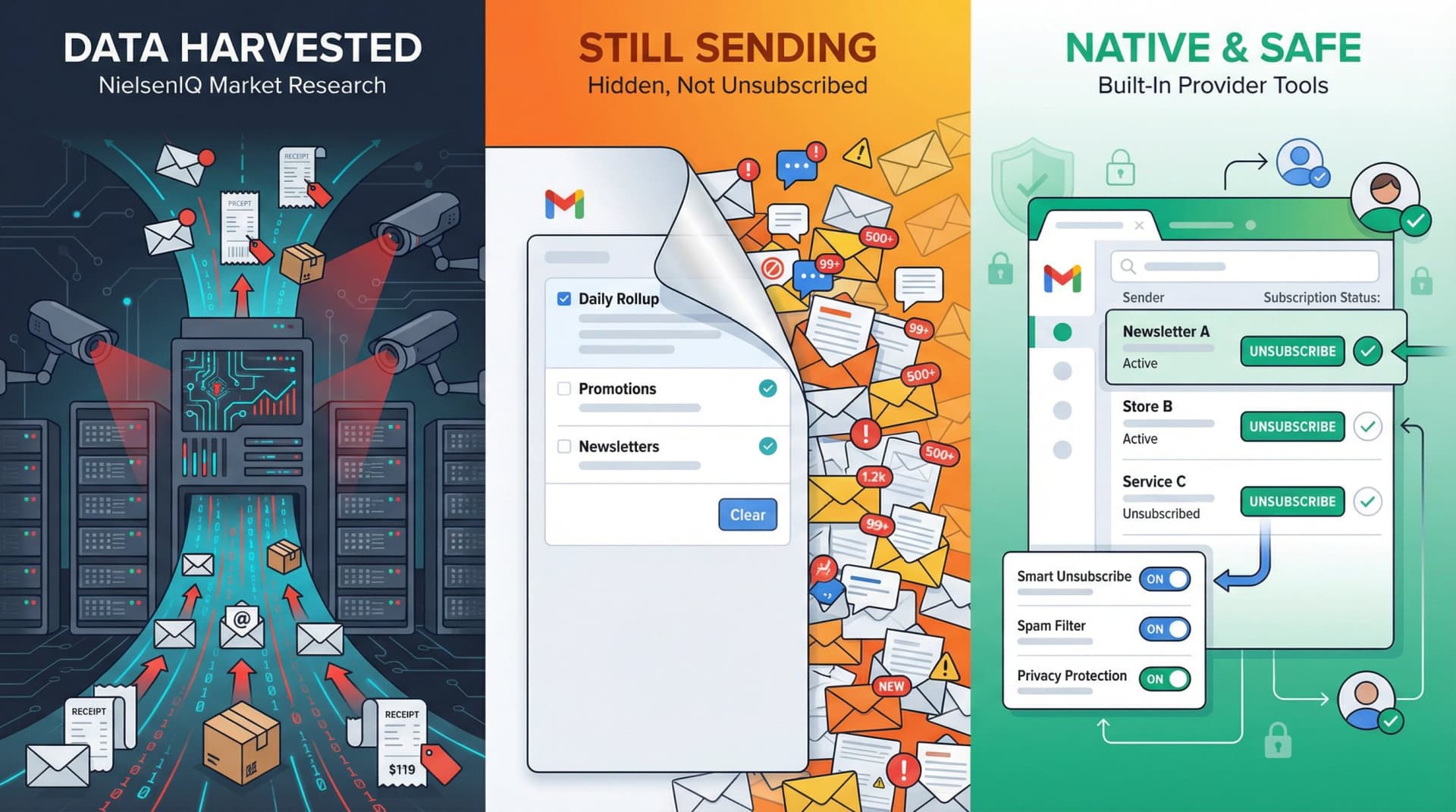
Unroll.Me used to be the default answer for mass unsubscribing. But three major issues have driven people away.
Unroll.Me Sells Your Email Data
Most people don't realize this: Unroll.Me is owned by NielsenIQ, a market research company. Their own data page explains that your commercial emails (receipts, confirmations, shipping notices) are used to build "advertising products, measurement products, datasets and other services" for their clients.
Past FTC documents and reporting revealed that Unroll.Me's parent company sold anonymized purchase data from users' inboxes. In one infamous case, they sold Lyft receipt data to Uber as a proxy for tracking Lyft's business performance. There's now an opt-out flow for their "measurement panel," but the default assumption remains: your inbox content fuels market research.
Unroll.Me Hides Email Instead of Unsubscribing
Competing tools point out that Unroll.Me historically focused on moving messages into special folders and rollups rather than actually removing you from sender lists. Stop using Unroll.Me, and all those senders are still emailing you. The noise just reappears in your inbox.
Email Providers Have Better Built-in Tools Now
Email providers have caught up. Gmail added a dedicated "Manage Subscriptions" feature in 2025 that lists all your subscription senders, shows how often they email you, and provides one-click unsubscribes. Outlook and Yahoo have similar built-in tools.
The real question isn't "should I avoid Unroll.Me?" It's "how do I get mass cleanup results without giving a data broker full access to my inbox?"
That's exactly what we'll solve.
How Does Email Unsubscribe Actually Work?
Before choosing tools, you need to understand what happens when you click "unsubscribe." Most people get this wrong, which is why they end up with more spam instead of less.
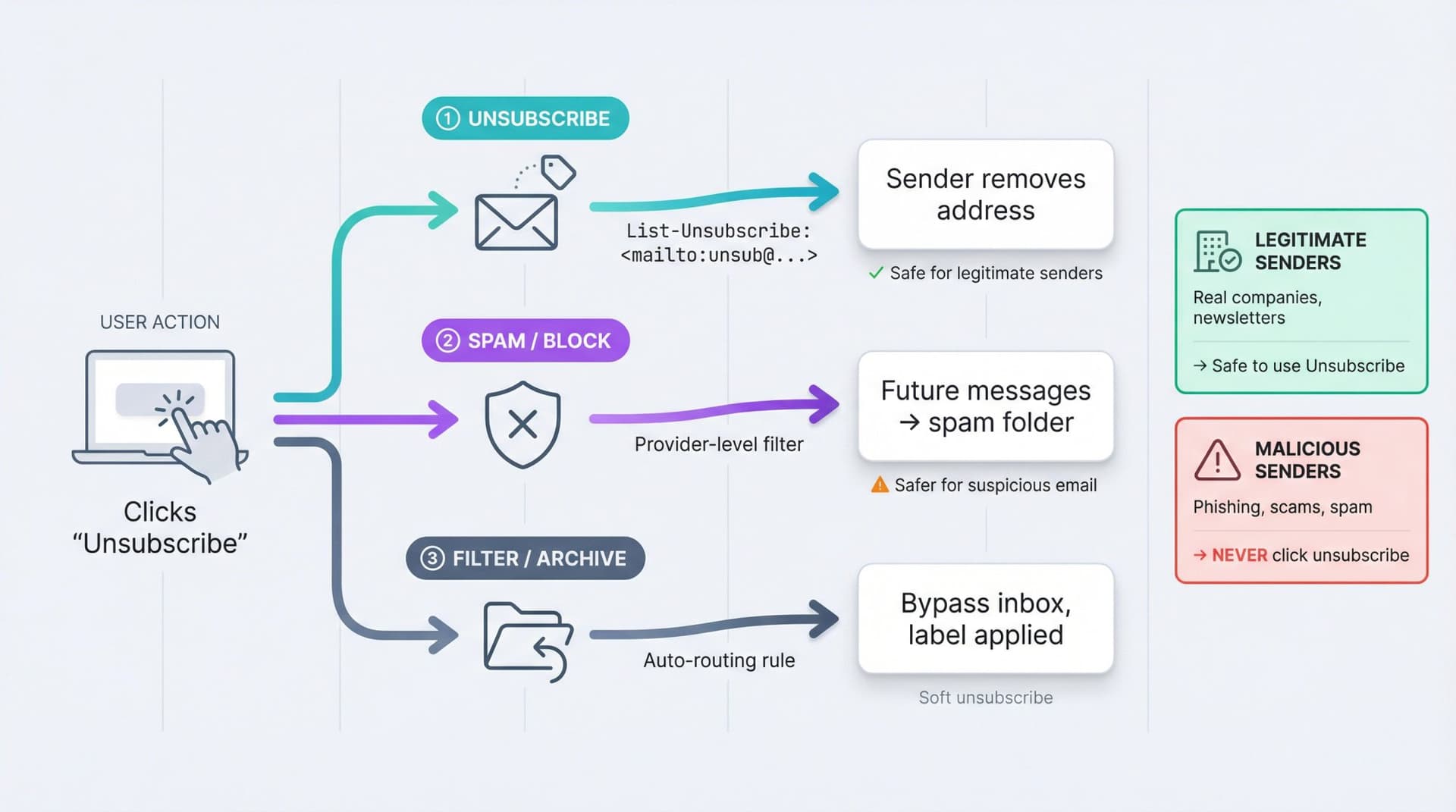
Legitimate vs Malicious Senders: Know the Difference
| Sender Type | Characteristics | Unsubscribe Safety |
|---|---|---|
| Legitimate | Real companies, newsletters, SaaS products | Safe to use provider's unsubscribe button |
| Malicious | Phishing attempts, crypto scams, fake invoices | NEVER click unsubscribe links |
Legitimate senders are legally required in many jurisdictions to include an unsubscribe mechanism. This is mandated by laws like CAN-SPAM, GDPR, and CASL. They often include a special email header called List-Unsubscribe that mailbox providers (Gmail, Outlook, Yahoo, Apple Mail) use to show safe, one-click unsubscribe buttons.
Malicious senders are a different story. Their "unsubscribe" link might do nothing except confirm your email address is active. Or worse, it could redirect you to phishing or malware sites. Security researchers and the FTC have repeatedly warned that clicking unsubscribe in spam can actually increase your risk.
Three Ways to Control Unwanted Email
Every email provider gives you some combination of these options:
Unsubscribe sends a standardized signal (usually via the List-Unsubscribe header) telling the sender to remove your address from their list. This works well for legitimate companies. Under 2024 Gmail and Yahoo requirements, bulk senders must honor unsubscribe requests within 2 days.
Spam / Block tells your provider "this sender is unwanted or harmful." Future messages go to spam or get silently blocked. This is much safer than clicking sketchy unsubscribe links because your provider handles everything without running untrusted code.
Filter / Auto-Archive / Delete keeps the message arriving, but your provider automatically routes it away from your inbox. You can apply a label or send it straight to trash. This is a "soft unsubscribe"—you technically still receive the mail, but you never see it unless you search for it.
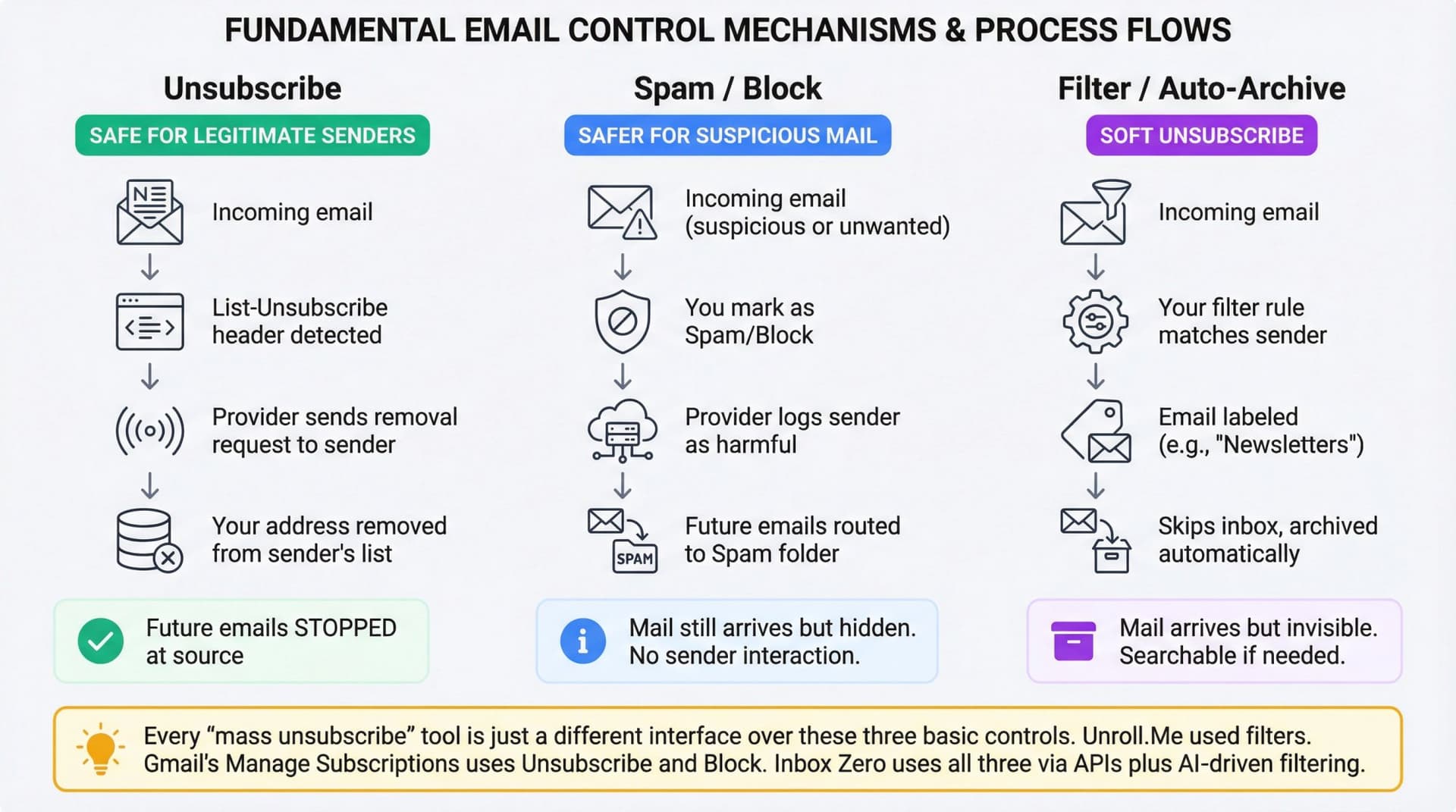
Key insight: Every "mass unsubscribe" tool is just a different interface over these three basic controls. Unroll.Me historically leaned on filters and rollups. Gmail's "Manage Subscriptions" uses Unsubscribe and Block. Inbox Zero uses all three via Gmail and Outlook APIs, plus AI-driven filtering.
Once you understand these mechanics, you can mix and match strategies: unsubscribe from legitimate lists, block cold emails, and auto-archive low-value newsletters.
How to Unsubscribe Using Built-In Email Tools
If you're even slightly privacy-conscious, your first move should be using tools your email provider already includes. You'd be surprised how powerful they are.
Gmail: "Manage Subscriptions" Plus Hidden Bulk Email Search
How to Use Gmail's "Manage Subscriptions" View
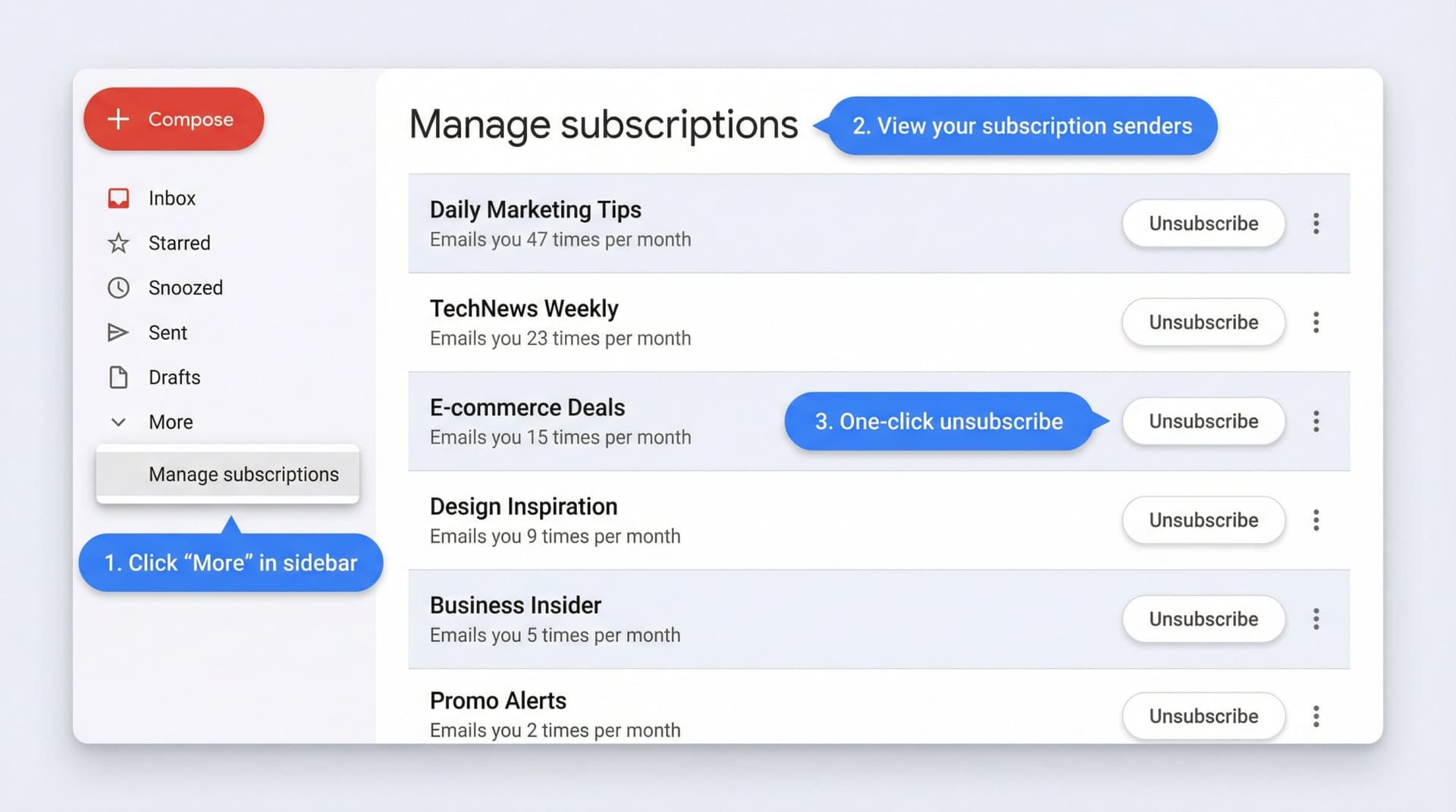
In July 2025, Google rolled out a "Manage Subscriptions" panel in Gmail on web, Android, and iOS. It's genuinely useful. The panel shows a list of your active subscription senders, sorts them by how often they email you (worst offenders at the top), provides one-click unsubscribe right from the list, and offers a "Block" option when a sender doesn't support one-click unsubscribe.
To use it on desktop, open Gmail in your browser, find "More" in the left sidebar, and click "Manage subscriptions." You'll see senders listed with their email volume. For each sender, click Unsubscribe if you recognize them and don't want their emails anymore. If clicking Unsubscribe opens their website instead of processing immediately, you'll see a popup with two choices: "Go to website" if you trust the brand and want to adjust settings there, or "Block" if it looks shady.
A good strategy is to start at the top where senders email you most frequently. Ask yourself, "Do I actually read this?" If the answer is "basically never," unsubscribe. If it's "sometimes," keep it for now—you can always auto-archive it later.
How to Clean Up Bulk Email Using Gmail's Hidden Label
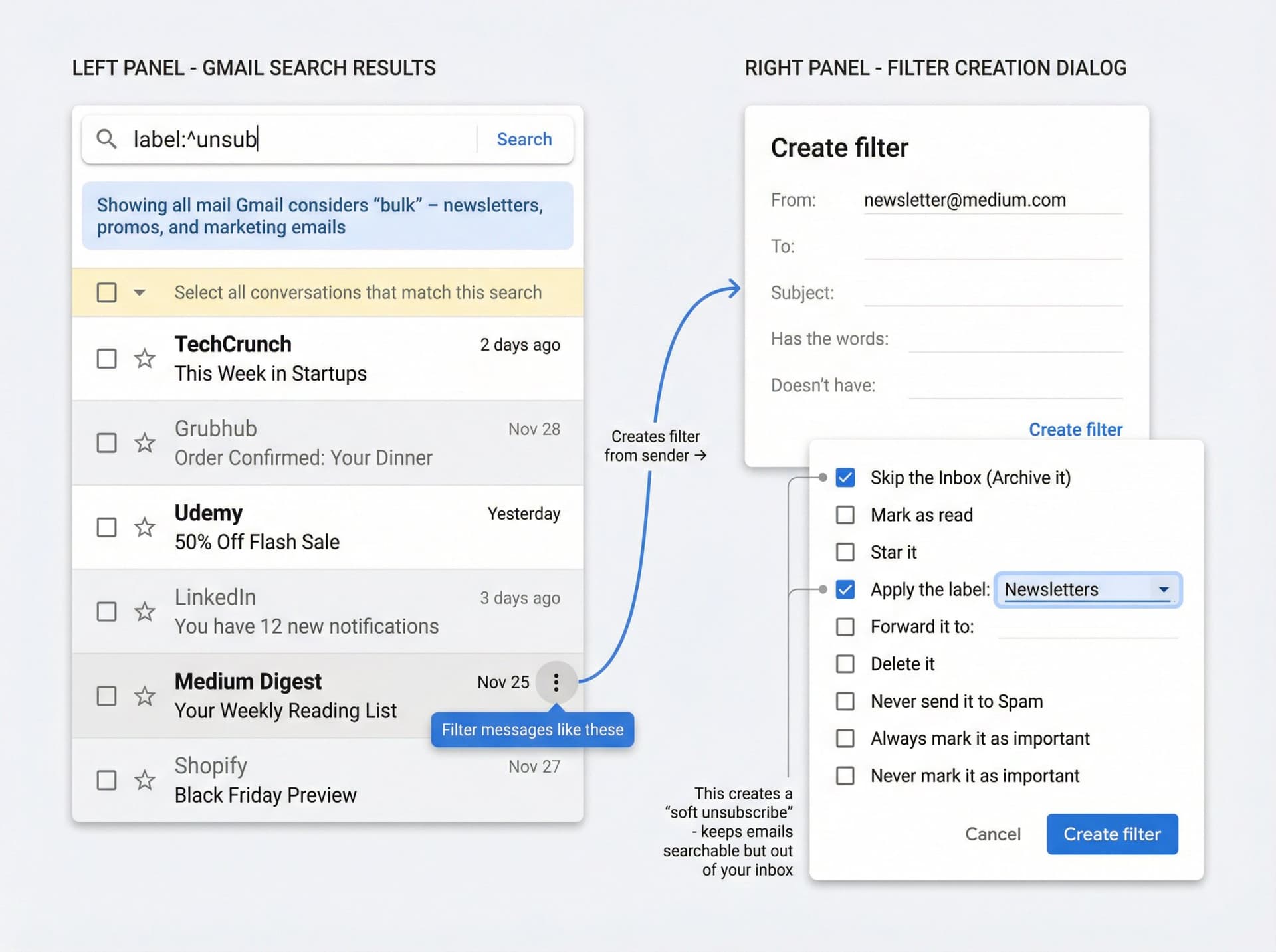
Gmail internally tags bulk messages (newsletters, promos, etc.) with a system label called ^unsub. You can search for it like this:
label:^unsub
This shows all mail Gmail considers "bulk." From there, search for label:^unsub, click the checkbox to select all visible emails, click the banner that appears ("Select all conversations that match this search"), and choose Delete (if you never want to see past messages) or Archive (if you want them searchable later).
You can also combine it with size filters to reclaim storage:
label:^unsub larger_than:100k
This finds bulky newsletters with large images so you can delete them first. Keep in mind this doesn't unsubscribe you from future emails, but it instantly nukes thousands of old marketing messages and makes it easier to identify what's left.
How to Create "Soft Unsubscribe" Filters in Gmail
For newsletters you want available but not cluttering your inbox, use label:^unsub or search for a specific sender, open one email from that sender, click the three dots (overflow menu) and choose "Filter messages like these." In the filter dialog, verify the From field is correct, click "Create filter," choose "Skip the Inbox (Archive it)" and "Apply the label" (e.g., Newsletters or Deals), and save.
Future messages from that sender will bypass your inbox but remain accessible via the label. You can batch-skim them weekly or use our Chrome extension to create dedicated tabs for them.
Outlook.com: How to Manage Subscriptions and Block Senders
Outlook.com has its own Subscriptions section where it groups mailing list senders.
To mass-clean in Outlook.com, sign into Outlook.com in your browser, click the Settings gear icon, go to Mail then Subscriptions. You'll see "Your current subscriptions" (lists Outlook identifies via message headers). For each entry, click Unsubscribe or click the three dots and choose "Block sender."
One limitation: if a sender is already in Junk or blocked, you might not see an unsubscribe option. Outlook relies on proper list-unsubscribe headers, so messy senders may not appear. You can still use Rules (filters) to move matching messages to a "Newsletters" folder or delete them, plus Block from the message menu for clearly unwanted senders.
Yahoo Mail: How to Unsubscribe and Use Subscriptions View
Yahoo provides several options. On the web, you can right-click an email and choose Unsubscribe, or open an email and click Unsubscribe at the top, then confirm.
There's also a Subscriptions folder under "Views." In the left menu, click Show next to Views, click Subscriptions, and use the Unsubscribe option next to individual senders.
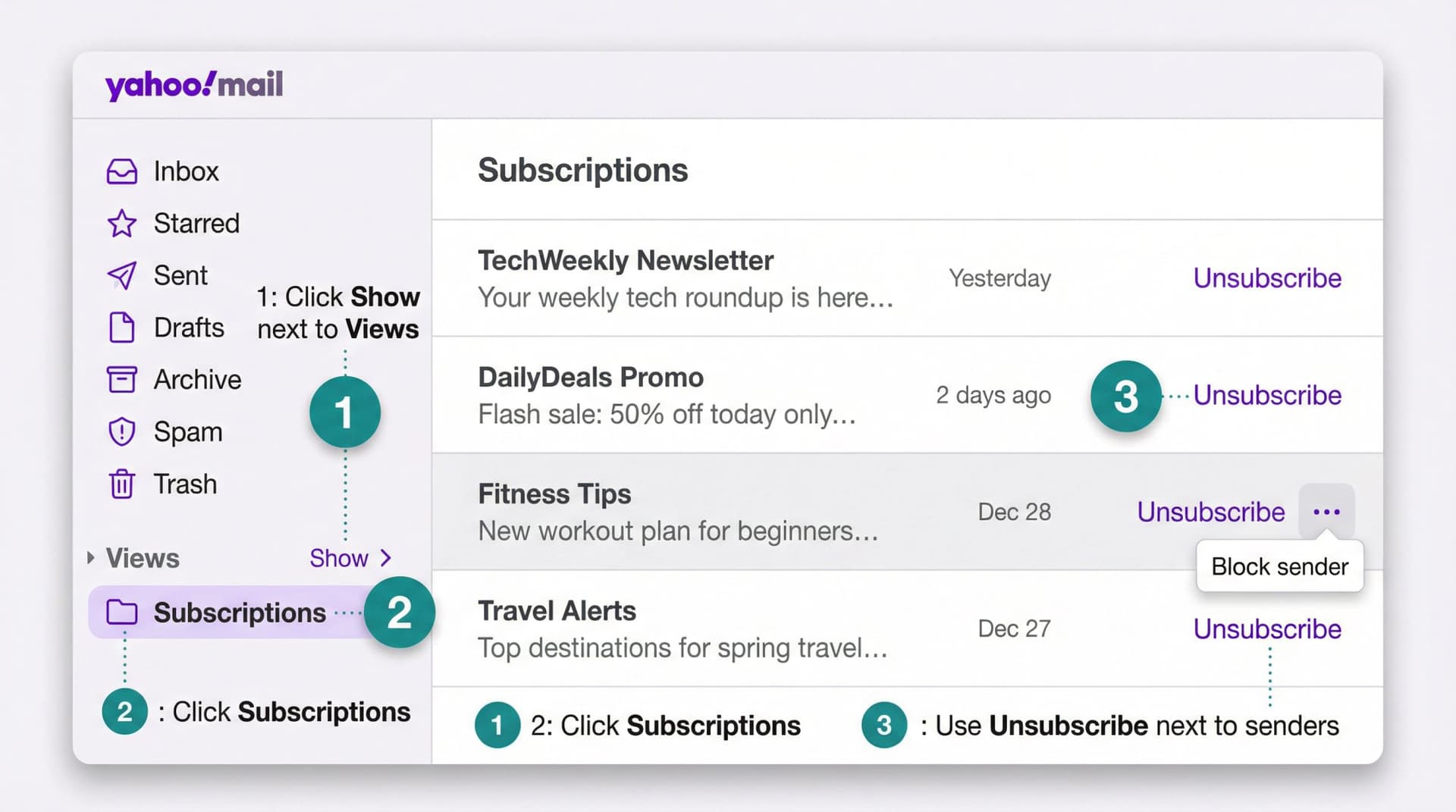
The Subscriptions folder doesn't reliably show all mailing lists, and Yahoo doesn't let you mass-unsubscribe—it's still one sender at a time. Yahoo users often pair this with a third-party tool when volume is extreme.
Apple Mail & iCloud: How to Use Unsubscribe Banners
Apple Mail on macOS and iOS shows an "Unsubscribe" banner when it detects mailing list messages. Open the message, look for the banner below sender details that reads "This message is from a mailing list" with an Unsubscribe button, and clicking it sends a standardized unsubscribe request.
Apple community moderators warn to use this only for lists you intentionally signed up for. Using unsubscribe on spam just confirms your email is active.
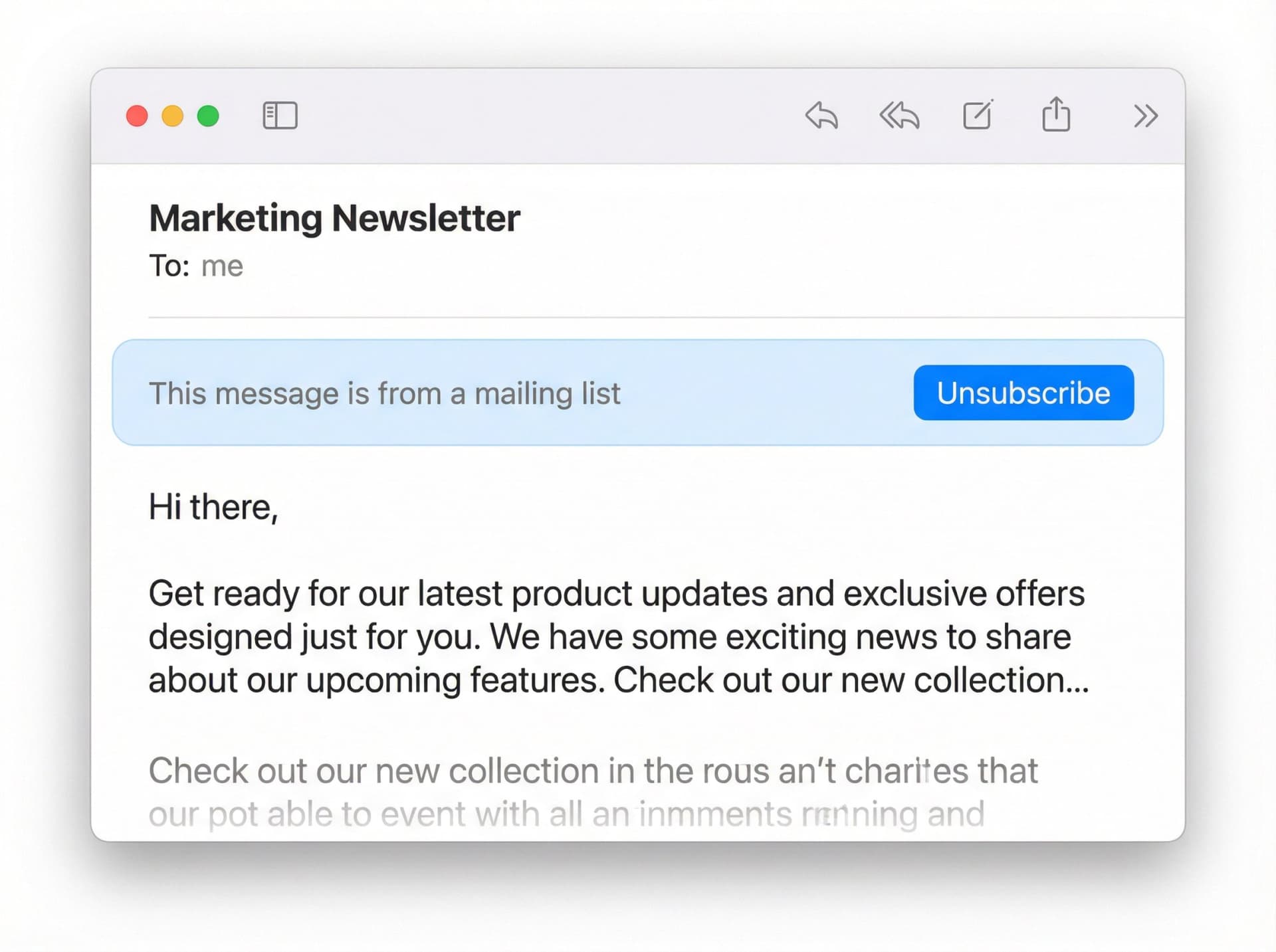
If an email looks shady, mark it as Junk/Spam instead of clicking unsubscribe. Adjust subscription settings via the service's website if it's something important like a bank or SaaS provider.
When You Should NEVER Click Unsubscribe
This is critical and often misunderstood. Recent cybersecurity guidance is blunt: clicking unsubscribe inside suspicious emails can confirm your address is active, redirect you to phishing sites, or lead to more spam and targeted attacks.
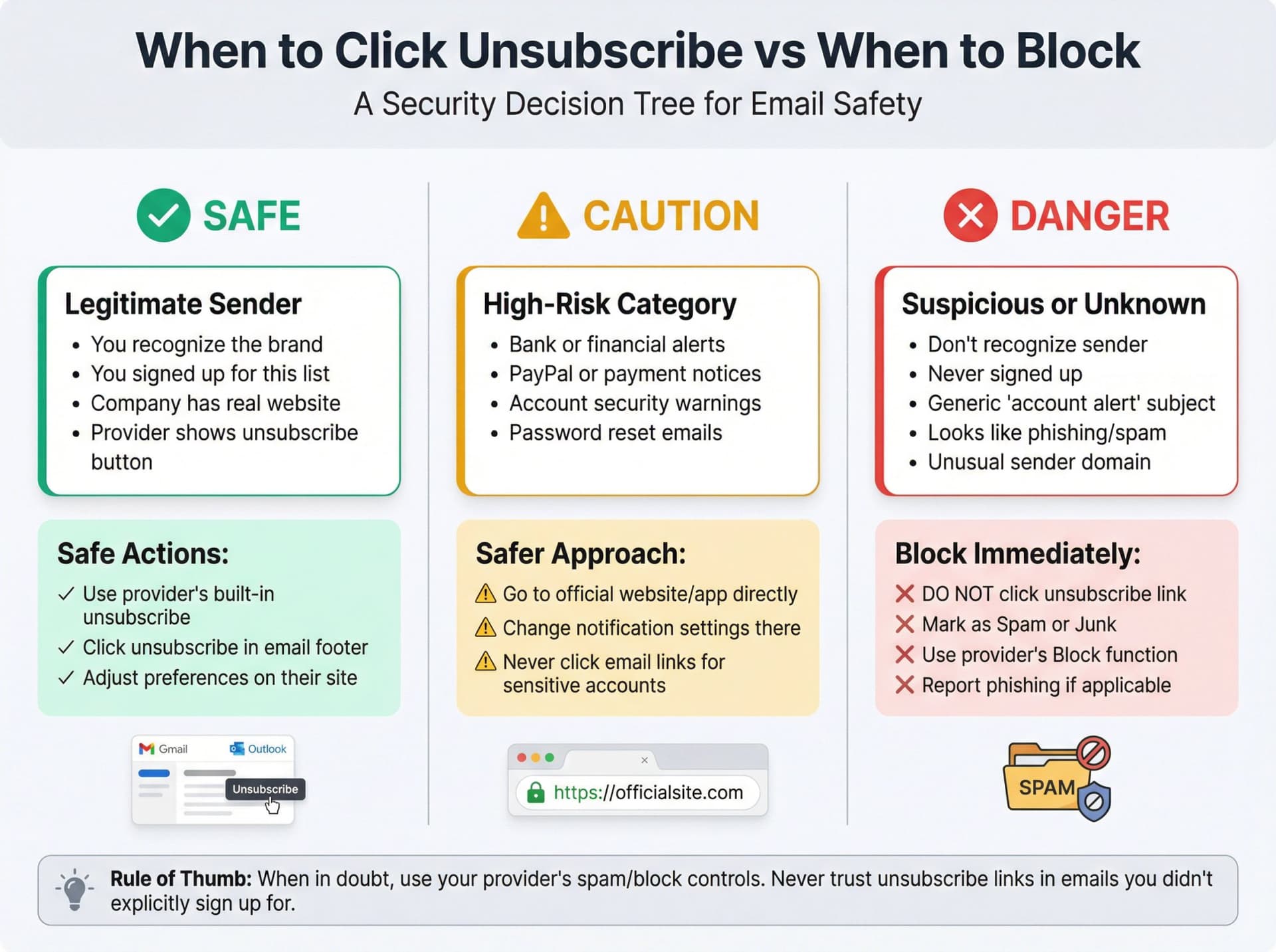
Use this decision tree:
| Question | Yes | No |
|---|---|---|
| Do you recognize the brand/sender? | ✓ Use your provider's built-in unsubscribe button | ✗ Don't click unsubscribe. Mark as Spam or Block |
| Is it a high-risk category? (bank, PayPal, account alerts) | Use the service's official website/app to change notifications | Safe to use provider unsubscribe if you recognize sender |
| Is there a built-in button from your provider? | ✓ Much safer than embedded HTML links | Only use if you absolutely trust the sender |
Rule of thumb: When in doubt, use your provider's spam/block controls. Never trust unsubscribe links in emails you didn't explicitly sign up for.
Best Privacy-First Mass Unsubscribe Tools
Once your native tools have done the first pass, you might still want better analytics (who emails you most, what you actually read), true bulk unsubscribes across providers, and automation for future mail. Here's how the ecosystem looks in 2025.
IMAP vs API-Based Email Cleaners: What's the Difference?
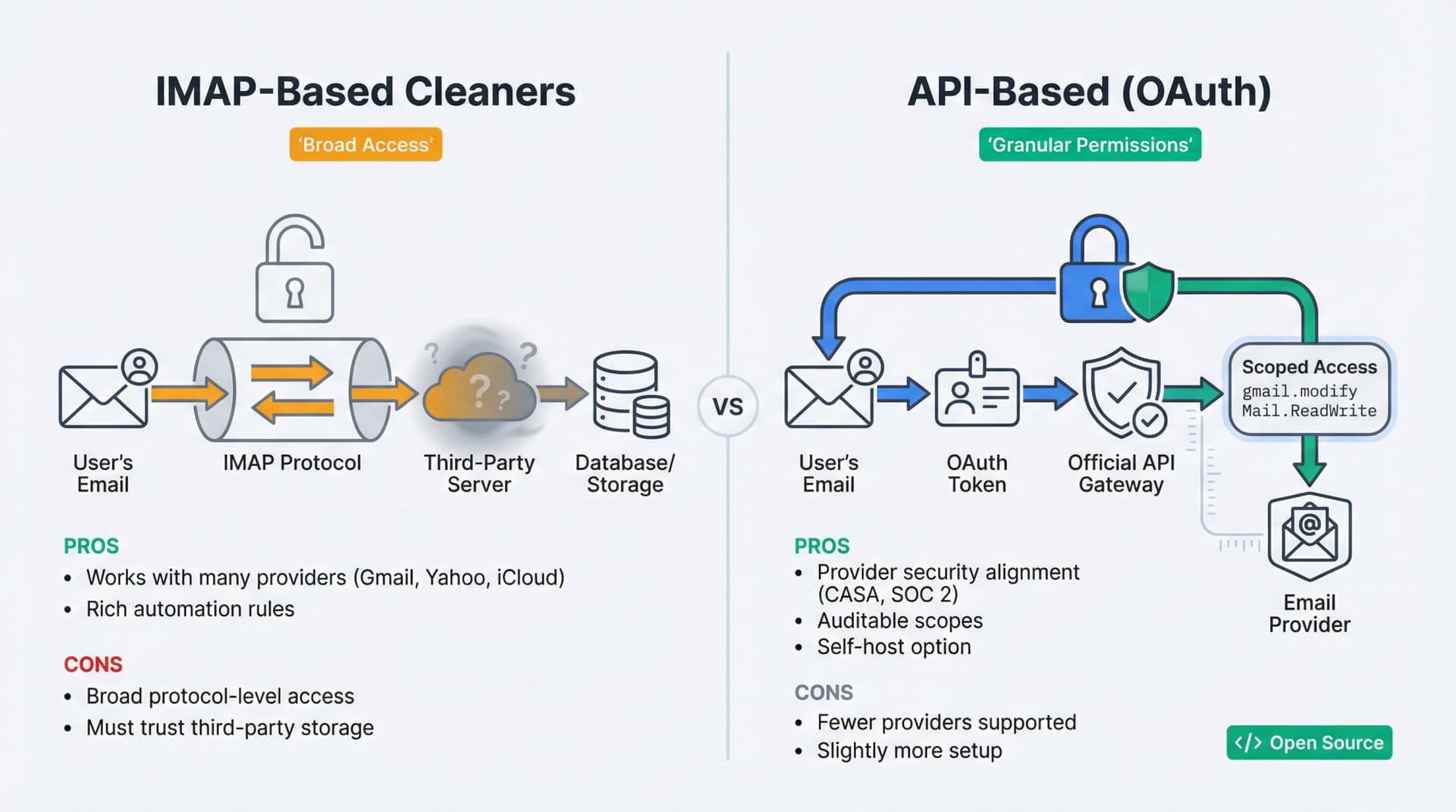
IMAP-based cleaners connect via IMAP (like a traditional mail client), download message headers (and often full bodies) to their servers, analyze them, and take actions like unsubscribe, move, or delete. Tools like Clean Email, Leave Me Alone, and InboxPurge fall into this category. They work with many providers (Gmail, Yahoo, iCloud, custom IMAP) and often have rich automation rules, but the tradeoff is that you're giving a third party broad protocol-level access to your inbox. You must trust their storage, retention, and business model.
API-based assistants, which is our approach at Inbox Zero, use official Gmail and Microsoft Graph APIs with OAuth. They work with the provider's permission model and scopes (like gmail.modify and Mail.ReadWrite), not raw IMAP. We're open source and self-hostable, so you can verify exactly what we request. This approach aligns better with provider security programs (like Google's CASA for sensitive Gmail scopes), makes it easier to audit what scopes are requested, and our code is public with SOC 2 and CASA Tier 2 attestation. The tradeoff is that we support fewer providers (Gmail/Google Workspace and Outlook/Microsoft 365) and self-hosting requires slightly more setup.
Privacy-First Unsubscribe Tools Compared
Not exhaustive, just a landscape view:
| Tool | Approach | Key Features | Privacy Stance |
|---|---|---|---|
| Inbox Zero (us) | API-based, open source | Bulk unsubscriber, AI automation, cold email blocker, analytics, Chrome extension | SOC 2, CASA Tier 2, no data selling |
| Clean Email | IMAP-based | Unsubscriber, Auto Clean rules, mass delete | States they don't sell data; delete processed data after 45 days |
| Leave Me Alone | IMAP-based | Privacy-focused, rollups, EU-compliant | Explicitly no data selling |
| InboxPurge | Gmail-focused | Bulk delete, mass unsub | Marketed as privacy-first alternative |
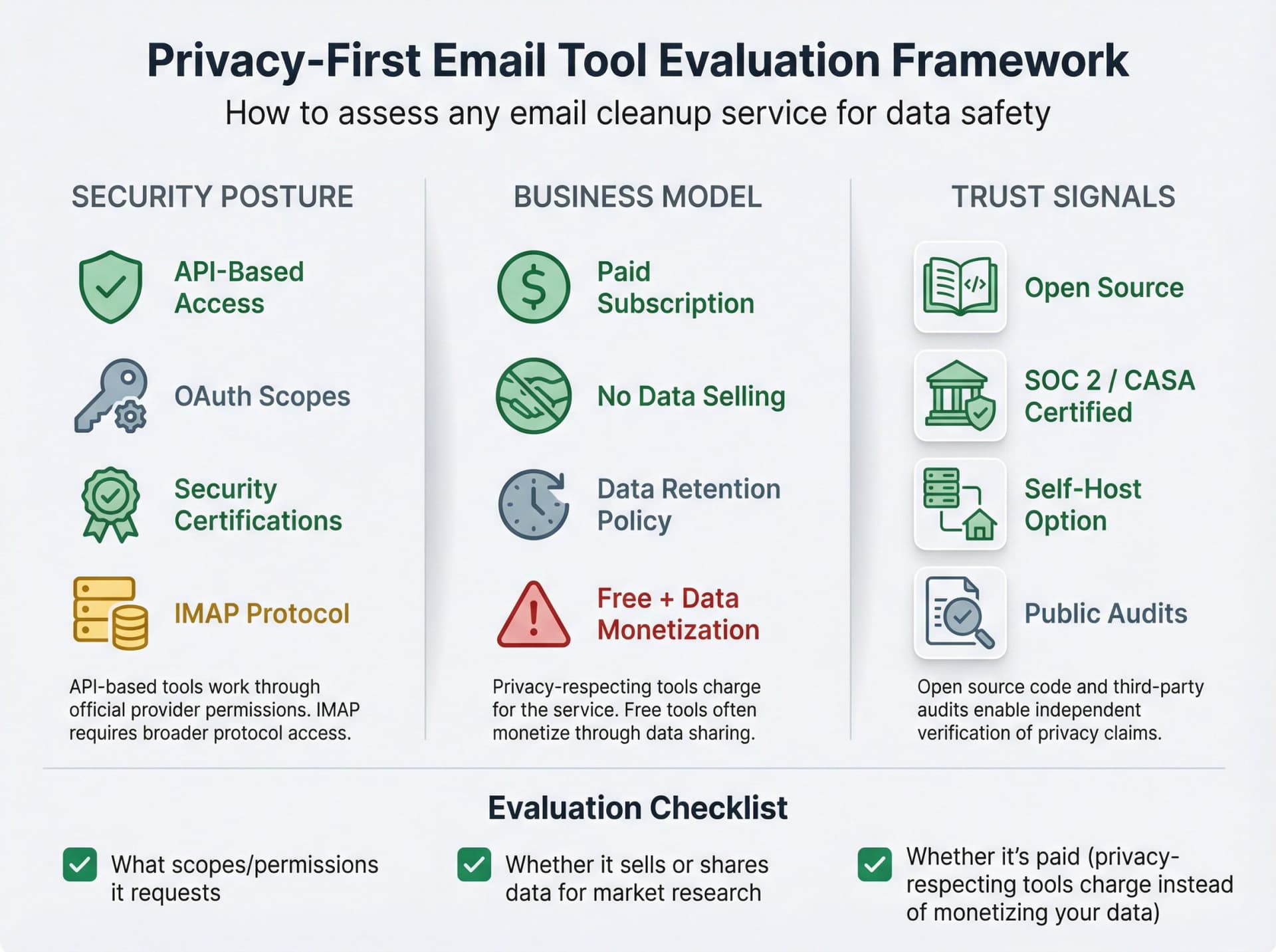
For each tool, check what scopes and permissions it requests, whether it sells or shares data for market research (this is the major difference vs. Unroll.Me), whether it's paid (most privacy-respecting tools charge instead of monetizing your data), and whether it supports your provider and devices.
Our angle at Inbox Zero: we're open source and self-hostable, API-based for Gmail and Outlook, and a broader "AI email assistant" platform (reply drafting, analytics, cold email blocking) with a strong unsubscribe experience baked in.
How to Mass Unsubscribe With Inbox Zero
Our Bulk Email Unsubscriber is essentially Unroll.Me's best parts rebuilt on Gmail/Outlook APIs, with analytics and AI, but without the data-selling business model. Here's the step-by-step flow.
Step 1: How to Connect Your Mailbox (Gmail or Outlook)
Go to getinboxzero.com and create an account, then connect your Gmail/Google Workspace or Outlook/Microsoft 365 account via OAuth. You'll see the scopes we request (like Gmail modify, settings basic, contacts for Google, or Mail.ReadWrite for Microsoft). These correspond to labeling, reading, drafting, and unsubscribing—not full export.
Because we're open source and SOC 2 compliant with Google CASA Tier 2 approval, you can verify this in our repo and trust center. Or you can self-host if you prefer complete control.
Step 2: How to Identify Noisy Email Senders
Once connected, navigate to the Bulk Email Unsubscriber page in the app. We'll scan your mailbox and present a sender-centric view where each row is a sender, showing how many emails they send and what percentage you actually read or archive.
This is where the real power lies. You're no longer guessing. You can immediately see which senders email constantly but you never read, and which senders you actually care about because they have a high read rate.
Step 3: How to Choose Actions for Each Sender
For each sender row, we give you three core actions.
Unsubscribe uses the underlying unsubscribe mechanics (headers or links) to remove you from the list where possible. You can optionally bulk-delete or archive existing messages from that sender.
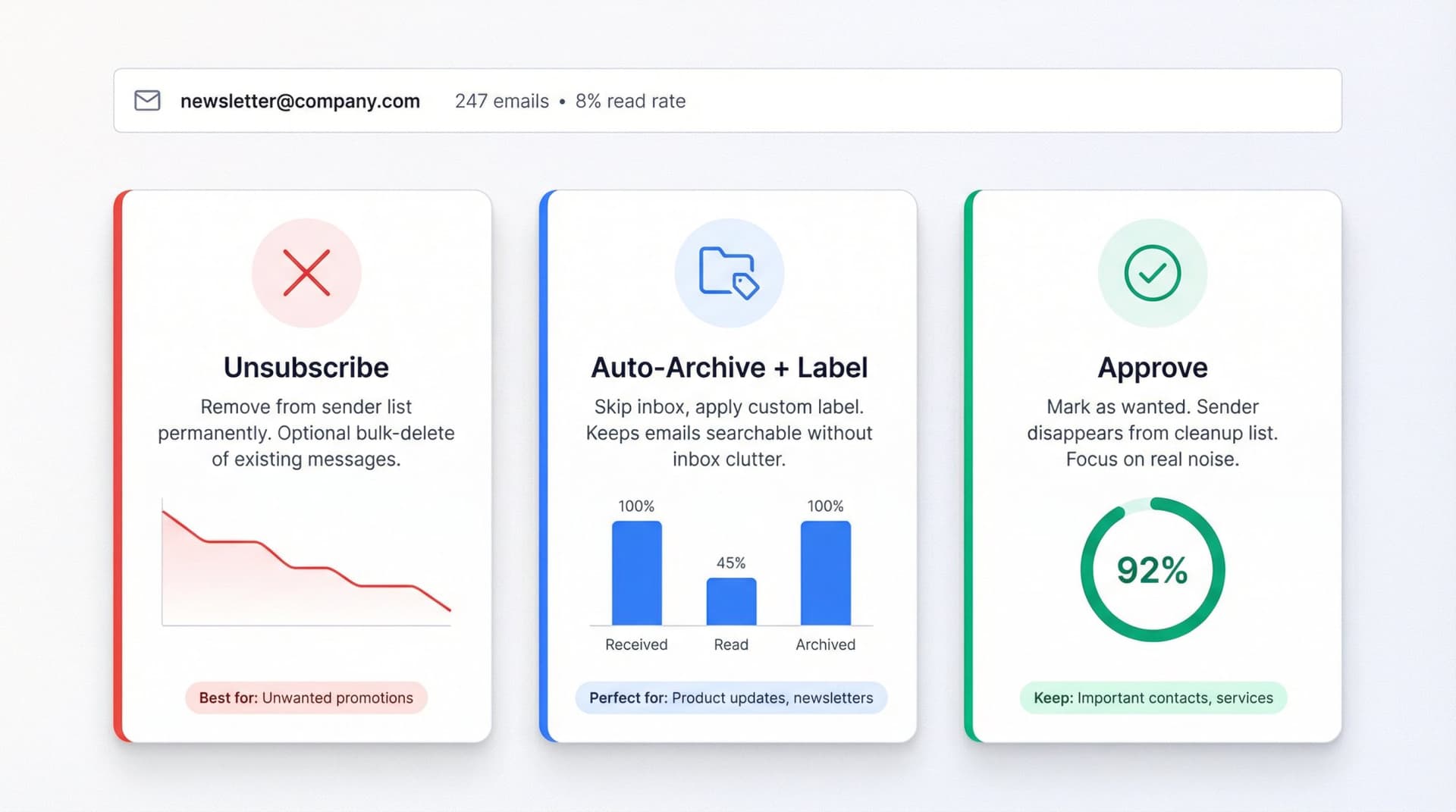
Auto-Archive (+ label) keeps receiving the email but skips your inbox and applies a label (e.g., Newsletters, Deals, or a custom category). This is perfect for SaaS product updates, product changelogs, and flight alerts you might want later but don't need in real time.
Approve means "I'm happy with this sender." They disappear from the cleanup list so you can focus on real noise.
Beside each sender, you can open detailed stats (including charts with frequency and history, plus samples of real emails) to sanity-check before deciding.
Step 4: How to Batch Process Your Unsubscribe Decisions
Our Bulk Unsubscriber page includes filters for time range and categories, plus keyboard shortcuts to move through decisions quickly.
The practical approach: filter to "last 90 days" and sort by highest volume. For each sender, if the read rate is near zero, Unsubscribe or block via rule. If you read sometimes, Auto-Archive with a label. If it's important, Approve. This gives you Unroll.Me-style mass unsubscribe but with far better control and transparency.
Step 5: How to Set Up Email Automation to Prevent Inbox Overload
Inbox Zero isn't just a bulk unsubscriber. It's a full AI email assistant and rule engine. You can create rules like "If sender is a newsletter and not in my Approved list, auto-archive and label Newsletters" or "If sender is cold email, auto-archive + label Cold Outreach or send to spam." You can also turn on the Cold Email Blocker to automatically catch and label cold outreach you never explicitly requested, and use Reply Zero to keep only human conversations and important threads in your working queue while newsletters are quietly managed elsewhere.
The result: bulk cleanup today plus automatic email hygiene going forward.
Optional: How to Add Custom Tabs to Gmail
If you use Gmail, you can pair our assistant with the free Inbox Zero Tabs for Gmail Chrome extension.
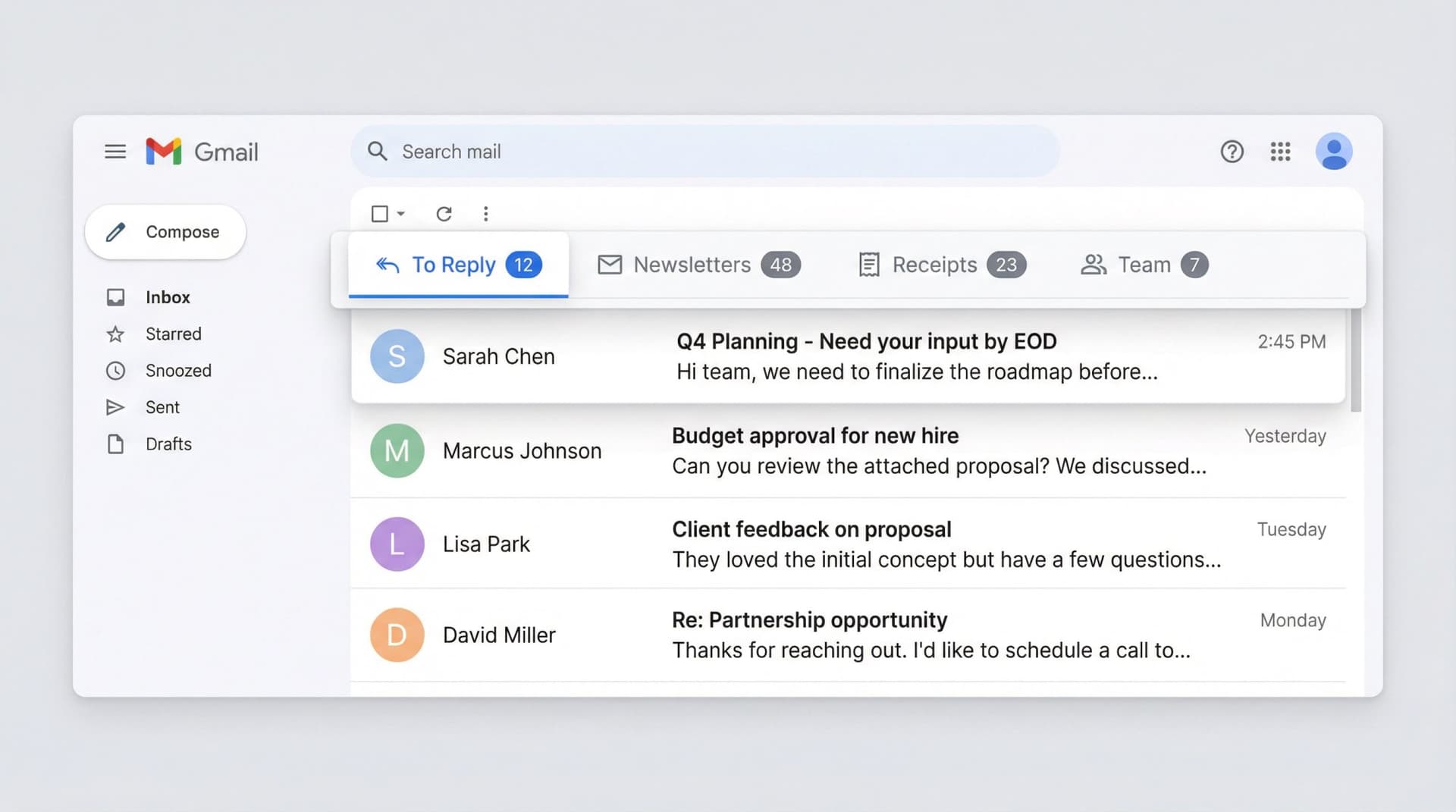
It lets you create custom tabs based on any Gmail search or label—think To Reply, Newsletters, Receipts, Team. It's 100% client-side with no data collection (it just uses your Gmail searches). Combined with our Bulk Unsubscriber and auto-archive rules, this gives you a Superhuman-style split inbox inside regular Gmail, without changing providers.
Clean Email, Leave Me Alone, and Other Alternatives

To be fair, there are other strong options besides Inbox Zero and native tools. Prices change frequently, so always check their sites.
Clean Email
Clean Email offers a strong unsubscriber alongside Auto Clean, Smart Folders, and spam tools. It works across Gmail, Outlook, Yahoo, iCloud, and custom IMAP. The company publicly states they don't sell or share data for market research and deletes processed data after a short retention period.
Leave Me Alone
Leave Me Alone focuses heavily on privacy and works in the EU. It brands itself explicitly as a safer alternative, providing instant unsubscribes, rollups, and inbox shielding.
InboxPurge and Others
These tend to be niche tools with strong Gmail support, offering bulk delete and mass unsub features. They're generally marketed as "privacy-first."
Before choosing any tool, ask four questions. First, is it paid? If it's free and not open source, assume there's a data monetization angle until proven otherwise. Second, does the privacy policy explicitly rule out selling data for market research or sharing inbox contents beyond what's necessary to run the product? Third, can you see what data is stored and for how long? Fourth, does it support your provider and devices?
Our angle at Inbox Zero: we're open source and self-hostable, API-based for Gmail and Outlook, and a broader "AI email assistant" platform (reply drafting, analytics, cold email blocking) with a strong unsubscribe experience baked in.
Safe Unsubscribe Strategy for 2026
Here's a simple, opinionated playbook you can follow regardless of which tools you choose.
How to Handle Different Types of Email Senders
| Sender Type | Best Action | Why |
|---|---|---|
| Newsletters you consciously subscribed to | Use provider's built-in "Unsubscribe" or List-Unsubscribe header | Safe, standardized mechanism |
| Legit companies sending too many promos | Unsubscribe OR auto-archive + label | Archive keeps them searchable without inbox clutter |
| Cold outreach and generic marketing | Block/spam + auto-archive rules | Safer than clicking their unsubscribe links |
| High-risk (banks, PayPal, password resets) | Adjust settings inside the site/app | Never unsubscribe from security alerts via email |
What Unsubscribe Can't Fix
Clicking unsubscribe doesn't remove old emails already in your inbox. It sometimes relies on sender honesty (shady senders can ignore it), and it isn't always reversible - Yahoo and Gmail don't always offer "undo unsubscribe."
That's why tools like Inbox Zero also offer bulk delete/archive of existing messages and block or rule-based filters when unsubscribe is ignored.
How to Prevent Email Overload From Happening Again
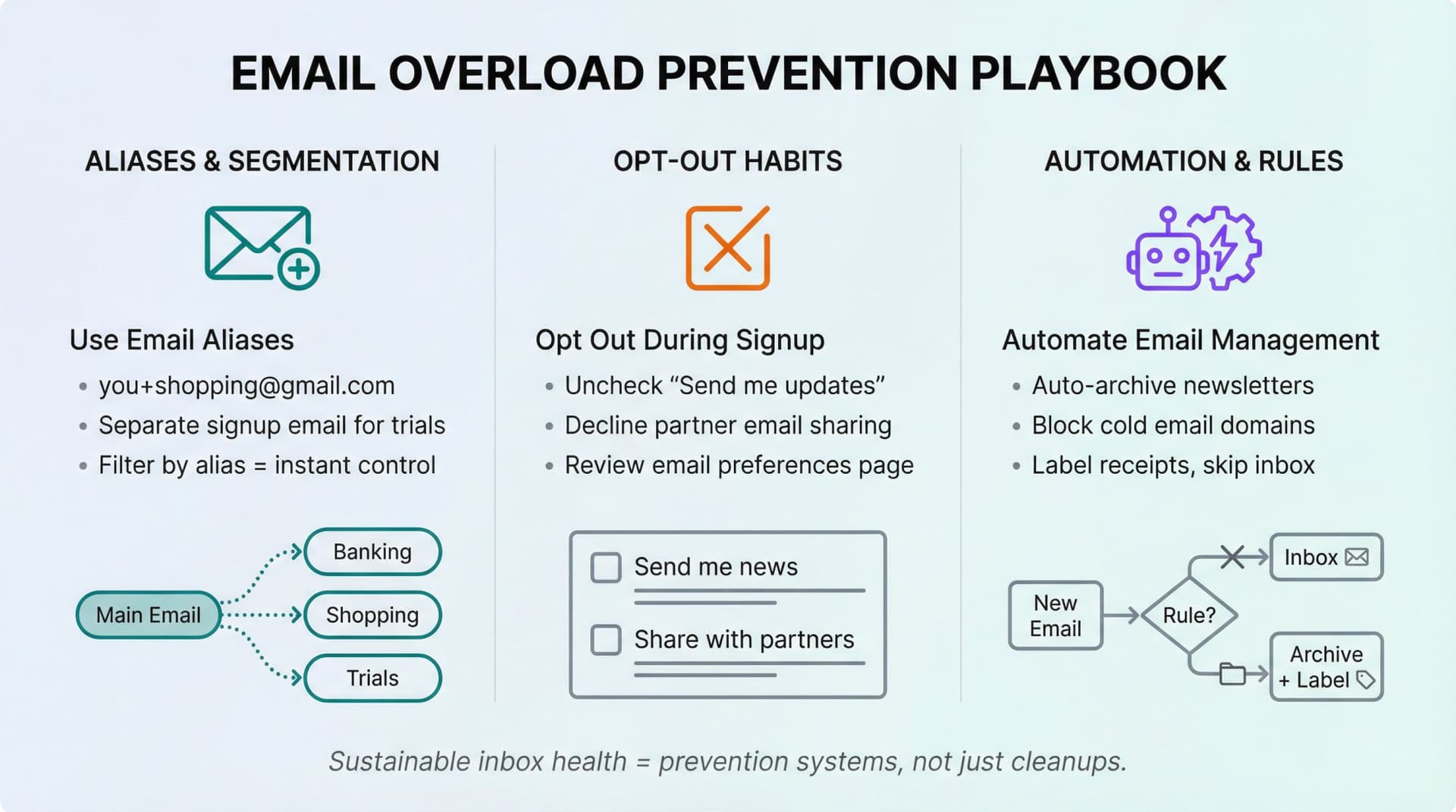
The unsubscribe blast is only half the battle. The other half is changing the conditions that created the mess. Think of it as fixing your email "diet," not just crash dieting.
How to Use Email Aliases to Control Inbox Clutter
Gmail's + aliases are a powerful tool here. Use you+shopping@gmail.com, you+newsletters@gmail.com, and similar variations, then create filters that auto-label and auto-archive these categories. You can also keep a completely separate signup email—one "real" address for banking and identity, another you use freely for downloads, free trials, and everything else. This makes it trivial to nuke or silence an entire channel of junk by filtering on that alias.
How to Opt Out of Marketing Emails During Signup
Basic but underrated: whenever you sign up for something, uncheck "Send me news and updates" and "Share my email with partners." For B2B tools, actively look for the "email preferences" page and shut down everything unnecessary.
How to Automate Email Management to Save Time
Once you've done your big cleanup, use Inbox Zero or your provider's rules to auto-archive newsletters, auto-label receipts and move them out of the inbox, and block cold email domains you never want to see again. You can also use our Inbox Zero Tabs for Gmail extension to keep To Reply and Awaiting Reply in front of you while newsletters and promos stay in their own tabs.
Over time, this turns "unsubscribe hell" into a steady, low-maintenance system.
30-60 Minute Email Cleanup Plan (No Unroll.Me)
Here's a concrete, do-this-today plan.
If You're on Gmail
Start by running Manage Subscriptions (Gmail web: More then Manage subscriptions) and unsubscribing from the obvious junk at the top. Next, nuke old marketing with label:^unsub—search for it, select all conversations, and Delete or Archive. Then create soft-unsubscribe filters for senders you "kind of like" by creating filters to skip the inbox and label them as Newsletters.
For a more powerful approach, connect Inbox Zero and let our Bulk Email Unsubscriber show you real reading stats per sender. Batch Unsubscribe, Auto-Archive, or Approve in minutes. Turn on cold email blocking and basic AI rules. Finally, install Inbox Zero Tabs for Gmail and create tabs for To Reply, Awaiting Reply, Newsletters, and Receipts.
If You're on Outlook.com
Go to Settings, then Mail, then Subscriptions. Unsubscribe or Block noisy senders from there. Create rules to move newsletters to a subfolder and mark as read. If volume is extreme, layer in a third-party tool that supports Outlook (like Inbox Zero).
If You're on Yahoo Mail
Use right-click then Unsubscribe and the Subscriptions view for legitimate lists. Use Spam and Block on anything sketchy. For true mass unsubscribe, consider a reputable cleaner and double-check privacy terms.
If You're on Apple Mail / iCloud
Use the Unsubscribe banner only on lists you remember opting into. Mark the rest as Junk. Adjust notification settings on important services directly.
Why This Guide Is Different
Most articles on this topic either provide hand-wavy advice like "click unsubscribe at the bottom of emails" or they're just lists of "Top 10 Unroll.Me alternatives" with affiliate links.
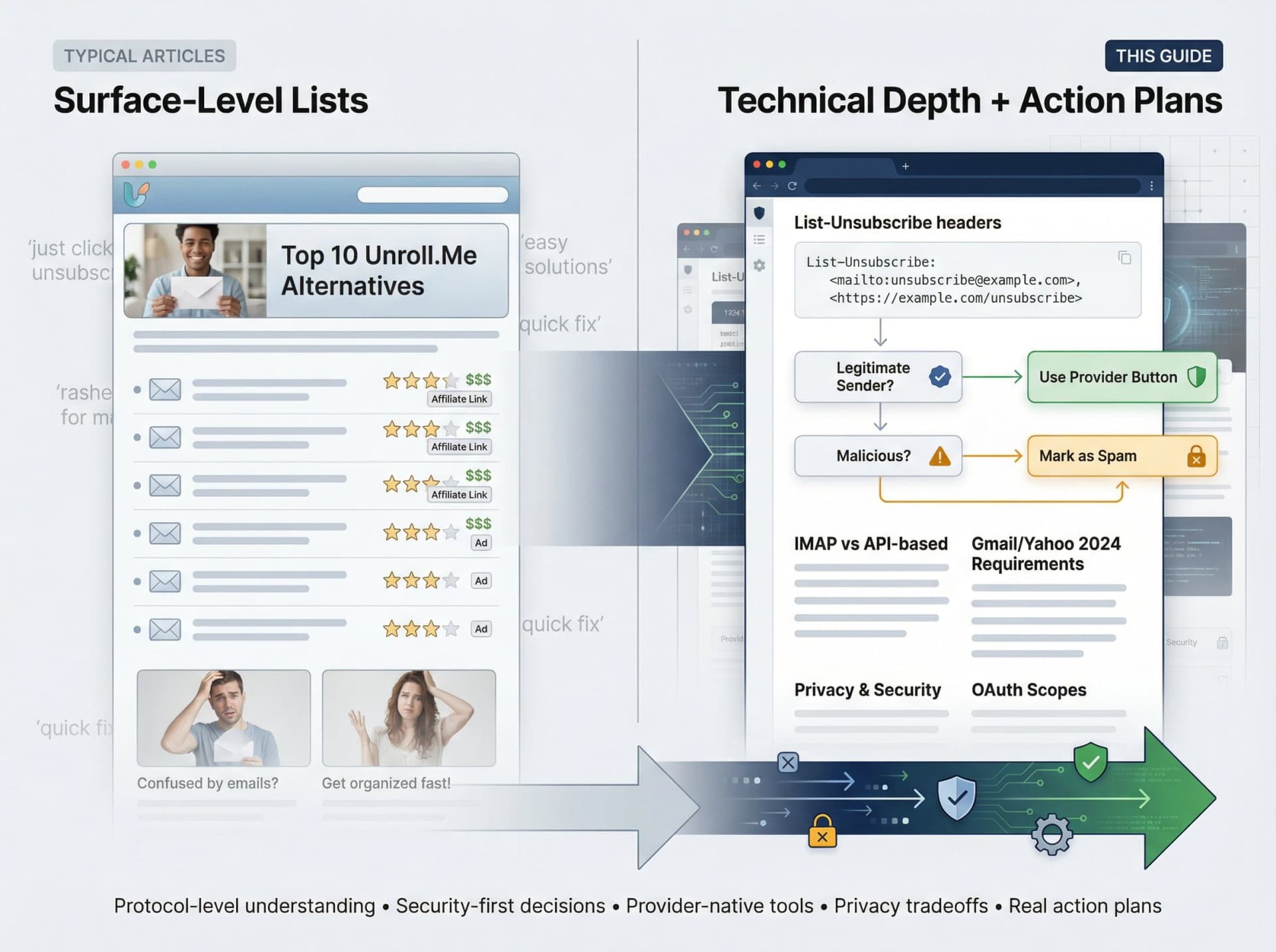
You now understand how unsubscribe works at the protocol and provider level (List-Unsubscribe headers, Gmail/Yahoo 2024 requirements), why not all unsubscribe links are equal and when using them is a genuine security risk, and how to use Gmail's 2025 Manage Subscriptions view and the hidden label:^unsub label to get Unroll.Me-level cleanup without leaving Gmail. You also know how Outlook, Yahoo, Apple Mail, and iCloud each handle subscriptions and where they fall short, along with the tradeoffs between IMAP-based cleaners and API-based assistants like Inbox Zero, including concrete privacy and security differences.
You have a realistic action plan that fits into an hour.
Relay.app Is Shutting Down: Deadlines, Data Export, and Alternatives
Relay.app is shutting down in 2026. See the deadlines for free and paid users, what to export, and which alternatives fit your email and automation workflows.
2026-07-16T18:46:02Z
Best AI Email Assistants in 2026 (Tested)
The best AI email assistants in 2026, tested and compared. Honest pros, cons, and pricing for Inbox Zero, Superhuman, Fyxer, Shortwave, Lindy, Missive, SaneBox, Serif, Perplexity, Gemini in Gmail, and Microsoft Copilot, with picks by use case.
2026-07-05T08:00:00Z

Top 16 Email Management Software of 2026
Discover the top 16 email management software of 2025 designed to boost productivity and simplify your inbox.
2026-06-24T09:00:00Z
7 Best Fyxer Alternatives in 2026
The best Fyxer.ai alternatives in 2026, compared. AI email assistants, team inboxes, and inbox cleaners, with honest notes on price, features, and who each one is for.
2026-06-01T08:00:00.000Z