Gmail Attachment Size Limits & Workarounds (2026)
Stuck at Gmail's 25 MB limit? Discover 5 proven workarounds for sending large files in 2026. Drive links, compression, and smart solutions.

You're about to send an important client presentation. You've spent hours perfecting it. You hit "Send" and Gmail stops you cold: "Attachment too large."
It's frustrating, especially when we're living in an era of 4K video streaming and terabyte cloud drives. But Gmail's 25 MB attachment limit isn't going away, and understanding exactly how it works (plus the actually effective workarounds) will save you from last-minute scrambles and awkward "sorry, can you resend that?" emails.
This guide covers everything: Gmail's real limits in 2026, why they exist, what counts toward them, and the five best ways to send large files without the drama. You'll also learn how to manage attachment storage so your inbox doesn't turn into a digital landfill. If you're looking for broader email management strategies, this guide pairs well with our comprehensive approach to keeping your inbox under control.
Last verified: January 17, 2026
URL: Gmail interface (https://mail.google.com - authentication required)
Location: Hero section (replaces image-01-hero-attachment-error-1768681271883.png)
Intent: Show actual Gmail compose window with "Attachment size limit exceeded" error message
Instructions: See clients/Inbox Zero/blogs/gmail-attachment-size-limits-workarounds-2026/web-screenshots/captures/SC-03.md for detailed manual capture instructions
Priority: HIGH - Hero section image
Estimated time: 10-15 minutes
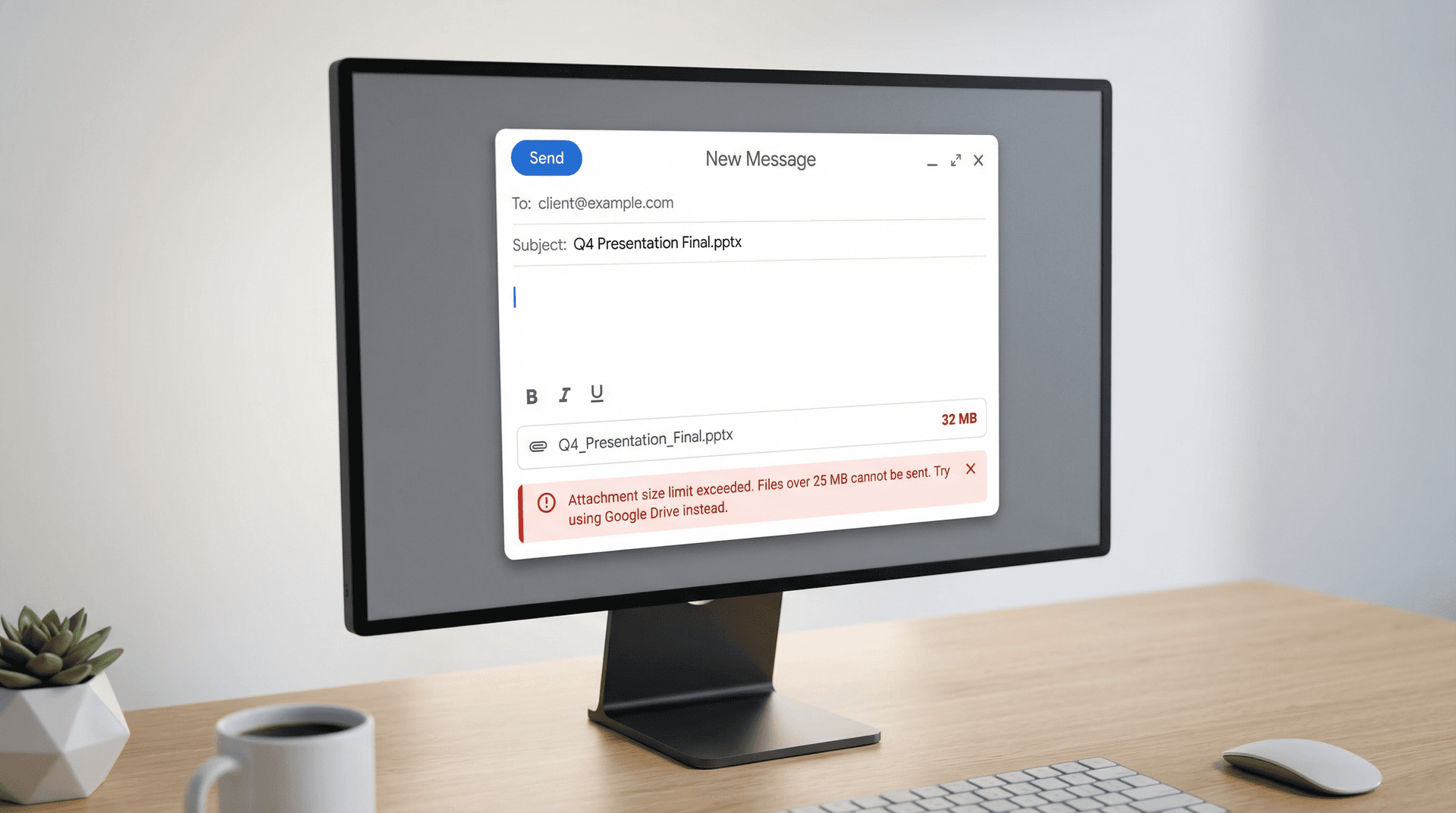
What Is Gmail's Attachment Size Limit? (2026 Update)
Let's start with the actual numbers. Gmail's limits haven't changed much since 2017 (when Google doubled the receiving limit to 50 MB), and they're unlikely to change anytime soon. Here's what you're working with:
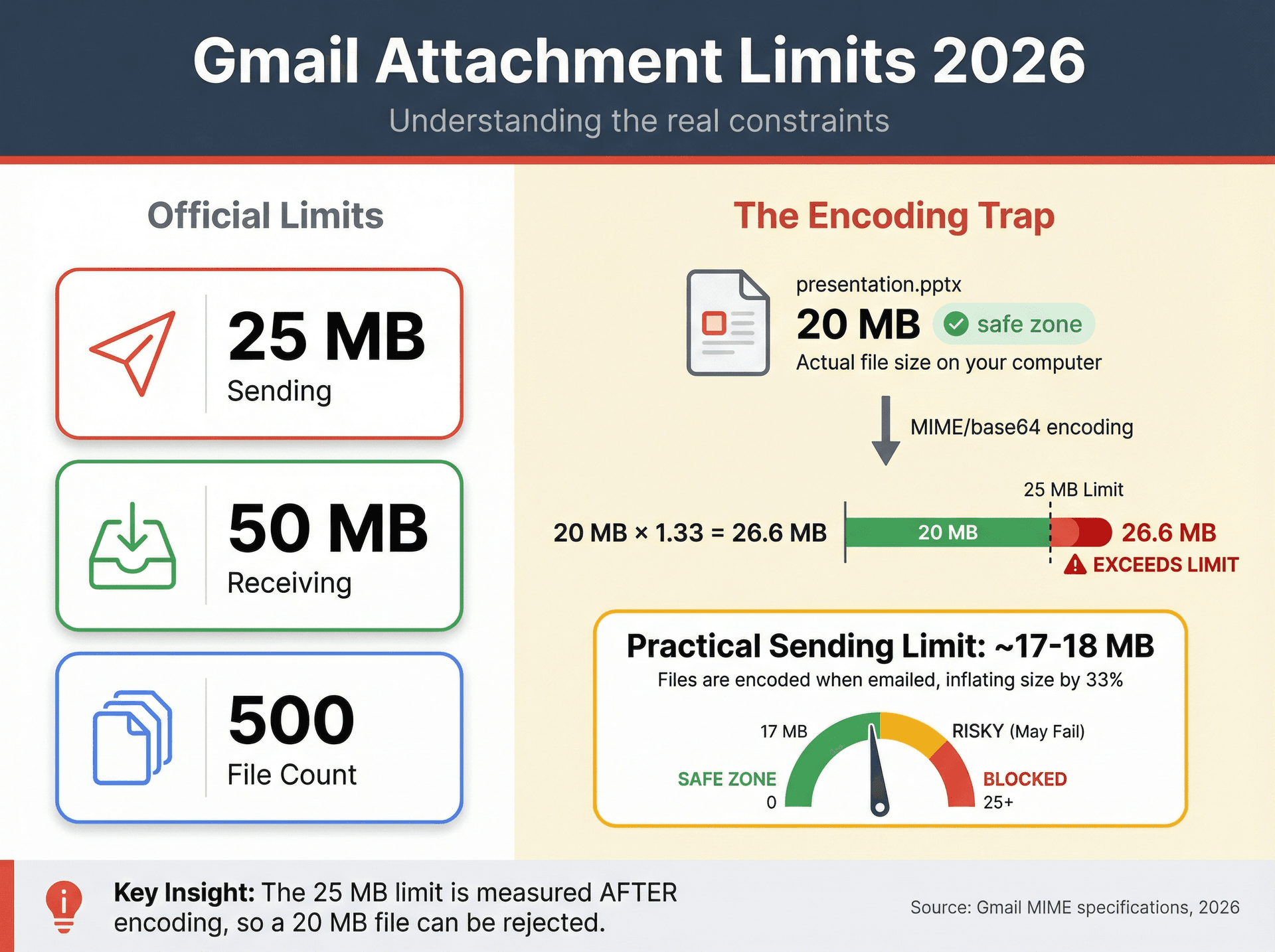
| Limit Type | Size | What It Means |
|---|---|---|
| Sending | 25 MB | Total size of all attachments you can send in one email |
| Receiving | 50 MB | Maximum size Gmail will accept from incoming emails |
| Attachment Count | 500 files | Number of separate attachments per email (separate from size) |
The Encoding Trap Nobody Tells You About
Here's where it gets tricky. That 25 MB limit isn't quite 25 MB of actual files.
When you attach a file to an email, it gets encoded in a format called MIME/base64. This encoding inflates the file size by roughly 33%, which means a file that's 20 MB on your computer becomes about 27 MB when emailed. So the practical limit is closer to 17-18 MB of actual file content, not 25 MB. If you're attaching files that total 20 MB, you might hit the limit unexpectedly.
These Limits Apply to Everyone
You can't pay your way out of this one. Google Workspace business accounts have the exact same 25 MB send restriction as free Gmail. Google wants everyone using Drive for large files (it's better for their infrastructure and honestly better for you too, as we'll cover).
And even though Gmail can receive 50 MB, many corporate gateways and other providers cap attachments at 20-25 MB. So just because it works for Gmail doesn't mean it'll work for your client's Outlook account or their company's email security filter. Your safest default for anything big? A cloud link, not an attachment.
Why Does Gmail Have a 25 MB Attachment Limit?
Email wasn't designed to move giant files around. It was built to send messages. Understanding these technical constraints helps you make smarter decisions about email management overall.
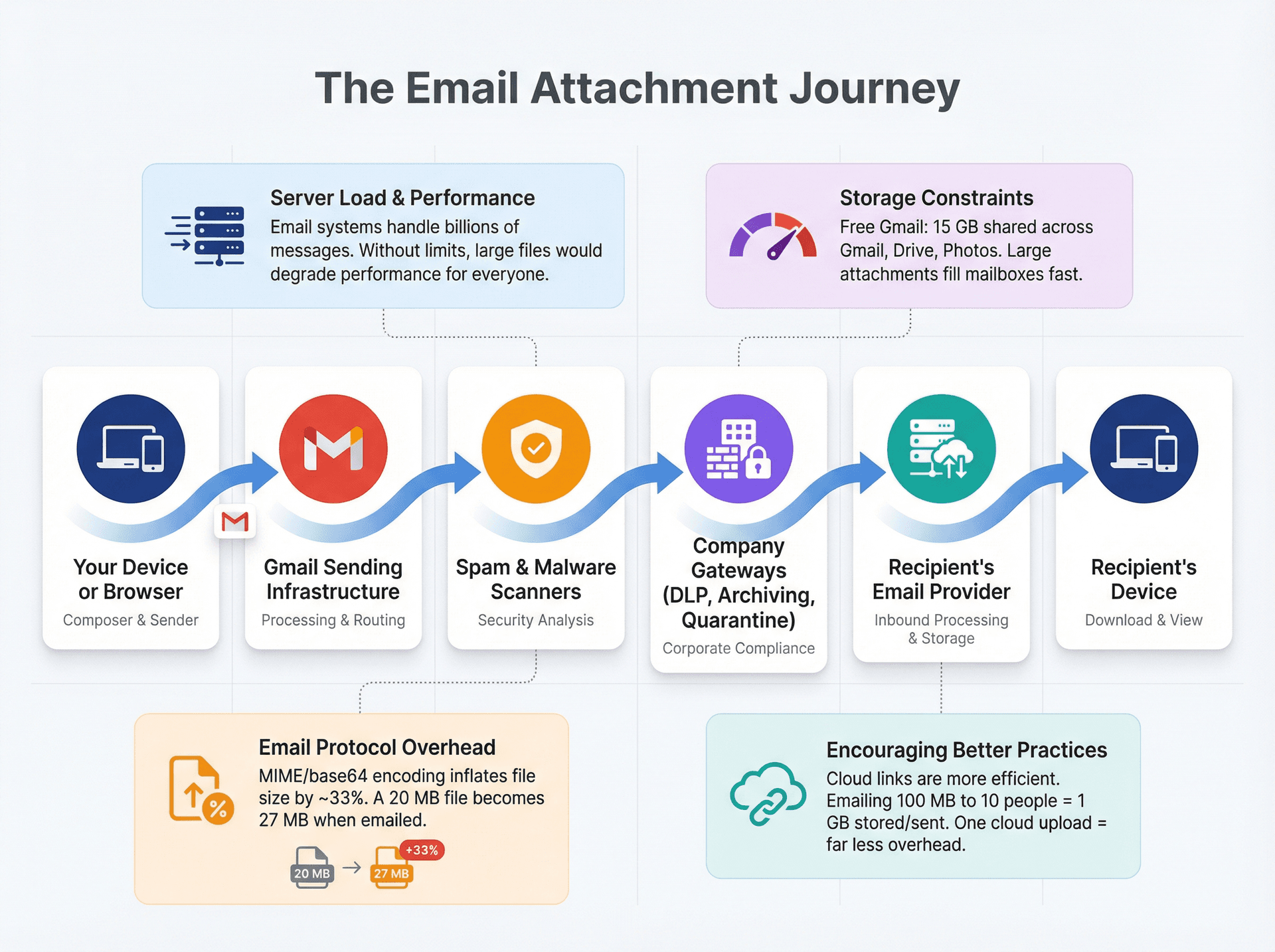
When you send an attachment, your email doesn't travel in a straight line from you to the recipient. It typically bounces through your device or browser, Gmail's sending infrastructure, spam and malware scanners, optional company gateways (data loss prevention, archiving, quarantine), the recipient's provider, and finally the recipient's device. Every hop along this chain has to handle your email, and large attachments create real problems at each stage.
Email systems handle billions of messages daily. Without size limits, a few users sending gigantic files could hog server bandwidth and storage, degrading performance for everyone. Limits keep email infrastructure stable and fast. On top of that, every attachment you send or receive lives on a server and counts against your storage. Free Gmail accounts come with 15 GB shared across Gmail, Drive, and Photos. If people emailed 500 MB videos around, mailboxes would fill up extremely fast. We've written extensively about how much Gmail storage costs if you need more than the free tier.
There's also the protocol overhead to consider. Email wasn't originally meant for binary file transfer. That MIME encoding we mentioned inflates file sizes by around 33%, and the 25 MB limit accounts for this. Without it, attempting to send huge files via traditional email protocols would fail or get corrupted. Google (and most providers) also want you to use cloud links for large files because it's more efficient. If you email a 100 MB video to 10 people, that's 1 GB of total data the mail system stores and sends. Upload it once to a cloud link? Far less overhead.
Gmail's attachment cap isn't there to frustrate you. It's to keep email efficient and push you toward more suitable tools for file sharing.
What Counts Toward the 25 MB Limit?
Gmail's help documentation frames it as "total attachment size." In practice, this includes the sum of all attached files, any large inline images you dragged into the compose window (which can become part of the message), and the email body and formatting (usually negligible).
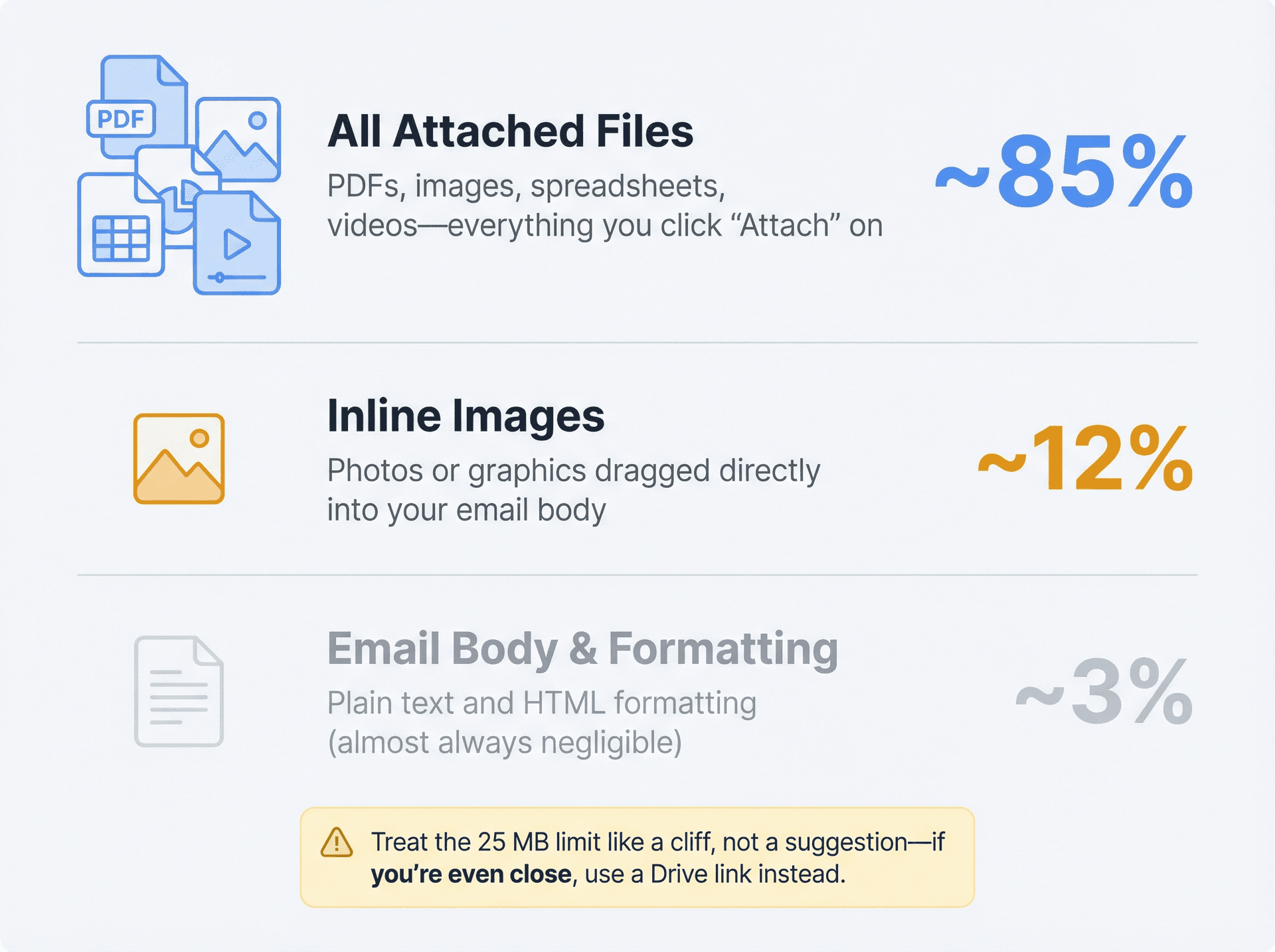
When you're close to the limit, treat it like a cliff, not a suggestion. If your file is even remotely near the boundary, skip the drama and send a Drive link instead.
How to Send Large Files Through Gmail (Best Methods)
Just because Gmail won't let you attach that 100 MB presentation or 1 GB video directly doesn't mean you can't send it. Here are the tried-and-true workarounds, ranked by "least likely to bite you later."
How to Send Large Files Using Google Drive Links
This is Gmail's intended path for large files and the easiest way to send them.
How Gmail Does It Automatically
If your attachment total exceeds 25 MB, Gmail will upload it to your Drive and insert a Drive link automatically. You don't have to do anything special.
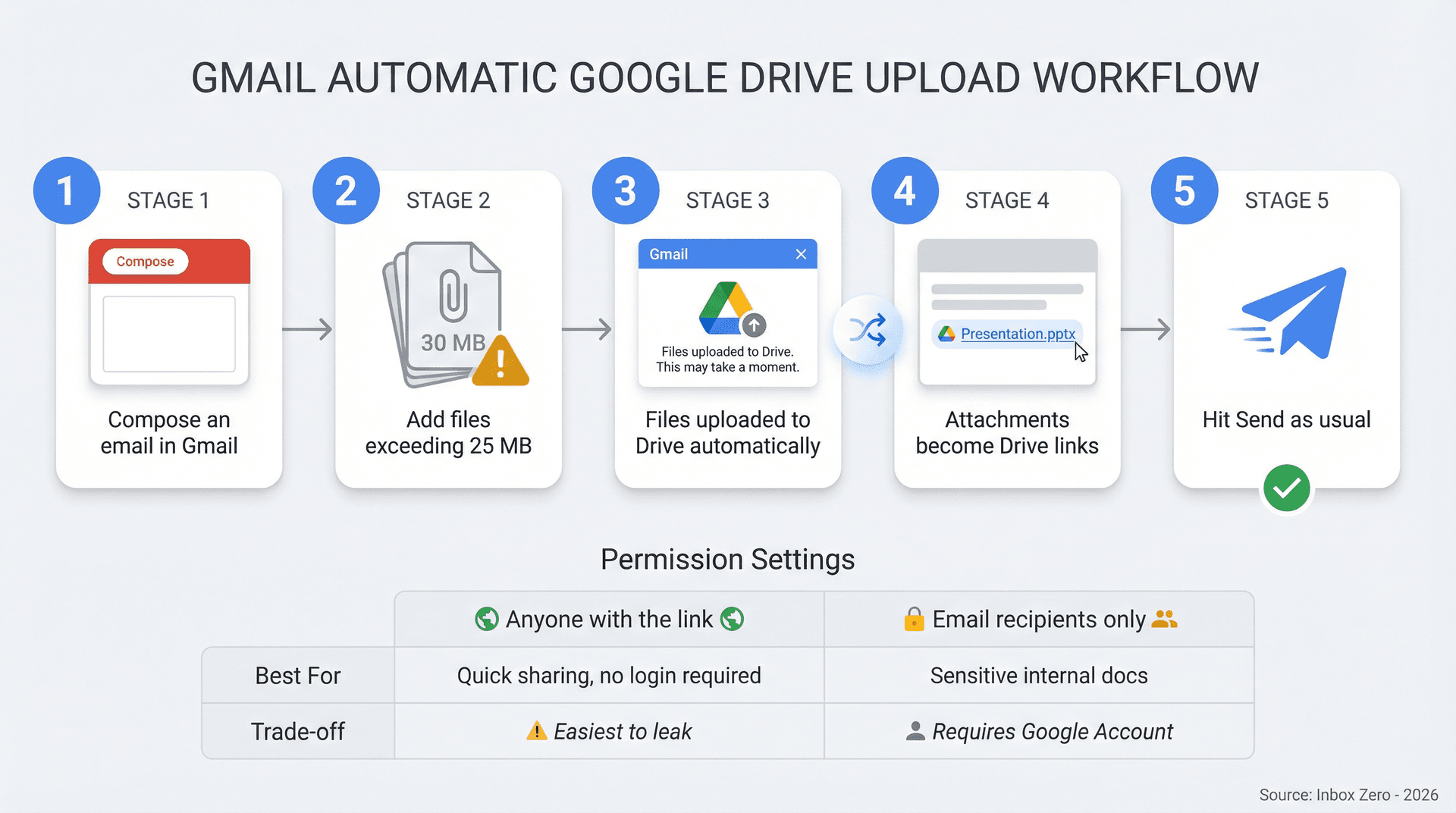
Here's how it works: compose an email in Gmail's web interface, add files that exceed 25 MB in total, and Gmail pops up a notice and automatically uploads those files to your Google Drive. The attachments turn into Drive links in your email body, and you hit Send as usual. On mobile Gmail apps, a similar process happens where the file uploads to Drive and gets linked.
URL: Gmail interface (https://mail.google.com - authentication required)
Location: Drive upload workflow section (replaces image-05-drive-upload-workflow-1768681318667.png)
Intent: Show Gmail automatically converting large attachment to Google Drive link
Instructions: See clients/Inbox Zero/blogs/gmail-attachment-size-limits-workarounds-2026/web-screenshots/captures/SC-04.md for detailed manual capture instructions
Priority: HIGH - Critical workflow demonstration
Estimated time: 15-20 minutes
Manual Drive Insertion (More Control, Fewer Surprises)
If you want more control over where the file lives in your Drive or how it's shared, compose a new email in Gmail, click the Insert files using Drive button (the triangular Drive logo), pick your file(s), choose "Insert as Drive link" when prompted, and adjust sharing settings before sending.
Alternatively, upload the file to Google Drive first (especially if you want it in a specific folder), then click the Drive icon in Gmail and select it from your Drive. You can organize these files using Gmail labels to keep track of what you've shared.
The Part Most People Mess Up: Permissions
When you insert a Drive file, Gmail checks whether recipients can access it. If not, Gmail will prompt you to change sharing settings before sending. You'll usually choose one of these:
| Permission Setting | Best For | Considerations |
|---|---|---|
| "Anyone with the link" | Quick sharing, no login required | Recipients don't need Google Account. Forwarded emails give same permissions. Easiest option, but also easiest to leak. |
| "Share only with email recipients" | Sensitive internal docs | Good for confidential content. Can set as Viewer/Commenter/Editor. Recipients need Google Account. May fail with non-Google addresses. |
Work/school accounts warning: your admin may restrict who you can share Drive files with. Check your organization's policies.
A Simple Email Template You Can Copy-Paste
Subject: [Your file name]
Body: Here's the file: [Drive link]. If you get an access error, let me know and I'll switch the sharing setting.
That one sentence prevents 80% of the "I can't open it" back-and-forth.
Benefits and Things to Watch Out For
Google Drive is fully supported by Gmail, so the experience is smooth and recipients don't need special steps beyond clicking the link. Drive supports individual files up to 5 TB, and the only real constraints are your Drive storage quota and upload bandwidth.
There are a couple of things to watch out for, though. When Gmail auto-uploads attachments, it dumps them in your Drive's main directory by default. If you do this often, your Drive gets cluttered, so either organize periodically or upload to a chosen folder first and then attach from Drive. Large files in Drive also count against your Google storage (the same 15 GB free allotment). After sending, you might delete the file to free space, but be careful: deleting it breaks the link for your recipient if they haven't retrieved it yet.
Overall, using Google Drive is Gmail's intended solution to the attachment limit. It's straightforward and scales way beyond 25 MB.
How to Compress Files to Reduce Size (ZIP Method)
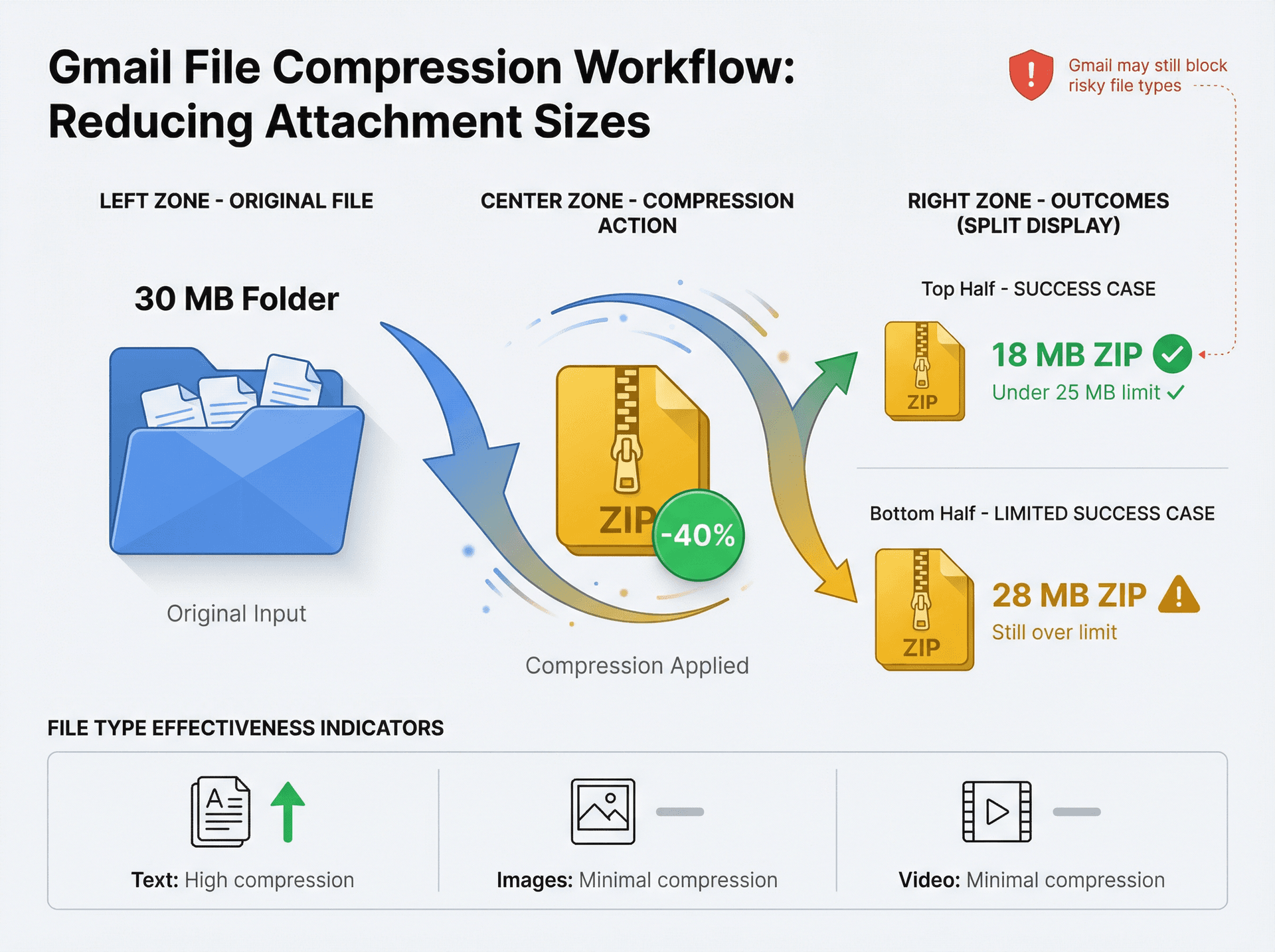
Sometimes your file is just slightly over the limit. A 30 MB PDF or a folder of photos totaling 40 MB. In these cases, compressing into a .zip archive might bring it under 25 MB.
Compression works when the file contains repetitive data:
| File Type | Compression Effective? | Why |
|---|---|---|
| Large text docs, raw logs | Yes | Repetitive patterns compress well |
| Uncompressed images, folders with many small files | Yes | Can achieve significant savings |
| JPEG/PNG images | Minimal | Already optimized |
| MP4 videos | Minimal | Already compressed |
| Most PDFs with compressed images | Minimal | Limited gains |
On Windows, select the file or folder, right-click, and choose Send to, then Compressed (zipped) folder. On Mac, right-click (or Control-click) the file or folder and choose Compress. On Linux, use your file manager's compress option or the zip command in terminal. After zipping, check the .zip file size. If it's now below 25 MB, attach that ZIP to your Gmail and send as normal.
How much size can you save? It depends on the file type. Text-heavy files and certain images can shrink a lot. Typically, zipping reduces file size by around 30-40% on average, so a 30 MB folder might compress to around 18 MB (success), but a 30 MB video might only compress to 28 MB (still too big).
You can also try compressing into formats like 7z or RAR, which sometimes yield better compression than ZIP.
One important security catch: Gmail blocks certain risky file types (like .exe files) even inside archives. Gmail can also block password-protected archives. ZIP is not a magic trick for smuggling anything past Gmail's filters. If Gmail detects prohibited file types inside the ZIP, it may still block it.
How to Split Large Files Into Multiple Parts
If someone insists on "real attachments" and you cannot use Drive, you can split the file into multiple chunks that each meet Gmail's size limit. This is old-school, but it works.
Use tools like 7-Zip, WinRAR, or the Unix split command to break a big file into smaller pieces (for example, 10 MB chunks). Programs like 7-Zip let you create multi-part compressed archives with a size limit per part. You then attach each part to a separate email, and the recipient downloads all parts and reassembles them using the same tool or a simple merge command.
This method is mostly a last resort for scenarios where you absolutely must deliver via email and can't use cloud storage (for example, corporate policy or an extremely sensitive file you prefer not to upload anywhere). It's clunky, error-prone, and often triggers security tooling. The recipient has to download all parts and put them back together, and there's more room for error with missing parts or mismatched versions. Only use it when you have a strong reason, and if you go this route, include clear instructions for the recipient on how to join the files.
File-Sharing Services for Large Attachments (Dropbox, WeTransfer, OneDrive)
Sometimes Drive is blocked by policy, or your recipient refuses Drive links. In that case, a dedicated file-sharing service can be better than fighting email limits.
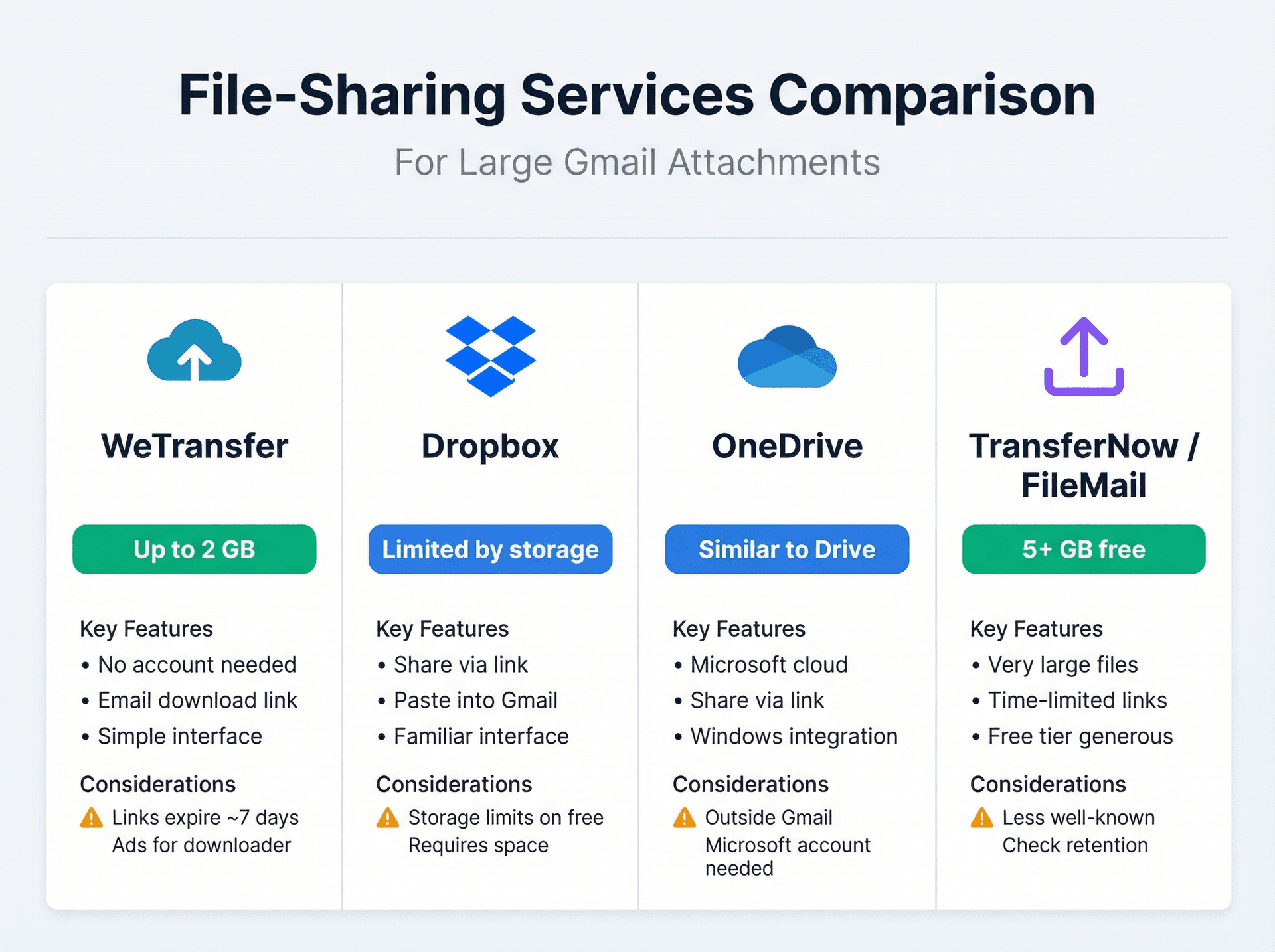
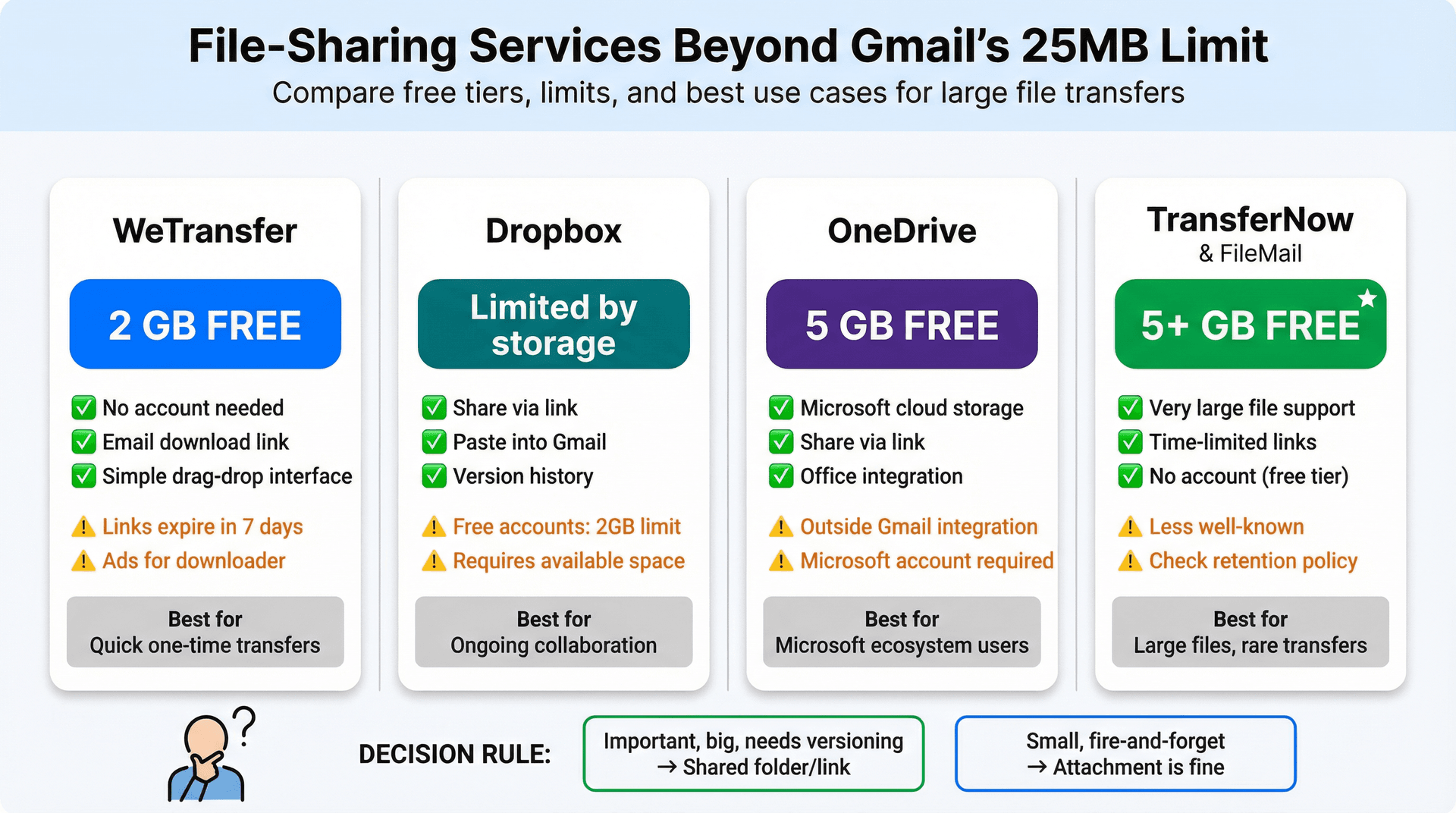
| Service | Free Limit | Key Features | Considerations |
|---|---|---|---|
| WeTransfer | Up to 2 GB | No account needed. Email download link to recipient. Simple interface. | Free links expire after ~7 days. Ads for downloader. |
| Dropbox | Limited by storage | Share feature creates link. Paste into Gmail. | Free accounts have storage limits. Requires available space. |
| OneDrive | Similar to Drive | Microsoft's cloud storage. Share via link. | Outside Gmail integration. Requires Microsoft account. |
| TransferNow, FileMail | 5+ GB free | Very large file support. Time-limited links. | Less well-known. Check retention policies. |
Using these services is straightforward: go to the service's website, upload your file (often drag-and-drop), and get a shareable link. Compose your Gmail and include that link. If you're using a free version, add a note like "Here's the file via WeTransfer; it'll expire in 7 days," since many free services have expiration dates.
The upside is that you don't have to worry about the 25 MB limit at all. These services are purpose-built for large files, often allowing transfers in the gigabytes, and they spare the recipient from dealing with multi-part files or complex steps. Many are free for moderate use.
The downside is that you're trusting a third-party with your file, so make sure it's reputable, especially for sensitive content. Many free services have their own limits (WeTransfer's 2 GB cap, file deletion after a week or two, ads for the downloader). Not all file transfer sites encrypt files, so for very confidential data, you might encrypt the file yourself with a password-protected ZIP before uploading. Some enterprise environments block common file-sharing sites.
A good decision rule: if the file is important, big, or needs versioning, use a shared folder or link. If the file is small and "fire-and-forget," an attachment is fine. For business use, you might prefer more controlled solutions like corporate Dropbox or OneDrive.
Apple Mail Drop, Outlook, and Other Specialized Tools
Beyond the general methods above, there are some special-case workarounds worth knowing about.
If you use Apple's Mail app with a Gmail account, Apple has a feature called Mail Drop. When you try to send an attachment over around 20 MB from the Mail app, it offers to automatically upload it to iCloud and send it as a link. Mail Drop can handle up to 5 GB per file, and the recipient gets a download link that expires after 30 days. This works even though your email is Gmail, because the sending is handled by the Mail app and iCloud side. The file counts against your iCloud storage.
If you're sending email via Microsoft Outlook (desktop or Outlook.com), you might get prompts to use OneDrive for large attachments. In a Gmail context, you wouldn't have that integration on the Gmail web, but if you have a desktop Outlook client configured for Gmail via IMAP/SMTP, Outlook might try to help with large files via OneDrive if you have a Microsoft account configured.
Some services, like GMass (a mail merge tool), mention slightly higher limits by leveraging the Gmail API. For instance, GMass notes a 35 MB size cap when using the Gmail API, which equates to roughly 17-18 MB of actual file content after encoding. These are edge scenarios mostly for sending mass emails with attachments, and for the average user, they don't really extend what you can send to a single person.
Common Gmail Attachment Errors and How to Fix Them
URL: Gmail interface (https://mail.google.com - authentication required)
Location: Common Gmail Attachment Errors section (replaces image-09-gmail-error-states-1768681370880.png)
Intent: Show collection of actual Gmail error messages users encounter
Instructions: See clients/Inbox Zero/blogs/gmail-attachment-size-limits-workarounds-2026/web-screenshots/captures/SC-05.md for detailed manual capture instructions
Priority: MEDIUM - Helpful error state documentation
Estimated time: 30-45 minutes (multiple error states to capture)
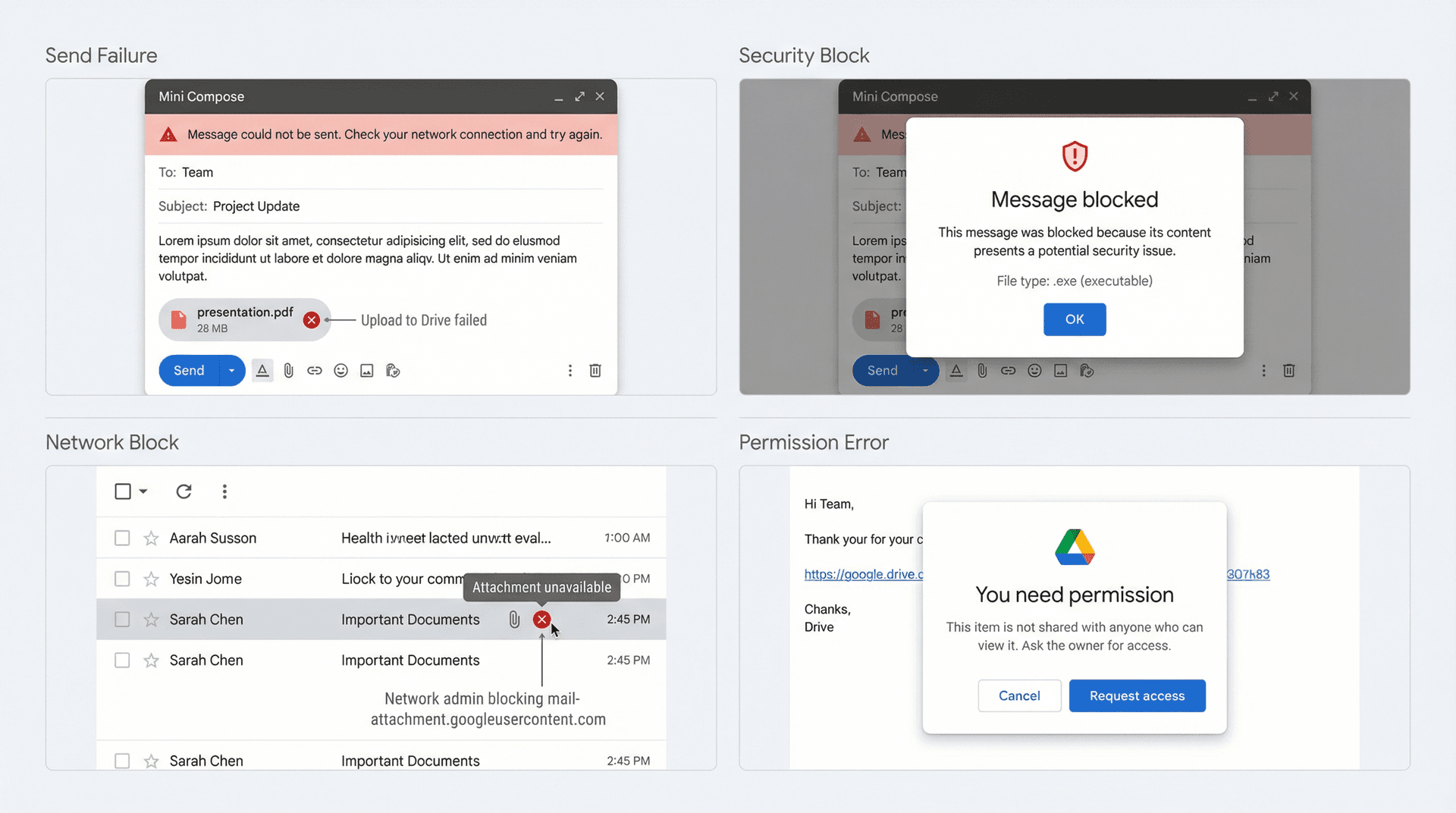
"Couldn't Send Message" After Attaching a Big File
This often means the upload to Drive didn't complete, usually because of a slow internet connection, insufficient Google storage space, or a browser/app issue. Gmail's help documentation notes that when files don't upload to Drive, you may need to remove or re-add the attachment.
Also worth noting: if your Google storage is full, Gmail can block sending and receiving attachments. Attachments count toward storage shared across Drive, Photos, and Gmail. If you're consistently running out of Gmail storage space, it might be time to clean up old attachments or upgrade your plan.
"This Message Was Blocked Because Its Content Presents a Potential Security Issue"
This is usually file-type or malware-related, not size-related. Gmail blocks many executable file types even inside compressed archives, along with documents with malicious macros and password-protected archives. The clean workaround is exactly what Google recommends: upload to Drive and share the file from there.
"The Attachment Is Unavailable" or Recipients Can't Download Attachments
Gmail notes a very specific cause here: a network admin or ISP may be blocking the domain Gmail uses to host attachments (mail-attachment.googleusercontent.com). If this happens inside a company network, the fix is usually on the IT side: allowlist that domain, or stop using attachments and switch to Drive links.
Recipient Says: "I Got the Email But I Can't Open the Drive File"
This is almost always a sharing settings issue. If you used "Share only with email recipients," recipients may be blocked if they're not using a Google Account or if the message went through a mailing list. Switch to "Anyone with the link" for low-risk files, or explicitly share to their Google Account email for sensitive docs.
How to Receive Large Files in Gmail
What if you're on the receiving end of a big attachment?
Gmail will happily receive emails up to 50 MB, but that's the hard stop. If someone tries to send you something larger, Gmail can't deliver it and they'll get a bounce message.
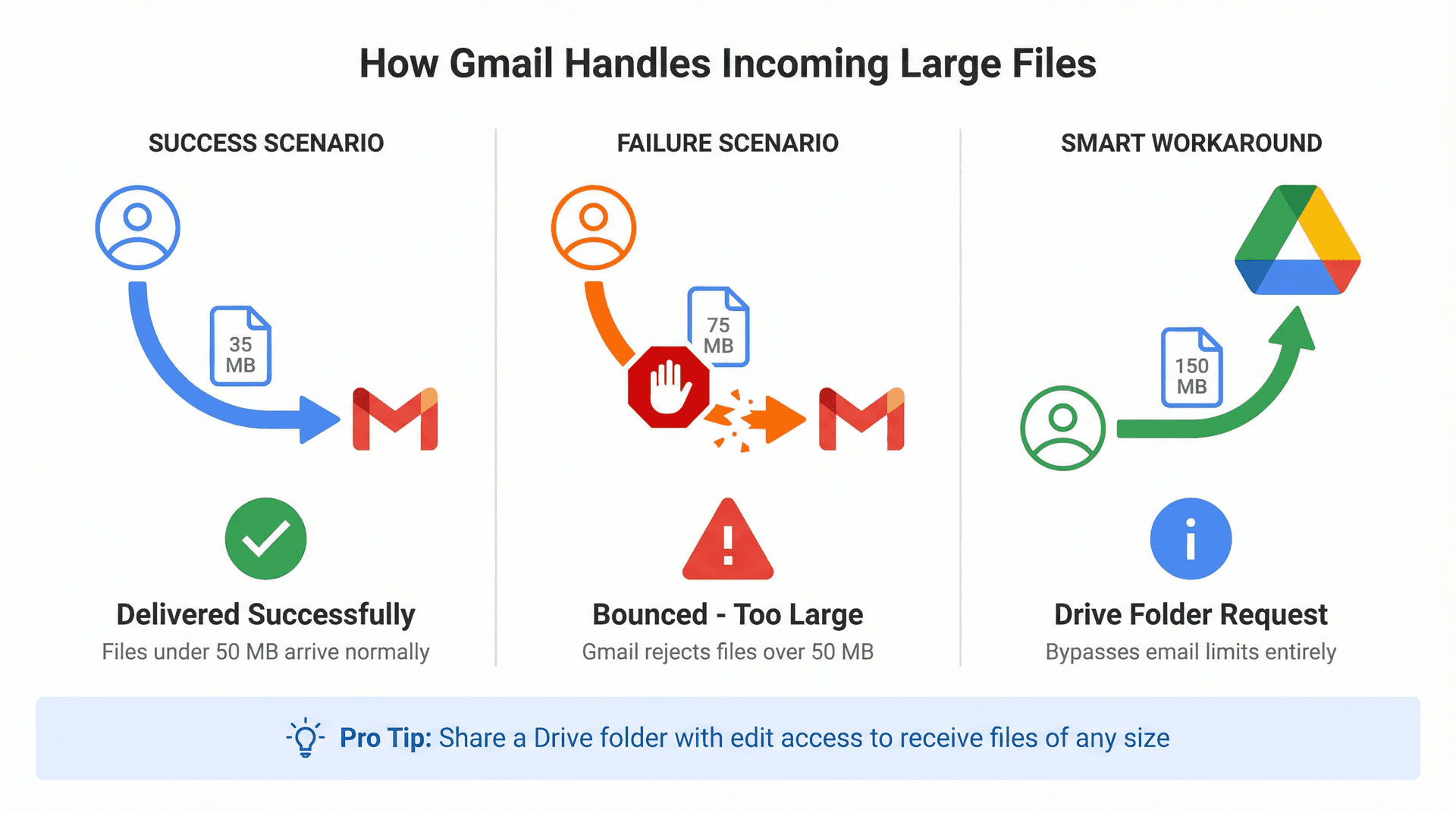
If a colleague says, "I'm trying to email you this 100 MB file and it won't go through," advise them to use a cloud link or one of the transfer services mentioned earlier. If they're also using Gmail, they might not even realize Gmail auto-converted their file to a Drive link. You can also recommend they check out our guide on managing email subscriptions to reduce the volume of large newsletter PDFs.
Gmail doesn't have a "file request" feature like some services, but you could send the person a link to a shared Google Drive folder and ask them to upload the file there. Create a folder in Drive, share it with them (with edit access), and they can drop the file in. This sidesteps email entirely.
If you know a large file is incoming, make sure you have enough Google account storage space available. A 40 MB attachment will count against your quota. If your Gmail is nearly full, the incoming message might be rejected even if it's under 50 MB because you have no space left. Google sends warnings as you approach your limit, so if you're near capacity, consider freeing up space by deleting or archiving large old emails before asking someone to email you a big file. Understanding the difference between Gmail's All Mail and Archive can help you make smarter storage decisions.
Very large attachments sometimes come as compressed archives or split files. Make sure you have the software to open these (WinZip/7-Zip for .zip or .rar, HJSplit for .001 file parts, etc.). And keep in mind that 50 MB is a sizable email. Downloading it may take time on a slow connection. If you're on mobile data or a spotty network, a cloud solution might be more reliable since many cloud services can resume interrupted downloads, whereas an email might time out.
How to Manage Gmail Attachment Storage (Stop the Buildup)
Even if your sending habits are perfect, attachments still pile up and eat into your inbox attention, performance, and storage. Those 25 MB PDFs and 10 MB photos in your email archive contribute to hitting that 15 GB limit, since Gmail shares storage with Google Drive and Google Photos. Implementing effective email inbox management practices can help prevent this buildup.
How to Find Emails With Large Attachments in Gmail
Google's storage guidance includes these extremely useful searches:
has:attachment larger:10M(attachments over 10 MB)filename:.pdf larger:5M(big PDFs)older_than:2y has:attachment(old attachments you probably don't need)
You can run these searches, save what you need, and delete the rest. This is a quick way to list all messages with hefty attachments. You might be surprised how many old newsletters or forgotten file threads are eating space.
URL: Gmail interface (https://mail.google.com - authentication required)
Location: Storage management section (replaces image-11-gmail-search-operators-1768681408578.png)
Intent: Show Gmail search interface with storage management operators in action
Instructions: See clients/Inbox Zero/blogs/gmail-attachment-size-limits-workarounds-2026/web-screenshots/captures/SC-06.md for detailed manual capture instructions
Priority: HIGH - Demonstrates key storage management feature
Estimated time: 10-15 minutes
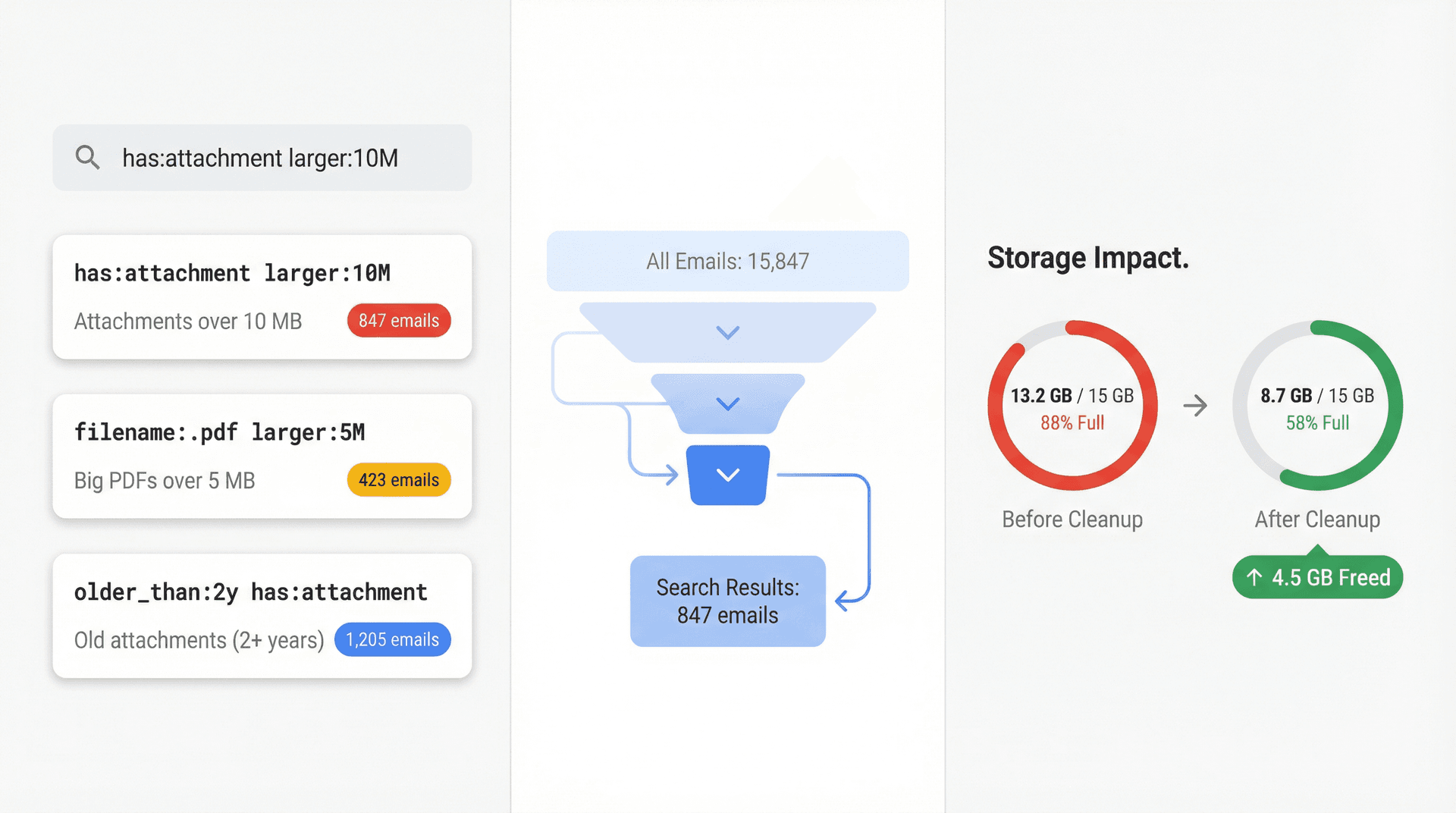
Delete anything you don't need (and empty your Trash folder) to instantly free up room. Our comprehensive guide on how to delete all emails in Gmail can walk you through bulk deletion strategies.
Leverage Google's Storage Manager
At one.google.com/storage, Google shows a breakdown of your storage usage. There's often a category for "Emails with large attachments." You can review and delete items directly from there. It's a handy visual way to tackle the biggest stuff first.
Use Inbox Zero's Tools for Attachment Management
If you want this to feel like a product feature instead of a once-a-year cleanup, Inbox Zero can help.

Inbox Zero Tabs for Gmail lets you create custom Gmail tabs powered by any Gmail search query. It's designed to match Gmail's UI and stores data locally in your browser (no tracking, no data collection).
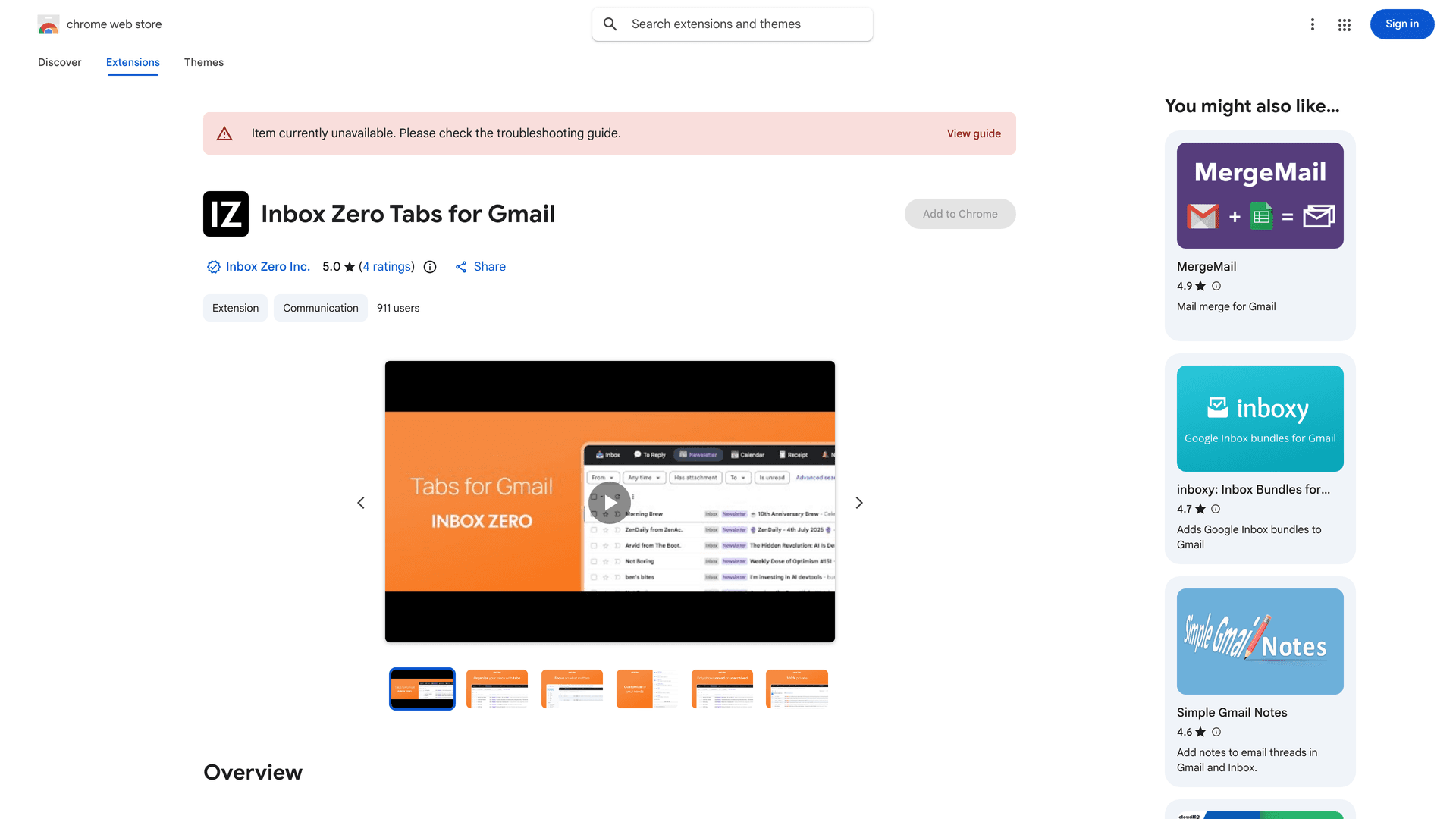
Example tabs that pair perfectly with this guide:
- Large Attachments:
in:inbox has:attachment larger:10M - Drive Links:
in:inbox has:drive - Receipts (often PDF-heavy):
in:inbox filename:pdf
The extension is 100% private and runs entirely within your browser. No data leaves your device.
If you want more Gmail search tricks, Inbox Zero also has a guide on finding emails with attachments (including Drive attachment operators like has:drive).
Inbox Zero's Email Analytics feature helps you understand your email patterns and identify opportunities to streamline your workflow. While it focuses on sender patterns and response times, it's part of a broader toolkit designed to help users keep their storage lean without much manual digging. We built this to help users maintain a cleaner, more organized inbox.
Offload Attachments
For emails you need to keep, consider downloading the attachment to your computer or cloud drive and then removing the attachment from the email. You can forward the email to yourself without the attachment, or use Google Takeout to back up large emails and then delete them.
Google doesn't offer a one-click "detach attachment" feature, unfortunately, but a workaround is to save the file, then delete the email (or use a utility that can remove attachments). This way you keep the important email text but free the storage from the attachment.
By periodically clearing out big attachments, you ensure you have room when you really need it (like when that crucial 49 MB contract comes in at month-end). Plus, your Gmail will run faster with less bloat. Our year-end email cleanup checklist includes specific strategies for finding and removing large attachments efficiently.
For Developers (Gmail API Limits)
If you're building automations or using tools that send via Gmail API, there's a separate constraint.
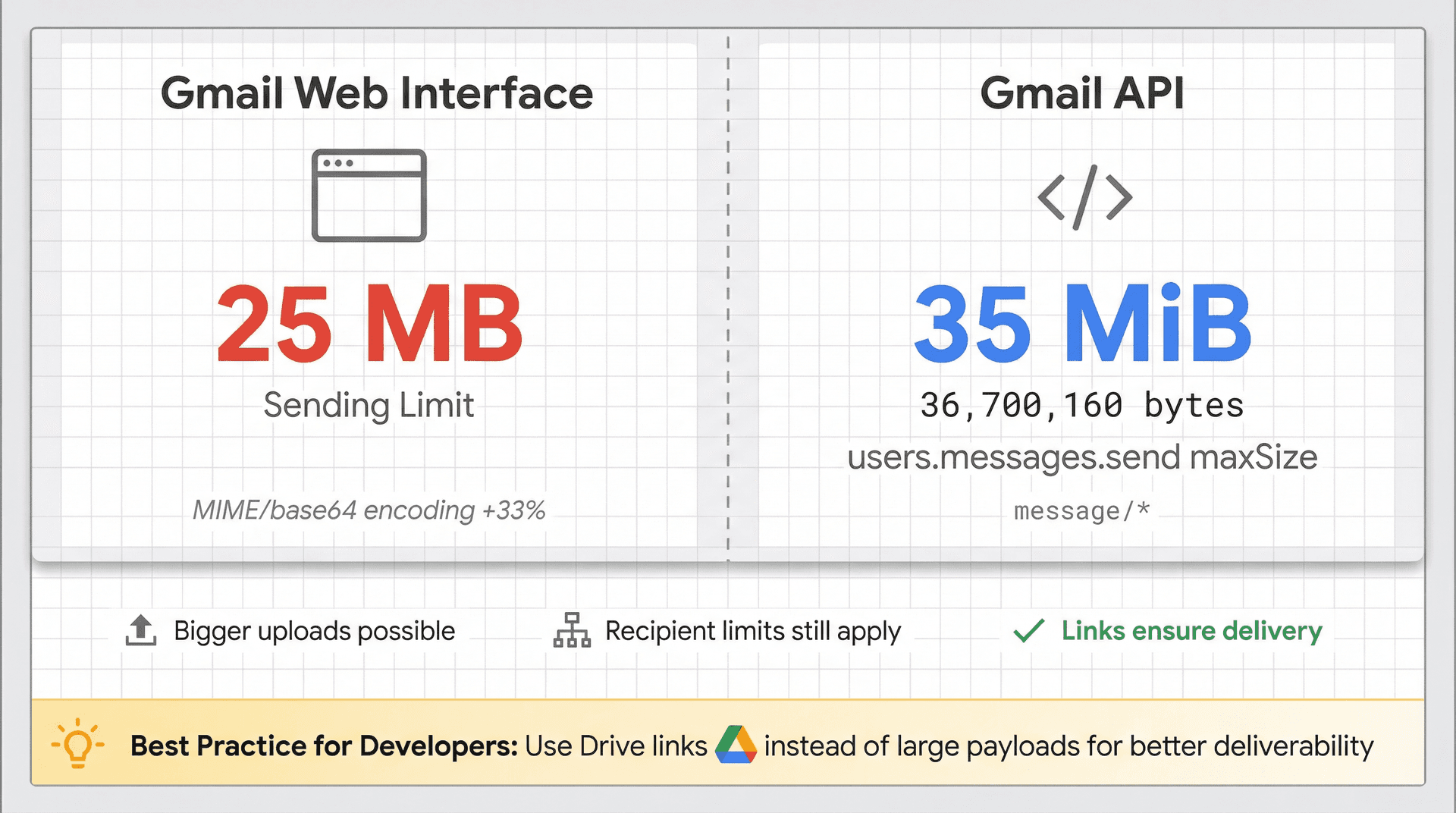
In Google's Gmail API discovery document, users.messages.send supports media upload with a maxSize of 36,700,160 bytes (about 35 MiB) and accepts message/*. This means you might be able to upload a bigger raw message than what "25 MB attachments" feels like, but your recipients and their gateways still have their own limits. For real-world deliverability, links still beat giant payloads. If your automation is sending big "reports," consider generating the report into Drive and emailing the link, not the file.
Frequently Asked Questions
Can Gmail send 50 MB attachments?
Not as a normal attachment. Gmail can receive emails up to 50 MB, but for sending, Gmail switches to Drive links when attachments exceed 25 MB.
How big can a file be if I use Google Drive instead?
Google Drive supports "all other files" up to 5 TB per file (with some caveats for Google Docs formats).
Why does Gmail sometimes say an attachment is blocked even inside a ZIP?
Gmail can block certain risky file types even when compressed or inside archives, and it can block password-protected archives.
I use a work/school Gmail. Why can't I share the Drive link externally?
Admins can restrict Drive sharing behavior for organizational accounts. Gmail explicitly warns that admins may restrict which files you can share and who you can share them with.
Email Big Files Without the Bounces
Gmail's 25 MB attachment limit might feel like a relic, but it's a fact of life in 2026. The good news? You're not truly limited to 25 MB. You just have to take an extra step or two to send those larger files.
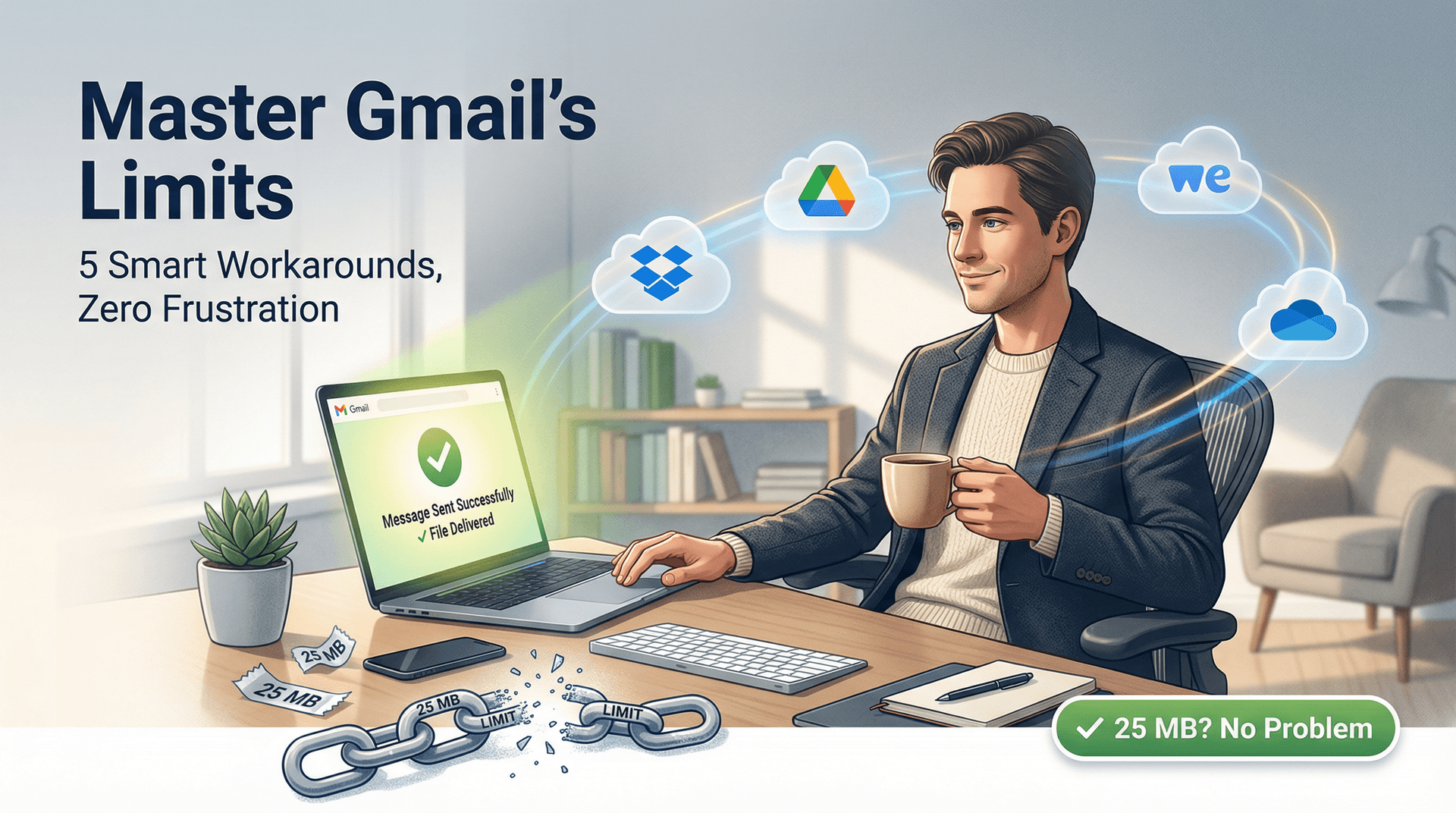
Gmail will automatically use Google Drive for files over 25 MB, and embracing that feature is the smoothest path forward since it lets you send very large files with minimal effort. When planning for recipients, especially non-Gmail users or those who aren't tech-savvy, a simple link (Drive, Dropbox, WeTransfer) with clear instructions is often better than multi-part zips or requiring special software. Always choose the method that's easiest for your recipient to handle.
Security matters too. Direct email attachments are only as secure as email itself (which is not very, unless you use encryption). A Google Drive link is private to recipients when you set it to require sign-in, whereas a generic file-sharing link might be discoverable. You can always add a password to a zip file or use an encrypted sharing service if needed. And remember: no Gmail setting can increase the limit. Google's servers enforce this universally, and even in a Google Workspace enterprise environment, you'll be using the same workarounds.
Finally, keep an eye on storage. Sending or receiving large files via Gmail will consume your Google account storage. Clean up large attachments over time, or move them to dedicated storage if appropriate. This ensures your mailbox doesn't hit capacity unexpectedly, which would stop you from sending or receiving any email at all.
At the end of the day, Gmail's attachment size limit is easily managed once you know these tricks. You can confidently send that 100 MB video or receive a 300 MB batch of high-res photos. Just do it the smart way (through Drive or another large-file solution) instead of a straight attachment.
And if you want to take your email management even further, Inbox Zero can help you organize attachments, find large files quickly, and keep your inbox running smoothly. Our AI automation features can help you automatically organize and manage your inbox, while our bulk unsubscribe tool reduces the volume of large newsletter PDFs that consume storage. Learn more about preventing email overload and maintaining a sustainable email workflow.
Happy emailing!

How to Recall an Email in Outlook (2026)
How to recall an email in Outlook step by step for new Outlook, classic Outlook, web, Mac, and mobile, plus when recall works and what to do when it doesn't.
2026-09-30T18:25:57.000Z

How to Stop AliExpress Emails (2026)
Stop AliExpress promotional emails: the unsubscribe link, notification settings in your AliExpress account, and what to do when the deals keep coming.
2026-09-30T18:25:57.000Z

How to Stop Amazon Emails (2026)
Stop Amazon marketing emails with the Communication Preferences Center, manage Amazon email subscriptions, and handle order emails you can't switch off.
2026-09-30T18:25:57.000Z

How to Stop Domino's Emails (2026)
Stop Domino's emails with Domino's official opt-out page, stop Domino's text offers, and know which rewards emails keep coming.
2026-09-30T18:25:57.000Z