Gmail Two-Factor Authentication Keeps Asking (Fix)
Gmail two-factor authentication keeps asking for codes? Fix cookies, IT policies, and app settings to stop the loop in under 90 seconds.

You check "Don't ask again on this computer." You verify your identity with a 2FA code. Gmail still asks for another code the next time you sign in.
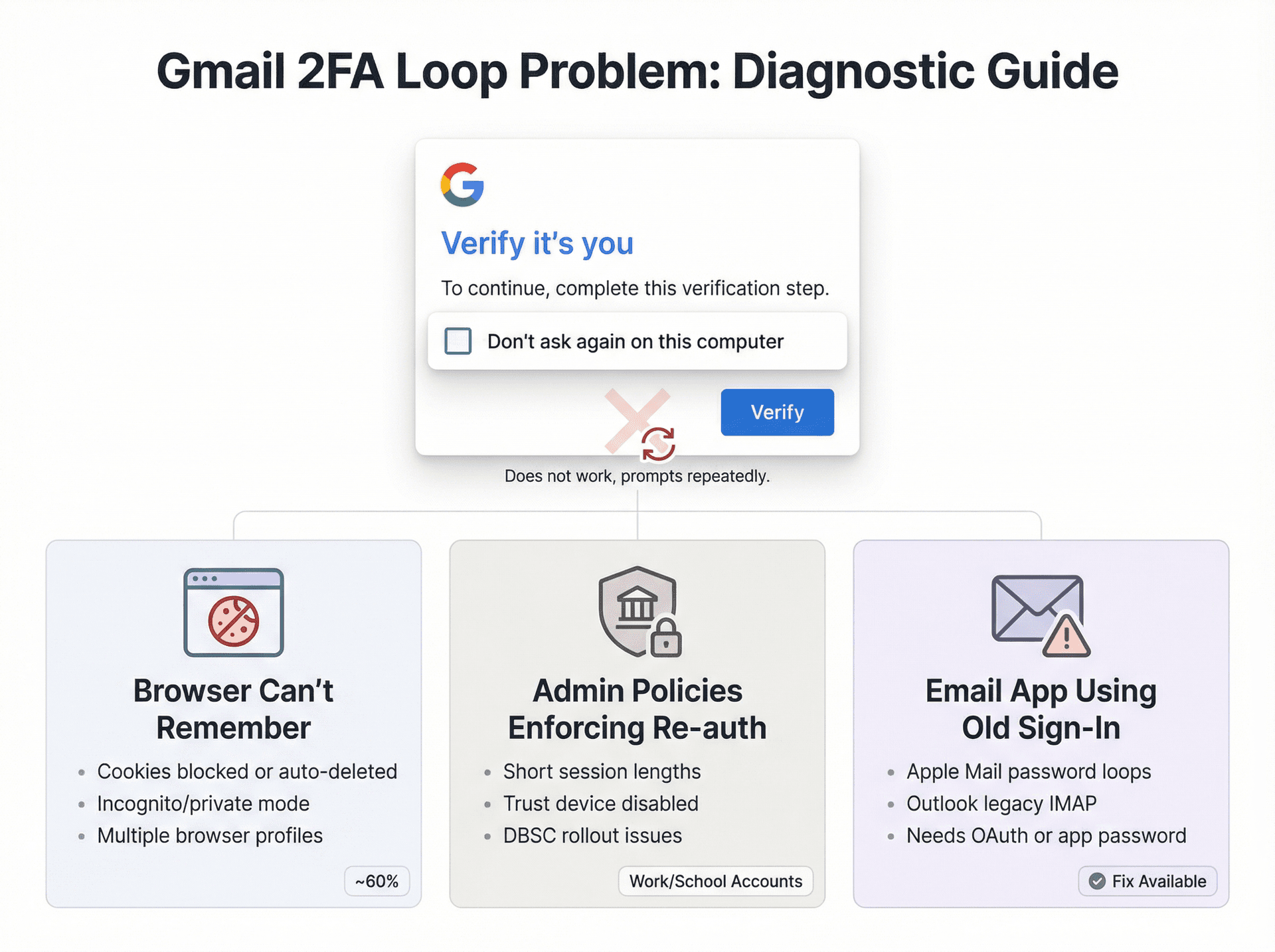
If this sounds familiar, you're dealing with one of these root causes:
Your browser can't remember trusted devices because cookies are blocked, cleared automatically, or isolated in private browsing mode. Your work or school admin enforces frequent re-authentication through Google Workspace policies like short session lengths or trust-device restrictions. Or your email app isn't using modern authentication (Outlook, Apple Mail, IMAP clients), so it keeps re-challenging you instead of maintaining a secure session.
This guide walks you through quick triage, platform-specific fixes, and admin controls for Google Workspace teams. For more comprehensive email management strategies, check out our complete guides.
How to identify which 2FA prompt you're seeing
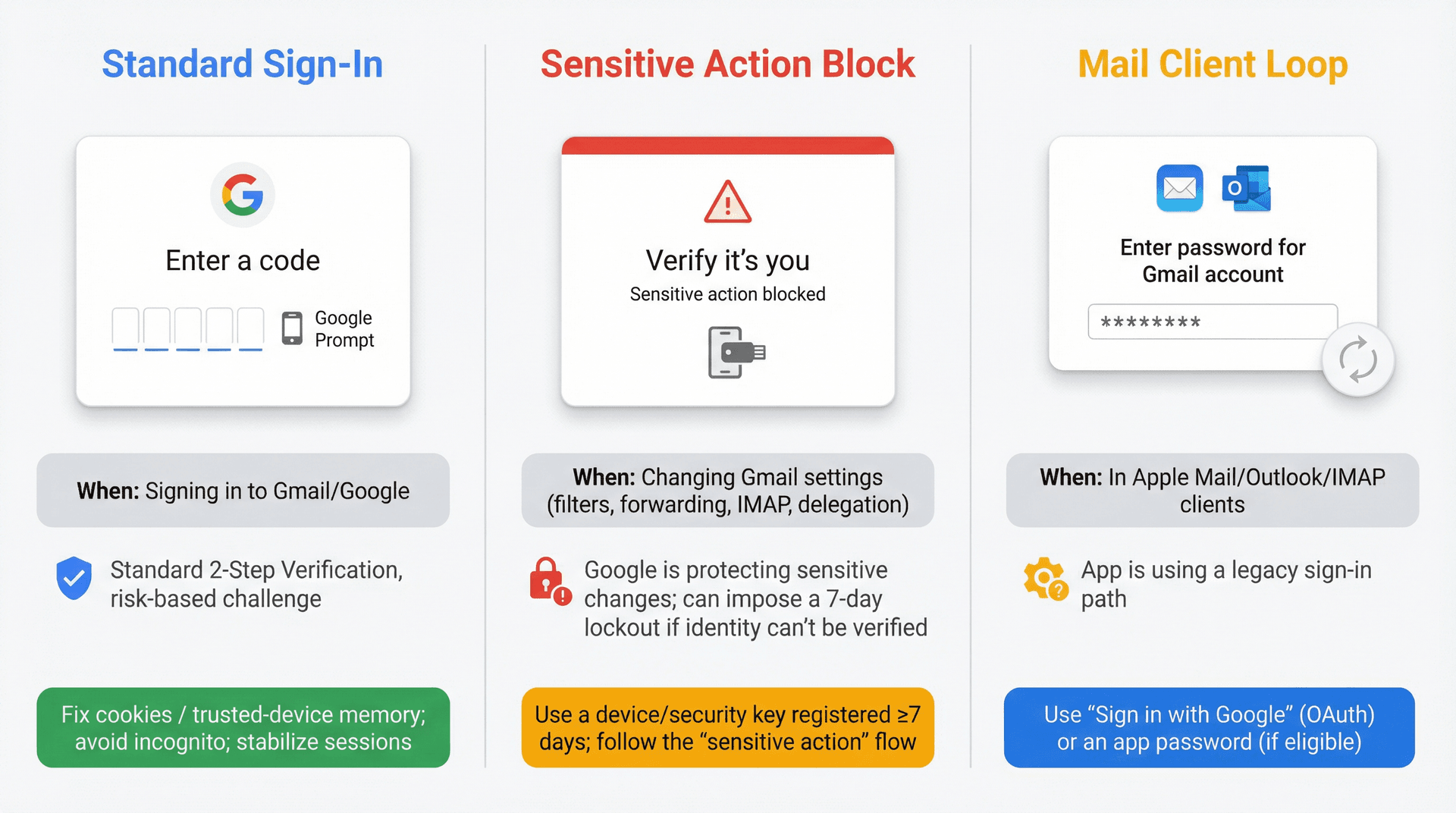
Different prompts have different fixes. Here's what each one means:
| What you see | Where it happens | What it means | Best fix |
|---|---|---|---|
| "Enter a code" / "Google Prompt" / security key | Signing in to Gmail/Google | Standard 2-Step Verification, risk-based challenge | Fix cookies / trusted-device memory; avoid incognito; stabilize sessions |
| "Verify it's you" / "Sensitive action blocked" | Changing Gmail settings (filters, forwarding, IMAP, delegation), or account security actions | Google is protecting sensitive changes; can impose a 7-day lockout if identity can't be verified | Use a device/security key registered ≥7 days; follow the "sensitive action" flow |
| Password prompts looping in Apple Mail/Outlook | Mail client configuration | App is using a legacy sign-in path | Use "Sign in with Google" (OAuth) or an app password (if eligible) |
The 90-second fix that works for most people
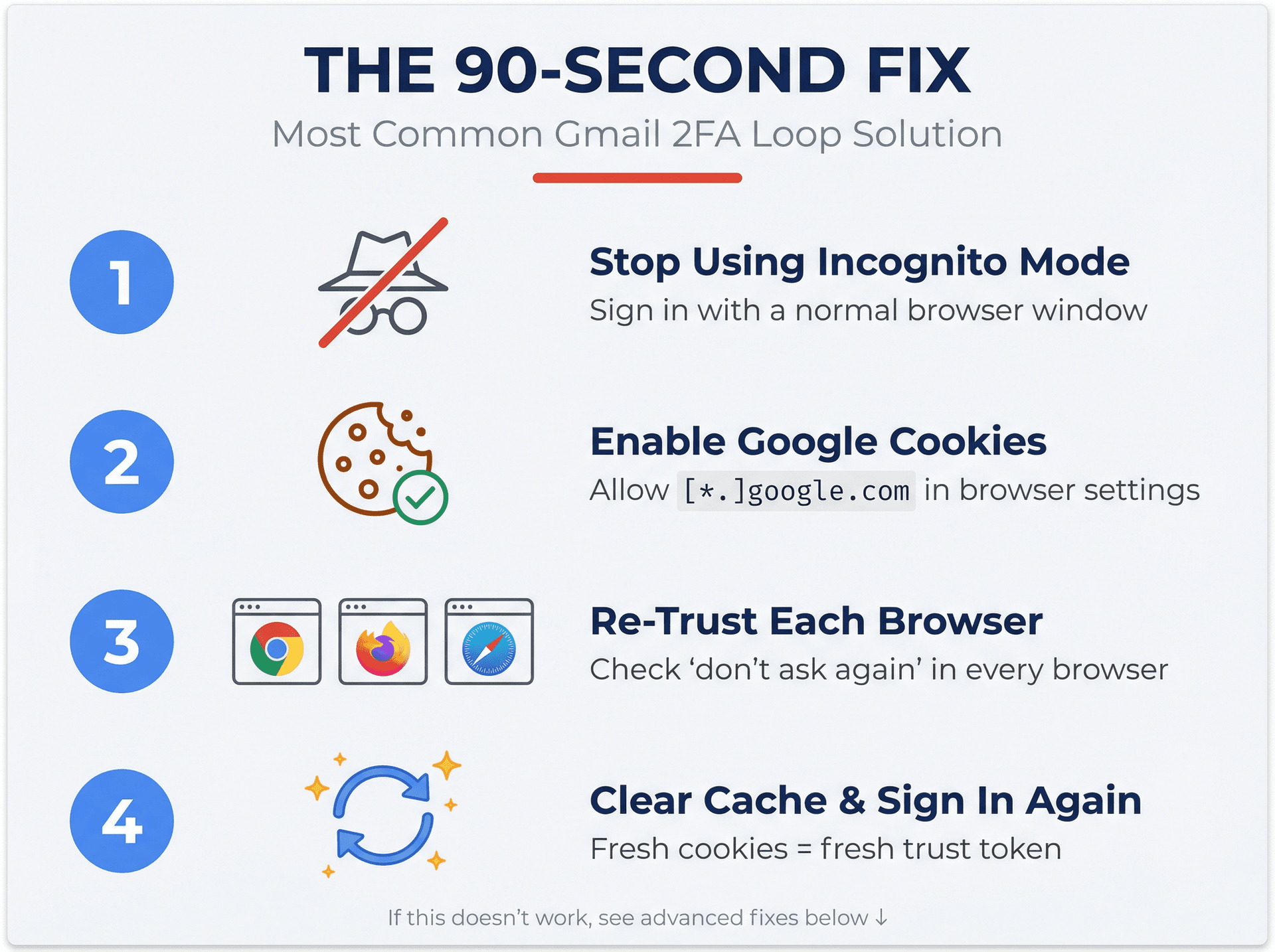
1) Stop using incognito or private mode for Gmail
Incognito windows can't use cookies from other browser sessions. Google can't reliably "remember" your trusted device (they're designed that way for privacy, which ironically creates this problem). Sign in using a normal window instead.
2) Make sure your browser is allowed to keep Google cookies
Google's pretty clear about this: repeated 2-Step prompts on a "trusted device" usually happen when cookies aren't enabled or the browser is set to delete them.
The high-leverage move: add a cookie exception for
[*.]google.comso your browser can store Google Account cookies even if you run aggressive privacy settings.
3) Re-trust the device per browser
"Don't ask again" means "don't ask again in this browser on this device." If you sign in using multiple browsers, you need to check it in each one separately.
4) If you still get prompted: clear cache/cookies and sign in again
Google's own guidance for "keeps signing you out / can't stay signed in" includes clearing cache (and noting that deleting cookies removes saved settings).
If this fixed it, your prior "trusted device" cookie likely wasn't persisting. It was either blocked, cleared, or corrupted.
Why Gmail keeps asking: trusted device is stored like a session
When you check "Don't ask again," Google essentially says: "I'll skip the extra step next time if I can recognize this device/browser."
Recognition relies on stored data (cookies and session state). If that state disappears, your trust disappears. It's that simple.
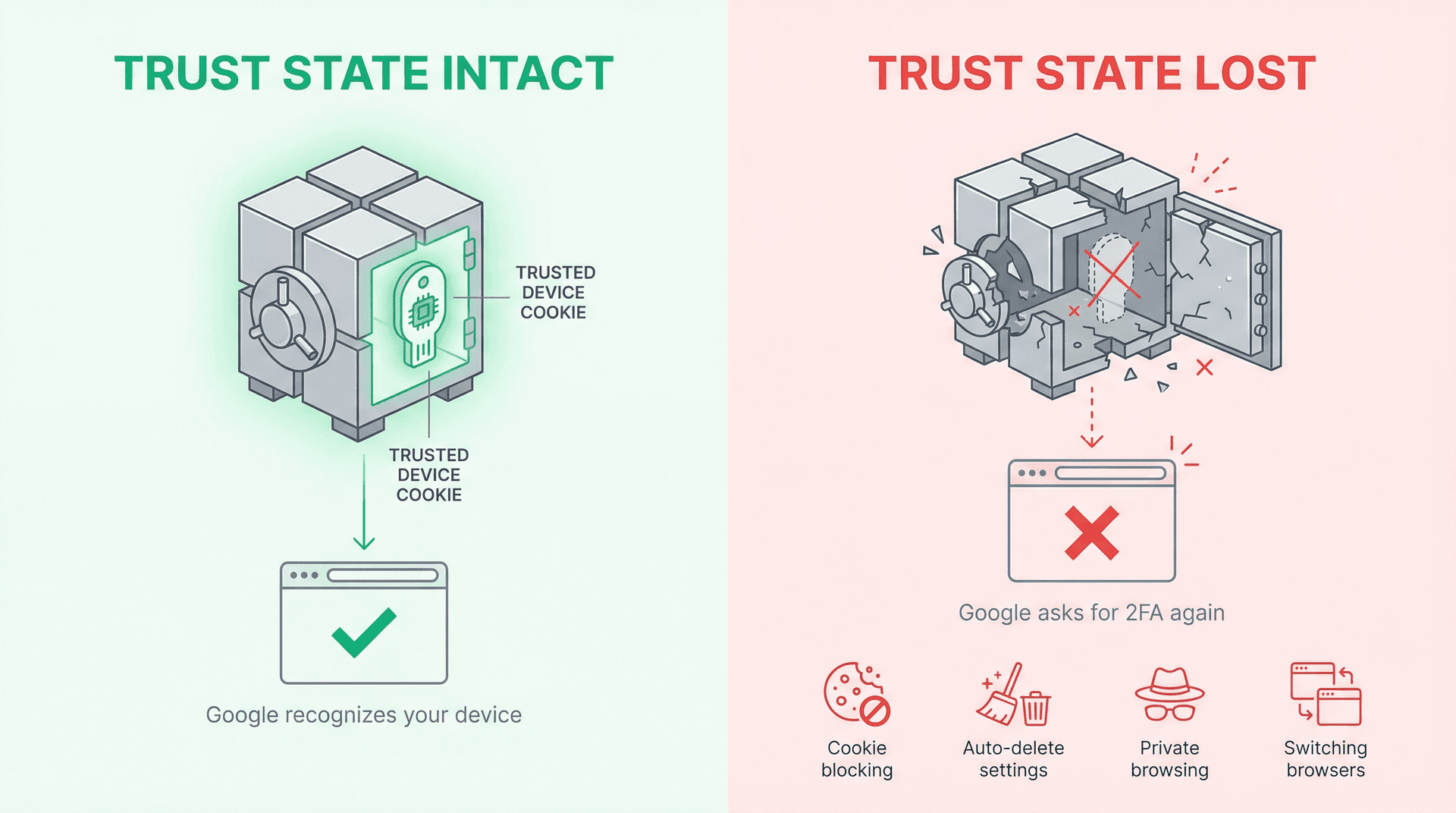
The most common reasons the trust state doesn't stick are cookie blocking or "delete cookies on exit" settings, antivirus or privacy tools that auto-delete cookies, incognito or private windows (which create fresh storage each session), and switching browsers or browser profiles (which maintain separate cookie jars).
Fix #1: "Don't ask again" is checked but Google still asks
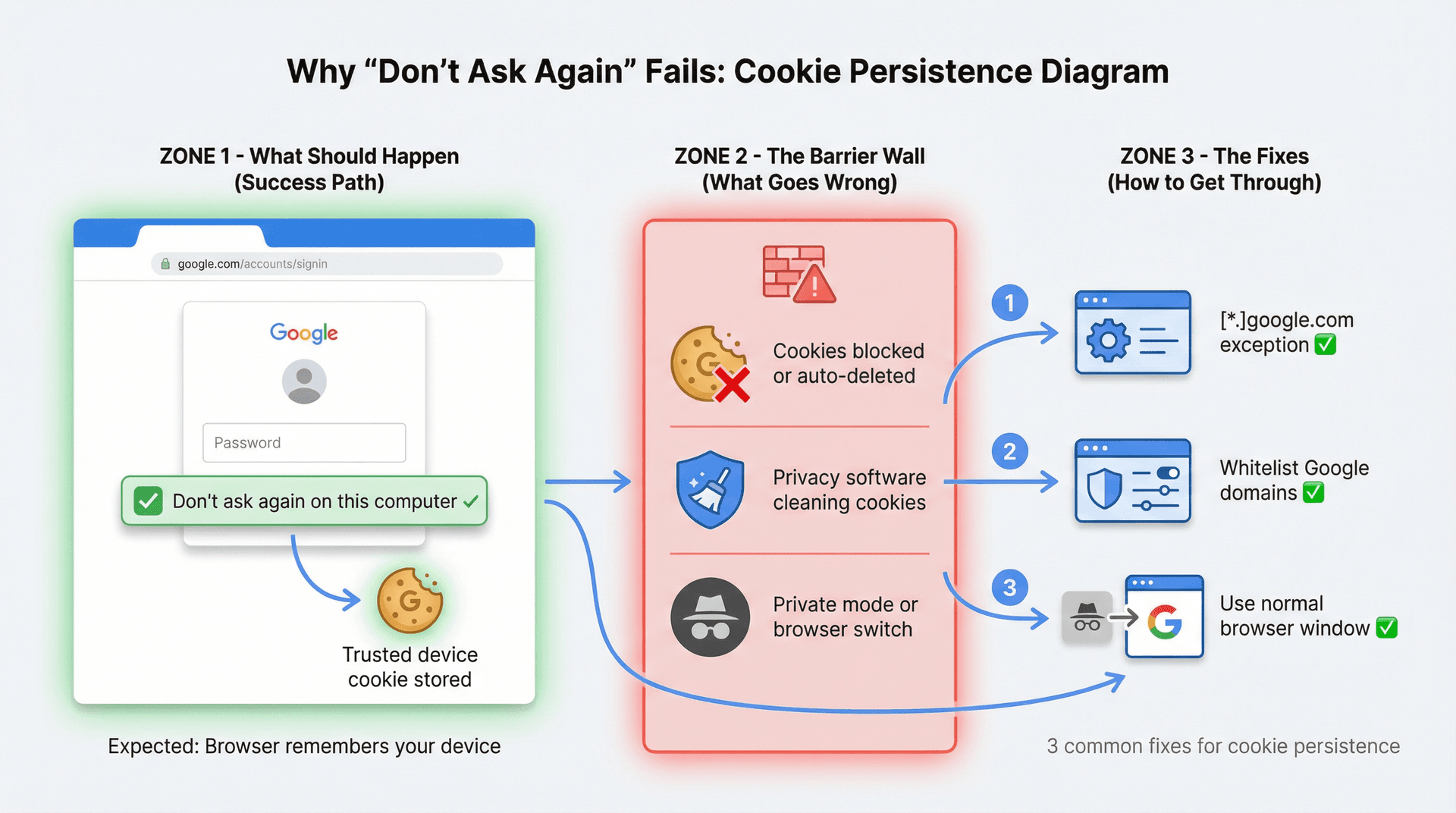
A) Make cookies persist (without making your whole browser less private)
The best practice is to keep your privacy controls, but carve out an exception for Google authentication cookies. This gives you both security and convenience.
Add an exception for [*.]google.com in your browser cookie settings. If you run cookie auto-deletion, add a "do not delete" rule for Google domains.
B) Check whether something is deleting cookies behind your back
Antivirus or related software may delete cookies, which can sign you out and force repeated verification.
Temporarily disable cookie-cleaning features in antivirus or privacy suites to test. If that fixes the problem, add Google domains to the tool's allowlist.
C) Verify you're not accidentally using "Stay signed out" behavior
If you intentionally browse Gmail in private mode or close private windows, you're designed to be signed out. Google's own "stay signed out" advice is private browsing plus closing those windows. That's the whole point of private mode.
Fix #2: Work/school account and IT policies are forcing 2FA
If this is a managed Google Workspace account, your admin can enforce policies that override your "Don't ask again" expectations.
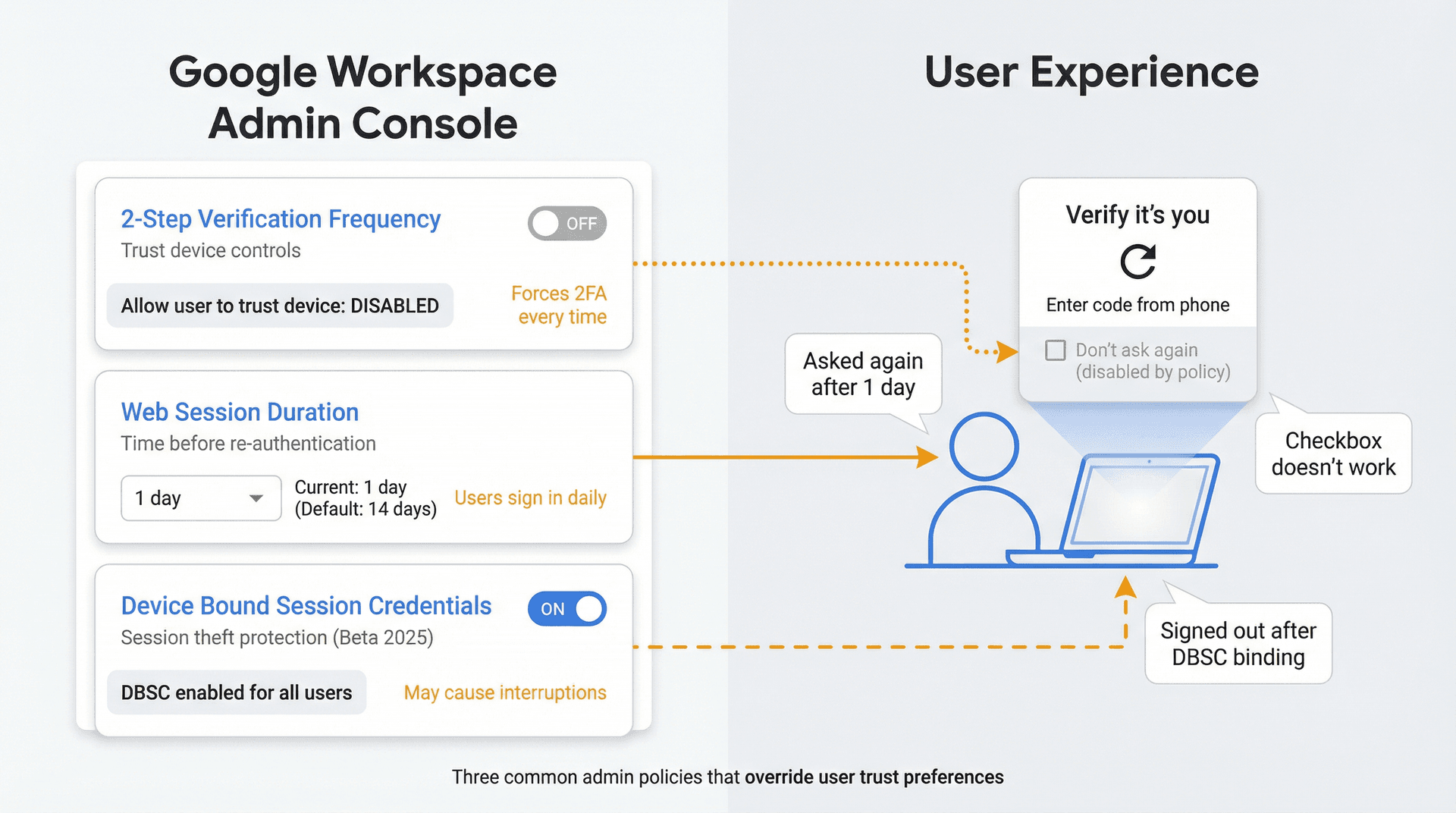
1) Ask your admin about "2-Step Verification Frequency" and the "trust device" setting
Admins can explicitly decide whether users are allowed to "trust the device" to avoid repeated 2SV checks.
Google's admin guidance is direct about what forces repeated prompts:
If "Allow user to trust the device" is enabled, users won't be prompted again unless they clear cookies, revoke the device, or the admin resets sign-in cookies.
Google warns that avoiding 2SV on trusted devices isn't recommended unless users frequently move between devices.
2) Check session length (this one surprises most teams)
Workspace admins can set how long users can access Gmail on the web before signing in again. The default web session length is 14 days unless changed. When a session expires, the "Verify it's you" page appears and users must sign in again. Admins can also force earlier sign-in by resetting users' sign-in cookies, and session length controls don't apply the same way to native mobile apps -- Google notes you can't configure session lengths for native Gmail mobile apps, and mobile sessions typically don't expire unless an event like a password reset requires reauth.
If you're being prompted daily or constantly in a browser at work, a short web session duration is a prime suspect.
3) If your org enabled DBSC, it can cause repeated sign-ins for some users
In 2025, Google introduced Device Bound Session Credentials (DBSC) in open beta to help prevent cookie/session theft by binding a session cookie to the device.
Google's Admin Help warns about the real-world UX impact:
After enabling DBSC, users might experience session interruptions that require signing in again (as a safeguard). If issues persist, users could be signed out often; admins may need to exempt the user or disable DBSC for them.
So if "2FA keeps asking" started right after a security rollout, ask IT: "Did we enable DBSC in Google Session control?"
Fix #3: Apple Mail, Outlook, or IMAP clients keep prompting
This is the second most common cause of "Gmail keeps asking," and it's often misdiagnosed as a Gmail bug. For more context on connecting third-party apps securely, see our guide on connecting apps to Gmail safely.
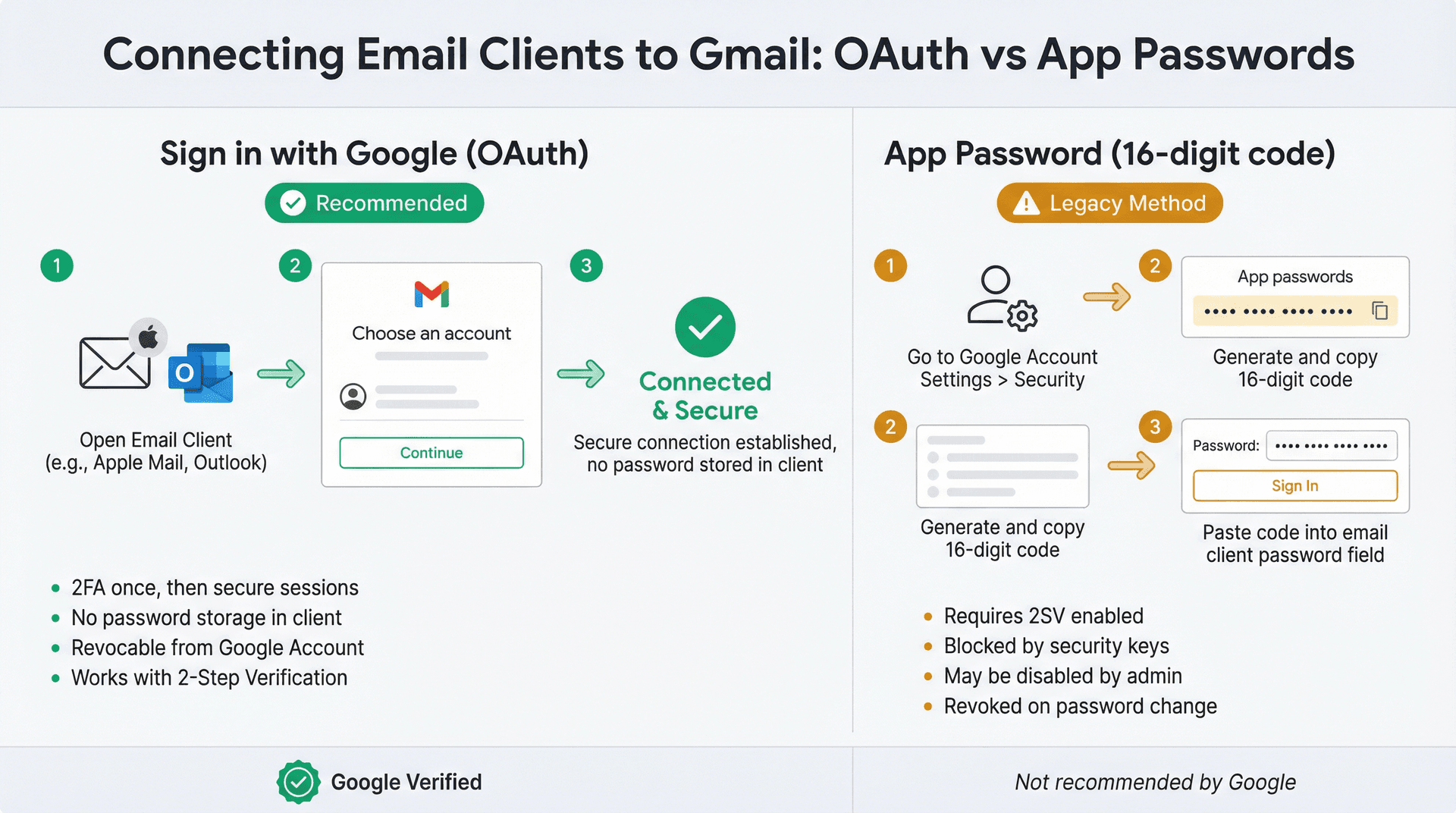
The secure, modern fix: use "Sign in with Google"
Google states plainly: app passwords aren't recommended and are unnecessary in most cases; instead, use "Sign in with Google" (OAuth) to connect apps to your Google Account.
In practice, that means removing the Gmail account from the app, then adding it back by choosing "Google" as the provider (not "Other/IMAP"). Complete the Google sign-in flow and 2FA once, and you're done.
If OAuth is not available: use an app password (when eligible)
An app password is a 16-digit passcode for apps and devices that can't handle modern sign-in.
There are several key rules you need to know, and these cause a ton of confusion:
| Requirement | Status | Impact |
|---|---|---|
| 2-Step Verification | Must be ON | App passwords only work if 2SV is enabled |
| Security keys only | Blocks app passwords | You may not see the option if using security keys exclusively |
| Work/school account | May block | Workspace admins can disable app passwords |
| Advanced Protection | Blocks app passwords | Program is incompatible with app passwords |
| Password change | Revokes existing | App passwords are revoked when you change your Google password |
Apple Mail specifics (Mac/iPhone/iPad)
Apple's guidance for Gmail plus 2-Step Verification is that you may need an app-specific password for Mail. In other words, if Apple Mail supports the Google sign-in flow, use it. If you're stuck in password prompts and can't complete 2FA properly, an app password can be the bridge -- provided your Google account allows it.
Fix #4: Gmail asks for verification when changing settings
This is not "2FA broken." It's a separate protection layer.
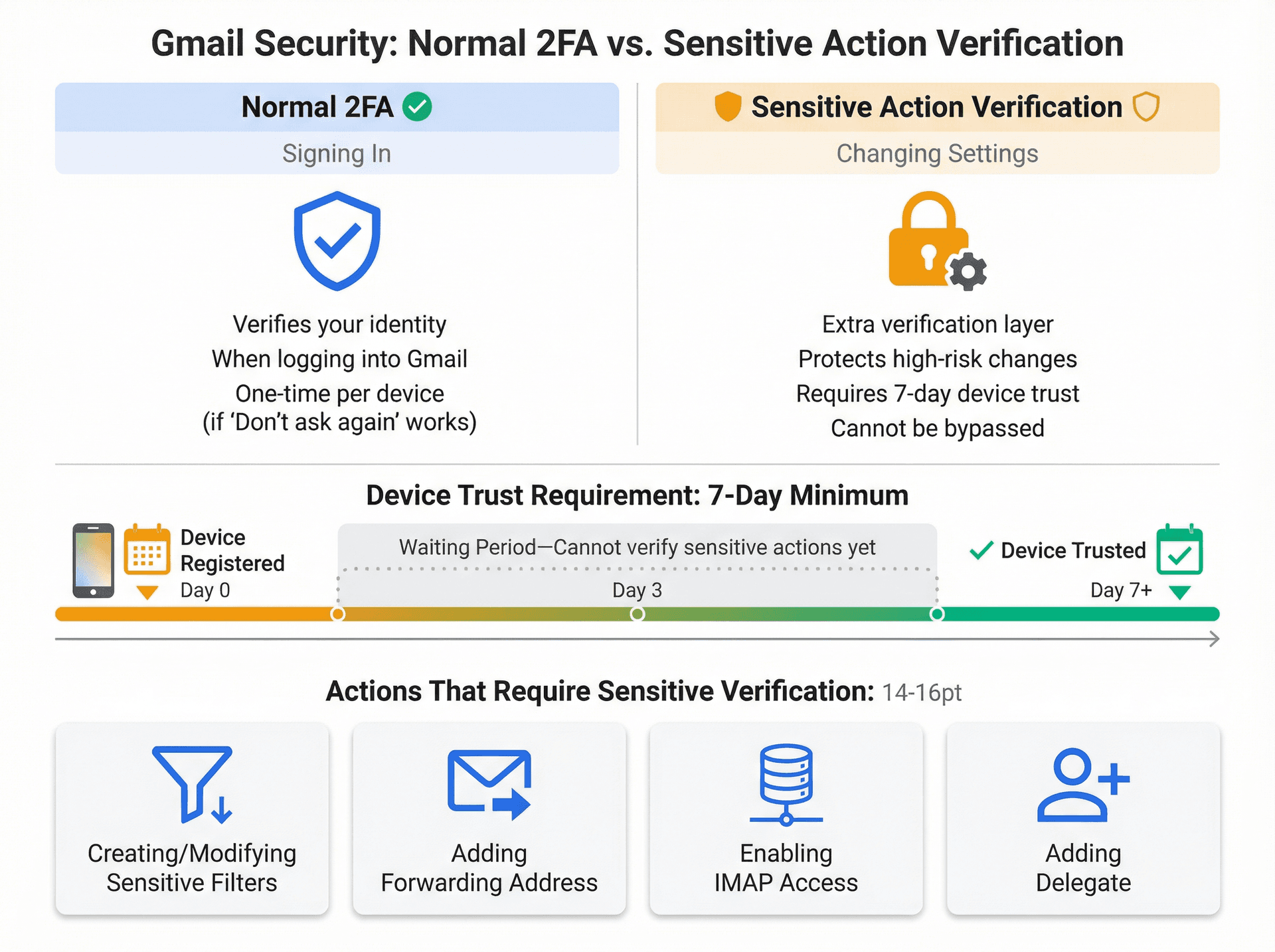
Google may ask you to verify your identity when you perform sensitive actions in Gmail, including creating or modifying sensitive filters, adding a forwarding address, enabling IMAP access, or adding a delegate.
There are two critical (and widely missed) rules from Google about this process. First, to verify, you need a device or security key that has been registered to your account for at least 7 days. Second, if Google can't verify your identity, it may block sensitive actions for 7 days -- you can still access email, but you can't complete certain changes.
Use a device you regularly sign in with (or a security key already on the account). If you recently changed your recovery phone or device and get blocked, you may simply need to wait out the 7-day protection window. There's no workaround for this security measure.
Fix #5: Unexpected 2FA prompts might signal an attack
Treat unexpected prompts seriously.
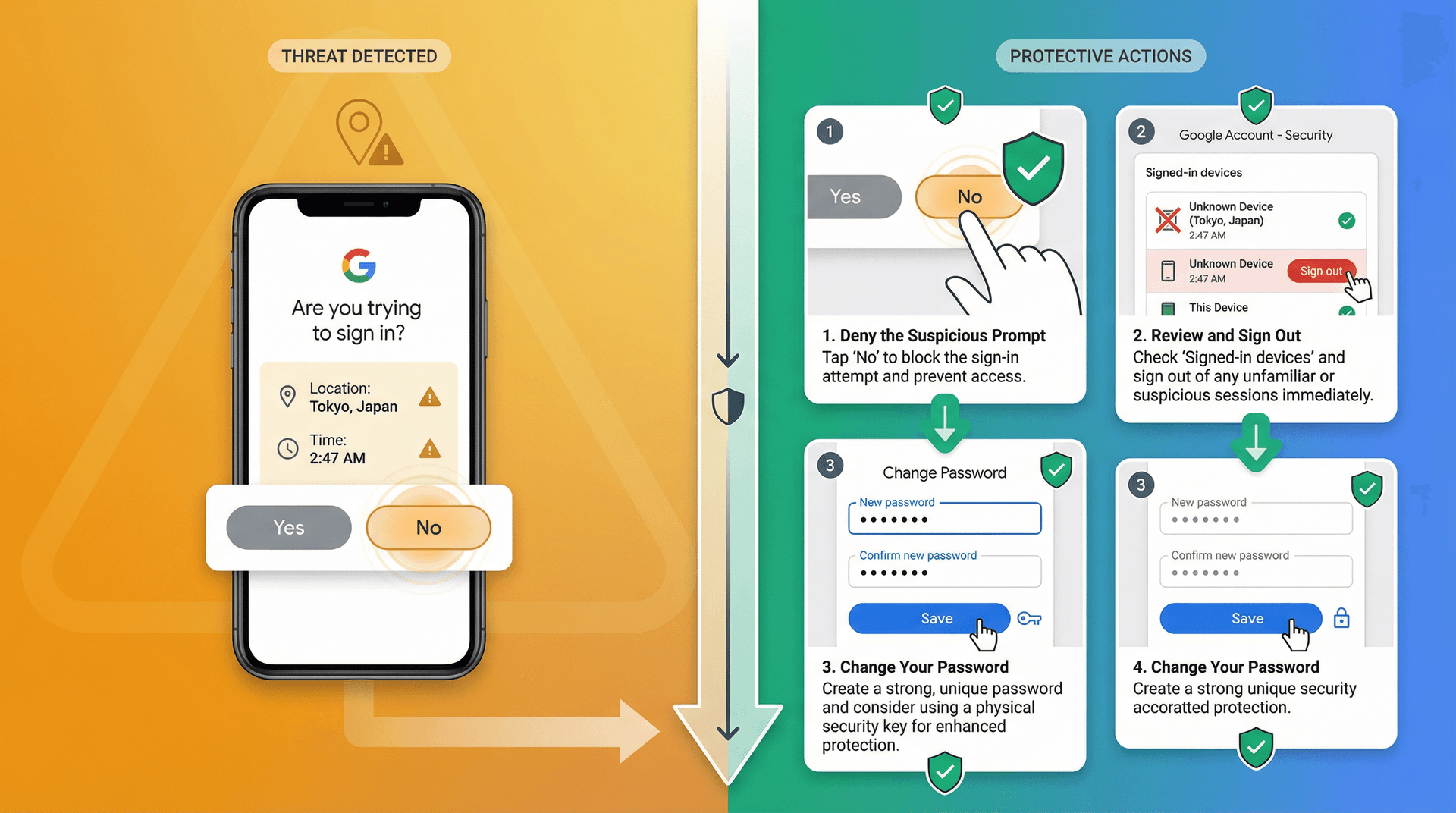
If you get a Google Prompt you didn't initiate, tap "No." Google Prompts are designed for this "approve/deny" flow. Never share verification codes -- Google warns that scammers try to take over accounts and that you won't receive a call from Google asking you to verify a code.
If you suspect a compromise or you lost a device, Google recommends signing out of the lost device and changing your password.
How to stop 2FA fatigue without weakening security
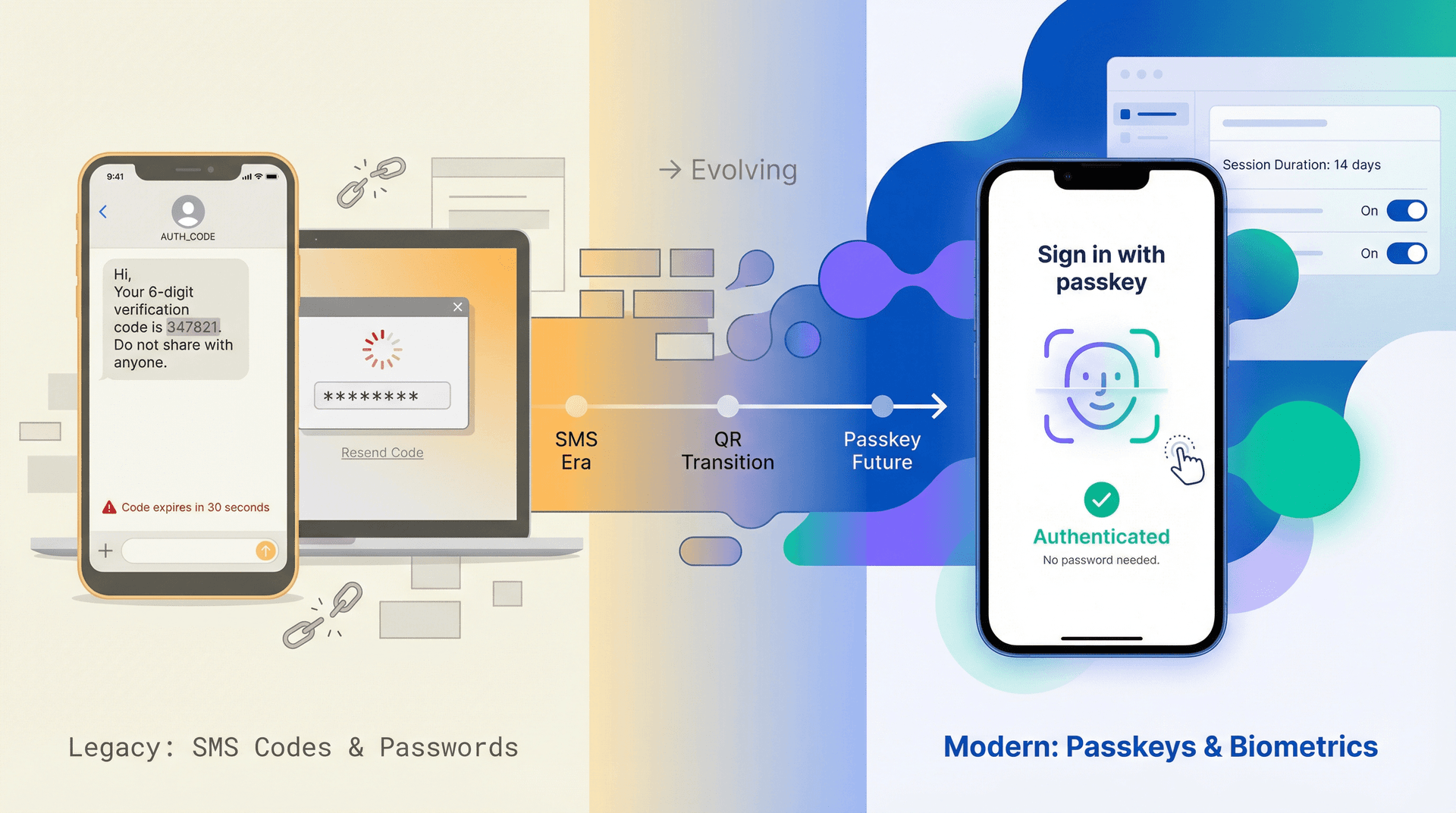
1) Move to passkeys where possible
Passkeys can reduce or eliminate repeat 2FA prompts because they verify device possession directly, bypassing the need for a second authentication step.
There are a few useful details that many guides omit. Creating a passkey typically opts you into a passkey-first sign-in experience by default (though you can change your preference). Google's passkey documentation emphasizes that biometric data stays on the device and isn't shared with Google. Their developer docs define passkeys as credentials that authenticate without a password or additional factor, and show a "Last updated 2025-11-27 UTC" timestamp.
For Workspace, Google has stated passkey support is generally available to more than 11 million Workspace customers, with expanded admin controls (July 30, 2025).
2) Expect changes in SMS-based challenges
Google has been moving away from SMS in certain verification flows. Google's own 2-Step setup guidance mentions that in certain cases Google will require scanning a QR code to verify, describing it as less vulnerable to phone-number-based attacks and abuse.
In February 2025, reports indicated Google was planning to replace Gmail's SMS authentication codes with QR codes in the coming months. If your "2FA keeps asking" complaint is specifically "it keeps texting me," you may see different challenges over time as Google shifts methods. The SMS era is ending.
3) For teams: tune policies instead of "fighting Gmail"
If you're an IT admin, the fastest path to fewer user complaints is to review a few key settings. Are you allowing trusted devices for 2SV, and is that appropriate for your risk model? Did you unintentionally set a very short web session duration? (The default is 14 days.) Are certain users hitting DBSC binding errors and getting signed out often? And are admins or automation resetting sign-in cookies repeatedly? That signs users out across devices and browsers, and Google notes it can take up to an hour to sign out Gmail sessions.
Additional comprehensive solutions
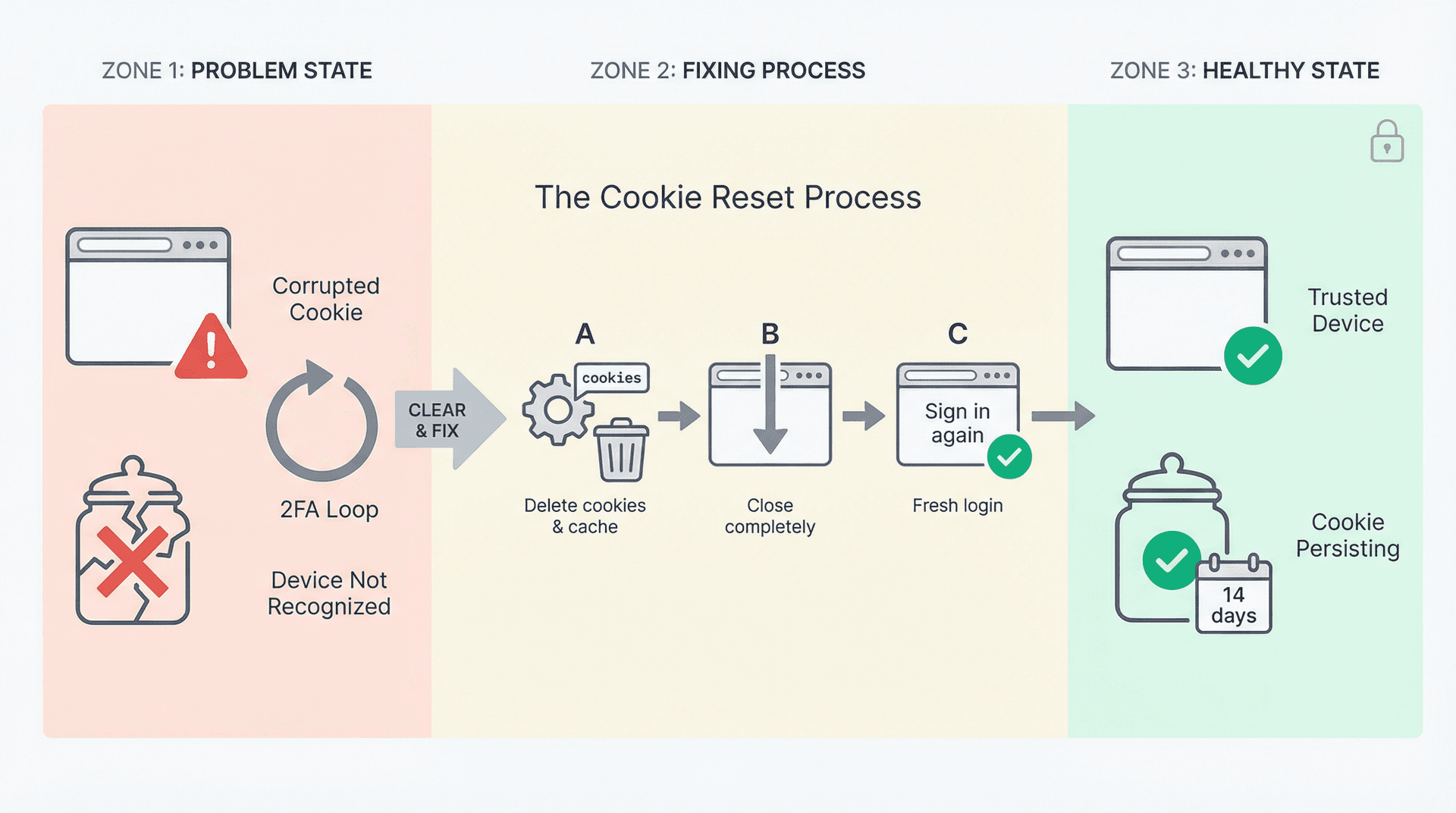
Clear your cookies and fix browser settings
If you have been checking "remember me" but Gmail still forgets you, the culprit is likely your browser. In our experience, corrupted or blocked cookies cause the majority of Gmail login loops.
Clearing cookies (and cache) is often the magic bullet. A corrupted login cookie can prevent Gmail from recognizing your device, and clearing your cookies forces Google to create a fresh, clean login session. Go into your browser's settings and delete cookies and cached data -- at least for Gmail and Google sites, or all sites to be thorough. After clearing, close the browser completely and then reopen it and sign in again. This alone fixes the issue in most cases. Yes, you'll need to sign in once more after clearing, but then it should persist.
You should also ensure cookies aren't being auto-deleted. Some security software or browser extensions might wipe cookies on exit or block them by default. Check your browser's privacy settings to make sure it's set to allow cookies, at least for Google accounts. If you use extensions like ad blockers, privacy tools, or script blockers, try disabling them and log in again. One user found that a script-blocking extension (like NoScript) was preventing Gmail from remembering the "don't ask again" setting, causing texts every login. Whitelisting Google's login page in such tools can help.
Keep your browser up to date as well. Using an outdated browser can lead to odd glitches with modern Google authentication. Update Chrome, Firefox, Edge, or Safari to the latest version, which will have the newest security and compatibility fixes. Modern browsers also handle Google's 2FA prompts more smoothly.
As a test, try signing into your Gmail on a different browser (if you have Chrome, try Firefox, or vice versa). If the other browser doesn't repeatedly prompt for 2FA, then you know something is misconfigured in your main browser. You can then reset or reinstall your preferred browser to fix the issue. For more tips on managing your Gmail experience, explore our Gmail productivity guides.
If you're facing this on the Gmail mobile app, make sure the app is updated to the latest version, and that your phone's system webview or Google Play Services components are up to date. An outdated Gmail app or system component can sometimes fail to honor trusted device logins, forcing extra verification. Updating the app (via Play Store or App Store) and even your device's OS can resolve those issues.
Disable VPNs or proxies (reduce "unusual" signals)
Are you using a VPN or proxy service that changes your apparent location? If so, Google might be thinking "Hmm, last time you were logging in from New York, now it looks like Germany. Better double-check it's you." Frequent IP address changes or routing through certain anonymizing services can trigger Google's risk analysis and lead to more verification prompts.
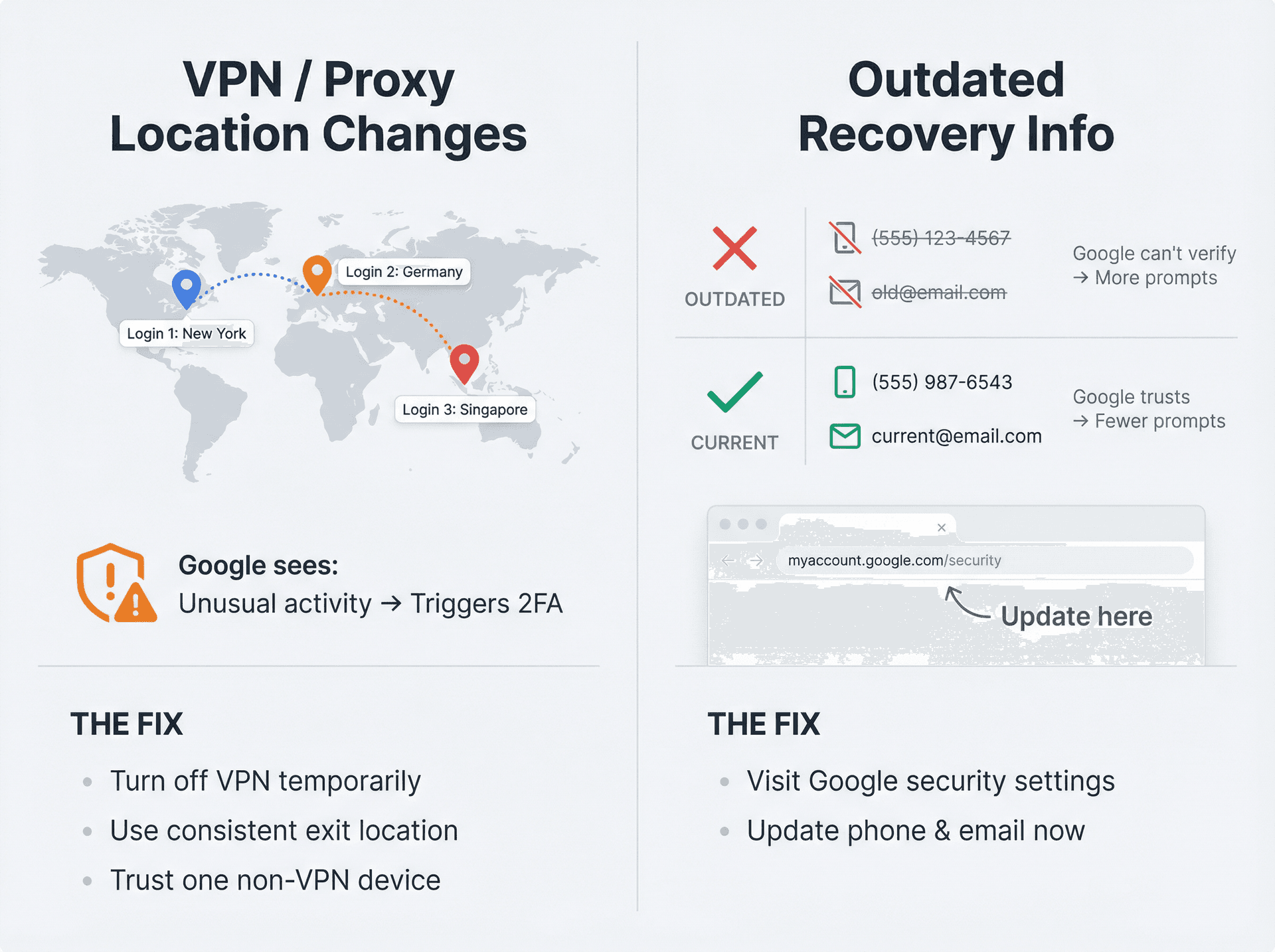
Try logging in with the VPN or proxy turned off, at least temporarily. If Gmail stops asking for 2FA every time when you're off the VPN, then you know the VPN was the cause.
You have a few options from there. Log in without the VPN, check "Don't ask again," and then reconnect the VPN. Google will have already marked the device as trusted, which might carry over (though a drastically different IP can still prompt re-checks in some cases). You can also configure your VPN to use an exit server in a consistent location -- for example, always use the same city. Google might adapt to one regular location but will balk at logins from all over the world on the same account.
In your Google account security settings, review the Recently Used Devices and Security Activity. You might see a long list of "new signin from X country" entries if your VPN jumps around. That's a hint. Disabling the VPN for Gmail use, or using a static region, will reduce those "new sign-in" events and thus the verification prompts.
Of course, use your judgment. If you require a VPN for all traffic, consider at least trusting one device (maybe a spare browser that doesn't go through VPN) for accessing Google. The key is that Google needs to see consistency. If every login looks wildly different, it will keep asking "Are you sure it's you?" via 2FA. And honestly, can you blame it?
Update your recovery phone number and email
It might not be obvious, but having up-to-date recovery information can reduce Google's need to bug you with verifications. If Google isn't confident it can reach you via your backup methods, it may lean more heavily on 2FA prompts during login. Ensuring your recovery options are current gives Google additional trust signals that you are who you say you are.
Visit myaccount.google.com/security and look for the "Ways we can verify it's you" (or similar) section. There, you should see your recovery phone and email on file.
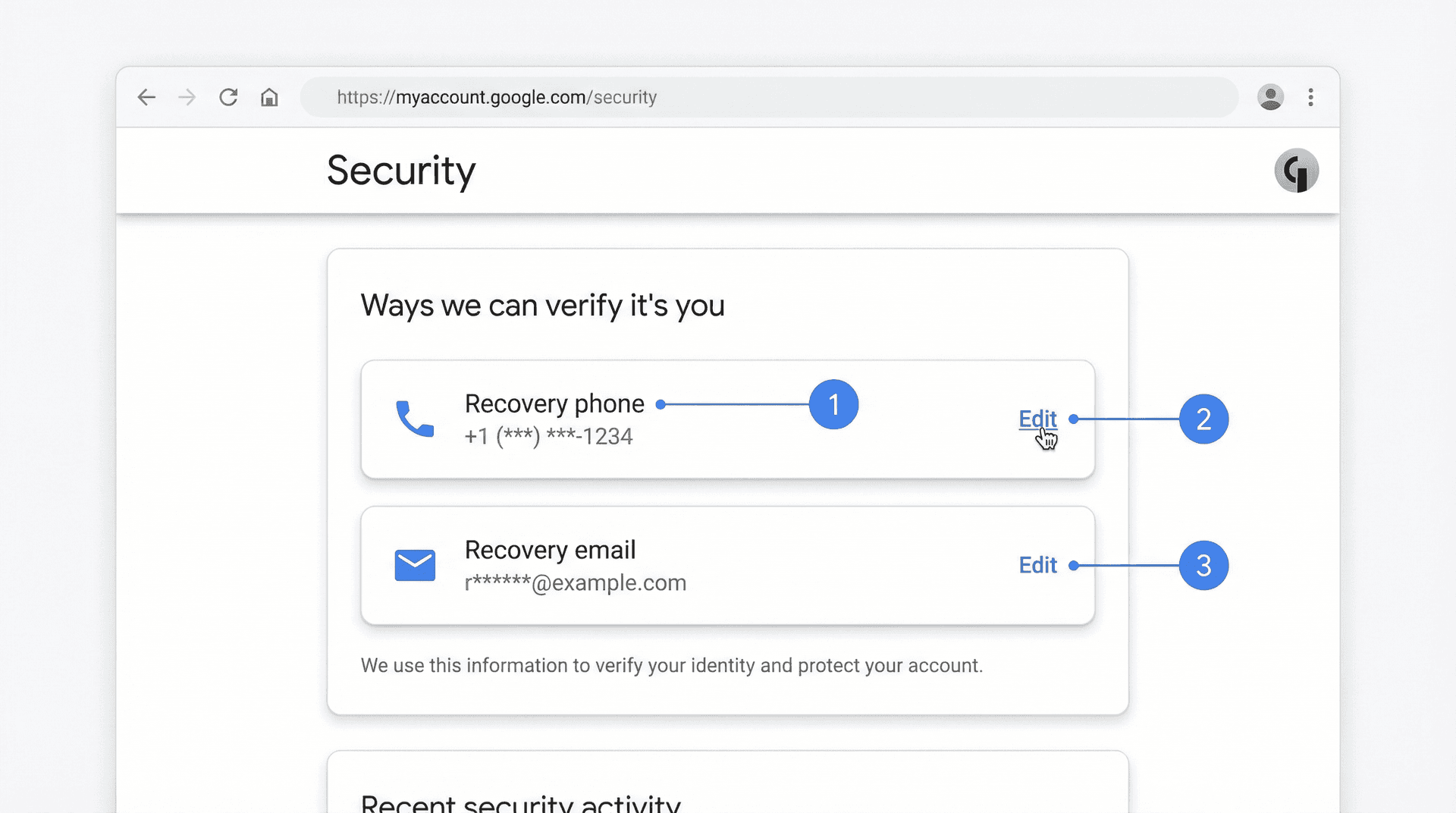
Make sure these are current and accessible. If you got a new phone number or you no longer have access to that old Yahoo email you once set as recovery, update them now. Click each option to edit and enter the new number or address. Google will send a code to verify the change -- complete that verification.
Once verified, your account now has fresh recovery channels. This means if there's ever something unusual, Google might send a code to your backup email or phone instead of hassling you repeatedly at login. And if you do get a weird verification prompt, you have easy ways to prove your identity.
According to Google's practices, having verified recovery info helps in account recovery and verification challenges. Conversely, missing or stale recovery info can trigger more frequent identity checks. Think of it this way: if Google isn't sure it can get hold of you via backups, it will be ultra-cautious with every login. By updating these details, you give Google confidence and an alternate path to verify you, so it might not need to ask for that 2FA code every single time.
Plus, this is just good security hygiene. It can save you from being locked out of your account entirely -- fewer login roadblocks now, and a better safety net if you ever truly lose access.
Review your Google Account security activity
If Gmail is persistently asking for codes, it's often because Google's systems detect something suspicious or different about your logins. It's time to play detective and look at your Google security events and devices.
Go to myaccount.google.com/security and scroll to "Recent security activity." This will show logins, password changes, recovery info changes, and any security events in the last 28 days. Do you see events that correspond to those repeated verification prompts? For example, multiple "New sign-in from Chrome on Windows" entries from your city, or attempts from other cities or countries you don't recognize?
If you see unfamiliar locations or devices, this could indicate someone else attempted to access your account (and was stopped by 2FA). In this case, change your password immediately and consider it a serious security alert. Also proceed to remove unknown devices (below).
If you see a ton of repeated sign-ins from your own location and device, that might just be you trying over and over, or an app repeatedly failing (like the Outlook scenario). Not malicious, but it tells us the system was treating each attempt separately.
Next, check "Your devices" (or "Devices you're signed in to"). Google lists all devices that have been active on your account. Scan this list for anything you don't use anymore or don't recognize.
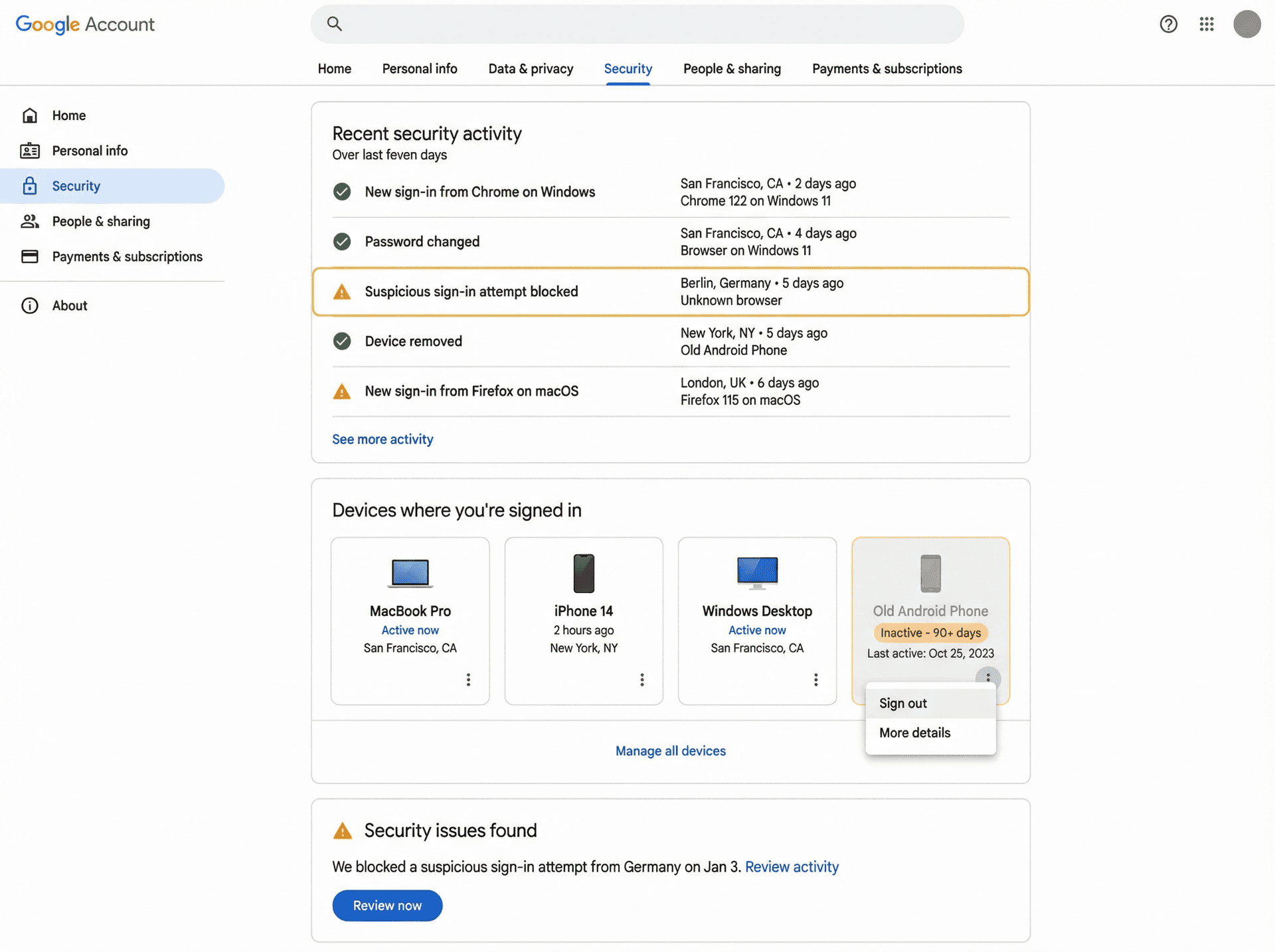
Remove devices you no longer use or that look unfamiliar. For each, there's usually an option like "Sign out" or "Remove." This will log your account out on that device and invalidate its sessions. It's good to prune this list so that only devices you actually use are actively signed in.
If you find a device that isn't yours, definitely remove it and then change your password. But assuming they are yours, removing old ones can still help. Sometimes an old phone or laptop that's still logged in might repeatedly ping Google if misconfigured, causing security flags. Better to have a clean slate of active devices.
After cleaning up, try logging in on your current device one more time (with cookies enabled, no VPN, etc. as covered earlier). This fresh login will show up as a new event, but now that you've cleaned out noise and shown Google "only these devices are mine," it's less likely to doubt the next login.
Also, under "Security issues found" (if present on that page), resolve any pending issues. Google might be explicitly telling you something -- for example, "We blocked a sign-in attempt" or "You need to secure your account." Following those prompts (reviewing your account activity, confirming it was you, etc.) will reset Google's paranoia level back down. Think of it as telling Google "All clear, that was me. Trust this device moving forward."
In short, Google's security systems might be in high alert mode for your account. Your job is to reassure them. By clearing out unknowns and confirming your activity, you'll often stop the repetitive verifications. Gmail will go back to only asking 2FA when it genuinely needs to (new device, significant changes, etc.), not every single day on the same computer.
Switch to Google Prompt or Authenticator (skip the text codes)
If you're still using SMS codes or email codes for 2FA, consider switching to the Google Prompt or an Authenticator app. While this might not directly "fix" a broken remember-me issue, it can make the 2FA process far less annoying and sometimes more reliable in getting Google to trust your device.
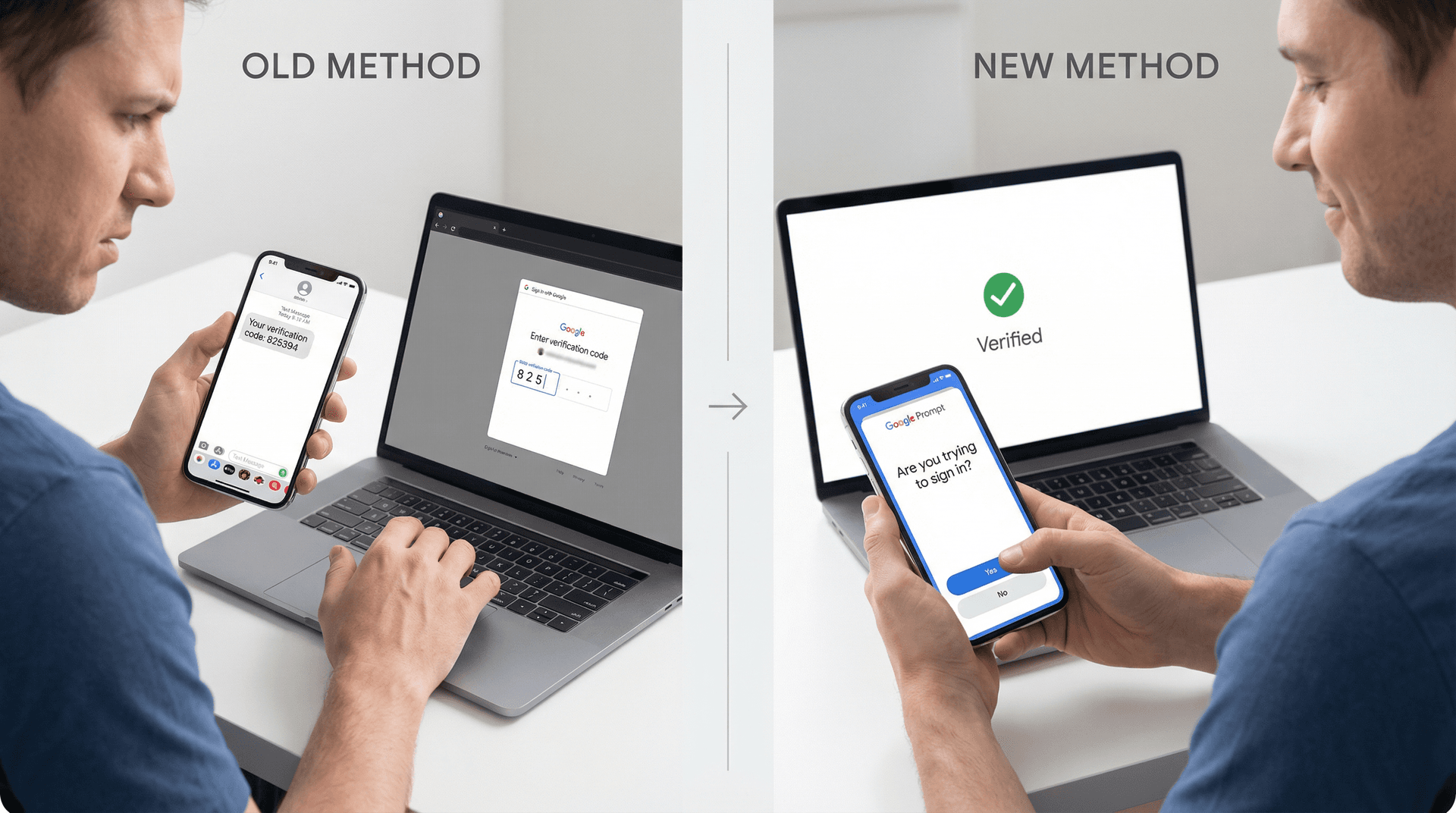
Google Prompt is the default 2FA method for many accounts now: when you try to sign in, Google sends a prompt to your phone saying "Are you trying to sign in?" and you just tap Yes. No code typing required. It's faster and actually more secure than SMS. If you enable prompts, you're also implicitly using your phone as a trusted device.
To enable Google prompts, go to your Google Account's 2-Step Verification settings and look for "Google Prompt" as an option. Make sure your mobile device is listed and enabled for prompts. Usually, if you have the Gmail app or Google app on your phone and are signed in, you're already set. Google will send prompts there by default. Next time you log in, instead of a text message, you'll get a phone notification. Tap Yes and you're in. Also be sure to check "Don't ask again on this device" on the computer if you haven't already. The combination of prompt plus trusted device tends to stick well.
Alternatively, you can use an Authenticator app (like Google Authenticator or Authy) which generates codes that rotate every 30 seconds. It's still a code you have to type, but the advantage is it doesn't rely on cell signals or SMS (which can be delayed) and can be used offline. If Google's system was glitching with sending SMS, using an app may avoid that. You'd scan a QR code once to set it up (in your 2FA settings) and then use the app for codes going forward.
Many users report that after switching to Google Prompt, the whole 2FA experience became less intrusive. Google prompts are tied to your device and also have a "Don't ask again on this device" logic for the phone itself. It's in Google's interest to streamline the prompt flow, whereas SMS every time is something they've been moving away from. And if part of the issue was not receiving texts or delays, prompt fixes that too.
As a bonus, Google Prompt and authenticator apps are generally safer than SMS (no SIM swap risk, etc.). So you're improving security and convenience at the same time.
Clean up trusted devices and sessions (start fresh)
This is a slightly deeper reset measure, but it can help if something is fundamentally stuck. Sometimes, the trusted device token in your browser might not be sticking, or Google's sessions are tangled.
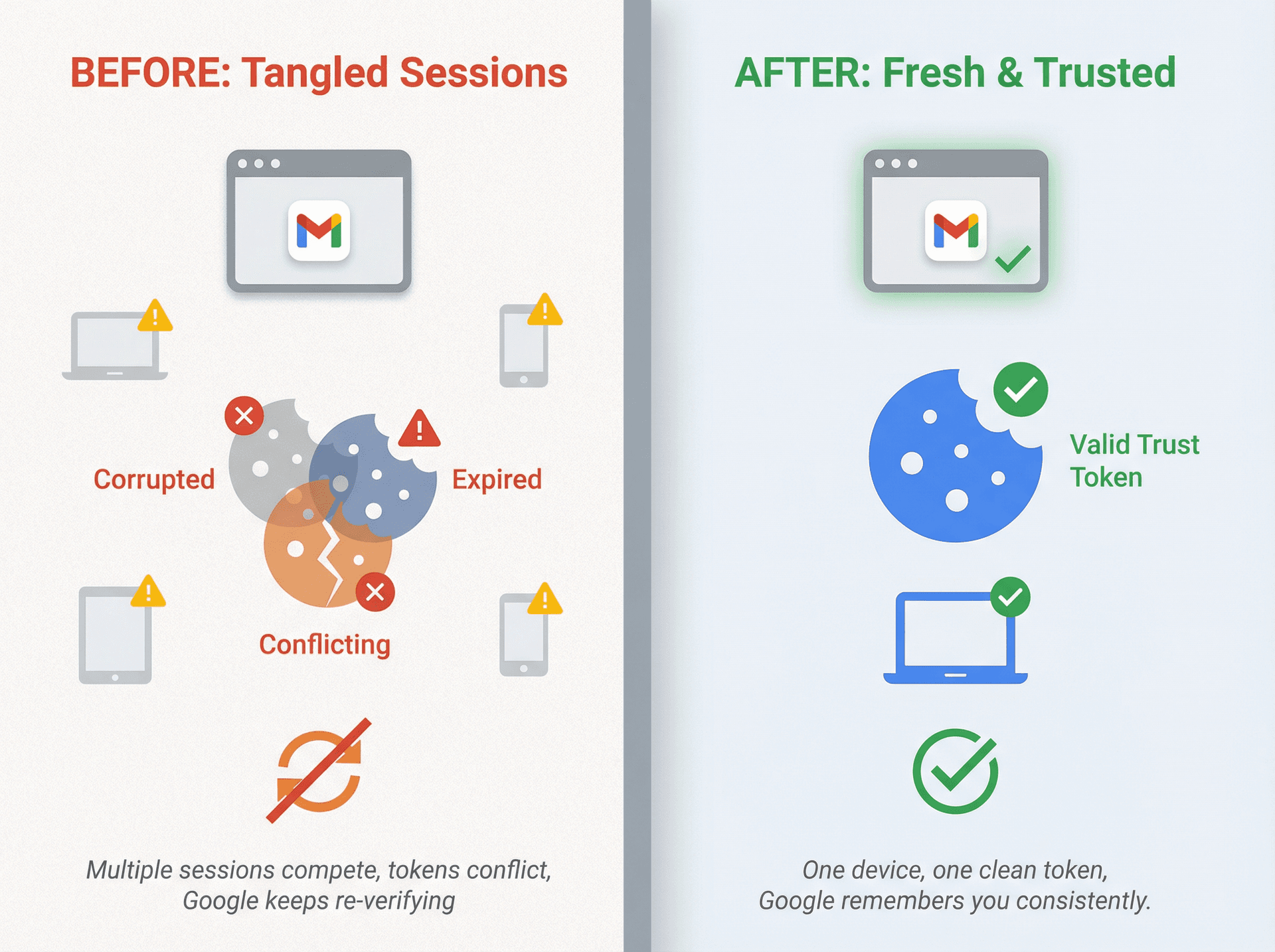
Start by revoking trusted status for all devices, then re-add your current one. In your Google 2-Step Verification settings, there's an option to "Revoke All" trusted devices. Doing this will make Google forget any previously trusted devices. The next time you log in on any device, you'll do 2FA again (so only do this if you can handle that for all your devices). Immediately after revoking, sign in on your primary device/browser and when asked, check "Don't ask again." This essentially gives you a clean, hopefully bug-free trust token for that device. If a previous trust cookie was corrupted, this ensures a new one is set.
Next, sign out of other sessions to eliminate conflicts. In the "Your Devices" section (Google Account > Security), there's an option to "Sign out of all other sessions" (or you can manually sign out device by device as covered earlier). Logging out everywhere and then logging in fresh on just your main device can stop any background processes that were repeatedly triggering re-auth checks. It's like clearing the decks.
After doing the above, restart your browser or computer for good measure, then log in to Gmail one more time, on one device, and check that trust box. Now that there are no competing sessions and no prior trust tokens, Google should happily remember this login.
Think of this as resetting the memory of what's trusted and who's logged in. It's a bit of a nuisance to log back in on other devices afterward, but it can resolve cases where some glitchy session was causing Google to constantly invalidate and re-ask for verification. Once you confirm everything is stable on your main device, you can sign back in on your other devices (you'll do 2FA once on each, then mark them trusted as needed).
How to prevent Gmail 2FA hassles going forward
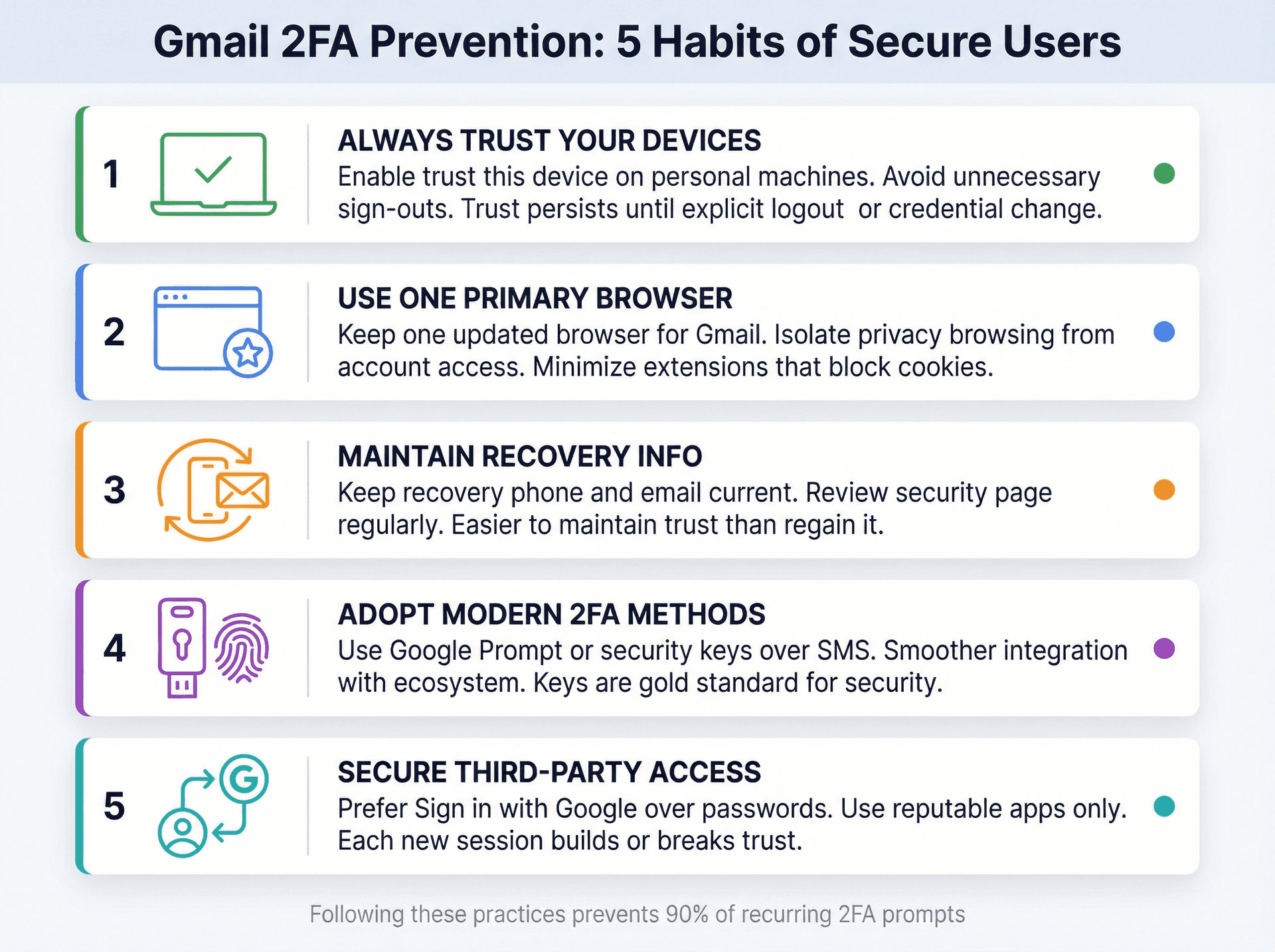
Going forward, keep these best practices in mind to avoid falling back into a verification loop.
Always enable "trust this device" on your personal devices and avoid logging out unnecessarily. Google will keep you signed in until you explicitly sign out or something (like a cookie deletion or password change) invalidates the session.
Use one primary browser for Gmail that you keep updated and minimally bloated with extensions. If you need extreme privacy measures for general browsing, consider isolating that from your Gmail usage -- use one browser for Gmail with normal settings, and a different browser or profile for ultra-private browsing.
Keep your recovery info current and periodically review your account's security page for strange activity. It's easier to maintain Google's trust than to regain it after a scare.
Embrace better 2FA methods like prompts or security keys. They integrate more smoothly with Google's ecosystem. If you ever switch to using a physical security key (Titan, YubiKey, etc.), you'll actually never get SMS or app prompts on that device, but note that you'll need the key present to log in each time on new sessions. Security keys are the gold standard, but Google still lets you trust devices so you're not inserting the key every login.
Be mindful of third-party app access. If you connect new apps to your Google account, try to use "Sign in with Google" (OAuth) rather than giving out your password. Each new app or device that logs in could potentially cause Google to register a new session, which, if done properly, is fine (Google will trust it after first 2FA), but if done in a less secure way, could raise flags. Use reputable apps and methods.
How Inbox Zero helps with email authentication headaches
While you're fixing your 2FA issues, you might realize that managing Gmail manually -- even with working authentication -- is still overwhelming. Inbox Zero tackles a different but related problem: email overload.
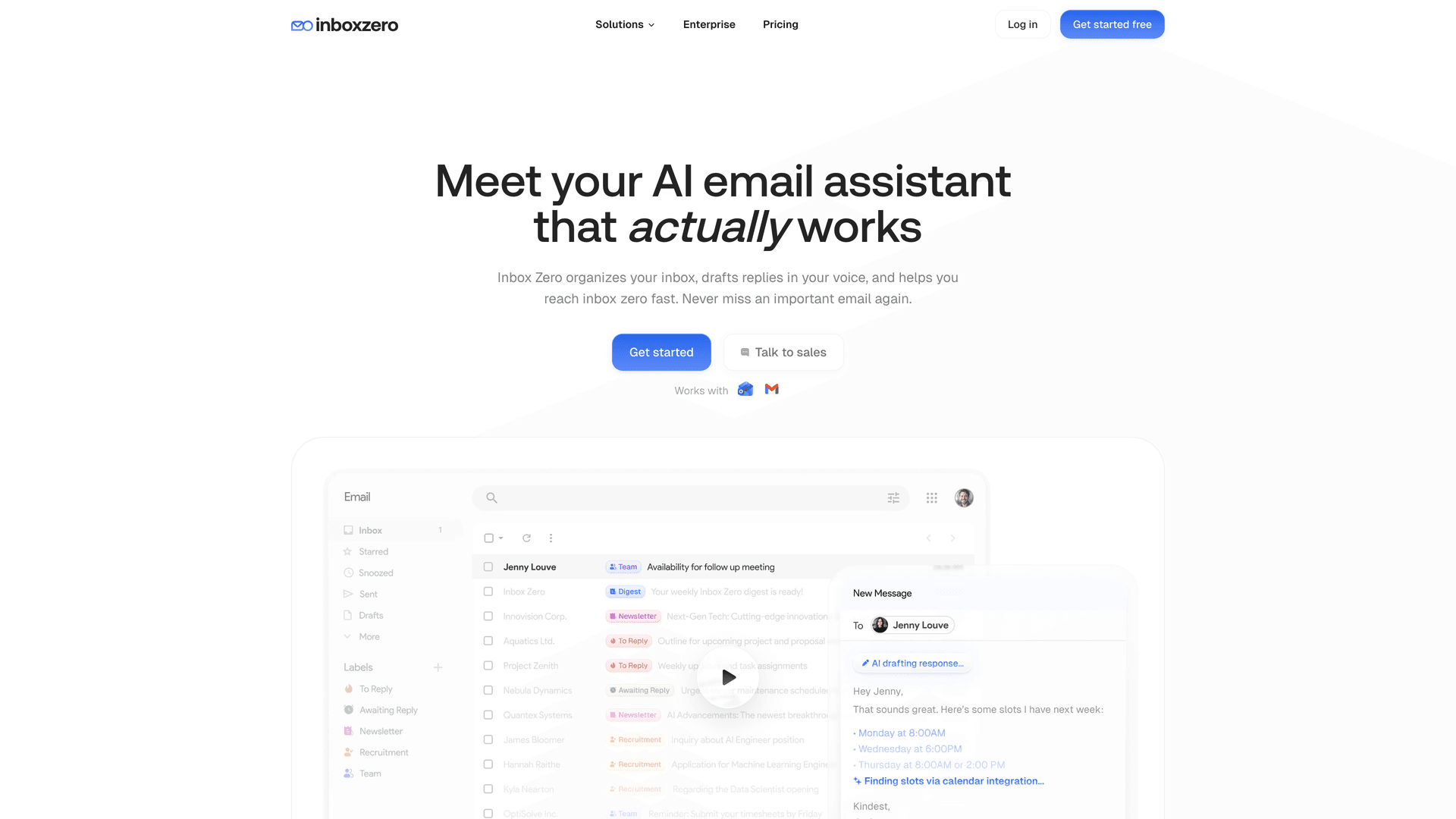
Once your 2FA is stable and you can actually stay signed in, Inbox Zero helps you draft replies automatically using AI automation rules so you're not typing the same responses repeatedly. You can bulk unsubscribe from newsletters and marketing emails you never read, block cold emails automatically so your inbox only shows messages that matter, track what needs replies with Reply Zero labels (To Reply and Awaiting Reply), and analyze your email patterns to see who's taking up your time.
Think of it this way: fixing 2FA gets you into your inbox reliably. Inbox Zero helps you stay in control once you're there. It works inside Gmail using OAuth (the same "Sign in with Google" we recommended for mail clients), so it respects your existing labels and filters.
The tool is SOC 2 compliant and CASA Tier 2 approved, meaning it passed Google's security assessments for apps accessing sensitive Gmail data. You can also self-host it if you prefer to keep everything on your own infrastructure.
If you're interested, sign up for Inbox Zero or try the bulk email unsubscriber to see how much time you can reclaim. We also offer solutions for small businesses, founders, and enterprise teams.
FAQ
Why does "Don't ask again" not work?
Because it depends on your browser being able to store and retain Google cookies and session state. If cookies are disabled, deleted after a period of time, or you're in incognito mode, you'll be asked again.
How do I make Gmail remember me without disabling privacy settings?
Add an allow/exception for Google Account cookies. Google explicitly suggests adding a cookie exception for [*.]google.com if you don't want to enter 2SV every time.
Why do I get "Verify it's you" when changing Gmail filters or enabling IMAP?
Because those are considered sensitive actions. Google may require identity verification with a device or security key registered to the account for at least 7 days and can block sensitive actions for 7 days if verification fails.
Should I turn off 2-Step Verification to make the prompts stop?
It will reduce friction, but it also removes a major security layer. Google's own "Turn off 2-Step Verification" help page warns that disabling it makes it easier for someone else to access your account. A better solution is fixing cookie persistence or moving to passkeys.
Why can't I find "App passwords" in my Google Account?
Google lists several common reasons: 2SV is set up only for security keys, the account is a work, school, or organization account, or Advanced Protection is enabled.
For more Gmail troubleshooting help, check out our guides on Gmail not syncing, Gmail running slow, and Gmail storage issues.
Data currency note
This guide is updated January 2026 and references Google/Apple documentation and announcements through late 2025, plus Workspace security changes (for example, DBSC) rolling out in 2025.
Product UIs and admin console paths can change; when in doubt, use the exact feature names called out in Google's Help Center (for example, trusted devices, web session duration, reset sign-in cookies, DBSC) and verify current settings in your account/admin console.

How to Recall an Email in Outlook (2026)
How to recall an email in Outlook step by step for new Outlook, classic Outlook, web, Mac, and mobile, plus when recall works and what to do when it doesn't.
2026-09-30T18:25:57.000Z

How to Stop AliExpress Emails (2026)
Stop AliExpress promotional emails: the unsubscribe link, notification settings in your AliExpress account, and what to do when the deals keep coming.
2026-09-30T18:25:57.000Z

How to Stop Amazon Emails (2026)
Stop Amazon marketing emails with the Communication Preferences Center, manage Amazon email subscriptions, and handle order emails you can't switch off.
2026-09-30T18:25:57.000Z

How to Stop Domino's Emails (2026)
Stop Domino's emails with Domino's official opt-out page, stop Domino's text offers, and know which rewards emails keep coming.
2026-09-30T18:25:57.000Z