How to Export Gmail Contacts to Excel/CSV (2026 Guide)
Learn how to export Gmail contacts to Excel/CSV without losing data. Step-by-step guide to avoid corruption and clean up your contact list fast.

Exporting your Gmail contacts usually happens because you're about to do something that needs a contact list outside your inbox. Maybe you're switching email providers and don't want to rebuild your address book from scratch. Or you're importing contacts into a CRM for a sales campaign. Or you just want a backup so you're not completely reliant on Google's servers. Whatever the reason, you need your contacts in a format you can actually use.
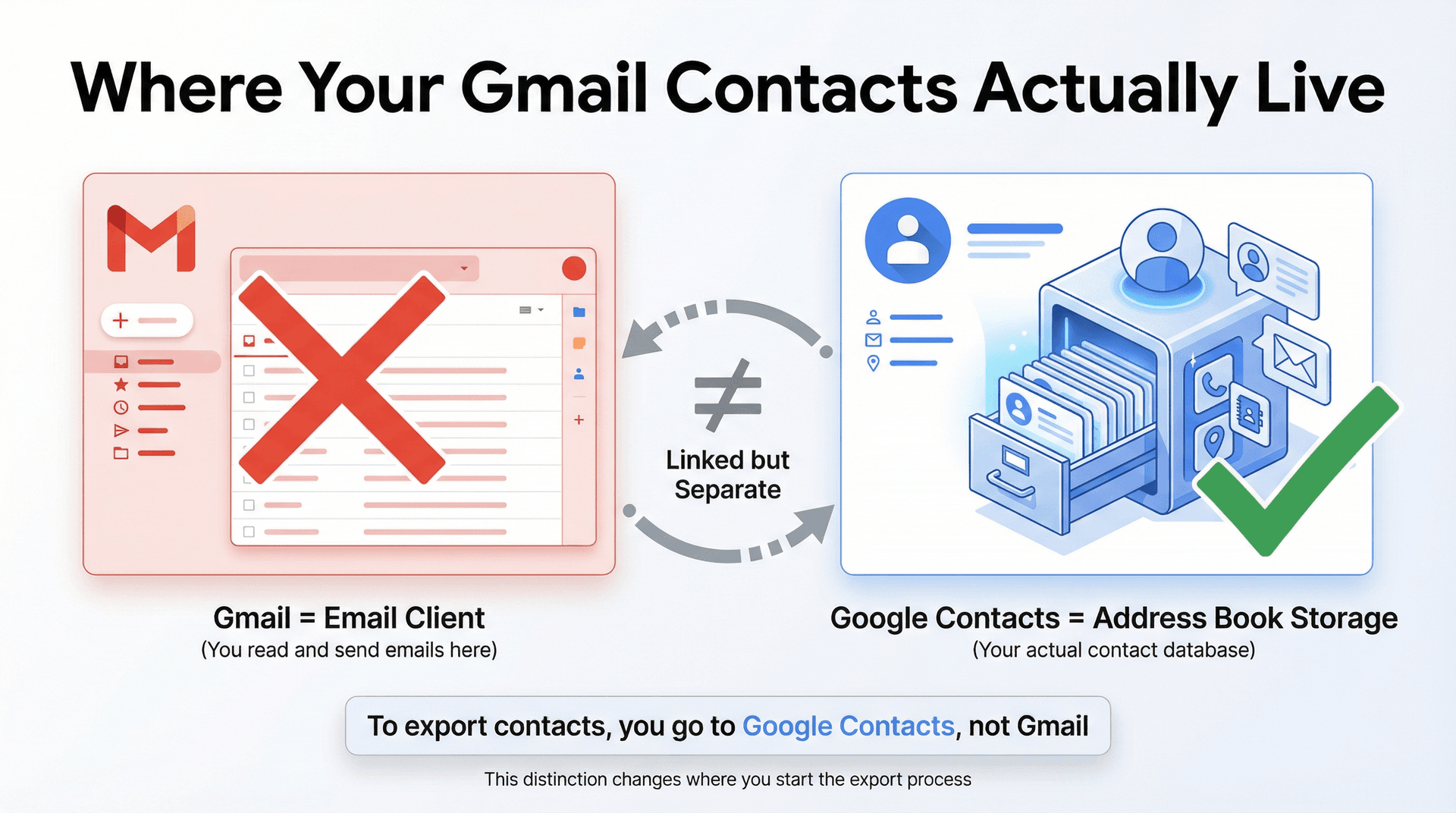
Here's the first thing most guides won't tell you clearly: Gmail doesn't have contacts. Your contacts live in Google Contacts, not Gmail. So when you export "Gmail contacts," you're really exporting from Google Contacts to a CSV or vCard file, which you can then open in Excel or import elsewhere. That distinction matters because it changes where you go to start the export process.
This guide covers the practical path from Google Contacts to Excel without losing data along the way. We'll also show you how to clean up that exported spreadsheet so it's actually useful, not just a messy dump of names and emails. And if you're looking for ways to better manage your inbox after organizing your contacts, we'll cover that too.
How to Export Gmail Contacts Fast (3-Minute Method)
If you just need to export your contacts right now and figure out the details later, here's the fast path:
① Open Google Contacts in your browser (make sure you're logged into the right Gmail account).
② Select the contacts you want. To grab everything, click any contact, then use the dropdown to choose "All."
③ Click More actions (the three dots) and select Export.
④ Choose Google CSV as the format and click Export. Your browser will download a .csv file.
URL: https://contacts.google.com Location: Fast Method - Export Interface Purpose: Show Google Contacts export interface with More actions menu open, Export option visible, and format selection dialog
Manual Capture Instructions:
- Log into https://contacts.google.com with your Google account
- Create 2-3 test/dummy contacts if your account is empty
- Click the More actions button (three vertical dots ⋮) in the toolbar
- Hover over or highlight the "Export" option (do NOT click yet - keep menu visible)
- Take screenshot showing the dropdown menu
- Alternatively, click Export and capture the dialog showing format options (Google CSV, Outlook CSV, vCard)
- Save as:
screenshot-sc-01-contacts-export-1920x1080.png - Move to:
clients/Inbox Zero/blogs/how-to-export-gmail-contacts-to-excel-csv/images/screenshots/
Replacement: Replaces AI illustration image-02-quick-export-flow with real Google Contacts UI
Alt Text: Google Contacts export interface showing More actions menu with Export option and format selection dialog
Detailed Instructions: See web-screenshots/captures/SC-01.md
Then, when you open that CSV in Excel, don't just double-click the file. Use Data > Get Data > From Text/CSV instead to preserve special characters and phone number formatting. Microsoft's Excel UTF-8 import guide explains why this matters --- Excel's auto-detection often mangles data with accents or leading zeros.
That's the minimum viable export. If you need more control, or you're not sure which contacts to export, keep reading.
Where Are Gmail Contacts Stored? (Google Contacts vs Gmail)
This is where people accidentally export the wrong list.
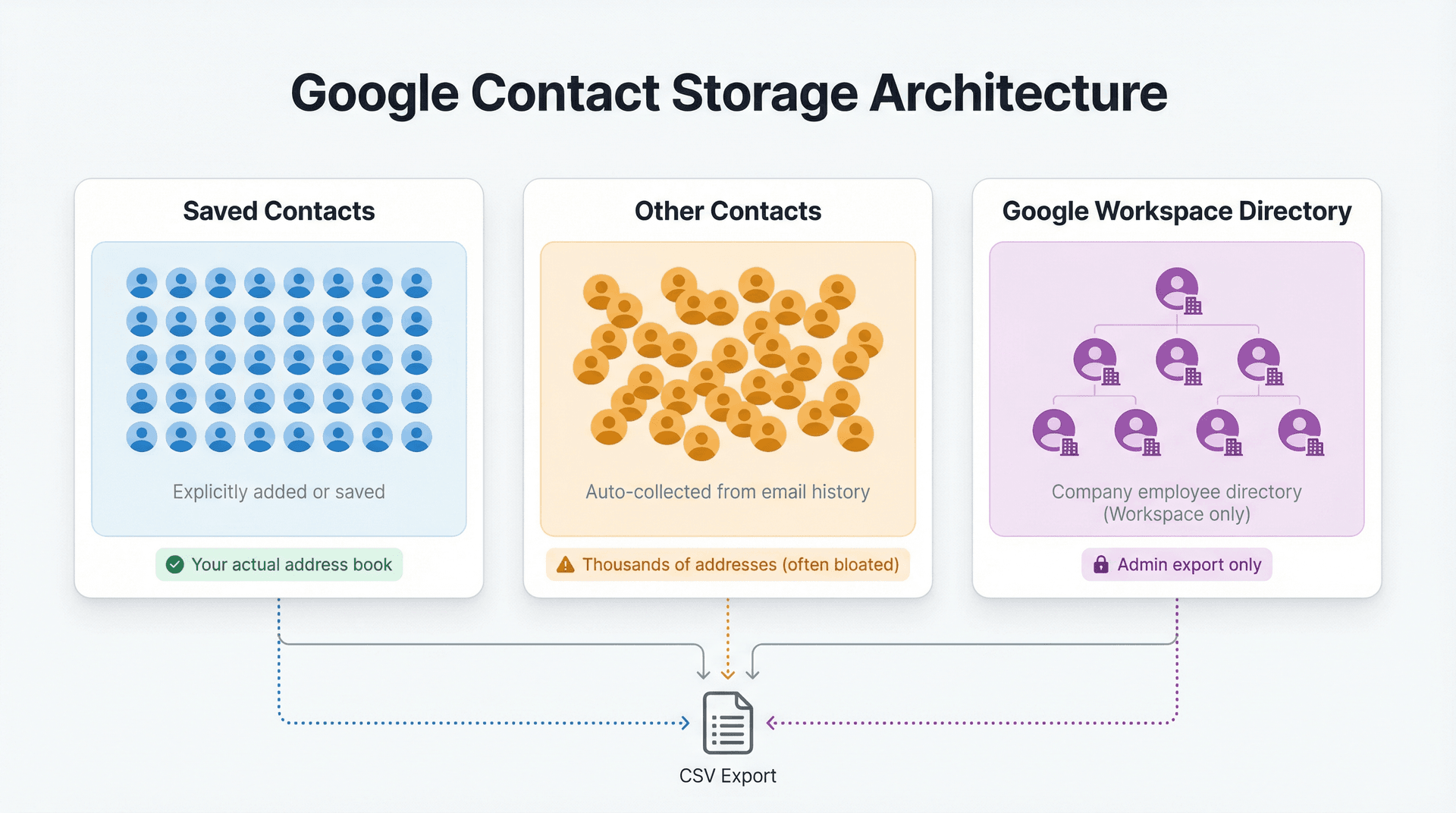
Most people assume they're exporting "all my Gmail contacts," but Google actually maintains three separate lists of people. Picking the wrong one means you export an incomplete or bloated address book.
Gmail Contact Lists Explained: Saved vs Other vs Directory
| List Type | What It Contains | When to Export |
|---|---|---|
| Saved Contacts | People you explicitly added or saved. | Most common case. This is your actual address book. |
| Other Contacts | Email addresses Google auto-collected from your email history (people you've emailed but never saved). | When you need "everyone I've ever contacted" for a migration or CRM import. |
| Google Workspace Directory | Your company's employee directory (if you're on Workspace). | Admin export only. Use this for team migrations, not personal backups. |
If you're trying to export contacts and the CSV comes back empty, you probably picked the wrong list.
Your "real" contacts are usually in Saved Contacts. Other Contacts can be thousands of addresses you don't actually care about, but sometimes that's exactly what you need --- for example, if you're moving to a new email platform and want to preserve autocomplete history.
Important: To export Other Contacts, go to Google Contacts, click Other contacts in the left sidebar, select the ones you want, and export using the same process as saved contacts.
URL: https://contacts.google.com Location: Storage Explanation - Other Contacts View Purpose: Show Google Contacts sidebar with "Other contacts" option visible to illustrate the difference between Saved Contacts and Other Contacts
Manual Capture Instructions:
- Log into https://contacts.google.com
- Look for "Other contacts" option in the left sidebar
- Click "Other contacts" to switch views (interface will show auto-collected email addresses)
- Ensure left sidebar is visible showing both "Contacts" and "Other contacts" options
- Take screenshot showing the sidebar with "Other contacts" selected
- Save as:
screenshot-sc-03-other-contacts-1920x1080.png - Move to:
clients/Inbox Zero/blogs/how-to-export-gmail-contacts-to-excel-csv/images/screenshots/
Type: Additive (not replacing existing image - adds visual clarity)
Alt Text: Google Contacts sidebar showing 'Other contacts' option for accessing auto-collected email addresses
Detailed Instructions: See web-screenshots/captures/SC-03.md
Understanding how to organize your contact lists effectively can save you hours of cleanup work later.
How to Export Google Contacts to CSV (Step-by-Step for Desktop)
This is the best method for most people because it gives you a clean CSV file that works with Excel, Google Sheets, and pretty much every CRM or email tool. You get full control over what you export and which format you use.
URL: https://contacts.google.com Location: Desktop Method - Export Interface Purpose: Show Google Contacts export interface with More actions menu and Export dialog (same capture as SC-01 in Fast Method)
Note: This is the same screenshot as SC-01 above. Once captured, it will be reused in both the Fast Method and this Desktop Method section to show the export interface.
Replacement: Replaces AI illustration image-04-export-process-walkthrough with real Google Contacts UI
Alt Text: Google Contacts export interface showing More actions menu with Export option and format selection dialog
Detailed Instructions: See web-screenshots/captures/SC-01.md
Step-by-Step Export Process
1. Navigate to Google Contacts
Log into Gmail in your web browser. Click the Google Apps grid (the 9-dot menu in the top-right corner) and select Contacts. This opens Google Contacts in a new tab. You can also go directly to contacts.google.com.
URL: https://mail.gmail.com Location: Desktop Method Step 1 - Navigate to Google Contacts Purpose: Show Gmail's Google Apps grid (9-dot menu) with Contacts option highlighted
Manual Capture Instructions:
- Log into https://mail.gmail.com
- Click the Google Apps grid icon (9 dots) in the top-right corner
- Dropdown menu will appear showing various Google apps
- Do NOT click Contacts yet - keep the menu open
- Take screenshot showing Gmail interface with the apps dropdown visible and Contacts option shown
- Save as:
screenshot-sc-05-gmail-apps-grid-1920x1080.png - Move to:
clients/Inbox Zero/blogs/how-to-export-gmail-contacts-to-excel-csv/images/screenshots/
Type: Additive (adds visual clarity to navigation step)
Alt Text: Gmail interface showing Google Apps grid menu with Contacts option for accessing Google Contacts
Detailed Instructions: See web-screenshots/captures/SC-05.md
Make sure you're logged into the correct Google account. If you have multiple Gmail accounts (personal, work, etc.), double-check the account name in the top-right corner. Managing multiple email accounts efficiently becomes much easier when you know exactly which data belongs to which account.
2. Select the contacts you want to export
You have a few options here. If you want to export everything, skip manual selection --- in the export dialog (next step), you'll choose "All contacts." If you only need specific people, hover over each contact's profile picture and check the box to select them. And if you want an entire label or group, click that label in the left sidebar (like "Work" or "Friends") and then select all contacts within it.
Selecting a label first and then exporting is the cleanest way to get targeted lists for CRM imports or email campaigns. For more on organizing contacts into meaningful groups, check out our guide on creating email groups in Gmail.
3. Open the Export menu
Click the More actions button (three vertical dots) in the toolbar above your contacts list. In the dropdown, select Export. In some versions of Google Contacts, there's also a dedicated Export button in the left sidebar.
4. Choose your export settings
A dialog box will appear with two key choices. First, which contacts to include: you can pick selected contacts (if you chose some in step 2), all contacts (your entire saved address book), or a specific label like "Vendors" or "Clients." Second, which format to use: Google CSV (recommended for most people), Outlook CSV (if you're importing into Outlook), or vCard (.vcf file for Apple devices or mobile apps).
5. Click Export and download the file
After you confirm your selections, click Export. Your browser will download a file (usually named contacts.csv or similar). It lands in your Downloads folder by default. If you chose CSV, you now have a spreadsheet-ready file. If you chose vCard, you have a .vcf file for importing into phone apps or Apple Contacts.
Google CSV vs Outlook CSV vs vCard: Which Format to Choose?
Picking the right format matters because it affects what data gets preserved and how easily you can import the file elsewhere.
| Format | Best For | Encoding | Compatibility |
|---|---|---|---|
| Google CSV | Backups, Google-to-Google transfers, Excel | UTF-8 (preserves all characters) | Universal. Works with Excel, Sheets, most CRMs. |
| Outlook CSV | Importing into Outlook or Microsoft apps | Windows character encoding | Outlook-specific. Can garble non-English characters. |
| vCard (.vcf) | Apple devices (iPhone, Mac), mobile apps | Varies | Not for Excel. Use for phone/tablet imports. |
Use Google CSV if you want an Excel spreadsheet or you need a general-purpose backup. Google CSV uses Unicode (UTF-8), so international characters, accents, and special symbols stay intact. This is the safest choice for most people.
Use Outlook CSV only if you're definitely importing into Outlook and you don't have contacts with non-English names or addresses. The encoding Outlook expects can break accented characters. If you export with Outlook CSV and open it in Excel, you might see gibberish where accents should be.
Use vCard for transferring contacts to an iPhone, iPad, or Mac. vCard files preserve photos and notes, but you can't open them directly in Excel. If you need a spreadsheet, don't use vCard.
If you're not sure which format to use, export as Google CSV. You can always convert it later if needed.
How to Export Specific Gmail Contact Groups or Labels
Sometimes you don't want your entire address book. You just want a subset --- like "Vendors," "Event Attendees," or "VIP Contacts." Exporting by label gives you a clean, focused list that's easier to import into tools that expect segmented data.
This method is most useful when you're importing into a CRM and only want leads or customers (not your entire personal address book), when you're creating a mailing list for an event or campaign, or when you're backing up a specific group before making changes.
Here's how to do it:
① In Google Contacts, click the label you want in the left sidebar (under "Labels").
② Google Contacts will filter to show only people in that label.
③ Click Export (from the sidebar or the More actions menu).
④ In the export dialog, make sure "Selected contacts" or the specific label name is chosen.
⑤ Pick your format (Google CSV for most uses) and export.
This is cleaner than exporting everything and then trying to filter in Excel. Most email marketing platforms and CRMs work better when you upload pre-segmented lists. This approach also reduces the risk of accidentally importing irrelevant contacts into sensitive systems. If you're building segments for email campaigns, our email management strategies guide can help you think through the right contact organization.
URL: https://contacts.google.com Location: Label Export Method Purpose: Show Google Contacts interface with label sidebar visible, demonstrating group/label selection for targeted exports
Manual Capture Instructions:
- Log into https://contacts.google.com
- Ensure you have 2-3 contact labels/groups (e.g., "Work", "Friends", "Vendors")
- Click one of your labels in the sidebar to filter contacts
- Ensure left sidebar is fully visible showing all labels
- Take screenshot showing sidebar with labels list and filtered contact view
- Save as:
screenshot-sc-02-contacts-labels-1920x1080.png - Move to:
clients/Inbox Zero/blogs/how-to-export-gmail-contacts-to-excel-csv/images/screenshots/
Replacement: Replaces AI illustration image-05-label-export-flow with real Google Contacts UI
Alt Text: Google Contacts interface showing label sidebar with contact groups for targeted export selection
Detailed Instructions: See web-screenshots/captures/SC-02.md
How to Export Gmail Contacts from Android Phone
If you need to export contacts from your Android device (maybe you don't have desktop access right now), the official method exports to vCard (VCF), not CSV. This is fine for moving contacts to another phone or service, but it's not ideal if you need an Excel spreadsheet.
Application: Android Contacts app (mobile) Location: Android Export Method Purpose: Show Android Contacts export flow (Fix & manage → Export to file → Export to .VCF)
Manual Capture Instructions:
- Open Contacts app on Android device (or Android emulator)
- Add 2-3 test/dummy contacts if needed
- Tap "Fix & manage" (usually in bottom navigation)
- Tap "Export to file"
- Take screenshot when "Export to .VCF file" dialog appears
- Transfer screenshot to computer and save as:
screenshot-sc-ph-02-android-export.png - Move to:
clients/Inbox Zero/blogs/how-to-export-gmail-contacts-to-excel-csv/images/screenshots/
Reason for Placeholder: Android Contacts app requires physical Android device or emulator - not accessible via web browser automation
Replacement: Replaces AI illustration image-06-android-vcf-conversion with real Android Contacts UI
Alt Text: Android Contacts app showing export to VCF file option in Fix & manage menu for mobile contact backup
Detailed Instructions: See web-screenshots/captures/SC-PH-02.md
Android Export Steps (Official)
According to Google's Android help docs, here's the process:
① Open the Contacts app on your Android device.
② Tap Fix & manage (usually in the bottom menu).
③ Tap Export to file.
④ Choose which account's contacts you want to export.
⑤ Tap Export to .VCF file. Your phone saves a .vcf file (usually to your Downloads folder or internal storage).
You'll end up with a vCard file on your phone. Now you need to get it to your computer and convert it to CSV if you want to use Excel.
How to Convert VCF to CSV for Excel
The safest way to convert a vCard file to CSV without losing data is a three-step process. First, transfer the .vcf file from your phone to your computer --- email it to yourself, use Google Drive, or USB transfer. Then import that VCF file into Google Contacts on desktop by clicking Import in the left sidebar and uploading the .vcf file. Google will add those contacts to your account. Finally, export from Google Contacts as CSV using Method 1 above.
This might seem roundabout, but it avoids sketchy "free online VCF to CSV converters" that could quietly harvest your contact data. When managing sensitive contact information, using secure, trusted tools is essential to protect your data and maintain privacy.
How to Export All Gmail Data with Google Takeout
If you're doing a full account backup or migrating off Google entirely, Google Takeout is the nuclear option. It lets you download all your Google data, including contacts, in one archive. This is overkill for a quick contact export, but it's the right tool if you're backing up your entire digital life or leaving the Google ecosystem.
When to Use Google Takeout for Contact Export
Google Takeout makes sense in a few specific scenarios: when you're off-ramping from Google completely (moving to a different email provider or abandoning a Google account), when you need long-term backups for compliance or personal archival, or when you want to capture multiple contact sources at once since Takeout can include contacts from multiple linked accounts or services.
Google's Takeout help page explains the full process. In short, you select which Google services to export (in this case, just Contacts), choose your format, and Google prepares a download link.
URL: https://takeout.google.com Location: Takeout Method Purpose: Show Google Takeout service selection interface with Contacts checkbox selected and format options
Manual Capture Instructions:
- Log into https://takeout.google.com
- Click "Deselect all" to uncheck all services
- Scroll to find "Contacts" and check its checkbox
- Click the dropdown/options for Contacts to show format choices (vCard, CSV, etc.)
- Take screenshot showing Contacts selected with format options visible
- Save as:
screenshot-sc-04-takeout-contacts-1920x1080.png - Move to:
clients/Inbox Zero/blogs/how-to-export-gmail-contacts-to-excel-csv/images/screenshots/
Reason for Placeholder: Google Takeout requires authentication - automated capture only shows login page
Replacement: Replaces AI illustration image-07-google-takeout-interface with real Google Takeout UI
Alt Text: Google Takeout service selection showing Contacts export with format options for full account backup
Detailed Instructions: See web-screenshots/captures/SC-04.md
Takeout Nuance Most People Miss
Depending on which format you pick during the Takeout setup, your contacts will export as either vCard (.vcf) or CSV. Some exports create multiple folders for different contact sources --- for example, "All Contacts" vs "Other Contacts" as separate files in the archive. Also, contact profile pictures might export as separate image files but won't automatically reattach when you import the contacts elsewhere.
For Excel users, select CSV in the Takeout format options. If you pick vCard by mistake, you'll have to convert it to CSV later (see Method 3 above).
How to Open CSV Files in Excel Without Losing Data
Getting the CSV file is half the battle. The other half is opening it in Excel without turning names into gibberish, phone numbers into scientific notation, or columns into a jumbled mess. Excel tries to be helpful by auto-detecting encoding and data types, but that "help" often destroys your data.
Application: Microsoft Excel (desktop app) Location: Excel Import Section Purpose: Show Excel's proper CSV import dialog (Data > Get Data > From Text/CSV) with UTF-8 encoding selection
Manual Capture Instructions:
- Open Microsoft Excel on Windows or macOS
- Go to Data tab → Get Data → From File → From Text/CSV
- Select a sample Google Contacts CSV file
- Capture the preview dialog showing:
- File Origin dropdown set to "UTF-8" or "65001: Unicode (UTF-8)"
- Delimiter option (Comma)
- Data preview grid
- Save as:
screenshot-sc-ph-01-excel-import-dialog.png - Move to:
clients/Inbox Zero/blogs/how-to-export-gmail-contacts-to-excel-csv/images/screenshots/
Reason for Placeholder: Microsoft Excel is a desktop application, not web-based - cannot capture via browser automation
Replacement: Replaces AI illustration image-08-excel-csv-import with real Excel UI
Alt Text: Excel CSV import dialog showing UTF-8 encoding selection and data preview for proper contact import
Detailed Instructions: See web-screenshots/captures/SC-PH-01.md
Why Excel Corrupts Contact Data (3 Common Issues)
| Problem | What Happens | Why |
|---|---|---|
| Gibberish names | "Jose Garcia" becomes "José GarcÃa" | Excel guessed the wrong text encoding (not UTF-8) |
| Phone numbers lose zeros | "+44 7700 900123" becomes "4.47E+12" | Excel auto-converted to scientific notation |
| Columns split wrong | Everything appears in Column A as one long string | Delimiter/locale mismatch (Excel expected semicolons, file uses commas) |
These aren't minor annoyances. They cause real data loss. If you save that mangled file back to CSV, you've permanently corrupted your contacts.
How to Import CSV to Excel Without Corruption
Don't just double-click the CSV file to open it in Excel. Instead, use Excel's proper import flow, which lets you specify encoding and column types before Excel makes destructive assumptions.
In modern Excel (Windows and most versions), open a blank workbook, then go to the Data tab and select Get Data > From Text/CSV. Select your exported CSV file. In the preview window, set the File Origin to UTF-8 and confirm the Delimiter is set to Comma (usually auto-detected correctly). From there, click Transform Data to open Power Query if you need to fix column types, or click Load to import directly.
Microsoft's official UTF-8 CSV guide recommends this Data Import method for any CSV that might contain international characters or formatted phone numbers.
Some Excel versions still have the Text Import Wizard as a legacy option. Microsoft documents this wizard for users on older Excel builds. It works similarly: you specify delimiter, encoding, and column data types step-by-step before importing.
Use Google Sheets to Fix Corrupted CSV Files
If Excel keeps misreading your file no matter what you try, there's a reliable workaround. Import the CSV into Google Sheets (File > Import > Upload), which handles UTF-8 natively and doesn't mangle data types as aggressively. Fix any obvious issues like column headers or broken splits, then download from Google Sheets as .xlsx (File > Download > Microsoft Excel).
Now you have a proper Excel file with preserved formatting and encoding. This two-step process often saves corrupted exports that Excel alone can't handle.
How to Clean Up Exported Gmail Contacts for CRM Import
Exporting is the easy part. Turning that raw CSV into a clean, usable contact list is where most people get stuck. You've got a spreadsheet with thousands of rows, duplicate emails, inconsistent formatting, and fields you don't even recognize.
Here's a practical workflow to fix that.
Application: Microsoft Excel (desktop app) Location: Cleanup Section - Corruption Comparison Purpose: Show side-by-side comparison of corrupted CSV data (double-click) versus clean data (proper UTF-8 import)
Manual Capture Instructions:
- Wrong way: Double-click a CSV file to open in Excel (causes corruption)
- Capture showing gibberish names, scientific notation phone numbers, broken columns
- Right way: Use Data > Get Data > From Text/CSV with UTF-8 encoding
- Capture showing clean, properly formatted data
- Create side-by-side comparison image with labels "WRONG (double-click)" vs "CORRECT (Data Import with UTF-8)"
- Save as:
screenshot-sc-ph-01-excel-comparison.png - Move to:
clients/Inbox Zero/blogs/how-to-export-gmail-contacts-to-excel-csv/images/screenshots/
Reason for Placeholder: Microsoft Excel is a desktop application, not web-based
Replacement: Replaces AI illustration image-09-excel-csv-import-comparison with real Excel screenshots
Alt Text: Side-by-side comparison showing corrupted CSV data from double-clicking versus clean data from proper UTF-8 import
Detailed Instructions: See web-screenshots/captures/SC-PH-01.md for full instructions on creating both captures
5-Step Contact Cleanup Workflow
Step 1: Freeze a Clean "Raw Export" Copy
Before you touch anything, make a copy of the exported CSV file and rename it something like contacts_raw_backup_2026-01-18.csv. Treat this copy as read-only and don't edit it. This gives you a safety net --- if you accidentally delete critical data during cleanup, you can always go back to the original export.
Step 2: Decide Your "Canonical Identity"
Pick the single field you'll treat as the unique identifier for each contact. For most people, this should be the primary email address. Email is stable (people rarely change email addresses compared to phone numbers), it's searchable, and almost every import tool expects email as the unique key. Mark your chosen ID column in a bright color or freeze it as the first column in your spreadsheet.
Step 3: Dedupe Properly (Avoid Silent Data Loss)
If two rows share the same email, you have a duplicate. Excel's "Remove Duplicates" button will delete one row, but which one? You might lose important data if the duplicate rows have different phone numbers or addresses.
A smarter approach is to merge rows when you care about complete profiles --- use formulas or a tool to combine data from duplicate rows into one master row. If you just need a clean mailing list, sort by "number of filled fields" and keep the fuller entry. Only keep both rows if they truly represent different contacts (for example, two people at the same company using a shared email). Don't blindly remove duplicates without deciding which columns matter. For more on organizing your email data effectively, see our guide on email inbox management best practices.
Step 4: Normalize Fields That Break Imports
A few common formatting issues cause import failures. Trim spaces around emails using Excel's =TRIM(A2) formula to remove invisible leading/trailing spaces. Lowercase emails with =LOWER(A2) to standardize casing, since most systems treat John@Company.com and john@company.com as the same address, but not always. And standardize phone numbers by picking one format and sticking to it --- E.164 international format (+1234567890) works best for global tools, though (123) 456-7890 is fine if you're US-only. Consistency is what matters.
Step 5: Add Columns Your Future Self Will Need
Most CSV exports lack context. Adding a few extra columns turns a static address book into a working CRM foundation. Consider including a Source column (where this contact came from: "Gmail export," "Event signup," "LinkedIn"), a Label/Segment column (Lead, Customer, Vendor, Recruiting, Personal), a Last Verified date (when you confirmed the contact is still valid), and a Consent Status field if you plan to email them for marketing so you can track whether you have permission.
If you're building out email management systems for your business, this metadata becomes critical for segmentation and compliance.
How Inbox Zero Helps After Contact Export
Once you've cleaned up your contact list, you're probably importing it somewhere to do something with it. Maybe you're launching an email campaign, moving to a new CRM, or just organizing your ongoing email relationships. This is where managing the emails to and from these contacts becomes the real work.
Inbox Zero helps you stay on top of that without drowning. Reply Zero labels every thread that needs a response as To Reply and every thread where you're waiting as Awaiting Reply, giving you a focused view of exactly what needs attention instead of hunting through your inbox for forgotten follow-ups. This is especially useful after a contact import when you're suddenly managing conversations with hundreds of new or re-engaged contacts.
Inbox Zero Tabs for Gmail lets you create custom tabs from any Gmail search query or label. After organizing your contacts into segments (VIPs, Leads, Customers), you can create tabs that show only emails from those groups --- like Superhuman's split inbox, but inside vanilla Gmail.
The Bulk Email Unsubscriber is for cleaning up the other side of your contact list: the newsletters and marketing emails you never wanted. If your contact export revealed hundreds of senders you don't actually care about, you can unsubscribe or auto-archive them in bulk without clicking through hundreds of individual emails.
AI Email Automation can help you manage the flood of emails that comes with a large contact list. The AI Personal Assistant drafts replies, labels messages, and handles routine email tasks automatically. And Email Analytics shows you patterns in your email activity through an analytics dashboard that reveals send/receive trends, top senders, and reading rates, helping you understand which contacts generate the most volume and where your time is going.
We built Inbox Zero because email management doesn't stop at having a clean contact list. You need systems that help you act on those contacts without losing threads or missing replies. For more strategies, check out our comprehensive guide on email productivity.
Gmail Contact Export Problems and How to Fix Them
Even when you follow the steps correctly, exports sometimes fail or produce unexpected results. Here are the most common problems and what's actually going wrong.
Why Is My Gmail Contact Export Empty?
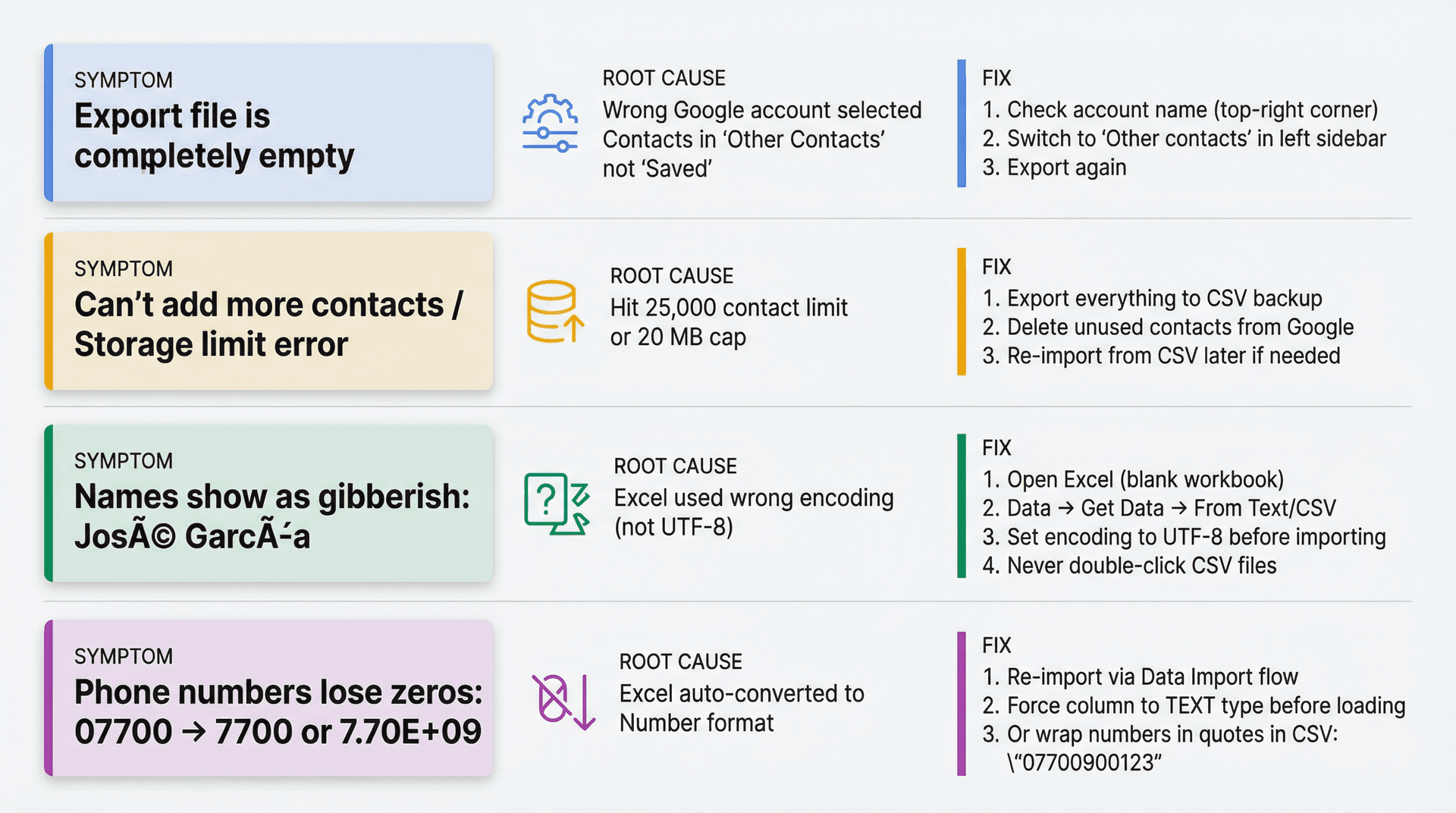
The most likely cause is that you exported from the wrong Google account --- check the account name in the top-right corner of Google Contacts. Alternatively, the people you want might be in Other Contacts or the Workspace Directory, not your saved contacts. Go back to Google Contacts and switch to "Other contacts" in the left sidebar, then export again.
Google Contacts Storage Limits: Can't Add More Contacts
According to Google's contact limits documentation, you're capped at 25,000 contacts total or 20 MB, whichever you hit first. Per-contact limits are 128 KB per contact, 1,024 characters per field (except Notes), and 500 fields total.
If you're near these limits, exporting to CSV is a good way to archive old contacts. Export everything, save the backup, then delete contacts you don't actively use from Google. You can always re-import from the CSV later if you need them. For strategies on managing large contact lists and reducing email clutter, see our email management tips.
Why Do Contact Names Look Corrupted in Excel?
If "Jose Garcia" shows up as "José GarcÃa," the root cause is that Excel opened the CSV with the wrong text encoding. The fix is to use Excel's Data > Get Data > From Text/CSV import flow and set the encoding to UTF-8 before importing. Don't double-click the CSV file to open it. Microsoft's UTF-8 guide covers this specifically.
Why Did My Phone Numbers Lose Leading Zeros?
If 07700900123 becomes 7700900123 or 7.70E+09, Excel auto-converted the column to Number format. Re-import the CSV using the Data Import flow and force that column to Text type before Excel loads it. Or wrap phone numbers in quotes in the CSV file itself before opening (e.g., "07700900123").
Advanced Gmail Contact Export Methods
Most people can stop after Method 1, but some scenarios need different tools.
How to Export Google Workspace Company Directory
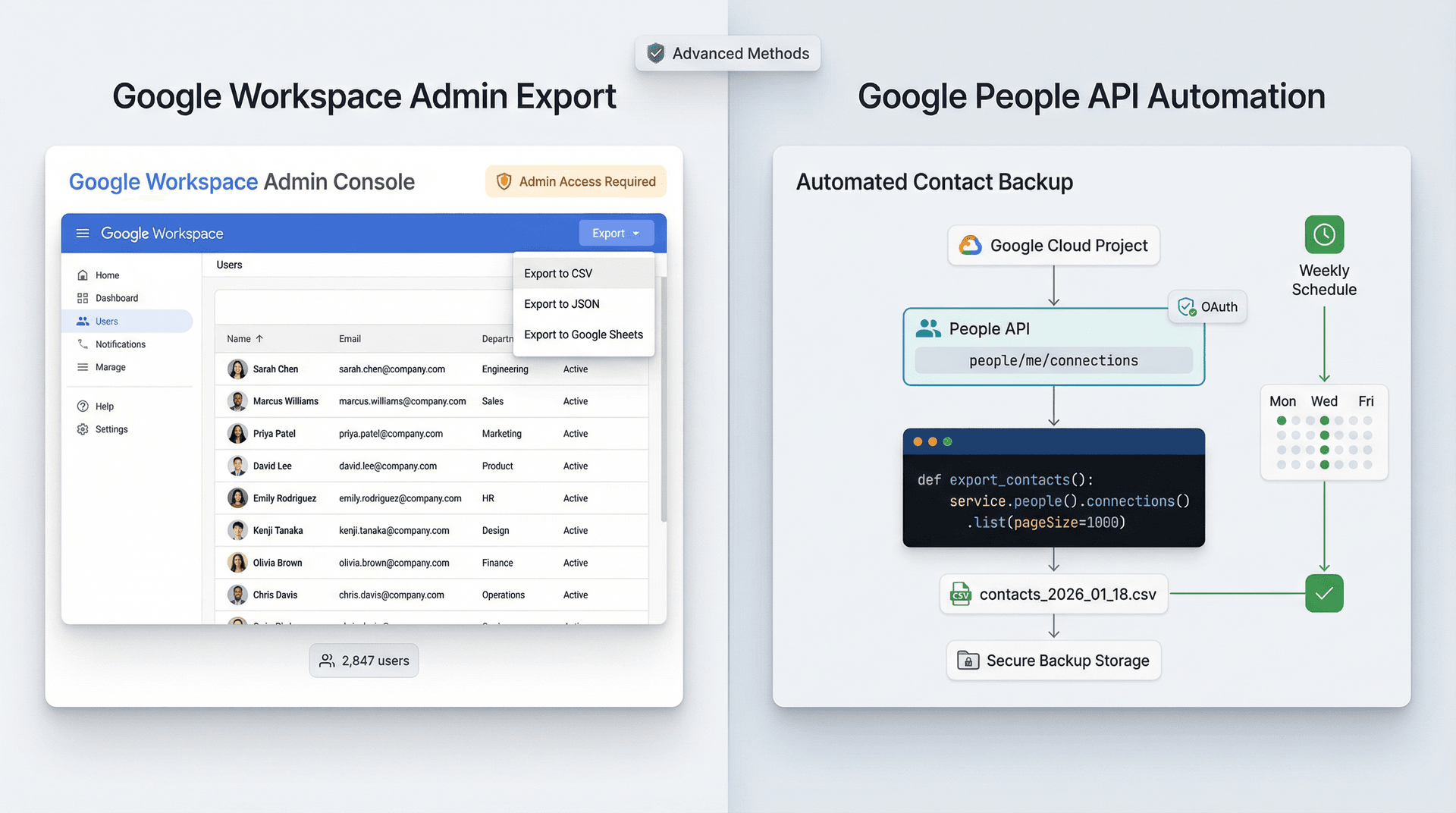
If you're trying to export your company's employee directory (not just your personal contacts), you need admin access. Google Workspace admins can download the user list as CSV, JSON, or export it to Google Sheets. Google Workspace Admin Help documents the admin export flow. This is different from exporting personal contacts and requires Workspace admin permissions.
Teams typically need this during company-wide migrations to a new email platform, or when building an employee contact database for a new intranet or directory system. For enterprise-level email management, check out our Inbox Zero for Enterprise solutions.
How to Automate Gmail Contact Exports with Google People API
If you want scheduled, repeatable exports --- for example, a weekly CSV backup automatically saved to a secure folder --- the Google People API is the right tool.
The high-level approach is straightforward: create a Google Cloud project, enable the People API, set up OAuth with a contacts read scope (https://www.googleapis.com/auth/contacts.readonly), and write a script to pull contacts in pages and write them to CSV.
Why bother? Manual exports are error-prone and easy to forget. An automated script gives you a repeatable, auditable backup process. You can schedule it to run weekly, verify the backup succeeded, and know your contacts are always up to date. For developers building email automation systems, this integrates well with tools like Inbox Zero's AI automation capabilities.
Here's a minimal Python outline to illustrate the concept:
# Export Google Contacts via People API to CSV
# Requires OAuth setup and credentials first

from googleapiclient.discovery import build
from google.oauth2.credentials import Credentials
import csv

SCOPES = ["https://www.googleapis.com/auth/contacts.readonly"]

def export_contacts(service, out_path="google_contacts.csv"):
    results = service.people().connections().list(
        resourceName="people/me",
        personFields="names,emailAddresses,phoneNumbers,organizations",
        pageSize=1000,
    ).execute()

    connections = results.get("connections", [])
    with open(out_path, "w", newline="", encoding="utf-8") as f:
        w = csv.writer(f)
        w.writerow(["Full Name", "Email", "Phone", "Organization"])

        for p in connections:
            name = (p.get("names") or [{}])[0].get("displayName", "")
            emails = p.get("emailAddresses") or []
            phones = p.get("phoneNumbers") or []
            orgs = p.get("organizations") or []

            email = emails[0].get("value", "") if emails else ""
            phone = phones[0].get("value", "") if phones else ""
            org = orgs[0].get("name", "") if orgs else ""

            w.writerow([name, email, phone, org])

def main(creds: Credentials):
    service = build("people", "v1", credentials=creds)
    export_contacts(service)

# main(creds)  # creds comes from your OAuth flow
This is a starting point. The Google People API documentation has full details on pagination, filtering, and field options.
What to Do After Exporting Gmail Contacts
Exporting Gmail contacts is straightforward once you know where they actually live (Google Contacts, not Gmail) and how to avoid Excel's data-mangling tendencies. The key decisions come down to which contacts to export (saved vs other vs workspace directory), which format to use (Google CSV for most cases, Outlook CSV for Microsoft imports, vCard for mobile), and how to import safely (use Excel's Data Import flow with UTF-8 encoding).
Most people export contacts because they're about to do something that creates more email: importing into a CRM, launching an outreach campaign, migrating to a new platform, or organizing follow-ups. That's where the real work begins, because now you have to manage all the email conversations with these contacts without losing track of what needs a reply or who's waiting on you.
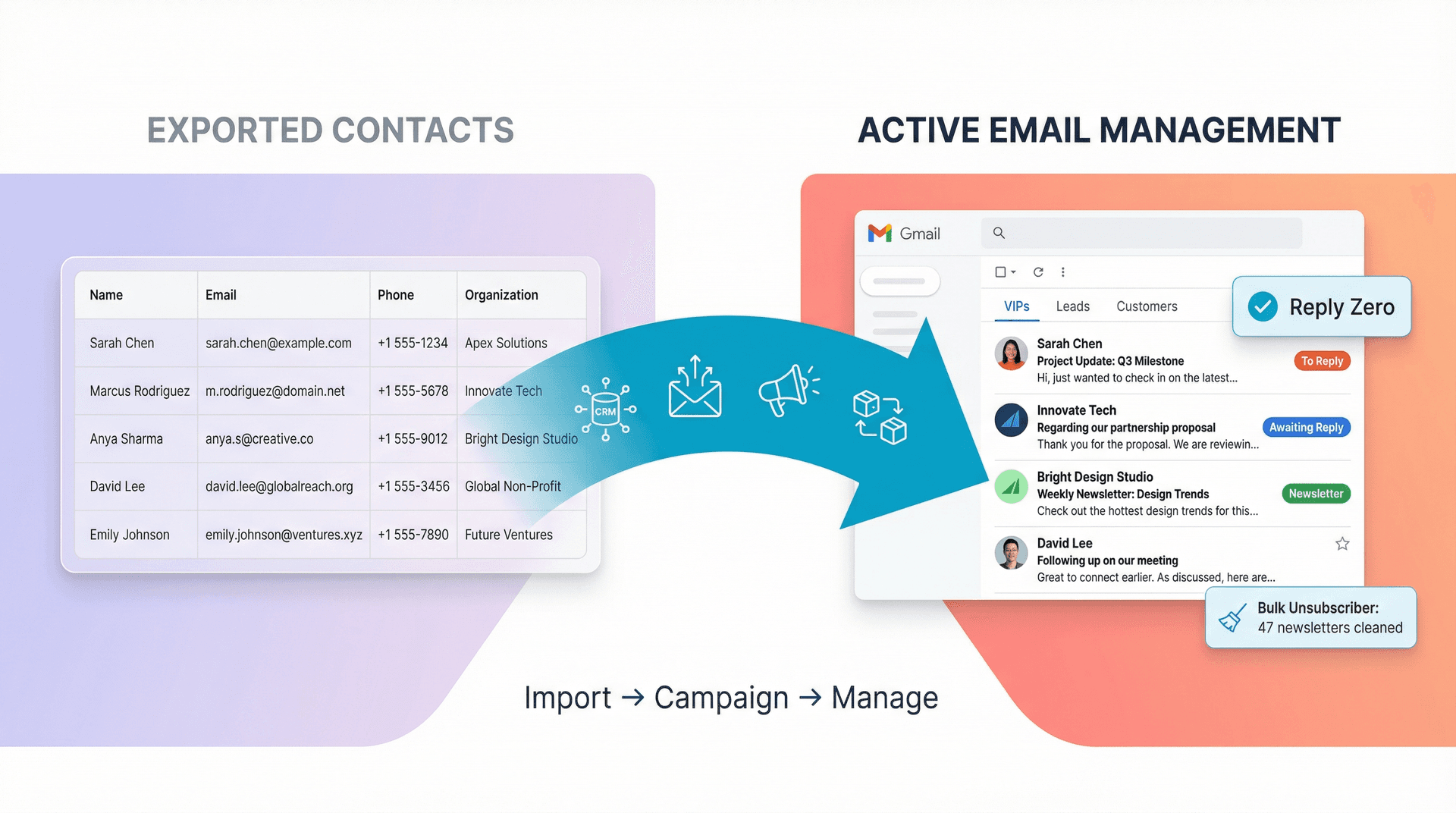
Inbox Zero is built for exactly that.
After you've exported and cleaned up your contact list, you still need a system to handle the email flow those contacts generate. Reply Zero tracks every thread that needs a response and every thread where you're waiting for someone else, so nothing falls through the cracks. The Inbox Zero Tabs extension lets you organize your Gmail inbox by contact groups (VIPs, leads, customers) using custom tabs. And the Bulk Email Unsubscriber helps you clean up the newsletter senders you exported but don't actually want to keep hearing from.
If you're interested in more advanced email management techniques, explore our guides on Gmail shortcuts and productivity hacks, understanding Gmail labels vs folders, best email organizer apps for 2026, free email management software options, and the inbox zero method explained.
Contact management doesn't end with a clean spreadsheet. You need tools that help you act on those contacts efficiently. That's what we built Inbox Zero for. Whether you're a small business owner, creator, or enterprise team, we have solutions designed to help you achieve and maintain inbox zero.


How to Recall an Email in Outlook (2026)
How to recall an email in Outlook step by step for new Outlook, classic Outlook, web, Mac, and mobile, plus when recall works and what to do when it doesn't.
2026-09-30T18:25:57.000Z

How to Stop AliExpress Emails (2026)
Stop AliExpress promotional emails: the unsubscribe link, notification settings in your AliExpress account, and what to do when the deals keep coming.
2026-09-30T18:25:57.000Z

How to Stop Amazon Emails (2026)
Stop Amazon marketing emails with the Communication Preferences Center, manage Amazon email subscriptions, and handle order emails you can't switch off.
2026-09-30T18:25:57.000Z

How to Stop Domino's Emails (2026)
Stop Domino's emails with Domino's official opt-out page, stop Domino's text offers, and know which rewards emails keep coming.
2026-09-30T18:25:57.000Z