Gmail Not Receiving Emails from Specific Sender? Fix (2026)
When Gmail consistently fails to receive email from one specific sender, something specific is broken. Fix it permanently with this 2025 guide.

When someone tells you "I sent it" and you see nothing in Gmail, the problem feels personal. Maybe it's a contract that's holding up a deal, a password reset you desperately need, or a client who thinks you're ignoring them.
It gets even more frustrating when it's just one sender. Everyone else's emails arrive fine, but this one person or company? Radio silence.
This isn't a simple "check your spam folder" situation. When Gmail consistently fails to deliver mail from a specific sender, something specific is broken. This guide walks you through finding that break and fixing it permanently.
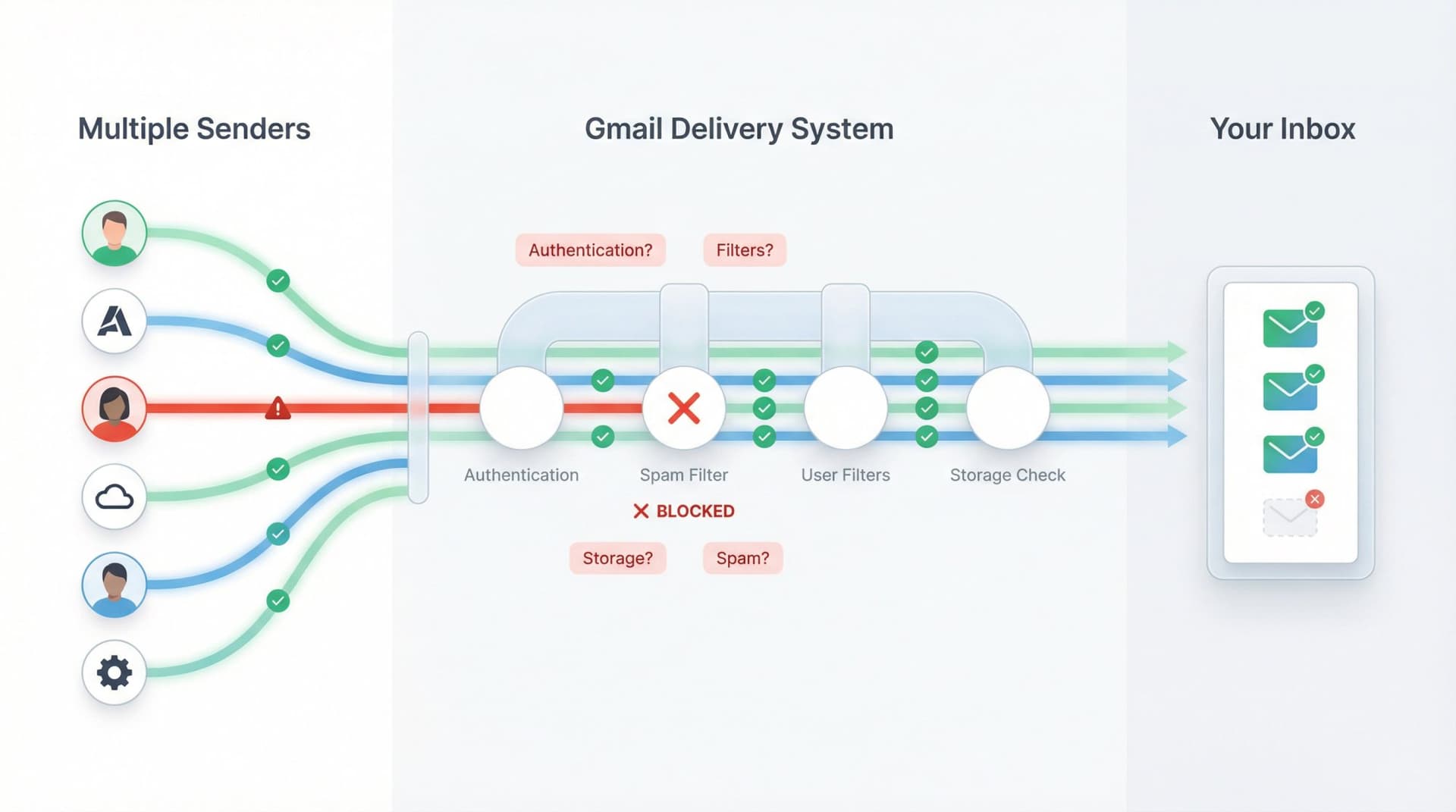
We're covering this from three angles: what you (the recipient) can do, what Google Workspace admins can check, and what senders need to fix on their end. Everything here reflects Gmail and Google Workspace behavior as of 2025, including the stricter authentication requirements that rolled out in 2024.
Why Gmail Isn't Receiving Emails from One Person
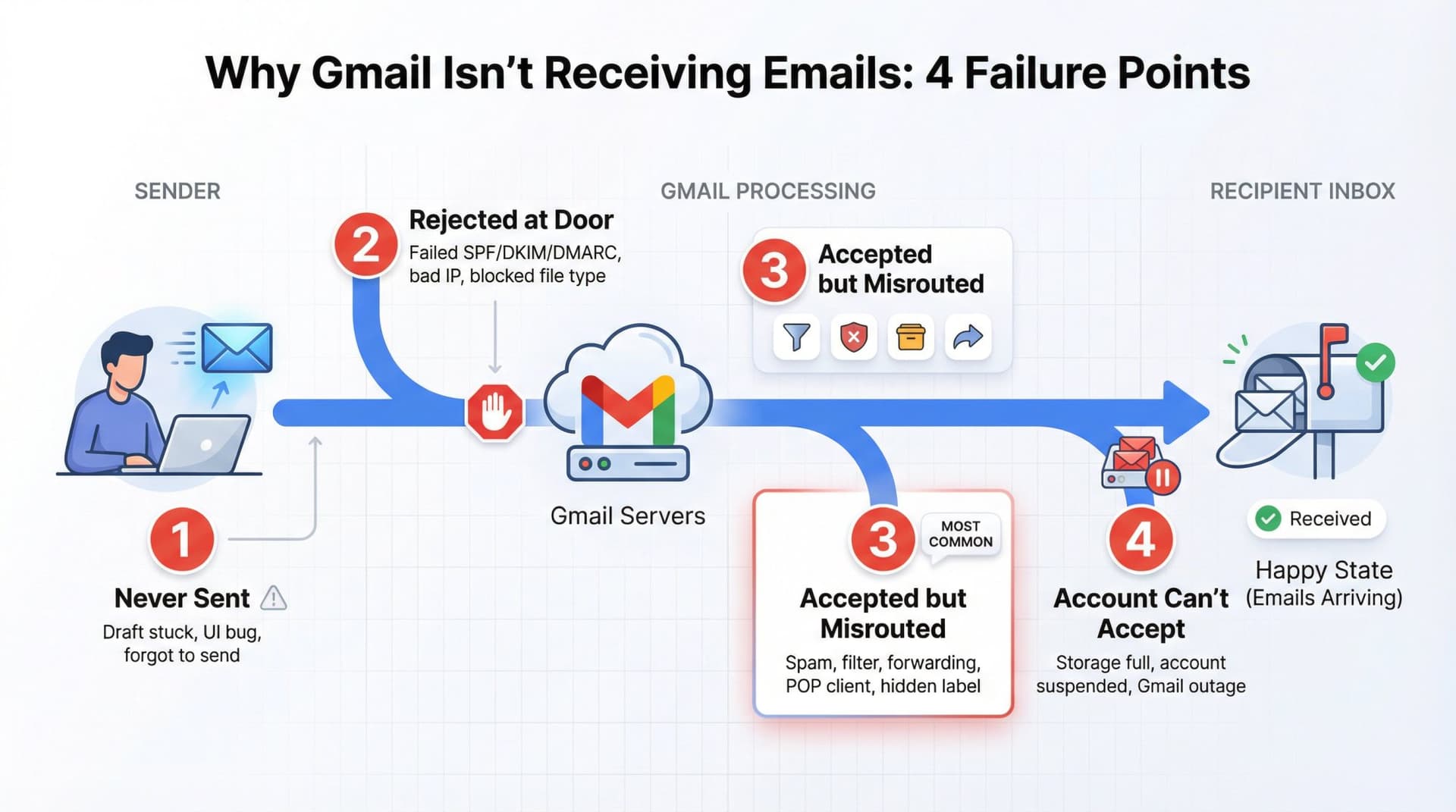
Before you start fixing things, it helps to understand where things can go wrong. There are really only four possibilities, and somewhere in the chain from sender to Gmail to you, the message fell off. Your job is figuring out where.
① The email was never sent
The sender thinks they sent it, but something failed on their end. Maybe their draft got stuck, maybe there's a UI bug, or maybe they just forgot to hit send.
② Gmail rejected it at the door
The sender's email failed Gmail's authentication checks (SPF, DKIM, or DMARC), came from a bad IP address, or contained blocked file types. Gmail typically sends a bounce message back to the sender in these cases. Gmail's spam policies explain what triggers these rejections.
③ Gmail accepted it but didn't put it in your inbox
This is the most common scenario. The email made it to Gmail's servers, but it ended up in your Spam folder, got deleted or archived by a filter you created, was forwarded elsewhere by a forwarding rule, downloaded and removed by a POP/IMAP client, or hidden in a category tab or under a label.
④ Your account can't accept new mail
Less common but real: your Google storage is full, your Workspace account is suspended, or there's an actual Gmail outage. Google's help documentation covers account-level issues.
How to Find Missing Emails in Gmail: 2-Minute Check
Start with these fast checks before going deeper. Most missing emails turn up here.
Search everywhere, not just your inbox
Gmail's basic search only looks in your inbox, which misses a lot. To search properly, click the search bar at the top of Gmail, then click the slider icon to open advanced search. Set the Search field to "Mail & Spam & Trash" and enter from:sender@example.com (replace with the actual email address). If the message appears anywhere in these results, Gmail received it. The problem is just where it ended up.
Also check All Mail directly (it's in the left sidebar under "More"). If you see the message there but not in your inbox, something archived it or applied a label. Learn more about how to find archived emails in Gmail.
Check spam and mark it safe
Open your Spam folder (left sidebar under "More"). If you find the missing message, select it and click "Not spam," then add the sender to your Contacts if you want. To protect future emails from this sender, search from:sender@example.com, click "Show search options," then "Create filter," select "Never send it to Spam," and click "Create filter."
Google's sender guidelines note that emails from addresses in your Contacts are less likely to be filtered as spam.
Look for filters that are deleting or hiding emails
Old filters cause a shocking number of "missing email" cases. Maybe you created a filter years ago that now catches this sender by accident.
Go to Settings, then See all settings, then Filters and blocked addresses.
Look for any filter that matches this sender's address or domain and has actions like "Delete it" or "Skip the Inbox (Archive it)." If you find one, either delete the filter or edit it to exclude this sender.
A better practice going forward: instead of hard-deleting emails with filters, use "Skip Inbox" plus a label. That way you can still recover them if needed. Inbox Zero's email management approach helps you organize emails without losing important messages.
Check if emails are being forwarded somewhere else
You might be receiving the email, but it's immediately getting forwarded and possibly deleted. Go to Settings, then Forwarding and POP/IMAP. Check whether forwarding is enabled to another email address (and whether Gmail keeps a copy), and whether POP is set to "delete Gmail's copy after download."
If you have a mail client (Thunderbird, Outlook, Apple Mail) pulling from Gmail via POP, it might be removing emails from the server. Gmail's troubleshooting guide specifically calls this out as a common cause.
Also check Settings, then Security, then Third-party access in your Google Account. Remove any old apps that might have mail access you don't remember granting. Learn more about whether it's safe to connect third-party apps to Gmail.
Verify you have storage space
When your Google storage is full, Gmail stops accepting new messages. This affects all senders, but you might only notice when an important email doesn't arrive.
Check your Google storage page. If you're near or above quota, start by emptying your Spam and Trash folders. Then search for large emails with larger:10M and delete old ones. You can also clean up Google Drive and Photos, or upgrade storage.
Learn more about why Gmail storage can be full but inbox appears empty and how much Gmail storage costs.
Make sure you're not blocked
In the same Filters and blocked addresses tab, scroll to "The following senders are blocked." Make sure this sender isn't on that list. If they are, click Unblock next to their address.
If you've gotten this far and still found nothing, it's time for the deeper investigation.
Advanced Gmail Search: How to Find Emails That Disappeared
Use advanced search operators
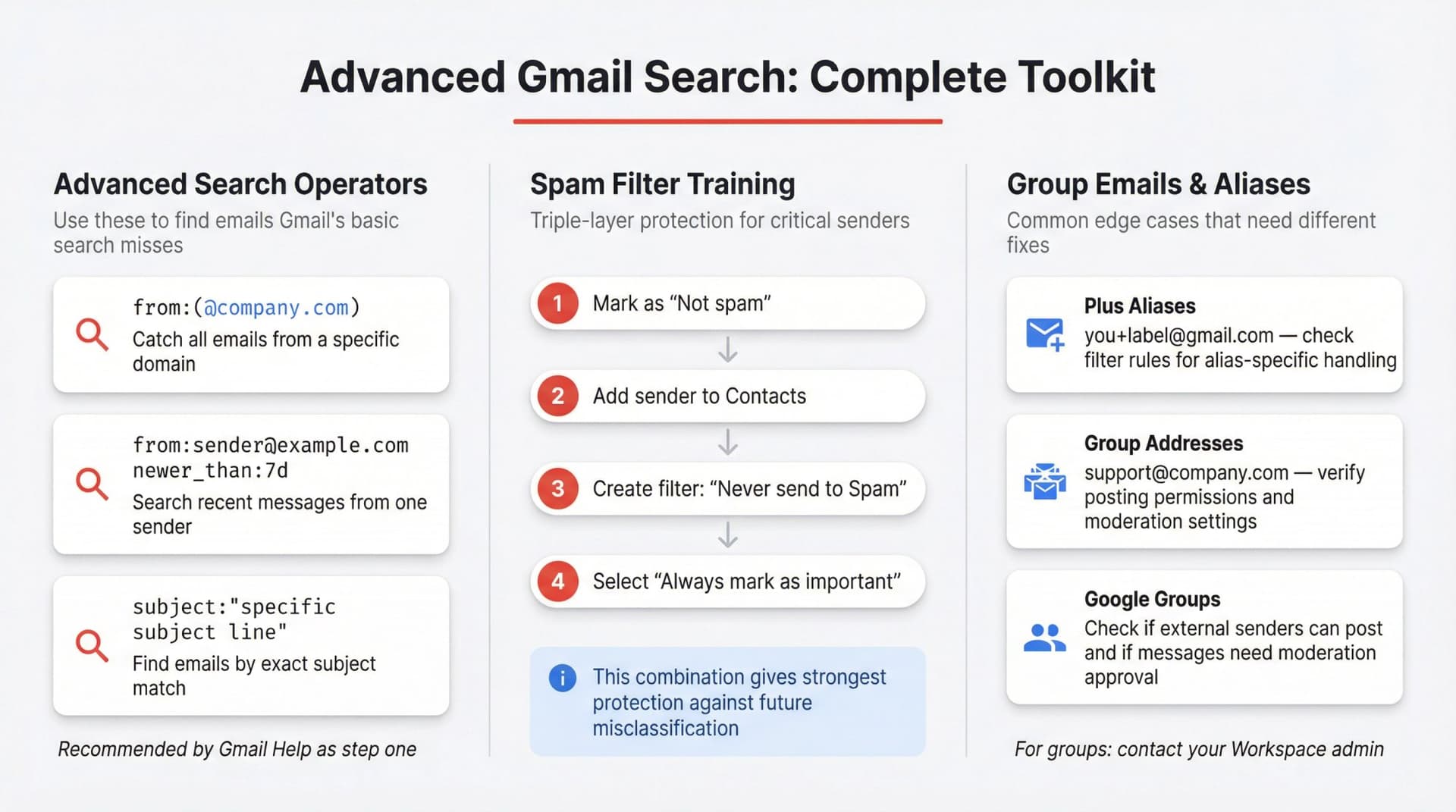
Gmail's search is powerful when you use the right syntax. Try from:(@company.com) to catch all emails from that domain, from:sender@example.com newer_than:7d to search recent messages only, or subject:"specific subject line" if you know what the email was about.
The Gmail help article on missing messages recommends this advanced search approach as step one.
If the message appears anywhere in search, the issue is delivery-to-you, not delivery-to-Gmail. That's actually good news because you can fix it. Check out our Gmail shortcuts cheat sheet to speed up your email searches.
Train Gmail's spam filter
When you mark something as "Not spam," you're training Gmail to treat similar emails differently in the future. But one-time training isn't always enough.
For the strongest protection against future misclassification, combine three layers: mark the message "Not spam," add the sender to Contacts, and create a filter with "Never send it to Spam" checked. You can also select "Always mark as important" if this is a critical sender. This triple approach (training plus contacts plus filter) gives you reliable protection going forward. For comprehensive email organization strategies, see our guide on how to manage your inbox.
Dealing with group emails and aliases
Sometimes the problem is that you're expecting mail sent to an alias with a plus sign (like you+label@gmail.com), a group address that includes you (like support@yourcompany.com), or a Google Group you belong to.
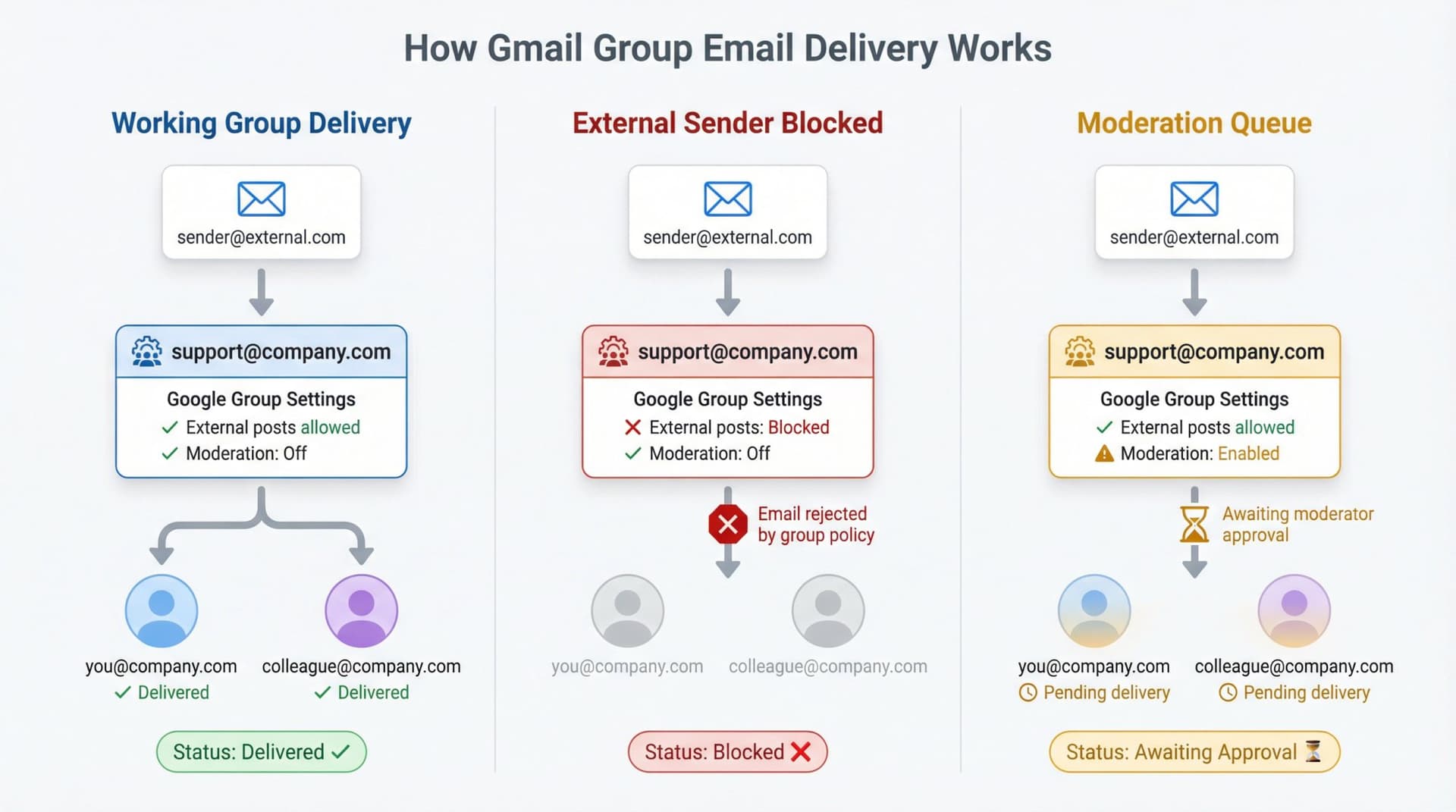
These have their own quirks. Google Workspace documentation explains that group delivery settings can prevent external senders from posting, or require moderation.
If you're part of a group and not seeing messages sent to it, ask your Workspace admin to check whether external senders can post to the group, whether moderation is enabled (messages might be in a queue), and what the group's delivery settings are for members.
Learn more about how to create email groups in Gmail and understanding email aliases.
Check for account compromise
If someone gained access to your Gmail account, they might have set up filters or forwarding to hide specific emails.
Gmail's security guidance warns about this specifically. Check for forwarding rules you didn't create, filters that seem unfamiliar (especially ones that delete emails), and unusual account activity in your Google Account security page.
If you find anything suspicious, delete the unauthorized filters and forwarding, change your Google password immediately, enable 2-step verification, and review recent security events for your account.
Google Workspace Admin: How to Diagnose Email Delivery Failures
If you manage a Workspace domain and users report missing emails from specific senders, you have more powerful diagnostic tools than regular users.
Start with Email Log Search
Google's official troubleshooting guide for admins starts here, and for good reason. Email Log Search (ELS) shows you exactly what happened to a message. Sign in to the Admin console, go to Reporting, then Email log search, and set the date range (you can search up to 30 days back). Search by recipient email, sender email, or subject line if you have it.
What you're looking for depends on what shows up. If the message appears, check its delivery status: it might say delivered, quarantined, marked as spam, or rejected. Google's delivery status definitions explain what each status means. If it shows delivered but the user can't find it, direct them back to the personal troubleshooting sections of this guide (filters, spam, forwarding). If it shows quarantined or spam, review your routing, compliance, and spam settings for that user's organizational unit. And if it doesn't appear at all, Gmail never received it, meaning the problem is on the sender's side or at a gateway before Gmail.
Verify basic domain and account health
Workspace troubleshooting documentation lists these as common causes when users miss emails:
| Check | What to Verify | How to Fix |
|---|---|---|
| MX records | Point to Google's mail servers | Use Admin Toolbox or DNS checker |
| Account status | User account not suspended | Check Admin console → Users |
| Domain registration | Domain is active and renewed | Verify with domain registrar |
| Gmail service | Enabled for organizational unit | Apps → Google Workspace → Gmail |
If multiple users report issues simultaneously, check the Google Workspace Status Dashboard for outages.
Review routing, compliance, and content policies
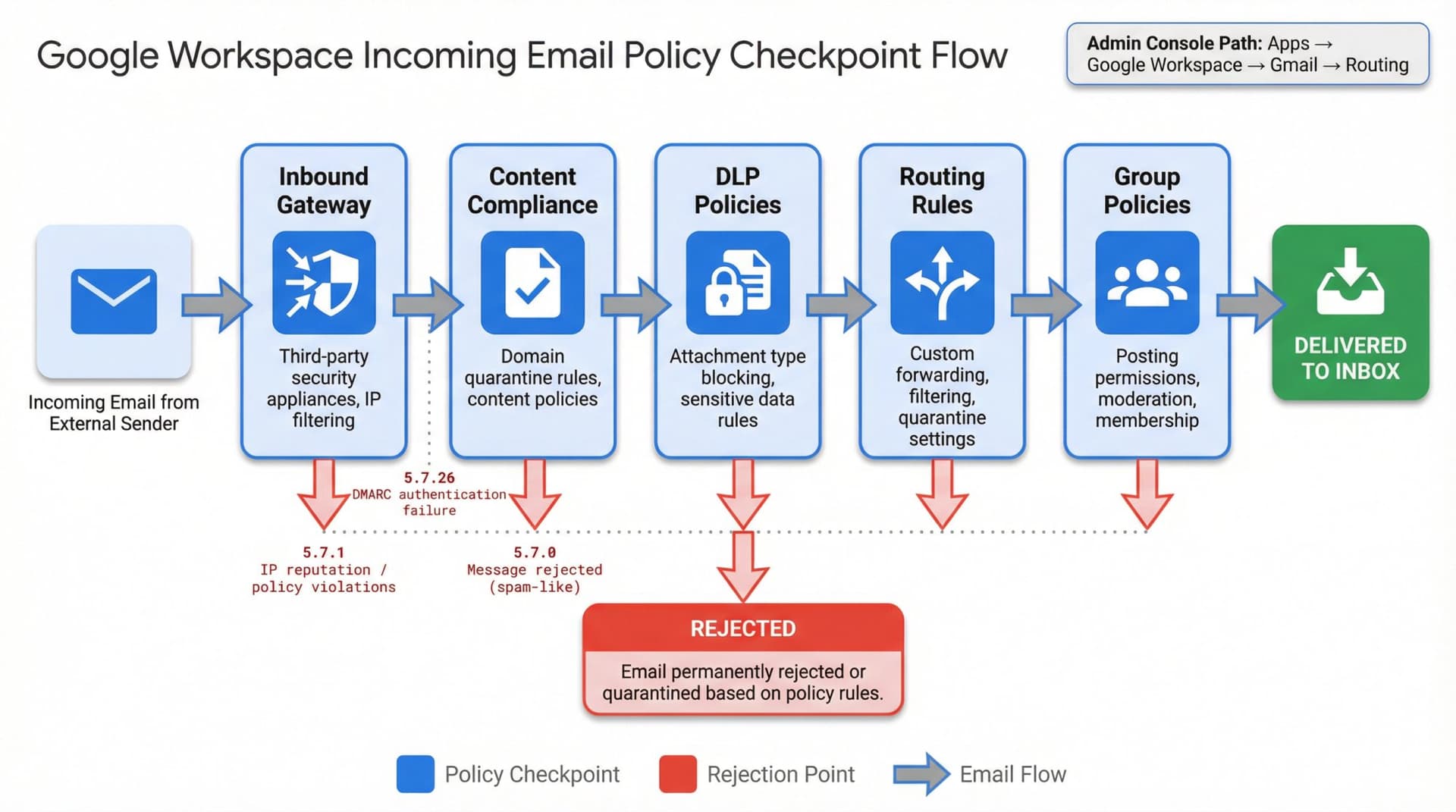
When only certain senders are affected, the issue often traces to content compliance rules that quarantine or reject specific domains, inbound gateways sitting in front of Gmail, or DLP policies blocking certain attachment types.
Check Apps, then Google Workspace, then Gmail, then Routing in your Admin console for rules that might drop, quarantine, or reroute messages from this sender.
For Google Groups (like support@yourcompany.com), inspect the group membership settings, posting permissions (can external users post?), and moderation queues. Third-party email system integrations can have complex group delivery settings that affect message routing.
Share SMTP error codes with senders
If Email Log Search shows a rejection with an error code like 5.7.1 or 5.7.26, those codes map directly to specific problems:
| Error Code | What It Means | Who Fixes It |
|---|---|---|
| 5.7.26 | DMARC authentication failure | Sender must fix DMARC |
| 5.7.1 | IP reputation or policy violations | Sender must improve reputation |
| 5.7.0 | Message rejected (spam-like) | Sender must check content |
Google's sender guidelines explain what each code means. Share the exact error with the sender so they can fix it on their end.
For Senders: Why Your Emails to Gmail Aren't Arriving
If you're the sender and Gmail recipients consistently don't get your emails, you're dealing with a deliverability problem. This section is for you.
Confirm the email actually sent
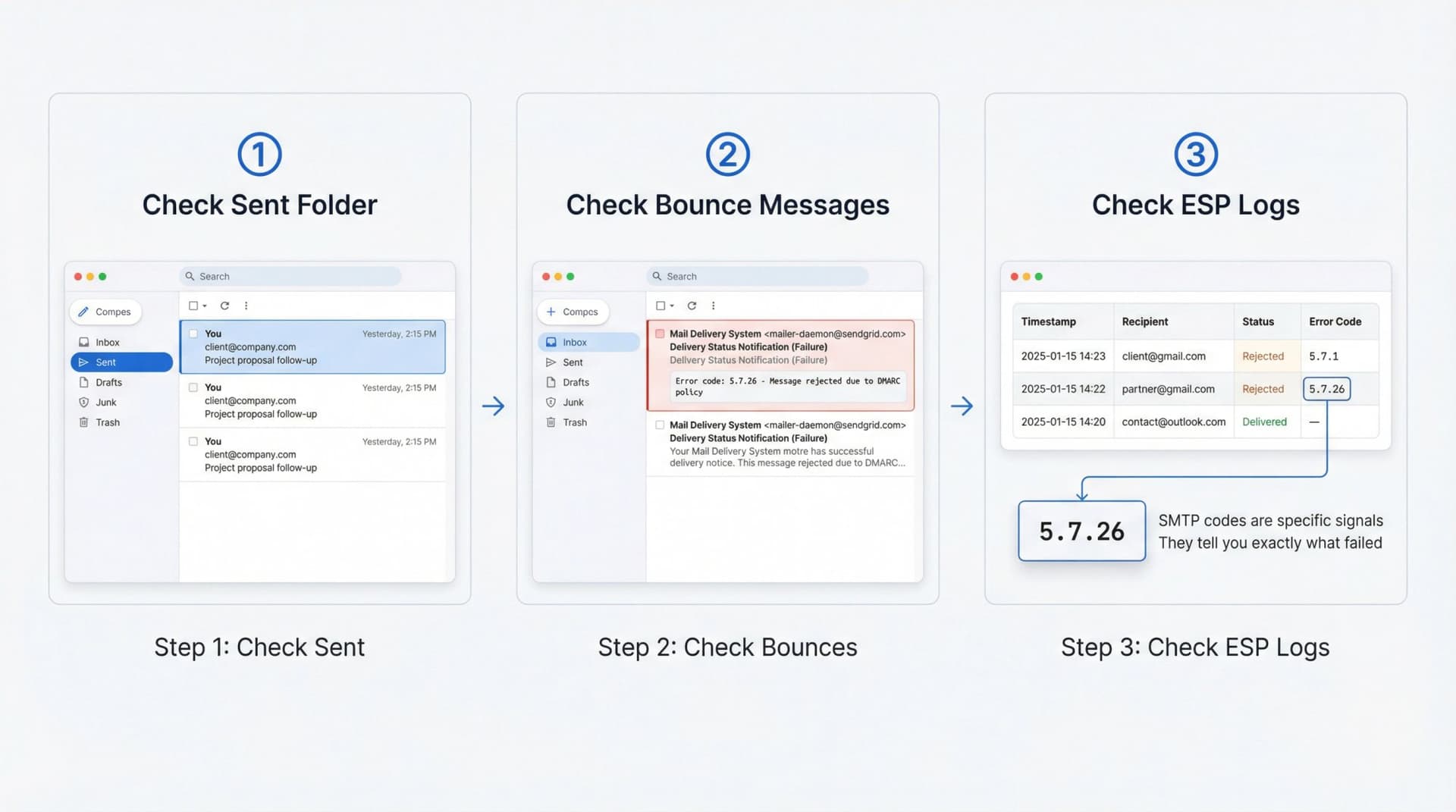
Before touching DNS records or authentication, verify the basics. Check your Sent folder and confirm the message is there. Look for bounce messages (delivery failure notifications) and if you got one, read the error code carefully. If you use an email service provider (Mailgun, SendGrid, Amazon SES, etc.), check their logs for delivery failures, rejections specifically from gmail.com, and SMTP error codes.
Many Gmail rejections return clear error codes. Google's documentation references common ones like 5.7.26 for DMARC/authentication failures and 5.7.1 for IP reputation problems. These aren't random. They tell you exactly what Gmail didn't like.
Fix SPF, DKIM, and DMARC authentication
This is the most common reason legitimate senders can't reach Gmail in 2025.
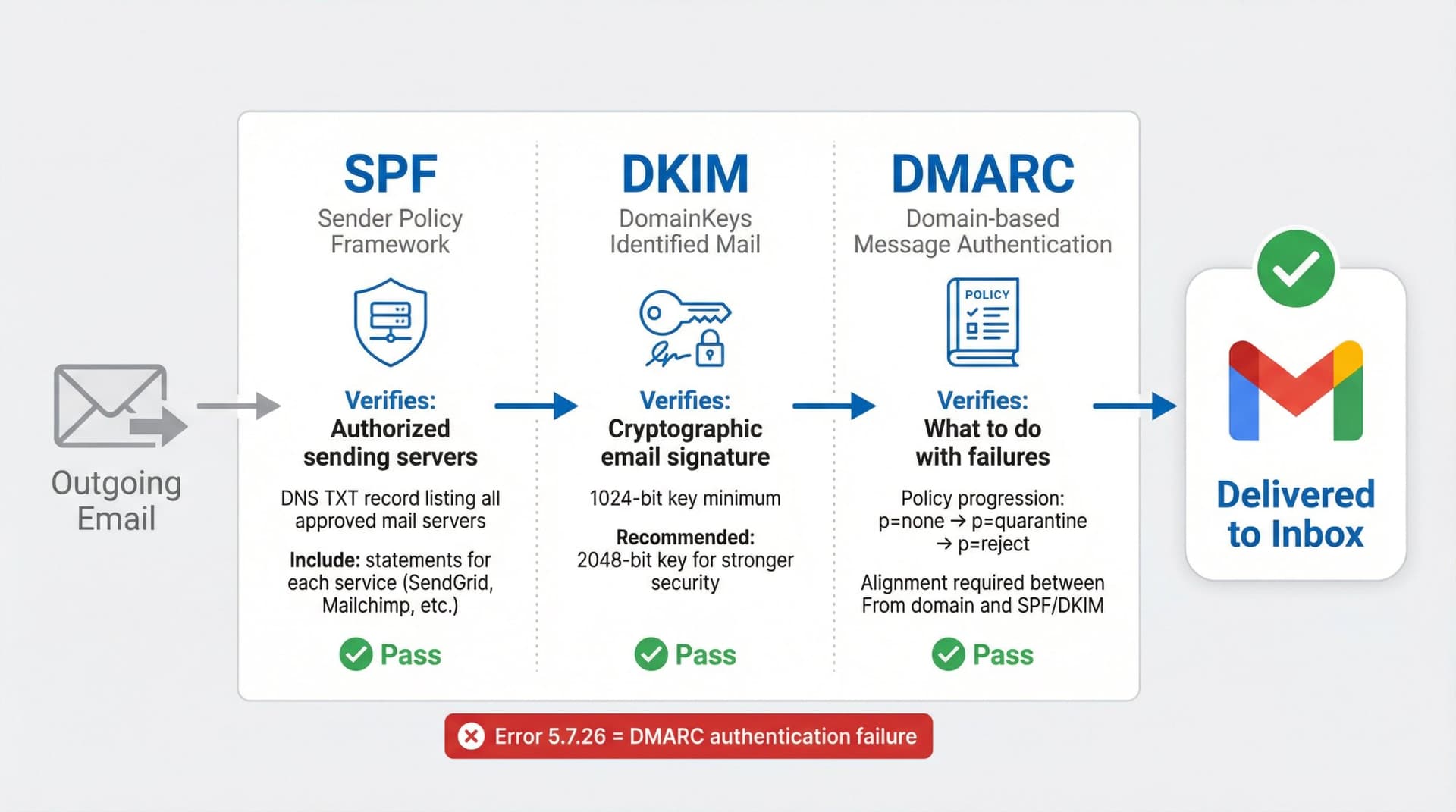
Gmail now expects all senders to have at least SPF or DKIM, and bulk senders (anyone sending 5,000+ messages per day to Gmail) need all three properly configured. Google's sender guidelines are explicit about this.
| Protocol | What It Does | Minimum Requirement |
|---|---|---|
| SPF | Lists authorized mail servers for your domain | TXT record in DNS with all sending systems |
| DKIM | Cryptographic signature proving authenticity | 1024-bit key minimum (2048-bit recommended) |
| DMARC | Policy for handling failed authentication | Start with p=none, work toward p=quarantine |
SPF (Sender Policy Framework)
SPF tells receiving servers which mail servers are allowed to send email for your domain. You need to publish an SPF TXT record in your DNS, include every system that sends mail for you (your mail server, SendGrid, Mailchimp, Zendesk, etc.) using include: statements, and test it with an SPF checker. Google's authentication documentation shows specific examples for common email services.
DKIM (DomainKeys Identified Mail)
DKIM cryptographically signs your emails so recipients can verify they actually came from you. You need to enable DKIM signing in your email service or mail server, use at least a 1024-bit key (Gmail requires this minimum, but 2048-bit is recommended), and publish the DKIM public key in your DNS.
DMARC (Domain-based Message Authentication)
DMARC tells receiving servers what to do with emails that fail SPF or DKIM checks. Start by publishing a DMARC record, even if your policy is just p=none initially. Work toward alignment between your From domain and your SPF/DKIM domains, and eventually strengthen the policy to p=quarantine or p=reject. Without DMARC, Gmail may start rejecting your mail with 5.7.26 errors. The sender guidelines make this clear.
If you send bulk email: meet the 2024-2025 requirements
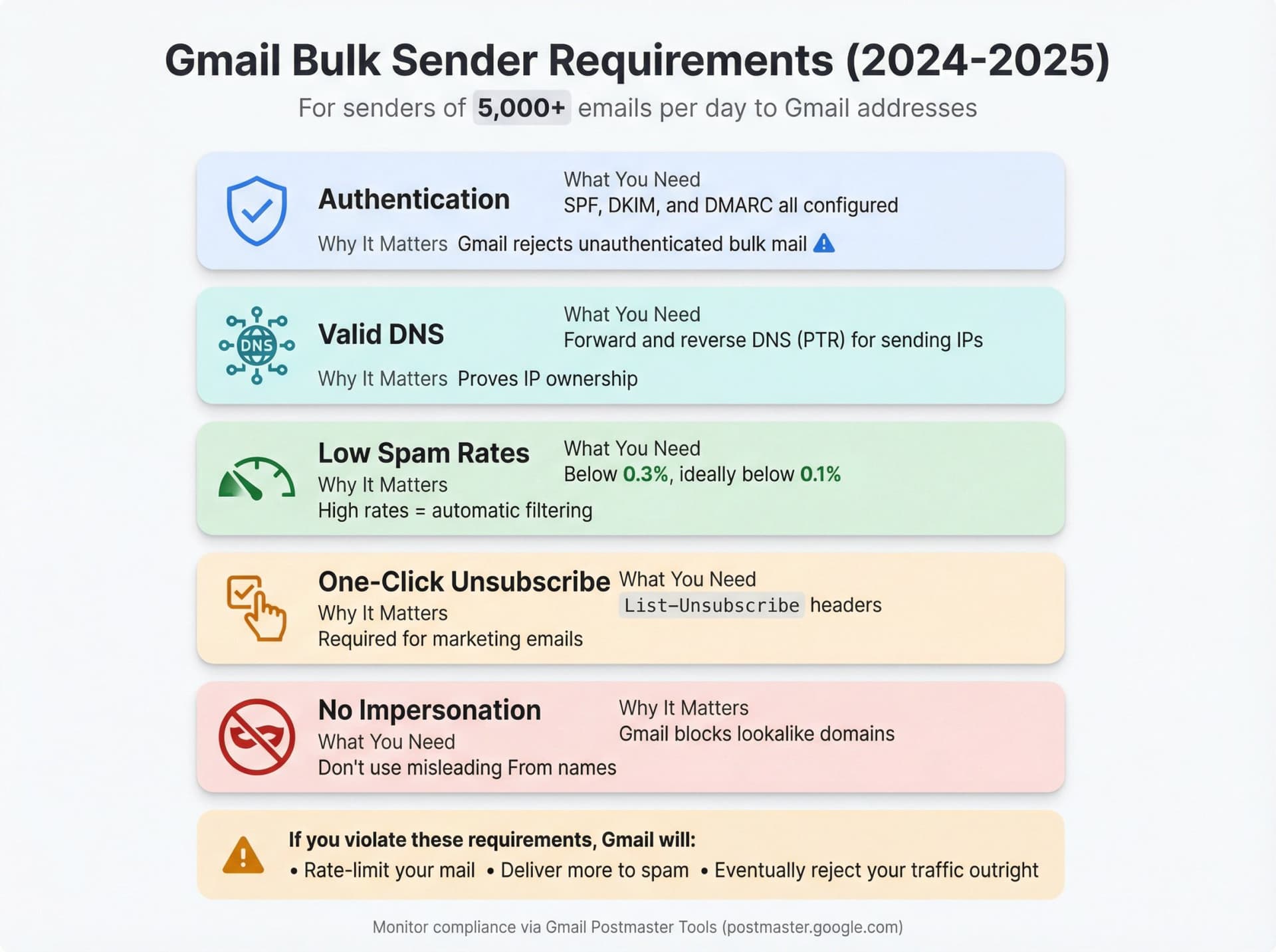
Starting February 2024, Gmail rolled out stricter rules for anyone sending 5,000 or more messages per day to Gmail addresses. These are being enforced more aggressively throughout 2025.
| Requirement | What You Need | Why It Matters |
|---|---|---|
| Authentication | SPF, DKIM, and DMARC all configured | Gmail rejects unauthenticated bulk mail |
| Valid DNS | Forward and reverse DNS (PTR) for sending IPs | Proves IP ownership |
| Low spam rates | Below 0.3%, ideally below 0.1% | High rates = automatic filtering |
| One-click unsubscribe | List-Unsubscribe headers | Required for marketing emails |
| No impersonation | Don't use misleading From names | Gmail blocks lookalike domains |
If you violate these, Gmail will rate-limit your mail, deliver more to spam, and eventually reject your traffic outright.
Monitor your sending reputation with Gmail Postmaster Tools. It shows your spam rate, IP reputation, and authentication status. Email deliverability standards have become significantly stricter over the past two years.
Watch out for blocked attachments and content issues
Even with perfect authentication, Gmail can reject messages because of blocked file types (executables, certain compressed formats), malware-like content or suspicious patterns, or broken MIME formatting or missing required headers like Message-ID. Google's help documentation lists which file types Gmail blocks. Bounce messages usually mention "blocked" or reference specific file types when this is the issue. Learn more about understanding email deliverability.
Special case: Website contact forms
A huge number of "Gmail not receiving" complaints in 2025 are actually "Gmail not receiving our website contact form submissions."
This happens because contact forms often send from the web server using basic PHP mail() without authentication. The From address might be something like wordpress@server123.hostingprovider.com instead of your domain, and SPF and DKIM aren't configured for that sending source. Google wrote a dedicated troubleshooting article about this exact scenario.
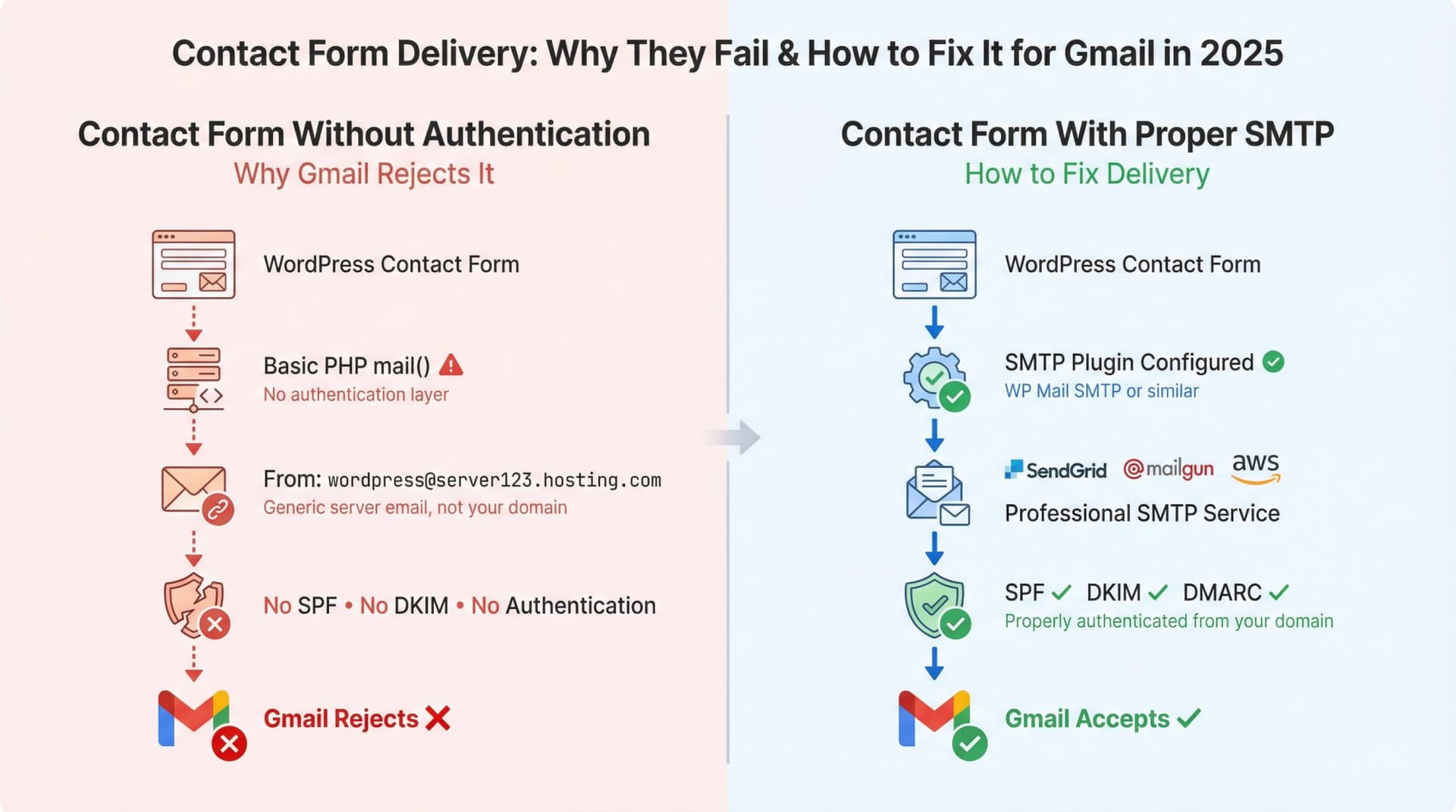
The fix is straightforward: configure your contact form to send through a proper SMTP service (SendGrid, Mailgun, Amazon SES, or Gmail's SMTP), add that service to your domain's SPF record, enable DKIM if the provider supports it, and test thoroughly. Email authentication requirements for contact forms have become much stricter, with forms that worked previously now being silently rejected by Gmail.
Why Gmail Email Security Got Stricter (2024-2025)
If you feel like Gmail used to be more forgiving and now it's strict about everything, you're not imagining it.
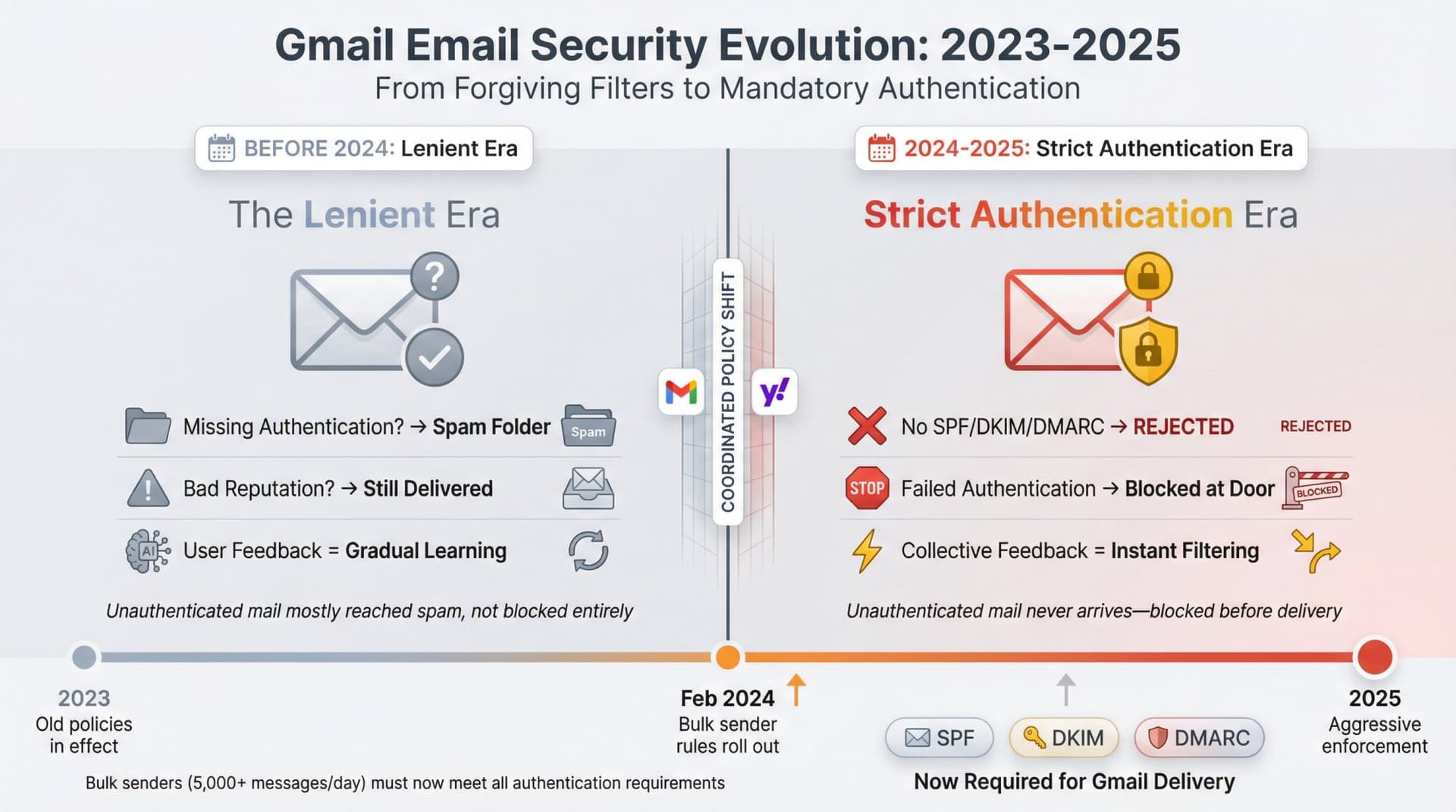
In the past two years, the email security landscape fundamentally changed. Gmail and Yahoo coordinated major policy changes that rolled out stricter bulk sender requirements focused on authentication and spam rates. This represented a coordinated industry shift toward stronger email security standards.
Gmail now relies heavily on SPF, DKIM, and DMARC. Messages that fail authentication or appear spoofed are increasingly rejected outright rather than just marked as spam. Unauthenticated mail is now being filtered much more aggressively.
Gmail's spam engine also learns from billions of messages. When millions of people mark certain types of emails as spam, future messages from similar senders get blocked automatically. Google's guidelines acknowledge that user feedback directly influences filtering.
The practical result is that problems that used to show up as "more junk in my spam folder" now sometimes show up as "emails from this sender never arrive at all." For senders (especially small businesses using basic contact forms or cheap hosting), this means you actually need to care about SPF, DKIM, DMARC, and sending reputation now, not just "did my server send an email."
Using Inbox Zero to Keep Important Senders Visible
You can fix the technical delivery problems and still lose important emails under a pile of noise. That's exactly what Inbox Zero helps solve.
Never miss emails from critical senders
With Inbox Zero's AI Personal Assistant, you can create rules like "If the email is from @clientdomain.com, always label it 'Clients', never mark as spam, and show it in my To Reply view." Or something like "If the subject contains 'invoice' and it's from one of my vendors, label it 'Receipts' and keep it in Primary."
These rules compile down to Gmail-native actions (labels, archive, mark as important), so Gmail remains your source of truth. But even if Gmail misclassifies something into Promotions or archives it unexpectedly, Inbox Zero surfaces it into your workflow.
Learn more about how AI email management can prevent important messages from being lost.
Track threads where you're waiting on someone
A subtle version of "I'm not getting emails from this sender" is actually "they haven't replied and I have no system to notice that."
Inbox Zero automatically labels threads that need a response from you as "To Reply" and threads where you're waiting on someone else as "Awaiting Reply." If the sender never replies, you'll see that in your Awaiting Reply view. If they do send something and Gmail misplaces it in a category tab or under All Mail, the label keeps the thread visible in your workflow.
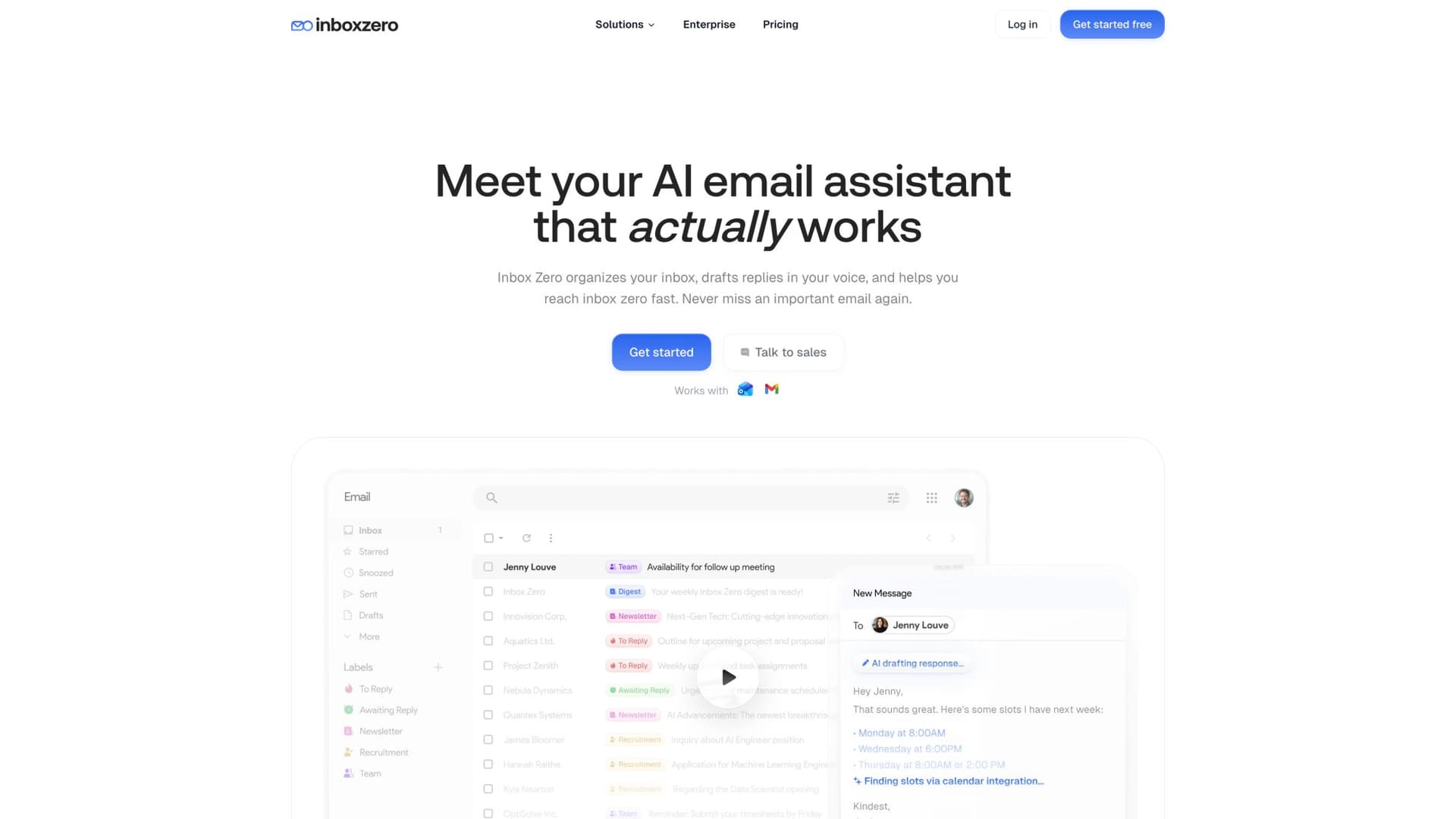
Discover how to see all emails waiting for reply systematically.
Cut noise so Gmail's edge cases matter less
You usually only notice missing emails when your inbox is already chaotic. Inbox Zero has two features that directly reduce that chaos.
The Bulk Email Unsubscriber shows you newsletter senders you never read and lets you unsubscribe or auto-archive them in bulk. Less noise means you can actually notice when an important sender goes silent. Learn how to bulk unsubscribe from emails and escape the email trap.
The Cold Email Blocker uses AI to detect unsolicited sales outreach and parks it under a dedicated label or auto-archives it. This keeps your inbox clean without relying only on Gmail's spam filter. See our guide on how to automatically block cold emails.
Use Inbox Zero Tabs to watch specific senders
Inbox Zero also offers a free Chrome extension called Inbox Zero Tabs for Gmail. It adds custom tabs inside Gmail that run on any Gmail search query. You can create a tab like from:client@company.com OR from:@company.com to watch a key sender or domain, and it's 100% client-side with all settings stored locally in your browser.
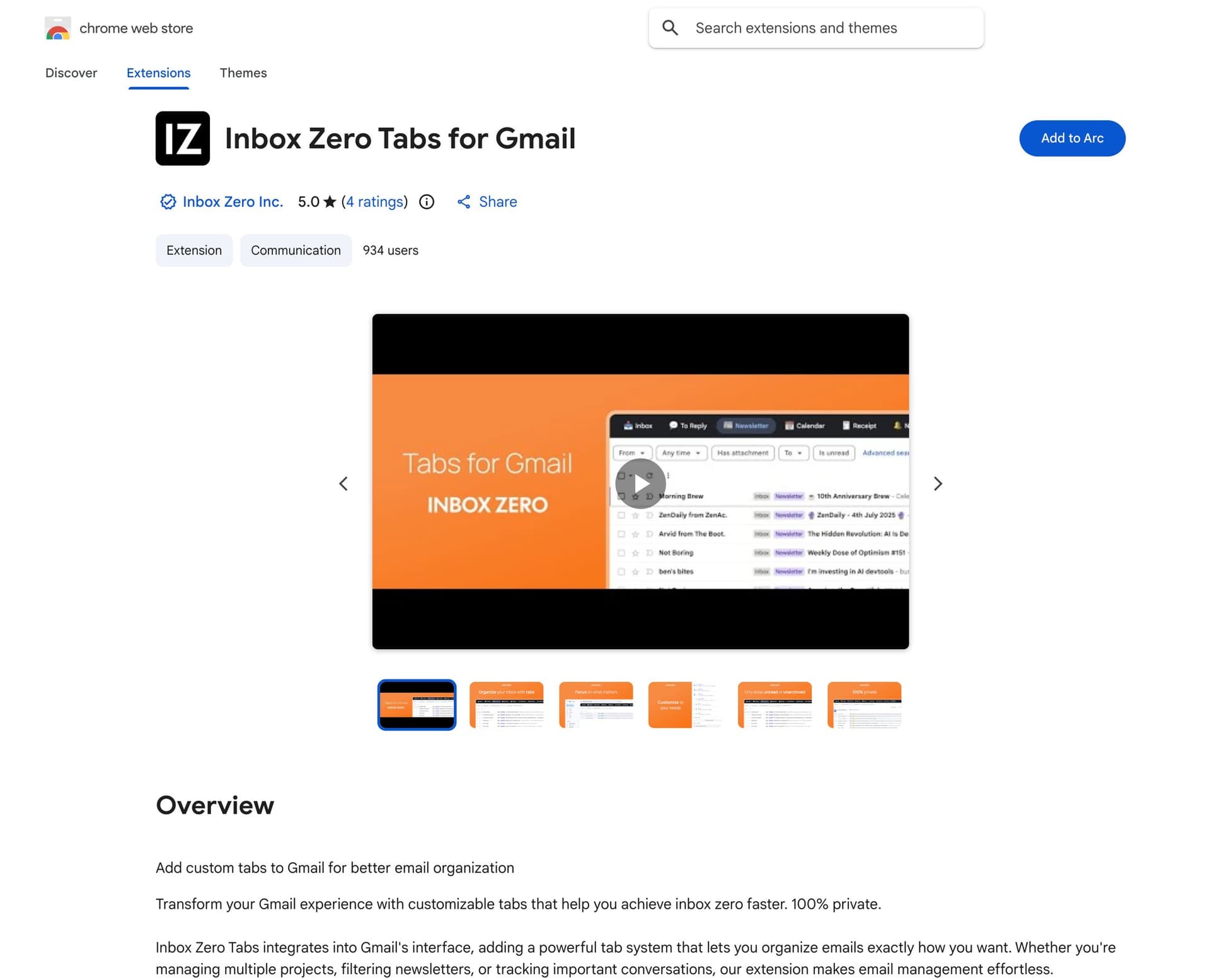
This is especially useful if you're in a role where one sender (your payroll provider, investor, or main supplier) is mission-critical. Put them in their own tab and you'll know immediately whether messages are actually arriving.
Real Scenarios: What to Do in Specific Situations
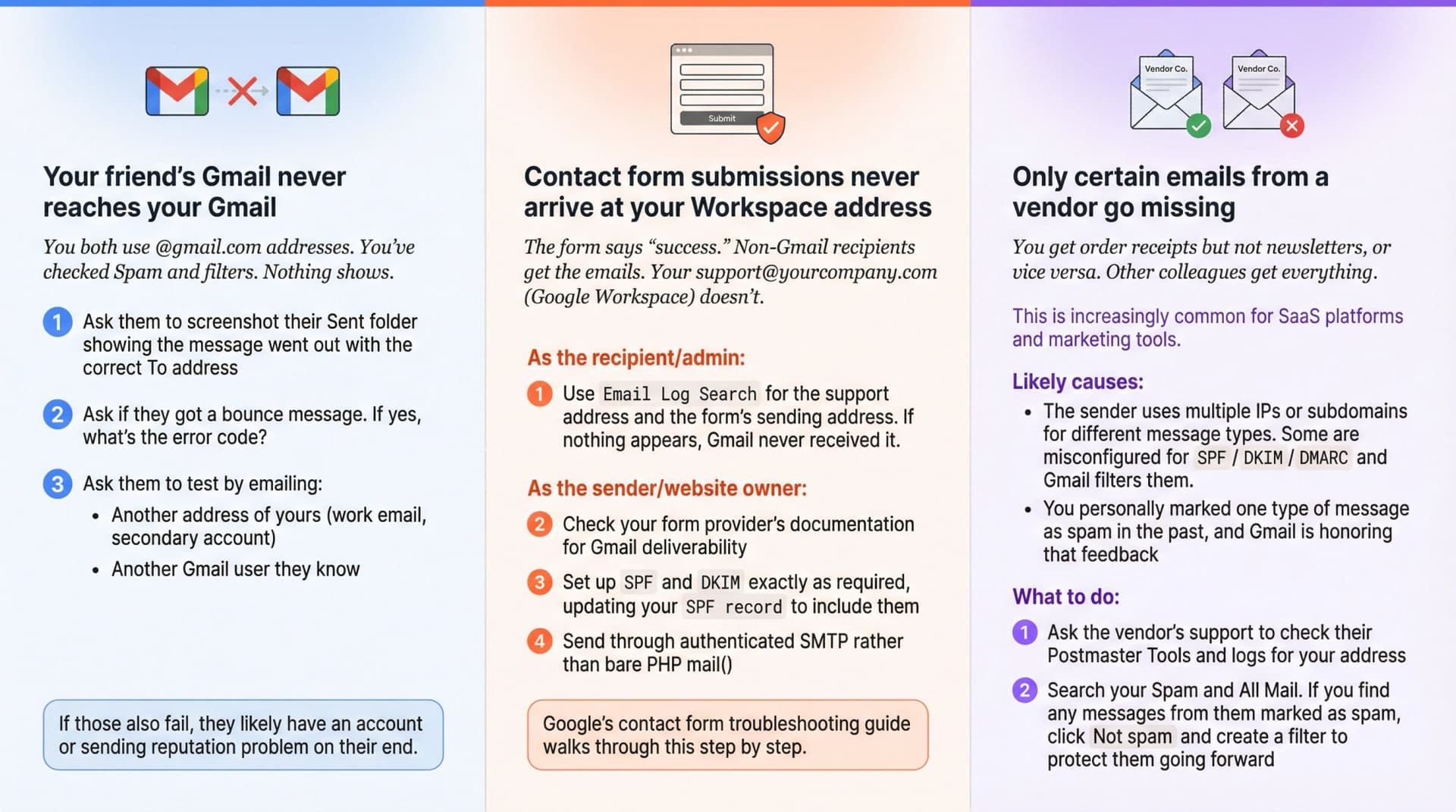
Your friend's Gmail never reaches your Gmail
You both use @gmail.com addresses. You've checked Spam and filters. Nothing shows.
Ask them to screenshot their Sent folder showing the message went out with the correct To address. Ask if they got a bounce message, and if yes, what's the error code. Then ask them to test by emailing another address of yours (work email, secondary account) and another Gmail user they know. If those also fail, they likely have an account or sending reputation problem on their end.
Contact form submissions never arrive at your Workspace address
The form says "success." Non-Gmail recipients get the emails. Your support@yourcompany.com (Google Workspace) doesn't.
As the recipient or admin, use Email Log Search for the support address and the form's sending address. If nothing appears, Gmail never received it. As the sender or website owner, check your form provider's documentation for Gmail deliverability, set up SPF and DKIM exactly as required (updating your SPF record to include them), and send through authenticated SMTP rather than bare PHP mail(). Google's contact form troubleshooting guide walks through this step by step.
Only certain emails from a vendor go missing
You get order receipts but not newsletters, or vice versa. Other colleagues get everything. This is increasingly common for SaaS platforms and marketing tools.
The likely causes come down to two things. First, the sender may use multiple IPs or subdomains for different message types, and some are misconfigured for SPF/DKIM/DMARC while Gmail filters them. Google's guidelines explain how subdomain authentication matters. Second, you may have personally marked one type of message as spam in the past, and Gmail is honoring that feedback.
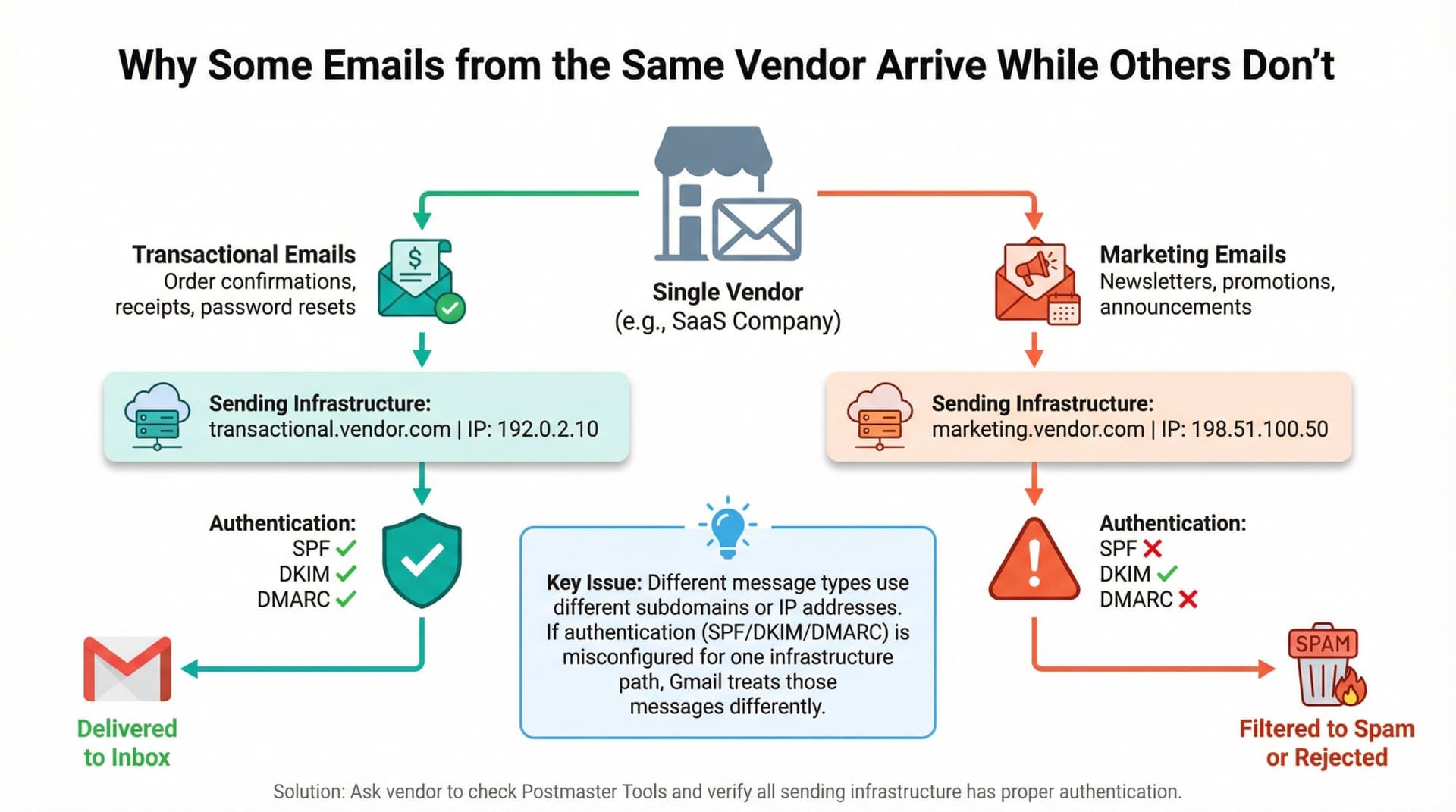
To fix this, ask the vendor's support to check their Postmaster Tools and logs for your address. Then search your Spam and All Mail. If you find any messages from them marked as spam, click "Not spam" and create a filter to protect them going forward.
Final Checklists
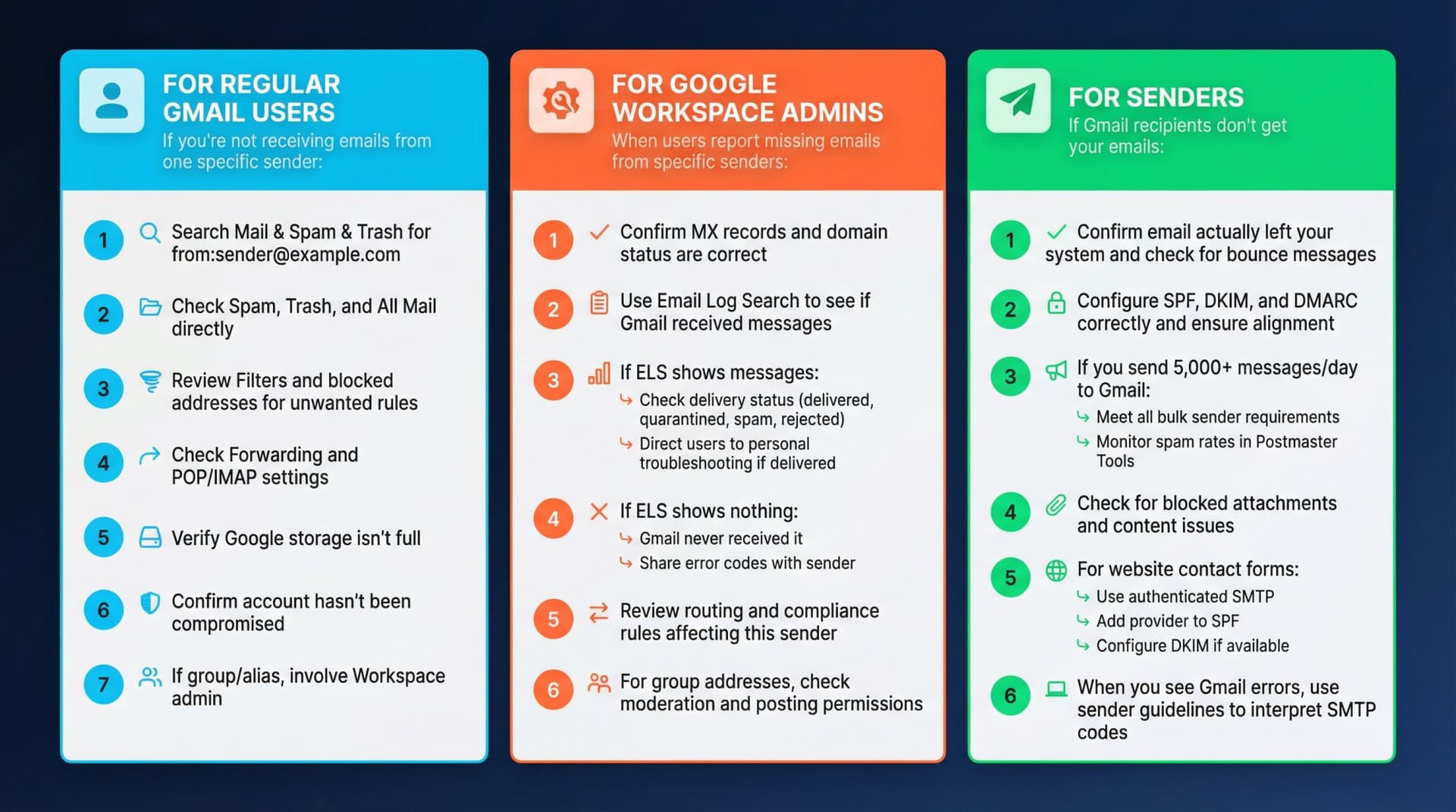
For regular Gmail users
If you're not receiving emails from one specific sender, work through these steps in order:
① Search "Mail & Spam & Trash" for from:sender@example.com
② Check Spam, Trash, and All Mail directly
③ Review Filters and blocked addresses for filters matching that sender with "Delete it" or "Skip Inbox," and check whether the sender is on your blocked list
④ Check Forwarding and POP/IMAP settings
⑤ Verify Google storage isn't full
⑥ Confirm your account hasn't been compromised (check for unfamiliar filters or forwarding)
⑦ If the address is a group or alias, involve your Workspace admin
For more comprehensive inbox management strategies, see our guides on email management tips, email management strategies, and achieving inbox zero.
For Google Workspace admins
When users report missing emails from specific senders, start by confirming MX records and domain status are correct. Then use Email Log Search to see if Gmail received the messages.
If ELS shows messages, check their delivery status (delivered, quarantined, spam, rejected) and direct users to personal troubleshooting if the status shows delivered. If ELS shows nothing, Gmail never received it, so share any error codes with the sender. Also review routing and compliance rules that might affect this sender, and for group addresses, check moderation and posting permissions.
For enterprise email management, check out our enterprise solutions.
For senders
If Gmail recipients don't get your emails, start by confirming the email actually left your system and checking for bounce messages. Configure SPF, DKIM, and DMARC correctly and ensure alignment.
If you send 5,000+ messages per day to Gmail, you need to meet all bulk sender requirements and monitor spam rates in Postmaster Tools. Check for blocked attachments and content issues. For website contact forms, use authenticated SMTP, add your provider to SPF, and configure DKIM if available. When you see Gmail errors, use Google's sender guidelines to interpret the SMTP codes.
Keeping This Information Current
All technical details in this guide are based on Gmail and Google Workspace documentation as of 2025. Gmail's policies evolve constantly. Before making infrastructure changes, re-check the latest Google Workspace Admin Help pages, review current Email sender guidelines, and look at your own logs and Postmaster Tools instead of assuming generic advice fits your setup.
If you pair this technical troubleshooting with a system like Inbox Zero to keep important senders in focus, you can drastically reduce both the number of actual delivery failures and the number of times they catch you by surprise.
For more email productivity insights, explore our resources on email productivity, why you check Gmail 100 times a day, and our year-end email cleanup checklist.
Relay.app Is Shutting Down: Deadlines, Data Export, and Alternatives
Relay.app is shutting down in 2026. See the deadlines for free and paid users, what to export, and which alternatives fit your email and automation workflows.
2026-07-16T18:46:02Z

Best AI Email Assistants in 2026 (Tested)
The best AI email assistants in 2026, tested and compared. Honest pros, cons, and pricing for Inbox Zero, Superhuman, Fyxer, Shortwave, Lindy, Missive, SaneBox, Serif, Perplexity, Gemini in Gmail, and Microsoft Copilot, with picks by use case.
2026-07-05T08:00:00Z

Top 16 Email Management Software of 2026
Discover the top 16 email management software of 2025 designed to boost productivity and simplify your inbox.
2026-06-24T09:00:00Z
7 Best Fyxer Alternatives in 2026
The best Fyxer.ai alternatives in 2026, compared. AI email assistants, team inboxes, and inbox cleaners, with honest notes on price, features, and who each one is for.
2026-06-01T08:00:00.000Z