Gmail Won't Let Me Delete Emails? Fix (2026)
Gmail delete button frozen or emails coming back? Fix it in 90 seconds with our step-by-step guide for desktop, mobile, and bulk deletion.

You click the trash icon. Nothing happens. You try again. The loading spinner appears, spins forever, then... nothing. Or the emails delete and mysteriously reappear 10 minutes later like nothing happened.
If your Gmail inbox refuses to delete emails or feels completely frozen, you're not looking for "email management tips." You need this fixed right now, without losing important messages or wasting an hour clicking random settings.
This guide was built for that exact moment. We'll start with the fastest fixes that work surprisingly often (seriously, try these first), then move into the deeper troubleshooting if you need it. By the end, you'll know exactly why this happens and how to prevent it from happening again. For additional Gmail productivity resources, explore our Gmail shortcuts cheat sheet.
Manual Screenshot Needed: Real Gmail inbox interface showing email selection and delete button
This screenshot requires login to Gmail. To capture:
- Open Gmail (https://mail.google.com) and log in
- Select 2-3 emails using checkboxes
- Show the delete button (trash icon) in the toolbar
- Hide personal info (addresses, subjects, profile picture)
- Capture at 1920x1080 resolution
Alt text to use: "Gmail inbox interface showing email selection checkboxes and delete button in toolbar"
See full capture instructions in: web-screenshots/captures/SC-01.md
How to Fix Gmail Delete Issues in 90 Seconds
Start here. Most frozen Gmail issues resolve with one of these four simple steps. Try them in order and stop as soon as deletion starts working again.
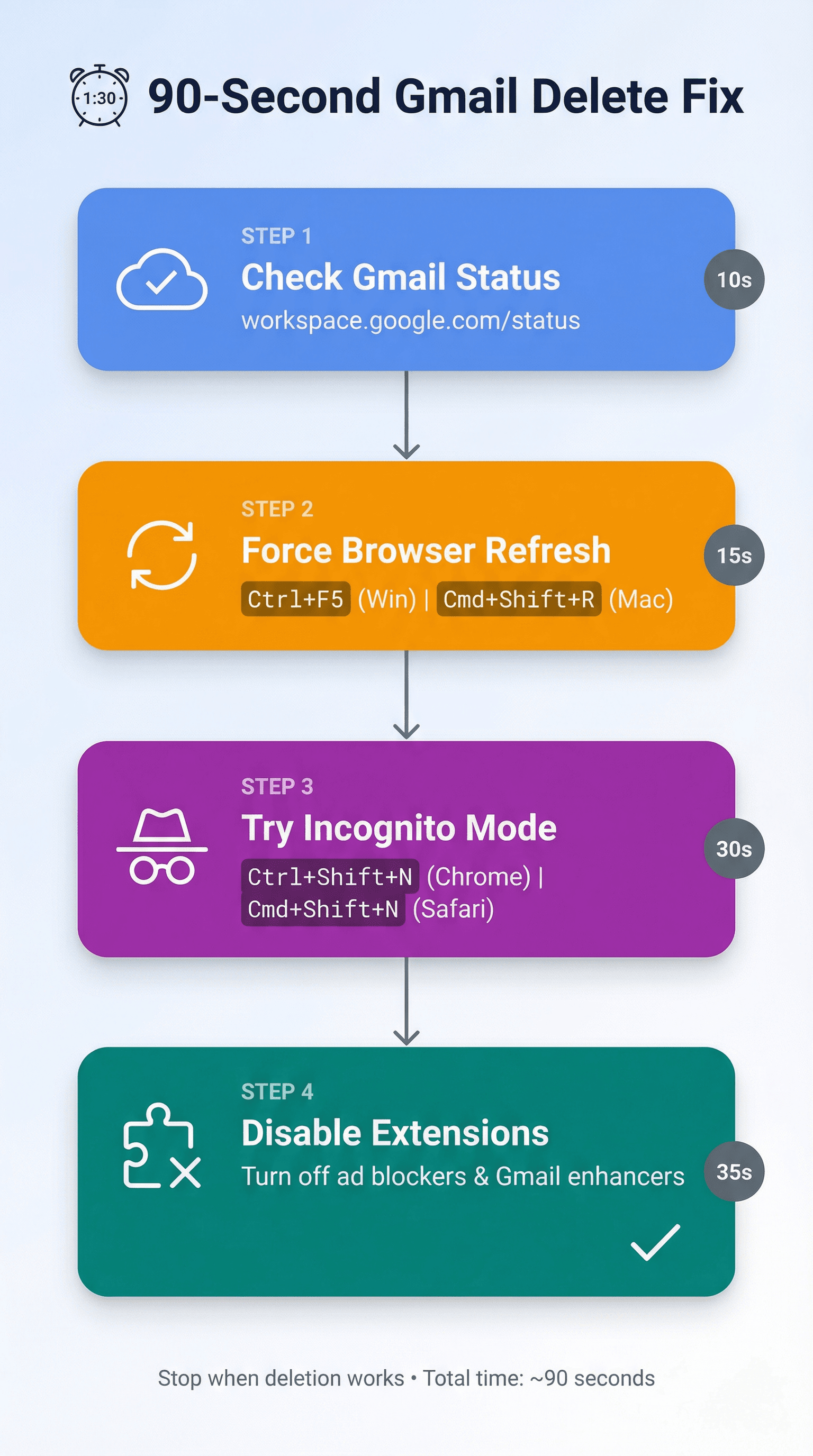
| Quick Fix | How to Do It | Why It Works | Skip If |
|---|---|---|---|
| Check Gmail Status | Open Google Workspace Status Dashboard and check Gmail row | If Gmail is degraded/down, your actions fail or undo themselves later | Status shows "Available" |
| Force Browser Refresh | Windows: Ctrl + F5<br>Mac: Cmd + Shift + R | Reloads all scripts and UI components, fixes stuck interface state | Just did this recently |
| Try Incognito Mode | Chrome: Ctrl + Shift + N<br>Safari: Cmd + Shift + N | Tests if extensions or cookies are breaking Gmail | You don't use extensions |
| Disable Extensions | Turn off ad blockers, privacy tools, "Gmail enhancers" temporarily | Extensions can interfere with Gmail's delete button and actions | Incognito mode didn't help |
For more context on common Gmail performance issues and their causes, see our comprehensive troubleshooting guide.
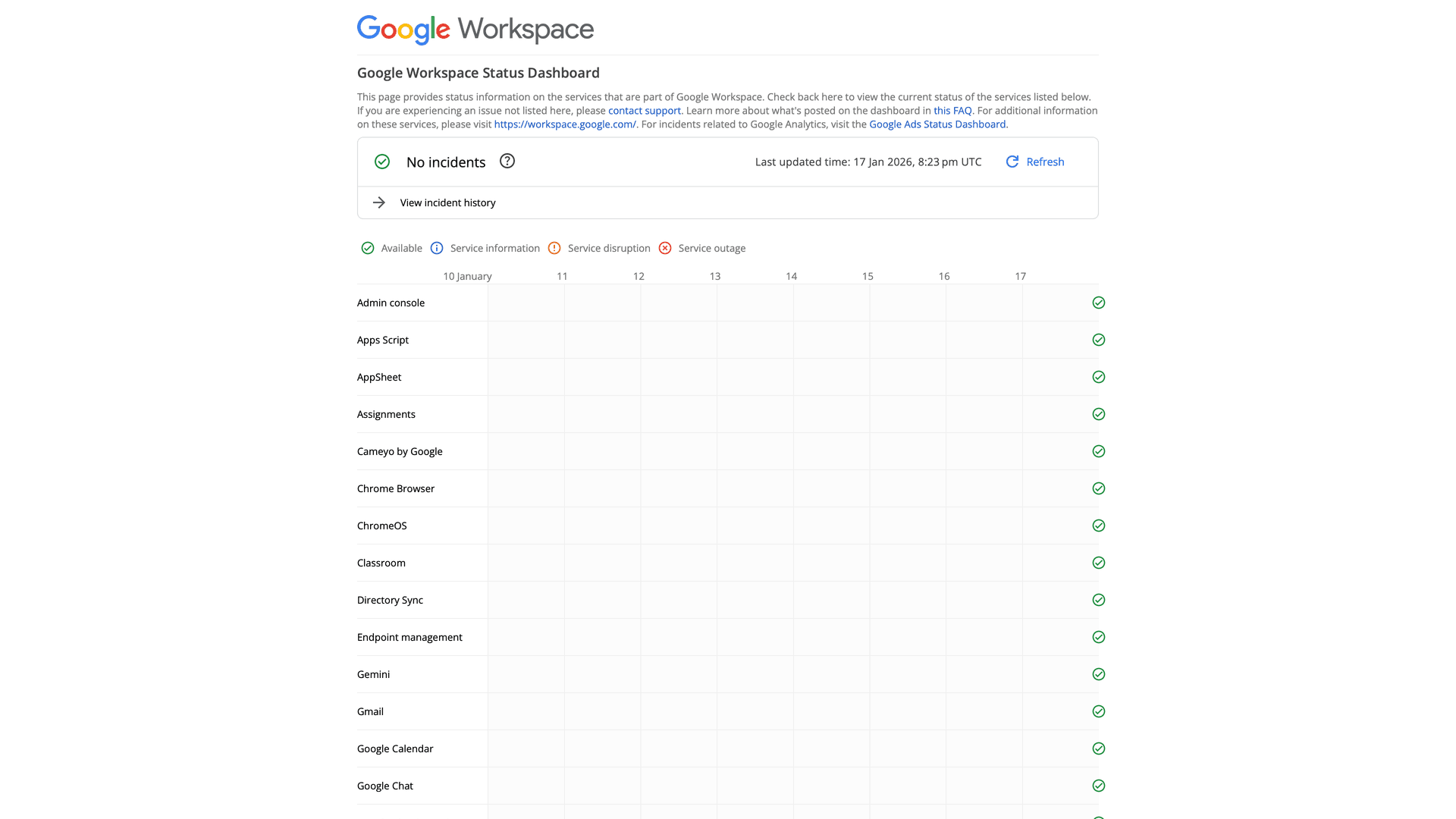
The Google Workspace Status Dashboard shows real-time service health across all Google services. Check the Gmail row—if it shows anything other than "Available," that's why your delete actions are failing or reverting.
Still not working? Move to the deeper fixes below.
What Happens When You Delete Emails in Gmail
A lot of "Gmail won't delete" complaints are really "Gmail deleted it, but not the way I expected."
Here's how Gmail's delete function actually works, according to Google's official documentation:
Deleting moves the message to Trash—it's not immediately gone forever. Messages in Trash can be recovered until you permanently delete them. After 30 days, messages in Trash are automatically deleted permanently. To delete faster, you must empty Trash manually or click "Delete forever."
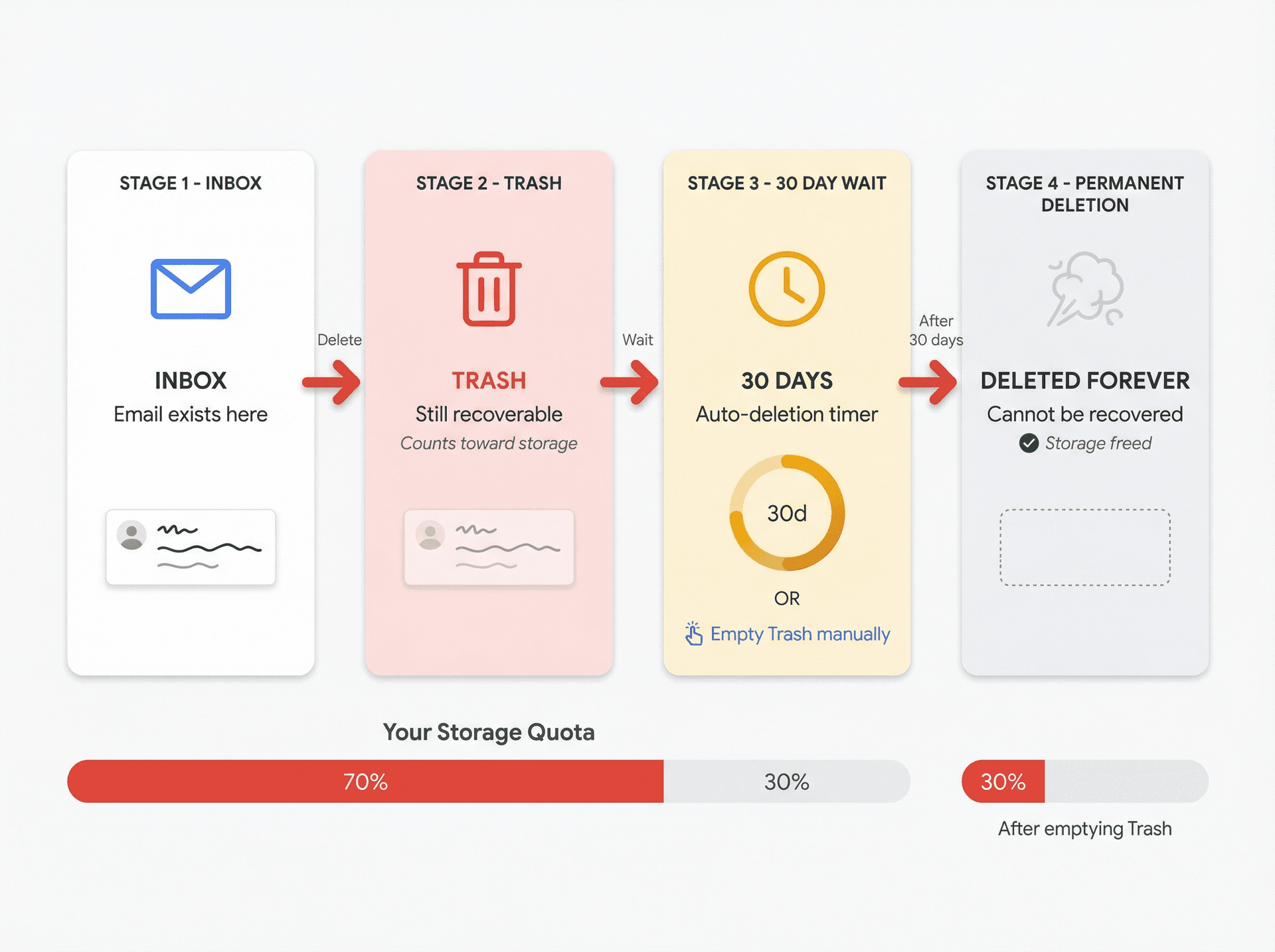
This matters when you're trying to free up storage right now. If your goal is to free up storage space right now, you need to take the extra step of emptying Trash (and Spam, which also counts toward your quota). Just clicking delete isn't enough. For a comprehensive approach to deleting all emails in Gmail, including bulk deletion strategies, see our complete guide.
Gmail Won't Delete Emails: 3 Common Scenarios
Different symptoms point to different root causes. Figure out which scenario matches your situation:
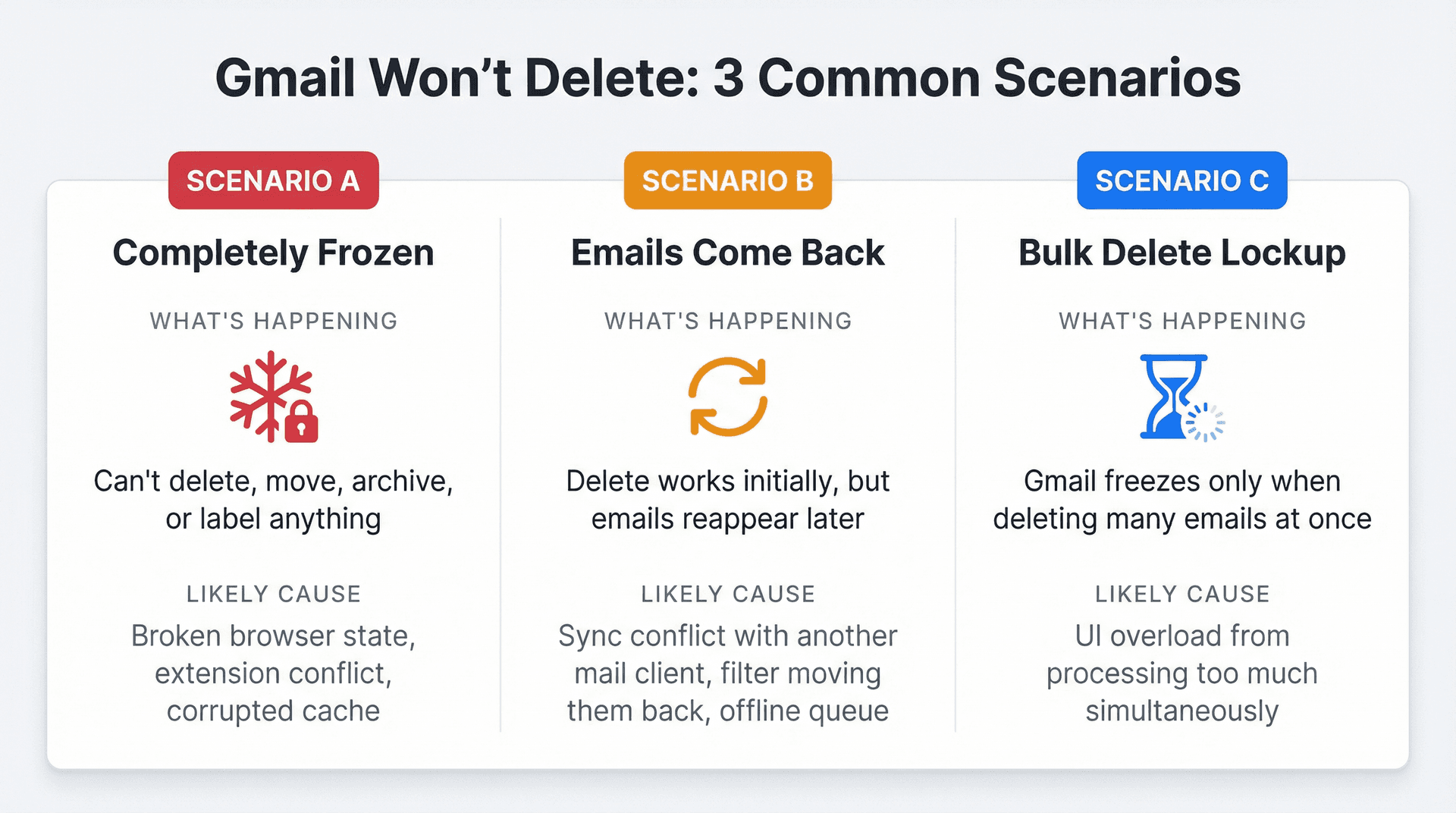
| Scenario | What's Happening | Likely Cause |
|---|---|---|
| A: Completely Frozen | Can't delete, move, archive, or label anything | Broken browser state, extension conflict, corrupted cache |
| B: Emails Come Back | Delete works initially, but emails reappear later | Sync conflict with another mail client, filter moving them back, offline queue |
| C: Bulk Delete Lockup | Gmail freezes only when deleting many emails at once | UI overload from processing too much simultaneously |
The fixes below are organized by scenario. For preventive maintenance, consider our year-end email cleanup checklist to avoid these issues.
How to Fix a Frozen Gmail Inbox (Desktop)
If Gmail is completely unresponsive when you try to delete anything, these desktop-specific fixes will get you unstuck.
Clear Gmail Site Data (Targeted Reset)
Instead of clearing your entire browser history, just reset Gmail's site data. This clears the corrupted local state that's breaking actions like delete and move.
In Chrome, go to Settings > Privacy and security > Site settings > View permissions and data stored across sites. Search for mail.google.com, click the trash icon to clear all cookies and site data, then reload Gmail and sign in again. This resets Gmail's local state without affecting your other websites.
Manual Screenshot Needed: Real Chrome settings showing site data clearing process
This screenshot requires capturing Chrome's internal settings page. To capture:
- Open Chrome and navigate to:
chrome://settings/content/all - Search for "mail.google.com" in the search box
- Show the mail.google.com entry with trash/clear icon
- Capture at 1920x1080 resolution
Alt text to use: "Chrome settings showing how to clear site data for mail.google.com to fix frozen Gmail"
See full capture instructions in: web-screenshots/captures/SC-02.md
Turn Off Gmail Offline Mode
Even if you don't remember enabling it, Gmail Offline can create a "local queue" that gets stuck and makes delete actions appear to do nothing. This is one of the most overlooked causes of frozen Gmail.
According to Google's offline mail documentation, Gmail Offline works only in Chrome (not in other browsers), doesn't function in Incognito mode, and can be disabled through Settings if things go wrong. For related issues where Gmail offline mode isn't working properly, our troubleshooting guide covers additional recovery steps.
To disable it, click the gear icon in Gmail and select "See all settings." Navigate to the Offline tab, uncheck "Enable offline mail," and save changes. Then clear site data for mail.google.com as described in the previous step. This clears the offline cache and queue that can get corrupted and freeze your delete actions.
Try a Different Browser Profile
Create a brand new browser profile and test Gmail there. If it works in the fresh profile, your original profile has corrupted state or an extension you missed. This is faster than reinstalling your browser and helps isolate the issue.
Check Your Network Connection
If your internet connection is unstable or dropping packets, Gmail actions might not reach Google's servers reliably. Google's troubleshooting documentation includes restarting your router and trying another network as valid diagnostic steps. Connect to a different Wi-Fi network or use your phone's hotspot briefly—if Gmail works on another network, your router is the problem.
How to Fix Gmail Not Deleting on iPhone and iPad
The most common "it won't delete" issue on iOS is actually that you're archiving emails without realizing it.
Change Swipe Settings to Delete (Not Archive)
Google explicitly notes in their iOS settings documentation that swiping archives by default unless you change the setting. This means a quick swipe removes the email from your Inbox but keeps it in "All Mail." So it's not deleted at all—it just looks like it disappeared.
To fix this, open the Gmail app and tap the menu (☰), then go to Settings > Inbox > Inbox customizations > Mail swipe actions. Choose either Left swipe or Right swipe and set it to Trash. Now swiping will actually delete emails (move them to Trash) instead of archiving them.
Manual Screenshot Needed: Real iOS Gmail app swipe settings screen
This screenshot requires capturing the Gmail iOS app. To capture:
- Open Gmail app on iPhone (latest version)
- Navigate: Menu (☰) > Settings > [Account] > Inbox > Inbox customizations > Mail swipe actions
- Show "Left swipe" / "Right swipe" options with "Trash" visible
- Capture on iPhone 15 Pro or similar (430x932 viewport)
Alt text to use: "iOS Gmail app settings screen showing how to change swipe actions from Archive to Trash"
See full capture instructions in: web-screenshots/captures/SC-03.md
Handle Sync Delays
On mobile, changes sync to the server rather than happening instantly. If your phone hasn't synced yet, deletes can appear to "revert" when the server state refreshes. Give it a minute and pull down to refresh manually. If you're on a slow connection, the sync can take longer. For persistent sync problems, see our guide on fixing Gmail not syncing with iPhone and Android.
How to Fix Gmail Not Deleting on Android
If Gmail on Android won't reliably delete or update, treat it as a sync problem first.
Manual Screenshot Needed: Real Android Gmail app sync settings
This screenshot requires capturing the Gmail Android app. To capture:
- Open Gmail app on Android device (latest version)
- Navigate: Menu (☰) > Settings > [Account] > Show sync settings
- Display "Sync Gmail" toggle and related options
- Capture on Pixel 8 Pro or similar (412x915 viewport recommended)
Alt text to use: "Android Gmail app settings showing sync toggle and manual sync options"
See full capture instructions in: web-screenshots/captures/SC-04.md
Google's Android sync troubleshooting recommends pulling down in the inbox to manually sync, updating the Gmail app to the latest version, and restarting your device. You should also confirm that "Sync Gmail" is enabled in your account settings and that your Google Account storage isn't full. If those steps don't help, try clearing the device's storage cache, and as a last resort, clear Gmail app storage entirely (this requires re-login).
Gmail sync can take up to 15 minutes, and even longer if the device hasn't been used recently. So if you delete something and it reappears, wait a bit before assuming it's broken.
If your Google Account storage is full, Gmail can't send or receive mail properly. Trash and Spam also count toward your storage quota, so even "deleted" emails use space until you empty Trash. Learn more about why Gmail storage shows full even with an empty inbox and how to truly reclaim space.
Why Deleted Emails Keep Coming Back
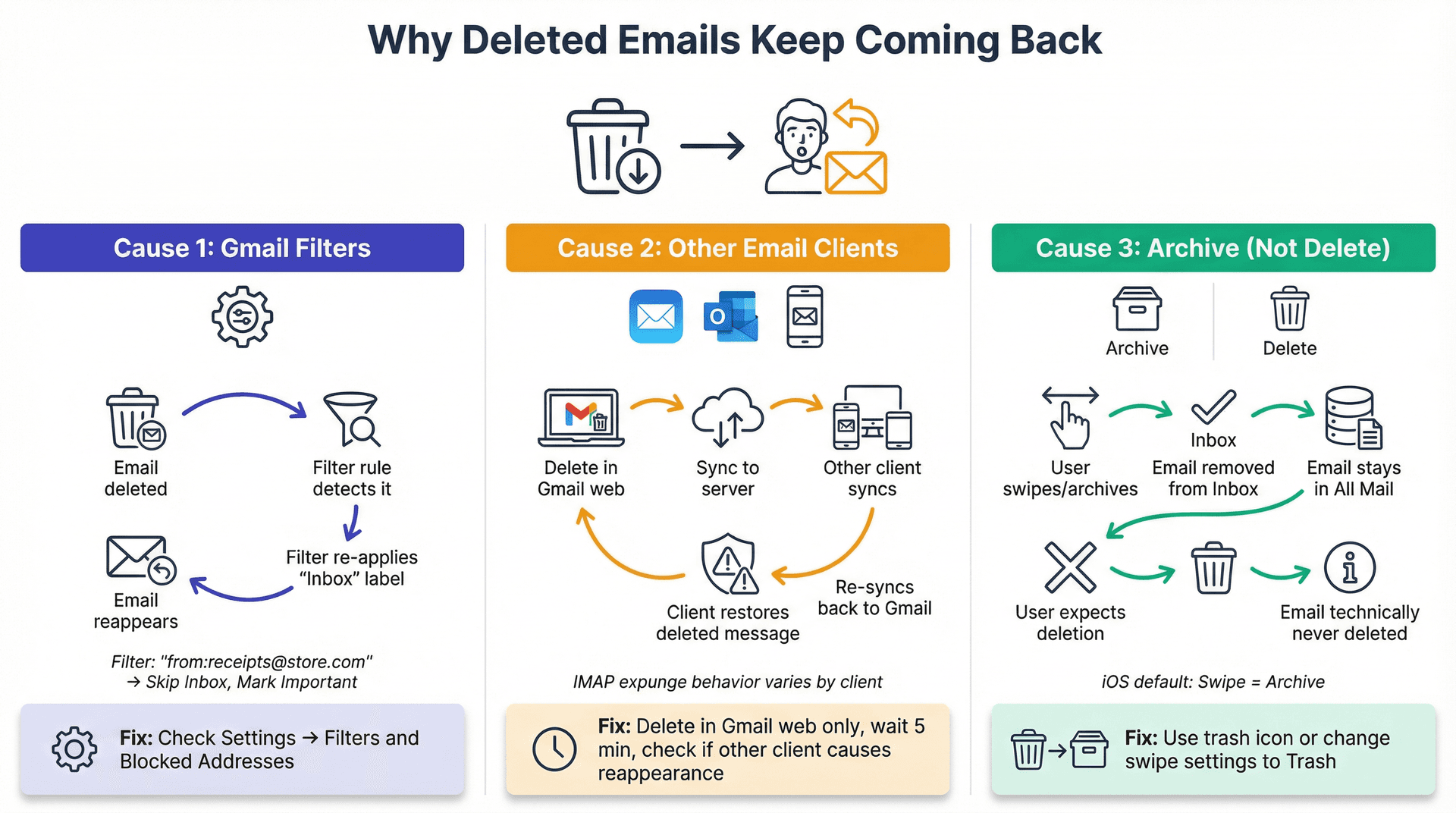
If emails delete successfully but then come back later, it's almost never "Gmail ignoring you." It's usually another system undoing your action.
Check Your Gmail Filters
A misconfigured filter can re-label or re-route messages and make them look like they "came back." Google's filter documentation shows where to manage them: Settings > See all settings > Filters and Blocked Addresses > edit or delete the filter.
Look specifically for filters that apply "Inbox" labels or mark messages as important, forward messages while keeping a copy, or trigger on common subjects like "receipt" or "invoice." If a filter is putting emails back into your inbox after you delete them, disable or delete that filter. For more on organizing your inbox with labels and filters, see our guide on Gmail labels vs folders.
Look for Another Email Client Fighting You
If you use Apple Mail, Outlook desktop, Samsung Email, or any other app to access your Gmail account, those clients can re-sync messages in unexpected ways.
Here's a simple test: delete the emails in Gmail web (not your phone or mail app), wait about 5 minutes, then see if they reappear after you open the other mail client. If emails only come back after opening another client, that client is re-syncing incorrectly. Check its settings or stop using it for Gmail.
Technical context: Gmail uses IMAP, and different mail clients handle IMAP delete and expunge behaviors differently. Sometimes this creates conflicts where one client "restores" what another deleted.
Confirm You're Deleting (Not Archiving)
This sounds obvious, but Gmail's mental model is based on labels, not folders. So the distinction between "delete" and "archive" trips people up. On iOS, Google's documentation explicitly lists Archive and Trash as different swipe action options, with swipe defaulting to archive. If you're archiving instead of deleting, emails stay in All Mail forever.
Check your swipe settings (see the iOS section above) and use the trash can icon when you want to truly delete. For more on the distinction, see our guide explaining Gmail All Mail vs Archive.
How to Bulk Delete in Gmail Without Freezing
Bulk delete is where Gmail most often locks up, especially on older machines or huge mailboxes.
Gmail's Safe Bulk Delete Method
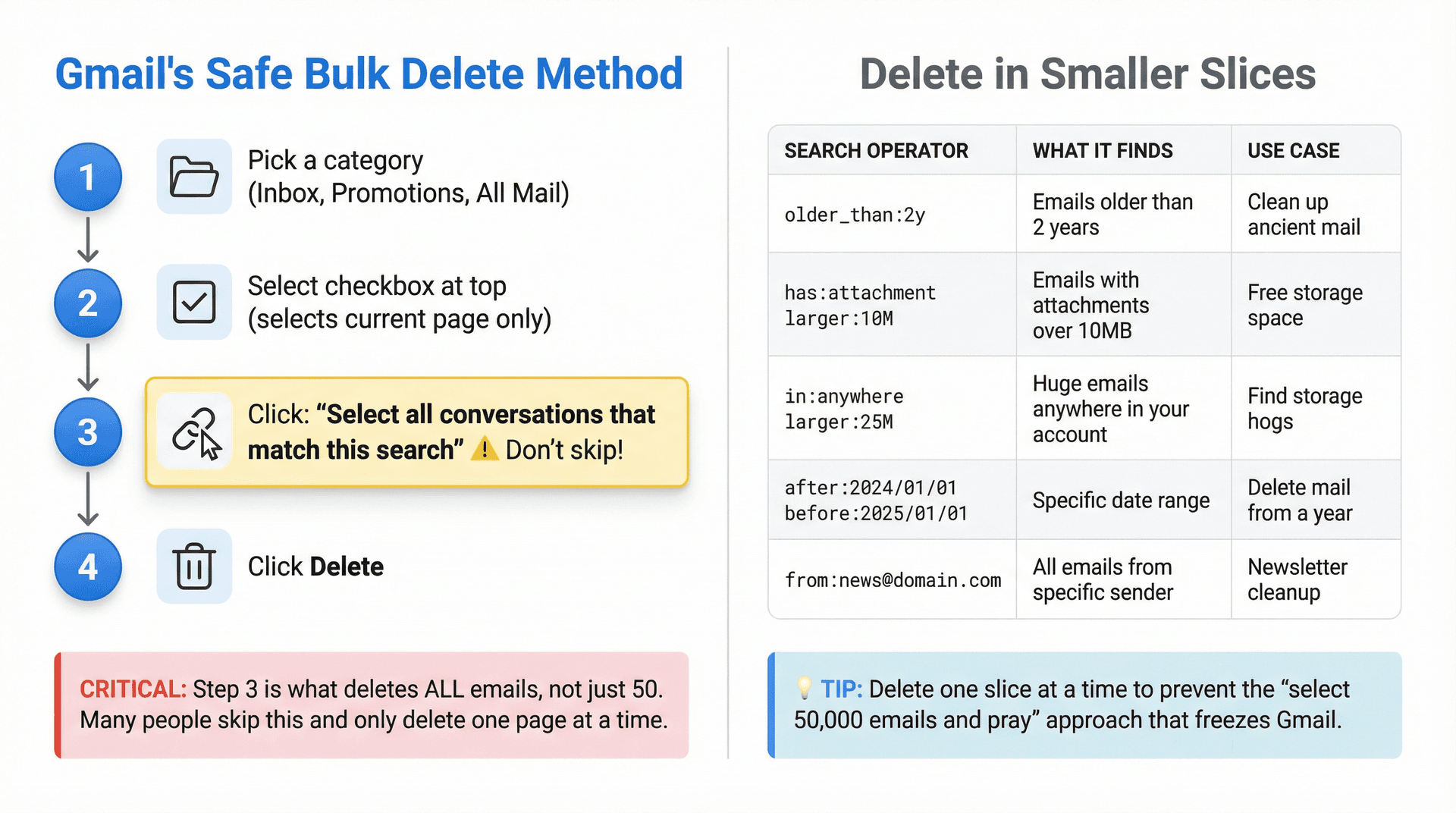
Google's official delete documentation describes the intended bulk flow: pick a category (Inbox, Promotions, All Mail, etc.), select the checkbox at the top to select the current page, then click the link that appears reading "Select all conversations that match this search," and finally click Delete.
Don't skip that third step. If you only select the checkbox, you're only deleting the first page (50 emails). The "Select all" link is what tells Gmail to delete everything matching your view or search.
Many people think they're bulk deleting but are actually only deleting one page at a time. Always click "Select all conversations that match this search."
Manual Screenshot Needed: Real Gmail showing the "Select all conversations" link
This screenshot requires login to Gmail and demonstrates the critical UI element users often miss. To capture:
- Open Gmail (https://mail.google.com) with 100+ emails in a category
- Click the top checkbox to select the current page
- WAIT for the blue link to appear: "Select all [X] conversations that match this search"
- Capture showing this link prominently (1920x1080 resolution)
- Hide personal info but keep the link text visible
Alt text to use: "Gmail inbox showing the 'Select all conversations' link that appears after checking the top checkbox"
See full capture instructions in: web-screenshots/captures/SC-05.md
Delete in Smaller Slices (Search Operators)
If Gmail freezes when you try to delete thousands of emails at once, you're asking it to process too much simultaneously. Split the problem into manageable chunks using search operators. Google's storage cleanup guidance and operator references document these:
| Search Operator | What It Finds | Use Case |
|---|---|---|
older_than:2y | Emails older than 2 years | Clean up ancient mail |
has:attachment larger:10M | Emails with attachments over 10MB | Free storage space |
in:anywhere larger:25M | Huge emails anywhere in your account | Find storage hogs |
after:2024/01/01 before:2025/01/01 | Specific date range | Delete mail from a specific year |
from:news@domain.com | All emails from a specific sender | Newsletter cleanup |
Delete one slice, then move to the next. This prevents the "select 50,000 emails and pray" approach that freezes Gmail. For advanced techniques on finding emails with attachments only or locating the oldest emails in Gmail, see our dedicated search operator guides.
Performance Tip for Slow Gmail
Declutter proactively by using search operators to remove large emails, and consider lowering the number of messages displayed per page to improve responsiveness when Gmail feels sluggish. For detailed strategies on speeding up a slow Gmail inbox, see our dedicated performance optimization guide.
Google Workspace Gmail Delete Issues: Special Cases
If you use a work or school Gmail account, your mailbox lives inside an organization with policies that can affect deletion.
Manual Screenshot Needed: Google Workspace Admin Console email retention settings
This screenshot requires Workspace admin access. To capture:
- Log into Google Workspace Admin Console (https://admin.google.com)
- Navigate to: Apps > Google Workspace > Gmail > User settings
- Find "Email retention" or "Auto-deletion" policy settings
- Show minimum retention period (30 days) and policy options
- Hide organization-specific info
- Capture at 1920x1080 resolution
Alt text to use: "Google Workspace Admin Console showing email auto-deletion policy settings"
See full capture instructions in: web-screenshots/captures/SC-10.md
Note: This replaces the unrendered Nano Banana diagram. The text explanation below covers the key concepts for readers without admin access.
Auto-Deletion Policies and Vault Retention
Admins can configure "Email and chat auto-deletion" to manage how long messages stay in mailboxes. According to Google's Workspace documentation, the minimum period is 30 days, with options to move messages to Trash or delete them permanently when the period expires. So emails might be disappearing (or refusing to disappear) because of an org-wide policy you can't control.
Even if you delete emails and empty Trash, Vault retention rules or litigation holds can keep that data retained for compliance. Google Vault documentation explains that retention rules can preserve data even after users delete messages and empty trash, and Vault can prevent Gmail from purging messages if a retention rule or hold applies.
Manual Screenshot Needed: Google Vault retention rules interface
This screenshot requires Workspace with Vault license. To capture:
- Log into Google Vault (https://vault.google.com)
- Navigate to: Retention > View retention rules
- Show retention rules for Gmail with time periods
- Hide organization-specific names/details
- Capture at 1920x1080 resolution
Alt text to use: "Google Vault interface showing retention rules that preserve deleted emails for compliance"
See full capture instructions in: web-screenshots/captures/SC-11.md
Note: Most users won't have Vault access. The text explanation is sufficient for understanding the concept. The practical takeaway: your UI cleanup can still work, but compliance retention may mean "gone from your view" is different from "purged from all systems."
Outdated Gmail Fixes to Ignore (Basic HTML)
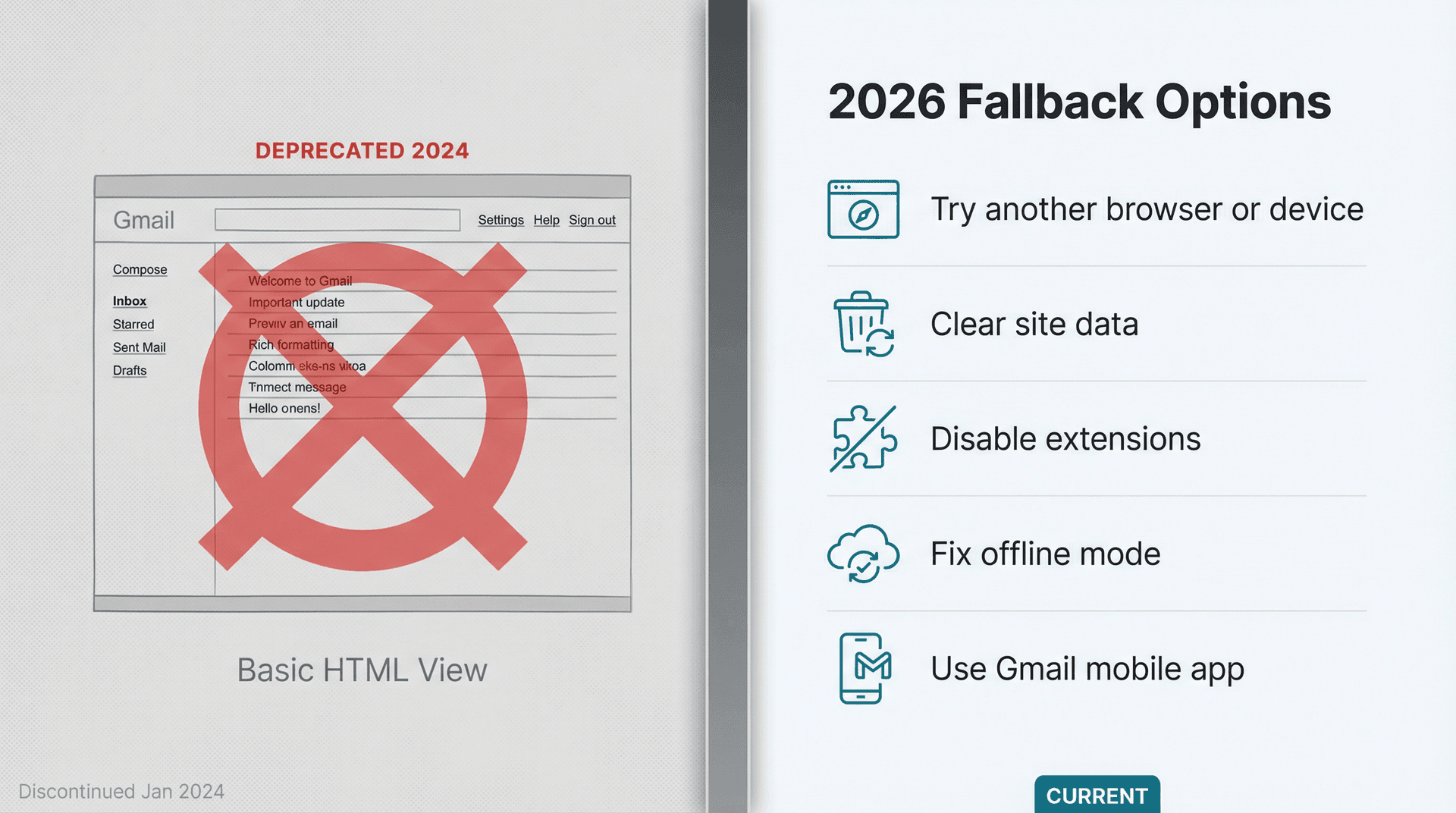
If you see a guide telling you to switch to "Basic HTML" view to fix frozen Gmail, that advice is now dead. Google disabled Gmail Basic HTML starting in early 2024 and published guidance to help users transition to the standard view.
In 2026, the real fallback options are trying another browser or device, clearing site data, disabling extensions, fixing offline mode, or using the Gmail mobile app temporarily. For a detailed comparison of email clients, see our analysis of Gmail vs Outlook.
How to Prevent Gmail Deletion Problems (Long-Term)
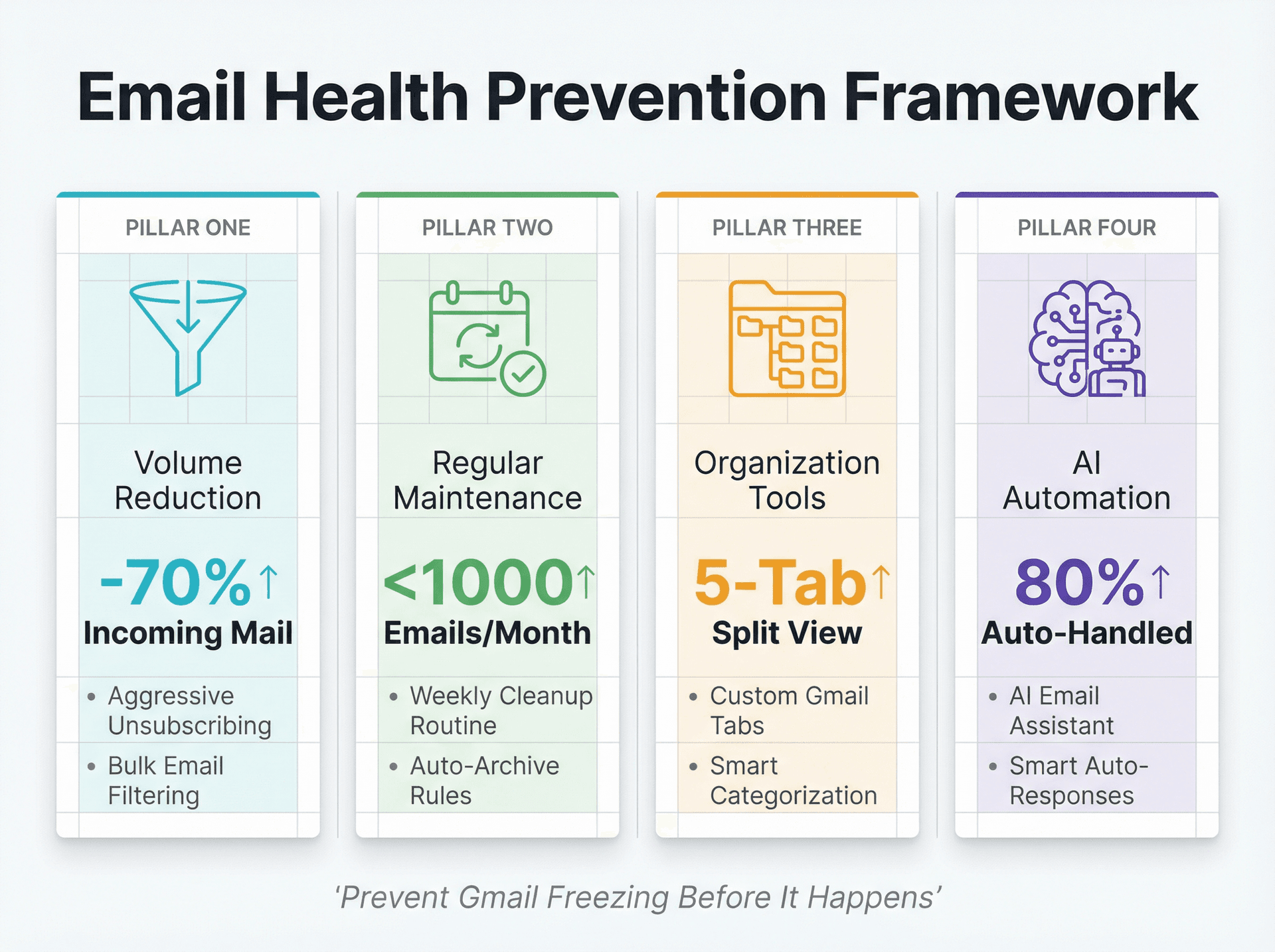
A frozen Gmail inbox is often a symptom of "email debt": too much volume, too many bulky threads, too many newsletters piling up. Once you're unstuck, prevent this from happening again with these strategies.
Reduce Incoming Email Volume
Unsubscribe aggressively. Most people receive dozens of newsletters they never read, and every email you don't receive is one you don't need to delete later. Inbox Zero offers a Bulk Email Unsubscriber that scans your inbox, shows you which senders you never open, and lets you unsubscribe or auto-archive with one click. It's faster than hunting down unsubscribe links manually, and it prevents future buildup. Learn more about managing email subscriptions effectively and bulk unsubscribing from emails.

The fewer emails you get, the less likely you'll need to do massive bulk deletes that freeze Gmail.
Keep Your Inbox Small Enough
Regular maintenance prevents the crisis moments where you need to delete thousands of emails at once. Inbox Zero's AI personal assistant can automatically label newsletters, receipts, marketing emails, and other categories, then archive them after a set period (like 7 days). This keeps your inbox clean without manual effort. Learn how AI email management can transform your workflow.

Inbox Zero's email analytics show you which senders and domains consume the most inbox space, so you know where to focus your cleanup and unsubscribe efforts. When your inbox stays under control, bulk actions are rare and Gmail runs smoothly.
Use Better Organization Tools
Inbox Zero Tabs for Gmail is a Chrome extension that adds split inbox-style tabs directly inside Gmail. You can create tabs like "To Reply," "Newsletters," "Receipts," or any custom search query. Read more about the Inbox Zero Tabs extension in our documentation.
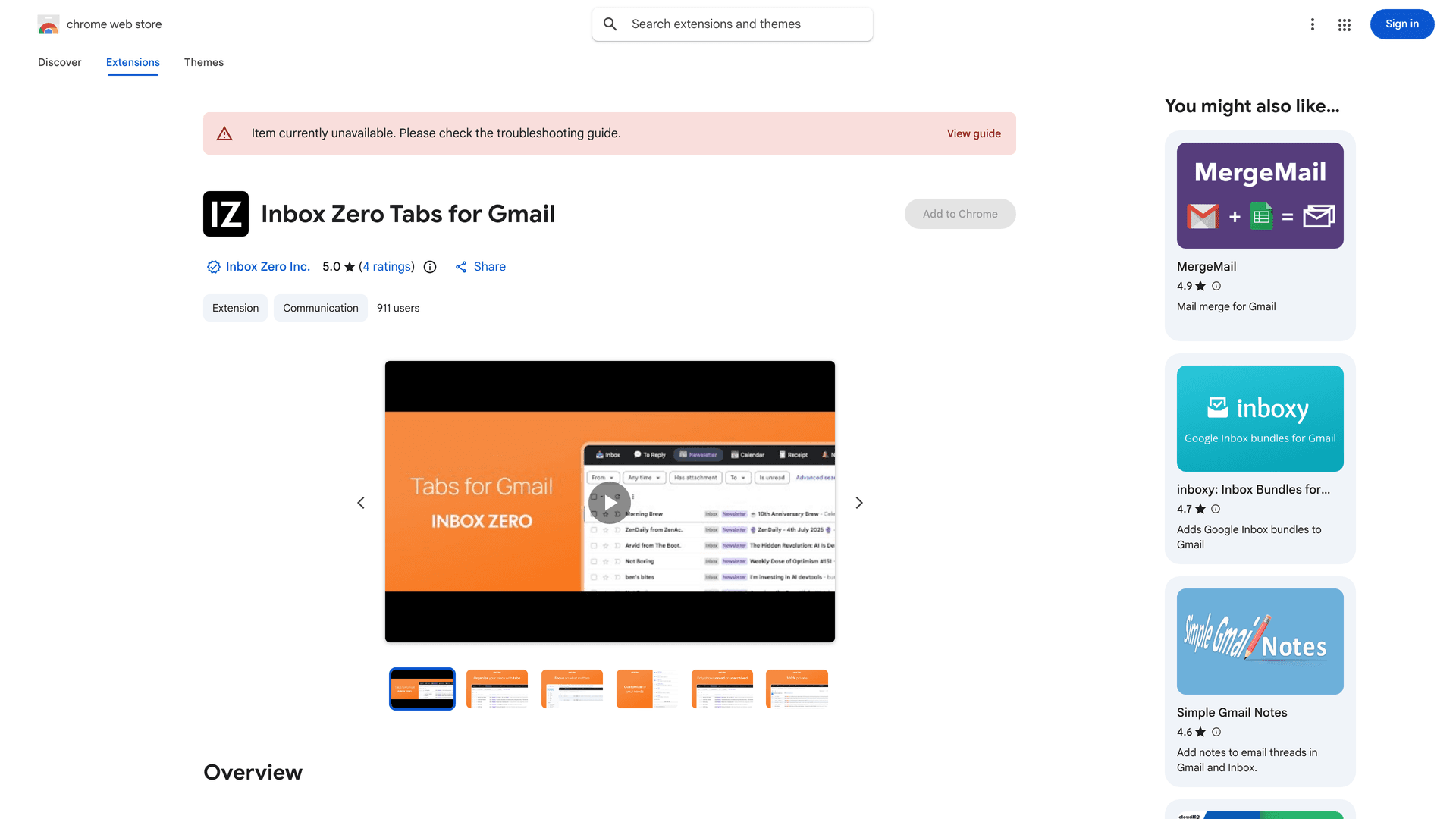
It's 100% private (runs entirely client-side, no data collection) and helps you organize Gmail without switching email providers. When your inbox is organized, you delete less frantically and more strategically. For additional organizational strategies, see our guide on email inbox management best practices.
Leverage AI to Stay Ahead
If you're constantly fighting email overload, automation helps you stay on top of it before it becomes a crisis. Inbox Zero combines several tools that prevent inbox chaos: an AI personal assistant that drafts replies, labels messages, and executes rules based on your preferences; a cold email blocker that automatically filters unsolicited outreach; Reply Zero for tracking which emails need responses and which are waiting on others; and automated email management so low-priority emails get handled without manual effort.
The goal isn't just fixing Gmail when it breaks. It's building a system where Gmail rarely breaks because your inbox never gets overwhelming in the first place. For comprehensive strategies, see our guide on managing your inbox effectively.
Frequently Asked Questions
If I delete an email, is it gone immediately?
Not necessarily. In Gmail, deleting moves the message to Trash first. It's permanently deleted after 30 days unless you click "Delete forever" or manually empty Trash. Learn more about recovering deleted Gmail emails after 30 days.
Why does Gmail delete feel random on my phone?
On iPhone and iPad, swipe archives by default unless you change swipe actions to Trash. On Android, sync delays or storage issues can make the inbox look like it didn't update yet. For troubleshooting, see our guides on the Gmail mobile app vs desktop experience.
Why did Gmail freeze when I tried to delete thousands of emails?
Bulk actions are heavy, and the UI can choke when processing too much at once. Use search operators to delete in slices instead of selecting everything at once, and always use the "select all conversations" link rather than just the checkbox. For more bulk deletion techniques, see our guide on deleting all promotions in Gmail.
Get Gmail Working Again (And Keep It Working)
Most frozen Gmail issues resolve with one of the simple fixes we covered first: hard refresh, incognito mode, disabling extensions, or clearing site data. If the problem is deeper (sync conflicts, filters, another mail client), the diagnostic steps above will help you identify and fix it.
Once you're unstuck, the real win is prevention. Keep your inbox manageable, unsubscribe from noise, and use automation to handle low-priority emails before they pile up. Check out our email management strategies for a systematic approach.
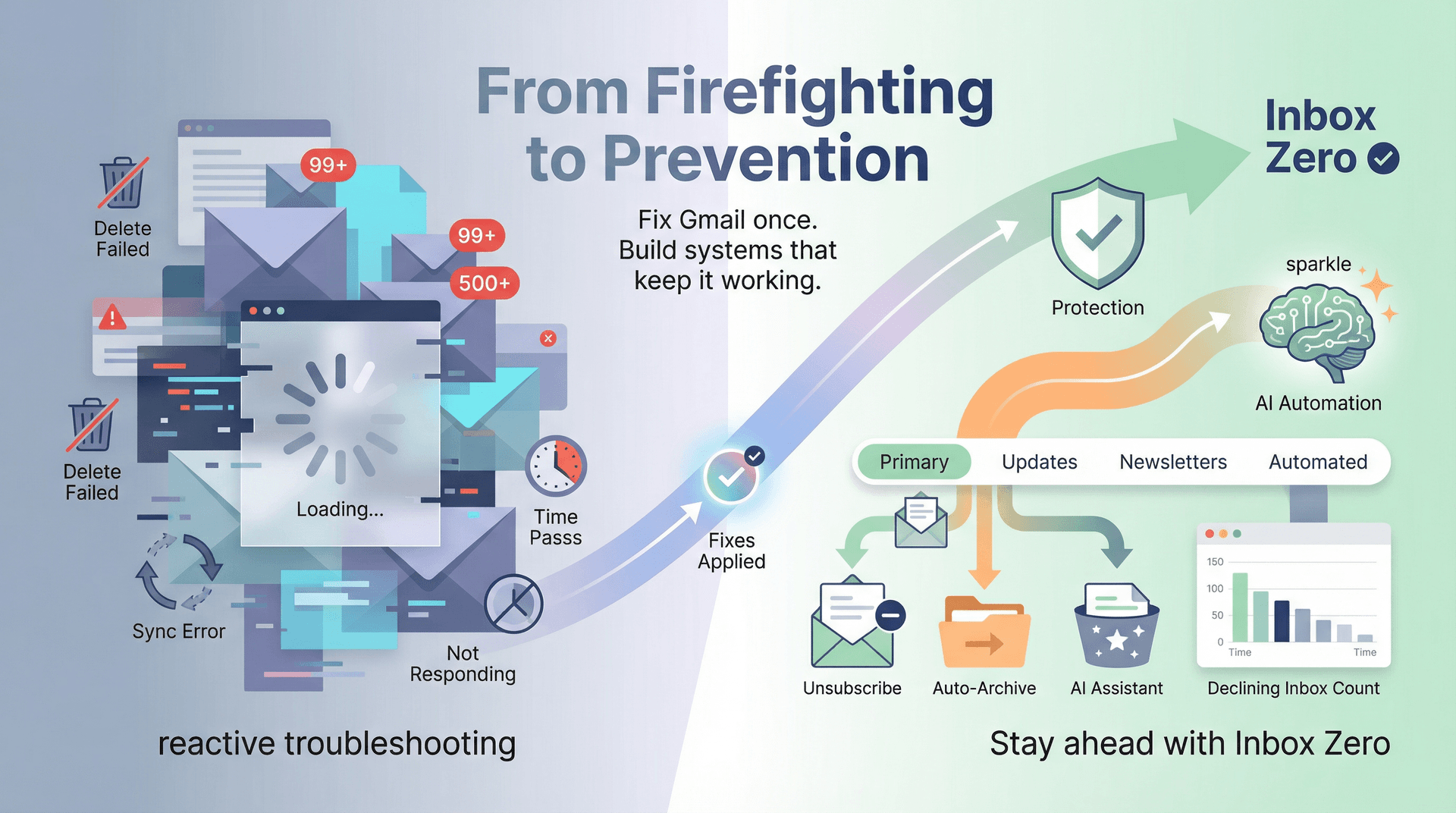
Tools like Inbox Zero exist specifically to prevent the email overload that leads to frozen inboxes and desperate bulk delete attempts. You don't have to fight email chaos alone. Better systems exist to keep Gmail (and your sanity) running smoothly. If the bulk-delete struggle was a sign your inbox had simply grown unmanageable, an AI email assistant like Inbox Zero can keep it under control by triaging and clearing low-priority mail before it ever piles up.
Learn about the Inbox Zero method and how it can transform your email workflow.


How to Recall an Email in Outlook (2026)
How to recall an email in Outlook step by step for new Outlook, classic Outlook, web, Mac, and mobile, plus when recall works and what to do when it doesn't.
2026-09-30T18:25:57.000Z

How to Stop AliExpress Emails (2026)
Stop AliExpress promotional emails: the unsubscribe link, notification settings in your AliExpress account, and what to do when the deals keep coming.
2026-09-30T18:25:57.000Z

How to Stop Amazon Emails (2026)
Stop Amazon marketing emails with the Communication Preferences Center, manage Amazon email subscriptions, and handle order emails you can't switch off.
2026-09-30T18:25:57.000Z

How to Stop Domino's Emails (2026)
Stop Domino's emails with Domino's official opt-out page, stop Domino's text offers, and know which rewards emails keep coming.
2026-09-30T18:25:57.000Z