Outlook Search Not Working? 7 Fixes That Actually Work
Fix Outlook search not working with 7 proven steps — from rebuilding the index to adjusting sync settings. Includes shared mailbox and Mac solutions.

Outlook search just stopped returning results. Maybe it's showing nothing at all, maybe it's missing emails you know exist, or maybe it only breaks in one specific shared mailbox. Whatever the symptom, you're stuck.
Outlook search failures aren't random, though. They follow patterns, and once you understand why search breaks, the fixes are surprisingly straightforward.
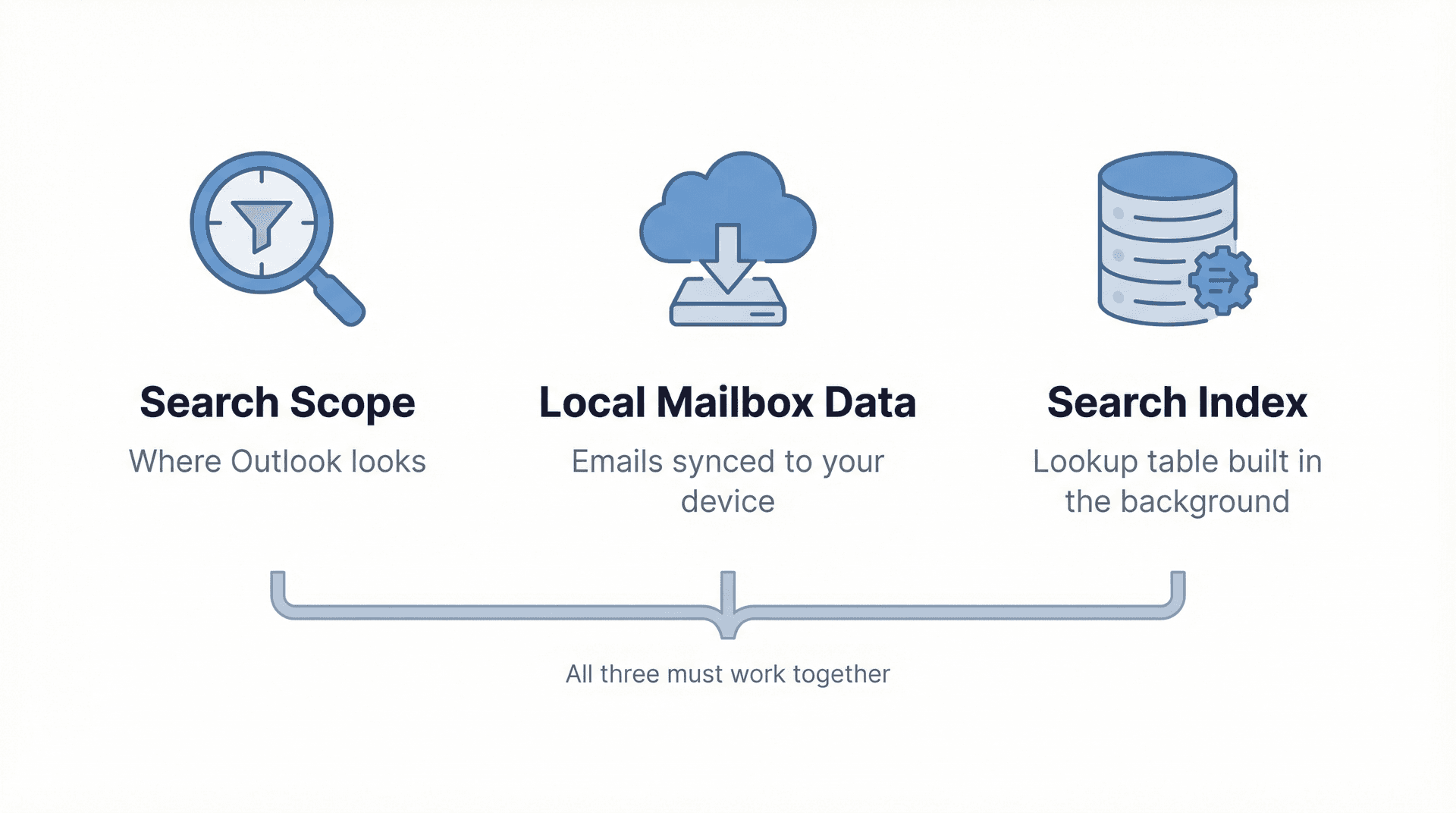
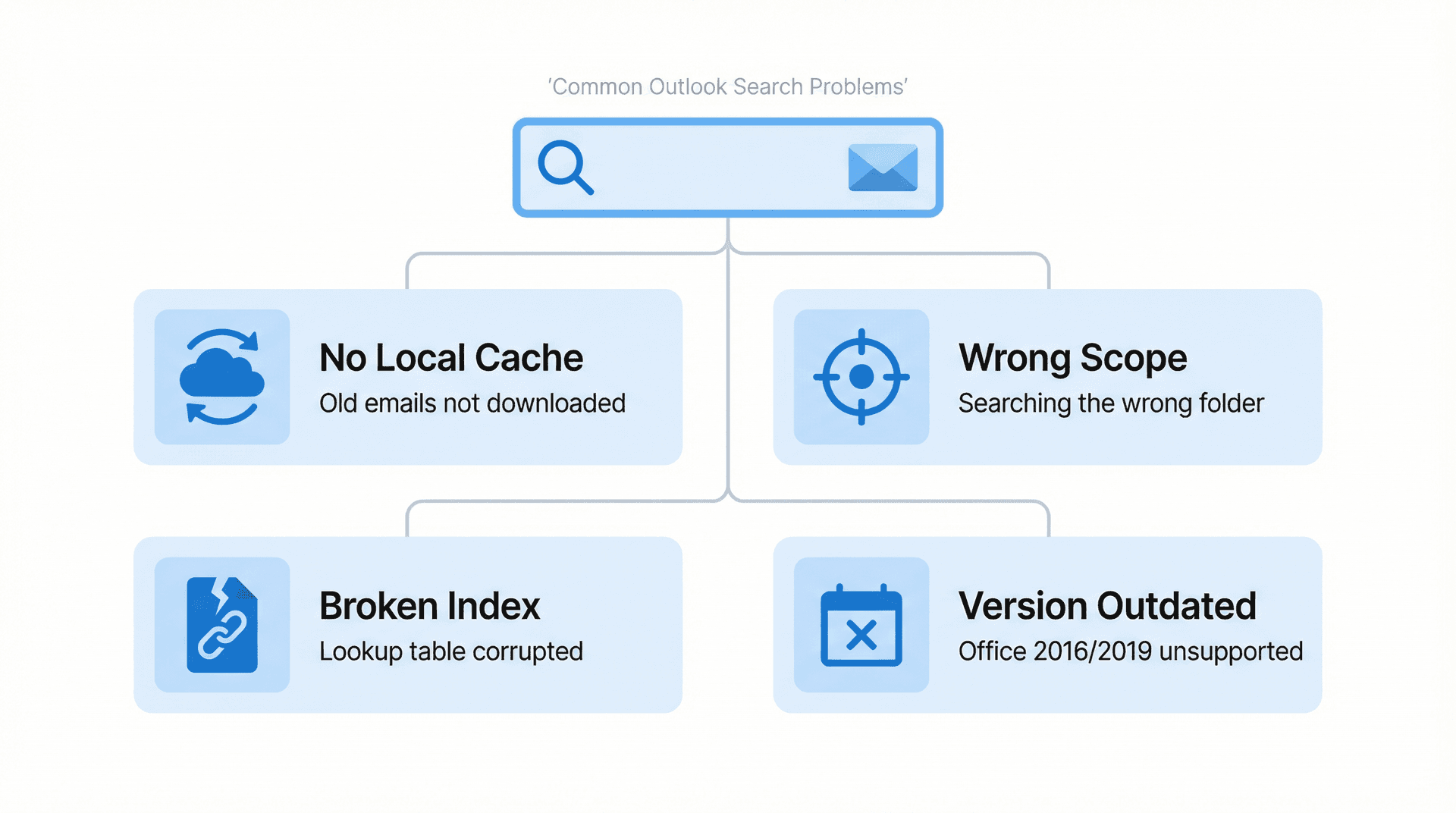
Outlook search depends on three things working together: the search scope (where Outlook is looking), the local mailbox data (what's actually downloaded to your device), and a healthy search index (the behind-the-scenes lookup table that makes search fast). In classic Outlook on Windows, that index is handled by Windows Search. On Mac, it's Spotlight. New Outlook has its own search settings and limitations, including the fact that multi-account search isn't currently supported.
That's why one person swears "rebuild the index" fixed everything, while someone else tries the same thing and gets nowhere. Different root causes need different fixes.
Before you change anything, check whether Microsoft already knows about the problem. Microsoft's classic Outlook known-issues page was updated in March 2026, and the new Outlook known-issues page was updated in February 2026. If search broke right after an Office update, or it's happening to multiple people in your organization at the same time, that's your first clue this might be a Microsoft-side issue, not something wrong with your local setup. If you're also seeing issues with how Outlook handles rules, see our guide to fixing Outlook rules not working for related troubleshooting.
A quick way to narrow it down:
| Your Symptom | Most Likely Cause | Start With |
|---|---|---|
| Search finds nothing at all | Index is incomplete or broken | Fix 4, then Fix 5 and 6 |
| Older emails are missing | Sync window is too short | Fix 2 |
| Works in main mailbox, fails in shared | Scope limitation or known bug | Shared Mailbox section |
| Only broken on Mac | Spotlight indexing issue | Mac section below |
| Only broken in browser | Server-side issue | Outlook.com section below |
Now, the fixes. They're ordered to save you the most time.
Fix 1: Check Your Outlook Search Scope
A surprising number of "broken" searches are really just bad scope choices.
In new Outlook, go to Settings > General > Search and check your search scope. Microsoft's own troubleshooting guide explicitly recommends checking this first. It also notes that if too many results match a broad query, older items might not display at all unless you narrow things down. And if you have multiple accounts, remember that multi-account search isn't supported in new Outlook yet, so you'll need to select each account individually.
In classic Outlook, click the search box and look at the Scope menu in the ribbon. If you're searching an archive or shared mailbox, Current Folder almost always works better than All Mailboxes.
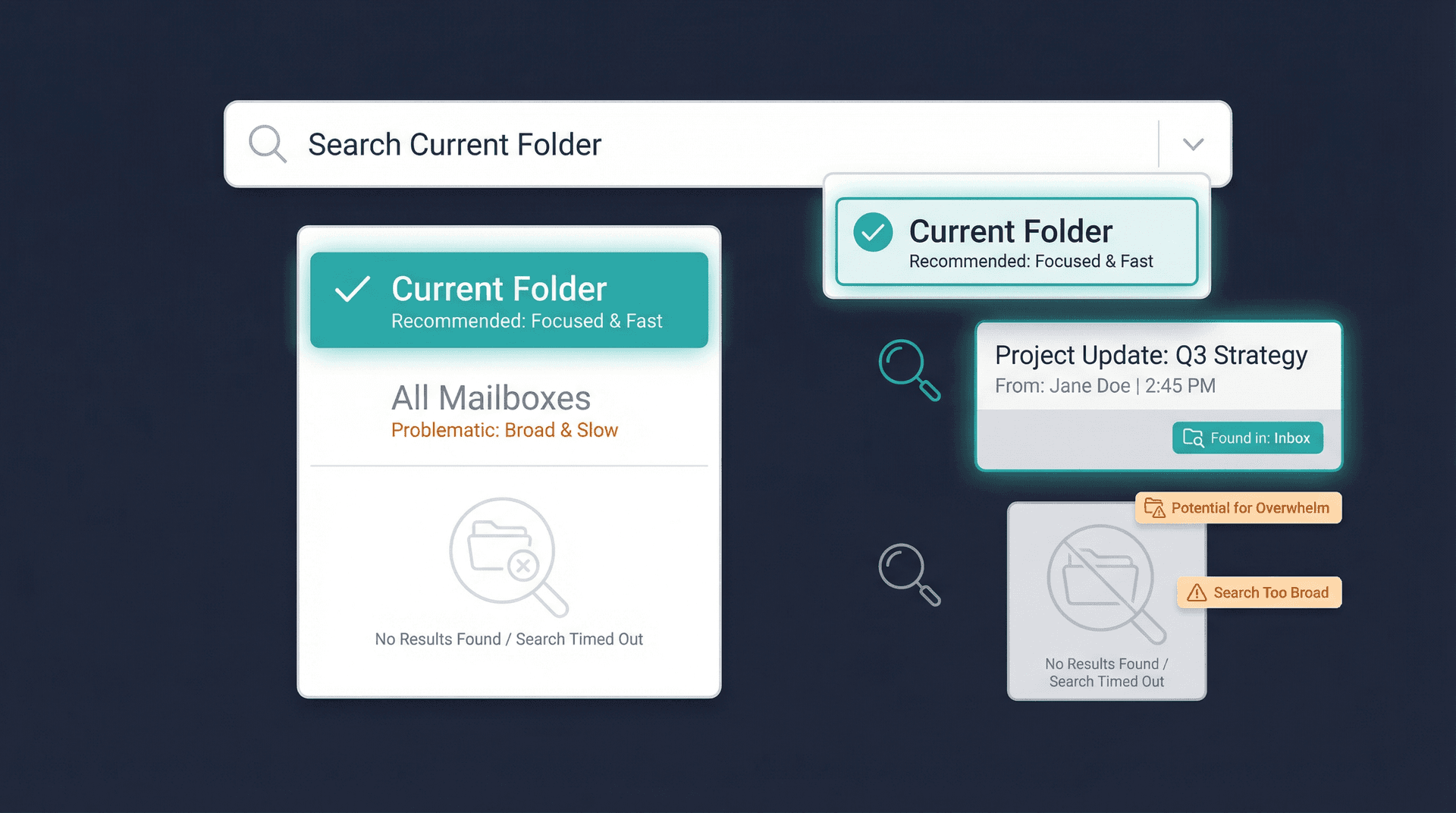
Think about it this way: search can only search the place you told it to search. Point it at the wrong pile of mail, ask a vague question across too many folders, and the email you need gets buried under noise. If your broader goal is a better-organized Outlook, our guide on how to organize your Outlook inbox goes deep on folder structures and rules that reduce how often you need search in the first place.
Try a better query before assuming search is dead. Outlook supports Advanced Query Search operators that can dramatically improve results:
-
from:jane@company.com -
subject:"quarterly report" -
hasattachment:yes -
received:"this week"
Microsoft also notes that Outlook uses prefix matching and ignores punctuation, so a slightly different search query can make a "missing" result suddenly appear.
Fix 2: Sync More Emails to Outlook Locally
If Outlook search isn't showing old emails, this fix has the highest probability of solving it.
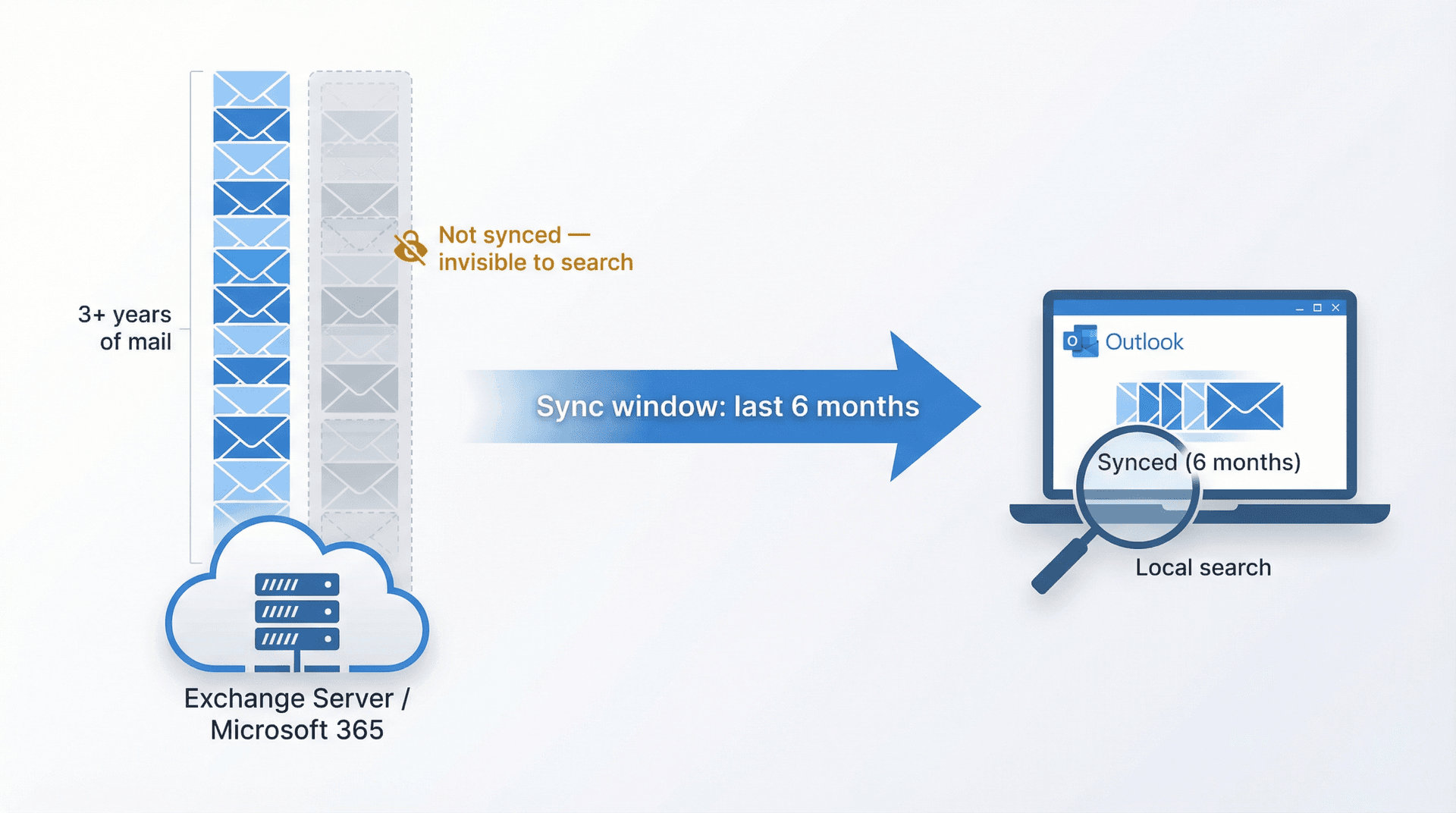
The concept is simple: local search can only find emails that exist locally. According to Microsoft's performance troubleshooting documentation, Windows Search indexes .ost and .pst data, but Outlook data only gets indexed while Outlook is running. If a message never synced to your device, or you only have six months of mail cached, local search has nothing to work with.
In new Outlook:
→ Go to Settings > General > Offline
→ Increase Days of email to save to a longer period
In classic Outlook:
→ Go to File > Account Settings > Account Settings
→ Select the account, click Change
→ Move the Download email for the past slider to a longer period (or all the way to All)
Microsoft's own troubleshooting flow recommends this in both new and classic Outlook when older messages are missing from search results.
One thing to keep in mind: After increasing the sync window, Outlook needs time to download and index the additional mail. Don't test search again immediately. Give it at least 15 to 30 minutes, and check the indexing status (see Fix 4) to confirm it's finished.
Fix 3: Remove Outlook's Search Result Limits
Sometimes the email is there. Outlook just isn't showing it.
Include Deleted Items in search results
If the missing message might be in your Deleted Items folder, both versions of Outlook can be configured to include that folder in searches:
→ New Outlook: Go to Settings > General > Search and enable Include deleted items
→ Classic Outlook: Go to File > Options > Search and enable Include messages from the Deleted items folder in each data file when searching in All Items
Remove the 250-result cap (classic Outlook only)
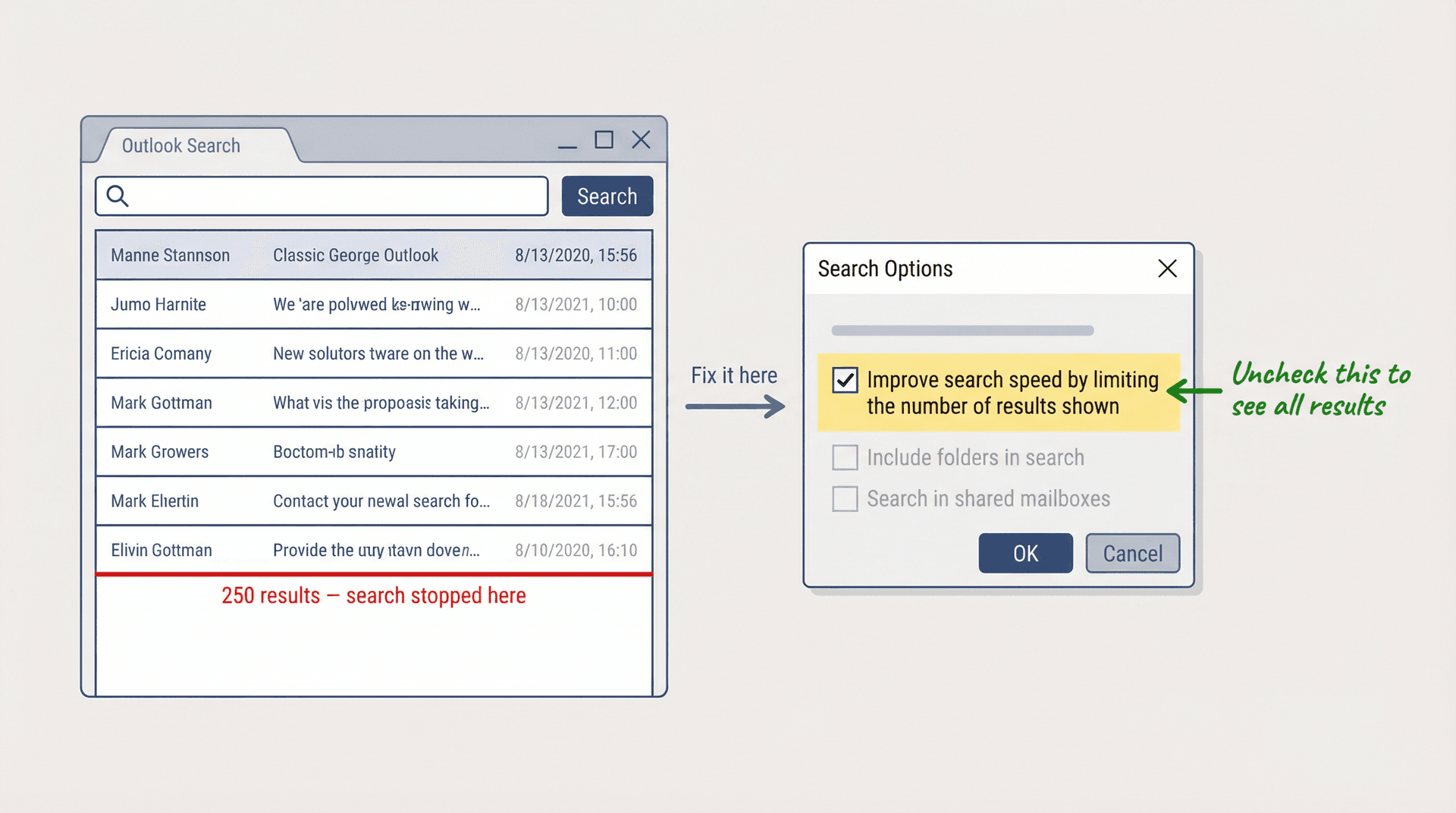
This one catches people off guard. Classic Outlook displays 250 search results by default and stops there. If your symptom is "Outlook finds some results, but not all of them," this might be the entire problem.
Go to File > Options > Search and clear the checkbox for Improve search speed by limiting the number of results shown. You'll trade some speed for completeness, which is usually the right call when you're trying to find a specific email. Microsoft documents this setting in their official troubleshooting guide.
Auto-expanded archive mailboxes
If the missing item lives in an auto-expanded archive mailbox, Microsoft's documentation warns that All Mailboxes and All Outlook Items can return limited or incorrect results for archive mailboxes. Advanced Find also has design limitations in some auto-expanding archive scenarios. Your best bet: navigate to the archive folder itself and search using Current Folder.
Fix 4: Check Outlook's Indexing Status
This fix matters most for classic Outlook on Windows.
Click in Outlook's search box, then go to Search Tools > Indexing Status. If the status shows items remaining, Outlook hasn't finished building the index yet. According to Microsoft's troubleshooting guide, the right move is to wait, check again after a few minutes, and only continue troubleshooting if the number isn't dropping.
Think of the index like a phone book for your mailbox. Search feels instant only because Outlook (or Windows Search) already built that lookup table in advance. If the lookup table is still being built, the results will be incomplete. That's not a bug. It's just not finished yet.
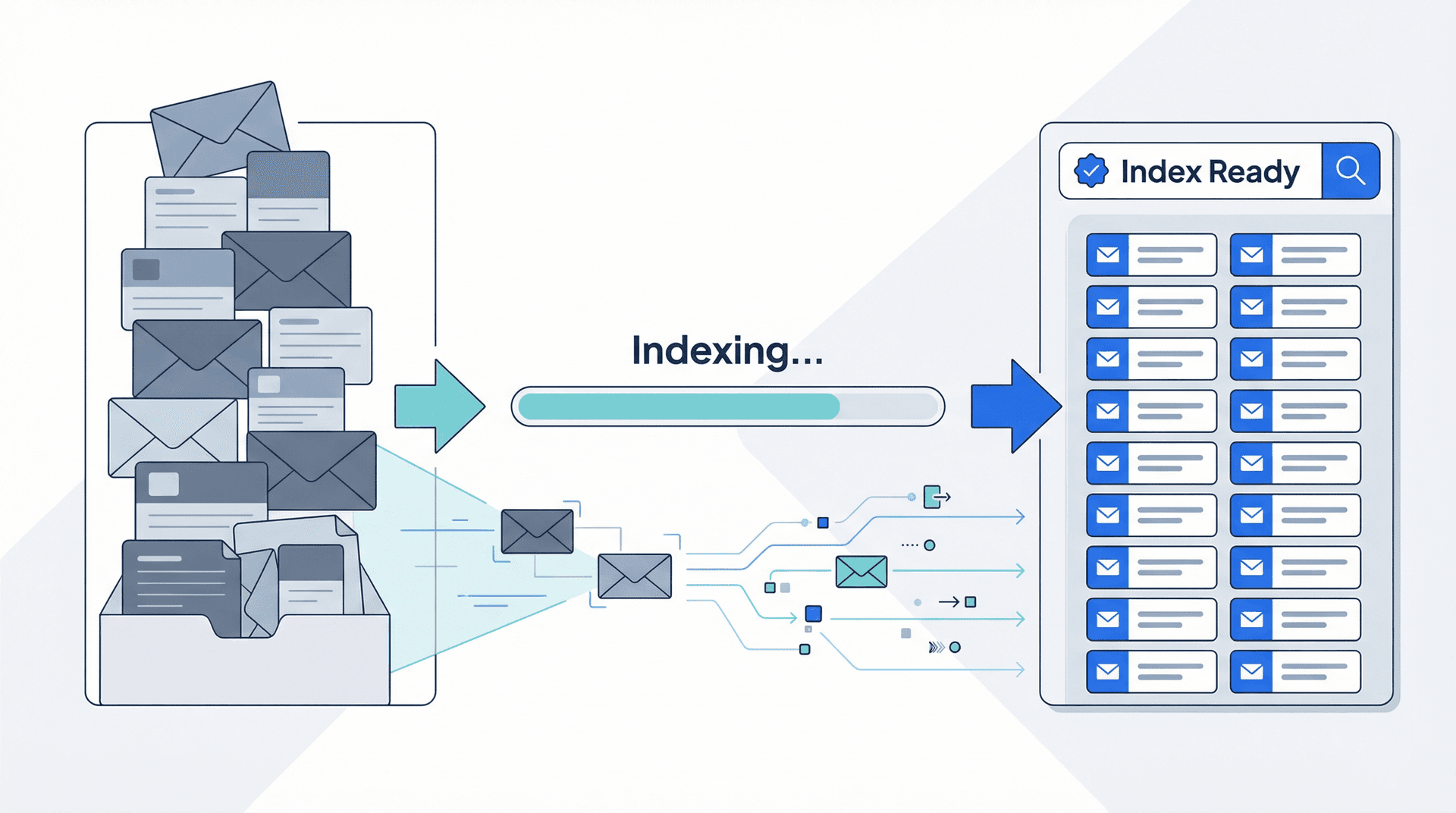
There's an important detail here that Microsoft documents in their performance troubleshooting guide: Outlook data is indexed only while Outlook is running, and Windows Search can back off when your system is busy doing other things.
The practical takeaway: After a rebuild, profile change, or mailbox re-sync, leave Outlook open for a while. In stubborn cases, leave it open overnight. It's boring advice, but it works.
If all this troubleshooting is making you realize how much time you spend fighting your inbox, our data on how much time people spend on email puts it in perspective.
Fix 5: Verify Windows Search Is Indexing Outlook
If Indexing Status never finishes, the plumbing under classic Outlook is probably misconfigured.
Microsoft's official search troubleshooting flow says to do four checks. Here they are in order:
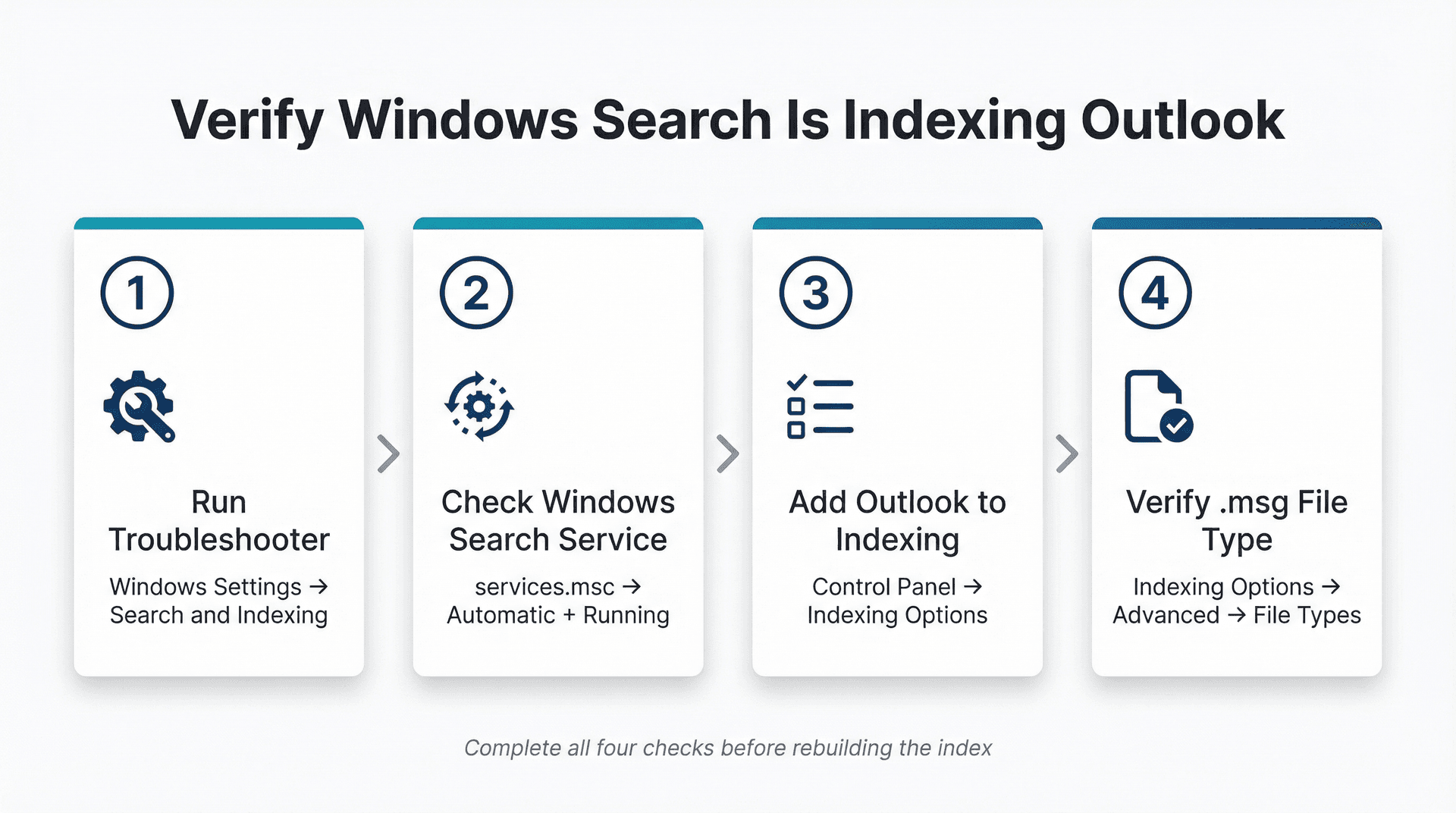
① Run the Search and Indexing troubleshooter. Open Windows settings, go to Searching Windows or Search and Indexing, and run the built-in troubleshooter.
② Confirm the Windows Search service is running. Open services.msc, find Windows Search, and make sure it's set to Automatic (Delayed Start) and currently Running.
③ Confirm Outlook is included in Indexing Options. Open Control Panel > Indexing Options and make sure Microsoft Outlook appears in the list. If it's not there, click Modify and add it.
④ Check the .msg file type settings. Still in Indexing Options, click Advanced > File Types, find .msg, and confirm it's set to Index Properties and File Contents with the filter description showing Office Outlook MSG IFilter.
And one more detail that's easy to miss: Microsoft notes that Instant Search is not available if Outlook is running with administrator permissions. So if you habitually right-click Outlook and choose "Run as administrator," stop doing that and relaunch it normally.
Fix 6: Rebuild the Outlook Search Index
If the index is corrupt or stuck, rebuild it from scratch.
The path is Control Panel > Indexing Options > Advanced > Rebuild. This restarts indexing from the ground up. According to Microsoft's Instant Search catalog guide, the search catalog is a file where Outlook and Windows items are indexed, so rebuilding it recreates that catalog.
This does not delete your email. It just throws away the old lookup table and builds a fresh one.
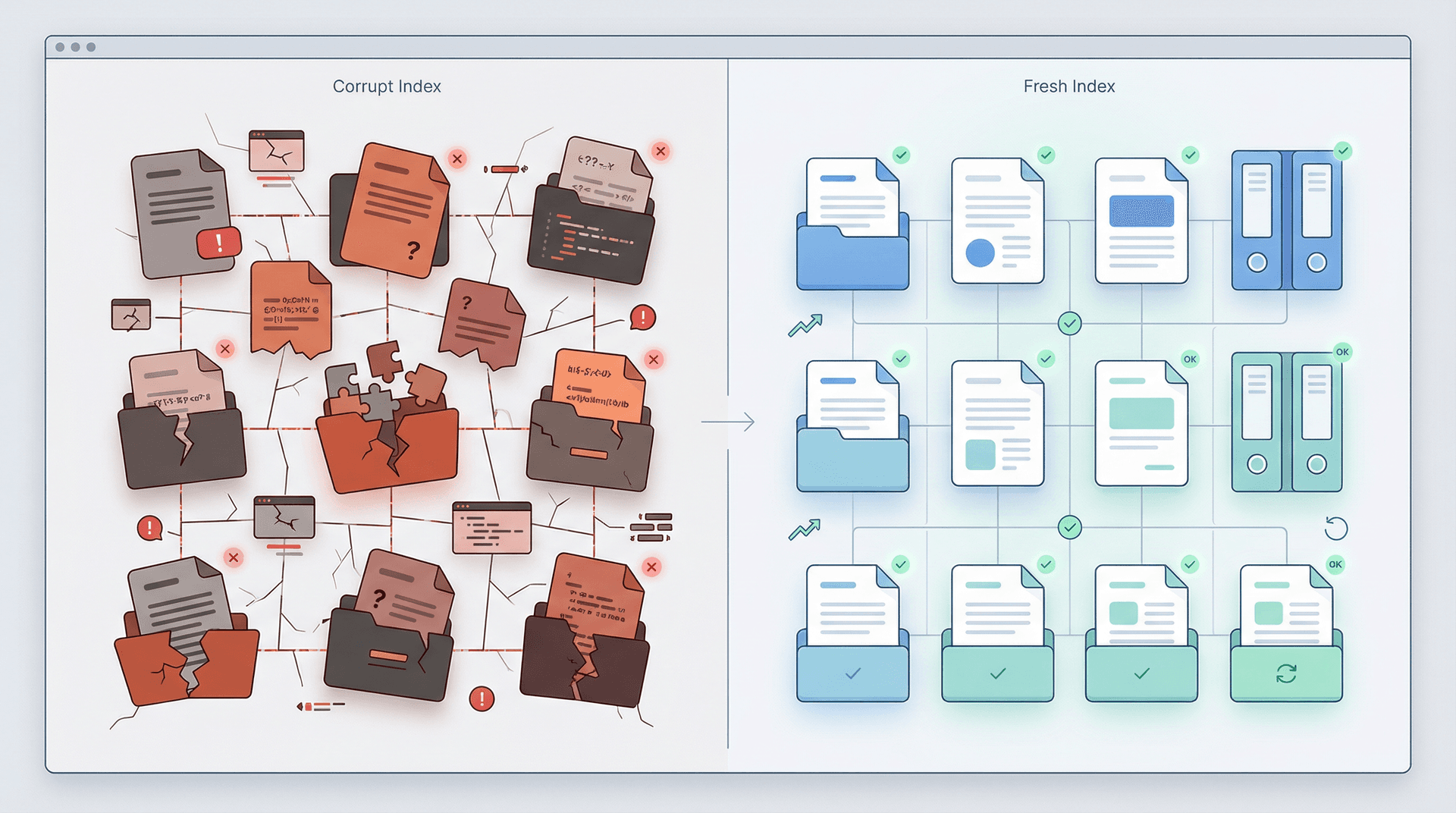
Most people jump straight to rebuilding the index without first confirming that Outlook is included in indexing and that Windows Search is healthy (Fix 5). If the underlying setup is broken, you're just rebuilding a broken configuration. Run Fix 5 first, then rebuild.
After you start the rebuild, leave Outlook open while indexing completes. The index takes time to process your entire mailbox, especially if you have years of mail stored locally.
PDF search not working? If classic Outlook can't find text inside attached PDFs, Microsoft has a separate support note explaining that a broken PDF iFilter can stall Windows Search. Update your PDF software first, then rebuild the index again.
Fix 7: Repair Outlook or Create a New Profile
If none of the above fixes your search, the problem is likely in the Outlook installation or profile itself.
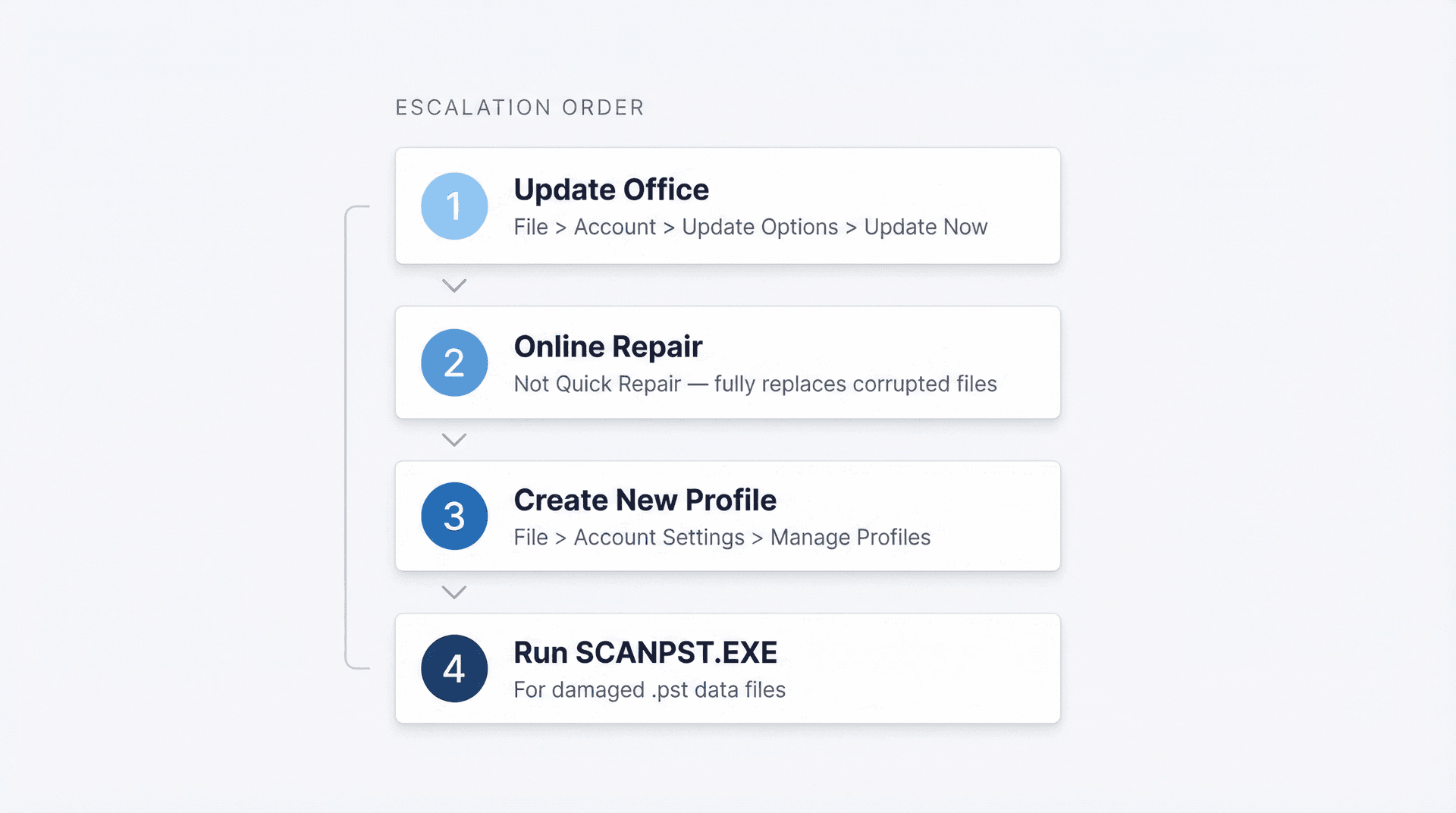
Start by updating Office. The update path is File > Account > Update Options > Update Now. As of March 31, 2026, Microsoft lists Version 2603 (Build 19822.20142) as the latest Current Channel release for Microsoft 365 Apps. If you're several versions behind, update before trying anything more invasive.
Then run an Online Repair. Microsoft offers two repair modes, and Online Repair is the one you want. Quick Repair only fixes minor issues. Online Repair fully replaces corrupted files, which is what you need if search is deeply broken.
If that still fails, test with a new profile. Go to File > Account Settings > Manage Profiles (or find the Mail applet in Control Panel), then click Show Profiles > Add. Set up a new profile, add your email account, and test search there. If search works in the new profile, the old profile was the problem, and Microsoft's troubleshooting guide treats this as a valid diagnostic step.
For damaged data files, use the Inbox Repair Tool (SCANPST.EXE) if you suspect a broken .pst file. Microsoft has a dedicated guide for repairing Outlook data files. If you're on Exchange, Outlook can recreate the .ost file automatically the next time you open the app.
One important note for 2026: Office 2016 and Office 2019 reached end of support on October 14, 2025. Those apps may still run, but Microsoft no longer provides fixes or support for them. Odd search bugs on those versions can linger indefinitely with no resolution coming. If you're still running Outlook 2016 or 2019, upgrading to Microsoft 365 is worth considering. For a broader look at how Outlook compares to other options, see our Gmail vs Outlook comparison.
Shared Mailbox Search Not Working in Outlook?
If search works perfectly in your personal mailbox but fails in a shared mailbox, stop treating it like a general Outlook problem. Shared mailbox search has specific limitations that require different troubleshooting.
Microsoft's documentation is clear: in classic Outlook, All Mailboxes is a design limitation for shared mailboxes. To search a shared mailbox, select that mailbox first and use Current Folder. If you need broader search across the shared mailbox, Microsoft's recommended workaround is to add the shared mailbox as a secondary Exchange account in your profile instead of relying on the default shared-mailbox mount.
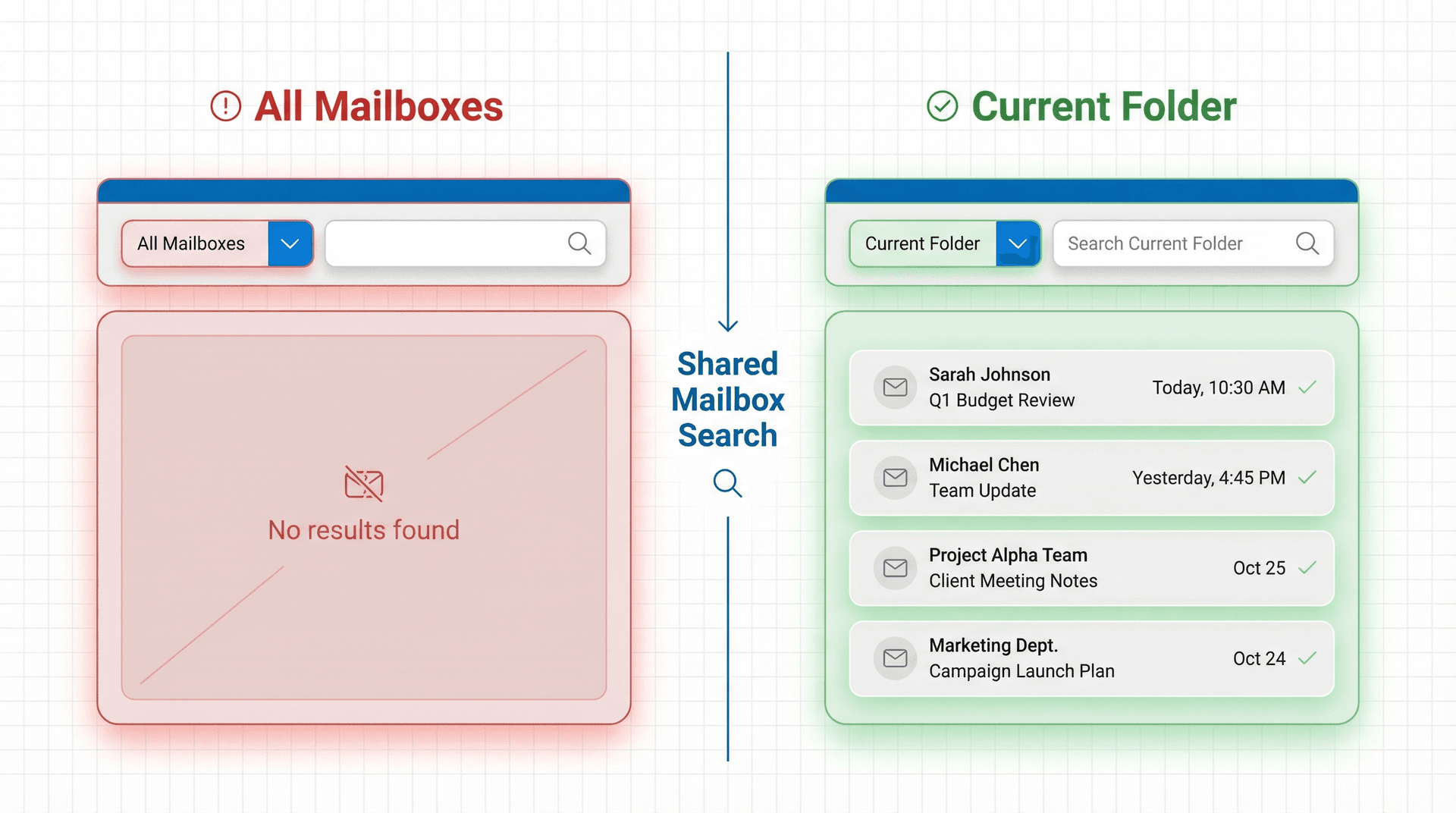
For more stubborn cases, Microsoft published a separate article on September 30, 2025 covering service-assisted search issues in shared mailboxes, including missing results and crashes. That article lists two workarounds: disabling server-assisted search with a registry setting, or disabling Download Shared Folders for the affected mailbox. Both have tradeoffs, so this is admin-level troubleshooting.
There was also a Microsoft service fix on January 23, 2024 for a bug where Current Folder in an auto-mapped shared mailbox could return no results or results from the wrong folders. If you haven't restarted Outlook since then, restart it to pick up the server-side change.
For most users, the right order is: update Outlook, search the shared mailbox with Current Folder, then involve IT only if it's still broken. If shared mailbox management is a bigger challenge for your team, our guide on shared mailbox management best practices covers the organizational side of keeping shared inboxes under control.
How to Fix Outlook Search Not Working on Mac
Mac is a completely different situation, so don't waste time on Windows-specific fixes here.
Outlook for Mac doesn't use Windows Search. It uses Spotlight, Apple's system-wide indexing service. According to Microsoft's Mac-specific troubleshooting guide, search problems on Mac usually come down to Spotlight indexing issues.
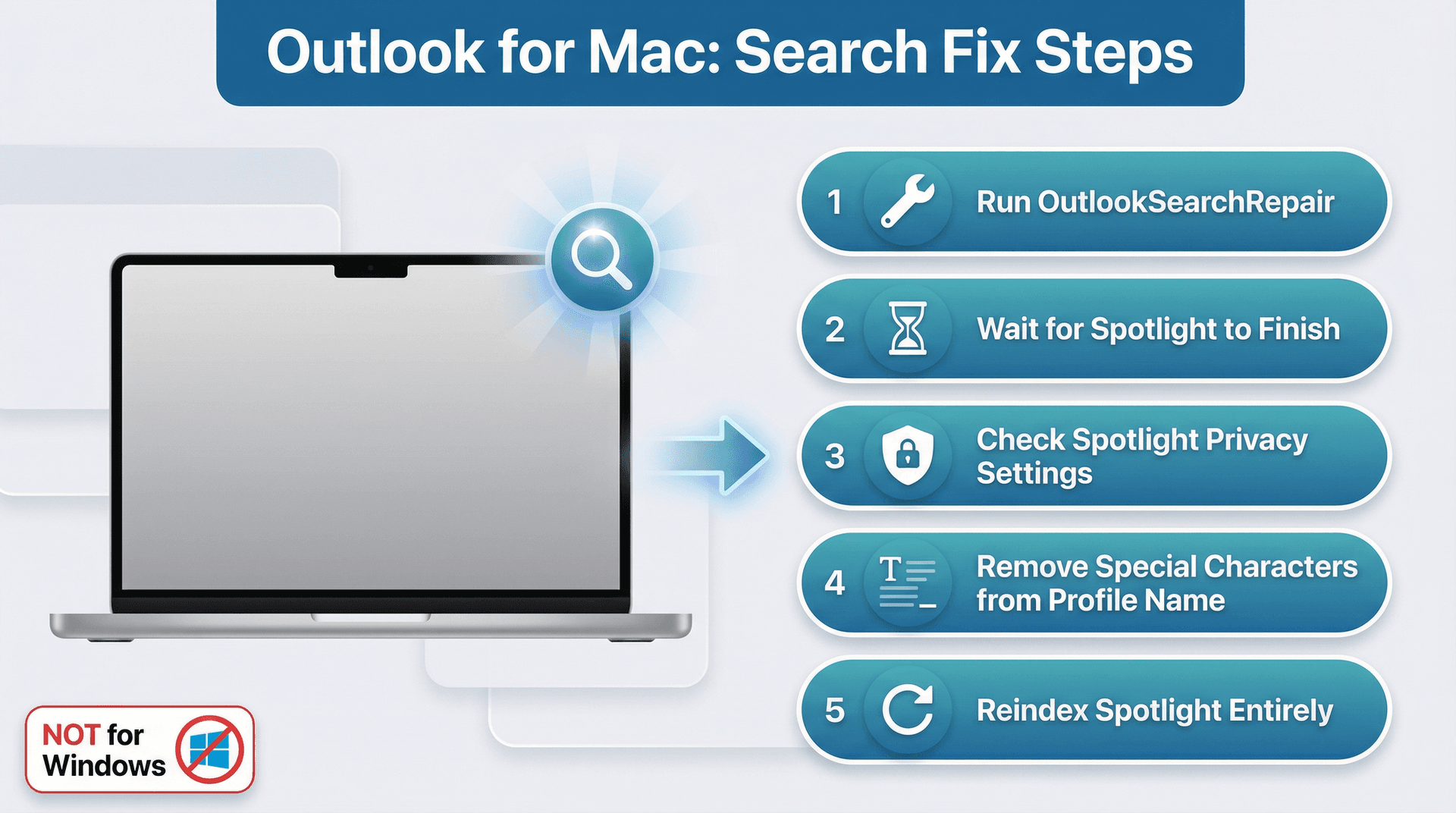
Microsoft's recommended fix order for Mac:
-
Run the OutlookSearchRepair utility
-
If you recently added a large amount of data, wait for Spotlight to finish indexing
-
Check System Preferences > Spotlight > Privacy and make sure your Outlook profile folder isn't excluded
-
Remove any special characters from the profile name (they can interfere with indexing)
-
If all else fails, reindex Spotlight entirely
Don't go hunting for Indexing Options or restarting the Windows Search service on a Mac. Those fixes literally do nothing on macOS.
Outlook.com Search Not Working? What to Do
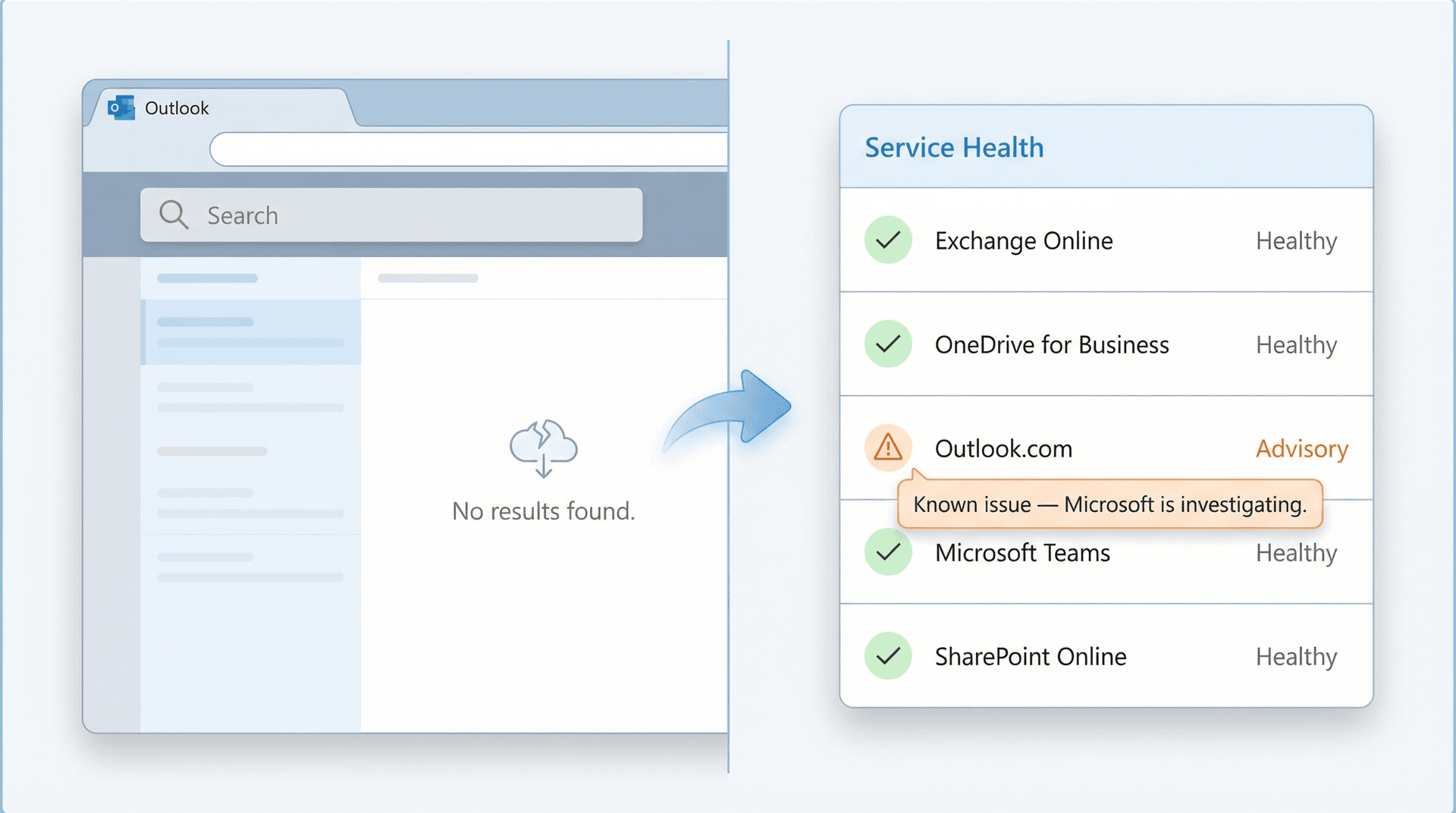
If search is only broken in the browser version of Outlook, none of the desktop fixes above will help. Desktop indexing and local data files have nothing to do with Outlook.com.
URL: https://outlook.live.com/ (marketing page) / https://portal.office.com/adminportal/home#/servicehealth (Service Health — requires auth) Location: Outlook.com Search Not Working section Why capture was skipped: The outlook.live.com marketing page renders two duplicate hero sections in its DOM (A/B test artifact), making it visually confusing and not publication-ready. More importantly, the section is about diagnosing service-side issues — the AI illustration showing "no search results / Service Health dashboard" is conceptually more accurate than a marketing page. The actual Microsoft Service Health dashboard requires Microsoft 365 admin authentication and cannot be captured without login. Instructions for manual replacement (if desired):
- Log in to Microsoft 365 admin center at https://admin.microsoft.com
- Navigate to Health > Service Health
- Resize browser to 1920x1080
- Screenshot the dashboard showing service status overview
- Save as screenshot-sc-02-m365-service-health-1920x1080.png and place in images/screenshots/
- Replace the AI image reference in this section Instead, check Microsoft's Outlook.com issues page and the Service Health portal for current service problems. Microsoft separates Outlook.com issues from Outlook for Windows issues, so make sure you're looking at the right page.
If the Service Health portal shows a known issue, the only fix is to wait for Microsoft to resolve it on their end.
A Better Inbox Makes Search Optional
You fixed the search bug. But consider something: if you're constantly reaching for search to find important emails, the real problem isn't your search index. It's your inbox.
Search is a recovery tool. It's what you use when something falls through the cracks. If emails keep falling through the cracks, the fix isn't better search. It's a better system for organizing and triaging your mail so the right messages stay visible without needing a scavenger hunt. Good email management strategies reduce the number of times you even need to reach for Ctrl+E.
That's exactly why we built Inbox Zero.
Inbox Zero works with Microsoft Outlook (and Gmail), not as a replacement for it. It connects through your existing email provider's API and adds an AI-powered layer that handles the triage, organization, and cleanup that you're currently doing manually. If you're curious how the underlying method works, see our full walkthrough of the inbox zero method.
The Inbox Zero homepage shows you exactly what a well-organized email workflow looks like — from AI-powered rules to the Reply Zero dashboard that keeps every thread that needs your attention front and center.

Specifically, that means:
AI-powered rules that actually understand your email. You describe how you want your mail handled in plain English. Inbox Zero's AI automation converts that into rules with conditions and actions: label, archive, draft a reply, forward, or block. You can keep automation off and review every action in a Pending queue until you trust it, then flip automation on for the categories that are safe. According to our documentation, you can test rules against sample emails and use a Fix UI to correct any misfires.
Bulk Unsubscriber. Instead of searching for newsletter after newsletter, Inbox Zero's Bulk Unsubscriber scans your senders and shows you exactly which ones you actually read. One-click unsubscribe, or a softer "archive and label" option for things you might want later. Less noise coming in means less need to search for important stuff buried underneath it. For Outlook users specifically, our guide on how to unsubscribe from emails in Outlook walks through the manual process too.
Reply Zero. Every thread that needs your response gets labeled To Reply. Every thread where you're waiting on someone else gets labeled Awaiting Reply. Instead of searching through your inbox hoping you didn't forget to reply to something, you get a focused view of exactly what needs your attention. One-click "Nudge" follow-ups for things that are overdue.
Cold Email Blocker. Unsolicited outreach cluttering your inbox? The Cold Email Blocker handles that automatically, with three modes (list only, auto-label, or auto-archive) and customizable prompts so it matches your definition of "cold outreach."
Email Analytics. See your send/receive trends, top senders, reading rates, and category distributions. Useful for spotting patterns that are contributing to inbox chaos. Our analytics dashboard gives you the visibility to make informed decisions about how to manage your email. You can also explore the standalone email analytics page to see what's possible.
When your inbox is organized, you don't need to search for things. The right emails are already where you expect them to be. If you want a broader picture of how to manage your inbox systematically, that guide covers the full approach, not just the technical fixes.
Inbox Zero offers a 7-day free trial, so you can test it alongside Outlook and see whether it actually reduces how often you're reaching for Ctrl+E.
Outlook Search FAQ
Why is Outlook search not finding old emails?
Usually because the mail isn't cached locally, the result set is being limited, or you're searching too broadly. Microsoft's troubleshooting guide recommends increasing the offline sync window, including Deleted Items in search if needed, and in classic Outlook, disabling the setting that limits results to 250 for speed. See also our tips on email management best practices for keeping your inbox organized enough that old emails are easier to locate.
Does rebuilding the Outlook index delete email?
No. Microsoft describes the index as a search catalog, not your mailbox itself. Rebuilding it just recreates the lookup table so Outlook and Windows Search can map words to messages again. Your emails are untouched.
Why does shared mailbox search only work in Current Folder?
Because Microsoft documents All Mailboxes as a design limitation for shared mailboxes in classic Outlook. There's also a separate support article covering service-assisted search bugs specific to shared mailboxes.
Is multi-account search supported in new Outlook?
Not currently. Microsoft's troubleshooting page for new Outlook says multi-account search isn't supported yet, so you need to select each account and search it separately.
Does Outlook 2016 or 2019 affect search?
It could. Microsoft ended support for Office 2016 and Office 2019 on October 14, 2025. Those versions may continue to work, but they won't receive new fixes. Search bugs on unsupported versions can persist indefinitely. If you're evaluating whether to upgrade or switch platforms, our Gmail vs Outlook comparison may help you decide.
When to Stop Troubleshooting Outlook Search
You've gone through the fixes. At some point, it makes sense to stop changing settings and escalate.
Stop troubleshooting and get help if:
-
Indexing Status shows items remaining and the number never drops, even after hours of Outlook being open
-
Search is broken in one shared mailbox across multiple users (that's a server-side or admin-level issue)
-
The problem started right after an Office or Windows update (likely a known Microsoft issue)

Microsoft now routes many support workflows through Get Help and its built-in Microsoft 365 troubleshooters, which replaced the older Support and Recovery Assistant for many scenarios. For business accounts, admins can also contact Microsoft support directly through the Microsoft 365 admin center.
And if you're tired of search being the only way you can find things in your inbox, take a look at Inbox Zero. An organized inbox means you won't need search as a crutch in the first place.
This guide was reviewed on April 5, 2026 and checked against Microsoft support docs and release notes current through March 31, 2026. Prices and Microsoft build references reflect April 2026 source data.


How to Recall an Email in Outlook (2026)
How to recall an email in Outlook step by step for new Outlook, classic Outlook, web, Mac, and mobile, plus when recall works and what to do when it doesn't.
2026-09-30T18:25:57.000Z

How to Stop AliExpress Emails (2026)
Stop AliExpress promotional emails: the unsubscribe link, notification settings in your AliExpress account, and what to do when the deals keep coming.
2026-09-30T18:25:57.000Z

How to Stop Amazon Emails (2026)
Stop Amazon marketing emails with the Communication Preferences Center, manage Amazon email subscriptions, and handle order emails you can't switch off.
2026-09-30T18:25:57.000Z

How to Stop Domino's Emails (2026)
Stop Domino's emails with Domino's official opt-out page, stop Domino's text offers, and know which rewards emails keep coming.
2026-09-30T18:25:57.000Z