Shared Mailbox Management Best Practices (2026 Guide)
Master shared mailbox management with a complete system for ownership, state tracking, and automation that stops emails from falling through cracks.

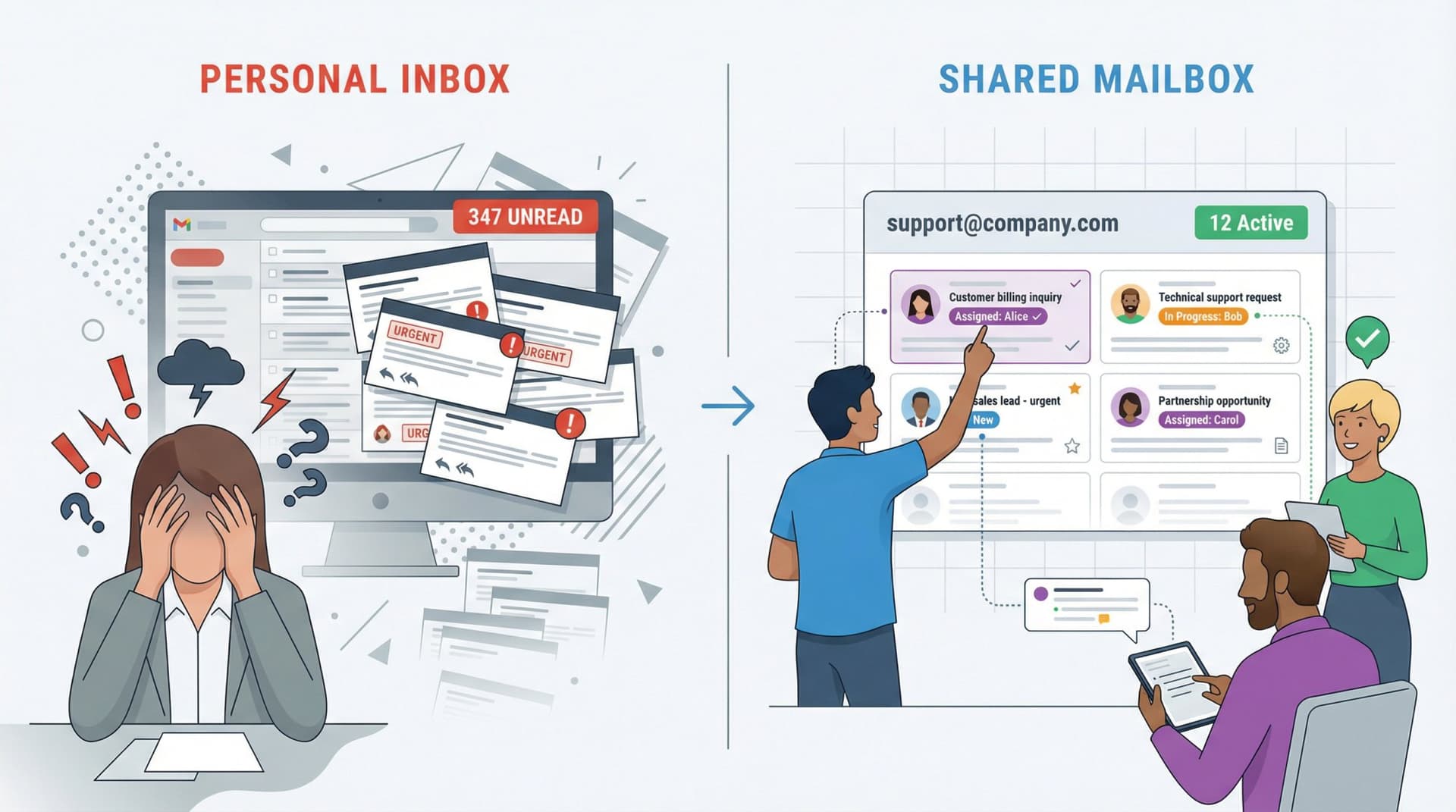
Picture this scenario. A customer emails your support@company.com address with an urgent billing issue. When you open the shared inbox, you see 347 unread messages, zero organization, and no way to tell who's handling what. Has someone already replied? Is this urgent request buried under promotional emails? Which team member is even supposed to deal with billing questions?
This happens all the time. Most shared mailboxes fail not because of bad tools, but because teams lack a clear system. Without proper management, your shared inbox becomes a black hole where customer emails disappear, team members step on each other's toes, and response times balloon.
But when you get it right? A shared mailbox becomes your team's productivity powerhouse. Faster response times, zero dropped emails, better collaboration, and complete transparency.
This guide gives you a complete operating system for shared mailbox management. Not just tips, but an implementable system with workflows, governance, automation guardrails, and platform-specific playbooks.
What Is a Shared Mailbox and Why Your Team Needs One
A shared mailbox is a single email address (like support@yourcompany.com or info@yourcompany.com) that multiple team members can access and manage together. Instead of emails going to one person's personal inbox where they might get lost, they flow into a centralized queue that your entire team can see and work from.
Think of it as a queue of unstructured work that multiple people can pull from, collaborate on, and resolve.
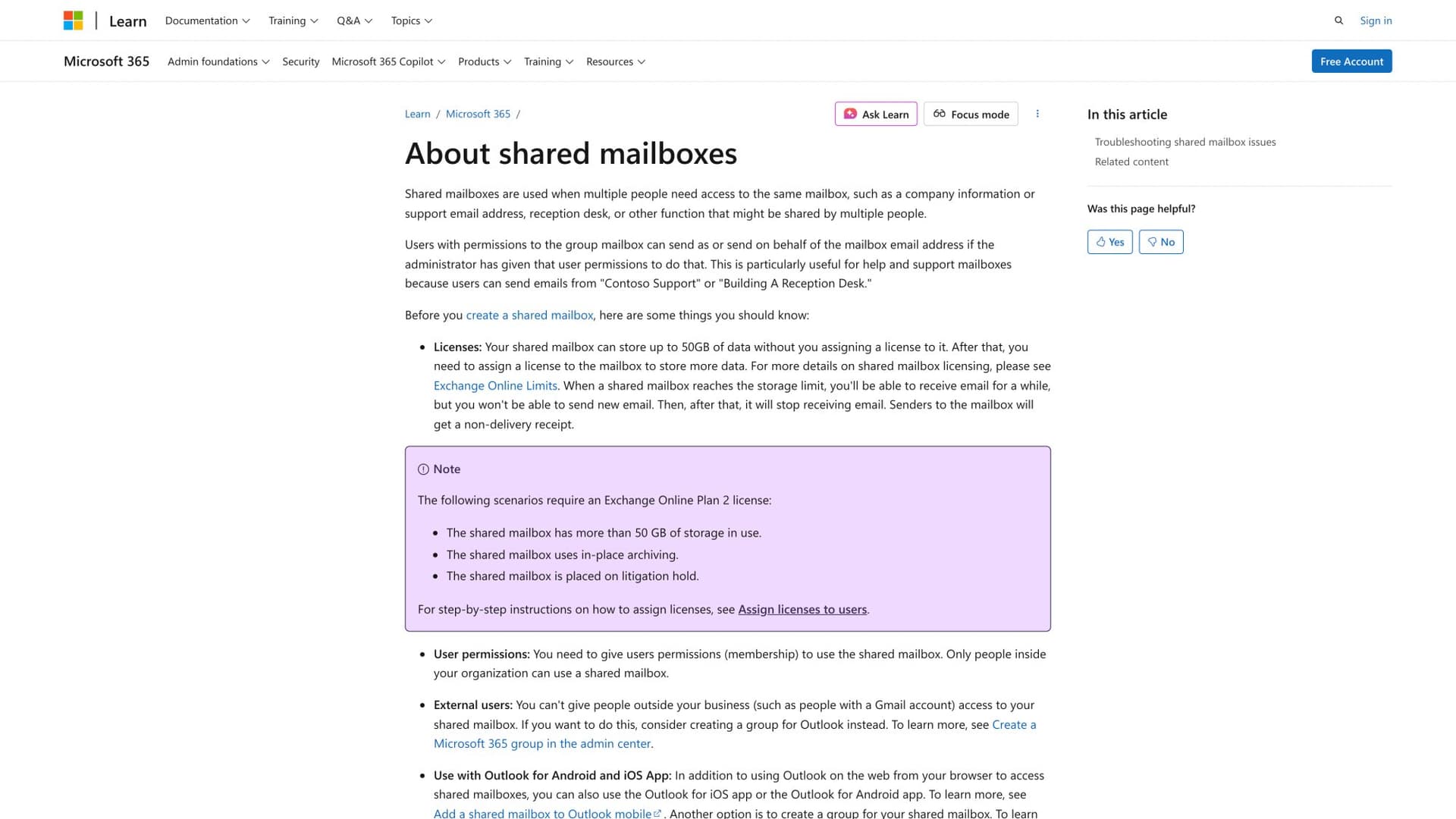
Microsoft defines shared mailboxes as mailboxes used when multiple people need access to the same address.
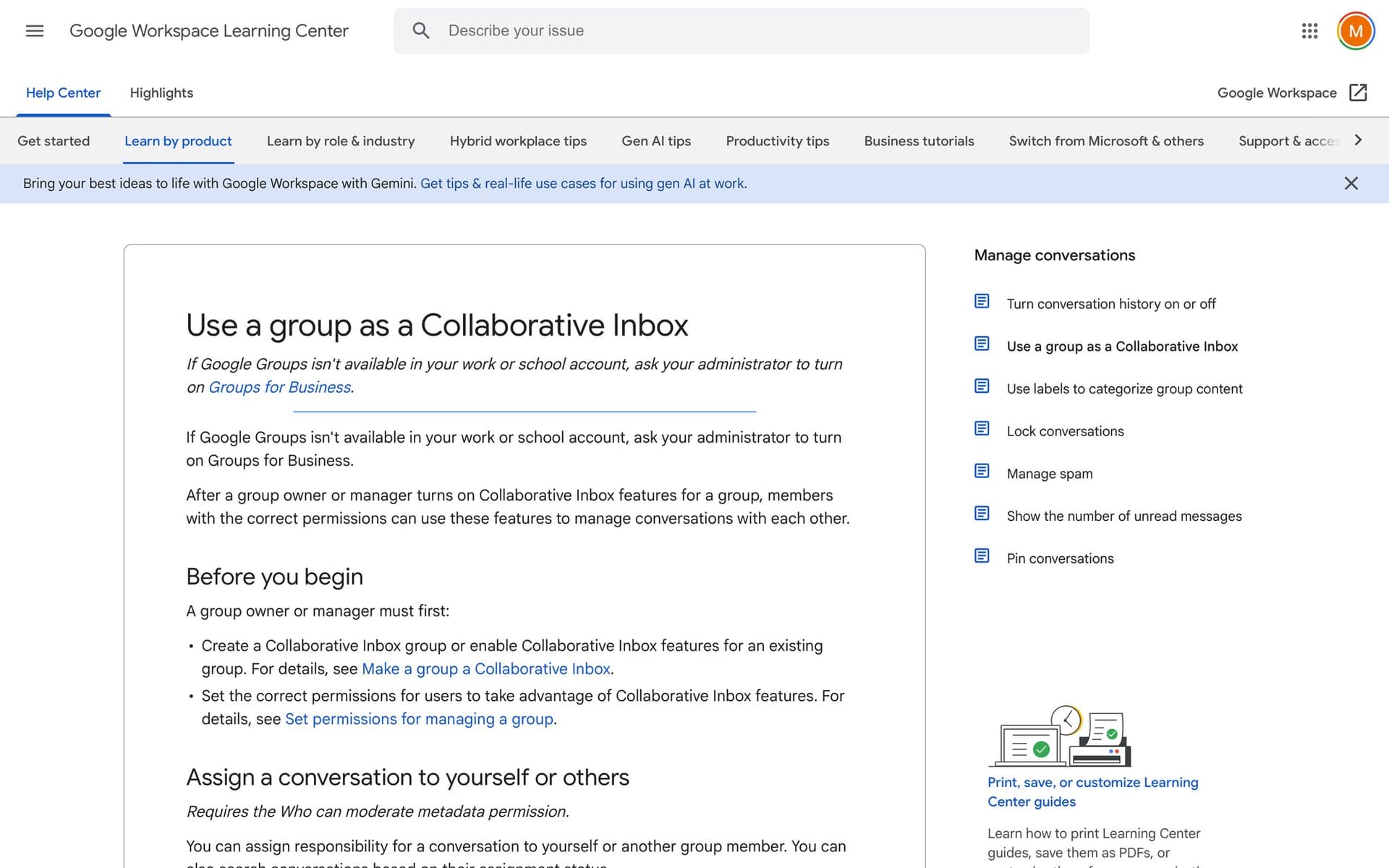
Google Workspace teams typically use a Collaborative Inbox via Google Groups, where conversations can be assigned and tracked.
Key features that make shared mailboxes valuable:
• Complete visibility for the whole team on all conversations
• Clear ownership through assignment features so everyone knows who's handling what
• Unified history of all interactions with customers
• Collaborative tools like internal notes and comments
Why Your Team Needs a Shared Mailbox
The benefits are real when you manage them properly:
Speed that closes deals. Any available team member can reply to new inquiries immediately, rather than waiting for one specific person. Research shows that responding to a sales lead within 2 minutes dramatically increases success rates, but waiting just 10 minutes can drop your odds by 100x. A shared inbox helps you hit those critical response windows.
Nothing falls through the cracks. With shared visibility, it's much harder for messages to get buried. Team members can assign emails to themselves or others, so there's always a clear owner for each inquiry. Urgent customer questions won't get lost at the bottom of someone's vacation auto-reply.
Better customer experiences. Team members can view past interactions with a client, ensuring continuity in responses. If Alice handled a customer issue last week, Bob can read that thread and reply with full context. This unified approach leads to more consistent, informed communication.
Built-in accountability. Because emails and actions are visible to the group, there's inherent transparency. It's clear who replied to what and when. Many shared inbox systems provide analytics and audit trails, so managers can track metrics like response times and resolution rates.
Why Most Shared Mailboxes Fail (3 Critical Mistakes to Avoid)
Before we get into best practices, you need to understand why shared mailboxes fail. Most teams don't fail because of their tools. They fail because they're missing one of these fundamentals:
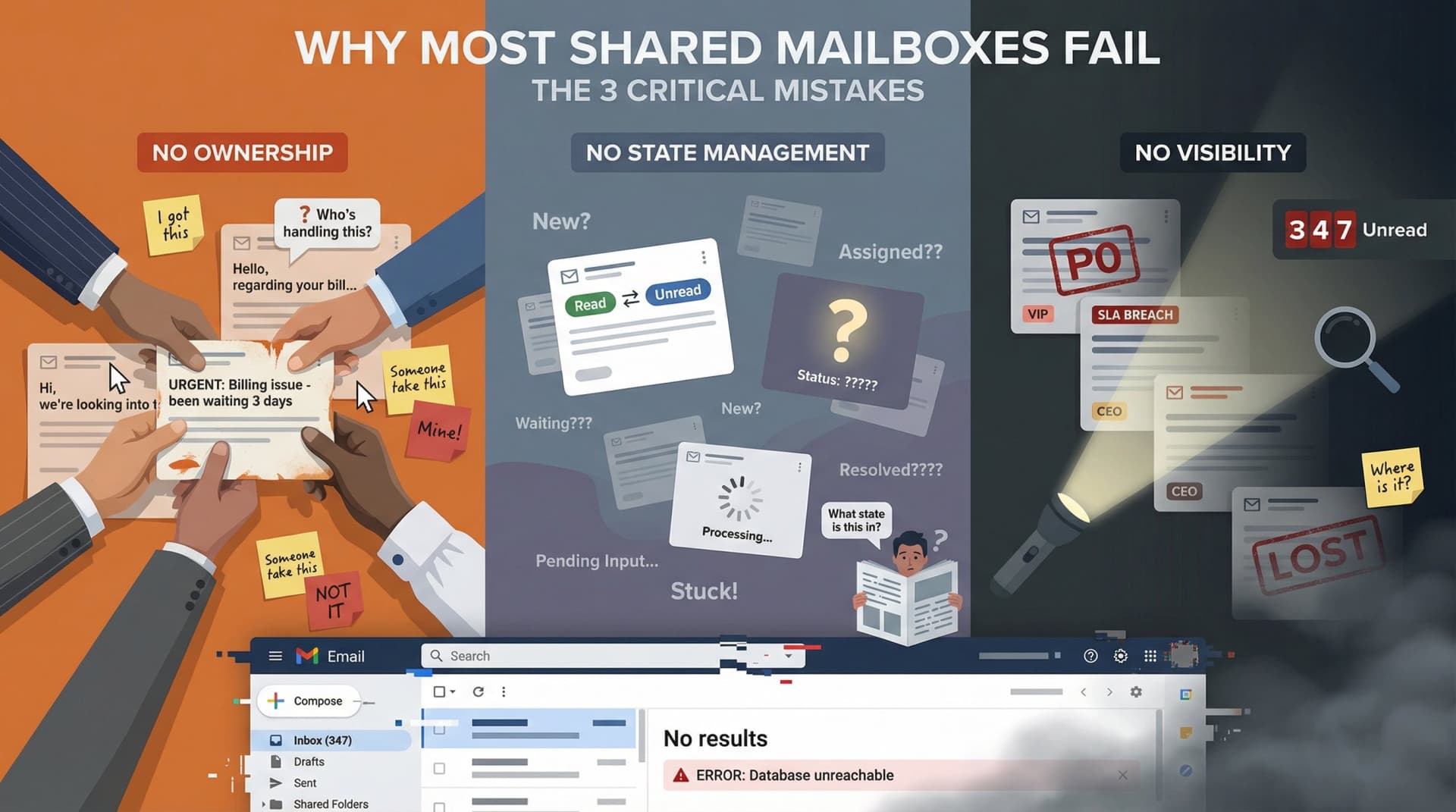
1. No Ownership
If nobody is clearly responsible for an email, it becomes "everyone's problem" (which means it becomes no one's problem). Two people either both reply or neither replies.
2. No State Management
Regular email has two states: unread or read. But shared work needs a real state machine. Is this email new, assigned, waiting on the customer, waiting on us, or resolved? Without clear states, you can't see what needs action.
3. No Visibility
Even well-intentioned teams can't execute consistently without clear queues. What's unassigned? What's overdue? What's waiting on customers? What needs escalation?
Everything in this guide is built to fix these three problems.
How to Choose the Right Shared Mailbox Platform for Your Team
Before implementing workflow best practices, pick the right underlying technology. The approach differs depending on whether you're using Microsoft 365 shared mailboxes, Google Groups collaborative inboxes, or Gmail delegation.
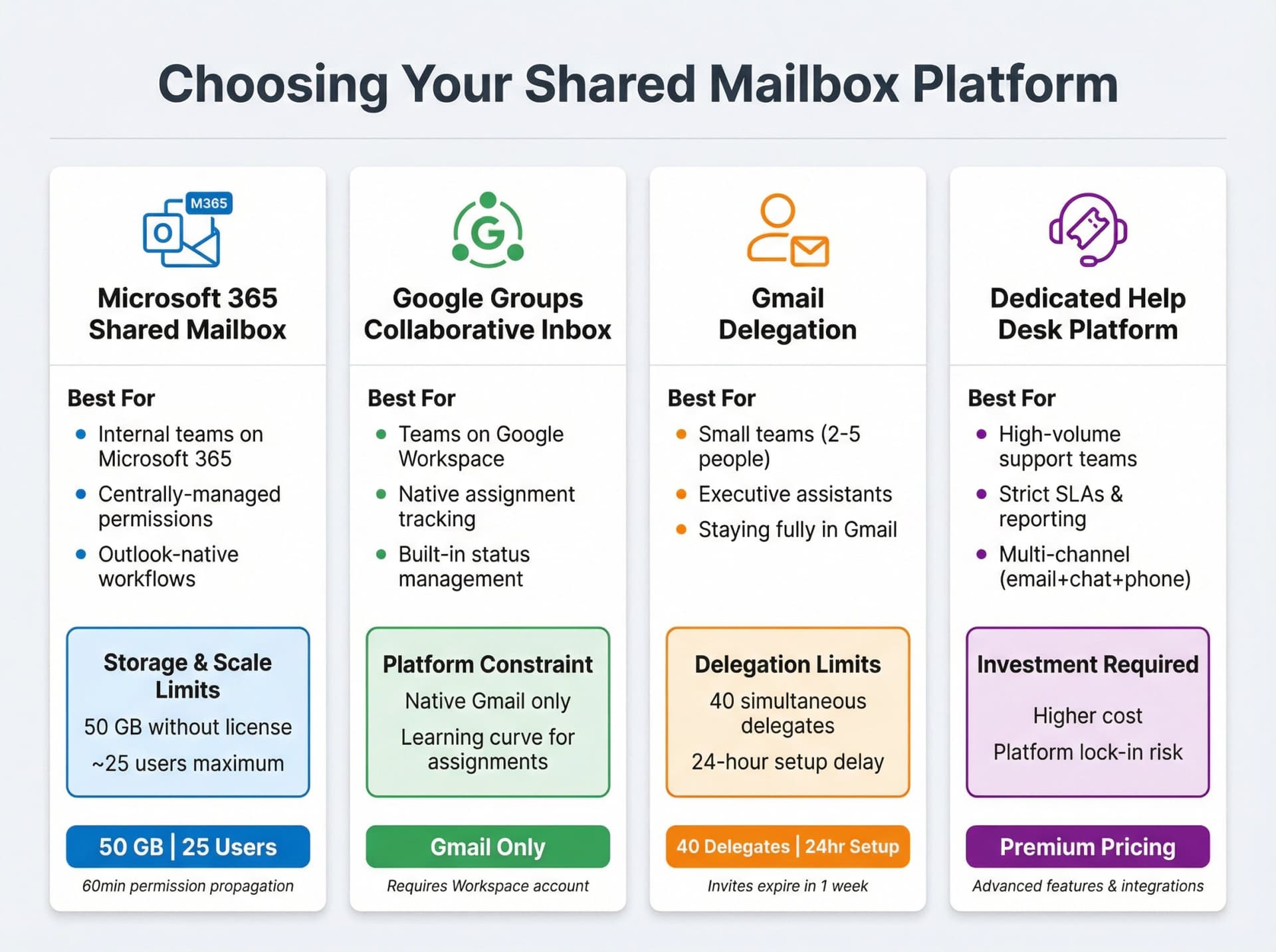
| Platform | Best For | Key Limitation |
|---|---|---|
| Microsoft 365 Shared Mailbox | Internal teams on Microsoft 365 | 50 GB storage limit without license, ~25 users max |
| Google Groups Collaborative Inbox | Teams on Google Workspace | Native Gmail only, learning curve for assignments |
| Gmail Delegation | Small teams, executive assistants | Up to 40 simultaneous delegates, 24-hour setup delay |
| Dedicated Help Desk Platform | High-volume support, strict SLAs | Higher cost, platform lock-in |
Option A: Microsoft 365 Shared Mailbox
Best for: Internal teams on Microsoft 365 who want a shared address in Outlook with centrally-managed permissions.
Key realities to plan for:
A shared mailbox can store up to 50 GB without a license. Beyond that, you need Exchange Online Plan 2 for additional storage, archiving, and litigation hold. According to Microsoft, shared mailboxes aren't intended for direct sign-in and work best with about 25 users accessing simultaneously.
Permission quirks you need to know:
Microsoft notes that Full Access lets users open and manage items, but doesn't grant sending from that address. To send from the shared address, you need Send As or Send on Behalf permissions in addition to Full Access.
Also, permission changes can take up to 60 minutes to propagate. Don't treat "it's not working immediately" as a mystery. Build lag time into your onboarding process.
Option B: Google Groups Collaborative Inbox
Best for: Teams on Google Workspace that want assignments and status tracking baked into Groups.
Collaborative Inbox in Google Groups supports:
→ Assigning conversations to members
→ Marking conversations as resolved, duplicate, or no action needed
→ Searching by assignment or status
→ Using labels to categorize conversations
This is powerful for teams already living in Gmail who want a native solution.
Option C: Gmail Delegation
Best for: Small teams, executive assistant scenarios, or when you must stay fully in Gmail.
But be careful with the limits. Google says you can add up to 1,000 delegates for work accounts, but typical use is around 40 simultaneous delegates. Delegate invitations expire after a week, and it can take up to 24 hours before a delegate can actually use the delegated mailbox.
Google also warns that automated processes (APIs, browser extensions) accessing the account can reduce the number of delegates who can use it simultaneously.
Option D: Dedicated Help Desk Platform
Best for: High-volume support teams, strict SLAs, multi-channel needs (email + chat + phone), advanced reporting, and CSAT workflows.
This guide still applies, but your state machine and assignment tools will live in the help desk platform rather than Gmail or Outlook.
How to Assign Email Ownership in a Shared Mailbox
One of the most important steps in shared mailbox management is defining who is responsible for what. If everyone assumes "someone else will handle this email," you end up with no one handling it.
Lack of clear ownership is a top reason inquiries get missed or receive duplicate replies.
The Three Roles Every Shared Mailbox Needs
For most teams, three roles are enough:
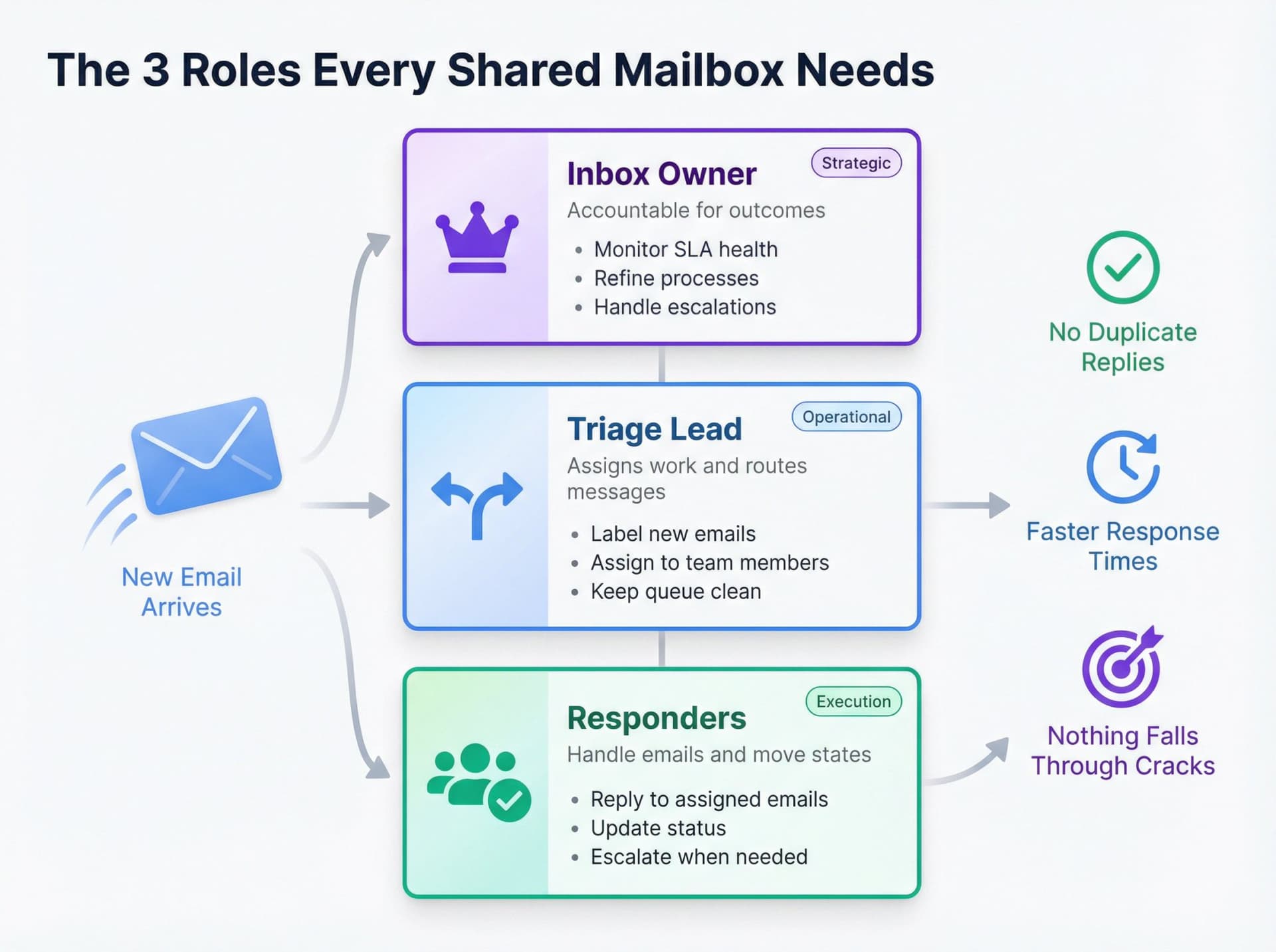
| Role | Responsibility | Example Tasks |
|---|---|---|
| Inbox Owner | Accountable for outcomes | Monitor SLA health, refine processes, handle escalations |
| Triage Lead | Assigns work and routes messages | Label new emails, assign to team members, keep queue clean |
| Responders | Handle emails and move states | Reply to assigned emails, update status, escalate when needed |
If you have shifts or multiple time zones, define an on-call rotation for triage. Not just for replying, but for actively monitoring and assigning incoming work.
Make Ownership Visible
Many shared inbox tools let you assign an email to a person. Some teams use manual notes like "I got this" in comments. The method doesn't matter as much as the habit: every incoming email gets claimed by a team member.
This immediate ownership prevents the embarrassing scenario of two agents unknowingly sending separate answers to the same query, which confuses customers and looks unprofessional.
Practical assignment strategies:
① Assign by specialty. Map team strengths to email categories. Alice handles billing questions, Bob handles technical issues, Carol handles sales leads. This ensures each message is handled by someone equipped to resolve it.
② Use rotation systems. Some teams benefit from a daily rotation where one person is assigned to monitor the inbox and assign most incoming emails. The next day, someone else takes the primary role. This prevents burnout and ensures continuous coverage without everyone feeling they must check emails every five minutes.
③ Document everything. Write down the roles, assignments, and schedule in a place everyone can refer to. New team members should be onboarded with this info so they understand the workflow from day one.
Pro tip: In Outlook's shared mailbox, you can use flags or categories to indicate who is handling an email. Other dedicated systems have an "assign" button. Even a simple convention like adding "@Alice will take this" as an internal comment works. The key is visible ownership.
How to Set Up a Shared Mailbox Workflow (The State Machine Method)
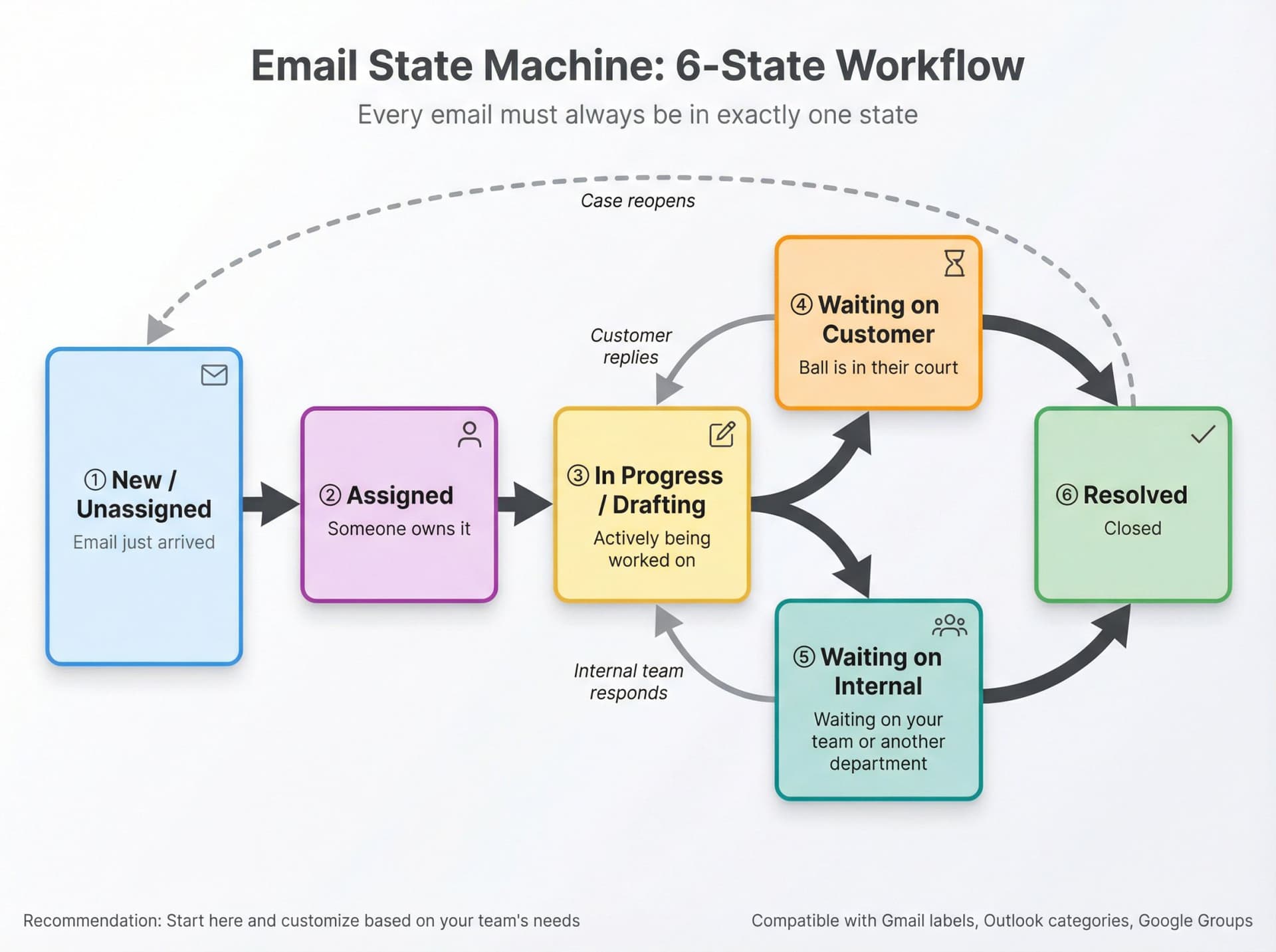
If you do only one thing from this guide, implement a shared, explicit state machine for every conversation.
Regular email has two states: unread or read. That's not enough for shared work. You need to know where every email is in your workflow.
A Default State Machine That Works
Here's a solid starting point:
① New / Unassigned (Email just arrived)
② Assigned (Someone owns it)
③ In Progress / Drafting (Actively being worked on)
④ Waiting on Customer (Ball is in their court)
⑤ Waiting on Internal (Waiting on your team or another department)
⑥ Resolved (Closed)
How to Implement States in Gmail
Use Gmail labels like:
• STATE/1-New
• STATE/2-Assigned
• STATE/3-InProgress
• STATE/4-WaitingCustomer
• STATE/5-WaitingInternal
• STATE/6-Resolved
Why numbered? Gmail sorts labels alphabetically. Numbers keep your states in the proper workflow order.
Learn more about Gmail labels and organization to optimize your label structure.
How to Implement States in Outlook
Use Outlook categories or folders mapped to the same state names. Some teams use color categories (red for urgent, green for in progress, blue for waiting).
How to Implement States in Google Groups
Google Groups Collaborative Inbox has built-in assignment and resolved status that you can filter on.
The key isn't the tool. The key is the team habit: Every thread must always be in exactly one state.
How to Organize Shared Mailbox Labels Without Creating Chaos
Shared inboxes die from "label explosion" where you have 200 labels that nobody uses consistently. Avoid that with a strict model.
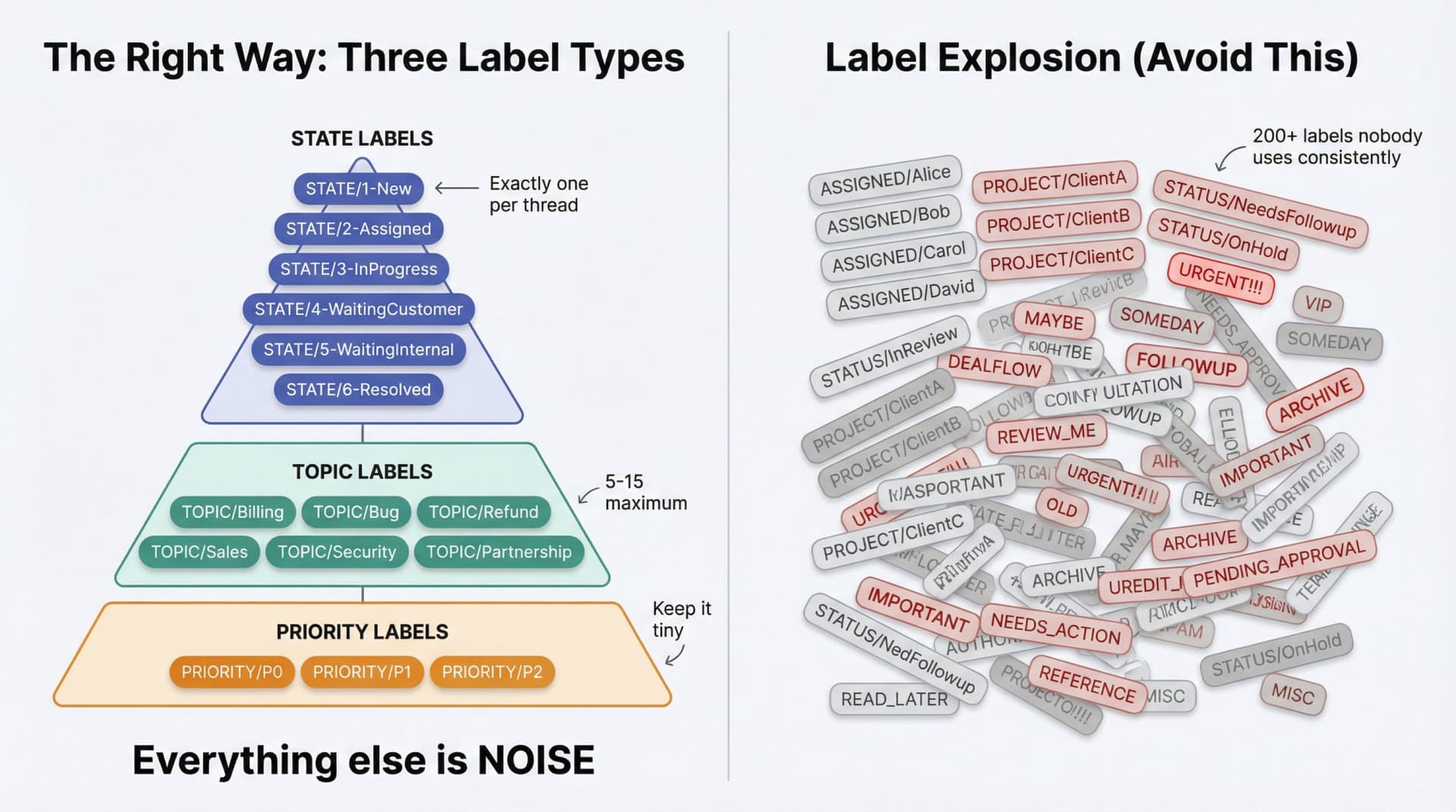
Use Only Three Label Types
1) State Labels (Required)
Exactly one per thread, from your state machine above.
2) Topic Labels (5-15 maximum)
Choose a small number that reflects how your work is actually organized:
• TOPIC/Billing
• TOPIC/Bug
• TOPIC/Refund
• TOPIC/Sales
• TOPIC/Security
• TOPIC/Partnership
3) Priority Labels (Keep it tiny)
• PRIORITY/P0 (drop everything)
• PRIORITY/P1 (today)
• PRIORITY/P2 (this week)
Everything else is noise.
Naming Conventions That Scale
Use prefixes (STATE/, TOPIC/, PRIORITY/) to prevent collisions and keep things organized. Avoid "role labels" like ASSIGNED/Alice unless you have strong discipline. Those explode quickly.
If you need per-person ownership, use the assignment field in Google Groups or a lightweight mechanism like internal notes.
For advanced organization techniques, check out our guide on auto-labeling emails by sender domain.
How to Create Queue-Based Views for Your Shared Mailbox
A shared mailbox without queues is a shared mailbox without control. You need prioritized ways to see the work.
The Minimum Set of Views You Need
① Unassigned & Unread (Your primary triage queue)
② Assigned to Me (Where responders work from)
③ Waiting on Customer (Follow-up tracking)
④ Waiting on Internal (Escalation tracking)
⑤ Overdue / SLA Risk (Red alert zone)
⑥ Resolved Today (Completed work audit)
Gmail Power Move: Create Tabs as Queues
If your team lives in Gmail, a queue-based UI prevents chaos.
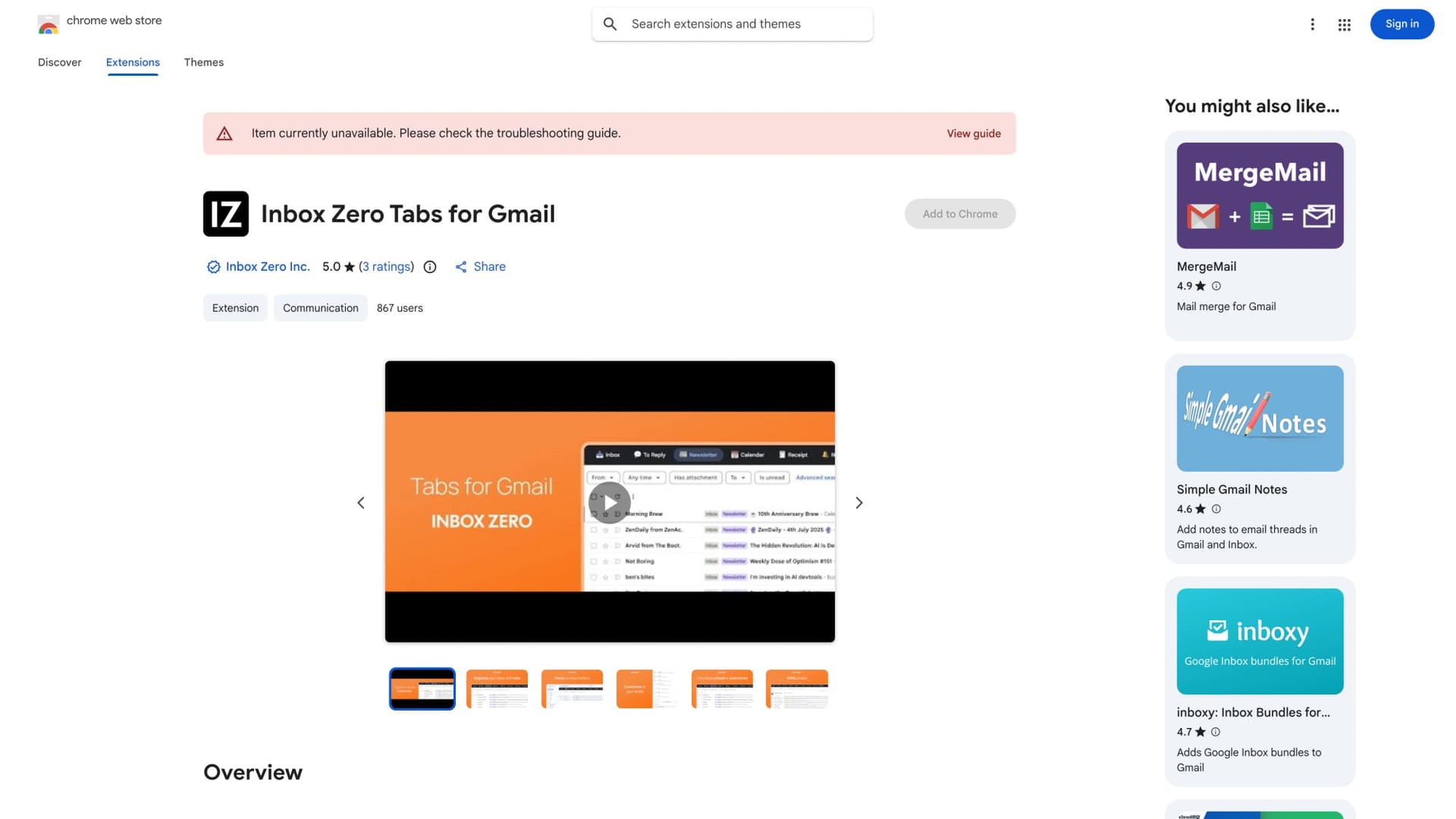
Inbox Zero Tabs for Gmail (available in the Chrome Web Store) lets you create custom Gmail tabs from any Gmail search query, with multi-account support and local-only settings. It doesn't collect or use your data. Learn more about our Gmail tabs extension.
Example Gmail queries you can turn into tabs:
Unassigned: label:STATE/1-New
Assigned to me: label:STATE/2-Assigned to:me
Waiting on customer: label:STATE/4-WaitingCustomer
SLA risk (older than 24h): older_than:1d label:STATE/1-New
High priority: label:PRIORITY/P0 OR label:PRIORITY/P1
Resolved today: label:STATE/6-Resolved newer_than:1d
This transforms Gmail into a proper queue-based system where your team can focus on the right work at the right time.
How to Create Standard Operating Procedures for Shared Mailbox Management
In addition to roles, your team needs to agree on how to use the shared mailbox consistently. Without ground rules, team members develop conflicting habits that lead to confusion.
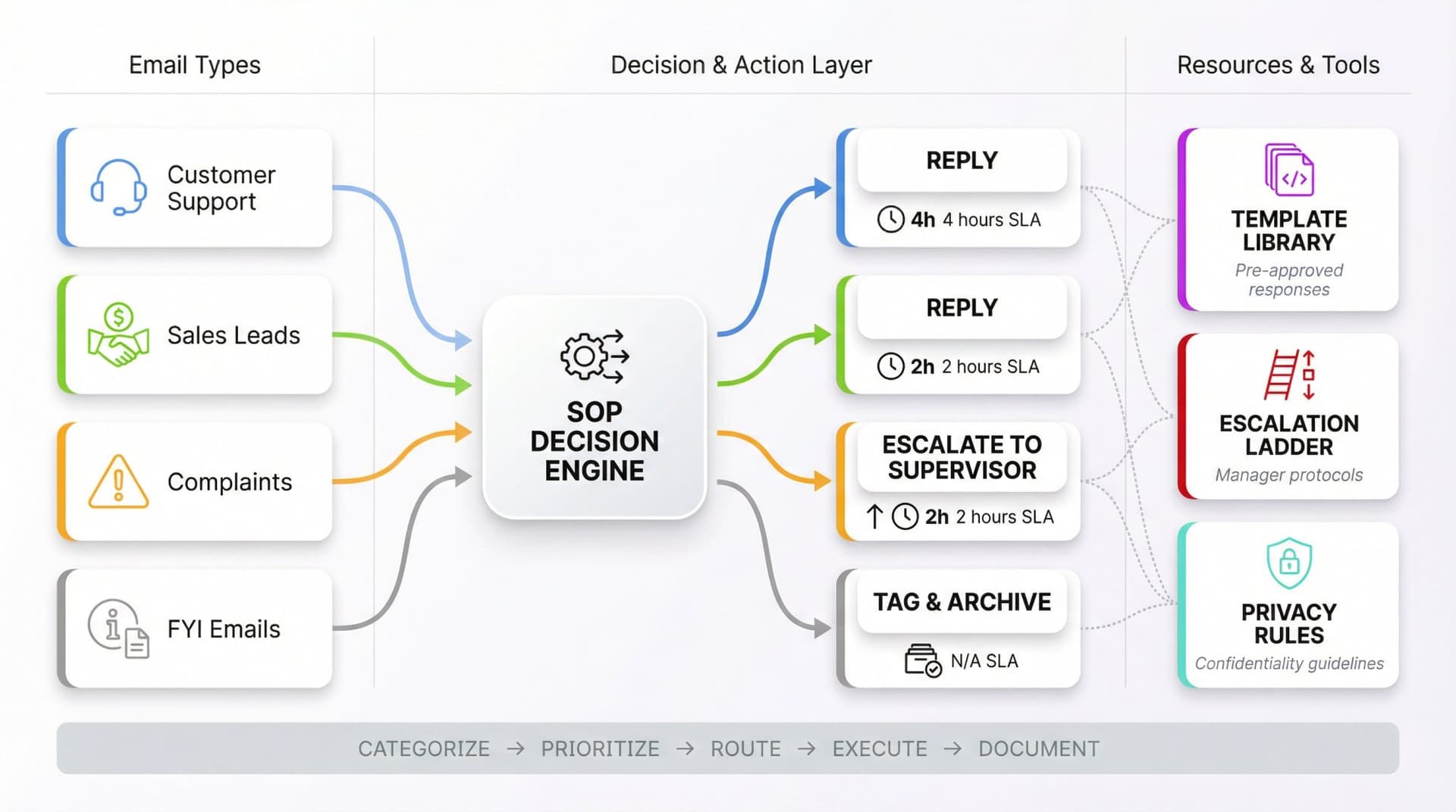
Define Workflows for Different Email Types
Map out how to categorize and prioritize different scenarios:
| Email Type | Action | SLA Target |
|---|---|---|
| Customer support inquiries | Reply | 4 hours |
| FYI emails | Tag and archive | N/A |
| Complaints | Escalate to supervisor | 2 hours |
| Sales leads | Reply | 2 hours |
By mapping email workflows, you create shared understanding of what gets immediate attention versus what can wait.
For comprehensive workflow strategies, explore our email management strategies guide.
Create a Brief SOP Document
Include:
Status tag usage. How to use labels like "Pending", "In Progress", "Resolved"
Escalation procedures. When and how to escalate issues
Auto-reply policies. If and when to use auto-replies (maybe for off-hours inquiries)
Hand-off process. How to reassign an email to another teammate
Use Templates for Consistency
Set guidelines on tone of voice and create approved email templates for common situations. This way, whether Bob or Carol replies, the messaging stays aligned.
Teams that use email templates can respond faster and with fewer errors, since they aren't writing each reply from scratch.
Common template needs:
→ Initial response to new support tickets
→ FAQ answers about pricing or features
→ Follow-up requests for more information
→ Closing messages when issues are resolved
Set Privacy and Confidentiality Rules
If your mailbox deals with sensitive data, include policies about confidentiality. Clarify who can delete messages (generally, avoid deleting except spam) and who can create new folders or labels.
Document and make accessible. Humans forget verbal instructions. Having a written reference prevents mistakes like missed emails or off-brand replies.
How to Automate Shared Mailbox Email Sorting and Assignment
Let technology do the heavy lifting. Almost all email systems allow you to define rules and filters that automatically sort, flag, or respond to messages.
Auto-Sort Incoming Mail with Filters
Set up email rules to categorize messages as they arrive.
Example rules:
• Any email with "Invoice" in subject → Auto-label TOPIC/Billing and move to Billing folder
• Emails from VIP clients → Auto-tag PRIORITY/P1
• Keywords like "urgent" or "down" → Auto-flag for immediate attention
• Emails from specific domains → Auto-assign to relevant team member
Regularly review and update these rules as your needs evolve.
Use AI to Draft Replies and Suggest Actions
Modern email management tools increasingly include AI features that can classify and draft responses.
At Inbox Zero, our AI assistant can read incoming emails and suggest which category they fit, or even draft a reply for you to review. For teams dealing with repetitive queries like "How do I reset my password?", AI can generate ready-to-send answers using your knowledge base.
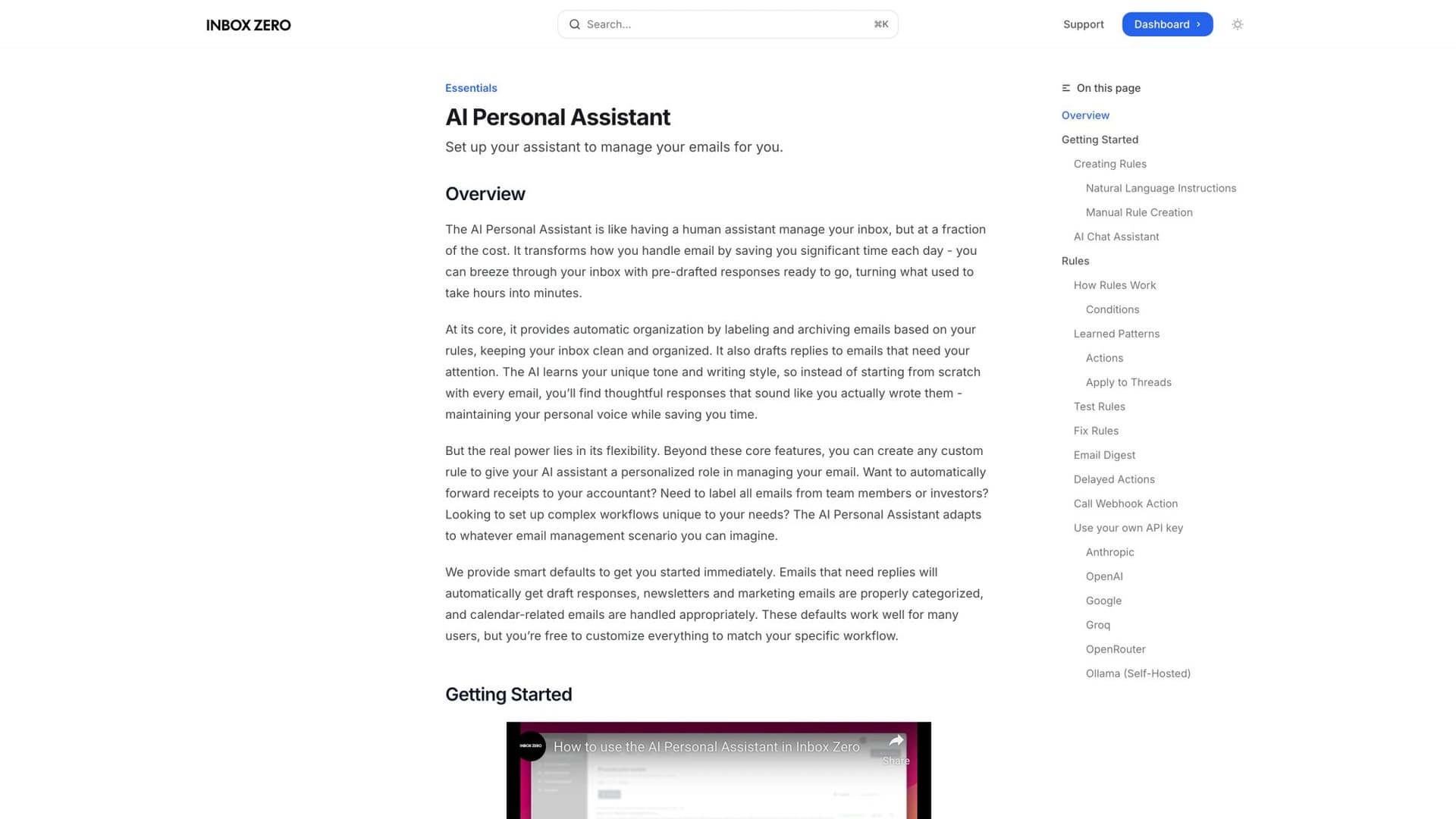
This doesn't remove humans from the loop. You still approve and personalize as needed. But it can significantly speed up response times for common questions. Learn more about AI email management and how it transforms team workflows.
Automate Assignment and Distribution
Some shared inbox platforms let you automatically assign incoming emails to team members in a round-robin fashion or based on workload. If your volume is high and roles are interchangeable, this ensures work is balanced.
Alternatively, auto-assign by keyword. Any email mentioning "website issue" gets assigned to your web specialist.
Set Up Canned Responses
Both Gmail and Outlook allow storing template responses you can insert with a click. Shared inbox tools often let teams share a library of templates.
This is a huge time saver and promotes consistency. If you always ask customers for certain info (order number, screenshots) when they report issues, have that template ready.
The Safe Automation Rule
Automate classification and drafting before you automate sending.
Keep automation off by default during rollout. Exclude VIP senders and financial or legal topics until proven safe. Always provide a human review queue for high-stakes scenarios.
For more advanced automation techniques, explore our guides on email automation and open-source automation tools for Gmail.
How to Use Internal Notes in a Shared Mailbox Without Confusing Customers
When multiple people collaborate on the same email threads, you need a way to communicate internally about those emails without the customer seeing it.
Use Internal Notes or Comments
Many shared inbox platforms allow you to add an internal note to an email conversation that's visible to your team but not sent to the customer.
This is immensely useful for discussing how to handle an email. If a support rep isn't sure about the answer, they can @mention a supervisor in a comment like "@Manager I think this might require a refund, do we approve that?"
The manager replies in a comment, and once decided, the rep sends the official email to the customer. All this happens threaded within the email, so any team member who opens that conversation later can see the internal discussion for context.
Avoid Forwarding Emails Around
Internal commenting replaces the old practice of forwarding emails to teammates for input. In a shared mailbox, everyone can see the email anyway. You shouldn't need to forward "FYI" copies.
If you need someone else's expertise, assign the email to them or leave a comment tagging them. This keeps one source of truth rather than multiple divergent email copies in different inboxes.
Be Careful with Reply vs Reply All
Teach the team to double-check recipients. We want to minimize accidental "Reply All" situations where internal notes get sent to customers.
Only use Reply All when you truly intend all recipients (including the customer) to see your message. Use internal notes for team back-and-forth.
Mistakenly sending an internal note to a customer is a nightmare scenario to avoid at all costs. Learn the differences between Reply vs Reply All vs Forward.
Keep Context in One Place
If you discuss an email in Slack or Teams, make sure the resolution or key points get recorded back in the shared inbox (perhaps in a private note). Otherwise, if a different team member picks up that thread later, they'll have no visibility into the side conversation.
One of the common challenges in shared mailbox usage is lost context when discussions happen elsewhere.
How to Prevent Duplicate Replies in a Shared Mailbox
Nothing frustrates customers more than getting two different replies from two team members to the same query.
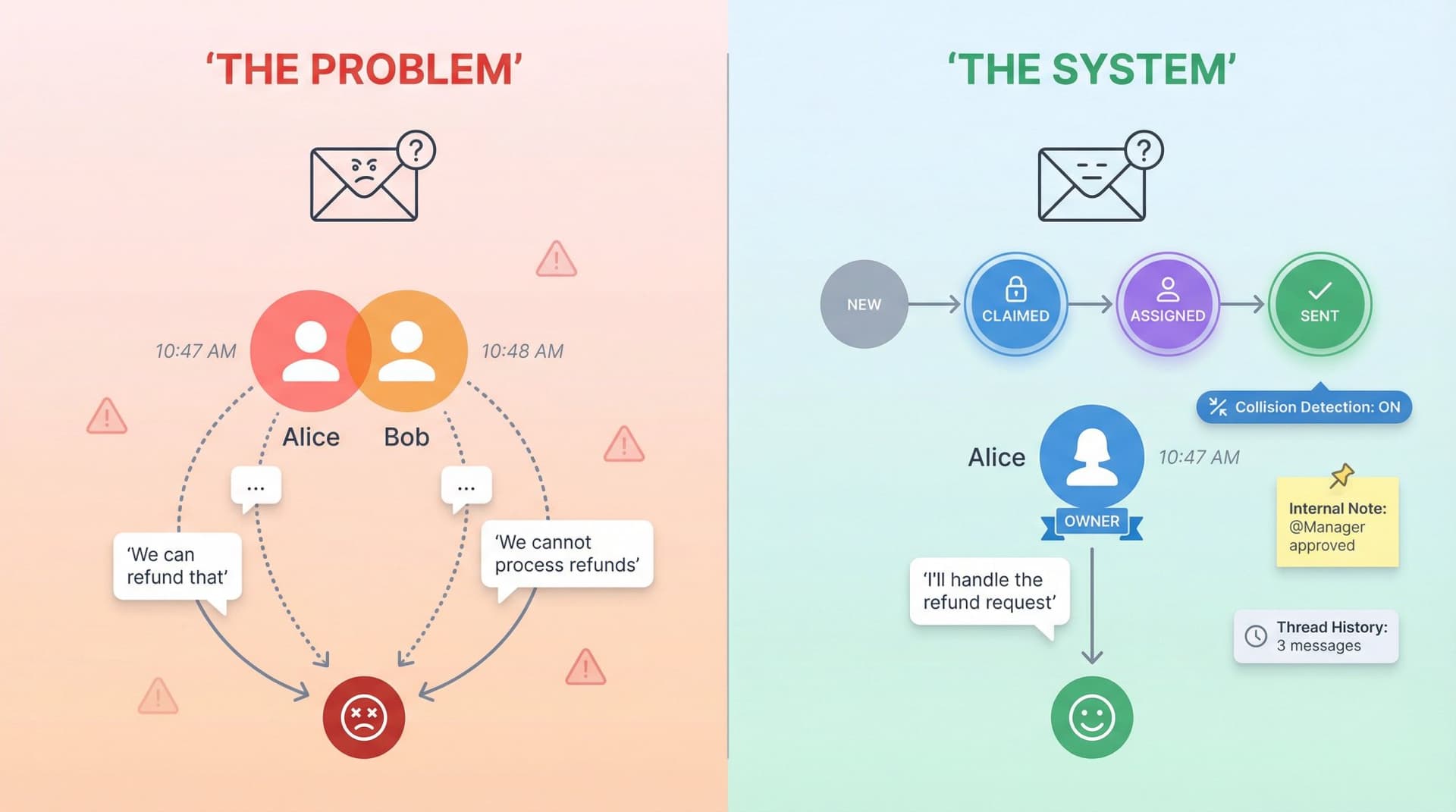
Claim Emails Immediately
When someone takes responsibility, they should mark it in the system via assignment, label, or internal note saying "I'll reply to this."
Make it a habit: If you open an email and see it's unassigned and you're going to handle it, mark it as yours first thing before drafting your reply.
Use Collision Detection Features
Some shared inbox and help desk tools have collision detection. If two people are viewing or typing a reply to the same email, the system alerts them.
This is a safeguard when multiple eyes are on the same conversation.
Communicate on Complex Threads
For longer conversations involving multiple replies over days, have a quick chat internally on who will handle next steps.
Internal notes are perfect here: "I think John should answer this since it's technical. John, let me know if you can take it."
Always Check Thread History
Before hitting send, glance at the conversation history and assignments. Make sure the customer hasn't already been answered and that you're the one assigned.
In a hectic environment, someone might jump into an email that came in earlier in the day not realizing a colleague replied 10 minutes ago.
Keep Replies in the Shared System
All replies should be sent from the shared mailbox interface, not from individual accounts. This way, the sent message is visible in the shared sent folder and everyone knows it was answered.
How to Archive and Clean Up Your Shared Mailbox
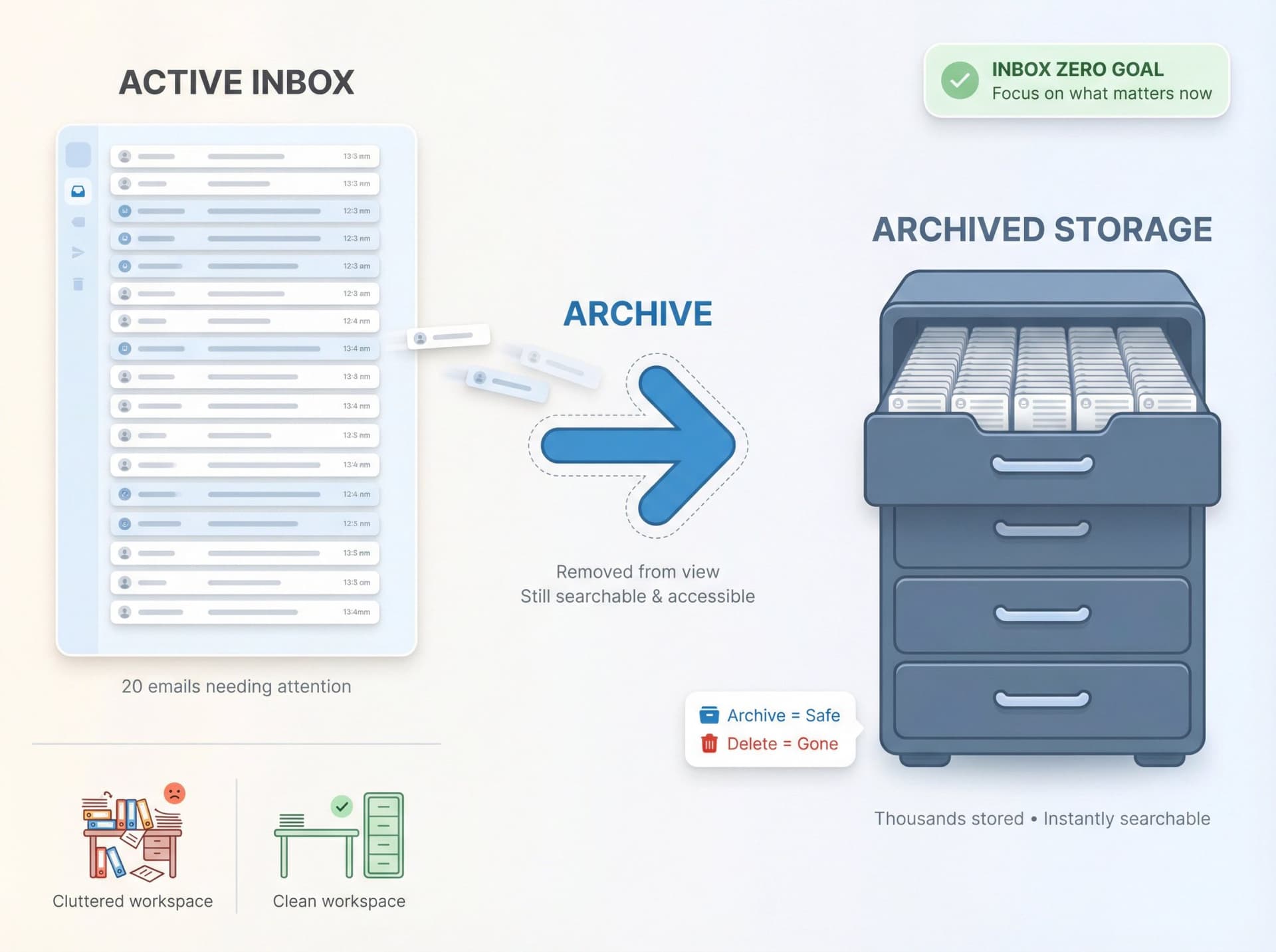
A shared mailbox requires ongoing maintenance to keep it useful. If you never clean it up, you'll accumulate thousands of emails, making it harder to focus on current work.
Archive Resolved Conversations
Don't let resolved conversations linger in the main inbox view. Once an issue is handled and the conversation is done, archive it or move it to a "Closed" folder.
Archiving removes the email from the active queue but keeps it stored for reference. This way, your team's attention stays on open and pending emails.
Archiving old emails on a regular basis prevents clutter and ensures you're not sifting through months-old threads to find active ones.
Learn the difference between Gmail All Mail vs Archive and Gmail Snooze vs Archive vs Mute to master your archiving strategy.
Set an Archiving Schedule
Decide on rules for what gets archived when. You might do a weekly inbox cleanup every Friday where the team reviews the inbox for conversations that can be closed.
Alternatively, use automation. Create a rule to auto-archive any ticket labeled "Resolved" after 7 days, or archive any email thread with no activity for 30 days.
For those dealing with overwhelming email volume, our guide on automatically deleting emails older than 30 days in Gmail can help establish retention policies.
Remember: Archived Isn't Deleted
Archived emails are still accessible via search or in their folder. They're not deleted. So there's little downside to archiving once done. You can always find it later if needed.
It's like cleaning your desk. The document goes in the cabinet for safekeeping, not in the middle of your workspace.
Inbox Zero Philosophy
This approach helps your team maintain control and respond promptly to what matters, rather than feeling buried by an endless backlog. Learn about the inbox zero method to understand the philosophy.
With good archiving discipline, the inbox might only show the 20 emails that truly need attention right now. Everything else is neatly filed away.
How to Secure Your Shared Mailbox and Manage Access
When multiple people have access to a single mailbox, you must maintain security and confidentiality. A shared mailbox often contains sensitive customer data or private company information.
Limit Access to the Right People
Only grant access to team members who truly need to work in that mailbox. Set boundaries on who can access what.
Stick to the principle of least privilege. Maybe only the support department should access support@. If other teams occasionally need to see those emails, share specific messages rather than giving full access.
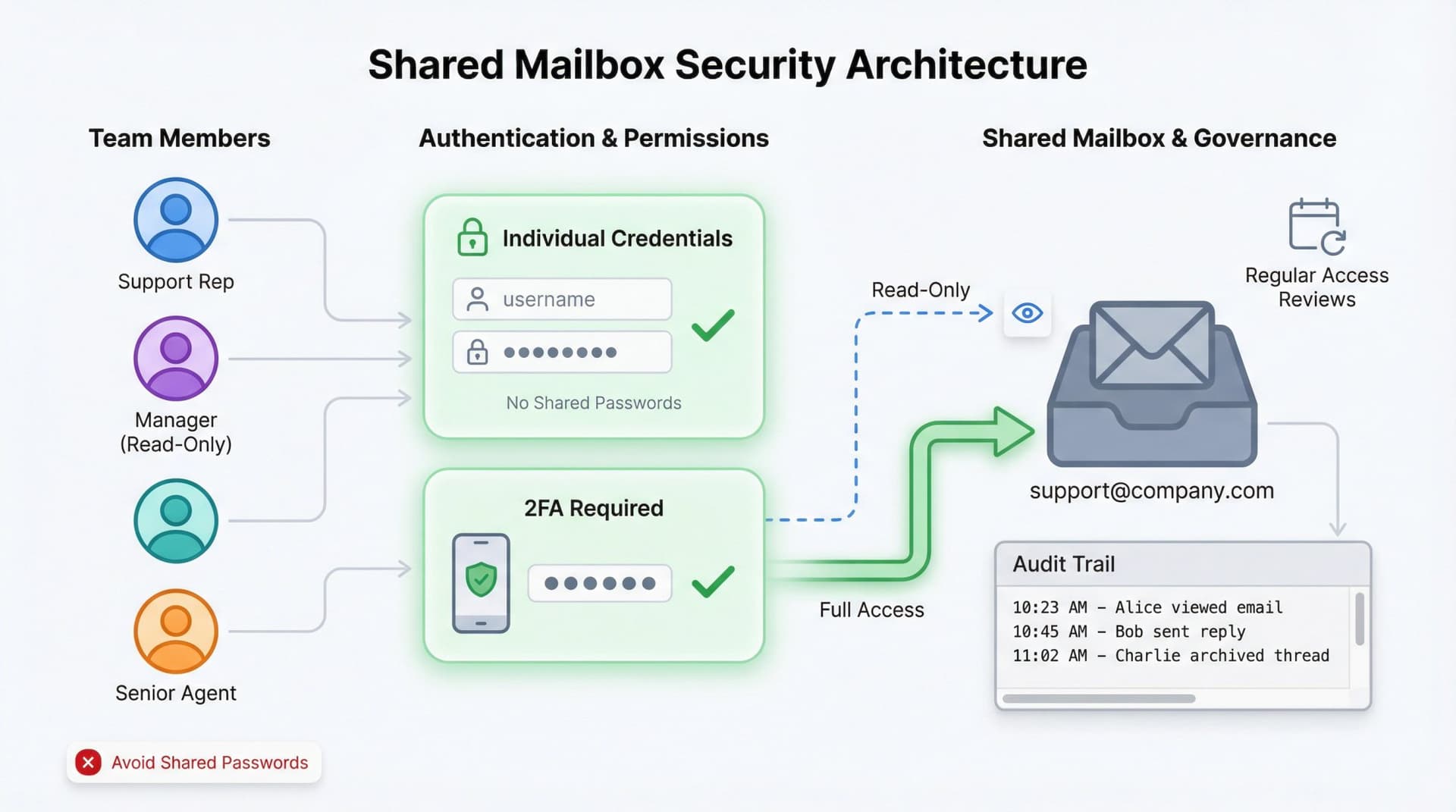
Define access levels. Many systems allow read-only versus full access. Perhaps trainees get read-only access until fully onboarded, or junior staff can draft replies but a manager sends them.
Defining roles with appropriate permissions prevents accidents and unauthorized actions.
Use Individual Logins (Avoid Shared Passwords)
In platforms like Office 365 and Google Workspace, you can add members to a shared mailbox or delegate access without sharing the actual password.
Do not give out a single shared mailbox password for everyone to use. Instead, use the platform's sharing mechanism so each user logs in with their own credentials.
This way, if a person leaves the company or should no longer have access, you can simply remove their account from the access list. It also means actions can be logged per user, which is important for accountability.
Enforce Strong Authentication
Enable two-factor authentication (2FA) for all users if possible, especially for accounts with mailbox access. Many systems support 2FA on user accounts which protects the shared mailbox access.
Microsoft and Google both emphasize secure authentication. Yes, it's an extra step at login, but it hugely reduces the risk of unauthorized access.
Also ensure passwords are strong and changed periodically. Update passwords or keys whenever someone leaves the team. Don't wait.
Learn about safely connecting third-party apps to Gmail to understand authentication best practices.
Run Regular Access Reviews
Keep an audit trail for shared mailbox usage. Some systems log who opened an email, who deleted something, and when.
At minimum, keep track of who currently has access and review that list regularly.
If your tool provides analytics, monitor unusual activity like a user downloading a bunch of emails or forwarding many messages outside the company.
Train on Security Basics
Often, humans are the weakest link. Do periodic refreshers on phishing awareness. If the shared inbox gets a suspicious email with an attachment, what should they do? (Likely, don't click links or attachments unless verified.)
Remind everyone they should never use the shared mailbox to send sensitive data to unauthorized persons. If they ever suspect the shared account is compromised or they accidentally sent something sensitive to the wrong recipient, they should alert management immediately.
Daily Shared Mailbox Triage: The Loop That Keeps Everything Running
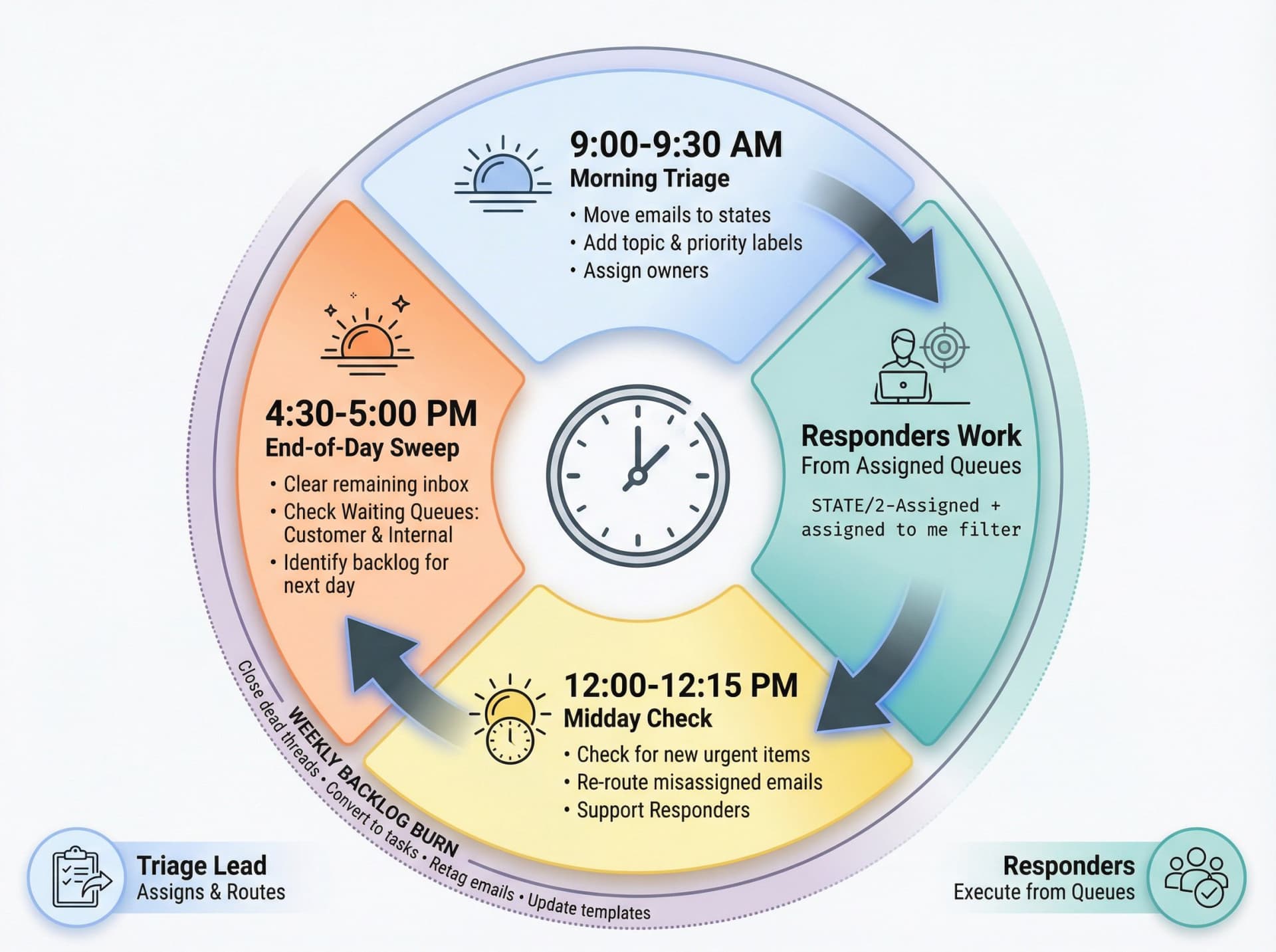
Here's a field-tested daily operating cadence that prevents shared mailboxes from descending into chaos.
Run Fixed Triage Windows
Schedule triage in fixed intervals, for example:
• 9:00-9:30 AM (Morning triage)
• 12:00-12:15 PM (Midday check)
• 4:30-5:00 PM (End-of-day sweep)
During triage:
• Move each new email into a state
• Add topic and priority labels
• Assign an owner (human or team queue)
Responders Work from "Assigned to Me"
Responders should not work from the raw inbox.
They work from:
• STATE/2-Assigned + "assigned to me" filter
• Or a queue assigned to their shift
This prevents duplicate work and ensures everyone knows what's theirs to handle.
Check "Waiting" Queues on Schedule
Most shared mailbox failures aren't first response failures. They're follow-up failures.
Have a daily sweep:
• Waiting on customer (Nudge after X days)
• Waiting internal (Escalate after Y days)
Learn how to see all emails waiting for reply with our tracking tools.
Weekly Backlog Burn
Once per week, do a backlog cleanout:
• Close dead threads
• Convert threads into tasks or tickets
• Retag miscategorized emails
• Update templates based on new patterns
What Metrics to Track for Shared Mailbox Performance
If you only measure volume ("we got 1,200 emails"), you're blind. Measure flow and quality.
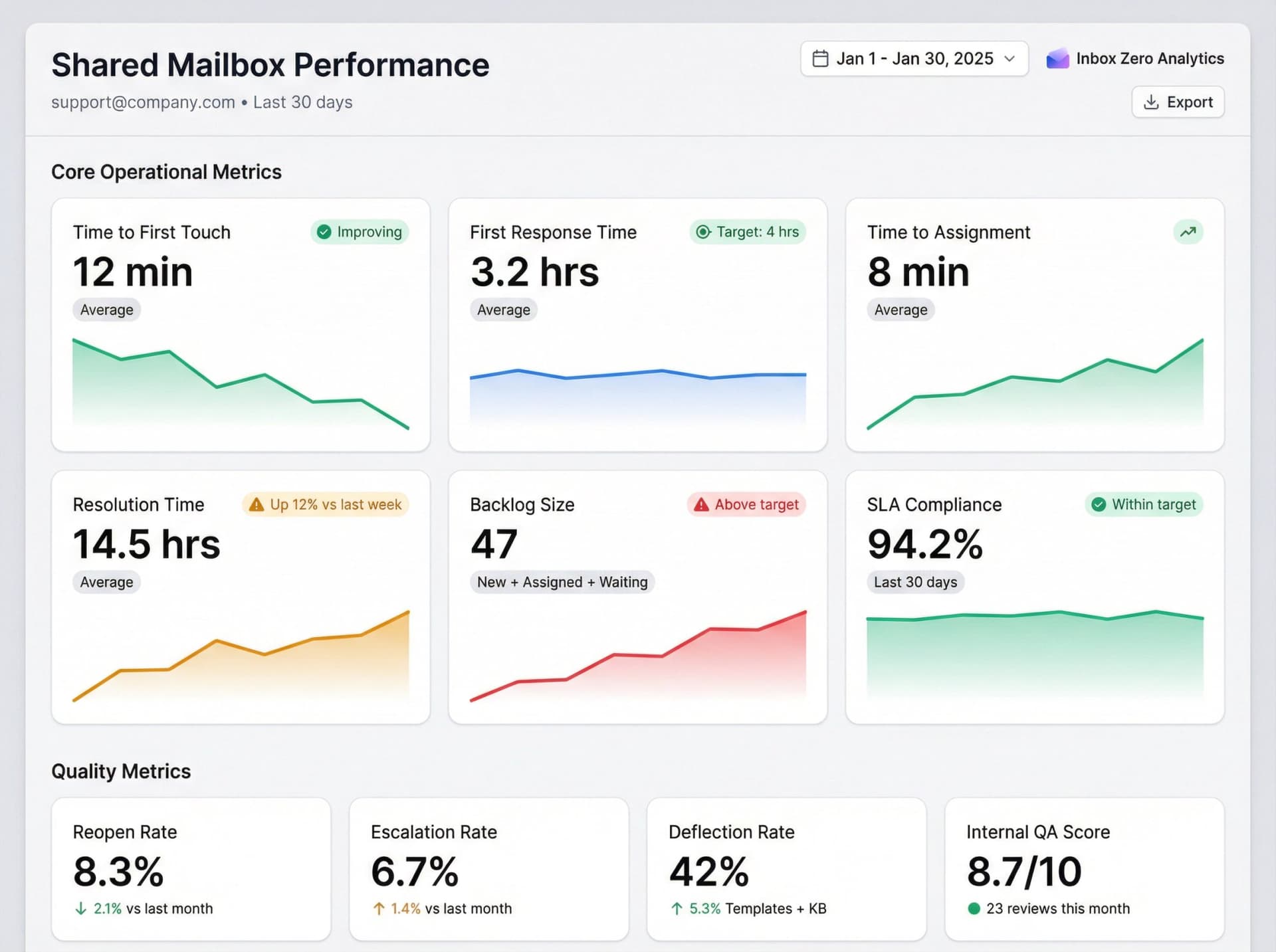
Core Operational Metrics
| Metric | What It Tells You |
|---|---|
| Time to first touch | How long until an email leaves "New" |
| First response time | How fast do we send the first external reply |
| Time to assignment | Assignment latency |
| Resolution time | Time from new to resolved |
| Backlog size | Count of New + Assigned + Waiting Internal |
| SLA compliance rate | Percent within target |
Use Inbox Zero's email analytics to track these metrics automatically. Our analytics documentation shows you how to set up comprehensive reporting.
Quality Metrics
• Reopen rate (How often resolved threads reopen)
• Escalation rate (Percent requiring escalations)
• Deflection rate (Percent answered by templates or KB link)
• Internal QA score (Weekly sample review)
Tracking key metrics helps you quantify your team's email workload and performance.
Use Data to Identify Bottlenecks
Look at the data to spot where things could improve. If average response time is 8 hours but you're aiming for 4, dig in. Maybe certain times of day are slow or certain email types get stuck.
If Bob has 2x the workload of Alice, maybe distribution needs rebalancing.
Hold Regular Team Reviews
Set up a periodic meeting (monthly is common) to discuss shared mailbox management as a team. Cover:
• Recent performance metrics (wins and concerns)
• Challenging cases and how they were handled
• Process improvement suggestions
These discussions yield great ideas for tweaks and reinforce best practices.
How to Integrate Your Shared Mailbox with Other Tools
A shared mailbox doesn't have to live in isolation. Integration turns it into a hub for more than just email.
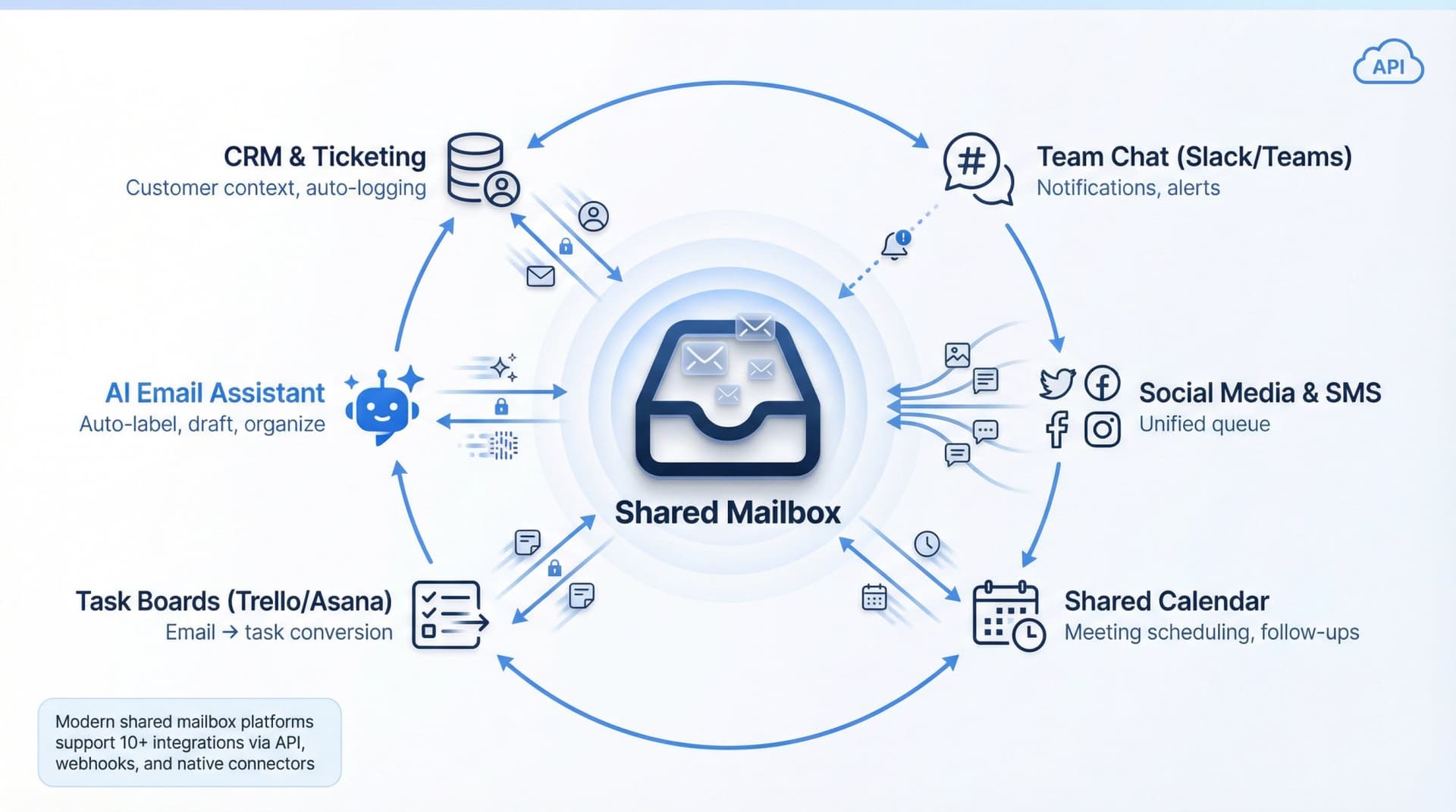
Connect Multiple Channels
Many modern shared inbox solutions allow you to bring in not only emails, but also social media messages, live chat, or SMS into a unified queue.
If your team handles Facebook Messenger or Twitter DMs, having them appear alongside emails means your team isn't switching between apps.
Integrate with Your CRM or Ticketing System
If you use a CRM or ticketing system, integrate it with the shared mailbox so context flows freely. If an email comes from an existing customer, some systems can show their CRM profile next to the email.
This helps the team give personalized service without manually looking up data. Ensure important email interactions get logged to the CRM automatically.
Use Calendar Integrations for Follow-Ups
If an email involves scheduling (like a demo request), integrate with a shared calendar. Some support teams also integrate with task management or Kanban boards, converting an email into a Trello or Asana task if it requires multi-step resolution.
Check out our calendar integration to automate meeting scheduling from your inbox.
Leverage Slack/Teams for Notifications
It can be useful to get notified in your team chat when certain urgent emails arrive. Integration between your shared mailbox and messaging apps ensures nothing critical sits unseen.
Just be cautious: don't let the team start replying in Slack and forget to respond in email. Use it as a notifier, but handle the actual replies in the shared mailbox.
How Inbox Zero Fits
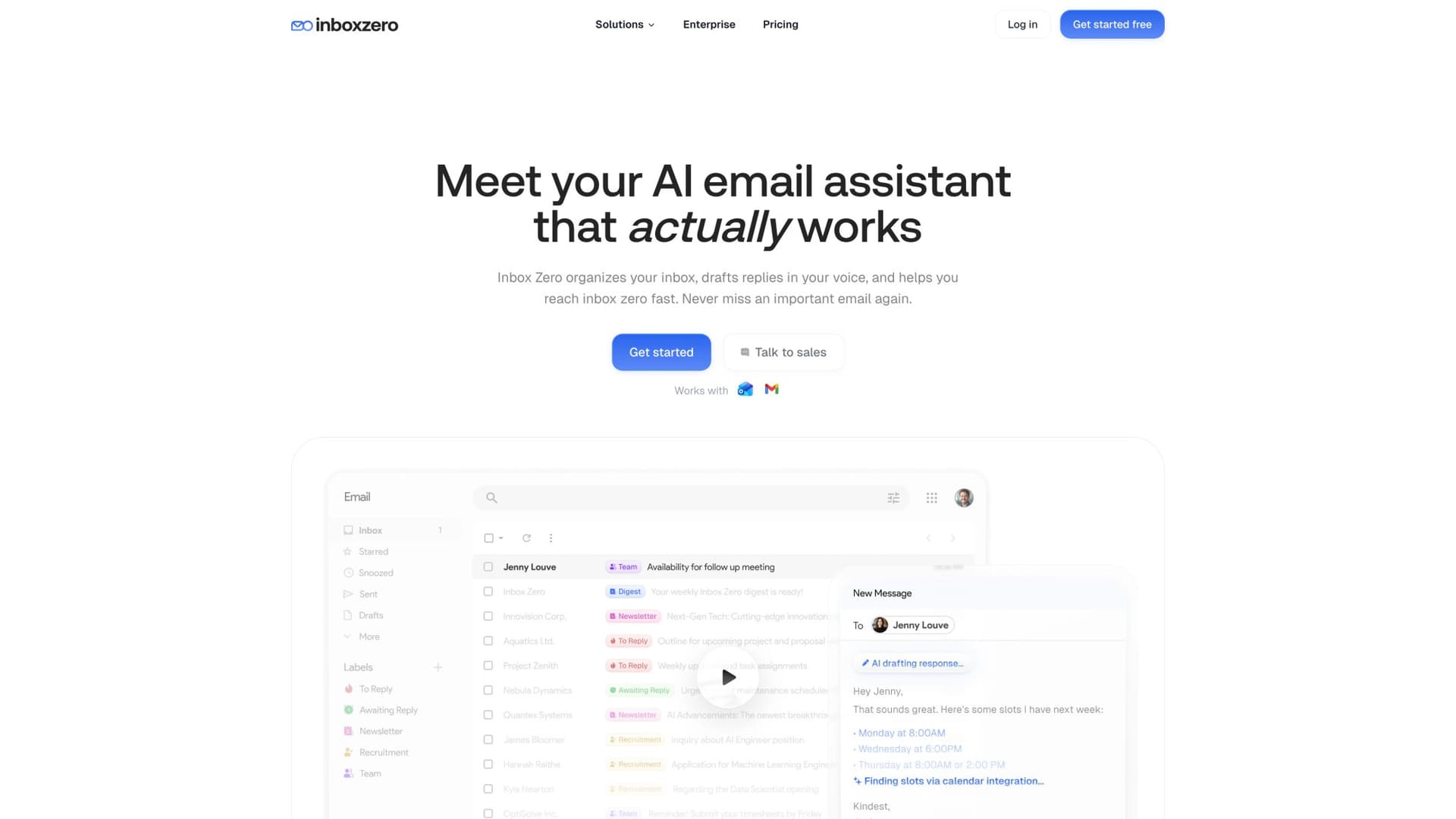
Inbox Zero is an AI email assistant that works alongside Gmail and Outlook. It's designed to help teams label, draft, and organize messages consistently.
We're open source (thousands of stars on GitHub) and support self-hosting for teams that want more control.
A safe rollout plan:
• Week 1: Automation off, classification and drafts only
• Week 2: Automate low-risk labeling and routing
• Week 3+: Expand automation carefully, add metrics and QA reviews
Our AI can help with exactly these challenges: automatically categorizing emails, drafting replies, and tracking threads that need follow-up. We can remind you to follow up on emails if no one replies within a specified timeframe.
Because we work within Gmail or Outlook with your existing setup, we complement the practices outlined above rather than forcing you into a whole new system.
Learn why we built an open-source SaaS and explore our enterprise solutions.
Troubleshooting Common Shared Mailbox Problems
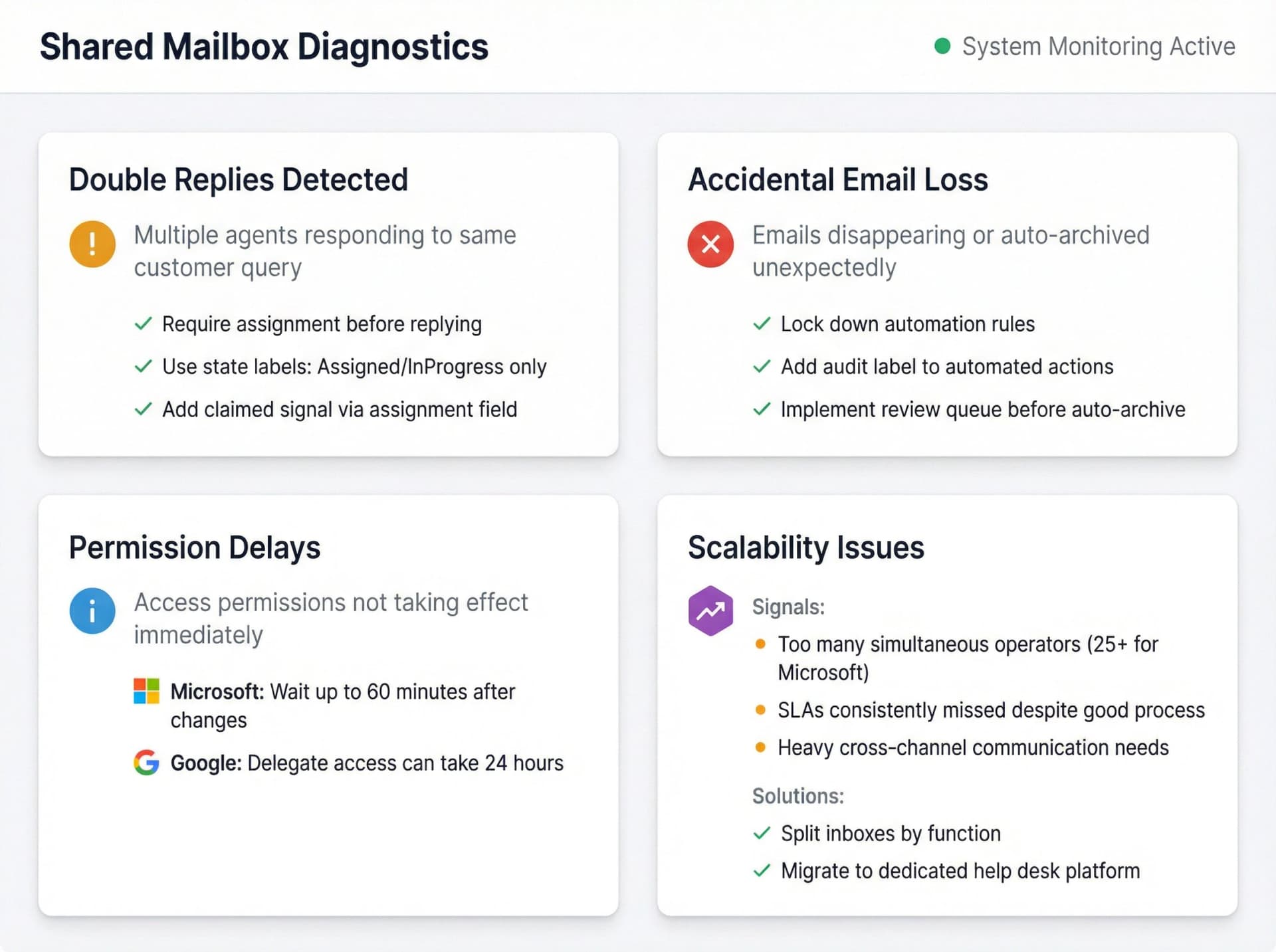
"We keep double-replying to customers"
Fix:
• Require assignment before replying
• Use state labels: only reply from Assigned/InProgress states
• Add a "claimed" signal via assignment field or label
"Emails disappear or get archived accidentally"
Fix:
• Lock down automations
• Add an "audit label" to every automated action
• Use a review queue before auto-archive
"Permissions aren't working"
Microsoft: Wait up to 60 minutes after permission changes
Google: Delegate access can take up to 24 hours
"We've outgrown the mailbox"
Signals:
• Too many simultaneous operators (Microsoft flags 25 as a guideline)
• SLAs consistently missed despite good process
• Heavy cross-channel needs
Fix: Split inboxes by function or move to a help desk platform
The Templates That Make This Actually Implementable
Copy these into your internal wiki.
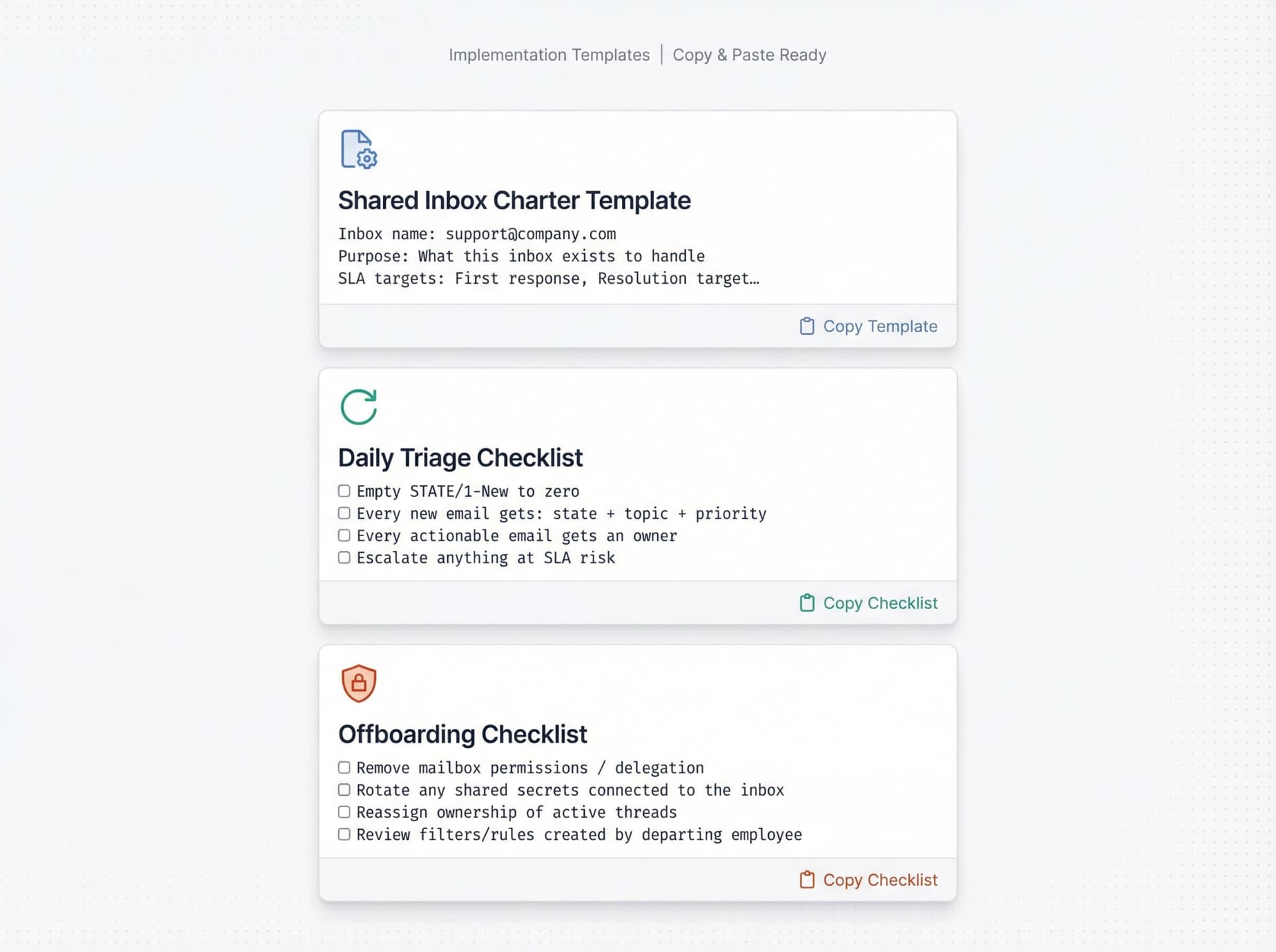
Shared Inbox Charter Template
Inbox name: support@company.com
Purpose: What this inbox exists to handle
Out of scope: What must not go here (and where it goes instead)
Coverage hours: [Define your hours]
SLA targets:
  - First response: [X hours]
  - Resolution target: [Y hours]
  - P0/P1 definitions: [Define urgency levels]

Escalation ladder: [Who gets escalated, how, and when]

Labels and taxonomy:
  - States: [List your state labels]
  - Topics: [List your topic labels]
  - Priorities: [List your priority labels]

Assignment rules: [How work gets assigned]
Quality standards: [Tone + templates + escalation language]
Security rules: [Access requests, reviews, offboarding]
Automation policy: [What can be automated, what must be reviewed]
Daily Triage Checklist
□ Empty STATE/1-New to zero (or acceptable minimum)
□ Every new email gets: state + topic + priority
□ Every actionable email gets an owner
□ Update "Waiting" states
□ Escalate anything at SLA risk
□ Close loops (log bugs, create tickets, update CRM)
Offboarding Checklist
□ Remove mailbox permissions / delegation
□ Rotate any shared secrets connected to the inbox
□ Reassign ownership of active threads
□ Review filters/rules created by departing employee
□ Confirm audit trail coverage for the period
Your Path to Shared Mailbox Mastery
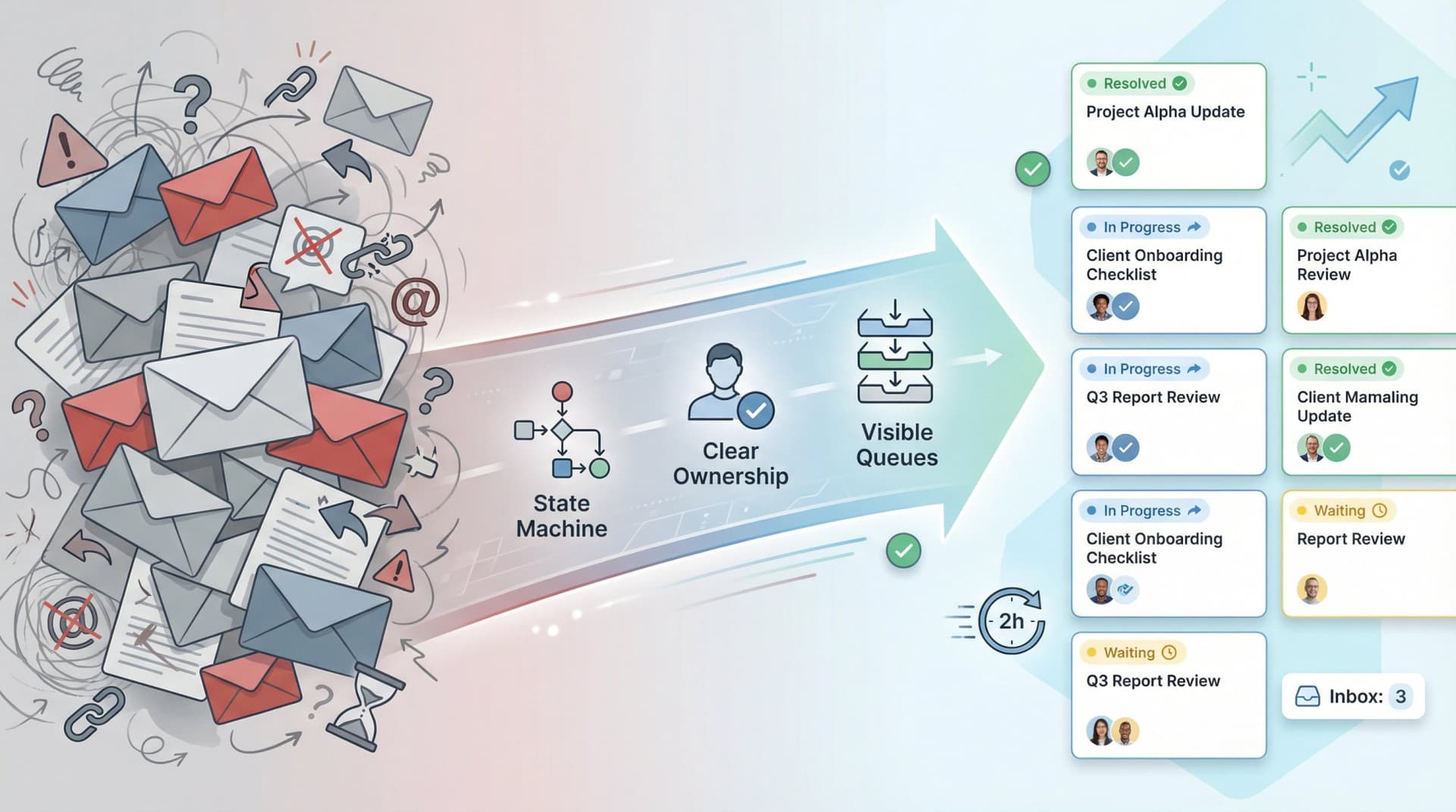
Managing a shared mailbox isn't about finding the perfect tool. It's about implementing a system: clear ownership, explicit states, organized labels, visible queues, smart automation, and continuous improvement.
When you get these fundamentals right, your shared mailbox transforms from a source of chaos into a productivity powerhouse.
Start small. Pick three practices from this guide:
① Implement a state machine with clear labels
② Define roles and ownership for every email
③ Create queue-based views so work is visible
Get those working, then add automation, metrics, and integrations.
The teams that excel at shared mailbox management don't have magic tools. They have disciplined processes that everyone follows. They track what matters. They iterate weekly. They make the invisible work visible.
Your customers will get faster, more consistent responses. Your team will stop stepping on each other's toes. Nothing will fall through the cracks.
That's the power of a well-managed shared mailbox.
Ready to transform your team inbox? Try Inbox Zero to see how AI can help automate classification, draft replies, and keep your shared mailbox running smoothly. Explore our complete email management solutions and join thousands of teams achieving inbox zero.


How to Recall an Email in Outlook (2026)
How to recall an email in Outlook step by step for new Outlook, classic Outlook, web, Mac, and mobile, plus when recall works and what to do when it doesn't.
2026-09-30T18:25:57.000Z

How to Stop AliExpress Emails (2026)
Stop AliExpress promotional emails: the unsubscribe link, notification settings in your AliExpress account, and what to do when the deals keep coming.
2026-09-30T18:25:57.000Z

How to Stop Amazon Emails (2026)
Stop Amazon marketing emails with the Communication Preferences Center, manage Amazon email subscriptions, and handle order emails you can't switch off.
2026-09-30T18:25:57.000Z

How to Stop Domino's Emails (2026)
Stop Domino's emails with Domino's official opt-out page, stop Domino's text offers, and know which rewards emails keep coming.
2026-09-30T18:25:57.000Z