How to Update Your Outlook Signature (2026)
Update your Outlook signature in every version: new Outlook, classic, web, Mac, and mobile. 2026-accurate steps plus 6 fixes when it won't stick.

Updating your Outlook signature should take about two minutes. The problem? "Outlook" isn't one product anymore. Microsoft now has separate signature settings for new Outlook on Windows, classic Outlook on Windows, Outlook on the web, Outlook.com, Outlook for Mac, and Outlook mobile. And since Microsoft redesigned the signature settings page in new Outlook back in November 2025, most older tutorials don't match what's actually on your screen.
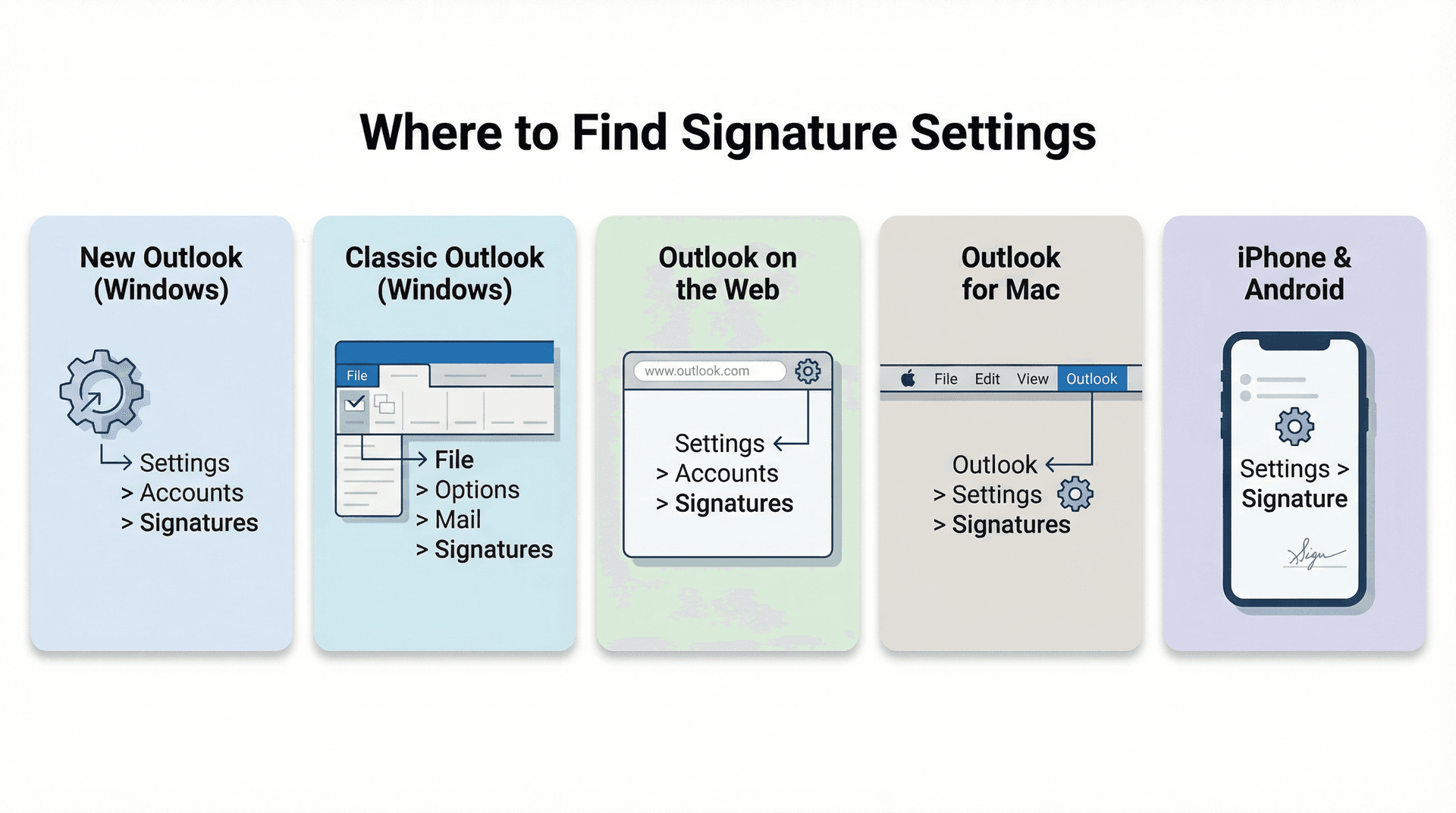
If you just need the quickest answer, here's the cheat sheet:
| Outlook Version | Signature Settings Path |
|---|---|
| New Outlook for Windows | Settings > Accounts > Signatures |
| Outlook on the web / Outlook.com | Settings > Accounts > Signatures |
| Classic Outlook for Windows | File > Options > Mail > Signatures |
| Outlook for Mac | Outlook > Settings > Signatures |
| iPhone / Android | Settings > Signature |
Those are the current Microsoft paths as of April 2026.
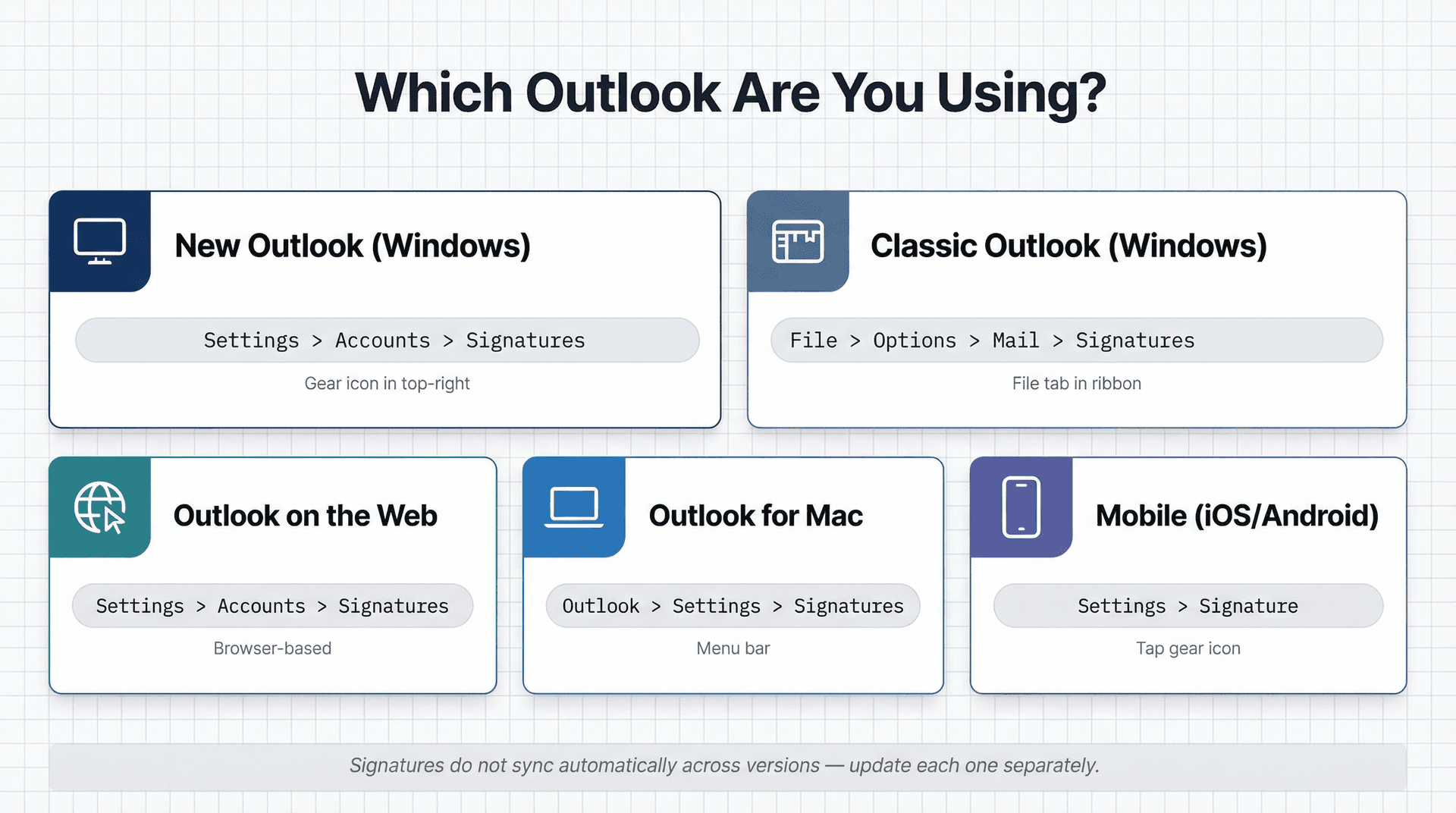
The part most guides skip: your signature is not one universal setting that syncs everywhere. It can be tied to a specific app, a specific account, and sometimes a specific device. If you change it in one place and assume it's updated everywhere, you'll probably find out the hard way that it isn't. This guide covers every version, plus the troubleshooting steps for when things don't stick. If you're also thinking about how to organize your Outlook inbox beyond just the signature, that guide pairs well with this one.
How to Check Which Outlook Version You Have
Before you touch anything, you need to know which Outlook you're working with. The steps are completely different depending on the version.
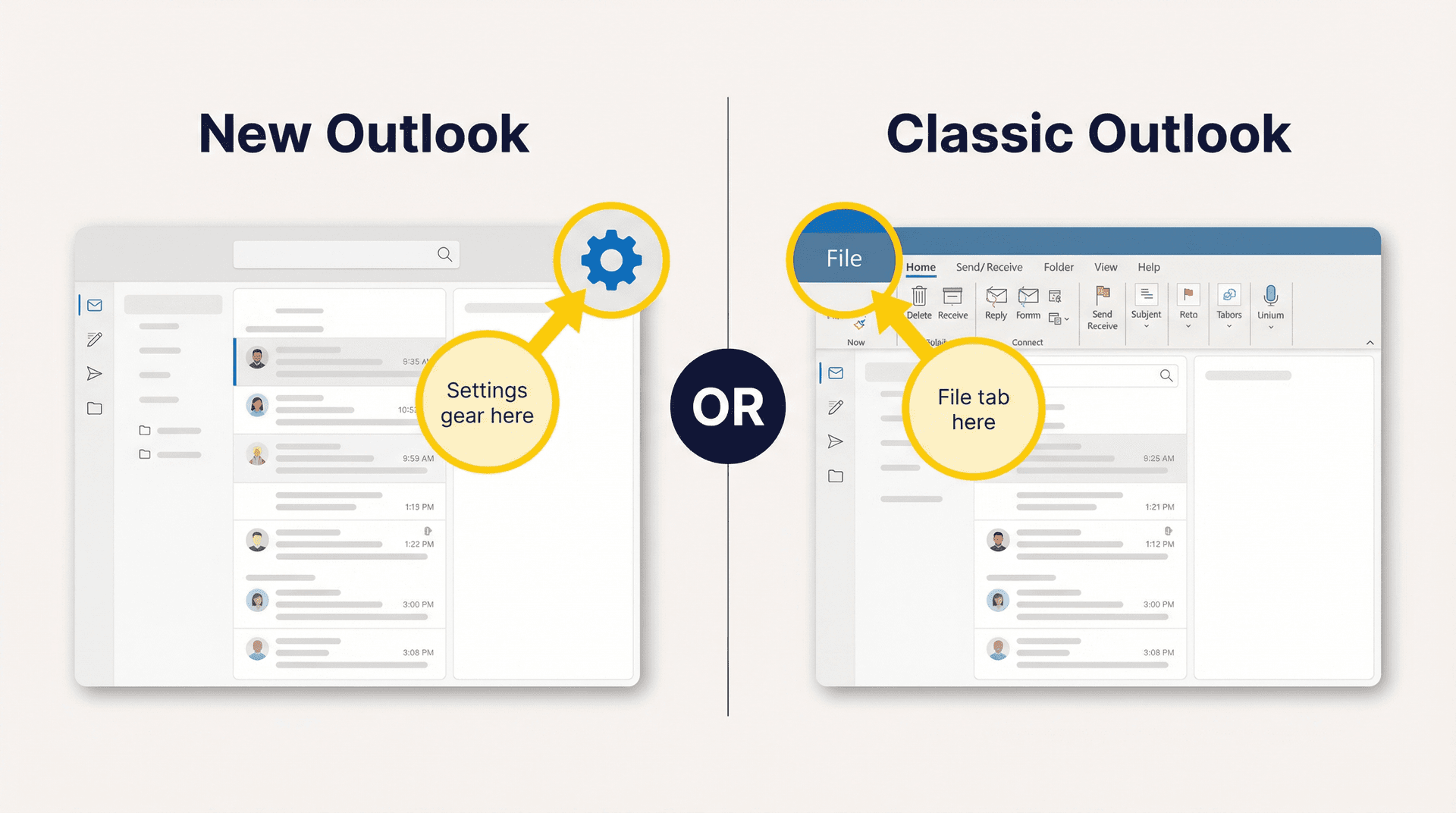
On Windows, there's a fast way to tell:
-
If you see a Settings gear icon in the top-right corner, you're using new Outlook.
-
If there's no Settings gear but you do see a File tab in the ribbon, you're using classic Outlook.
On the web, check the URL:
-
outlook.live.com means you're in Outlook.com (personal Microsoft accounts).
-
outlook.office.com or outlook.office365.com means you're in Outlook on the web (work or school accounts).
If your app looks nothing like either of these, you might be running a version that's no longer supported. Microsoft confirmed that support for Office 2016 and Office 2019 ended on October 14, 2025, so screenshots from those versions won't match anything current. If you're also noticing Outlook focused inbox not working after a version change, that's a separate but related issue worth checking.
How to Update Your Signature in New Outlook for Windows
Use this section if you're on Windows and you can see the Settings button (gear icon) in the top right.
-
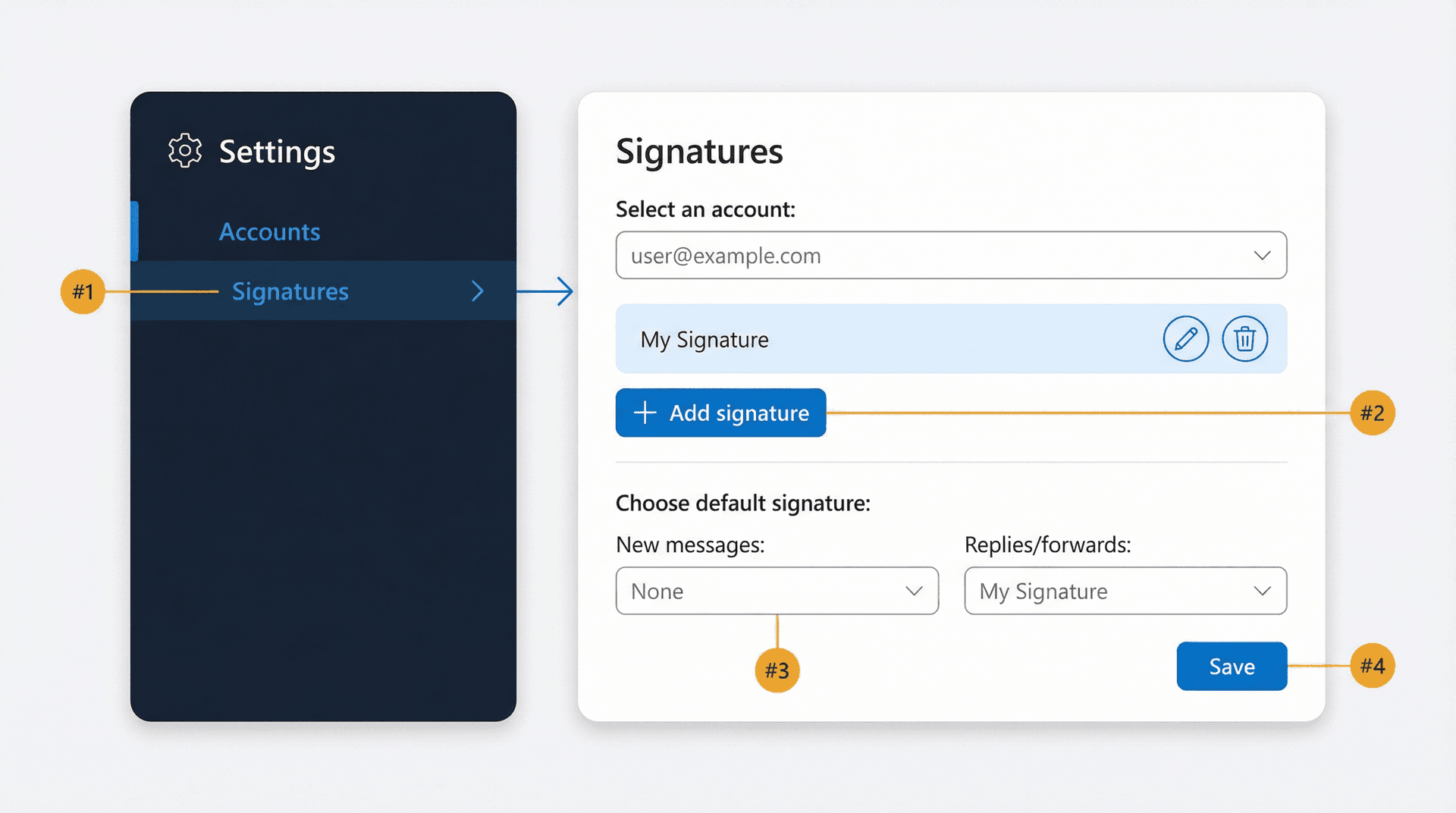
Click Settings.
-
Go to Accounts > Signatures.
-
If you have multiple email accounts, pick the account you want to edit.
-
Click Add signature to create a new one, or click the Edit icon next to an existing signature.
-
Update the text, links, and formatting.
-
Choose whether Outlook should apply it automatically to new messages and to replies/forwards.
-
Click Save.
Want to switch signatures while writing an email? Open a new message and go to Message > Signature to insert a different one manually. Microsoft's support documentation confirms that new Outlook can store multiple signatures and lets you choose between them while composing.
Quick tip: If you've already got a draft open when you create a new signature, it won't appear in that draft automatically. You'll need to insert it manually or start a fresh email. For a broader look at managing your workflow in Outlook, our guide on how to manage your inbox walks through the full setup.
How to Update Your Signature in Classic Outlook for Windows
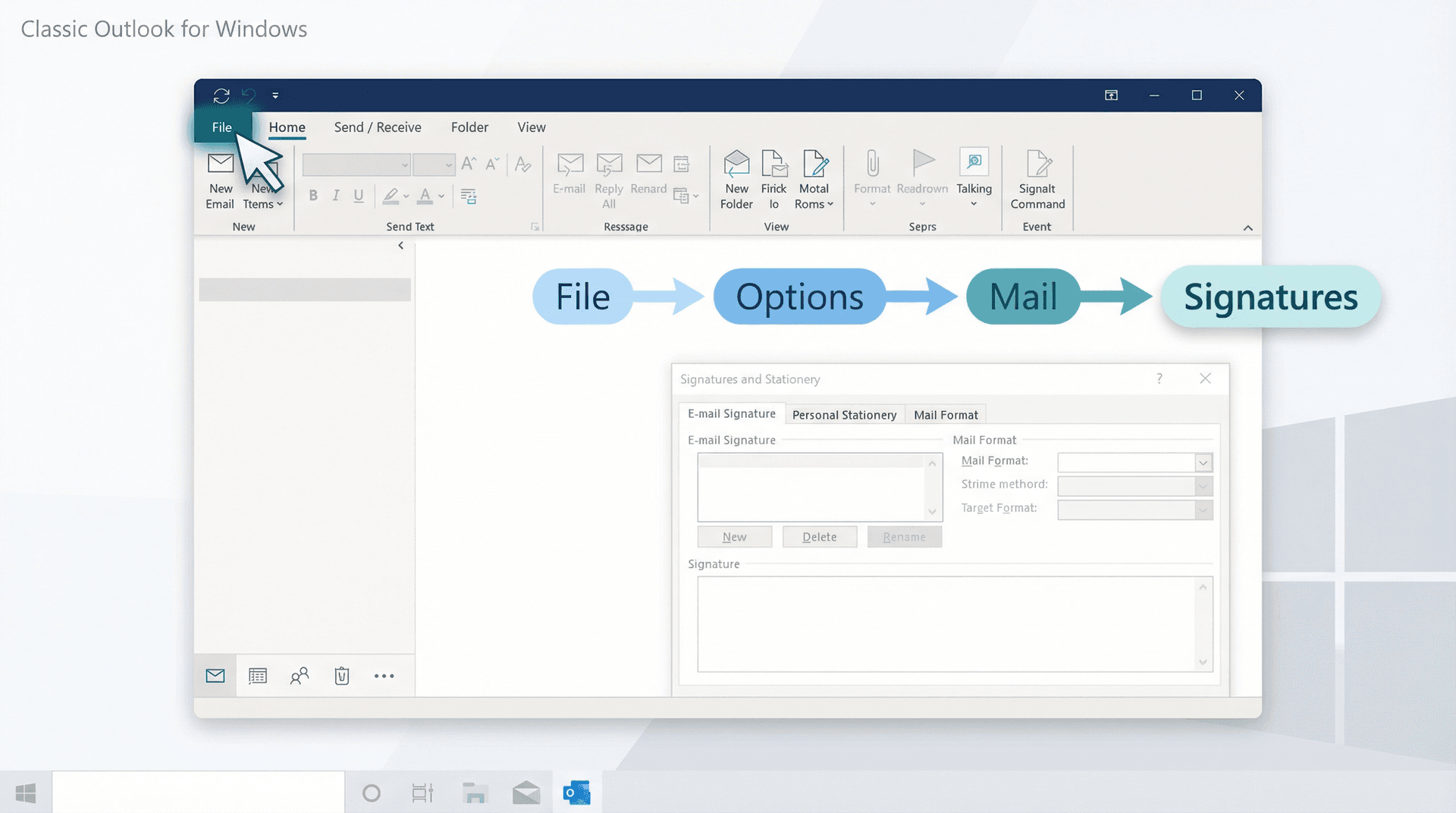
Use this section if you're on Windows and you see the File tab instead of a Settings gear.
-
Go to File > Options > Mail > Signatures.
-
Select the signature you want to edit.
-
Make your changes in the Edit signature box.
-
Click Save, then OK.
-
Under Choose default signature, set which signature should be used for:
-
New messages
-
Replies/forwards
-
Each individual email account (if you use more than one)
-
You can also switch signatures on the fly by opening a draft and going to Message > Signature.
Watch out for this: Classic Outlook will not automatically add a newly created signature to a message you already had open. You have to insert it manually into that existing draft, or just start a new email. Also, the Signature button can appear in different locations depending on your window size and whether you're replying in the reading pane.
If you're encountering other unexpected behavior in classic Outlook, our guide on Outlook rules not working covers similar version-specific quirks.
How to Update Your Signature in Outlook on the Web (and Outlook.com)
If you access Outlook through a browser, the steps are straightforward:
-
Click Settings (the gear icon).
-
Go to Accounts > Signatures.
-
Click Add signature or select an existing signature to edit.
-
Update the text and formatting.
-
Choose whether it should appear on new messages and on replies/forwards.
-
Click Save.
To insert a signature manually while composing, go to Message > Signature and pick the one you want. Microsoft notes that the steps for new Outlook on Windows and Outlook on the web are identical, so if you know one, you know the other.
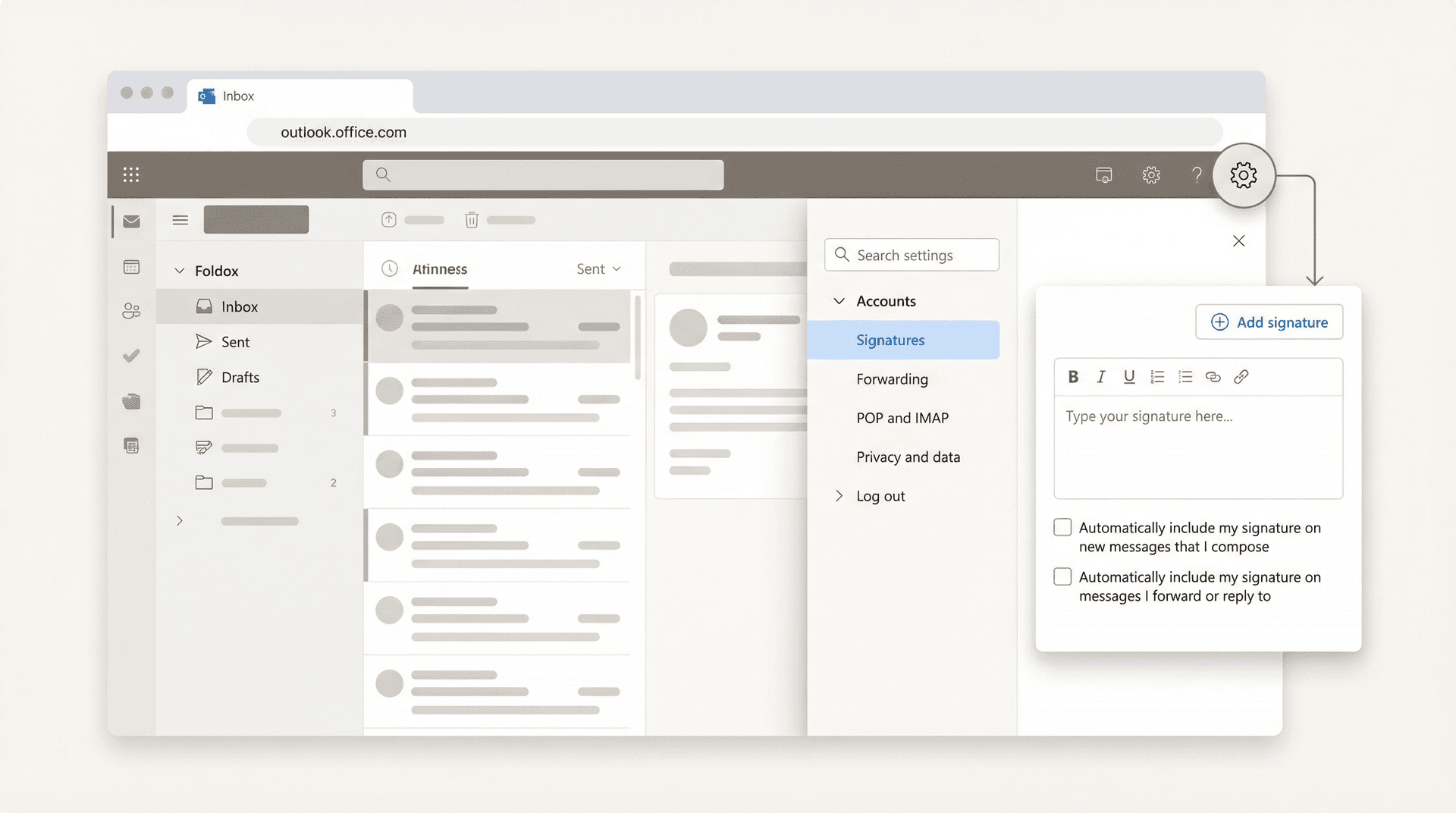
One thing to watch out for: Microsoft still maintains a separate support page for Outlook on the web that shows the older navigation path: Settings > Mail > Compose and reply. So if you can't find Accounts > Signatures, try that older path instead. This is exactly why so many generic Outlook signature tutorials feel wrong. Microsoft's own documentation doesn't always point to the same place.
How to Update Your Signature in Outlook for Mac
On Mac, the path is clean and consistent:
-
Open Outlook.
-
In the menu bar, click Outlook > Settings.
-
Under Email, click Signatures.
-
Select the signature you want to change and click Edit.
-
Update the content and click Save.
-
In the same Signatures area, choose the default signature for:
-
New messages
-
Replies/forwards
-
Each email account
-
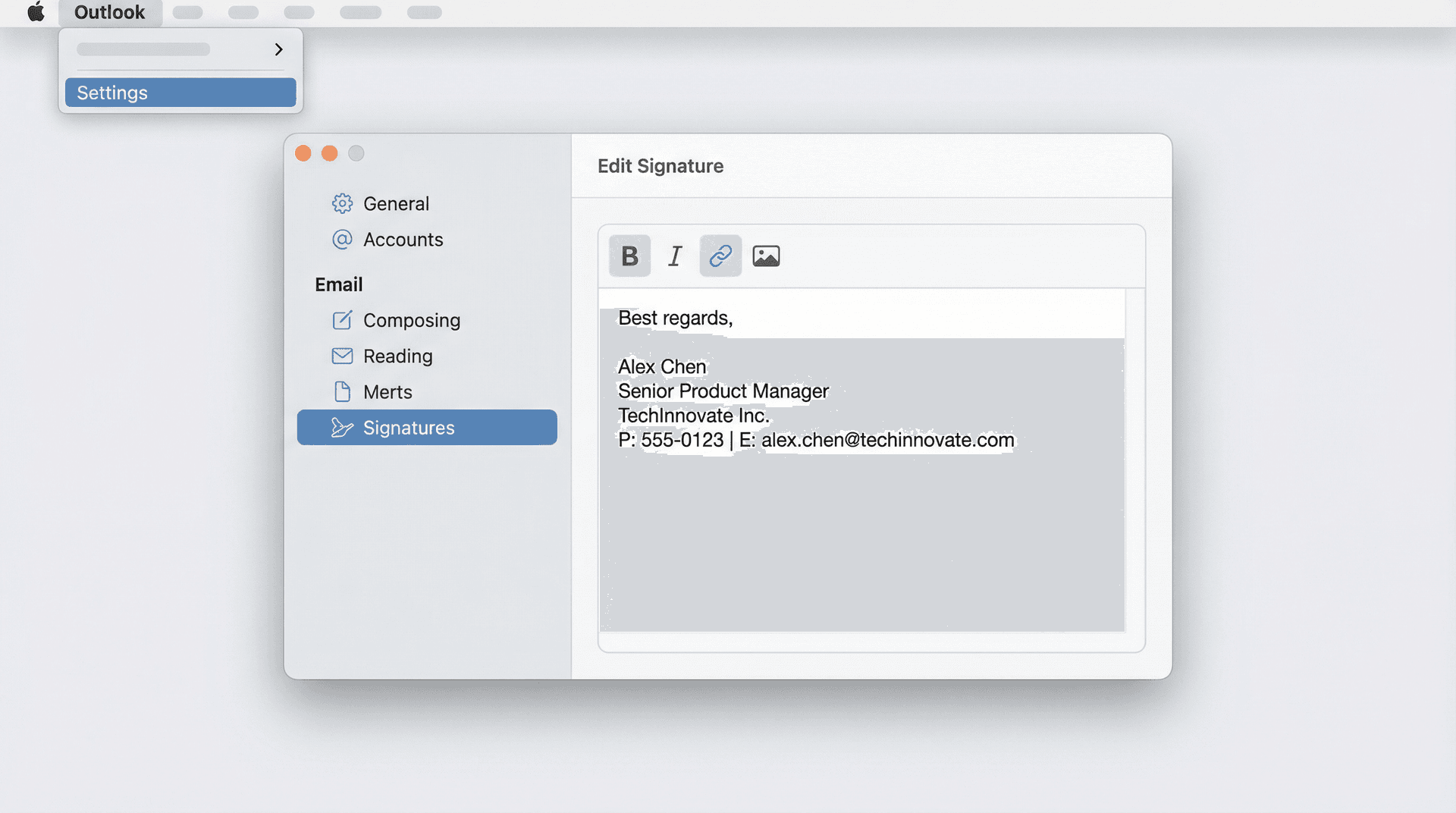
Microsoft's Mac support page also confirms that the Mac signature editor handles formatting, pictures, links, and tables. If your interface looks different from what's described here, you may be on legacy Outlook for Mac, which has its own set of instructions on the same page. You can always insert a signature manually from the Ribbon while composing a message or calendar invite.
If you're looking to improve other aspects of email management beyond the signature, our post on best email management apps covers the tools that work best with Mac and Outlook.
How to Update Your Outlook Signature on iPhone or Android
Mobile signatures in Outlook are simpler, but they're also totally separate from your desktop settings.
→ Open Outlook.
→ Tap Settings (the gear icon).
→ Under Mail, tap Signature.
→ Edit your signature text.
→ If you want different signatures for different accounts, turn on Per Account Signature and edit each one individually.
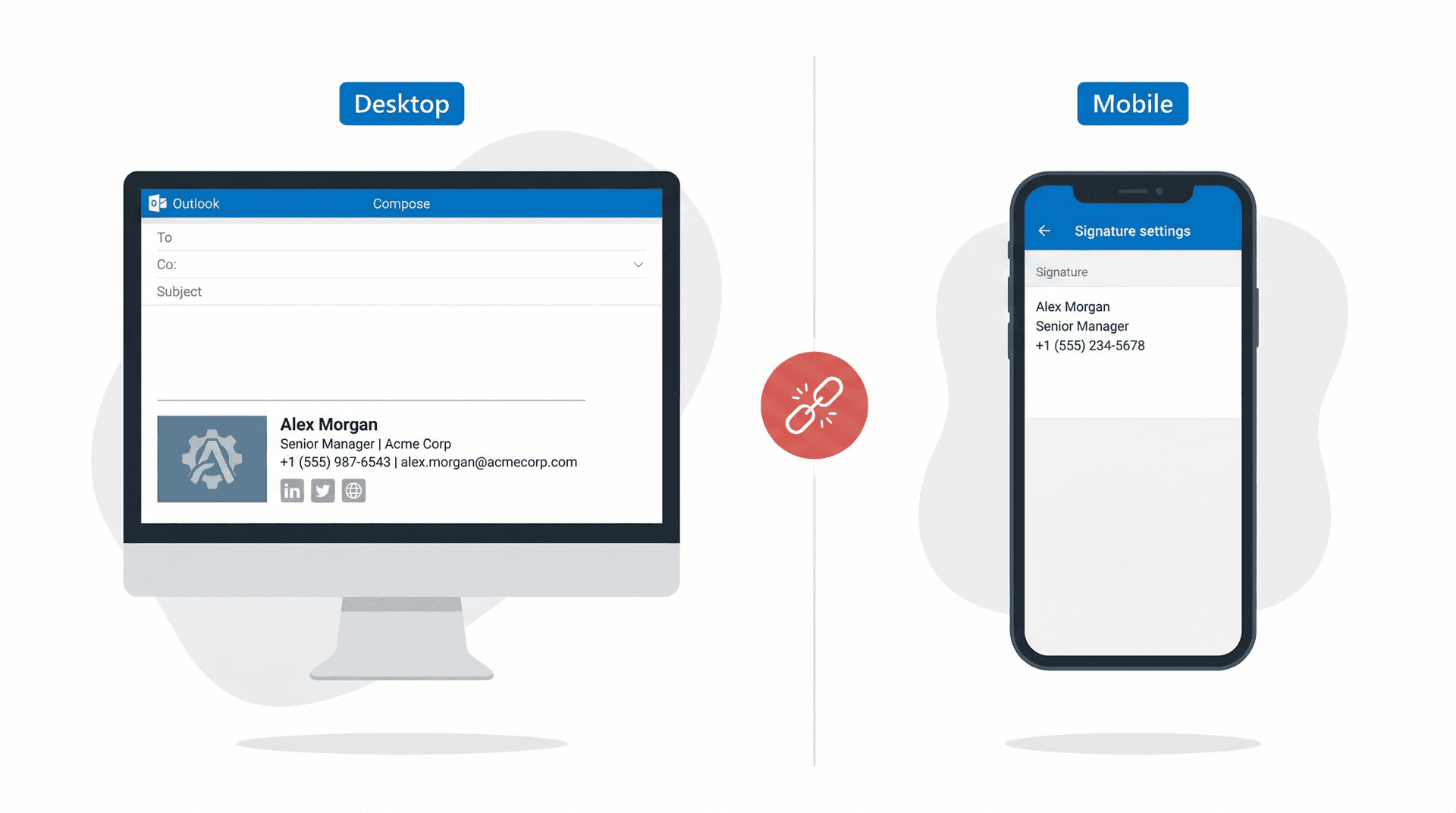
That's it. Microsoft's mobile documentation supports either one signature for all accounts or separate per-account signatures, but the mobile editor doesn't have the same rich formatting options you get on desktop or web.
Keep your mobile signature lean: name, title, phone number. Skip the banner image and five social icons. For a broader look at how Gmail compares to Outlook on mobile and desktop, that comparison breaks down the key differences across both platforms.
Why Your Outlook Signature Won't Sync Across Devices
Most people change their signature in one place and assume the job is done.
That assumption will burn you.
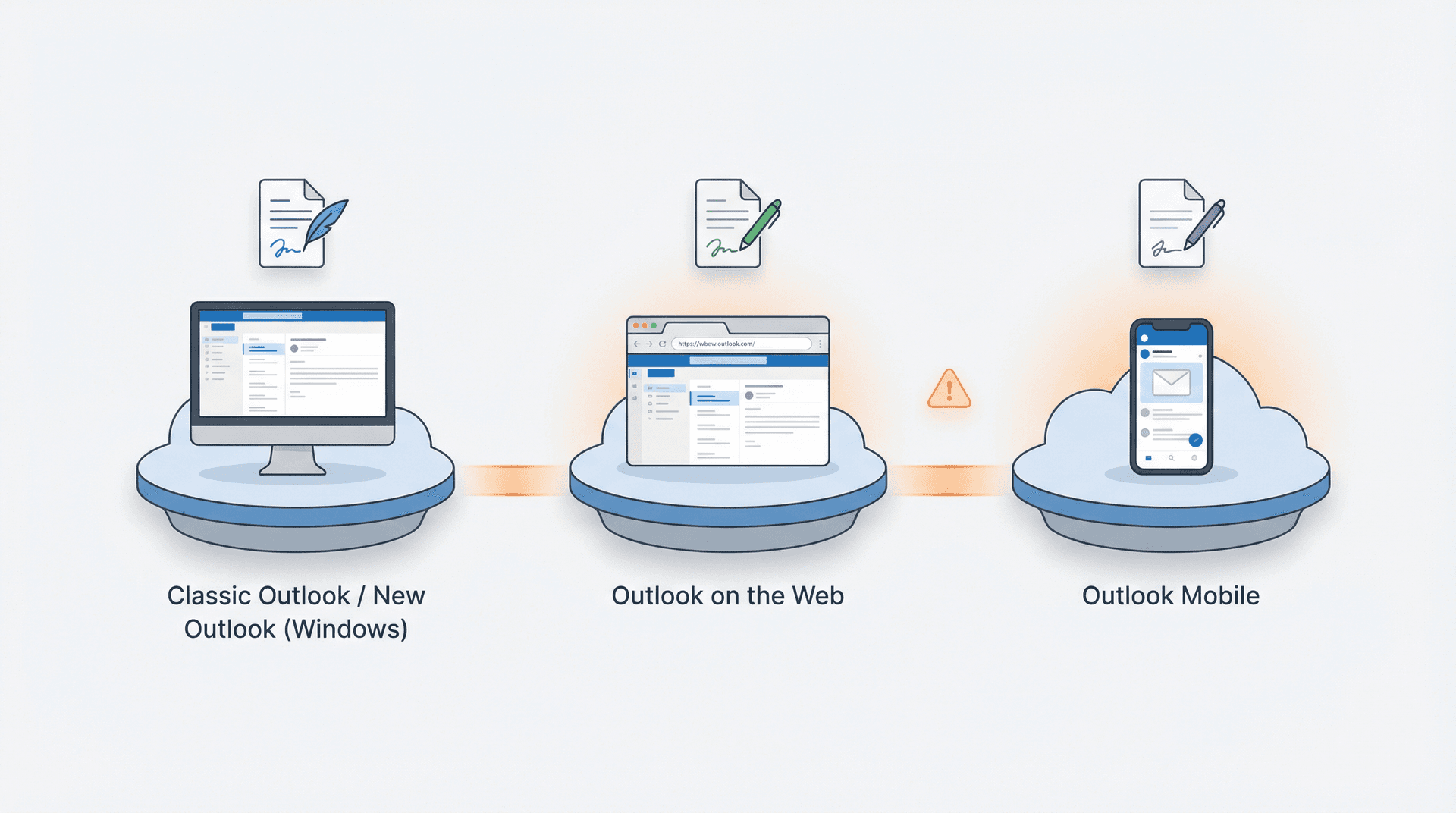
Microsoft's own documentation splits signature setup by app because Outlook on Windows, Outlook on the web, Outlook.com, Mac, and mobile do not all behave the same way. Classic Outlook added roaming signatures in Version 2303 and higher, and Microsoft fixed a signature sync issue between Outlook Desktop and Outlook Web App in the November 12, 2024 public updates.
But Microsoft's main signature article still warns that some users may need to create a signature in both the desktop app and the web app separately.
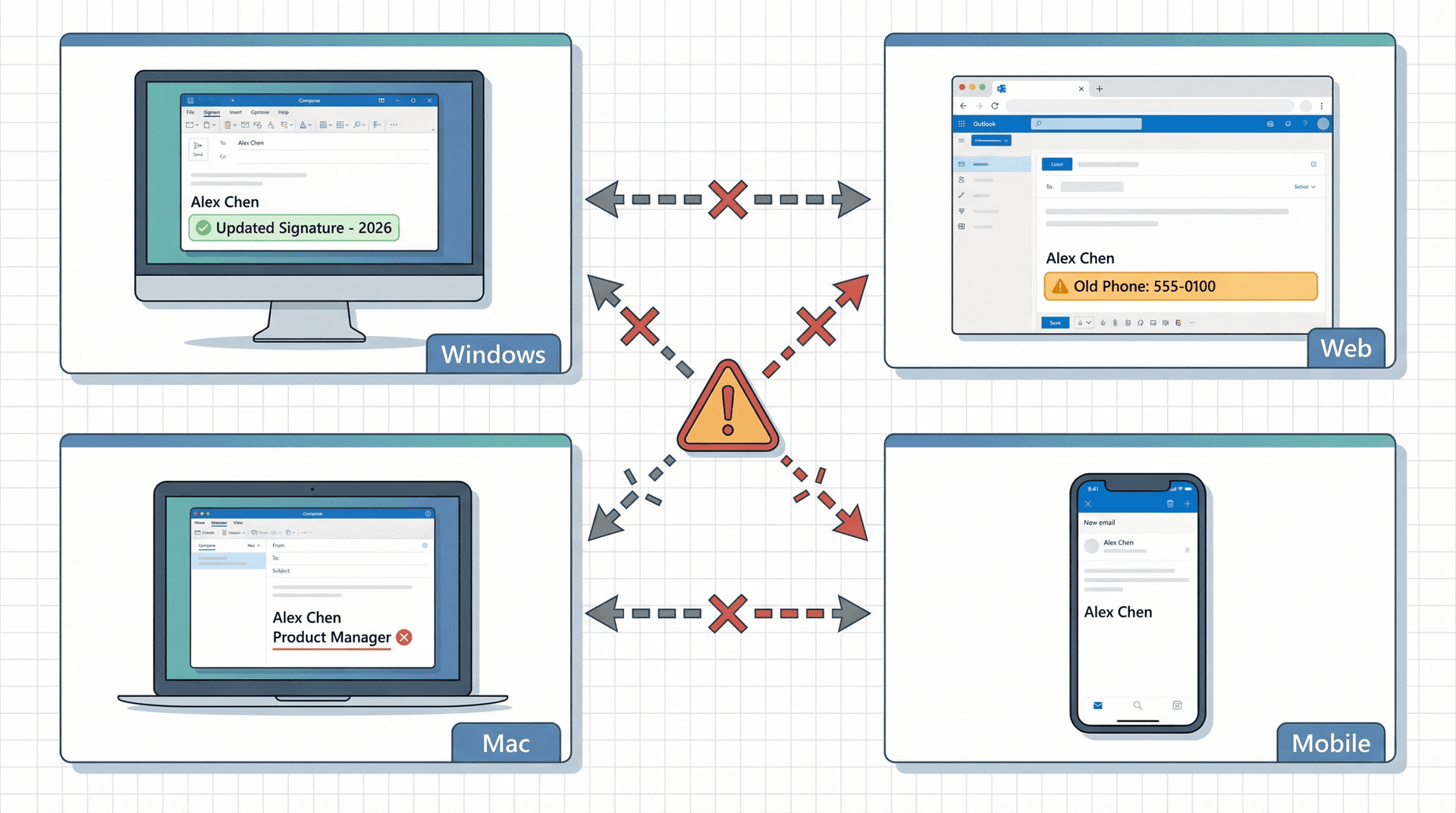
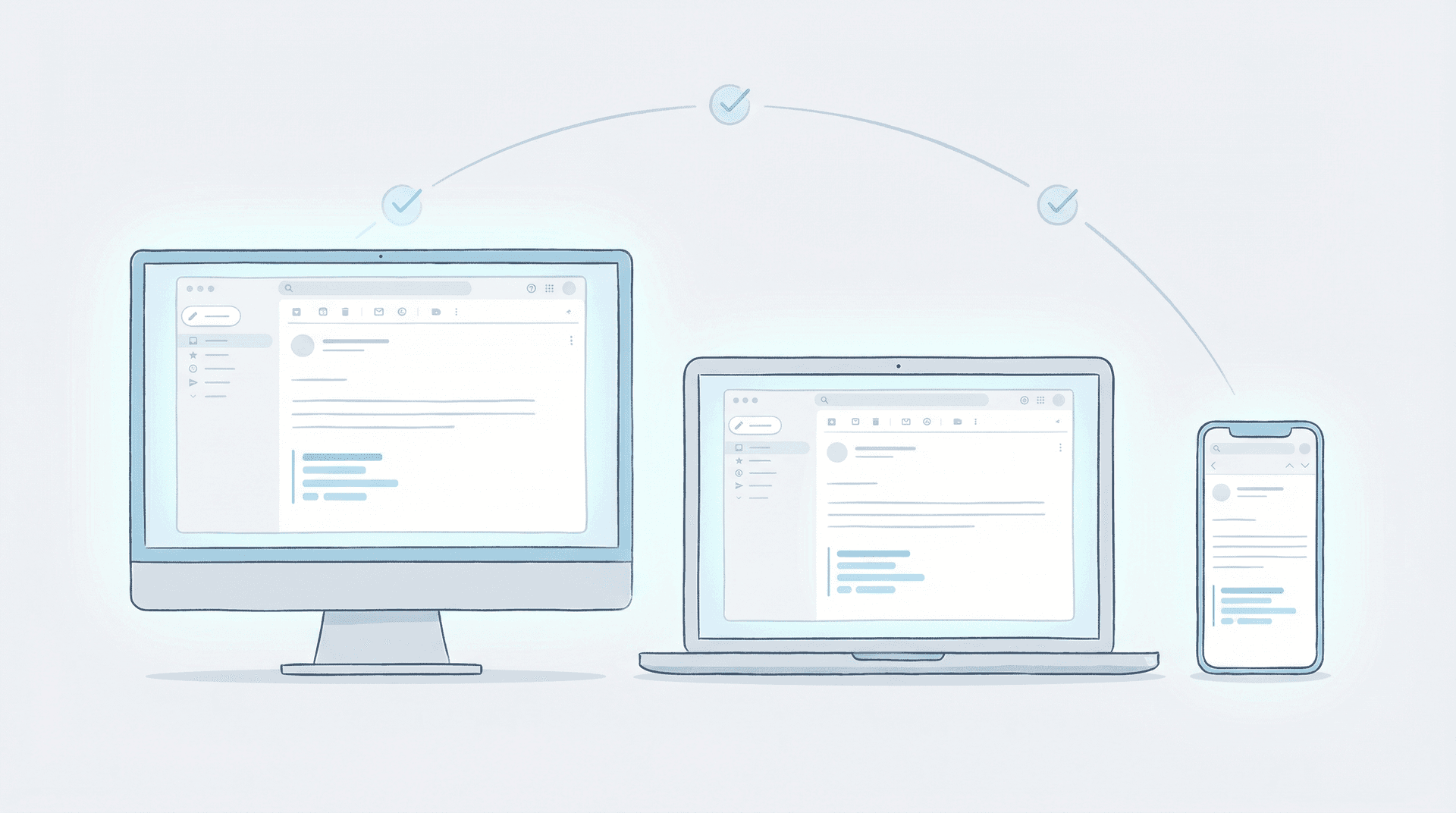
The practical takeaway: don't trust sync blindly. Update the signature in every Outlook app you actually send from, then verify each one. It takes 90 seconds and saves you from discovering next month that half your replies still show your old phone number. This kind of fragmented experience is exactly why many Outlook users eventually look for better email management strategies that work across all their devices and accounts.
How to Set Up Two Different Signatures in Outlook
This is optional, but it makes your email threads significantly cleaner.
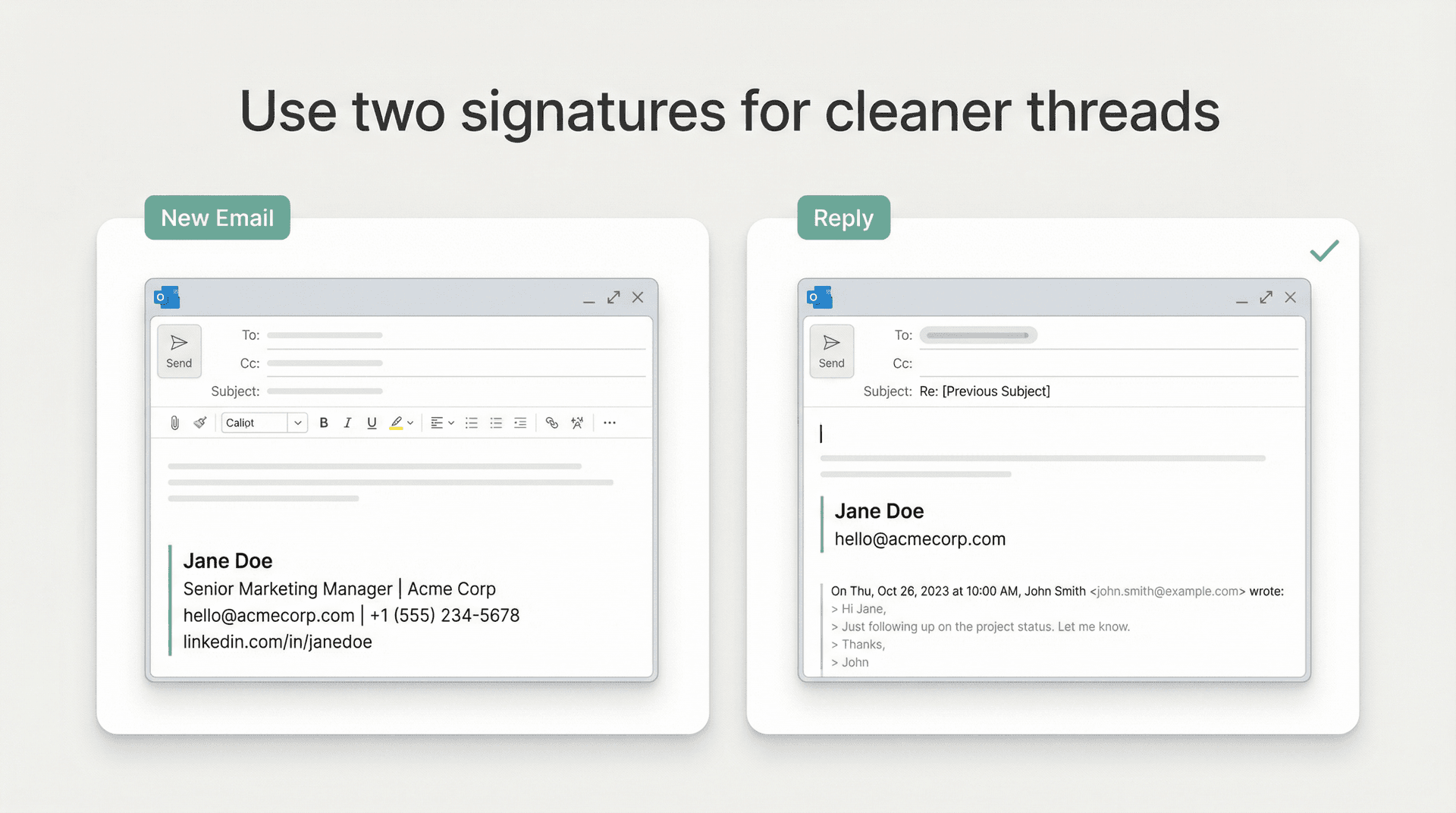
Set up:
-
One full signature for brand-new emails (name, role, company, contact details, one useful link)
-
One short signature for replies and forwards (just your name and one line of contact info)
Every version of Outlook (new, classic, web, Mac) lets you assign different default signatures for new messages versus replies. Use that feature. Nobody needs to see your full contact block, logo, and LinkedIn URL repeated twelve times in a thread.
If you want more practical email management tips like this one, that guide covers the habits that actually improve inbox productivity.
How to Test Your Updated Outlook Signature
After you change your signature, spend 90 seconds testing it. You'll thank yourself later.
① Open a brand-new email and confirm the signature appears automatically.
② Open a reply and make sure the reply signature shows up (especially if you set different signatures for new vs. reply).
③ If you use multiple accounts, send a test from each account.
④ If you use multiple devices, check from each device you actually send from (desktop, web, phone).
⑤ If your signature includes a logo or image, send one test email to a non-Microsoft address (like Gmail) to make sure the image renders correctly outside Outlook.
That quick test beats finding out next week that clients have been seeing your old title for days. It's the same principle that applies to any email inbox management routine: verify once, trust permanently.
How to Create a Professional Email Signature in Outlook
If you've ever tried building a signature directly in Outlook's editor, you know the formatting can be... unpredictable. Colors shift, spacing breaks, and what looked perfect in the editor looks completely different in someone else's inbox.
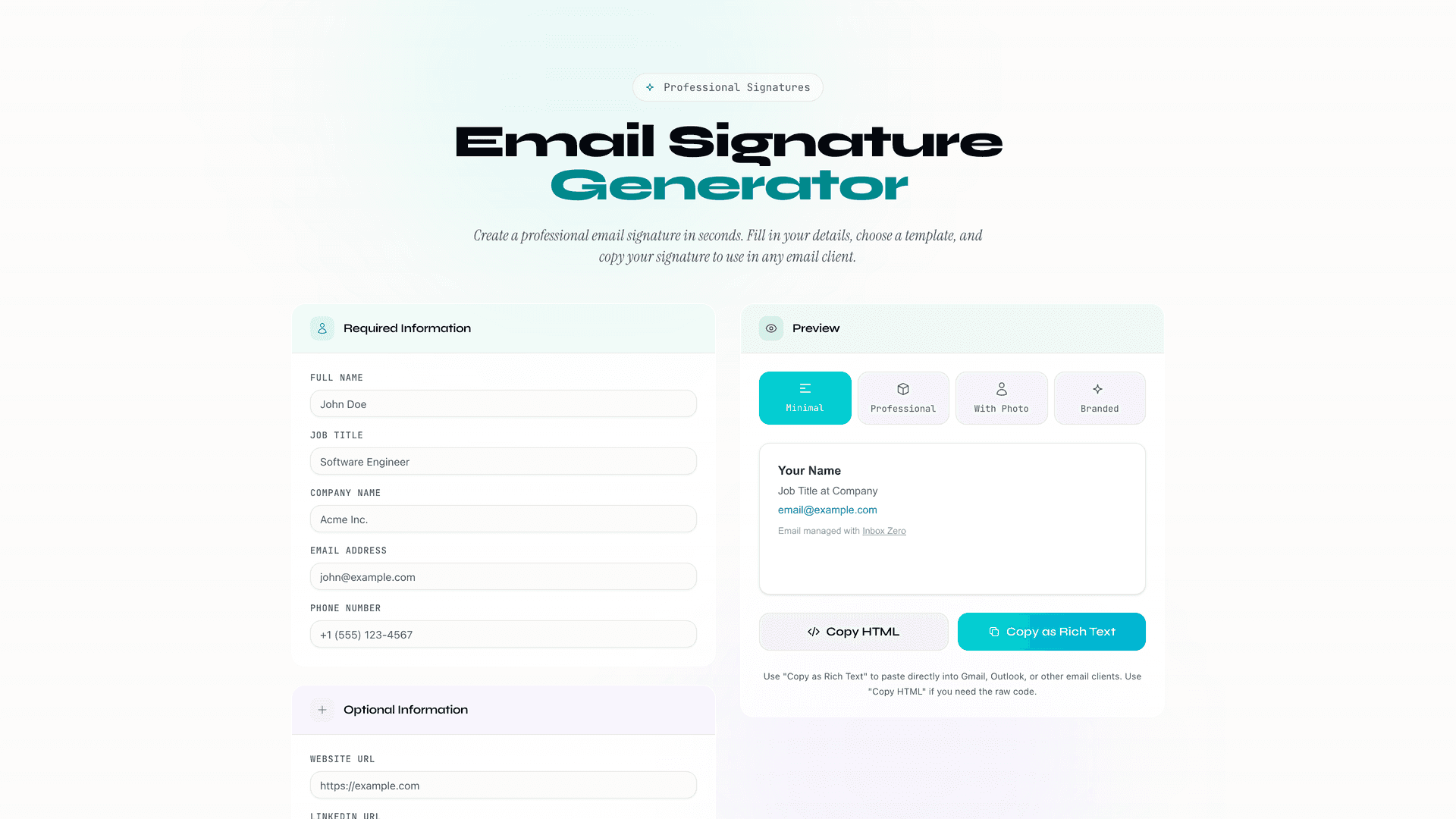
We built a free Email Signature Generator at Inbox Zero specifically to solve this. You fill in your details, choose a clean template, and copy the result as rich text (paste straight into Outlook) or as raw HTML if you need more control.
It takes about 30 seconds. No account required. No fighting with Outlook's formatting quirks.
If your goal is "I just want a professional signature in Outlook without spending 20 minutes nudging pixels," give it a try.
Outlook Signature Not Updating? 6 Fixes to Try
If you've followed the steps above and your signature still isn't working, one of these six issues is almost certainly the cause.
Fix 1: You're Editing the Wrong Outlook Version
This is the number one reason tutorials don't work. If the guide you followed says File > Options but your app only has a gear icon, you're in new Outlook, not classic. If the guide says Accounts > Signatures but your app has a File tab, you're in classic. Check your version first, then follow the matching steps.
Fix 2: The Signature Exists, but It's Not Set as Default
This one is incredibly common. You've created the signature, but you never told Outlook to actually use it.
-
In new Outlook and Outlook on the web, you choose whether the signature applies to new messages and replies/forwards inside the signature settings themselves.
-
In classic Outlook and Outlook for Mac, you set separate defaults for New messages and Replies/forwards.
-
On mobile, you edit the signature text directly, and optionally toggle Per Account Signature.
If you skip the default step, your signature is saved but never actually inserted into outgoing emails.
Fix 3: Your Desktop and Web Signatures Don't Match
This is where people start thinking Outlook is broken. Classic Outlook introduced roaming signatures in Version 2303+, and Microsoft pushed a fix for desktop-to-web sync in the November 12, 2024 public updates. But Microsoft's own signature article still acknowledges that some users need to set up signatures separately in the desktop app and the web app.
If they don't match, stop assuming sync is working and update each one directly.
Fix 4: Outlook Mobile Still Shows the Old Signature
Mobile has its own isolated settings. Go to Settings > Signature in the Outlook app on your phone, edit it there, and if you have more than one account, turn on Per Account Signature to check each account individually.
Fix 5: Classic Outlook Formatting Looks Broken After an Update
Microsoft documented two signature-related bugs in classic Outlook in early 2026:
-
A table border bug that affected some signatures after updating to Version 2512
-
A "This is not a valid style name" error that appeared with certain signatures, especially when Outlook was using Rich Text formatting
Microsoft marked both as fixed, but also noted that corrupted signatures may need to be deleted and recreated. If your classic Outlook signature suddenly looks mangled after an update, do three things in order: restart Outlook, make sure Office is fully updated, and if it's still broken, recreate the signature from scratch.
Fix 6: Your Company Signature Keeps Changing Back
If you're on a work account, your IT team may be applying organization-wide signatures or disclaimers through Exchange mail flow rules in Microsoft 365. When that's active, your local signature can get duplicated, appended to, or visually overridden by the company footer.
If your edits keep "reverting," check with IT about whether a centralized Exchange signature rule is in place. There's nothing wrong with your Outlook settings in this case. The override is happening at the server level.
For organizations managing email at scale, there's also the broader challenge of shared mailbox management best practices, which is especially relevant when signature consistency matters across a whole team or department.
Outlook Signature Template You Can Copy and Paste
Most people make their signatures way too busy. A clean, minimal signature is almost always more professional.
For new emails:
Your Name
Job Title | Company Name
Phone Number | Email Address
Website or LinkedIn URL
For replies and forwards:
Your Name
Company Name
Phone Number
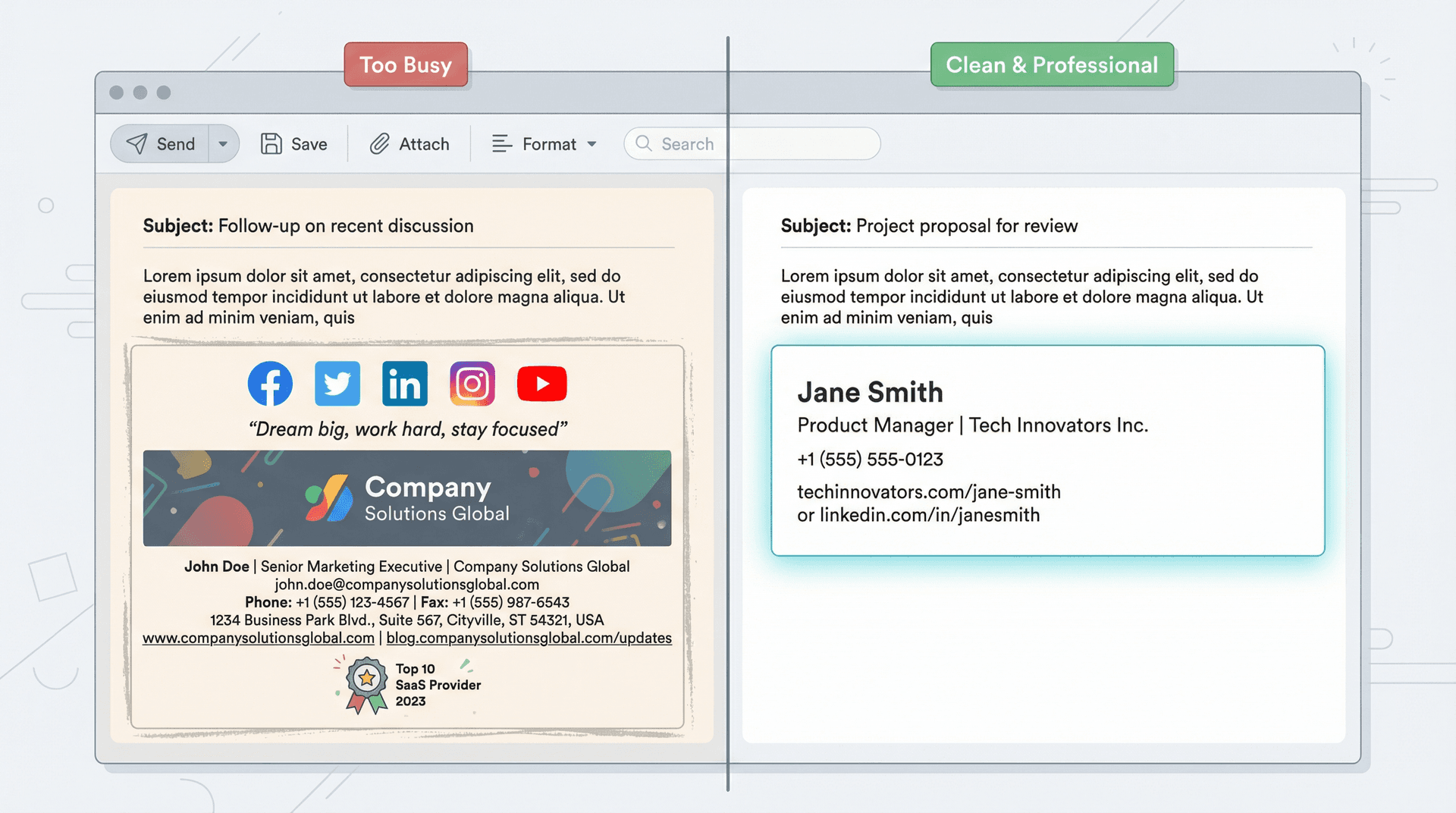
That's usually enough. You don't need five social media icons, a motivational quote, and a giant banner image unless you have a very specific branding reason. The same minimalism principle applies to your overall email productivity approach: less clutter leads to faster decisions.
And if you'd rather not build it manually, our free Email Signature Generator at Inbox Zero lets you create a polished, properly formatted signature you can paste right into any version of Outlook.
How to Fix Your Entire Outlook Email Workflow
Updating a signature is a two-minute task. The inbox itself? That's the real time drain.
Studies show that the average professional wastes 30 to 60 minutes every day on email, and most of that time is spent on low-value tasks that could be automated or eliminated. If you use Outlook and want a cleaner email workflow, we've put together a practical guide on how to organize your Outlook inbox that covers the setup most people miss.
Inbox Zero is an AI email assistant that works alongside Outlook (not as a replacement) to help organize emails, draft replies, block cold outreach, and clean up subscriptions automatically. The AI automation handles repetitive inbox tasks so you can focus on emails that actually need your attention.

Want to stop email overload from building up? The bulk email unsubscriber can clear out newsletter clutter in minutes, and the cold email blocker stops unsolicited outreach before it hits your inbox.
It's the difference between fixing one signature and fixing your entire email workflow. Try Inbox Zero for free and see if it saves you the 30 to 60 minutes a day most Outlook users waste on inbox management.
Common Outlook Signature Questions Answered
How do I change my signature in Outlook 365?
It depends on which Outlook app you're using. In new Outlook and Outlook on the web, go to Settings > Accounts > Signatures. In classic Outlook for Windows, go to File > Options > Mail > Signatures. On Mac, go to Outlook > Settings > Signatures. On iPhone or Android, go to Settings > Signature. Microsoft's signature documentation covers all of these paths.
Why can't I find the signature settings in Outlook?
Usually because you're following instructions for the wrong Outlook version. Microsoft recommends checking whether you see the Settings button (new Outlook) or the File tab (classic Outlook) on Windows. On the web, some Microsoft documentation still shows the older path Settings > Mail > Compose and reply, so try that if Accounts > Signatures isn't visible. If you're managing multiple accounts or dealing with unsubscribing from emails in Outlook, those guides also walk through Outlook-specific navigation paths.
Can I use one signature for new emails and another for replies?
Yes. New Outlook and Outlook on the web let you assign a signature separately for new messages and replies/forwards. Classic Outlook and Outlook for Mac have separate dropdowns for New messages and Replies/forwards defaults. Microsoft supports this across all desktop and web versions. For related Outlook email habits, check out our guide on reply vs. reply all vs. forward, which covers when each option is appropriate and helps keep your threads clean.
Can I have a different signature for each email account?
Yes. Microsoft's documentation explicitly supports account-based signatures in new Outlook, classic Outlook, Mac, and mobile (using the Per Account Signature toggle). If you're managing several accounts and want better visibility into your reply obligations across all of them, Reply Zero from Inbox Zero tracks which threads need a response so nothing gets missed.
Why did my Outlook signature not update on my phone?
Because mobile has completely separate signature settings from desktop and web. In Outlook for iOS and Android, go to Settings > Signature and edit it there. If you use more than one account, turn on Per Account Signature to update each account individually. If you're also working on improving your overall email management habits for Outlook, that comprehensive guide covers workflow improvements that work across both desktop and mobile.


How to Recall an Email in Outlook (2026)
How to recall an email in Outlook step by step for new Outlook, classic Outlook, web, Mac, and mobile, plus when recall works and what to do when it doesn't.
2026-09-30T18:25:57.000Z

How to Stop AliExpress Emails (2026)
Stop AliExpress promotional emails: the unsubscribe link, notification settings in your AliExpress account, and what to do when the deals keep coming.
2026-09-30T18:25:57.000Z

How to Stop Amazon Emails (2026)
Stop Amazon marketing emails with the Communication Preferences Center, manage Amazon email subscriptions, and handle order emails you can't switch off.
2026-09-30T18:25:57.000Z

How to Stop Domino's Emails (2026)
Stop Domino's emails with Domino's official opt-out page, stop Domino's text offers, and know which rewards emails keep coming.
2026-09-30T18:25:57.000Z