Gmail Out of Office: Setup Guide + Templates (2026)
Set up Gmail out of office in 2 minutes. Get 15 copy-paste templates for every situation, plus the quirks Gmail's help page doesn't explain.

You're about to go on vacation, take parental leave, or just step away from work for a few days. And somewhere in your pre-departure scramble, you realize you need to set up that Gmail out of office reply so people aren't left wondering where you went.
Good news: it takes about two minutes. But there's a catch that trips most people up. Gmail's auto-reply (officially called the Vacation responder) only handles one piece of the puzzle. It tells people you're away. It doesn't block meetings on your calendar, route urgent emails to a backup, or help you deal with the 347 unread messages waiting when you get back. Those are separate problems with separate solutions, and this guide covers all of them.
We'll walk through the exact setup steps for desktop and mobile, give you 15 copy-paste templates for every situation, explain the quirks of how Gmail's auto-reply actually behaves, and show you advanced tricks like sending different replies to different people, forwarding urgent mail, and delegating your inbox to a coworker. Plus, we'll cover what to do when you return (arguably the hardest part). If you want to understand how to manage your inbox more broadly, we have a full guide for that too.
What's in this guide:
→ Desktop and mobile setup steps
→ 15 copy-paste templates for every situation
→ How Gmail's auto-reply actually behaves (the quirks matter)
→ Advanced setups: different replies, forwarding, delegation
→ Troubleshooting when it's not working
→ What to do when you return
How to Set Up Gmail Out of Office on Desktop
If you want the most control over your out-of-office setup, do it from a computer. Gmail's templates, filters, forwarding, and delegation settings are all managed from desktop Gmail.
Here's the current step-by-step:
-
Open Gmail.
-
Click Settings (the gear icon in the top right).
-
Click See all settings.
-
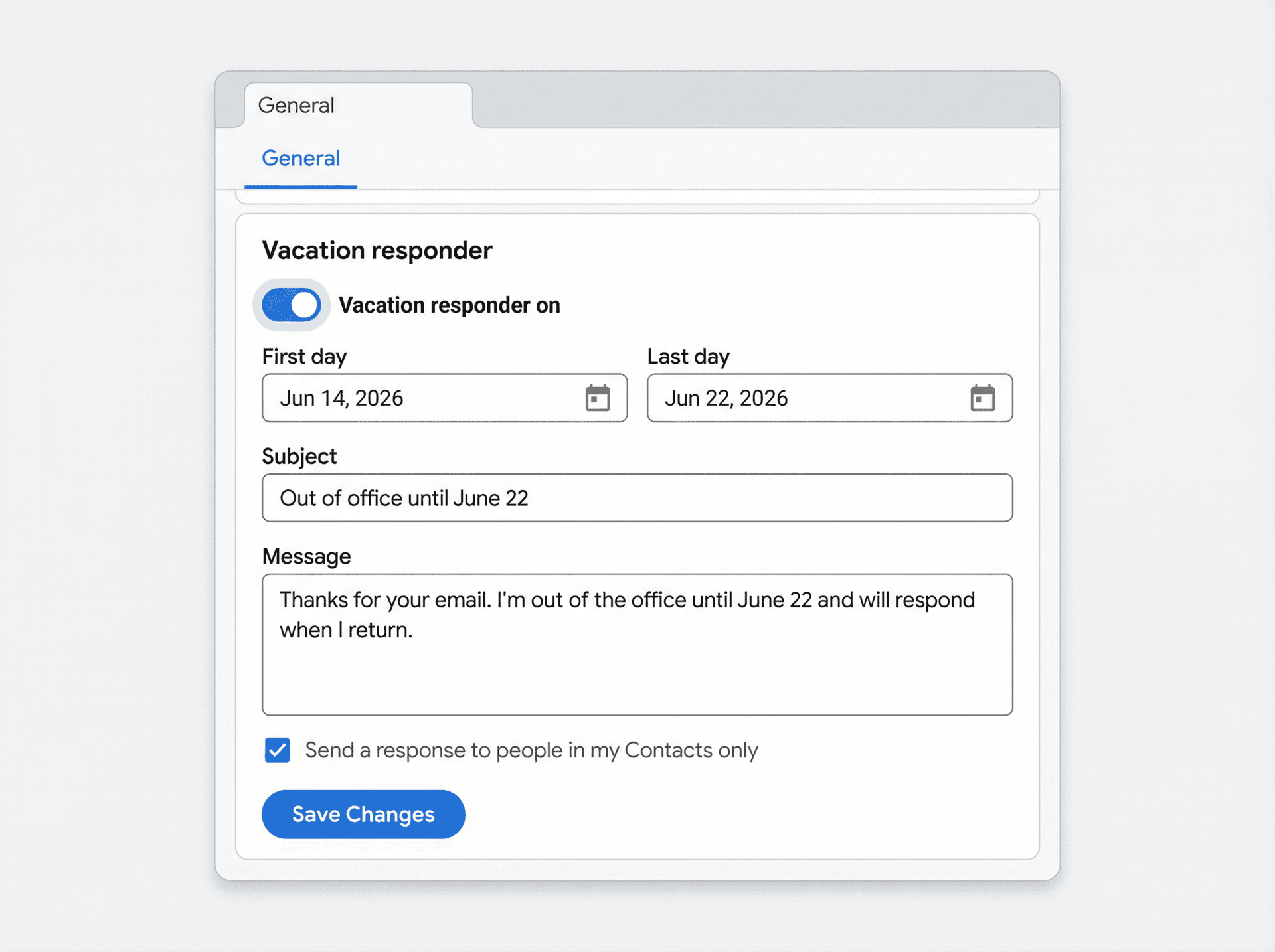
Under the General tab, scroll down to Vacation responder.
-
Toggle Vacation responder on.
-
Set your start date and end date.
-
Add a subject line and your message.
-
Optionally, check the box to send replies only to people in your Contacts.
-
Click Save Changes.
That's it. Your auto-reply is live.
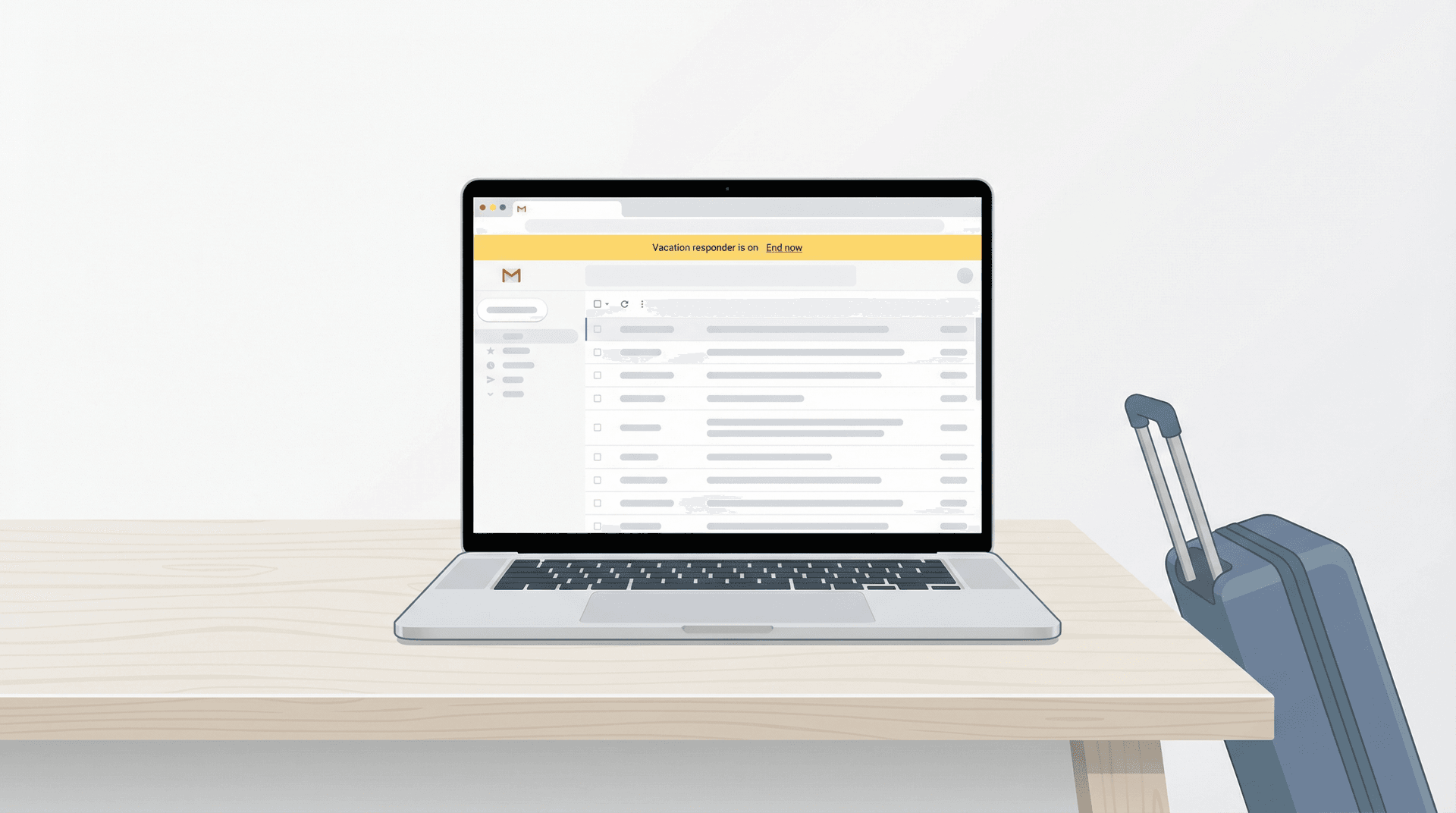
Two details worth knowing before you close that tab: if you have a Gmail signature, Google places it below your auto-reply text, not above it. And while the Vacation responder is active, Gmail displays a yellow banner at the top of your inbox with an End now button, so you can shut it off early if your plans change. Both of these details are confirmed in Google's official Vacation responder documentation.
How to Set Up Gmail Out of Office on iPhone, iPad, and Android
You can absolutely set this up from your phone, though you'll have slightly fewer options than on desktop.
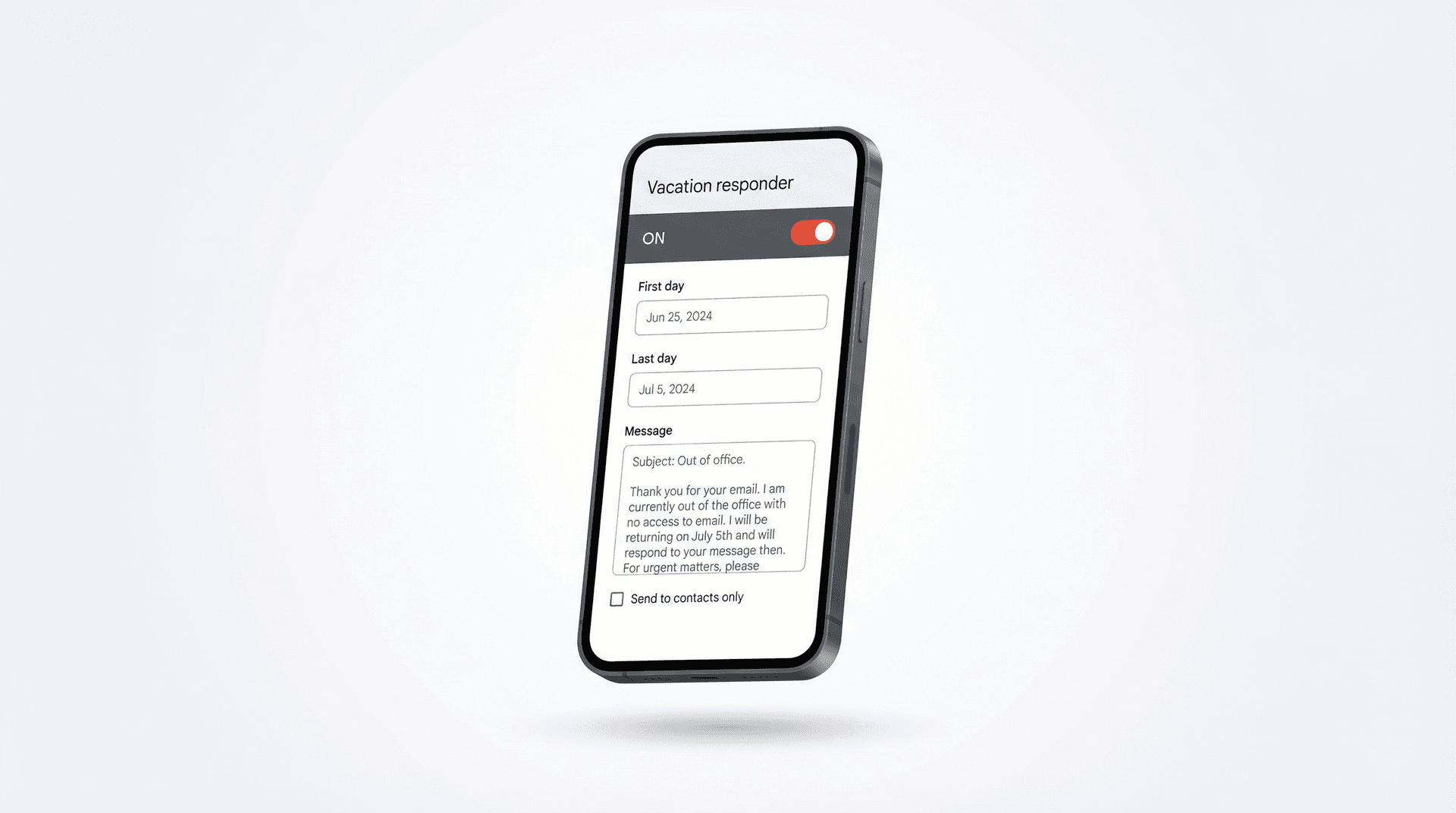
On iPhone or iPad: Open the Gmail app, tap Menu (the three lines), go to Settings, then Compose and Reply, and tap Vacation responder. Turn it on, fill in your date range, subject, and message. You can also choose to send replies only to your contacts. Tap Save when you're done. Full steps are in Google's iOS Vacation responder guide.
On Android: Open the Gmail app, tap Menu, go to Settings, choose your account, then tap Vacation responder. Switch it on, add your date range, subject, and message, optionally restrict it to contacts, and tap Done. Details in Google's Android setup guide.
The mobile setup covers the basics well. But if you need to configure templates, filters, forwarding, or delegation, you'll want to switch to a computer for those.
How Gmail Out of Office Auto-Reply Actually Works
Most setup guides gloss over this part, so here's what's actually happening under the hood.
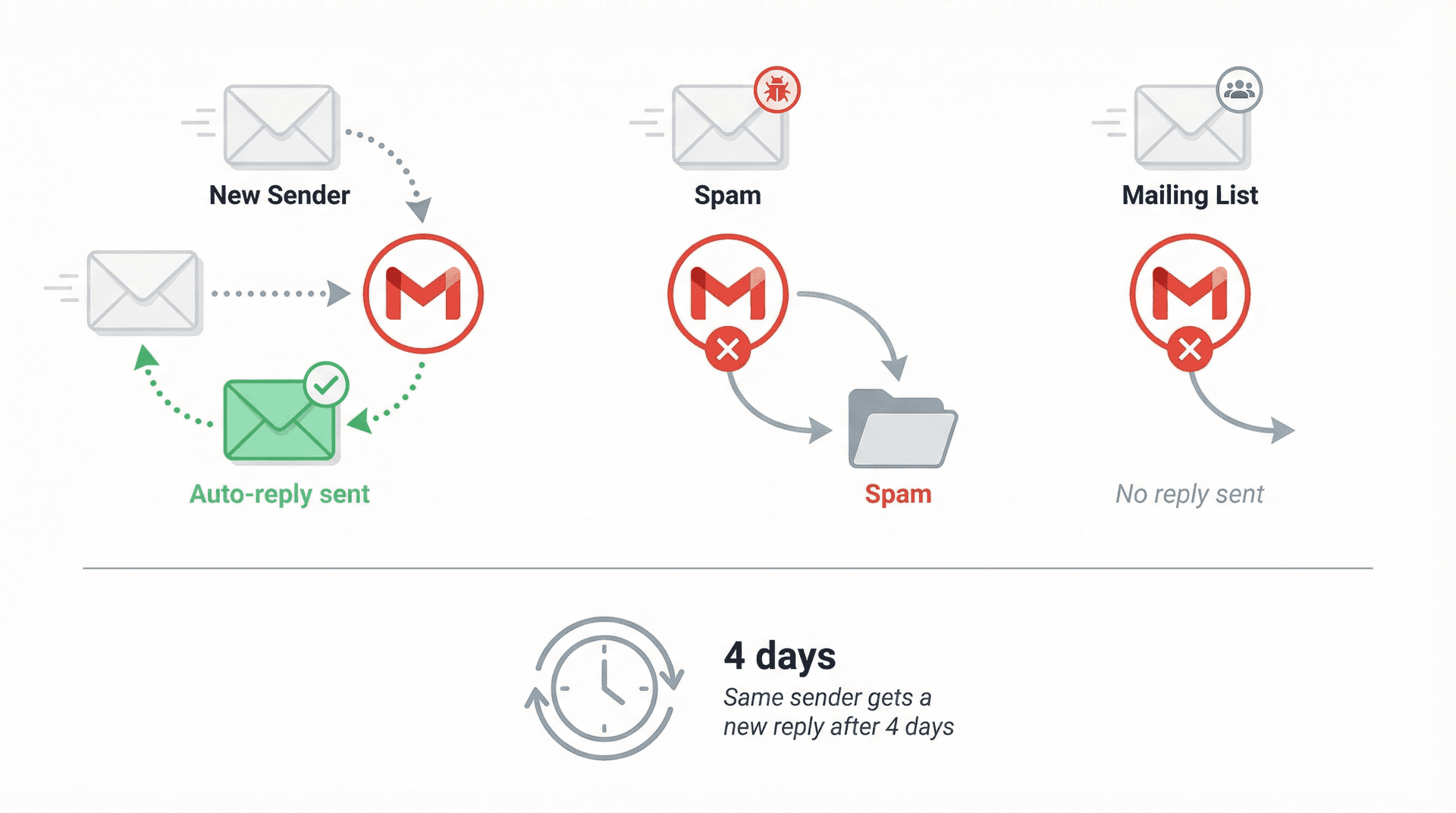
Your Gmail out of office auto-reply kicks in at 12:00 AM on your start date and stops at 11:59 PM on your end date (unless you manually turn it off earlier). When someone emails you, Gmail sends them your auto-reply the first time only. If that same person emails you again, they won't get another auto-reply unless one of two things happens: they email you again after four days while your responder is still on, or you edit the auto-reply text while it's active. These behaviors are documented in Google's Vacation responder help page.
There are also some emails that never get your auto-reply:
-
Messages flagged as Spam
-
Messages sent to mailing lists you subscribe to
And here's a useful trick most people miss: if you add a subject line to your Vacation responder, Gmail can send the auto-reply as a separate email rather than a reply inside the existing thread. That makes your out-of-office message harder to overlook.
All of this means your out-of-office reply should focus on reducing uncertainty. A good one answers four things fast:
-
Are you away? (Obviously yes.)
-
When are you back? (Specific date, not "next week.")
-
What should someone do if it's urgent? (A name and email.)
-
When will you actually respond? (Be honest about this.)
15 Gmail Out of Office Templates to Copy and Paste
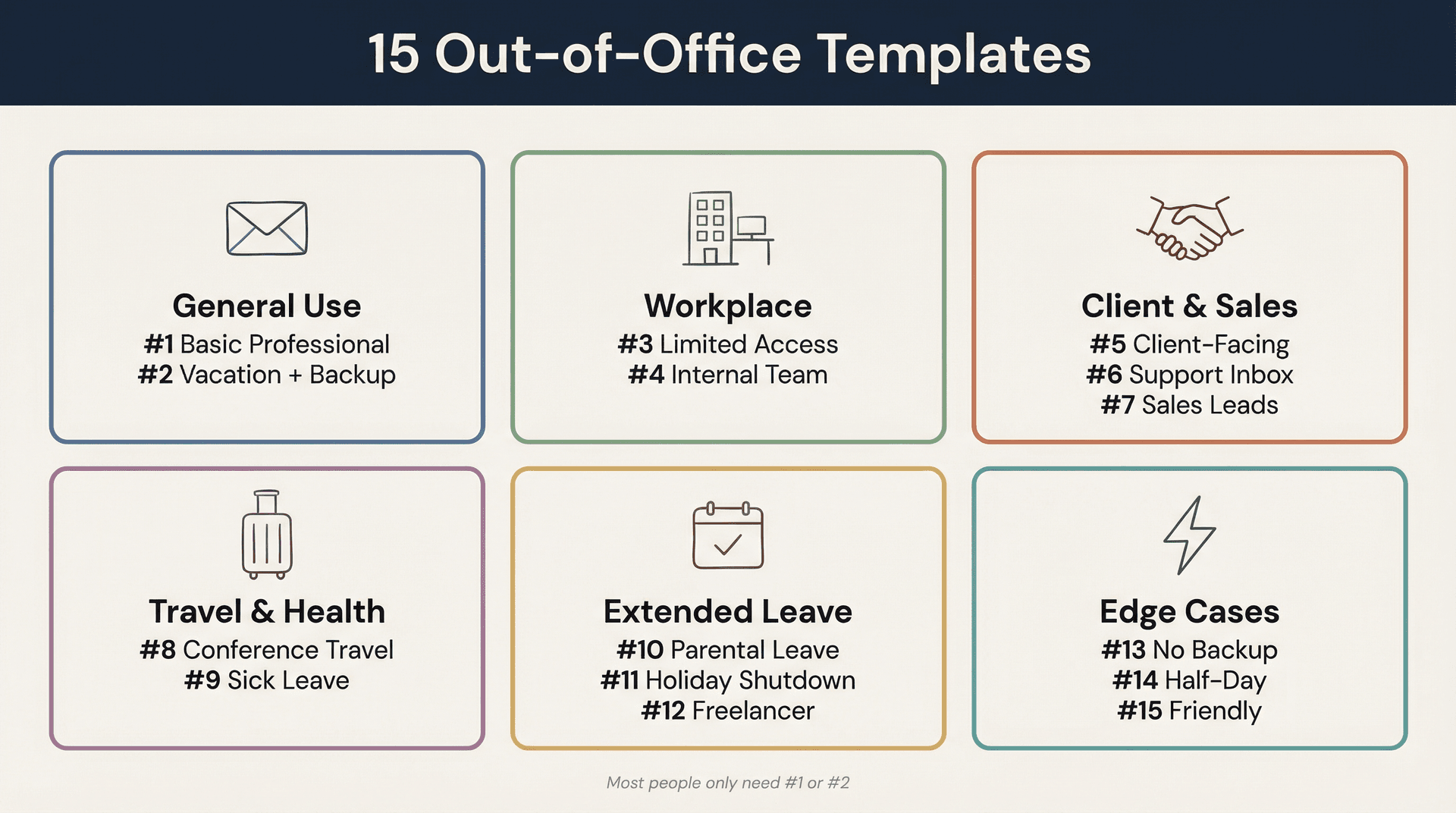
Before you pick a template, one practical note: if you want your auto-reply to land as its own email instead of buried inside an existing thread, add a subject line. Gmail also appends your signature if you've got one enabled, so keep the body clean.
The templates below cover the main scenarios you'll actually run into. Most people only need #1 or #2. The rest are there for the specific situations where a generic reply won't cut it.
1. Basic Professional
Subject: Out of office until [Date]

Hi,

Thanks for your email. I'm out of the office until [Day, Date] and will respond as soon as I can after I return.

If your message is urgent, please contact [Name] at [email].

Best,
[Your Name]
2. Vacation with Backup Contact
Subject: Out on vacation until [Date]

Hi,

Thanks for reaching out. I'm currently on vacation and will be back on [Day, Date].

I won't be checking email regularly while I'm away. For urgent matters, please contact [Name] at [email]. Otherwise, I'll get back to you after I return.

Best,
[Your Name]
3. Limited Access (Not Fully Offline)
Subject: Limited email access until [Date]

Hi,

Thanks for your email. I'm away from my desk through [Date] and will have limited access to email.

I may not respond right away, but I'll review your message as soon as possible. If this is time-sensitive, please contact [Name] at [email].

Best,
[Your Name]
4. Internal Team Version
Subject: OOO until [Date]

Hi team,

I'm out of the office until [Date] and will be slower than usual on email.

For anything urgent, please reach out to [Name] at [email] or message the team channel. I'll catch up when I'm back.

Thanks,
[Your Name]
5. Client-Facing Version
Subject: Out of office until [Date]

Hi,

Thanks for your message. I'm out of the office until [Date].

If you need immediate assistance, please contact [Backup Name] at [email] and they'll help you in the meantime. Otherwise, I'll reply as soon as possible after I return.

Best regards,
[Your Name]
6. Customer Support or Shared Inbox
Subject: We received your message

Hi,

Thanks for contacting us. I'm currently out of the office until [Date].

For the fastest help, please email [support@company.com] or contact [Name] at [email]. If your message can wait, I'll respond once I'm back.

Best,
[Your Name]
7. Sales and Lead Inquiries
Subject: Out of office until [Date]

Hi,

Thanks for reaching out. I'm away until [Date].

If you're contacting me about a new opportunity or time-sensitive request, please email [sales@company.com] or reach out to [Name] at [email]. I'll follow up after I return.

Best,
[Your Name]
8. Conference or Work Travel
Subject: Traveling through [Date]

Hi,

Thanks for your email. I'm traveling for [conference/event name] through [Date] and may be slow to respond.

If this is urgent, please contact [Name] at [email]. Otherwise, I'll get back to you after I'm back.

Best,
[Your Name]
9. Sick Leave
Subject: Out of office

Hi,

Thanks for your email. I'm currently out of the office and unavailable.

For urgent matters, please contact [Name] at [email]. I'll reply when I'm able.

Thank you,
[Your Name]
10. Parental Leave
Subject: On leave until [Date]

Hi,

Thanks for your message. I'm currently on leave and will return on [Date].

During this time, I won't be monitoring email. For assistance, please contact [Name] at [email].

Best,
[Your Name]
11. Company Holiday Shutdown
Subject: Office closed until [Date]

Hi,

Thanks for your email. Our office is closed for the holiday period and I'll be back on [Date].

If your matter is urgent, please contact [Name or team] at [email]. Otherwise, I'll respond after we reopen.

Warmly,
[Your Name]
12. Freelancer or Consultant
Subject: Away until [Date]

Hi,

Thanks for reaching out. I'm away until [Date] and won't be responding as quickly as usual.

If your matter is urgent, please include "URGENT" in the subject line or contact [Name] at [email]. I'll reply once I'm back online.

Best,
[Your Name]
13. No Backup Available
Subject: Out of office until [Date]

Hi,

Thanks for your email. I'm out of the office until [Date] and won't be available to respond during that time.

There isn't alternate coverage for my inbox while I'm away, but I'll get back to you as soon as possible after I return.

Best,
[Your Name]
14. Short Absence or Half-Day
Subject: Away from email today

Hi,

Thanks for your message. I'm away from email for the rest of today and will respond when I'm back on [Date or time].

If this is urgent, please contact [Name] at [email].

Best,
[Your Name]
15. Friendly But Professional
Subject: Out of office until [Date]

Hi,

Thanks for your email. I'm currently out of the office, probably away from my inbox and ideally away from notifications too.

I'll be back on [Date] and will reply after I return. If you need help sooner, please contact [Name] at [email].

Best,
[Your Name]
How to Write a Good Gmail Out-of-Office Message
Most bad auto-replies share the same problem: they're optimized for sounding polite instead of being useful. A polite but vague message ("I'm currently unavailable and will respond at my earliest convenience") leaves the sender guessing about timelines, urgency handling, and next steps. That creates more follow-up emails, not fewer.
A genuinely useful out-of-office reply does these five things:
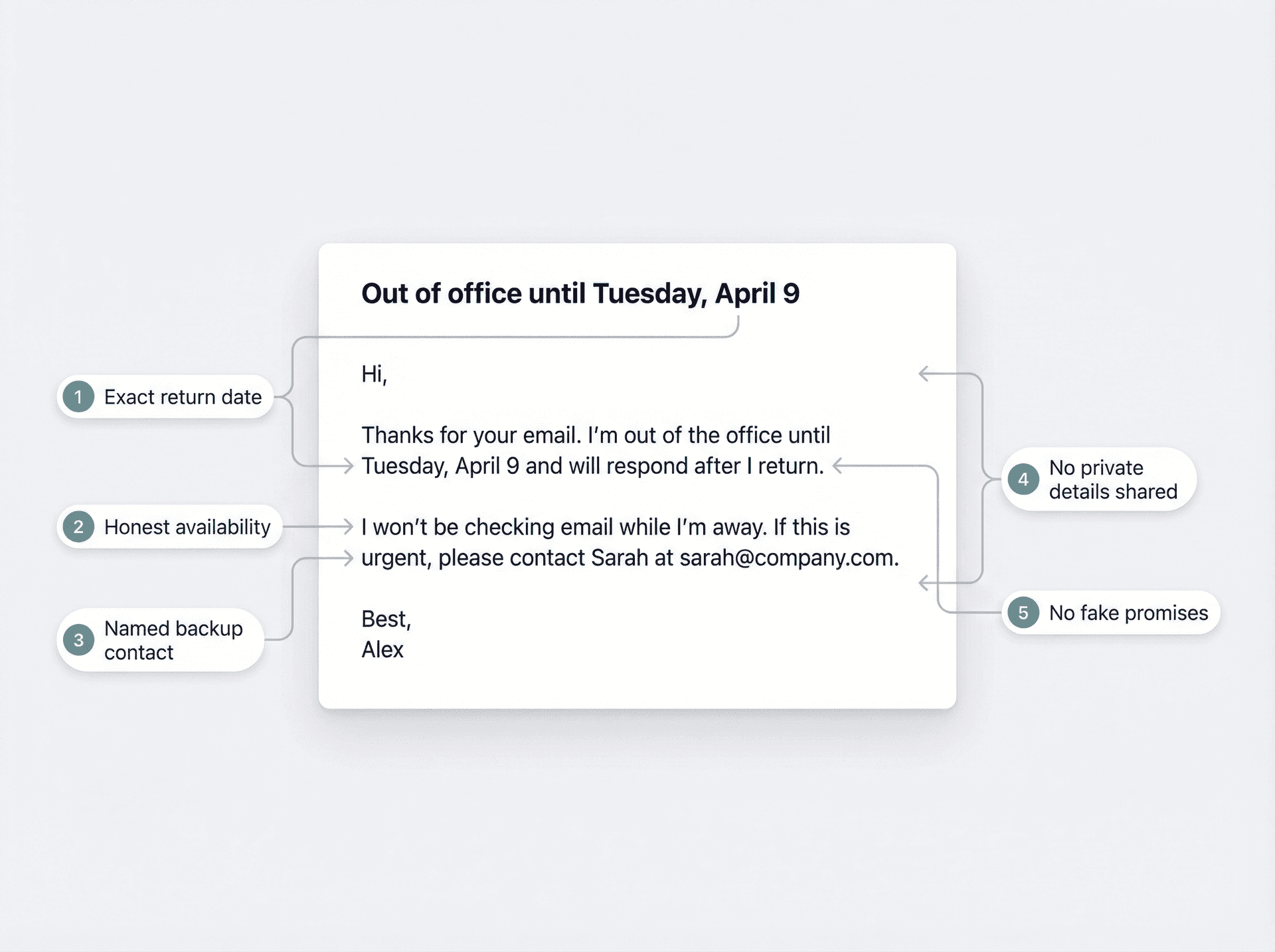
1. Gives an exact return date. "Back next week" creates uncertainty. "Back Tuesday, April 9" doesn't. Be specific. People can make their own decisions about whether to wait or escalate if they know the actual date.
2. Tells the truth about your availability. If you won't be checking email at all, say that. If you'll check intermittently, say "limited access" instead of "I'll respond soon." Mismatched expectations cause more problems than honest ones. If you want to protect your downtime more deliberately, our guide on how to stop email notifications at night has practical steps for setting real boundaries around after-hours email.
3. Routes urgency clearly. One specific backup contact (with their email) is infinitely better than "for urgent matters, contact the team." Which team? Which contact? Name a person. If you want to think through email response obligations more formally, our guide on email SLA best practices for support teams covers how to set realistic expectations across the board.
4. Protects your privacy. You don't need to tell strangers where you are, why you're away, or any personal details. "I'm out of the office" is plenty. Skip the "sunning myself in Bali" or "dealing with a medical issue" unless you genuinely want to share.
5. Avoids fake promises. Don't say "I'll respond within 24 hours of returning" unless you genuinely will. Coming back to 400 emails and immediately breaking your own promise is worse than setting realistic expectations upfront.
One more thing most people forget: if you name a backup person in your auto-reply, make sure that person agreed to be named. Otherwise your out-of-office reply becomes a small denial-of-service attack on your coworker's inbox.
How to Set Up Google Calendar Out of Office to Block Meetings
If your real problem isn't just email but also people dropping meetings onto your calendar while you're away, you'll want a Google Calendar Out of office event alongside your Vacation responder. According to Google's Calendar help documentation, Calendar will automatically decline meetings during that time, and you can make the event repeat if needed.
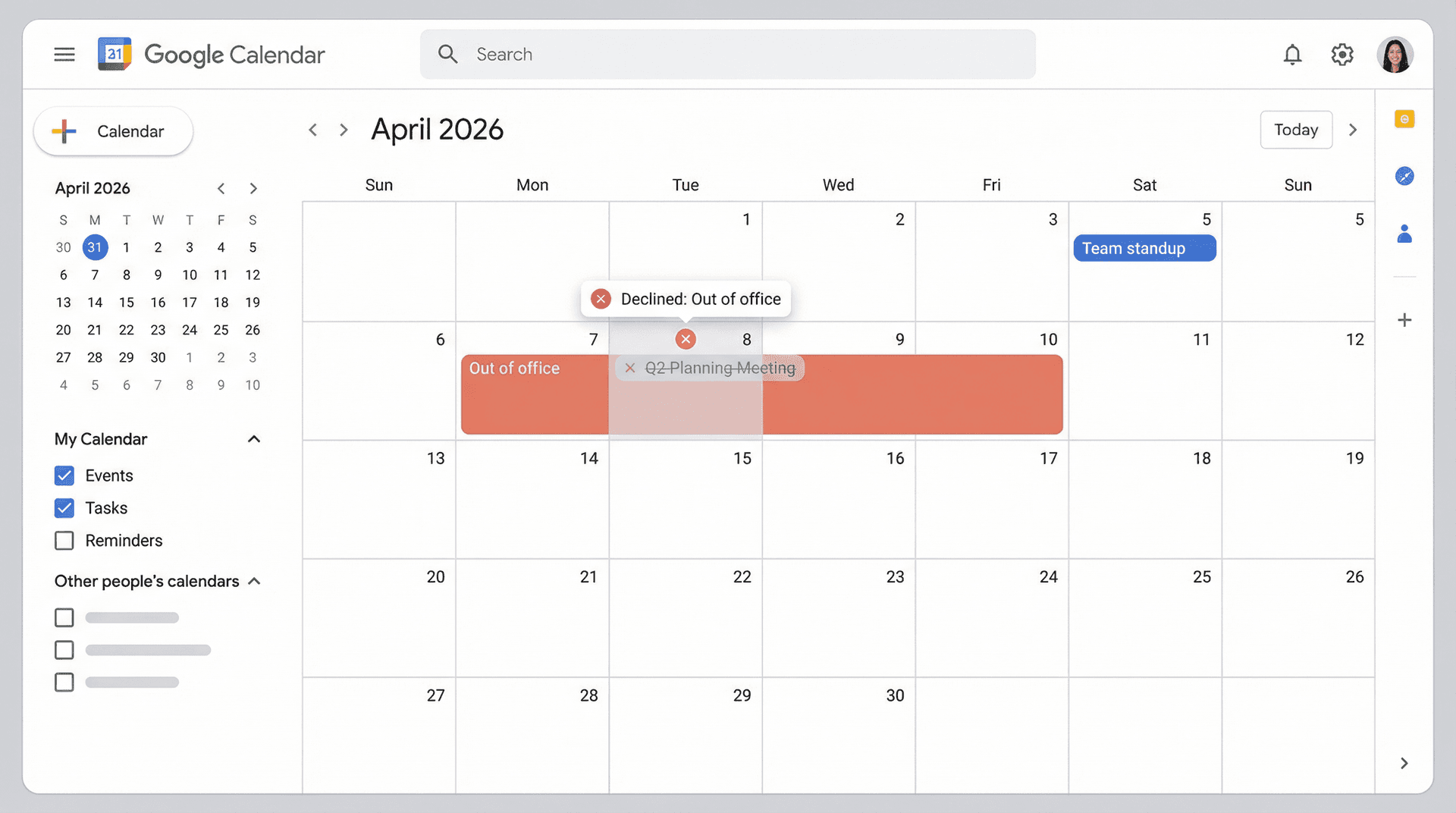
On desktop: Open Google Calendar, click the first date you'll be away, choose Out of office, select your dates and times, optionally set it to repeat, edit the decline settings and message, then click Save.
On Android or iPhone/iPad: Open the Google Calendar app, tap Create, then Out of office.
In supported work or school Gmail setups, Gmail can also show your current Calendar status to people who email you. But for that to work, the sender needs access to your calendar, and the Out of office event has to last the entire day or extend past your regular working hours. If you're on a work or school account and you don't see these availability features, Google notes that your administrator may have turned them off.
Advanced Gmail Out of Office Settings You Probably Don't Know About
The basic Vacation responder handles most situations fine. But if you need more control, Gmail has a few under-the-radar features that most people never discover.
How to Send Different Out-of-Office Replies to Different People
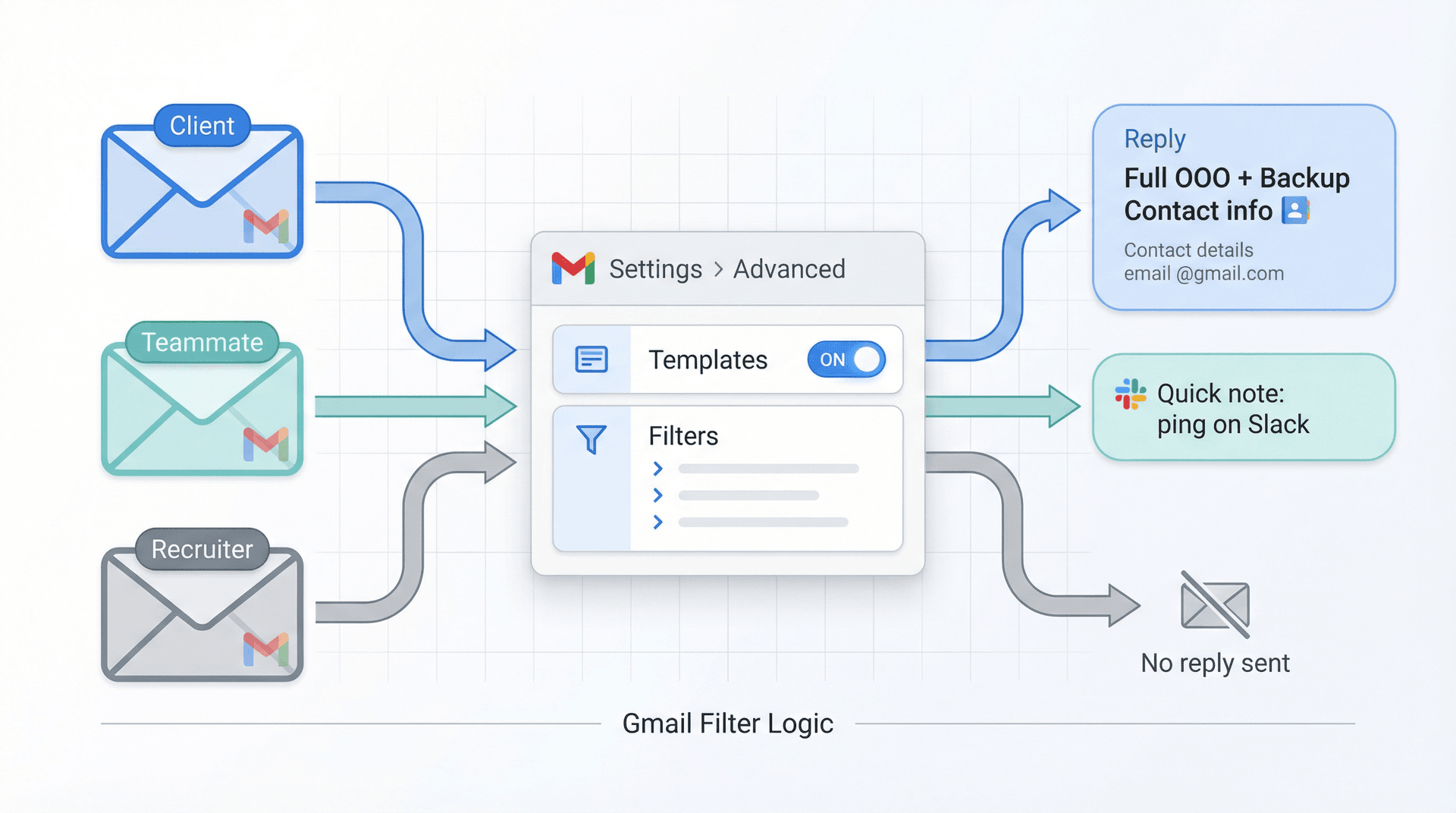
Gmail's Vacation responder sends one message to everyone. That's not always ideal. You might want clients to see a message with your backup's contact info while internal teammates get a shorter "ping me on Slack" version, and recruiters or marketing emails get nothing at all.
The solution: Templates + Filters. On desktop Gmail, enable Templates in Settings > Advanced, save each version of your message as a template, then create a Gmail filter and choose Send template as the filter action. Just know that these templates are desktop-only, and Google's documentation notes that filters affect new messages only. Replies are only filtered if they still match the same search criteria.
How to Forward Only Urgent Emails When You're Out of Office
If you want real inbox coverage while you're away (not just an auto-reply), forwarding is often the better tool.
Gmail can forward all new messages except spam, or you can get selective using filters. Google's official forwarding guide recommends turning off broad automatic forwarding and setting up a filter with the Forward it action to route only specific emails. Gmail also shows a forwarding notice in your inbox for the first week after you enable forwarding or a forwarding filter.
If you want a deeper walkthrough for this exact use case, we've put together a separate guide on how to set up email forwarding for vacation that walks through the whole process.
How to Delegate Your Gmail Inbox to Someone Else
Forwarding is good for routing. Delegation is better when someone needs to actually work inside your mailbox, reading, replying, and keeping threads moving. If you want to understand the distinction between these two approaches more deeply, our guide on collaborative inbox vs delegated inbox breaks down the trade-offs clearly.
According to Google's delegation help page, a Gmail delegate can read, send, and delete emails in your account, but they can't chat with people or change your password. The limits vary by account type:
| Personal Gmail | Work or School Account | |
|---|---|---|
| Max delegates | 10 | Up to 1,000 |
| Simultaneous access | Not specified | ~40 (typical) |
| Delegate scope | Anyone with Gmail | Usually within your organization (admin-controlled) |
Setting up delegation is desktop-only. Go to Settings > Accounts and Import (or Accounts) > Grant access to your account. The invitation expires after one week, and Google says it can take up to 24 hours before the delegate can access your account.
This is the right option when a real person needs to triage, reply, and keep threads moving while you're gone. For teams managing shared email, our shared inbox management guide covers the broader strategies.
Using a Gmail Alias? Read This Before Setting Out of Office
This one catches people off guard. Google warns that if you send mail from a different address or alias, recipients may still see your original @gmail.com address if you have an out-of-office reply or a filter with an automated response active. If brand consistency or privacy matters to you, test this before you leave.
Gmail Out of Office Not Working? Here's Why
If your Gmail auto-reply seems broken, the cause is usually simpler than you'd expect.
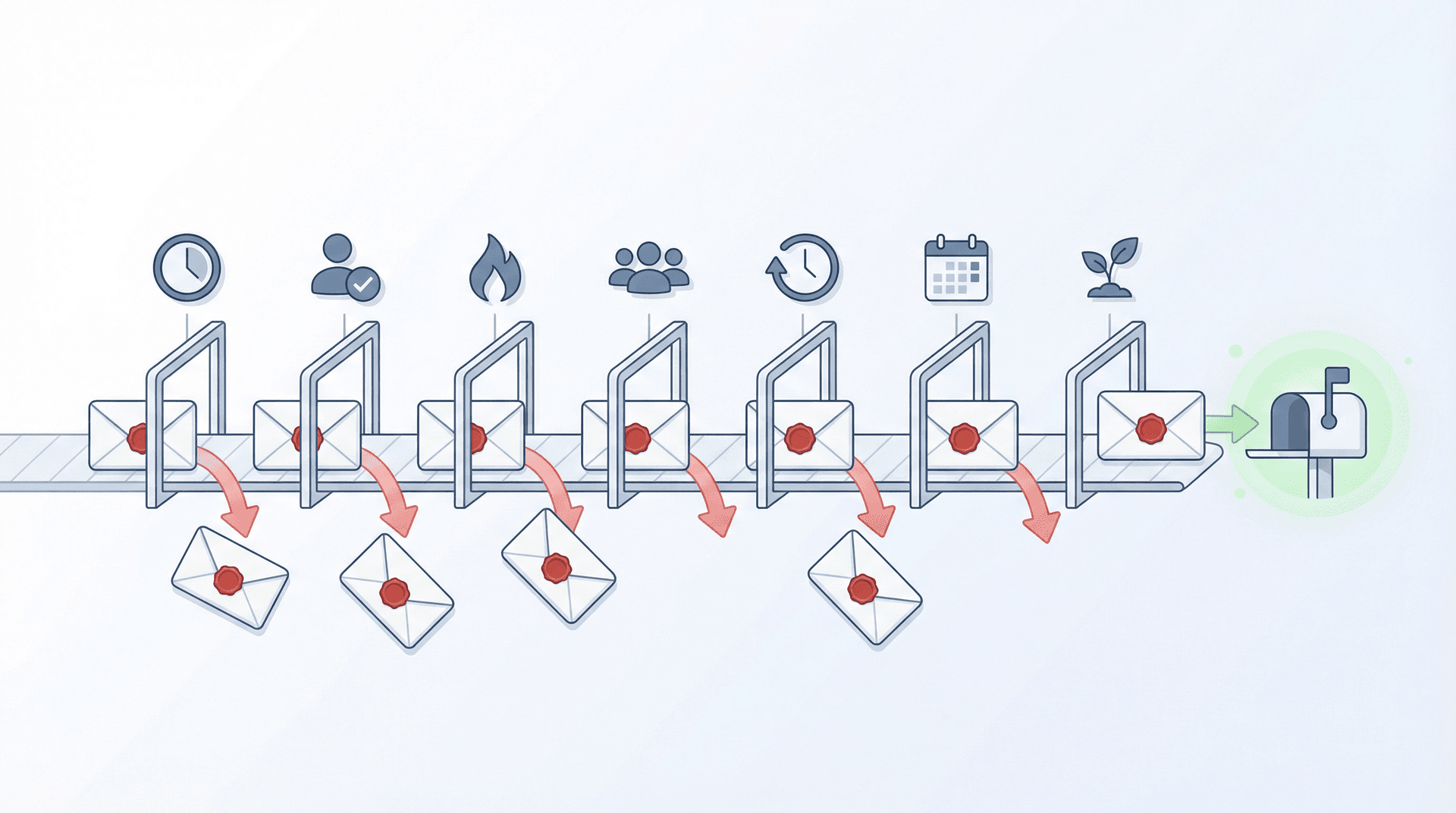
Here are the most common reasons your Gmail out of office isn't working:
-
The sender already got your response. Gmail only sends the auto-reply once per sender, then again only after four days. If you're testing with the same email account, you won't see it a second time right away.
-
You checked "contacts only." If you enabled the option to send replies only to your contacts and tested from a non-contact email, that's why.
-
The message landed in Spam. Gmail doesn't send auto-replies to messages flagged as spam. If you're seeing a lot of legitimate email going to spam, our guide on why emails go to spam covers the most common causes.
-
It was sent to a mailing list. Messages addressed to mailing lists you subscribe to also don't trigger the auto-reply.
-
You used Templates + Filters and expected them to work on old messages. Gmail's filters affect new mail only. The reply also won't fire if the message no longer matches the filter criteria.
-
Your Calendar status isn't showing. The sender doesn't have access to your calendar, or your Out of office event doesn't last all day or extend past working hours.
-
Your account is too new. Google's documentation says the Vacation responder requires the account to be at least 24 hours old.
A good debugging method: send yourself a test message from a second account that is not in your contacts, then send one from an account that is. That tells you quickly whether your issue is Gmail delivery logic or your own responder settings.
If you're using the more advanced Templates + Filters setup, the fastest way to debug is to paste the exact filter query into Gmail search. If the message doesn't appear in search results, the filter won't fire on it either. We've also put together a Gmail filters troubleshooting guide if you're deep in troubleshooting mode.
How to Handle Your Email Inbox When You Get Back from Vacation
Setting up your Gmail out of office reply is honestly the easy part. Coming back to an inbox that exploded while you were gone? That's the hard part. If you were away for a week or more, you could easily be staring down hundreds of emails, and not all of them matter equally. Having a system for re-entry matters just as much as having a system for your absence. Some people call this situation email bankruptcy and there's a structured way to handle it without losing your mind.
First things first: turn off the Vacation responder if it's still active. Gmail shows that End now banner at the top of your inbox. Click it. (Google's documentation confirms this.)
Then triage in this order:
-
Human conversations first. Actual people who emailed you directly, especially clients, managers, or anyone who referenced something time-sensitive.
-
Anything urgent that was forwarded or covered by your backup. Check in with whoever covered for you. Find out what was handled and what still needs your attention.
-
Everything else. Newsletters, automated notifications, marketing emails, CC'd threads where you're not actually needed. Most of this can be archived without reading. Our email management strategies guide has proven frameworks for working through exactly this kind of backlog.
How Inbox Zero Helps You Clear the Post-Vacation Email Backlog
This is where we can help. If the return-to-work inbox avalanche is the part you dread most, Inbox Zero is built specifically for this kind of problem.
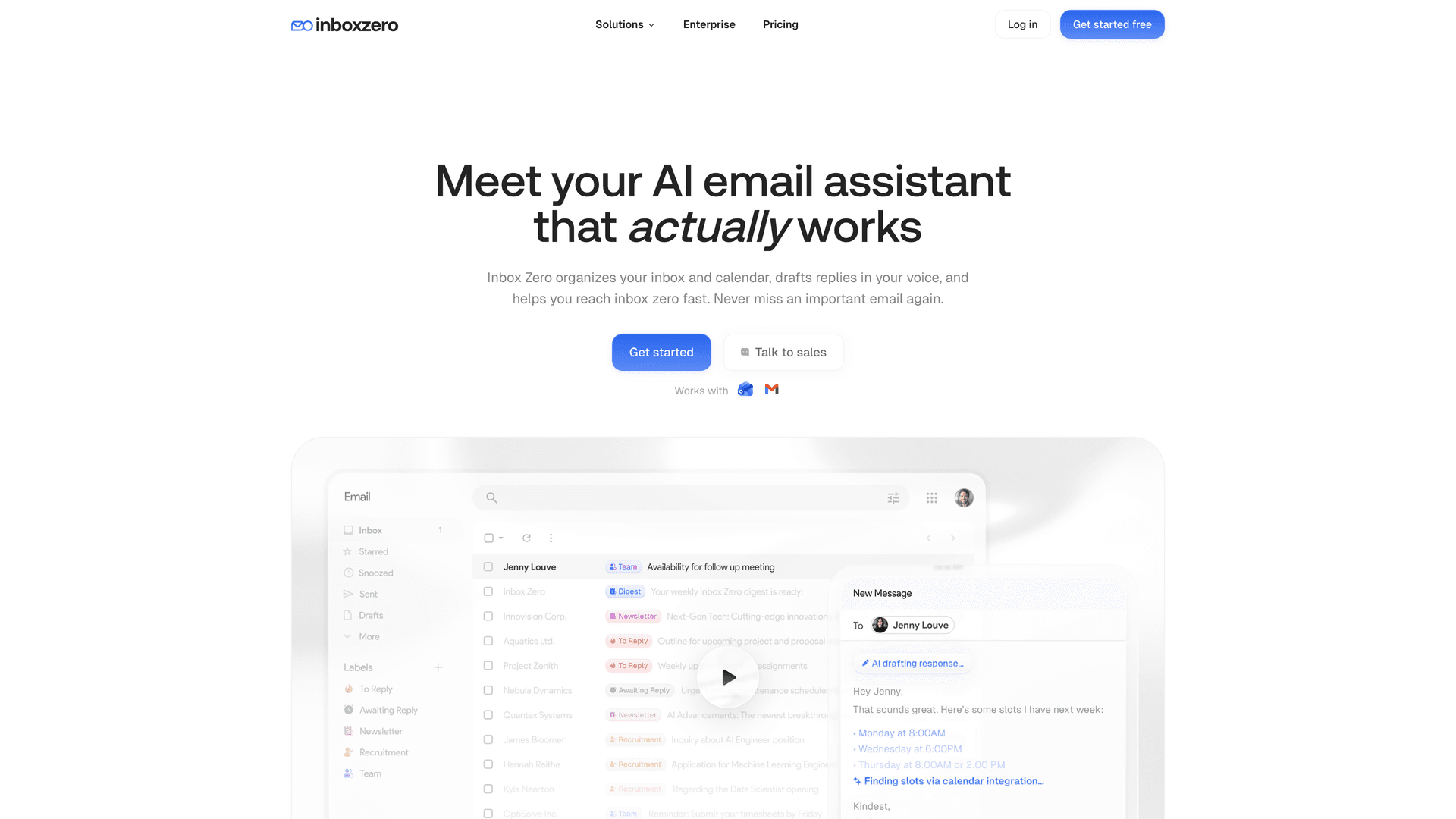
Our Reply Zero feature automatically labels every thread that needs your response as To Reply and every thread where you're waiting on someone else as Awaiting Reply. Instead of scanning through hundreds of emails trying to figure out what actually needs your attention, you get two focused lists. Work through To Reply first, check Awaiting Reply for anything that's gone stale, and you're done. You can learn more about how Reply Zero works in our Reply Zero documentation.
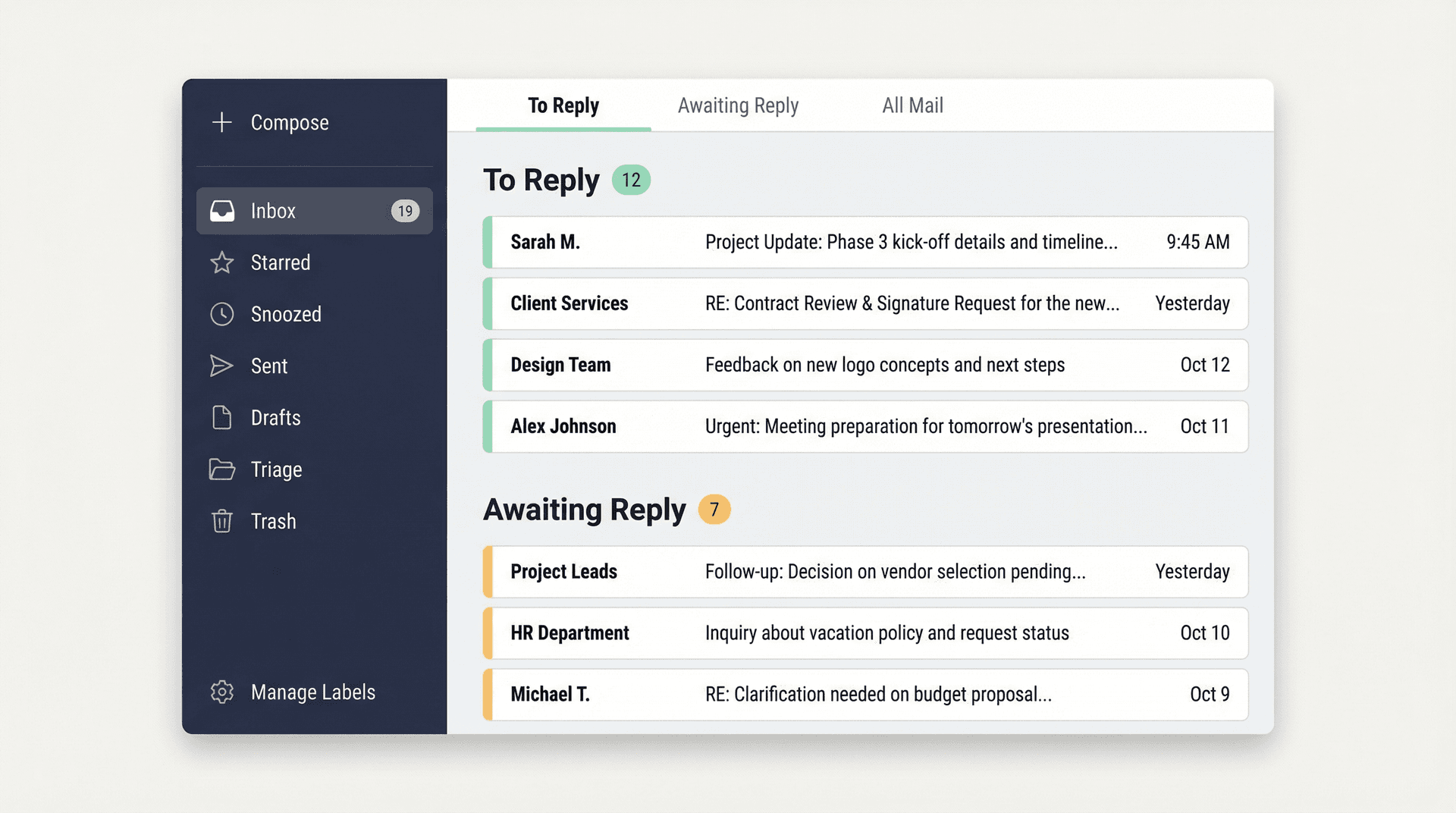
For ongoing inbox organization, our free Inbox Zero Tabs for Gmail Chrome extension adds custom tabs to your Gmail interface. Set up tabs for To Reply, Newsletters, Receipts, or whatever categories make sense for your workflow. It's 100% private with all data stored locally in your browser and no tracking or data collection.
And if you want to go further, Inbox Zero's AI automation can handle the repetitive stuff: auto-labeling newsletters so they don't clutter your primary inbox, drafting replies to routine messages, bulk-unsubscribing from senders you never read, and blocking cold outreach before it reaches you. You set up rules in plain English, and the AI handles the rest. You can keep automation off and just review suggestions, or turn it on for low-risk categories once you're comfortable.
Our AI email management guide explains how the full approach fits together, and our cold email blocker page covers how the spam-blocking side works if that's a priority for you.
The real point: your Gmail out of office message handles the away part. Inbox Zero handles the coming back part. Together, they make time off actually feel like time off.
Two more resources that fit naturally around this workflow: our guide on how to set up email forwarding for vacation if you need pre-leave inbox coverage, and our guide on seeing all emails waiting for reply if the post-leave follow-up is the messy part for you.
One more thing worth mentioning: the newsletters and subscriptions that pile up while you're gone are often the biggest volume problem on return. Our bulk unsubscribe guide walks through how to clear that noise quickly, and our how to manage email subscriptions guide helps you build a sustainable system going forward so the same backlog doesn't happen next time.
Gmail Out of Office FAQ
What is Gmail out of office called?
Google calls it the Vacation responder. You'll find it under Settings > General in Gmail.
Can I set Gmail out of office from my phone?
Yes. Gmail supports Vacation responder setup on both Android and iPhone/iPad from the Gmail app settings.
Does Gmail send the auto-reply to every email?
Not usually. In most cases, it goes out the first time someone emails you. That same sender can receive it again only if they email you again after four days while your responder is still on, or if you edit the auto-reply while it's active. This is documented in Google's Vacation responder help.
Does Gmail send out-of-office replies to newsletters or spam?
No. Google confirms that messages in Spam and messages addressed to mailing lists you subscribe to do not receive the auto-reply.
Can I send different out-of-office replies to different people?
Yes, but not with the basic Vacation responder alone. On desktop Gmail, you can enable Templates, save message templates, and use Filters with the Send template action. Full instructions are in Google's Templates and Filters guide.
Can someone else manage my Gmail while I'm away?
Yes. The two official Gmail options are forwarding and delegation. Forwarding routes messages to another account. Delegation lets another person read, send, and delete messages directly inside your mailbox.
Why doesn't my Google Calendar out-of-office status show to everyone who emails me?
Because the sender must have access to your calendar, and the status behavior only works in supported work or school Gmail setups with qualifying Out of office events that last the whole day or extend past regular working hours. Google's Calendar documentation explains the full requirements.
Make Your Gmail Out of Office Work for You
A good Gmail out of office setup isn't just a polite auto-reply. It's a small system with four parts: one part sets expectations for the people emailing you, one part protects your calendar from meeting creep, one part routes urgent work to someone who can handle it, and one part helps you recover when you return. For a deeper look at building that recovery system, our email management tips and inbox zero method guides are good starting points.
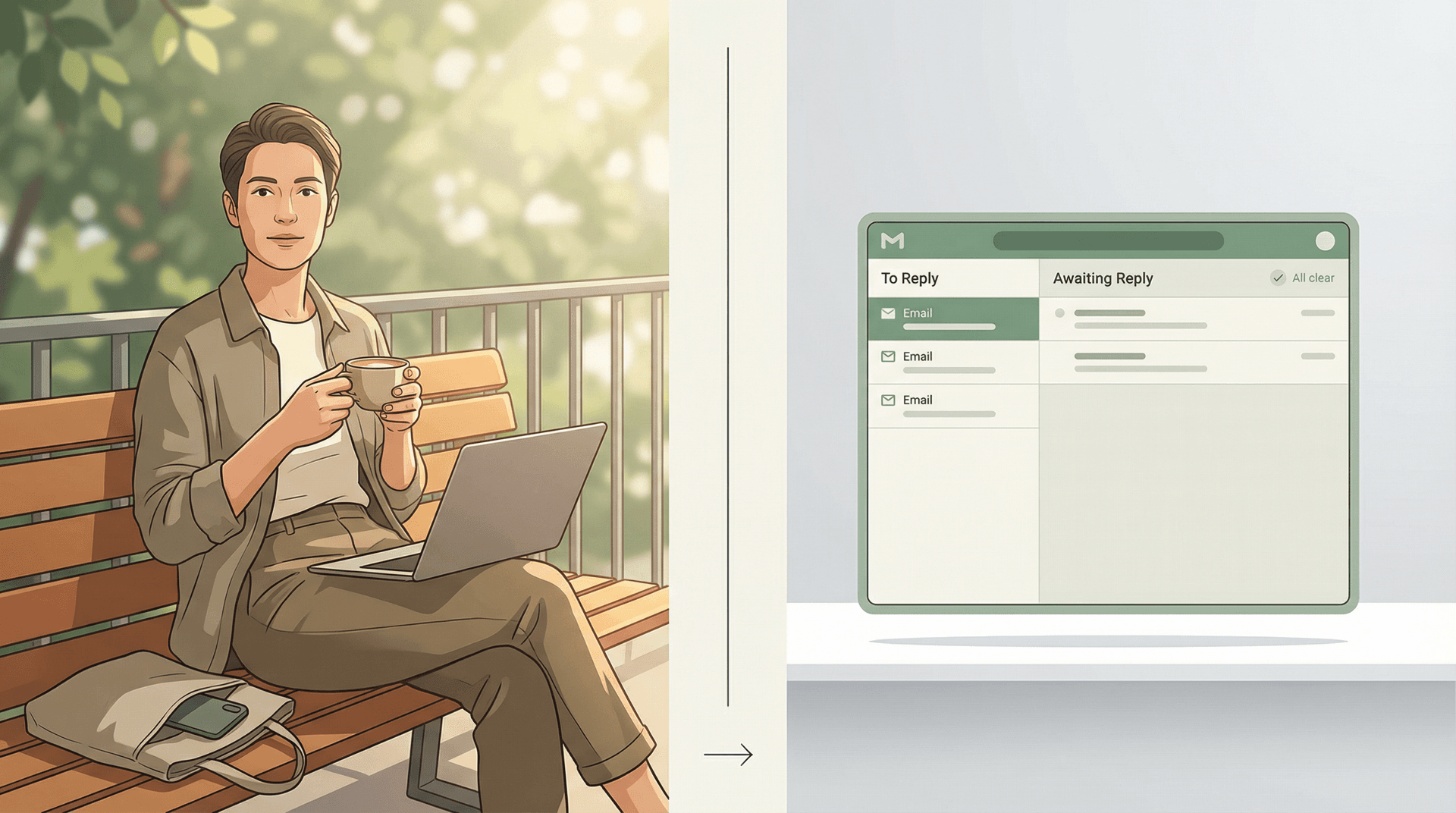
Get those four things right, and you can actually step away. Not fake-step-away-while-quietly-checking-your-phone, but actually disconnect. And if the part you struggle with most isn't the away message itself but the inbox chaos that follows, that's exactly what Inbox Zero's Reply Zero and Tabs for Gmail are built for.
Relay.app Is Shutting Down: Deadlines, Data Export, and Alternatives
Relay.app is shutting down in 2026. See the deadlines for free and paid users, what to export, and which alternatives fit your email and automation workflows.
2026-07-16T18:46:02Z

Best AI Email Assistants in 2026 (Tested)
The best AI email assistants in 2026, tested and compared. Honest pros, cons, and pricing for Inbox Zero, Superhuman, Fyxer, Shortwave, Lindy, Missive, SaneBox, Serif, Perplexity, Gemini in Gmail, and Microsoft Copilot, with picks by use case.
2026-07-05T08:00:00Z

Top 16 Email Management Software of 2026
Discover the top 16 email management software of 2025 designed to boost productivity and simplify your inbox.
2026-06-24T09:00:00Z
7 Best Fyxer Alternatives in 2026
The best Fyxer.ai alternatives in 2026, compared. AI email assistants, team inboxes, and inbox cleaners, with honest notes on price, features, and who each one is for.
2026-06-01T08:00:00.000Z