How to Create Folders in Gmail: Step-by-Step (2026)
Gmail doesn't have folders. It uses labels instead. Here's how to create folders in Gmail on desktop, Android, and iPhone, plus auto-sort with filters.

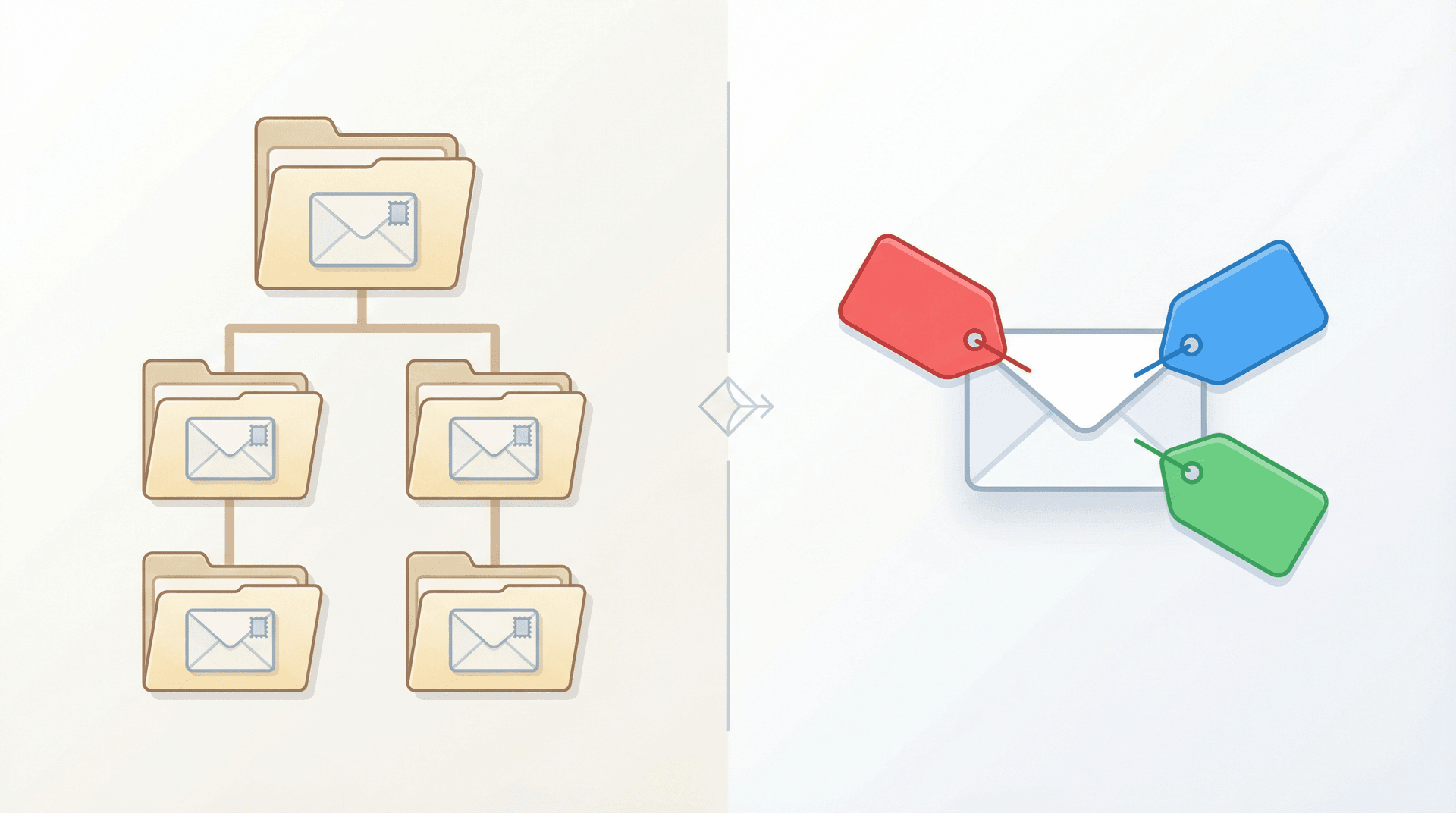
If you've ever tried to create a folder in Gmail and couldn't find the option, you're not crazy. Gmail genuinely does not have folders. It uses labels instead, and that small distinction trips up almost everyone who switches from Outlook or Apple Mail.
The good news: once you understand how labels work, Gmail's organizational system is actually more flexible than traditional folders. A single email can live under multiple labels at once (try doing that with a folder). And when you pair labels with filters and archiving, you get a system that sorts itself automatically. That's exactly the kind of setup that can help you reach and maintain inbox zero.
This guide walks you through creating "folders" (labels) in Gmail on every device, building subfolders, setting up automatic sorting with filters, and turning Gmail into something that doesn't make you want to throw your laptop out the window. We'll also show you how Inbox Zero can take your Gmail organization even further with AI-powered automation.
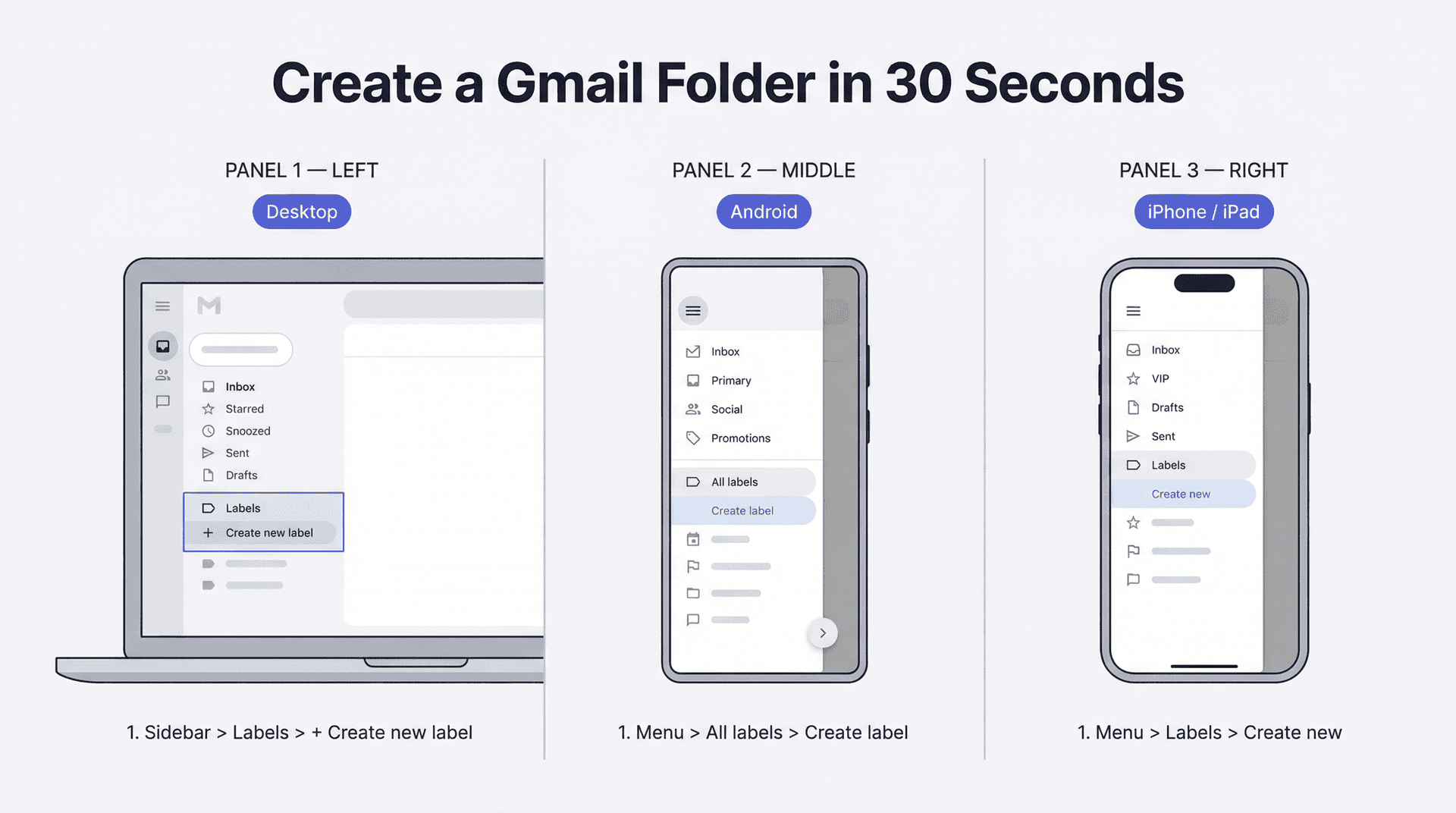
Quick Answer: Create a Gmail Folder in 30 Seconds
If you just want the short version:
On desktop: Open Gmail, find Labels in the left sidebar, click + Create new label, name it, and click Create.
On Android: Open the Gmail app, tap Menu (three lines), scroll to All labels, then tap Create label.
On iPhone/iPad: Open the Gmail app, tap Menu, scroll to Labels, then tap Create new.
That's it. You now have a Gmail "folder." Keep reading for the full breakdown of how to actually use these labels, build subfolders, automate your sorting, and fix the common headaches that come up along the way.
Why Gmail Uses Labels Instead of Folders
Before you start building your organization system, it helps to understand what you're working with. Gmail was designed differently from traditional email clients, and Google's own Workspace documentation makes this explicit: Gmail doesn't have folders. It has labels and search filters.
The practical difference? In Outlook, an email can only sit in one folder at a time. In Gmail, you can stick multiple labels on a single email. So that confirmation email from your accountant can be tagged "Receipts," "Taxes," and "2026" simultaneously, without creating three copies. (We wrote a deeper breakdown of Gmail labels vs. folders and how they compare if you want the full picture.)
What's the Difference Between Gmail Labels and Categories?
This confuses people too. Gmail's categories are the built-in tabs at the top of your inbox: Primary, Social, Promotions, Updates, and Forums. According to Google's category documentation, you can choose which categories to display, but you cannot create your own. Custom organization in Gmail comes exclusively from labels.
What Does Archive Do in Gmail?
Archive is not a folder, and it's not a trash can. When you archive a message in Gmail, it simply leaves your inbox but stays in All Mail. If someone replies to that thread later, the whole conversation comes back to your inbox. If you've ever wondered exactly what the difference is between Gmail's All Mail and Archive views, we have a full breakdown.
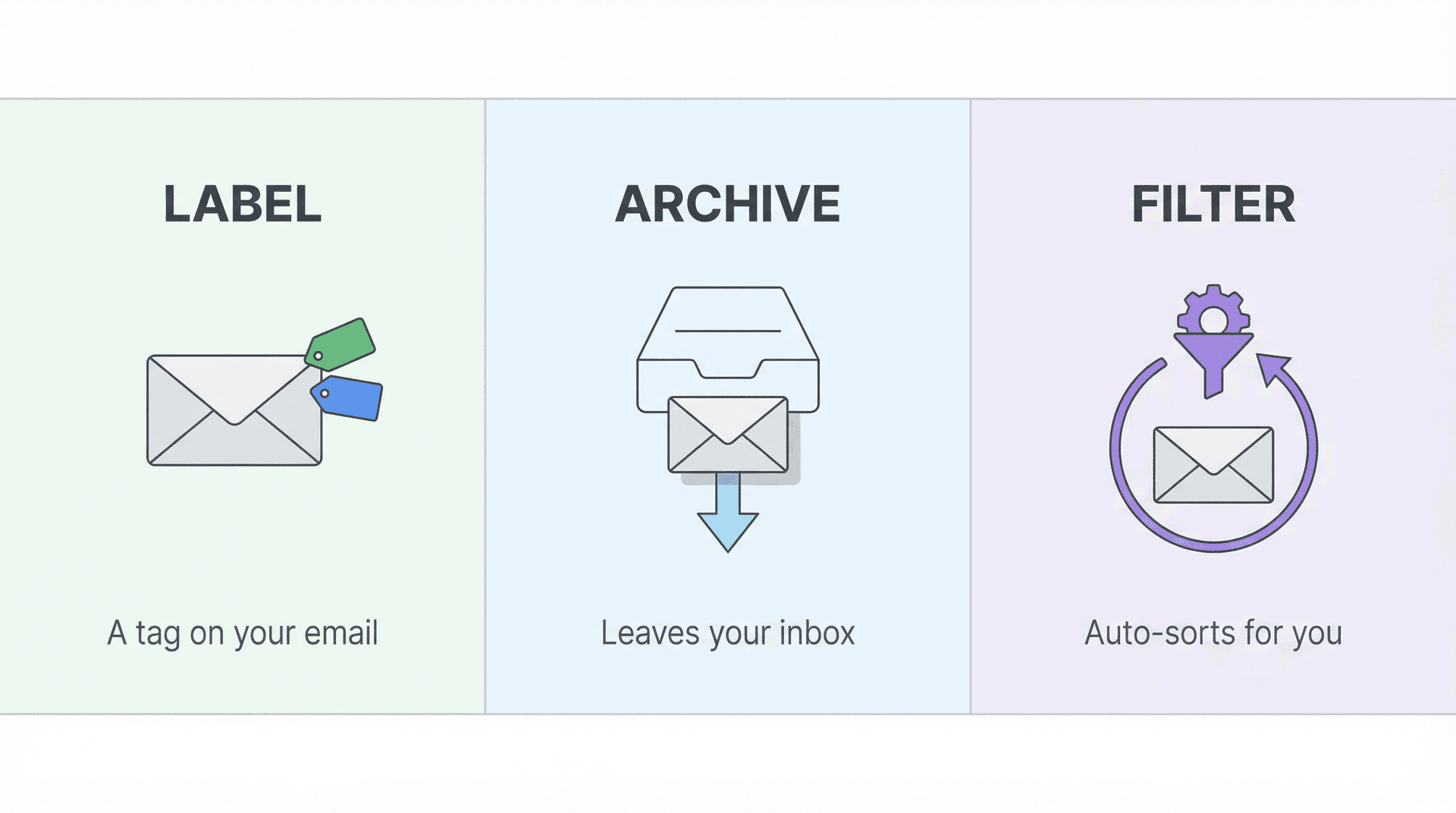
This is why the clean mental model looks like this:
Label = a tag you stick on an email. Archive = removing the email from your inbox view. Filter = a rule that automates the tagging and archiving for you.
When you combine a label with archiving, that's when Gmail starts behaving like traditional folders. The email disappears from your inbox and lives under its label, just like it would inside an Outlook folder. And if you later need to find those archived messages, you can always search for archived emails in Gmail using the All Mail view or a label-based search.
How to Create a Folder in Gmail on Desktop
Here's the full process according to Google's desktop help page:
-
Open Gmail on your computer.
-
In the left sidebar, next to Labels, click + Create new label.
-
Type in your label name.
-
Optional: Check Nest label under if you want to create a sublabel (more on this below).
-
Click Create.
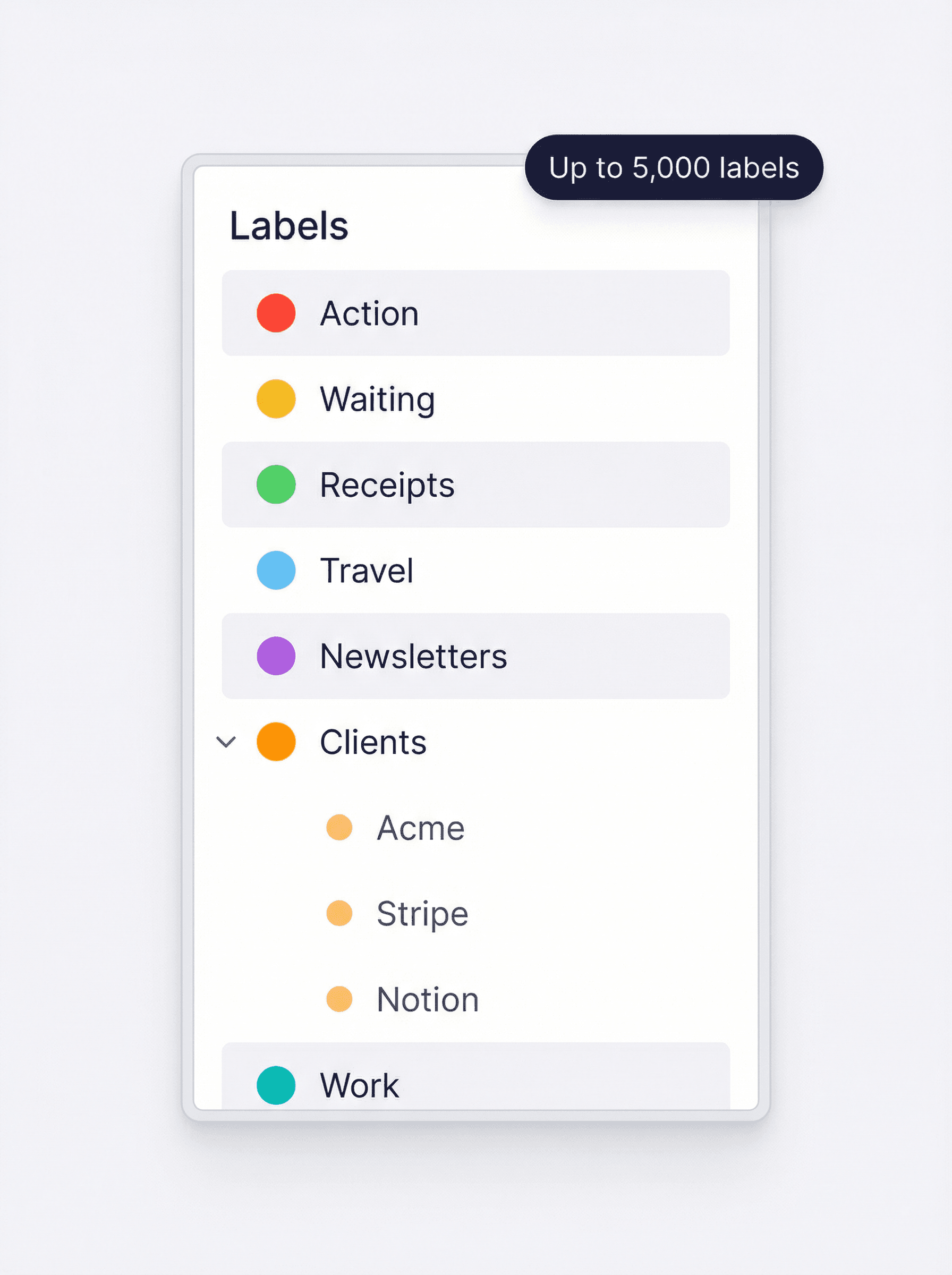
Your new label immediately appears in the left sidebar. Gmail lets you create up to 5,000 labels, so space isn't going to be an issue.
How to Apply Labels to Emails in Gmail
Creating the label is only half the job. To actually tag an email with it:
-
Select the email (or multiple emails).
-
Click the Labels icon at the top of the screen (it looks like a tag).
-
Choose the label you want to apply.
You can also label an email while you're writing it. Click Compose, then More options (three dots at the bottom), then Label.
How to Make Gmail Labels Work Like Real Folders
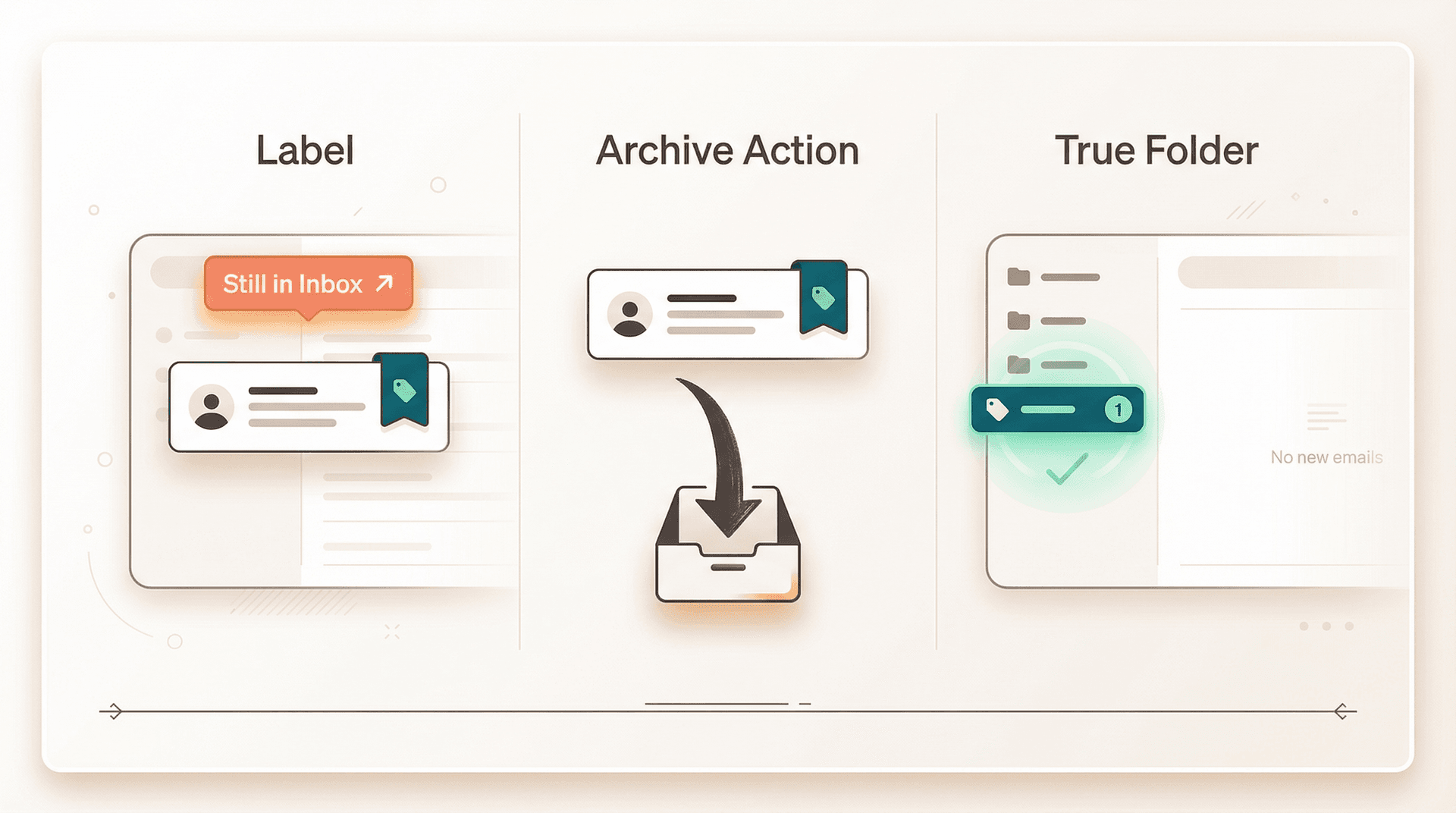
This is the step most guides skip, and it's the one that actually matters. Applying a label does not remove the email from your inbox. The message stays right where it was, just with a label attached.
For true folder behavior, you need to do two things:
-
Apply the label.
-
Archive the email.
Once archived, the email disappears from your inbox but still shows up when you click the label in your sidebar. It also stays in All Mail, so nothing is deleted. (Not sure when to archive vs. snooze vs. mute? We covered the differences in our Gmail snooze vs. archive vs. mute comparison.)
How to Create a Folder in Gmail on Android
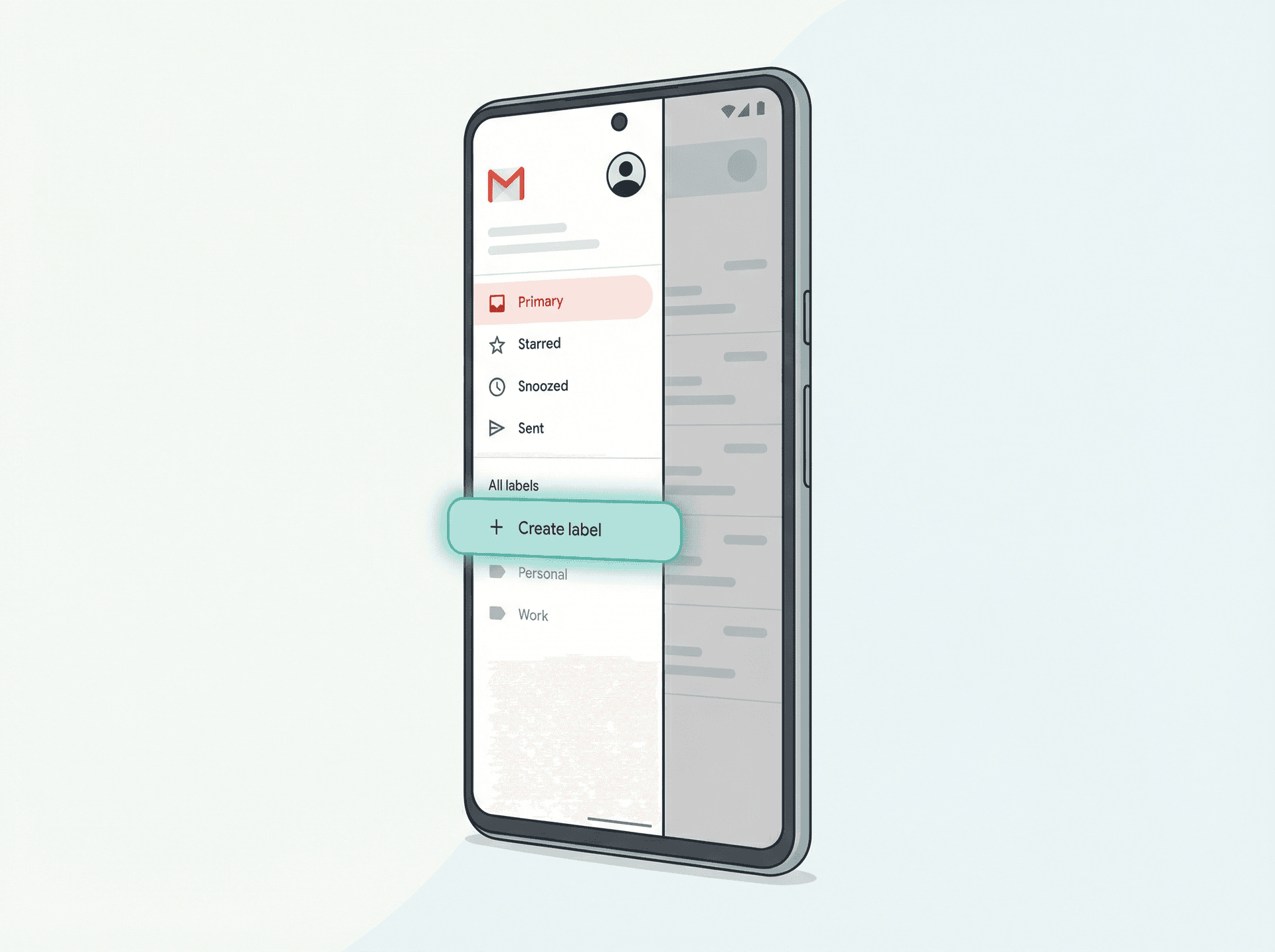
You can create labels directly in the Gmail Android app. Here's how, according to Google's Android help page:
-
Open the Gmail app.
-
Tap the Menu icon (three horizontal lines).
-
Scroll down. Under All labels, tap Create label.
-
Enter your label name.
-
Tap Save.
How to Apply Labels to Emails on Android
To add a label to emails you've already received:
-
Touch and hold one or more emails to select them.
-
Tap More (three dots), then tap Label as.
To move an email to another label (which applies the new label and removes the old one):
- Touch and hold the email, tap More, then Move to.
Pro tip: You can set up a swipe shortcut for moving emails. Go to Settings > General settings > Swipe actions and set either swipe direction to Move to. This saves a lot of tapping if you sort emails regularly. For a full rundown of Gmail shortcuts that speed up your workflow, check out our Gmail shortcuts cheat sheet.
How to Create a Folder in Gmail on iPhone or iPad
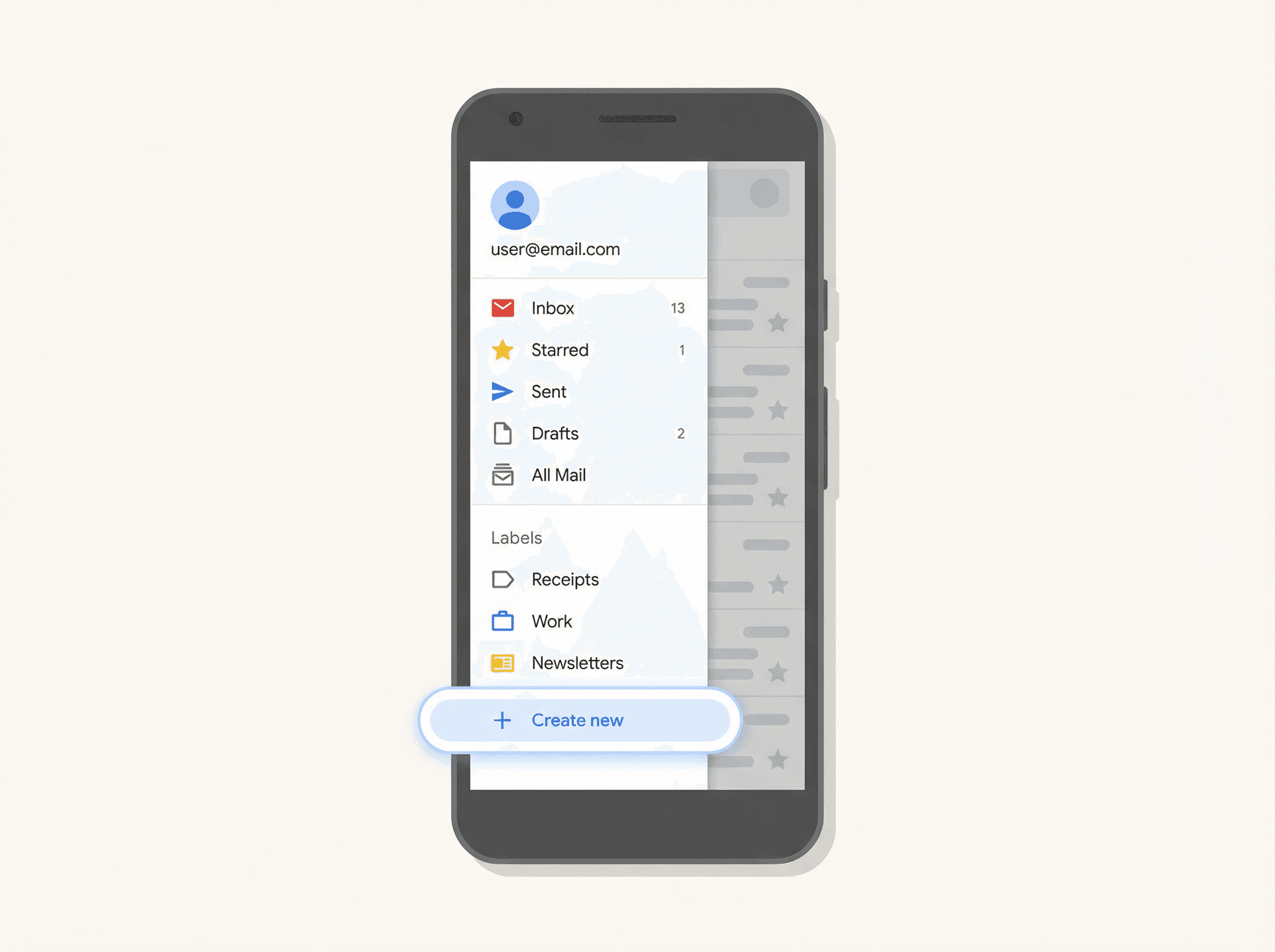
Apple users get the same label creation ability inside the Gmail app. From Google's iOS help page:
-
Open the Gmail app.
-
Tap the Menu icon.
-
Scroll down. Under Labels, tap Create new.
-
Enter your label name.
-
Tap Save.
How to Apply Labels to Emails on iPhone
To add a label to an email you've already got:
-
Touch and hold the message.
-
Tap More, then Labels.
To change an email's label:
- Touch and hold the message, tap More, then Change labels.
You can also edit or delete labels from Settings > Inbox customizations > Labels.
How to Auto-Label Emails by Sender on iPhone
Google's iOS app actually has a lightweight auto-label feature built in that a lot of people don't know about. Go to Settings > Inbox customizations > Labels, pick a label, tap Add, and you can create sender-based rules from the From field. You can add extra criteria under And.
It's not as powerful as desktop Gmail filters, but for quickly sorting emails from a specific sender on your phone, it's a handy shortcut. If you're looking for more ways to keep your phone inbox under control, our Gmail mobile app vs. desktop comparison covers what each version handles better.
How to Create Subfolders (Nested Labels) in Gmail
Gmail's version of subfolders is called nested labels. When you create a label on desktop, you'll notice that Nest label under checkbox. That's your subfolder tool.
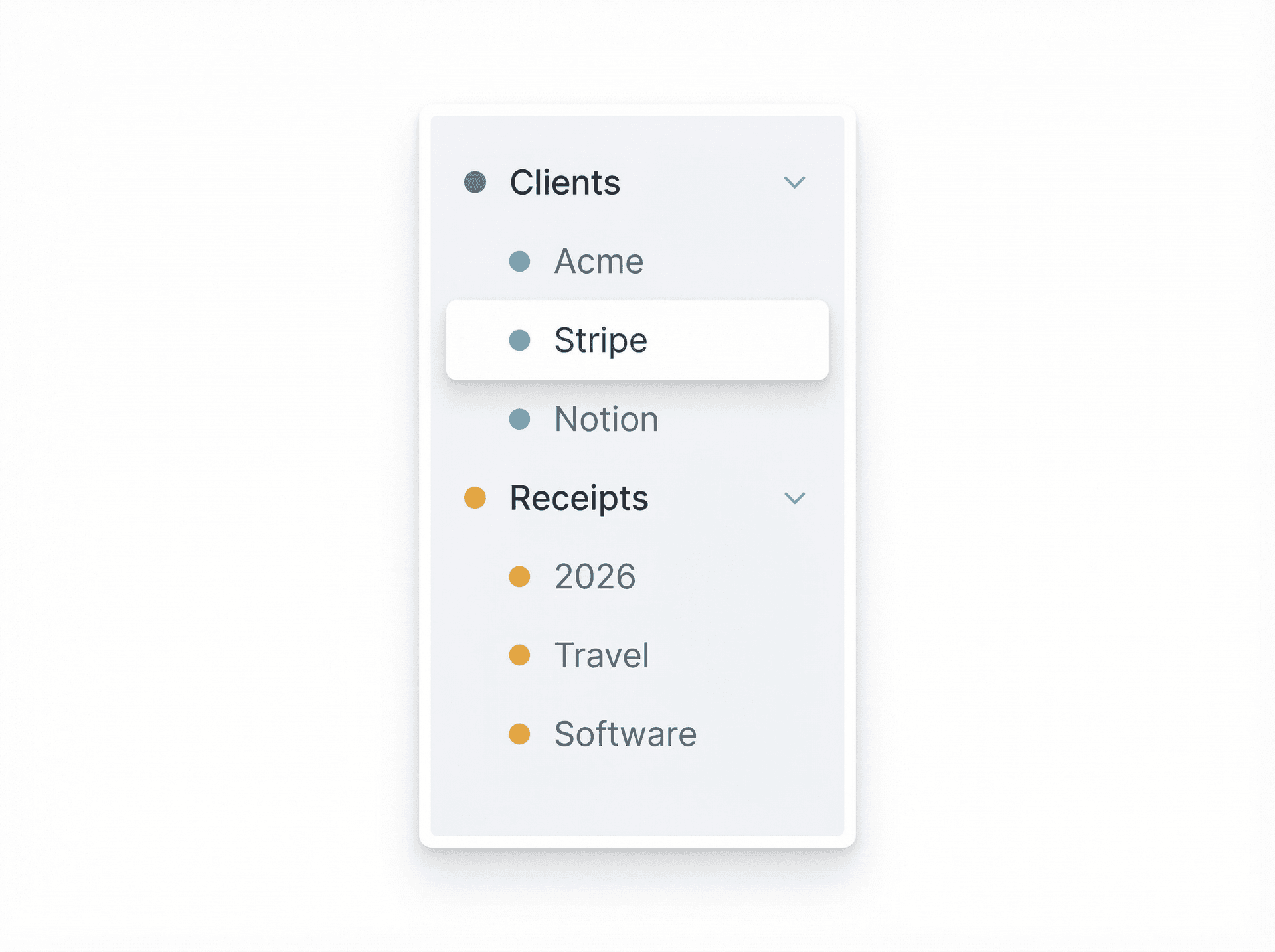
For example, you could build a structure like this:
Clients
→ Acme
→ Stripe
→ Notion
Receipts
→ 2026
→ Travel
→ Software
Each nested label shows up indented under its parent in the sidebar, and you can expand or collapse the parent label to keep things tidy.
One thing to know: Google's Android and iPhone help pages don't include a nesting option in their basic label creation flow. So if you want to build a subfolder structure, desktop Gmail is the place to do it. The nested labels will still appear on mobile once created, but the actual nesting has to happen from a computer.
How to Automatically Sort Emails into Folders with Filters
This is where Gmail gets genuinely powerful. Instead of manually dragging emails into folders, you can tell Gmail to do it for you. Google's filter documentation walks through the process, and it's straightforward:
-
Open Gmail on your computer.
-
In the search bar, click Show search options (the small icon on the right side).
-
Enter your filter criteria: a specific sender, subject line, keywords, whatever you need.
-
Click Create filter.
-
Check Apply the label and select the label you want.
-
To make it work like a traditional folder, also check Skip the Inbox (Archive it).
-
Click Create filter.
From now on, every email matching those criteria will automatically get labeled and (if you chose to skip the inbox) archived into that label. If you want to get more targeted, you can also auto-label emails by sender domain to batch-sort mail from entire companies at once.
Which Gmail Filters Are Actually Worth Setting Up?
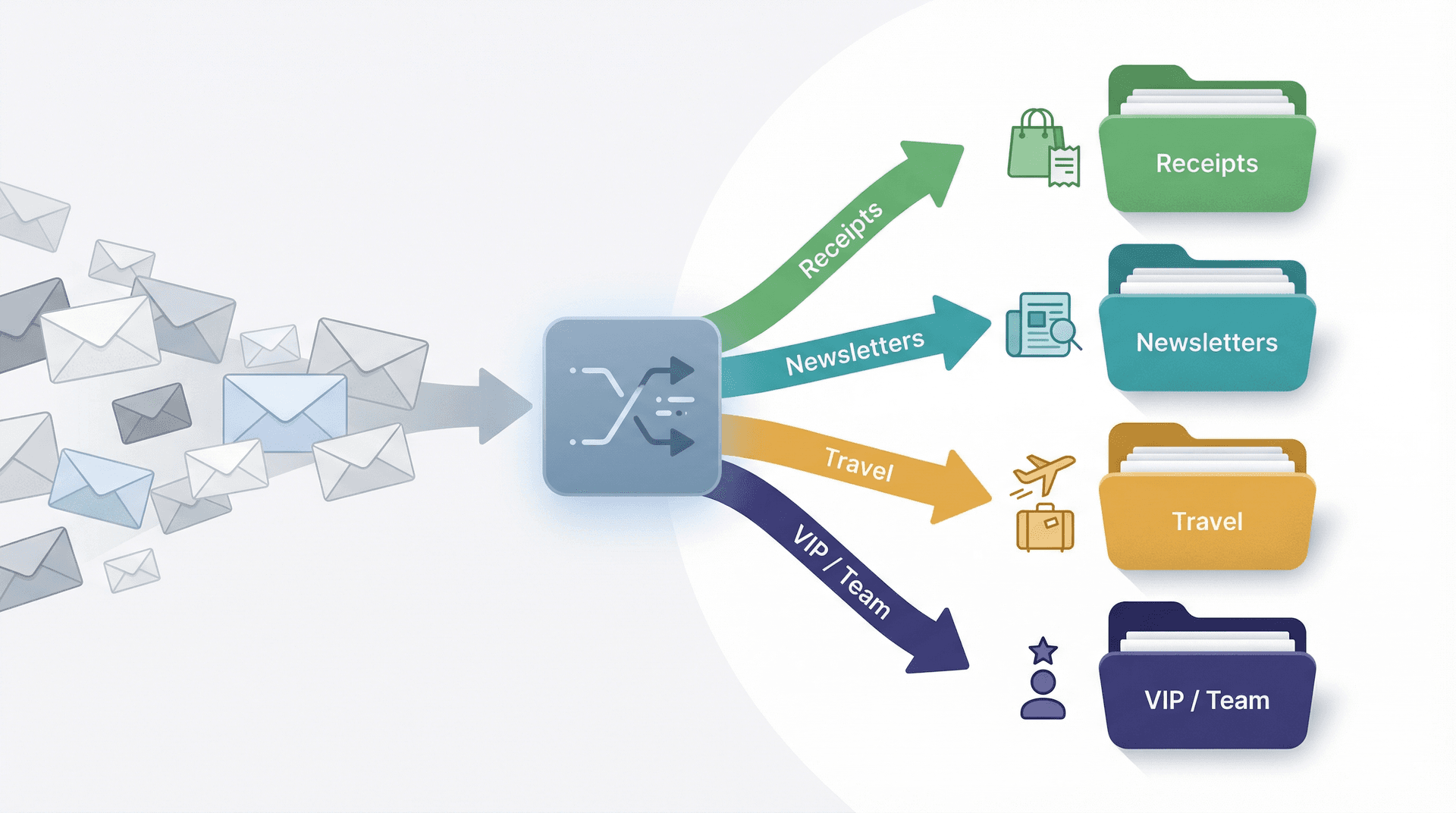
Not every email needs a filter. But these four cover most people's needs:
| Filter | Criteria | Action | Skip Inbox? |
|---|---|---|---|
| Receipts | From: amazon.com, paypal.com, etc. | Apply "Receipts" label | Yes |
| Newsletters | From: specific newsletter addresses | Apply "Newsletters" label | Yes |
| Travel | Subject contains: booking, confirmation, itinerary | Apply "Travel" label | No (keep visible until trip ends) |
| VIP / Team | From: your boss, key clients, teammates | Apply "VIP" or "Team" label | No (always want to see these) |
The logic behind skipping the inbox or not: you want low-value, predictable emails sorted away automatically. High-value emails should stay visible. Google's Workspace Learning Center follows this same logic in their organization examples.
Newsletter clutter is one of the biggest reasons people feel overwhelmed by their inbox. Beyond filters, you can also use Inbox Zero's bulk email unsubscriber to clear out subscriptions you never actually read, rather than just moving them to a folder you'll ignore.
Why Manual Labels Don't Apply to New Email Replies
Something that catches people off guard: according to Google's desktop help documentation, when Conversation view is turned on, manually applying a label only tags the existing messages in that thread. New replies don't get the label.
Filters work differently. They automatically apply to new messages as long as those messages match the filter's search criteria. So if someone asks you, "I put it in a folder but the thread stopped staying there," the real answer is almost always: use a filter, not just a manual label. (If your filters are misbehaving, we have a full guide on why Gmail filters stop working and how to fix them.)
Troubleshooting: Why Your Gmail Folders Aren't Working
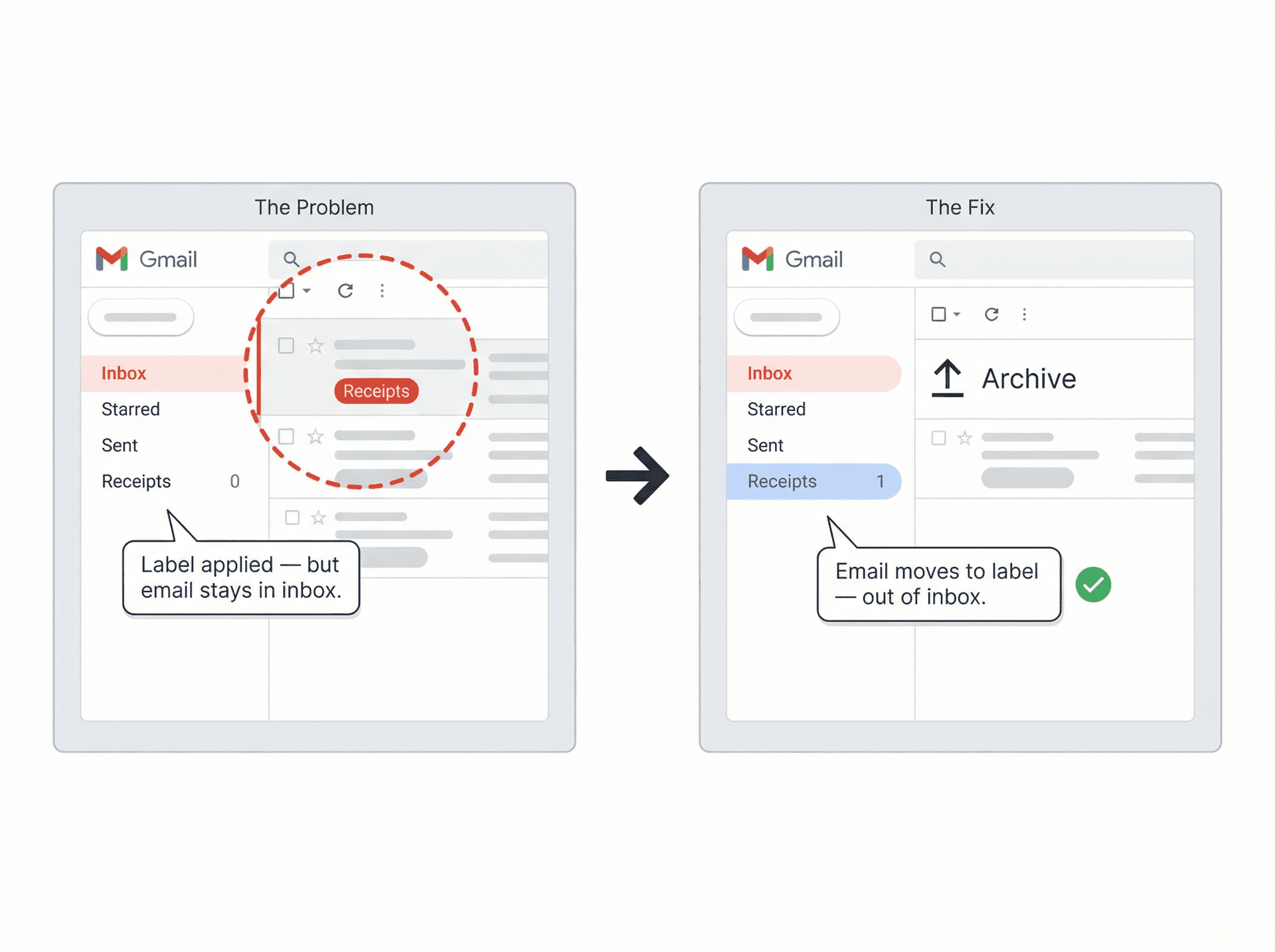
Why Is My Labeled Email Still in My Inbox?
Totally normal. A label doesn't remove the Inbox tag from an email. To get the message out of your inbox view, you need to either archive it or set up a filter with Skip the Inbox (Archive it) checked.
Why Can't I See My Gmail Label in the Sidebar?
Gmail lets you show or hide labels in the sidebar. On desktop, go to Settings > See all settings > Labels and toggle Show or Hide next to the label in question. It's probably just hidden, not deleted.
How to Create Custom Folders in Gmail (Not Categories)
You can't create custom categories in Gmail. Categories (Primary, Social, Promotions) are fixed by Google. Labels are your custom organizational layer. If you want custom "folders," labels are what you need.
Why Aren't My Multiple Inbox Panes Showing Up in Gmail?
If you've set up Multiple Inboxes but the panes aren't appearing, this is a known issue with a few common causes. Our guide on fixing Gmail Multiple Inboxes not showing walks through the troubleshooting steps.
A Simple Gmail Folder System That Actually Works
Most people overbuild their label system. They recreate the entire folder tree from their old Outlook setup, and then never use half of it. The label systems that actually stick are small, boring, and repeatable. For deeper context on what makes an email organization system sustainable, our guide on email management strategies covers the principles behind building one that holds up.
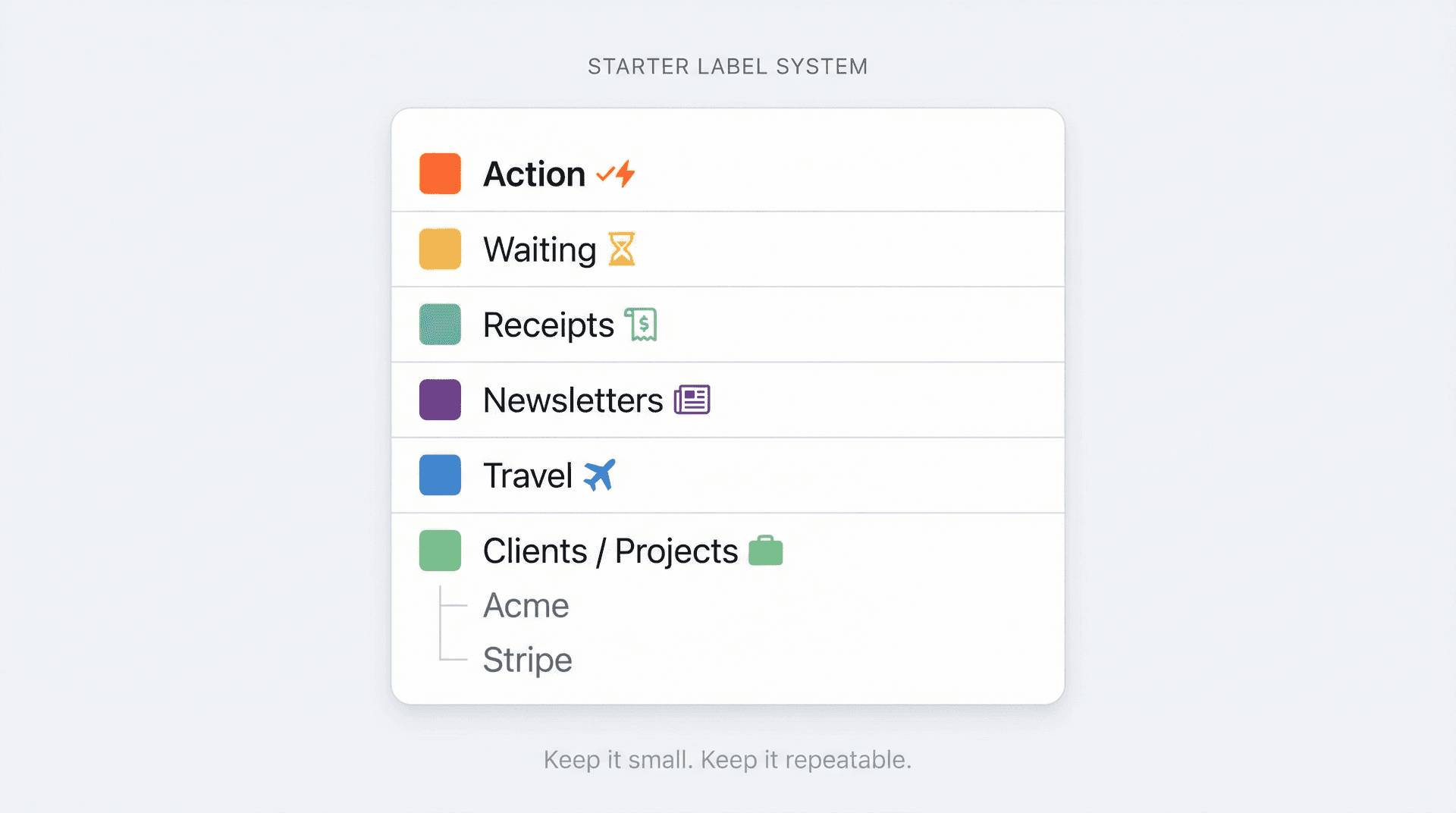
Here's a strong starter system:
-
Action for emails that need you to do something.
-
Waiting for emails where someone else owes you a response.
-
Receipts for orders, invoices, and confirmations.
-
Newsletters for batch reading when you have time.
-
Travel for flights, hotels, and reservations.
-
Clients or Projects as a parent label, with nested labels underneath only for the accounts that genuinely need their own space.
Google's own Workspace Learning Center recommends a similar inbox-zero-style approach built around three main labels: Action, Follow-up, and Later. They show how to build label-based inbox views around those labels so your most important emails surface first.
For the Waiting label specifically, tracking emails where you're waiting on a reply, Inbox Zero's Reply Zero feature automates this entirely. It labels every thread that needs your response as "To Reply" and every thread you're waiting on as "Awaiting Reply," so you never have to manually manage a "Waiting" folder again.
How to Make Your Gmail Labels More Visible with Multiple Inboxes
Gmail's built-in Multiple Inboxes feature lets you create extra sections right in your main Gmail view. It's desktop-only, but you can add panes for search queries like label:action, label:waiting, or label:receipts, so your labeled emails show up front and center instead of hiding in the sidebar.
It's a good option, but it can get cramped if you have more than two or three sections.
Automate Your Gmail Labels and Folders with Inbox Zero
Manual labels and filters work fine up to a point. The real challenge with Gmail organization isn't creating labels. It's keeping them applied consistently, sorting new mail into the right buckets every day, and making sure the important stuff doesn't get buried under the noise. If you've ever thought about how much time you actually spend on email, you know how quickly manual inbox management adds up.
That's exactly what we built Inbox Zero to solve.
Instead of manually labeling every email (or writing a dozen brittle filters), Inbox Zero uses AI to automatically sort, label, and even draft replies to your emails. You describe how you want your inbox handled in plain English, and our AI automation turns that into rules that run on autopilot. Newsletters get labeled. Cold outreach gets blocked. Receipts get archived. And the emails that actually need your attention stay visible.
What makes this different from just using Gmail filters:
-
Gmail filters match exact criteria (specific senders, subject keywords). Inbox Zero's AI Personal Assistant understands intent, so it can sort emails even when the sender or subject doesn't match a rigid pattern.
-
Filters don't draft replies or follow up. Inbox Zero can draft responses, track emails you need to reply to, and nudge you when you've left someone hanging.
-
Filters require manual setup for every new pattern. Inbox Zero learns and adapts as your email changes over time.
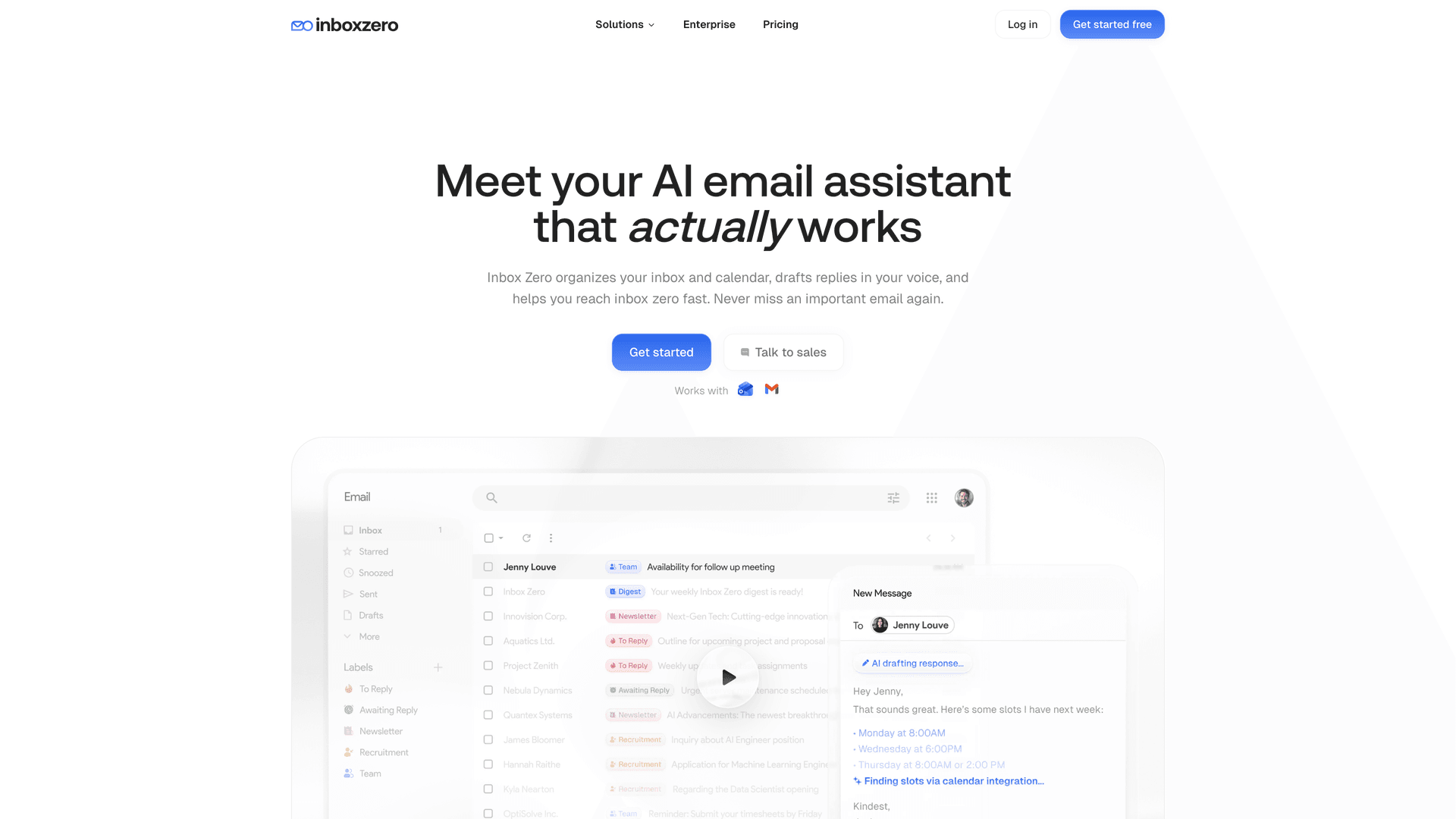
Want to understand your inbox patterns before you set up automation? Inbox Zero's email analytics gives you a breakdown of your top senders, read rates, and category volumes, so you know exactly which senders and categories are worth building labels and rules for.
And for the label-based organization we've been talking about throughout this guide, our Inbox Zero Tabs for Gmail Chrome extension takes it to the next level. Instead of labels hiding in a sidebar or cramped Multiple Inbox panes, Tabs turns your labels (or any Gmail search query) into actual tabs right inside Gmail's interface.
Think of it as a split inbox that you fully control. You could have tabs for "To Reply," "Newsletters," "Receipts," "Team" or anything else, each powered by a Gmail label or search query. The extension stores everything locally with no data collection, so your email stays private.
The combination that works best: Use Inbox Zero's AI to auto-label incoming mail, and then use the Tabs extension to view those labels as clean, separate workspaces inside Gmail. You get the organization of traditional folders with none of the manual sorting.
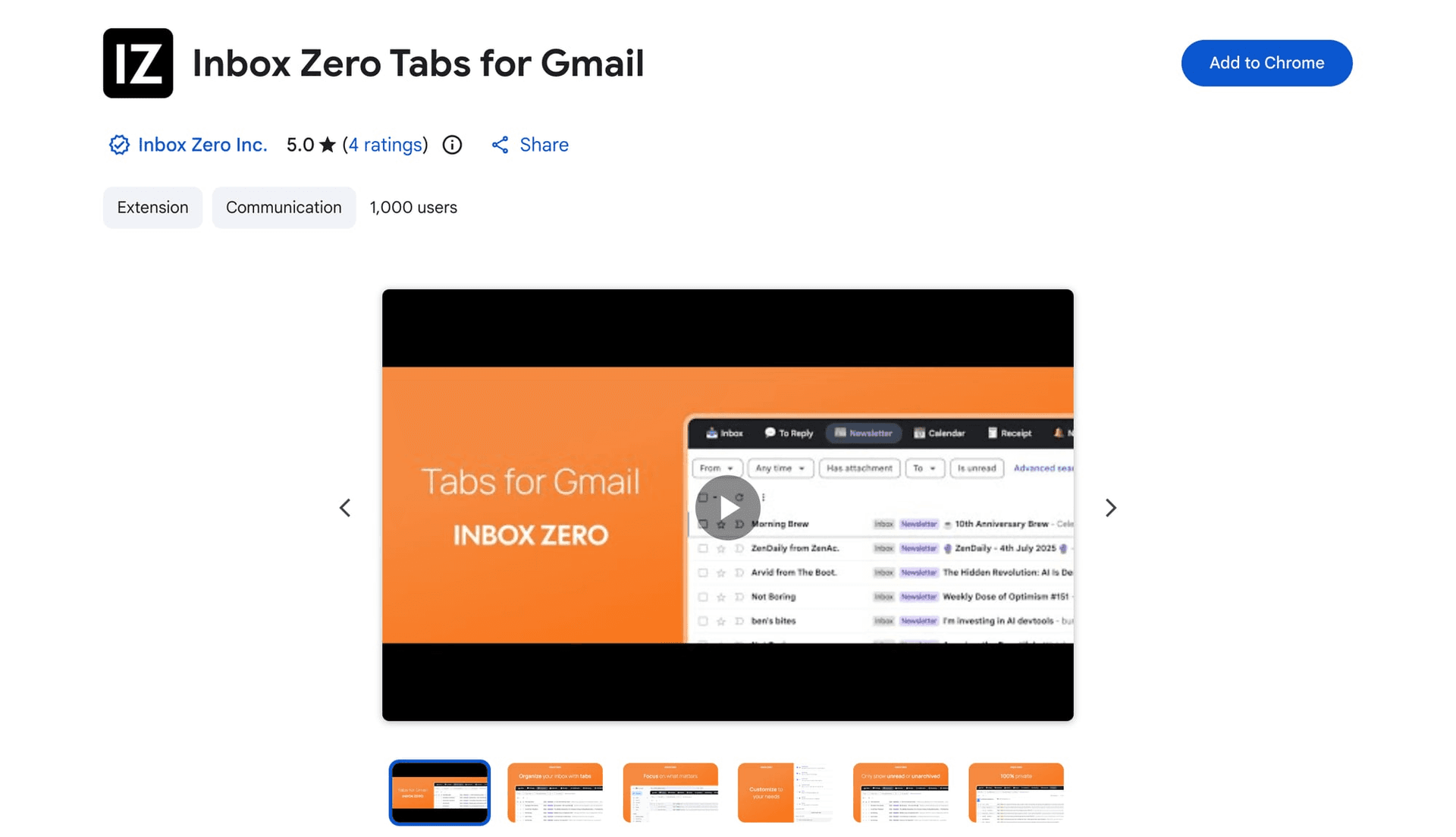
Try Inbox Zero free and see how much simpler Gmail can be when your emails sort themselves.
Frequently Asked Questions About Gmail Folders
Does Gmail Actually Have Folders?
Not in the traditional sense. Gmail uses labels and search filters instead of folders. Labels work like tags, and one email can have multiple labels at once.
Can I Create Folders in the Gmail Android App?
Yes. Open the Gmail app, tap Menu, then under All labels, tap Create label. Full instructions are on Google's Android help page.
Can I Create Folders in the Gmail iPhone App?
Yes. Open the Gmail app, tap Menu, then under Labels, tap Create new. Full instructions are on Google's iOS help page.
Can I Create Subfolders in Gmail?
Yes, on desktop. When creating a label, check the Nest label under option to create a sublabel inside another label. This is how you build hierarchical structures in Gmail.
Why Do Labeled Emails Still Show in My Inbox?
Because labeling and archiving are separate actions. To make an email leave your inbox, archive it or set up a filter with Skip the Inbox (Archive it) enabled.
Can Other People See My Gmail Labels?
No. Google confirms that only you can see your labels. The people you email don't receive or see them.
How Many Labels Can I Create in Gmail?
You can create up to 5,000 labels in Gmail, according to Google's help documentation.
Can I Color-Code Gmail Labels and Folders?
Yes. On desktop, you can right-click a label and change its color. Gmail supports up to 100 custom color combinations, which makes it much easier to spot important labels at a glance.
What Happens When I Archive an Email?
The email leaves your inbox but stays in All Mail. It's not deleted. If someone replies to that conversation, the entire thread comes back to your inbox.
Can I Create Custom Categories Like a New Promotions Tab?
No. Google only allows the existing categories (Primary, Social, Promotions, Updates, Forums). For custom organization, use labels.
Can I Create Separate Inbox Panes for Each Folder?
Yes, on desktop. Gmail's Multiple Inboxes feature lets you create extra sections based on search criteria, including label-based searches like label:action or label:receipts.
How Is Gmail Different from Outlook for Folder Organization?
Gmail's label-based system is fundamentally different from Outlook's folder structure. If you're comparing the two or migrating between them, our Gmail vs. Outlook comparison covers the key differences in organization, search, and workflow.
The Bottom Line on Creating Gmail Folders
Creating a folder in Gmail takes about ten seconds. Creating a folder system that you'll actually use takes a bit more thought. But the setup that holds up over time is usually this:
-
Create labels for your main email categories.
-
Use nested labels only where hierarchy genuinely helps.
-
Archive messages after labeling for strict folder behavior.
-
Set up filters for anything repetitive.
-
Use Inbox Zero Tabs or Multiple Inboxes when the sidebar starts feeling buried.
Gmail is a much better email experience once you stop trying to force it to work like Outlook. Work with labels, archive, and automation, and your inbox practically manages itself. For more tips on building a sustainable system, our email management tips guide and how to manage your inbox are both good next reads.
And if you want to skip the manual sorting entirely, Inbox Zero handles the labeling, archiving, and reply tracking for you with AI. It's the natural next step once you've got your label system in place.
Relay.app Is Shutting Down: Deadlines, Data Export, and Alternatives
Relay.app is shutting down in 2026. See the deadlines for free and paid users, what to export, and which alternatives fit your email and automation workflows.
2026-07-16T18:46:02Z

Best AI Email Assistants in 2026 (Tested)
The best AI email assistants in 2026, tested and compared. Honest pros, cons, and pricing for Inbox Zero, Superhuman, Fyxer, Shortwave, Lindy, Missive, SaneBox, Serif, Perplexity, Gemini in Gmail, and Microsoft Copilot, with picks by use case.
2026-07-05T08:00:00Z

Top 16 Email Management Software of 2026
Discover the top 16 email management software of 2025 designed to boost productivity and simplify your inbox.
2026-06-24T09:00:00Z
7 Best Fyxer Alternatives in 2026
The best Fyxer.ai alternatives in 2026, compared. AI email assistants, team inboxes, and inbox cleaners, with honest notes on price, features, and who each one is for.
2026-06-01T08:00:00.000Z