Gmail Multiple Inboxes Not Showing: Fix Guide (2025)
Gmail Multiple Inboxes not showing? The fix takes 60 seconds. Disable category tabs, check your position settings, and you're done.

Gmail's Multiple Inboxes feature can transform your email workflow. When configured correctly, it creates a dashboard-style layout with separate sections for starred messages, specific labels, or emails matching custom search queries, all visible on one screen.
But what happens when you've enabled Multiple Inboxes and nothing shows up?
You're staring at your regular inbox. No extra panels. No additional sections. Just the same old Gmail interface.
This is surprisingly common. And the fix is usually simpler than you think. If you're looking to master your email beyond just fixing Multiple Inboxes, check out our complete guide on how to manage your inbox for a comprehensive approach.
Why Is Gmail Multiple Inboxes Not Showing?
Before we get into solutions, let's understand what's actually happening. Gmail Multiple Inboxes fails to appear for a few specific reasons.
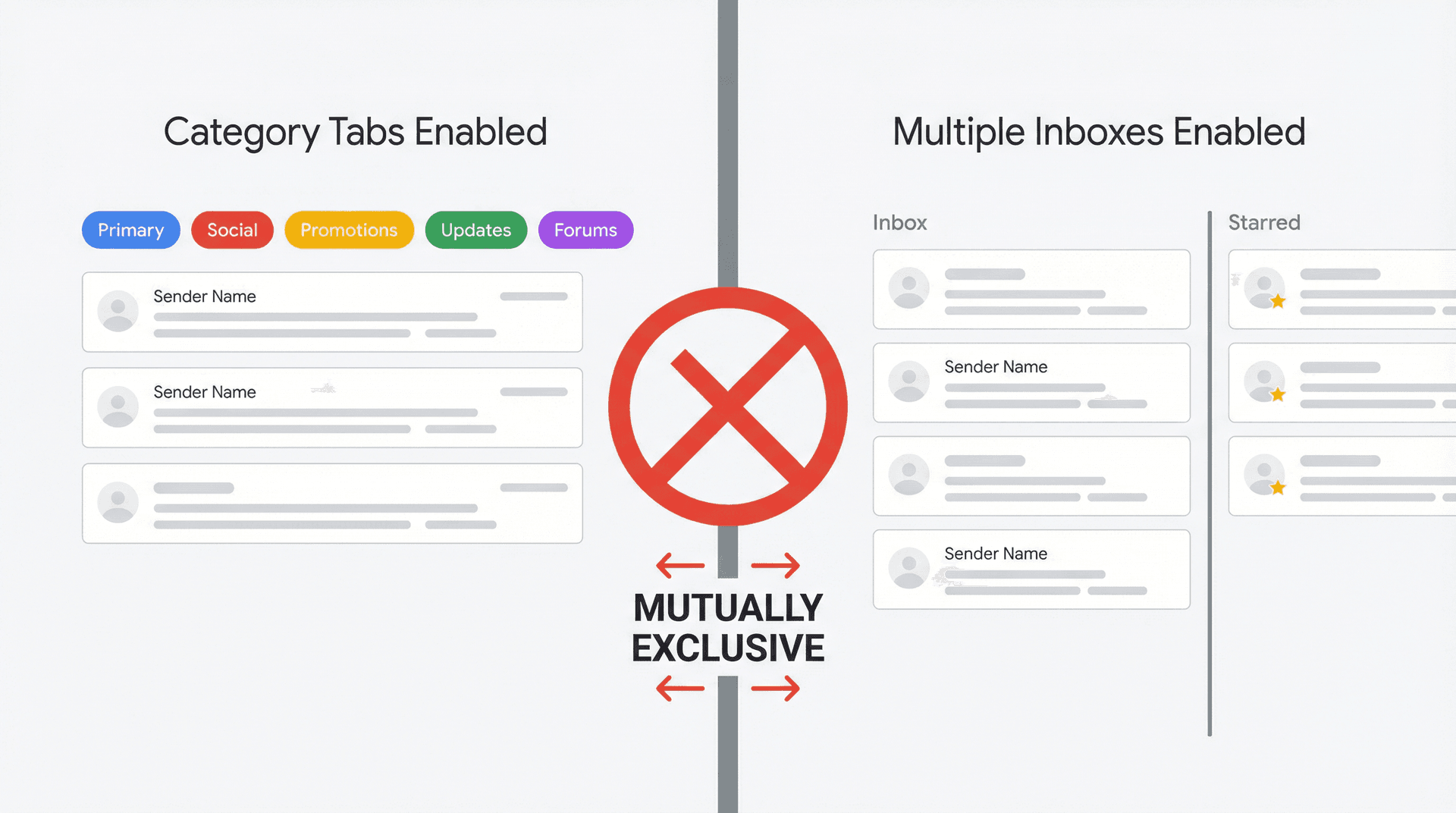
The Tabbed Inbox Conflict
Gmail won't show Multiple Inboxes if you have category tabs enabled (Primary, Social, Promotions, etc.). These two features are mutually exclusive — you can have tabs or you can have Multiple Inboxes, but not both at the same time.
According to Google's documentation, you need to disable category tabs before Multiple Inboxes will display. This is by design, not a bug.
You're on Mobile
Multiple Inboxes only works on desktop. Google explicitly states that you can only set up and view Multiple Inboxes using a computer. The mobile app doesn't support this layout at all, so if you're checking your phone, that's why you're not seeing anything.
Reading Pane Is Enabled
Gmail's reading pane (the split-screen preview) doesn't play nicely with Multiple Inboxes. In February 2020, Google announced that Multiple Inboxes no longer supports the three-pane layout with reading pane enabled. If you have reading pane turned on, your Multiple Inboxes sections won't show.
Positioning Issues
Your Multiple Inboxes might actually be there, just hidden. Gmail lets you position these sections above, below, or to the right of your main inbox. If they're positioned off-screen or the panel is collapsed, you might think they're missing when they're just not visible.
Empty Search Queries
Multiple Inboxes relies on search queries to populate each section. If you haven't configured any queries (or your queries return zero results), you won't see anything useful. Understanding Gmail labels vs folders is crucial here, since Multiple Inboxes queries often use labels.
How to Fix Gmail Multiple Inboxes in 60 Seconds
Here's the fastest solution that works for most people, based on proven email management strategies.
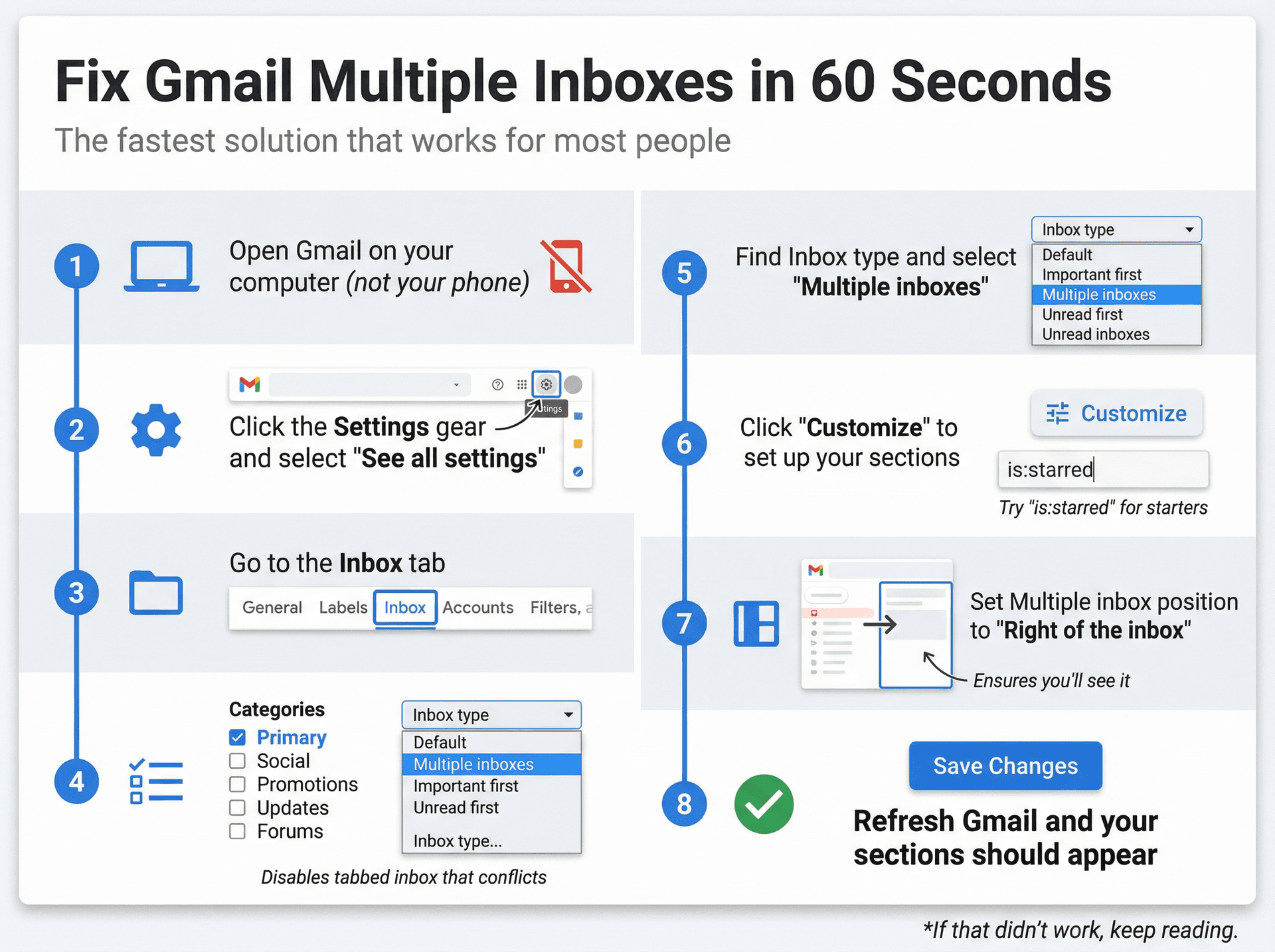
Open Gmail on your computer (not your phone), click the Settings gear, and select "See all settings." Navigate to the Inbox tab and uncheck every category except Primary — this disables the tabbed inbox that conflicts with Multiple Inboxes.
While you're still in the Inbox tab, find Inbox type and select "Multiple inboxes." Click "Customize" to set up your sections, and add at least one search query (try is:starred for starters) with a section name. Set the Multiple inbox position to "Right of the inbox" so you'll actually see it, then save your changes.
Refresh Gmail and your Multiple Inboxes sections should appear. If that didn't work, keep reading.
Complete Gmail Multiple Inboxes Troubleshooting
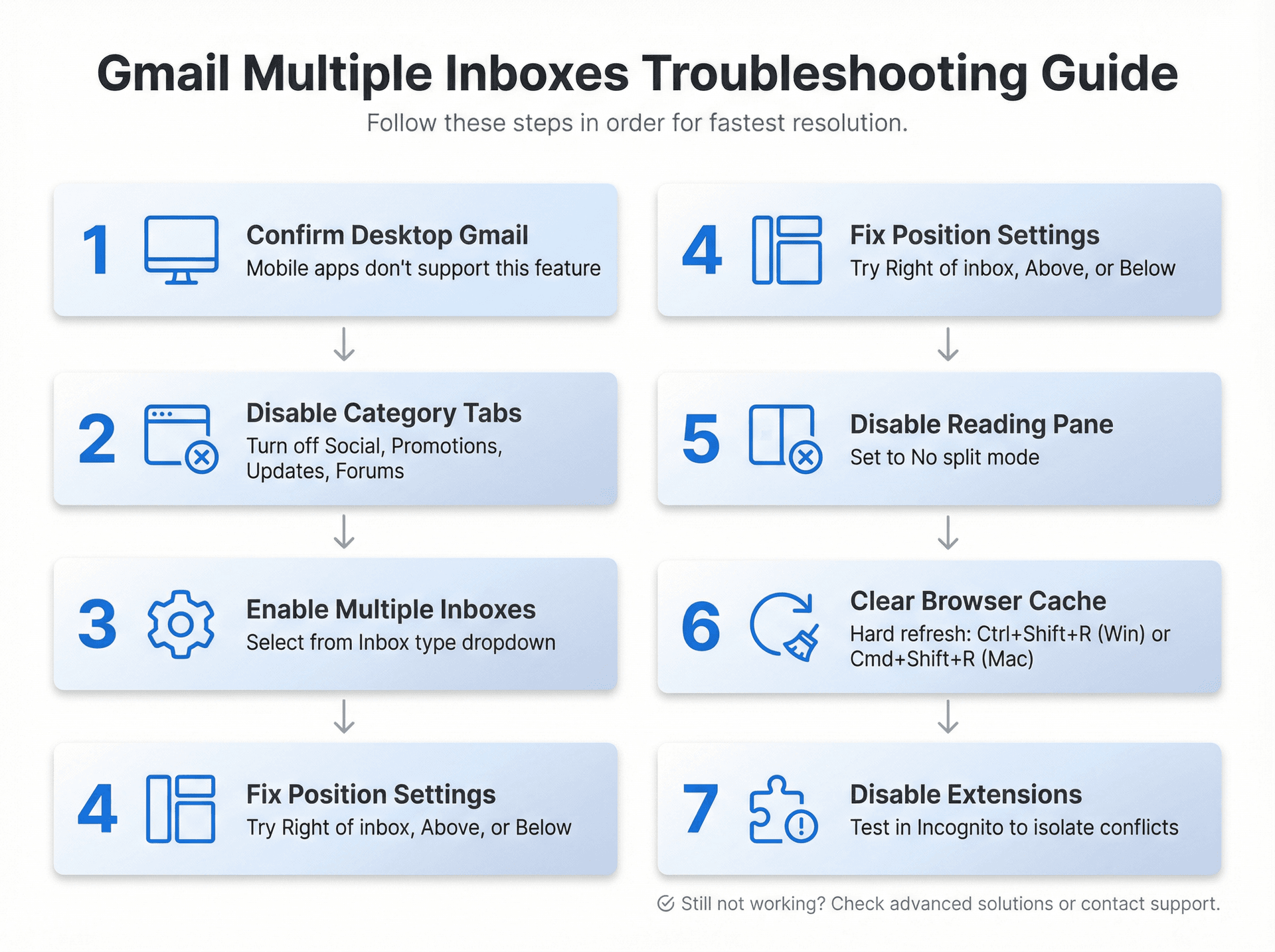
Step 1: Confirm You're on Desktop Gmail
This sounds obvious, but it's the most common mistake. Multiple Inboxes is desktop-only. Google's documentation makes this clear: "You can only set up (and view) multiple inboxes with a computer."
That means it works in desktop browsers like Chrome, Firefox, Safari, and Edge, but not in the iPhone Gmail app, Android Gmail app, or mobile browser Gmail. If you're on your phone, switch to a computer. That's it. That's the fix.
Step 2: How to Disable Gmail Category Tabs
The number one reason Multiple Inboxes doesn't show is because Gmail's category tabs are active.
To turn them off, open Gmail on desktop and click the Settings gear, then "See all settings." Go to the Inbox tab and find the Categories section. Uncheck Social, Promotions, Updates, and Forums, leaving only Primary checked. Save your changes.
Gmail won't display Multiple Inboxes while category tabs are enabled. This is by design, not a bug. Once you disable the tabs, Multiple Inboxes should immediately become visible.
Step 3: How to Enable Multiple Inboxes in Gmail Settings
Sometimes people think they've turned on Multiple Inboxes when they haven't actually completed the setup.
Double-check your settings by going to Settings, then the Inbox tab. Find Inbox type (usually near the top) and select "Multiple inboxes" from the dropdown. Click "Customize" (or look for a "Multiple Inboxes" tab in settings), and you'll see fields for up to 5 search queries. Fill in at least one — here are some example queries you can use:
| Query | What it shows |
|---|---|
is:starred | All starred emails |
is:unread | Unread messages |
label:important | Emails with "Important" label |
from:boss@company.com | Emails from a specific person |
Give each section a name (like "Starred" or "Unread") and save your changes. If you don't configure at least one query with a section name, Gmail won't show any additional panels.
Step 4: How to Fix Gmail Multiple Inboxes Position
Your Multiple Inboxes might be there but positioned where you can't see them. Go to Settings, then Inbox, then Customize (under Multiple Inboxes) and look for "Multiple inbox position." Try each option — "Right of the inbox" is recommended for troubleshooting, but if you're on a narrow screen that might push the panel off-screen, so try "Above the inbox" instead. This stacks the sections vertically where they're impossible to miss. Save and refresh after each change.
Also check for collapsed panels. Gmail added collapsible sections and adjustable widths for Multiple Inboxes, so look for a vertical divider between your main inbox and the right panel. Section headers can be clicked to expand, and a collapsed panel can be dragged wider. If you see a thin divider, try dragging it to expand the Multiple Inboxes area.
Step 5: How to Disable Gmail Reading Pane
Reading pane and Multiple Inboxes don't work together. Google's 2020 update specifically notes that Multiple Inboxes no longer supports the reading pane layout. If you have reading pane enabled, your Multiple Inboxes won't display properly.
To turn it off, go to Settings, then "See all settings," then the Inbox tab. Find "Reading pane" and select "No split" to disable it, then save your changes. You have to choose: reading pane or Multiple Inboxes. You can't have both.
Step 6: Clear Your Browser Cache
Sometimes Gmail's interface gets stuck with outdated settings. Try a hard refresh first — on Windows, press Ctrl + Shift + R (or Ctrl + F5), and on Mac, press Cmd + Shift + R. This forces Gmail to reload completely, clearing any cached layout issues.
If that doesn't work, go to your browser settings and find "Clear browsing data" or "Clear cache and cookies." You can clear just Gmail.com or clear everything, then sign back into Gmail.
Step 7: Disable Browser Extensions
Browser extensions can break Gmail's interface, especially the Multiple Inboxes layout. The quickest way to test this is to open Gmail in an Incognito or Private window, where extensions are usually disabled. If Multiple Inboxes shows up in Incognito, an extension is the problem.
Go back to your regular browser and disable all extensions, then re-enable them one by one to find the culprit. Known problematic extensions include Gmail add-ons that modify the interface, "Enhanced Gmail" type extensions, some task management integrations, and ad blockers that aggressively modify page layout. You might need to keep the problematic extension disabled if you want to use Multiple Inboxes.
When Basic Fixes Don't Work: Advanced Solutions
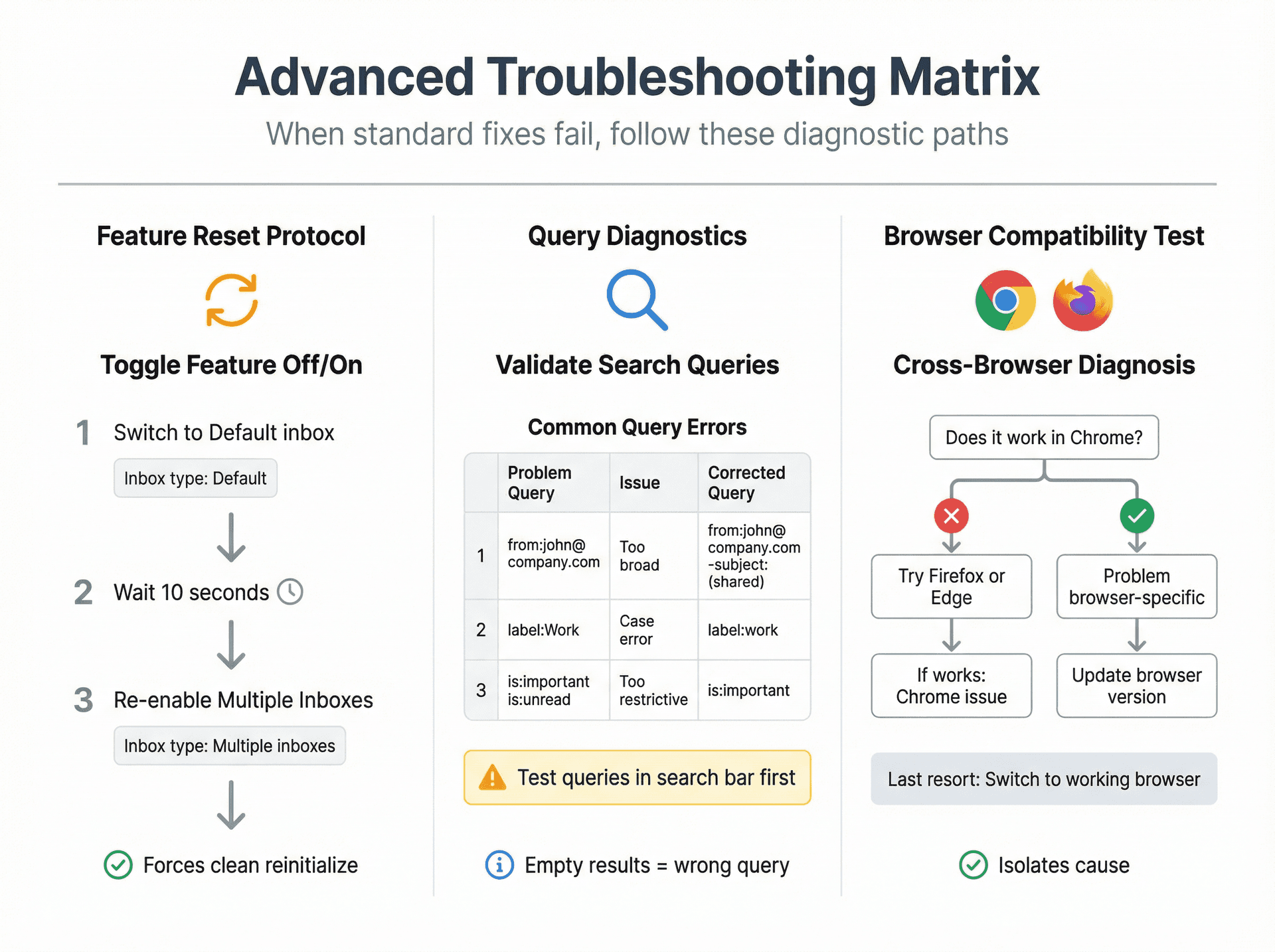
If none of the above worked, try these last-resort solutions.
Toggle the Feature Off and On
Go to Settings, then Inbox, and change the Inbox type to "Default." Save your changes, wait about 10 seconds, then switch back to "Multiple inboxes" and reconfigure your sections. Save again. This forces Gmail to reinitialize the feature from scratch.
Check Your Search Queries
Your Multiple Inboxes sections might be empty (not missing). Copy the search query from your Multiple Inboxes settings and paste it into Gmail's search bar to see if any emails match. If nothing shows up, your query is either wrong or you don't have emails that match it. Gmail's search operators can be tricky, so here are some common mistakes:
| What you typed | The problem | Fix it with |
|---|---|---|
from:john@company.com | Might include Drive notifications | Add -subject:(shared) |
label:Work | Case-sensitive label names | Try label:work |
is:important is:unread | Too restrictive | Try just is:important |
Try a Different Browser
If Gmail Multiple Inboxes works in Chrome but not Firefox (or vice versa), the problem is browser-specific. Update your browser to the latest version, clear all Gmail data in that browser, and check for browser-specific extensions. As a last resort, use the browser where it works.
How to Set Up Gmail Multiple Inboxes Sections
Once you've got it working, here are some practical section configurations based on effective email management tips.
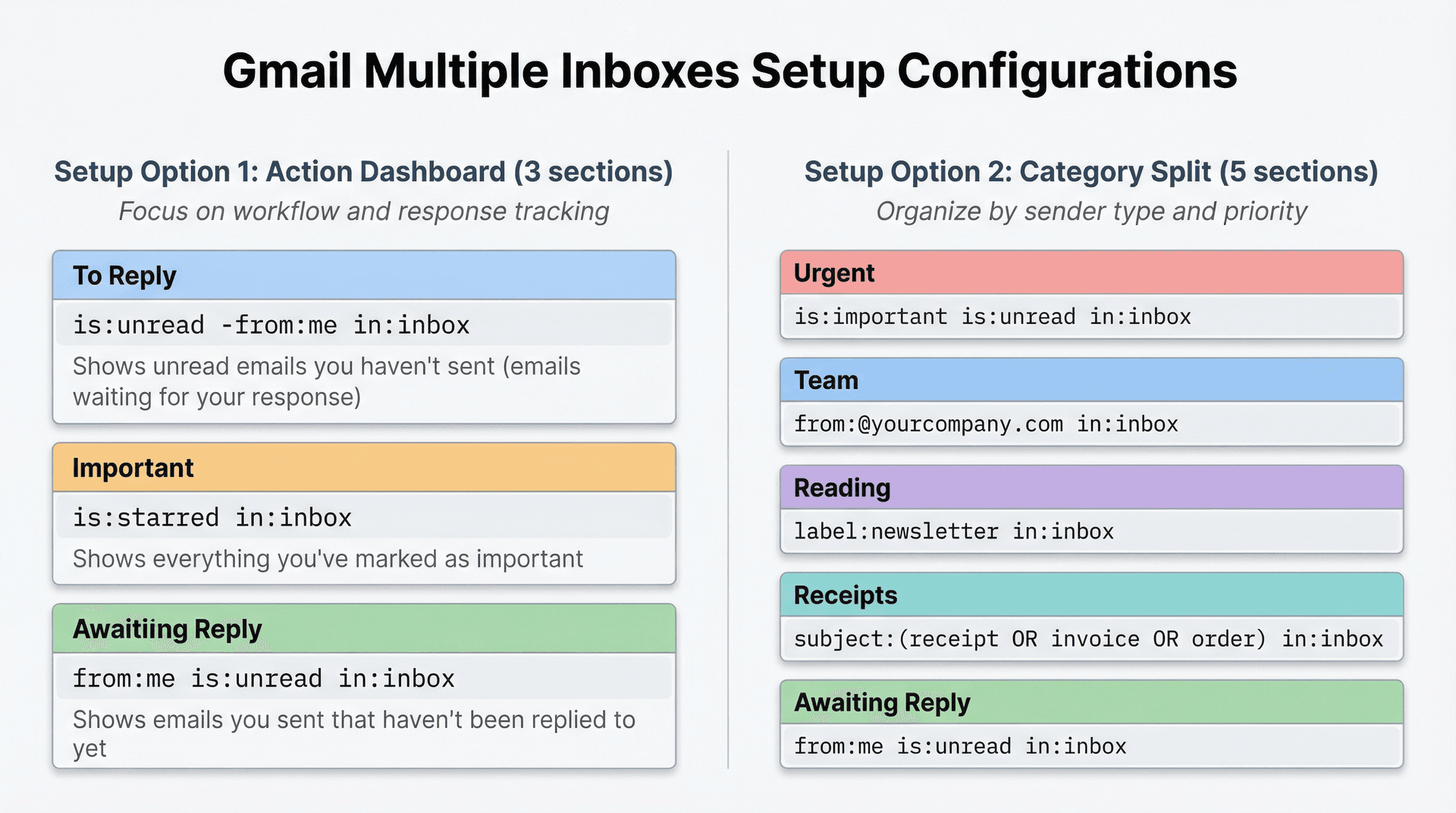
Setup Option 1: Action Dashboard (3 sections)
This setup organizes your inbox around what needs your attention. The first section, "To Reply," uses the query is:unread -from:me in:inbox to show unread emails you haven't sent — these are emails waiting for your response. The second section, "Important," uses is:starred in:inbox to show everything you've marked as important. The third section, "Awaiting Reply," uses from:me is:unread in:inbox to surface emails you sent that haven't been replied to yet.
Setup Option 2: Category Split (5 sections)
For a more granular view, you can split your inbox into five sections. Use is:important is:unread in:inbox for urgent items, from:@yourcompany.com in:inbox for team emails, label:newsletter in:inbox for reading material, subject:(receipt OR invoice OR order) in:inbox for receipts, and from:me is:unread in:inbox for messages awaiting replies.
Gmail Multiple Inboxes Alternative: Custom Tabs
If Multiple Inboxes keeps giving you trouble, there's another approach that many users find more reliable.
Inbox Zero Tabs for Gmail is a free Chrome extension that creates custom tabs inside Gmail using any search query you want. You can learn more in our detailed extension documentation.
Instead of stacked sections or side panels, you get actual tabs at the top of Gmail (like Primary/Social/Promotions, but completely customizable). The Inbox Zero Tabs extension is available in the Chrome Web Store:
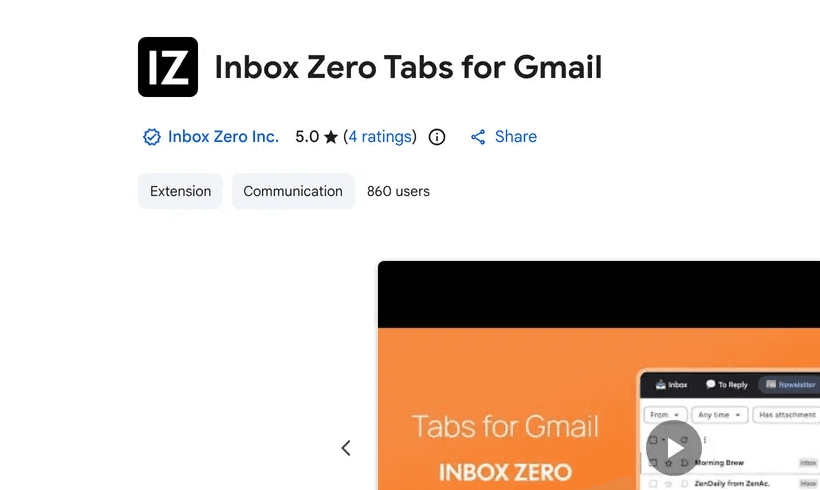
You can create up to 8 custom tabs, each powered by any Gmail search query. It works with dark mode, supports multiple Gmail accounts, and is 100% private with no data collection — everything runs client-side. A typical setup might look like this: a "To Reply" tab using is:unread -from:me, a "Starred" tab using is:starred, a "Newsletters" tab using label:newsletter, and a "Team" tab using from:@company.com.
The extension works alongside Gmail's existing features without conflicting with them. It's also easier to set up than Multiple Inboxes and doesn't require disabling category tabs. For more Gmail productivity enhancements, check out our Gmail shortcuts cheat sheet.
You can install it from the Chrome Web Store and configure your tabs in seconds.
How Inbox Zero Automates Multiple Inboxes
Once you have a working multi-section inbox (whether using Gmail's native feature or custom tabs), the real power comes from automating what goes into each section. That's where Inbox Zero's AI automation helps.
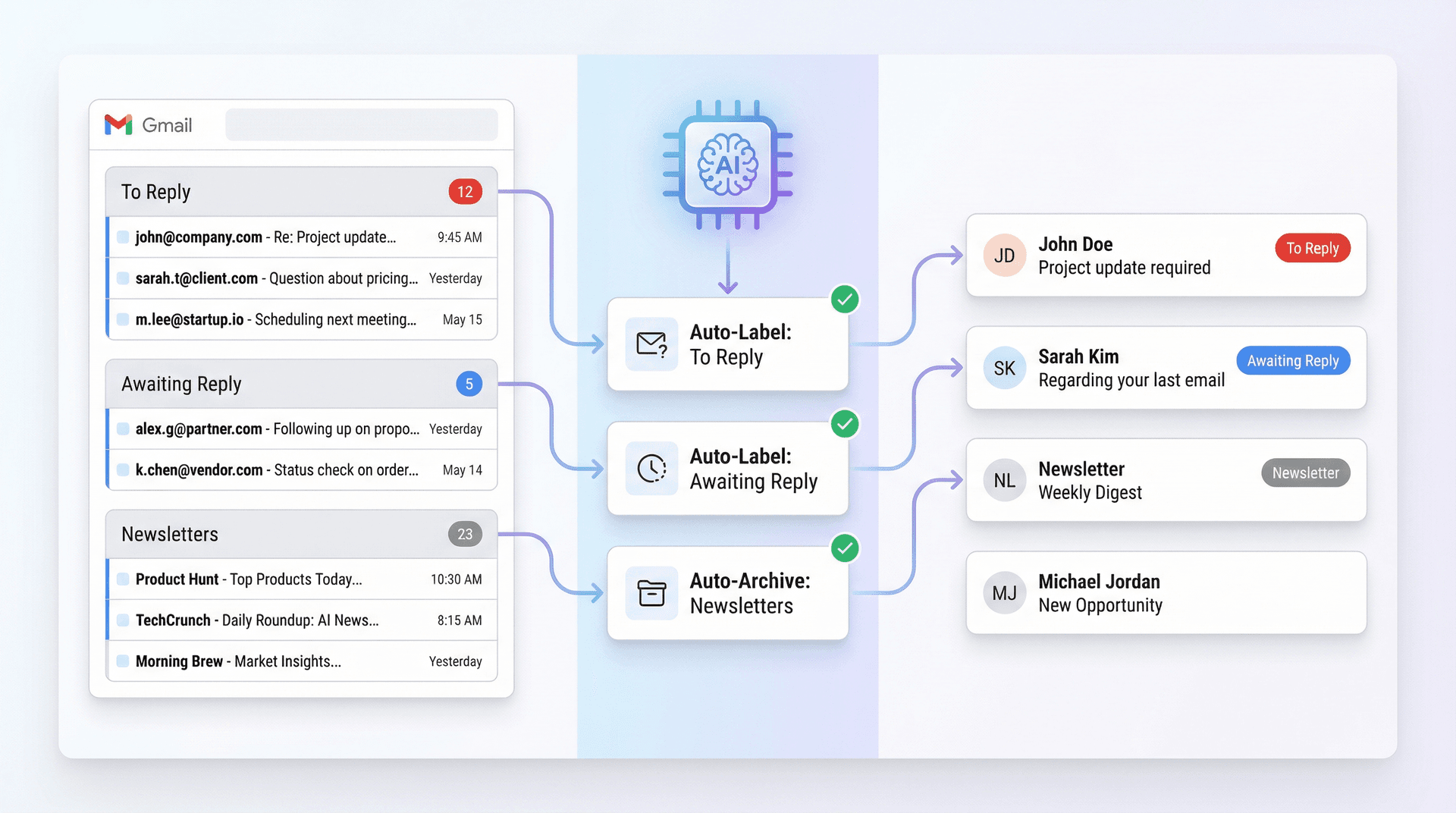
Here's what the Inbox Zero dashboard looks like in action:
Gmail Multiple Inboxes shows you emails based on searches and labels, but you still have to apply those labels manually or create complex filters. Inbox Zero automates the labeling using AI rules. It auto-labels emails that need replies as "To Reply" and threads you're waiting on as "Awaiting Reply." It auto-archives newsletters you never read using the bulk email unsubscriber, blocks cold emails automatically, and drafts replies for common emails using AI.
Once Inbox Zero labels your emails, they automatically appear in the right Multiple Inboxes sections. For example, you set up a Multiple Inboxes section for label:to-reply. Inbox Zero's AI labels every email needing a response with "To Reply." Now that section always shows exactly what you need to act on, without you doing anything.
This is how you turn Gmail into a true productivity system instead of a to-do list that never ends.
Learn more about AI-powered email management and discover our best inbox zero apps for Gmail.
Gmail Multiple Inboxes FAQ
Can I use Multiple Inboxes on my iPhone?
No. Multiple Inboxes is desktop-only. You can set it up on a computer and it will work when you access Gmail on desktop, but it won't display in the Gmail mobile app.
How many Multiple Inboxes sections can I create?
Gmail allows up to 5 additional inbox sections (plus your primary inbox). This limit is built into the feature.
Why do I see emails in both my main inbox and a Multiple Inboxes section?
Because Multiple Inboxes sections are just views based on search queries. They don't move emails, they just display them. If an email matches your query and is in your inbox, it will show in both places.
To actually separate emails, create a Gmail filter that skips the inbox and applies a label, then use that label in your Multiple Inboxes query.
Can I use Multiple Inboxes and category tabs at the same time?
No. Gmail doesn't allow this. You have to choose one or the other.
What if Multiple Inboxes sections are empty?
Your search queries probably don't match any emails. Test each query in Gmail's search bar to see what results you get, and adjust the queries until they return the emails you want. Our email analytics feature can help you understand your email patterns to create better queries.
Does Multiple Inboxes work with Gmail filters?
Yes, and this is actually the best way to use it. Create filters that automatically label emails, then use those labels in your Multiple Inboxes queries (like label:clients or label:urgent).
Gmail Search Operators for Multiple Inboxes
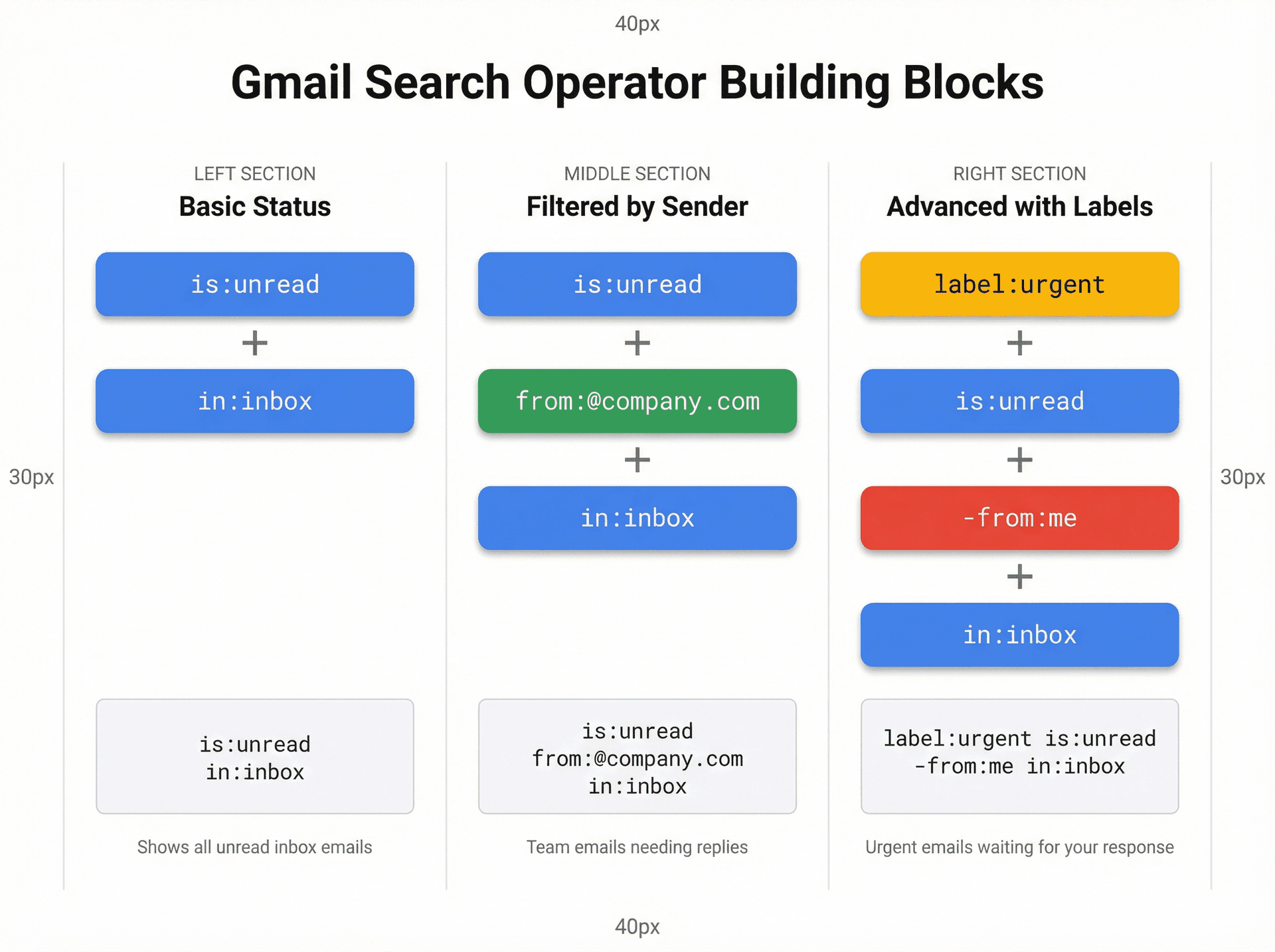
Here are the most useful search operators for creating Multiple Inboxes sections:
| Operator | Example | What it finds |
|---|---|---|
is:unread | is:unread | Unread emails |
is:starred | is:starred | Starred emails |
is:important | is:important | Important emails (Gmail's priority inbox) |
from: | from:boss@company.com | Emails from specific sender |
to: | to:me | Emails sent to you |
subject: | subject:invoice | Emails with specific subject words |
label: | label:urgent | Emails with a specific label |
in:inbox | in:inbox | Only emails in inbox (not archived) |
-from:me | is:unread -from:me | Unread emails you didn't send |
OR | from:john OR from:jane | Match either condition |
You can combine operators: is:unread from:@company.com in:inbox
See all Gmail search operators here.
Fix Gmail Multiple Inboxes: Summary
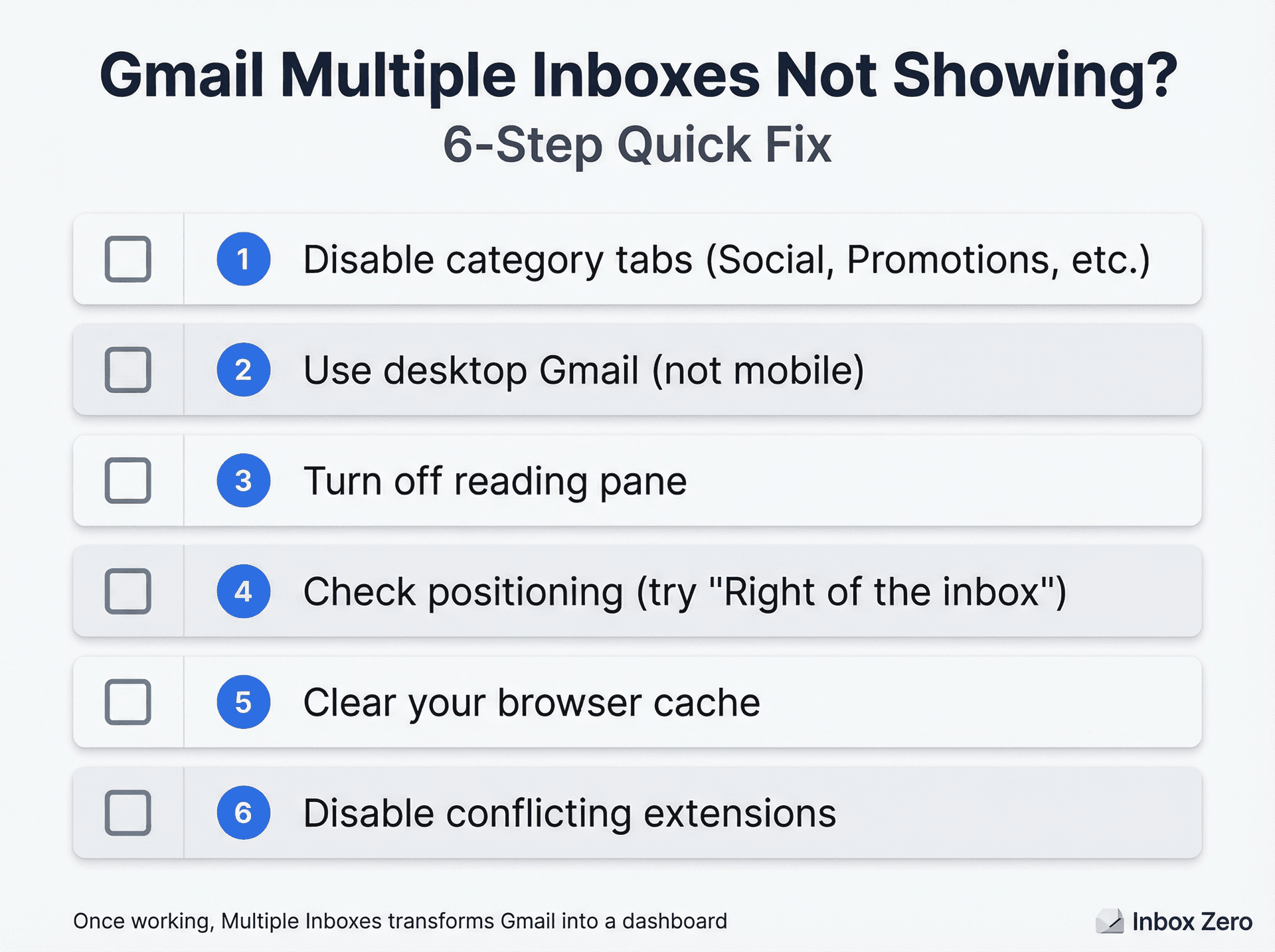
If Gmail Multiple Inboxes isn't showing, the fix is usually one of these: disable category tabs (Social, Promotions, etc.), use desktop Gmail instead of mobile, turn off reading pane, check positioning (try "Right of the inbox"), clear your browser cache, or disable conflicting extensions.
Once it's working, Multiple Inboxes transforms Gmail into a dashboard where you can see everything that matters at a glance. And if you want to take it further, combine Multiple Inboxes with Inbox Zero's AI automation to automatically label, archive, and draft replies. That's when email stops being overwhelming and starts being manageable.

How to Recall an Email in Outlook (2026)
How to recall an email in Outlook step by step for new Outlook, classic Outlook, web, Mac, and mobile, plus when recall works and what to do when it doesn't.
2026-09-30T18:25:57.000Z

How to Stop AliExpress Emails (2026)
Stop AliExpress promotional emails: the unsubscribe link, notification settings in your AliExpress account, and what to do when the deals keep coming.
2026-09-30T18:25:57.000Z

How to Stop Amazon Emails (2026)
Stop Amazon marketing emails with the Communication Preferences Center, manage Amazon email subscriptions, and handle order emails you can't switch off.
2026-09-30T18:25:57.000Z

How to Stop Domino's Emails (2026)
Stop Domino's emails with Domino's official opt-out page, stop Domino's text offers, and know which rewards emails keep coming.
2026-09-30T18:25:57.000Z