How to Stop AliExpress Emails (2026)
Stop AliExpress promotional emails: the unsubscribe link, notification settings in your AliExpress account, and what to do when the deals keep coming.

AliExpress sends a steady stream of sale announcements, coupons, and "recommended for you" emails, alongside order and shipping updates. Promotions can be turned off; order updates are part of buying and keep coming while you have active orders.
Unsubscribe from AliExpress promotional emails
The most reliable route is the unsubscribe link at the bottom of any AliExpress marketing email. Open one, scroll to the footer, and follow the link to opt out. Repeat this for any other type of promotional email that still arrives, because each campaign type may need its own unsubscribe.
Change AliExpress notification settings
AliExpress also has notification settings in your account. Menu labels vary a little between the app and website, but the path is usually:
- App: tap Account, then the settings (gear) icon, then Notification settings, and turn off promotional email options.
- Website: sign in, open your account settings, and look for the notification or email subscription settings.
AliExpress doesn't publish a detailed help article for this, so if you can't find a setting, the unsubscribe link in the email is the dependable option. Changes can take a day or two to kick in.
Order and shipping emails
Emails about orders you've placed (confirmation, shipping, delivery, disputes) are transactional. They'll stop once you have no active orders. Until then, a filter in your email app can keep them out of the way.
Block or filter AliExpress emails in Gmail or Outlook
If some AliExpress emails still get through, filter them in your email app so they skip your inbox:
- Gmail: open an AliExpress email, click the three dots (More) at the top, and choose Filter messages like these. Click Create filter, then pick Skip the Inbox (Archive it) or Delete it.
- Outlook: right-click an AliExpress email and choose Rules → Create rule to move messages from that sender to a folder. Or choose Block sender if you never want to see them. Blocking sends future messages to Junk.
A filter is better than blocking if some of the emails (receipts, security alerts) are ones you may need later.
Stop AliExpress emails and every other newsletter with Inbox Zero
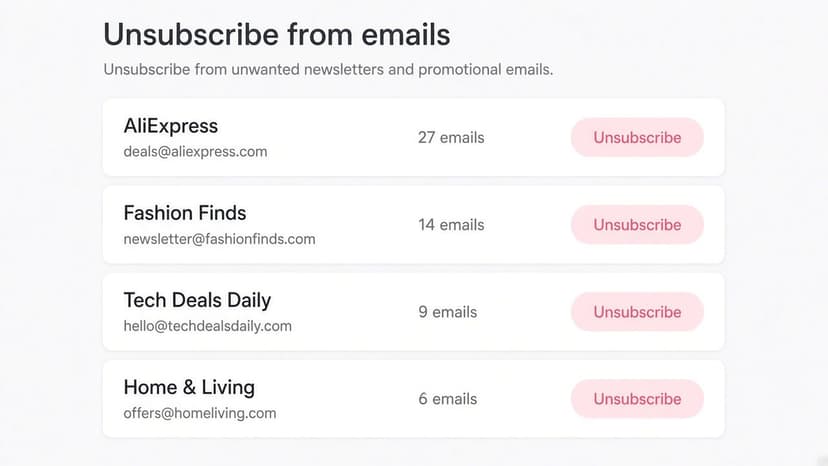
Once AliExpress is sorted, the next question is usually "what else is in here?" Inbox Zero's Bulk Unsubscribe answers that for Gmail and Outlook in a few minutes:
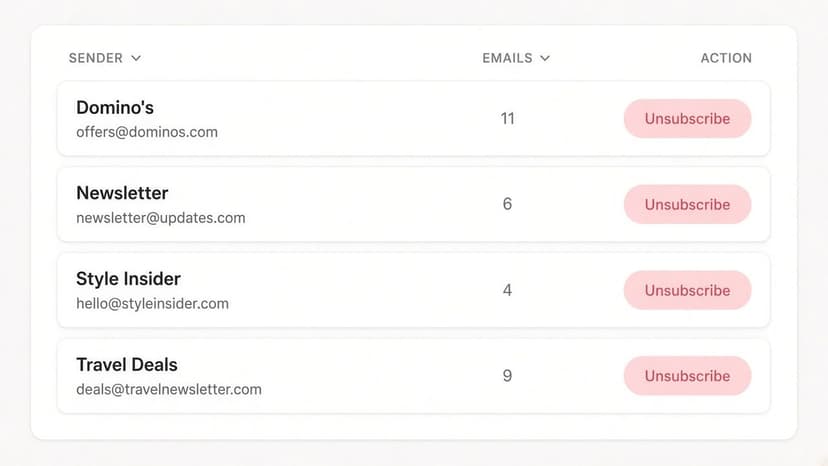
- See every sender in one list. Newsletters and marketing emails are grouped by sender, with how many each one sends and how often you actually open them.
- Unsubscribe in one click. Inbox Zero uses each sender's own unsubscribe mechanism, and you can select several senders at once. Select suggested picks out high-volume senders you rarely read.
- Auto Archive what won't stop. For senders that keep emailing (like new campaign types that show up after you unsubscribe), Auto Archive files future emails out of your inbox automatically, optionally with a label, so they're there if you need them.
- Clean up the backlog. Archive or delete old emails from a sender in bulk instead of scrolling through them.
For account notifications like AliExpress's, the settings above are still the most complete fix, because they stop the emails at the source. Inbox Zero covers everything else, and it's open source.
FAQ
How do I stop AliExpress emails?
Click the unsubscribe link at the bottom of an AliExpress promotional email, then check the notification settings in your AliExpress account (Account → Settings → Notification settings in the app) to turn off promotional emails.
Why do I still get AliExpress emails after unsubscribing?
AliExpress runs several campaign types, and order updates are transactional. Unsubscribe from each promotional email type that still arrives, and give changes a day or two. Filter anything left over in your email app.
Can I stop AliExpress order emails?
Not while you have active orders. Order and shipping updates are transactional and stop once there's nothing in progress.
How to Recall an Email in Outlook (2026)
How to recall an email in Outlook step by step for new Outlook, classic Outlook, web, Mac, and mobile, plus when recall works and what to do when it doesn't.
2026-09-30T18:25:57.000Z
How to Stop AliExpress Emails (2026)
Stop AliExpress promotional emails: the unsubscribe link, notification settings in your AliExpress account, and what to do when the deals keep coming.
2026-09-30T18:25:57.000Z
How to Stop Amazon Emails (2026)
Stop Amazon marketing emails with the Communication Preferences Center, manage Amazon email subscriptions, and handle order emails you can't switch off.
2026-09-30T18:25:57.000Z
How to Stop Domino's Emails (2026)
Stop Domino's emails with Domino's official opt-out page, stop Domino's text offers, and know which rewards emails keep coming.
2026-09-30T18:25:57.000Z