How to Recall an Email in Outlook (2026)
How to recall an email in Outlook step by step for new Outlook, classic Outlook, web, Mac, and mobile, plus when recall works and what to do when it doesn't.

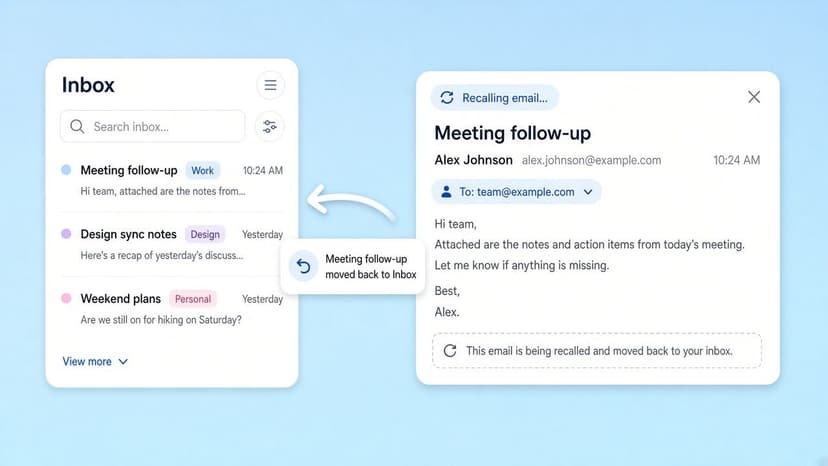
You hit Send and immediately saw the typo, the wrong attachment, or (worse) the wrong recipient. Outlook has a Recall feature that can pull the message back, but it only works in specific situations. Here's exactly when it works, the steps for every version of Outlook, and what to do when recall isn't an option.
Quick answer: how to recall an email in Outlook
- Go to Sent Items.
- Double-click the email to open it in its own window.
- Select Recall Message (new Outlook and Outlook on the web) or Recall This Message (classic Outlook).
- Confirm. You'll get a Message Recall Report in your inbox showing whether it worked.
The catch: Microsoft says recall only works if both you and the recipient have Microsoft 365 work or school accounts in the same organization. It doesn't work for Outlook.com, Hotmail, Live, or MSN addresses, or for emails sent to Gmail, Yahoo, or any address outside your company.
Can you recall this email? (Check first)
| Your situation | Can you recall it? |
|---|---|
| Work/school Microsoft 365 account, recipient in the same organization | Yes |
| Work account, recipient at another company | No |
| Recipient uses Gmail, Yahoo, iCloud, etc. | No |
| Personal Outlook.com / Hotmail / Live / MSN account | No (use Undo Send next time) |
| Message protected by Azure Information Protection | No (classic Outlook) |
| Recipient's mailbox is on an on-premises Exchange server | No for the new cloud-based recall |
If you're in a "No" row, skip to the section on what to do when you can't recall an email.
How to recall an email in new Outlook for Windows
From Microsoft's support article:
- Select Sent Items in the left folder pane.
- Double-click the sent message to open it in a separate window.
- From the ribbon, select Recall Message.
- Select OK in the confirmation dialog.
- Shortly after, a Message Recall Report arrives in your inbox. Select the link in it to see whether the recall succeeded, is pending, or failed.
Want to replace the message? Recall it first, then send a corrected version (for example, with the attachment you forgot).
How to recall an email in classic Outlook for Windows
- In the folder pane, choose Sent Items.
- Double-click the message to open it. This matters: selecting the message in the reading pane won't give you the recall option.
- Find the recall command. It depends on your ribbon:
- Classic Ribbon: on the Message tab, in the Move group, select More Move Actions, then Recall This Message.
- Simplified Ribbon: on the Message tab, select More commands (...), point to Actions, and select Recall This Message.
- Choose one:
- Delete unread copies of this message, or
- Delete unread copies and replace with a new message.
- Select OK. If you chose to replace it, edit the new message and select Send.
Don't see Recall This Message? Microsoft says you probably don't have an Exchange account, or recall isn't available in your organization.
Check the recall result
Usually less than 30 seconds after you submit a recall, you'll get an email titled "Message Recall Report for message [subject]". Select View Message Recall Report to open it in your browser.
Microsoft says recalls are usually fast regardless of recipient count. If a recall can't run right away (for example, a recipient's mailbox is temporarily unavailable), Exchange keeps retrying for up to 24 hours before marking it failed. For very large sends (tens of thousands of recipients), the status report can take up to 30 minutes to fill in.
How to recall an email in Outlook on the web
Outlook on the web is the browser version for work or school accounts.
- Select Sent Items.
- Double-click the sent message to open it in a separate window.
- Select Recall Message from the ribbon, then OK.
- Check the Message Recall Report that arrives in your inbox.
What about Outlook.com?
You can't recall email in Outlook.com. Microsoft says message recall isn't available for addresses ending in @outlook.com, @hotmail.com, @live.com, or @msn.com. Once those messages are sent, they're out of your control. Set up Undo Send (below) so you have a safety net next time.
How to recall an email in Outlook for Mac
Recall is available in Outlook for Mac 16.94 (Build 25010522) or later, with the same requirement: you and the recipient need Microsoft 365 work or school accounts in the same organization. It isn't supported in legacy Outlook for Mac.
- Select Sent in the folder pane, then double-click the message to open it.
- Select Recall in the ribbon, then OK. (Or Control-click the message and choose Recall from the shortcut menu.)
- Check the Message Recall Report in your inbox.
No Recall button? Microsoft says you can add it by customizing the toolbar.
How to recall an email in the Outlook mobile app
Microsoft added message recall to Outlook for iOS and Android in 2025 for Microsoft 365 work and school accounts. Open the message from your Sent folder, open the message menu, and choose Recall. The same-organization rule applies, and you'll need a current version of the app.
Does recall work if the recipient already opened the email?
It depends on how your organization's Exchange Online is set up.
- Cloud-based Message Recall (the newer system in Exchange Online) runs in the cloud and, according to Microsoft's Exchange team, can recall messages that have already been read, and messages that were moved to subfolders. Microsoft reported a success rate above 90% for the new system, compared with about 40% for the old one. It also doesn't depend on which email app the recipient uses.
- Admins can turn off recalling read messages for the whole organization. If they have, a message that's already been opened can't be pulled back.
- Microsoft's own support page still describes recall as working when "the recipient hasn't opened the message yet." That's the safest assumption if you don't know your organization's settings.
Either way, move fast. The sooner you recall, the better your odds. And even if it's recalled, assume the recipient may have seen the notification or preview, so a short follow-up ("please disregard my previous email") is often a good idea.
What to do when you can't recall an email in Outlook
If you're emailing outside your company or using a personal account, recall won't help with this message. Here's what does:
- Send a short correction. Reply to the original thread with the fix. Keep it brief: "Correction: the meeting is on Thursday, not Tuesday." Over-explaining draws more attention to the mistake.
- Wrong recipient with sensitive info? Email them politely and ask them to delete it. At work, tell your IT or security team, since they may have options you don't.
- Resend the right version. If you just need to send the correct message again, use Resend in Outlook instead of rewriting it.
Set up Undo Send so it doesn't happen again
Undo Send holds each email for a few seconds before it actually goes, so you can cancel it.
- Outlook.com: go to Settings → Mail → Compose and reply, find Undo send, choose how long to wait, and select Save. Microsoft says you can delay sending for up to 30 seconds. After sending, an Undo prompt appears at the bottom of the message list.
- New Outlook for Windows and Outlook on the web: the same Undo send setting is under Settings → Mail → Compose and reply.
Delay delivery in classic Outlook
Classic Outlook doesn't have Undo Send, but you can build in a buffer:
- For one email: before sending, go to the Options tab, select Delay Delivery, and set Do not deliver before to a time a few minutes from now. The message waits in your Outbox until then.
- For every email: create a rule that applies to messages you send and choose defer delivery by a number of minutes. One or two minutes is enough to catch most "oh no" moments. (Classic Outlook needs to stay open for delayed messages to send.)
Why doesn't the Recall option show up?
- You're in the reading pane. Double-click the message so it opens in its own window.
- Personal account. Outlook.com, Hotmail, Live, and MSN accounts don't have recall.
- Not an Exchange / Microsoft 365 account. IMAP and POP accounts (including Gmail added to Outlook) can't recall.
- Your organization disabled it, or the message is protected by Azure Information Protection.
- Old Outlook for Mac. You need version 16.94 or later.
Recall vs. Undo Send vs. Resend
| Feature | What it does | Works with |
|---|---|---|
| Recall | Removes a sent email from recipients' mailboxes (optionally replaces it) | Microsoft 365 work/school accounts, same organization |
| Undo Send | Holds your email for a few seconds so you can cancel before it leaves | Outlook.com, new Outlook, Outlook on the web |
| Delay Delivery | Holds an email in the Outbox until a time you choose | Classic Outlook |
| Resend | Sends another copy of an email you already sent | All versions (how to resend) |
If you also use Gmail, the rules are different there: see how to recall an email in Gmail.
Fewer rushed replies, fewer recalls
Most emails that need recalling were written in a hurry to get through a busy inbox. Inbox Zero is an open-source AI email assistant for Outlook and Gmail that takes some of that pressure off: it sorts incoming mail with AI rules, clears out newsletters with bulk unsubscribe, and can prepare draft replies in your drafts folder. Drafts aren't sent automatically, so you still review every message before it goes.
FAQ
Can I recall an email in Outlook after 1 hour?
There's no fixed time limit in Microsoft's documentation. Recall works as long as the requirements are met (same organization, Microsoft 365 accounts). Whether the recipient has read it matters: newer cloud-based recall can remove read messages unless your admin turned that off. The sooner you try, the better.
Does the recipient know I recalled an email?
Possibly. With the older recall system, recipients sometimes saw a recall notice. With cloud-based recall, Microsoft's Exchange team said recipients weren't notified at launch, but they may still notice a message disappeared or have seen a notification. Assume they might know.
Can I recall an email sent to Gmail from Outlook?
No. Outlook can only recall messages sent to Microsoft 365 mailboxes in your own organization. Messages sent to Gmail, Yahoo, or other external addresses can't be recalled.
Why can't I recall an email in Outlook.com?
Microsoft doesn't offer recall for personal accounts (@outlook.com, @hotmail.com, @live.com, @msn.com). Turn on Undo Send in Settings → Mail → Compose and reply for a short window to cancel future emails.
How do I know if my Outlook recall worked?
You'll receive a Message Recall Report in your inbox, usually within 30 seconds. Open the link to see whether the recall succeeded, is pending, or failed for each recipient.
What's the difference between recall and replace?
Recall deletes unread copies of your message. Recall and replace deletes them and lets you send a corrected message in their place, which is handy for a forgotten attachment or wrong detail.
Sources

How to Recall an Email in Outlook (2026)
How to recall an email in Outlook step by step for new Outlook, classic Outlook, web, Mac, and mobile, plus when recall works and what to do when it doesn't.
2026-09-30T18:25:57.000Z
How to Stop AliExpress Emails (2026)
Stop AliExpress promotional emails: the unsubscribe link, notification settings in your AliExpress account, and what to do when the deals keep coming.
2026-09-30T18:25:57.000Z
How to Stop Amazon Emails (2026)
Stop Amazon marketing emails with the Communication Preferences Center, manage Amazon email subscriptions, and handle order emails you can't switch off.
2026-09-30T18:25:57.000Z
How to Stop Domino's Emails (2026)
Stop Domino's emails with Domino's official opt-out page, stop Domino's text offers, and know which rewards emails keep coming.
2026-09-30T18:25:57.000Z