How to Stop Facebook Emails (2026)
Stop Facebook email notifications with the exact Settings path from Facebook's Help Center, plus how to limit Facebook to account and security emails only.

Facebook emails you about friend activity, group posts, memories, events, Marketplace, and more. All of it is controlled from one place: the Email section of your Notifications settings.
How to stop Facebook emails
From Facebook's Help Center:
- Click your profile picture in the top right of Facebook.
- Select Settings & privacy, then click Settings.
- Click Notifications on the left.
- Scroll down and select Email.
- Choose how often you get email notifications and what they're about. To stop nearly all of them, choose the option that limits email to notifications about your account, security, and privacy.
Facebook says notifications go to your primary email. If you have more than one address on your account, check which one is primary on the same page.
Stop Facebook group emails
If the flood is from one busy group, you can also change that group's notification setting from the group page (the notifications option near the top of the group), instead of turning off everything.
Use the unsubscribe link
Facebook notification emails include an unsubscribe link at the bottom. It's a quick way to stop a single type of email when you're on your phone.
Block or filter Facebook emails in Gmail or Outlook
If some Facebook emails still get through, filter them in your email app so they skip your inbox:
- Gmail: open a Facebook email, click the three dots (More) at the top, and choose Filter messages like these. Click Create filter, then pick Skip the Inbox (Archive it) or Delete it.
- Outlook: right-click a Facebook email and choose Rules → Create rule to move messages from that sender to a folder. Or choose Block sender if you never want to see them. Blocking sends future messages to Junk.
A filter is better than blocking if some of the emails (receipts, security alerts) are ones you may need later.
Stop Facebook emails and every other newsletter with Inbox Zero
Once Facebook is sorted, the next question is usually "what else is in here?" Inbox Zero's Bulk Unsubscribe answers that for Gmail and Outlook in a few minutes:
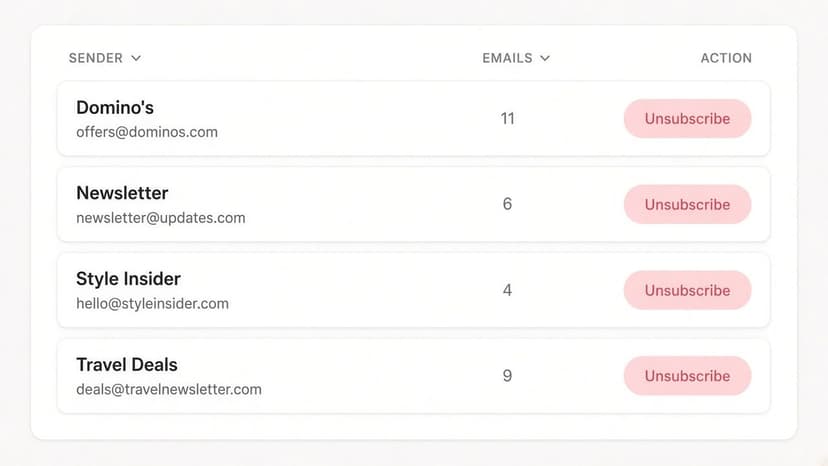
- See every sender in one list. Newsletters and marketing emails are grouped by sender, with how many each one sends and how often you actually open them.
- Unsubscribe in one click. Inbox Zero uses each sender's own unsubscribe mechanism, and you can select several senders at once. Select suggested picks out high-volume senders you rarely read.
- Auto Archive what won't stop. For senders that keep emailing (like group and activity emails from pages you forgot you followed), Auto Archive files future emails out of your inbox automatically, optionally with a label, so they're there if you need them.
- Clean up the backlog. Archive or delete old emails from a sender in bulk instead of scrolling through them.
For account notifications like Facebook's, the settings above are still the most complete fix, because they stop the emails at the source. Inbox Zero covers everything else, and it's open source.
FAQ
How do I stop Facebook from sending me emails?
Go to your profile picture → Settings & privacy → Settings → Notifications → Email, and limit email notifications to account, security, and privacy updates only.
Why am I getting Facebook emails at the wrong address?
Facebook sends notifications to your primary email. You can change which email is primary in the same Notifications → Email settings.
Can I stop Facebook group emails without leaving the group?
Yes. Change the notification setting for that group from the group's page, or turn off group emails in Notifications → Email.
Sources
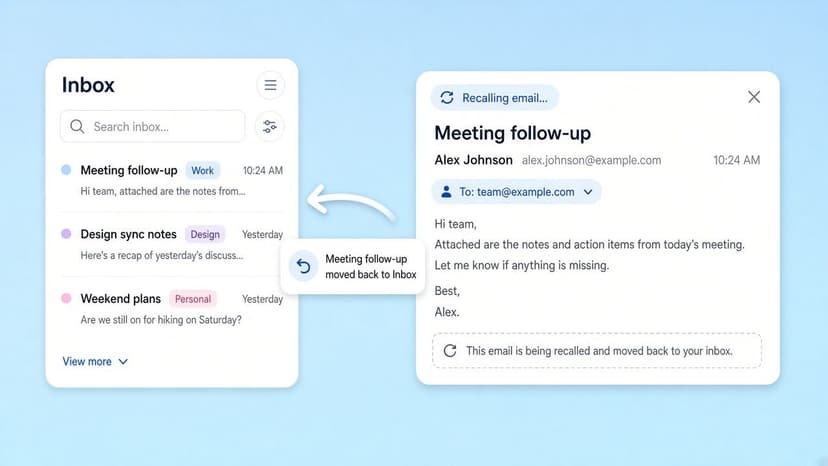
How to Recall an Email in Outlook (2026)
How to recall an email in Outlook step by step for new Outlook, classic Outlook, web, Mac, and mobile, plus when recall works and what to do when it doesn't.
2026-09-30T18:25:57.000Z
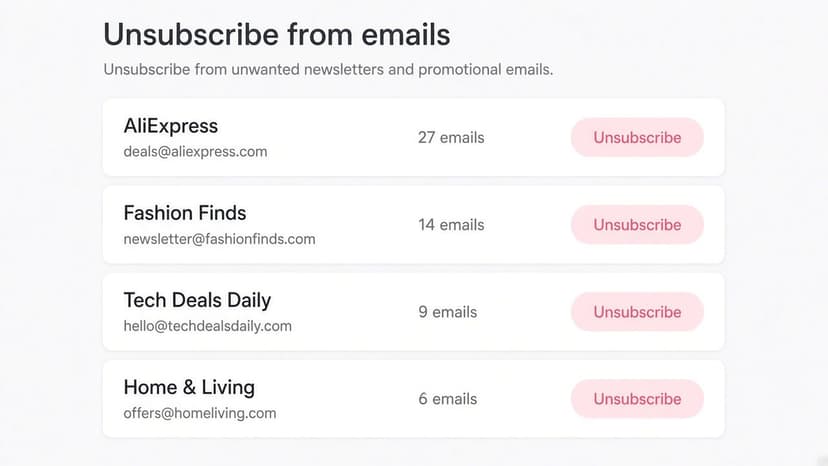
How to Stop AliExpress Emails (2026)
Stop AliExpress promotional emails: the unsubscribe link, notification settings in your AliExpress account, and what to do when the deals keep coming.
2026-09-30T18:25:57.000Z
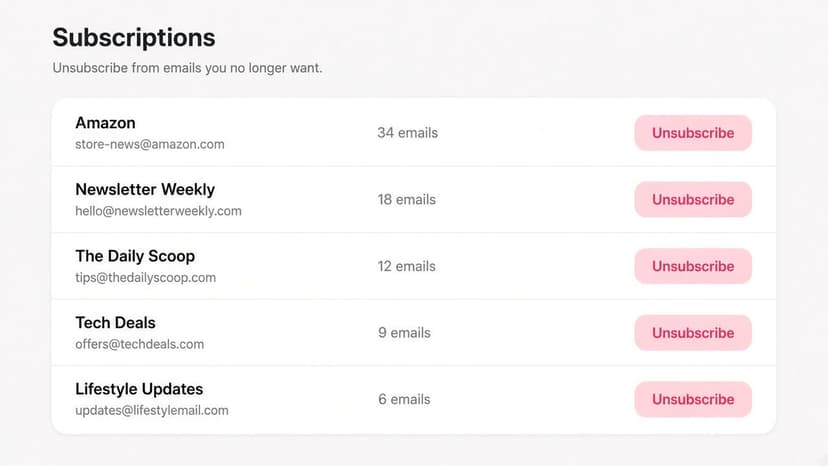
How to Stop Amazon Emails (2026)
Stop Amazon marketing emails with the Communication Preferences Center, manage Amazon email subscriptions, and handle order emails you can't switch off.
2026-09-30T18:25:57.000Z
How to Stop Domino's Emails (2026)
Stop Domino's emails with Domino's official opt-out page, stop Domino's text offers, and know which rewards emails keep coming.
2026-09-30T18:25:57.000Z