Gmail Shortcuts Not Working? Quick Fixes (Mac & Windows)
Your Gmail keyboard shortcuts broke and clicking is killing your speed. Here are 8 fixes that work on Mac and Windows, starting with the most common culprit.

Your Gmail shortcuts just stopped working. You're pressing E to archive, J/K to navigate, # to delete, and nothing happens. Or worse, Gmail is typing letters instead of executing commands.
We're going to diagnose why your keyboard shortcuts broke and fix them permanently, whether you're on Mac or Windows. No "have you tried restarting?" nonsense.
Most people assume it's Gmail's fault. But after helping thousands of users through our Inbox Zero AI email assistant, we've learned the truth: shortcuts break for predictable, fixable reasons. Let's find yours.
Why Gmail Shortcuts Stop Working: 4 Common Scenarios
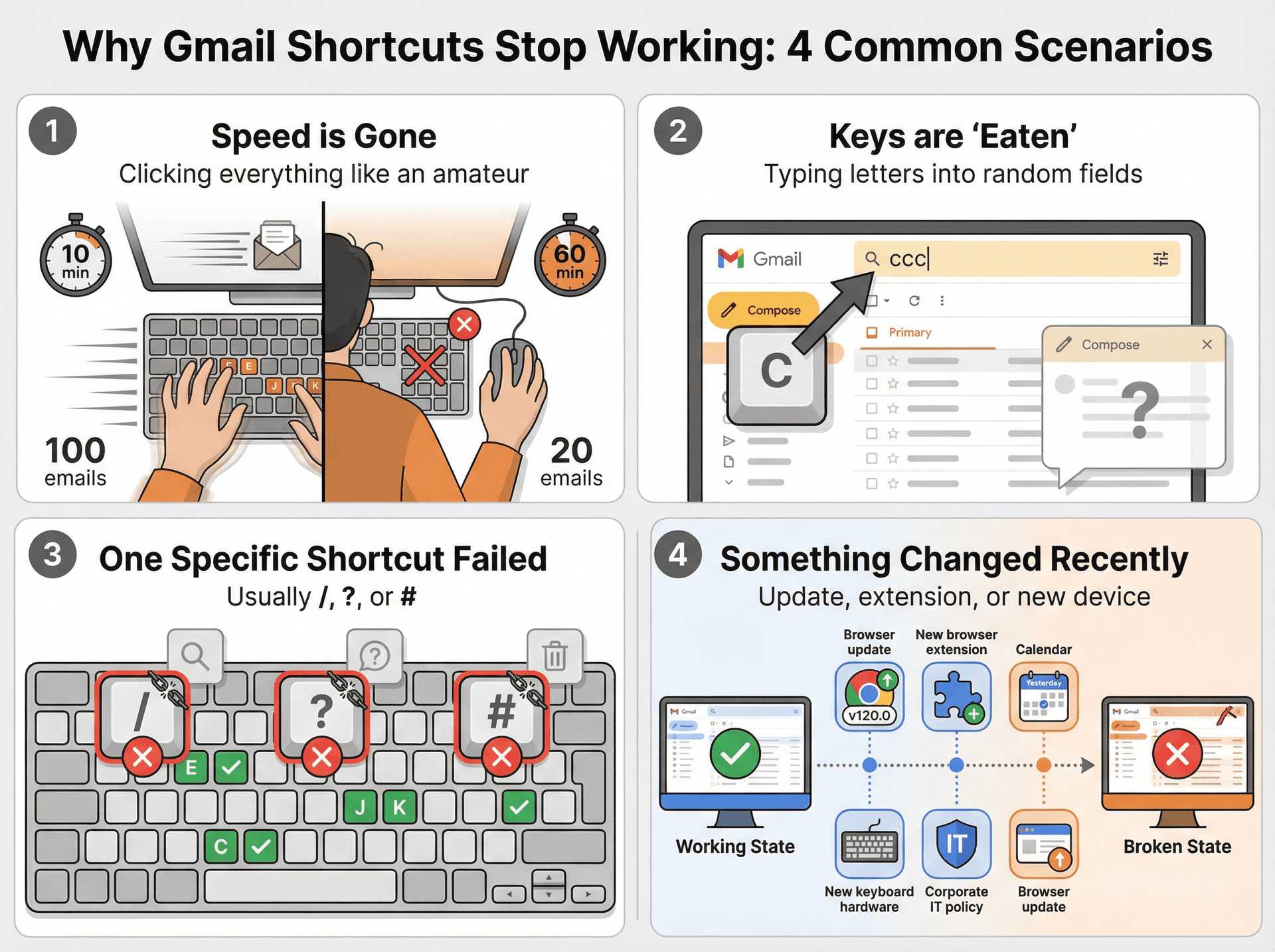
When people search for this problem, they're usually dealing with one of four situations.
The first is that speed is gone. You were triaging 100 emails in 10 minutes, and now you're clicking everything like an amateur. Email management becomes exponentially slower without keyboard shortcuts, and efficient email management strategies can save 30-60 minutes per day according to productivity research.
The second is that keys are "eaten." You press C for compose and Gmail just types the letter "c" into a random field instead.
Third, one specific shortcut failed. Usually / for search, ? for help, or # for delete. Everything else works fine.
Fourth, something changed recently. A new browser update, a new extension, a new keyboard, or a new device policy at work.
Success means shortcuts work reliably again and you understand why they broke so this doesn't happen next month. Understanding email productivity best practices helps prevent these issues from recurring.
How to Test if Gmail Shortcuts Are Actually Enabled
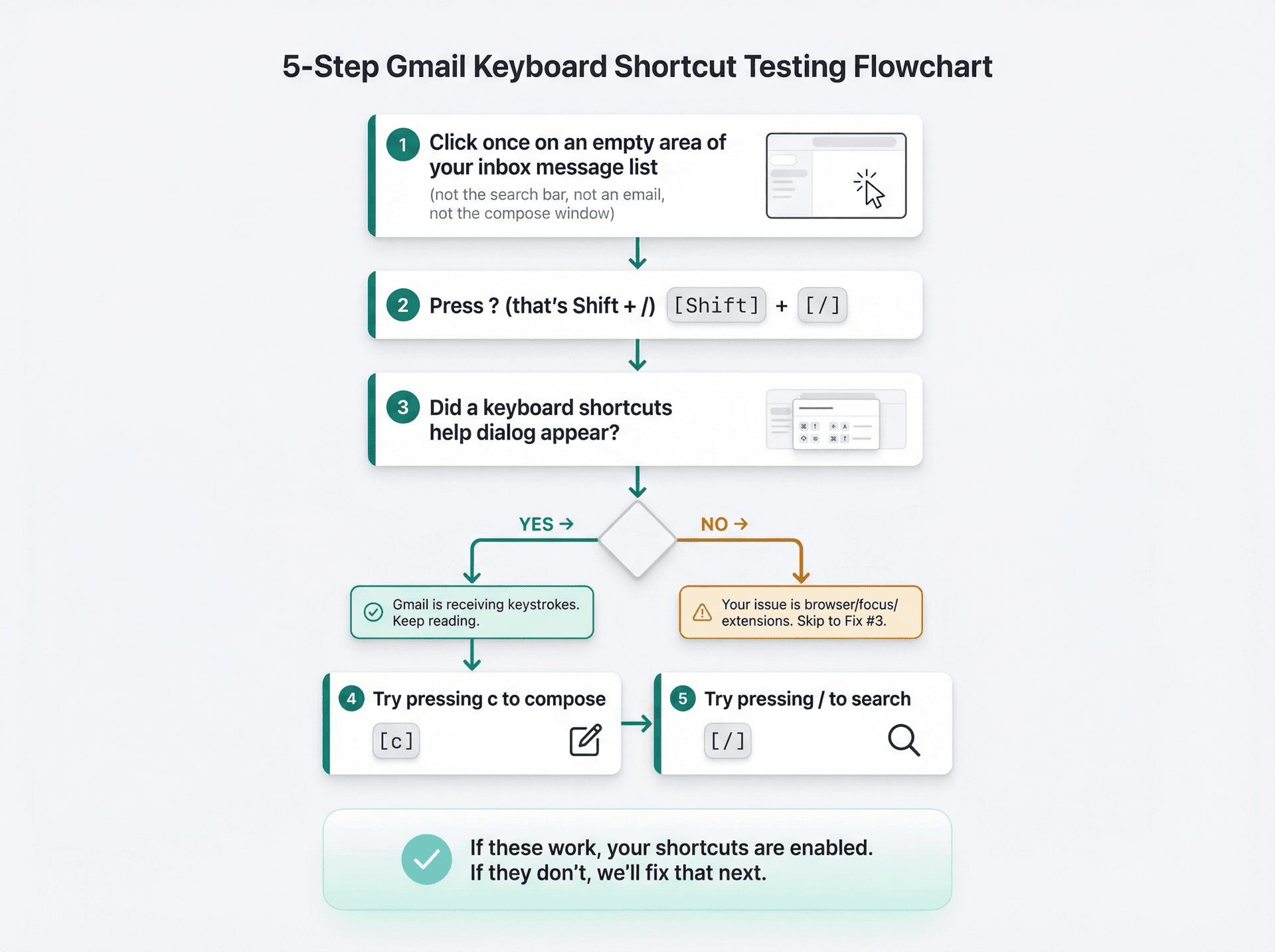
Open Gmail and follow these steps exactly. First, click once on an empty area of your inbox message list — not the search bar, not an email, not the compose window. Then press ? (that's Shift + /). If a keyboard shortcuts help dialog appeared, Gmail is receiving keystrokes and you should keep reading. If nothing appeared, your issue is browser, focus, or extensions related, so skip ahead to Fix #3.
Next, try pressing c to compose and / to search. If these work, your shortcuts are enabled. If they don't, we'll fix that next.
According to Gmail Help, many shortcuts won't work unless the keyboard shortcut setting is turned on. That ? test confirms whether Gmail can even see your keystrokes.
Fix #1: How to Enable Gmail Keyboard Shortcuts (The Most Common Fix)
Even power users get burned by this. The setting can toggle off during updates, or be enabled in one Gmail account but not another.
Quick Method (Takes 5 Seconds)
Press Shift + / to open the shortcuts dialog, then press Tab once to highlight the "Enable/Disable" link. If it says Enable, press Enter. Done.
Gmail Help documents this as the fastest way to toggle shortcuts. For a complete reference of all Gmail shortcuts and how they can transform your workflow, check out our Gmail shortcuts cheat sheet.
Settings Method (If Quick Method Fails)
| Step | Action |
|---|---|
| 1 | Click the gear icon (⚙️) in Gmail's top-right |
| 2 | Select "See all settings" |
| 3 | In the General tab, scroll to Keyboard shortcuts |
| 4 | Select "Keyboard shortcuts on" |
| 5 | Scroll down and click Save Changes |
Google explicitly notes that shortcuts work differently on PC and Mac. On Windows you'll use Ctrl, while on Mac you'll use ⌘ Command. (Gmail Help)
If you use multiple Gmail accounts, verify shortcuts are enabled in each account. One user reported shortcuts working in one account but not another until they enabled them separately.
Test again. Press E while a message is selected. Did it archive? You're fixed. If not, keep going.
Fix #2: Why Gmail Shortcuts Don't Work in Text Fields (Focus Issue)
This trips up everyone at least once. Gmail shortcuts are context-sensitive, meaning if your cursor is currently in the search bar, the compose window, any To/Subject/Body field, or any text input anywhere, single-letter shortcuts won't work because Gmail assumes you're typing.
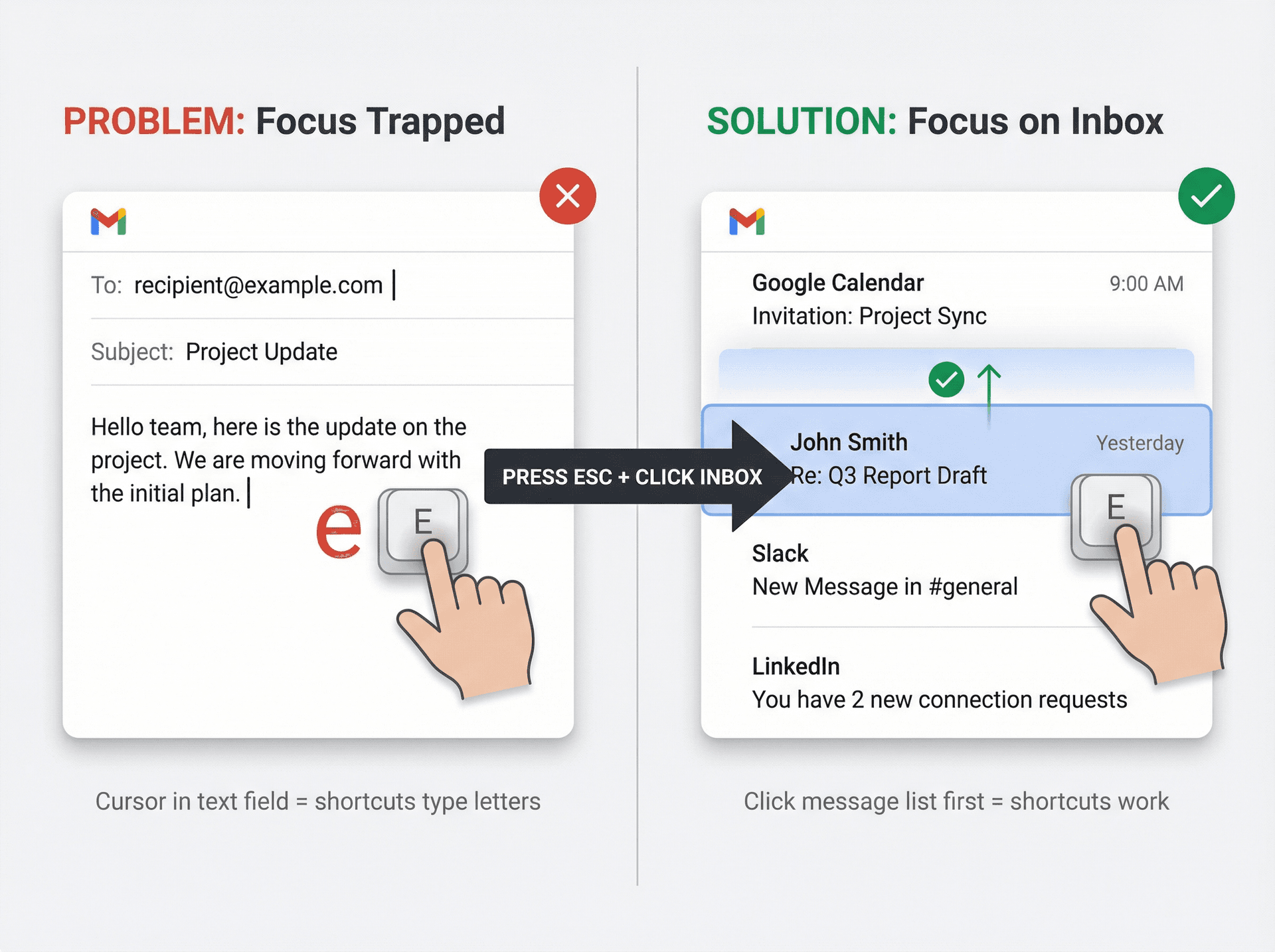
The fix is simple: hit Esc once or twice, then click the message list area. Now try J/K or E again.
Think about what you were doing when shortcuts stopped working. Were you searching? Replying? Your cursor is probably still trapped in that field. Gmail can't tell if you want to type the letter "e" or execute the archive command, so it defaults to typing.
The Esc key itself is actually a Gmail shortcut that returns focus to the main inbox view — use it liberally. This kind of contextual awareness is what separates power users from those drowning in email overload.
Fix #3: Gmail Keyboard Shortcuts Not Working? Check Browser Support
Gmail is a complex web application. If JavaScript is blocked or cookies are disabled, features break, including shortcuts.
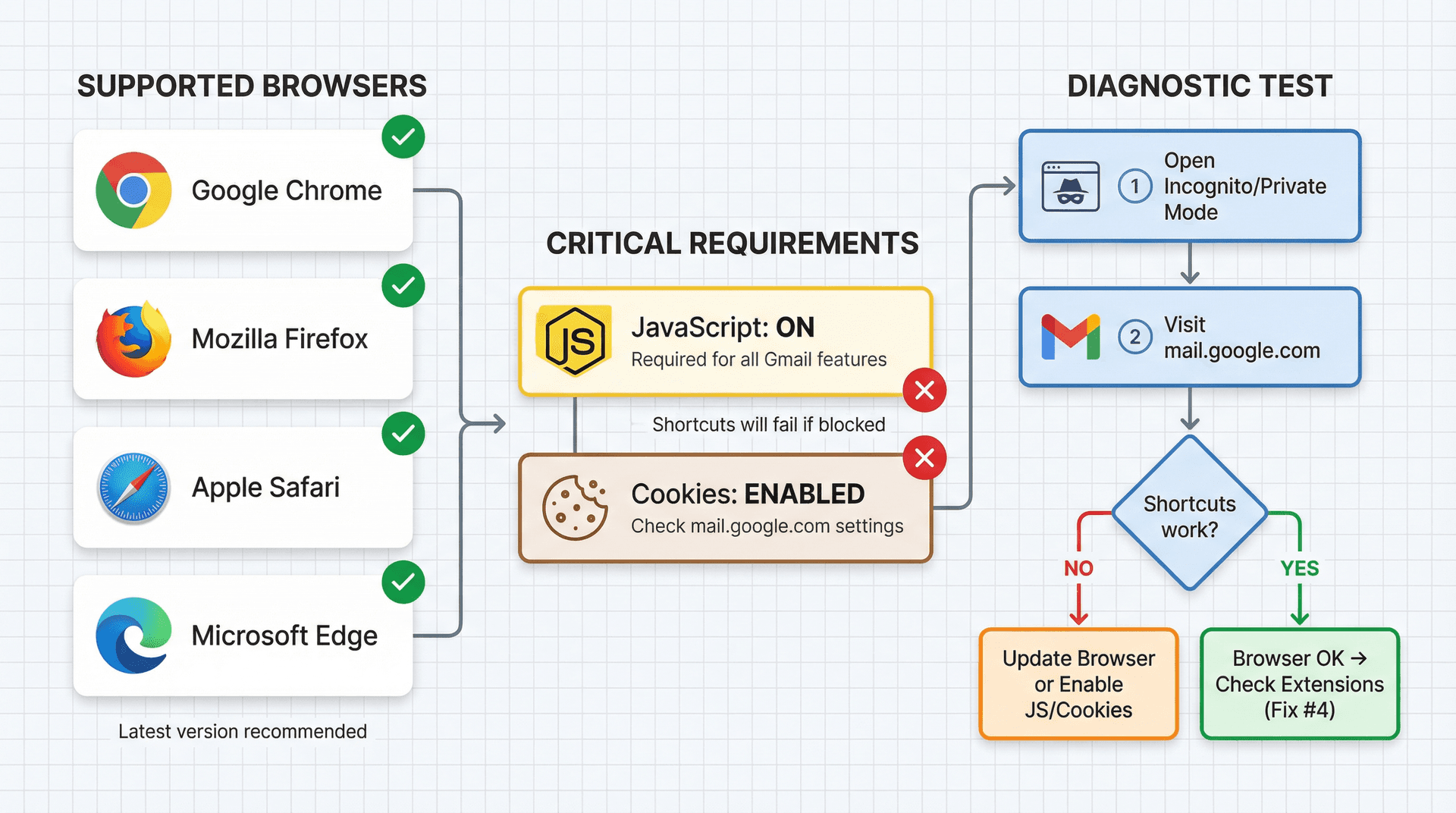
Google Help states clearly that Gmail works with Chrome, Firefox, Safari, and Microsoft Edge, that cookies and JavaScript must be turned on, and that Gmail works best on the newest and last prior version of supported browsers.
Start by updating your browser to the latest version — running an old build from 2024 could be the entire problem. Next, verify JavaScript isn't blocked for mail.google.com by checking your browser's site settings or content blocker settings. Finally, test in a clean profile: if you're using corporate policies or aggressive privacy settings, try opening Gmail in your browser's incognito/private mode with no extensions. If shortcuts work there, you've isolated the problem to your normal browsing environment.
Fix #4: Browser Extensions Breaking Gmail Keyboard Shortcuts
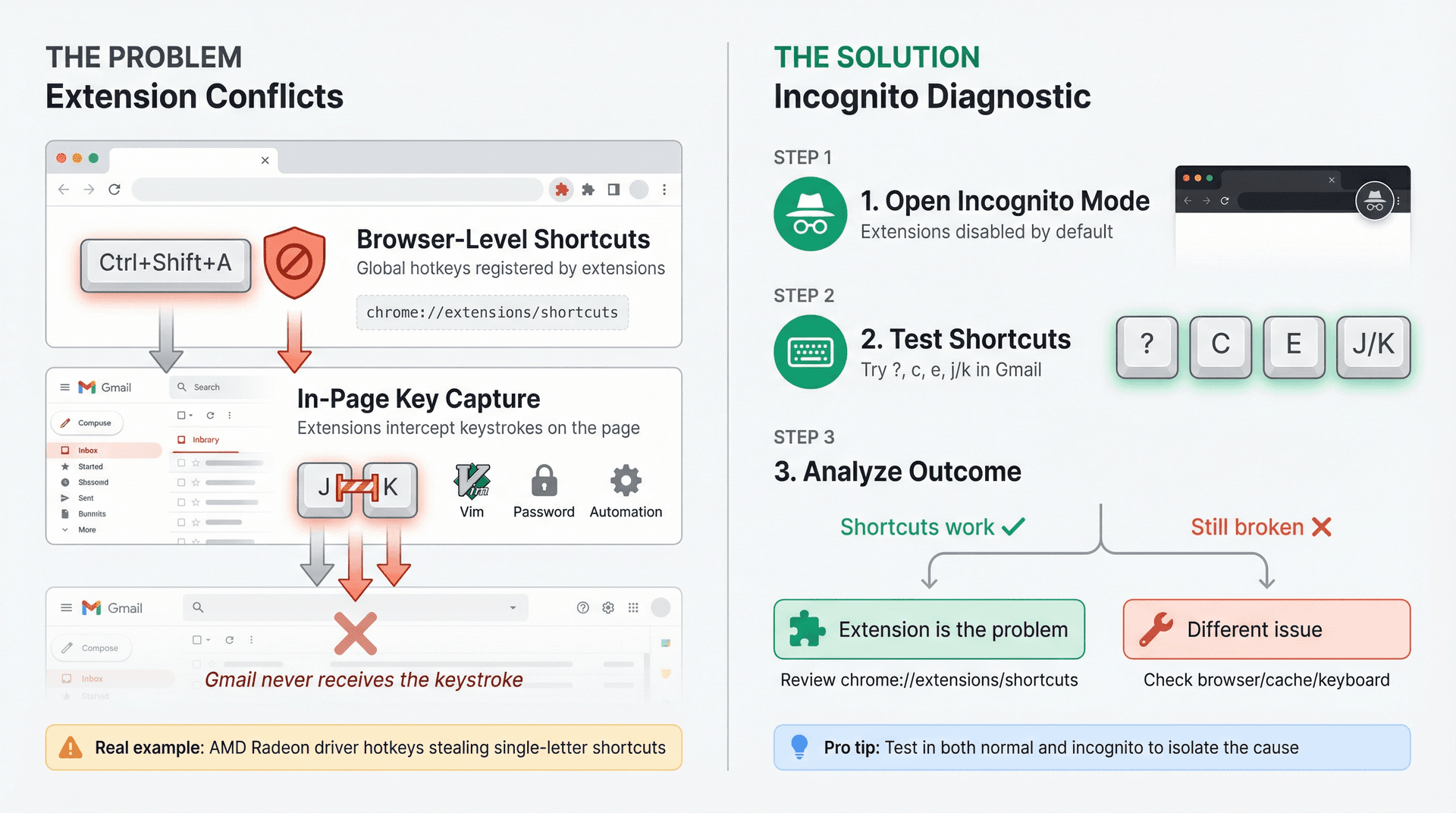
This is where things get interesting. Two different types of extensions can break Gmail shortcuts.
Type 1: Browser-Level Shortcuts
These register global keyboard combinations (usually Ctrl/⌘ + Shift + something) that can conflict with Gmail's formatting shortcuts or your custom keys.
For Chrome and Edge users, open chrome://extensions/shortcuts (or edge://extensions/shortcuts) and look for any shortcut that overlaps with what you're trying to use in Gmail. Remove or change it. Chrome's extension documentation explicitly points users to this page and notes that browser/OS shortcuts take precedence.
For Firefox users, Mozilla's official instructions (updated June 24, 2025) say to go to Menu → Add-ons and themes → Extensions, then click the Tools cogwheel and choose Manage Extension Shortcuts.
Type 2: In-Page Key Capture Extensions
These don't always show up in the browser shortcut manager because they intercept keystrokes on the page itself. Common culprits include Vim-style navigation extensions like Vimium or Surfingkeys, automation tools, some password managers, and productivity overlays.
To confirm an extension is the problem, open Gmail in a window where extensions are disabled — Chrome/Edge incognito mode (if your extensions aren't allowed there) or a Firefox private window — and test ?, c, e, and j/k in that clean environment. If shortcuts work in incognito but not in your normal browser, you've proven it's an extension issue.
Google Help specifically recommends turning off extensions when Gmail errors occur in supported browsers. One user discovered their AMD Radeon graphics driver software was registering global hotkeys that stole Gmail's single-letter shortcuts. Disabling the GPU software's hotkey feature fixed it immediately.
If you want to enhance Gmail with extensions that don't conflict with shortcuts, try Inbox Zero Tabs for Gmail. It adds customizable tabs to your inbox but works entirely through Gmail's native interface, so keyboard shortcuts continue working perfectly. Learn more about how it integrates with Gmail.
Fix #5: How to Clear Gmail Cache to Restore Keyboard Shortcuts
When shortcuts "used to work yesterday" and suddenly stopped, corrupted cache or broken local storage is often the culprit. The key is a targeted clear — you don't need to nuke everything.
Chrome/Edge:
Go to chrome://settings/content/all, search for mail.google.com, click it, and select Clear data.
Firefox:
Go to about:preferences#privacy, scroll to Cookies and Site Data, click Manage Data, then search for mail.google.com and remove it.
After clearing, reload Gmail and test ? and c again. This isn't magic — sometimes Gmail's cached JavaScript files get corrupted during updates, especially if your browser crashed or lost connection mid-update. A fresh download fixes it.
Fix #6: Gmail Keyboard Shortcuts Not Working on International Keyboards
This is the number one reason for "only some shortcuts don't work," and the usual suspects are / (search), ? (help), # (delete), and ` and ~ (next/previous inbox section).
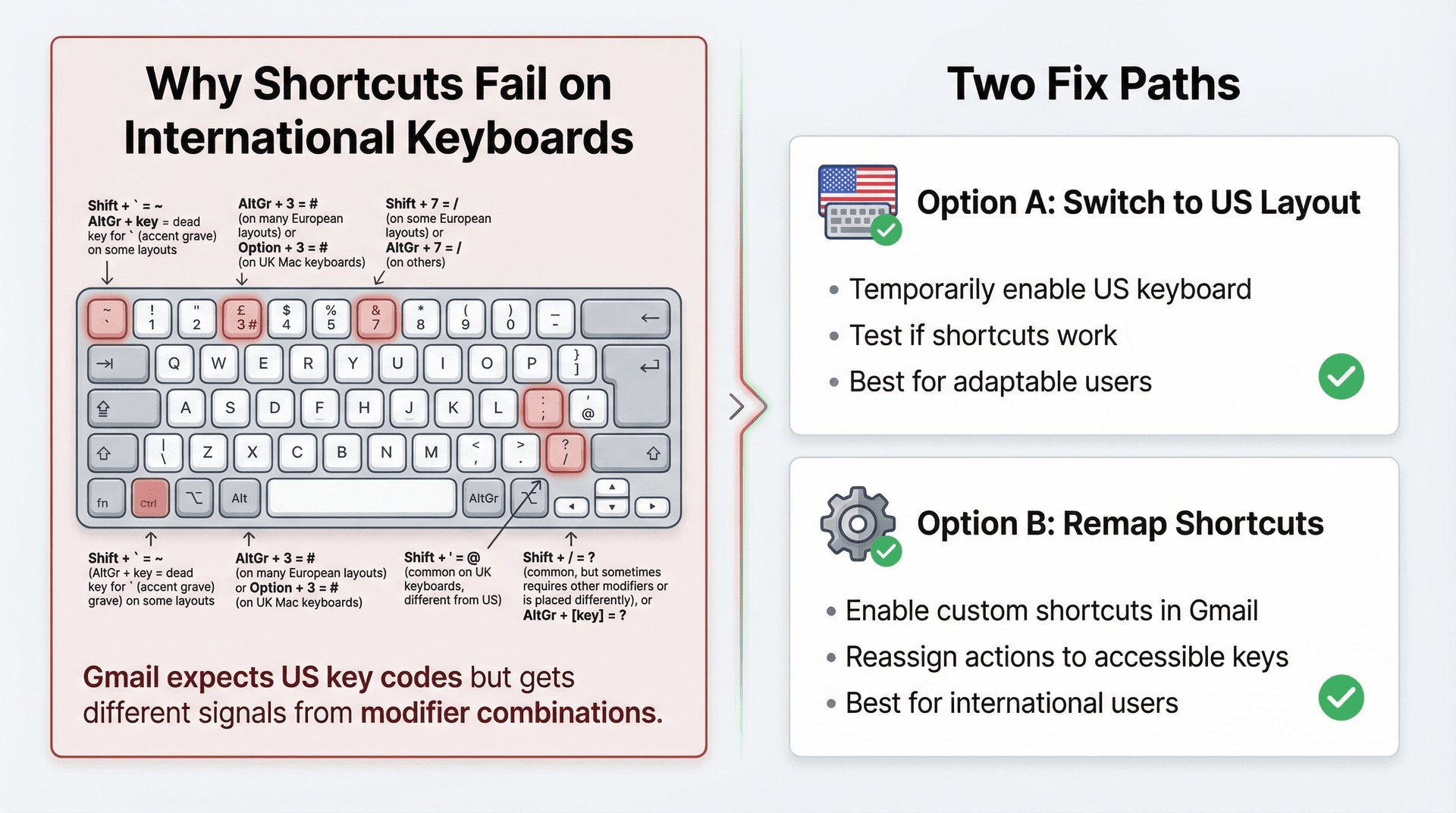
Why this happens
Gmail shortcuts were designed around US keyboard layouts. On many international keyboards, characters like # and ~ require extra modifiers (AltGr, Option) or produce different key codes that Gmail doesn't recognize. One Mac user in the UK couldn't use # to delete emails because their keyboard requires Alt + 3 to produce #, and Gmail didn't register that as the delete command.
Solutions
| Approach | How It Works | Best For |
|---|---|---|
| Option A: Switch to US layout | Temporarily enable US keyboard layout. Test if shortcuts work. | Users who can adapt to US key positions |
| Option B: Remap with custom shortcuts | Use Gmail's custom shortcut feature to assign actions to keys that work on your layout | International keyboard users |
To set up custom shortcuts, Gmail Help walks you through the process:
| Step | Action |
|---|---|
| 1 | Settings → Advanced → Enable Custom keyboard shortcuts |
| 2 | Save and reload Gmail |
| 3 | Settings → Keyboard Shortcuts tab (now visible) |
| 4 | Remap problematic actions to keys that work on your layout |
| 5 | Save Changes |
Gmail notes that one key can refer to only one action — you can't double-map keys, but you can reassign any action to any available key. One user remapped Delete from # to X because their keyboard made # inaccessible. Another changed Compose from C to Y when their C key started failing physically.
Fix #7: Gmail Shortcuts Not Working with Screen Readers
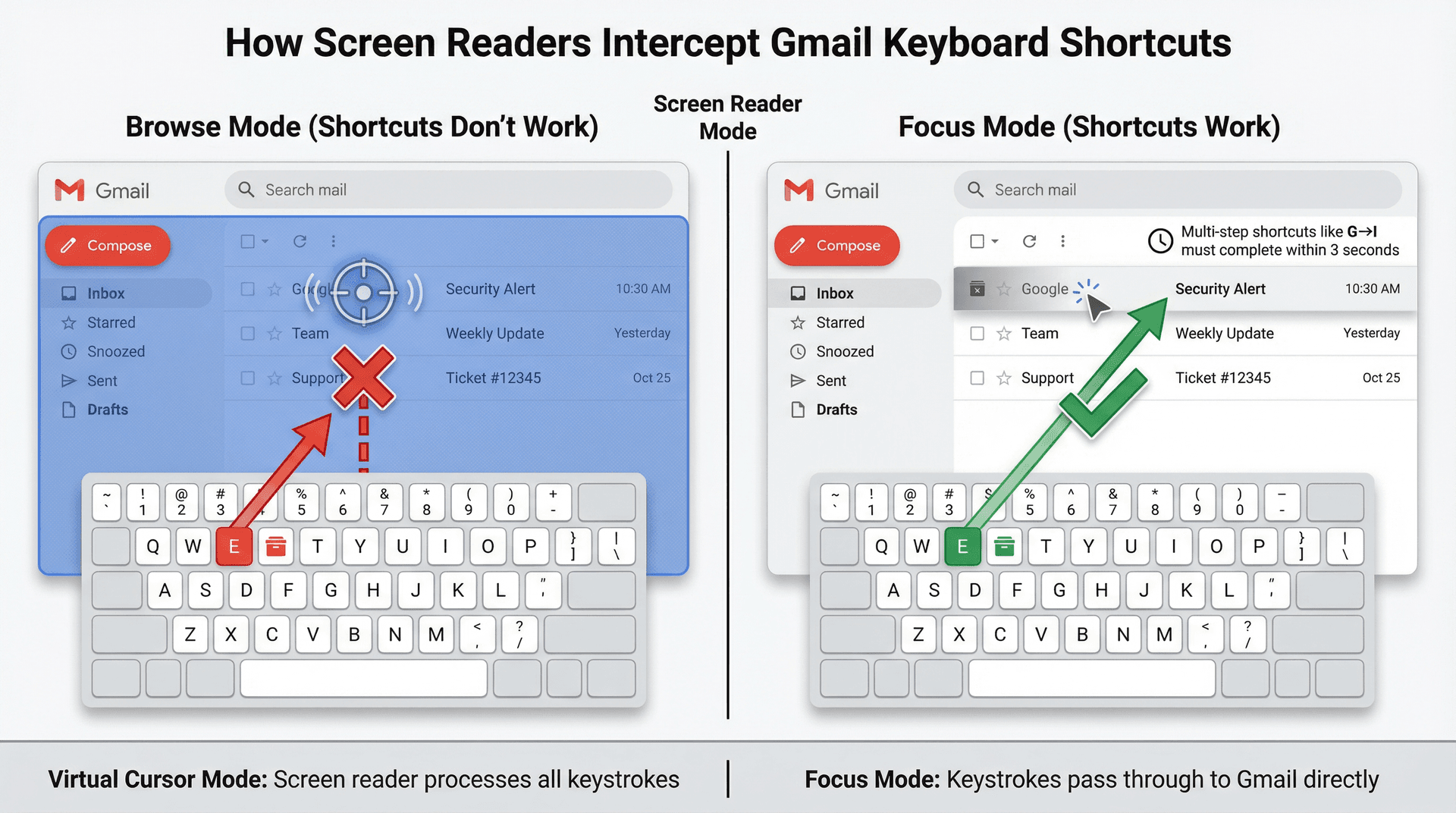
If you (or your device policy) has screen reader support enabled, keystrokes may be interpreted by the accessibility tool instead of Gmail.
When using screen readers with Gmail, shortcuts require Standard view and must be enabled in settings. They must also be entered in focus mode, not browse or virtual cursor mode. Multi-step shortcuts like g then i need the second key within 3 seconds, and if shortcuts still don't work, try reloading with Ctrl+R or ⌘+R.
Even if you're not using a screen reader, some corporate accessibility policies enable these features by default — check your OS settings. For teams managing email accessibility, it's important to document these configuration differences.
Fix #8: Troubleshooting Individual Gmail Keyboard Shortcuts
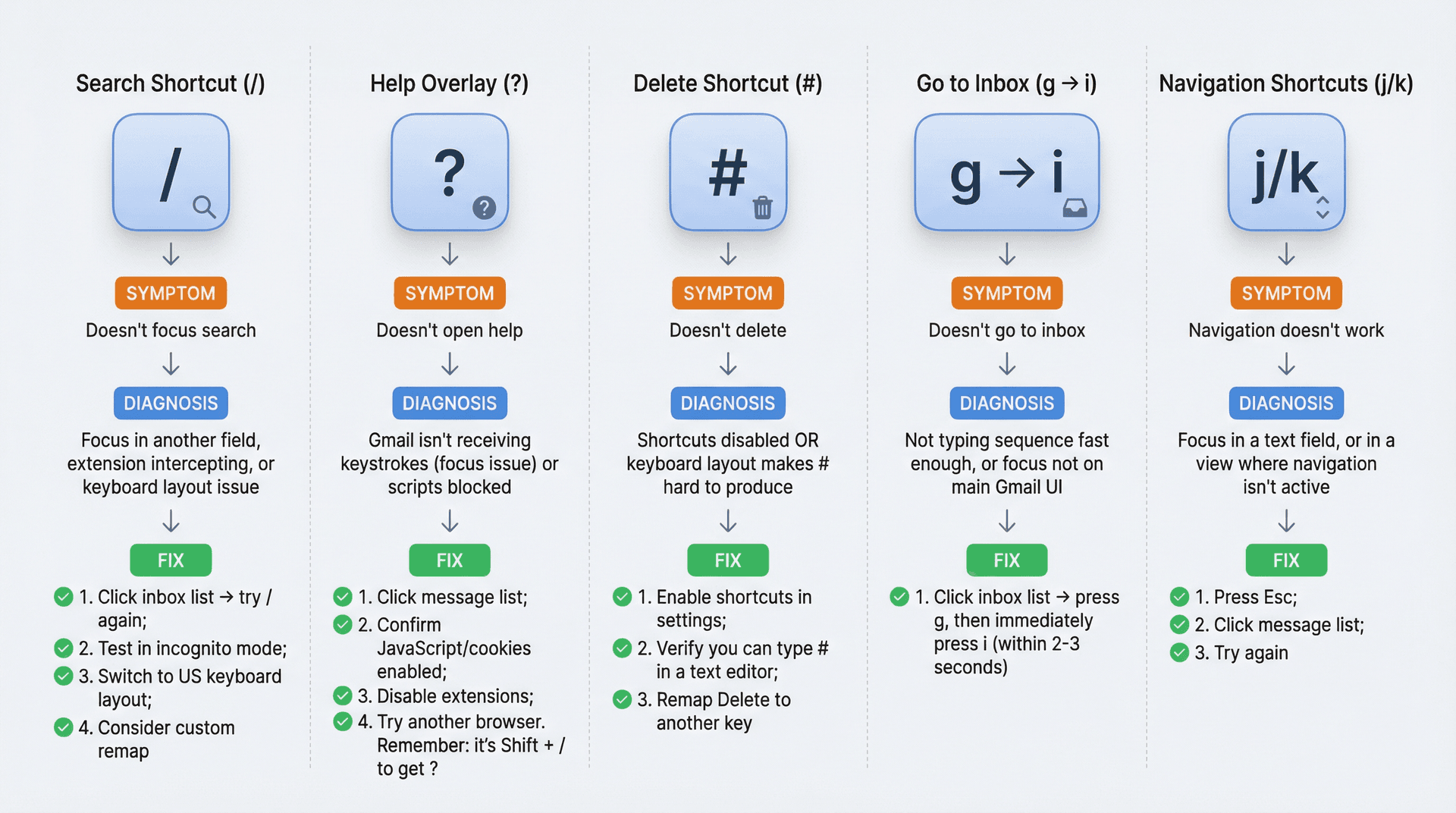
| Shortcut | Symptom | Likely Cause | Fix |
|---|---|---|---|
| / | Doesn't focus search | Focus in another field, extension intercepting, or keyboard layout issue | Click inbox list → try / again → test in incognito → switch to US keyboard layout → consider custom remap |
| ? | Doesn't open help | Gmail isn't receiving keystrokes (focus issue) or scripts blocked | Click message list; confirm JavaScript/cookies enabled; disable extensions; try another browser. Remember: it's Shift + / to get ? |
| # | Doesn't delete | Shortcuts disabled OR keyboard layout makes # hard to produce | Enable shortcuts in settings; verify you can type # in a text editor; remap Delete to another key |
| g then i | Doesn't go to inbox | Not typing sequence fast enough, or focus not on main Gmail UI | Click inbox list → press g, then immediately press i (within 2-3 seconds) |
| j/k | Navigation doesn't work | Focus in a text field, or in a view where navigation isn't active | Press Esc → click message list → try again |
Gmail Help documents all standard shortcuts.
The Fastest Way to Diagnose Gmail Keyboard Shortcut Problems
Want a no-guesswork method? Here's a clean-room diagnostic test.
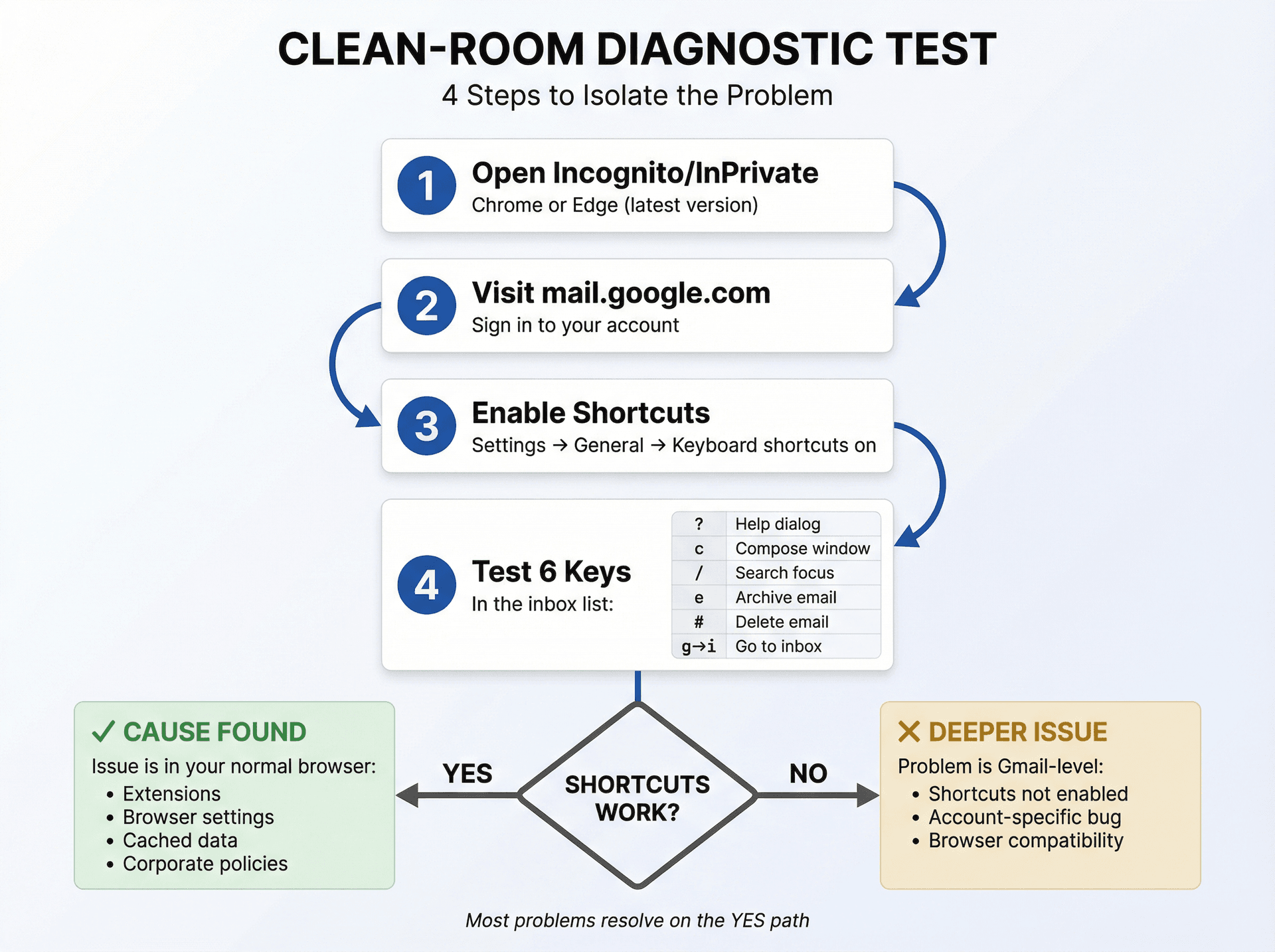
Open Chrome or Edge (latest version) in Incognito/InPrivate mode, visit mail.google.com and sign in, then enable shortcuts if needed through Settings → General → Keyboard shortcuts on. Now test these 6 keys in the inbox list:
| Key | Expected Action |
|---|---|
| ? | Help dialog appears |
| c | Compose window opens |
| / | Search box is focused |
| e | Selected email is archived |
| # | Selected email is deleted |
| g then i | Returns to inbox |
If shortcuts work in clean-room mode but not in your normal browser, the cause is almost always extensions, browser profile settings, cached data, or corporate policies. Google Help specifically identifies extensions as a common culprit.
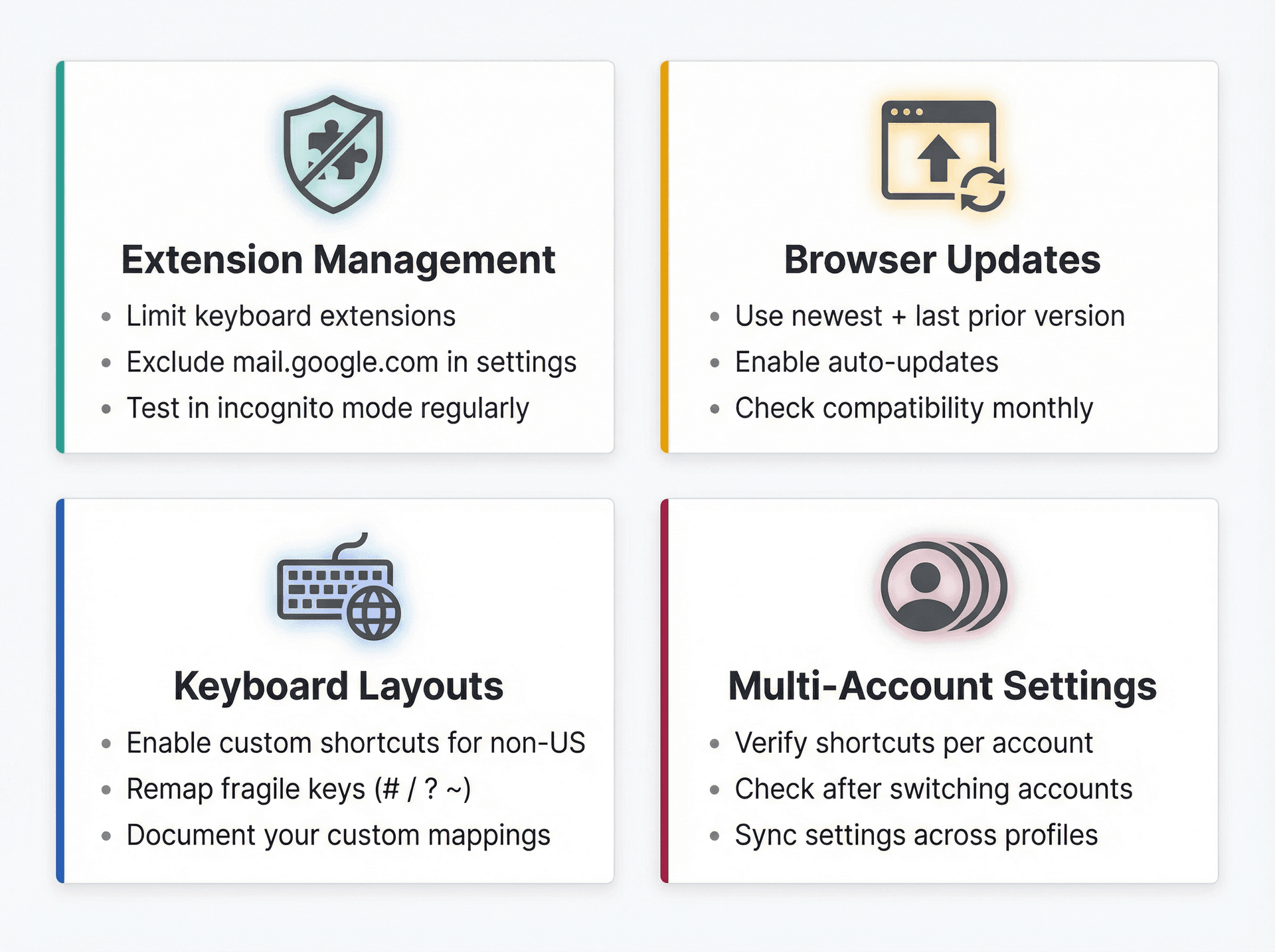
How to Keep Gmail Keyboard Shortcuts Working Permanently
Once shortcuts are restored, a few habits will keep them working.
Avoid installing multiple keyboard power-user extensions at the same time. If you must use them, exclude mail.google.com in extension settings. Keep your browser updated, since Gmail is tested on the newest and last prior version of supported browsers (Google Help). Enable custom shortcuts if you use non-US keyboard layouts so you can remap the fragile keys once and forget about them. And if you have multiple Gmail accounts, verify that shortcuts are enabled in each one — this is especially important if you're managing multiple email accounts across different domains.
10 Essential Gmail Keyboard Shortcuts to Test First
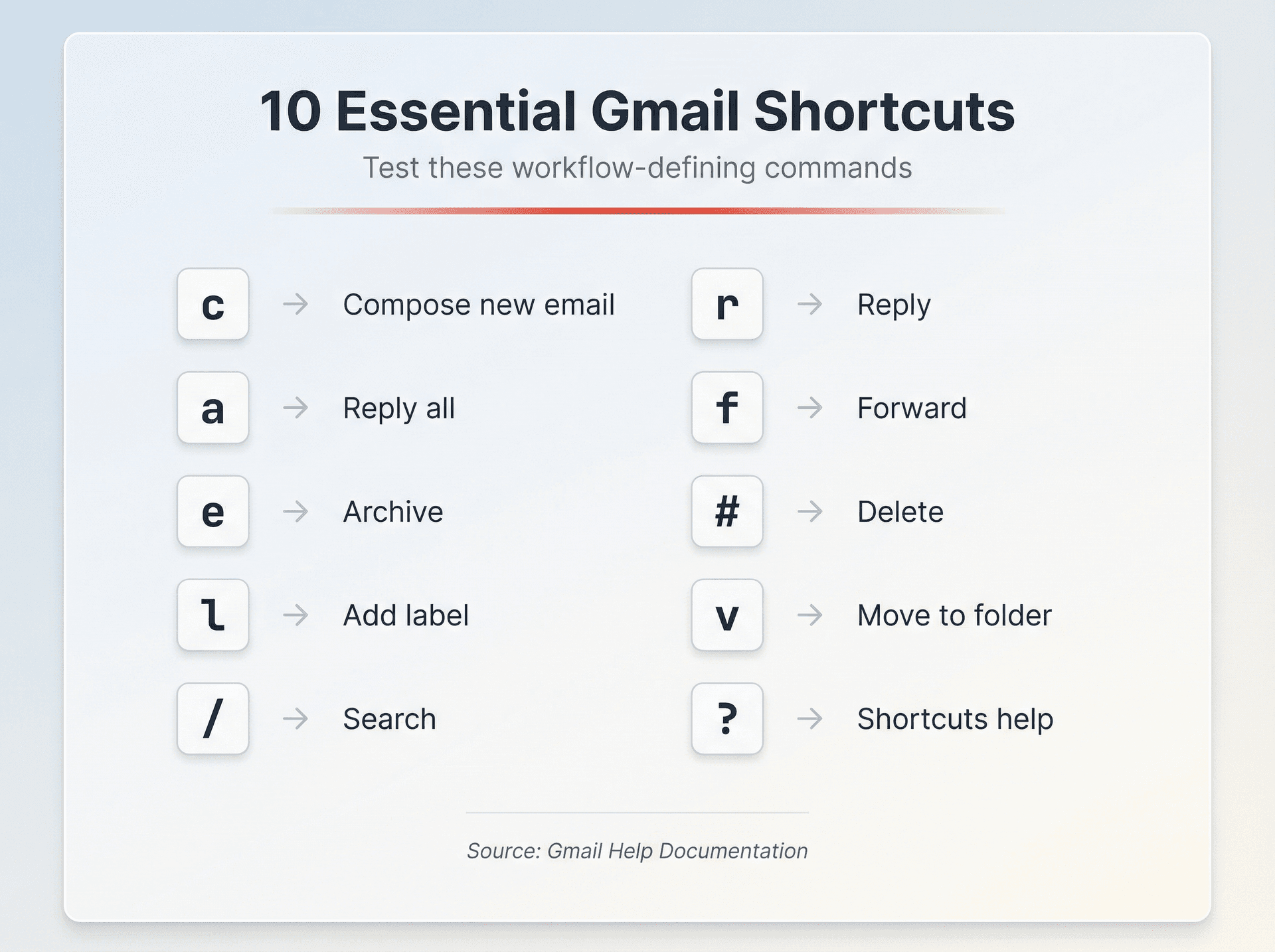
Once you're fixed, test these workflow-defining shortcuts:
| Shortcut | Action | Notes |
|---|---|---|
| c | Compose new email | Works from anywhere |
| r | Reply | Select email first |
| a | Reply all | Careful with this one |
| f | Forward | |
| e | Archive | Gets email out of inbox |
| # | Delete | Permanent deletion |
| l | Add label | Opens label menu |
| v | Move to folder | Opens folder menu |
| / | Search | Focus search box |
| ? | Shortcuts help | Shift + / |
All of these appear in Gmail Help.
Can you compose, write a message, and archive in under 10 seconds without touching your mouse? That's when you know they're working.
Speed Up Gmail Even More with Inbox Zero
Once your shortcuts are working, you can take email productivity even further. Keyboard shortcuts are just the beginning of true email productivity mastery.
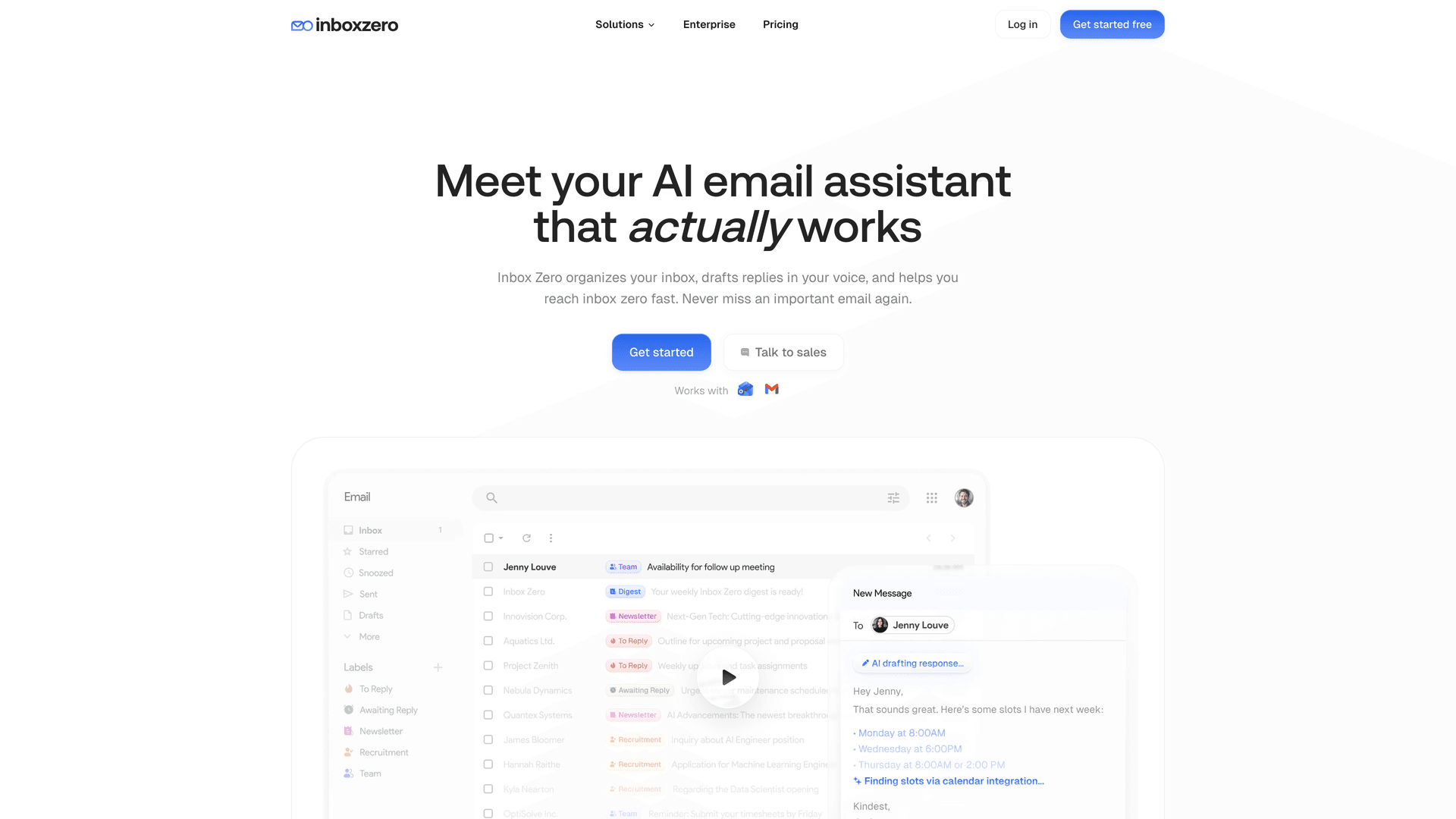
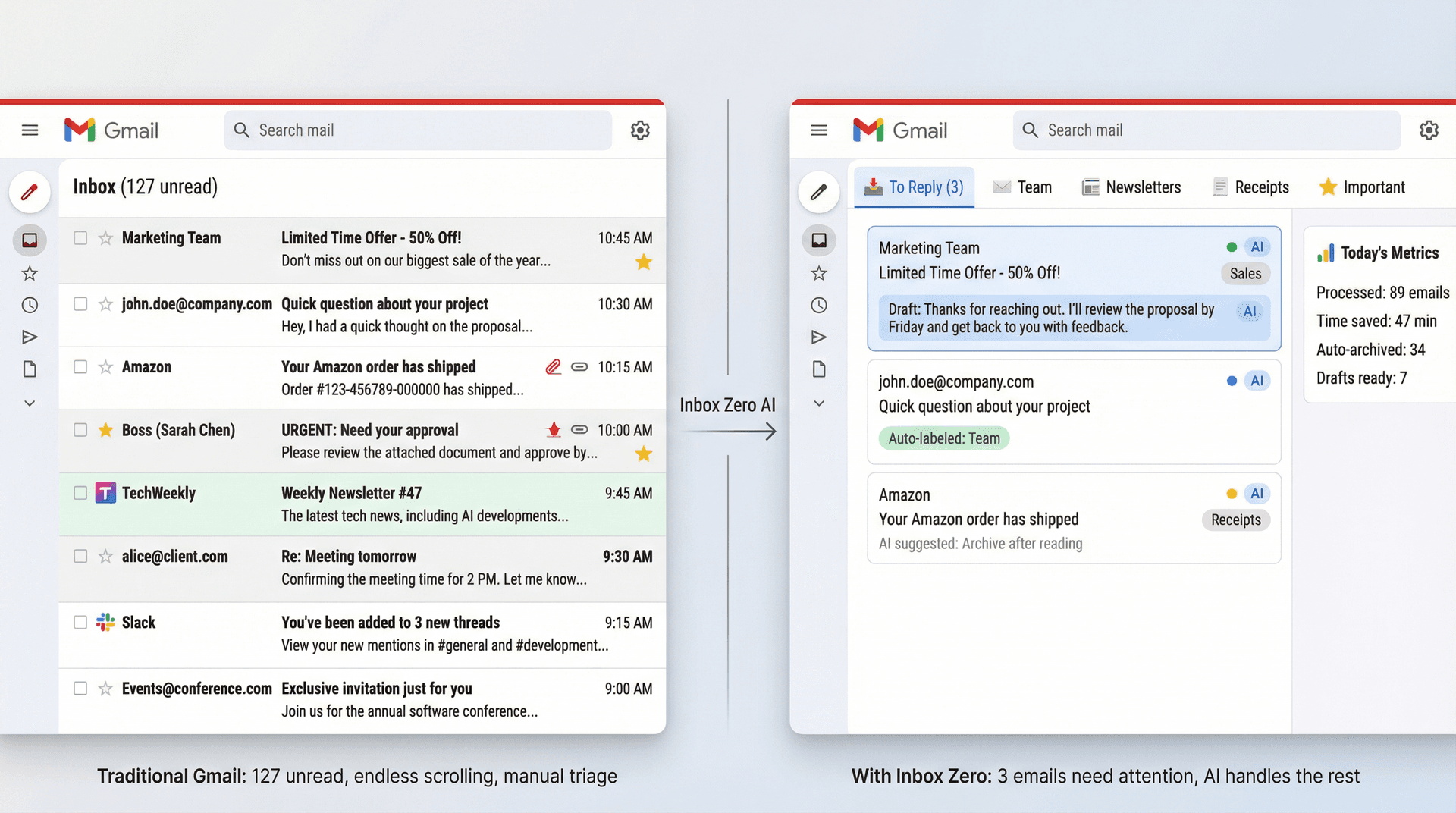
Our Chrome extension adds customizable tabs to Gmail so you can create split-inbox workflows — think "To Reply," "Receipts," or "Newsletters" tabs built from any Gmail search query or label.
The Inbox Zero Tabs for Gmail extension integrates directly into Gmail's interface. It's 100% private with no data collection, just better organization. (Chrome Web Store listing)
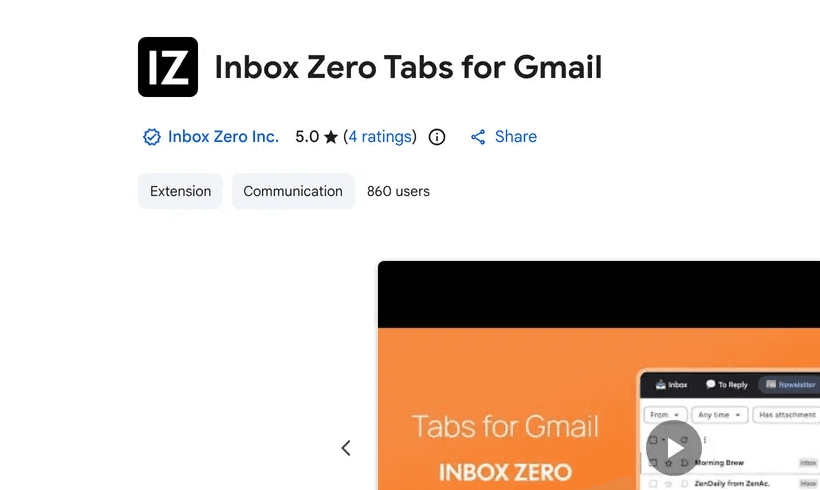
Combine custom tabs with keyboard shortcuts and you'll move through email at ridiculous speed. Use J/K to navigate your "To Reply" tab, hit R for quick replies, E to archive. You'll clear 50 emails in the time it used to take for 10.
The full Inbox Zero AI assistant goes even further. It can draft replies intelligently based on your writing style and context, label messages automatically by sender, topic, or priority, and block cold outreach before it clutters your inbox. It also tracks what needs responses so nothing falls through the cracks, analyzes your email patterns to identify time-wasters, and lets you bulk unsubscribe from newsletters you never read.
But even with automation, knowing keyboard shortcuts ensures you can override or handle exceptions in seconds. The combination of AI email management and manual shortcuts gives you complete control over your inbox.
If you're serious about reaching inbox zero, learn the inbox zero method and combine it with these keyboard shortcuts for maximum efficiency. You can also explore our best inbox zero apps for Gmail guide to see how different tools compare.
Common Questions
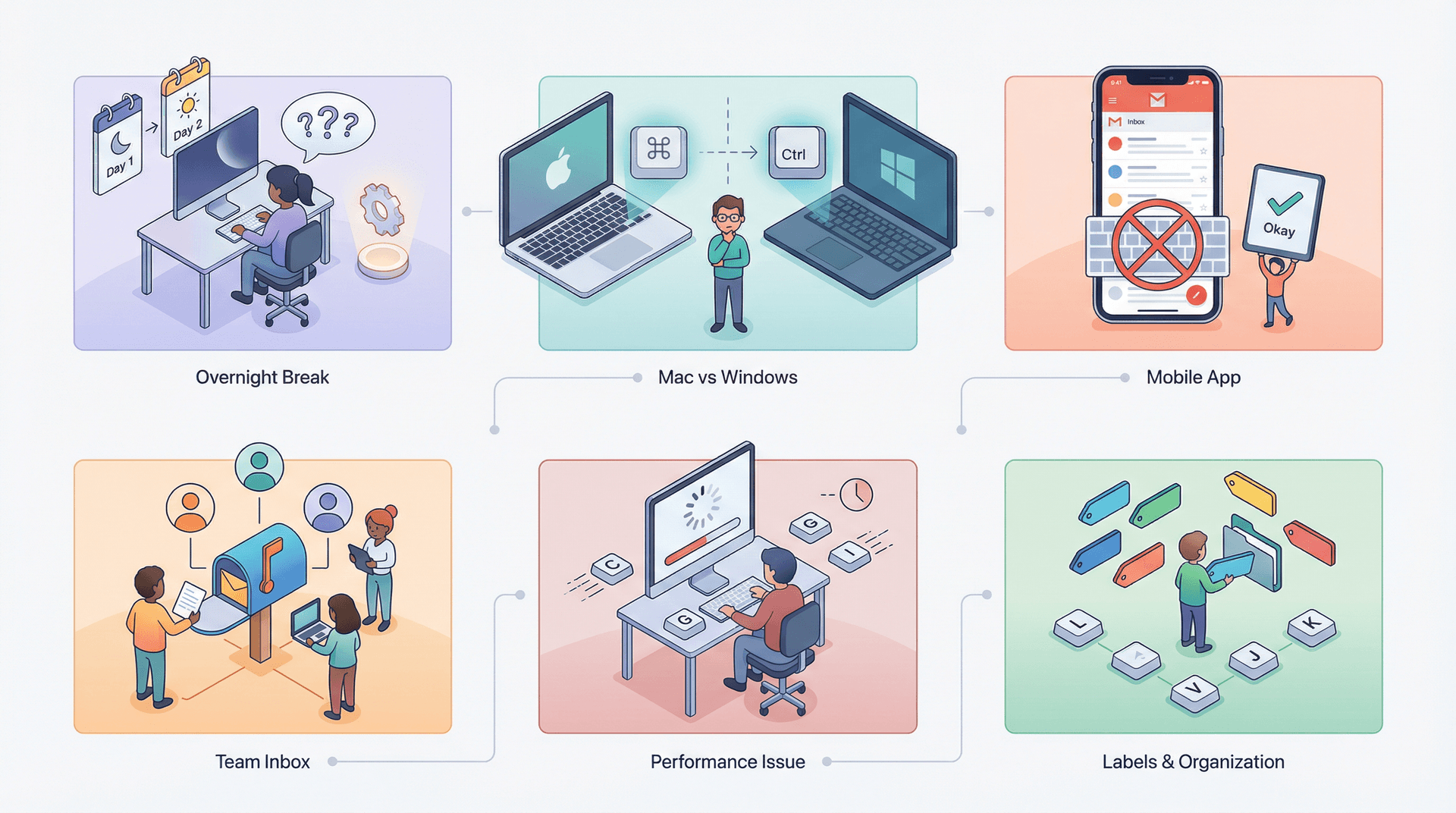
Why did shortcuts stop working overnight?
The most common causes are that Gmail shortcuts got toggled off during an update, a browser update changed extension behavior, a new extension started capturing keys, or cached assets went stale after a Gmail update. Start with enabling shortcuts, then run the clean-room test.
Why do shortcuts work on Mac but not Windows (or vice versa)?
This usually comes down to either a different keyboard layout generating different key codes (especially non-US layouts) or different extension sets and corporate policies on one machine versus the other. Custom Gmail shortcuts help when specific keys are the problem.
Do shortcuts work in Gmail mobile app?
No. Gmail Help is written for desktop web only. The mobile app doesn't support keyboard shortcuts, which makes sense since most phones don't have physical keyboards. However, you can learn about the differences between Gmail mobile and desktop and optimize your workflow for each platform. If you're using a tablet with a hardware keyboard, open Gmail in a browser and shortcuts should work.
Can I use shortcuts with shared mailboxes or team inboxes?
Yes, but it depends on your access level and how the shared mailbox is configured. If you're managing a shared inbox or dealing with collaborative inbox workflows, keyboard shortcuts work the same way as in personal accounts, but you'll want to coordinate labeling and archiving conventions with your team.
What if my shortcuts work but Gmail is just really slow?
If shortcuts are functional but Gmail feels sluggish, that's a different problem entirely. Check out our guide on fixing Gmail when it's loading slow despite fast internet or learn about what to do when your Gmail inbox is slow. Performance issues can make even working shortcuts feel broken.
How do shortcuts work with Gmail filters and labels?
Gmail shortcuts work seamlessly with your existing labels and folders system. You can use l to quickly apply labels, v to move messages, and navigate through labeled emails with j/k. If you're setting up an organized system, learning shortcuts alongside proper labeling creates a powerful combination.
The Bottom Line
Gmail keyboard shortcuts break for predictable reasons, and in most cases the fix is straightforward. Enable shortcuts in settings (the most common culprit), reset focus by pressing Esc and clicking the message list, test in incognito mode to isolate extension conflicts, check your keyboard layout and remap problematic keys if needed, and update your browser to the latest supported version.
The 10 minutes you spend fixing this will save hours every week. Once shortcuts work reliably again, you'll wonder how you ever managed without them.
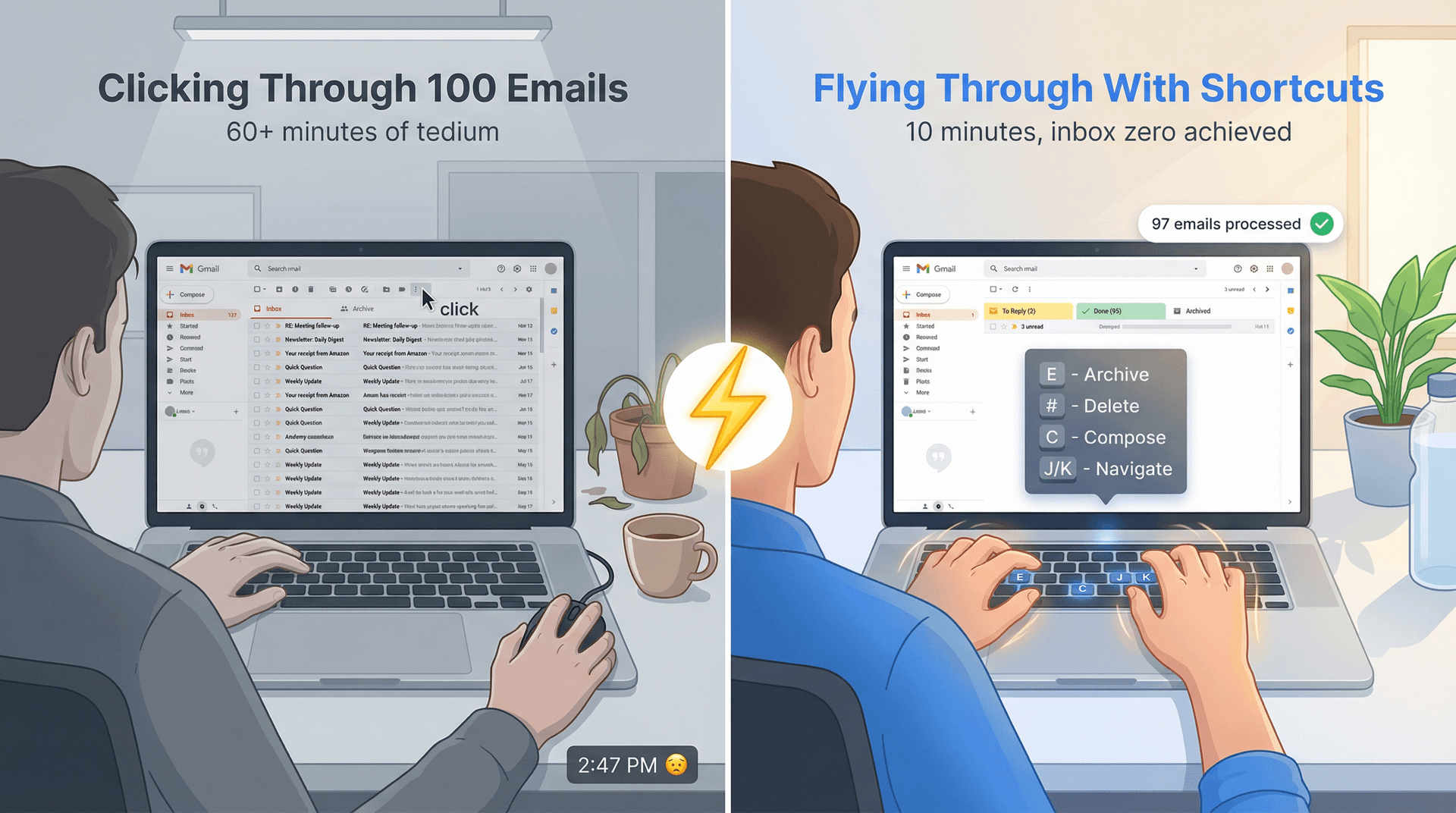
Now go archive 100 emails with a single keystroke. And if you want to take your email efficiency to the next level, explore Inbox Zero's AI-powered features to automate the repetitive parts and focus on what matters. Learn more in our comprehensive documentation.


How to Recall an Email in Outlook (2026)
How to recall an email in Outlook step by step for new Outlook, classic Outlook, web, Mac, and mobile, plus when recall works and what to do when it doesn't.
2026-09-30T18:25:57.000Z

How to Stop AliExpress Emails (2026)
Stop AliExpress promotional emails: the unsubscribe link, notification settings in your AliExpress account, and what to do when the deals keep coming.
2026-09-30T18:25:57.000Z

How to Stop Amazon Emails (2026)
Stop Amazon marketing emails with the Communication Preferences Center, manage Amazon email subscriptions, and handle order emails you can't switch off.
2026-09-30T18:25:57.000Z

How to Stop Domino's Emails (2026)
Stop Domino's emails with Domino's official opt-out page, stop Domino's text offers, and know which rewards emails keep coming.
2026-09-30T18:25:57.000Z