How to Archive All Emails in Gmail at Once (2026)
Archive all emails in Gmail at once without deleting a thing. Five clicks, clean inbox, everything stays searchable in All Mail.

You want a clean inbox. Not next week, not gradually. Right now. And you don't want to lose a single email doing it.
Gmail can actually do this. You can archive your entire inbox in roughly 30 seconds. But before you click anything, there's one thing worth getting straight (something that trips up almost everyone): archiving in Gmail isn't the same as deleting. It's not a storage trick either. According to Google's storage help page, you only free up space by deleting messages and emptying Trash or Spam. Archiving just pulls emails out of your Inbox view while keeping them fully searchable in All Mail.
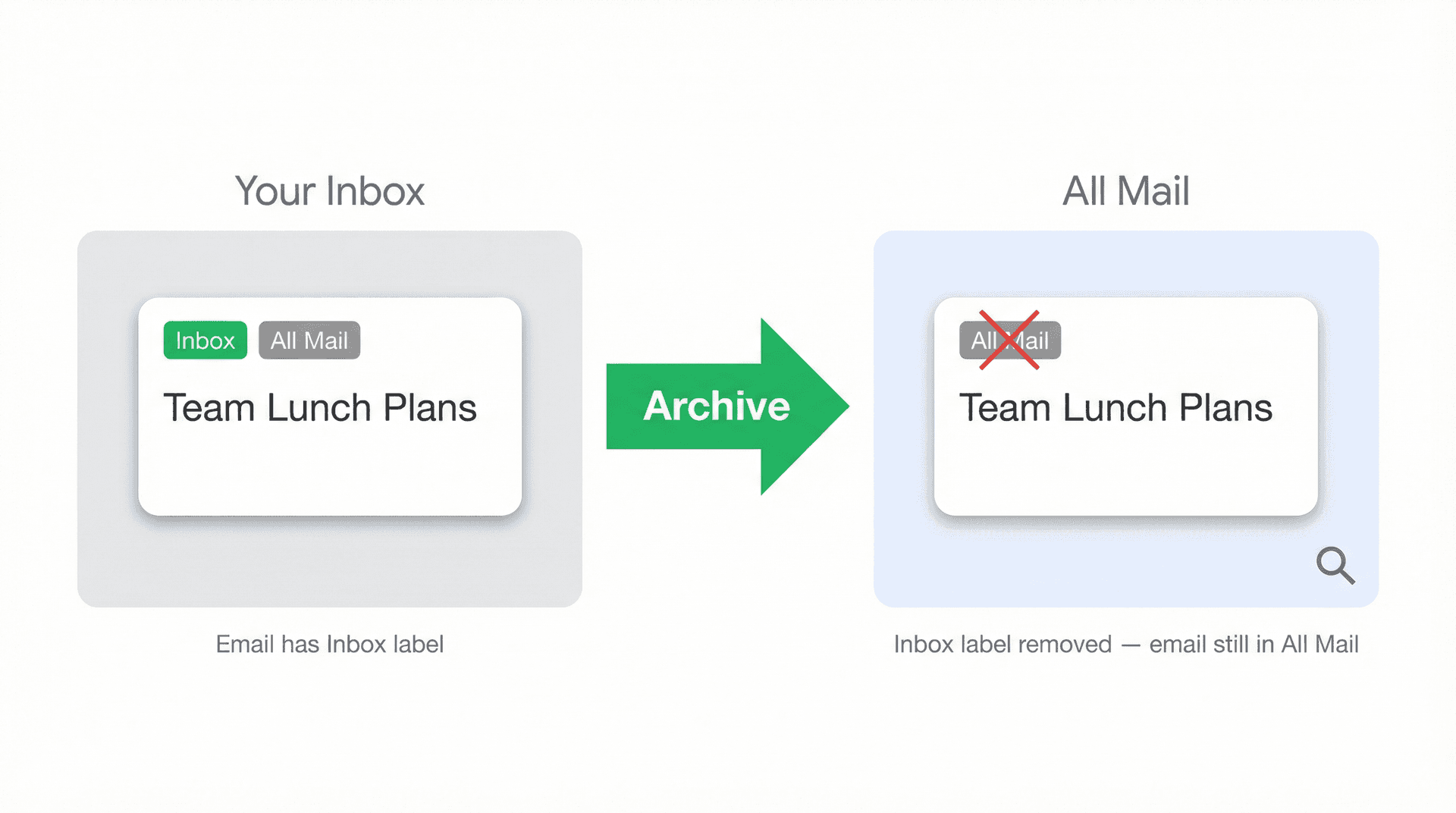
That distinction matters because Gmail doesn't work like Outlook or Apple Mail. Gmail uses labels. Your Inbox is just one label. When you archive something, Gmail strips the Inbox label off it, so the message disappears from your main view but stays in your account. You can find it anytime in All Mail, or by searching for it. For a clearer picture of how these two views relate, our guide on Gmail All Mail vs Archive clears up a lot of the confusion about what actually lives where.
So if your goal is "get everything out of my face so I can start fresh," archiving is your move. If your goal is "I'm running out of storage," you'll need to delete instead. We cover that below. You might also want to check why your Gmail storage is full but your inbox looks empty, because the answer isn't always obvious.
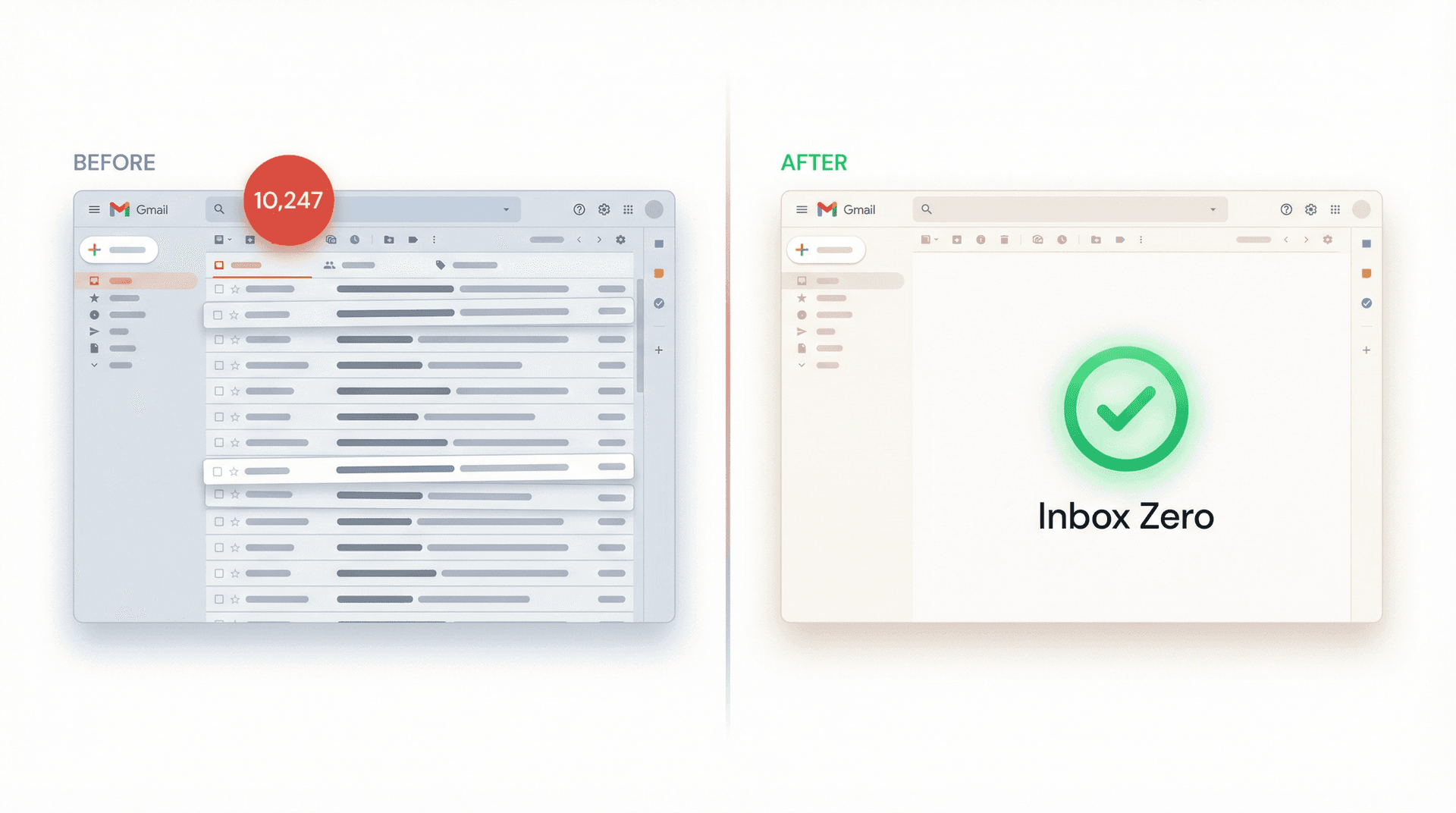
How to Bulk Archive Emails in Gmail (Step-by-Step)
This only works on desktop. We'll get to mobile limitations in a minute, but the full "archive everything" flow requires a browser. If you want to understand the broader email management strategies that make this cleanup actually stick long-term, that guide covers the full picture.
The process:
-
Open Gmail in your browser and make sure you're looking at your Inbox
-
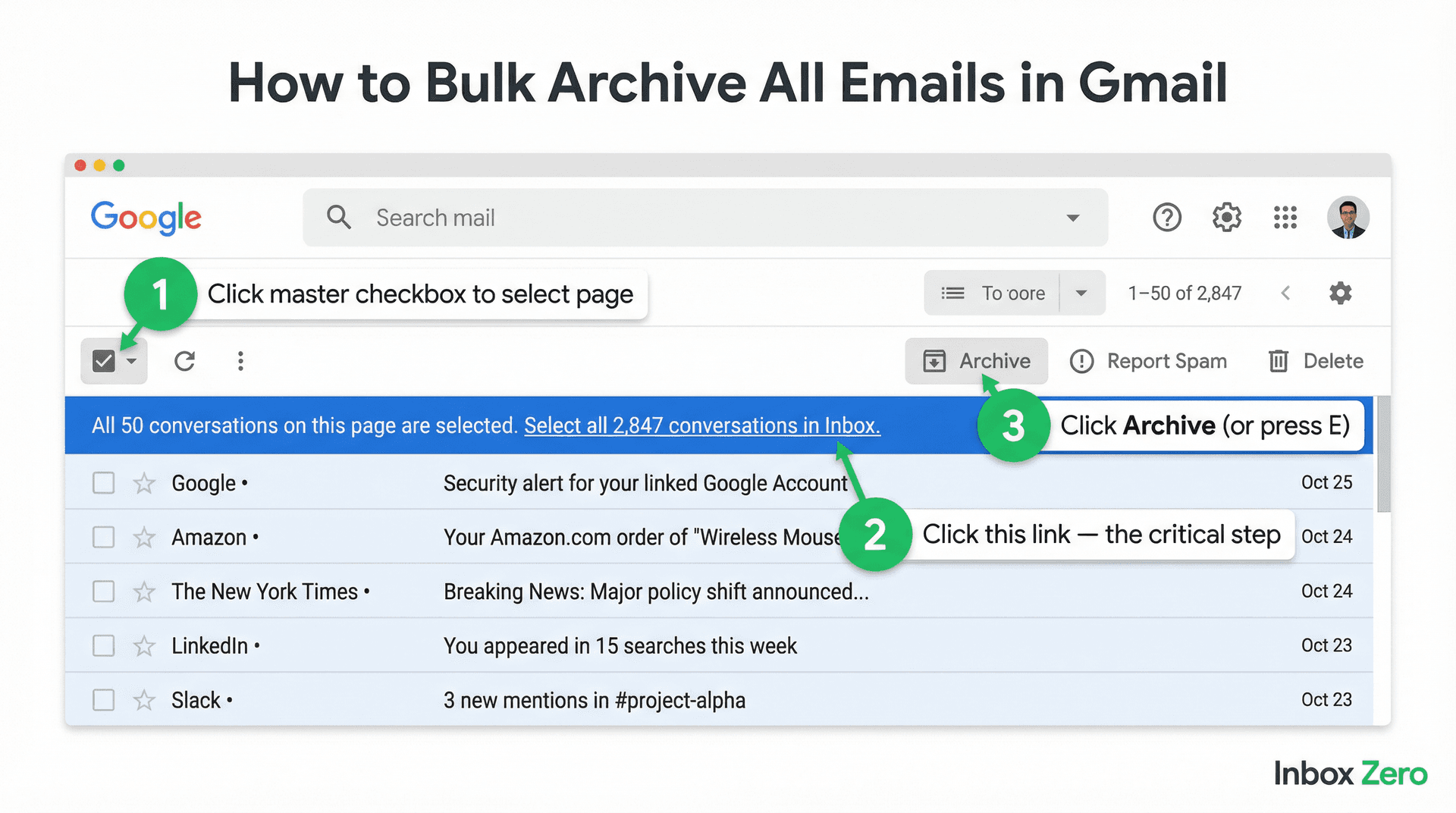
Click the master checkbox in the top-left corner (above your messages). This selects every conversation on the current page.
-
Look for the banner that appears at the top. It'll say something like: "All 50 conversations on this page are selected. Select all 2,000 conversations in Inbox."
-
Click that "Select all conversations" link. This is the critical step. Without it, you're only selecting what's visible on screen.
-
Click the Archive button (or press
Eon your keyboard if you have keyboard shortcuts enabled). We've put together a Gmail keyboard shortcuts cheat sheet if you want to speed up your workflow beyond just archiving.
Every email in your Inbox gets archived at once. They're all still in your account, still searchable, still accessible in All Mail. They just won't be staring at you anymore.
Quick note: Gmail works in conversations, not individual messages. So when the banner says "2,000 conversations," that might represent 5,000 or 10,000 individual emails grouped into threads. Google explains conversation threading here. It doesn't change the workflow, but it does explain why the numbers might look different than you expect.
What Happens When You Archive an Email in Gmail?
There's no "Archive folder" in Gmail. That confuses a lot of people who come from email clients with a dedicated archive location. If you've ever wondered about the difference between Gmail labels vs folders, that post explains why Gmail's label-based system behaves so differently from traditional email apps.
What archiving actually does is simple: it removes the Inbox label from a conversation. The message stays in your account. It's searchable. It shows up in All Mail. And if someone replies to an archived thread, Google confirms the conversation pops right back into your Inbox automatically. That's not a bug. It's how Gmail handles active conversations.
For noisy group threads that keep bouncing back, mute is usually the better call than archive. When you mute a conversation, Google says future replies skip your Inbox entirely and go straight to the archive. It's like archiving, but permanent for that thread, even when new replies come in. Our breakdown of Gmail snooze vs archive vs mute covers when each option makes the most sense.
Should You Archive from Inbox or All Mail?
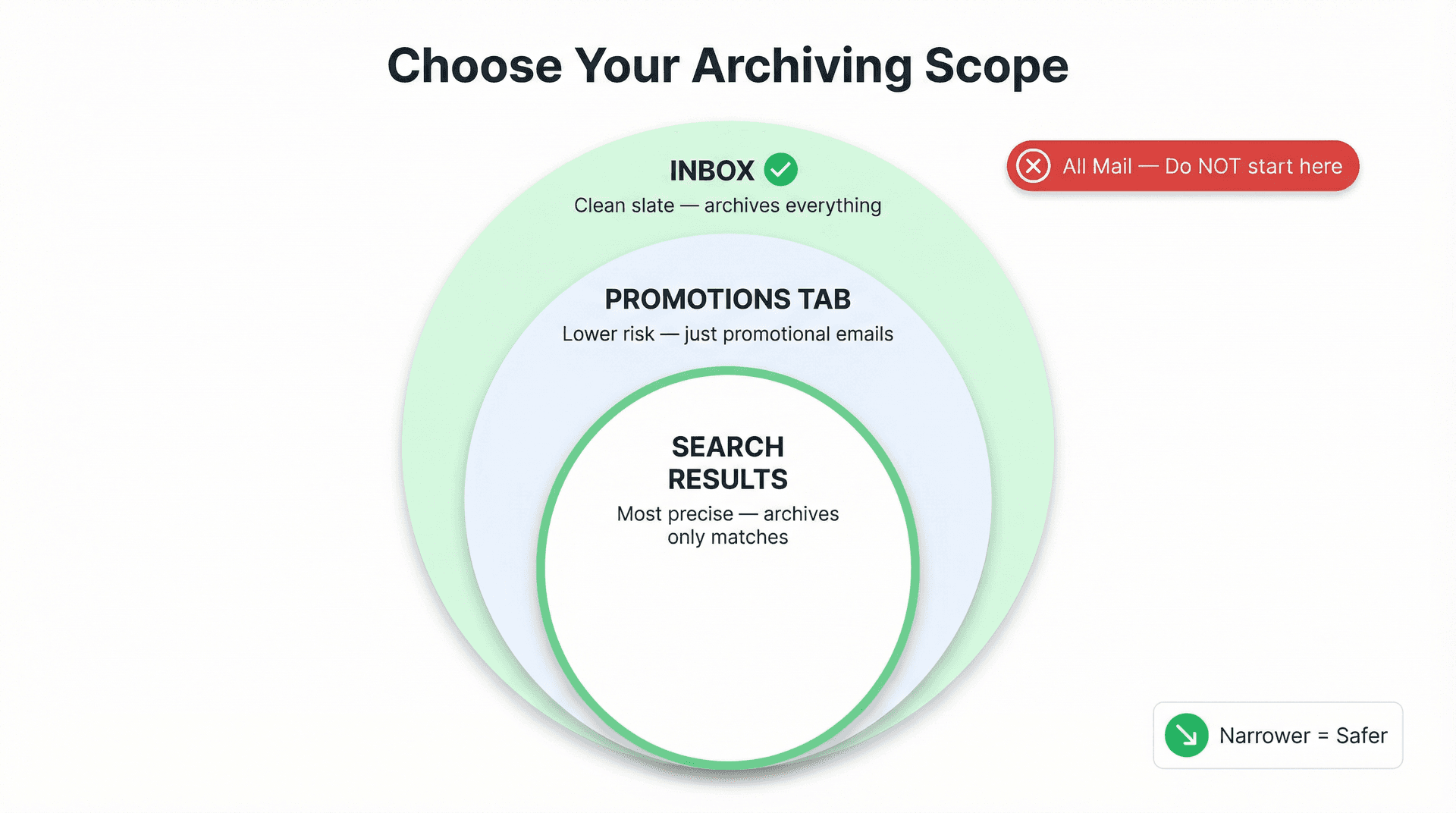
You might think "I'll go to All Mail and archive everything from there" since it shows your full email history. Don't do that. All Mail already contains your archived messages. If you try bulk-selecting from All Mail, you're including emails that are already archived, which creates confusion and doesn't accomplish anything useful.
The right approach is to start from your Inbox, or from a specific view you've intentionally narrowed down. Think of it as controlling the "blast radius" of your cleanup:
-
Inbox: Archives everything you see when you open Gmail. Clean slate.
-
Promotions tab: Archives just promotional emails. Lower risk. (If you want to go further and delete all your promotional emails, our guide on how to delete all promotions in Gmail walks through that process.)
-
Search results: Archives only what matches your search. Most precise.
Google documents these category and search-based views as valid starting points for bulk actions. Also worth knowing: once you archive emails, they no longer appear in Gmail's category tabs either. So don't go looking for them in Promotions after you've archived them. Use All Mail or in:archive instead.
For a low-risk first pass, try a targeted search like category:promotions older_than:6m -is:starred before sweeping your entire Inbox. It archives old promotional emails while protecting anything you've starred. Feels a lot safer.
Gmail Search Operators for Bulk Archiving (With Examples)
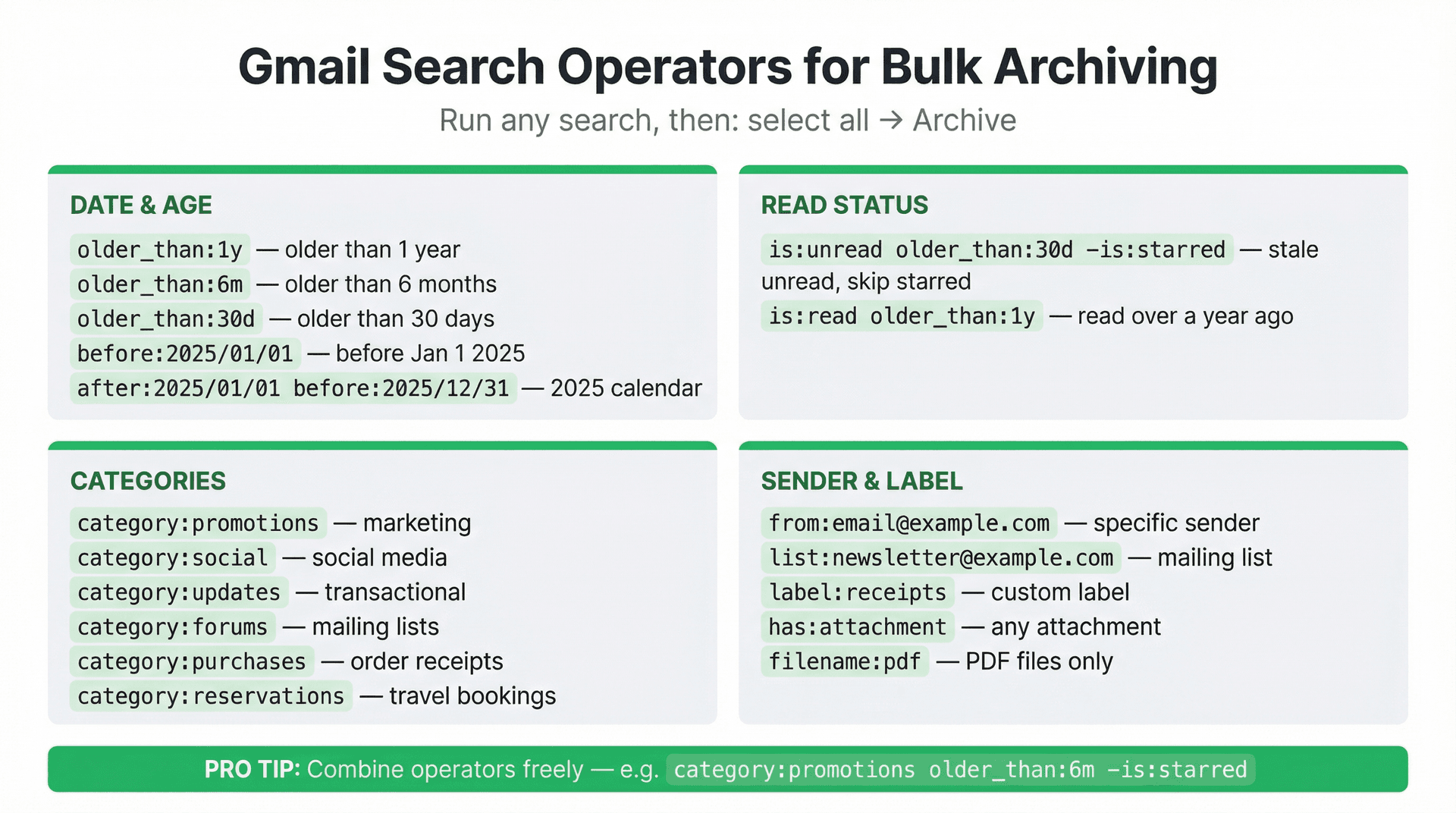
This is where bulk archiving goes from "nuke everything" to "surgical strike." Gmail supports search operators that you can combine to target exactly the emails you want to archive. Run your search, then use the same select-all workflow: master checkbox, banner link, Archive.
How to Archive Emails Older Than X Days in Gmail
All of these are documented Gmail search operators:
| Search query | What it does |
|---|---|
older_than:1y | Emails older than one year |
older_than:6m | Emails older than six months |
older_than:30d | Emails older than 30 days |
before:2025/01/01 | Everything before January 1, 2025 |
after:2025/01/01 before:2025/12/31 | Everything in the 2025 calendar year |
If you want to go further and set up automatic deletion for old emails, our guide on automatically deleting emails older than 30 days in Gmail explains how to handle that. Google documents the full list of date and age search operators if you need more granular combinations.
How to Archive Unread Emails in Gmail Without Losing Important Ones
Gmail's read status operators let you filter by whether you've actually opened a message:
-
is:unread older_than:30d -is:starredgrabs unread emails older than a month, but skips starred ones. Great for safely clearing stale messages you never got around to. -
is:read older_than:1ytargets emails you already read more than a year ago. If you read it and didn't act on it in a year, it probably doesn't need to be in your Inbox.
These read-status searches pair well with a broader email inbox management approach. Once you've done the bulk cleanup, you can set up rules to prevent the same backlog from building again.
Archive Gmail Emails by Category (Promotions, Social, Updates)
Gmail has built-in categories you can search directly. Once you've archived these categories, Inbox Zero's AI email automation can keep future messages automatically labeled or archived so they never pile up again:
-
category:promotionsfor marketing emails -
category:socialfor social media notifications -
category:updatesfor transactional updates -
category:forumsfor mailing lists and group discussions
There are also search-only categories that Google documents but most people never discover:
-
category:purchasesfor order confirmations and receipts -
category:reservationsfor travel bookings and hotel confirmations
These are incredibly useful for archiving transactional emails you'll rarely need in your active Inbox. If you want Inbox Zero to handle this automatically going forward, the AI Personal Assistant can archive receipts and reservation confirmations as soon as they arrive.
How to Archive Emails from a Specific Sender in Gmail
-
from:newsletter@example.comfor a specific sender -
list:newsletter@example.comfor a specific mailing list. If newsletters are a big part of your inbox overload, bulk unsubscribing from emails is a more permanent fix than archiving them repeatedly -
label:receiptsfor emails under a label you created. Gmail labels and folders work differently than most email clients, which affects how this search behaves -
has:attachmentfor all emails with attachments -
filename:pdffor emails with PDF attachments specifically
One important distinction worth knowing: category: refers to Gmail's built-in tabs (Promotions, Social, Updates, Forums). label: refers to labels you've created yourself. Google confirms you can't create custom categories, but you can create as many custom labels as you want. Don't mix them up in searches.
All of these operators work with Gmail's search syntax, and you can combine them freely. Something like category:promotions older_than:6m -is:starred is a perfectly valid search that lets you archive six-month-old promotional emails while keeping your starred items safe.
Can You Bulk Archive Emails in Gmail on iPhone or Android?
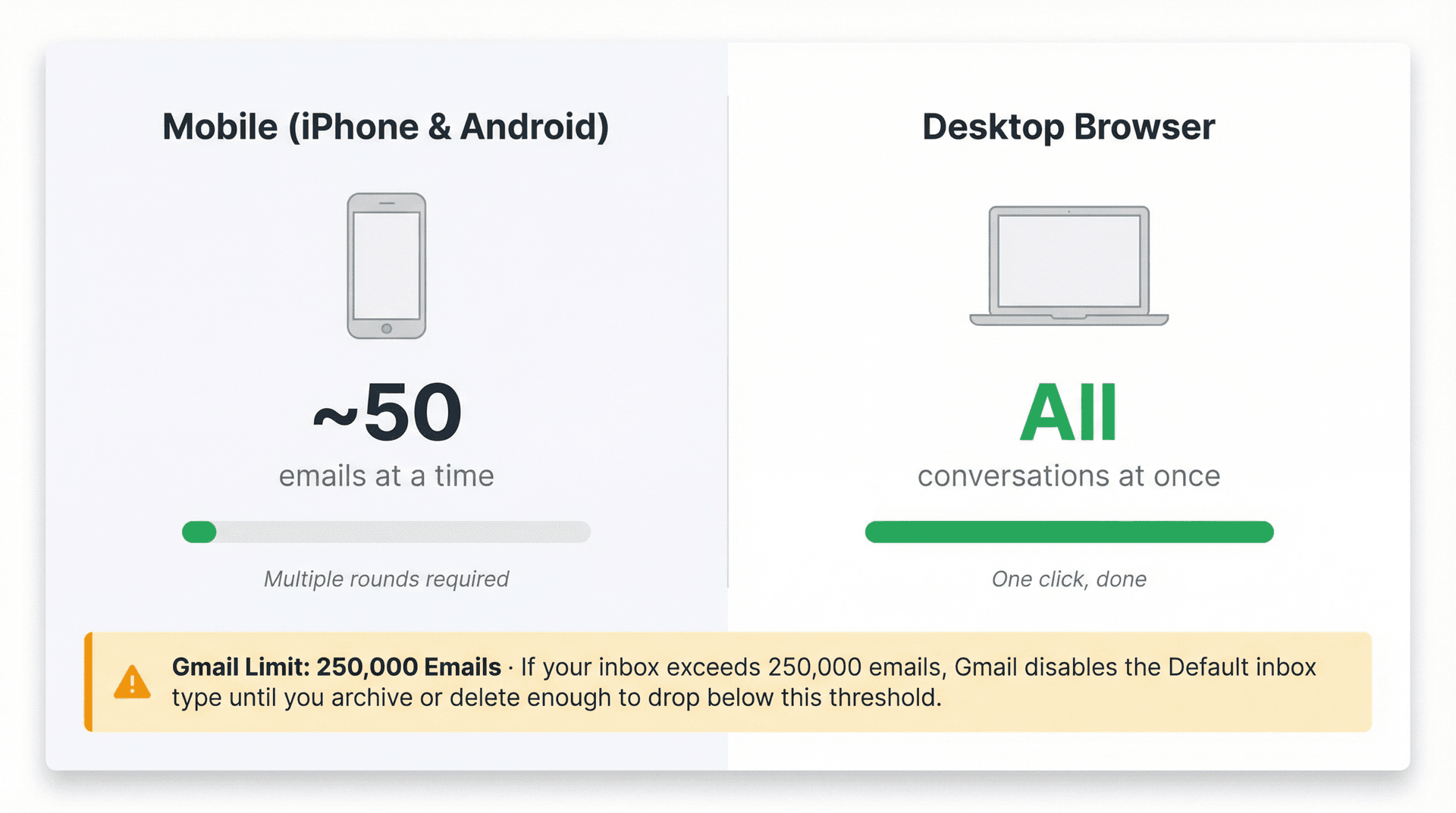
Not in the same way, no. The "Select all conversations in Inbox" banner that makes desktop bulk archiving possible doesn't exist in Gmail's mobile app. On Android and iPhone, you can tap and hold to select messages, then tap Archive, but you're working with what's on screen (up to about 50 messages at a time).
If you've got hundreds or thousands of emails to archive, mobile is going to be painfully slow. Open Gmail in a desktop browser for the real bulk workflow. If you only have access to your phone, you can still chip away at it, but it'll just take multiple rounds. You might also find it helpful to understand the broader differences between the Gmail mobile app vs desktop experience if you split time between both.
How to Find and Recover Archived Emails in Gmail
Archived something you need back? Don't panic. Two easy ways to find it.
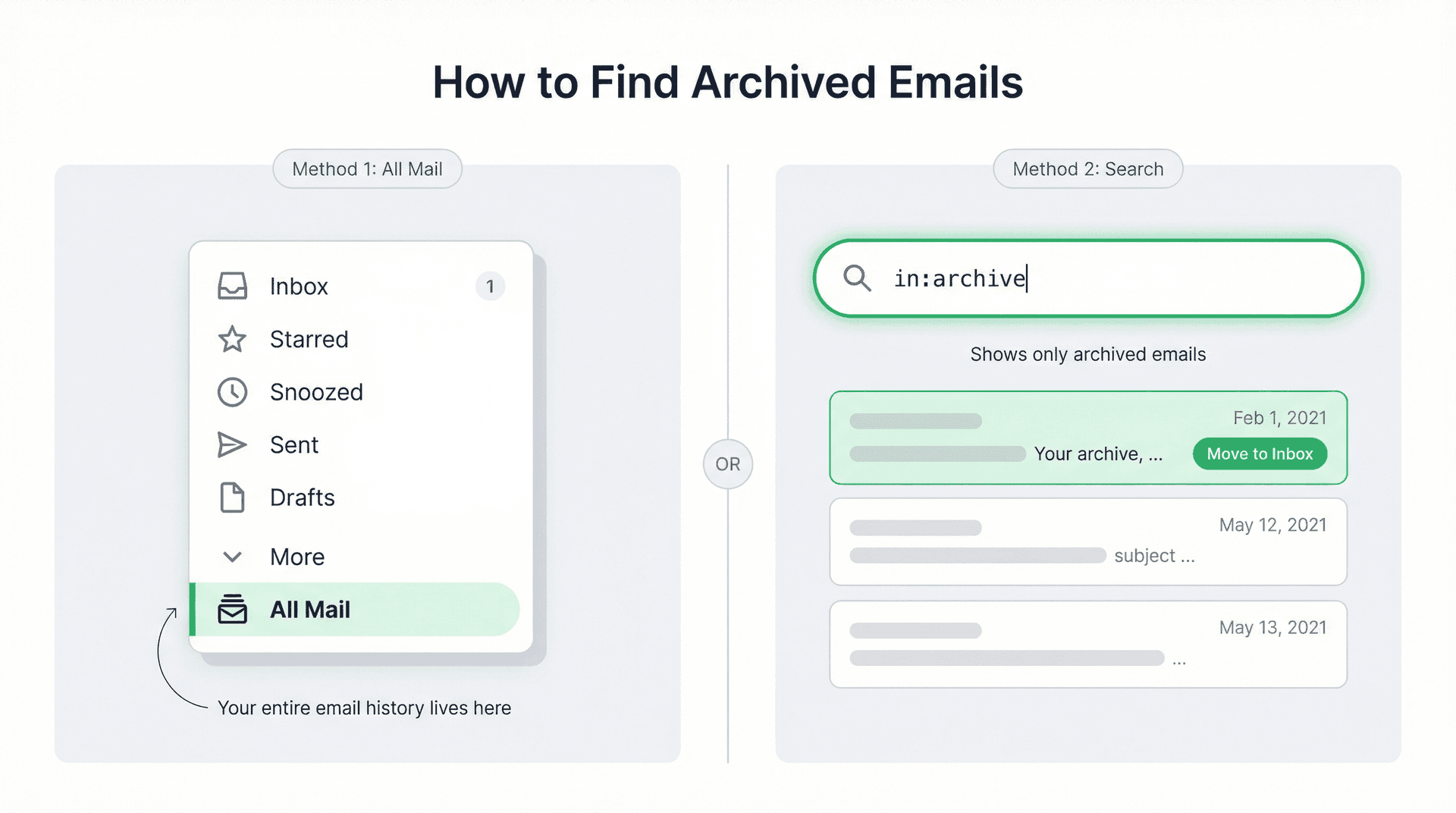
Option 1: Open the left sidebar in Gmail, scroll down, click More, then click All Mail. Everything you've ever received (that you haven't deleted) lives there, including archived emails. This All Mail view is Gmail's complete message store.
Option 2: Search in:archive in the Gmail search bar. This shows only archived emails, which is faster than scrolling through All Mail.
Google documents both of these methods for recovering archived messages. If you want a complete walkthrough on locating archived mail in different scenarios, our guide on how to find archived emails in Gmail covers all the edge cases.
To move emails back to your Inbox, select them and click Move to Inbox. That's all it takes to undo an archive.
One thing to remember after a big cleanup: archived emails don't show up in Gmail's category tabs anymore. So if you archived everything in Promotions, don't go to the Promotions tab looking for them. Go to All Mail or use in:archive instead.
For a deeper walkthrough on recovering archived emails, our guide on Gmail All Mail vs Archive explains the full picture.
Archive vs Delete vs Mute: Which One Should You Use?
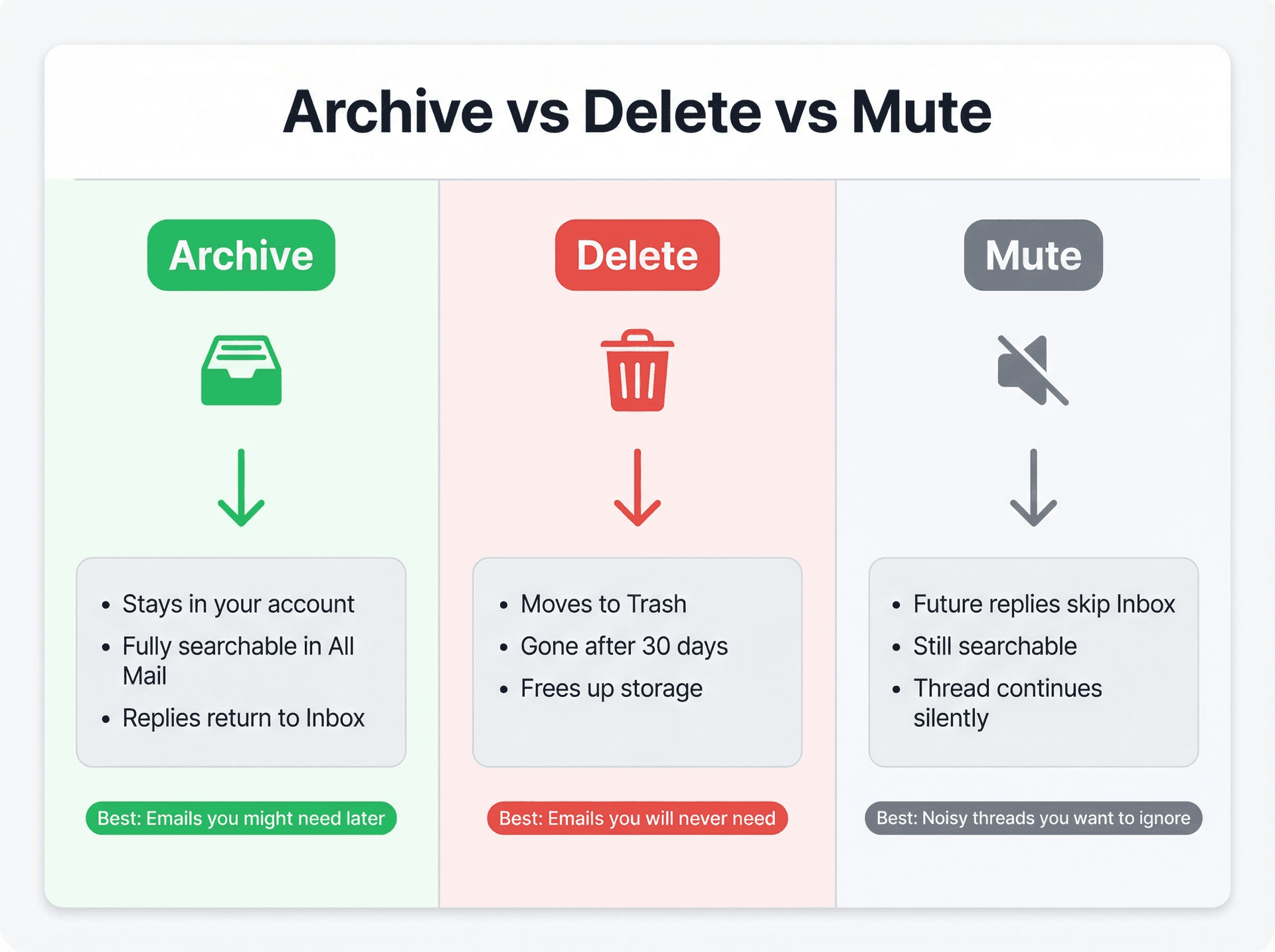
These three actions look similar on the surface, but they do very different things:
| Archive | Delete | Mute | |
|---|---|---|---|
| What happens | Removes from Inbox, stays in account | Moves to Trash, gone after 30 days | Future replies skip Inbox |
| Searchable? | Yes, in All Mail | Yes, until Trash empties | Yes, in All Mail |
| Replies return to Inbox? | Yes | N/A (deleted) | No |
| Frees up storage? | No | Yes (after Trash empties) | No |
| Best for | Emails you might need later | Emails you'll never need | Noisy threads you want to ignore |
Archive is your default for cleanup. You're saying "I don't need this in my face, but I might need it someday." Google confirms archived messages stay in your account and remain fully searchable.
Delete is for emails you genuinely don't want. Google moves deleted emails to Trash and permanently removes them after 30 days. This is the only action that actually frees up Gmail storage. If you need a complete playbook for clearing out your account, our guide on how to delete all emails in Gmail walks through the full process.
Mute is the underrated option. It's perfect for group email threads where people keep hitting Reply All about lunch plans or meeting scheduling. Muting makes all future replies skip your Inbox, so the conversation continues without cluttering your view.
Before you delete anything in bulk: Consider backing up your emails first. Google Takeout lets you export a copy of all your Gmail data. It's free and gives you a safety net in case you delete something you end up needing. We also have a guide on how to export all Gmail emails before deleting if you want step-by-step instructions.
What Happens When Your Gmail Inbox Has 250,000+ Emails
Google documents something that almost nobody talks about: if your Inbox contains more than 250,000 emails, Gmail won't let you use the Default inbox type. You're forced into a limited view until you archive or delete enough to get below that threshold.
So for extreme power users (or people who haven't touched their inbox in a decade), a mass archive isn't just about having a clean view. It can actually restore normal Gmail functionality. Curious how common it is to hit these kinds of limits? Our post on how many emails before Gmail crashes digs into the real-world thresholds.
How to Stop Your Gmail Inbox from Filling Up Again
Archiving 10,000 emails feels great for about a week. Then 500 new ones pile up and you're back to square one. The one-time sweep is the easy part. Keeping it clean is what separates a tidy inbox from an ongoing losing battle. If you're thinking about this more broadly, our email management strategies post covers the full picture of building lasting inbox habits.
Set up Gmail filters for recurring junk. Google's filter system can automatically archive, label, or skip the inbox for incoming messages that match specific criteria. If you know a sender always sends stuff you don't need in your Inbox, create a filter once and never think about it again. Filters are best for future mail. For your existing backlog, the search-plus-archive method we covered above is faster. If your filters are misbehaving, we've also written a guide on Gmail filters not working that covers common fixes.
Try Gmail's Manage Subscriptions feature. Google is gradually rolling this out, and when it's available in your account, it gives you a centralized view of your active email subscriptions. You can unsubscribe from there, and Google says new messages from unsubscribed senders go straight to Spam.
Use a purpose-built tool for newsletter cleanup. If your inbox keeps filling up because of newsletters, promotional emails, and subscriptions you signed up for years ago, manually unsubscribing one by one takes forever. Inbox Zero's Bulk Email Unsubscriber lets you review all your newsletter subscriptions in one view and unsubscribe, auto-archive, or approve them in bulk. It's especially useful when the problem isn't old mail sitting in your Inbox, but new subscription noise arriving daily. You can also read our deeper guide on how to manage email subscriptions for more strategies.
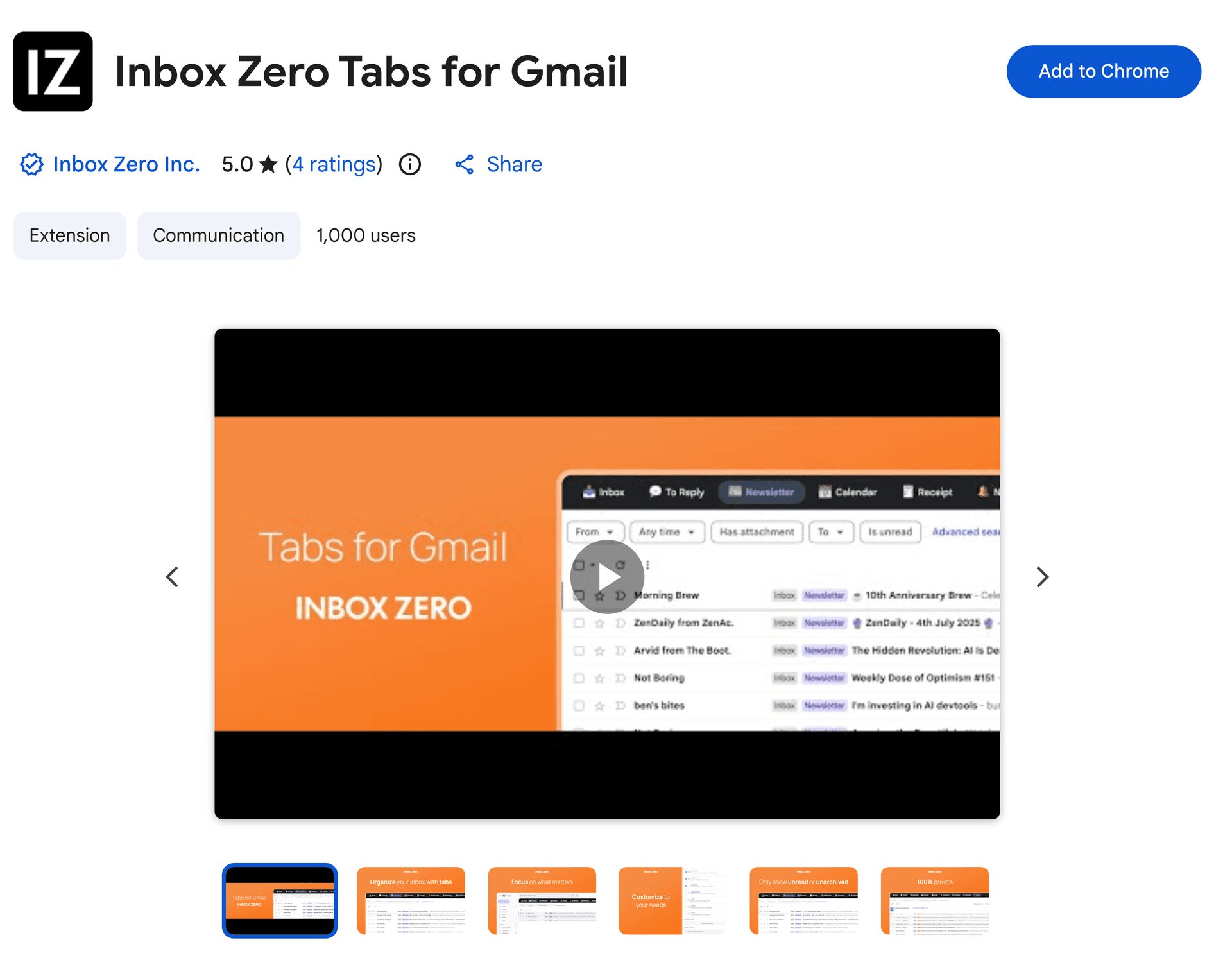
Add custom tabs to your Gmail view. Instead of one big Inbox where everything competes for attention, the Inbox Zero Tabs for Gmail Chrome extension lets you create custom tabs inside Gmail using saved searches or labels. Set up views like "Newsletters," "Receipts," or "To Reply" so different types of email land in their own space. It's 100% private, stores settings locally, and doesn't collect any data. Think of it as giving your Gmail a split inbox without leaving Gmail or paying for a new email client.
How Inbox Zero Keeps Your Gmail Clean Automatically
Archiving your inbox is a great first step, but it's a one-time action. If you want your inbox to stay clean without repeating this process every few months, that's exactly what we built Inbox Zero to handle.


Here's what Inbox Zero adds on top of what Gmail offers natively:
-
Bulk Email Unsubscriber: See which newsletters and marketing emails you actually read versus the ones you ignore. Unsubscribe from dozens at once or set them to auto-archive so they're there if you need them but never clutter your Inbox. Our Bulk Email Unsubscriber docs explain how it works in detail.
-
AI-Powered Email Automation: Create rules in plain English that automatically label, archive, draft replies, or block cold outreach. You describe what you want ("archive all emails from no-reply addresses" or "draft a polite decline for cold sales pitches"), and our AI email automation turns that into an actionable rule. You can review everything before it runs, or let it work automatically once you trust it. The AI Personal Assistant docs walk through setting up your first rules.
-
Cold Email Blocking: Getting a steady stream of unsolicited sales pitches? Our cold email blocker identifies and auto-archives outreach emails so they never hit your Inbox.
-
Email Analytics: See which senders email you most, how quickly you respond, and where your time goes. Our email analytics dashboard is useful for understanding why your inbox fills up so fast. Our post on how much time you're spending on email might also put some surprising numbers in front of you.
-
Gmail Tabs Extension: The Inbox Zero Tabs for Gmail Chrome extension turns your Gmail into a split-inbox setup with custom tabs, entirely inside Gmail. No new app to learn.
- Bulk Archiver: Inbox Zero's Bulk Archiver feature lets you automate the archiving process so you're not doing the manual select-all dance every few months. Set rules once and let the system handle recurring cleanup for you.
The idea is simple: Gmail gives you the tools to clean up once. Inbox Zero gives you the system to keep it clean permanently. And because we're open-source, you can see exactly how everything works.
Get started with Inbox Zero for free
Gmail Archiving: Common Questions Answered
Does archiving all emails in Gmail delete them?
No. Archiving removes emails from your Inbox view, but they stay in your account permanently. You can find them in All Mail or by searching in:archive. If someone replies to an archived conversation, it comes back to your Inbox automatically.
Does archiving emails in Gmail free up storage space?
No. Google is clear on this: the only way to recover storage space is to delete messages and empty your Trash or Spam folder. Archiving keeps messages in your account, so it doesn't change your storage usage at all. If you're genuinely running out of space, our guide on Gmail running out of space covers your options.
Why does Gmail show conversations instead of individual emails when I select all?
Gmail groups related emails into conversation threads. A single conversation might contain 3, 10, or 50 individual messages. When you bulk-select, Gmail counts conversations, not messages. So "2,000 conversations" might actually represent many more individual emails.
Can I archive only old emails or just Promotions in Gmail?
Absolutely. Use Gmail's search operators to target specific emails before archiving. For example:
-
older_than:1yfor everything older than a year -
category:promotionsfor just promotional emails. If you want to go further and permanently clear out promotions rather than archive them, our guide on how to delete all promotions in Gmail covers that workflow -
before:2025/01/01for everything before a specific date
Run the search, then use the same select-all and archive workflow from the top of this guide.
Can you undo a bulk archive in Gmail?
Yes. Search in:archive or go to All Mail, select the emails you want back, and click Move to Inbox. Google documents this recovery process, and it works whether you archived one email or ten thousand.
Why didn't the "Select all conversations" link appear?
Two common reasons. First, if all matching conversations fit on a single page, Gmail doesn't show the banner because everything is already selected. Second, this banner doesn't appear on mobile. You need to use Gmail in a desktop browser to get the full "select all conversations in Inbox" option.
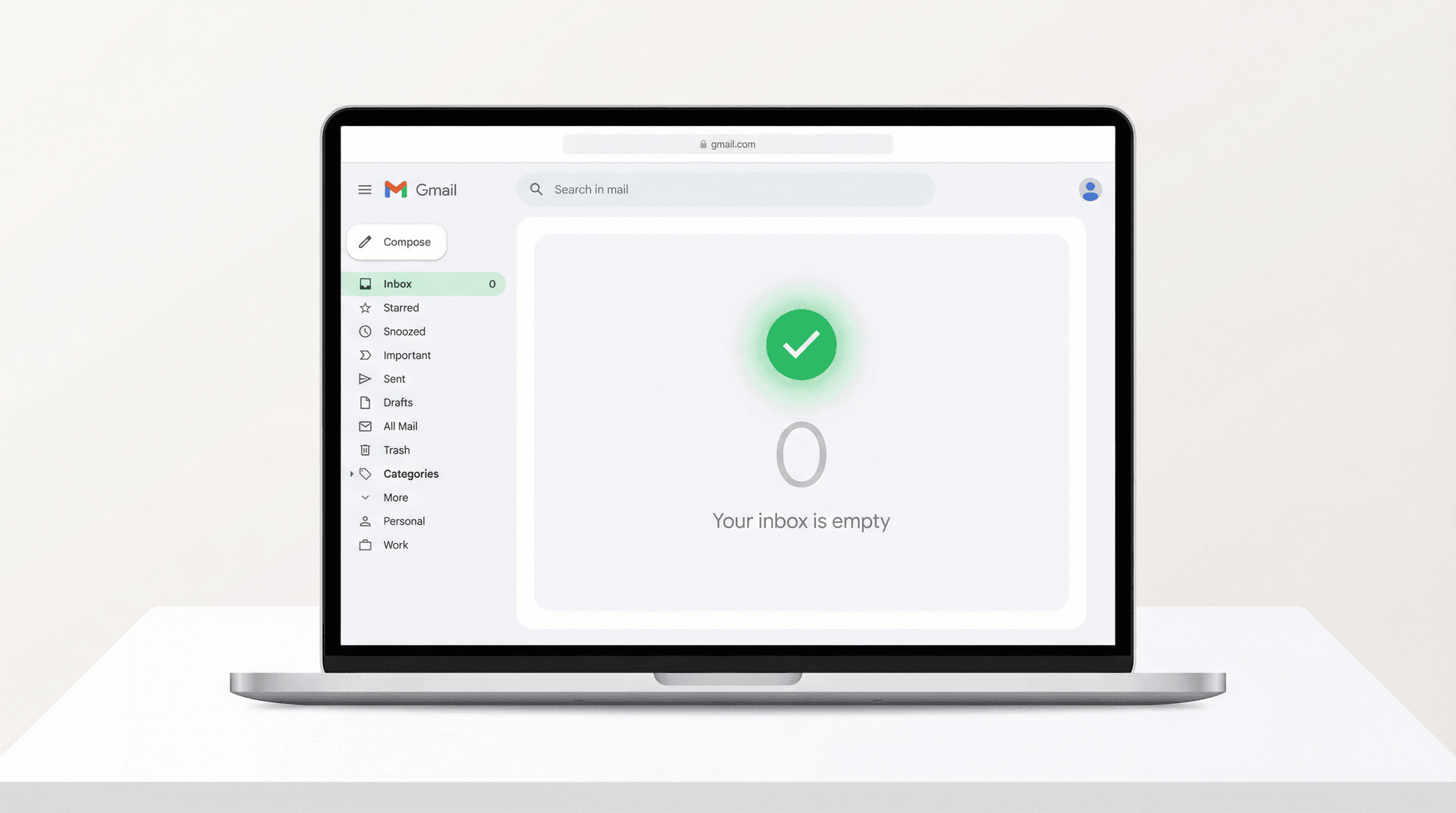
The fastest way to archive all emails in Gmail at once is straightforward: open Inbox, select the page, click the banner to grab all conversations, and hit Archive. Five clicks, maybe 30 seconds.
But the real win isn't the one-time cleanup. It's building a system so your inbox doesn't quietly spiral back to where it was. Set up filters, unsubscribe from what you don't read, and consider using Inbox Zero to automate the ongoing maintenance. A clean inbox isn't a single event. It's a habit you build once and maintain with the right tools.


Relay.app Is Shutting Down: Deadlines, Data Export, and Alternatives
Relay.app is shutting down in 2026. See the deadlines for free and paid users, what to export, and which alternatives fit your email and automation workflows.
2026-07-16T18:46:02Z

Best AI Email Assistants in 2026 (Tested)
The best AI email assistants in 2026, tested and compared. Honest pros, cons, and pricing for Inbox Zero, Superhuman, Fyxer, Shortwave, Lindy, Missive, SaneBox, Serif, Perplexity, Gemini in Gmail, and Microsoft Copilot, with picks by use case.
2026-07-05T08:00:00Z

Top 16 Email Management Software of 2026
Discover the top 16 email management software of 2025 designed to boost productivity and simplify your inbox.
2026-06-24T09:00:00Z
7 Best Fyxer Alternatives in 2026
The best Fyxer.ai alternatives in 2026, compared. AI email assistants, team inboxes, and inbox cleaners, with honest notes on price, features, and who each one is for.
2026-06-01T08:00:00.000Z