How to Attach an Email to Another Email (Gmail & Outlook)
Step-by-step guide to attaching an email to another email in Gmail and Outlook. Covers drag-and-drop, forward as attachment, size limits, and troubleshooting.

You've got an email somebody else needs to see. Not just the gist of it, not a sloppy forwarded block of quoted text with your signature jammed in the middle. The actual original email, clean and separate, so the other person can read it exactly as you received it.
Maybe you're escalating a support thread to a coworker. Maybe finance needs the exact invoice email for an audit trail. Maybe you're looping in legal and they want the original message untouched, not paraphrased inside your note. Or maybe you just want to reply to one conversation while attaching a completely different email for context.
Whatever the reason, there's a right way to do this in both Gmail and Outlook. And it's not the same as a normal forward. If you've ever wondered about the differences between Gmail and Outlook beyond just this feature, that comparison goes deep on both platforms.
This guide covers every method across Gmail desktop, new Outlook, Outlook on the web, classic Outlook for Windows, and mobile, with the exact steps verified against Google's official documentation and Microsoft Support as of April 2026.
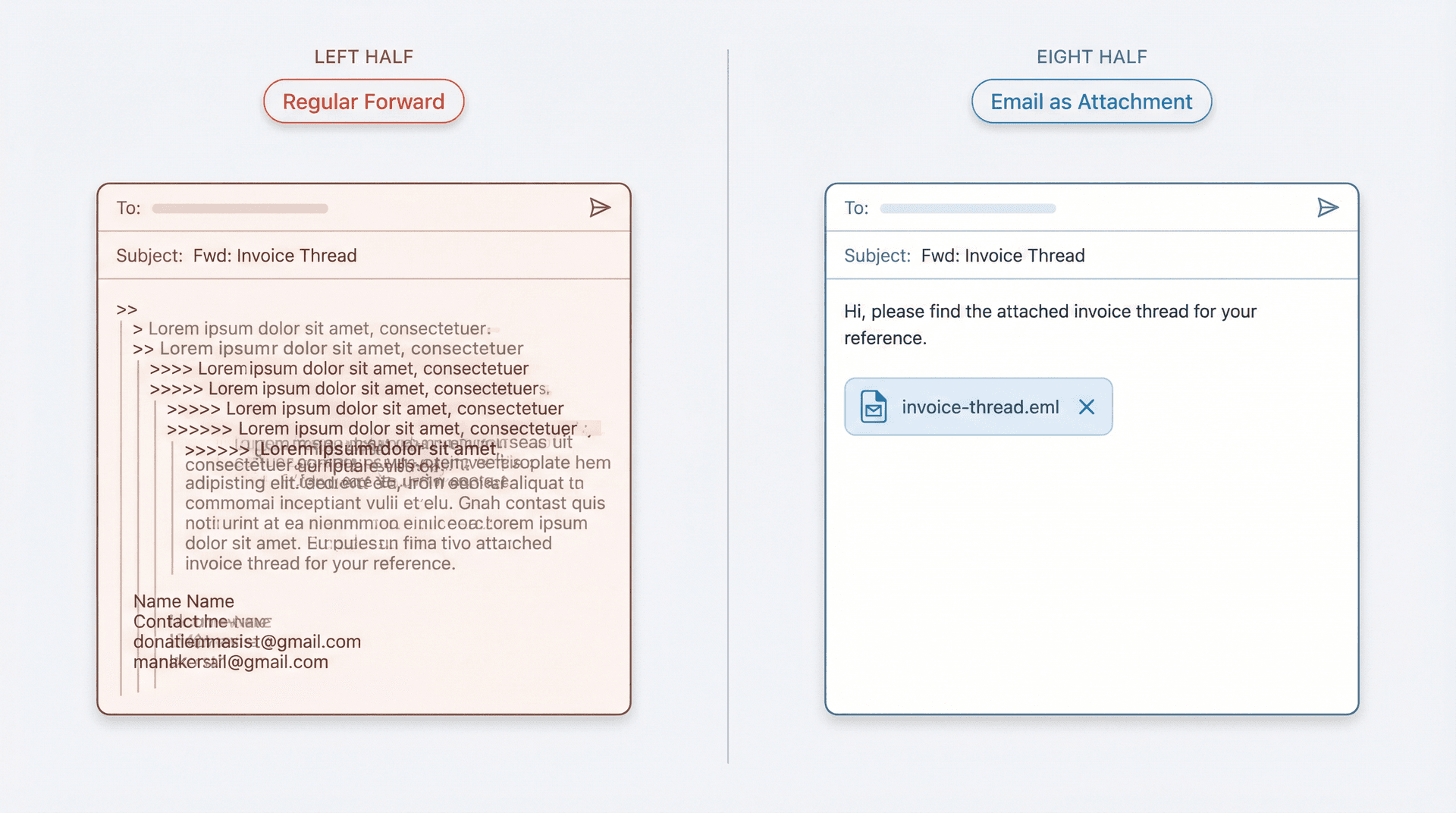
Why Attach an Email Instead of Forwarding It?
A regular forward pastes the old message inside your new one. It becomes part of the text. That's fine if someone just needs the general idea.
Attaching an email is different. The original message stays as a separate object. In Gmail, it becomes an .eml file. In Outlook, it can be an .eml or a native Outlook item. Either way, the recipient gets two distinct things: your message and the original email as its own file.
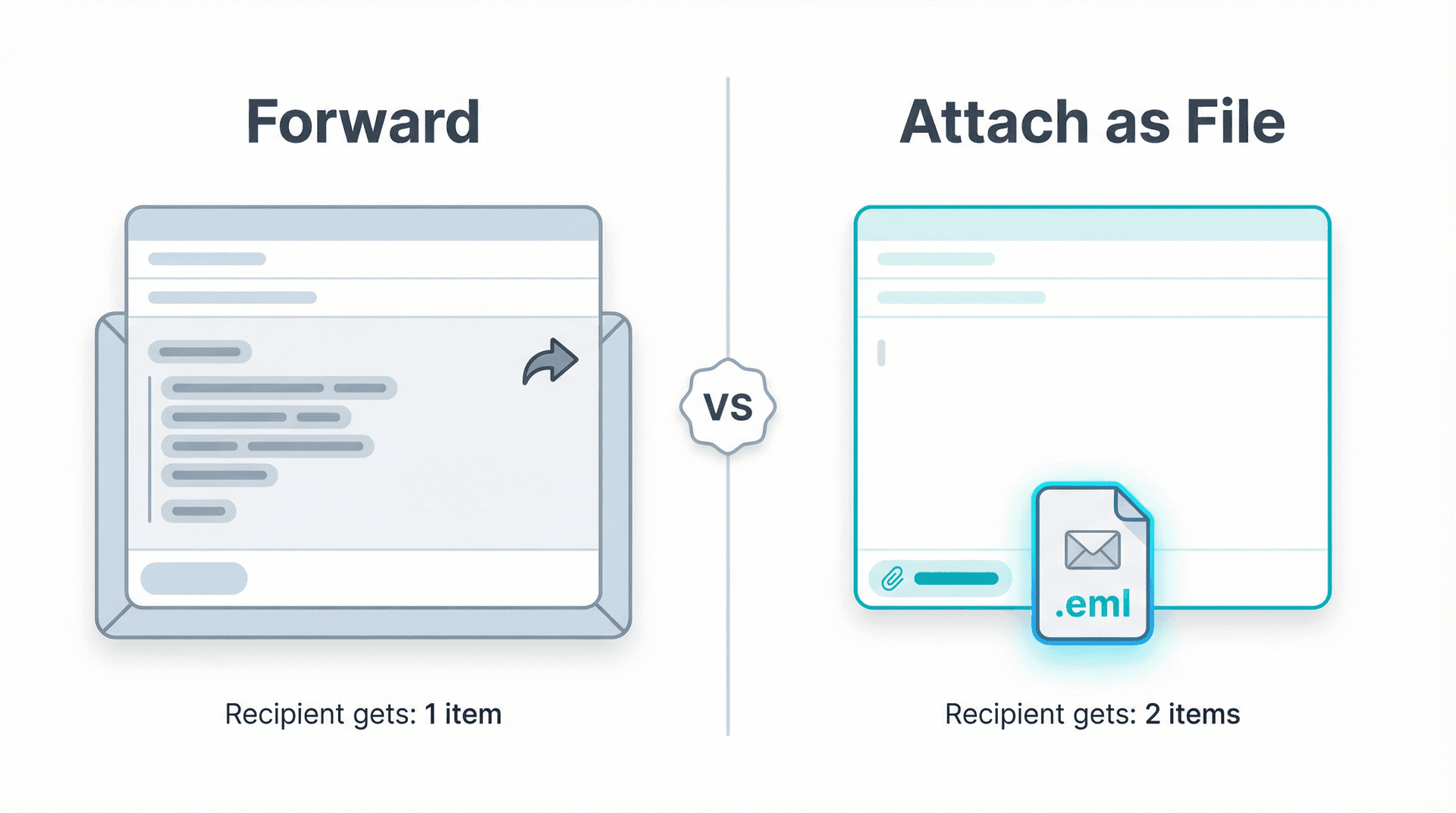
When does this actually matter? Anytime the exact original message needs to travel intact. Support escalations, finance approvals, legal holds, vendor disputes, security reviews, or just handing off a thread to someone who needs full context without your edits mixed in.
Not sure whether to reply, reply-all, or forward in the first place? Our breakdown of Reply vs. Reply All vs. Forward covers the right choice for every situation. For general inbox organization strategies, our email management tips guide is a solid starting point.
There's also a technical angle worth knowing. When IT or security needs to inspect message headers, having the email as a separate file makes that straightforward. In Gmail, you can use Show original to view full headers. In new Outlook and Outlook on the web, the equivalent is View > View message details.
All Methods at a Glance: Gmail and Outlook
If you already know which client you're using and just want the fastest path, here it is:
| Email Client | Fastest Method | How |
|---|---|---|
| Gmail (desktop) | Forward as Attachment | Select email > More > Forward as attachment |
| Gmail (desktop) | Drag and Drop | Drag email from inbox into compose window |
| New Outlook | Drag and Drop | Drag email into your draft |
| Outlook on the web | Drag and Drop (new window) | Pop draft into new window, then drag email in |
| Classic Outlook | Forward as Attachment | More Respond Actions > Forward as Attachment |
| Classic Outlook | Attach Item | Attach File > Attach Item > Outlook Item |
| Mobile (Gmail/Outlook) | Not officially supported | Use desktop/web, or share as PDF as a workaround |
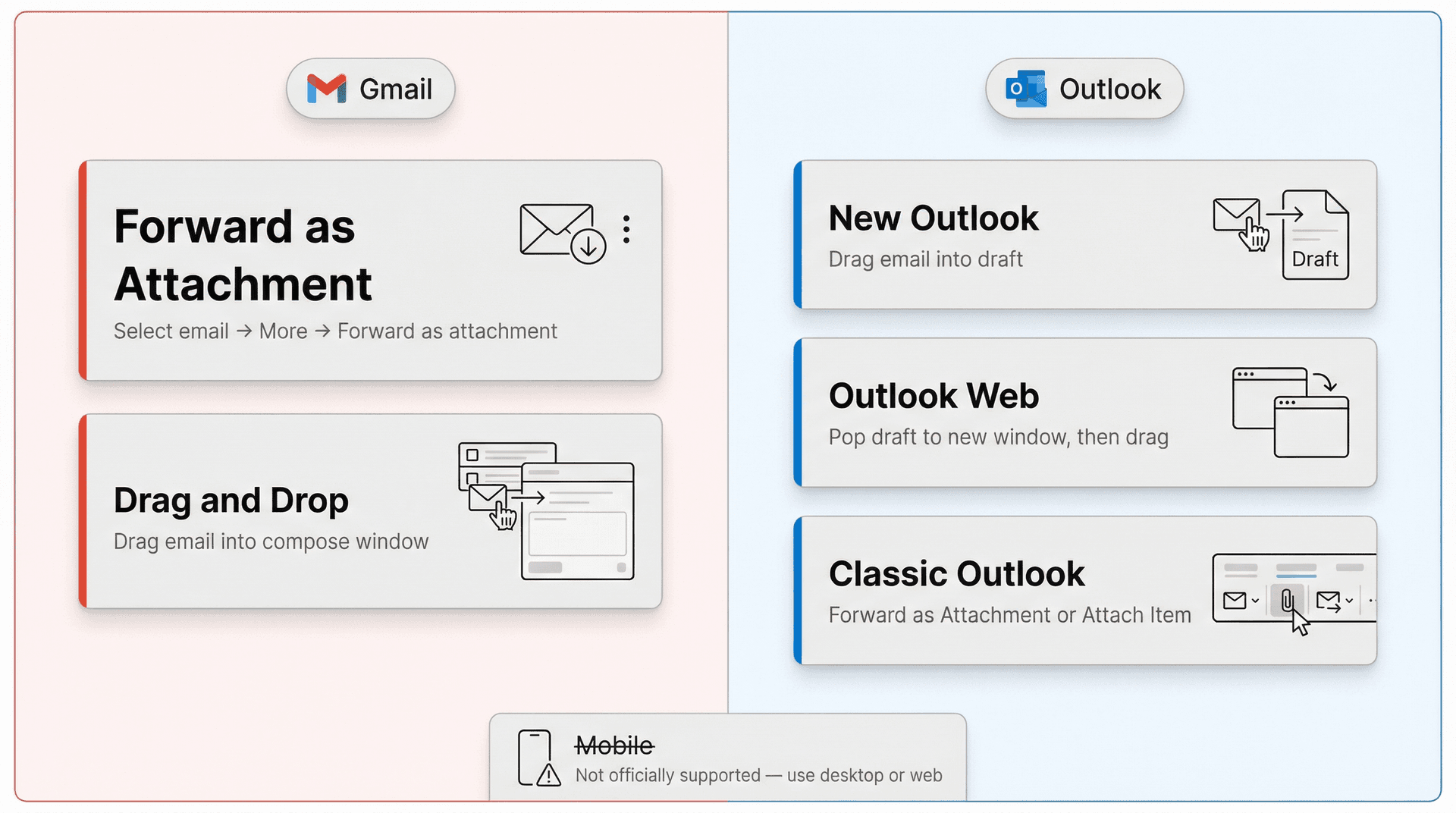
Now, the detailed walkthroughs.
How to Attach an Email in Gmail (Desktop)
Gmail gives you four ways to attach an email. Which one to pick depends on what you're already doing when you realize you need to send it. If you want to get more out of Gmail overall, our guide on how to manage your inbox covers the broader system.
How to Forward an Email as an Attachment in Gmail
This is the one most people should start with. It's clean, it's fast, and it works even if you need to attach several emails at once.
-
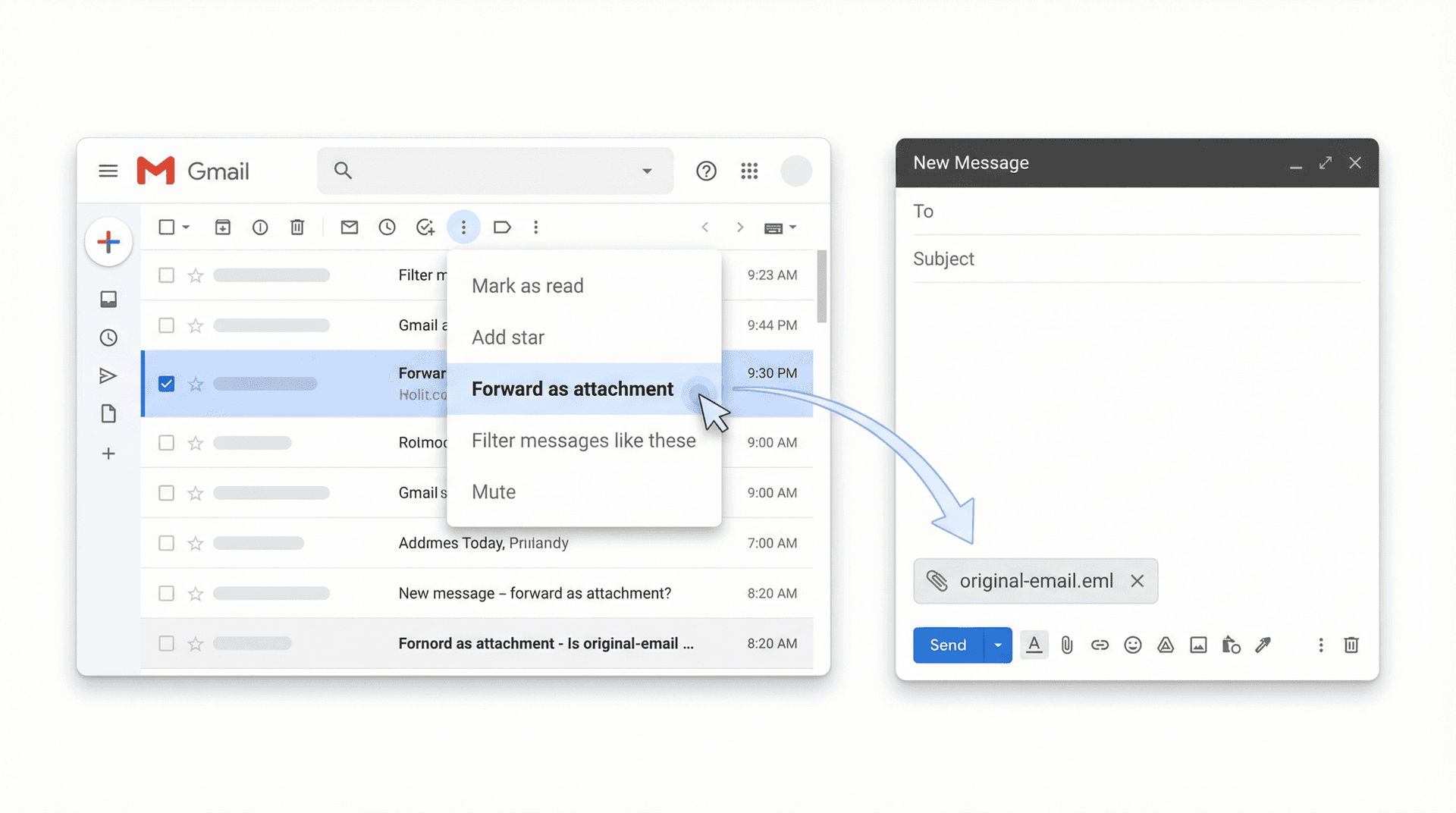
Open Gmail on your computer.
-
Tick the checkbox next to the email you want to attach (you can select multiple).
-
Click More (the three-dot menu in the toolbar).
-
Choose Forward as attachment.
-
Gmail opens a new compose window with the selected email(s) attached as
.emlfiles. -
Add your recipient, write your note, and hit Send.
A few things worth knowing about this method, straight from Google's help documentation:
-
Gmail converts each attached email into an
.emlfile -
You can attach as many emails as you want in a single message
-
If the total size exceeds 25 MB, Gmail automatically routes the attachment through Google Drive instead
How to Drag and Drop an Email Into Gmail
If you already have a draft open, dragging is often faster than clicking through menus.
-
Click Compose to start a new email.
-
Find the email you want to attach in your inbox or any label/folder.
-
Drag that email from the message list into the body of your compose window.
-
Drop it when Gmail highlights the compose area.
-
Send as normal.
Google also notes you can right-click an email and use the attachment option from the context menu, which does the same thing through a different path. (Google Support)
If you're using labels to organize your inbox and need to find the right email quickly, our guide on Gmail labels vs. folders explains how Gmail's organization system works.
How to Reply to One Email With Another Email Attached
This is the method to use when you need to answer one thread and attach a different email as supporting context. It requires popping the reply out of the thread first.
-
Open the email you want to reply to.
-
Click Reply.
-
Click the Open in a pop-up icon (small arrow at the top right of the reply box).
-
Go back to your inbox.
-
Find the email you want to attach.
-
Drag it into the body of the popped-out reply window.
-
Send.
That pop-out step is key. Without it, you can't access the inbox to drag a second email into the reply.
How to Download an Email and Attach It as a File
Use this as a fallback if drag-and-drop isn't cooperating, or if you want a copy of the original email saved to your computer.
-
Open the email you want to save.
-
Click More (three dots).
-
Click Download message. Gmail saves it as an
.emlfile. -
Start a new email with Compose.
-
Click the paperclip icon and attach the downloaded
.emlfile.
Google notes that if you download a message as an EML file and want to open it locally, you'll need a desktop mail client that supports the EML format. (Google Support)
Gmail Attachment Limits and Restrictions
Desktop only. Google's official instructions for sending emails as attachments are written for computer, not the Gmail mobile app. If you need a true email attachment, do it from desktop Gmail. (Google Support)
Security warnings on .eml files. If someone sends you an attached email and Gmail shows a warning, don't panic. Google says it scans .eml attachments for spam and viruses, but it can't confirm that the sender shown inside the .eml file actually sent that email. If you expected the attachment from a trusted person, the warning is likely harmless. If you didn't expect it, treat it carefully.
25 MB limit and blocked file types. Personal Gmail accounts have a 25 MB attachment limit, and Gmail blocks certain risky file types like executables, password-protected archives, and documents with malicious macros. If your attached email exceeds the limit, Gmail automatically switches to a Google Drive link. If you're consistently hitting storage limits, our guide on what to do when Gmail is running out of space walks through practical cleanup steps.
How to Attach an Email in Outlook
Outlook is where most people get tripped up, because Microsoft has three different versions and the steps are different for each one. Before you follow any instructions below, make sure you know which Outlook you're using.
Not sure? If it says "New Outlook" in the top left, you're in new Outlook. If you're in a browser at outlook.com, you're in Outlook on the web. If you're running the classic desktop app (no "New" toggle), you're in classic Outlook. For a full walkthrough of organizing your Outlook inbox, our Outlook inbox organization guide covers the whole setup.
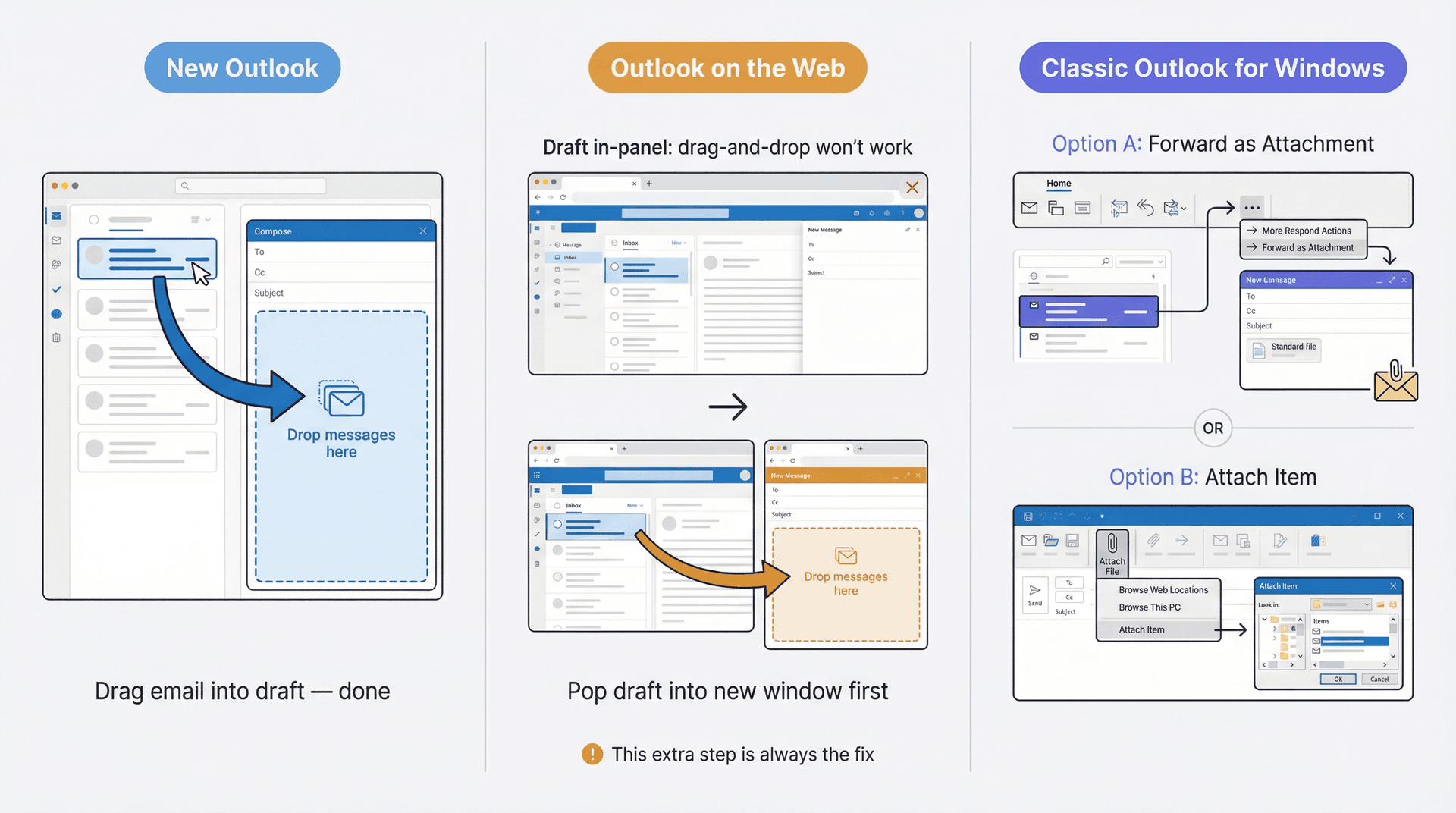
How to Attach an Email in New Outlook
The new Outlook keeps it simple.
-
Create a new message, or open a reply or forward.
-
Find the email you want to attach in your message list.
-
Drag it directly into the message you're composing.
-
Drop it when you see the "Drop messages here" prompt.
That's it. No menus, no workarounds. (Microsoft Support)
How to Attach an Email in Outlook on the Web
The browser version needs one extra step that trips up almost everyone: your draft has to be in its own window before drag-and-drop works.
-
Create a new message, or open a reply or forward.
-
Click Open in new window (the pop-out icon).
-
Arrange the draft window so you can see both the draft and your message list side by side.
-
Select the email (or emails) you want to attach.
-
Drag them into the body of the draft until you see "Drop messages here".
If drag-and-drop isn't working in Outlook's web version, this is almost always why. The draft needs to be in a separate browser window, not just a panel within the same page. (Microsoft Support)
How to Attach an Email in Classic Outlook for Windows
Classic Outlook gives you two solid options.
Option A: Forward as Attachment
-
Select the email in your message list.
-
On the ribbon, go to More Respond Actions > Forward as Attachment.
-
Outlook creates a new message with the email attached.
-
Add your recipient and send.
Option B: Attach Item > Outlook Item
-
Start a new email or open a reply/forward.
-
Choose Attach File from the ribbon.
-
Select Attach Item > Outlook Item.
-
Pick the message you want to attach from the dialog.
-
Send.
Pro tip for frequent users: If you attach emails to replies constantly, classic Outlook lets you change the default behavior so the original message is attached automatically on every reply. Go to File > Options > Mail > Replies and forwards and select Attach original message. Microsoft notes this applies to replies specifically, not forwarding.
How to Attach Multiple Emails at Once in Outlook
In classic Outlook, select multiple messages in your message list and click Forward. Outlook creates a new message with all of them attached. (Microsoft Support)
In Outlook on the web and Outlook.com, the same select-and-drag approach works as long as you've popped the draft into a separate window first. (Microsoft Support)
How to Save an Email and Attach It as a File (Fallback)
If drag-and-drop just won't cooperate, save the message first and attach it like any other file.
-
New Outlook: Open the message, click More actions > Save as. Microsoft also explains how to save a message as a PDF if you need that format instead.
-
Outlook on the web / Outlook.com: Open the message, click More actions > Download. Then create a new email and attach the downloaded file.
Why Outlook Replies Don't Include the Original Attachments
This catches people off guard. When you reply to a message in Outlook, the original file attachments from that message are not automatically included in your reply. Microsoft explicitly states that attachments stay with forwards, not replies. If keeping those originals matters, use Forward or Forward as Attachment instead of Reply.
Can You Attach an Email on Mobile? (iPhone and Android)
Short answer: don't count on it.
Google's documented workflow for sending emails as attachments is desktop-only. There's no "Forward as attachment" option in the Gmail mobile app as of April 2026. If you're weighing the tradeoffs between the Gmail mobile app vs. desktop, that comparison covers what each version can and can't do.
Microsoft's Outlook mobile documentation covers attaching files and images, but not attaching one email to another email.
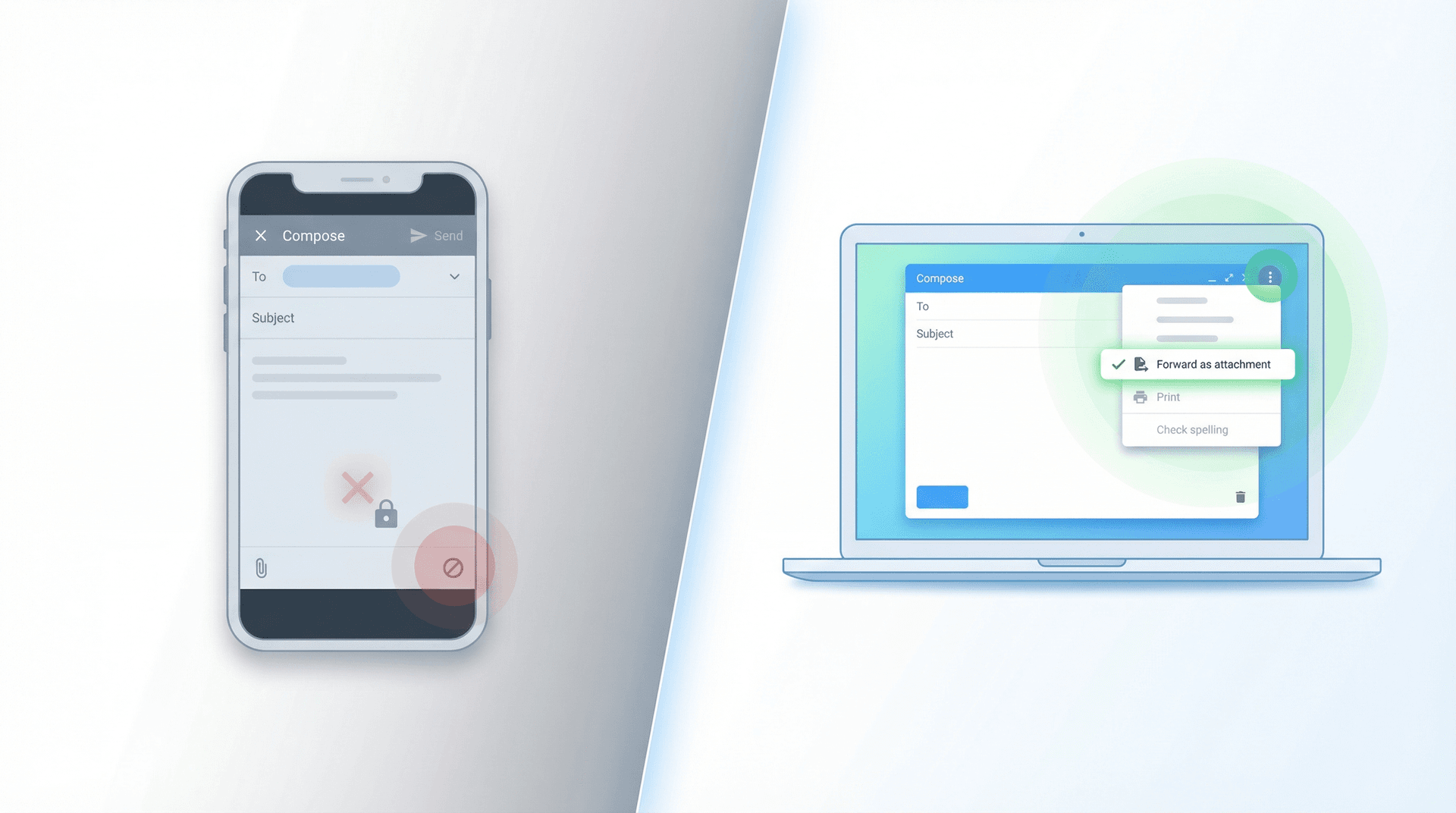
If you're stuck on mobile and absolutely need to share the content:
→ Forward the email normally (inline forward, not as attachment)
→ Share the message as a PDF or screenshot
→ Use your phone's browser to open Gmail or Outlook on the web, where the desktop/web methods above should work
Just know that a PDF or screenshot is not the same as attaching the original email. It won't preserve headers, metadata, or the ability for the recipient to open it as a standalone message in their own email client.
The honest recommendation: If you need a true email-as-attachment workflow, switch to a computer or use the web version of your email client on your phone's browser.
Gmail and Outlook Email Attachment Size Limits
Before you attach an email, make sure you won't hit the size ceiling.
| Client | Max Attachment Size | What Happens If You Exceed It |
|---|---|---|
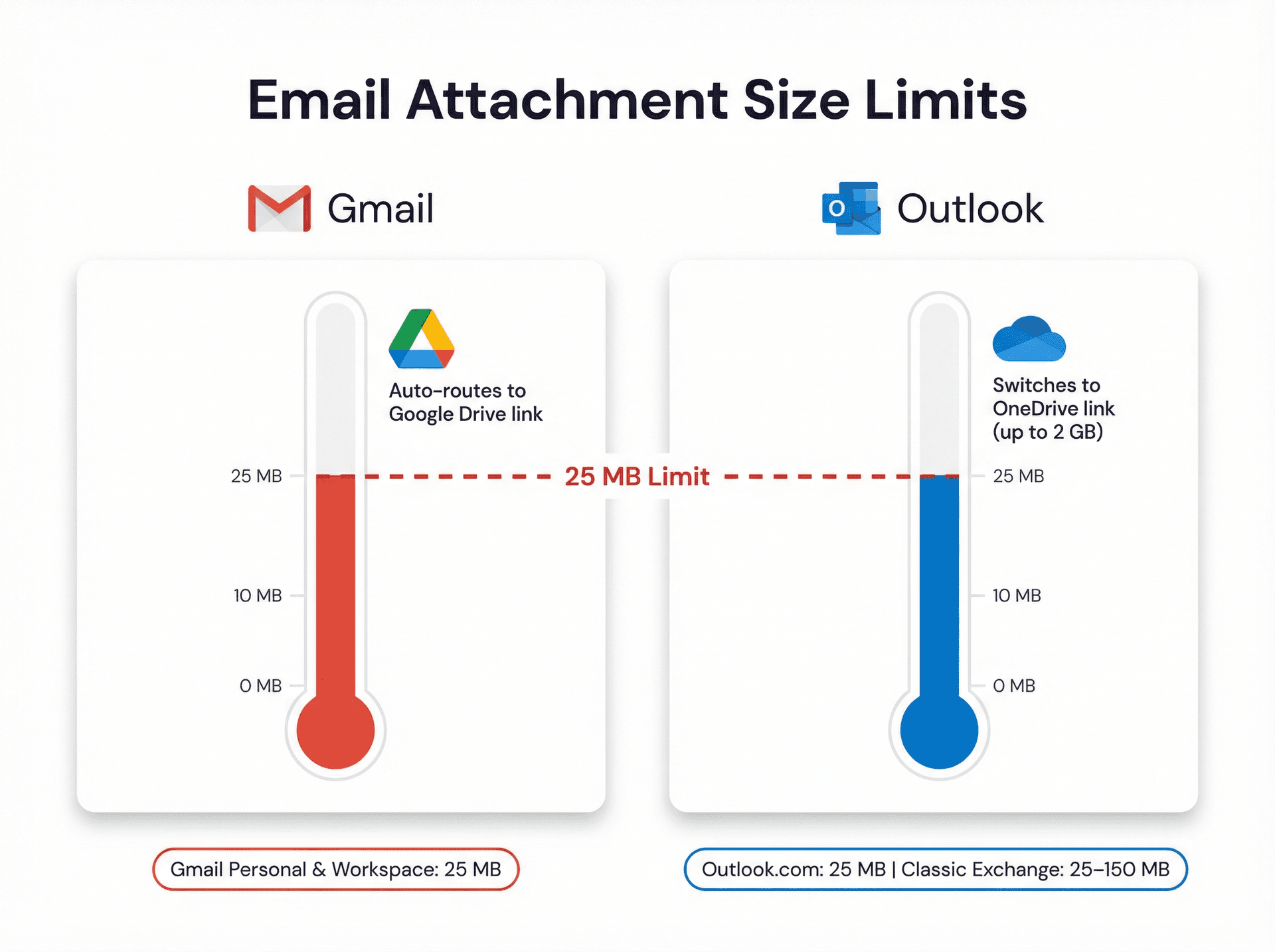
| Gmail (personal) | 25 MB | Gmail automatically sends via Google Drive link |
| Gmail (Workspace) | 25 MB | Same Google Drive fallback |
| Outlook.com | 25 MB | Switch to OneDrive link (up to 2 GB) |
| Classic Outlook (Exchange) | Varies by org policy | Admin-configured; typically 25-150 MB |
Gmail also blocks certain file types entirely, including executables (.exe, .bat), password-protected archives, and documents with malicious macros. If you're attaching an .eml file and it contains a blocked attachment inside it, Gmail may still flag it. For a full breakdown of Gmail's size caps and how to work around them, see our Gmail attachment size limits guide. (Google Support)
Troubleshooting Email Attachment Problems in Gmail and Outlook
Why Can't I See "Forward as Attachment" in Gmail?
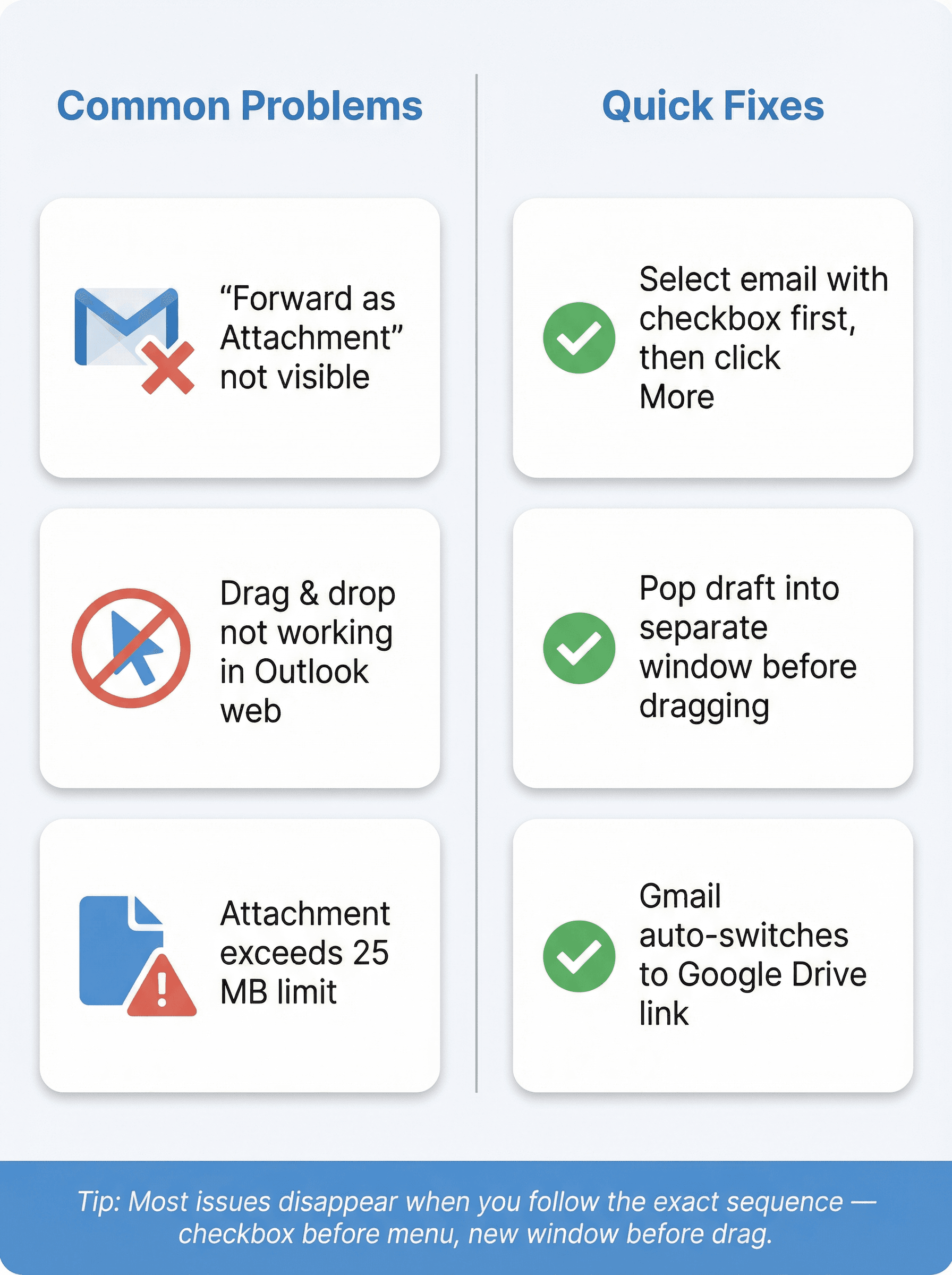
You need to select the email from the message list using the checkbox first. Then look for More (three-dot menu) in the toolbar above. The option won't appear if you're just reading the email inside the thread. If you're trying to do this inside a reply, pop the reply out first and drag the other email into it. Google documents both flows. If you're running into other Gmail filter and rule issues as well, our Gmail filters troubleshooting guide covers the most common causes.
Why Doesn't Drag and Drop Work in Outlook on the Web?
Open the draft in a new window first. Microsoft's official instructions specifically say you need to move the draft to a separate window and place it next to the message list before dragging. This is the single most common reason people think drag-and-drop is broken in Outlook's web version. If you're encountering other Outlook rule problems, our guide to fixing Outlook rules is worth a read.
What to Do When Your Email Attachment Is Too Big
Gmail's limit is 25 MB, after which it automatically switches to a Google Drive link. Outlook.com also caps at 25 MB, but OneDrive links can go up to 2 GB. If your attached email is over the limit, save it and share via Drive or OneDrive instead.
Why Does an Attached Email Look Suspicious to the Recipient?
This happens with .eml files. Google says it scans .eml attachments for spam and viruses, but it can't verify that the sender shown inside the attached email actually sent it. If the attachment came from someone you trust and you were expecting it, that warning is usually fine. If not, stop and verify before opening.
How to View Full Email Headers for IT or Security Review
In Gmail, open the message and use Show original to view the full message header. In new Outlook and Outlook on the web, go to View > View message details.
Best Practices for Attaching Emails to Other Emails
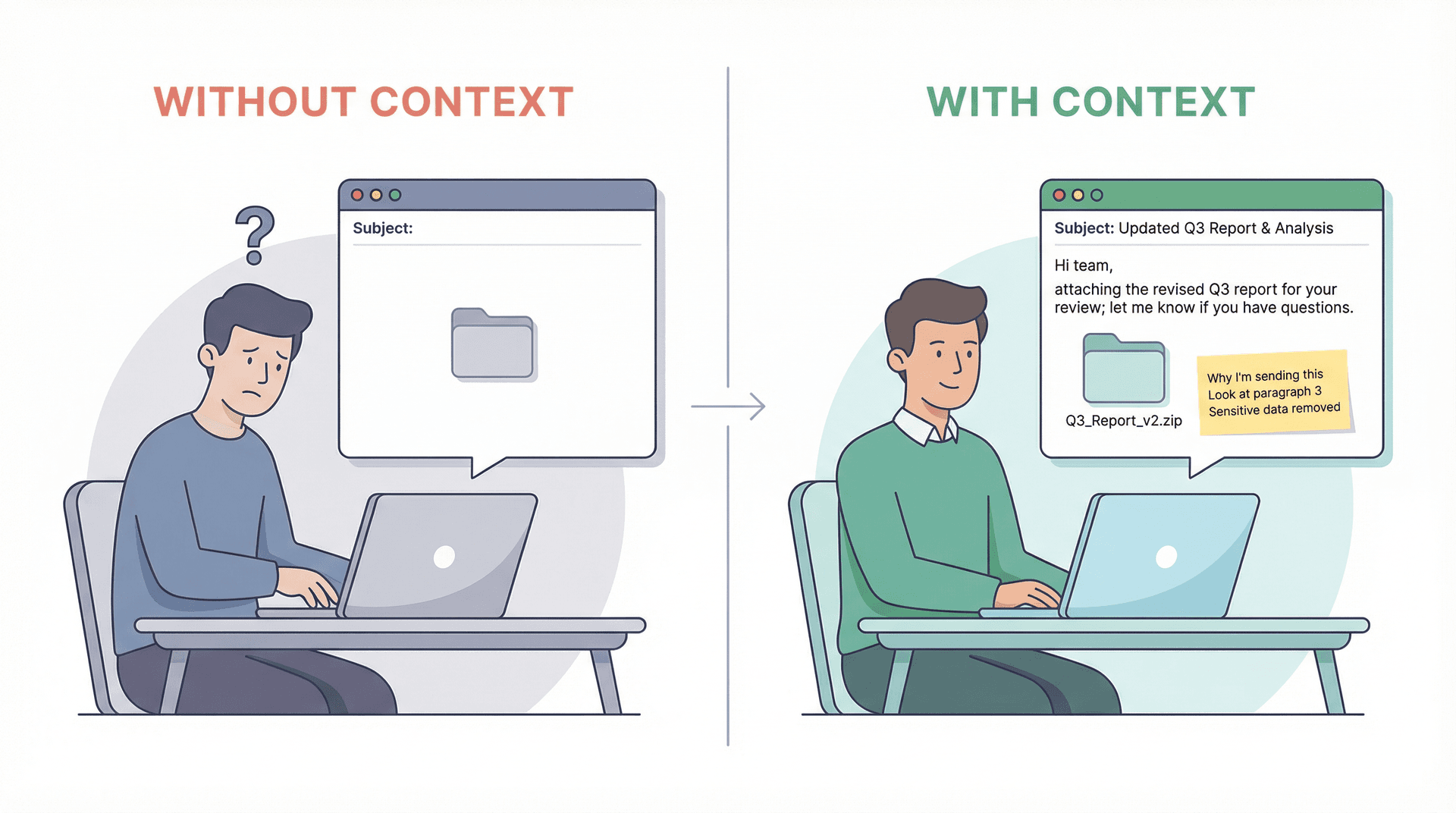
Attaching an email without context is like handing someone a folder with no label on it. They have to open every file to figure out what you want.
A better pattern looks like this:
① Write one sentence explaining why you're attaching the email
② Tell the recipient what to look at inside it (a specific paragraph, a date, an amount)
③ If you're attaching multiple emails, mention how many and the order they should be read in
④ If the email contains customer data or sensitive information, strip anything you don't need to share and follow your organization's retention and privacy rules
This sounds small, but it cuts down on back-and-forth and makes the whole workflow faster for everyone involved. For a broader framework on keeping your inbox under control, our guide to email management strategies and mastering email productivity cover the systems that high-volume email users rely on.
Can You Automate Attaching Emails in Gmail and Outlook?
If you find yourself doing this repeatedly, it's worth knowing what can be automated and what can't.
Outlook has a built-in option. Outlook on the web and Outlook.com support a rule action called Forward as attachment, meaning you can set up rules that automatically forward certain incoming emails as attachments to someone else.
Gmail is more limited here. Google's help docs cover automatic forwarding and filter-based forwarding with the action "Forward it," but the documented Gmail automation path is regular forwarding, not forwarding as an attached .eml file.
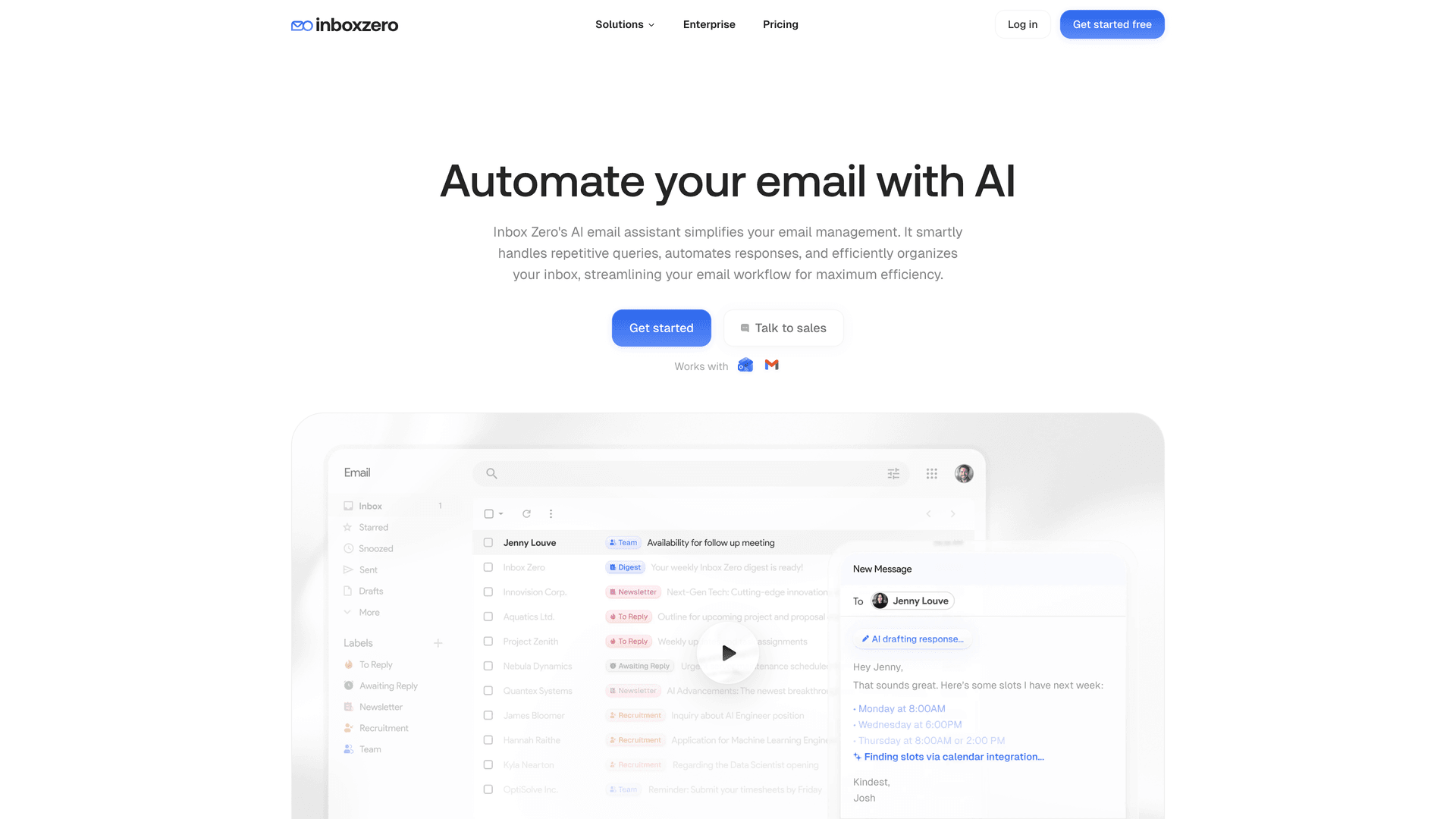
If email automation matters to you beyond just attaching messages, there are tools built specifically for that. Inbox Zero's AI automation lets you build rules in plain English that label, archive, draft replies, and forward messages automatically based on conditions you define. Our AI email management guide explains how AI-driven automation compares to manual rule-setting in both Gmail and Outlook.
Let AI Handle the Repetitive Email Work for You
If you're reading a guide about attaching emails to other emails, you probably spend a lot of time managing your inbox. Studies suggest the average professional spends far more time on email than they realize. And while knowing the right buttons to click is useful, the bigger problem for most people isn't the mechanics. It's the sheer volume.
That's exactly what we built Inbox Zero to solve.
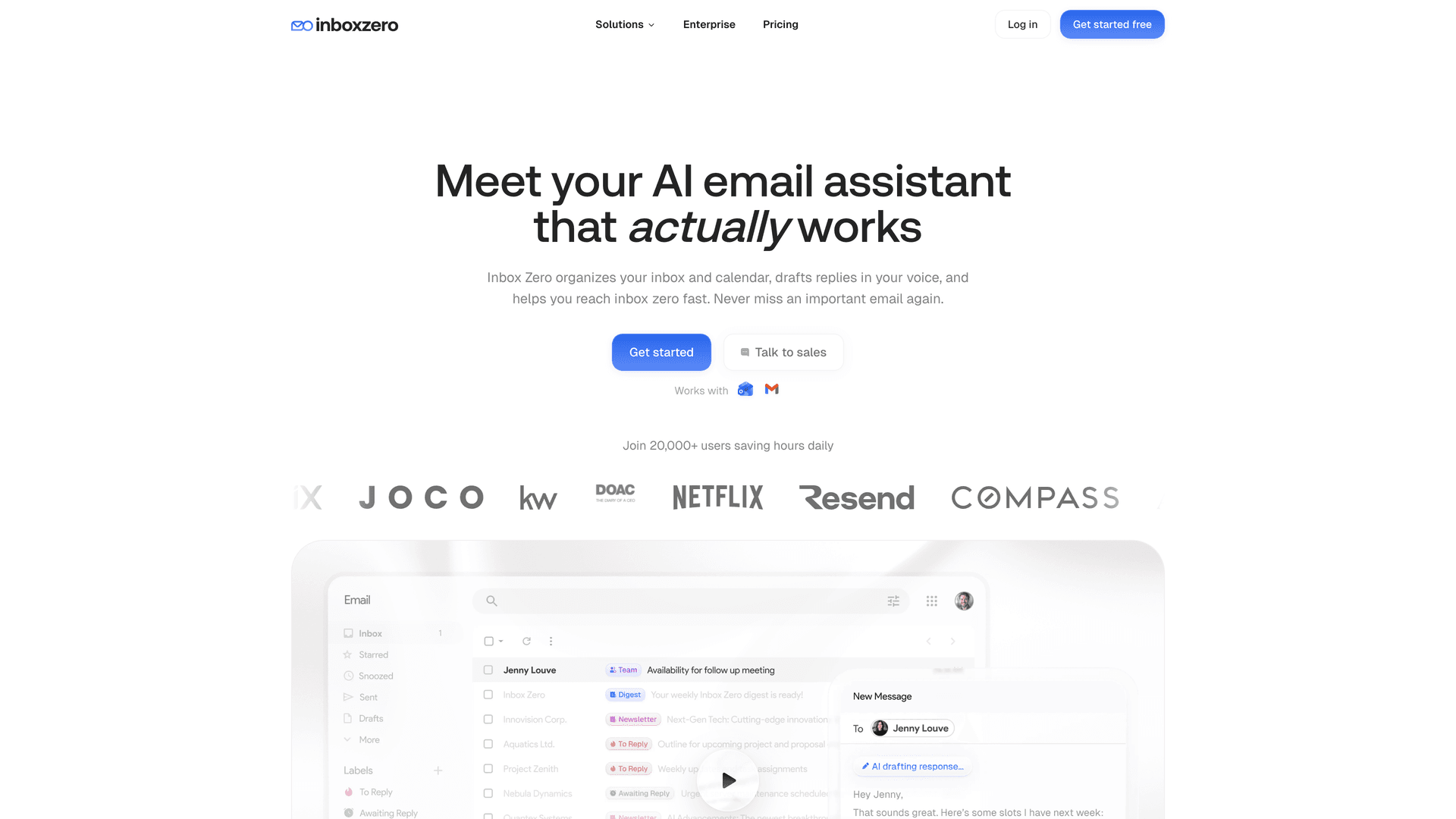
Inbox Zero is an open-source AI email management tool that works with both Gmail and Microsoft Outlook. It doesn't replace your email client. It sits alongside it and handles the repetitive work so you can focus on the messages that actually need your attention.
What it actually does:
-
AI-powered rules that label, archive, draft replies, block cold outreach, and forward messages automatically, all based on plain-English instructions you write or rules you build manually
-
Reply Zero labels every thread that needs your response as "To Reply" and every thread where you're waiting as "Awaiting Reply," so nothing falls through the cracks
-
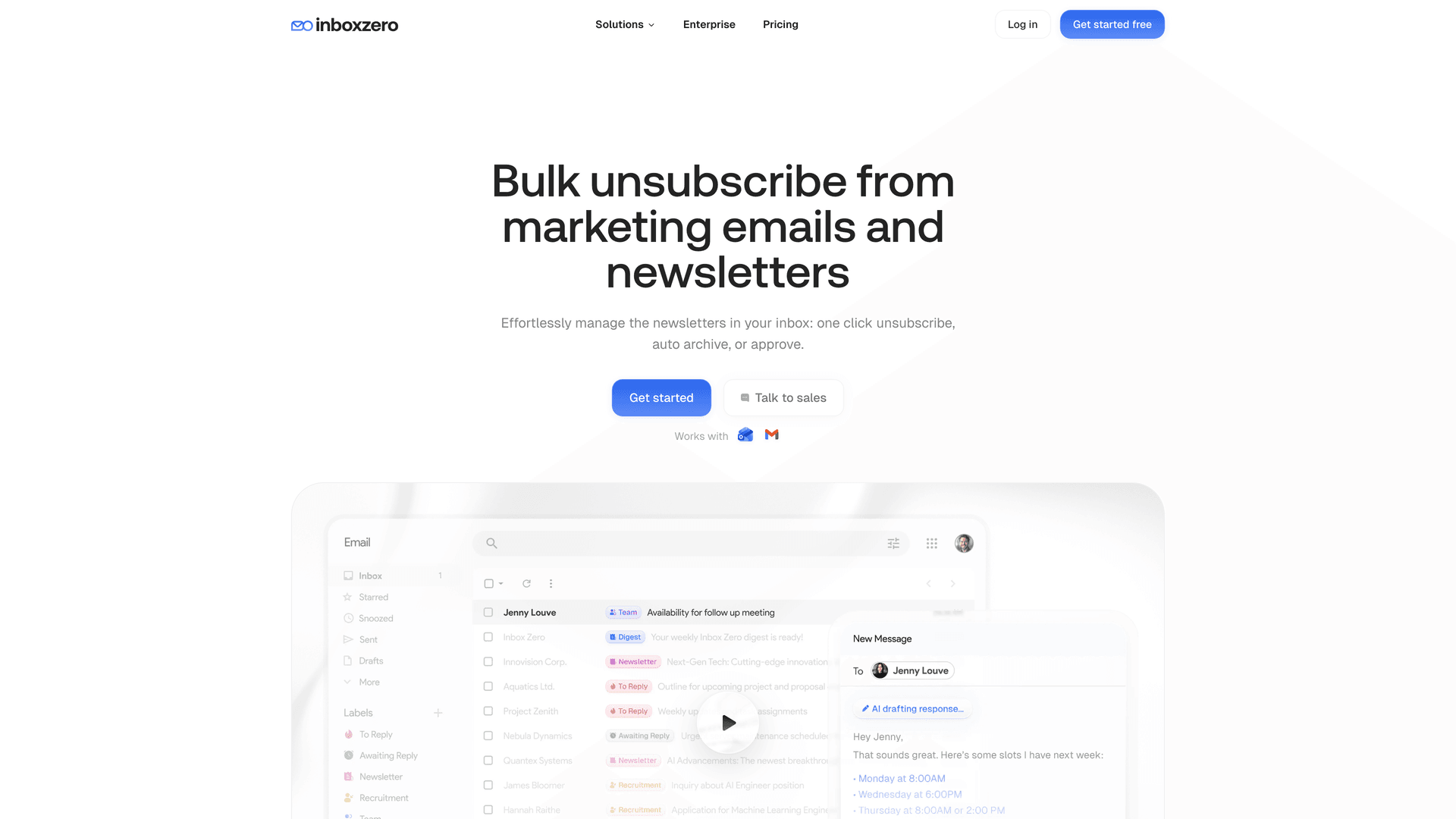
Bulk unsubscriber that shows you which newsletters and marketing emails you actually read versus the ones piling up unread, and lets you unsubscribe or auto-archive with one click
-
Cold email blocker that catches unsolicited outreach before it clutters your inbox, with three modes (list only, auto-label, or auto-archive) and a customizable prompt
-
Email analytics so you can see send/receive trends, top senders, top domains, and reading rates
Inbox Zero is SOC 2 compliant and CASA Tier 2 approved by Google, meaning it's passed independent security assessments. And because it's open source on GitHub with over 10,000 stars, you can self-host it if your organization needs full control over data.
We also offer a free Chrome extension called Inbox Zero Tabs for Gmail that adds custom tabs to Gmail using saved searches or labels. It's 100% private, stores settings locally, and collects zero data. If you want Gmail to feel more like a split inbox without switching to a different email client, it's worth a try.
Currently serving 20,000+ users who decided their inbox shouldn't run their day. Try Inbox Zero for free and see the difference AI-powered email management makes.
Frequently Asked Questions
Can I Attach Multiple Emails at Once?
Yes, on all platforms. Gmail lets you select multiple emails and use Forward as attachment for all of them at once. Classic Outlook does the same: select multiple messages, then click Forward. Outlook on the web supports it too, as long as you drag the selected messages into a draft that's been opened in a separate window. (Google Support, Microsoft Support)
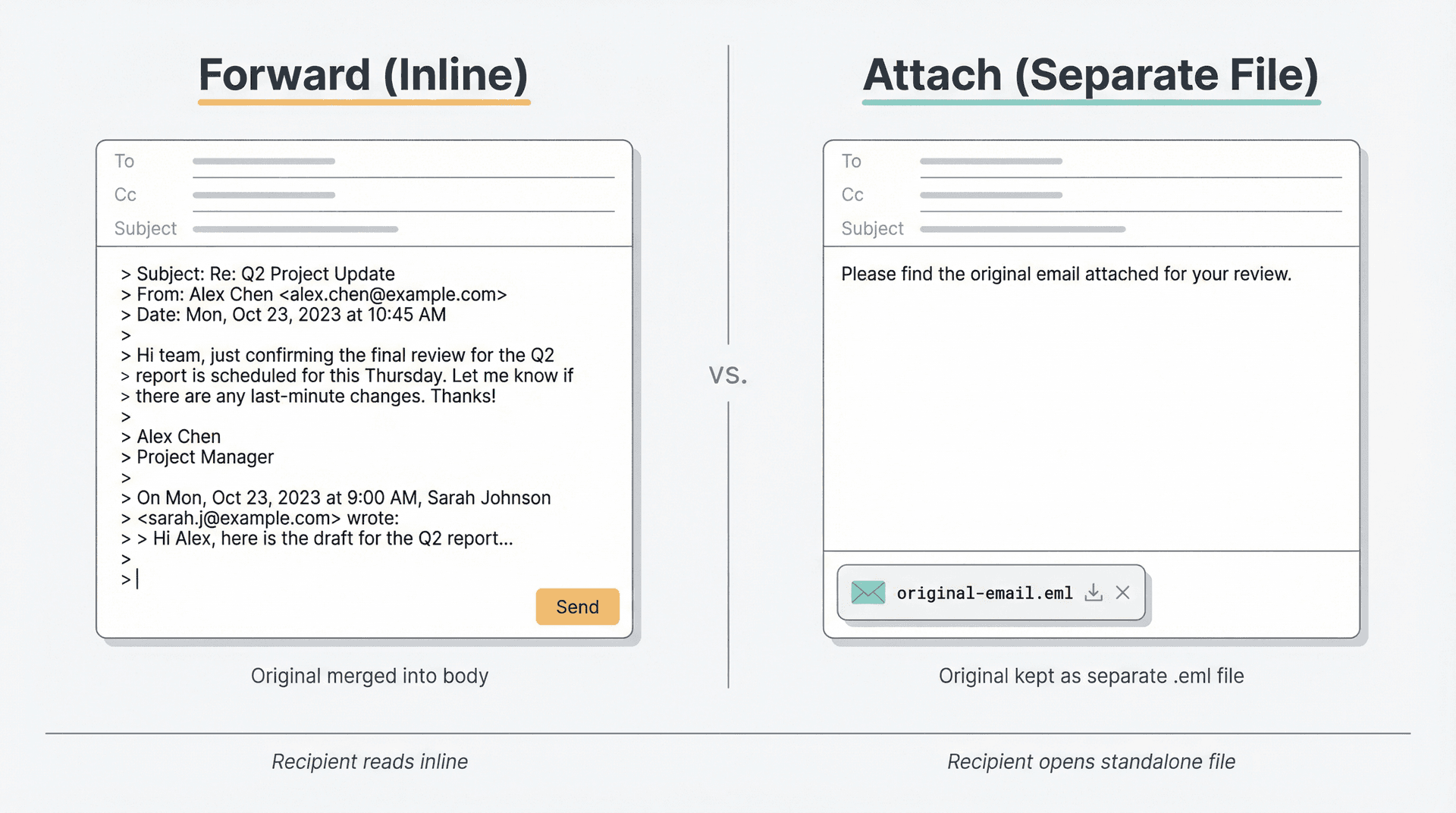
What's the Difference Between Forwarding and Attaching an Email?
Forwarding inline pastes the old message inside the body of your new email. Attaching keeps it as a separate file. In Gmail, the attached message becomes an .eml file. In classic Outlook, you can forward as attachment or use Attach Item > Outlook Item to keep the original as a distinct object. The attachment approach is better when you need the original to stay untouched and readable on its own. (Google Support)
Does Attaching an Email Preserve the Original Attachments Inside It?
It depends. In Outlook, Microsoft says that forwarding keeps the original attachments, while replies do not. In Gmail, the attached email is sent as an .eml file, which packages the entire message as a separate object. If the files inside the attached email are critical, send yourself a test first to confirm exactly how the recipient's email client displays them.
More Guides on Gmail and Outlook Email Management
-
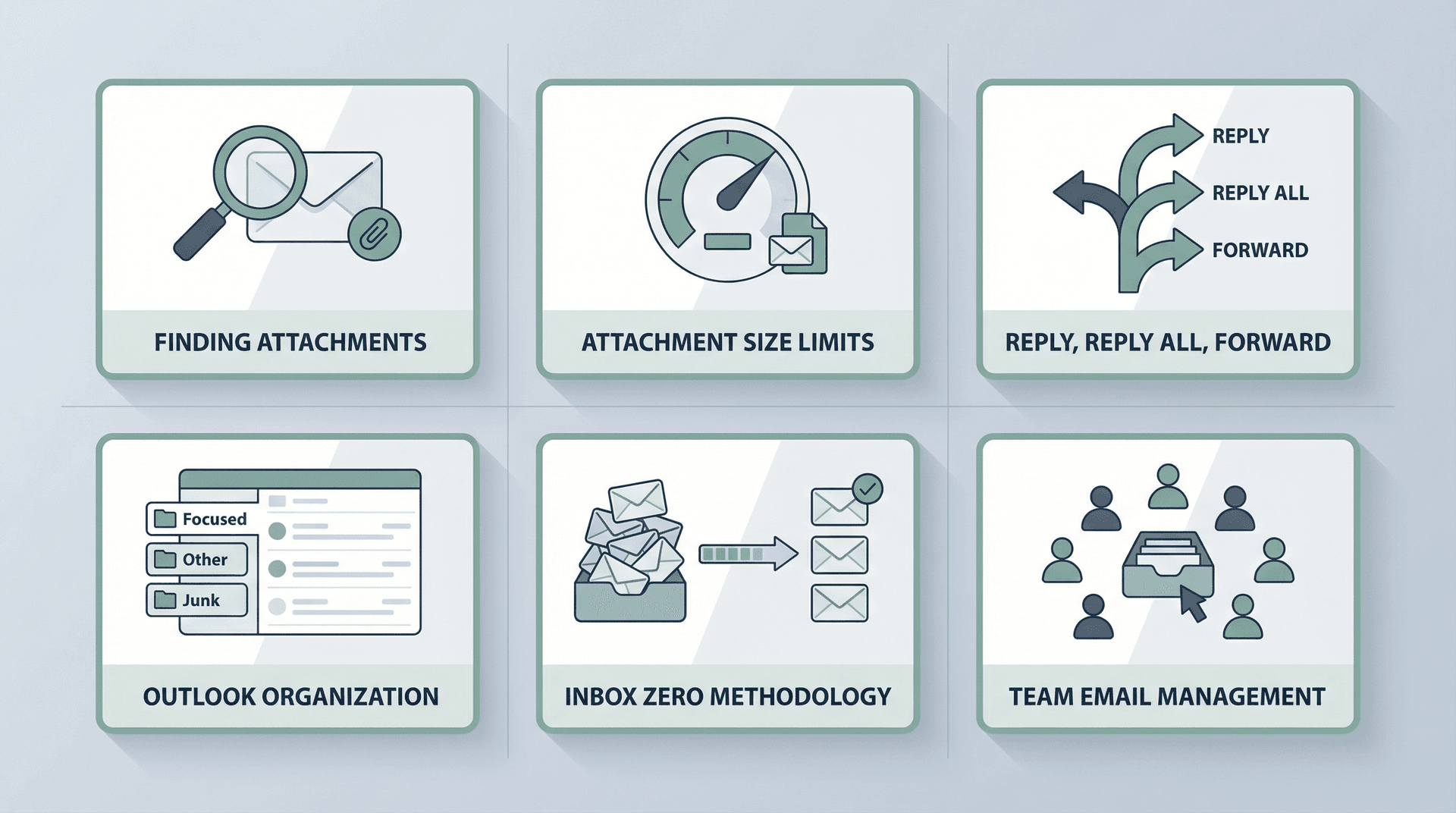
Need to find the right email faster? Check out our guide on how to find emails with attachments in Gmail
-
Hitting Gmail's size cap? Read about Gmail attachment size limits and workarounds
-
Not sure when to reply, reply all, or forward? We break it down in our reply vs. reply all vs. forward guide
-
Cleaning up Outlook? Our guide on how to organize your Outlook inbox covers that
-
Want to reduce email overload overall? Our inbox zero method guide explains the system that helps you stay on top of everything
-
Managing email for a team? See our guide on email inbox management best practices for shared and individual workflows

How to Recall an Email in Outlook (2026)
How to recall an email in Outlook step by step for new Outlook, classic Outlook, web, Mac, and mobile, plus when recall works and what to do when it doesn't.
2026-09-30T18:25:57.000Z

How to Stop AliExpress Emails (2026)
Stop AliExpress promotional emails: the unsubscribe link, notification settings in your AliExpress account, and what to do when the deals keep coming.
2026-09-30T18:25:57.000Z

How to Stop Amazon Emails (2026)
Stop Amazon marketing emails with the Communication Preferences Center, manage Amazon email subscriptions, and handle order emails you can't switch off.
2026-09-30T18:25:57.000Z

How to Stop Domino's Emails (2026)
Stop Domino's emails with Domino's official opt-out page, stop Domino's text offers, and know which rewards emails keep coming.
2026-09-30T18:25:57.000Z