How to Recall an Email in Gmail (Undo Send Guide 2026)
Sent too soon? Gmail's Undo Send gives you up to 30 seconds to recall an email in Gmail. This guide shows you how to set it up before you need it.

You hit Send. Then your stomach drops.
Maybe you forgot the attachment. Maybe you sent it to the wrong Sam. Maybe the tone was way off. Or maybe you just exposed something you really, really did not mean to expose.
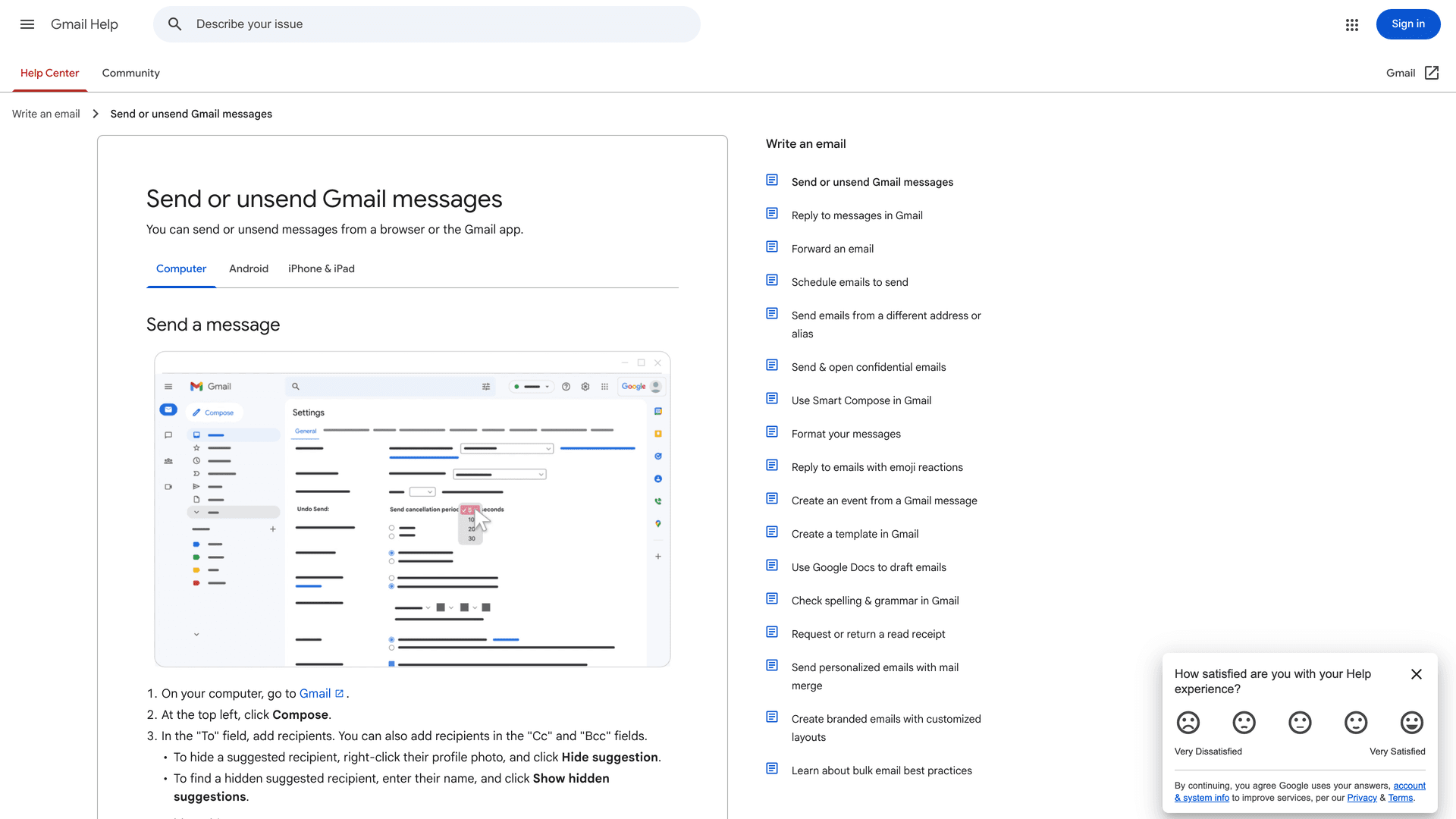
If you're reading this in a panic, here's the answer you need right now: Gmail does not have a true post-delivery recall feature. What Gmail gives you is called Undo Send, and it's really a short send-cancellation window. Your options are 5, 10, 20, or 30 seconds before the email actually leaves. If you click Undo in time, Gmail cancels the send. If that window has already expired, you can't pull the email back from someone else's inbox. Google's official Gmail Help confirms this.
That's a tough pill to swallow, but knowing it now is better than wasting ten minutes searching for a button that doesn't exist. This guide covers what you can do right now, what your options look like after the window closes, and how to stop needing to panic about this in the future. If you've already missed the window and want to understand the bigger picture, our guide to email inbox management covers the kind of system that prevents these moments in the first place.
How to Recall an Email in Gmail Right Now
If the email went out seconds ago, stop reading and do this:
-
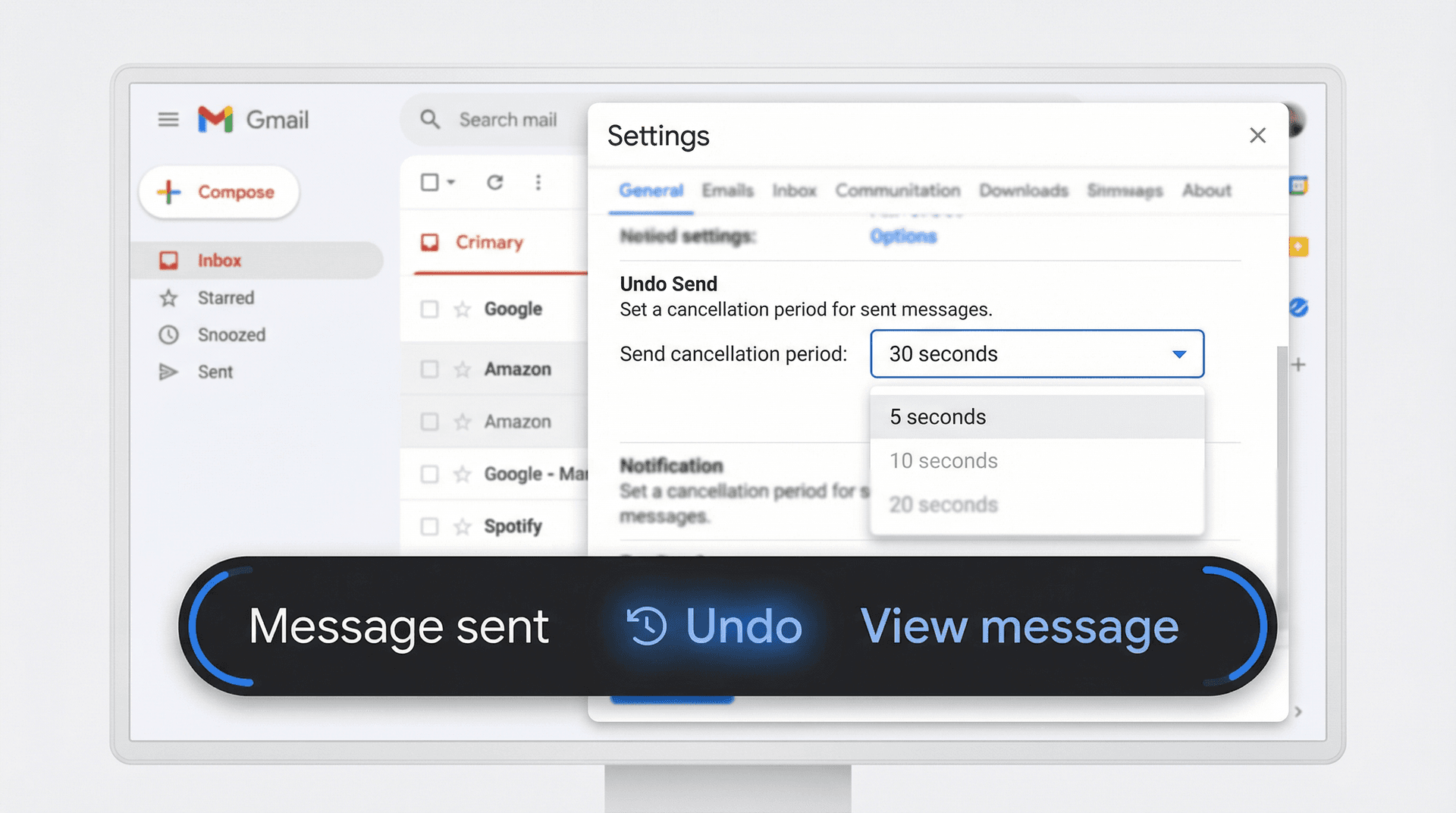
On desktop: look at the bottom-left corner of Gmail. You'll see a small banner that says "Message sent" with an Undo link next to it.
-
On mobile (Android or iPhone/iPad): look at the bottom of the Gmail app. You'll see Undo right after sending.
-
Click or tap Undo. That's it. Gmail cancels the send.
Google's Gmail Help page confirms that on desktop you'll see "Message sent" with "Undo" or "View message," and on Android and iPhone/iPad the Gmail app shows Undo right after sending.
If you caught it in time, congratulations. Crisis averted. Now make sure your safety net is as wide as possible.
How to Set Gmail's Undo Send to 30 Seconds
If you do nothing else after reading this article, do this one thing.
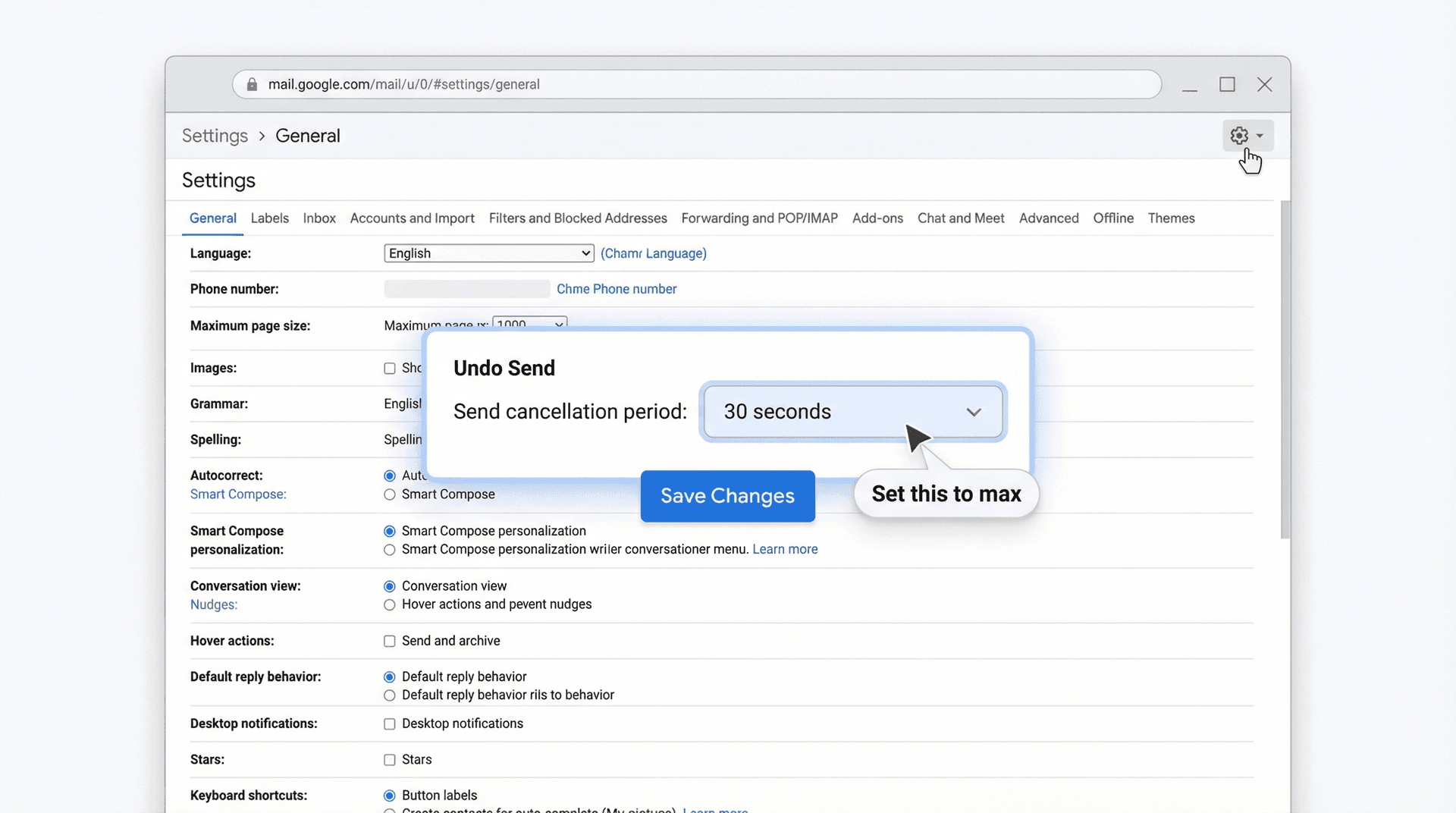
Open Gmail on your computer, then go to Settings (the gear icon) > See all settings. Scroll down to Undo Send, and change the Send cancellation period to 30 seconds. Click Save Changes at the bottom. If you run into issues getting Gmail to respond to this setting, our Gmail keyboard shortcuts and settings troubleshooting guide has useful context on navigating Gmail's settings efficiently.
That's it. You've just quadrupled your safety net compared to the default 5-second window. Google currently documents 30 seconds as the maximum, and there's no setting to go higher.
Pro tip: Do this right now, before you forget. It takes 15 seconds and could save you from a career-defining email disaster.
How to Undo Send in Gmail on iPhone and Android
The Gmail mobile apps support Undo Send too. On both Android and iPhone/iPad, Google says you tap Undo right after sending.
One detail most people miss: you can only change the Undo Send time period from a computer. The mobile app doesn't have that setting. So if you want the full 30-second buffer when sending from your phone, you need to set it from desktop Gmail first. The setting applies across all your devices once you change it.
If you're running into issues with the feature itself, our guide on Gmail Undo Send not working walks through every common cause and fix.
Does Gmail Have a True Email Recall Feature?
Most articles explain this badly, so it's worth getting right.
Email doesn't work like Google Docs, where one live file sits on one system and you can revoke access centrally. Email works more like sending physical copies between post offices. SMTP (the protocol that carries your email) delivers it to the recipient's mail server. Once that handoff happens, Gmail no longer controls the copy sitting in someone else's mailbox.
That's why Gmail's "recall" feature works by delaying the send for a few seconds, not by reaching into another person's inbox and deleting the message after the fact. It's holding your letter at the post office counter for half a minute before actually putting it in the truck.
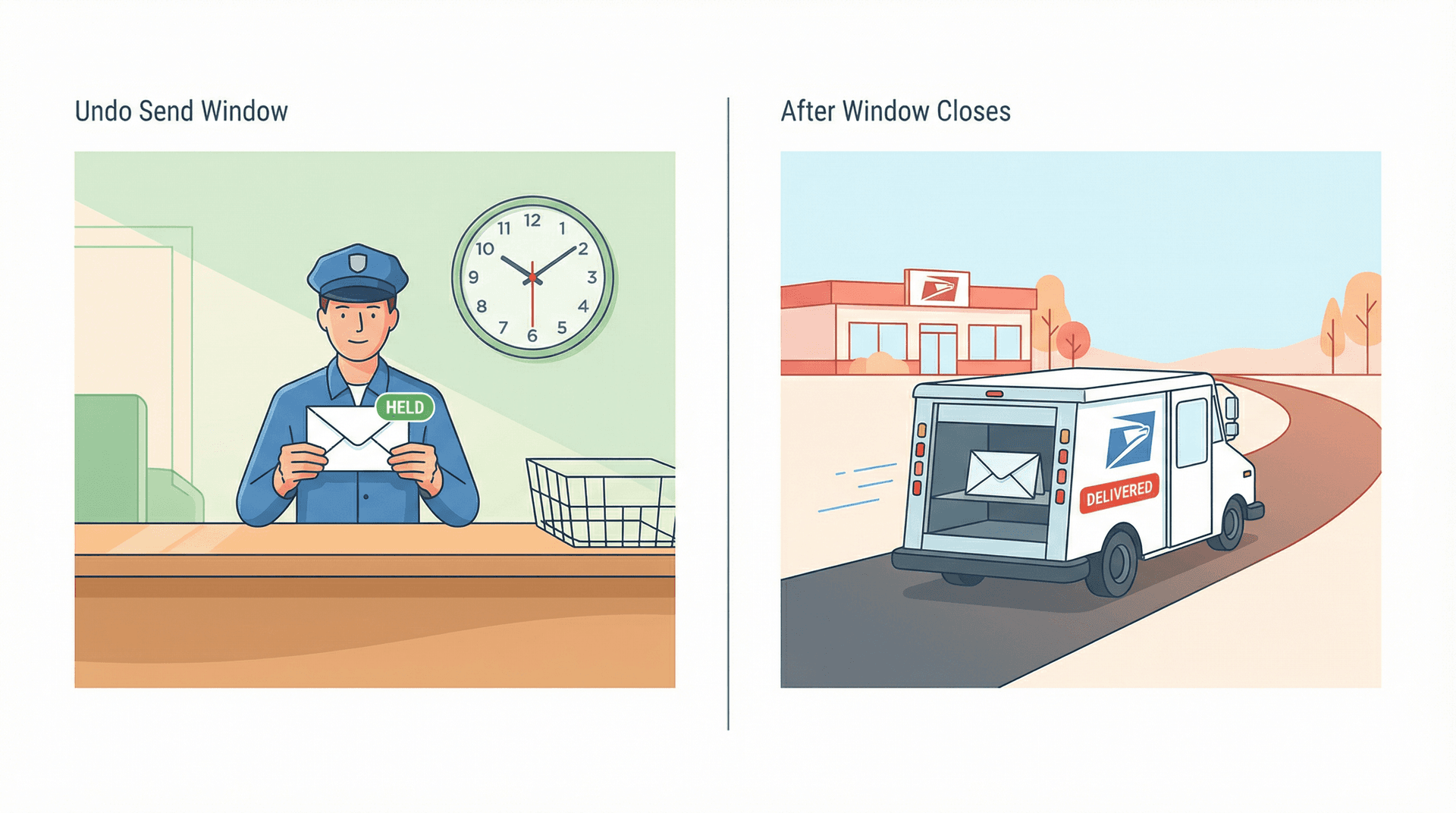
So from first principles: Undo Send is not recall. It's a tiny holding period before Gmail fully commits to delivery. Once that period ends, the problem changes entirely. It's no longer a recall problem. It becomes a damage-control problem.
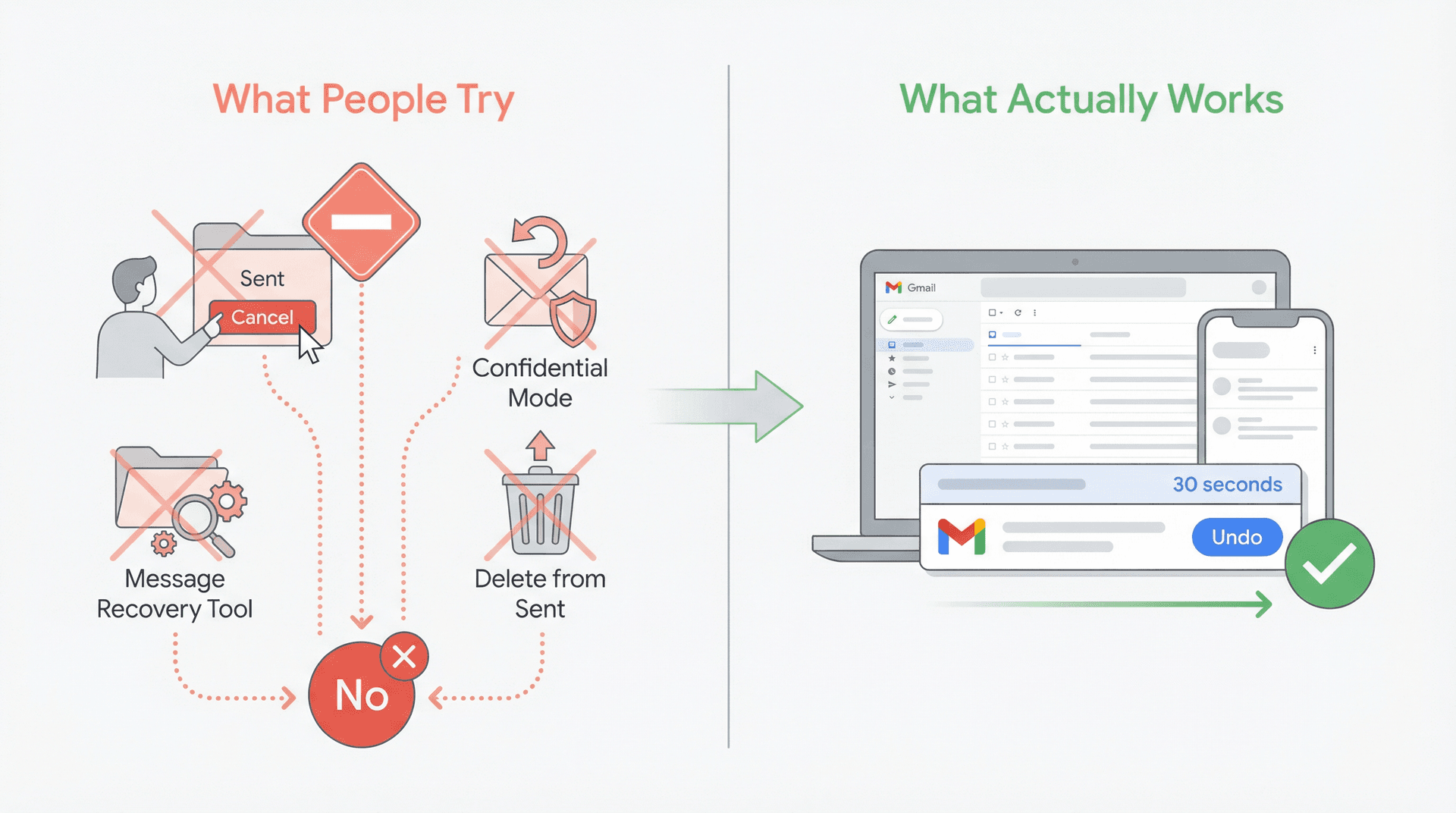
And one more thing that trips people up: deleting an email from your Sent folder does nothing to the recipient's copy. Once email has been delivered through SMTP to another provider's mail server, the other side has its own independent copy. Deleting your copy is like shredding your photocopy of a letter. The original is already on someone else's desk. If you're curious how Gmail's All Mail and Archive folders actually work, that distinction matters here too.
Gmail Undo Send vs Outlook Recall
If you're coming from Outlook, the confusion makes total sense. Microsoft does offer a separate Recall Message feature, but it works completely differently from Gmail's approach. For a full side-by-side breakdown of how these two platforms differ across the board, see our Gmail vs Outlook comparison.
| Gmail Undo Send | Outlook Recall | |
|---|---|---|
| How it works | Delays sending for 5-30 seconds | Attempts to retrieve delivered email |
| Time limit | 5, 10, 20, or 30 seconds | Can attempt anytime (but often fails) |
| Requirements | None, works for all Gmail users | Both sender and recipient must be in the same Microsoft 365 org |
| Success rate | 100% if you click in time | Low, fails if recipient already opened the email |
| Scope | All emails | Only internal organizational email |
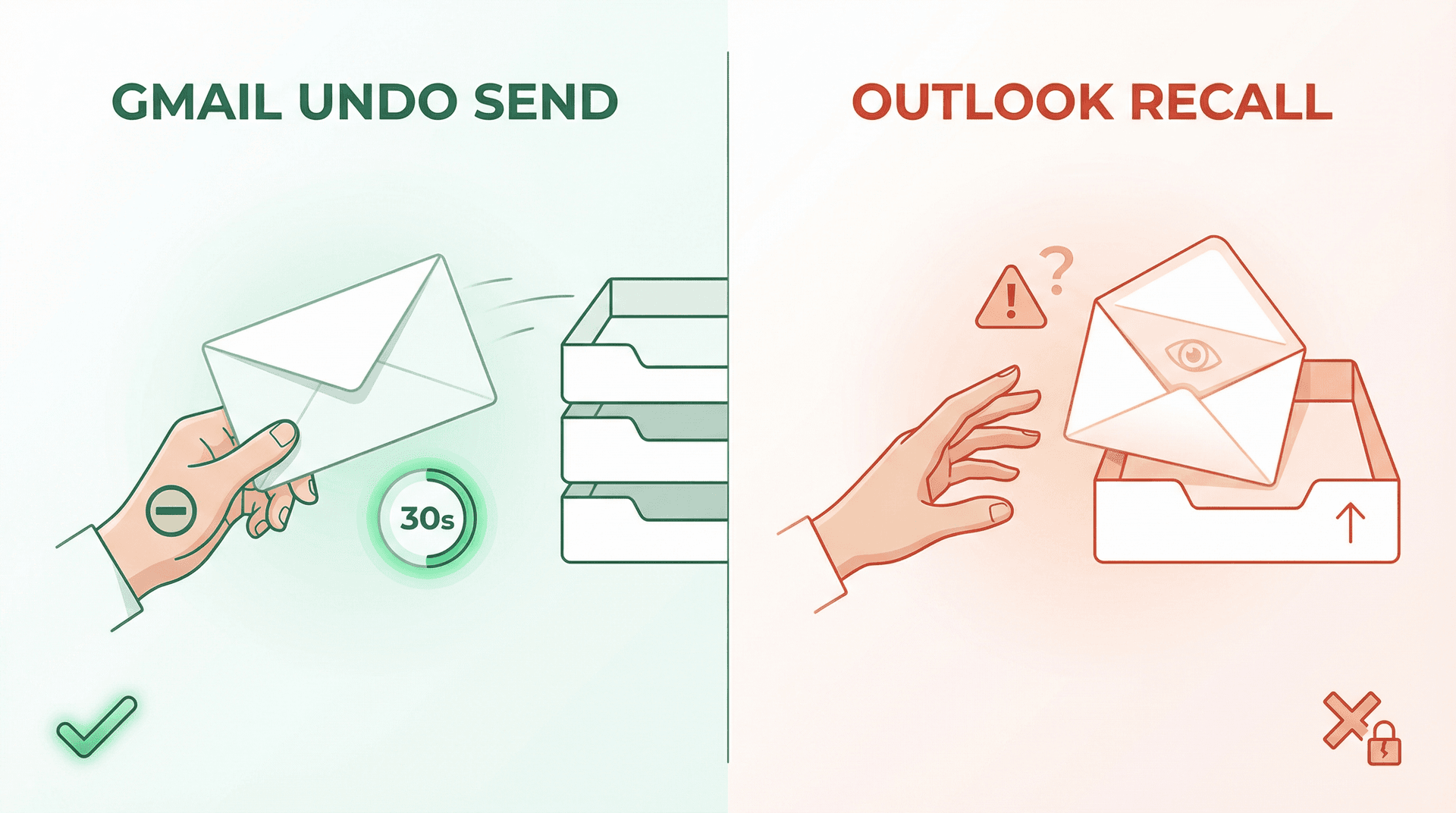
Microsoft's own documentation says Outlook's recall only works under narrow conditions: both people need to be in the same organization, and the recipient can't have already opened the email.
The simplest way to think about it:
Gmail gives you a short, reliable delay before delivery. Outlook gives you an unreliable retrieval attempt after delivery, but only inside certain corporate setups.
Once you hold those two ideas clearly, most of the confusion between them disappears.
Can You Recall an Email from the Gmail Sent Folder?
A lot of content on the web blurs together Undo Send and scheduled email cancellation, and that confusion costs people valuable time.
For a regular sent email, Google only documents the short Undo window that appears right after sending. There is no way to open your Sent folder and "recall" a normal message.
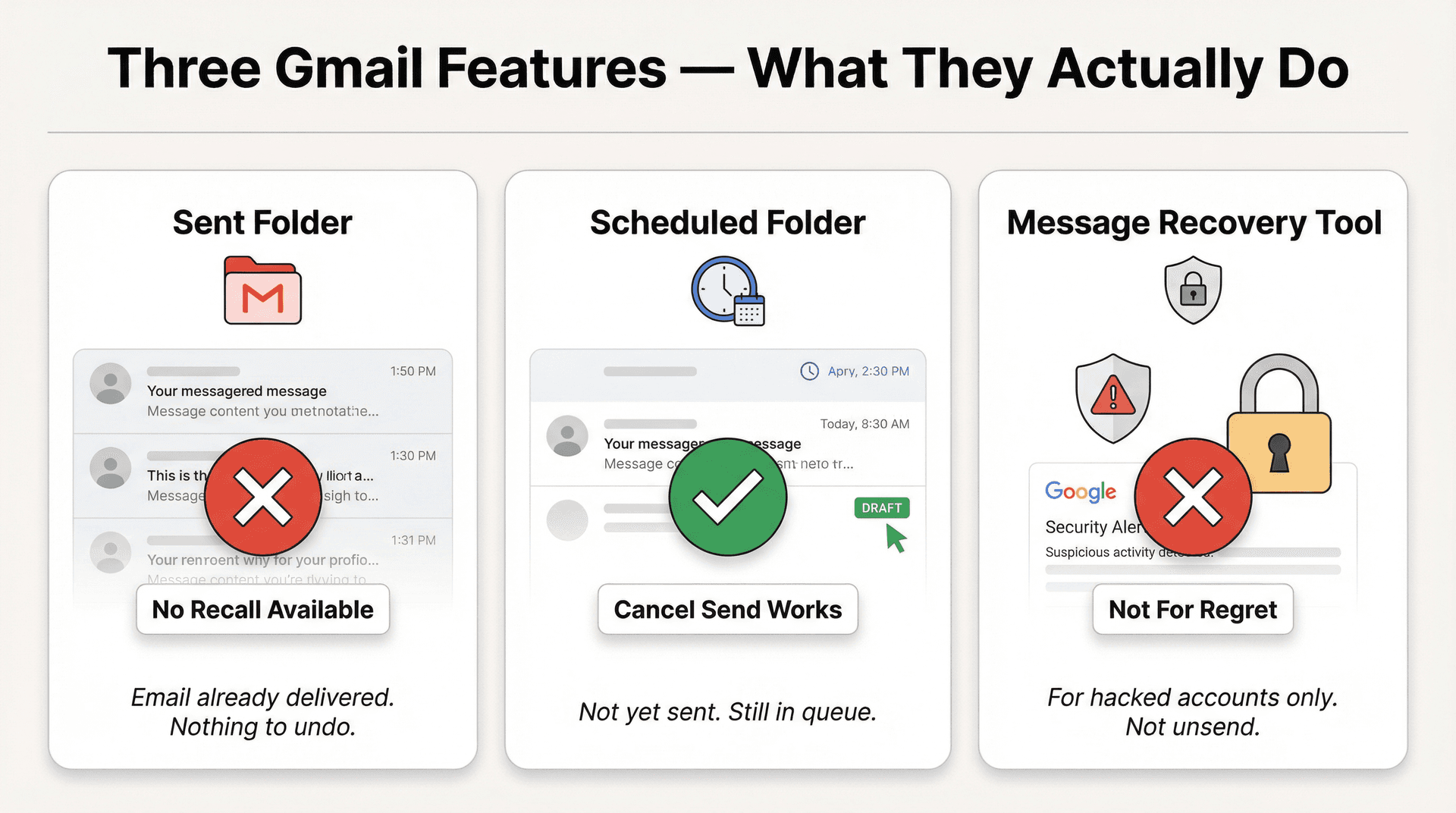
For a scheduled email, it's a different story. If you used Gmail's Schedule Send feature, you can go to the Scheduled folder, click Cancel send, and the email reverts to a draft. But that only works because the message hasn't actually been sent yet. It was sitting in a queue waiting for its scheduled time. If Schedule Send itself is misbehaving, check out our guide on email scheduling not working in Gmail for troubleshooting steps.
These are two completely different features. If anyone tells you to open your Sent folder and recall a normal Gmail message that already went out, ignore that advice. It doesn't work.
And while we're clearing up myths: Gmail's Message Recovery Tool is another feature people stumble onto and misunderstand. Google's Message Recovery documentation confirms this tool is specifically for recovering emails that might have been deleted because someone accessed your account without permission. It's an account-recovery tool for compromised accounts, not a way to unsend email you regret. If you're looking to recover other lost Gmail content, our guide on how to recover disappeared Gmail drafts may be more relevant.
What to Do After Gmail's Undo Window Expires
Once your cancellation window expires, Gmail has no user-facing recall tool for that message. But that doesn't mean you're out of options. What you do next depends on the kind of mistake you made, and speed matters.
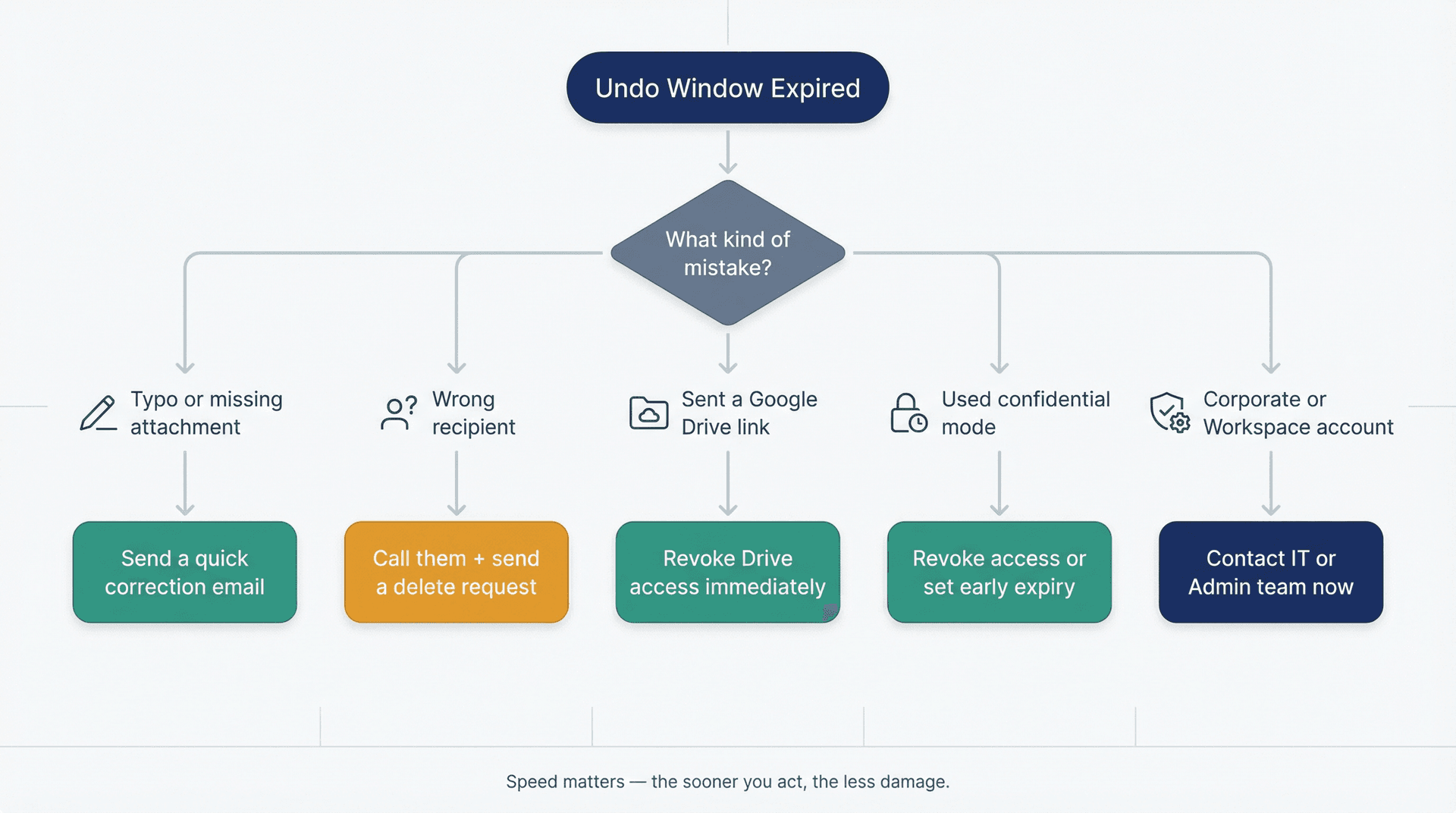
Sent an Email with a Typo or Missing Attachment
Don't overthink this one. Send a quick follow-up. The longer you wait, the weirder it gets.
If you forgot the attachment:
Subject: Attachment attached
Sorry, I sent my last email without the attachment. Here it is. Please use this version instead.
If you need to correct something:
Subject: Correction to my previous email
Quick correction to my previous email: the correct [date/number/file/detail] is [insert correction here]. Please ignore the earlier version.
These two templates handle the vast majority of "oh no" email moments. Be direct, be brief, move on. For more situations like this, our reply vs. reply all vs. forward guide covers how to handle common email mistakes before they spiral.
Accidentally Sent an Email to the Wrong Person
Now you're not trying to recall the message. You're trying to reduce harm.
Send a short note asking them to ignore and delete it. If the content was sensitive, pick up the phone or send a direct message immediately. A human conversation is almost always faster and more effective than another email sitting unread in their inbox.
Subject: Please disregard my previous email
I sent you my previous email by mistake. Please ignore it and delete it. Sorry about that.
How to Revoke Google Drive Access After a Wrong Send
This is one of the few situations where you still have real technical control after the email itself is gone.
Google Drive Help explains that you can open the file, click Share, find the person, and Remove access. You can also change General access to Restricted so only people you specifically share with can view it.
This doesn't unsend the email, but it does cut off access to the linked file. And that's a crucial blind spot most people miss: the email itself might be unrecoverable, but the asset inside the email (the document, the spreadsheet, the presentation) may still be completely within your control. If the sensitive part was the file, not the email body, revoking Drive access might be all you need.
How to Use Gmail Confidential Mode to Limit Access
Confidential mode isn't true recall, but it gives you more control than a regular email. For a full breakdown of what confidential mode can and can't do, see our Gmail Confidential Mode vs regular email guide.
Google's confidential mode help confirms confidential mode lets you revoke access at any time and remove access early, even before the expiration date you set. It also disables the recipient's ability to forward, copy, print, and download the confidential message.
But know the limits. Google also explicitly warns that confidential mode does not prevent screenshots or photos, and malicious software could still copy or download content. Confidential mode reduces risk. It doesn't erase reality.
Think of it as putting a letter in a locked display case that only the recipient has a key to, and you can change the lock anytime. But if they take a photo through the glass before you do, the information is already out.
Can a Google Workspace Admin Delete a Sent Email?
There's one narrow exception worth knowing about.
Google Workspace documentation confirms that on certain supported editions, security admins can use the Security Investigation Tool to investigate Gmail messages within the organization and take actions that include Delete message.
This is an admin-level security workflow, not something you can do from your own Gmail account. It only works for messages within your organization and won't reach outside personal inboxes. But if the mistake is serious and you're inside a corporate environment, contact your IT or security team immediately. They may have options you don't.
How to Tell If Someone Already Opened Your Email
Native Gmail read receipts are only available for work or school accounts, not personal Gmail. And even when they're available, Google says not to rely on read receipts as proof of delivery or proof that someone actually read the message. Receipts can fail, require manual approval, or trigger under imperfect conditions.
If you need a more reliable way to track whether your emails are being read, our guide on how to check if an email was read without read receipts covers several practical approaches.
So if your plan is "I'll just check if they opened it," that plan is weaker than you probably think.
How to Prevent Sending the Wrong Email in Gmail
The real solution isn't getting faster at recalling bad emails. It's building a system that makes bad sends less likely to happen. A good starting point is understanding how much time you're already spending on email. Most people are surprised by the answer.
Gmail Settings That Prevent Accidental Sends
Set Gmail to the 30-second cancellation window.
If you haven't done this already, scroll back up and do it now. This single change gives you the maximum safety net Gmail offers.
Use Schedule Send for sensitive messages.
Instead of hitting Send and hoping you don't spot a problem 5 seconds later, schedule the email for 15 or 30 minutes from now. Gmail lets you cancel a scheduled message from the Scheduled folder before it goes out, giving you a much bigger review window than Undo Send ever could.
Prefer Google Drive links over raw attachments.
If you send a file as an attachment, it's gone. You can't take it back. But if you share a Google Drive link instead, you can always revoke access later. For anything confidential, this distinction could save you.
How to Build Better Email Habits in Gmail
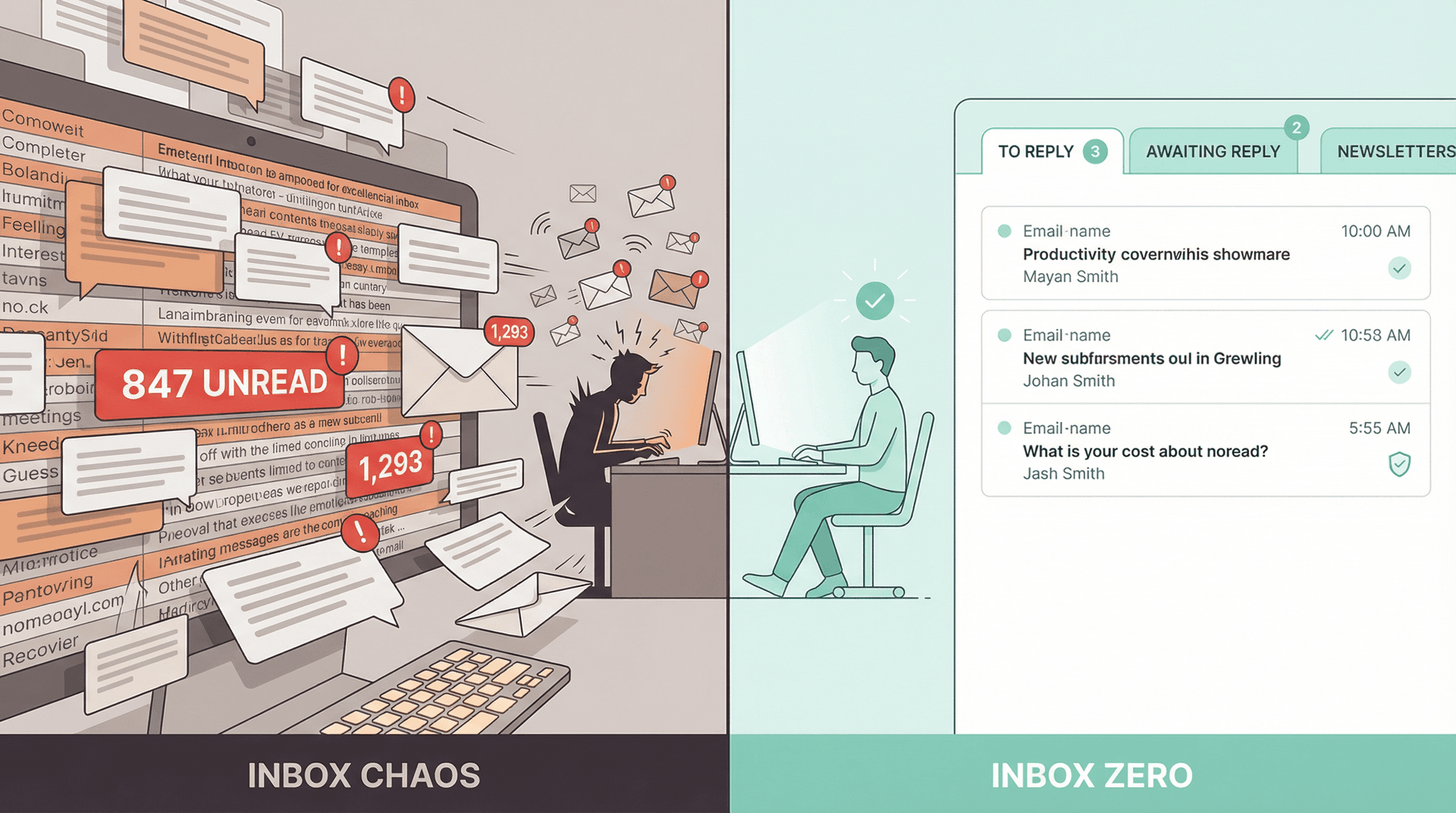
Most email mistakes aren't random bad luck. They happen because your inbox is chaotic, you're rushing through 50 unread messages, and you accidentally reply to the wrong thread or fire off a half-baked response to the wrong person. The real fix is making your inbox less chaotic in the first place.
Good email management strategies (like processing messages in batches and using clear organizational systems) reduce the rushed, error-prone sends that lead to regret. And when you understand how to manage your inbox systematically, you're less likely to fire off the wrong message to the wrong person.
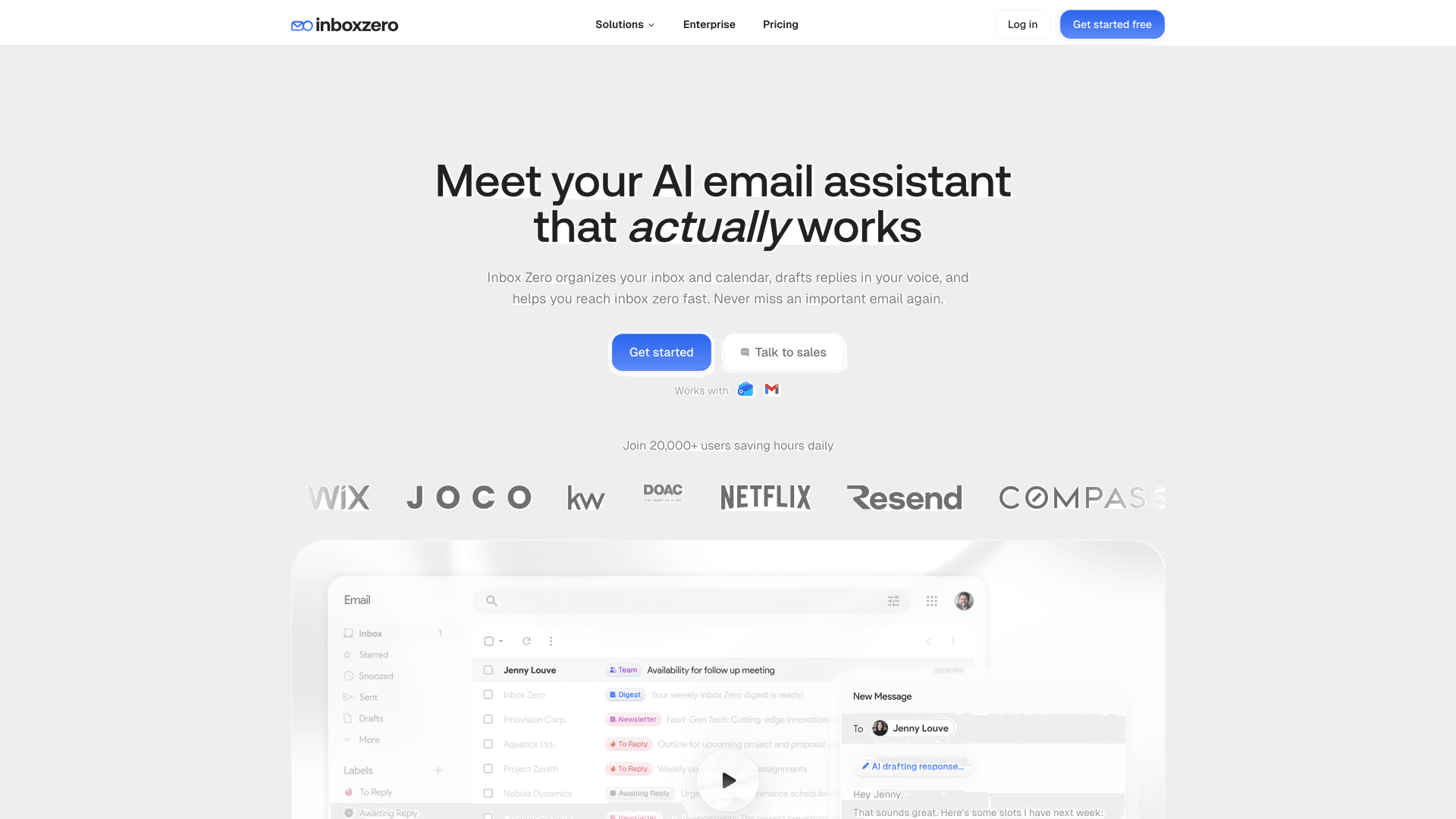
That's exactly why we built Inbox Zero. Our AI email assistant organizes your inbox and drafts replies in your voice, so you're not scrambling through a wall of unread messages just to find the one that actually matters. When your inbox is organized, you make fewer mistakes. It's that simple.
Our Reply Zero feature labels every thread that needs a response as To Reply and every thread where you're waiting on someone as Awaiting Reply. Instead of scanning hundreds of messages to figure out what needs attention, you see exactly what's waiting for you. It's a more reliable system than anything native Gmail offers for tracking emails waiting for a reply. Fewer missed threads means fewer panicked follow-ups, and fewer panicked follow-ups means fewer emails you wish you could take back.
Want a deeper framework for building better email habits? Our guide to email management tips covers the core principles, and mastering email productivity goes even further with a full system for high-volume inboxes.
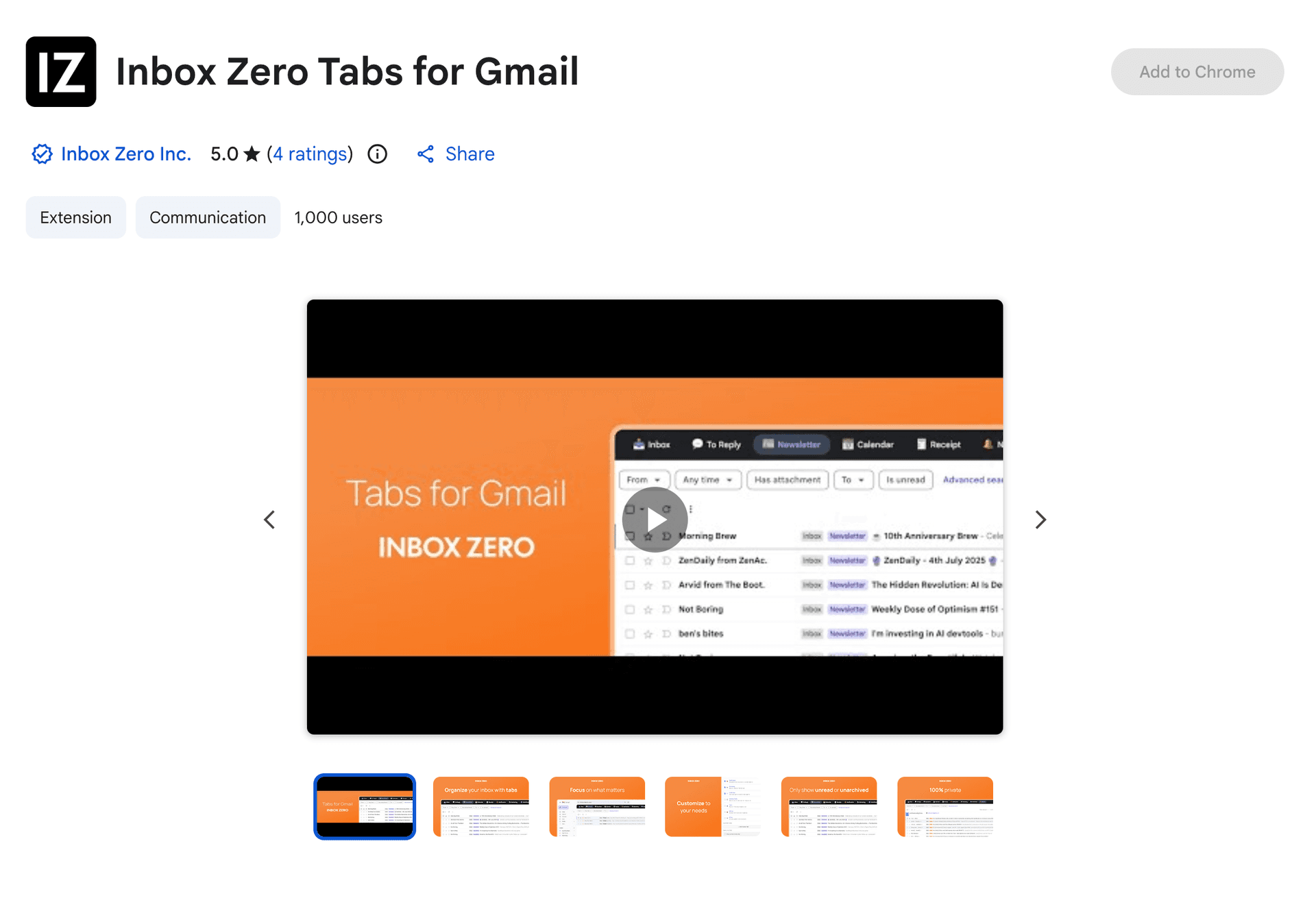
And if you want this kind of organization without leaving Gmail's interface, our Inbox Zero Tabs for Gmail Chrome extension adds custom tabs right inside Gmail. You can create tabs for To Reply, Newsletters, Receipts, or anything else using Gmail's search syntax and labels. The extension is 100% private, with no data collection and all settings stored locally in your browser. No account creation required.
On prevention: You can't make Gmail's Undo Send window longer than 30 seconds. But you can build a system where you rarely need it.
If the Undo button isn't showing up or behaving strangely, check out our guide on Gmail Undo Send Not Working: How to Fix.
Gmail Recall FAQ
Can I recall a Gmail message after 1 minute, 1 hour, or 1 day?
No. Gmail's Undo Send feature only gives you 5, 10, 20, or 30 seconds after clicking Send. Once that window closes, there's no built-in recall button for regular sent email. Google's Gmail Help confirms these are the only available options.
Can I increase Gmail's Undo Send window beyond 30 seconds?
No. Google's current documentation lists 5, 10, 20, and 30 seconds as the available cancellation periods. There's no way to extend it further.
Can I recall a Gmail message from the Sent folder?
Not for a regular email that's already been delivered. The folder-based Cancel send option Google documents is for scheduled emails in the Scheduled folder, not for normal sent mail. If the email left your outbox, it's gone.
Does Gmail's mobile app let me unsend email?
Yes. Google's Gmail mobile help confirms the Gmail app on Android and iPhone/iPad shows Undo right after sending. But you can only change the Undo Send time period on a computer, so set your 30-second window from desktop first.
Does confidential mode let me truly unsend an email?
No. Google's confidential mode documentation says it lets you revoke access and blocks forwarding, copying, printing, and downloading. But it does not prevent screenshots or photos. It's access control, not message recall.
Can a Google Workspace admin remove a sent email?
Sometimes, for messages within the organization. Google Workspace documentation confirms that security admins on supported editions can use the Security Investigation Tool to find and delete messages within the org. But this is an admin-level security feature, not something regular Gmail users can access.
Does Gmail's Message Recovery Tool help me recall a sent email?
No. Google's Message Recovery documentation explains the Message Recovery Tool is for recovering emails that may have been deleted because someone accessed your account without permission. It's an account-recovery tool, not a sent-email recall tool.
Gmail Email Recall: What You Need to Know
If you came here searching for how to recall an email in Gmail, the answer is straightforward: you can only stop it during Gmail's Undo Send window, and that window maxes out at 30 seconds. After that, Gmail doesn't give regular users a true recall feature.
Your best move after the window closes? Shift from recall mode to damage-control mode. Correct the email. Remove file access through Google Drive if possible. Revoke confidential-mode access if you used it. Escalate quickly to IT if you're in a Workspace environment and the message is sensitive. Our guide to recovering deleted Gmail emails also covers admin recovery paths that may apply.
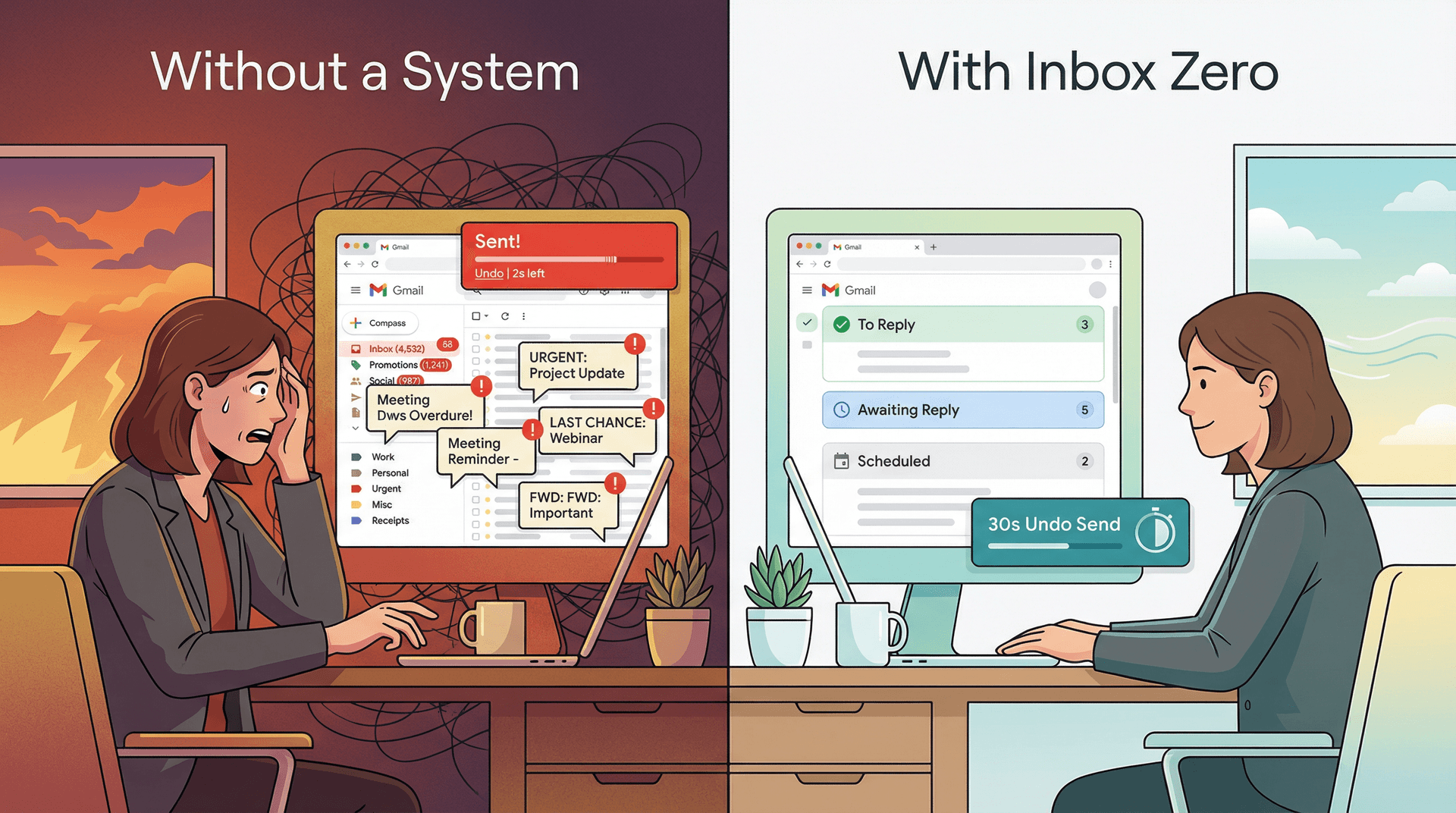
But the best move is not needing recall in the first place. Set your Undo Send window to 30 seconds right now. Use Schedule Send for anything important. And if your inbox is the kind of chaotic mess where mistakes feel inevitable, give Inbox Zero a try. The inbox zero method isn't about obsessing over an empty inbox. It's about building the kind of organized system where you stop sending the kind of messages you wish you could take back.

How to Recall an Email in Outlook (2026)
How to recall an email in Outlook step by step for new Outlook, classic Outlook, web, Mac, and mobile, plus when recall works and what to do when it doesn't.
2026-09-30T18:25:57.000Z

How to Stop AliExpress Emails (2026)
Stop AliExpress promotional emails: the unsubscribe link, notification settings in your AliExpress account, and what to do when the deals keep coming.
2026-09-30T18:25:57.000Z

How to Stop Amazon Emails (2026)
Stop Amazon marketing emails with the Communication Preferences Center, manage Amazon email subscriptions, and handle order emails you can't switch off.
2026-09-30T18:25:57.000Z

How to Stop Domino's Emails (2026)
Stop Domino's emails with Domino's official opt-out page, stop Domino's text offers, and know which rewards emails keep coming.
2026-09-30T18:25:57.000Z