How to Stop Spam Emails on Gmail: 5 Methods (2026)
Five proven methods to stop spam emails on Gmail: report scams, unsubscribe from marketing, block senders, filter patterns, and automate at scale.

When most people say "spam," they actually mean "email I don't want to see." Gmail treats that as several distinct problems, not one. A phishing attempt, a newsletter you signed up for three years ago, a sales rep who won't take the hint, and a domain that keeps flooding your inbox all require different tools. Use the wrong one and the problem keeps coming back. (Google's spam and junk mail documentation)
Each action does something different:
-
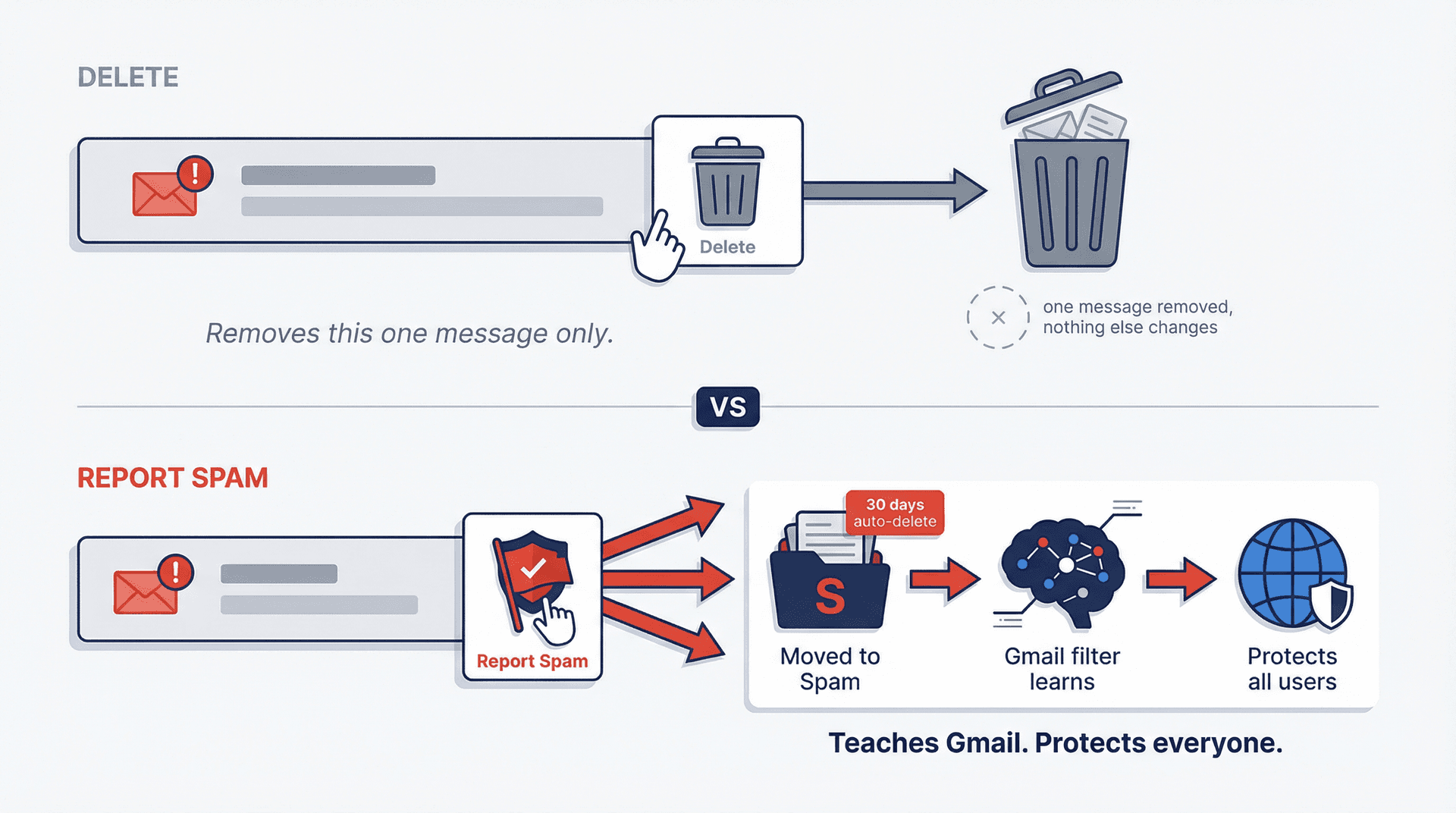
Deleting removes one message. That's it.
-
Reporting spam teaches Gmail's filter to catch similar messages in the future.
-
Unsubscribing asks a legitimate sender to stop emailing you.
-
Blocking redirects all future mail from one sender straight to Spam.
-
Filtering applies your own rules to catch patterns automatically.
-
Automation handles classification and cleanup at a scale that manual clicks can't match.
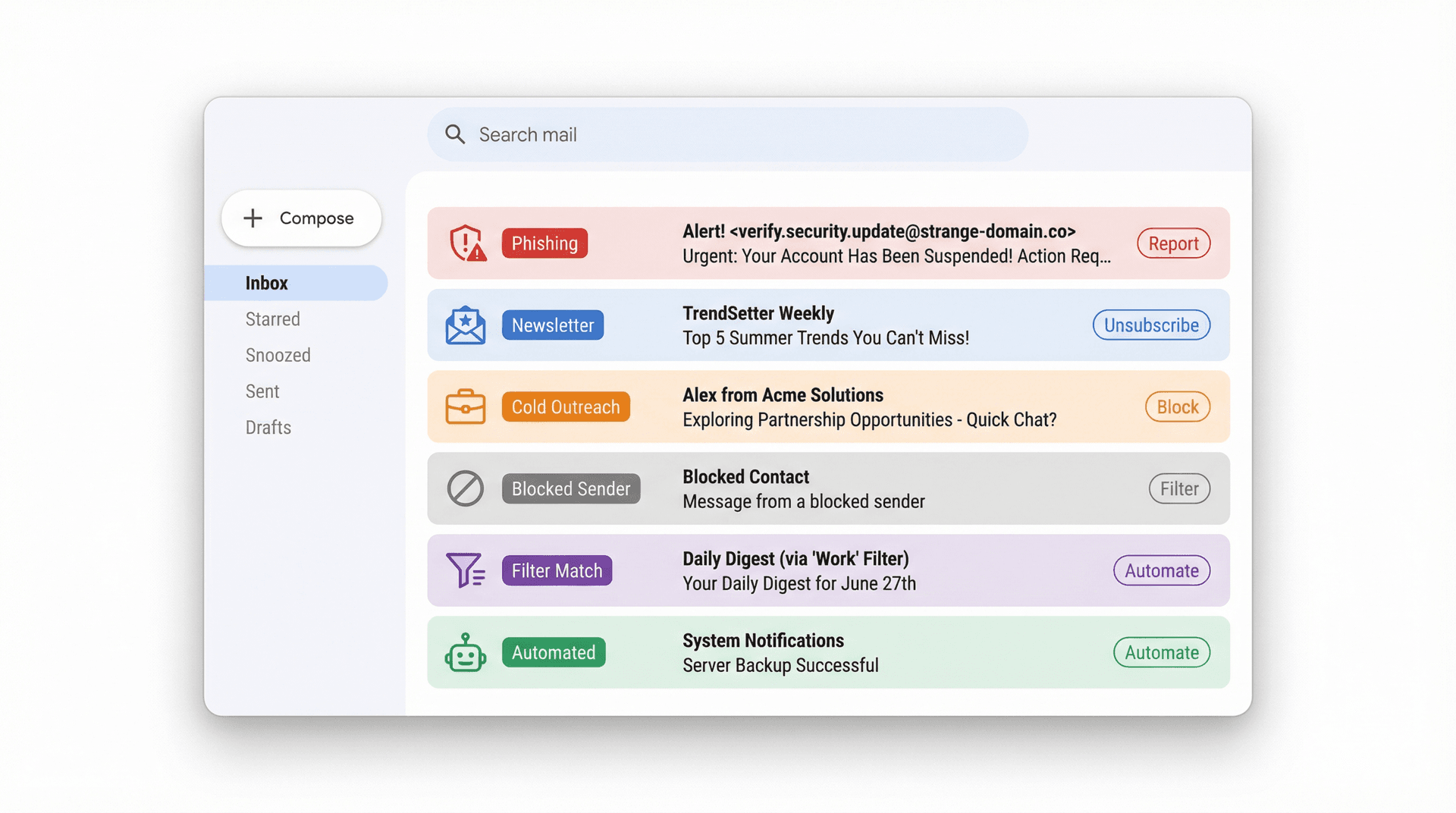
The single biggest mistake? Using the same approach for every unwanted email. Don't click "unsubscribe" on a sketchy phishing message. Don't report a legitimate newsletter as phishing just because it annoys you. And don't assume that blocking one address will stop a company that rotates through dozens. Gmail gives you better tools than that. If you're looking for a broader approach to email management strategies beyond just spam, we cover the full picture there.
Which Gmail Spam Method Should You Use?
A quick decision framework before covering each method:
| Type of Unwanted Email | Best Method | Why |
|---|---|---|
| Fake, dangerous, or manipulative messages | Report spam or phishing | Trains Gmail's filter and protects other users |
| Newsletters and promotions from real companies | Unsubscribe (or Manage Subscriptions) | Cleanest removal without damaging sender reputation |
| One persistent sender who won't stop | Block the sender | Immediate, sends all their future mail to Spam |
| Repeating pattern (domain, keyword, subject) | Create a Gmail filter | Deterministic rule that catches everything matching the pattern |
| High volume across many senders | Automation with Inbox Zero | Classifies and handles low-value email at scale |
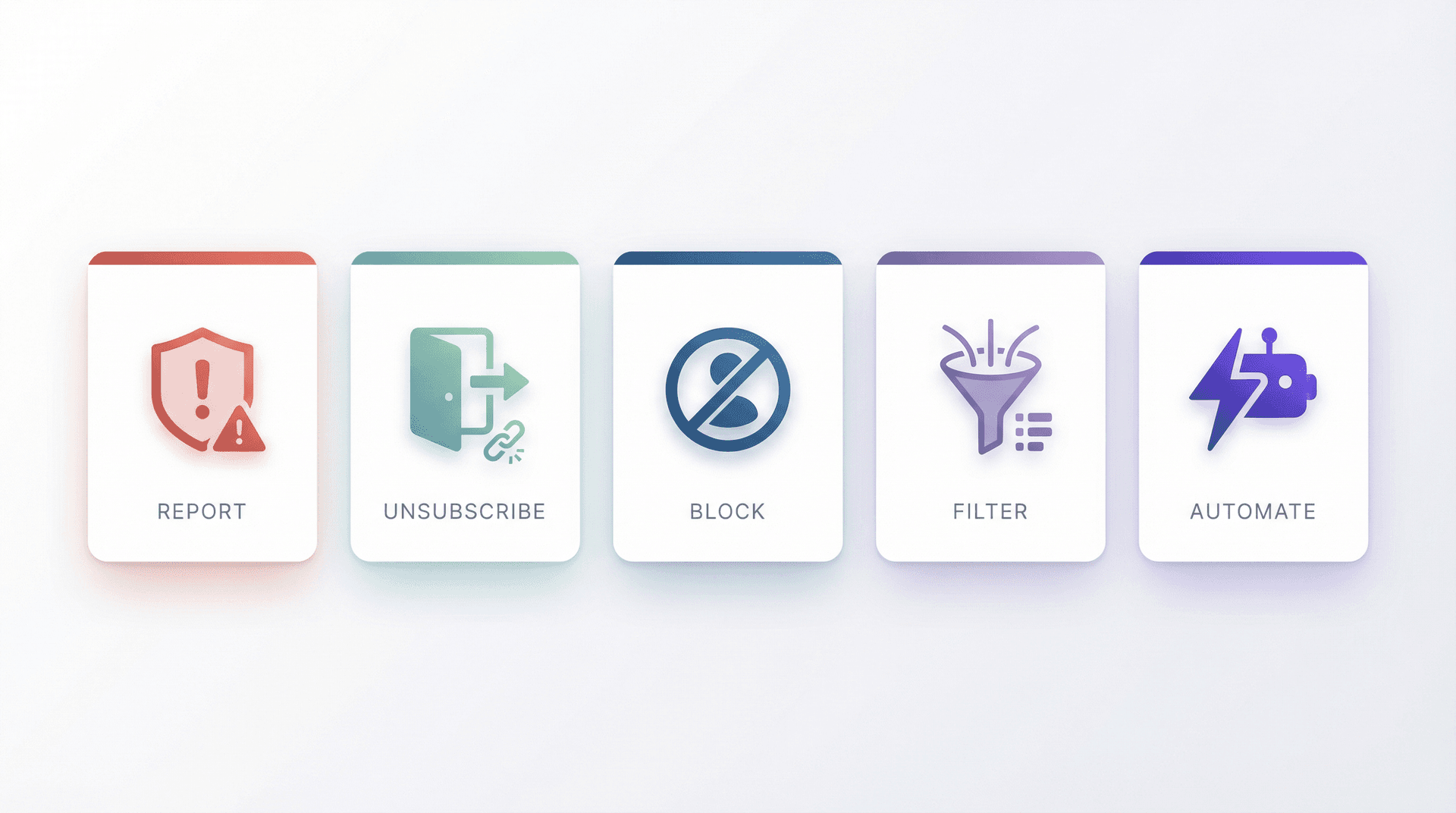
Each method is covered in detail below.
How to Report Spam and Phishing in Gmail
Best for: obvious junk, spoofed messages, scam emails, malware bait, fake invoices, fake login alerts, and anything you never consented to receive.
Reporting spam is not the same as deleting. When you hit that "Report spam" button, Gmail actually learns from it. Google's documentation on marking spam explains that messages you report are moved to your Spam folder, and as you report more, Gmail gets better at identifying similar messages automatically. Google also receives a copy of reported messages for analysis, which helps protect everyone using Gmail. Messages in Spam are automatically deleted after 30 days, so you don't need to clean that folder yourself.
How to report spam:
On desktop, select one or more emails and click Report spam. On iPhone or iPad, open the message, tap More, then Report spam. Android works the same way inside the Gmail app. (Google Help on reporting spam)
When to use "Report phishing" instead:
If the email is actively trying to steal something (your password, banking info, a one-time code, payment details), use Gmail's phishing reporting flow. Google's phishing safety page notes that Gmail is designed to warn you about potentially harmful emails and attachments, and that Google will never ask for personal information like your password over email.
Important: Don't click links in suspicious emails, even if they contain an "unsubscribe" link. Google's own phishing guidance says not to reply and not to click links in suspicious messages. "Unsubscribe" exists for legitimate marketing email, not for messages that might be trying to trick you.
Understanding why emails go to spam instead of your inbox can also help you think about this problem from both sides: what causes mail to be filtered, and how to ensure the right messages get through.
How to Unsubscribe from Emails in Gmail (Manage Subscriptions)
Best for: newsletters, promotions, marketing emails, sale alerts, blog digests, and any email from a legitimate sender you probably signed up for at some point.
Unsubscribing is Gmail's cleanest fix for mail that's unwanted but not malicious. Google's help page on unsubscribing explains that the process may take a few days to fully stop incoming mail, and that unsubscribing from a specific email may only remove you from a single mailing list from that sender. If they send five different newsletters, you might only be off one of them.
That limitation is exactly why Gmail's newer Manage Subscriptions feature matters so much. It's also why tools like our Bulk Email Unsubscriber exist, to handle the problem at scale when one-click unsubscribes aren't enough.
How Gmail's Manage Subscriptions Feature Works
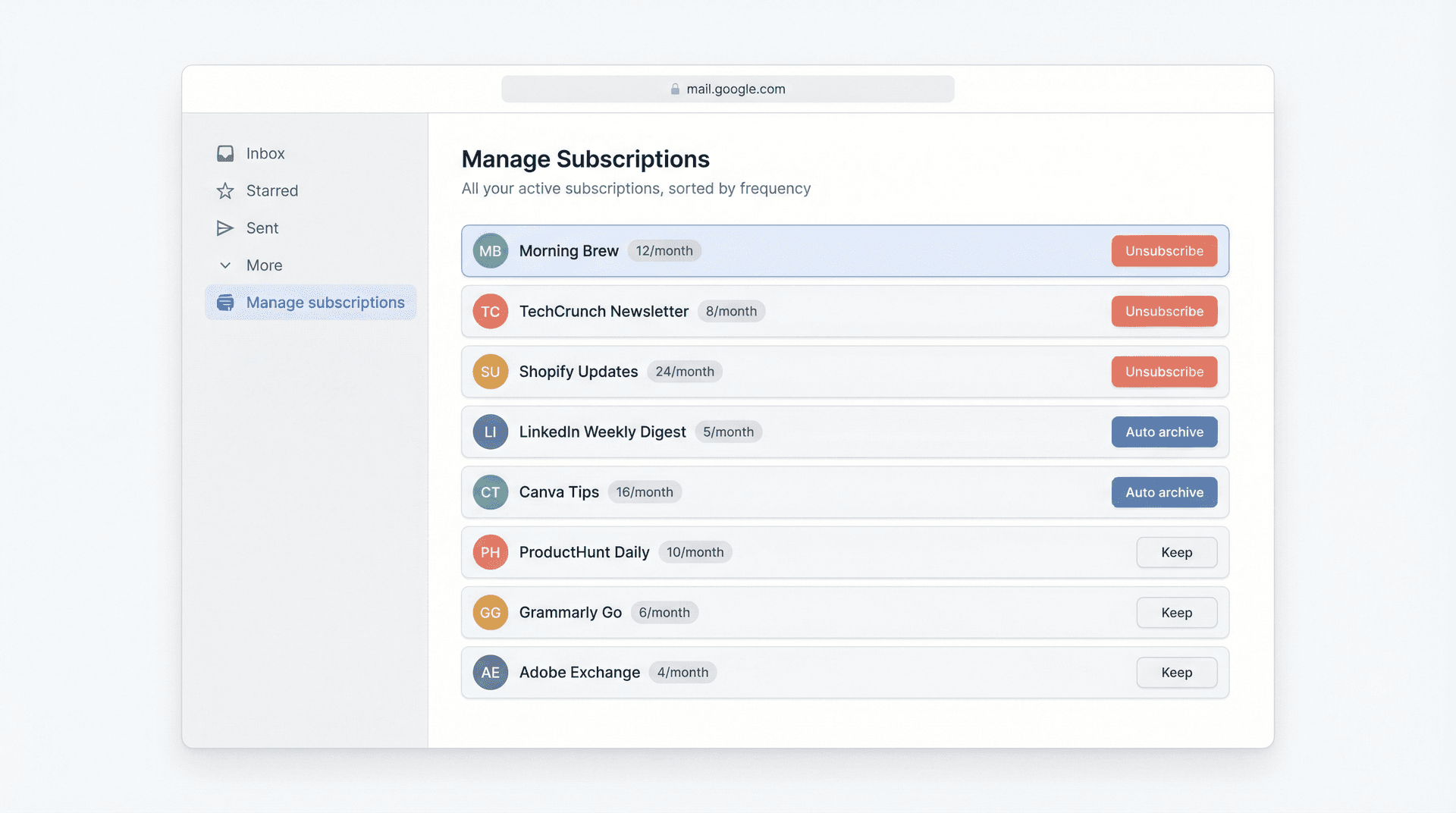
Google announced Manage Subscriptions on July 8, 2025, and it's been rolling out across Gmail on web, Android, and iOS. This feature shows all your active subscriptions in one place, sorted by frequent senders and recent email volume.
When you unsubscribe through Manage Subscriptions, Gmail handles the request on your behalf and can unsubscribe you from all active mailing lists related to that sender, not just the one that triggered the email.
One more useful detail: when you unsubscribe from a sender through Manage Subscriptions, Google notes that new mail from that sender goes to Spam, and Gmail adds a banner explaining why. So even if the sender is slow to honor the request, you still get a clean backstop.
How to access it on desktop: open Gmail and go to More then Manage subscriptions.
Gmail's help page does note that this feature is gradually rolling out and may not be available on every account yet, so don't worry if you don't see it immediately.
For one-off unsubscribes: open the message and click Unsubscribe next to the sender name. On Android, the same option appears when you open the message. Some senders won't support direct one-click removal inside Gmail, so Google may show Go to website instead. If you find yourself doing this repeatedly, our best email unsubscribe app review compares your options for handling unsubscribes at scale.
For a deeper guide on taming subscription overload, our post on how to manage email subscriptions covers both the Gmail-native approach and automation-assisted cleanup. And if you're dealing with a truly overloaded inbox, our guide to bulk unsubscribing from emails walks through the fastest path to a clean slate.
If senders keep ignoring your requests, our post on how to escape the email trap and unsubscribe for good covers what to do when standard unsubscribes fail.
Why Gmail's Unsubscribe Button Doesn't Always Appear
Gmail's unsubscribe button doesn't appear on every email. Google's sender requirements documentation clarifies that one-click unsubscribe is required only for marketing and promotional messages, not transactional emails like password resets, reservation confirmations, or form submission receipts. The unsubscribe button next to the sender name only appears for messages that pass Google's eligibility checks and implement the correct one-click unsubscribe headers. A sender can put an unsubscribe link in the email body and still not qualify for Gmail's top-of-message button.
How to Block a Sender in Gmail
Best for: one person, one sender, or one recurring address that keeps emailing you even after you've had enough. Especially useful for persistent cold outreach from the same address.
Blocking is simple and immediate. Google's documentation on blocking states that after you block a sender, all future emails from that address go to Spam. No ambiguity.
How to block: open a message from the sender, click or tap More, then choose Block [sender]. Google documents this flow on desktop, Android, and iPhone/iPad.
When Gmail's Block Feature Doesn't Work
Blocking does not unsubscribe you from mailing lists. Google is explicit about this. It also works at the individual sender address level. So if the same company keeps rotating through different email addresses, blocking one at a time becomes a frustrating game of whack-a-mole.
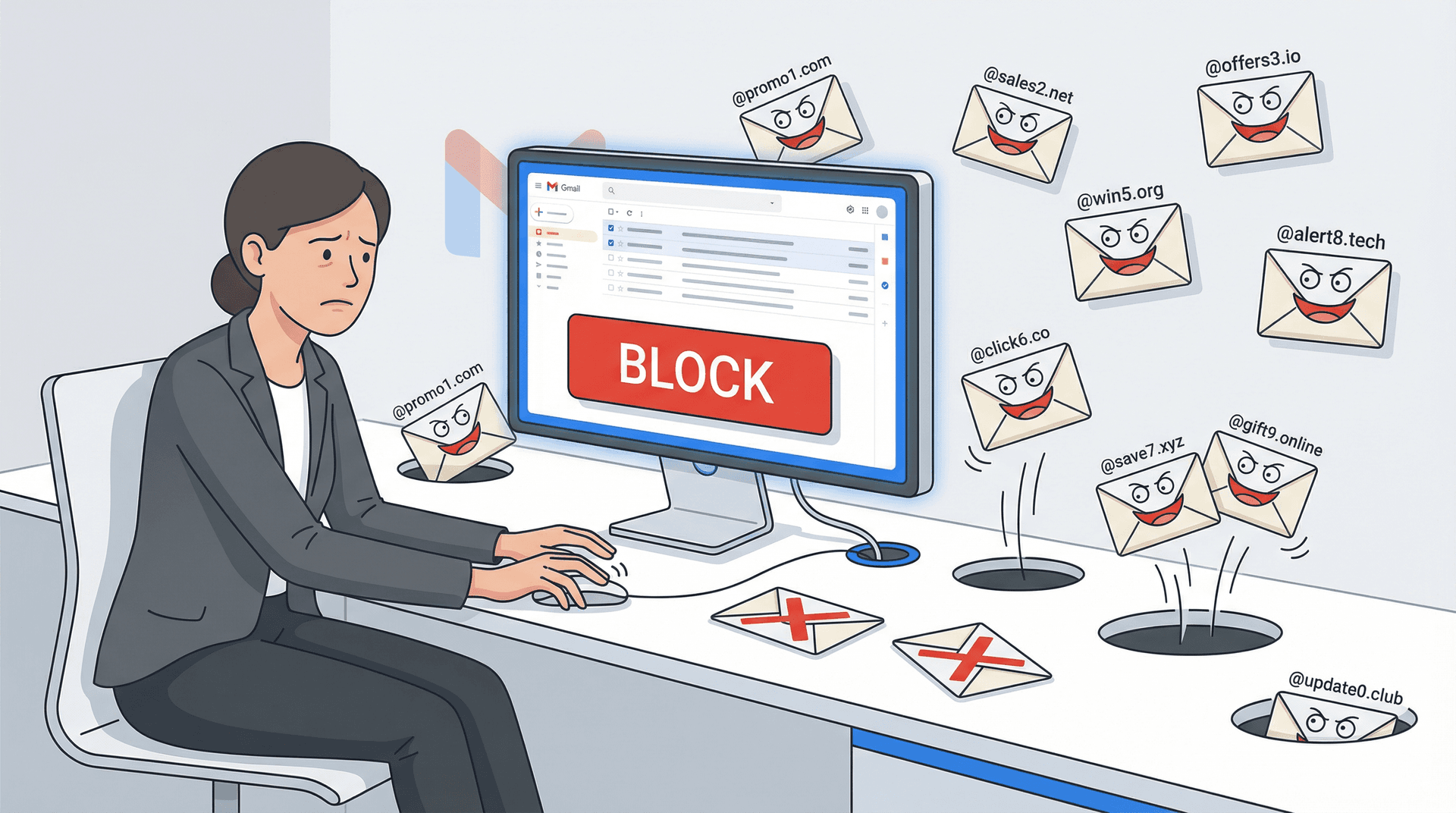
That's when filters (Method 4) or domain-based rules become better tools. If Gmail is incorrectly marking important messages as spam rather than just the bad ones, our post on fixing Gmail's Important markers when they're wrong explains how to teach Gmail what actually matters to you.
Blocked someone by mistake? Unblock them, then remove one of their messages from Spam. Google's help page says that after you remove the email from Spam, future emails from that sender should stop going there. Adding the sender to your contacts or creating a "Never send it to Spam" filter can also help.
How to Create a Gmail Filter to Block Spam
Best for: repeatable patterns. Think "anything from this domain," "all emails with this keyword in the subject," or "everything from this sender should skip my inbox automatically."
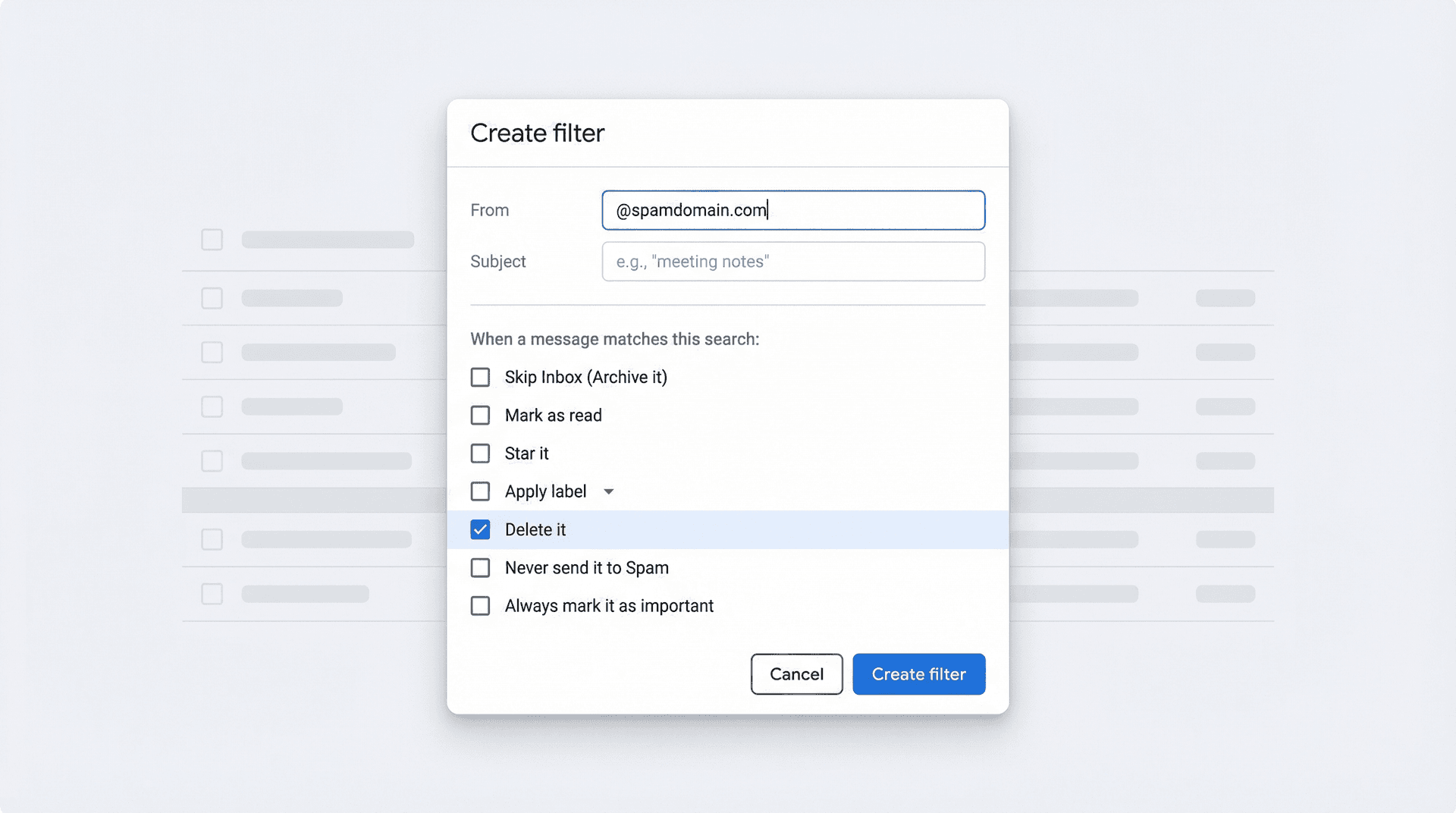
Filters are Gmail's built-in rule engine, and they're surprisingly powerful when you know what's available. Google's filter documentation lists the available actions:
-
Skip Inbox (Archive it)
-
Mark as read
-
Star it
-
Apply label
-
Forward it
-
Delete it
-
Never send it to Spam
-
Always mark it as important
-
Never mark it as important
-
Categorize as (Promotions, Social, Updates, or Forums)
How to create a filter: in Gmail on desktop, click the search options icon (the small toggle at the right of the search bar), enter your criteria, click Create filter, choose your action, and save.
Google recommends previewing your search first so you can confirm you're matching the right messages before making the rule live.
If you're unsure how Gmail's labeling system fits into filters, our Gmail labels vs folders guide explains the underlying structure before you build rules.
Three filter patterns that work particularly well for stopping spam:
How to Block an Entire Domain in Gmail
Gmail doesn't have a one-click "block domain" button. The workaround is a filter. In the From field, enter the domain (like @spamdomain.com), preview the matches, and choose Delete it.
If you want a full walkthrough, our guide on how to block emails from an entire domain covers the exact setup and explains why you should always test broad patterns before saving them. For a more advanced approach (automatically labeling entire domains as they arrive), see our guide on how to auto-label emails by sender domain.
How to Archive Low-Priority Mail Without Marking It as Spam
A lot of unwanted email isn't malicious. It's just low priority. For those messages, a smarter move is often Skip Inbox + Apply label, or Categorize as Promotions, instead of sending everything to Trash. Google's inbox categories documentation covers how categories like Social, Updates, Forums, and Promotions work.
This approach keeps your inbox clean without destroying messages you might need later.
If you're deciding between archiving and other Gmail actions, our comparison of Gmail snooze vs archive vs mute lays out when each tool makes the most sense.
How to Stop Gmail from Sending Important Emails to Spam
When Gmail gets too aggressive with a valid sender, create a sender-specific filter and check Never send it to Spam. Google also recommends removing one of the sender's messages from Spam and adding the sender to your contacts.
Common Gmail Filter Mistakes That Make Emails Disappear
Bad filters can create a different kind of email problem where important mail seems to "vanish." Google's troubleshooting guidance specifically says to review the Filters and Blocked Addresses tab for filters containing Delete it or Skip Inbox. It also recommends checking forwarding, POP/IMAP settings, and third-party app access, because those can move or remove mail in ways that look like spam problems but aren't.
For that scenario, our guide on Gmail filters not working and how to fix them is a faster path when the problem is a misfiring rule rather than actual spam.
How to Automate Gmail Spam Filtering at Scale
This is the part most "how to stop spam" articles barely touch, and it's the one that actually changes things for people managing real email volume.
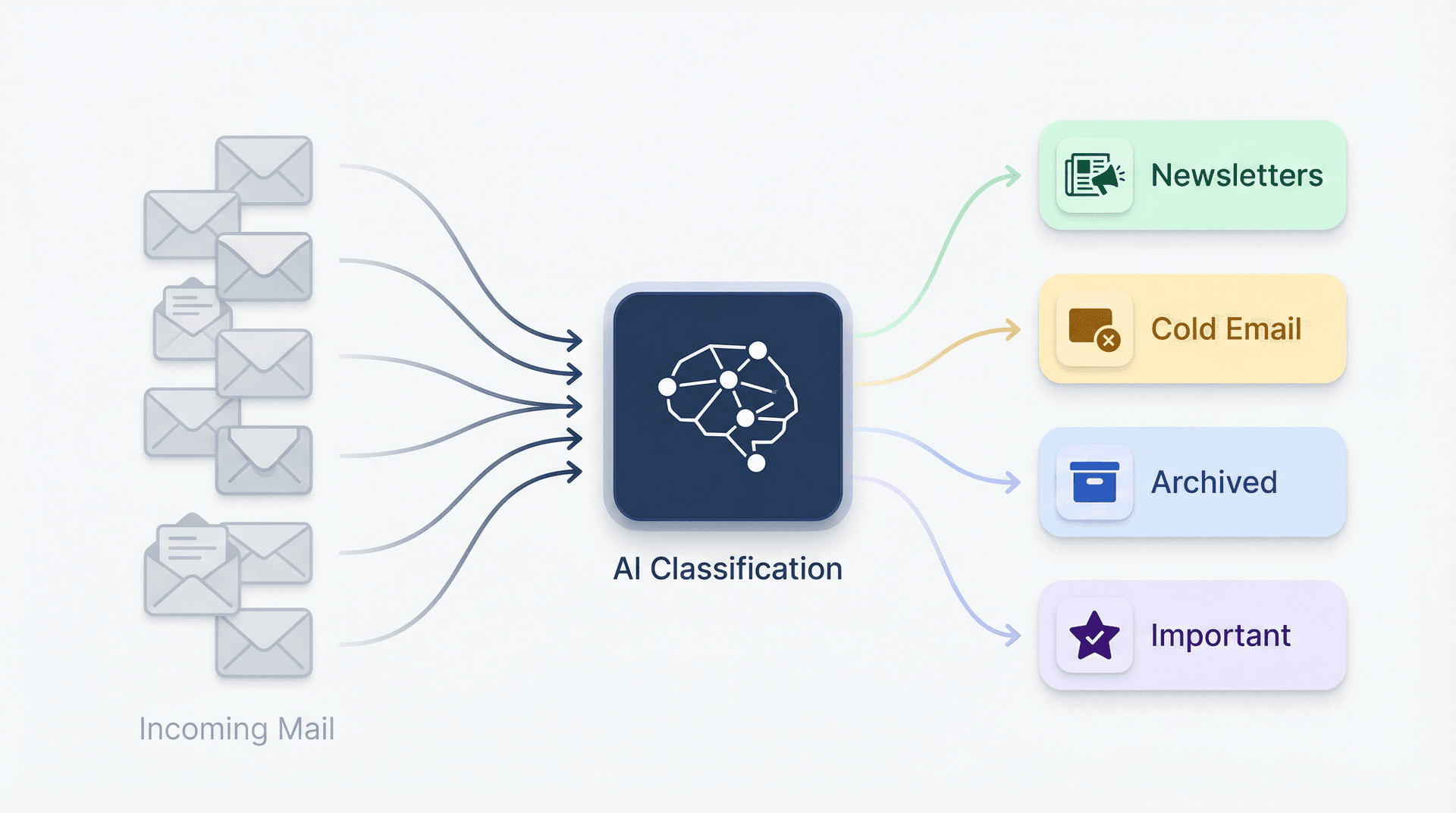
Gmail's native controls are solid for handling individual senders and specific patterns. But they're fundamentally sender-by-sender or rule-by-rule. That works fine when you get a handful of unwanted emails a week. It breaks when your real problem is volume: dozens of newsletters stacking up, recurring cold outreach from people you've never met, low-value updates that aren't quite spam but definitely aren't important, and too many edge cases to manage with one-off clicks. If you're dealing with this kind of email overload, you need a system, not just a set of manual filters.
At that point, the question shifts from "How do I stop this one spam email?" to "How do I classify incoming mail consistently and apply safe actions at scale?"
That's exactly the problem we built Inbox Zero to solve. It works alongside Gmail (and Google Workspace and Outlook) rather than replacing it, connecting through standard OAuth APIs so your data stays with your existing email provider. Our AI email automation handles the classification and action layer so your inbox starts working on your terms.
The practical stack:
Unsubscribe from Hundreds of Emails at Once
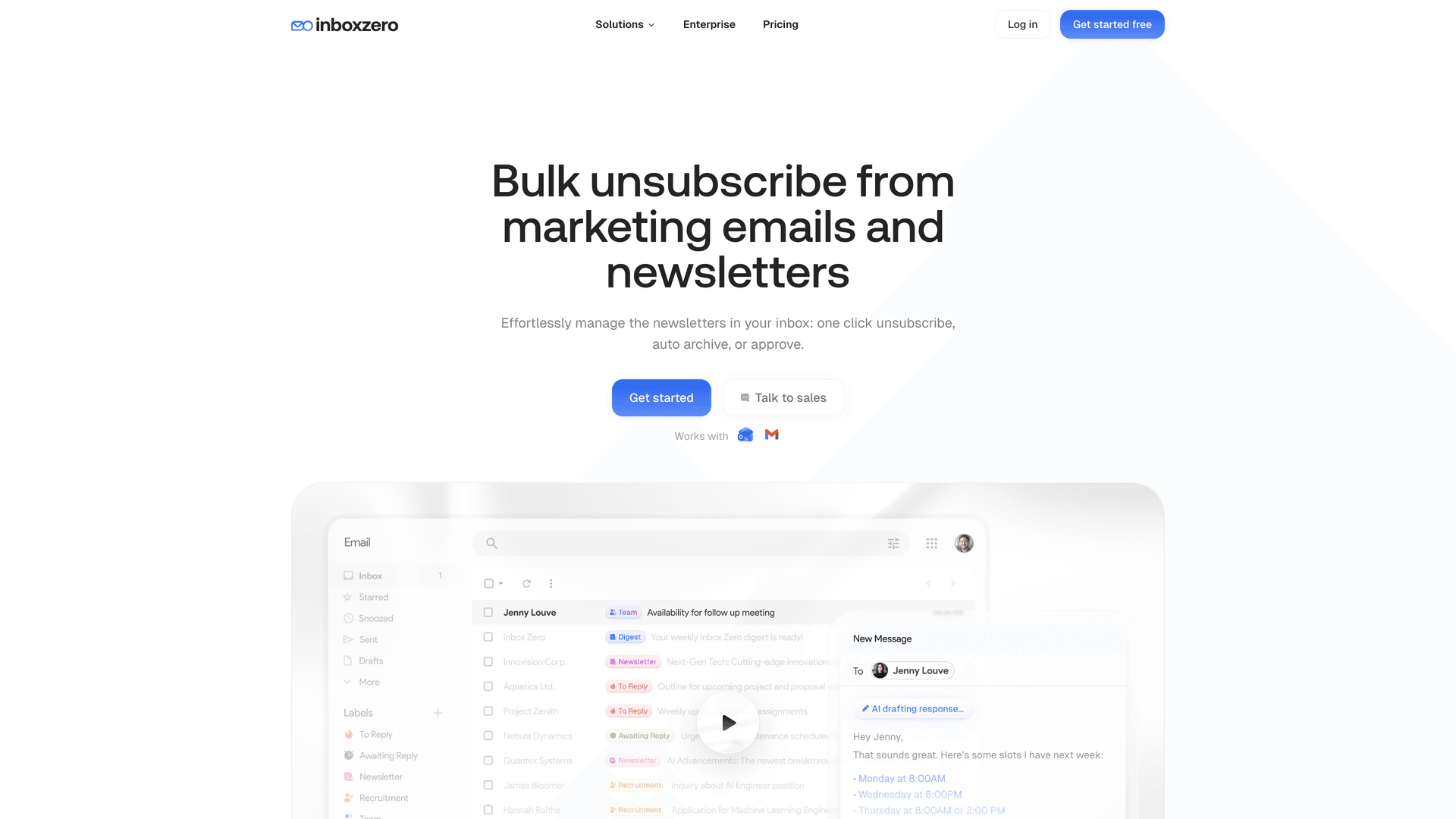
Our bulk unsubscribe tool shows all your newsletter and marketing senders in one place, complete with sending frequency and how often you actually read them. For each sender, you get one-click options: Unsubscribe, Auto archive, Auto archive + label, or Keep.
It's a fundamentally different experience from hunting down unsubscribe links one email at a time. When you can see that a sender emails you 12 times a month and you've opened exactly zero of them, the decision makes itself. See the Bulk Email Unsubscriber feature page for an overview of how it works.
Automatically Block Cold Emails and Sales Outreach
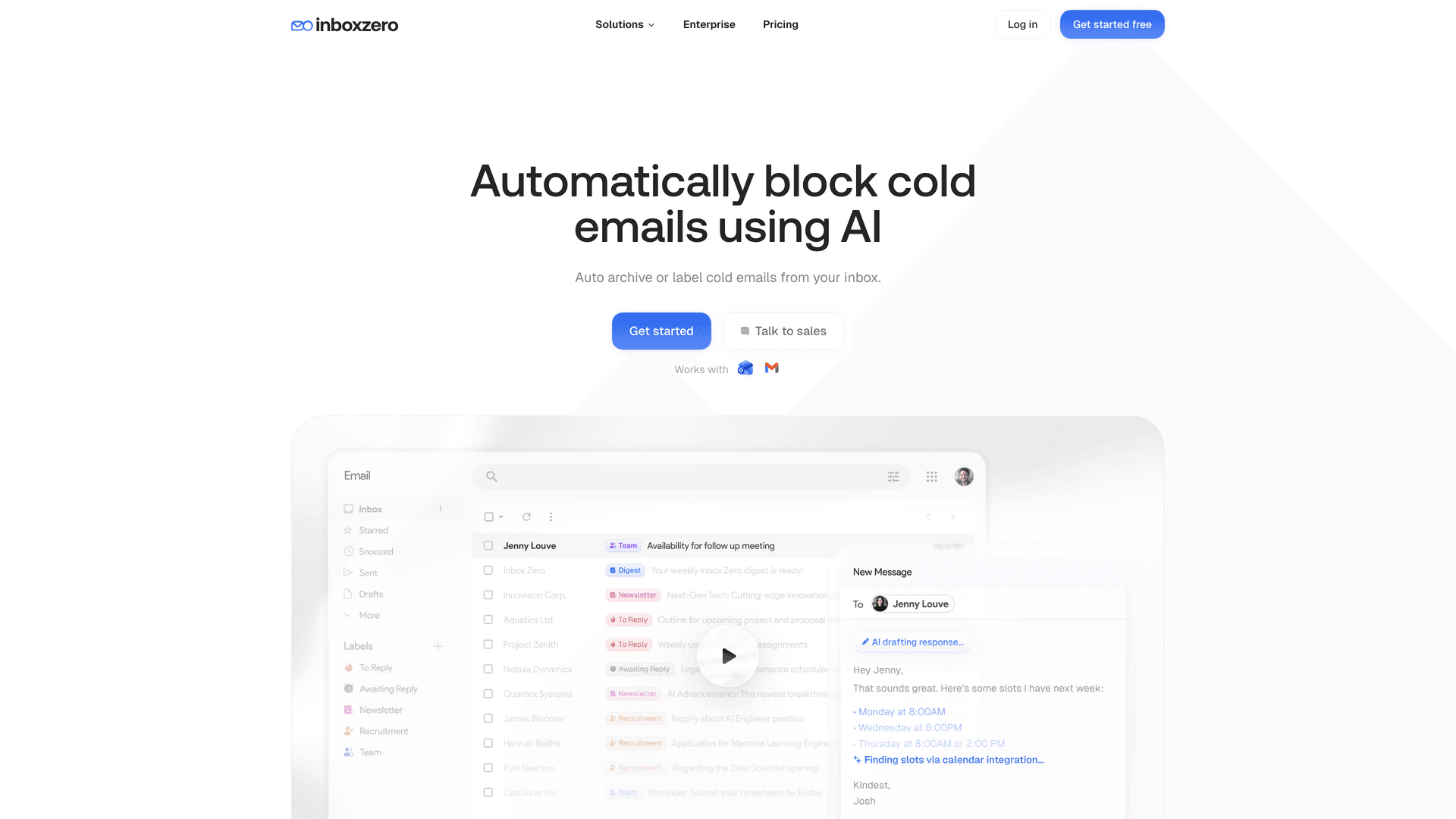
For the sales outreach and "just bumping this to the top of your inbox" messages, our Cold Email Blocker has three modes:
→ Review-only: see what would be caught before committing to anything
→ Auto label: flag cold outreach without touching its inbox placement
→ Auto archive and label: move it out of your inbox automatically
It only applies to new incoming mail, and it automatically excludes senders you've already corresponded with. That last detail matters a lot, because it reduces the risk of accidentally filtering out a real contact. You can also visit the block cold emails feature page to see how it works in practice.
For a detailed walkthrough, our guide on how to automatically block cold emails covers the full setup.
Create Custom Email Rules with AI
This is where automation gets more flexible than vanilla Gmail filters. Our AI Personal Assistant lets you create rules in plain English or build them manually. Available actions include Archive, Label, Reply, Forward, Draft Email, Mark Read, Mark Spam, and delayed actions.
You can also test rules before relying on them, which is the right way to introduce automation. The real danger with any email automation isn't lack of power; it's false positives. If you're evaluating AI email management more broadly, our guide to AI email management covers the benefits, risks, and what to look for in any AI-powered inbox tool.
How to Start Email Automation Without Losing Important Emails
Start conservative. Review-only or label-only modes are the smart first step. Watch what gets caught for a few days. Then automate only the low-risk stuff: newsletters, obvious cold outreach, repetitive marketing you never open.
Keep high-stakes categories (customers, finance, legal, hiring) out of aggressive auto-delete rules until you have real confidence in the system. Our test workflow exists for exactly this reason. For a structured approach to email inbox management, our tips guide walks through building these habits step by step.
Is Inbox Zero Safe? Security, Compliance, and Pricing
We're open source (the GitHub repo has roughly 10.3k stars and 1.2k forks as of March 2026), SOC 2 compliant, and CASA Tier 2 approved through Google's Cloud Application Security Assessment program. Our pricing page shows that all plans include a 7-day free trial and annual discounts up to 20%.
If you're not ready for full automation but want a cleaner Gmail experience right now, we also offer a free Tabs browser extension for Gmail. It adds custom tabs based on any Gmail search query, stores everything locally in your browser, and has no tracking or data collection. It won't stop spam by itself, but it's an excellent way to separate newsletters, receipts, and follow-up queues once the worst mail is under control. You can also start with our clean inbox workflow for a guided approach to inbox decluttering.
Ready to clean up your inbox? Try Inbox Zero free for 7 days and see how much time you get back when spam, newsletters, and cold email stop cluttering your Gmail.
Gmail Spam Suddenly Increased? Check These Settings First
Sometimes the problem isn't "more spam." Sometimes it's a security issue, a bad filter, a forwarding rule, or a connected app moving mail around behind the scenes.
Google's account security guidance says that if you think someone has unauthorized access to your account, reset your password immediately and run Security Checkup, including 2-Step Verification and permission review. Speaking of connected apps: before you grant any third-party tool access to your Gmail, our post on whether it's safe to connect third-party apps to Gmail explains exactly what permissions mean and which signals to look for.
Then open Gmail in a browser (not just the mobile app) and check these settings:
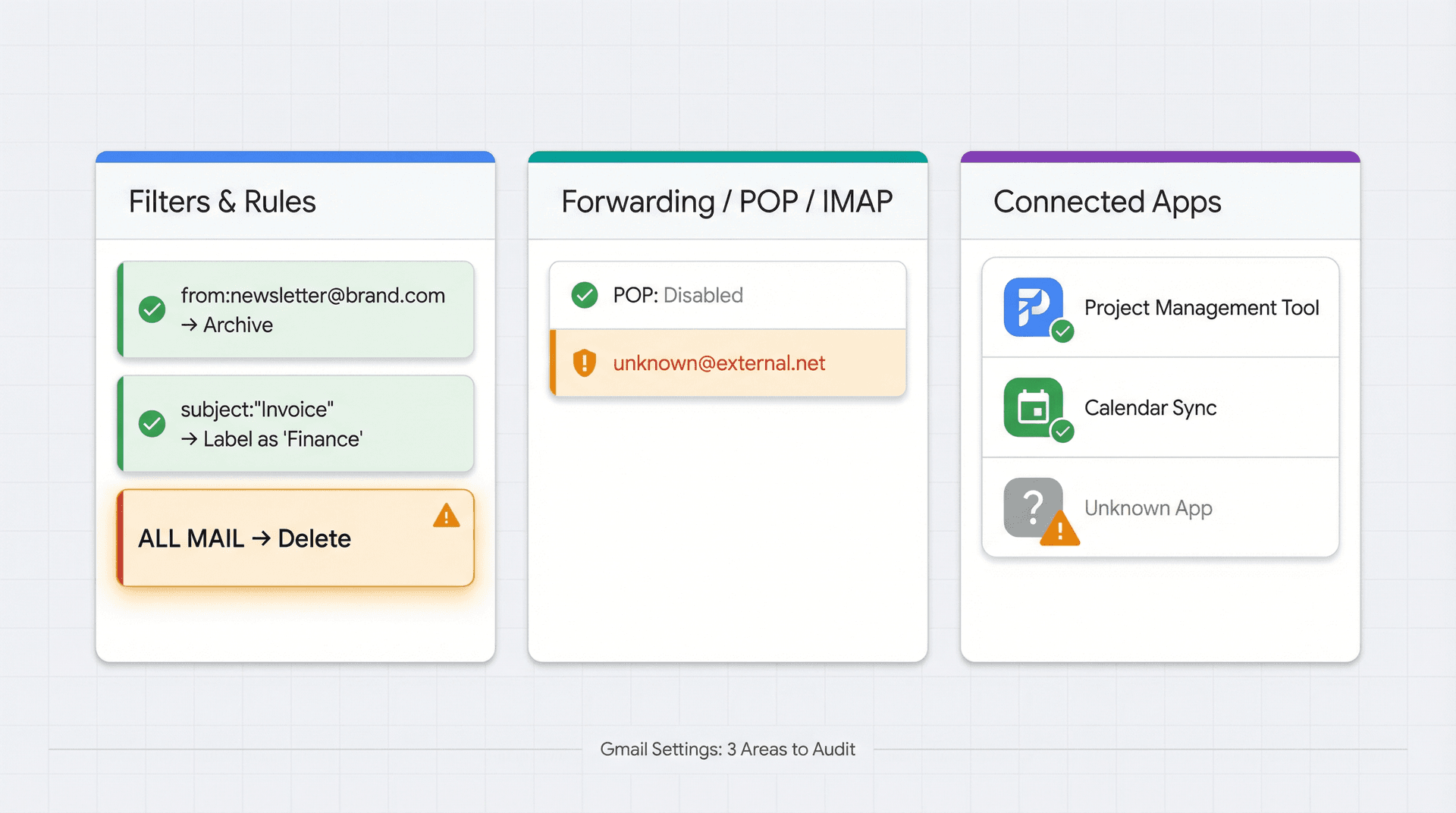
→ Filters and Blocked Addresses: look for unknown rules, especially anything that says Delete it, Skip Inbox, or forwards mail somewhere unexpected. Our guide on Gmail filters not working can help you audit these settings and understand what each rule is doing.
→ Forwarding and POP/IMAP: check for unknown forwarding destinations or settings that archive or delete originals.
→ Third-party apps & services in your Google Account: look for anything you don't recognize. Google explicitly recommends removing unknown apps or services connected to your account.
This section alone solves a surprising number of "spam" problems, because sometimes the inbox is chaotic for reasons that have nothing to do with Gmail's spam filter. If you want a broader audit of your Gmail health, our Gmail inbox management tips cover what to review when your inbox feels completely out of control.
Common Gmail Spam Questions, Answered
Is It Better to Block or Unsubscribe?
Use unsubscribe for legitimate marketing mail from real brands. Use block when one sender simply won't stop, or when you never want mail from that address again. Use report spam or phishing when the message is deceptive, suspicious, or malicious. And remember: blocking does not unsubscribe you from a mailing list. (Google Help on unsubscribing) For a comparison of the best email unsubscribe apps when the manual approach becomes too time-consuming, we've reviewed the leading options.
Why Don't I Always See Gmail's Unsubscribe Button?
Gmail only shows the top-of-message unsubscribe option for qualifying messages. Google's sender requirements specify that one-click unsubscribe is required only for marketing and promotional messages, not transactional mail. Even promotional emails must pass Google's automated checks and implement the correct one-click unsubscribe headers to qualify.
Can I Block an Entire Domain in Gmail?
Not with a single native "block domain" button. The practical workaround is a Gmail filter: put @domain.com in the From field, preview the matches, and choose Delete it or another action. Our guide on how to block emails from an entire domain walks through the full setup.
Important Emails Keep Going to Spam. How Do I Fix That?
Open the message in Spam and mark it Not spam. Google says that future emails from that sender should stop going to Spam after you do that. You can also add the sender to your contacts or create a filter with Never send it to Spam checked. Understanding why emails go to spam in the first place helps you fix the root cause faster.
Can You Stop Spam in Gmail Permanently?
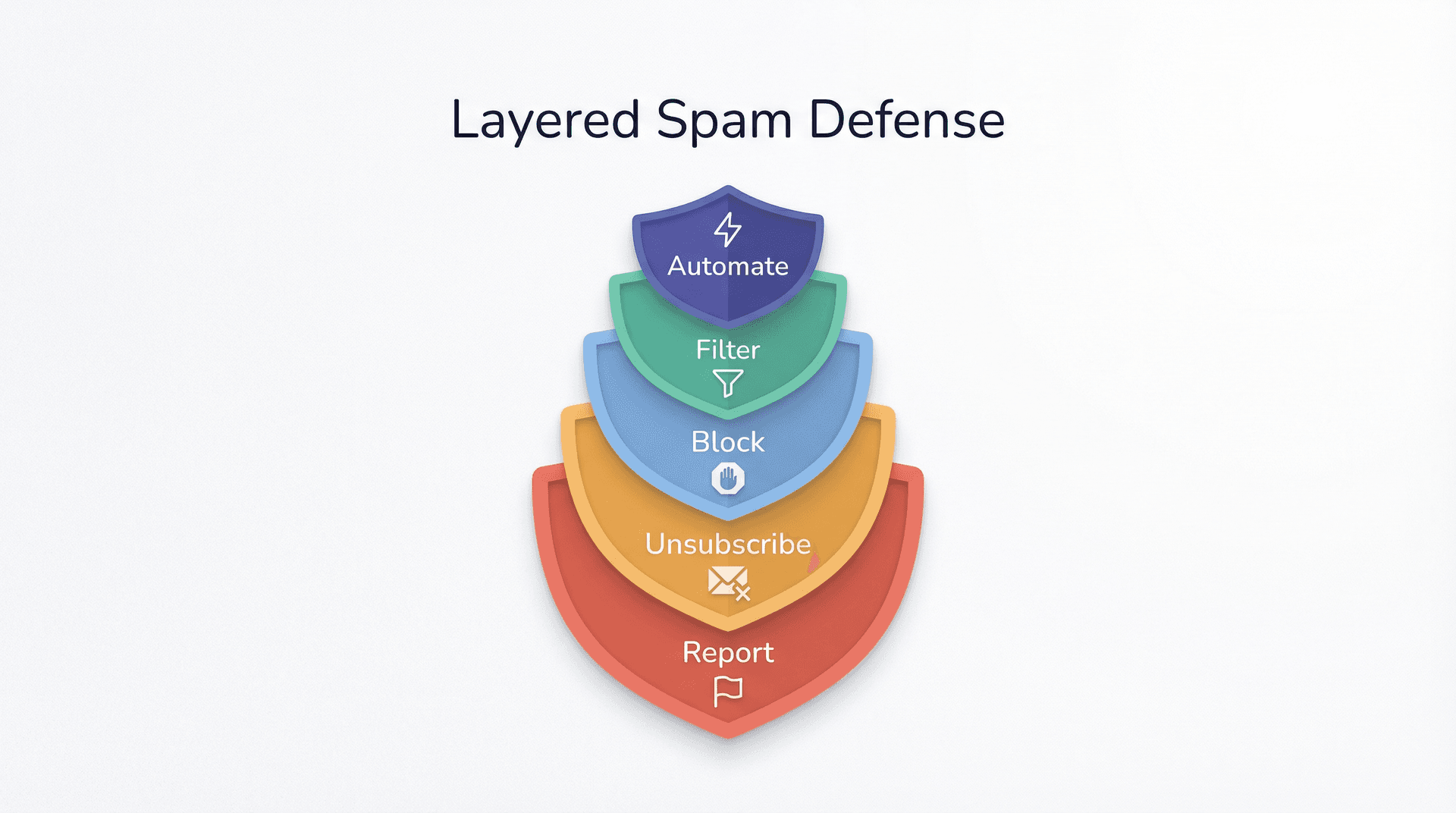
Not permanently in the absolute sense, because unwanted senders change addresses, formats, and tactics. But you can reduce it dramatically by using the right sequence: report scams, unsubscribe from legitimate marketing, block persistent senders, filter repeatable patterns, and automate the categories that keep coming back. If you layer all five methods, the amount of junk that actually hits your inbox drops significantly. For the long-term perspective, our post on the inbox zero method explains the philosophy behind treating your inbox as a system you manage rather than a pile you fight.
Stopping Gmail Spam: Use the Right Tool for the Job
The real answer to stopping spam isn't one single method. It's matching the right tool to the right kind of unwanted email.
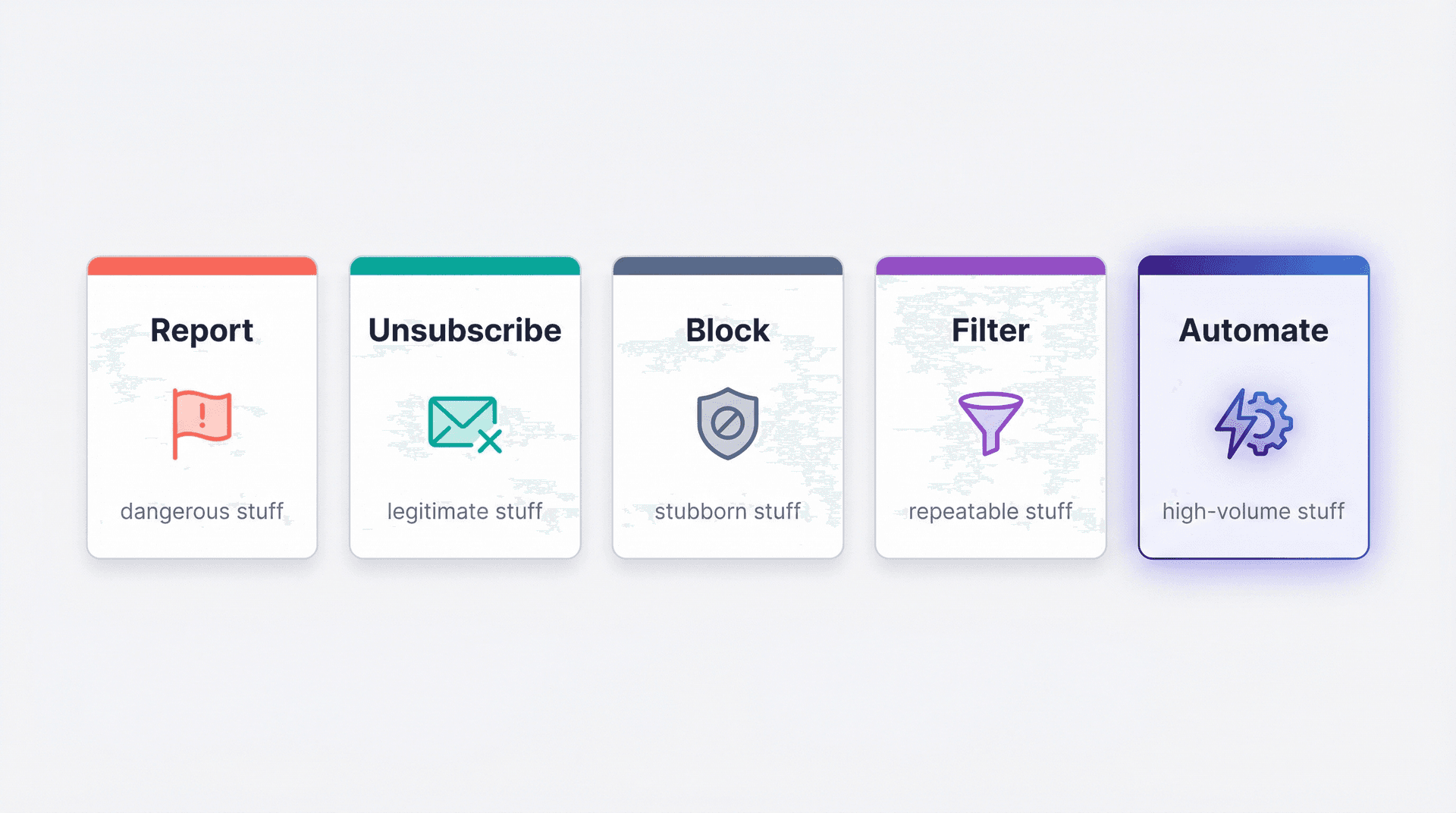
Report the dangerous stuff.
Unsubscribe from the legitimate stuff.
Block the stubborn stuff.
Filter the repeatable stuff.
Automate the high-volume stuff.
That's how you stop treating Gmail like a trash can you empty by hand and start treating it like a system that works for you. (Google's spam help documentation)
And when you're ready to take that last step toward automation, give Inbox Zero a try. Start with the free trial, begin in review-only mode, and let the system prove itself before you turn on full automation. It's the difference between fighting your inbox every morning and walking into one that's already organized. Our email management tips are a great next step if you want to build better habits alongside the technical fixes.
For deeper Gmail cleanup, these guides cover specific scenarios in detail:
Relay.app Is Shutting Down: Deadlines, Data Export, and Alternatives
Relay.app is shutting down in 2026. See the deadlines for free and paid users, what to export, and which alternatives fit your email and automation workflows.
2026-07-16T18:46:02Z
Best AI Email Assistants in 2026 (Tested)
The best AI email assistants in 2026, tested and compared. Honest pros, cons, and pricing for Inbox Zero, Superhuman, Fyxer, Shortwave, Lindy, Missive, SaneBox, Serif, Perplexity, Gemini in Gmail, and Microsoft Copilot, with picks by use case.
2026-07-05T08:00:00Z

Top 16 Email Management Software of 2026
Discover the top 16 email management software of 2025 designed to boost productivity and simplify your inbox.
2026-06-24T09:00:00Z
7 Best Fyxer Alternatives in 2026
The best Fyxer.ai alternatives in 2026, compared. AI email assistants, team inboxes, and inbox cleaners, with honest notes on price, features, and who each one is for.
2026-06-01T08:00:00.000Z