How to Whitelist an Email in Gmail: 3 Ways (2026)
3 ways to whitelist an email in Gmail: mark as Not Spam, add to Google Contacts, or create a filter that never sends to Spam.

Important emails shouldn't vanish into your Spam folder. But Gmail doesn't actually have a "whitelist" button, so if you've been searching for one, you're not alone.
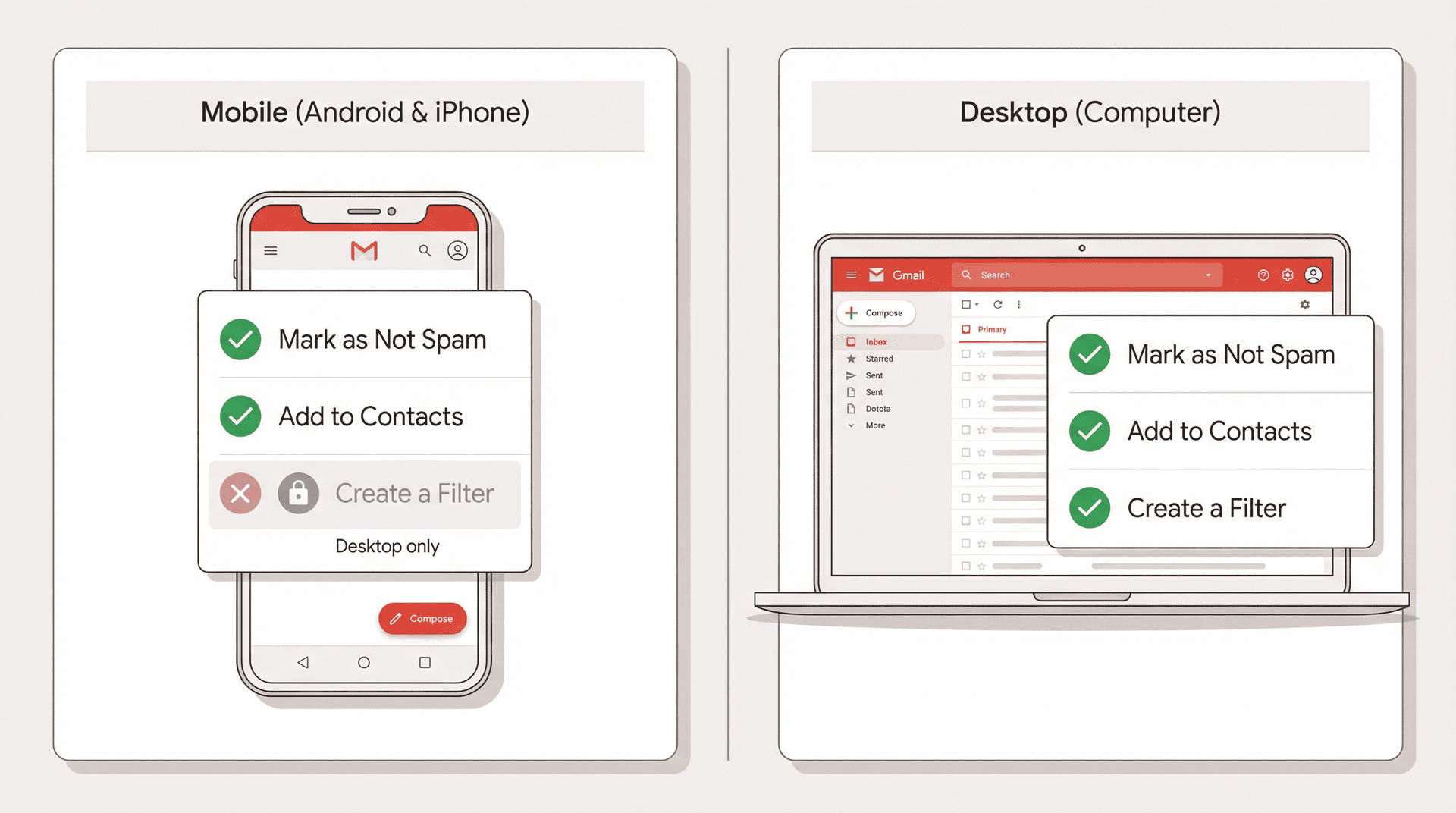
What most people call "whitelisting" in Gmail really comes down to three actions that Google officially recommends: removing a message from Spam, adding the sender to Google Contacts, or creating a filter that tells Gmail to never send that sender to Spam. On Android and iPhone/iPad, the first two work fine, but Google's current docs confirm that creating a filter still requires Gmail on a computer.
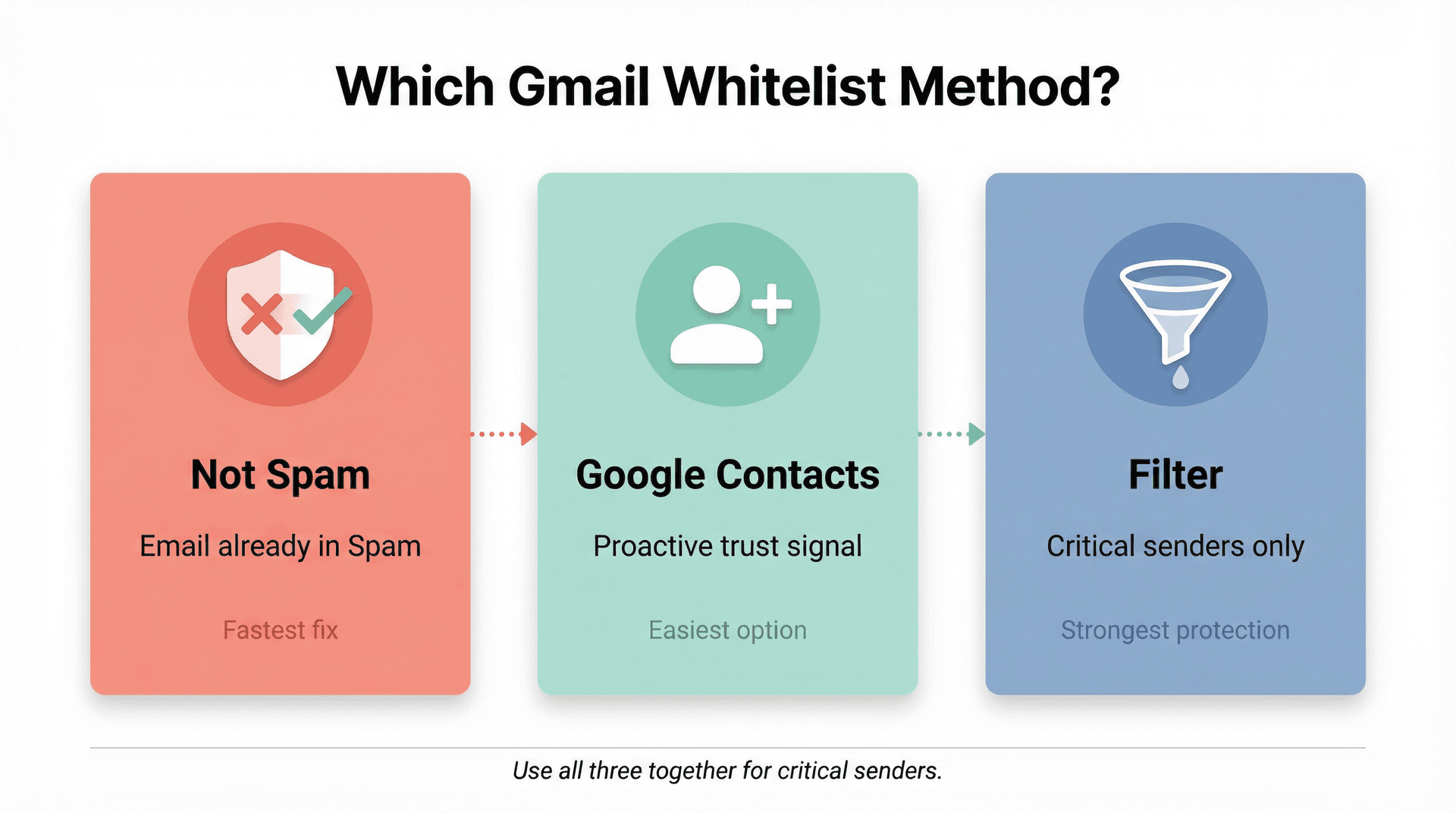
A quick way to figure out which method you need:
-
Email already in Spam? Use Not spam to rescue it.
-
Trusted person or service? Add them to Google Contacts.
-
Can't afford to miss them ever again? Create a filter.
These three methods aren't all equal, though. The first two are what you might call learned signals. When you click "Not spam" or add someone to Contacts, you're teaching Gmail that this sender is legitimate for you specifically. Filters work differently. A filter is a hard rule. You're not asking Gmail to make a judgment call. You're telling it exactly what to do. That's why filters are the strongest option for invoices, payroll emails, login codes, client communications, and anything else you absolutely cannot miss. Struggling with a crowded inbox beyond just spam? Here's how effective email management strategies can help you take back control.
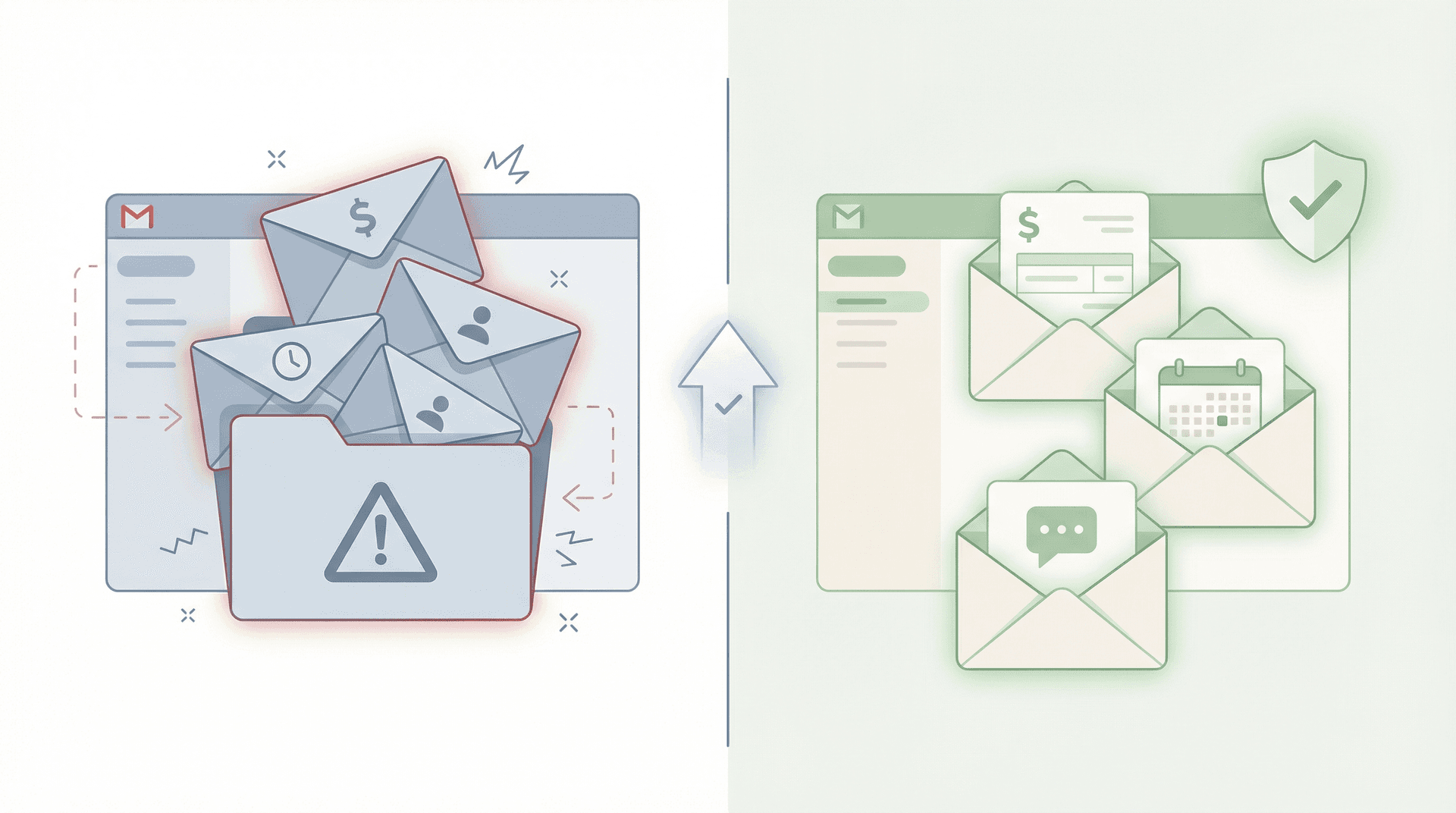
Mark the Email as Not Spam
This is the fastest fix when you've already spotted the sender's message sitting in your Spam folder. It takes about ten seconds.
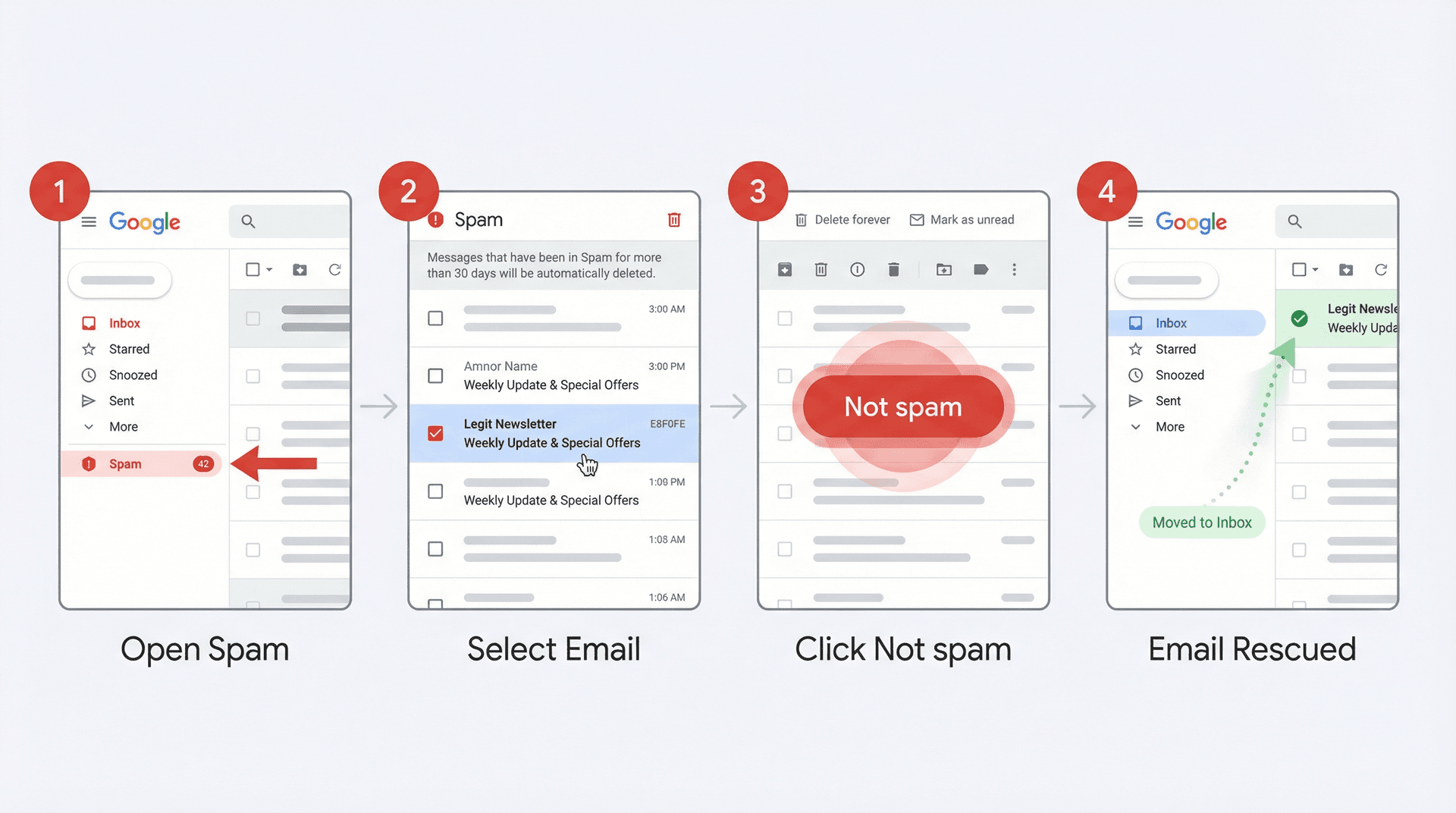
On a computer:
-
Open Gmail.
-
In the left sidebar, click More, then click Spam.
-
Select the email you want to rescue.
-
Click Not spam.
Google's help documentation confirms that after you remove a valid message from Spam, future emails from that sender won't go to Spam. So this single click actually teaches Gmail going forward. If you're consistently missing emails from certain senders, read our guide on Gmail not receiving emails from a specific sender, because whitelisting is often the first step in that fix.
On Android:
-
Open the Gmail app.
-
Tap the menu icon, then tap Spam.
-
Open the message.
-
Tap More, then tap Report not spam.
(Steps from Google's Android Gmail help page)
On iPhone or iPad:
-
Open the Gmail app.
-
Tap the menu icon, then tap Spam.
-
Touch and hold the message (or open it).
-
Tap More, then tap Report not spam.
(Steps from Google's iOS Gmail help page)
When to use this: You already have an email from the sender sitting in Spam and you want to rescue it immediately. This is your best first move because it simultaneously moves the message and teaches Gmail to trust this sender in the future.
Add the Sender to Google Contacts
Adding someone to your contacts is the easiest long-term trust signal you can give Gmail. And it works for senders whose emails haven't landed in Spam yet, making it a proactive move rather than a reactive one. This kind of proactive thinking is part of what good email inbox management looks like.
Google is unusually direct about this: when you add a sender to Google Contacts, their emails won't go to Spam. Google's sender guidelines also state that messages from an address in the recipient's contacts are less likely to be marked as spam. So this isn't just contact-book housekeeping. It's a real deliverability signal that affects how Gmail treats incoming mail from that address.
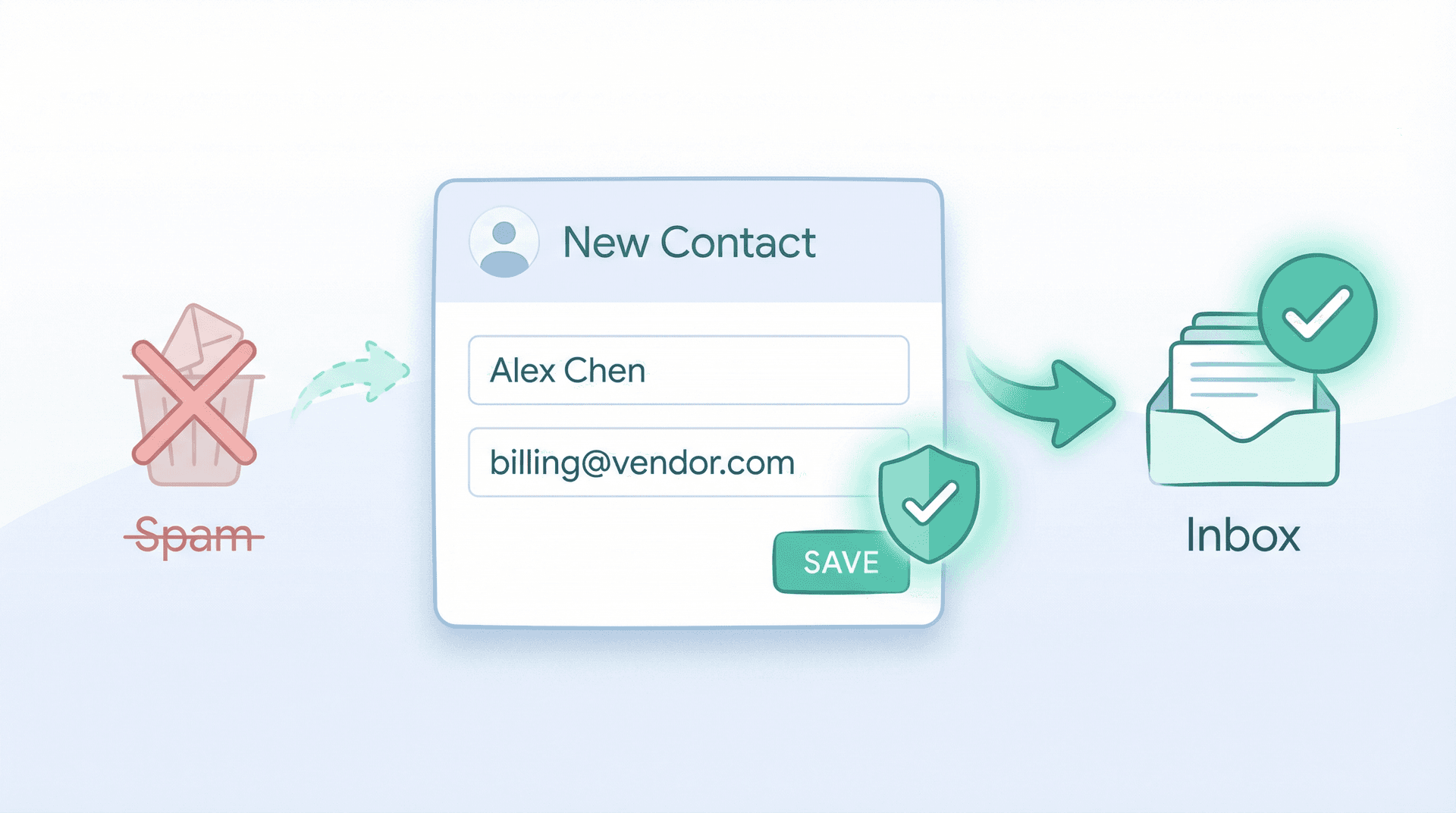
On a computer:
-
Go to Google Contacts.
-
Click Create contact.
-
Enter the sender's name and email address.
-
Click Save.
(Steps from Google Contacts help)
On Android:
-
Open the Contacts app.
-
Tap Add (the + icon).
-
Enter the name and email address.
-
Tap Save.
(Steps from Google's Android help page)
On iPhone or iPad:
-
Open your browser.
-
Go to Google Contacts.
-
Tap Add, then Create a contact.
-
Enter the name and email address.
-
Tap Save.
(Steps from Google's iOS help page)
This method works great for:
-
Coworkers and team members
-
Clients and business contacts
-
Family members
-
Vendors you pay regularly
-
School contacts (teachers, administration)
-
Any service that emails you from a consistent address
One security tip worth noting: for sensitive senders like banks, payroll systems, identity providers, and legal notices, adding the exact email address is smarter than whitelisting an entire domain. You want Gmail to trust payroll@yourcompany.com, not every address that could ever send from yourcompany.com. If you're curious about the broader question of connecting apps to Gmail securely, see is it safe to connect third-party apps to Gmail.
Create a Gmail Filter (The Most Reliable Option)
If a sender is truly critical (meaning you absolutely cannot afford to miss their emails), a filter is the most reliable whitelist Gmail offers. Filters don't ask Gmail to make a judgment. They give Gmail a hard rule. For a deeper look at how labels and filters work together, see Gmail labels vs folders.
On a computer:
-
Open Gmail.
-
In the search bar at the top, click Show search options (the small icon on the right side of the search bar).
-
In the From field, type the sender's email address.
-
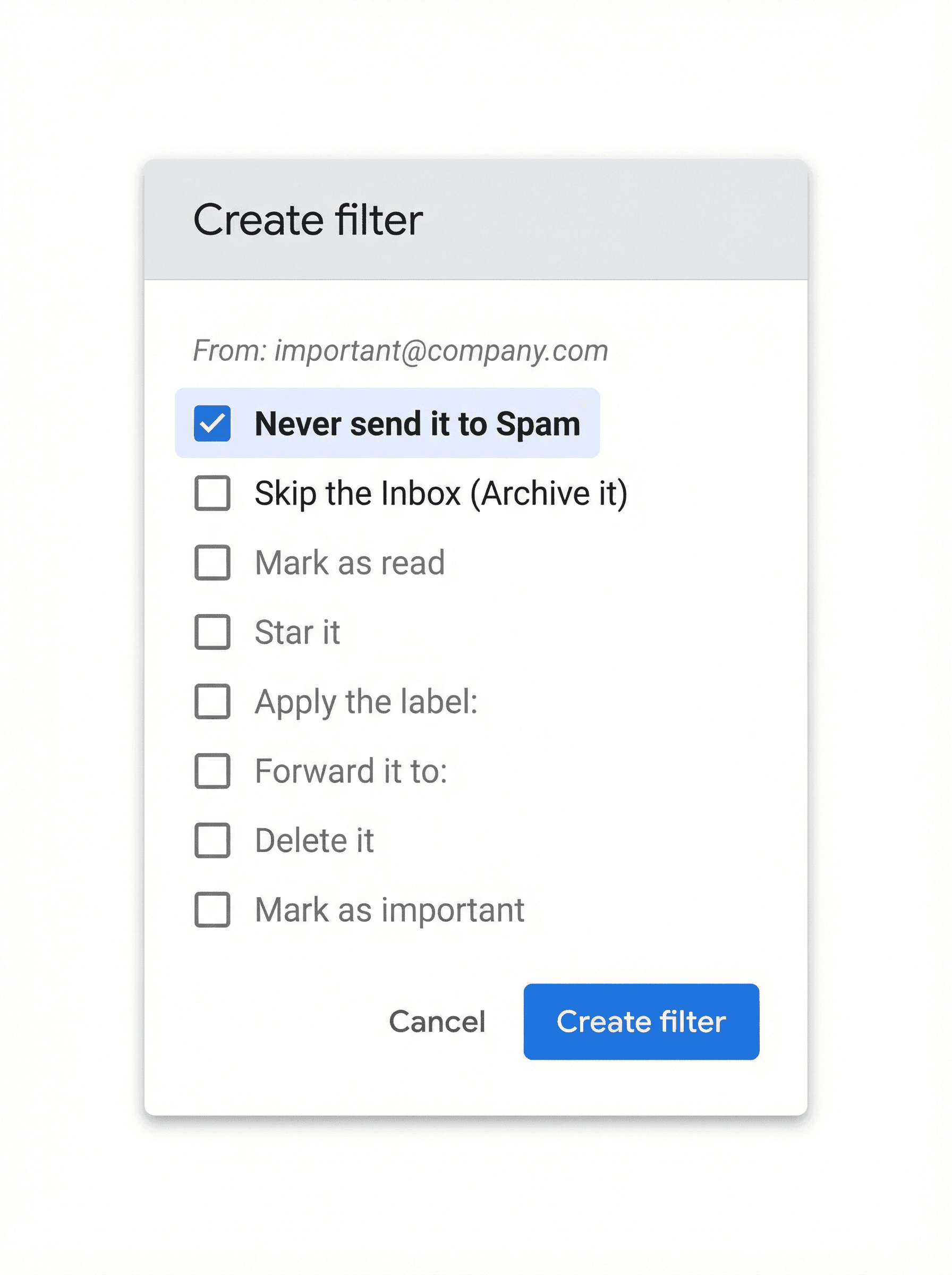
Click Create filter.
-
Check the box for Never send it to Spam.
-
Click Create filter again to confirm.
(Steps from Google's Gmail help)
The shortcut most guides skip: if you already have a message from the sender in your inbox, you can open it (or select it), click More, and choose Filter messages like these. Gmail officially supports building a filter this way, and it pre-fills the From field for you. It's faster than starting from the search bar.
Don't stop at "Never send it to Spam." Gmail's filter system can do much more than skip Spam. It can also apply a label, star the message, mark it as important, forward it, or categorize it. For a sender you truly care about, consider adding a Gmail label like "VIP" or "Clients" so those messages are easy to spot, not just safe from Spam.
| Filter Action | What It Does | When It's Useful |
|---|---|---|
| Never send it to Spam | Prevents Gmail from filtering to Spam | Every whitelisted sender |
| Apply a label | Tags the email with a custom label | VIP senders, clients, invoices |
| Star it | Adds a star for quick visual scanning | High-priority contacts |
| Mark as important | Tells Gmail this sender matters | Recurring important senders |
| Also apply to matching conversations | Retroactively applies to existing emails | Cleaning up past messages |
The catch with mobile: Google's help docs confirm that you need Gmail on a computer to create a filter. You can't do this from the Gmail mobile app on Android or iOS. If you only use Gmail on your phone, you'll need to briefly open Gmail in a mobile browser (request the desktop site) or use a computer. For a comparison of how Gmail behaves on different platforms, see Gmail mobile app vs desktop.
If your filters aren't behaving the way you expect after setting them up, check our Gmail filters not working troubleshooting guide.
How to Whitelist an Entire Domain in Gmail
Sometimes you don't just care about one email address. You care about everyone at a company.
Think about it: your payroll provider, a law firm handling your case, a recruiter's company, your university, or your client's entire team. You don't want to add each individual address to Contacts or create a separate filter for every person. You want to trust the whole domain. For more on managing email by domain and sender, see how to block emails from an entire domain. The same filter logic applies in both directions.
The process uses the same filter method from Method 3, but with different patterns in the From field.
Google's Workspace Learning Center uses domain-wide patterns like *@solarmora.com in their advanced Gmail filter examples, and Gmail's search logic supports combining addresses with OR. Google also recommends testing the search first before creating the filter, so you can confirm your rule actually catches the emails you mean to catch.
Here are the patterns you can use:
| Pattern | What It Matches | Example |
|---|---|---|
billing@company.com | One specific sender | A single billing contact |
billing@company.com OR support@company.com | Multiple specific senders | Two contacts at the same company |
*@company.com | Every address at that domain | An entire organization |
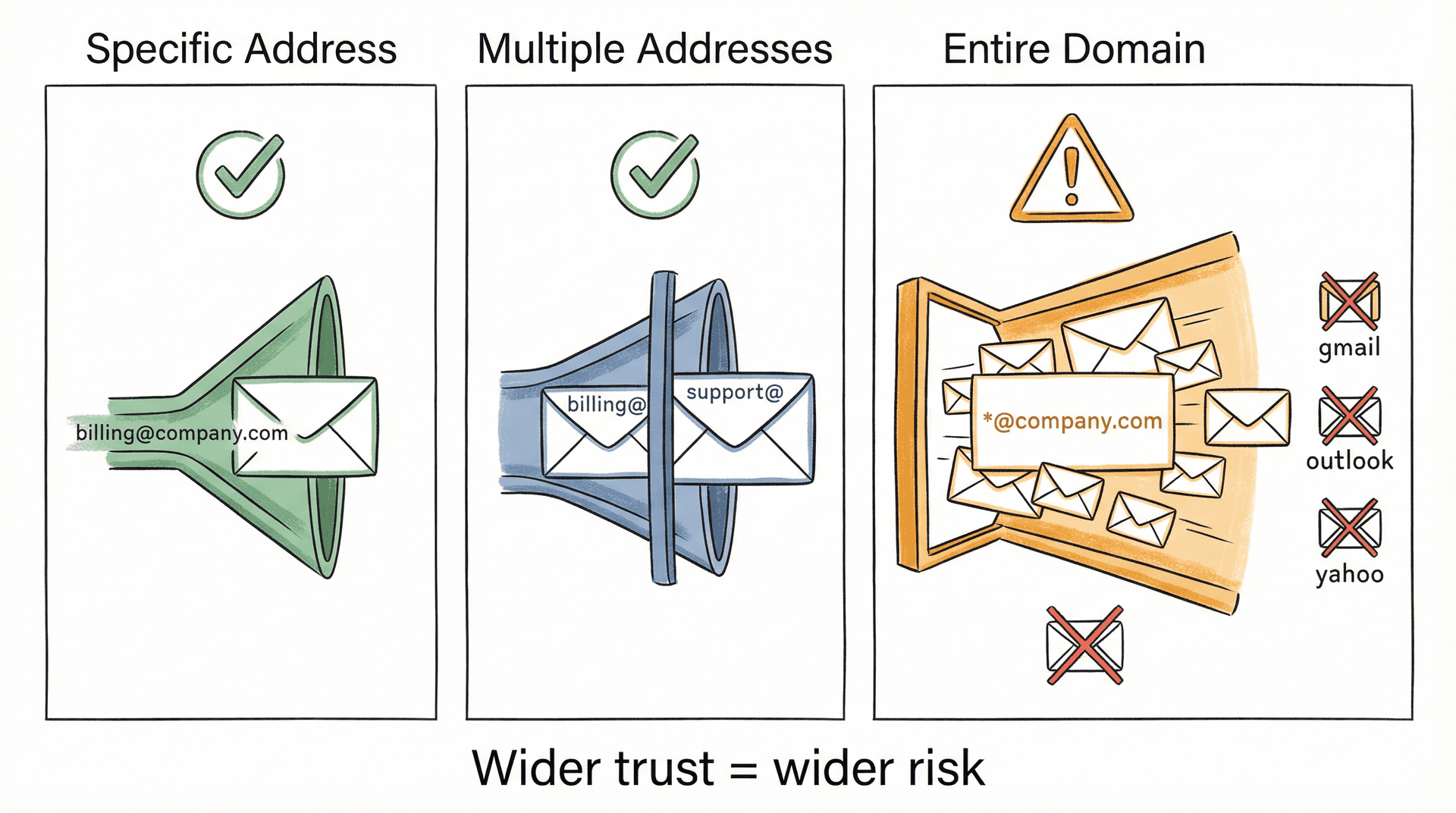
But domain whitelisting is powerful enough to backfire.
Google's admin documentation warns that approved-sender lists should include trusted senders only, because bypassing spam filtering reduces your protection. Google's phishing guidance also says you should not trust urgent or suspicious messages until you've independently verified the sender. So don't whitelist a domain just because an email from that domain asked you to. Verify first.
Domains you should never whitelist:
-
*@gmail.com -
*@outlook.com -
*@yahoo.com -
Any huge public email provider
-
Any company domain you only half-trust
The logic here is often missed: "I trust one person at that company" is not the same thing as "I trust every address that company could ever send from." One compromised account at that domain, and your whitelist becomes a doorway. This is one reason email management tips always emphasize caution with broad domain rules.
Why Gmail Still Sends Whitelisted Emails to Spam
This is the section most articles barely touch, and it's exactly where most "whitelisting didn't work" complaints actually come from. If you've tried the methods above and emails are still hitting Spam, one of these five things is probably the reason.
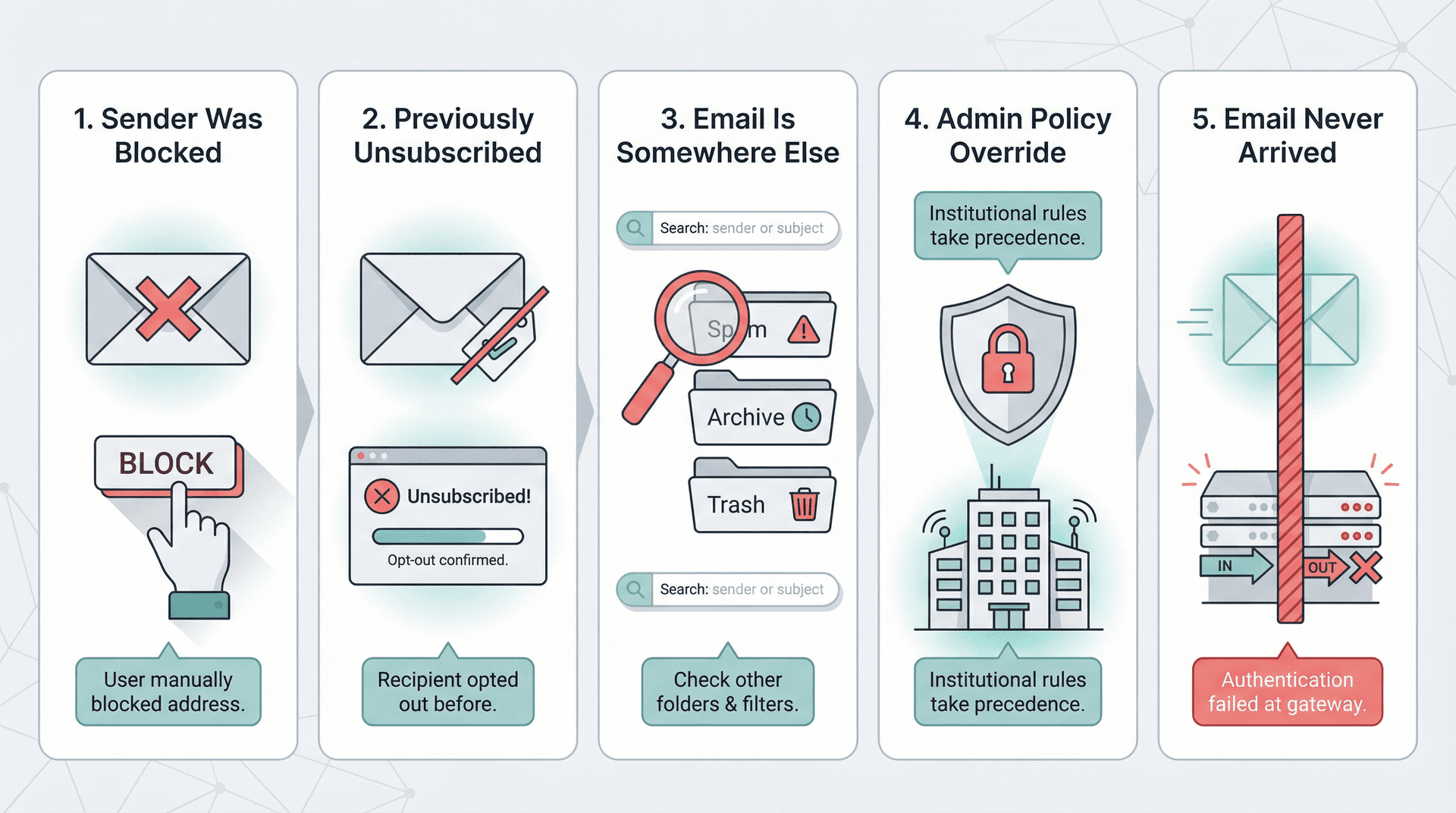
1. You Blocked the Sender Earlier
Gmail says blocked senders' future emails go directly to Spam. And the part people miss: if a sender is blocked, simply removing one of their emails from Spam isn't enough. You need to unblock them first.
You can unblock from the message itself (open it and look for the unblock option), or go to Settings > See all settings > Filters and Blocked Addresses to find and remove the block. If you've been accidentally blocking entire domains, see how to block emails from an entire domain, which covers reversing domain-level blocks too.
2. You Unsubscribed From Them Before
This one catches people off guard.
Google confirms that if someone sends you an email after you've unsubscribed, their messages go directly to Spam. If you changed your mind and actually want those emails again, Google says to find one of their messages in Spam and mark it as "Not spam." Before getting to that point, it's worth having a smarter approach to unsubscribing in the first place. Inbox Zero's bulk email unsubscriber lets you review senders and reading habits before committing to an unsubscribe, so you don't accidentally cut off something you'll want later.
If you're regularly wishing you hadn't unsubscribed from something, it may be time to manage your email subscriptions more deliberately from the start.
3. The Email Isn't Missing, It's Just Somewhere Else
Before assuming Gmail "lost" a message, search for it properly. Use this search query:
in:anywhere from:sender@example.com
Google says in:anywhere searches across your entire Gmail account, including Spam and Trash. It's the fastest way to find out whether the message exists anywhere in your account. If it shows up in a tab, a label, or an archive, it was never really "lost." For more on how Gmail's archive and all-mail features work, see Gmail All Mail vs Archive.
4. Your Work or School Admin Is Overriding You
If you use Gmail through a company, school, or other organization, Google says your admin may have set policies that mark certain messages as spam. Your personal whitelist actions can't override admin-level policies. In this case, you'll need to contact your IT admin or Workspace administrator directly. For teams managing a shared Gmail environment, shared inbox management covers these admin-level conflicts and how to work around them.
5. The Email Never Reached Gmail in the First Place
This is the blind spot most people miss entirely.
Your whitelist only helps with messages that Gmail actually received. If the message is nowhere in your account (even when searching with in:anywhere), the problem is on the sender's side, not yours.
Google explicitly states that Google and Gmail don't accept allowlist requests from email providers. A sender can't just ask Google for special treatment. They need to send properly authenticated, compliant email. For a deep dive into why emails end up rejected or routed to spam before they reach your inbox, see why emails go to spam instead of inbox.
This became even more important after Google's bulk sender rules took effect. Starting in February 2024, Google required bulk senders to authenticate email and meet unsubscribe and spam-rate standards. Enforcement on non-compliant traffic ramped up starting November 2025. Google defines bulk senders as those sending roughly 5,000 messages per day to personal Gmail accounts, and the threshold is strict: keep user-reported spam below 0.1% and never exceed 0.3%.
So if someone tells you "my emails aren't reaching you," the answer might not be whitelisting on your end. It might be that their email infrastructure needs fixing on their end.
How to Whitelist Emails in Google Workspace (Admin Guide)
The three methods above cover personal Gmail accounts and individual users within a Workspace. But if you're a Google Workspace admin, you have an additional, organization-wide option.
Google lets admins create custom spam filters with approved senders lists through this path:
→ Admin console > Apps > Google Workspace > Gmail > Spam, Phishing and Malware
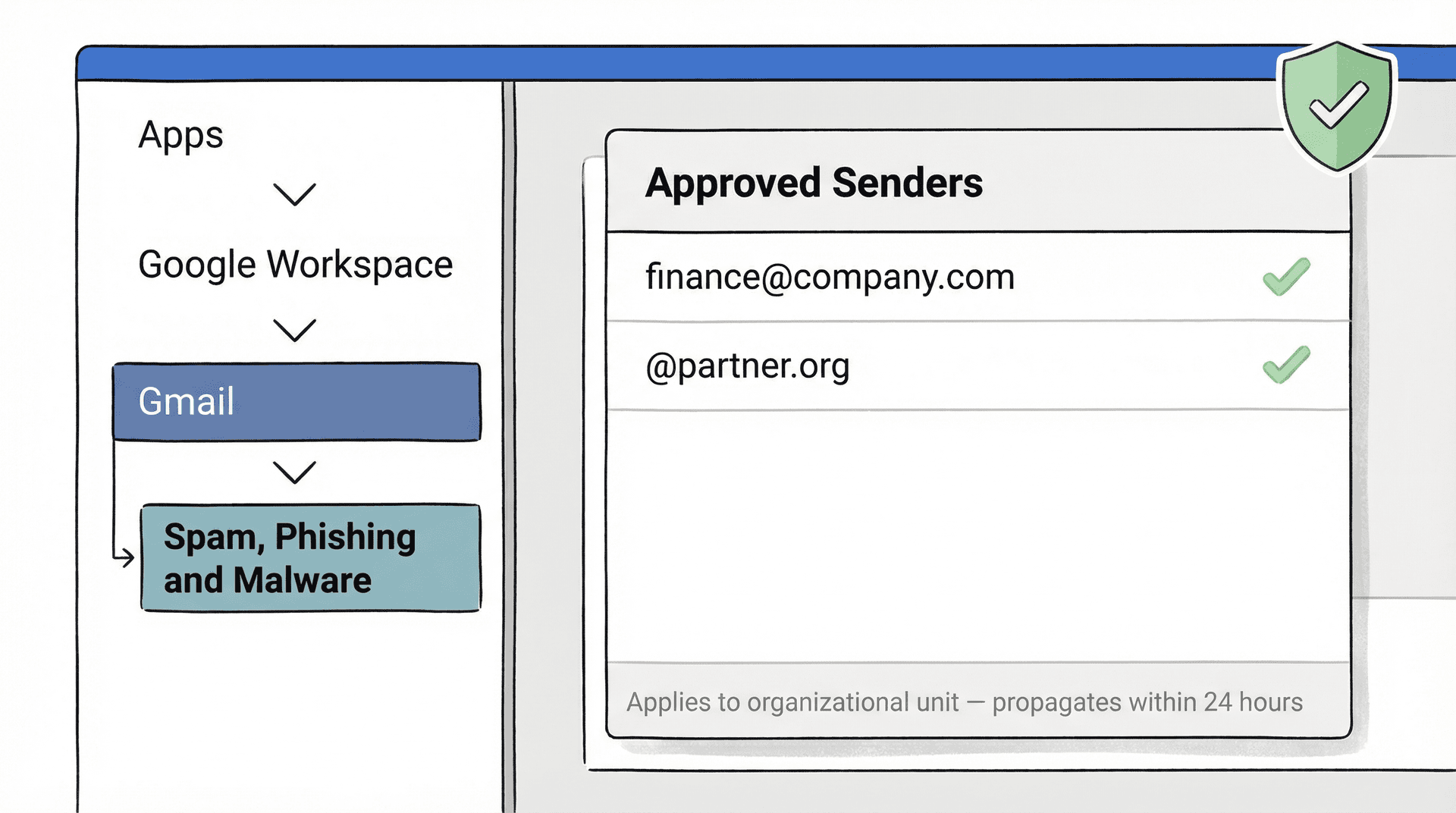
Google's admin documentation confirms these lists can include individual email addresses or entire domains, they apply at the organizational unit level, and they typically propagate within 24 hours. There's also a separate Email allowlist setting specifically for public sending IPs, useful when you need to allow mail from a specific mail server rather than a specific address.
Both of these Google admin help pages were last updated March 16, 2026.
One important nuance: even approved senders aren't a total bypass. Google notes that messages from approved senders can still be blocked if they contain a virus or are part of a larger attack pattern. That's actually a good thing. An allowlist should reduce false positives, not become a security blindfold.
For teams looking to establish proper email governance, see email management services for options that pair well with Workspace admin policies.
If whitelisting is only one part of a bigger inbox problem at the org level, how to reduce email overload in organizations covers practical tactics for enterprise teams. You can also compare email management software options to find what fits your team's scale.
Beyond Whitelisting: How to Make Important Emails Easy to Find
Stopping Spam is not the same as making a sender easy to find. That distinction matters more than most people realize.
"Never send it to Spam" solves the spam problem. But it doesn't automatically create a persistent view for that sender in your inbox. Their messages still land in whatever tab or category Gmail chooses, mixed in with everything else. So if the sender is truly important, you need to pair your whitelist with something that gives you visibility. This is a core part of the inbox zero method: getting emails out of spam is step one, but organizing what lands in your inbox is what makes the system actually work.
Gmail's filter system supports labels and other actions for exactly this reason. When you create a filter with "Never send it to Spam," take the extra step and add a label too. "VIP," "Clients," "Billing." Whatever makes sense for you. For a full guide to how labeling and organizing emails works in Gmail, see how to manage your inbox.
But if you want to take this a step further, this is where Inbox Zero becomes genuinely useful.
Organize Whitelisted Senders with Inbox Zero Tabs for Gmail
We built Inbox Zero Tabs for Gmail, a free browser extension that adds custom tabs to Gmail using any Gmail search query. Our documentation describes it as 100% private, with all settings stored locally and no data collection or tracking. The current Chrome Web Store listing confirms the extension was updated March 16, 2026.
Once you've whitelisted a sender, you can create a dedicated tab for queries like from:billing@vendor.com or from:*@vendor.com. Instead of hunting through your inbox, those emails are always one click away in their own tab. It brings a split inbox experience to regular Gmail without replacing your email client. If your Gmail tabs aren't showing up correctly after setting this up, see Gmail tabs not working fix.
Some practical tab setups after whitelisting:
-
"Invoices" tab with
from:billing@vendor1.com OR from:billing@vendor2.com -
"Client Updates" tab with
from:*@clientdomain.com -
"Payroll" tab with
from:payroll@yourcompany.com -
"To Reply" tab showing emails you haven't responded to yet
The Inbox Zero platform handles the full picture: whitelisting keeps the right mail in, while the AI assistant manages everything else so your inbox stays actionable.
AI Email Management: Automate Your Inbox Beyond Whitelisting
Whitelisting solves one specific problem: keeping trusted senders out of Spam. But if you're dealing with a crowded inbox, whitelisting alone won't cut it. That's where a smarter approach to AI email management can make a real difference.
Inbox Zero's AI email assistant can automatically label incoming mail, draft replies, and block cold outreach. You describe how you want your email handled in plain English, and the AI converts that into rules that run on every incoming message. It works directly with Gmail through Google's API, so you don't have to leave your inbox.
You can also bulk unsubscribe from newsletters you never read, and use Inbox Zero's AI automation to turn plain-English instructions into filters and actions automatically.
If you've spent time creating filters and whitelisting senders, Inbox Zero's clean inbox tools pick up where that effort leaves off, handling the rest of your email management so you can actually reach inbox zero. For a comprehensive look at what's possible, see mastering email productivity.
Try Inbox Zero free and take control of your entire inbox, not just your Spam folder.
Gmail Whitelisting FAQ
What's the best way to whitelist an email in Gmail?
For a truly critical sender, Google's guidance supports using all three methods together: mark one message as Not spam, add the sender to Google Contacts, and create a filter with "Never send it to Spam." That gives Gmail both learned trust signals and a hard rule. For a broader approach to making sure important mail gets through, see email management tips.
Can I whitelist an email in the Gmail mobile app?
Partially. On Android and iPhone/iPad, you can remove a message from Spam and add the sender to Contacts. But Google confirms that creating a filter still requires Gmail on a computer. If you only use mobile, try requesting the desktop site in your mobile browser to access filter creation. For a full breakdown of what you can and can't do on mobile vs desktop, see Gmail mobile app vs desktop.
Can I whitelist an entire domain in Gmail?
Yes. Create a Gmail filter and use the pattern *@company.com in the From field. For Google Workspace admins, you can also use approved-sender lists or an IP allowlist for organization-wide handling. And if you ever need to block an entire domain instead, the same filter logic applies. See how to block emails from an entire domain.
Does whitelisting force emails into my Primary tab?
Not necessarily. Gmail's whitelist actions prevent Spam placement, but they don't control which tab (Primary, Social, Promotions) your email lands in. For extra visibility, use filter actions like labels or stars in addition to "Never send it to Spam." Or use Inbox Zero Tabs for Gmail to create a custom tab for that sender. For more on how Gmail tabs and categories work, see Gmail tabs not working fix.
Can a company ask Google to whitelist them?
No. Google explicitly states that Gmail doesn't accept allowlist requests from email providers. Sender-side compliance (proper authentication, clean lists, and low spam rates) matters more than asking for a blanket exception. For senders who want to understand why their email keeps landing in spam, see why emails go to spam instead of inbox.
Which Gmail Whitelist Method Should You Use?
Most people need one of two fixes:
-
"Not spam" when the message is already buried in your Spam folder
-
A filter when the sender is too important to leave to Gmail's guesses
Adding the sender to Google Contacts sits in the middle as the easiest proactive trust signal.
And when none of the three methods solve the problem, don't assume Gmail is being random. Check whether the sender was blocked, whether you unsubscribed earlier, whether your admin is overriding your mailbox settings, and whether the email ever actually reached Gmail. Those are the real failure points, not a broken whitelist. For a thorough year-end cleanup that covers whitelisting, blocking, and inbox hygiene all at once, see the year-end email cleanup checklist.
For deeper follow-up, check out our related guides: Gmail Filters Not Working? How to Fix Them (2026) and how to manage your inbox.
And if you're ready to go beyond whitelisting and actually manage your inbox, give Inbox Zero a try. It's free to start.
Steps in this guide were verified against Google Help documentation on March 20, 2026. Google Workspace admin allowlist pages were last updated March 16, 2026.

Relay.app Is Shutting Down: Deadlines, Data Export, and Alternatives
Relay.app is shutting down in 2026. See the deadlines for free and paid users, what to export, and which alternatives fit your email and automation workflows.
2026-07-16T18:46:02Z

Best AI Email Assistants in 2026 (Tested)
The best AI email assistants in 2026, tested and compared. Honest pros, cons, and pricing for Inbox Zero, Superhuman, Fyxer, Shortwave, Lindy, Missive, SaneBox, Serif, Perplexity, Gemini in Gmail, and Microsoft Copilot, with picks by use case.
2026-07-05T08:00:00Z

Top 16 Email Management Software of 2026
Discover the top 16 email management software of 2025 designed to boost productivity and simplify your inbox.
2026-06-24T09:00:00Z
7 Best Fyxer Alternatives in 2026
The best Fyxer.ai alternatives in 2026, compared. AI email assistants, team inboxes, and inbox cleaners, with honest notes on price, features, and who each one is for.
2026-06-01T08:00:00.000Z