Employee Email Offboarding Checklist for IT Teams (2026)
The employee email offboarding checklist IT teams need: universal steps, Google Workspace and M365 runbooks, copy-paste templates. Preserve first.

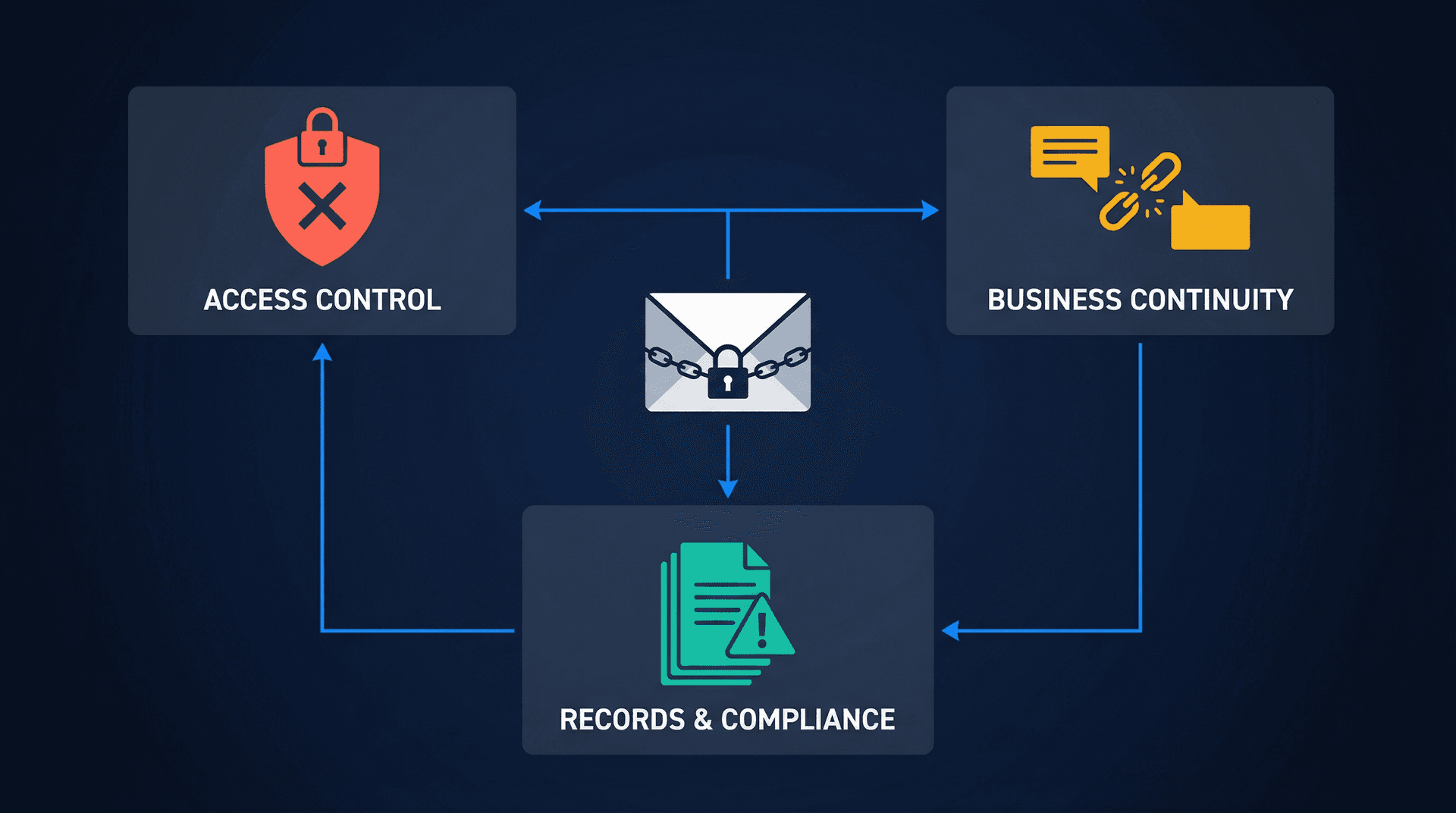
When someone leaves your company, their inbox instantly becomes three problems at once. It's an access control problem (the former employee can't get back in). It's a business continuity problem (customers and vendors will keep emailing that address for weeks or months). And it's a records problem (you may need to retain or produce those messages for legal, compliance, or HR reasons later).
Most employee email offboarding checklists only handle the first one. They tell you to disable the account and call it done. But the real disasters happen in continuity and records: broken handoffs where client emails vanish into a suspended mailbox, silent forwarding rules that keep leaking data, or someone deleting an account and accidentally destroying retention protections that legal was counting on. A solid email retention policy template is the foundation that prevents most of these disasters.
This guide is the runbook we wish every IT team had from day one. It covers the universal checklist that works for any mail platform, then drops into exact provider workflows for Google Workspace and Microsoft 365, complete with admin console paths, common traps, and copy-paste templates you can use on day zero.
The 3 Email Offboarding Outcomes You Need to Choose Between
Before you click a single admin button, you need to make one strategic call. Everything downstream depends on it, and getting it wrong means undoing work later.
| Outcome A: Continuity Takeover | Outcome B: Compliance Retention | Outcome C: Full Removal | |
|---|---|---|---|
| Goal | Someone reads and replies to new inbound mail | Preserve mailbox content for legal/compliance | Delete the account after transferring what the business needs |
| New mail delivery | Yes, routed to a person or team | No (mailbox is inactive or archived) | No (address stops working) |
| License cost | Varies by approach (shared mailbox, routing, or kept active) | Reduced (archived user or inactive mailbox) | Zero after deletion |
| Typical duration | 2 to 12 weeks (sometimes longer for customer-facing roles) | Months to years depending on retention policy | Immediate after data transfer |
| Primary risk | Unclear ownership of replies | Data purge if hold isn't applied before deletion | Premature deletion destroying data or breaking continuity |
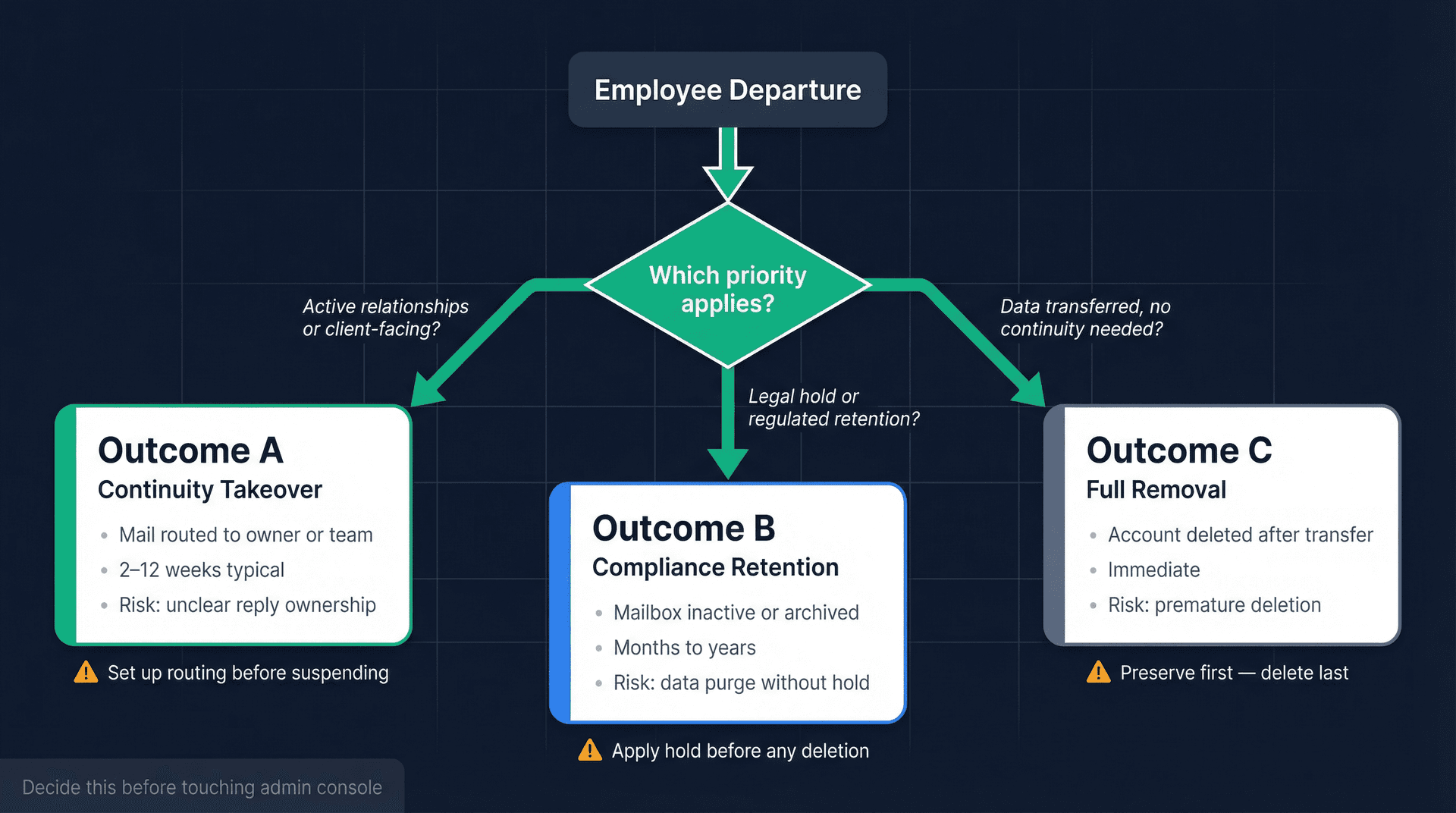
Both Google Workspace and Microsoft 365 support all three outcomes, but the mechanics are different enough that you'll want to follow the platform-specific runbook for your environment.
Outcome A is what you'll pick when the departing employee had active client relationships, was the billing contact for key vendors, or managed a project inbox that other people depended on. Somebody needs to actually monitor that address.
Outcome B is the right call when legal or compliance requires retention, but nobody needs to use the mailbox going forward. Think terminated employees under investigation, departures during litigation holds, or industries with regulated retention windows. Understanding your eDiscovery and email preservation obligations is essential before making this call.
Outcome C sounds simple, but it's the one that causes the most damage when done too early. We'll get into why in the platform-specific sections below.
Universal Email Offboarding Checklist: Steps That Work on Any Platform
This checklist works regardless of whether you're on Google Workspace, Microsoft 365, or anything else. Use it as your master sequence, then follow the platform-specific runbook for exact steps.
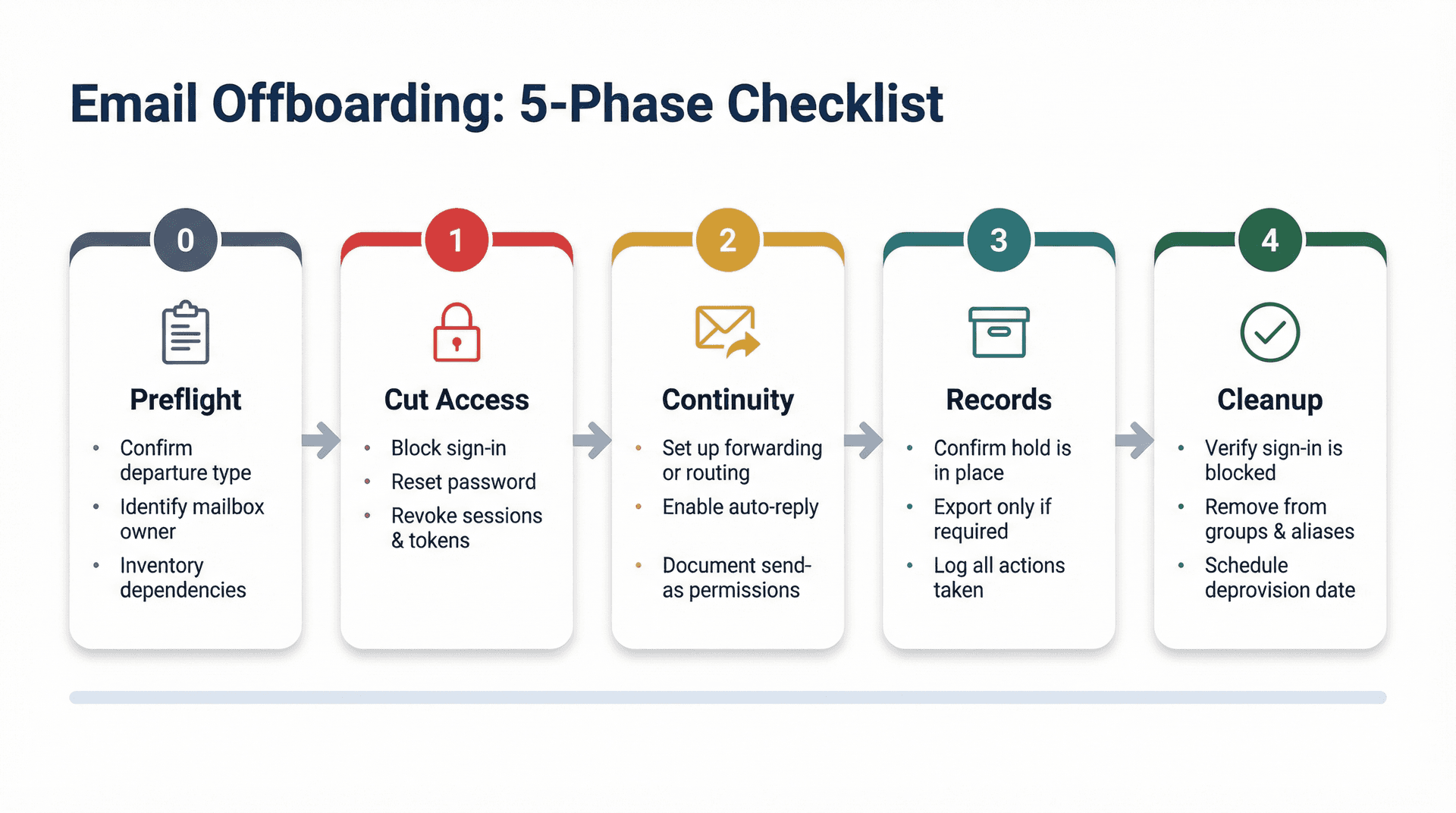
Before You Start: Email Offboarding Preflight Checklist
Do this before you change a single setting. It takes 10 minutes and prevents most of the "oh no, we forgot" moments.
First, confirm the departure type. Is this a planned resignation with two weeks' notice, or an immediate termination? The answer changes your timing and communication plan completely.
Next, identify who owns the mailbox after departure. Their manager? A team lead? A shared mailbox or ticketing system? If nobody claims ownership now, nobody will claim it later either.
Then decide your retention requirement. Are you following standard policy, under a legal hold, or dealing with regulated retention? This maps directly to Outcome A, B, or C.
The step people skip (and the one that bites hardest) is inventorying critical dependencies. You need to check for company-wide aliases and distribution groups the user belongs to, vendor accounts that use this email as the login or recovery address, external auto-forwarding rules like inbox rules or transport rules, and third-party OAuth apps with mailbox access such as CRM sync tools, automation platforms, and email assistants. Understanding whether it's safe to connect third-party apps to Gmail is critical context here.
Finally, write down the exact time you'll cut access. Your audit log and HR team will thank you later.
How to Immediately Revoke Employee Email Access
This phase is non-negotiable. Do it in this order:
-
Block sign-in or suspend the account immediately.
-
Reset the password (even if you blocked sign-in, do it anyway as defense-in-depth).
-
Revoke all sessions and tokens (browser sessions plus OAuth refresh tokens).
-
Revoke MFA methods, app passwords, and security keys.
-
Remote wipe or remove corporate data from managed devices.
Google explicitly lists these as best practices for admins when a user leaves, per their Workspace admin help documentation.
Don't stop at "block sign-in." Sessions and tokens can persist for up to an hour (sometimes longer with SSO). Always revoke tokens and reset cookies as separate, deliberate steps.
How to Set Up Email Continuity After Employee Departure
If you picked Outcome A, you need to set up mail handling now.
You have several handling patterns to choose from: forwarding incoming mail to the designated owner, converting the mailbox to a delegated or shared inbox in Microsoft 365, routing mail via server-side routing rules in Google Workspace, or renaming the user and creating a group at the old address (the "best of both worlds" approach in Google Workspace).
Set an auto-reply with both internal and external versions. We've got templates at the end of this post.
Before anyone starts responding from the departed employee's address, make replies auditable. Document who has read access, who has send-as permission, and where sent items are stored.
How to Preserve Employee Email Records for Compliance
If you have any retention or compliance requirement, this step must happen before you delete anything.
Confirm retention or hold is in place before deletion (if deletion is planned later). Export mailbox content only if required (Google Vault export or Microsoft Purview content search), and log who exported what and why. Knowing how to export all Gmail emails before deleting an account is a prerequisite for this step. If your industry has specific compliance rules, review your obligations under GDPR email deletion requirements and SOX email audit trail requirements as applicable.
Final Cleanup: Verifying Your Email Offboarding Is Complete
This is where you make sure nothing slipped through.
Verify the former employee cannot sign in. Test it. Don't assume it. Send test messages to the old address to confirm forwarding or routing works correctly (for Outcome A) and to confirm the auto-reply fires and isn't oversharing. Remove the user from groups, aliases, and mailing lists as required. Then schedule the final deprovision date for license removal, archiving, or deletion.
Google Workspace Email Offboarding Guide (2026)
How to Lock Down a Departing Employee's Google Workspace Account
Google's admin guidance for a departing employee is refreshingly direct. Their recommended sequence: wipe managed devices, revoke recovery methods, change the password, revoke OAuth tokens, reset sign-in cookies, revoke security keys and app password access, then delete the account when you're ready. Per Google's Workspace admin documentation, this workflow was last updated February 26, 2026.
A nuance that people miss: changing a user's password automatically revokes OAuth 2.0 tokens for certain Google products, and third-party mail clients like Apple Mail or Thunderbird will stop syncing until reauthorized. That's one reason the password reset is a real security control, not just a formality. If you run into sync issues afterward, check this Gmail not syncing troubleshooting guide for common recovery steps.
The "why is Gmail still open?" problem comes down to a few things. Resetting sign-in cookies signs the user out across devices and browsers. If you've already suspended the user, Google typically resets cookies automatically, so you may not need a separate step. But if you use SSO with a third-party identity provider, the IdP session can still allow access unless you terminate it on that side too. Per Google's documentation, it can take up to an hour to fully sign a user out of current Gmail sessions.
If you want to script sign-outs, Google's Directory API exposes users.signOut, which signs out web and device sessions and resets sign-in cookies in one call.
Google Workspace Mailbox Retention Options for Former Employees
Google's "Options to preserve former employee data" guide is the best high-level map here. It lays out preservation options across products (email, calendar, Drive) and includes email-specific routes like Vault, migration, archived user licensing, forwarding, and renaming accounts. This documentation was last updated February 26, 2026.
Option 1: Archive the user (Outcome B, or Outcome A with a separate continuity plan)
Google's "Archive former employee accounts" documentation makes the tradeoff crystal clear. Archiving assigns the Archived User license and blocks sign-in. Per Google's official Workspace licensing documentation, the active Workspace license becomes available to reassign within 24 hours. The key limitation: archived users cannot receive new email. Messages to the archived account get blocked.
So archiving is excellent for retention, but it's not a continuity solution by itself. For organizations in regulated industries, pair your archiving strategy with a comprehensive email retention policy to ensure you're meeting your legal obligations.
Option 2: Suspend the user temporarily (short-term bridge for Outcome A)
Suspension blocks access and resets sign-in cookies while keeping the mailbox "alive" enough for continuity patterns like routing. It's often the simplest short-term bridge while you configure forwarding or transfer ownership. Be aware that Google's Vault guidance notes that suspended accounts are billed the same as active accounts.
Option 3: Delete the user (Outcome C)
This is the cleanest final state, but it has traps.
Per Google Vault's official documentation, if you delete or remove a user and you use Vault, retention rules and holds no longer apply to the user's data. The data can be purged immediately, and it's not recoverable even if you restore the user within 20 days. This warning was last updated February 26, 2026.
If you're in any environment with retention requirements, treat "delete user" as a controlled, final step. Not the first click.
3 Ways to Keep Email Flowing in Google Workspace After Departure
You've got three practical patterns. Pick the one that fits your situation.
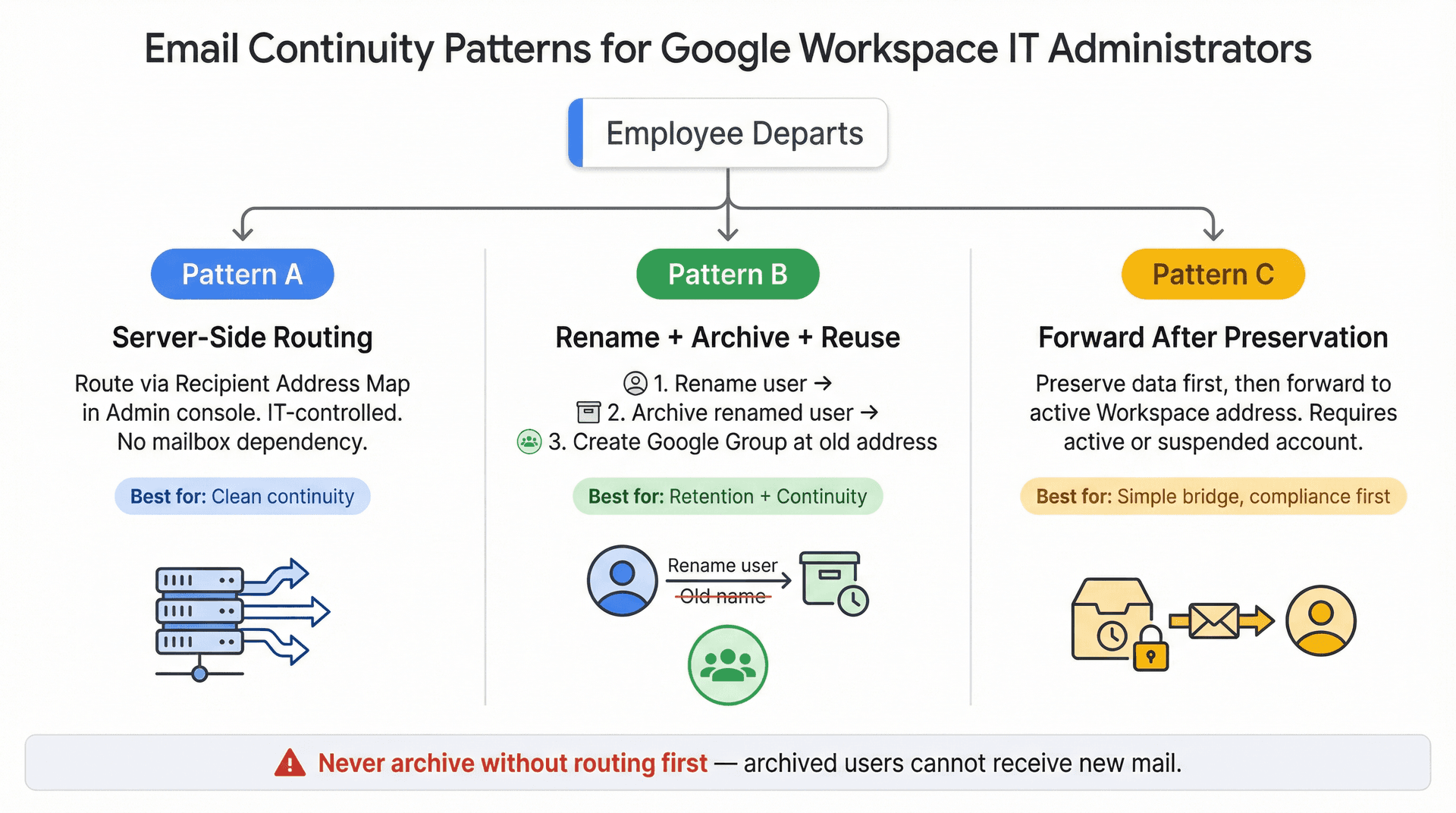
Pattern A: Server-side routing (recommended for clean continuity)
Google provides a concrete admin workflow to redirect Gmail messages using a Recipient address map:
Admin console path:
Apps > Google Workspace > Gmail > Routing > Recipient address map > Add mapping
This documentation was last updated February 28, 2026. This is the "IT-friendly" approach because it doesn't depend on the user's own mailbox settings.
Pattern B: Rename the user, then re-use the old address
This is the "best of both worlds" play when you need retention plus continuity. Rename the user (this frees up the original email address), archive the renamed user (for retention), then create a Google Group at the original address and deliver mail to the team or manager.
Google explicitly lists "Rename a user account" and "Email forwarding" as admin options when preserving a former employee's email. This approach avoids the archived-user limitation (no new mail) while keeping records safe.
Pattern C: Forward after preservation
Google's preservation options documentation notes that "after preserving any email data, you can forward a user's email to another Google Workspace address." This works only if you keep the user active or suspended (not archived), or you have routing already configured.
How to Revoke Third-Party App Access in Google Workspace
Even after the employee is gone, their mailbox can still be reachable by apps that were previously authorized. CRM integrations, automation tools, calendar sync apps, you name it. This is exactly the kind of risk covered in depth when you understand the security implications of connecting apps to Gmail.
Google's Admin console lets you control app access to Workspace data via:
Security > Access and data control > API controls > Manage App Access
You can set apps to Trusted, Limited, Specific Google data, or Blocked. As an offboarding best practice, review "accessed apps" on every departure and block anything that shouldn't persist.
Google Vault and Departing Employees: What You Must Know
Google Vault's "Preserve data for users who leave" documentation says it plainly: don't delete the account if you need Vault retention. It recommends assigning an Archived User license and notes that suspended accounts are billed the same as active ones.
Separately, per Google Vault's guidance on data holds, deleting a user with data on hold can cause that data to become unprotected and potentially purged, even if you can restore the account within 20 days.
If your company operates under specific compliance frameworks, also review FedRAMP email requirements for government contractors or HIPAA-compliant email best practices depending on your industry.
If you want a single rule for Google Workspace offboarding: don't delete first. Preserve first.
Microsoft 365 Email Offboarding Guide (2026)
Microsoft's official "Remove a former employee from Microsoft 365" documentation is unusually thorough. It breaks the process into steps, calls out the common traps, and covers the full lifecycle. Per Microsoft's official offboarding documentation, the latest update was January 5, 2026.
How to Immediately Block a Former Employee in Microsoft 365
Microsoft's recommended first actions: reset the password and sign out of all devices and sessions. Know that access tokens may remain valid for about an hour, so forced sign-out isn't always instant. Also be aware that per Microsoft's own documentation, blocking sign-in can take up to 24 hours to fully apply.
If you use Microsoft Graph PowerShell, the Revoke-MgUserSignInSession cmdlet handles session revocation. You can pass the UPN directly as the UserId.
Microsoft 365 Email Continuity Options for Departed Employees
Option 1: Convert the mailbox to a shared mailbox
Microsoft's guidance says you can convert a user mailbox to a shared mailbox, and if the mailbox is under 50 GB, you can typically remove the license. Exact limits and licensing can vary by tenant and features, so verify in your environment.
Then configure shared mailbox settings in the admin center:
Teams & groups > Shared mailboxes
Configure forwarding and automatic replies from there. This admin center documentation was last updated February 3, 2026. For best practices on ongoing management once the mailbox is live, the shared mailbox management guide covers the common pitfalls.
Microsoft explicitly warns that forwarding to external recipients does not stop messages flagged as spam, phishing, or malware from being forwarded. The receiving end needs its own filtering.
Option 2: Forward the former employee's email
Microsoft supports this, but with a critical caveat: if you set up email forwarding or convert to a shared mailbox, don't delete the account. The account serves as the "anchor" for these settings. Deleting it breaks your continuity plan. This is one of the most common offboarding mistakes.
How to Create an Inactive Mailbox in Microsoft 365
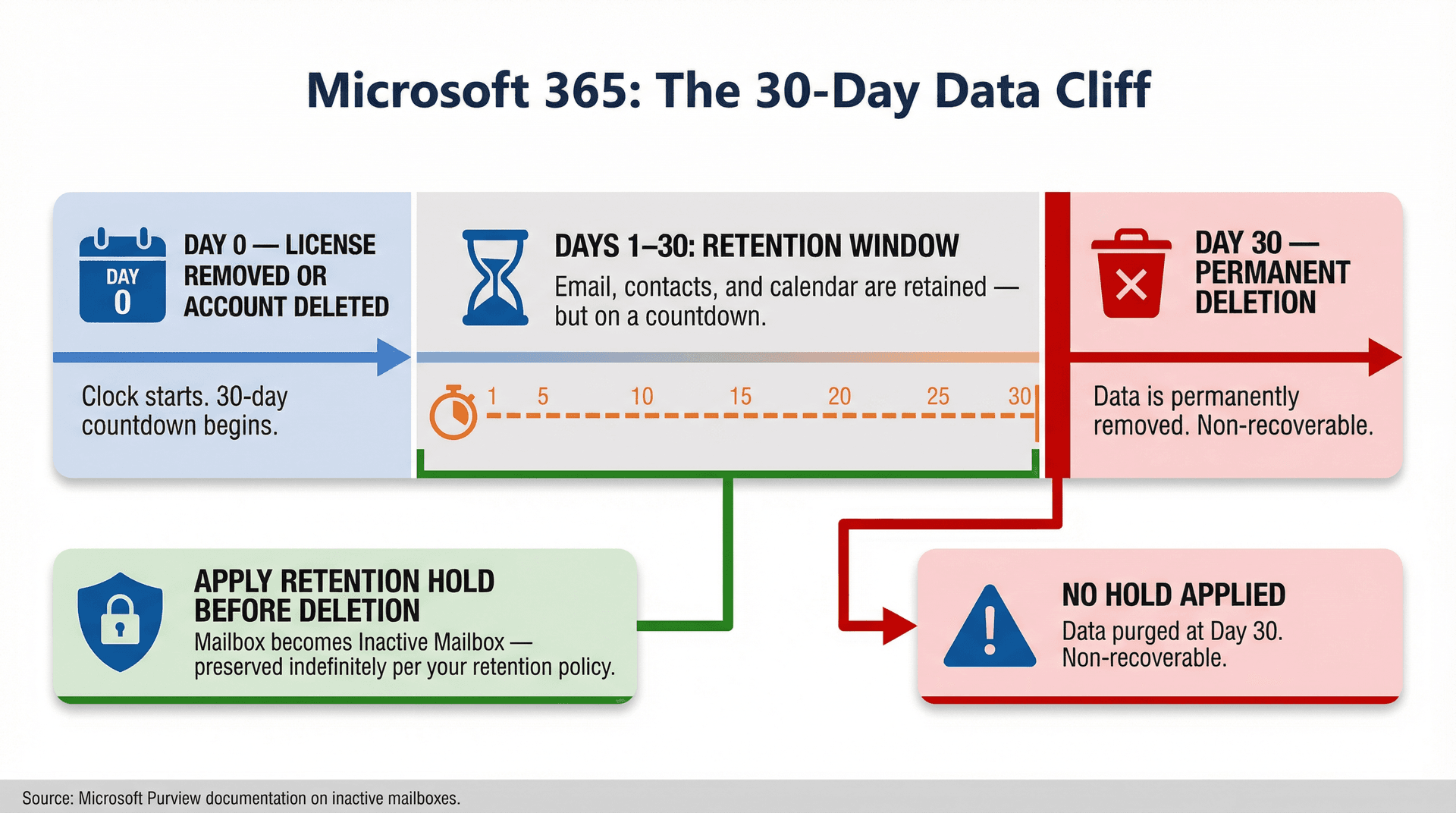
Microsoft Purview's documentation on inactive mailboxes explains the model. If an employee leaves and you remove their account, mailbox data is retained for 30 days by default. After 30 days, it's permanently removed. If a hold is applied before deletion, the mailbox becomes an inactive mailbox that persists beyond the 30-day window. Microsoft recommends doing this through retention policies or retention labels.
The practical takeaway: apply the retention or hold first, confirm it's applied, then delete or remove the account to convert it to an inactive mailbox.
For hands-on admin workflows around recovering, restoring, or deleting inactive mailboxes, Microsoft provides a separate "Create and manage inactive mailboxes" guide, last updated September 2025.
Microsoft 365 License Removal: The 30-Day Data Deadline
Per Microsoft's licensing guidance, if you remove or delete the license, the employee's email, contacts, and calendar are retained for 30 days and then permanently deleted.
So if your organization policy says "keep mail for 12 months," you must use retention holds (inactive mailbox) or the shared mailbox pattern. License removal alone won't cut it. This is also where having a documented email retention policy template pays off. It forces these decisions to happen before the pressure of an actual departure.
How to Set Up Auto-Replies for Departed Employees in Microsoft 365
For shared mailboxes, Microsoft documents how to enable automatic replies directly in the admin center. If you use Exchange PowerShell, Set-MailboxAutoReplyConfiguration is the canonical cmdlet. Key parameters include AutoReplyState and ExternalAudience.
5 Email Offboarding Mistakes IT Teams Make (And How to Avoid Them)
Every platform-specific runbook above is designed to help you avoid these. But they're worth calling out directly because we see them constantly.
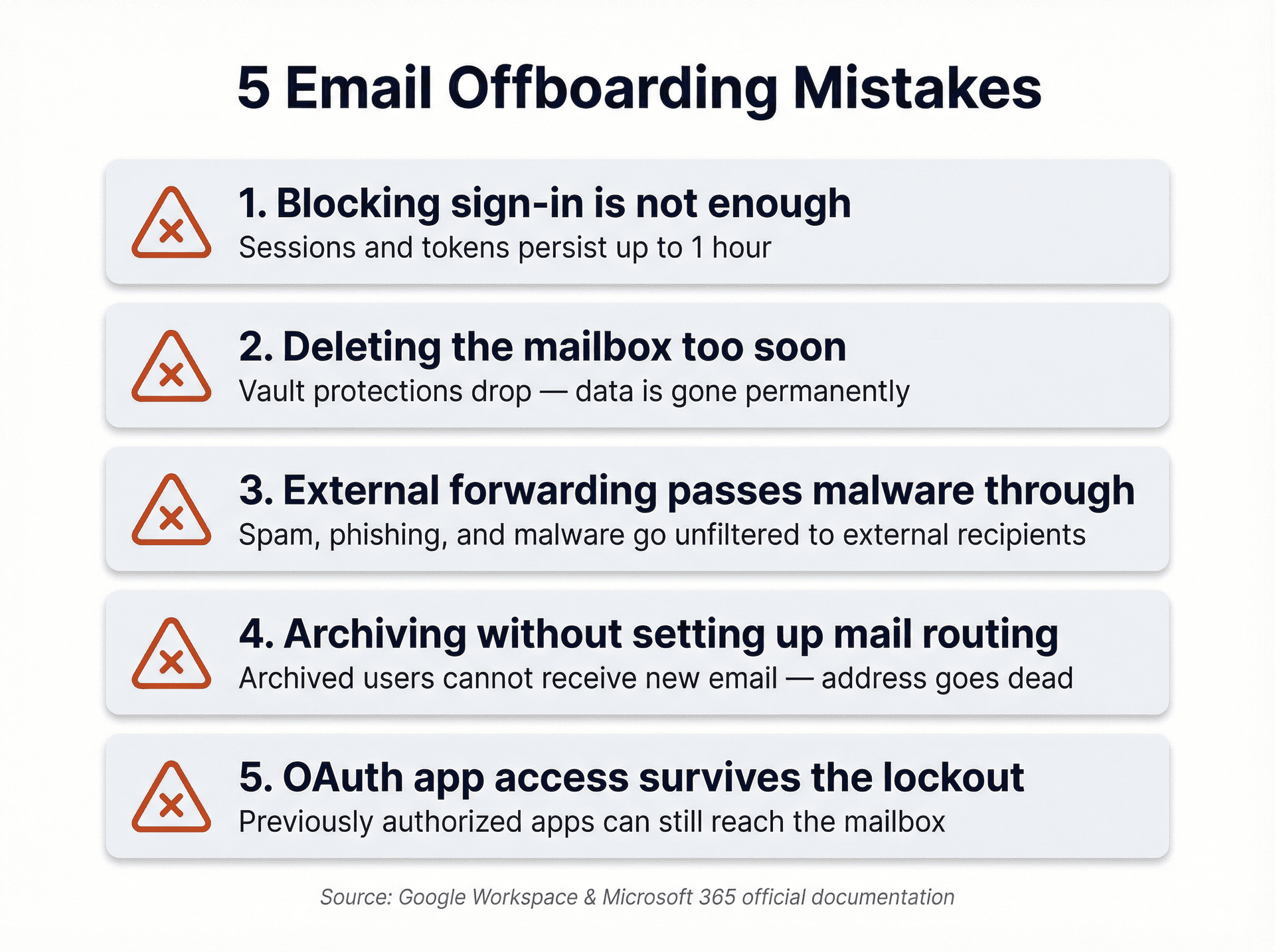
Mistake 1: Assuming Blocking Sign-In Is Enough
Sessions and tokens can persist for up to an hour on both Google and Microsoft. If you use SSO with a third-party identity provider, the IdP session adds another layer that needs terminating separately. The fix is simple: always do all three. Block access, revoke sessions and tokens, and terminate IdP sessions if applicable. Don't leave any of the three undone.
Mistake 2: Deleting the Mailbox Too Soon
| Platform | What Goes Wrong |
|---|---|
| Google Workspace | Deletion can drop Vault protections and lead to immediate, irrecoverable data purge |
| Microsoft 365 | Deletion breaks shared mailbox and forwarding configurations because the account is the "anchor" |
Make "delete" the absolute last step, never the first. Your email retention policy should define exactly when deletion is permissible.
Mistake 3: External Forwarding Is a Security Risk
Microsoft warns explicitly that external forwarding passes through spam, phishing, and malware. The external recipient gets whatever comes in, unfiltered. This matters especially when email-based tracking pixels get forwarded along with messages, a privacy risk that compounds when mail lands in external inboxes.
Prefer internal shared mailboxes, groups, or ticketing systems. If you must forward externally (which should be rare), require the recipient to have their own filtering and log the approval.
Mistake 4: Archiving Without Setting Up Mail Routing
In Google Workspace, archived users cannot receive new email. If you archive someone without setting up routing or a group first, incoming mail to that address just stops working. If you need the address to keep working, use routing or the rename-and-reuse pattern before archiving. The sequence matters. Get it backwards and you'll be untangling it under pressure.
Mistake 5: Forgetting to Revoke OAuth App Access
Even after you've locked the user out, third-party apps with previously authorized OAuth tokens can still reach the mailbox. This is an exfiltration risk that's easy to miss, and it's exactly the kind of threat covered in detail when you review the security risks of giving apps access to your email.
Make app access review a standard part of every offboarding checklist. In Google, use the API controls under Security. Block anything that shouldn't persist after departure. This one step prevents a category of data exposure that most IT teams don't even know to look for.
How Inbox Zero Makes Mailbox Handoffs Cleaner
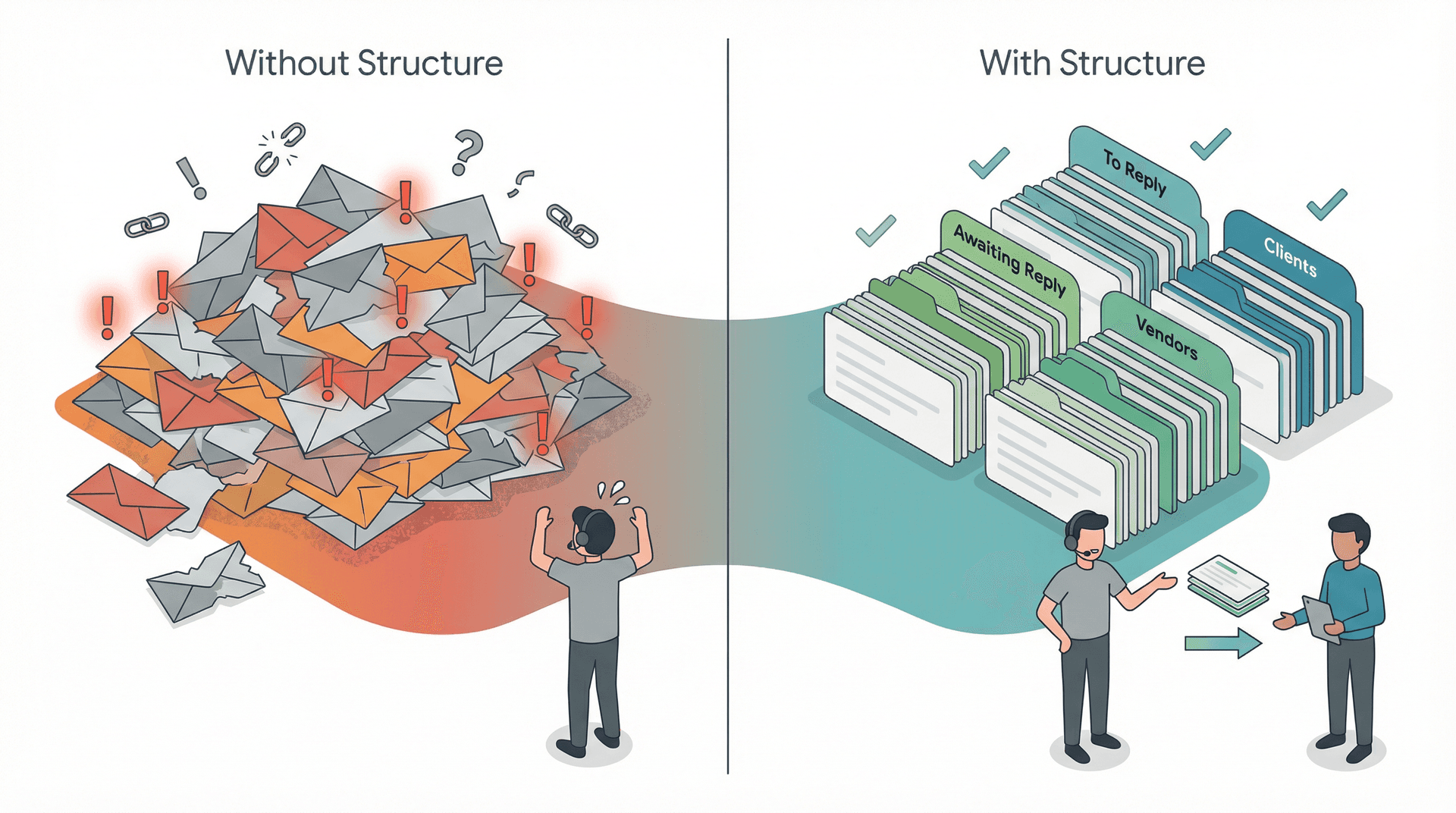
Here's a pattern we see over and over: the actual pain of email offboarding doesn't start when someone leaves. It starts months earlier, when their inbox becomes a tangled mess of personal threads, vendor negotiations, client conversations, and newsletter subscriptions with no structure, no labels, and no way for anyone else to make sense of it.
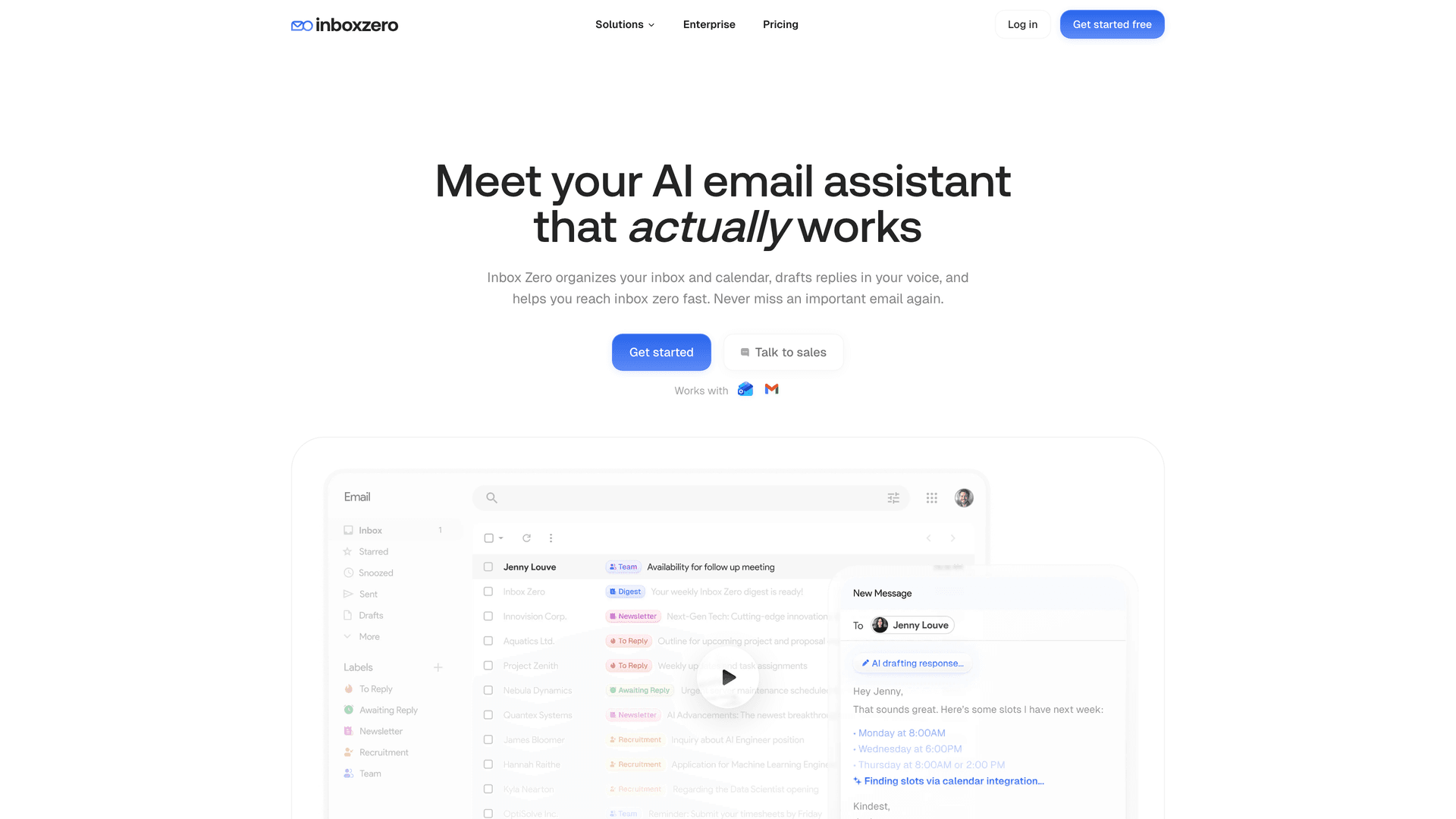
That's the problem we built Inbox Zero to solve. Not just for offboarding, but for everyday inbox management that happens to make offboarding dramatically easier when the time comes.
How Reply Zero Makes Mailbox Handoffs Manageable
When you need to hand over a departed employee's inbox to someone else, the biggest question isn't "how do I forward the mail?" It's "what actually needs a response?"
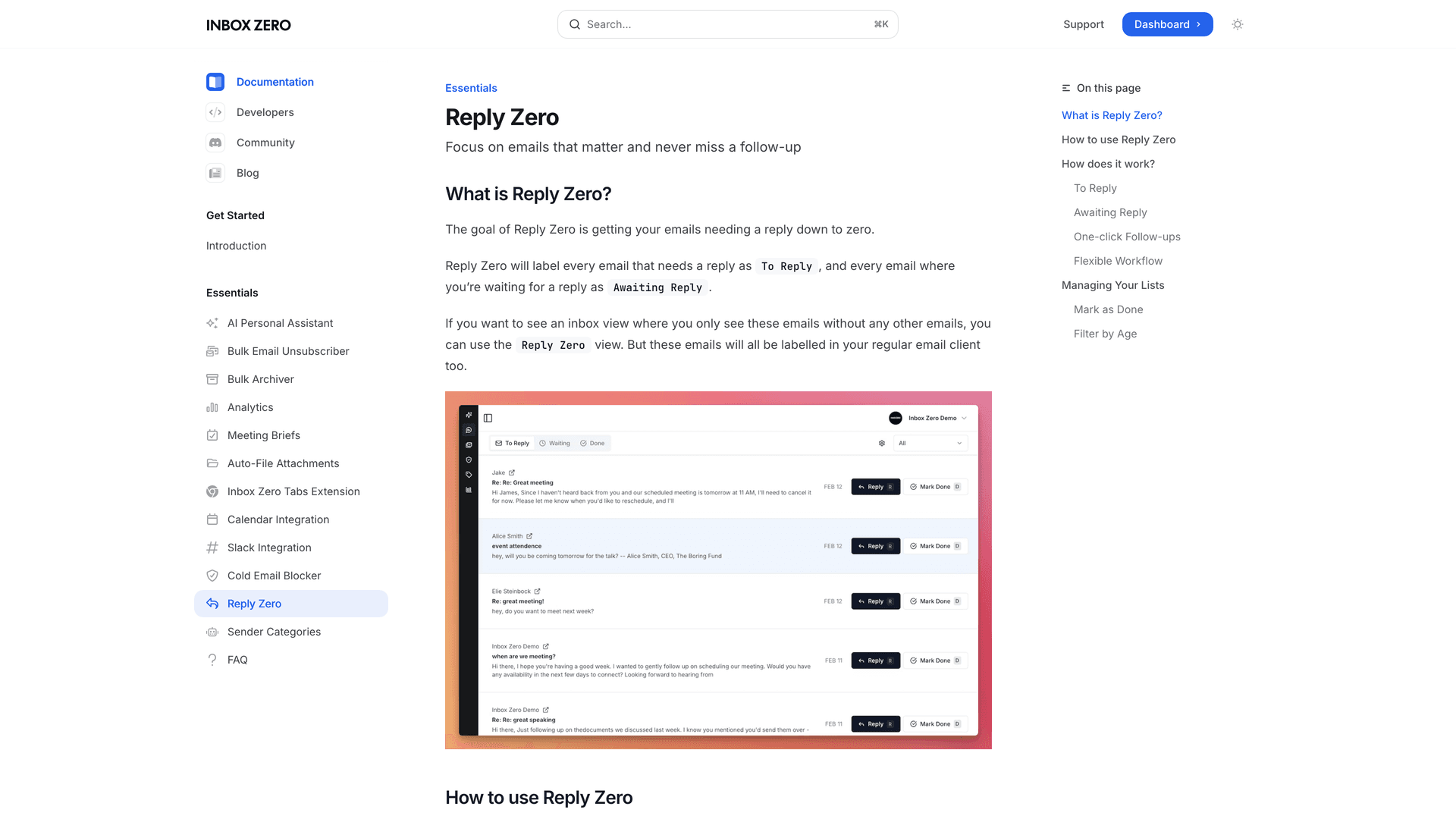
Our Reply Zero feature labels every thread that needs a response as "To Reply" and every thread where you're waiting on someone else as "Awaiting Reply." For the person inheriting a mailbox, this is transformative. Instead of scrolling through hundreds of threads trying to figure out which ones are live and which are dead, they get a focused view of exactly what needs attention.
Think of it this way: without Reply Zero, handing over a mailbox is like handing someone a filing cabinet with no labels. With it, you're handing them a clear task list. You can see all emails waiting for a reply at a glance, making the handoff precise instead of overwhelming.
Using AI Automation to Tame an Inherited Inbox
The person who inherits a departed colleague's inbox doesn't just get the important threads. They get everything: the newsletter subscriptions, the vendor spam, the cold outreach, the automated notifications. It's overwhelming on top of their own workload.
Inbox Zero's AI automation lets you set up rules that automatically label, archive, or draft replies based on the content of incoming mail. For an inherited mailbox, this means you can quickly tame the noise. Use the bulk email unsubscriber to clear out the newsletter backlog, and have the cold email blocker handle vendor spam and cold outreach automatically, flagging only what actually needs a human response.
The rules work on plain-English descriptions of what you want, so the takeover owner doesn't need to learn a complex system. They just tell Inbox Zero what to do, and it converts that into deterministic rules with conditions and actions. The email AI personal assistant documentation walks through exactly how this works.
Structured Inboxes Make Future Offboarding Easier
The real win isn't just making offboarding easier after the fact. It's preventing inbox entropy from accumulating in the first place. When every employee's mailbox has consistent labeling via auto-labeling rules, clear reply tracking with Reply Zero, and automated handling of low-value mail, the offboarding conversation changes from "how do we make sense of this mess?" to "who gets access to this well-organized inbox?"
Teams that track email productivity metrics find that consistent inbox structure correlates directly with smoother handoffs. The structure that makes day-to-day email manageable is the same structure that makes offboarding clean.
If your team isn't using Inbox Zero yet, offboarding season is a great reason to start. The structure it creates pays dividends every day, and it turns what's normally a stressful, error-prone handoff into a clean transfer of clearly organized obligations.
Get started with Inbox Zero and see how much easier mailbox handoffs can be.
Ready-to-Use Email Offboarding Templates (Copy and Paste)
These templates are ready to use. Customize the bracketed fields and deploy them the same day.
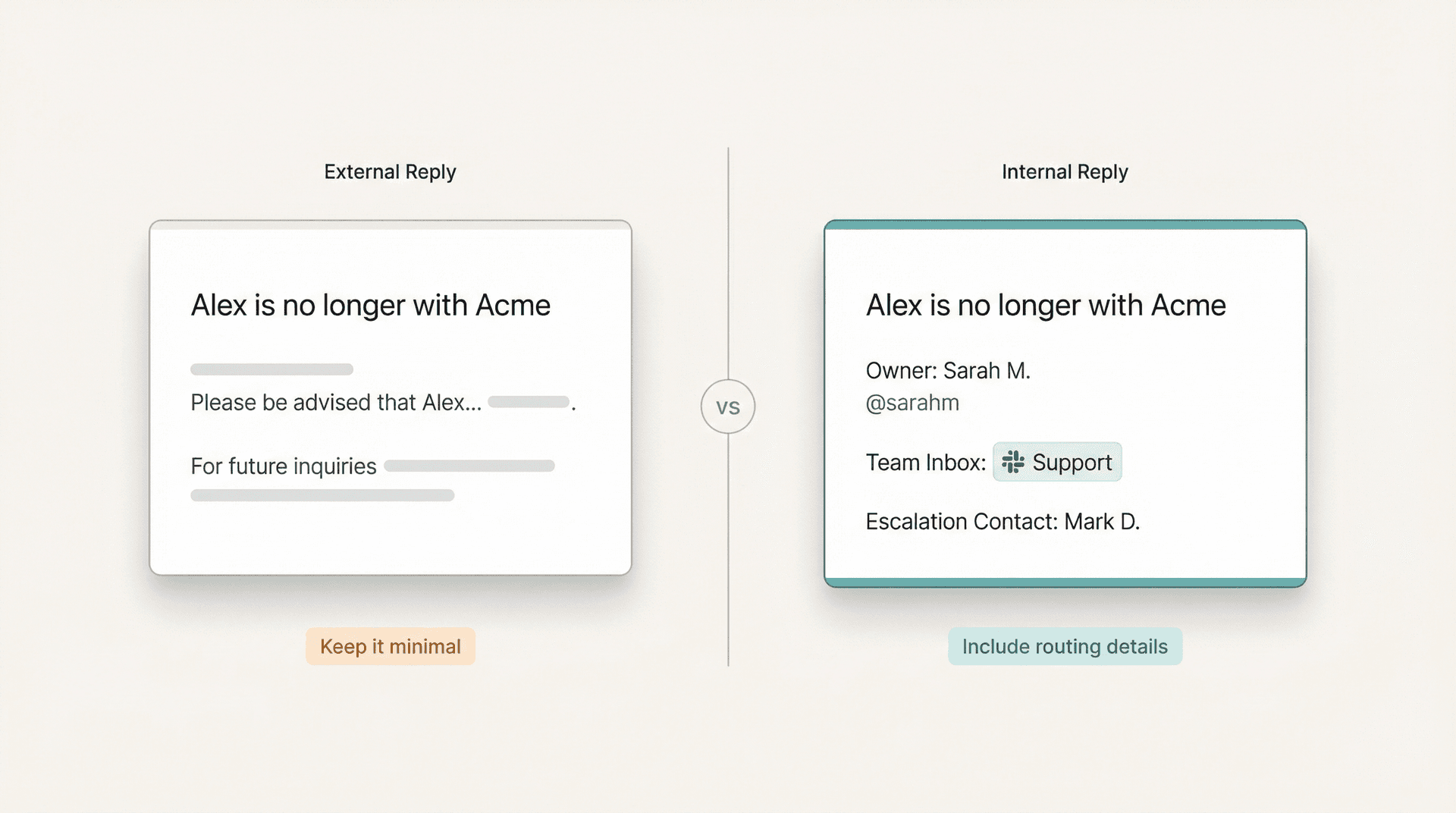
External Auto-Reply Template for Departed Employees
Subject: [Name] is no longer with [Company]

Thanks for your email. [Name] is no longer with [Company].

For help with [topic], please contact [team email] or reply to this message
and we will route it to the right person.
Keep external auto-replies minimal. Don't explain why the person left, don't share forwarding details, and don't include more contact information than necessary.
Internal Auto-Reply Template with Routing Instructions
Subject: [Name] is no longer with [Company]

[Name] is no longer with [Company].
Owner for incoming requests: [Owner Name], [Slack handle], [team inbox].
If this is urgent, contact [escalation contact].
Internal replies can be more specific because your audience is trusted. Include the actual owner, their communication channels, and an escalation path.
Mailbox Access Request Form Template for Audit Compliance
Use a ticket or structured form with these fields:
| Field | Details |
|---|---|
| Departed employee | Name, email, last day |
| Requested access | Read-only / Send-as / Export |
| Business justification | Why this access is needed, with an end date |
| Approver(s) | HR + manager + security (as required by your policy) |
| Evidence captured | Screenshots of forwarding/routing config, hold status, membership changes |
| Closure checklist | Access removed, alias/group updated, mailbox archived/deleted per policy |
Having this record for every offboarding makes audits painless instead of panicked. If your company needs to meet SOX email audit trail requirements, this kind of structured record is exactly what auditors look for.
Emergency Employee Offboarding: 15-Minute Quick Checklist
Sometimes someone needs to be offboarded right now. If you've got 15 minutes and need the critical path, here's your sequence.
Step 1: Block access and revoke sessions. In Google, suspend the user, reset the password, revoke OAuth tokens, and reset sign-in cookies. In Microsoft, reset the password, sign out all sessions, and block sign-in.
Step 2: Stop data leaving through apps. In Google, review API controls under Security and block risky apps.
Step 3: Set up continuity. In Google, route mail using a Recipient address map. In Microsoft, forward mail or convert to a shared mailbox. Don't delete the account.
Step 4: Record the evidence. Ticket notes: timestamp, actions taken, owner assigned, retention plan.
Then come back for the full retention and cleanup steps when you've got the bandwidth. The emergency checklist buys you safety and continuity. The full runbook above gives you compliance and auditability.
Email offboarding doesn't have to be the fire drill it usually is. If you pick your outcome first, follow the platform-specific runbook, and avoid the five mistakes that break most offboarding attempts, you'll handle departures cleanly every time.
And if you want to make future offboarding dramatically easier, start structuring your team's inboxes today. Inbox Zero gives every mailbox the consistent labeling, reply tracking, and automated triage that turns a chaotic handoff into a clean one. Try it free and see the difference structured email makes.


How to Recall an Email in Outlook (2026)
How to recall an email in Outlook step by step for new Outlook, classic Outlook, web, Mac, and mobile, plus when recall works and what to do when it doesn't.
2026-09-30T18:25:57.000Z

How to Stop AliExpress Emails (2026)
Stop AliExpress promotional emails: the unsubscribe link, notification settings in your AliExpress account, and what to do when the deals keep coming.
2026-09-30T18:25:57.000Z

How to Stop Amazon Emails (2026)
Stop Amazon marketing emails with the Communication Preferences Center, manage Amazon email subscriptions, and handle order emails you can't switch off.
2026-09-30T18:25:57.000Z

How to Stop Domino's Emails (2026)
Stop Domino's emails with Domino's official opt-out page, stop Domino's text offers, and know which rewards emails keep coming.
2026-09-30T18:25:57.000Z