How to Set Up Out of Office in Outlook (2026 Guide + Examples)
Set up an out of office reply in new Outlook, classic Outlook, Outlook on the web, Mac, and mobile. Schedule it, turn it off, and copy message examples.

Going on vacation, taking a sick day, or heading to a conference? An out of office message (Outlook calls it Automatic Replies) tells people you're away and when to expect a response. Here's how to set it up in every version of Outlook, how to schedule it so it turns off by itself, and message examples you can copy.
Quick answer: how to set out of office in Outlook
| Outlook version | Where to find it |
|---|---|
| New Outlook for Windows | Settings (gear) or View → View settings → Accounts → Automatic replies |
| Classic Outlook for Windows | File → Automatic Replies |
| Outlook on the web / Outlook.com | Settings (gear) → Account → Automatic replies |
| Outlook for Mac | Tools → Automatic Replies |
| Outlook mobile (iOS/Android) | Settings → tap your account → Automatic Replies |
Turn the toggle on, write your message, set a date range, and save. Outlook sends your automatic reply once to each person who emails you while you're away.
Important: Automatic Replies need a Microsoft 365, Exchange, or Outlook.com account. Microsoft says they aren't supported for Gmail, Yahoo, or other POP/IMAP accounts added to Outlook (see the workaround below).
How to set up out of office in new Outlook for Windows
From Microsoft's support article:
- Open settings: select the gear icon, or go to the View tab and select View settings.
- Select Accounts → Automatic replies.
- Turn on the Automatic replies toggle.
- Select Send replies only during a time period and enter the start and end times. (Skip this and the reply stays on until you turn it off.)
- Type your message.
- Optional: select Send replies only to contacts so only people in your Contacts get the reply.
- Work or school accounts also get Send replies outside your organization. You can write a separate message for external senders.
- Select Save.
When you set a time period, new Outlook also offers calendar options: Block my calendar for this period, Automatically decline new invitations for events that occur during this period, and Decline and cancel my meetings during this period. Be careful with the last one: it cancels meetings you organize and declines ones you're invited to.
A tip from Microsoft: replying to everyone outside your organization means newsletters, ads, and junk mail get your auto-reply too. If you need external replies, Microsoft recommends Send replies only to contacts.
How to set up out of office in classic Outlook for Windows
- Select File on the left end of the ribbon.
- Select Automatic Replies. (If you don't see it, jump to the POP/IMAP section below.)
- Select Send automatic replies.
- Optional: check Only send during this time range and set the start and end date and time. Outlook turns the replies off automatically at the end time.
- Type your message on the Inside My Organization tab.
- For people outside your company, switch to the Outside My Organization tab, check the box to reply to external senders, and choose My Contacts only or Anyone outside my organization. Microsoft recommends My Contacts only to avoid replying to newsletters and junk.
- Select OK.
To turn it off: while automatic replies are on, classic Outlook shows a yellow banner under the ribbon. Select Turn off.
No Automatic Replies button? (Gmail, Yahoo, POP/IMAP accounts)
If File → Automatic Replies is missing, you're probably using a POP or IMAP account (for example Gmail or Yahoo added to Outlook). Microsoft's workaround is to create an out-of-office template and a rule that replies with it. The catch: Outlook has to stay open on your computer for the rule to run. It's usually simpler to set the vacation responder in the email provider itself. For Gmail, see how to set up out of office in Gmail.
How to set up out of office in Outlook on the web and Outlook.com
- Sign in and select the gear icon (Settings) at the top of the page.
- Go to Account → Automatic replies.
- Turn on the Automatic replies toggle.
- Check Send replies only during a time period and enter start and end times.
- Type your message in the box. You can format it with the toolbar.
- Optional: select Send replies only to contacts.
- Select Save.
If you don't set a time period, the reply stays on until you go back to Settings → Account → Automatic replies and turn the toggle off.
How to set up out of office in Outlook for Mac
- In the menu bar, select Tools → Automatic Replies.
- Choose your account and turn on automatic replies.
- Write your reply. Work accounts can set a separate reply for people outside the organization.
- Optional: set a start and end time.
- Select OK.
If you don't see Automatic Replies, the account may be an IMAP or POP account that doesn't support it.
How to set up out of office on your phone (Outlook for iOS and Android)
- Open the Outlook app and tap your profile picture (top left), then the Settings gear.
- Tap the account you want.
- Tap Automatic Replies and turn it on.
- Write your message and choose who gets it and when.
Microsoft says this option appears for Microsoft 365, Exchange, and Outlook.com accounts. If it's missing, your account type doesn't support it or your organization has restricted it.
Out of office message examples for Outlook
Keep it short: when you're back, who to contact, and whether you'll reply later. Copy and edit these.
Simple out of office message
Thanks for your email. I'm out of the office until [date] with limited access to email. I'll reply when I'm back. For anything urgent, please contact [name] at [email].
Vacation message
Hi, I'm on vacation until [date] and won't be checking email. If you need help before then, [name] ([email]) can assist. Otherwise I'll get back to you after I return.
Conference or business trip
I'm at [event] until [date], so replies may be slower than usual. I'll respond as soon as I can. For time-sensitive requests, please contact [name] at [email].
Sick day
I'm out sick today and will reply when I'm back. If it's urgent, please reach out to [name] at [email].
Holiday closure
Our office is closed for [holiday] from [date] to [date]. We'll reply to your message when we're back on [date].
Parental or extended leave
I'm on leave until [date] and won't be checking email. For [project/area], please contact [name] at [email]. For everything else, [name] at [email] can help.
External (outside my organization) version
Thank you for your message. I'm away until [date]. For urgent matters, please contact [team email].
For external senders, leave out personal details like where you're traveling, and avoid saying your home is empty.
Out of office not working in Outlook? Common fixes
- Some people didn't get a reply. That's expected: Outlook sends the automatic reply once per sender for the period it's on.
- No Automatic Replies option. Your account is likely POP/IMAP (Gmail, Yahoo, etc.). Use a rule with Outlook left open, or set it up in your email provider.
- External senders aren't getting it. Check that Send replies outside your organization (or the Outside My Organization tab) is on. Your IT admin may also block external auto-replies.
- It didn't turn off. If you didn't set a time period, you have to turn it off manually.
- The start time passed but nothing happened. Double-check the date and time zone in the time range.
Coming back to a full inbox
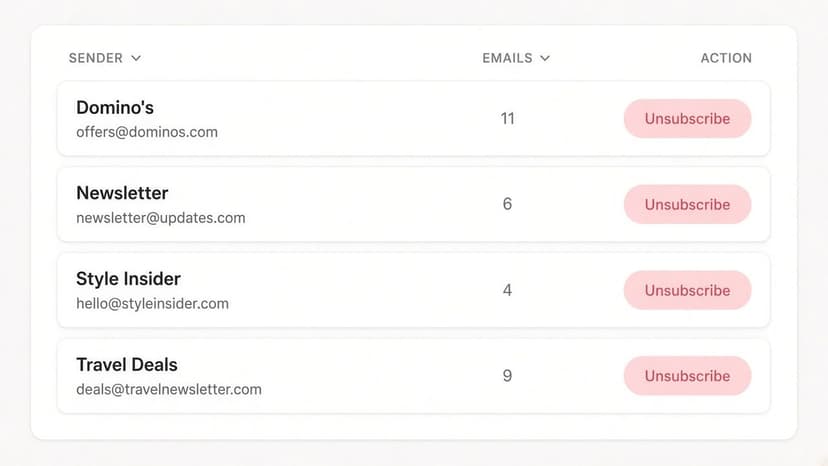
An out of office reply handles the week you're gone. The pile waiting when you return is the harder part. Inbox Zero, an open-source AI email assistant for Outlook and Gmail, helps with the catch-up: AI rules label and archive routine mail as it arrives (even while you're away), and bulk unsubscribe clears out the newsletters that piled up, so you come back to the emails that actually need you.
If you need your emails passed on while you're out, see how to set up email forwarding for vacation.
FAQ
How do I turn on out of office in Outlook?
In new Outlook, go to Settings → Accounts → Automatic replies and turn on the toggle. In classic Outlook, select File → Automatic Replies → Send automatic replies. In Outlook on the web, go to Settings → Account → Automatic replies.
How do I schedule an out of office reply in Outlook?
Select Send replies only during a time period (new Outlook and web) or Only send during this time range (classic Outlook), and enter a start and end date and time. Outlook turns the replies on and off automatically.
How do I turn off out of office in Outlook?
In classic Outlook, select Turn off on the Automatic Replies banner under the ribbon. In new Outlook or Outlook on the web, go back to Automatic replies and switch the toggle off, then save.
Does Outlook send the out of office reply to every email?
No. It sends the reply once to each sender while automatic replies are on. If you choose to reply to everyone outside your organization, newsletters and junk senders get it too, which is why Microsoft suggests replying only to contacts.
Why don't I have Automatic Replies in Outlook?
Automatic Replies need a Microsoft 365, Exchange, or Outlook.com account. Gmail, Yahoo, and other POP/IMAP accounts don't support it, so use a rule (with Outlook left running) or your provider's vacation responder instead.
Can I set different out of office messages for internal and external senders?
Yes, with a work or school account. Classic Outlook has Inside My Organization and Outside My Organization tabs, and new Outlook and Outlook on the web let you set a separate reply for people outside your organization.
Sources
How to Recall an Email in Outlook (2026)
How to recall an email in Outlook step by step for new Outlook, classic Outlook, web, Mac, and mobile, plus when recall works and what to do when it doesn't.
2026-09-30T18:25:57.000Z
How to Stop AliExpress Emails (2026)
Stop AliExpress promotional emails: the unsubscribe link, notification settings in your AliExpress account, and what to do when the deals keep coming.
2026-09-30T18:25:57.000Z
How to Stop Amazon Emails (2026)
Stop Amazon marketing emails with the Communication Preferences Center, manage Amazon email subscriptions, and handle order emails you can't switch off.
2026-09-30T18:25:57.000Z
How to Stop Domino's Emails (2026)
Stop Domino's emails with Domino's official opt-out page, stop Domino's text offers, and know which rewards emails keep coming.
2026-09-30T18:25:57.000Z