How to Manage an Executive Inbox (2026)
Not tips. A real, battle-tested system to manage an executive inbox. Triage algorithms, folder structure, automation rules, and EA-exec agreements included.

The difference between an EA who "helps with email" and one who runs the inbox isn't effort. It's structure.
If you're here, you probably already know that managing an executive inbox is one of the highest-impact things an EA can do. Your exec's email is where board requests land, where investor updates arrive, where customer escalations show up unannounced, and where 90% of scheduling chaos begins. When that inbox is under control, your exec gets to do actual leadership work. When it's not, everyone suffers.
This guide gives you the complete system. Not a list of tips. Not "10 hacks to tame your inbox." A real, implementable framework that holds up on travel days, board weeks, product launches, and the random Tuesday when everything catches fire at once.
We built Inbox Zero to solve exactly this problem, and we'll show you how it fits into the workflow later. But the system itself is tool-agnostic. You can run it in Gmail labels, Outlook folders, or a sticky note on your monitor if that's what works. The principles come first.

Why Managing an Executive Inbox Requires a System, Not Just Effort
Email feels stressful because it's a queue of unstructured messages. Every email is really a request in disguise, but unlike a task management system, nothing is labeled, prioritized, or routed. It just sits there, demanding attention.
If you've ever wondered how much time you're actually spending on email, the numbers are often staggering. For executive inboxes with 3x the volume, it compounds fast.
So the real job of executive inbox management isn't "read email faster." It's a four-part process: understand each message, decide what it means, convert it into a next action (or file it safely), and make that action visible to the right person at the right time.
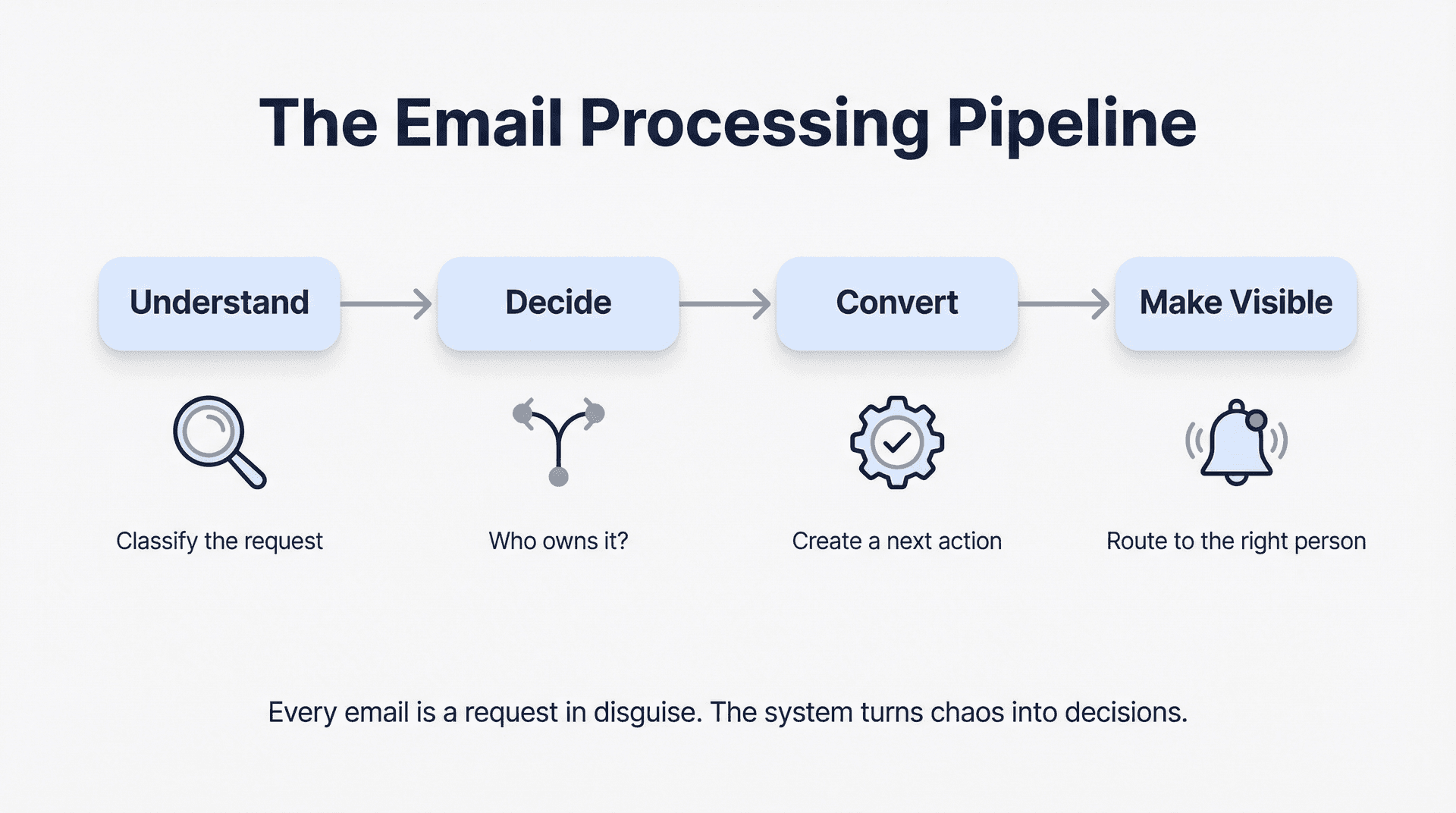
A clean executive inbox isn't a low unread count. It's a pipeline where every email exists in one of a few explicit states, and nothing falls into a gray zone where it gets forgotten. This is the heart of any solid set of email management strategies.
What "winning" looks like for an EA: Your exec opens their email and immediately sees only what requires their brain. Everything else is either handled, waiting, or routed. You can answer "What are we waiting on?" in under 60 seconds. Nobody important feels ignored, and nobody unimportant steals time. The system still works during crises.
How to Categorize Every Email in an Executive Inbox
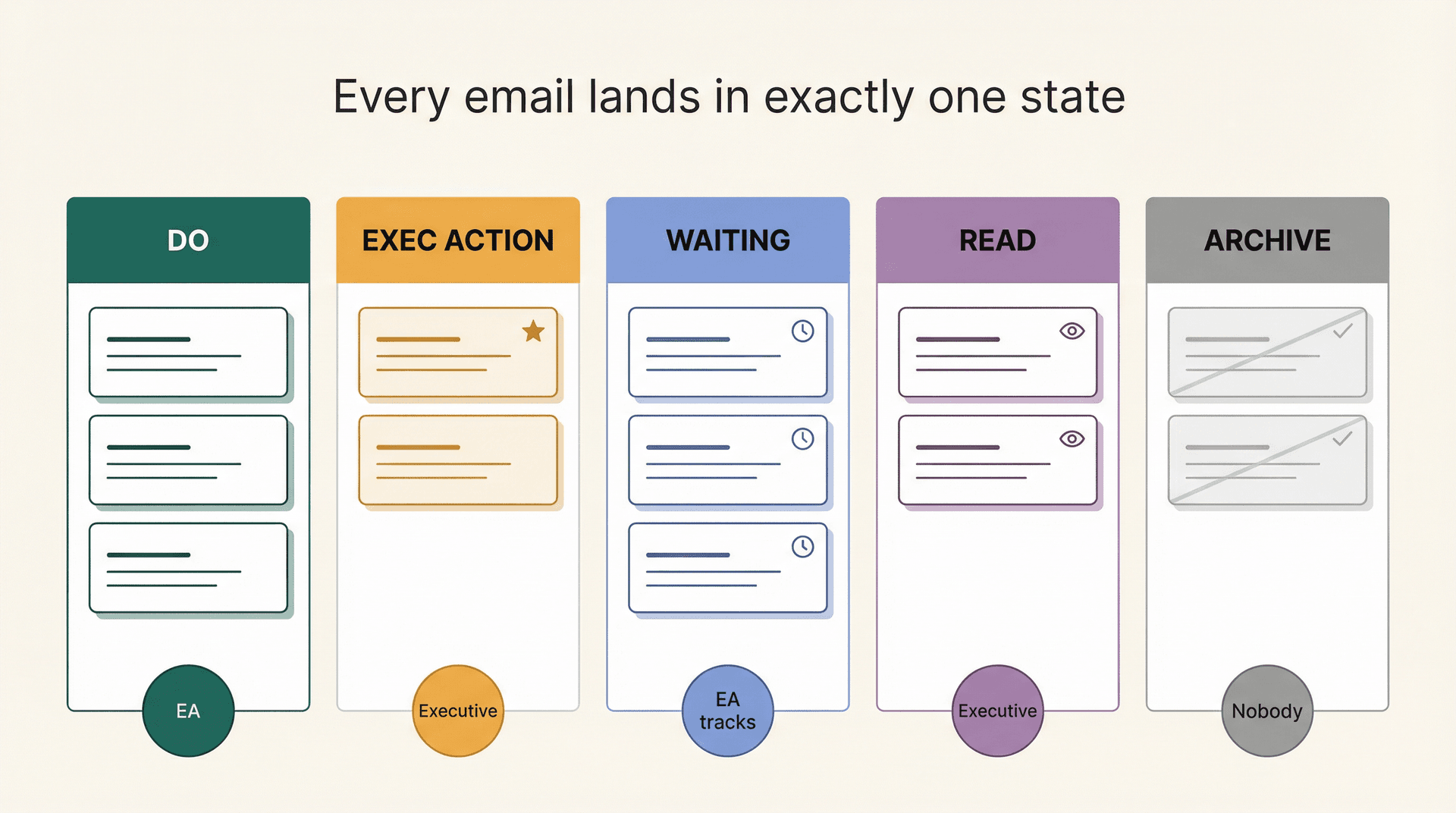
Every email in your exec's inbox should land in exactly one of these states:
| State | What It Means | Who Owns It |
|---|---|---|
| Do | EA can handle it now (reply, forward, file, schedule) | EA |
| Exec Action | Needs exec decision or exec-authored reply | Executive |
| Waiting | Someone else owes something, and you'll follow up | EA tracks |
| Read | Exec should see it, but no reply needed | Executive |
| Archive / Delete | Not worth attention | Nobody |
This maps cleanly to the classic "Four D's" framework (Do, Delegate, Defer, Delete) and the popular 3-folder structure (Action, Read, Waiting) that high-volume inbox teams have used for years.
The specific tool doesn't matter nearly as much as the states. You can run this in Gmail labels, Outlook folders, a split inbox, or an AI-powered rules layer. Pick what your exec already uses and build on top of it. The goal is a clean inbox where every message has a clear status.
How to Set Up Inbox Access as an Executive Assistant
Before you touch a single email in your exec's inbox, get this right: never manage an executive inbox via shared passwords. It breaks auditability, security, and trust. There's always a better way.
Understanding the difference between a collaborative inbox and a delegated inbox is the first step. They're fundamentally different setups with different accountability structures.

Setting Up Gmail Delegation for Executive Assistants
Use Gmail delegation. It's configured in Gmail settings (desktop web) under "Grant access to your account." The delegate accepts the invite and then switches into the delegated inbox from their own account via the profile menu. No password sharing required.
A useful detail for larger teams: Google Workspace supports up to 1,000 delegates per account, though Google recommends keeping to about 40 concurrent users for performance. For a standard EA-exec setup, you'll never hit those limits. To set it up, your exec goes to Gmail delegation settings, adds your email address, and you accept the invitation. You can then toggle between your inbox and theirs from one login.
Setting Up Delegate Access in Outlook for EAs
You'll typically choose between two options. Delegate access lets the EA manage mail and calendar on behalf of a specific person, which is what Microsoft positions as the assistant-friendly option. A shared mailbox, on the other hand, gives multiple people access to a shared address (like support@ or info@), which is better for team email but less ideal for a personal exec inbox.
For the classic EA-exec relationship, delegate access is almost always the right call. You can also add shared mailboxes in the Outlook mobile app for on-the-go access.
One thing to decide early with IT: the difference between "send as" and "send on behalf of." These aren't just UI choices. They're policy decisions that affect how recipients see your emails and how audit trails work. Get clarity before you start replying.
How to Create an EA-Exec Inbox Agreement (Free Template)
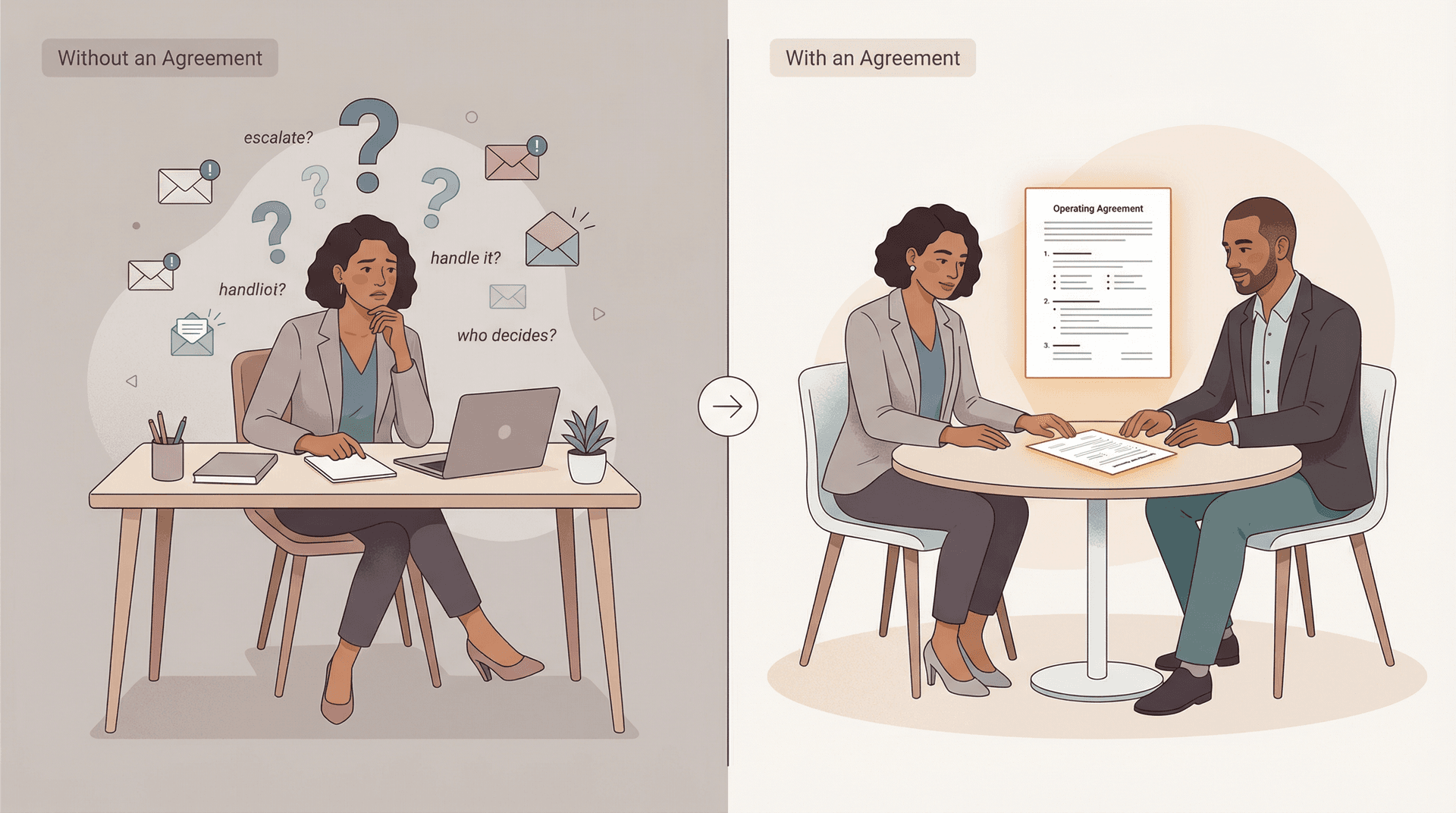
Most inbox partnerships fail for one reason: the EA is guessing.
You think you know what your exec wants handled versus escalated, what tone to use, who the VIPs are. But "thinking you know" and "having it written down and reviewed together" are completely different things.
You need a written agreement. One page. Reviewed in 20 minutes. Updated monthly. Setting clear response time expectations, essentially an internal email SLA between you and your exec, is one of the most valuable things this agreement can capture.
Executive Inbox Agreement Template
Copy this, fill it in with your exec, and revisit it every month:
EXEC INBOX OPERATING AGREEMENT (v1)

1) What I (EA) can handle end-to-end without asking
   - Scheduling requests that meet these rules: ________
   - Travel coordination emails: ________
   - Vendor coordination up to $______
   - Internal ops requests: ________

2) What I must always escalate immediately (same hour)
   - From: board / investors / legal / PR
   - Keywords: "urgent", "press", "lawsuit", "security", "breach"
   - Customer escalation tiers: ________
   - Family / personal: ________

3) What I escalate in the daily briefing
   - Team updates
   - Non-urgent external asks
   - Anything that changes priorities

4) Voice + identity rules
   - I reply as: (myself) / (exec) / depends by category
   - Default tone: (warm / direct / formal / brief)
   - Always include: (greeting?) (sign-off?)
   - Never send without approval when: ________

5) Response time expectations (SLA)
   - Internal: ____ hours
   - External partners: ____ hours
   - VIPs: ____ hours

6) The executive's "VIP list" (people who always surface)
   - Names + emails + assistants

7) Calendar rules (meeting triage)
   - Required for accepting a meeting: agenda, attendees, goal
   - Preferred meeting length: ____
   - Buffer rules: ____
   - Time zones / travel constraints: ____

8) Confidentiality boundaries
   - Categories I should not read: ________
   - Categories I can read but not act on: ________
This isn't bureaucracy. It's how you stop accidental overreach and build confidence fast. A lot of EA training content emphasizes starting with exactly this kind of expectations conversation and escalation clarity, because it's what makes delegation safe and scalable.
How to Reset an Executive Inbox Without Losing Anything Important
Trying to build a system on top of 18,000 old emails is how you end up with 43 folders and no peace.
You need a clean start. This is essentially the email equivalent of email bankruptcy, a deliberate reset to reclaim control. The practical approach starts with picking a cutoff window of 30, 60, or 90 days depending on how far back active threads go. Archive everything older than that cutoff. Don't delete it, just archive it. You can always search later. If you're unsure about when to snooze, archive, or mute, archiving is almost always the safe default.
From there, pull any active threads hiding in old folders back into the main flow, create your new working structure (we'll cover this next), and add rules so the inbox doesn't refill with junk. For large backlogs, Inbox Zero's Bulk Archiver can help you clear older threads at scale.
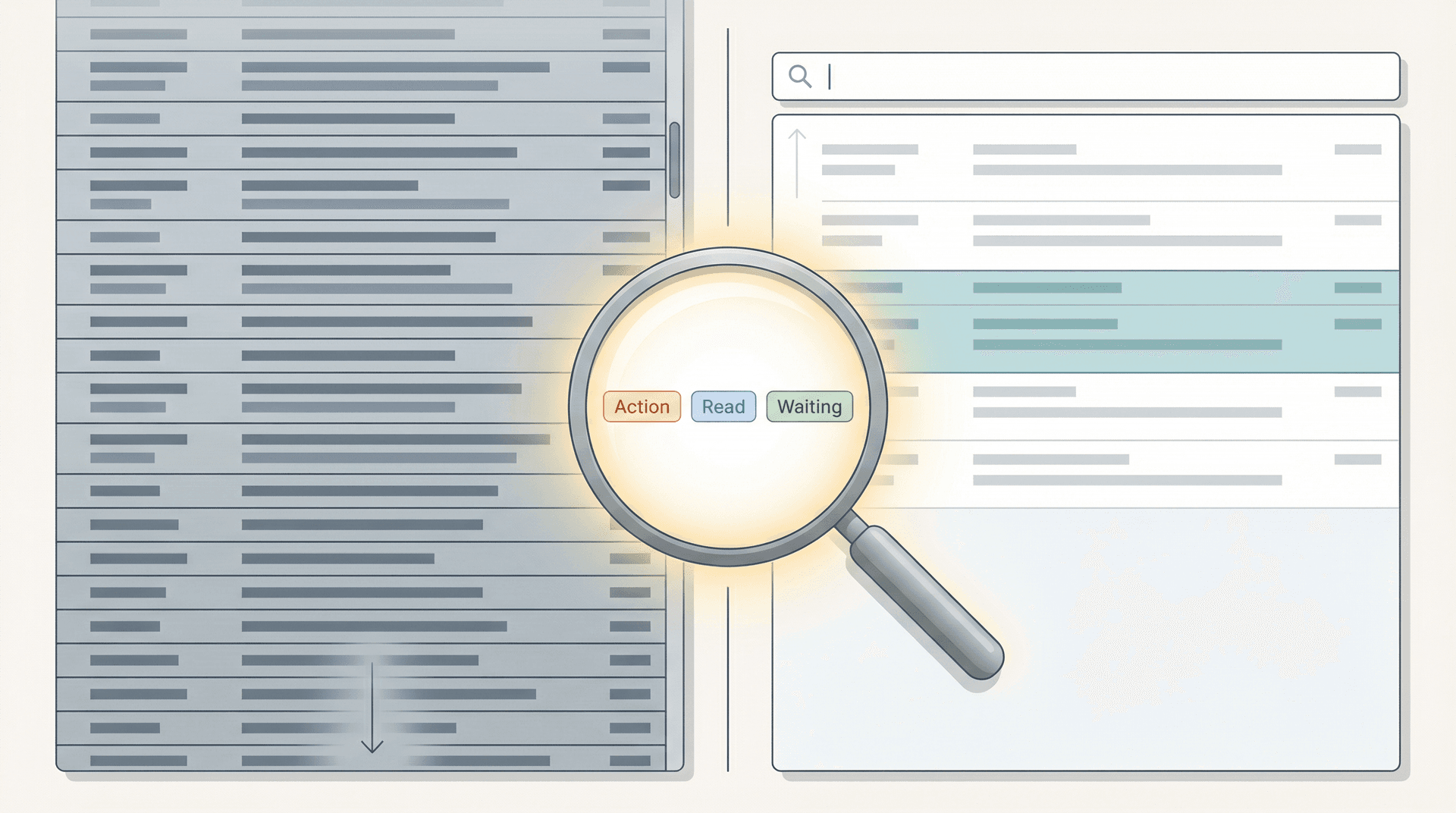
The key psychological shift here is simple but powerful: search beats scroll. Once you trust that you can find anything by searching, you stop needing to see everything. That single realization changes how you think about inbox management.
The Right Email Folder Structure for Executive Inboxes
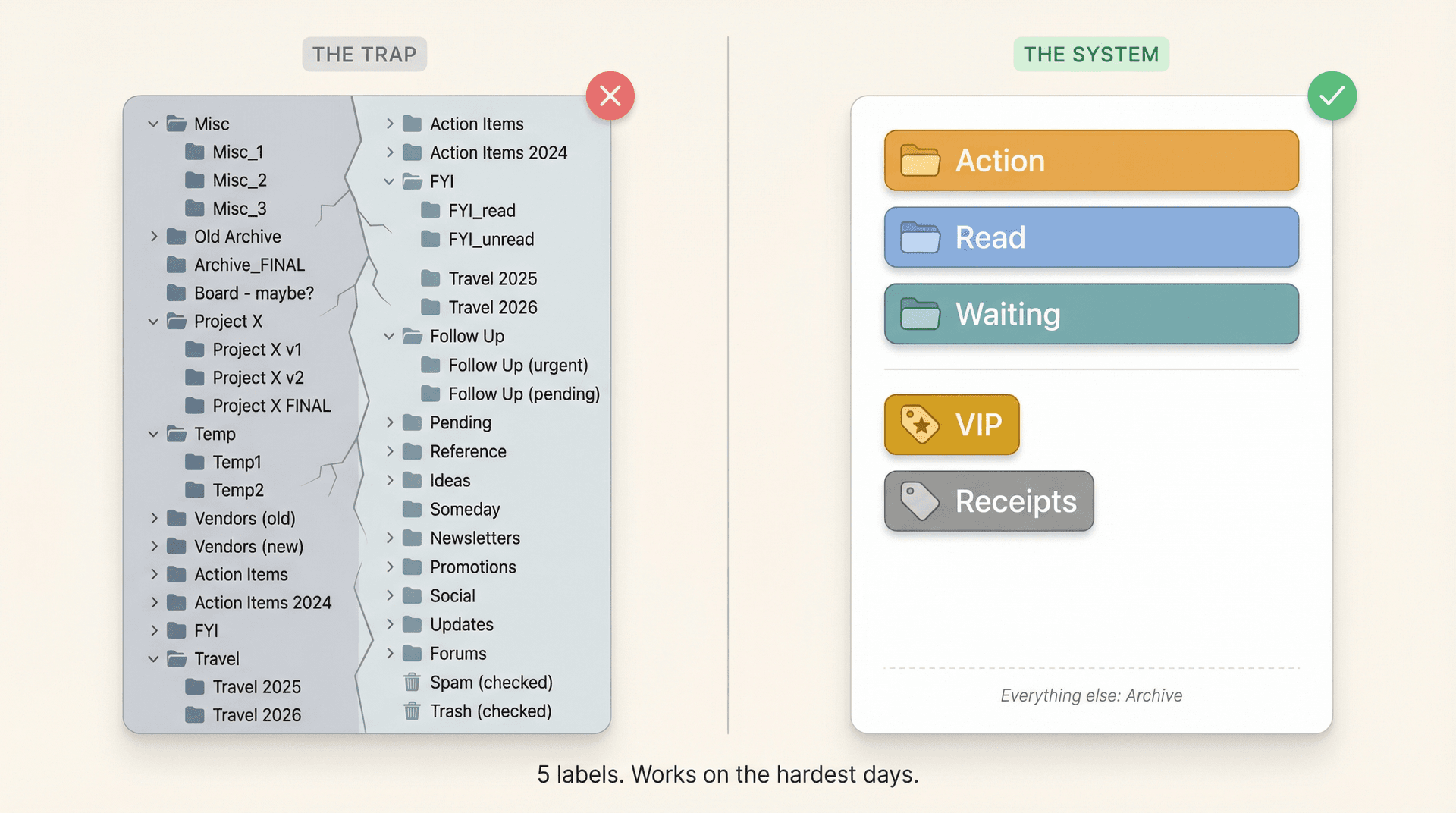
Here's the trap: EAs create a detailed filing taxonomy with 30 folders and elaborate naming conventions. It works beautifully for two weeks. Then the first crisis week hits, everything becomes "Misc," and the system dies.
Use this instead.
The 3-Folder System and When to Add More
The core is three folders: Action (needs a response or decision), Read (exec should see it, no reply required), and Waiting (you're waiting on someone else). That's it. This is the same structure recommended in EA-focused email management tips, and it works because it's simple enough to maintain when things get chaotic.
If you need a bit more, two extra labels are worth adding. A VIP or "Escalate" label gives you a high-priority surface area for board members, investors, and whoever else your exec says always gets surfaced. A Receipts label keeps finance and transactions that need a paper trail in one place.
Everything else goes to archive with good searchability. If you can't find it in two searches, then you add a label. Not before.
Understanding the difference between Gmail labels and folders matters here. Labels are more powerful than folders because a single email can carry multiple labels without being duplicated. If you want to take labeling further, you can also auto-label emails by sender domain using Inbox Zero's AI rules, which is especially useful for sorting vendor and partner email automatically.
How to Triage Every New Email in Under 60 Seconds
When a new email arrives, you run a tight decision loop. The goal isn't to "deal with it." The goal is to decide its state and move on.
The Five Triage Questions
Run through these in order for every email. First, is this garbage? If so, unsubscribe, block, archive, or mark as spam. Learning how to manage email subscriptions properly is step one in keeping this question fast to answer. Second, does this require a response? If not, move it to Read or Archive. Third, who is the right owner: you, the exec, or someone else entirely? Fourth, is there a deadline hiding in the text? If so, extract it into a calendar event or task. Do not leave it implied in an email thread. Fifth, what is the next visible step? Draft a reply, forward it, schedule something, or set it to Waiting.
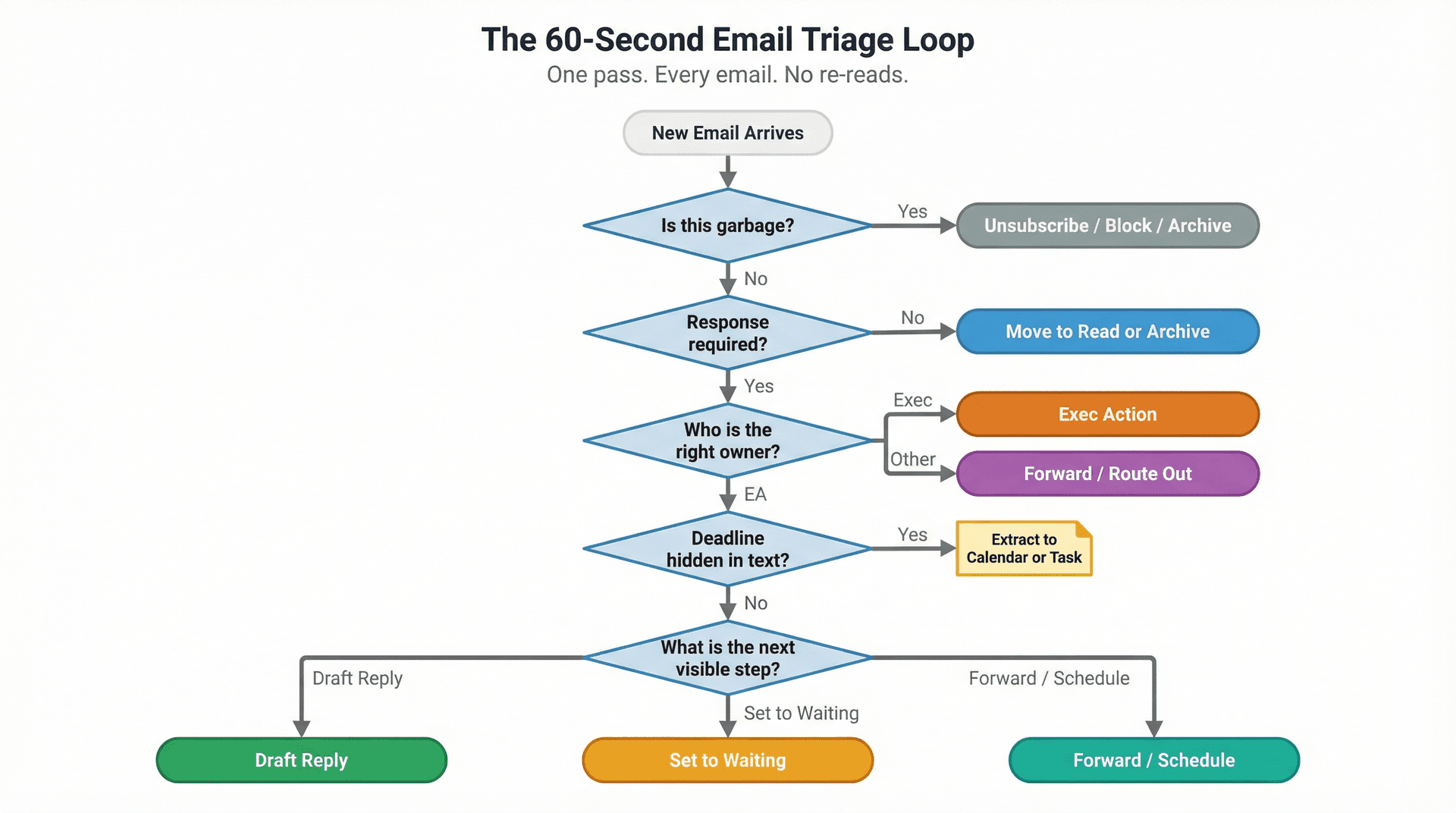
This is how you avoid rereading the same message six times. Each email gets one pass through this loop, and it lands in a state.
Why this matters: Microsoft's Work Trend Index research shows the average worker receives 117 emails daily, and most are skimmed quickly rather than read carefully. That environment punishes ambiguity and rewards clear states. If you're managing an exec inbox with even higher volume, a triage algorithm isn't optional. It's survival.
A solid email productivity framework treats triage as a core repeatable process, not a reaction to chaos, but a structured daily practice.
How to Handle the 4 Email Types That Fill Every Executive Inbox
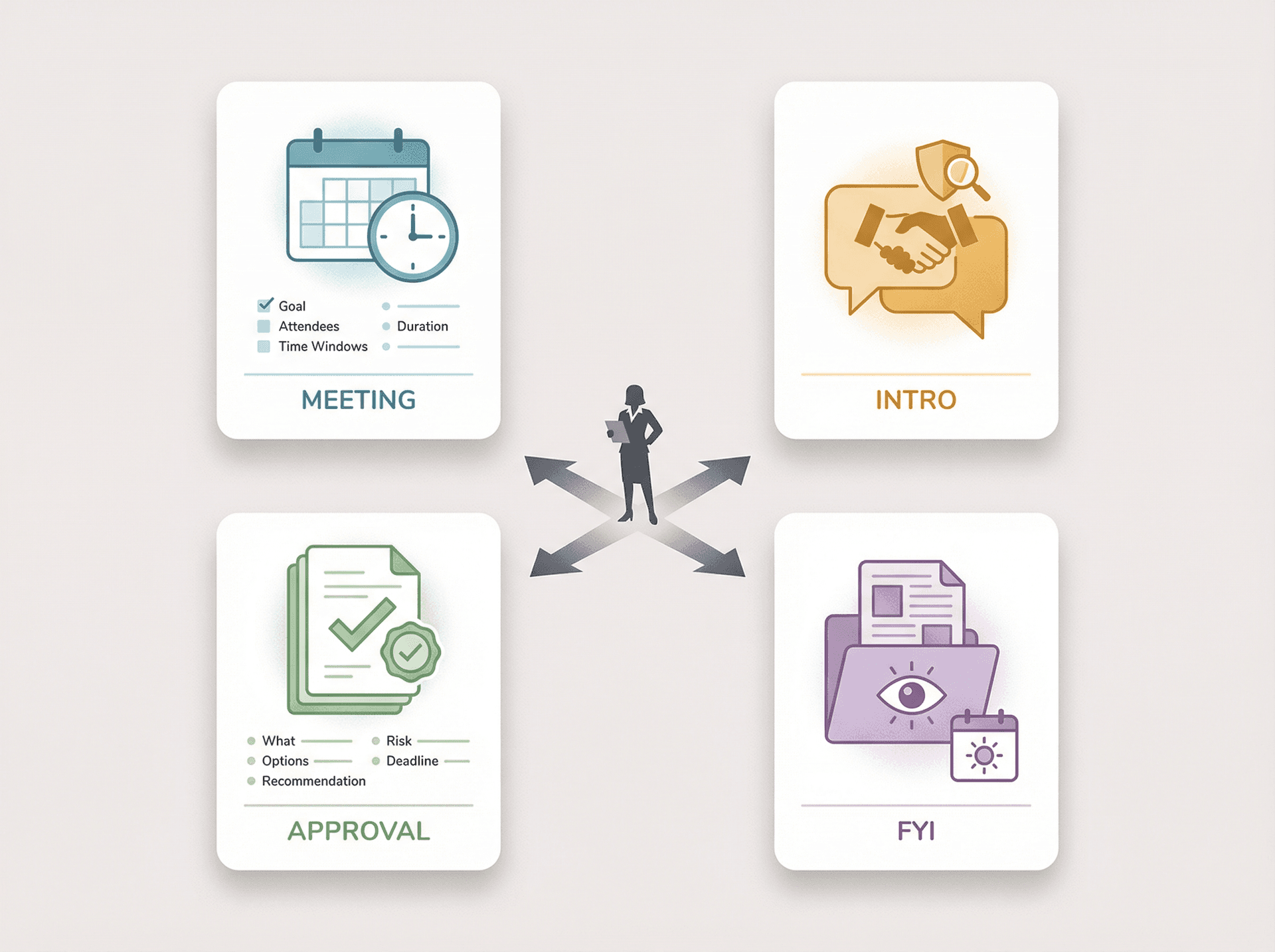
Most exec inbox volume collapses into four categories. If you have playbooks for each, everything else becomes manageable.
How to Handle Meeting Requests Without Back-and-Forth
The goal is to accept only meetings worth the exec's time, and collect missing info without three rounds of back-and-forth. For EAs managing dense calendars, the calendar integration in Inbox Zero can help you generate meeting briefs automatically, pulling context before meetings so your exec walks in prepared. The Meeting Briefs feature is specifically designed for this workflow.
When a meeting request comes in without enough context, use this template:
Thanks for reaching out.

Before I find time on [Exec Name]'s calendar, could you share:
1) The goal for the meeting (what decision or outcome we want)
2) Who will attend
3) Your top 2 time windows (include time zone)
4) How much time you need (15 / 30 / 45 mins)

Once I have that, I'll propose times.
This one template eliminates the majority of scheduling ping-pong. Send it early, send it consistently.
How to Screen Introduction Requests for Your Executive
Bad intros are expensive for executives. Before forwarding any intro request, screen it with a short reply asking why they want the intro, what they're hoping happens next, a 2-3 sentence blurb the exec can forward, and anything the exec should know before connecting them. If the requester can't answer those questions clearly, the intro probably isn't worth your exec's social capital.
Happy to take a look.

Can you share:
- Why you want the intro
- What you're hoping happens next
- A 2-3 sentence blurb [Exec Name] can forward
- Anything [Exec Name] should know before connecting you
How to Route Approval Requests Your Exec Can Decide in 30 Seconds
The goal is to turn vague "approval requests" into a decision packet your exec can act on quickly. Every approval that crosses the inbox should include what exactly you're approving, what options were considered, what the recommendation is, what the risk of delaying is, and the deadline. If any of those are missing, ask once, then route the complete packet. Your exec shouldn't have to chase context. That's your job.
How to Handle FYIs Without Hijacking Your Exec's Attention
Route most FYIs into the Read folder or label. Then create a daily "Read digest moment" in the exec's calendar (10 minutes, same time each day). This batches information consumption instead of letting it interrupt deep work. You can also create an email digest from multiple newsletters so information arrives in one consolidated view rather than a stream of interruptions.
How to Track Follow-Ups in an Executive Inbox (So Nothing Gets Forgotten)
If you don't track "Waiting" threads explicitly, two bad things happen. You forget to follow up (and something important dies quietly). Or you follow up too often (and annoy people who were already working on it).
The fix is to treat "Waiting" as a first-class state, not an afterthought. Knowing how to see all emails waiting for reply in a single view is the operational prerequisite for this system. If you can't surface them at a glance, you can't manage them.

How to Track "Waiting" Threads Step by Step
When you're waiting on someone, move the thread to Waiting immediately and add a follow-up date (2 business days, 1 week, whatever fits the urgency). When the follow-up date hits, nudge once with a simple "checking in" note, and escalate only if it blocks a decision or a hard deadline.
This is precisely why dedicated "Awaiting Reply" tracking exists as a workflow in modern inbox tools. It takes the mental load of remembering follow-ups and turns it into a system. We built Reply Zero specifically for this: it automatically labels every thread that needs a response as To Reply and every thread where you're waiting on someone as Awaiting Reply, so nothing gets lost.
For crafting the actual follow-up messages, having a follow-up email template on hand saves time and keeps your tone consistent.
How to Use Email Automation Safely in an Executive Inbox
Automation can save you hours every week. It can also bury the one email that changes your quarter.
The safe approach comes down to three principles. First, automate low-risk categories only. Newsletters, receipts, and cold outreach are great candidates. Board communications and customer escalations are not (at least not yet).
Second, draft instead of auto-send for anything external. Until you've seen the system run accurately for at least a couple of weeks, every outbound reply should be a draft that you or your exec reviews before sending. This is what AI email management done right looks like: AI handles the drafts, humans handle the sends.
Third, always keep an audit step. Even after you trust the automation, maintain a way to spot-check what happened. An automated system you can't audit is a system you can't fix.
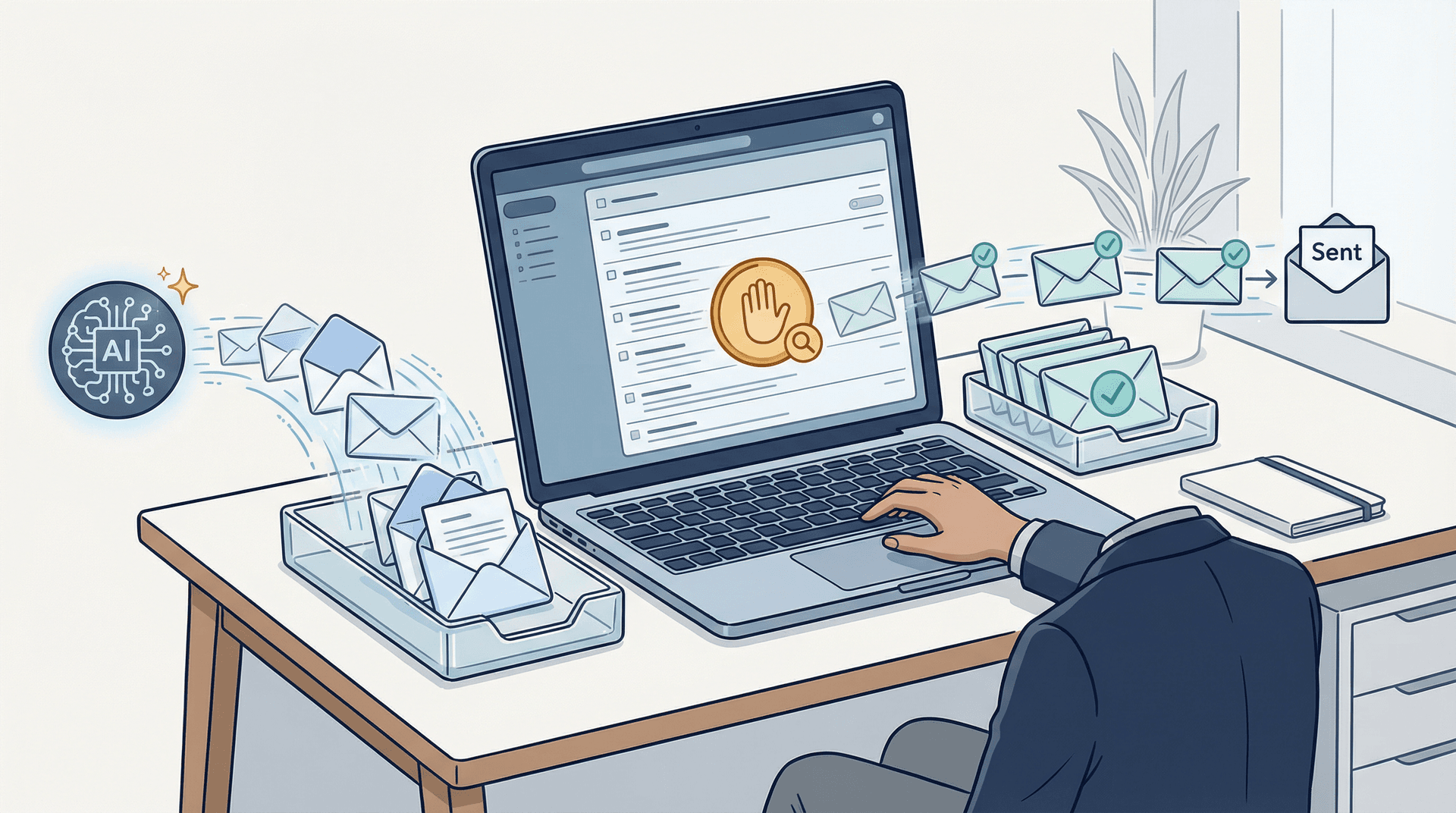
This isn't just our opinion. Microsoft's own research on the "infinite workday" warns that AI can accelerate a broken system if you don't redesign the workflow first. Automate the right things, in the right order.
How to Set Up This Executive Inbox System in Inbox Zero
Everything above works manually. But if you want it to scale, become less error-prone, and free up your time for higher-value work, you need two things working together: per-message understanding (what is this email, and what does it need?) and deterministic execution (labels, drafts, routing, and rules that fire consistently).
That's exactly how Inbox Zero is designed. AI handles the understanding, a rule engine handles execution, and you stay in control through drafts and review queues. Here's how to wire it into the EA workflow.
Reply Zero: Your Automatic Follow-Up and Action Tracker
Reply Zero automatically labels every thread that needs a response as To Reply and every thread where you're waiting on someone as Awaiting Reply. It also gives you one-click "Nudge" follow-ups and lets you filter by overdue items.
The EA setup tip here is to use Reply Zero as your default Action and Waiting engine. It replaces the need to manually sort threads into folders, and it means you don't have to invent follow-up tracking from scratch. The "To Reply" pile is your morning sweep. The "Awaiting Reply" pile is your nudge list.
The AI Personal Assistant: How to Build Rules in Plain English
Most email automation tools force you to build rules through dropdown menus and condition builders. Inbox Zero's AI Personal Assistant lets you describe what you want in plain English, and it converts that into rules with specific conditions and actions.
It supports labeling, archiving, drafting replies, forwarding, delayed actions, and even digest creation. Critically, it includes a "Test" and "Fix" loop so you can run rules against sample emails and correct misfires before they go live. The AI automation layer is what makes this scale from a handful of rules to a complete inbox operating system.
The Best Email Automation Rules to Set Up First
Here are default rules that work well for most executive inboxes. Set up newsletter handling to label and archive, optionally including them in a weekly digest. For receipts and invoices, label them "Receipts" and keep in inbox if action is needed, otherwise archive. Cold outreach should be labeled and archived (after verifying your definition of "cold"). Scheduling requests can get a draft response that asks for missing meeting details. And VIP escalation should apply a VIP label and keep the message in inbox.
Start with these, run them in draft mode for a week, and then expand from there.
Cold Email Blocker: How to Stop Noise Without Missing Real Contacts
Inbox Zero's Cold Email Blocker runs in three modes: list only, auto-label, or auto-archive plus label. You can customize what counts as "cold," and it includes a tester so you can paste an email and see how it would be classified.
The smart safeguard: it won't flag emails from anyone your exec has previously corresponded with. So legitimate contacts never get caught in the filter. If you want to go deeper on this, see how to automatically block cold emails at scale.
Bulk Unsubscriber: Cut Future Email Volume at the Source
The Bulk Email Unsubscriber scans senders, shows reading behavior, and lets you unsubscribe or auto-archive with one click. This isn't just inbox cleanup. It's volume prevention. Every subscription you kill today is one fewer email arriving tomorrow, next week, and next month.
If you want to tackle subscriptions aggressively at the start of a new system setup, the guide on how to bulk unsubscribe from emails walks through a systematic approach. The Inbox Zero bulk unsubscriber tool feature page also shows what this looks like in practice.
Inbox Zero Tabs: How to Get a Split Inbox Inside Gmail
If your exec uses Gmail and you want a visual way to separate email types, the Inbox Zero Tabs extension adds custom tabs using any Gmail search query. Think of it as bringing a Superhuman-style split inbox to vanilla Gmail, completely free.
Some example tab queries that work well for EAs:
| Tab Name | Gmail Search Query |
|---|---|
| To Reply | in:inbox is:sent -in:chats -label:replied |
| Newsletters | in:inbox label:newsletter OR from:substack.com |
| Receipts | in:inbox subject:(receipt OR invoice OR order) |
| Team | in:inbox from:@yourcompany.com |
| Important & Unread | in:inbox is:important is:unread |
The extension runs entirely in your browser with no external servers, no data collection, and no tracking. All settings are stored locally.
How to Keep an Executive Inbox Secure and Private
Executive inboxes contain legal risk, reputation risk, and sometimes deeply personal information. Security isn't optional here.
Security Guardrails to Set Up Before You Start
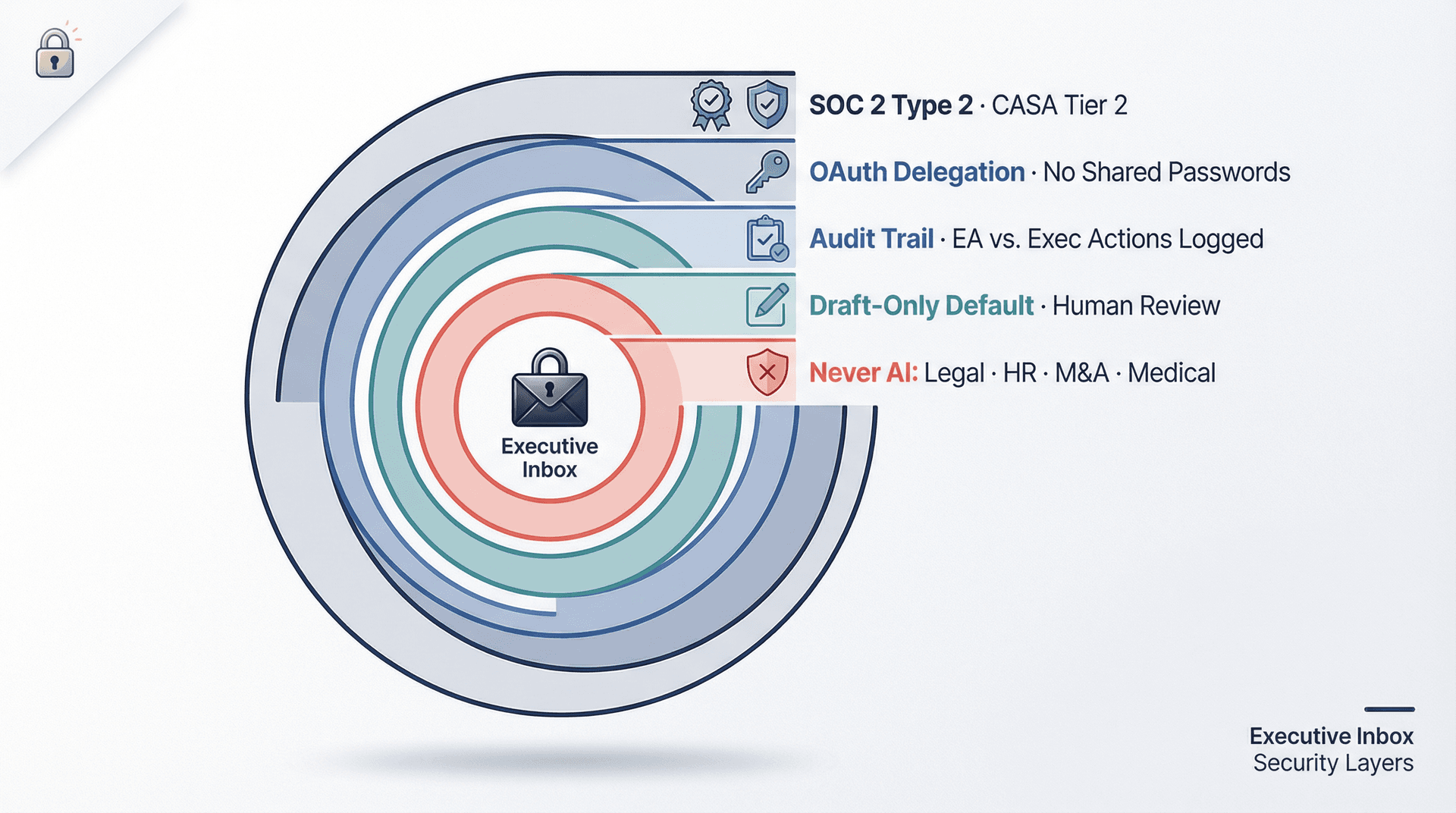
Start with draft-only mode by default for external replies until your exec explicitly authorizes auto-send. Create a "Never AI" category for legal, HR, M&A, medical, or whatever applies to your exec, and route those manually, always. Build an audit trail habit where you note "Handled by EA" vs. "Reviewed by Exec" for sensitive categories. And maintain permission hygiene: use delegation and OAuth scopes. Never share passwords. Not even "just for quick access."
Before connecting any third-party tool to your exec's inbox, it's worth reading up on whether it's safe to connect third-party apps to Gmail. For executive email, the bar is higher.
Inbox Zero's Security and Compliance Features for Executive Email
Inbox Zero's Privacy Policy (last updated November 2025) states that the platform does not permanently store full email body content. It stores sender info for analytics, summaries, and metadata for rules. When AI features run, email content is sent to your chosen LLM provider under their API terms.
For teams that need enterprise-grade assurance, Inbox Zero is SOC 2 Type 2 compliant and CASA Tier 2 approved (Google's Cloud Application Security Assessment), with a public trust center listing policies and controls. You can also review a broader list of SOC 2 compliant email tools if you're evaluating options for a security-conscious organization.
If your organization requires even more control, you can self-host the entire platform (it's open source) or bring your own AI keys so email content flows through providers you already have agreements with.
The Daily and Weekly Email Routines That Keep the System Running
A system without rhythm is just a setup that slowly decays. This is the part most people skip, and then they wonder why everything collapses after two weeks.
How to Structure Your Daily Email Routine as an EA
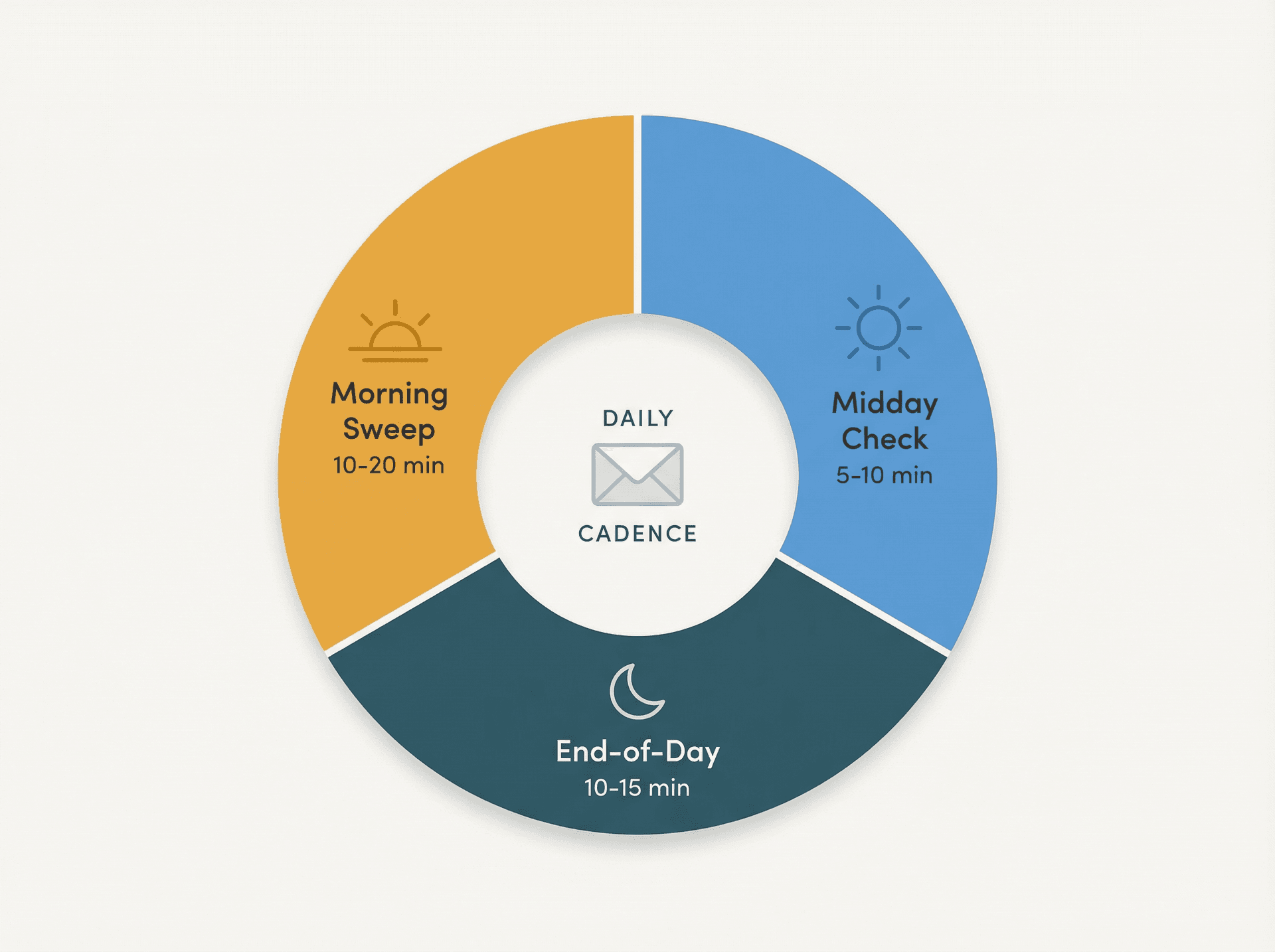
Start with a morning sweep of 10-20 minutes covering VIPs, overnight messages, anything with a deadline today, and anything that blocks the exec's first meeting. Do a midday check of 5-10 minutes for new arrivals, schedule changes, and quick approvals that can be turned around fast. Then close out the day in 10-15 minutes by clearing the inbox to zero or near-zero, checking Waiting threads for overdue items, and prepping the exec's brief for tomorrow morning.
This rhythm is how you apply the Inbox Zero method in practice, not as a one-time cleanup, but as a daily operating cadence. For EAs managing high volumes, learning how to reduce email overload in organizations at a systemic level can complement what you're doing at the inbox level. And if after-hours notifications are a problem, setting up email notification boundaries protects recovery time for both you and your exec.
The Weekly Inbox Review (15 Minutes with Your Exec)
Once a week, sit down with your exec for 15 minutes. Review VIP threads and any that need executive judgment. Check Waiting threads that are blocked or overdue. Update the Operating Agreement if there are new VIPs, new boundaries, or changed priorities. And prune rules to reduce noise by unsubscribing from anything new that's adding clutter.
This weekly touchpoint is what keeps the system calibrated. Without it, the Operating Agreement goes stale, your rules drift, and you're back to guessing.
Executive Inbox Email Templates (Ready to Copy and Use)
Copy these into your drafts folder, a text expander, or wherever you keep quick-access templates.
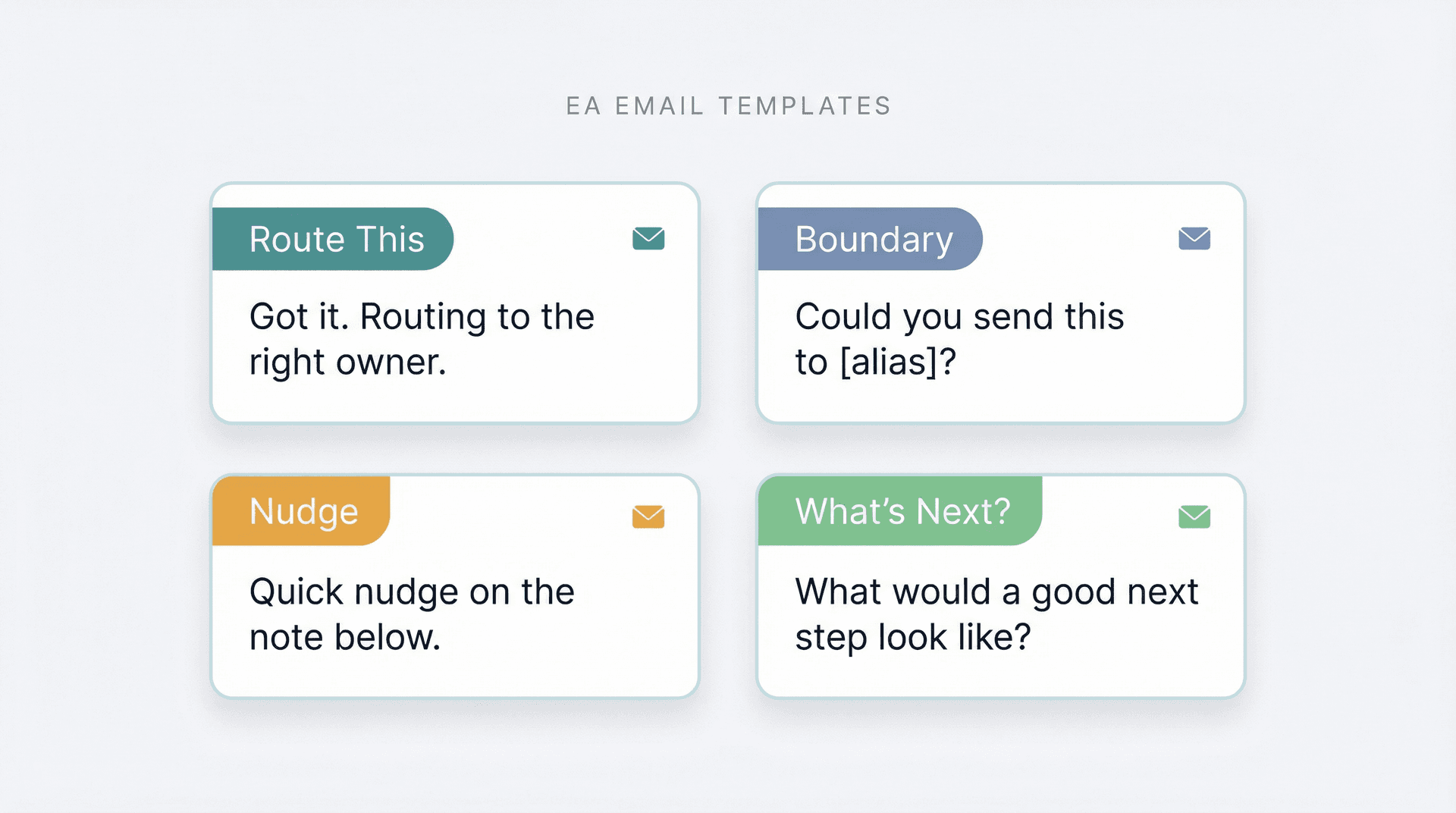
"I Can Route This": Template for Internal Routing Replies
Got it. I'm taking this and will route to the right owner.
If we need input from [Exec Name], I'll follow up with a clear question.
"Not the Right Channel": Template for Setting Boundaries
Thanks. To make sure this lands with the right team, could you send this to [alias]?
If you'd like, I can forward it as well.
"Follow-Up Nudge": Template for Waiting Threads
Quick nudge on the note below.
Are we still on track for [date]?
"Exec Is Interested, What's Next?": Template for Moving Things Forward
Thanks for reaching out, [Name].

[Exec Name] is open to this.
What would a good next step look like on your side?
If helpful, please suggest 2-3 times and a short agenda.
These four templates handle a surprising amount of exec inbox volume. Customize the tone to match your Operating Agreement's voice rules. Understanding the difference between reply, reply-all, and forward also matters when you're acting on behalf of someone else. The choice carries real reputation implications.
Inbox Zero Pricing, Open Source, and How to Get Started
If you're implementing this system with tooling, verify current pricing the same day you decide, because it can change.
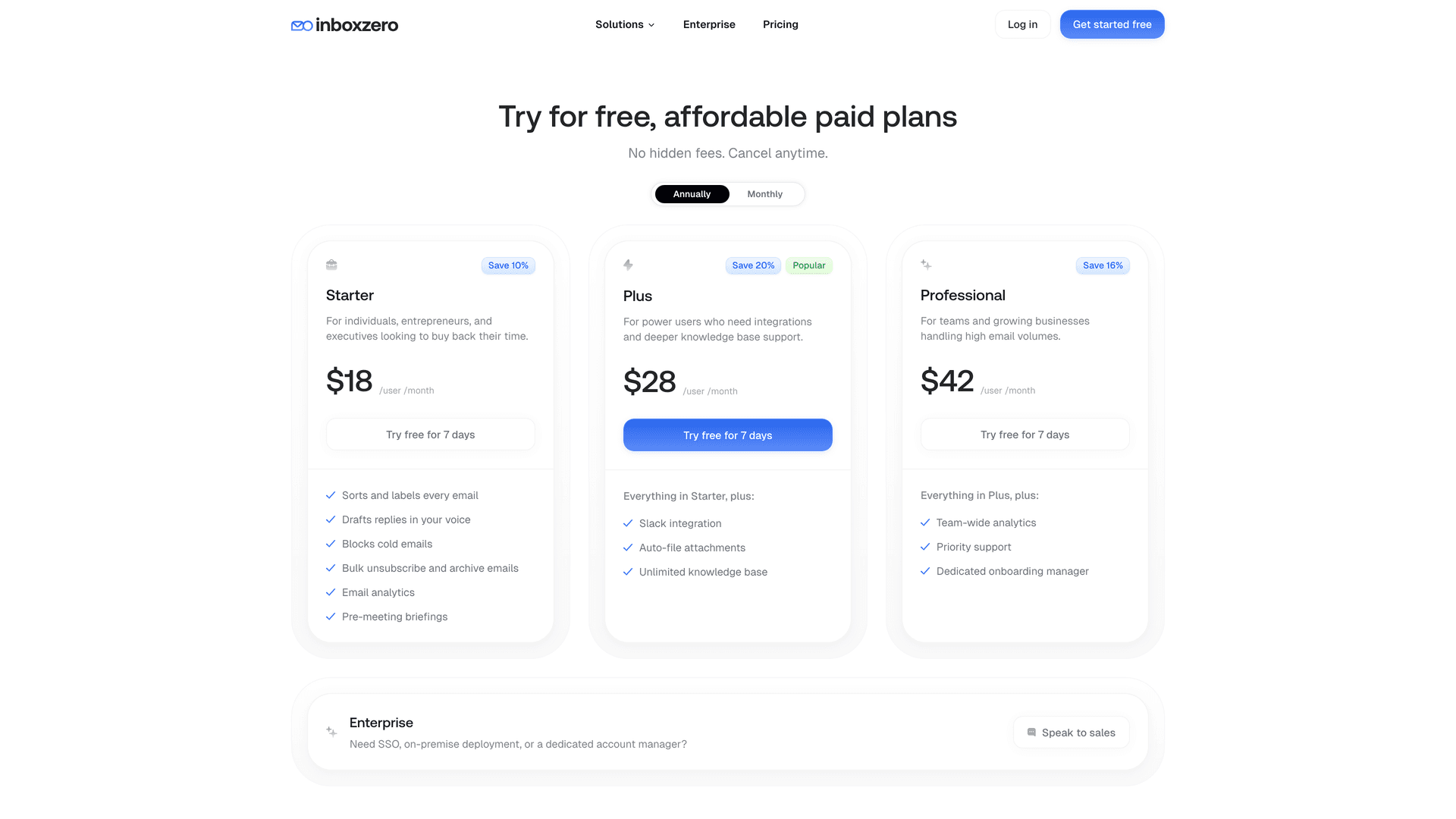
As of early 2026, Inbox Zero's pricing page shows three tiers:
| Plan | Monthly | Annual (per month) |
|---|---|---|
| Starter | $20/user | $18/user |
| Plus | $35/user | $28/user |
| Professional | $50/user | $42/user |
Always check the pricing page directly for the most current numbers.
For organizations where open source matters, Inbox Zero's GitHub repository has approximately 10.1k stars and 1.2k forks. The codebase is TypeScript, and self-hosting instructions are documented in the repo. If you want a broader comparison of open source email automation tools for Gmail, that context helps with the evaluation.
For EAs managing shared access across multiple team members, the shared inbox management guide covers how to structure that kind of delegation at scale. And if you're evaluating which email management app fits an executive workflow best, the full comparison is worth a read.
Ready to stop managing your exec's inbox manually? Get started with Inbox Zero and turn the system in this guide into something that runs itself. Your exec gets a cleaner inbox, you get hours back, and nothing important falls through the cracks.


How to Recall an Email in Outlook (2026)
How to recall an email in Outlook step by step for new Outlook, classic Outlook, web, Mac, and mobile, plus when recall works and what to do when it doesn't.
2026-09-30T18:25:57.000Z

How to Stop AliExpress Emails (2026)
Stop AliExpress promotional emails: the unsubscribe link, notification settings in your AliExpress account, and what to do when the deals keep coming.
2026-09-30T18:25:57.000Z

How to Stop Amazon Emails (2026)
Stop Amazon marketing emails with the Communication Preferences Center, manage Amazon email subscriptions, and handle order emails you can't switch off.
2026-09-30T18:25:57.000Z

How to Stop Domino's Emails (2026)
Stop Domino's emails with Domino's official opt-out page, stop Domino's text offers, and know which rewards emails keep coming.
2026-09-30T18:25:57.000Z