Google Workspace Email Security Settings Guide 2026
CEO spoofing, silent forwarding rules, and OAuth token theft happen when admins skip Google Workspace email security settings. Fix them here.

Your email security isn't as strong as you think it is.
That's not a scare tactic. It's what we see again and again when organizations reach out to us at Inbox Zero asking for help managing their email. They've got Google Workspace, they assume Gmail's built-in spam filtering is doing the heavy lifting, and they never open the Admin Console to check what's actually configured.
The result? CEO spoofing emails land in finance inboxes. Users click "Allow" on a malicious OAuth app and hand over permanent mailbox access. Someone sets up auto-forwarding to a personal Gmail account and quietly exfiltrates customer data for months. These aren't hypothetical. They're the exact scenarios that Google's own Admin Console is designed to prevent, if you actually configure it.
This guide walks you through every email security setting that matters in Google Workspace, explains why each one exists, and gives you the Admin Console paths to fix things right now.

Why Google Workspace Security Setups Have Critical Gaps
Think of email security as a chain with four links:
-
Identity: who controls the account? Is the sender who they claim to be?
-
Authenticity: can the receiver trust that the sending domain actually sent this message?
-
Content risk: is the message, attachment, or link dangerous?
-
Data governance: even if the message is legitimate, are users leaking sensitive data or breaking policy?

Most teams pour all their energy into link 3, the spam filter. And yes, Google's spam filtering is excellent. But if an attacker compromises an identity (link 1), forges your domain (link 2), or silently exfiltrates data (link 4), your spam filter won't save you. That's why breaches keep happening in organizations that "have Google's spam filtering."
This guide builds all four links.
You can treat it as a playbook with three passes:
Pass 1: Baseline hardening (30 to 60 minutes) fixes the highest-risk defaults.
Pass 2: Defense-in-depth (2 to 4 hours) adds exfiltration controls, safer app access, and better detection.
Pass 3: Enterprise-grade posture (ongoing) covers monitoring, incident response, and "never again" guardrails.
Google's UI shifts over time, but the concepts and control points stay stable. We'll give you the Admin Console paths and the reasoning, so you can find things even if Google moves the labels around.
Google Workspace Baseline Security Hardening Checklist
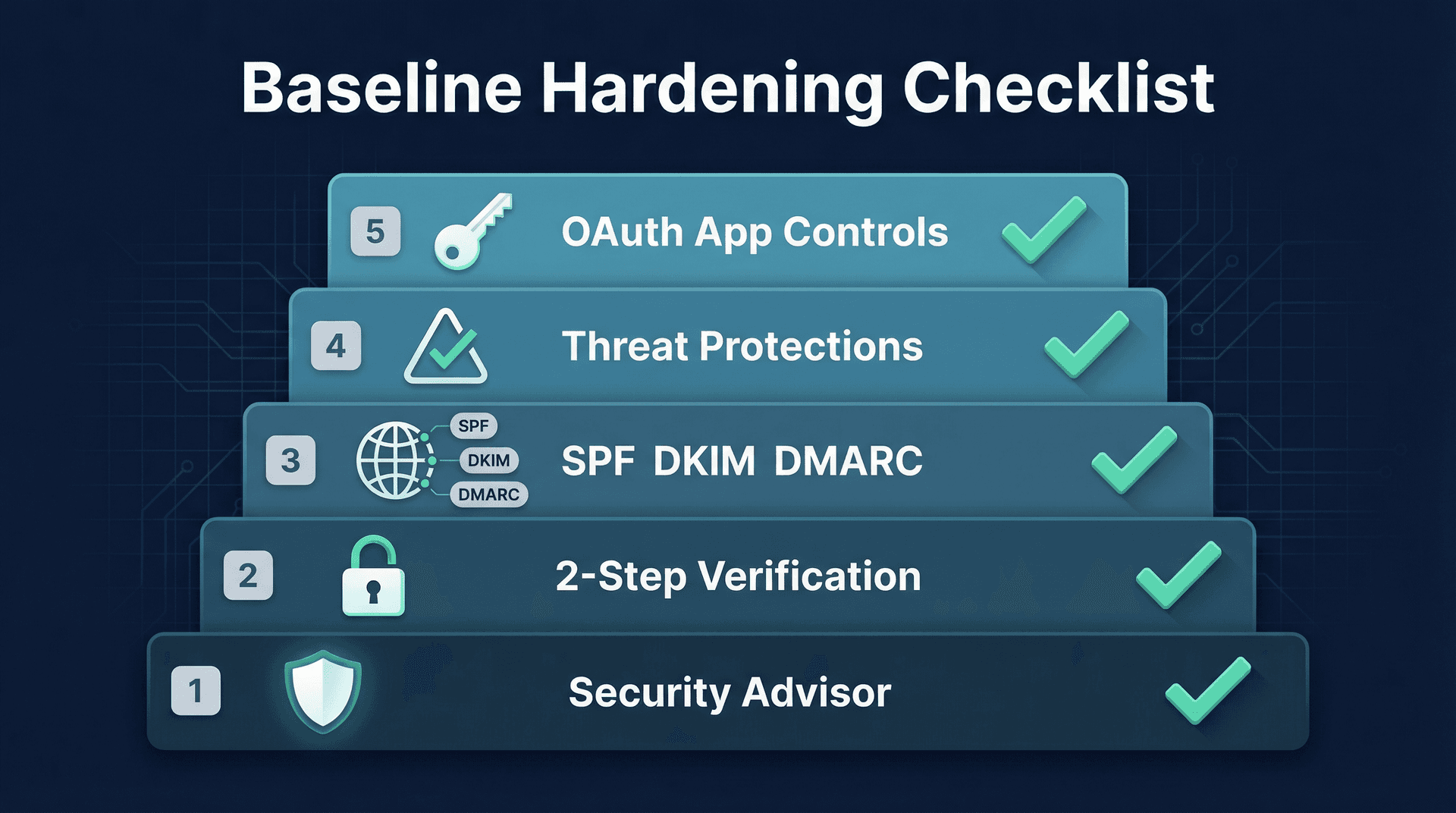
Before getting into the deep settings, run through these five items. They cover the biggest risks with the least effort.
How to Use Google's Security Advisor
Google built a "Security advisor" area that surfaces recommended settings you haven't enabled yet. Think of it as a gap scanner, and it's a fast way to figure out what to fix first.
Admin Console path: Security -> Security advisor
How to Enforce 2-Step Verification in Google Workspace
Account takeover is the root cause behind most email security incidents. If an attacker controls a mailbox, they can create forwarding rules, authorize malicious OAuth apps, search and export sensitive threads, and impersonate the user internally. Understanding the risks of third-party email app access is critical before you enable any external tool, including AI assistants.
The most common failure mode here is subtle: you allow 2-Step Verification but never enforce it. The highest-risk users (the ones attackers target first) are often the ones who never bother turning it on.
What good enforcement looks like:
-
Admin accounts: enforced immediately. Google is already pushing mandatory enforcement for admins.
-
Executives, finance, HR: enforced early. These roles are prime targets for BEC attacks.
-
Everyone else: enforced after a short ramp period, with clear instructions and support.
Don't treat email security as "a Gmail setting." If a compromised user can approve an OAuth app or set up forwarding rules, your Gmail settings become a speed bump, not a wall. Identity controls come first.
How to Set Up SPF, DKIM, and DMARC for Google Workspace
These three protocols form the anti-impersonation spine of your email security. We'll cover them in detail in the next section, but if you haven't set them up at all, that's your most urgent task. Mastering email deliverability begins with getting these authentication records right.
Enable Gmail's Advanced Threat Protections
Google's "Monitor the health of your Gmail settings" page is essentially a built-in scorecard for attachments safety, links and external images safety, spoofing and authentication safety, and risky allowlisting. If you only follow one Google page for Gmail security configuration, make it that one.
How to Restrict Third-Party App Access in Google Workspace
OAuth is now a top-tier attack vector. Attackers don't need your password if they can trick a user into granting access to a malicious app. We'll go deep on this later, but at minimum, review which apps currently have access to your Workspace data. It's worth understanding what happens when you connect third-party apps to Gmail before approving anything in the Admin Console.
Admin Console path: Security -> API Controls -> App access control
How SPF, DKIM, and DMARC Stop Email Spoofing
If your domain can be spoofed, attackers don't just phish your employees. They phish your customers using your brand. Getting email authentication right protects both sides.
SPF Records: Who Is Allowed to Send Email for Your Domain
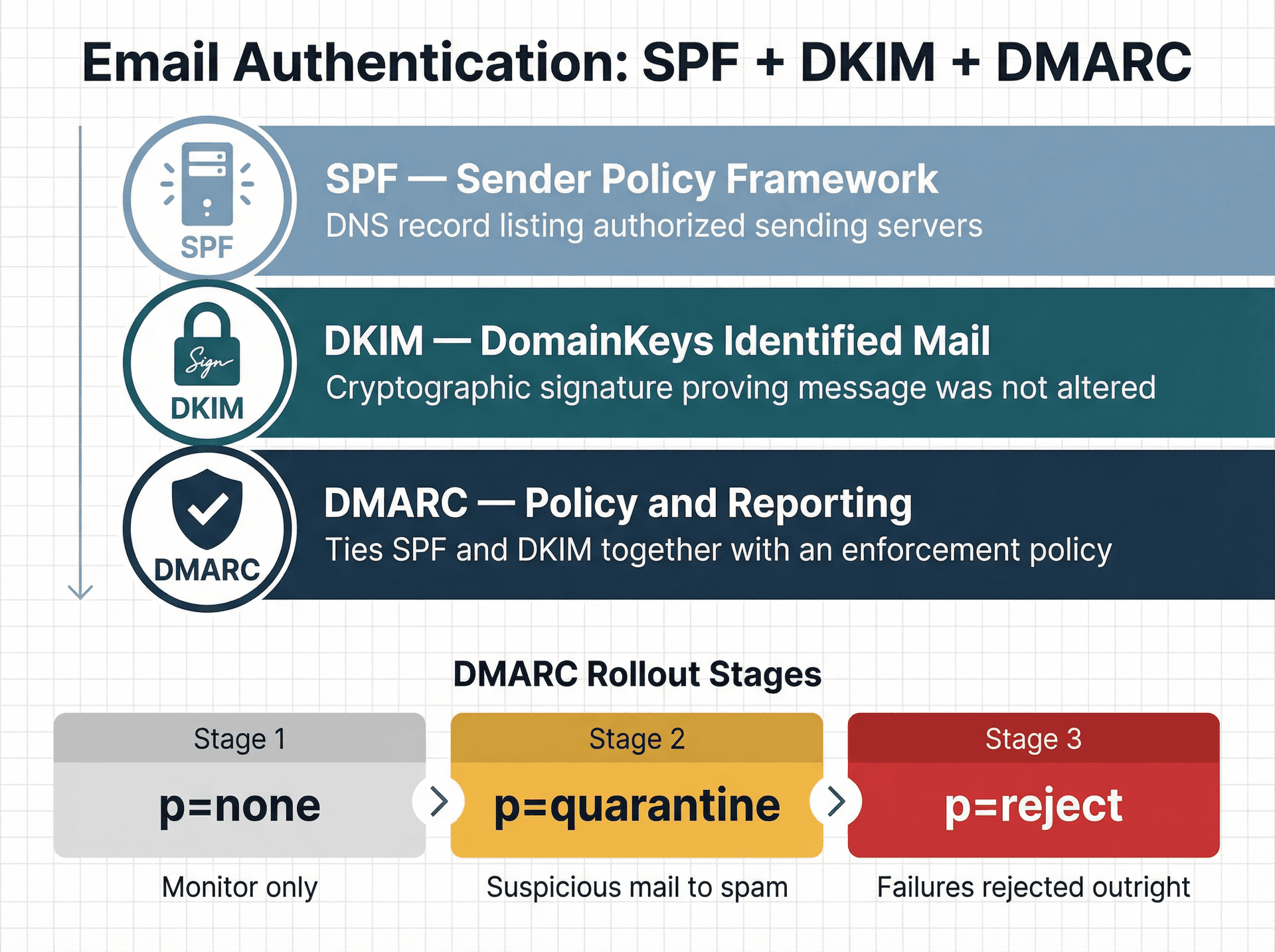
SPF (Sender Policy Framework) is a DNS record that tells the world which servers are authorized to send email on behalf of your domain. Here's what a typical record looks like for Google Workspace:
v=spf1 include:_spf.google.com ~all
That record says: allow Google's sending infrastructure, and soft-fail everything else.
The blind spot you need to watch: SPF has a DNS lookup limit of 10. If your organization uses tools like Zendesk, HubSpot, SendGrid, or billing systems that send email on your behalf, each one adds lookups. Exceed the limit and you'll break deliverability, and sometimes DMARC, without realizing it.
How DKIM Cryptographic Signing Works in Gmail
DKIM (DomainKeys Identified Mail) works differently from SPF. Where SPF says "this IP was allowed to send," DKIM says "this message content was signed by this domain and wasn't altered in transit." It's closer to tamper evidence than permission.
You want both because they fail in different ways. SPF breaks when mail is forwarded through intermediaries. DKIM survives forwarding but can break if message content is modified.
Key setup details:
-
Key length: 2048-bit is preferred. Use 1024-bit only if your DNS host can't handle 2048.
-
Selector: the default selector for Google Workspace is typically "google."
-
Admin Console path: Apps -> Google Workspace -> Gmail -> Authenticate email
How to Configure DMARC Policy and Reporting
DMARC (Domain-based Message Authentication, Reporting, and Conformance) ties SPF and DKIM together with a policy. It tells receiving servers: "if both SPF and DKIM fail and alignment fails, here's what you should do with the message."
The right rollout pattern is gradual:
① Start with p=none to collect reports without blocking anything. This lets you identify all legitimate senders.
② Move to p=quarantine once you're confident. Suspicious mail goes to spam or quarantine.
③ Move to p=reject when you've validated all your sending sources. Failures get rejected outright.
Jumping straight to p=reject without the monitoring phase is how organizations accidentally block their own legitimate email from third-party services.
Why Email Deliverability Rules Are Also Security Rules
Google's email sender guidelines now tie deliverability directly to anti-abuse requirements. All senders need SPF and DKIM. Bulk senders also need DMARC, TLS, and must keep spam complaint rates below a threshold. These aren't optional "nice to haves" anymore. If you send email that doesn't pass authentication, Google increasingly treats it as suspicious. This matters not just for security but for reaching inboxes, so see our guide on mastering email deliverability for the full picture.
Gmail Security Settings Every Admin Should Turn On
This is the section where most admins spend their time. It's important, but remember: it's link 3 of the chain. Without the identity and authenticity controls above, these settings are fighting with one hand tied behind their back.
How to Use the Gmail Security Health Monitor
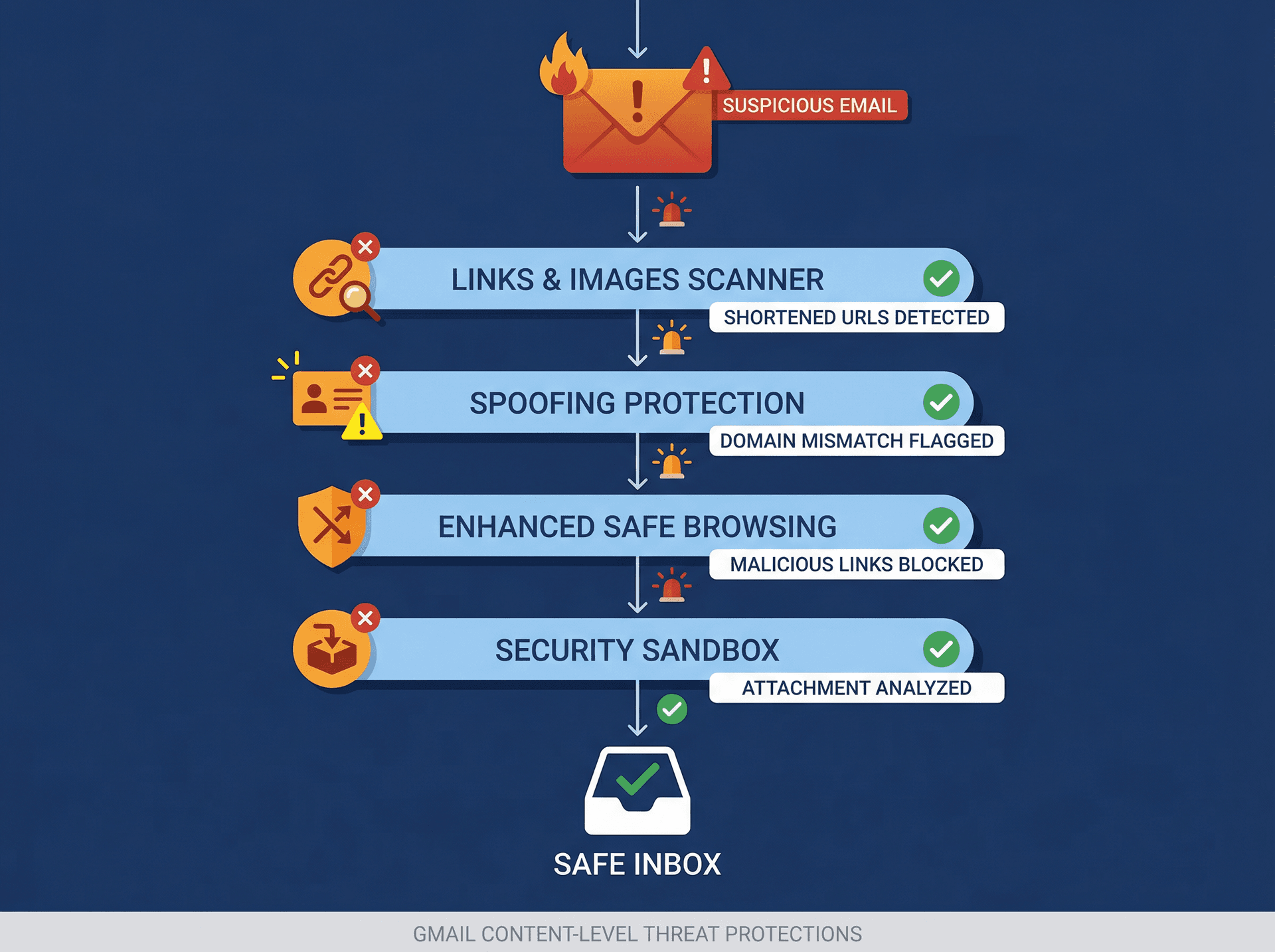
Google's "Monitor the health of your Gmail settings" page breaks down key risk areas and tells you exactly what to enable. It covers attachments safety, links and external images safety, spoofing and authentication safety, and warnings about risky allowlisting. Bookmark it. Come back to it quarterly. Pair it with Gmail filters troubleshooting if you notice any settings not applying as expected.
How to Block Malicious Links and External Images in Gmail
A phishing email is often just text plus a link. External images can be used for tracking, and blocking email tracking pixels is a related privacy concern worth understanding. They can also hide malicious content behind image loads. URL shorteners and "linked images" are common obfuscation tricks.
Enable these settings:
-
Identify links behind shortened URLs
-
Scan linked images
-
Show warnings when users click links to untrusted domains
Admin Console path: Apps -> Google Workspace -> Gmail -> Safety -> Links and external images
You have a choice between warning, spam, and quarantine actions. Start with warnings if you're worried about false positives, then harden over time.
How to Enable Gmail Spoofing and Authentication Protections
Most high-impact BEC (business email compromise) starts with impersonation. Lookalike domains like rnicrosoft.com (that's an "rn" instead of "m") and display-name spoofing where someone puts "CEO Name" as their sender name are simple but effective tricks.
Google's spoofing protections let you flag or block:
-
Messages from senders who spoof your domain
-
Messages from senders with names that match users in your organization
-
Messages from unauthenticated senders
You can choose actions for each: warning banner, move to spam, or quarantine.
What Is Enhanced Safe Browsing in Google Workspace
Google offers an admin setting to enable Enhanced Safe Browsing behavior in Gmail. This provides faster, more proactive protection against malicious links and downloads. It's off by default, and users can't turn it on themselves. You have to enable it.
Admin Console path: Apps -> Google Workspace -> Gmail -> Spam, Phishing and Malware -> Enhanced malware and phishing protection
How the Gmail Security Sandbox Scans Attachments
Instead of guessing whether an attachment is malicious, the Security Sandbox runs it in a controlled environment and observes its behavior before delivering it to the user.
One thing to know: sandbox scanning can add a small amount of latency and may occasionally delay delivery of certain attachment types. If that concerns you, roll it out by organizational unit first and monitor the impact before enabling it org-wide. Understanding why emails sometimes go to spam can also help you calibrate aggressive security settings against delivery accuracy.
Why Default Gmail Attachment Scanning Is Not Enough
Google does scan messages even without the additional safety settings enabled. But Google also makes it clear that enabling the extra settings helps catch "previously unidentified malicious content." The defaults are not the maximum protection posture. Turning on every available protection is how you close that gap.
How Spam Allowlists Let Phishing Back Into Your Inbox
This scenario plays out in every organization eventually:
Someone says "we're missing an important vendor email." Someone asks to "whitelist the whole domain." Someone disables authentication requirements "just for this one sender."
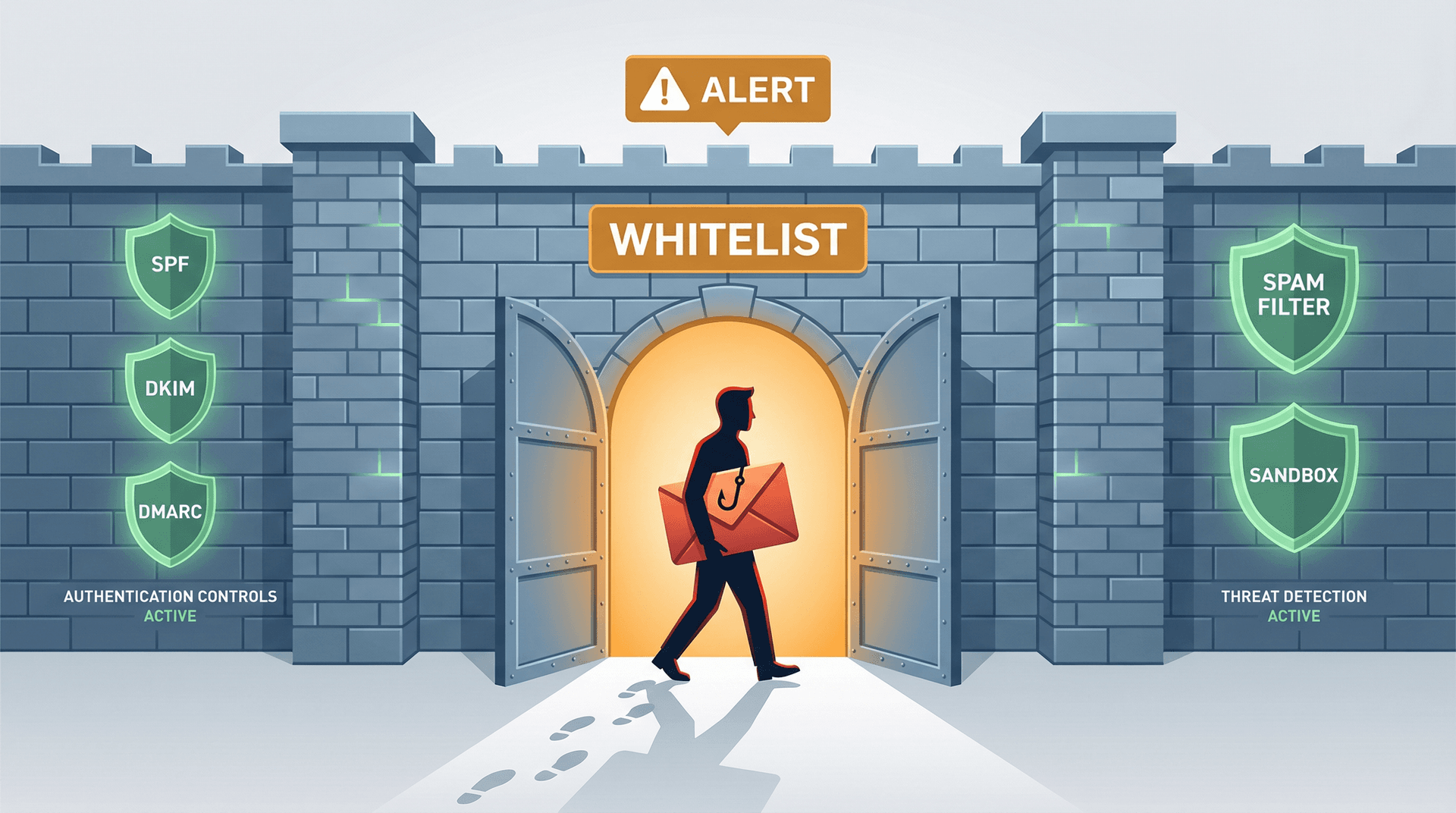
And that's exactly how phishing gets back into inboxes after you've spent hours hardening everything else.
Why Custom Spam Filter Exemptions Are Dangerous
Google's custom spam filter settings let you bypass spam filtering for approved senders. That sounds reasonable until you realize what it actually does: it tells Google to skip its own protections for those senders.
Google's own health monitor explicitly warns about two patterns:
-
Approved senders without authentication: this bypasses spam and increases spoofing risk.
-
Approved domain senders: adding whole domains to the approved list increases spoofing risk significantly.
If you take nothing else from this section: never whitelist a whole domain unless you can justify it as if you were writing a postmortem.
How to Detect Bad Whitelist Alerts in Google Workspace
Google's Alert Center includes a specific alert category for "phishing in inboxes due to bad whitelist." That means spam was delivered because an admin's whitelisting overrode the filters.
That's Google telling you, bluntly: admins break Gmail filtering all the time. Set up the alert. Pay attention to it.
How to Stop Data Exfiltration Through Email in Google Workspace
The threat here isn't just inbound. Some of the most damaging email security failures happen when data leaves your organization through email channels that nobody's watching. Organizations in regulated industries should pair these controls with a proper email retention policy.
Should You Disable Automatic Email Forwarding in Google Workspace?
Allowing users to forward their mail to another address is a data governance decision, not a convenience toggle. A compromised account with auto-forwarding enabled gives an attacker a persistent copy of every email, even after you reset the password.
Recommendation for most organizations: disable external forwarding globally. If you need exceptions (executive assistant coverage, parental leave handoffs), create them intentionally and document them. For legitimate vacation coverage, see our guide on setting up email forwarding safely.
Admin Console path: Apps -> Google Workspace -> Gmail -> End User Access -> Allow per-user outbound gateways / Auto-forwarding
How to Restrict Mail Delivery to Authorized Addresses
For some organizations (schools, regulated environments, teams handling sensitive data), restricting delivery to authorized addresses or domains reduces both data leaks and accidental exposure. Healthcare organizations should be particularly mindful of HIPAA-compliant email best practices on top of these admin controls.
How to Set Up Gmail DLP Rules to Prevent Data Leaks
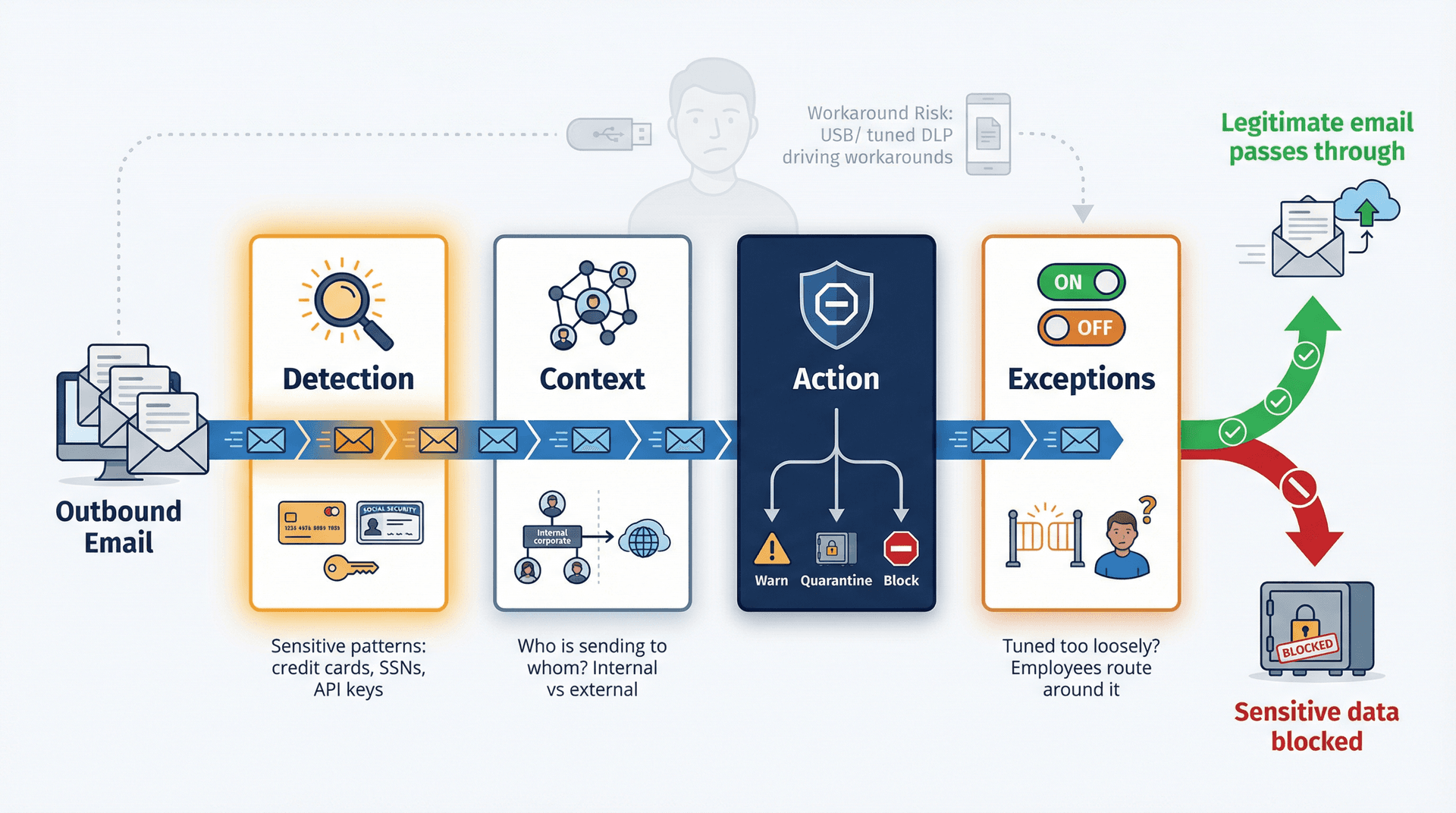
Gmail's Data Loss Prevention feature is the content-level safety net for exfiltration. It works through four layers:
| Layer | What It Does |
|---|---|
| Detection | Does the message match sensitive patterns? Think credit card numbers, Social Security numbers, API keys, or documents with specific classification markings. |
| Context | Who is sending to whom? External recipients vs. internal, specific domains vs. unknown. |
| Action | Warn the user, quarantine the message, block it, or route it for review. |
| Exceptions | This determines whether DLP is actually usable in practice or gets ignored because it's too noisy. |
The second-order effect to watch: badly tuned DLP trains employees to work around controls. They'll start sending sensitive files through personal messaging apps or USB drives instead. Good DLP is narrow, high-signal, and aligned to real workflows. For legal and compliance teams, understanding eDiscovery email preservation requirements is equally essential.
Admin Console path: Security -> Data protection -> Manage rules
How to Use Gmail Content Compliance Rules
For organizations that need fine-grained control over outbound email, Google's content compliance rules let you take actions based on message properties and content. Common uses include:
-
Outbound email disclaimers
-
"Do not send outside company" constraints for specific groups
-
Quarantine for messages containing sensitive keywords
-
Attachment-based policy enforcement
For enterprises with GDPR obligations around email deletion, these content compliance rules are part of a larger governance framework.
How to Enforce TLS Email Encryption in Google Workspace
TLS encrypts email in transit between mail servers. It's not encryption at rest, and it doesn't protect the message content end-to-end, but it stops attackers from intercepting messages in flight. If your organization handles SOX-regulated data, review the SOX email audit trail requirements that apply on top of these transport controls.
Where TLS enforcement becomes valuable:
-
Sending to partners who must receive data securely
-
Regulated data flows (healthcare, finance, legal)
-
Reducing downgrade attacks where a malicious server forces an unencrypted connection
How to Control OAuth and Third-Party App Access in Google Workspace
Phishing isn't just "enter your password" anymore.
Modern attacks convince a user to click "Allow" on an OAuth consent screen, which grants the app long-lived access to read mail, create rules, or access Drive, all without needing the user's password again. The access persists until someone explicitly revokes it. This is why understanding which third-party apps are safe to connect to Gmail matters so much for admins and individual users alike.

Google Workspace OAuth App Policy: What Admins Need to Know
You don't need paranoia. You need to treat OAuth apps the same way you treat software installation on company laptops.
A policy that works for most organizations:
① Default deny for unknown apps
② Approve apps explicitly after a security review
③ Scope review: does the app request only the permissions it needs?
④ OU or group-based rollout: pilot with a small group first
⑤ Quarterly audit: remove stale apps that nobody uses anymore
Admin Console path: Security -> API Controls -> App access control
This is especially relevant if you're evaluating AI email tools (including Inbox Zero). Any reputable tool should be transparent about which scopes it requests and why. We publish our OAuth scopes in our documentation, and our security trust center details exactly how we handle data access.
How Email Routing Gateways Can Break Your Security Settings
Routing rules and mail gateways are powerful. They're also where good intentions regularly become accidental security bypasses. If routing rules affect your team's ability to receive emails reliably, check our troubleshooting guide on Gmail not receiving emails from specific senders.
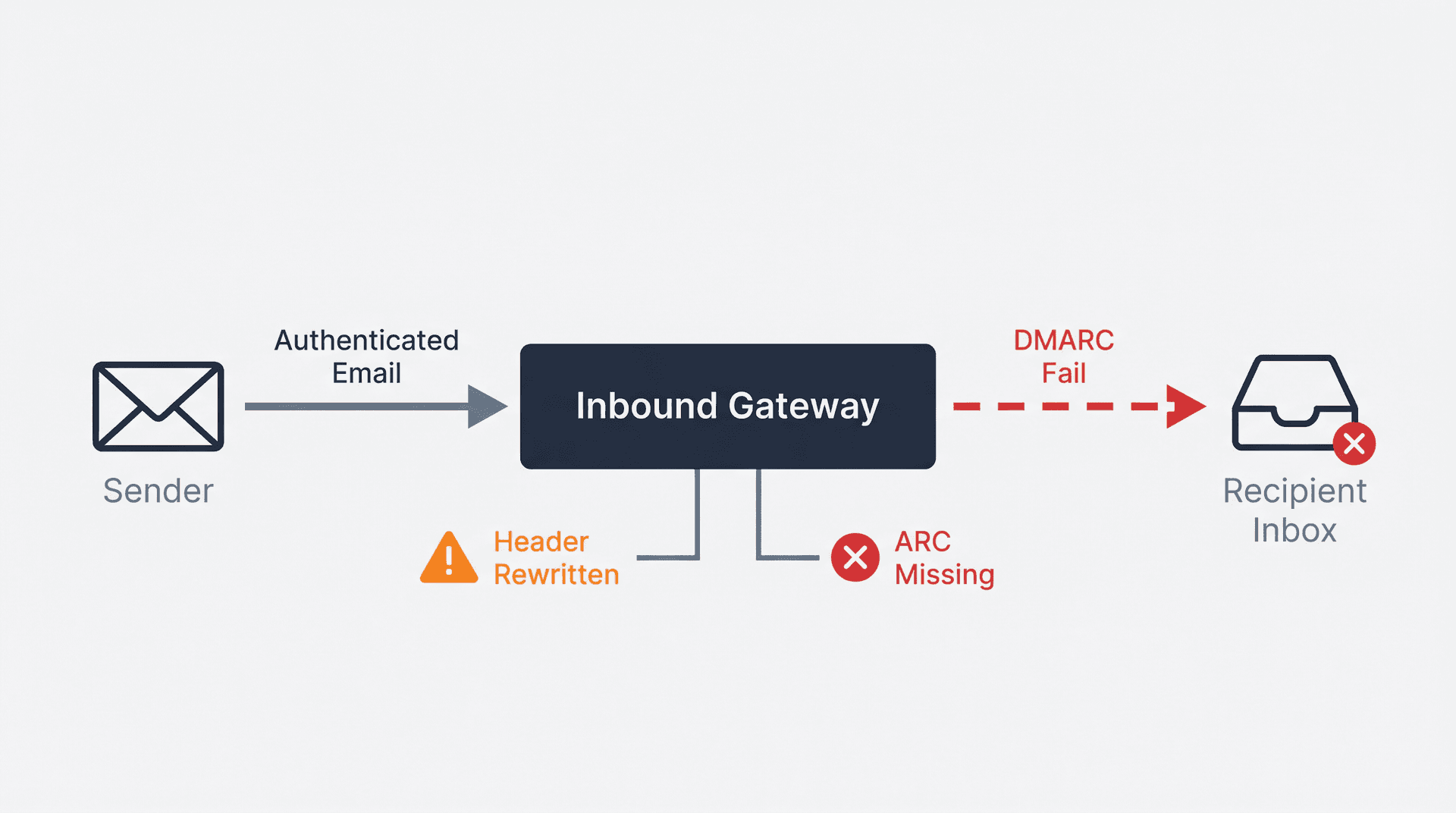
The most common failure mode: someone adds a gateway and accidentally bypasses spam or authentication checks in ways nobody on the team fully understands. If you use inbound or outbound gateways, review carefully:
-
Where is SPF/DKIM being checked? If it's checked before the gateway rewrites headers, the check might pass for the wrong reasons.
-
What gets rewritten? Header modifications can break DKIM signatures.
-
Is ARC being added? ARC (Authenticated Received Chain) matters for forwarding flows, because without it, DMARC can fail on forwarded messages even when the original sender authenticated properly.
Admin Console paths:
-
Apps -> Google Workspace -> Gmail -> Routing (for routing rules)
-
Apps -> Google Workspace -> Gmail -> Spam, Phishing and Malware -> Inbound gateway (for inbound gateways)
Test routing changes thoroughly before applying them org-wide. A misconfigured route can silently break authentication for all inbound mail.
Google Workspace Email Security Monitoring and Incident Response
You can have perfect settings and still get blindsided if you're not watching the logs. Monitoring turns "we think we're secure" into "we can prove it." Tracking your email productivity metrics alongside security events gives you a complete operational picture.
How to Use Email Log Search in Google Workspace Admin Console
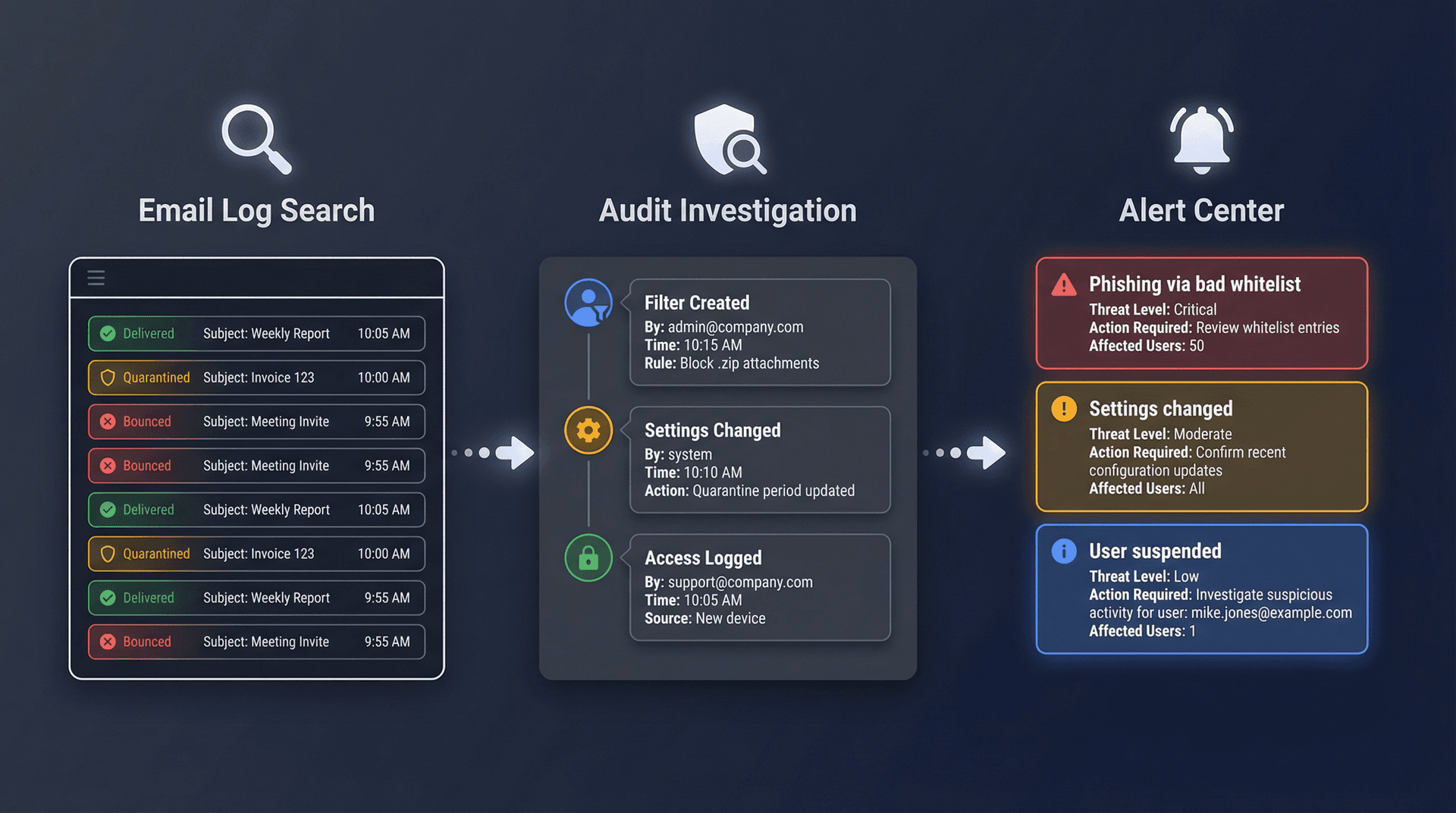
When someone says "I never got that email," you need proof. Google's Email Log Search lets you trace individual messages through their delivery pipeline: accepted, bounced, quarantined, or delivered. It's the tool you'll use more than any other when investigating email issues.
Admin Console path: Reporting -> Email Log Search
Gmail Audit Log Events and Investigation Tools Explained
For deeper investigation, Gmail log events in the Audit and Investigation tool (available in higher Workspace editions) let you see granular actions: who changed settings, who created filters, who accessed what.
How to Set Up Google Workspace Alert Center for Email Threats
Google's Alert Center surfaces events like:
-
Phishing detected in inboxes due to bad whitelist
-
Email settings changed
-
User suspended due to suspicious activity
Alerts are only useful if they trigger action.
Operational tip: create an internal rule that any alert involving "settings changed" or "bad whitelist" requires a short postmortem note, even if the conclusion is "no impact." That simple practice is how you avoid making the same mistakes quarter after quarter.
A well-organized shared mailbox management approach can also help distribute alert response across your security team.
What Is S/MIME Encryption and When Does Google Workspace Need It?
Most organizations don't need S/MIME. But if yours does, it's worth understanding what it gives you beyond TLS.
Here's the practical distinction:
| Protocol | What It Protects | Limitation |
|---|---|---|
| TLS | The connection between mail servers | Once arrived, the message is decrypted and stored in the recipient's mailbox |
| S/MIME | The message content itself | Only the intended recipient can decrypt it; digital signatures prove sender authenticity |

If your use case involves sending sensitive documents where you need to guarantee that nobody in the middle (including the mail provider itself) can read the content, S/MIME is the tool. Google supports hosted S/MIME in certain Workspace editions and provides enablement guides. If you're in healthcare and need to meet HIPAA requirements, our HIPAA-compliant email practices guide covers the additional layers beyond S/MIME.
For everyone else, enforcing TLS for external communication covers the most common transit security risks.
How Inbox Zero Works Within Google Workspace Security Settings
You've just spent significant effort hardening your Workspace email security. The last thing you want is to bolt on a third-party tool that punches holes in everything you've built.
That's exactly the concern we built Inbox Zero to address.
What Inbox Zero Actually Does
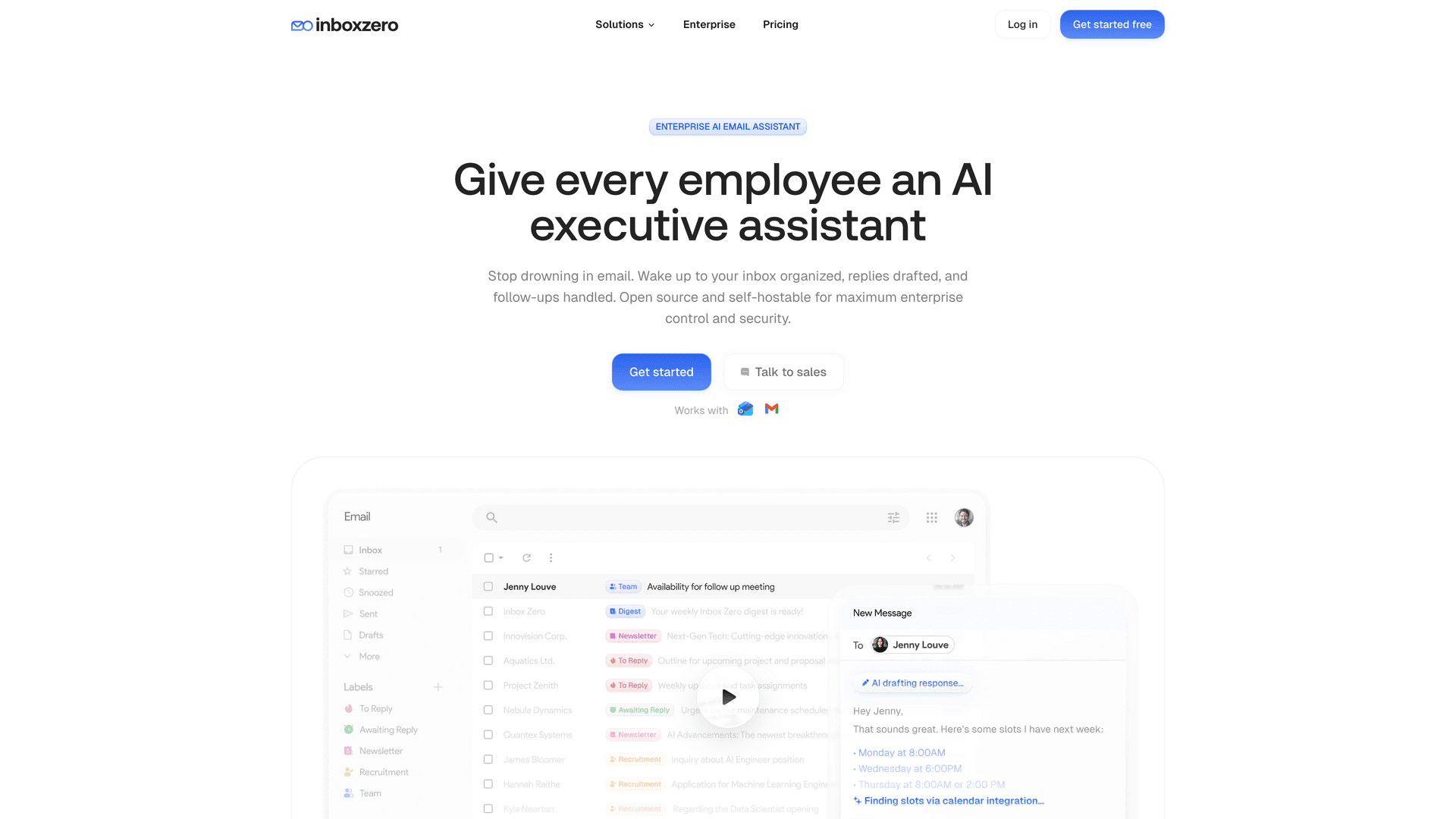
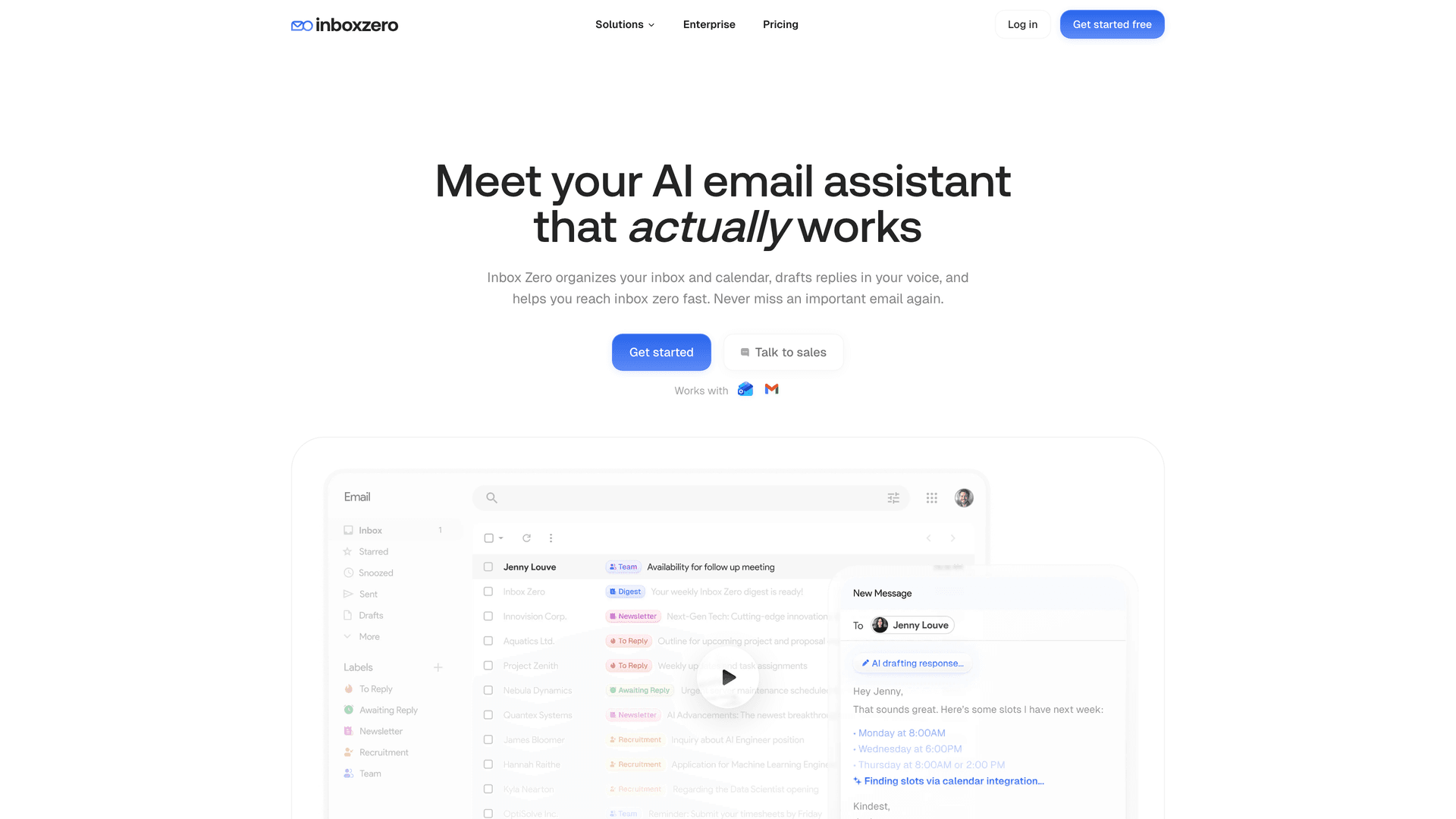
Inbox Zero is an AI email assistant that turns your unstructured email queue into structured decisions and actions. Instead of manually triaging hundreds of messages, you define rules (in plain English or through explicit conditions), and the system drafts replies, applies labels, archives low-priority mail, blocks cold outreach, and tracks which threads still need your response through Reply Zero.
The key design principle: human control by default. Drafts and labels appear for your review before anything gets sent. You approve or override. There's always an audit trail.
Why Security-Conscious Admins Trust It
If you're reading a guide about hardening Google Workspace, you're not going to add a tool that asks for unnecessary permissions or handles data carelessly. Here's how we've built Inbox Zero to meet that standard:
-
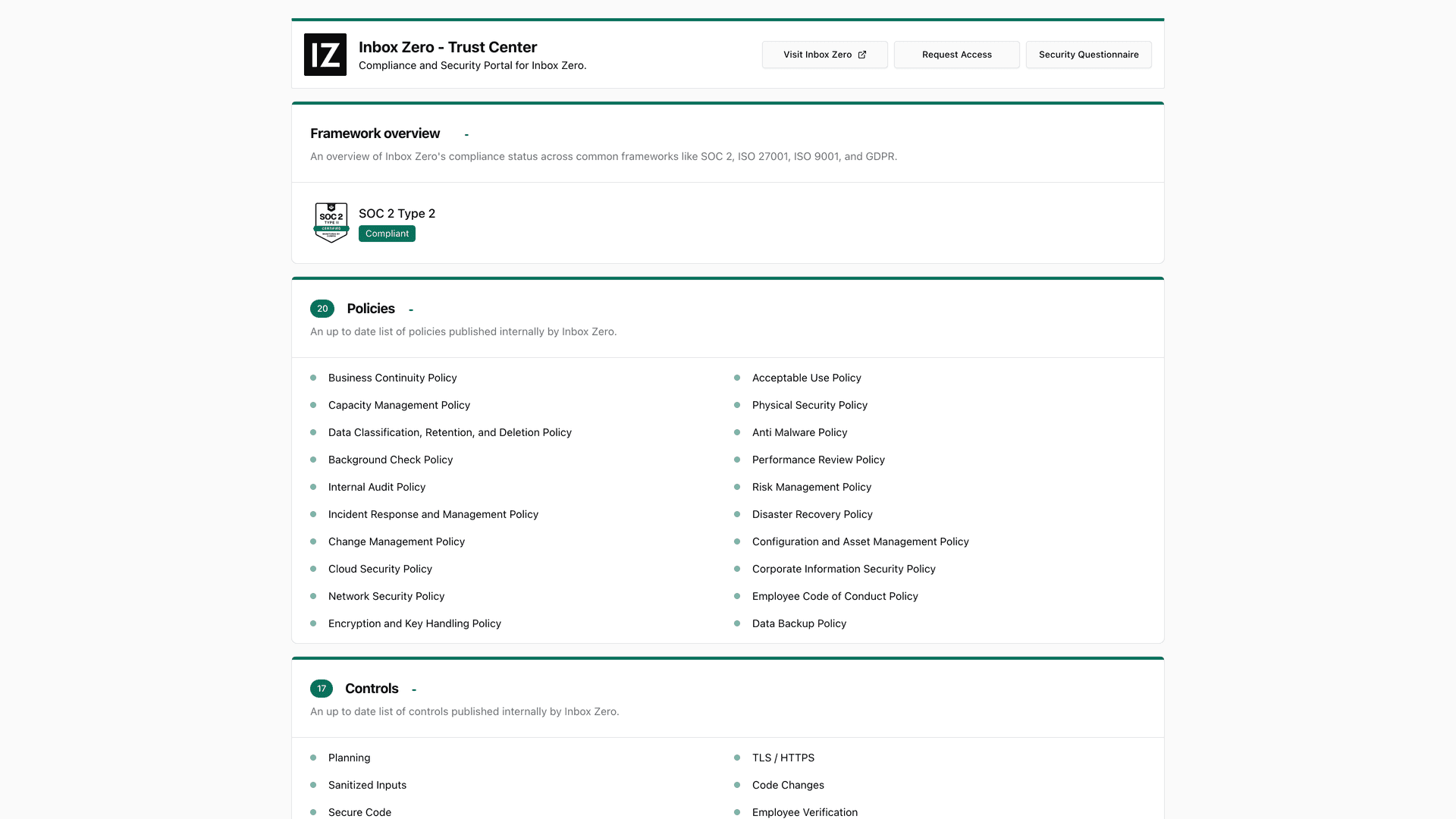
SOC 2 Type 2 certified. Independent audit confirming our security controls meet enterprise standards. We're also on our list of SOC 2 compliant email tools.
-
CASA Tier 2 approved. Google's own Cloud Application Security Assessment, which is required for apps accessing sensitive Gmail scopes. This means a Google-authorized assessor has verified our security posture.
-
Google-verified via third-party auditor. Our enterprise page documents our full compliance posture.
-
Public trust center. Our security portal lists 20+ published policies and 17 controls covering TLS, secure code, incident response, device security, and 2FA, assessed according to the CASA Tier 2 security framework that Google requires for apps accessing sensitive Gmail scopes.
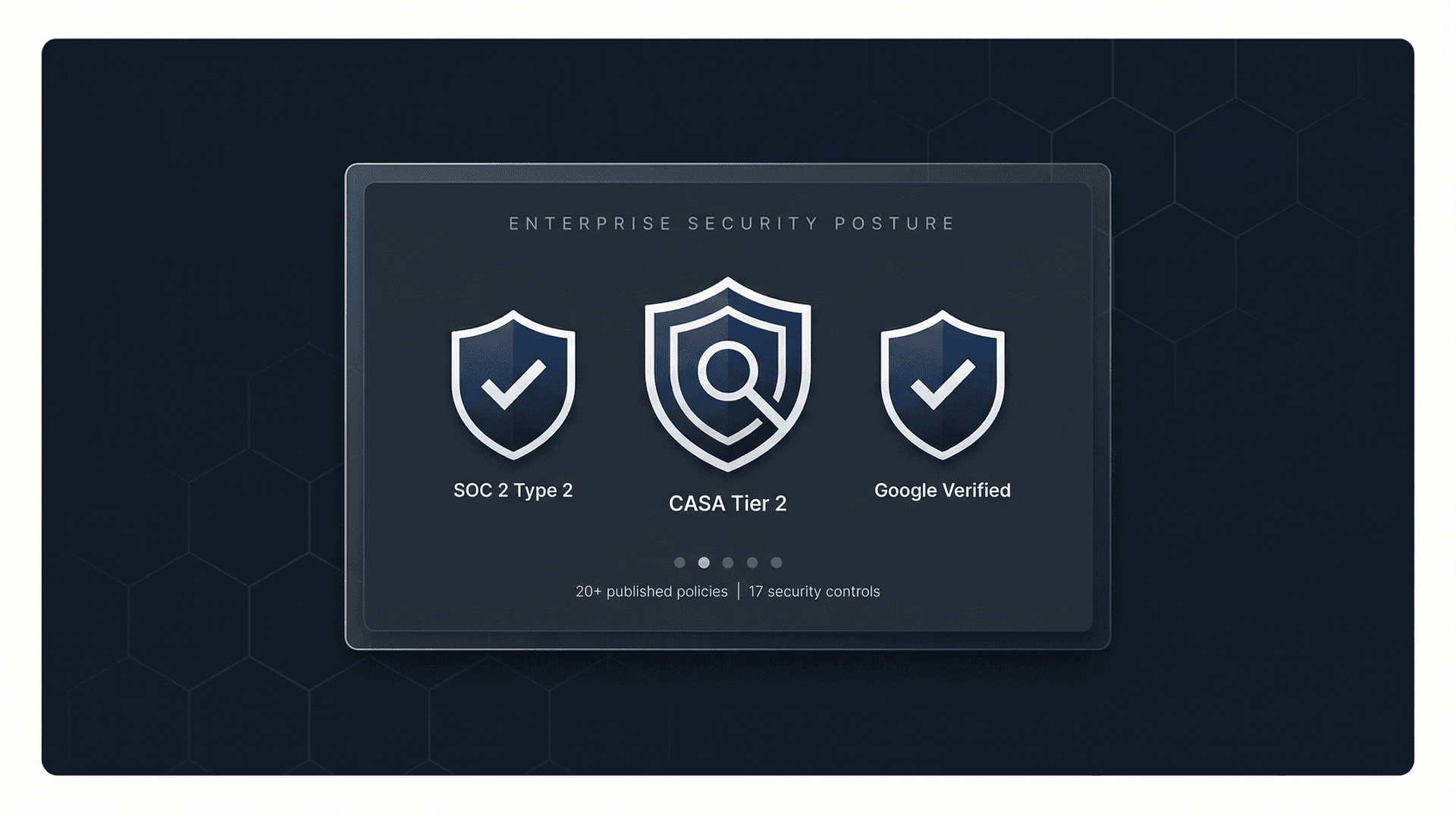
Not just badges — the evidence is public. The enterprise page documents the full compliance posture, and the security trust center shows every published policy and control in detail.
How Inbox Zero Works With Your Admin Console Controls
Every security control you configured in this guide still applies when Inbox Zero is connected:
| Your Admin Control | How Inbox Zero Respects It |
|---|---|
| OAuth app restrictions | We request only the scopes we need (documented in our docs). You approve us through API Controls like any other app. |
| Forwarding controls | We don't use forwarding. We work through Gmail's API using standard OAuth scopes. |
| DLP and compliance rules | Our actions (labeling, drafting, archiving) operate within Gmail. Your DLP rules still scan outbound mail normally. |
| Logging and audit | Every action we take shows up in Gmail's activity logs. You get full visibility. |
Need help automating routine email triage while keeping these security controls intact? See how the AI Personal Assistant works alongside your existing admin configuration.
Open Source and Self-Hosting
For organizations that want maximum control, Inbox Zero is open source. You can review every line of code on our GitHub repository, and we provide full self-hosting instructions with Docker support.
Self-hosting means your email data never leaves infrastructure you control. You choose your own LLM provider (or run a fully local model with Ollama for zero external data exposure), your own database, and your own authentication setup. The entire codebase is TypeScript, with clear documentation for setting up Google OAuth apps with the exact scopes required.
The Chrome Extension Option
If your organization's security policy is "no third-party mailbox access, period," we still have something that helps. Our Chrome extension adds customizable tabs inside Gmail, essentially giving you a split-inbox experience without any server-side processing.
The extension runs entirely in your browser. No data collection, no external servers, no OAuth tokens. It stores settings locally and works with Gmail's existing labels and search queries. It's listed on the Chrome Web Store with full privacy disclosures. You can read our full privacy policy for complete details on how we handle data.
Getting Started
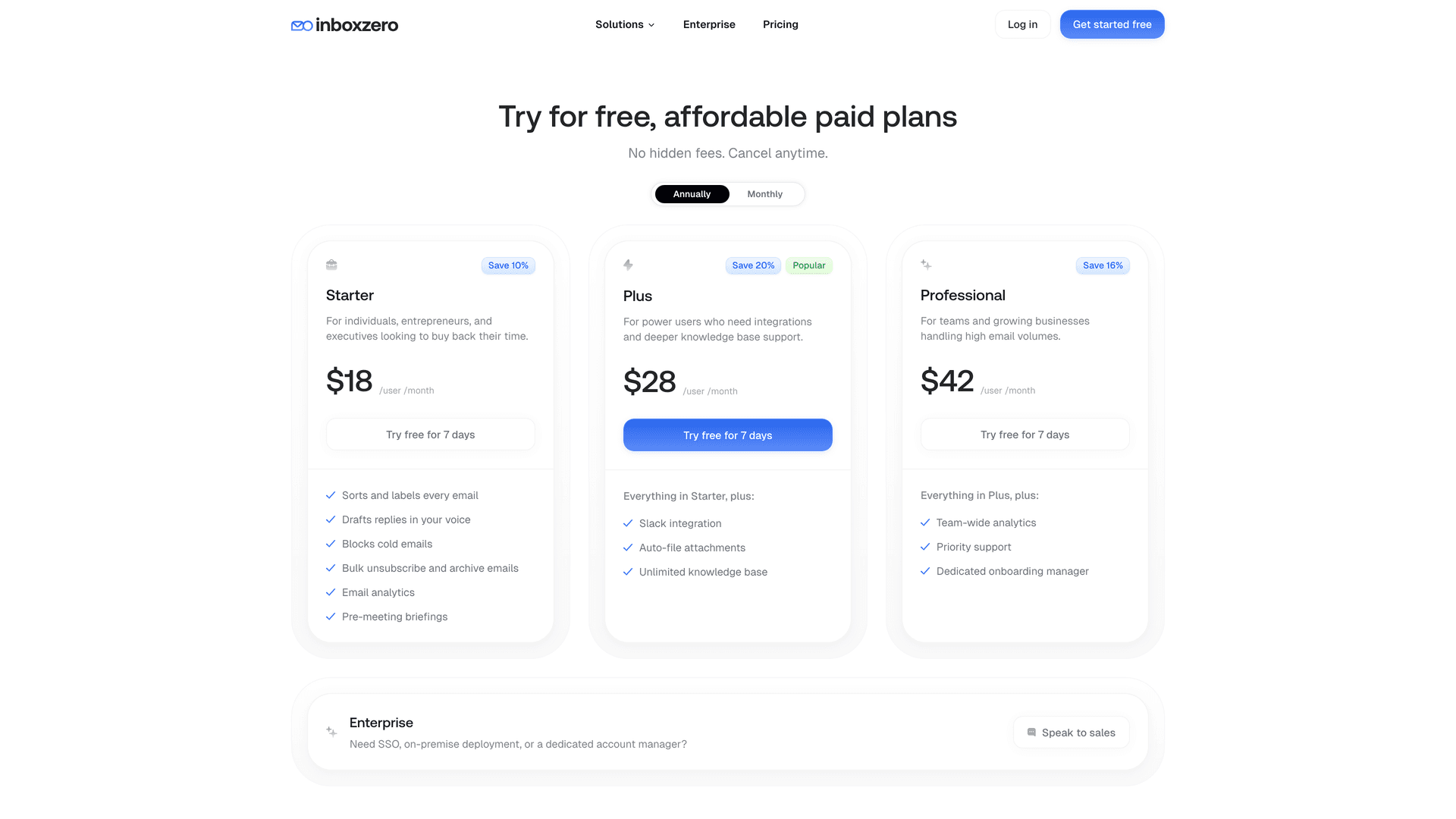
You can explore Inbox Zero with a free account to see how it works with your existing Workspace setup. Check our pricing page for plan details, or review our documentation to understand exactly what scopes we request and how automation rules work. For enterprise deployments, our enterprise page covers security evidence, compliance documentation, and deployment options.
Email Threat to Google Workspace Admin Setting: Quick Reference
Here's a fast lookup table mapping common email threats to the specific admin controls that address them:

| Threat | What It Looks Like | Admin Controls That Help |
|---|---|---|
| CEO spoofing, lookalike domains | "CEO Name" asks for urgent wire transfer | SPF/DKIM/DMARC + Gmail spoofing protections |
| Phishing links | "View invoice" goes to fake login page | Links & external images safety + Enhanced Safe Browsing |
| Malware attachments | "DocuSign.pdf.exe" | Attachment protections + Security Sandbox |
| Silent data exfiltration | Forwarding rules to personal email | Disable auto-forwarding + DLP |
| OAuth token compromise | User clicks "Allow" on malicious app | API Controls / app access restrictions |
| Admin mistakes that bypass filtering | "Whitelist the whole vendor domain" | Avoid risky allowlisting + monitor bad whitelist alerts |
| "Where did the email go?" | User claims non-delivery | Email Log Search + Gmail log events |
Building a Complete Google Workspace Email Security System
Email security in Google Workspace isn't a single setting. It's a system of controls that reinforce each other. Identity hardening protects accounts. SPF, DKIM, and DMARC protect your domain's reputation. Gmail's threat controls catch malicious content. Data governance controls prevent leaks. And monitoring proves it's all working.
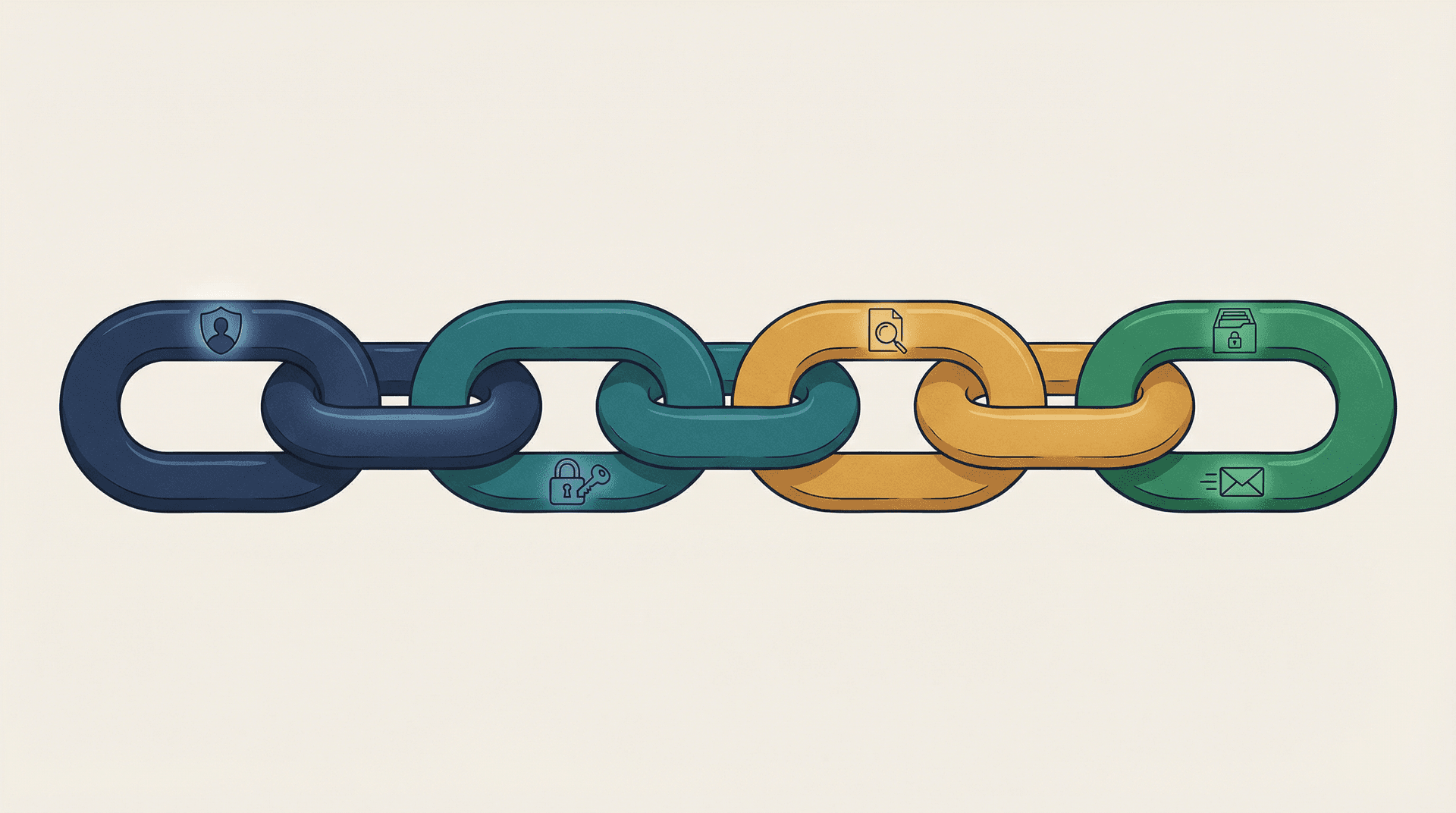
If you set up just the baseline hardening section of this guide, you'll already be ahead of most organizations. The real value comes from building all four links of the chain and keeping them maintained over time. If you want to go deeper on email management strategies that work alongside these security controls, our blog covers the full picture.
And if you're looking for a way to automate the email management that sits on top of these security controls, Inbox Zero was designed to work within the security boundaries you've set, not around them. SOC 2 certified, CASA Tier 2 approved, open source, and built to respect every admin control in your Workspace environment.
Beyond security hardening, Inbox Zero also helps you clean your inbox of accumulated noise using the Bulk Email Unsubscriber and understand your email patterns with Email Analytics.
Your email security is only as strong as the weakest link in the chain. Go tighten them all.

How to Recall an Email in Outlook (2026)
How to recall an email in Outlook step by step for new Outlook, classic Outlook, web, Mac, and mobile, plus when recall works and what to do when it doesn't.
2026-09-30T18:25:57.000Z

How to Stop AliExpress Emails (2026)
Stop AliExpress promotional emails: the unsubscribe link, notification settings in your AliExpress account, and what to do when the deals keep coming.
2026-09-30T18:25:57.000Z

How to Stop Amazon Emails (2026)
Stop Amazon marketing emails with the Communication Preferences Center, manage Amazon email subscriptions, and handle order emails you can't switch off.
2026-09-30T18:25:57.000Z

How to Stop Domino's Emails (2026)
Stop Domino's emails with Domino's official opt-out page, stop Domino's text offers, and know which rewards emails keep coming.
2026-09-30T18:25:57.000Z