How to Pin an Email in Gmail to the Top of Your Inbox
Gmail has no pin button, but you can pin an email in Gmail using stars, Priority Inbox, Multiple Inboxes, or a free browser extension.

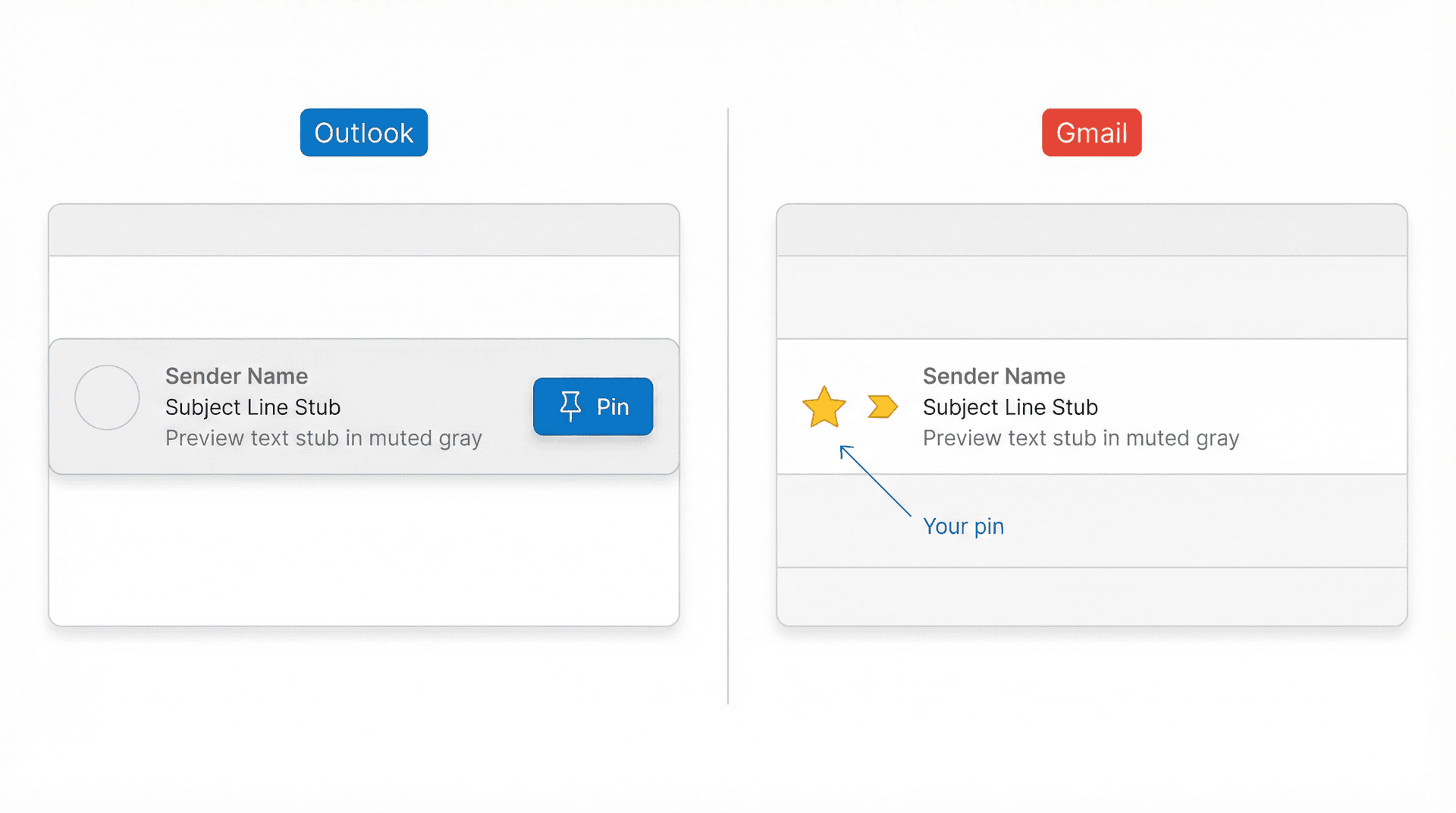
If you came here looking for a Pin button in Gmail, here's the honest answer: Gmail doesn't have one. Outlook has a real Pin command that sticks a message at the top of your inbox. Gmail? Nothing like it. What Gmail gives you instead is a set of workarounds, and some of them are actually better than a simple pin once you understand them.
The fastest hack: star the email, then switch your inbox type to Starred first. Gmail will split your view into Starred on top and Everything else below. Takes about 10 seconds. If you want something smarter than that, keep reading, because we cover Priority Inbox, Multiple Inboxes, filters, and a free extension that gives you actual custom pinned tabs inside Gmail. If you're also dealing with broader email inbox management challenges, most of the same principles apply.
What Does "Pinning" Mean in Gmail?
Most people searching "how to pin an email in Gmail" aren't all asking for the same thing. They usually mean one of three jobs:
-
Visibility: "Keep this one email where I can see it."
-
Follow-up: "Make sure I actually do something about this later."
-
Automation: "Make all emails like this show up at the top from now on."
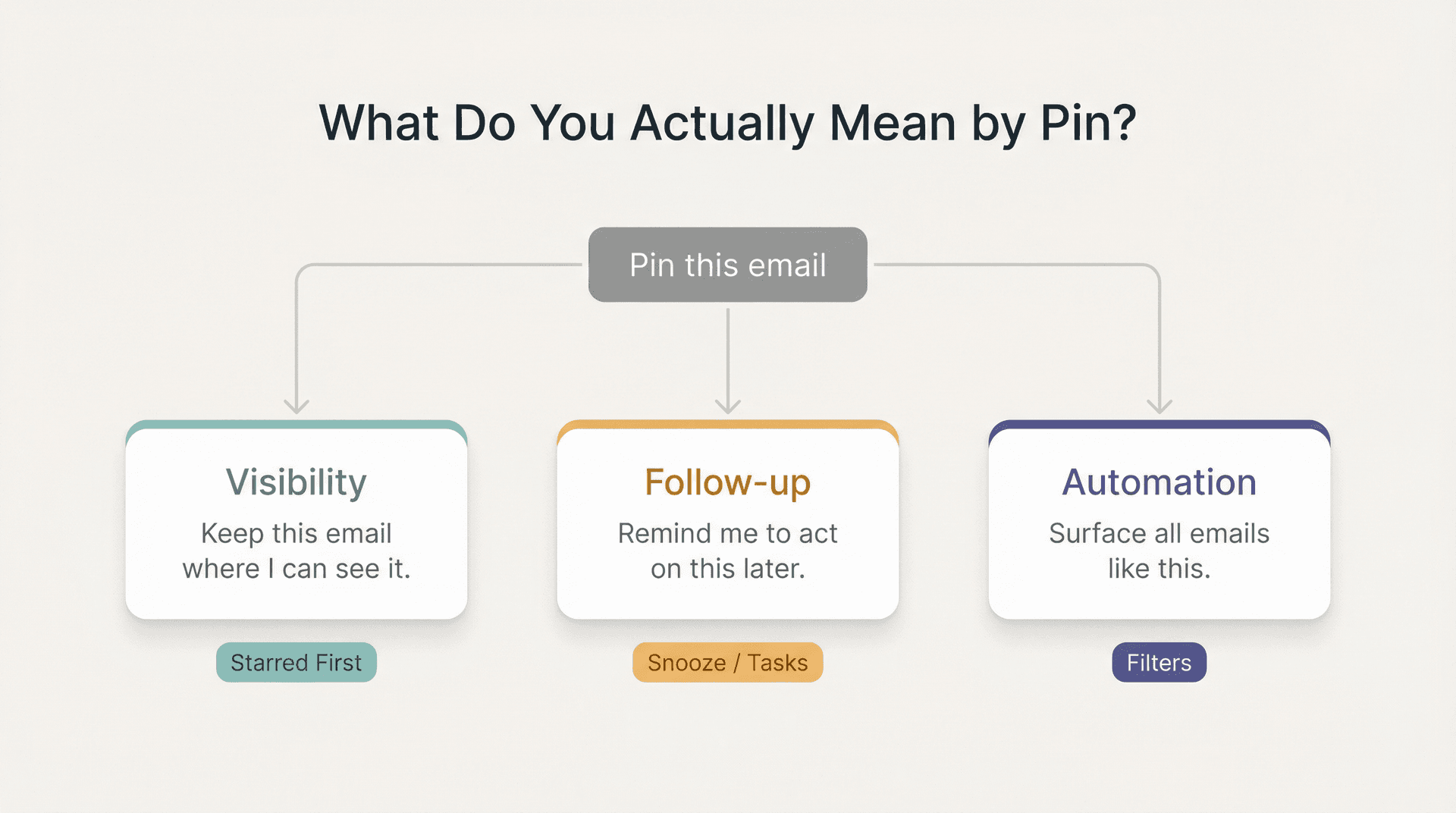
That distinction matters because Gmail doesn't use a single "stick this here" button. Instead, it's built around metadata plus views. According to Google's own documentation, Gmail uses labels instead of folders, and you can apply multiple labels to the same message. The organization system revolves around labels, search filters, stars, categories, importance markers, snooze, and inbox layouts.
So the right Gmail answer depends on the job:
| Your Goal | Best Gmail Tool |
|---|---|
| Keep one email visible right now | Starred first |
| Surface a small stack of important mail | Priority Inbox |
| Create custom sections powered by search | Multiple Inboxes |
| Auto-surface future emails from a sender/topic | Filters |
| Get a timed reminder, not just visibility | Snooze, Tasks, or Nudges |
Each method below covers a different job. If you're looking for a broader framework for tackling email management strategies beyond just pinning, that guide covers the full system.
How to Pin Emails to the Top with Starred First
For most people, this is the closest built-in replacement for pinning.
On Desktop
-
Open Gmail
-
Click the star icon next to the email (or open the email and click More > Add Star)
-
Click the gear icon, then Settings
-
Under Inbox type, choose Starred first
Google confirms that Starred first splits your inbox into Starred at the top and Everything else at the bottom.
On iPhone or iPad
-
Open the Gmail app and star the email
-
Tap Menu > Settings
-
Under Inbox, tap Inbox type
-
Choose Starred first
On Android
-
Open the Gmail app and star the email
-
Tap Menu > Settings and choose your account
-
Under Inbox, tap Inbox type
-
Choose Starred first
(Google's Android documentation)
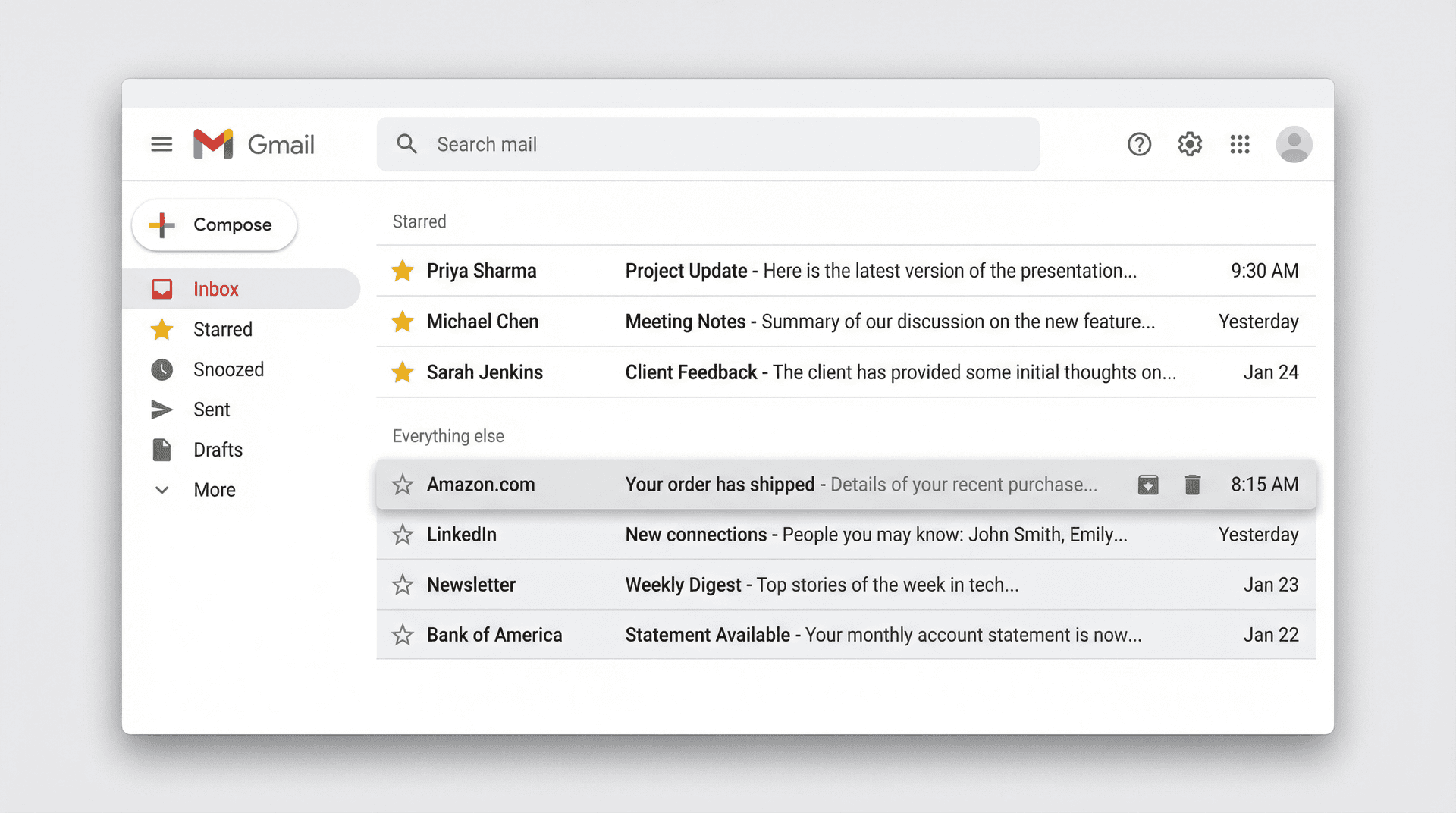
This method works great when you have one or two messages that need attention right now. It breaks down when you start starring everything. At that point, you haven't built a pinned system. You've built a second inbox. If that's where you're headed, learning how to manage your inbox as a system rather than message by message will save you a lot of frustration.
How to Keep Starred Emails in Your Primary Tab
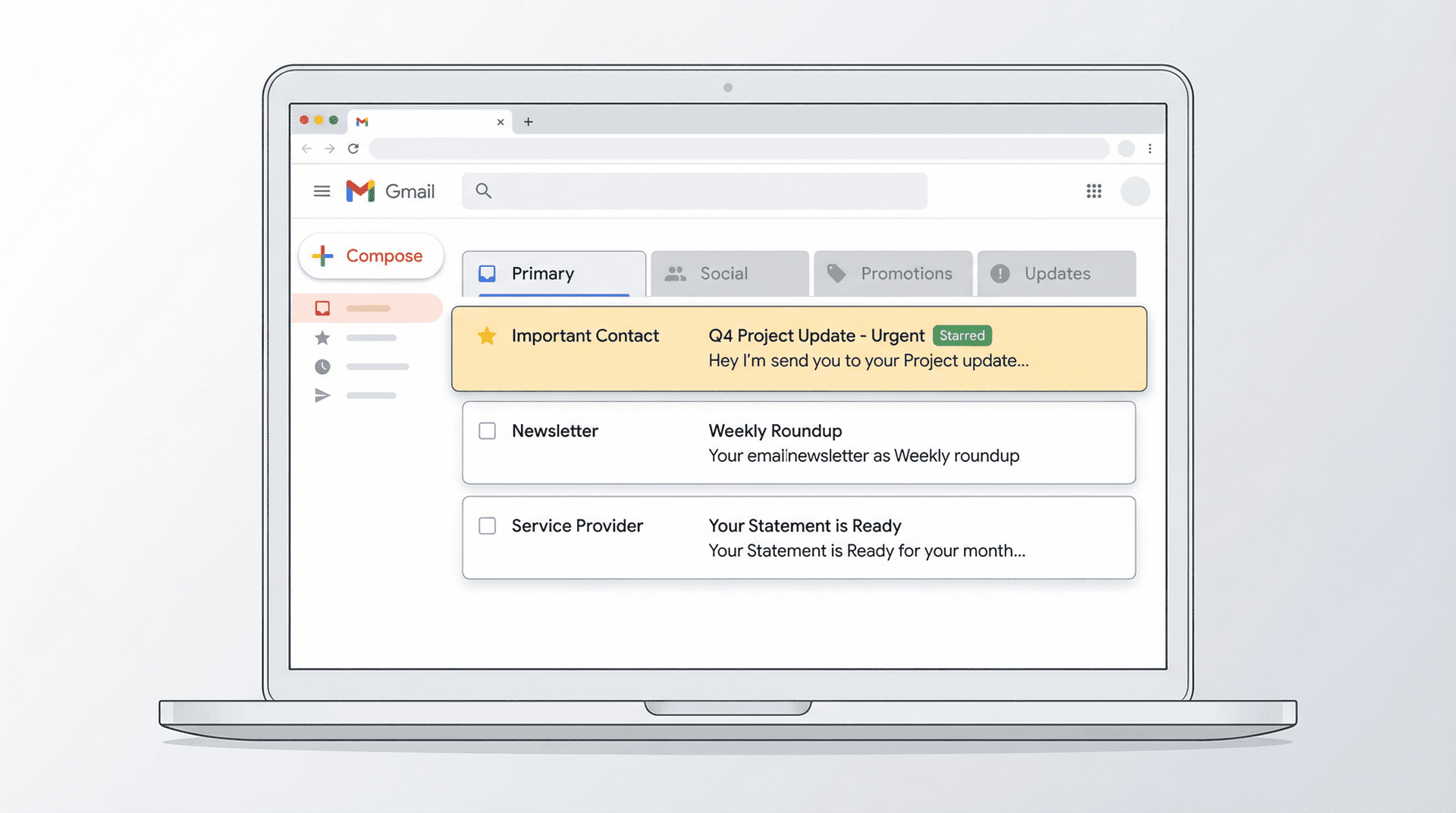
A lot of guides tell you to star an email and stop there. That's incomplete if you use Gmail's default tabbed inbox (Primary, Social, Promotions, Updates, Forums).
You can turn on "Include starred in Primary" so that a starred message appears in your Primary tab even if it would normally land in Promotions or Updates. Google also notes that you can't create your own inbox categories, so this is a light tweak, not a full custom pinning system.
Use this when you like Gmail's default tabs but want starred threads to stay closer to the center of gravity of your day. Don't use it if you want a dedicated pinned lane. It isn't that.
If Gmail's tab system is giving you headaches, check the dedicated Gmail Tabs Not Working fix guide before assuming the layout isn't for you.
How to Use Priority Inbox for Important Emails
Priority Inbox is the better choice when your problem isn't one email, it's a whole category of emails that deserve top billing.
On desktop, Google says Priority Inbox can show sections like Important and unread, Starred, Everything else, or a label you created. On iPhone, iPad, and Android, Priority Inbox is also available under Inbox type.
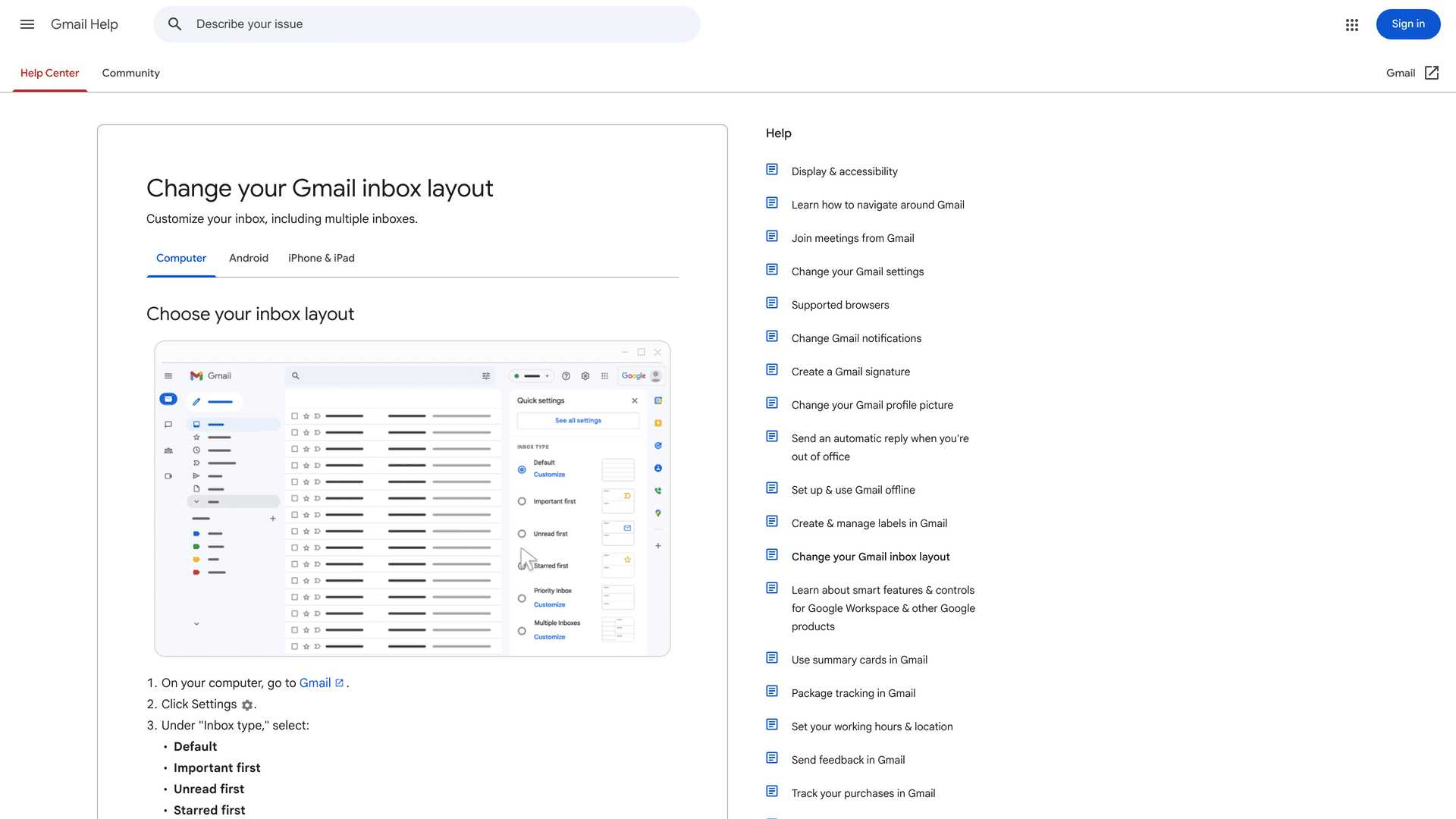
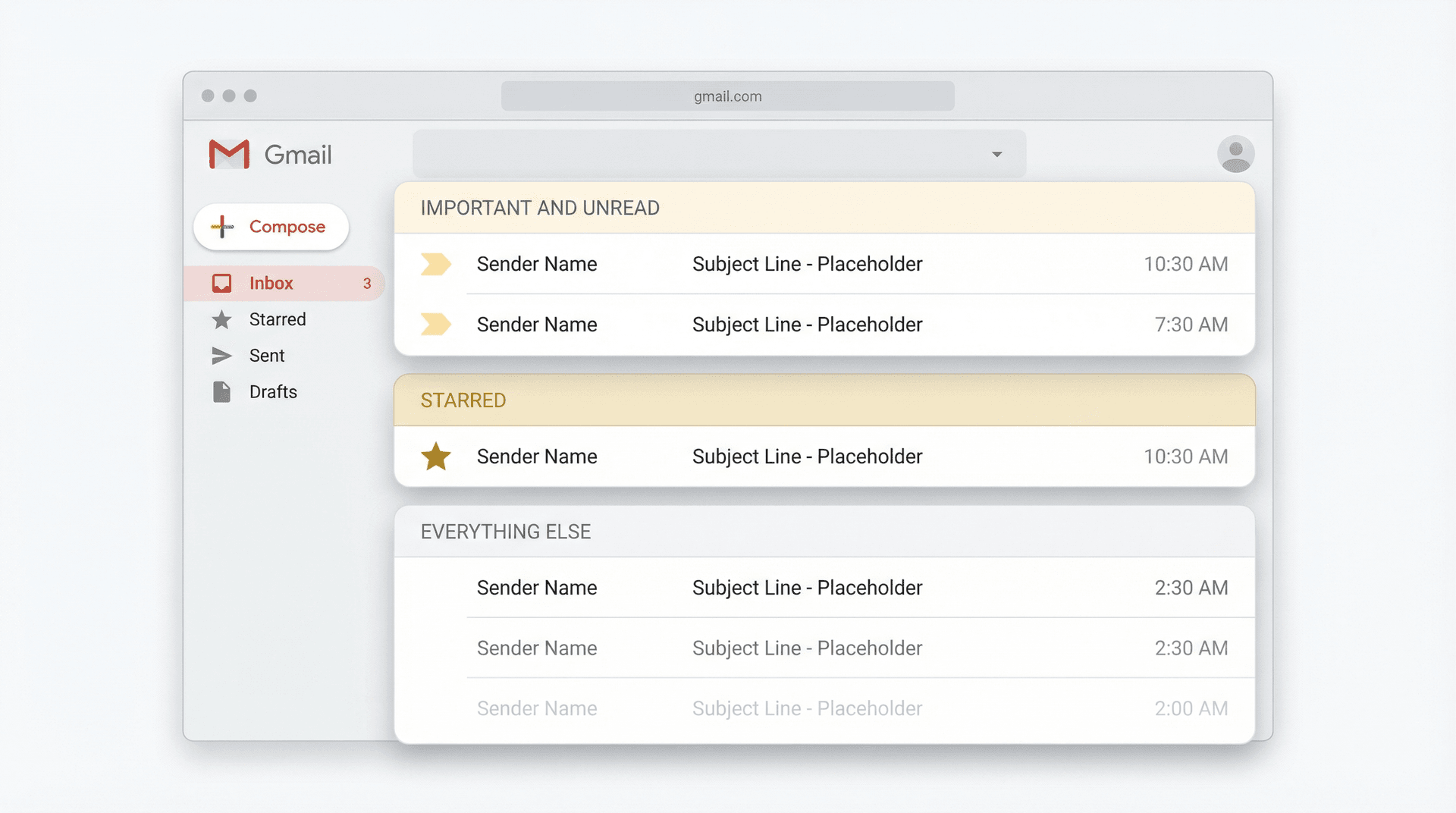
When to pick Priority Inbox over Starred first: If the top of your inbox needs to behave like a triage zone (emails from key people, unread important threads, a labeled queue like
VIPorWaiting), Priority Inbox is the stronger option.
If you keep asking for "pinning" but the real need is triage, Priority Inbox gives you that without any extensions or hacks. If your Gmail "Important" markers are surfacing the wrong messages, that guide will help you retrain Gmail's importance signals so Priority Inbox actually works as intended.
How to Use Gmail Multiple Inboxes to Pin Emails
If you want a real custom pinned workspace inside Gmail, this is it.
Google documents Multiple Inboxes as a computer-only feature. To set it up, go to Settings > Inbox type > Multiple Inboxes, click Customize, and add sections using search criteria. Google's own example uses is:starred, but you can use any Gmail search operator.
That means you can build sections like:
-
is:starred(all your starred emails) -
is:important is:unread(important unread threads) -
label:vip(anything you've labeled VIP) -
from:ceo@company.com(emails from a specific person) -
subject:(invoice OR receipt OR order)(financial emails) -
has:red-bang(emails marked with a special star icon)
This is where Gmail stops feeling like a plain inbox and starts feeling like a dashboard.
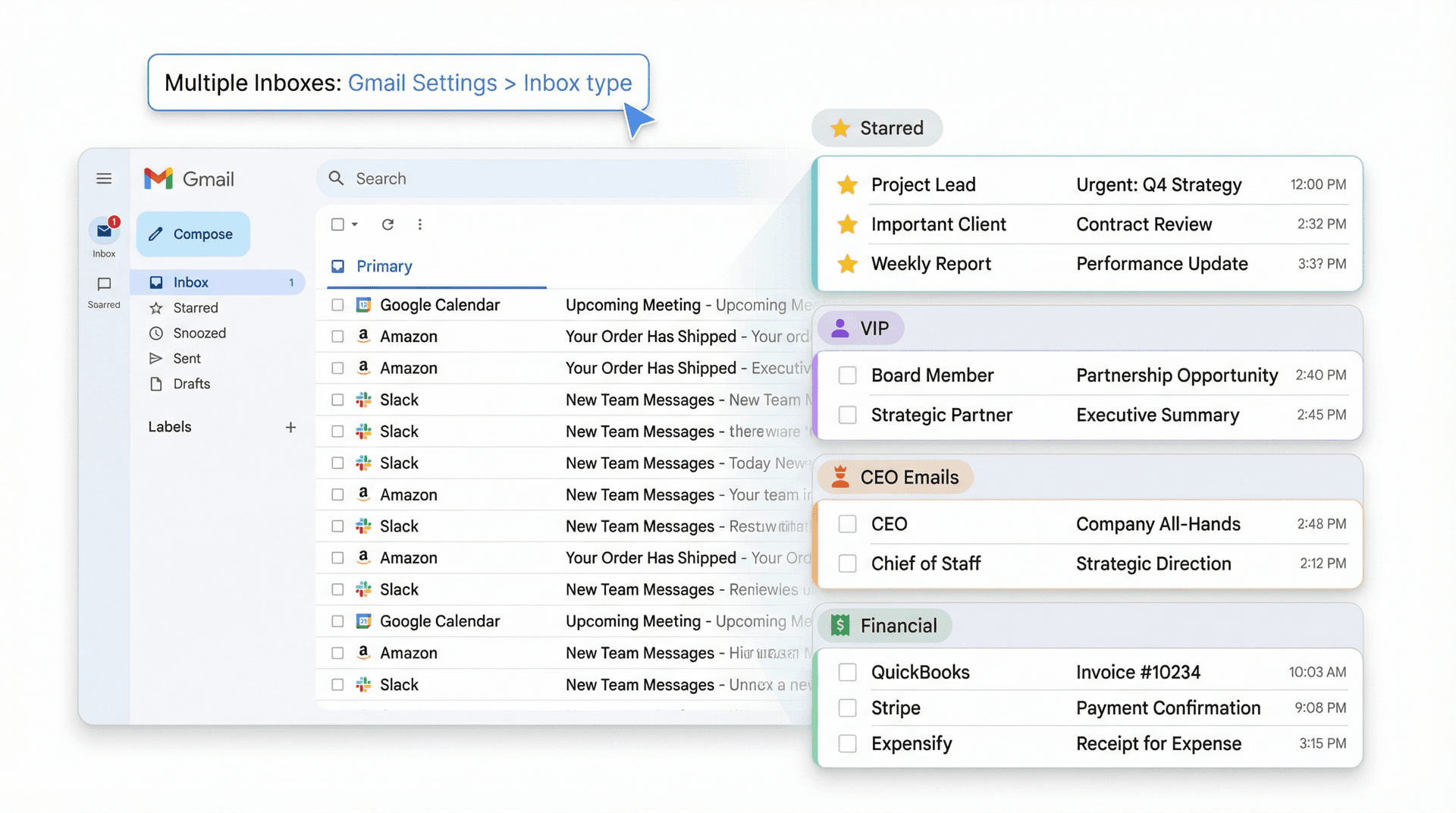
The trade-off? It only works on your computer. Google's mobile inbox docs list Starred first and Priority Inbox for mobile, but not Multiple Inboxes. Understanding Gmail labels vs folders is essential before you build out Multiple Inboxes sections, because labels are what power the custom search queries.
How to Auto-Pin Future Emails with Gmail Filters
If your real problem is recurring mail from specific senders or about specific topics, stop trying to pin one message at a time.
Google documents two ways to create a filter: from the search box, or from an existing message using More > Filter messages like these. Gmail's filter options include Star it, Always mark it as important, Apply the label, Archive, and Automatically forward. One important caveat from Google: when you create a filter, only new messages are affected, and replies are only filtered if they still match the search criteria.
A useful VIP setup:
① Open a message from the sender you care about
② Click More > Filter messages like these
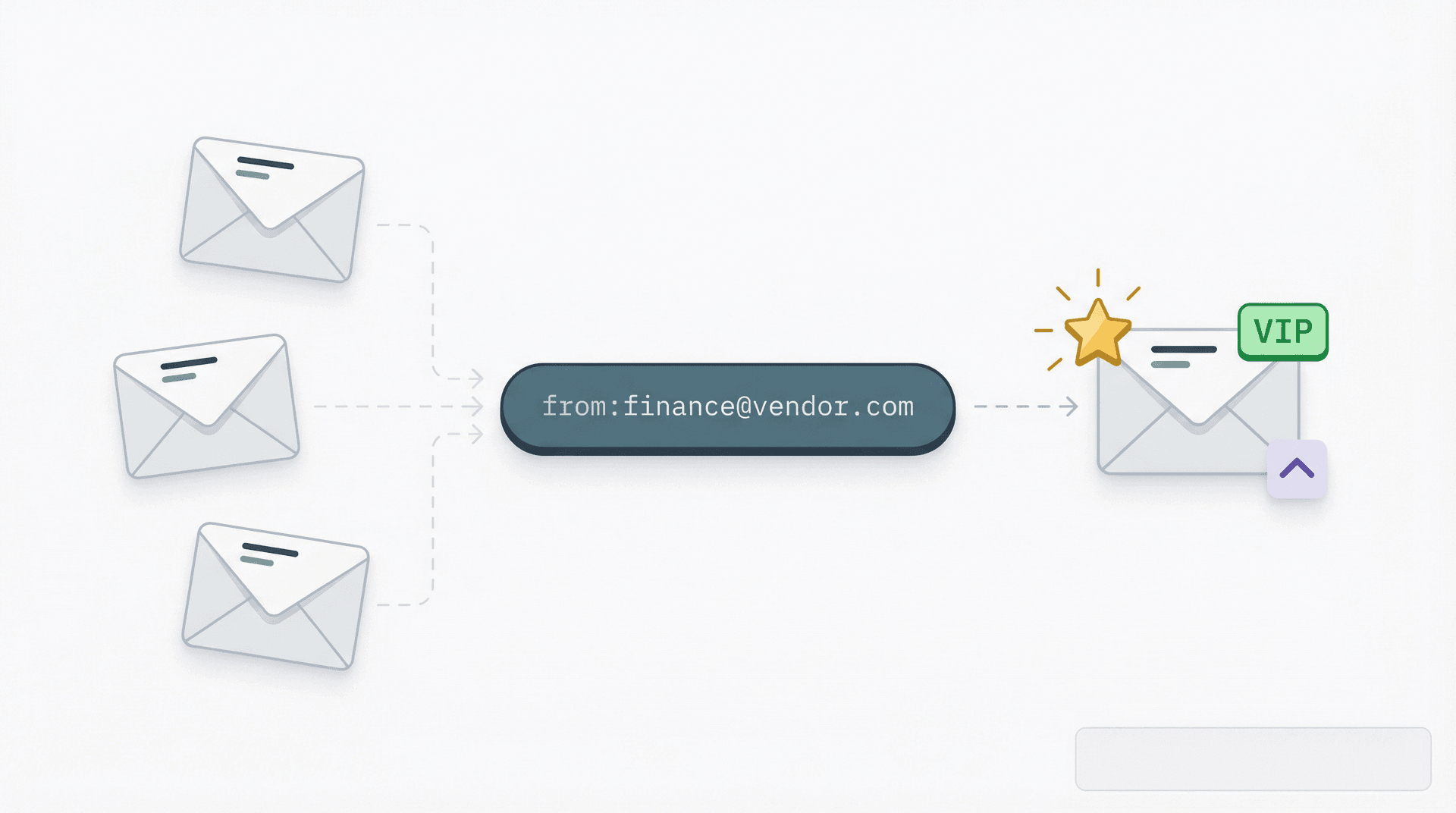
③ Refine the search (for example, from:finance@vendor.com or subject:(invoice OR receipt))
④ Choose actions like Star it, Always mark it as important, and Apply the label VIP
⑤ Surface that label through Priority Inbox, Multiple Inboxes, or a custom tab
That's the closest thing to automatic pinning in native Gmail. Every future email matching your criteria gets starred, labeled, and pushed into your priority view without you lifting a finger. If you want to take auto-filtering further, you can auto-label emails by sender domain to build even more powerful organization rules. And if you're dealing with Gmail filters not working as expected, that troubleshooting guide covers the most common failure points.
When to Use Snooze, Tasks, or Nudges Instead of Pinning
This is the blind spot most people miss. Pinning keeps something visible. It does not guarantee you'll do anything about it.
There's a real difference between keeping an email visible and ensuring you act on it. Those are different problems, and they need different tools.
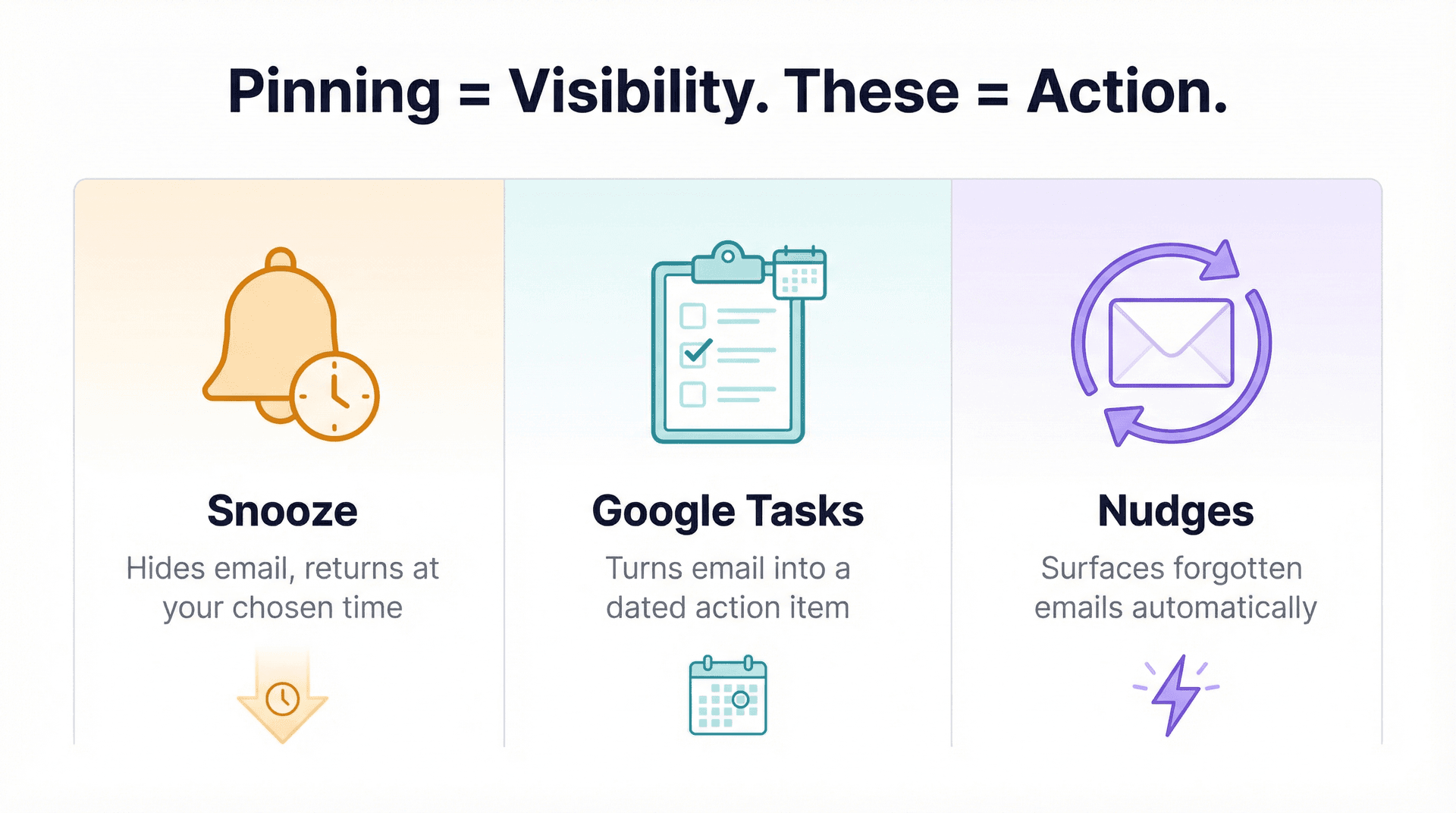
| Tool | What It Does | Best For |
|---|---|---|
| Snooze | Hides email temporarily, returns it to the top at a time you choose | Timed reminders before meetings or deadlines |
| Google Tasks | Turns email into a dated action item in the Gmail side panel | Actual to-do items with due dates |
| Nudges | Automatically surfaces emails you forgot to reply to | Passive follow-up without manual tracking |
According to Google's snooze documentation, a snoozed email is removed from your inbox temporarily and comes back to the top of your inbox at the day and time you choose. According to Google, tasks created from Gmail are saved to Google Tasks, shown in the Gmail side panel, and can include a date and time. Google's nudge documentation explains that nudges surface emails you forgot to reply to, and sent emails you may need to follow up on, right at the top of your inbox.
If tracking who still owes you a reply is the core problem, see all emails waiting for a response covers that specific workflow in detail. For a complete look at Gmail Snooze vs Archive vs Mute and when each makes sense, that comparison guide will help you pick the right tool for the right situation.
How to Use Gmail's Special Stars as Custom Pin Markers
This is the trick most articles skip.
Gmail doesn't just have one yellow star. Google lets you enable multiple star options and other icons, and you can search for them individually with queries like has:red-bang, has:green-check, or has:purple-question.
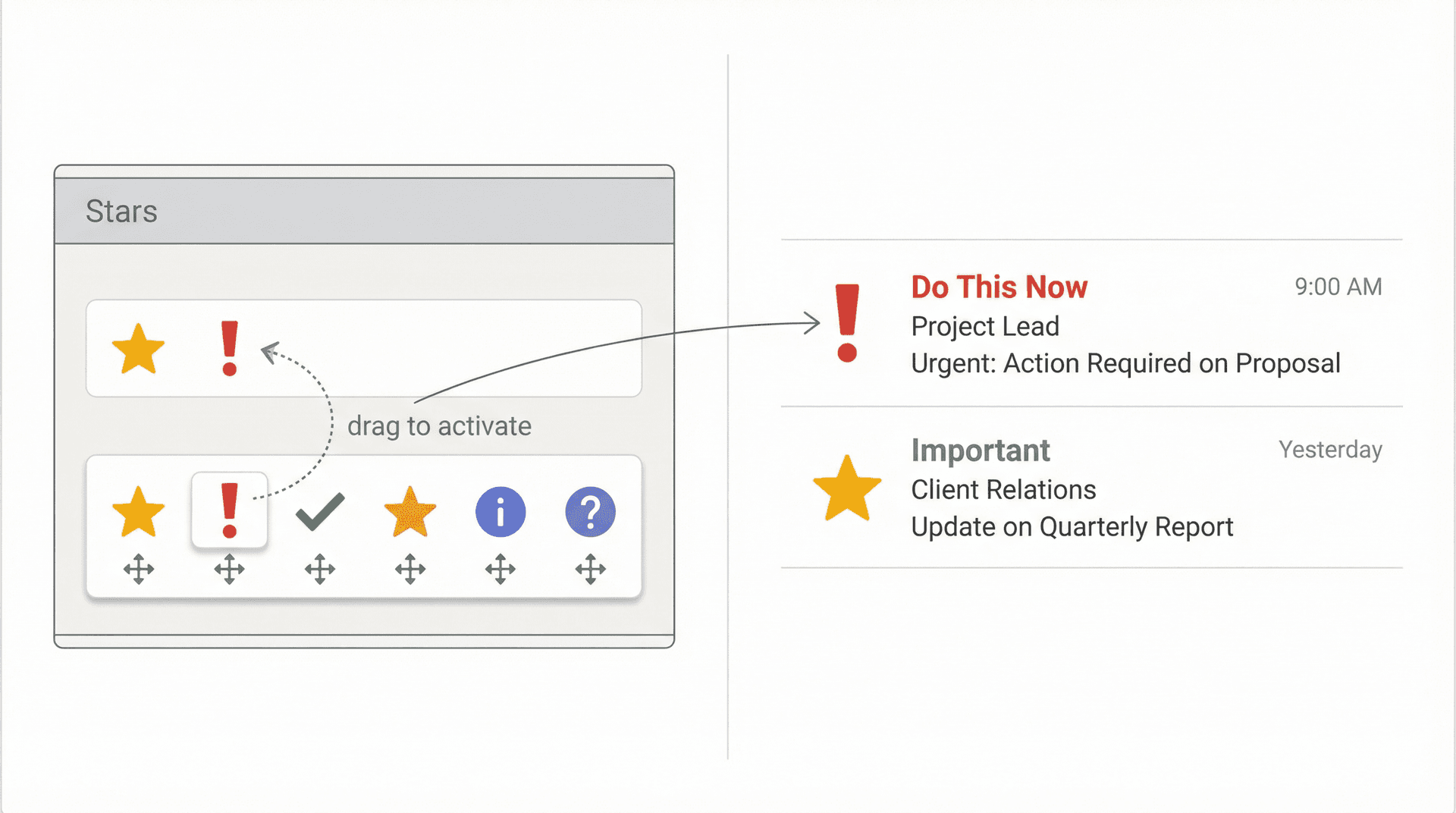
Here's a setup that works really well:
-
In Gmail on desktop, go to Settings > See all settings
-
In the Stars section, drag extra star options into use
-
Reserve one symbol (like red-bang) for "act on this now"
-
Mark those emails with that icon
-
Create a Multiple Inboxes section using
has:red-bang
Now your ordinary yellow star can mean "important" while red-bang means "do this now." That's much closer to a real pinned queue than using a single star for everything. Once you're comfortable with stars and search, the Gmail shortcuts cheat sheet has every keyboard shortcut you'll need to manage your pinned queues at full speed.
Gmail Keyboard Shortcuts for Faster Email Pinning
If you use Gmail heavily on desktop, turn on keyboard shortcuts. These are the ones that matter for pinning workflows:
| Shortcut | What It Does |
|---|---|
s | Toggle star on/off |
+ or = | Mark a message as important |
b | Snooze the email |
Shift + t | Add conversation to Google Tasks |
g then s | Jump to Starred view |
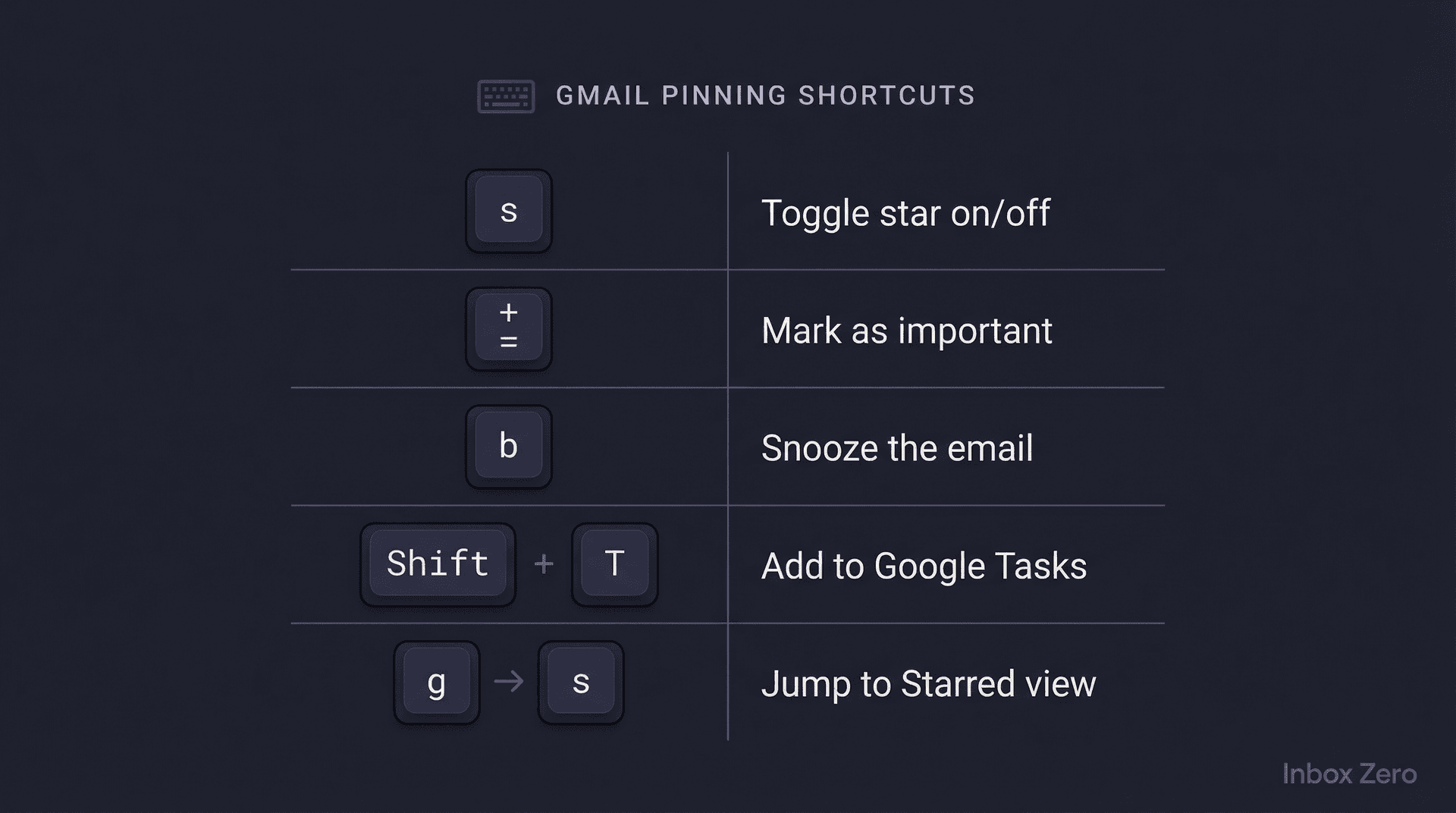
Once you stop hunting through menus, your "pinning" workflow becomes fast enough that you'll actually stick with it. That's the part most guides forget: a system only works if it's fast enough to use consistently. If Gmail keyboard shortcuts aren't working on Mac or Windows, that fix guide covers why shortcuts sometimes stop responding and how to re-enable them.
Real Pinned Tabs in Gmail: How Inbox Zero Does It
All of the methods above work. But they're workarounds for something Gmail should just... have. You're duct-taping stars, labels, filters, and inbox layouts together to mimic what other email clients do with one button.
That's exactly why we built Inbox Zero Tabs for Gmail.
What Inbox Zero Tabs Actually Does
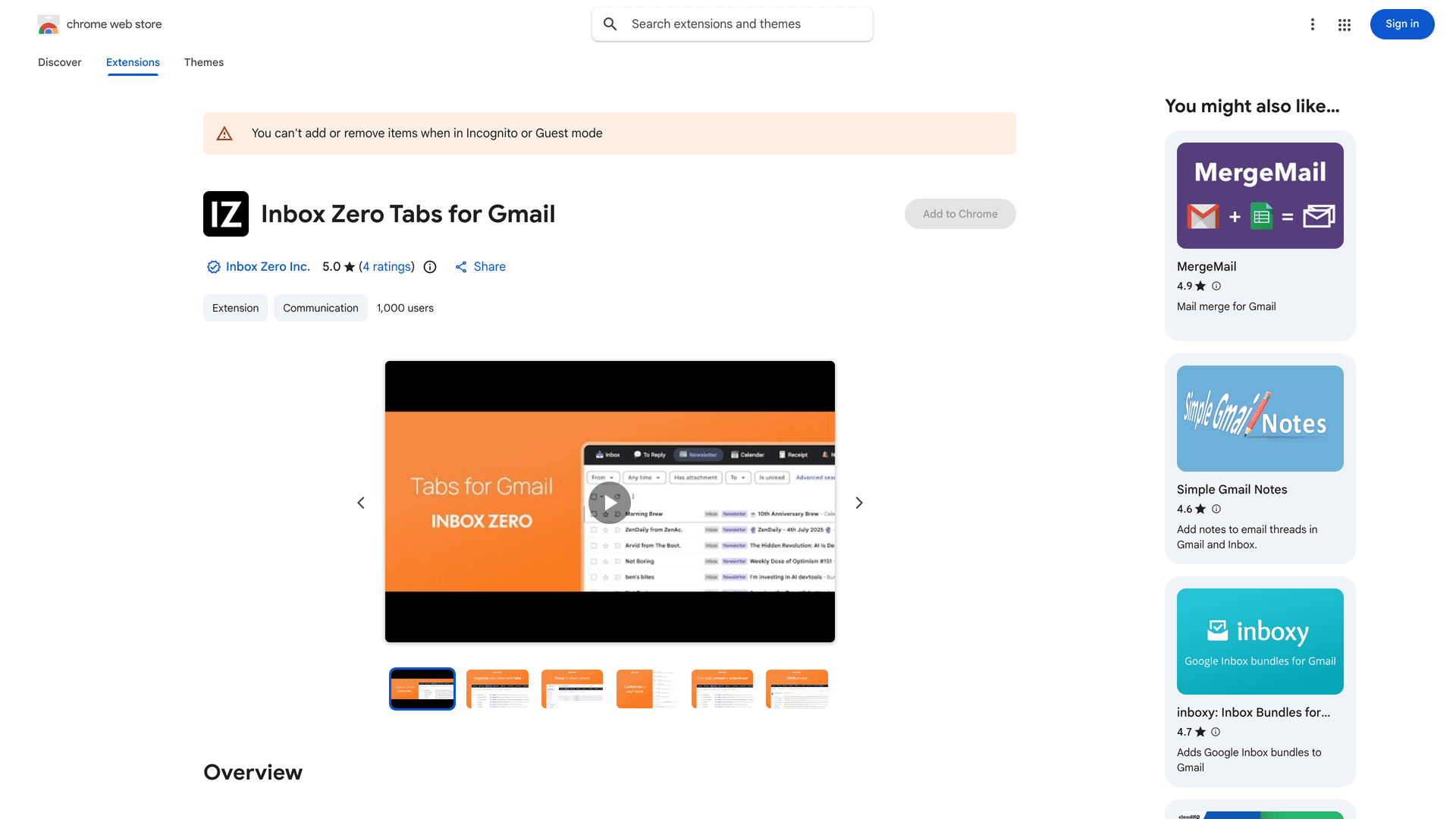
Inbox Zero Tabs is a free Chrome extension that adds custom tabs directly inside Gmail's interface. Each tab is powered by any Gmail search query you want, so you get true pinned lanes without leaving Gmail.
Think of it as bringing Multiple Inboxes into tabs that actually work the way your brain does. Instead of scrolling through one long inbox with starred emails floating somewhere near the top, you get dedicated tabs like:
-
To Reply: emails you haven't responded to yet
-
VIP: messages from people who matter most
-
Waiting: threads where you're expecting a response
-
Newsletters: all your subscriptions, contained in one place
-
Receipts: financial emails, automatically grouped
You can build a tab around any Gmail search query. That means from:boss@company.com, label:urgent, is:important is:unread, or anything else Gmail's search understands. It's the same logic Gmail already uses, just surfaced in a way that's actually usable. If you want to see how Inbox Zero compares to the other best inbox zero apps for Gmail, that roundup is worth a read.
Privacy That's Actually Private
The extension is 100% client-side. All your settings are stored locally in your browser. There's no server, no data collection, no tracking. The Chrome Web Store listing confirms it: Inbox Zero declares that the extension does not collect or use your data. Period.
When "Pinning" Is Really About Replies
For a lot of people, the urge to pin emails comes from a deeper problem: losing track of who needs a response.
Inbox Zero's Reply Zero feature solves that directly. It labels every thread that needs your response as To Reply and every thread where you're waiting on someone else as Awaiting Reply. You get a focused view limited to just those two piles, with one-click nudge follow-ups and an overdue filter.
If you've been pinning emails just to remember to reply, Reply Zero replaces that entire workflow with something automatic. The full Inbox Zero platform also includes AI automation for labeling, archiving, and drafting replies automatically, so you're not just organizing your inbox, you're teaching it to handle the routine work for you.
For a complete picture of what AI email management looks like in practice, that guide walks through the full workflow.
How to get started with Inbox Zero Tabs
-
Visit Inbox Zero to see the full platform
Why Your Pinned Gmail Email Isn't Staying at the Top
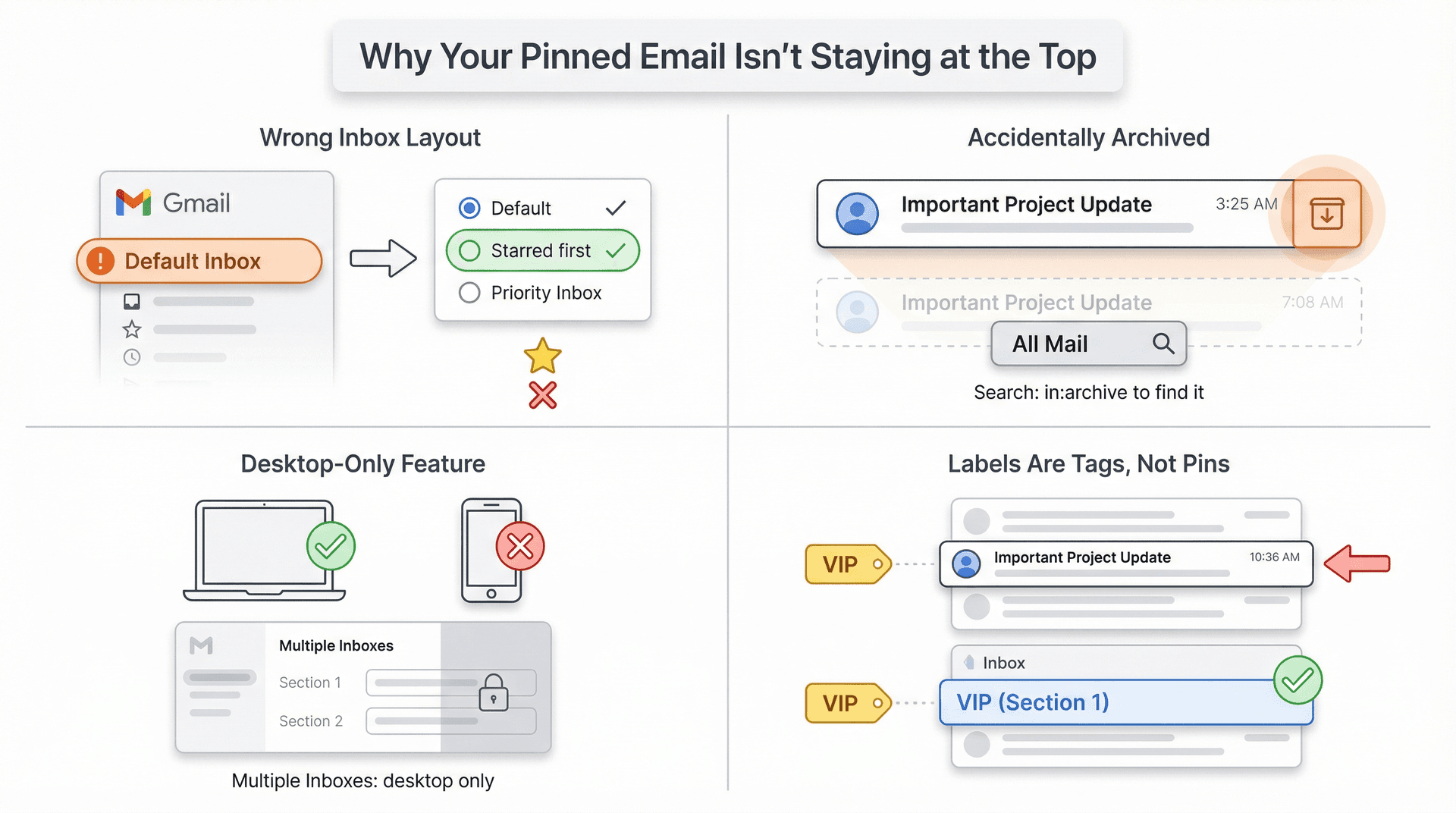
Why your starred email isn't showing at the top
You're probably still using the Default inbox layout. A star by itself doesn't create a native Outlook-style pin. To surface starred mail prominently, switch to Starred first, Priority Inbox, or Multiple Inboxes. If you keep the Default tabs layout, the best you can do is Include starred in Primary.
Why your "pinned" Gmail email disappeared
You may have archived it by accident. Google's archive documentation confirms that archived emails can still be found in All Mail or by searching in:archive, and if someone replies to an archived thread, it returns to your inbox. Archived emails won't appear in your inbox categories, though.
If you're confused about the difference between Gmail All Mail vs Archive, that guide clears up exactly where archived messages live and how to find archived emails in Gmail.
Why Gmail Multiple Inboxes isn't showing up
This is a computer-only feature. If you're on mobile, it simply won't appear. For a deeper troubleshooting walkthrough, we've got a dedicated guide: Gmail Multiple Inboxes Not Showing: Fix Guide.
Why Gmail labels don't pin messages
Labels help organize, but they aren't pins. Google explains that applying a label doesn't create a separate copy of the message, and multiple labels can apply to the same message. Labels are tags, not fixed-position anchors. You need to combine labels with an inbox layout (like Priority Inbox or Multiple Inboxes) to surface them.
Gmail Pinning FAQ
Can you pin one email in Gmail like Outlook?
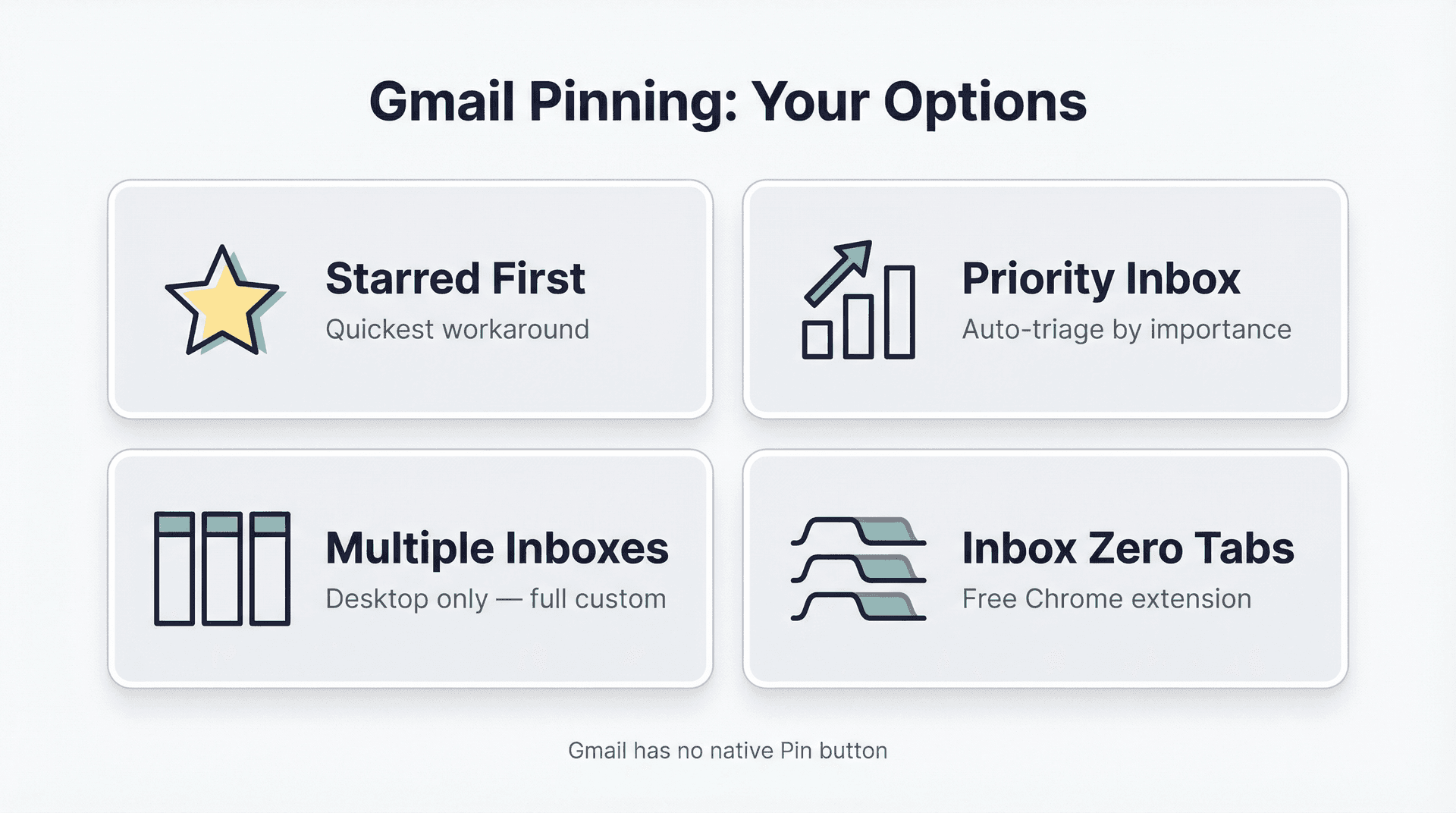
Not with a native button. Outlook has an actual Pin command. Gmail's closest built-in options are Starred first, Priority Inbox, and Multiple Inboxes. For true custom pinned tabs, you can use a browser extension like Inbox Zero Tabs.
For a full breakdown of Gmail vs Outlook and how they differ in email organization philosophy, that comparison covers the key distinctions.
How do I pin an email in Gmail on iPhone or Android?
In the Gmail app, star the email, then go to Settings > Inbox type and choose Starred first or Priority Inbox. Google's mobile documentation lists those layouts but not Multiple Inboxes, which is desktop-only. If you're comparing the Gmail mobile app vs desktop experience, that guide explains which features are available on each platform.
Can I automatically pin emails from a specific sender?
Not with a true pin, but close. Create a filter that stars the email, applies a label, or marks it as important. Then surface those messages through Priority Inbox, Multiple Inboxes, or a custom tab extension.
What's better than pinning for follow-up?
Snooze, Google Tasks, or Nudges. Snooze resurfaces the email at a time you pick. Tasks turns it into a dated action item. Nudges automatically reminds you about emails that need a reply. If your real problem is reply tracking, try Reply Zero.
Can I create my own Gmail categories for pinned mail?
No. Google's inbox categories documentation states you can only choose from the existing inbox categories and can't create your own. If you want custom organization, use labels with Multiple Inboxes, or install the Inbox Zero Tabs extension for real custom tabs.
How to Choose the Right Gmail Pinning Method
If you're asking how to pin an email in Gmail, the most honest answer is this: Gmail doesn't give you a true pin button. But it gives you tools that, when combined the right way, can be even more powerful.
The mistake most people make is trying to solve every email problem with one word: "pin." Gmail works better when you separate visibility, priority, automation, and follow-up into different tools.
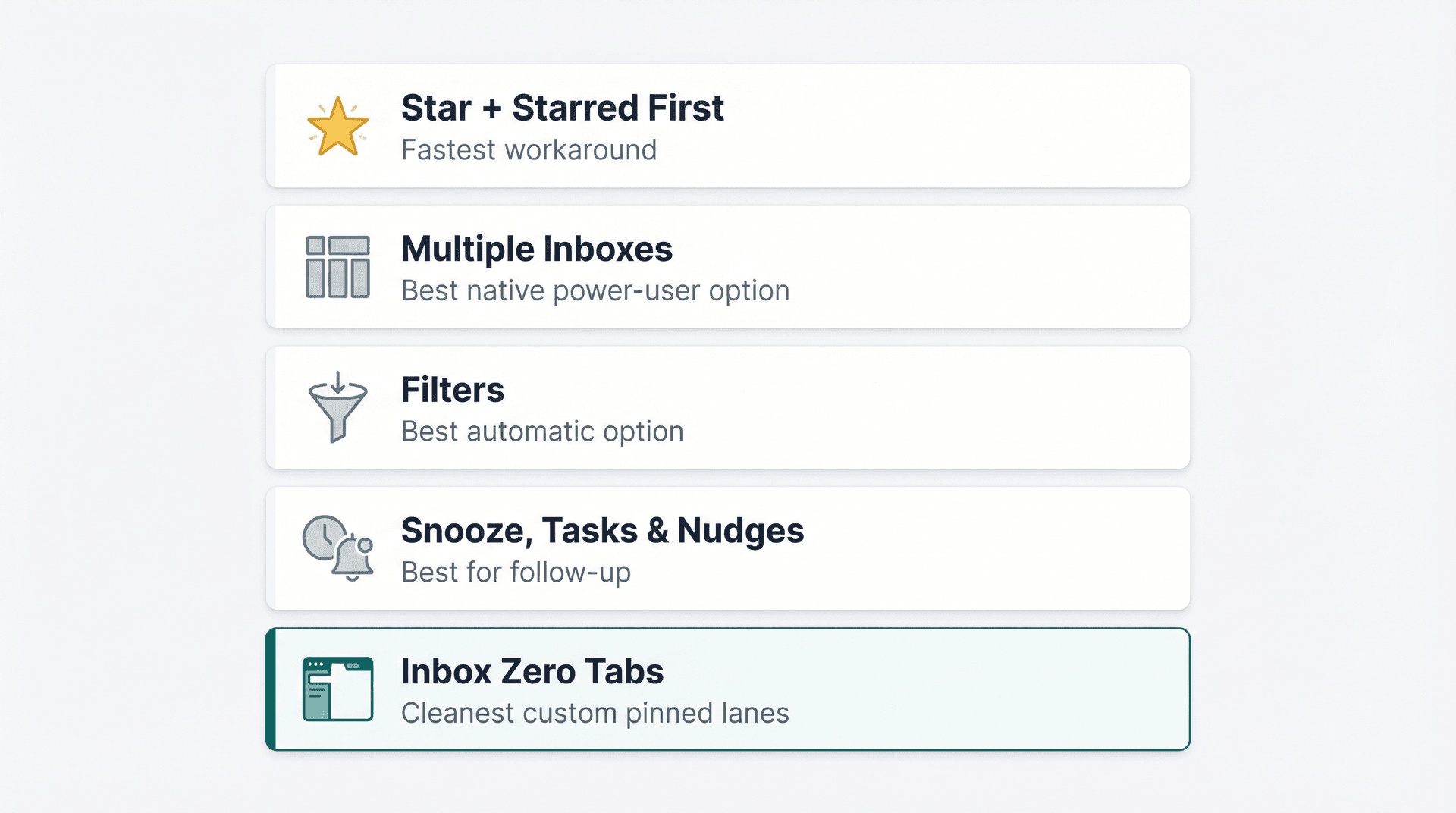
Here's the quick decision guide:
-
The fastest workaround is star + Starred first
-
The best native power-user option is Multiple Inboxes
-
The best automatic option is filters
-
The best option for follow-up is Snooze, Tasks, Nudges, or Reply Zero
-
The cleanest way to create actual custom pinned lanes inside Gmail is Inbox Zero Tabs
Pick the right one for the job, and you won't need a pin button at all. If you want the full framework for achieving mental clarity with inbox zero, that guide puts all these Gmail tools into a broader workflow for reaching and maintaining a clean inbox.
Get started with Inbox Zero and take back control of your Gmail.
Related Reading
If you want to go deeper, these guides pair well with this one:
-
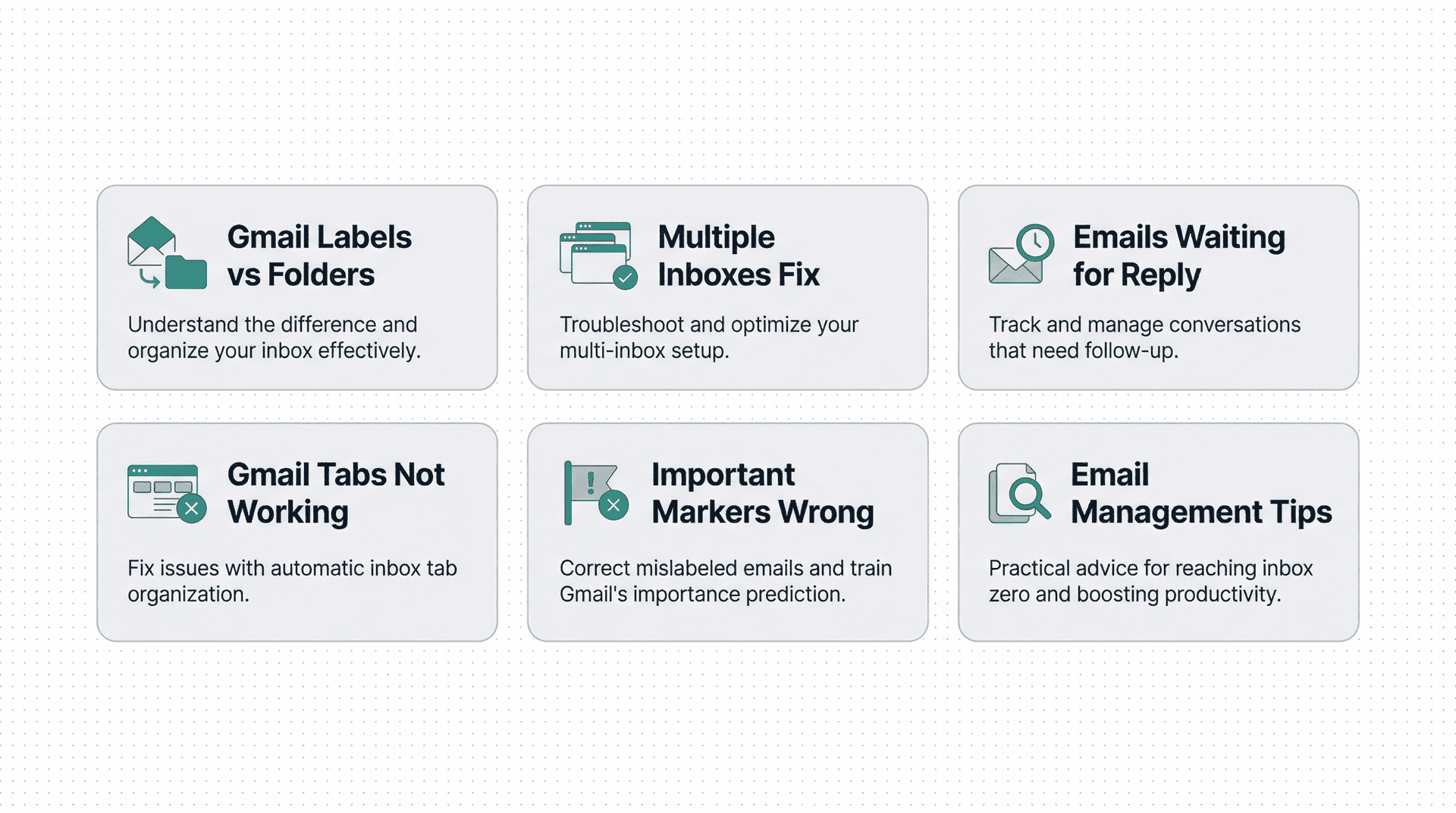
Gmail Labels vs Folders: What's the Difference?, if Gmail's labeling model still feels confusing
-
Gmail Multiple Inboxes Not Showing: Fix Guide, if custom sections won't appear
-
How to See All Emails Waiting for Reply, if your real problem is tracking response debt
-
Gmail Tabs Not Working? Complete Fix, if Gmail's tab system is giving you trouble
-
Gmail "Important" Markers Wrong (How to Fix), if Priority Inbox is surfacing the wrong messages
-
Email Management Tips, for a broader look at managing your inbox efficiently
-
Mastering Email Productivity, for a comprehensive guide to spending less time in your inbox

How to Recall an Email in Outlook (2026)
How to recall an email in Outlook step by step for new Outlook, classic Outlook, web, Mac, and mobile, plus when recall works and what to do when it doesn't.
2026-09-30T18:25:57.000Z

How to Stop AliExpress Emails (2026)
Stop AliExpress promotional emails: the unsubscribe link, notification settings in your AliExpress account, and what to do when the deals keep coming.
2026-09-30T18:25:57.000Z

How to Stop Amazon Emails (2026)
Stop Amazon marketing emails with the Communication Preferences Center, manage Amazon email subscriptions, and handle order emails you can't switch off.
2026-09-30T18:25:57.000Z

How to Stop Domino's Emails (2026)
Stop Domino's emails with Domino's official opt-out page, stop Domino's text offers, and know which rewards emails keep coming.
2026-09-30T18:25:57.000Z