How to Schedule Emails in Gmail (2026 Guide)
Learn how to schedule emails in Gmail on desktop, Android, and iOS, plus the limits and quirks most tutorials skip, like the 100-email cap.

Scheduling an email in Gmail takes about five seconds. The actual steps are simple on every device: compose, pick a time, done. What trips people up isn't the how. It's the limits, quirks, and assumptions built into Gmail's scheduler that nobody explains until something goes wrong.
This guide covers the full picture. You'll get step-by-step instructions for desktop, Android, and iPhone/iPad, plus the gotchas that actually matter (like Gmail's 100-email cap, timezone behavior, and why confidential mode emails can't be scheduled at all). We'll also break down the difference between Schedule Send, Snooze, Undo Send, and Gmail's newer Gemini-based "Help me schedule" feature, since those four get confused constantly.
And if you're already spending too much time managing your inbox and hitting the limits of what Gmail's built-in scheduler can do, we'll show you what comes next.
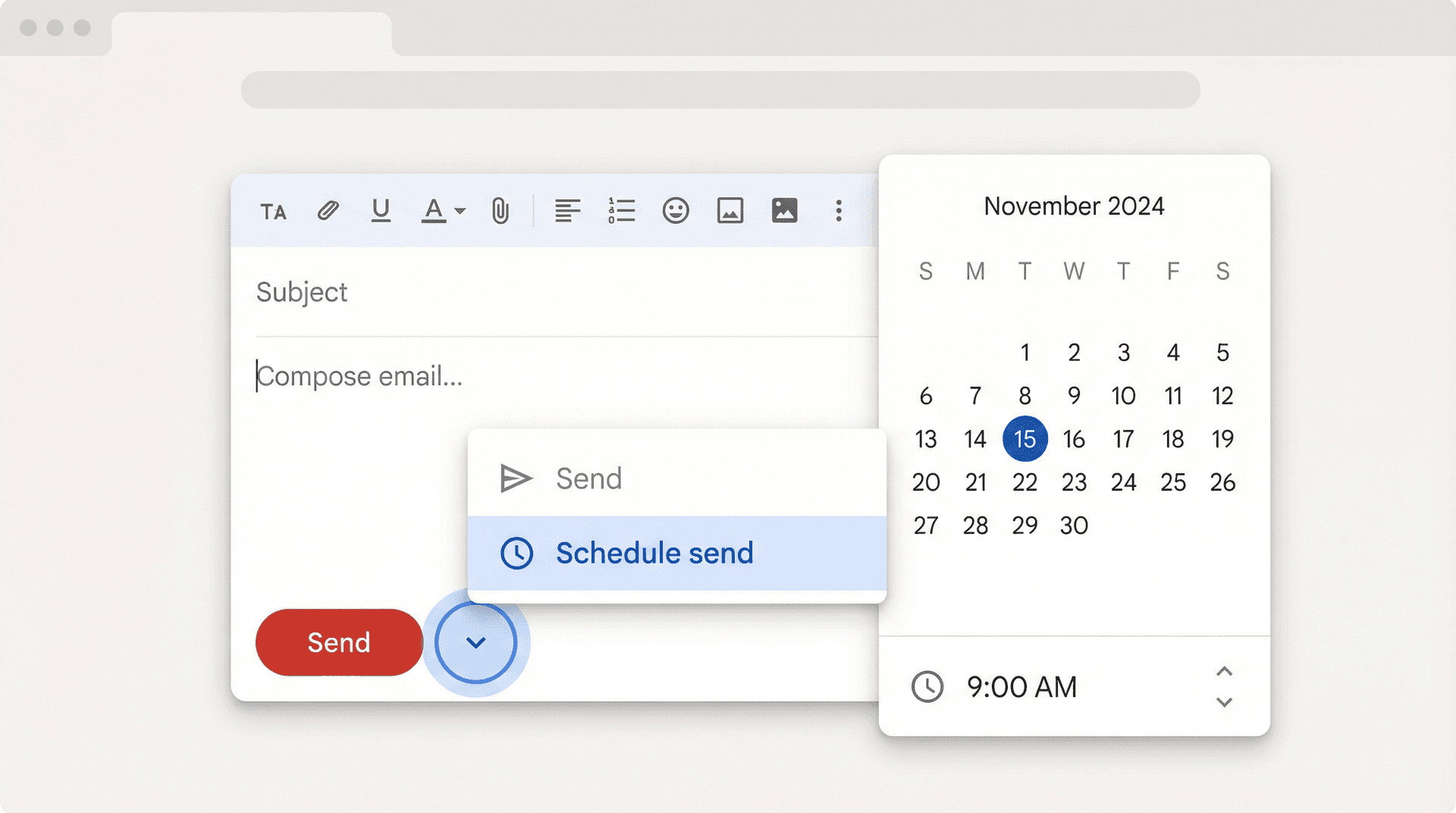
How to Schedule Emails in Gmail on Desktop
Here's the desktop workflow, straight from Google's official Gmail documentation:
-
Open Gmail.
-
Click Compose.
-
Write your email.
-
Click the down arrow next to Send (not the Send button itself).
-
Click Schedule send and pick your date and time.
Five steps. Once Gmail accepts the schedule, the message moves into your Scheduled folder on the left sidebar. If you want more keyboard-driven control of Gmail in general, the Gmail shortcuts cheat sheet covers all the time-savers in one place.
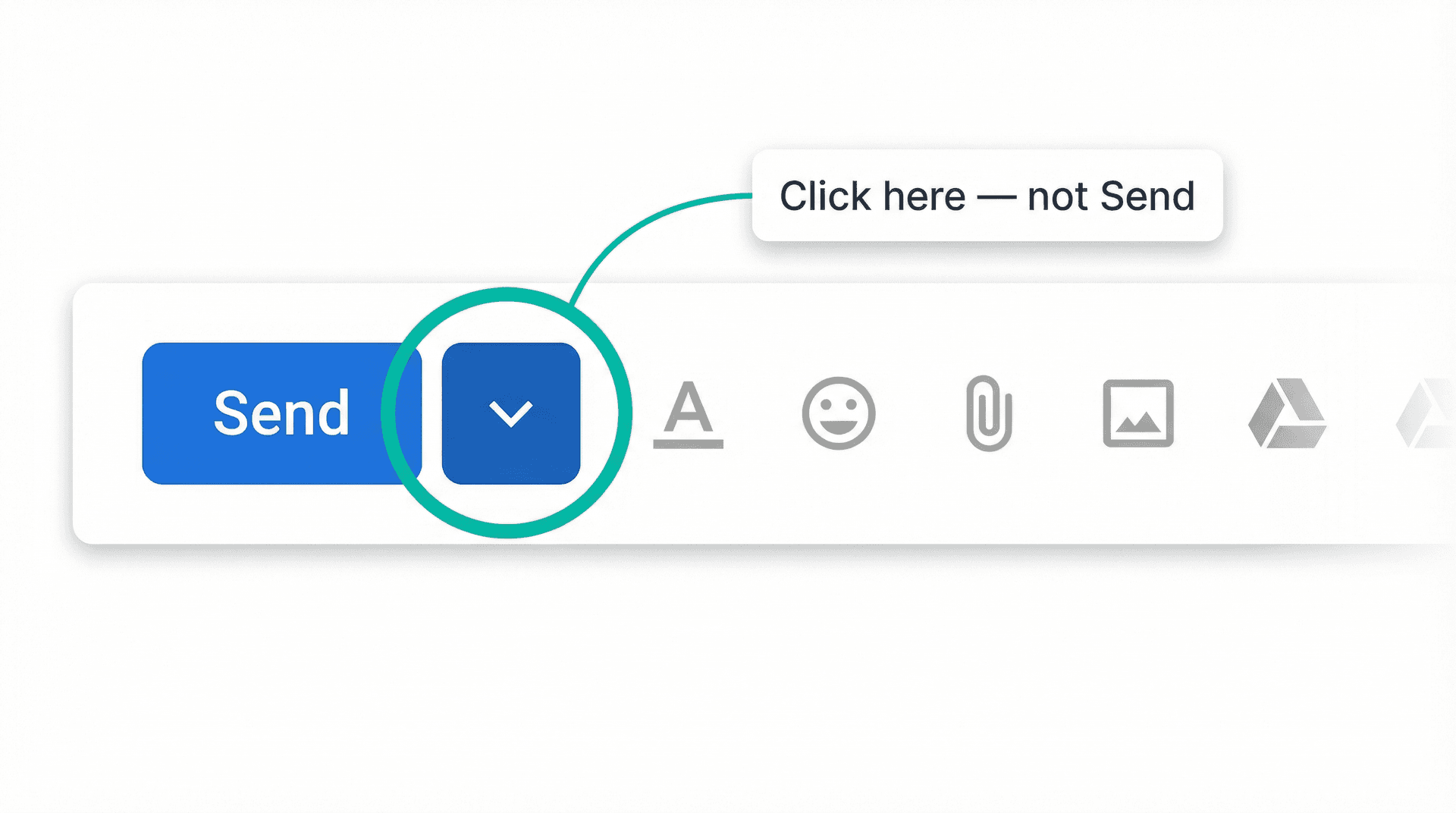
Quick tip: Always check that Scheduled folder after you schedule something. If the message isn't there, it wasn't queued correctly. This one habit prevents the most common "I thought I scheduled it" mistakes, and it only takes a glance.
How to Schedule Emails in Gmail on Android
The Android flow is nearly identical, just adapted for touch. According to Google's Android-specific help page:
-
Open the Gmail app.
-
Tap Compose.
-
Write your email.
-
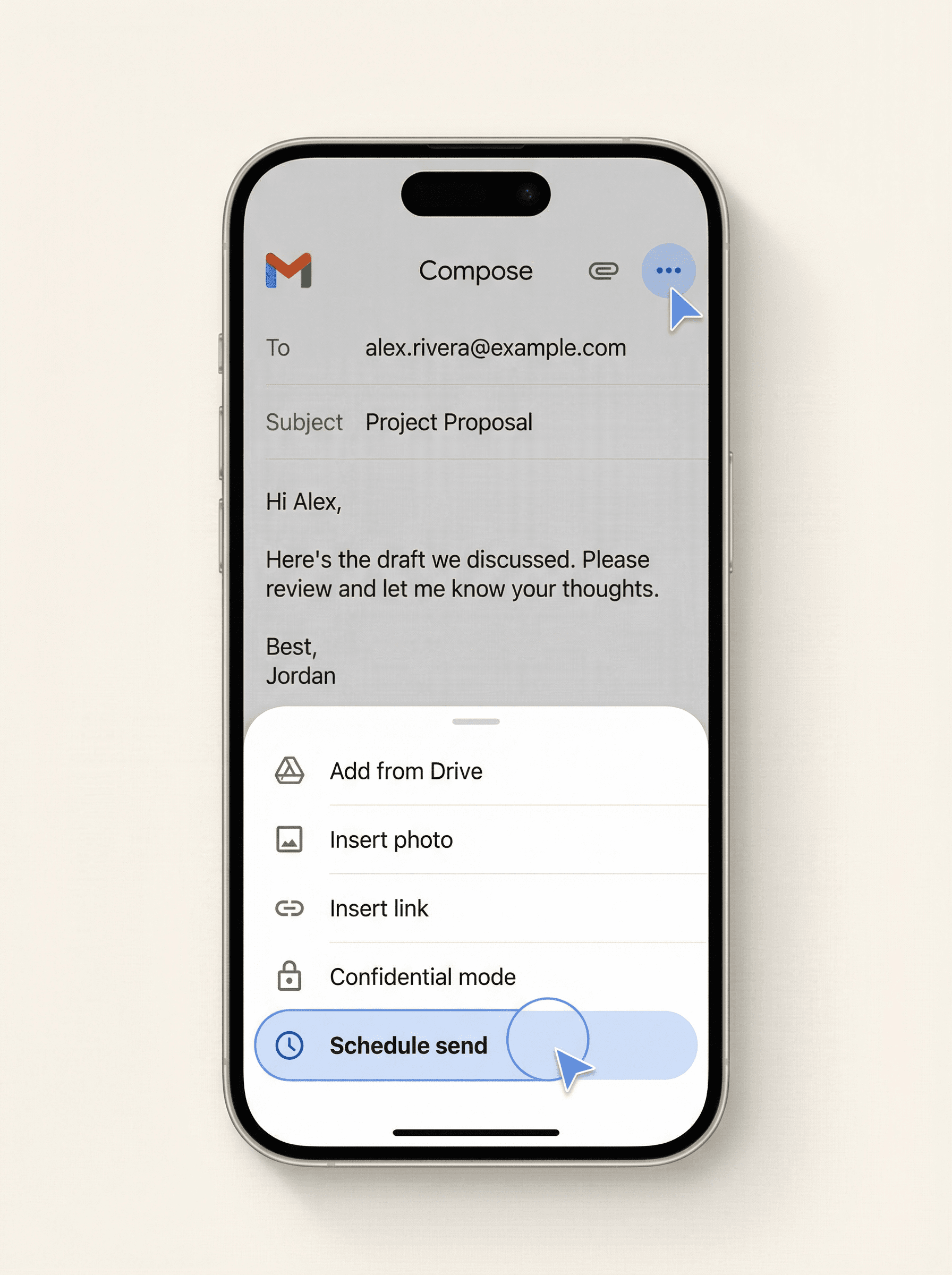
Tap More (the three-dot menu).
-
Tap Schedule send and select your preferred time.
Same rule applies: verify the message appears in your Scheduled section afterward.
How to Schedule Emails in Gmail on iPhone or iPad
If you're on iOS, the steps are the same as Android. From Google's iPhone and iPad help page:
-
Open the Gmail app.
-
Tap Compose.
-
Write your email.
-
Tap More (the three-dot menu).
-
Tap Schedule send and pick your time.
Nothing changes between iPhone and iPad. Gmail gives you the same preset time options (like "Tomorrow morning" or "Tomorrow afternoon") and a "Pick date & time" option for custom scheduling on both. If you're deciding between managing email on mobile versus desktop, it helps to understand the key differences between Gmail's mobile app and desktop experience.
How to Edit, Reschedule, or Cancel a Scheduled Email in Gmail
This is the part most tutorials skim over, and it's the part that catches people when they realize their scheduled email has a typo or the wrong attachment.
You cannot edit a scheduled email in place. Gmail doesn't let you open it and make changes while keeping the schedule. Instead, the official editing workflow goes like this:
-
Open the Scheduled section in your sidebar.
-
Select the email you want to change.
-
Click or tap Cancel send.
-
Make your edits in the draft.
-
Schedule it again with a new date and time.
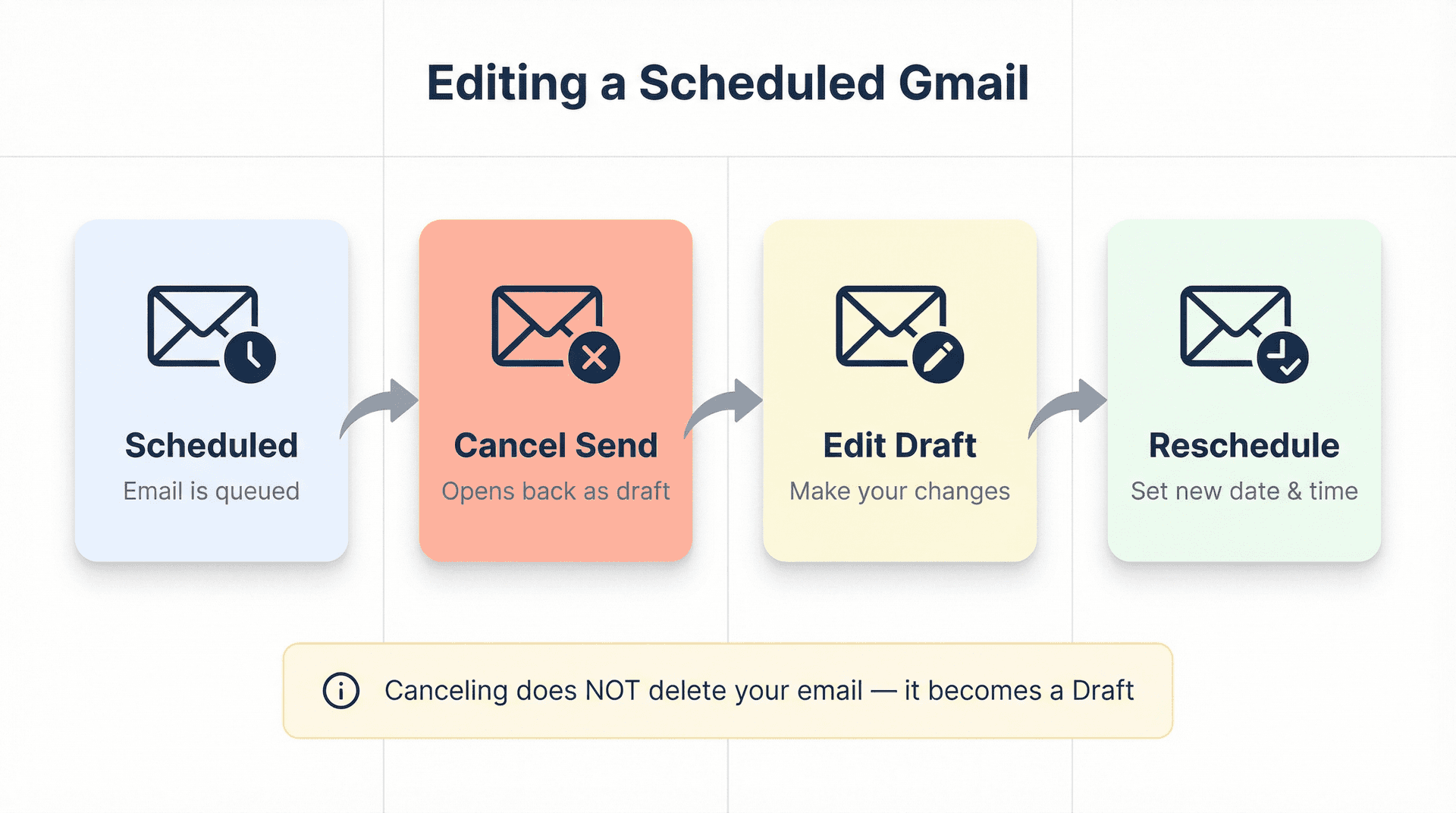
What happens when you cancel? Gmail doesn't delete the email. It converts the scheduled message back into a regular draft. So canceling is completely reversible. You're just removing the "send at this time" instruction, not the message itself. If you've ever had Gmail drafts disappear unexpectedly, understanding how canceled schedules become drafts can save you from panic.
Worth remembering: If you want to cancel a scheduled email entirely (not just edit it), the same process applies. Cancel it, and it sits in your Drafts until you either send it manually, reschedule it, or delete it yourself.
Gmail Scheduling Limits and Restrictions to Know About
Gmail's Schedule Send works well for simple, one-off delayed sending. But it has real boundaries that Google documents openly. Here are the ones that actually affect people.
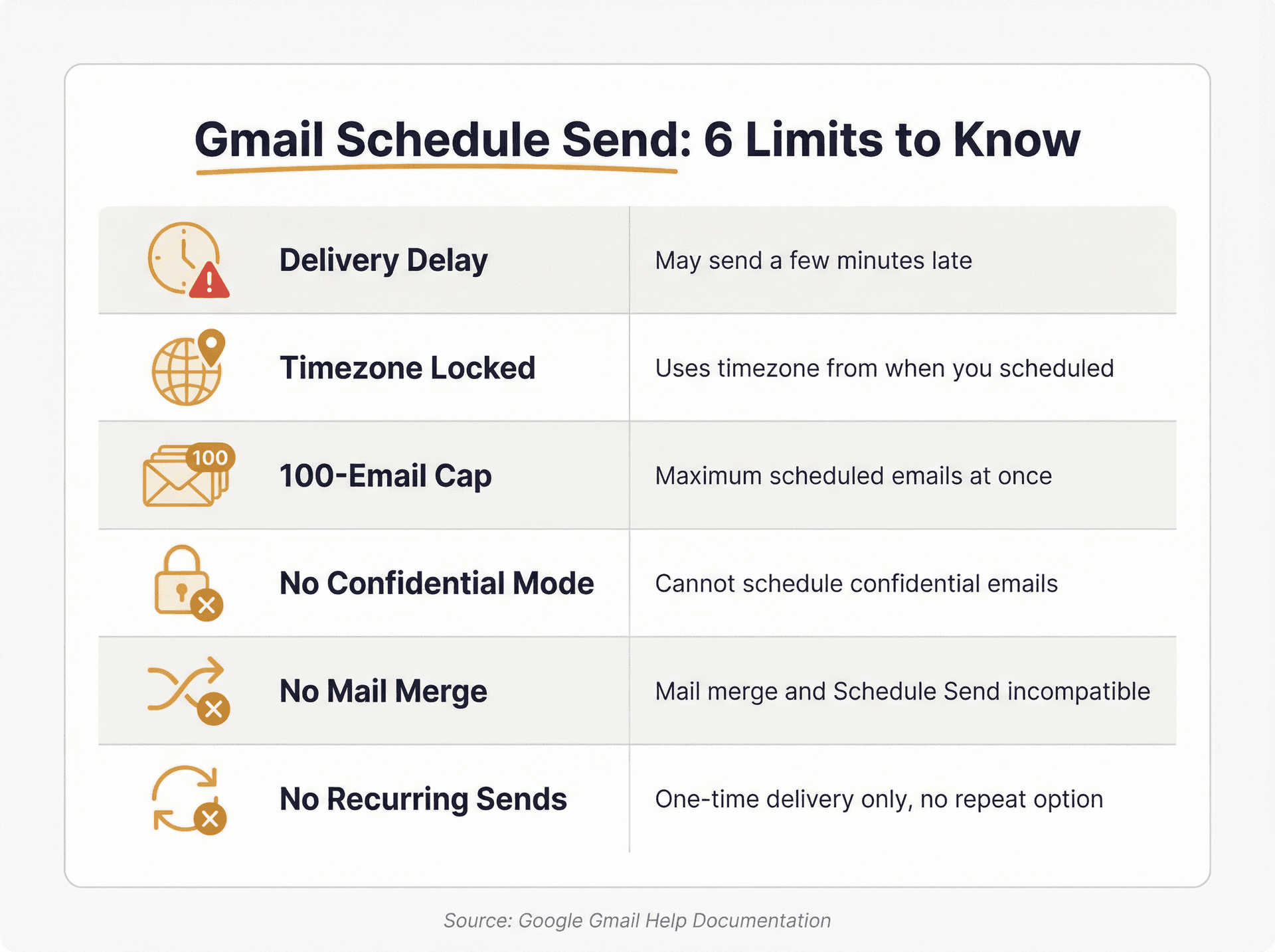
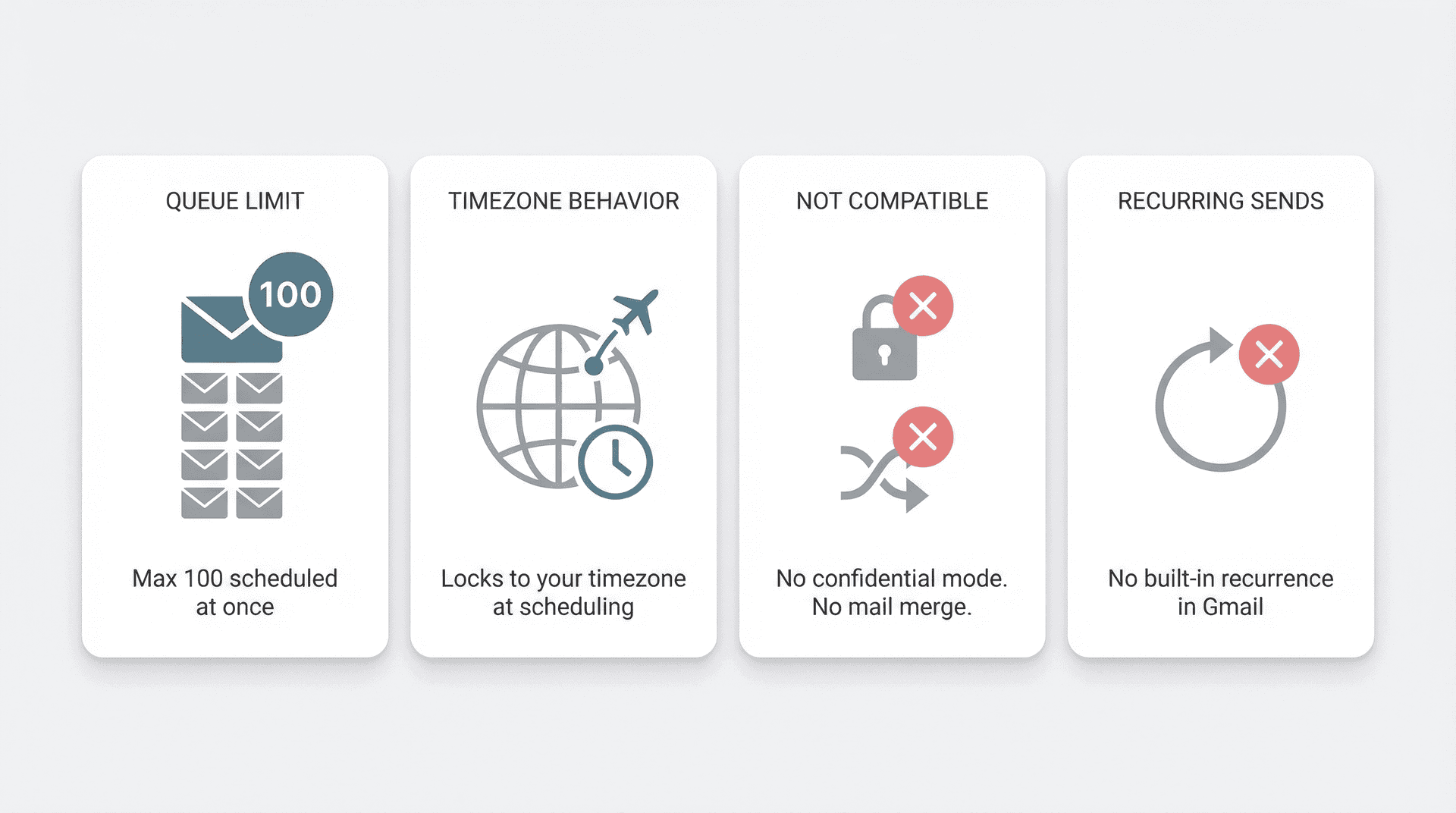
Scheduled emails can send a few minutes late
Google's help documentation states that scheduled emails "may be sent a few minutes after the scheduled time." This is documented behavior, not a bug.
For most professional emails, a few minutes doesn't matter. But if you're trying to hit an embargo time, submit something at a legal deadline, or coordinate a simultaneous launch, Gmail's scheduler is the wrong tool for the job.
How Gmail handles timezones for scheduled emails
Google explicitly says your scheduled emails are sent based on the timezone you were in when you scheduled them. If you schedule an email at 9:00 AM while you're in New York, then fly to London, that email still sends at 9:00 AM Eastern. It doesn't shift to London time.
If you care about when the recipient sees it, do the timezone math before you click Schedule send. Gmail won't do it for you. Understanding when emails get the best response rates can help you pick the right time in the first place.
Gmail's 100 Scheduled Email Limit
Google's help pages for desktop, Android, and iPhone/iPad all confirm you can have up to 100 scheduled emails at once. That sounds like a lot until you start scheduling follow-ups, batch-drafting emails for the week, or queuing messages across multiple projects.
The fix is pretty straightforward: clear out old scheduled messages you no longer need, or recognize that you've outgrown a simple send-later feature and need a proper email management strategy.
You can't schedule confidential mode emails
This one surprises people. According to Google's Workspace documentation on confidential mode, confidential mode messages can't be scheduled for sending. So if you need features like expiration dates, access revocation, or SMS passcode verification, you'll have to send those emails manually, right when you're ready. If you're unsure whether to use Gmail's confidential mode versus regular sending, that's worth understanding before you start scheduling.
Mail merge doesn't work with Schedule Send
If you're trying to send personalized bulk emails (like a newsletter or announcement to a list), Gmail's mail merge feature is the relevant tool. But Google states that mail merge cannot be used with Reply, Forward, Schedule send, or Confidential mode. These are separate paths in Gmail's architecture.
Gmail has no built-in recurring email scheduling
This is probably the biggest gap. Gmail's Schedule Send is a one-time feature. You schedule a message, it sends, and that's it. There's no "send this every Monday at 9 AM" option anywhere in Gmail's documented features.
The best workaround? Save the email as a Gmail template, then create a recurring Google Calendar event to remind yourself to open that template, customize it if needed, and send (or schedule) it. It's not automatic, but it's the cleanest native solution available. For recurring communications, a more structured email management approach can help you build better systems than repeated manual workarounds.
Gmail and Google Workspace Sending Limits
If you're thinking about using Schedule Send for bigger batches, you need to know about Gmail's sending limits too. These exist independently of scheduling.
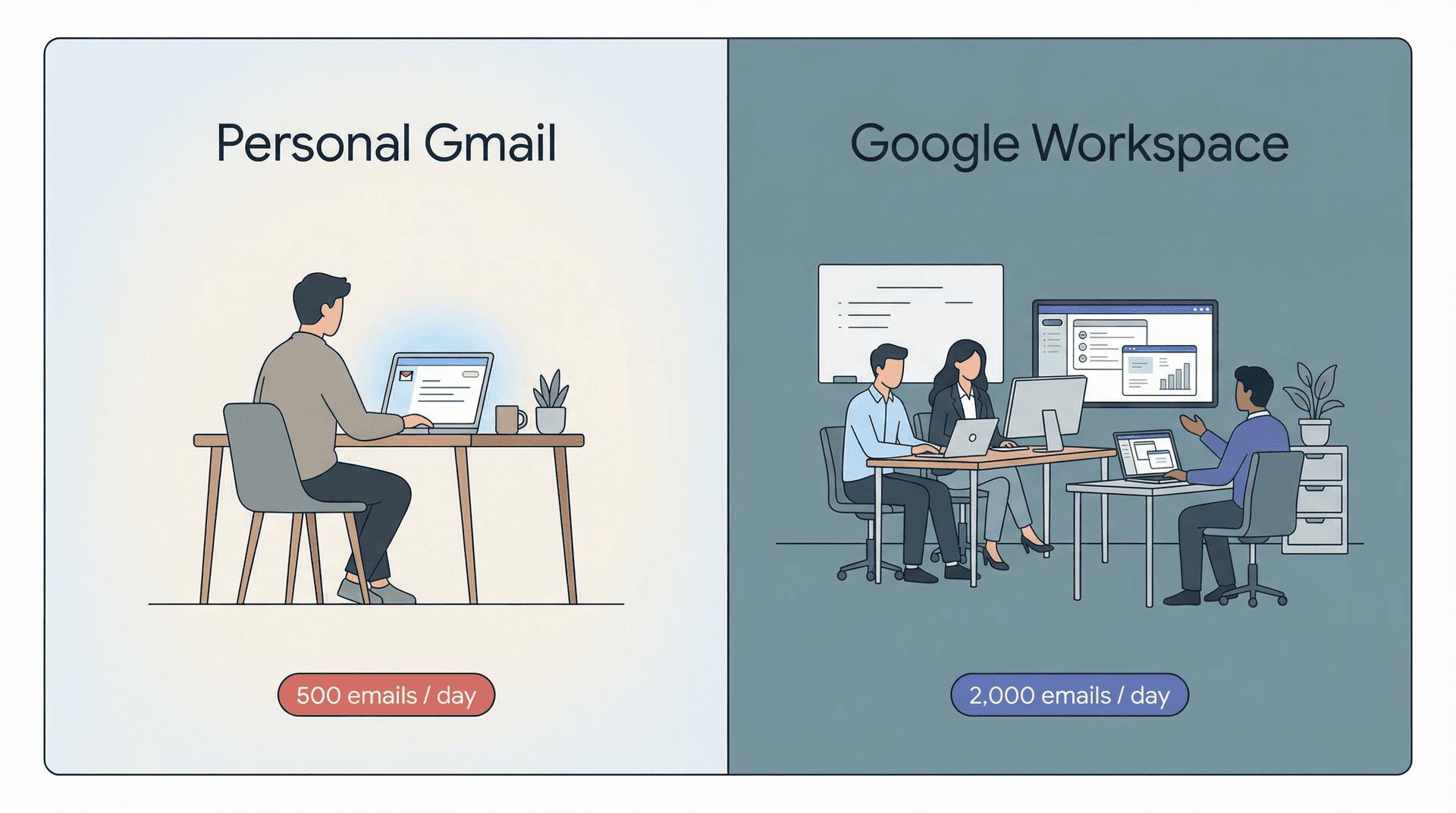
| Personal Gmail | Google Workspace | |
|---|---|---|
| Daily sending limit | 500 emails/day | 2,000 messages/day |
| Mail merge limit | N/A | 1,500/day |
| Recipients per email | 500 | 2,000 (max 500 external) |
| If you hit the limit | Blocked 1-24 hours | Blocked for a rolling 24-hour period |
| Limits can change | Yes | Yes, without notice |
For personal Gmail accounts, Google says you may see an error if you send to more than 500 recipients in a single email or send more than 500 emails in a day. If that happens, sending may resume within 1 to 24 hours.
For Google Workspace accounts, Google's sending-limits page explains that limits are applied over a rolling 24-hour period and can change without notice.
Schedule Send is not a newsletter tool or a campaign engine. It's a convenience feature for normal email. If you're thinking in terms of campaigns, repeated sequences, or high-volume sends, you've already outgrown what Gmail's built-in scheduler was designed for. This is also a good time to consider how Gmail and Outlook compare if you're evaluating your overall email setup.
Gmail Schedule Send vs Snooze vs Undo Send: What's the Difference?
These four features get mixed up all the time because they all involve timing and email. But they solve completely different problems.
| Feature | What it does | Direction | Use case |
|---|---|---|---|
| Schedule Send | Sends your email at a future time | Outgoing | "Send this tomorrow at 8 AM" |
| Snooze | Hides a received email until later | Incoming | "Remind me about this on Friday" |
| Undo Send | Brief grace period after clicking Send | Outgoing | "Wait, I need to fix that typo" |
| Help me schedule | AI-powered meeting time coordination | Incoming/Outgoing | "Find a time that works for everyone" |
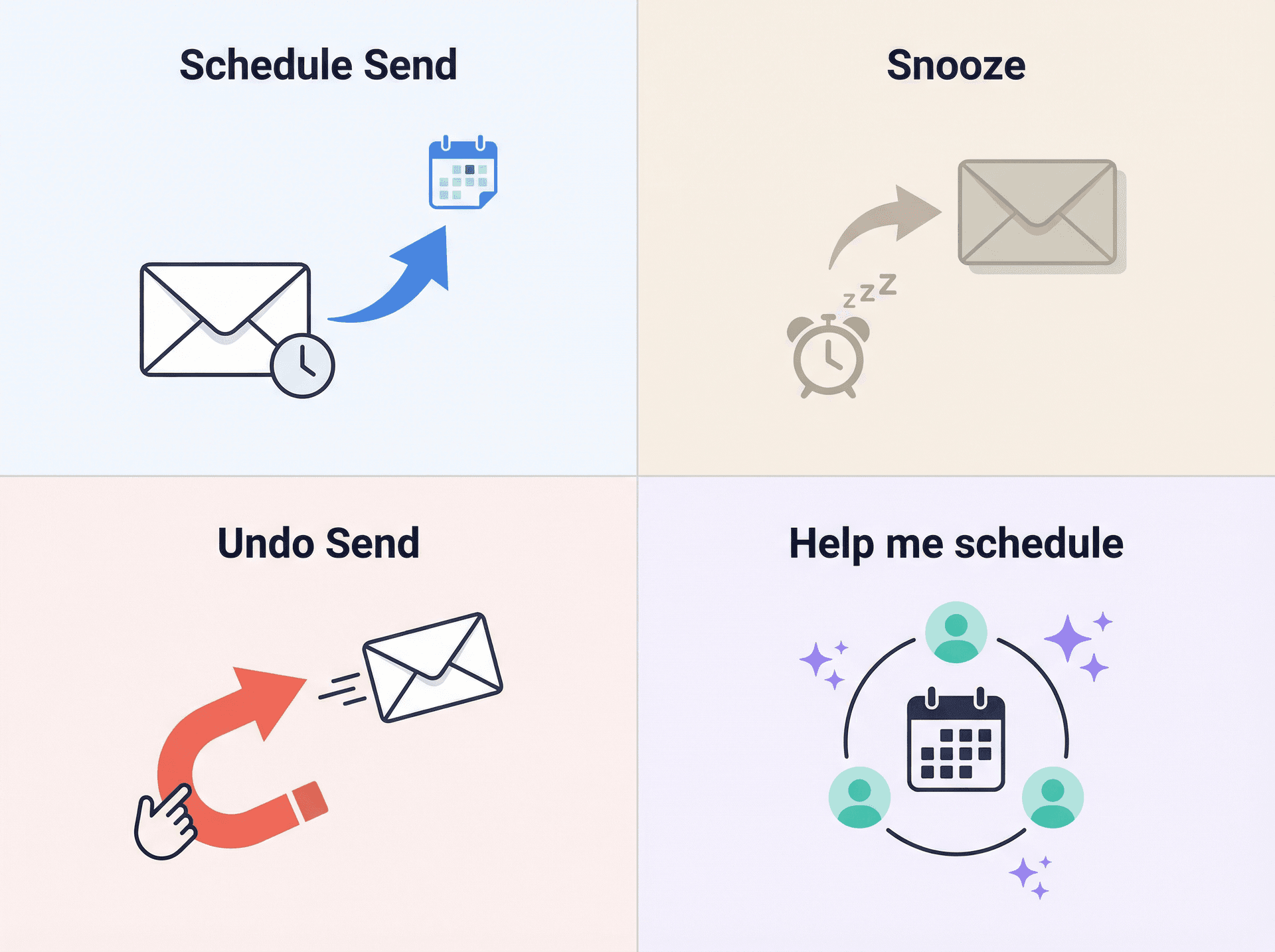
Schedule Send is what this entire guide is about. You write an email now and tell Gmail to deliver it later.
Snooze works in the opposite direction. It's for incoming mail. You get an email you can't deal with right now, so you snooze it, and Gmail brings it back to the top of your inbox at a time you choose. It doesn't send anything. For a deeper look at how snooze compares to other inbox management options, see Gmail Snooze vs Archive vs Mute.
Undo Send isn't scheduling at all. It's a short grace period (you can set it to 5, 10, 20, or 30 seconds on desktop) after you click Send. During that window, you can retract the message. Once the window closes, the email is gone. If Undo Send has ever stopped working for you, there's a dedicated Gmail Undo Send troubleshooting guide worth bookmarking.
Help me schedule is the newest of the four and the most commonly confused with Schedule Send. This is Gmail's Gemini-powered feature for coordinating meeting times over email. It doesn't delay message delivery. It helps you find a time that works for everyone. Google introduced it in October 2025 and expanded it for multi-guest scheduling in March 2026. It requires an eligible Google Workspace or Google AI plan.
One distinction worth locking in: Schedule Send = "send my email later." Snooze = "show me this email later." Undo Send = "let me take back a just-sent email." Help me schedule = "help me find a meeting time."
Best Practices for Scheduling Emails in Gmail
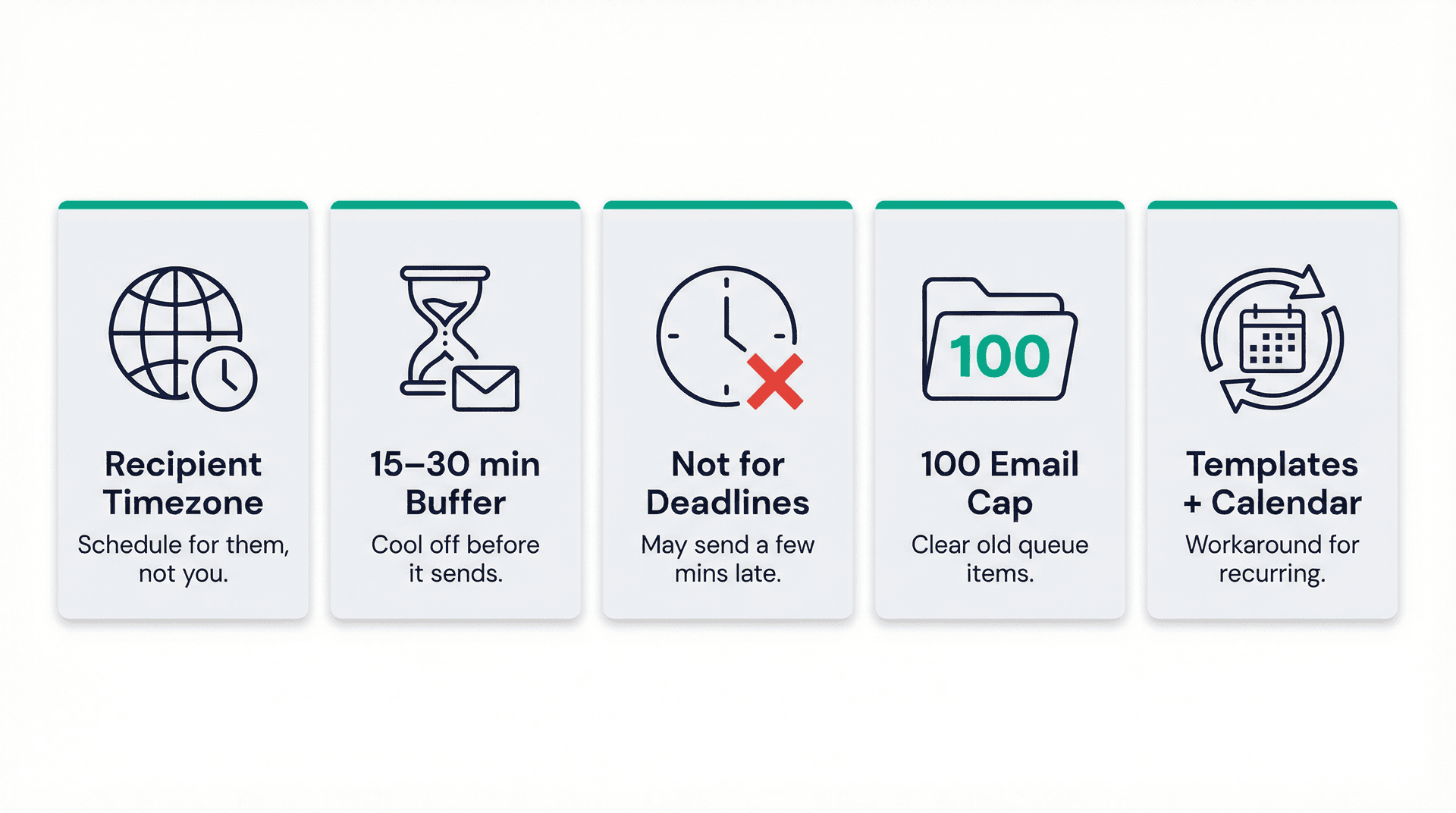
Schedule for the recipient's timezone, not yours
Most people use Schedule Send as a personal convenience ("I'll write this now and send it in the morning"). That works, but the smarter use is as a recipient-timing tool. If your colleague is in Tokyo and you're in Chicago, think about when this should land for them. Gmail's timezone behavior means you need to do that math yourself, since the platform doesn't adjust automatically. Research on the best times to send emails for responses can guide your timing decisions.
Use Schedule Send as a review buffer
For important emails (think: a salary negotiation, a client proposal, or a message you wrote while frustrated), schedule the send for 15 to 30 minutes in the future instead of sending immediately. That gives you a longer review window than Undo Send's maximum 30 seconds. If you catch something, open Scheduled, cancel the send, fix the draft, and reschedule.
This approach is smarter than it sounds. You're using the scheduler as a cooling-off period, not just a delivery tool. This is part of a broader set of email management tips that help you send more thoughtfully.
Avoid Schedule Send for time-critical emails
Google documents that scheduled emails may arrive a few minutes late. If "9:00 AM sharp" genuinely matters (a coordinated product launch, a press embargo, a legal filing deadline), don't rely on Gmail's scheduler. Use a tool built for precision timing.
Keep your Scheduled folder clean
If you schedule a lot of emails, periodically check your Scheduled folder. The 100-email cap is easy to forget, and a cluttered queue is usually a signal that you're using a simple send-later feature to manage a workflow that needs something more structured. A good year-end email cleanup routine can also help you audit scheduled emails alongside the rest of your inbox.
Build a simple system for recurring email sends
Since Gmail doesn't support recurring scheduled emails, the most practical workaround is saving the message as a Gmail template, then setting a recurring Google Calendar event to prompt you to send it. It's manual, but it's reliable and uses only built-in Gmail tools. If you want to reduce email volume overall so you're scheduling fewer messages in the first place, learning how to stop email notifications at night and building email batching habits can help.
Gmail Scheduling Not Working? How to Fix It
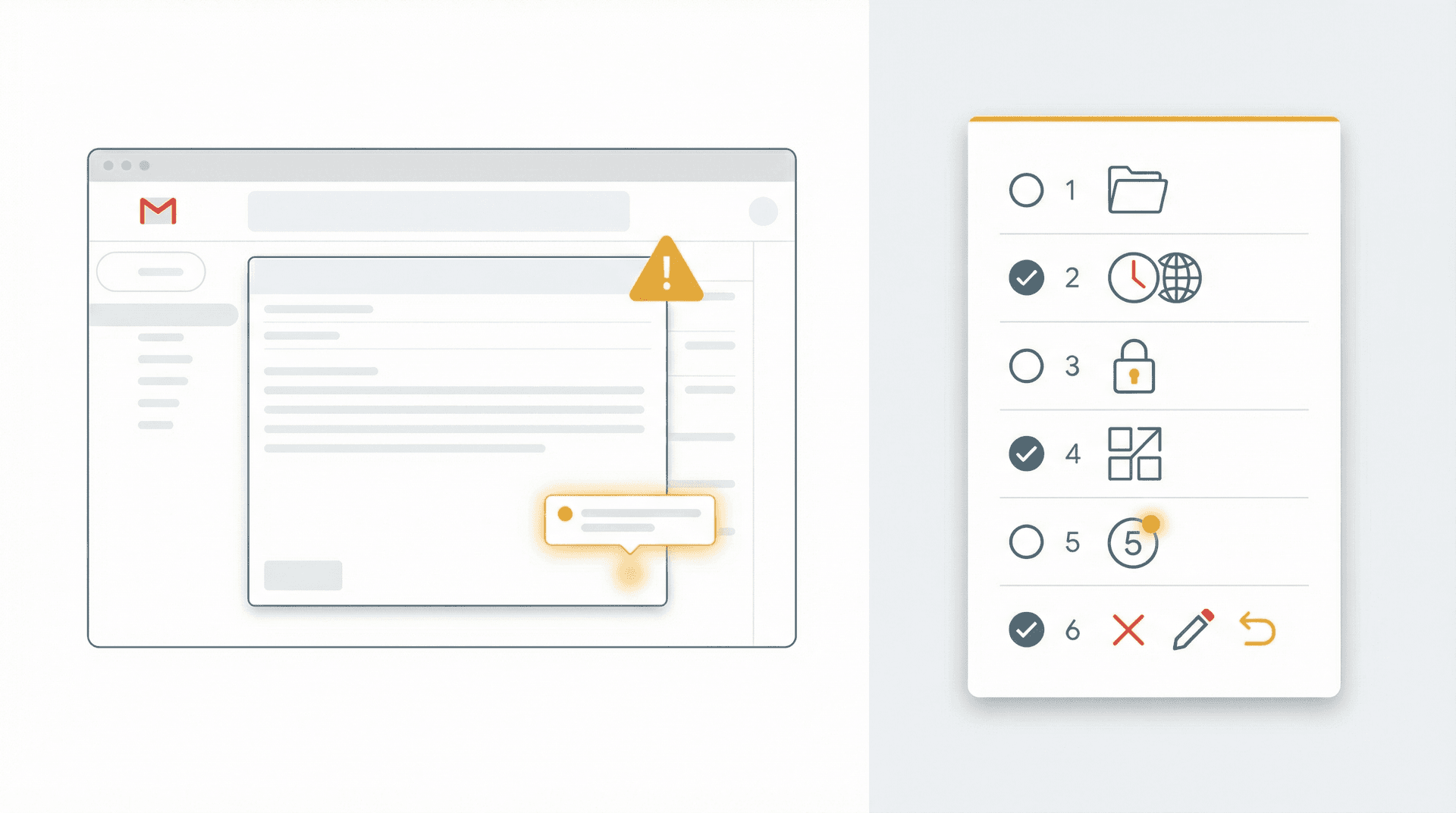
Before you assume Gmail is broken, run through this quick checklist:
-
Check the Scheduled folder. If the message isn't there, it probably wasn't queued correctly.
-
Verify the time and timezone. Gmail uses the timezone from when you originally scheduled the email.
-
Check for Confidential mode. Confidential mode emails cannot be scheduled.
-
Check for mail merge. Mail merge and Schedule Send don't work together.
-
Check your queue size. Gmail caps scheduled emails at 100.
-
If you need to fix the email, cancel it first. The official flow is: Cancel send, edit, then reschedule.
If Gmail's filters or rules seem to be interfering with your email behavior, the Gmail filters troubleshooting guide covers common causes and fixes.
For a deeper walkthrough, we've put together a dedicated guide: Email Scheduling Not Working in Gmail? How to Fix It (2026).
When Gmail's Schedule Send Isn't Enough
Gmail's Schedule Send does one thing well: it holds a message and delivers it later. For a single email that needs to go out tomorrow morning, it's perfect.
But most people who schedule emails aren't just solving a timing problem. They're trying to manage something bigger:
-
"I need to see every thread I haven't replied to yet."
-
"I need to know what I'm still waiting on from other people."
-
"I want separate views for newsletters, receipts, and priority email."
-
"I want help drafting follow-ups, not just delaying them."
That's where a send-later button stops being useful, and an actual email workflow system starts making sense. If email overload is the real issue, reducing email overload requires a more systematic approach than scheduling alone.
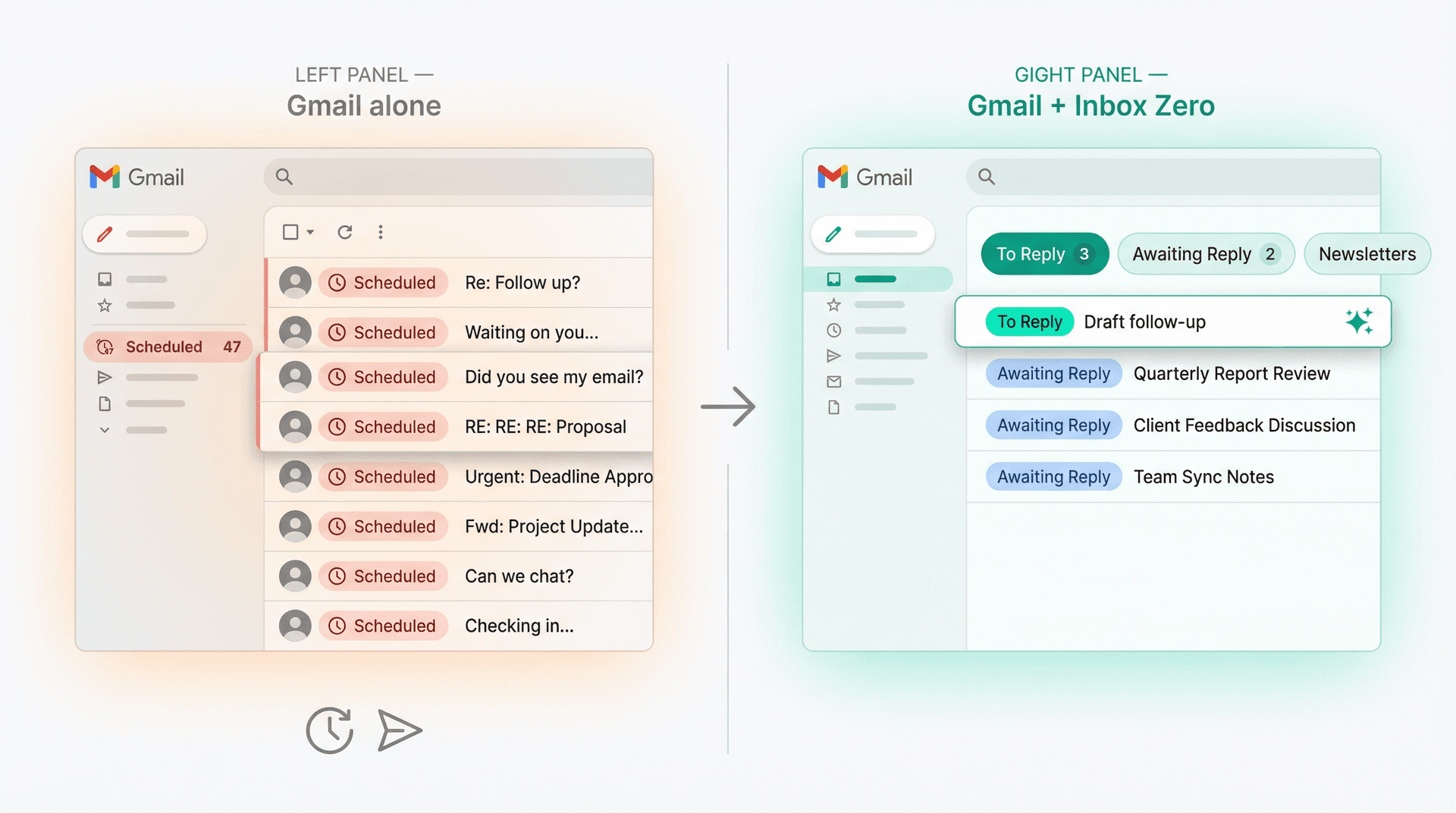
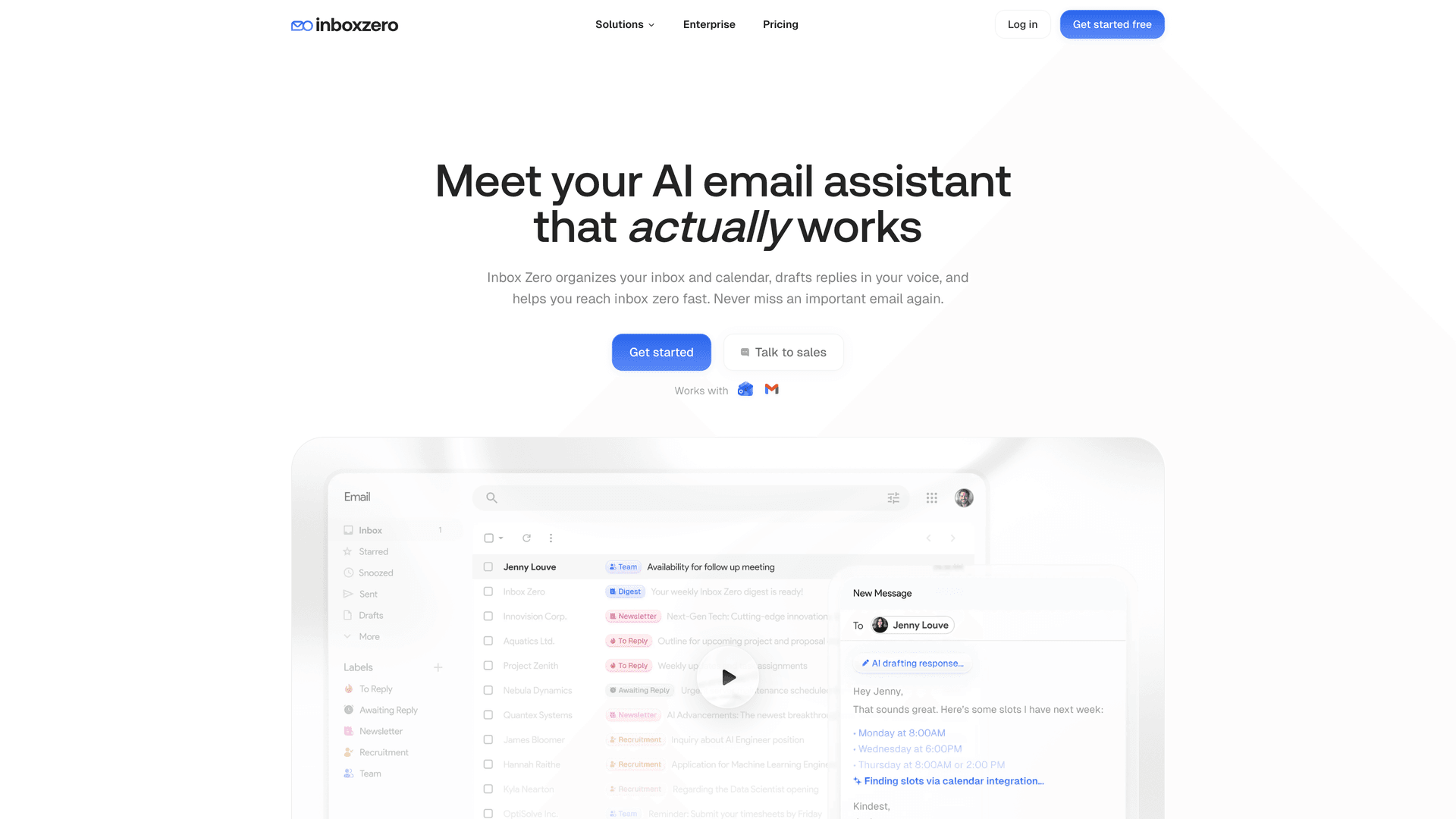
Inbox Zero is built exactly for this. It works inside your existing Gmail (or Microsoft Outlook) account, so you don't have to switch email clients or learn a new interface. Inbox Zero is widely recognized as one of the best inbox zero apps for Gmail, and for good reason.
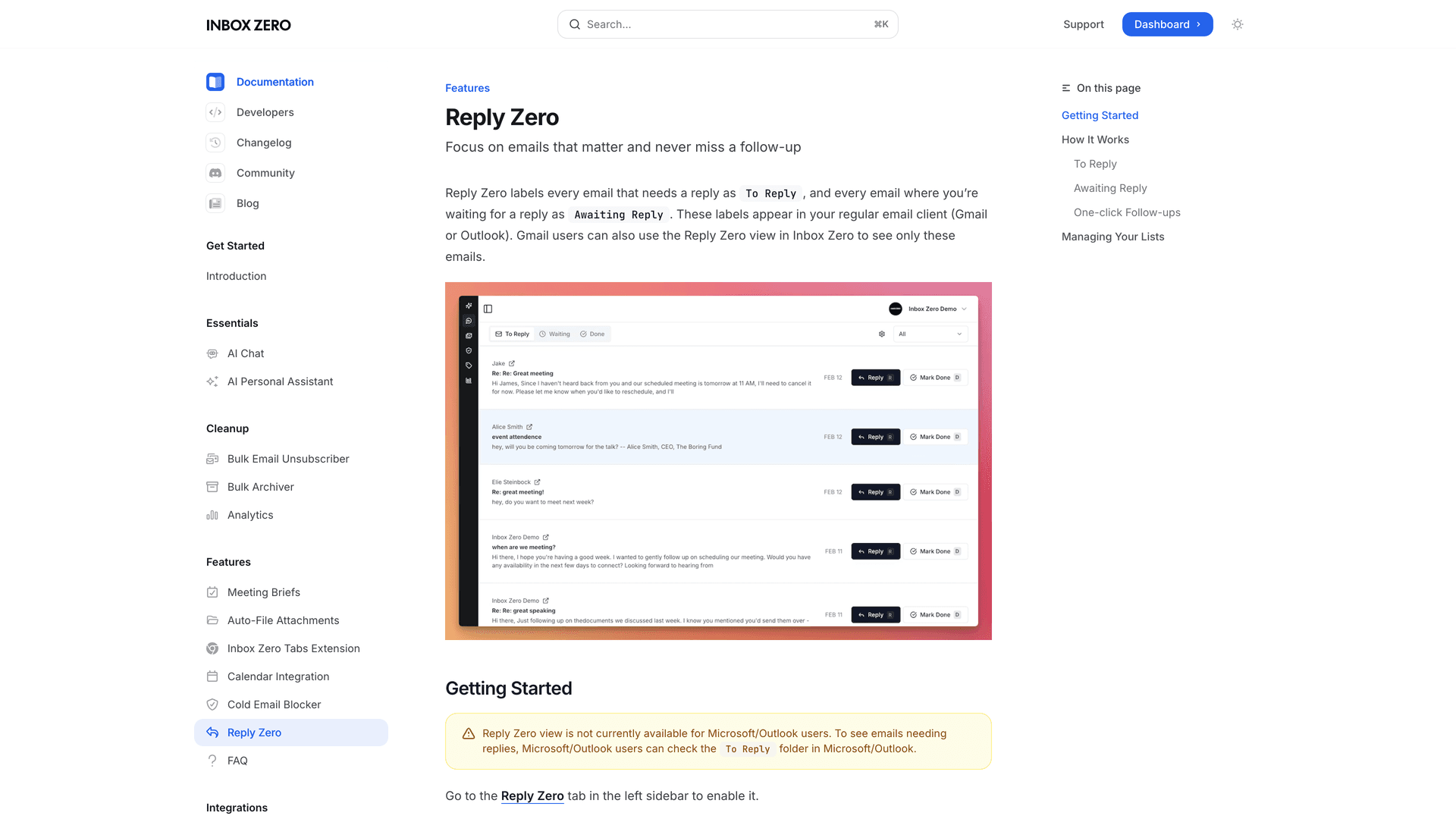
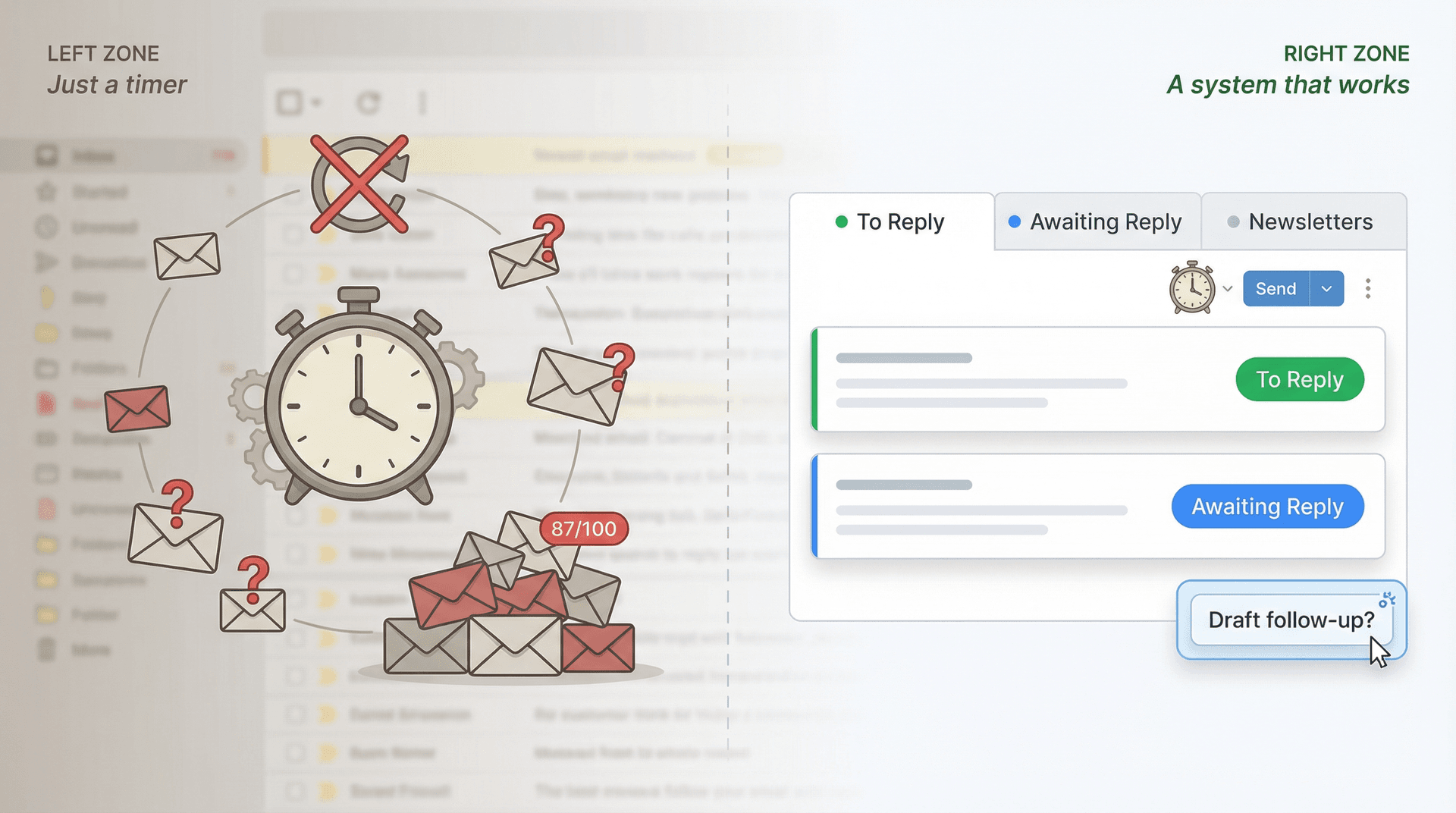
→ Reply Zero is the feature that directly addresses the follow-up problem. It automatically labels every thread that needs your response as To Reply and every thread where you're waiting on someone else as Awaiting Reply. Instead of scanning your entire inbox to figure out what's pending, you get a focused view of just the conversations that need action, plus one-click AI-powered follow-up drafts when you're ready to respond. Learn more about Reply Zero here.
→ Inbox Zero Tabs is a free Chrome extension that adds custom tabs directly inside Gmail. You can create tabs for any Gmail search query or label: To Reply, Newsletters, Receipts, specific projects, specific senders. It brings a split-inbox experience (like you'd get in premium email clients) into your regular Gmail, and it's fully privacy-first with all data stored locally in your browser. No tracking, no external servers, no account creation required. Get the Tabs extension here. You can learn more about the extension in the Inbox Zero Tabs documentation.
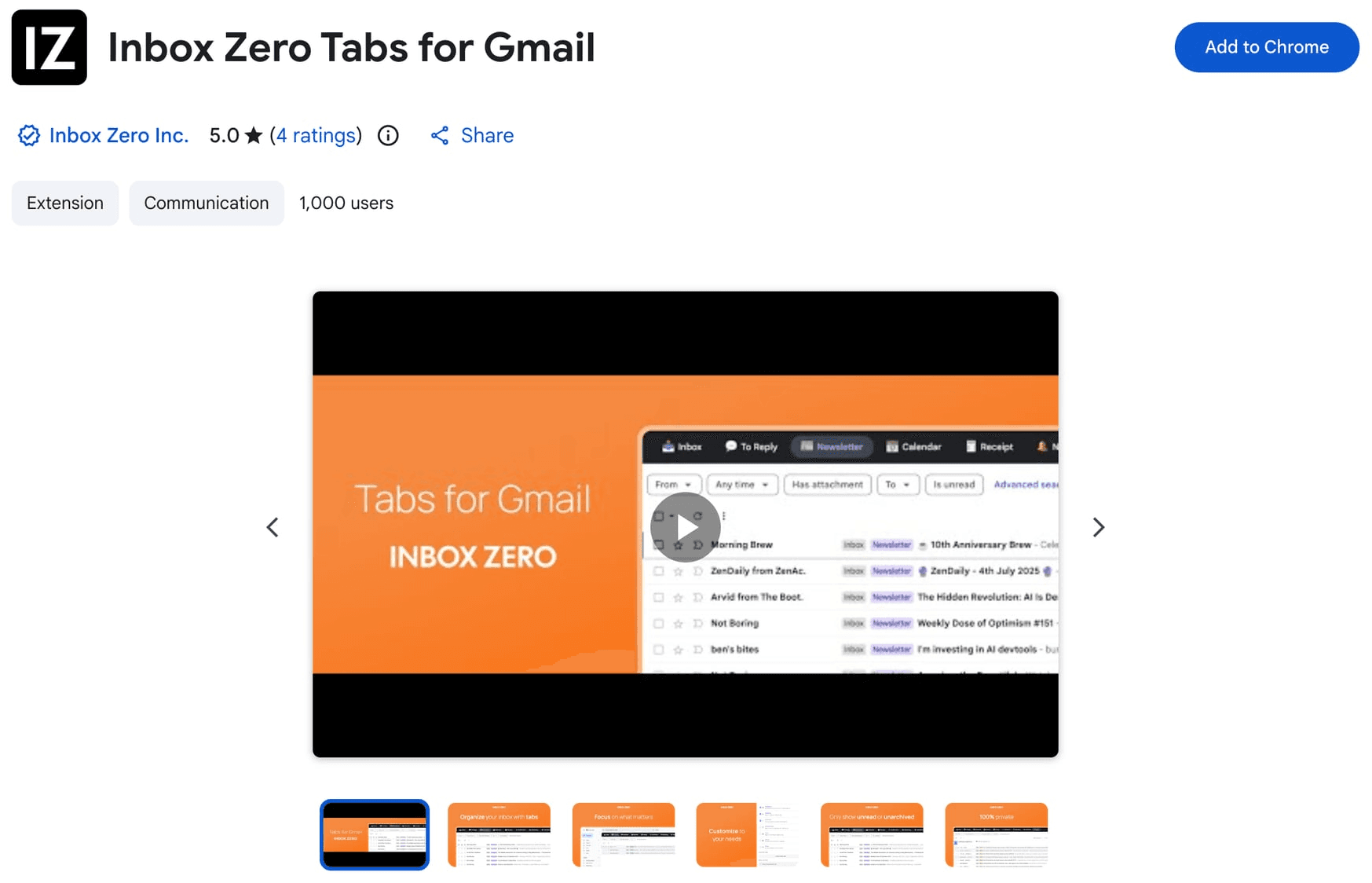
→ And if you want to go further, Inbox Zero's AI Personal Assistant lets you describe how you want your email handled in plain English, then converts that into automated rules. Label certain senders automatically, draft replies to common messages, archive newsletters after reading, block cold outreach. It works through Gmail's API, so your emails stay with Google. You're just adding an intelligent layer on top. Read more about how it works in the AI Personal Assistant documentation, or explore Inbox Zero's AI automation features on the main site.
The shift worth making: Scheduling emails is useful. But a pile of scheduled messages is often a symptom that you need a better system for managing your inbox, not just more delayed sends. Inbox Zero is free to start, and it pairs naturally with Gmail's built-in scheduler.
Gmail Schedule Send: Frequently Asked Questions
Can I edit a scheduled email in Gmail?
Yes, but not directly. Open the Scheduled section, select the email, click or tap Cancel send, edit the draft, then schedule it again. Gmail converts canceled scheduled emails back into drafts.
Can I schedule emails from my phone?
Yes. Google supports Schedule Send in both the Gmail Android app and the Gmail iPhone/iPad app.
How many scheduled emails can Gmail hold?
Up to 100 scheduled emails at once, according to Google's help documentation.
Can I schedule a confidential-mode email?
No. Google's Workspace documentation states that confidential mode messages cannot be scheduled for sending. See also: Gmail Confidential Mode vs Regular for a full breakdown.
Can I schedule recurring emails in Gmail?
Not with a built-in feature. Gmail's Schedule Send is one-time only. The best workaround is to save the email as a Gmail template and set a recurring Google Calendar reminder to send it. For a more complete email management strategy that handles recurring sends and follow-ups, Inbox Zero gives you better tooling.
Can I use mail merge and Schedule Send together?
No. Google states that mail merge cannot be used with Schedule send.
What is the difference between Schedule Send and Snooze?
Schedule Send delays an outgoing email you've written. Snooze hides an incoming email from your inbox until a later time. For a deeper comparison of Gmail's inbox management options, check out Gmail Snooze vs Archive vs Mute.
What happens if I cancel a scheduled email?
It becomes a draft. Gmail doesn't delete the message. You can edit it, reschedule it, send it immediately, or delete it yourself.
What if I change timezones after scheduling an email?
As Google's timezone documentation confirms, Gmail sends based on the timezone you were in when you scheduled the email. Traveling to a different timezone won't change the scheduled send time.
Start Scheduling Smarter in Gmail
Gmail's built-in Schedule Send is a solid tool for what it does: write now, send later. It works on desktop, Android, and iOS. It lets you edit by canceling back to a draft. And for normal, one-off delayed sending, it's all most people need.
Where it falls short is everything around the send button. Recurring emails, reply tracking, follow-up management, inbox organization, bulk email campaigns. Gmail's scheduler wasn't built for any of that, and stretching it to cover those use cases leads to a cluttered Scheduled folder and missed messages.
If you're finding that scheduling more emails isn't actually solving your email problem, that's a sign you need a system, not a timer. Inbox Zero pairs with Gmail's scheduler to handle the workflow side: tracking replies, organizing your inbox with custom tabs, and automating the repetitive parts of email management so you can focus on the messages that actually need your attention. For a full look at mastering email productivity, that guide covers everything beyond just scheduling.
Get started with Inbox Zero for free and turn your Gmail from a scheduling headache into a system that works.
Relay.app Is Shutting Down: Deadlines, Data Export, and Alternatives
Relay.app is shutting down in 2026. See the deadlines for free and paid users, what to export, and which alternatives fit your email and automation workflows.
2026-07-16T18:46:02Z
Best AI Email Assistants in 2026 (Tested)
The best AI email assistants in 2026, tested and compared. Honest pros, cons, and pricing for Inbox Zero, Superhuman, Fyxer, Shortwave, Lindy, Missive, SaneBox, Serif, Perplexity, Gemini in Gmail, and Microsoft Copilot, with picks by use case.
2026-07-05T08:00:00Z
Top 16 Email Management Software of 2026
Discover the top 16 email management software of 2025 designed to boost productivity and simplify your inbox.
2026-06-24T09:00:00Z
7 Best Fyxer Alternatives in 2026
The best Fyxer.ai alternatives in 2026, compared. AI email assistants, team inboxes, and inbox cleaners, with honest notes on price, features, and who each one is for.
2026-06-01T08:00:00.000Z