Enterprise Email Migration Checklist: GWS ↔ M365 (2026)
Step-by-step enterprise email migration checklist for GWS ↔ M365. Covers both directions, auth changes, compliance, and post-migration hardening.

If you've landed on this page, you're probably not looking for a simple list of buttons to click. You're trying to pull off a controlled state transfer of a living communication system without breaking your company's ability to do business for a single day.
That's what an enterprise email migration actually is. And it's hard.
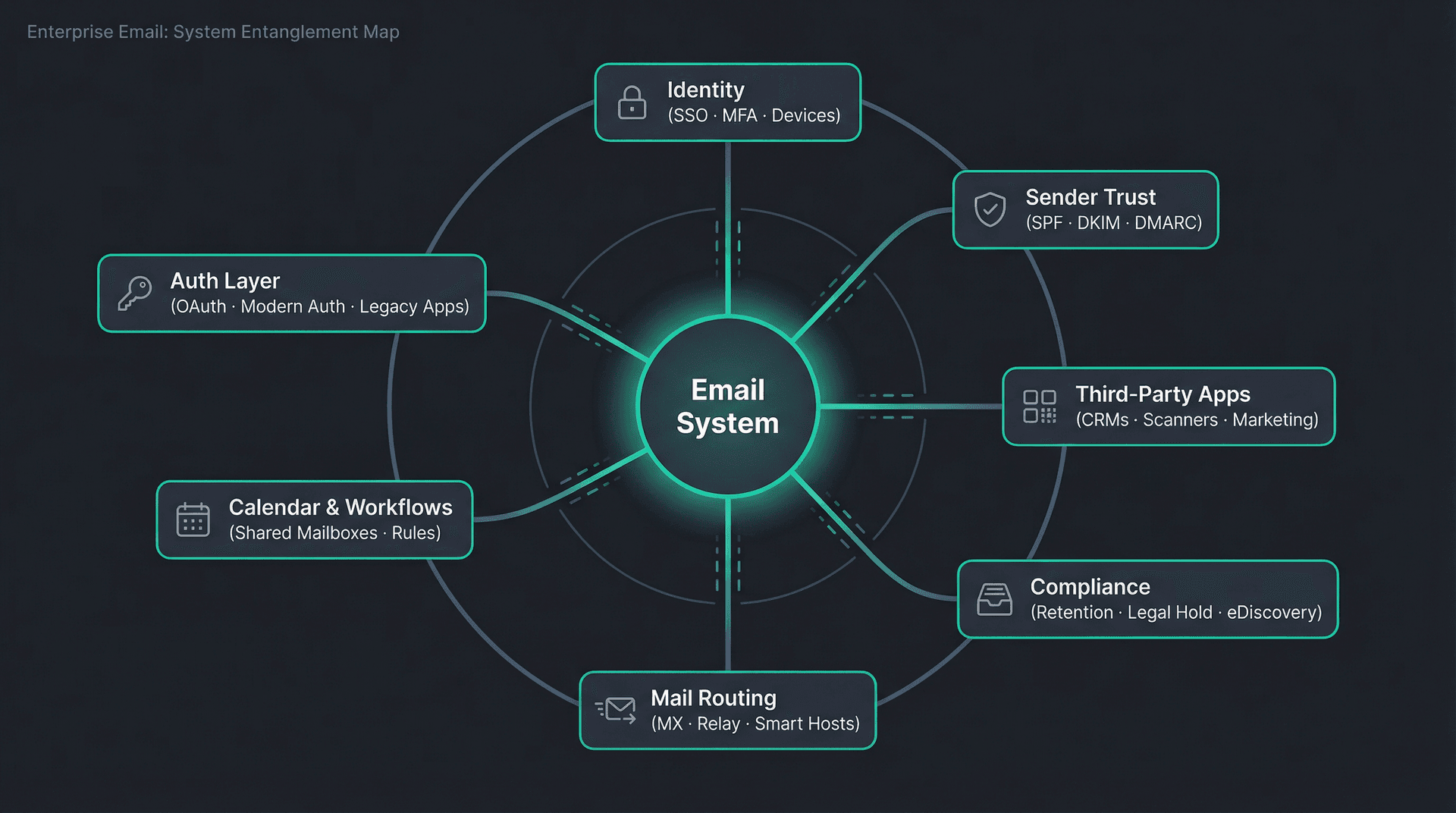
Your email system isn't just "messages." In any real organization, email is deeply entangled with identity (SSO, MFA, devices), mail routing, sender trust (SPF, DKIM, DMARC), day-to-day workflows (labels vs. folders, shared mailboxes, rules), compliance (retention, legal hold, eDiscovery), and every app that sends email on your domain's behalf (CRMs, scanners, marketing tools, monitoring alerts). The Gmail vs. Outlook choice has implications that run far deeper than interface preference. It affects how your whole organization works.
A successful migration doesn't just mean "all mail copied." It means:
-
No lost business-critical mail
-
No broken calendar workflows
-
No silent deliverability regressions (mail "works" but lands in spam)
-
No compliance gaps
-
No multi-week productivity crash
-
A rollback plan you can actually execute
Both platforms have changed significantly heading into 2026. Google Workspace now requires OAuth for all third-party access (no more username/password basic auth), and Microsoft has fully disabled Basic Authentication in Exchange Online. If you're running legacy integrations on either side, those changes alone could derail your migration timeline if you don't account for them upfront. Understanding what it means to connect third-party apps to your email is now a critical pre-migration skill, not an afterthought.
This checklist covers both directions, every phase, and the gotchas that trip up even experienced IT teams.
How to Choose Your Email Migration Strategy
Most migrations fail because teams start building before deciding what "cutover" even means. Before you touch a single mailbox, pick your migration model. Everything downstream depends on this choice.
| Cutover (Big Bang) | Phased (Staged Batches) | Coexistence (Long Transition) | |
|---|---|---|---|
| Best for | Smaller orgs, simple environments | Medium/large orgs, complex shared resources | M&A, divestitures, legal constraints |
| How it works | Switch MX, move everyone in a tight window | Migrate users in waves, run coexistence, then cut over MX | Keep both systems operational for an extended period |
| Risk profile | Highest "Monday morning blast radius" | Moderate, but requires careful routing | Lowest cutover risk, but highest operational complexity |
| Key requirement | Ability to freeze changes for a short period | Mail routing controls for mixed-state users | Split-domain or dual delivery setup |
| When to avoid | Complex shared calendars, many departments | You can't tolerate any coexistence complexity | Budget constraints (you're paying for two platforms) |
Microsoft explicitly supports staging Google Workspace migrations in batches for mail, calendar, and contacts. Google's newer Admin-console migration flow also supports large selections, with documentation stating up to 1,000 Exchange Online users per migration.
Pick your model first. If you skip this decision, every team member will have a different mental model of what's happening, and the project will drift.

Pre-Migration Discovery Checklist
This is the part people rush. It's also the part that prevents disaster.

How to Scope and Inventory Your Email Environment
Before you plan a single migration batch, you need a complete picture of what exists today.
-
Count users, shared mailboxes, room/resource calendars, groups, and aliases
-
List all domains involved (primary + aliases + subdomains)
-
Export a full list of mailboxes, aliases, distribution lists (or Google Groups), shared mailboxes, and room/resource calendars with booking policies
-
Identify VIPs and "high-risk mailboxes" (executives, support queues, sales ops)
That last point matters more than people think. Your CEO's mailbox isn't the place to discover a migration bug on Monday morning. Shared mailboxes and delegates deserve their own audit track. How to manage shared mailboxes properly before migration makes the transition far less disruptive. The distinction between collaborative and delegated inboxes matters too, since these behave differently across platforms.
App and Device Dependency Audit Checklist
This is where migrations "work" technically but the company breaks.
Every system that sends email as your domain needs to be inventoried:
-
Scanners and printers (SMTP)
-
CRMs and ticketing tools
-
Monitoring and alerting systems
-
Marketing platforms
-
Any internal automations that send email
Then comes the auth audit. This is non-negotiable in 2026:
-
Google Workspace: Confirm all third-party access uses OAuth. Google's transition timeline included March 14, 2025 as a key cutoff and May 1, 2025 for Workspace accounts. If you have anything still using app passwords or basic auth, it's already broken or about to be. The Inbox Zero docs on Google OAuth setup show what proper OAuth configuration looks like in practice.
-
Exchange Online: Basic Authentication is disabled for protocols like POP, IMAP, EWS, and ActiveSync. No exceptions. Review the Microsoft OAuth setup requirements to understand the delegated permissions model you'll be migrating into.
-
SMTP AUTH: Microsoft updated the SMTP AUTH Basic Authentication deprecation timeline in January 2026, with milestones extending through December 2026 and beyond. Inventory every SMTP AUTH usage and plan modernization now.
Also be mindful of the security risks that come from how apps access your email. Migration is the right time to audit what third-party tools have which permissions, and revoke access for anything that doesn't need it going forward.
Email Compliance and Retention Checklist Before Migration
Stop here and ask one question: "Are we migrating for productivity, or for legal defensibility?"
The answer changes everything about how you handle the next steps.
-
Document all retention policies, legal holds, journaling rules, and archives
-
Decide which system is your compliance source of truth during and after migration
-
If migrating into Google Workspace: Google explicitly warns that Exchange Online migration is a productivity feature and is not designed for legal compliance matters. You are responsible for meeting your own legal compliance needs.
-
If migrating into Microsoft 365: Microsoft warns its migration tool is not aware of MRM/archival policies and recommends disabling them to avoid "missing item" confusion during verification.
The compliance dimension of email migration is its own specialty. Before migrating, you need a clear plan for eDiscovery and email preservation, especially if your organization operates under legal hold obligations. Pair that with an up-to-date email retention policy that defines exactly which data must be kept and for how long.
Depending on your industry, regulatory requirements also shape what you must verify before switching platforms:
-
Financial/SOX: Review SOX email audit trail requirements before changing platforms.
-
Healthcare/HIPAA: Confirm requirements against HIPAA-compliant email best practices.
-
EU data/GDPR: GDPR email deletion rules govern what you can keep on the new platform.
-
Government contractors/FedRAMP: Review FedRAMP email requirements before proceeding.
-
Vendor selection post-migration: The SOC 2 compliant email tools landscape matters for any tools you deploy on top of the new platform.
Email Deliverability Checklist: SPF, DKIM, and DMARC Setup
Before you touch MX records, lock in your sender authentication story. This step has become critical since Gmail's sender requirements tightened in 2024.
-
SPF: Define authorized senders for all domains
-
DKIM: Configure signing for outbound mail on the new platform
-
DMARC: Define policy, reporting addresses, and alignment strategy
-
TLS: Confirm delivery and certificate posture
Gmail's receiver requirements became stricter starting February 1, 2024. All senders must authenticate with SPF or DKIM. Bulk senders (5,000+ messages per day to Gmail) need SPF, DKIM, and DMARC (policy can be p=none), plus one-click unsubscribe requirements for marketing mail.
Microsoft's guidance on email authentication explains why SPF, DKIM, and DMARC alignment matters and how spoofing happens when MAIL FROM and From domains differ.
Understanding why emails end up in spam rather than the inbox is critical at this stage. Deliverability regressions after migration are silent killers. Your mail technically sends but recipients never see it. Complement this with a broader look at email deliverability strategies to make sure your new platform is configured for optimal inbox placement from day one.
Email Platform Limits That Will Catch You Off Guard
These aren't the fun parts of migration planning, but ignoring them leads to the worst kind of surprises: silent failures mid-batch.

Message Size Limits: Gmail vs. Exchange Online
| Platform | Max Message Size | Notes |
|---|---|---|
| Microsoft 365 / Exchange Online | 150 MB (including attachments) | Per Microsoft's built-in security features limits, updated February 2026 |
| Google Workspace (Business) | ~25 MB attachments (send) | Per Google Workspace Admin Help |
| Google Workspace (Enterprise Plus) | 50 MB send / 70 MB receive | Announced February 2026, admin configurable |
| Microsoft migration tool default | 35 MB per message | Per Microsoft's migration documentation. Increase this setting before starting. |
What this means in practice: If you're moving from M365 to GWS, you must identify messages bigger than Gmail's practical limits and decide what happens to them (skip, transform, archive elsewhere, or accept the loss). If you're moving from GWS to M365, size is less likely to block, but the migration tool's 35 MB default cap can silently skip larger messages. Before any migration, exporting your Gmail emails to a safe archive gives you a baseline you can verify against after cutover.
Email Sending Limits: Gmail vs. Exchange Online
Don't overlook these, especially during migration week when you might be sending bulk notification emails.
Gmail sending limits per Google Workspace sending limits documentation:
-
Daily sending limit per user: 2,000 messages
-
Total recipients per day: 10,000
-
External recipients per day: 3,000
During migration, avoid blasting huge "migration notice" emails from individual accounts. You'll hit rate limits at the worst possible moment.
Microsoft outbound limits are evolving. Microsoft announced tenant-level outbound external recipient limits (TERRL) with formulas and enforcement schedules. They also cancelled a previously announced per-mailbox ERRL. Don't assume Exchange Online is your bulk email platform during (or after) migration.
How to Migrate from Google Workspace to Microsoft 365
This is the "move from Gmail to Exchange Online" path. Microsoft's native migration tooling can migrate mail, rules, calendar, and contacts.
What it won't migrate: vacation/auto-reply settings, room bookings, shared calendars, event colors. Only up to three email addresses per contact are migrated, and Gmail tags/custom tags don't carry over. Also, rules migrate but remain turned off by default, so users need to review and re-enable them manually. If you encounter Outlook rules not working after migration, that's likely why. Migrated rules need a deliberate re-enable step, not just troubleshooting.

Phase A: Identity, Domains, and Mail Routing Setup
-
Verify your Microsoft 365 domain (TXT record setup)
-
Decide your coexistence model (cutover vs. staged batches)
-
Create routing subdomains for coexistence: one for routing to M365, one for routing back to GWS
-
Provision users in Microsoft 365 before migration (mail-enabled users or mailboxes, depending on approach)
-
Decide your "target delivery domain" for batch cutovers
Phase B: Preventing False Data Loss Signals During Migration
This step is easy to skip and expensive to ignore.
- Identify and disable MRM and archival policies during migration verification
Microsoft explicitly warns that its migration tooling is unaware of these policies. If you leave them active, items might get archived or deleted by policy during the migration, and your team will report "missing data" that isn't actually missing.
Phase C: Configure Google API Access for the Migration
Microsoft's automated EAC (Exchange Admin Center) flow handles most of this, but you'll still need to:
-
In Exchange Admin Center, start a Google Workspace migration batch
-
Use the EAC's "automate configuration" step and sign into Google to validate APIs
-
Download the generated JSON key (projectid-*.json)
-
In Google Admin, authorize the ClientID and scopes shown by EAC
Common gotcha: Calendar migration errors due to Calendar API not enabled. Microsoft documents a GooglePermanentWebException error caused by the Google Calendar API being disabled. The fix is straightforward (enable the Calendar API and wait 5 to 10 minutes before resuming), but it'll cost you hours of troubleshooting if you don't know to look for it.
Phase D: Configure Migration Endpoint and Concurrency
-
Create or select a migration endpoint in EAC
-
Set concurrency intentionally. Microsoft's wizard defaults to 20 concurrent migrations and 10 concurrent incremental syncs. Adjust based on your Google Workspace quotas and acceptable impact on users still on Gmail.
-
Plan for throughput constraints. Contact and calendar throughput depends on Google quota restrictions for the service account. If you're migrating thousands of users, you'll need to plan waves around these limits.
Phase E: Designing Your Migration Batches
This is the part that saves your weekend.
For each wave:
-
Define batch scope (department, region, risk tier)
-
Create CSV of users (EmailAddress required; Username optional if Gmail address differs)
-
Choose migration filtering options (Mail, Calendar, Contacts, Rules)
-
Schedule the batch: start automatically for pre-sync, end manually so you control cutover timing
-
Pre-stage sync until status shows "Synced," then complete the batch when you're ready to cut that group over
Phase F: DNS Cutover and Mail Routing Switch
-
Lower DNS TTLs for MX, SPF, DKIM, DMARC records ahead of time (at least 24-48 hours before cutover)
-
Switch inbound mail routing (MX records) for full cutover
-
Confirm SPF/DKIM/DMARC posture on the new platform
-
Validate external mail flow, internal mail flow, and reply loops
-
Confirm Autodiscover and client setup behavior (Outlook, mobile devices)
Phase G: Validate Like an Auditor
Don't validate like an optimist. Validate like someone whose job depends on getting this right (because it does).
For each batch:
-
Sample 10 to 20 mailboxes across heavy and light users
-
Validate: recent mail, old mail, large attachments, threads that matter, calendar invites (including recurring), and contacts integrity (especially contacts with multiple email addresses)
-
Track skipped and failed items. Decide remediation for each.
How to Migrate from Microsoft 365 to Google Workspace
This is the "move from Exchange Online to Gmail" path, and the tooling landscape has changed.
Google's newer "Data Migration (New)" flow is cloud-based and can migrate email into Workspace from Exchange Online. Google announced this as generally available for email with delta migration support, and calendar migration in open beta, in June 2025.
Important note: Google ended legacy Data Migration Service support for migrating from on-prem Exchange servers after May 31, 2025, and recommended GWMME (Google Workspace Migration for Microsoft Exchange) for on-prem migrations.

Phase A: Identity Verification and Account Prerequisites
Google's documentation for migrating from Exchange Online lists these requirements:
-
Verify your Workspace domain before starting (especially for Essentials plans)
-
Ensure each user has accounts in both systems (the migration service doesn't create accounts)
-
Ensure Gmail and Google Calendar services are enabled for target users
-
Confirm licensing is assigned for each target user
Phase B: Legal Hold and Retention Posture Before Migration
Google is blunt about this, and you should be too.
Google explicitly warns: Exchange Online data migration is intended as a productivity feature and is not designed for legal compliance matters. You're responsible for meeting your own compliance needs.
Your checklist before migrating:
-
Decide whether compliance history must remain in Microsoft Purview or legacy archive
-
Decide whether you need a parallel archive or export
-
Align with your legal team before you move anything
If you have contacts that need to be preserved and exported cleanly, start with how to export Gmail contacts to a CSV or Excel file. The same methodology applies for verifying contact integrity before and after migration.
Phase C: Connect Google Admin to Microsoft 365
The auth setup requires elevated permissions on both sides:
-
Sign in as a Google Workspace super administrator
-
Connect to Microsoft 365 as a Global Administrator
Per Google Workspace Updates, admins must hold both Workspace super admin and Microsoft Entra Administrator roles.
Phase D: User Mapping and Migration Batches
Google's migration flow offers two modes:
-
20 users or fewer: Automatic mapping suggestions
-
More than 20 users: Upload a CSV mapping file (Exchange source email mapped to target Google user)
You can migrate up to 1,000 users/resources at a time, and the CSV must be under 10 MB.
-
Create CSV mapping (Exchange source email → target Google user)
-
Upload CSV and validate mappings
-
Split into waves by department or risk tier if migrating more than a few hundred users
Phase E: Data Selection and Exclusions
Google lets you choose what migrates:
-
Email
-
Calendar events
-
Contacts (with a catch: reruns can duplicate contacts already migrated, though contact labels won't be duplicated)
Optional settings that matter:
-
Include or exclude deleted email
-
Include or exclude spam
-
Exclude specific folders across all users
-
Choose a date range start
This is where enterprise projects win. Be intentional about what you bring over:
-
Exclude trash and noise folders
-
Pick a date range strategy: full history (heavy but complete), last N years (often enough), or staged (recent first, archive later)
Phase F: Running Delta Migrations and Final Cutover
Google supports delta migrations, which means you can bring over new emails that arrived since the initial migration without duplicating what's already been moved.
Your flow:
-
Run initial full migration for the wave
-
Keep the wave in coexistence until validation passes
-
Run delta migration right before switching MX for that wave (or right before final cutover)
-
Cut over routing
Phase G: Validating Migration Results and Reports
Google's migration reports track emails discovered, migrated, skipped, and failed, plus the same breakdowns for calendar events and contacts.
-
Export migration reports and store them as project artifacts
-
Define an acceptable failure threshold per wave
-
Investigate patterns, not just totals. One error repeated 5,000 times is a systemic issue, not 5,000 separate problems.
If you're migrating from Outlook to Gmail specifically, the Gmail filters not working troubleshooting guide is worth bookmarking. Rules don't migrate between platforms and users will need to rebuild their filter setup from scratch in Gmail.
Coexistence and Mail Routing Checklist
If you're running a staged migration, coexistence is the real project. This section applies regardless of direction.

Inbound Mail Routing Setup During Coexistence
-
Decide which system is the "primary inbound" MX target during coexistence
-
Configure routing so non-migrated users still receive mail normally
-
Validate with external senders and internal test accounts
Internal Mail Routing Configuration
-
Ensure internal mail between old and new systems works for: individual mailboxes, groups/distribution lists, and shared mailboxes/delegates
-
Test calendar invitations across the split state (this is where things get unpredictable fast)
DNS Hygiene Checklist for Email Migration
-
Pre-cutover: Lower TTLs for MX, SPF, DKIM, DMARC records
-
Cutover: Update MX records, then validate propagation and delivery
-
Post-cutover: Keep old MX records documented and ready for rollback. Don't delete them immediately.
Post-Migration Hardening Checklist
You migrated the data. Now make it safe.

1. Fix Auth, Clients, and Legacy Protocols
-
Confirm all clients use OAuth. Google requires it for third-party access; Exchange Online Basic auth is disabled.
-
Audit every SMTP sender and modernize workflows (especially scanners and legacy apps)
-
Revisit SMTP AUTH policies and the evolving deprecation timeline
2. Email Deliverability and Spoofing Protection Setup
-
Set up SPF/DKIM/DMARC for your domain on the new platform
-
If you're a bulk sender to Gmail recipients, confirm you meet Gmail's sender requirements (SPF, DKIM, DMARC, alignment, one-click unsubscribe)
-
Set up DMARC reporting and review it weekly for the first month
3. Re-Enable Retention Policies After Migration
Don't just flip the old switch back on.
-
Restore retention, archival, and MRM policies only after validation and sign-off
-
Document policy differences between platforms (they don't map 1:1)
4. Decommission the Old Email System Safely
-
Keep the old environment accessible (read-only is fine) for a defined period
-
Confirm forwarding, journaling, and archive continuity
-
Remove unused connectors and app access
-
Remove old MX routing only after your rollback window closes
The Blind Spots That Sink Enterprise Email Migrations
You can check every box above and still have a migration that feels like a failure to your users. Here's why.

You migrated the data, not the workflows. Gmail labels vs. Outlook folders is one of the most disorienting transitions for end users. A single email can have multiple labels in Gmail, but folders are mutually exclusive in Outlook. Search behavior, shared mailboxes, and mail rules matter more than the raw data. If your team goes from Gmail labels to Outlook folders (or vice versa), they'll feel lost for weeks unless you prepare them. Solid email management strategies can ease that learning curve significantly.
You didn't audit non-human senders. Scanners, apps, automations, and marketing tools will keep sending, and they'll break in surprisingly quiet ways. With OAuth now mandatory on Google and SMTP auth changes on Microsoft, these silent failures are more common than ever.
Authentication gaps are the #1 source of "everything looks fine but nothing works" post-migration incidents. Plan your auth audit before cutover, not after.
You treated deliverability as "post-cutover cleanup." Gmail's sender requirements made authentication table stakes. If you mess up alignment or miss unsubscribe requirements for bulk sends, you'll see bounces or spam placement that you might not notice until a customer tells you.
You didn't define compliance boundaries. Google explicitly says Exchange Online migration is a productivity feature, not a compliance migration. If you need legal defensibility, plan that separately from day one.
You trusted dashboards instead of sampling real mailboxes. Migration dashboards show aggregate numbers. They don't show you that the CFO's recurring board meeting invite didn't migrate, or that a shared mailbox lost six months of history. Always sample heavy users and edge cases. Shared inbox management best practices spell out the specific checks you should run on these high-risk resources post-migration.
You didn't plan for the productivity dip. Reducing email overload in organizations becomes urgent once your team is disoriented by a new platform. Without a clear system, inbox volume spikes and email productivity metrics drop sharply in the first few weeks post-migration.
How to Manage Email After Migration with Inbox Zero
Here's something migration checklists rarely talk about: the first 30 days after cutover are the riskiest period for email productivity.
Your team is adjusting to new clients, new keyboard shortcuts, new ways of organizing mail. Inbox volume often spikes because people are testing, forwarding, and re-subscribing to things they lost track of. Critical messages are easier to miss when everyone is still figuring out where things live.
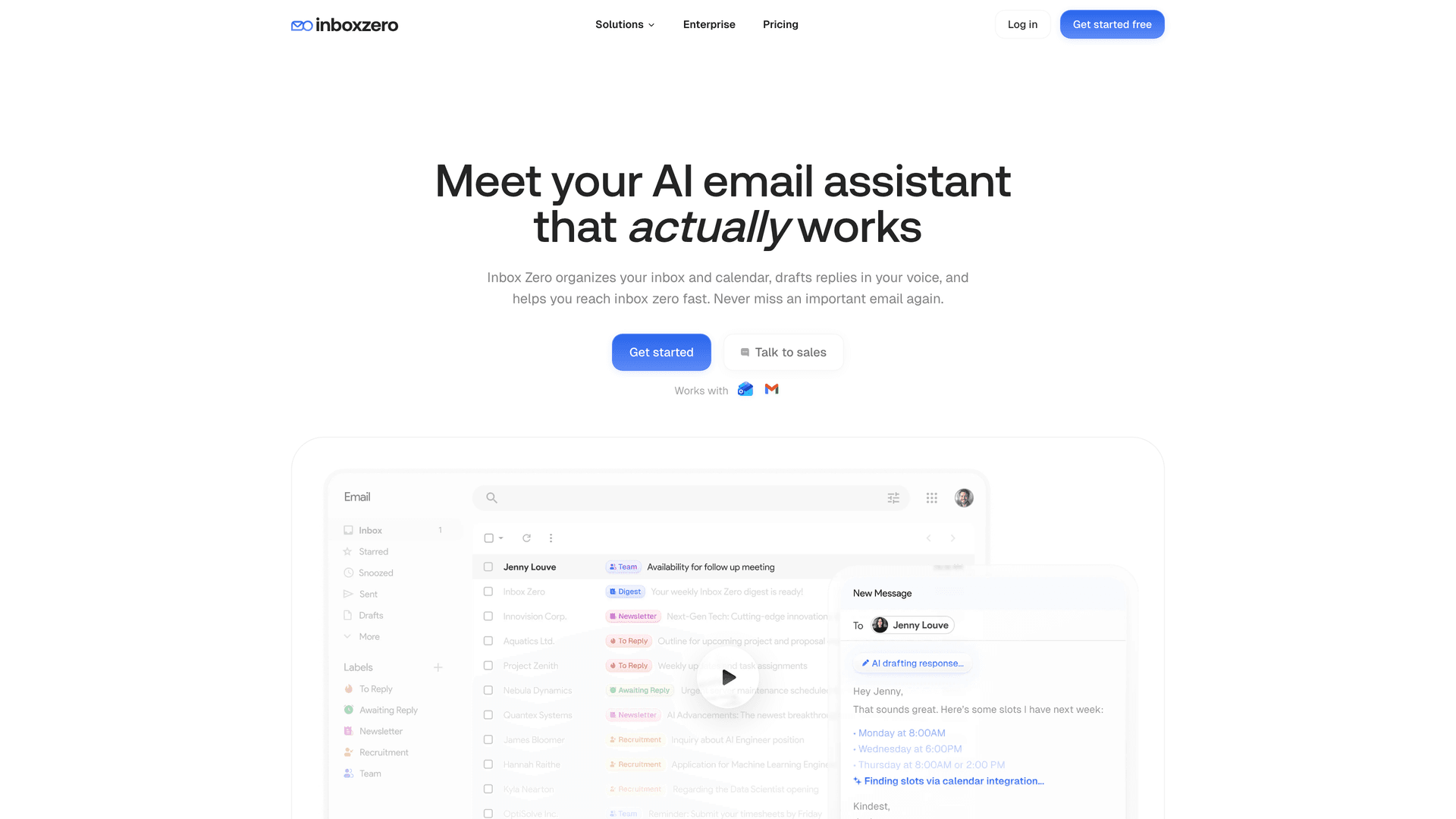
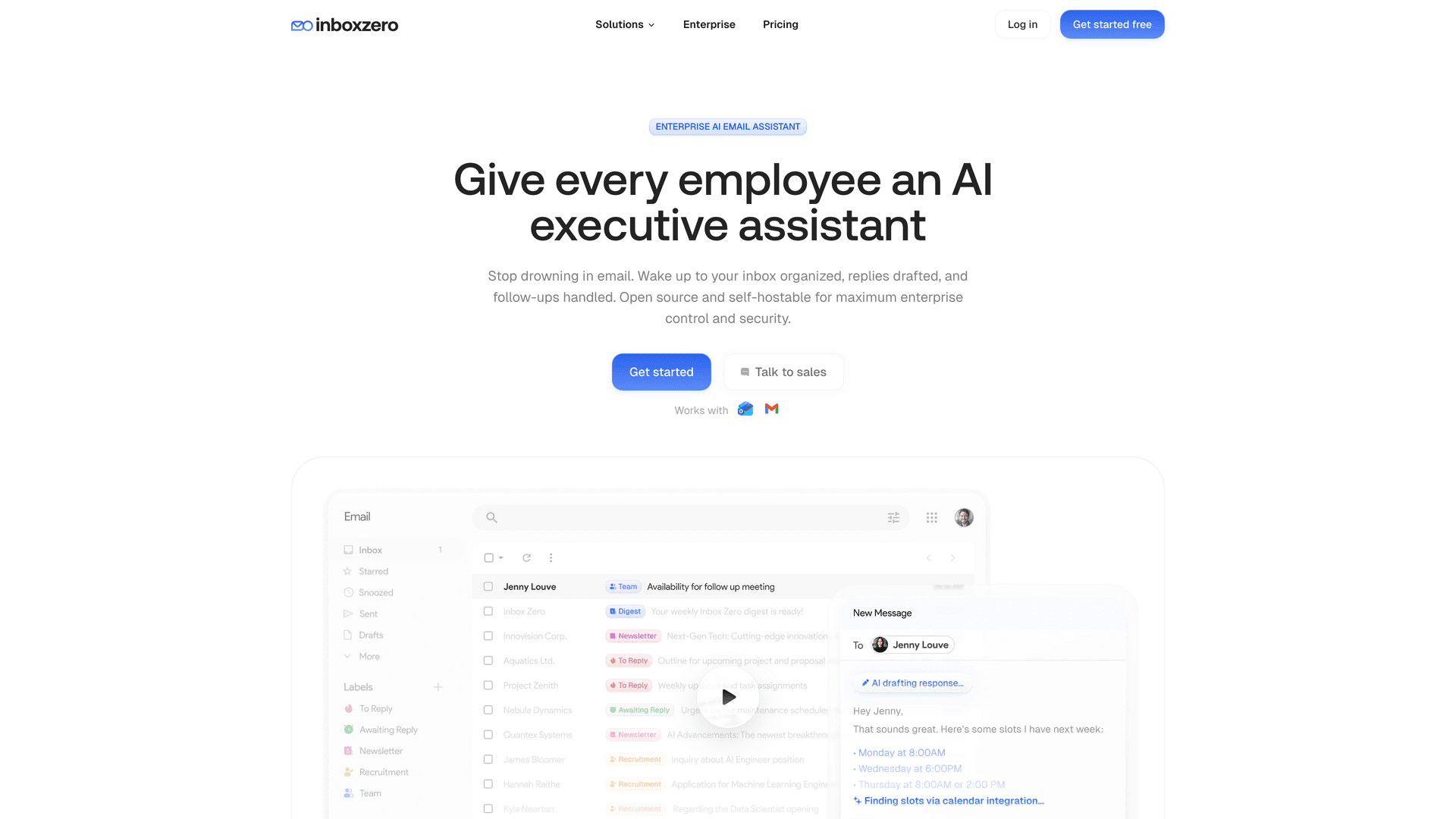
This is exactly the problem Inbox Zero was built to solve. As a purpose-built enterprise email management platform, Inbox Zero is designed for the scale and security requirements that matter in organizational deployments.
Inbox Zero works with both Gmail and Microsoft 365 through OAuth and provider APIs, which means it fits into whatever platform you just migrated to. You don't need to change providers or install a new email client. It layers directly on top of what you already use.
Here's how it helps during and after a migration:
AI-powered email rules let you describe how you want email handled in plain English. Inbox Zero's AI automation converts those instructions into rules that can label, archive, draft replies, forward, or flag messages automatically. You can keep automation off and review everything in a Pending queue until you trust the system, then turn it on for low-risk categories. This is especially valuable when your team is learning new email workflows and needs guardrails. (Learn more about the AI Personal Assistant)

Reply Zero labels every thread that needs your response as "To Reply" and every thread where you're waiting on someone else as "Awaiting Reply." After a migration, when threads are scattered and people are adjusting, this focused view means nothing gets dropped. It includes one-click nudge follow-ups and an "overdue" filter. (Learn more about Reply Zero)
Bulk Unsubscriber shows you every newsletter and marketing sender in your inbox, sorted by how often you actually read them. One click to unsubscribe or auto-archive. After a migration is the perfect time to clean house, because you're already rebuilding your inbox from scratch. (Learn more about the Bulk Unsubscriber)
Email Analytics give you visibility into send/receive trends, top senders, top domains, and reading rates. During a migration, Inbox Zero's email analytics help you spot patterns you'd otherwise miss: are certain senders' messages getting lost? Is volume behaving as expected? (Learn more about Analytics)
Migration is also the ideal moment to conduct a proper year-end email cleanup. Arriving on a new platform with an organized inbox rather than carrying years of clutter forward sets your team up for a clean start.
If you've migrated to Gmail specifically, Inbox Zero also ships a Chrome extension for Gmail tabs that adds customizable tabs to Gmail. Think of it as a split-inbox experience right inside vanilla Gmail. It's fully client-side with zero data collection, and it's perfect for teams who want more organizational structure without leaving vanilla Gmail.
Pro tip for migration teams: Deploy Inbox Zero with automation off during the first two weeks post-migration. Let the AI learn your team's patterns while everyone adjusts. Then gradually enable automation for low-risk categories (newsletters, cold outreach, receipts). By week four, your team will be more productive than they were before the migration.
Get started with Inbox Zero and give your team the productivity layer they need after a platform switch.
Quick Reference: What Migrates and What Doesn't
Clip these tables for your migration planning doc.

Google Workspace to Microsoft 365 (Using Microsoft's Tooling)
| Data Type | Migrates? | Notes |
|---|---|---|
| Email messages | Yes | Per Microsoft documentation |
| Mail rules | Yes | But rules are turned off by default; users must review and re-enable |
| Calendar events | Yes | |
| Contacts | Yes | Max 3 email addresses per contact; Gmail tags/custom tags don't migrate |
| Vacation/auto-reply settings | No | Must be reconfigured manually |
| Room bookings | No | |
| Shared calendars | No | |
| Event colors | No |
Microsoft 365 to Google Workspace (Using Google's New DMS)
| Data Type | Migrates? | Notes |
|---|---|---|
| Email messages | Yes | Per Google documentation. Delta migrations supported. |
| Calendar events | Yes (beta) | Open beta as of June 2025 |
| Contacts | Yes | Reruns can duplicate contacts; contact labels not duplicated |
| Mail rules | No | Must be recreated in Gmail |
| Compliance/legal hold data | Not guaranteed | Google warns this is a productivity feature, not compliance |
Key Takeaways: Running a Smooth Enterprise Email Migration
An enterprise email migration is one of those projects that looks straightforward on a slide deck and turns complicated the moment you start executing. The difference between a smooth cutover and a fire drill comes down to how thoroughly you do the pre-work: inventory everything, baseline your deliverability, understand platform limits, pick your migration model deliberately, and validate like an auditor, not an optimist.

And once the migration is done, don't leave your team to figure out the new platform alone. Post-migration is when productivity drops and critical emails get missed. That's where a tool like Inbox Zero can make the difference between a rocky transition and a team that's actually more productive than before.
This guide reflects platform documentation and announcements available as of March 2026. Platform limits, rate limits, and migration batch caps can change without notice. Confirm specifics in your tenant admin consoles during project kickoff and again in the final cutover week.


How to Recall an Email in Outlook (2026)
How to recall an email in Outlook step by step for new Outlook, classic Outlook, web, Mac, and mobile, plus when recall works and what to do when it doesn't.
2026-09-30T18:25:57.000Z

How to Stop AliExpress Emails (2026)
Stop AliExpress promotional emails: the unsubscribe link, notification settings in your AliExpress account, and what to do when the deals keep coming.
2026-09-30T18:25:57.000Z

How to Stop Amazon Emails (2026)
Stop Amazon marketing emails with the Communication Preferences Center, manage Amazon email subscriptions, and handle order emails you can't switch off.
2026-09-30T18:25:57.000Z

How to Stop Domino's Emails (2026)
Stop Domino's emails with Domino's official opt-out page, stop Domino's text offers, and know which rewards emails keep coming.
2026-09-30T18:25:57.000Z